Beacon
Why beacons?
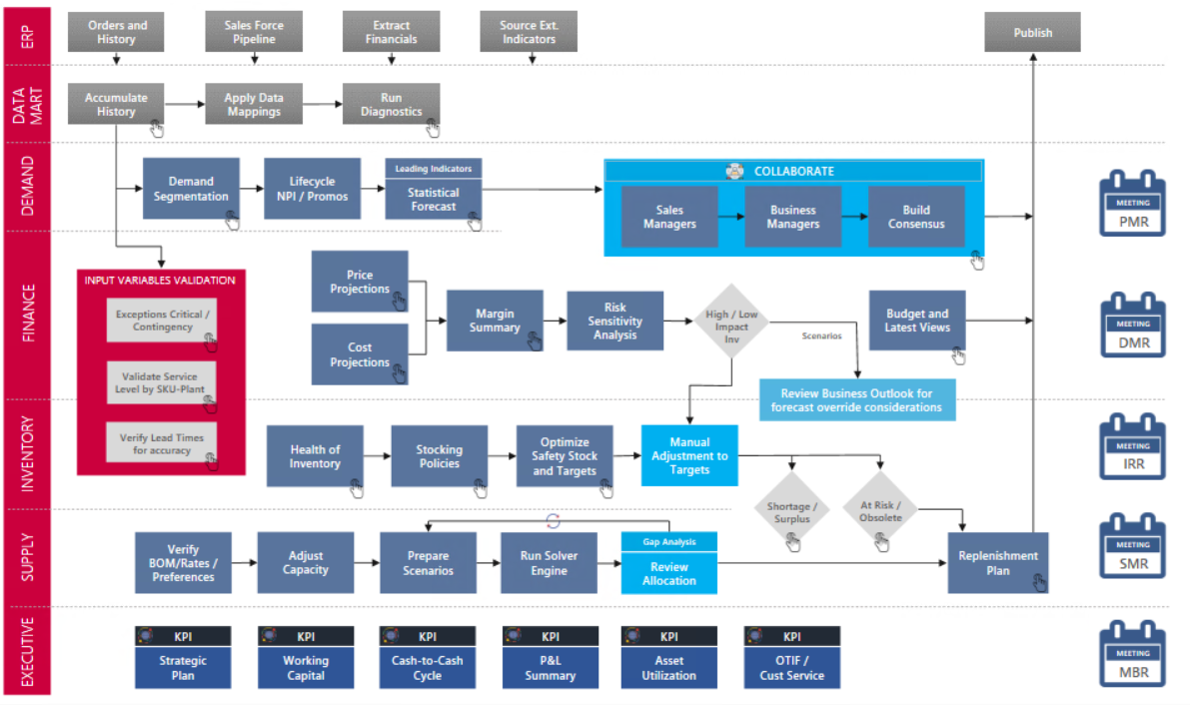
Workstream hierarchy is a concept stating that everything downstream is dependent on something further upstream. Meaning you will need to know what your demand plan is before you can plan for inventory, but you cannot get information for inventory if you are waiting for someone to give you the demand information.
Beacons are devices designed to attract attention to a specific location. Beacons can also be combined with semaphoric or other indicators to provide important information, such as the status of an airport, by the color and rotational pattern of its airport beacon, or of pending weather as indicated on a weather beacon mounted at the top of a tall building or similar site.
Arkieva Beacon can be defined as a functionality or a component that helps planners with their day-to-day planning activities by providing visibility into the entire plan and highlighting what is a priority, what are the pending tasks, what needs attention, etc.; thereby enabling a smooth S\&OP Process.
Why we developed Arkieva Beacon
With any typical S\&OP process there are a lot of dependencies. Stakeholders in the process could be involved in many of these interconnected activities. Planners could find yourself bouncing back and forth between different regions, stakeholders, and managers to make certain your plan is planned through. Beacon helps guide planners through their monthly S\&OP process.
Beacon provides a means for planners to not have to worry about where their dependencies are; it provides a centralized place for different stakeholders and managers to discuss and share their progress within the monthly S\&OP. It defines the roles and responsibilities of each planner.
Beacon was designed with the RACI Matrix in mind. RACI is an acronym derived from the four key responsibilities most typically used:
- Who is responsible?
- Who is accountable?
- Who needs to be consulted?
- Who needs to be Informed?
A RACI matrix is the simplest, most effective means for defining and documenting project roles and responsibilities. Knowing exactly who is responsible, who is accountable, who needs to be consulted, and who must be kept informed at every step will significantly improve your planning process.
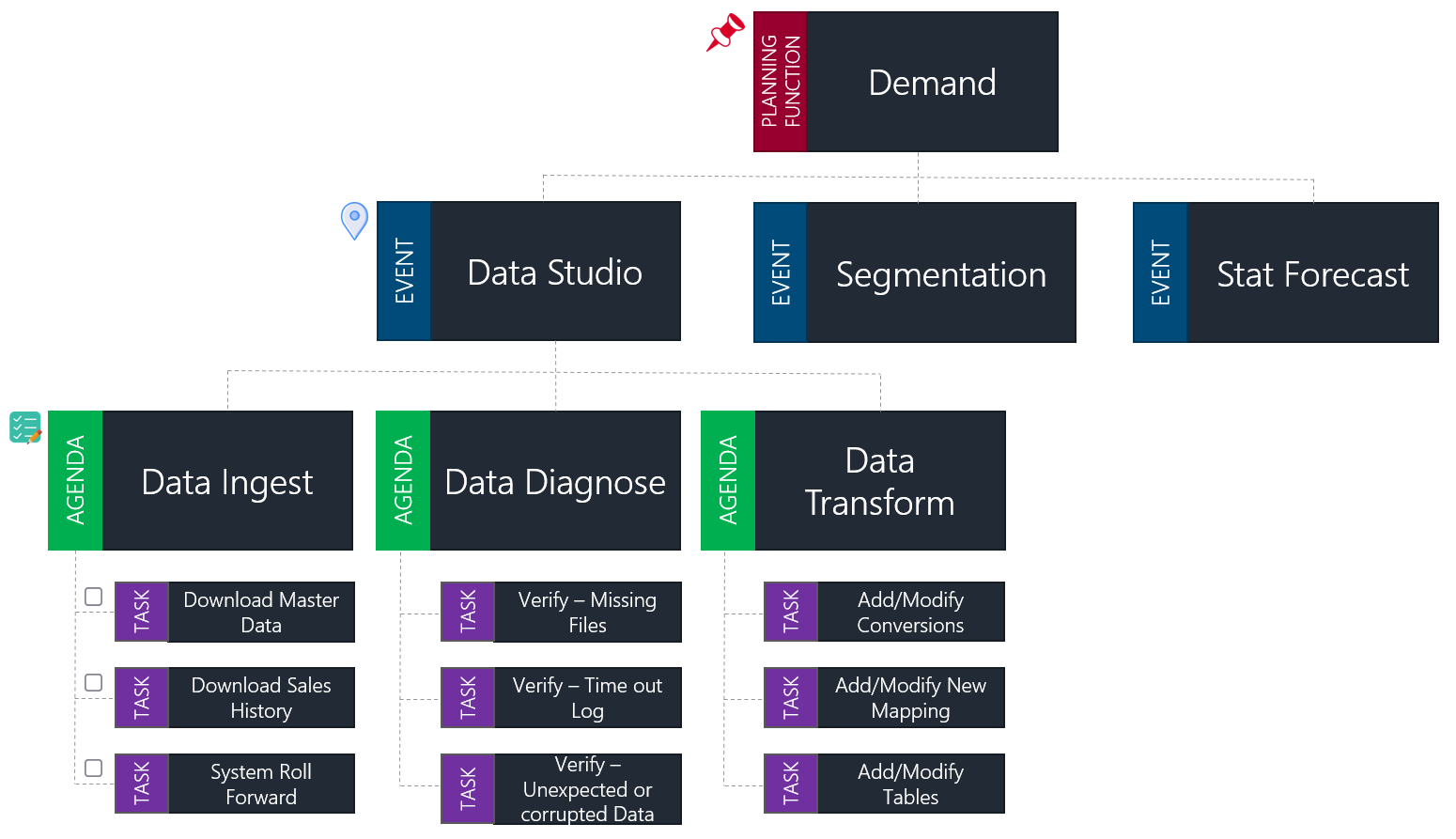
Beacon breaks down this workstream hierarchy into events, agendas, and tasks. Typically, we have our different individual plans, which can be broken down through different events throughout a monthly time-period. And within an event, we have different agendas, where individuals are assigned tasks.
Getting Started With Arkieva Beacon
Learn how to use Beacon to manage your S\&OP process.
{`
`}
When you launch Arkieva Beacon, you can see where you are on the schedule, what your critical tasks are for the day, what those tasks are dependent upon, and what tasks are pending or what tasks have been completed.
Beacon is set up to work on a monthly plan; the plan is broken down into daily buckets across the month. Weekdays are colored white, while weekends are colored grey. If a plan is recurring, these events will be refreshed and rolled over into the following month. The events also respect your security access, so if a planner is only responsible for Demand, they will only see those events on the timeline.
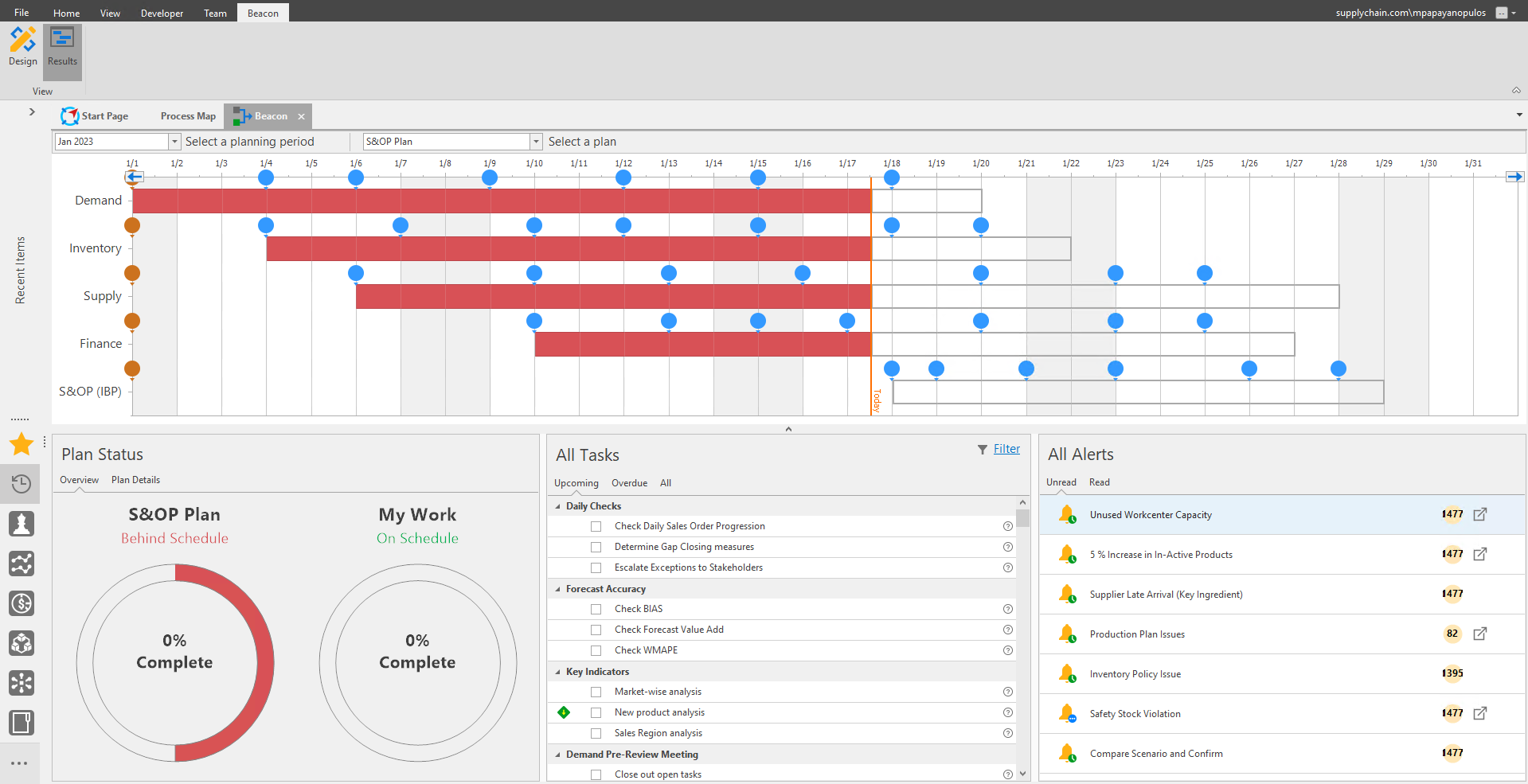
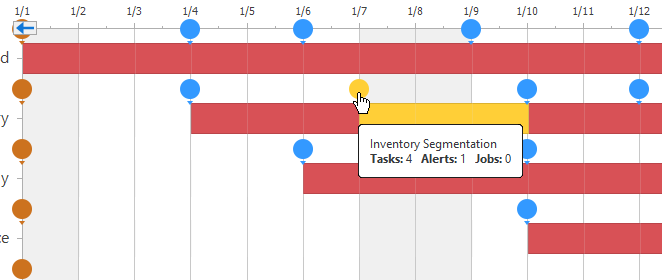
Below we have selected the October 2020 S\&OP plan. The blue circles are our events. When we click these beacons, the beacon event will highlight in yellow, and if we hover the mouse pointer over the beacon, we can view a tootip showing the name of the event, and the number of tasks, alerts, and jobs assigned to that event.
When you select an Event Beacon, tasks associated with the event will appear under the All Tasks section, and any alerts will appear under the All Alerts section.
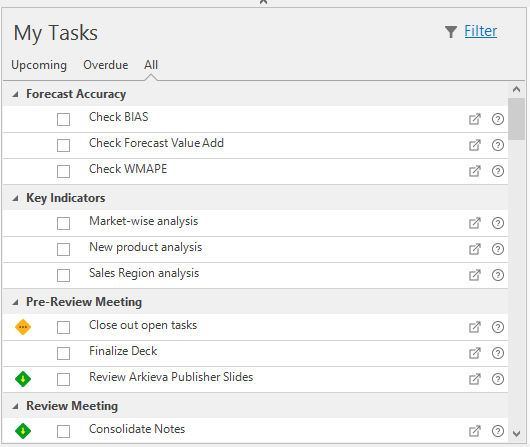
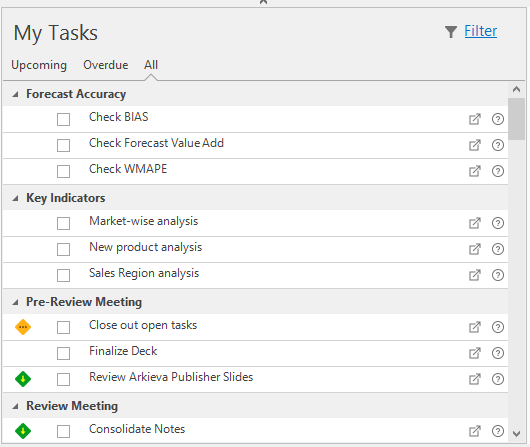
Under the My Tasks section you can view upcoming, Overdue, and All tasks associated with the plan or with selected Event Beacons.
Once a task is complete, the person responsible for that task can then check the checkbox to indicate it is complete, which will dynamically change the percentage completion under the Plan Status section.
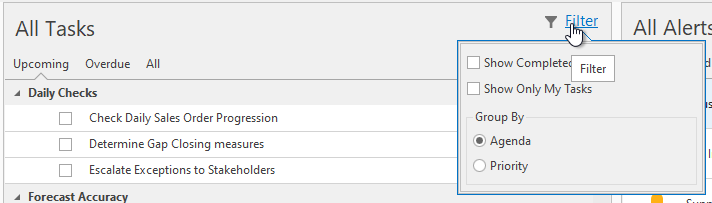
Click the Filter button to filter the Tasks section by how Completed, Show Only My Tasks, and to Group By Agenda or Priority.
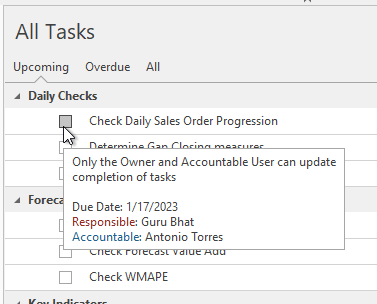
Hover the mouse pointer over the box to view the responsible and accountable users for that task.
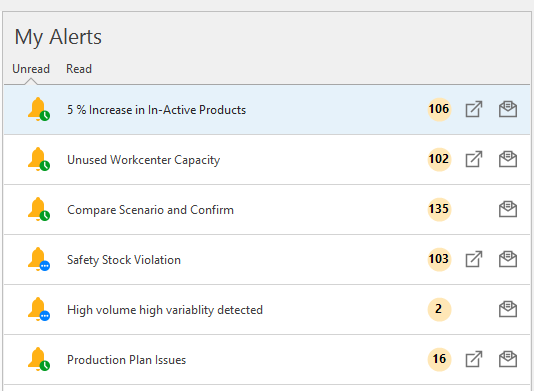
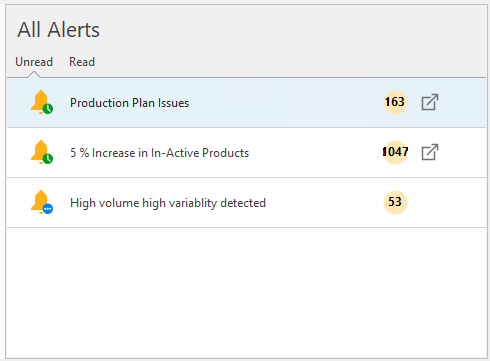
And under the My Alerts section you can view Unread or Read Alerts for the Plan or selected Event Beacons.
You can also view the overview completion percentage of the plan, and the completion percentage of your work towards the plan, as well as Plan Details.
Getting Started With Arkieva Beacon
Learn how to use Beacon to manage your S\&OP process.
{`
`}
Beacon Details
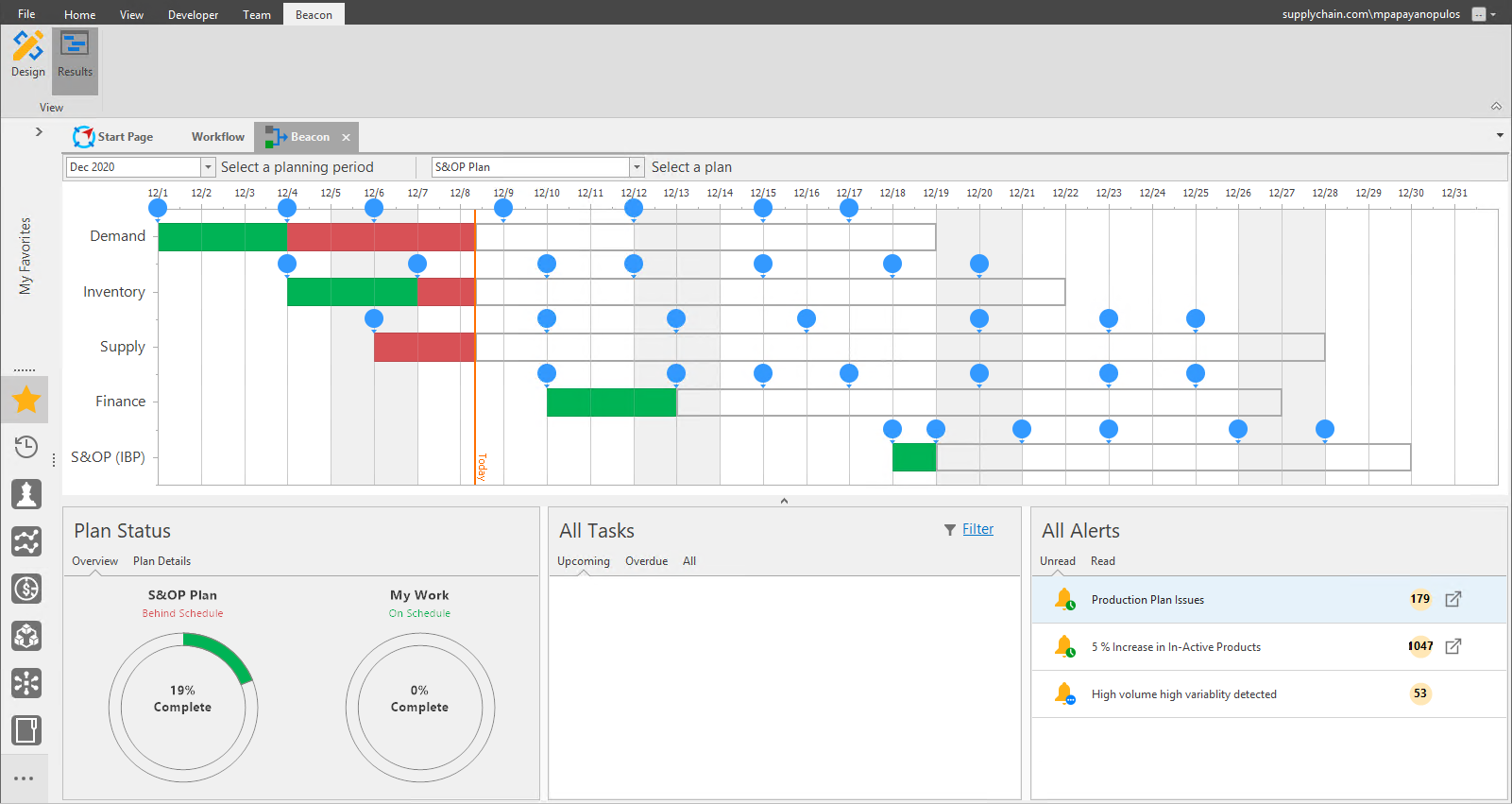
Beacon is set up to work on a monthly plan; the plan is broken down into daily buckets across the month. Weekdays are colored white, while weekends are colored grey. If a plan is recurring, these events will be refreshed and rolled over into the following month. The events also respect your security access, so if a planner is only responsible for Demand, they will only see those events on the timeline.
Select a planning period
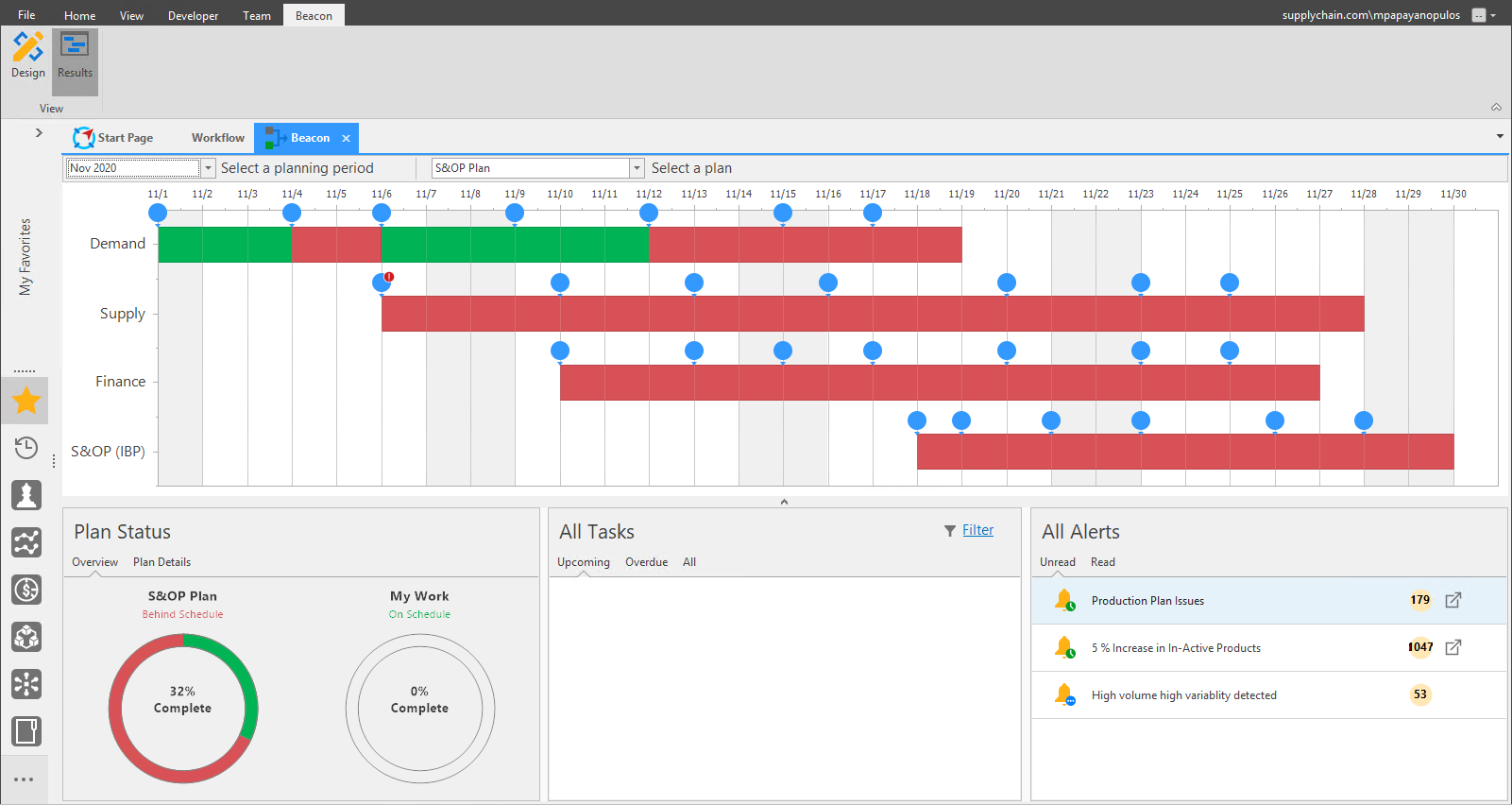
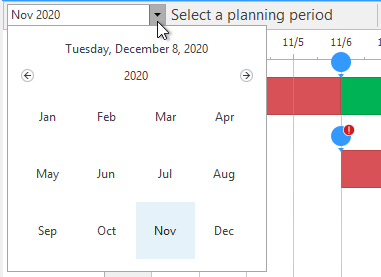
To begin viewing a plan, select a planning period by clicking the dropdown arrow and selecting a year and month from the calendar.
Select a plan
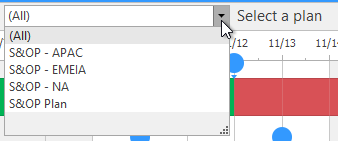
To view a Beacon plan, select the plan from the Select a plan dropdown menu. You can select an individual plan or select (All) to view all the plans in one view.
Beacon Timeline
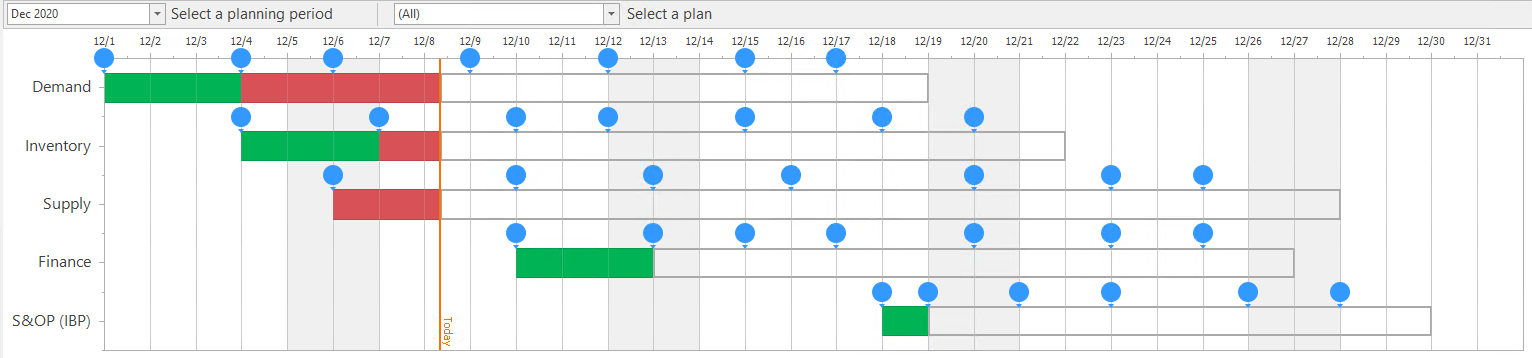
Event Beacons\ The Event Beacons show what requirements are needed to met to complete the Event. The blue circle represents the beginning of the Event. Clicking the blue circle will highlight the event in yellow. This highlighted event will show the event's details in the All Tasks and All Alerts sections in the bottom half of the Beacon window.
You can also hover the mouse pointer over the Event Beacon to view the name of the event, and the number of tasks, alerts, and jobs associated with the event.
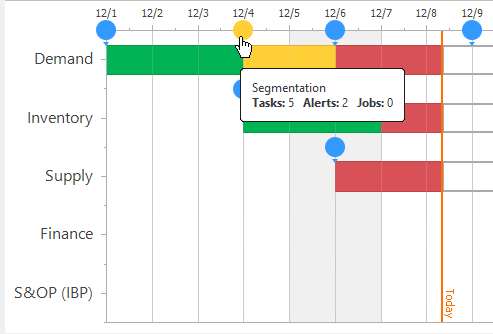
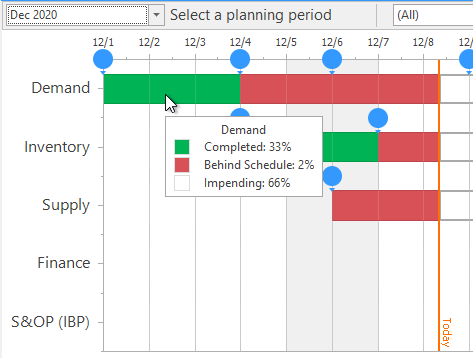
Timeline Tooltip\ You can hover the mouse pointer over an individual event to view a tooltip which will show the name of the timeline, and the percentage of Completion (Green), Behind Schedule (Red), and Impending (White) work towards the event.
Plan Status
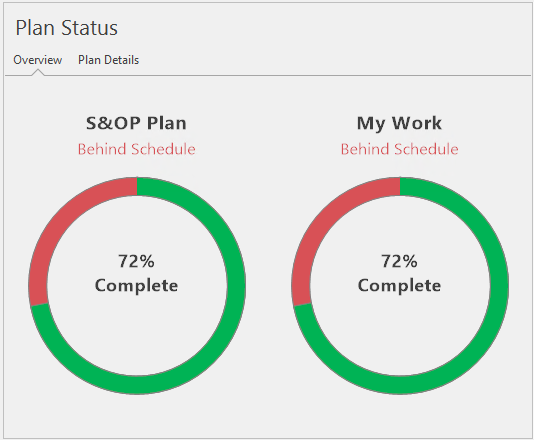
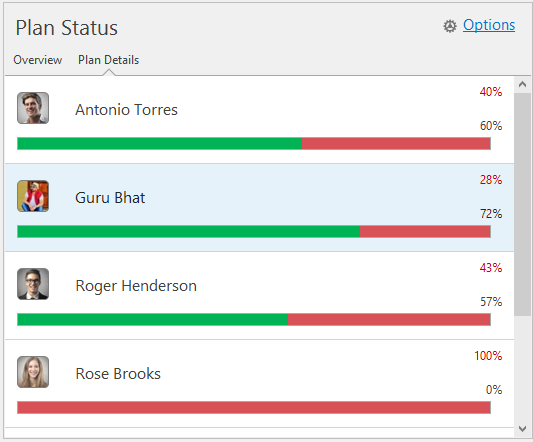
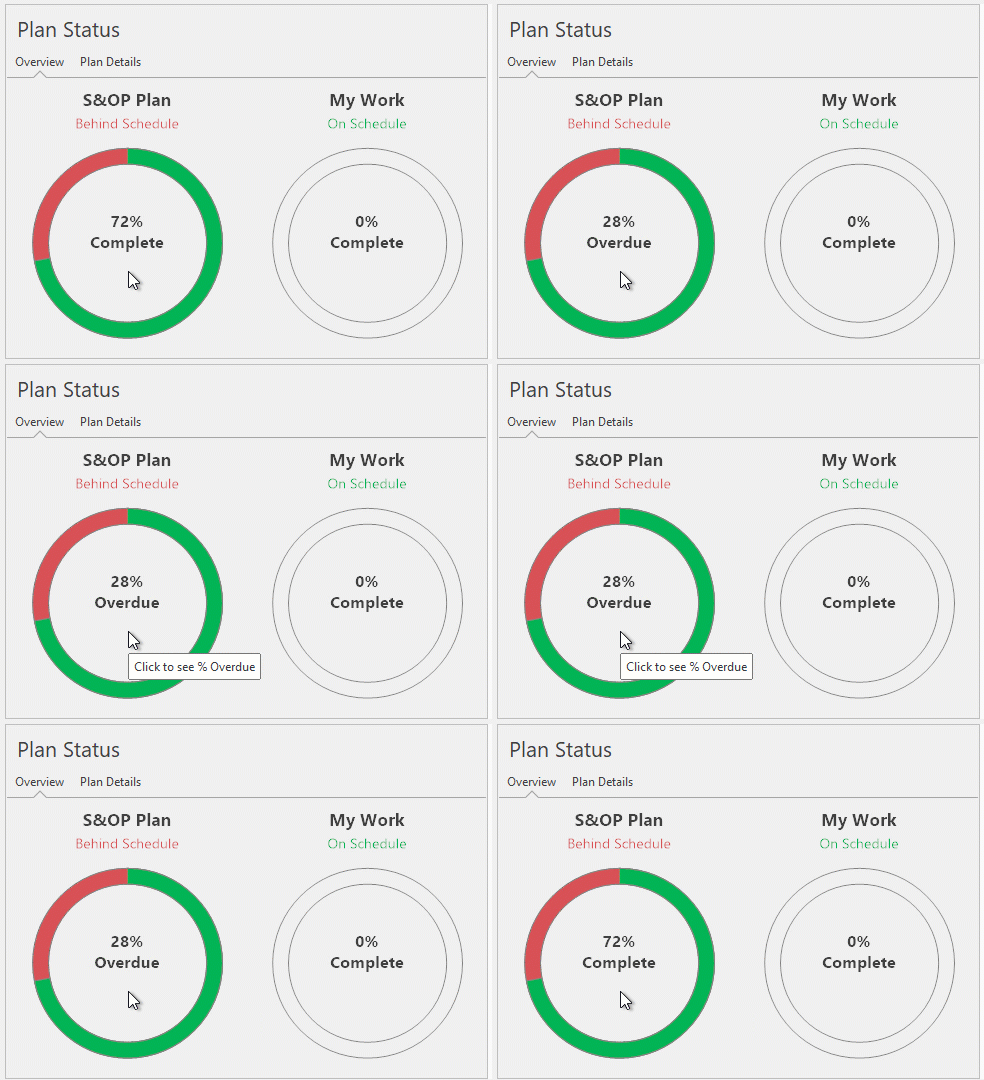
Beacon keeps track of the percentage overdue and complete for the plan. The Plan Status section is split up into two tabs: Overview and Plan Details.
The Overview tab shows the Complete and Overdue percentage towards the completion of the selected plan and your Complete and Overdue work towards the completion of the plan. You can click on the circle graph to toggle between the Complete and Overdue percentages.
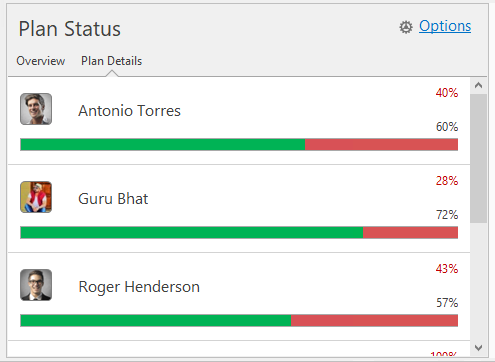
The Plan Details tab shows all individuals and their Complete and Overdue percentage towards completion of the event.
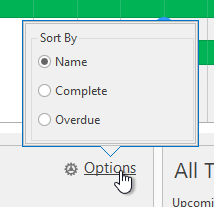
Clicking Options will allow you to sort the Plan Details tab information by Name, Complete, or Overdue.
All Tasks
Tasks are created using Agendas. The all Tasks section is split up into three tabs: Upcoming, Overdue, and All tasks. Once a task is complete, the person responsible for that task can then check the checkbox to indicate it is complete, which will dynamically change the percentage completion under the Plan Status section.
Along the right side of the tasks are clickable icons. The Bell Icon indicates that a task has an alert associated with it. The Arrow icon indicates a document is associated with the task. Click the arrow icon to launch the document. The Question Mark Circle icon links to Assist.
All Alerts
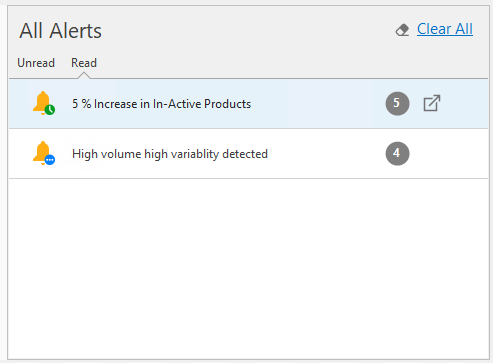
The All Alerts section is split up into two tabs: Unread and Read alerts. The Bell icon will be yellow when the alert has fired. The number to the right of the alert shows the amount of times the alert has fired. And the Arrow icon is a link to an associated document.
Related Articles
Arkieva Customer Training Program
The Arkieva Customer Training Program is a customer-centric program aimed at empowering Arkieva customers with the knowledge and skills needed to harness the power of their Arkieva solution to solving complex business problems. ? Go to the bottom of ...S&OP Introduction
Why Sales and Operations Planning (S\&OP)?\ Sales and Operations Planning (S\&OP) has been around for decades. S\&OP is much more than just a meeting – it takes into account all the various planning and monitoring processes that are necessary to run ...