Cube Browser
🚧 Warning
The Cube Browser uses Data Sources to build Charts. Data Sources must be created first before Cube Browser can be used.
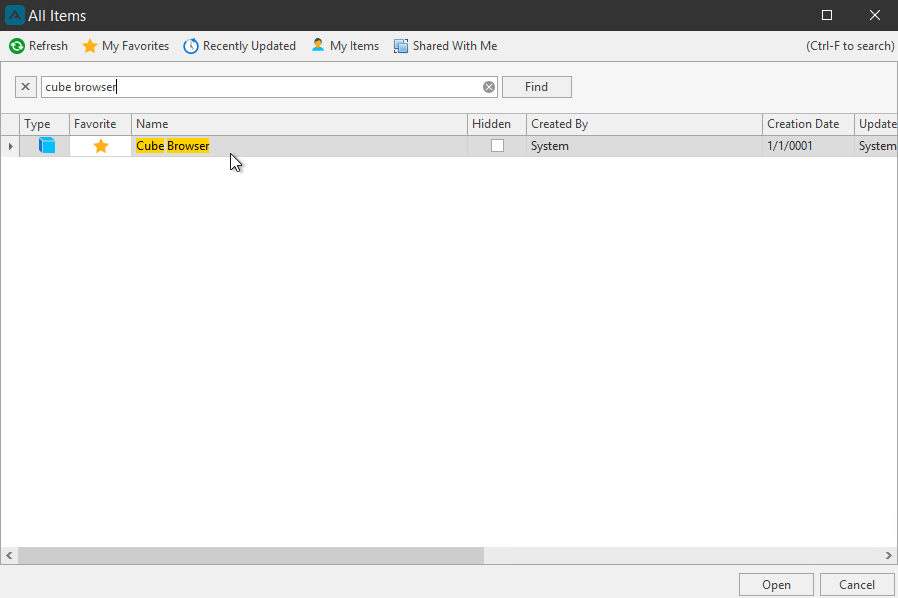
With the Cube Browser you can build pivot tables with charts. Gain access the Cube Browser from the Browse All Documents.
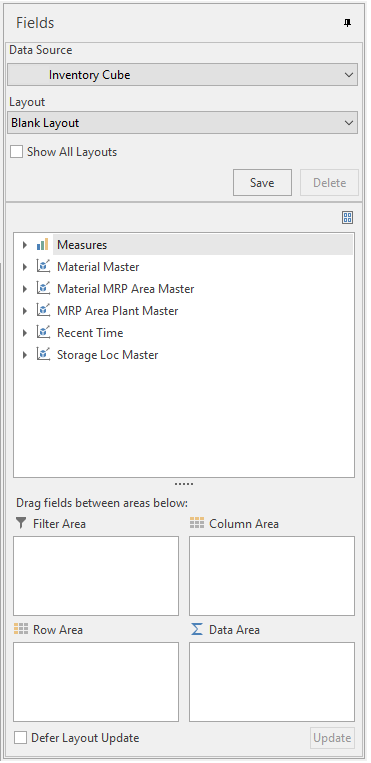
The Fields section will populate with that Data Source’s data. First, select a Data Source from the dropdown, then select a Layout from the dropdown.
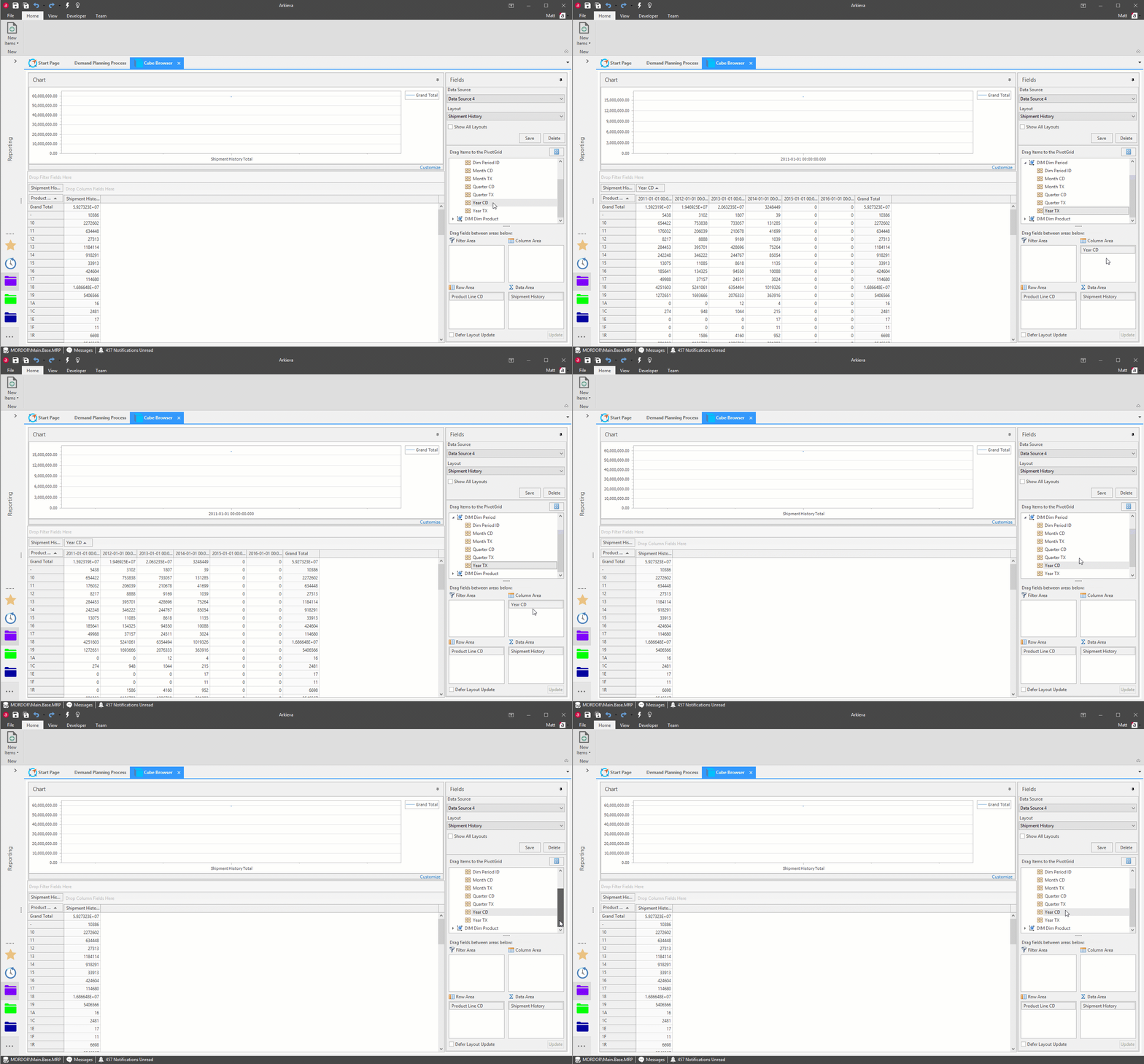
For a new layout, select Blank Layout (Saved Layouts will also be in this dropdown). Drag items to the pivot area boxes to build the table.
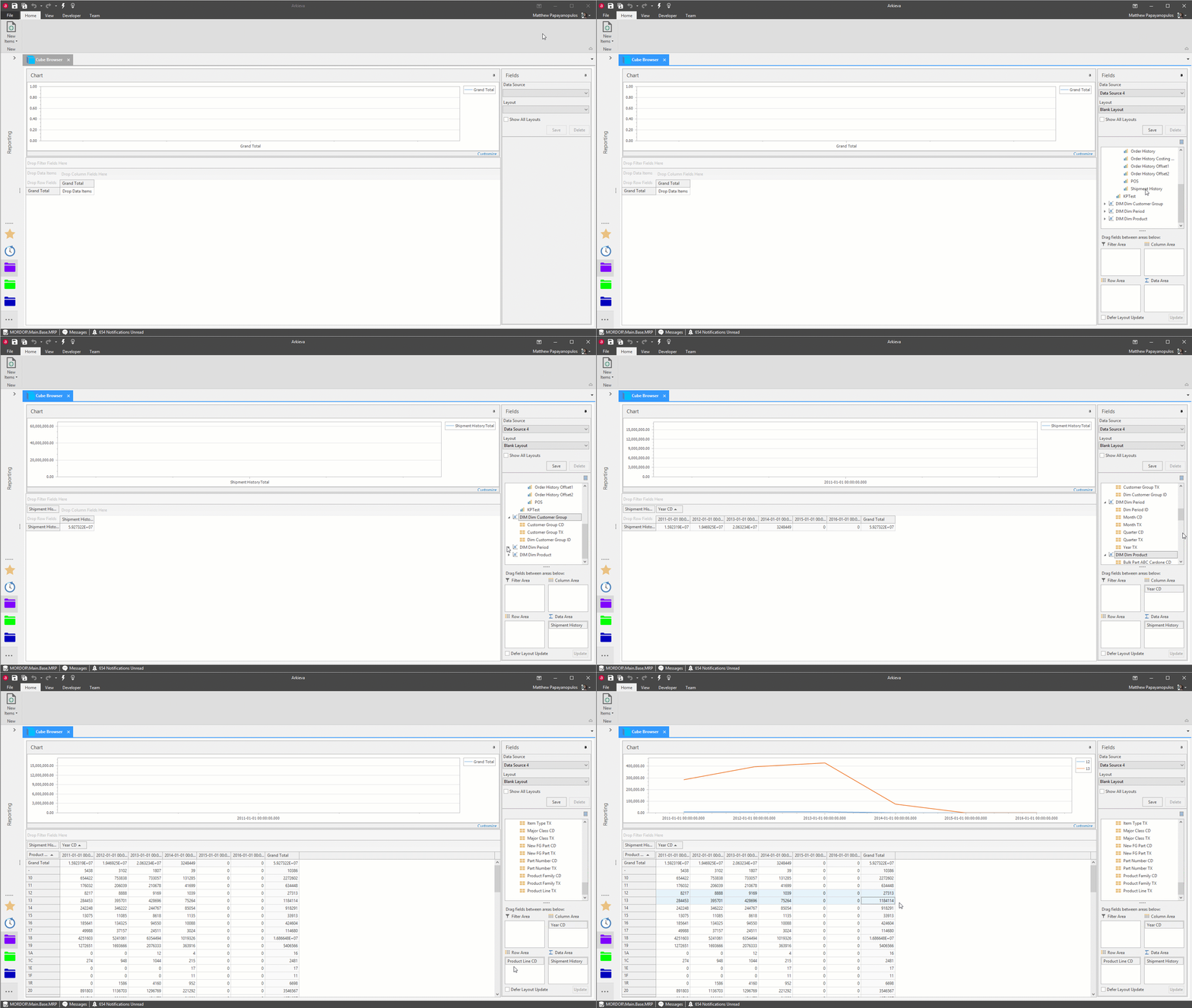
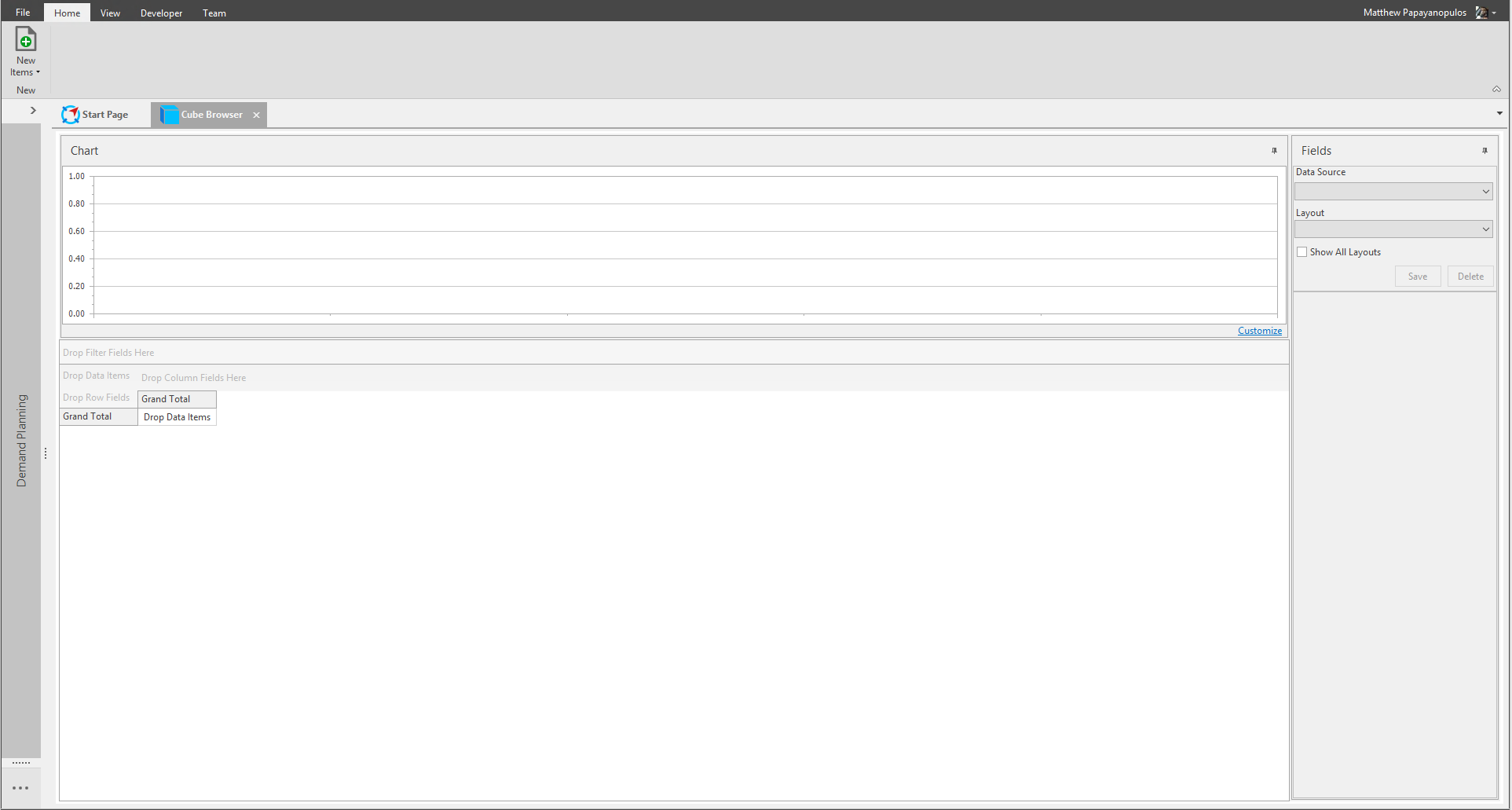
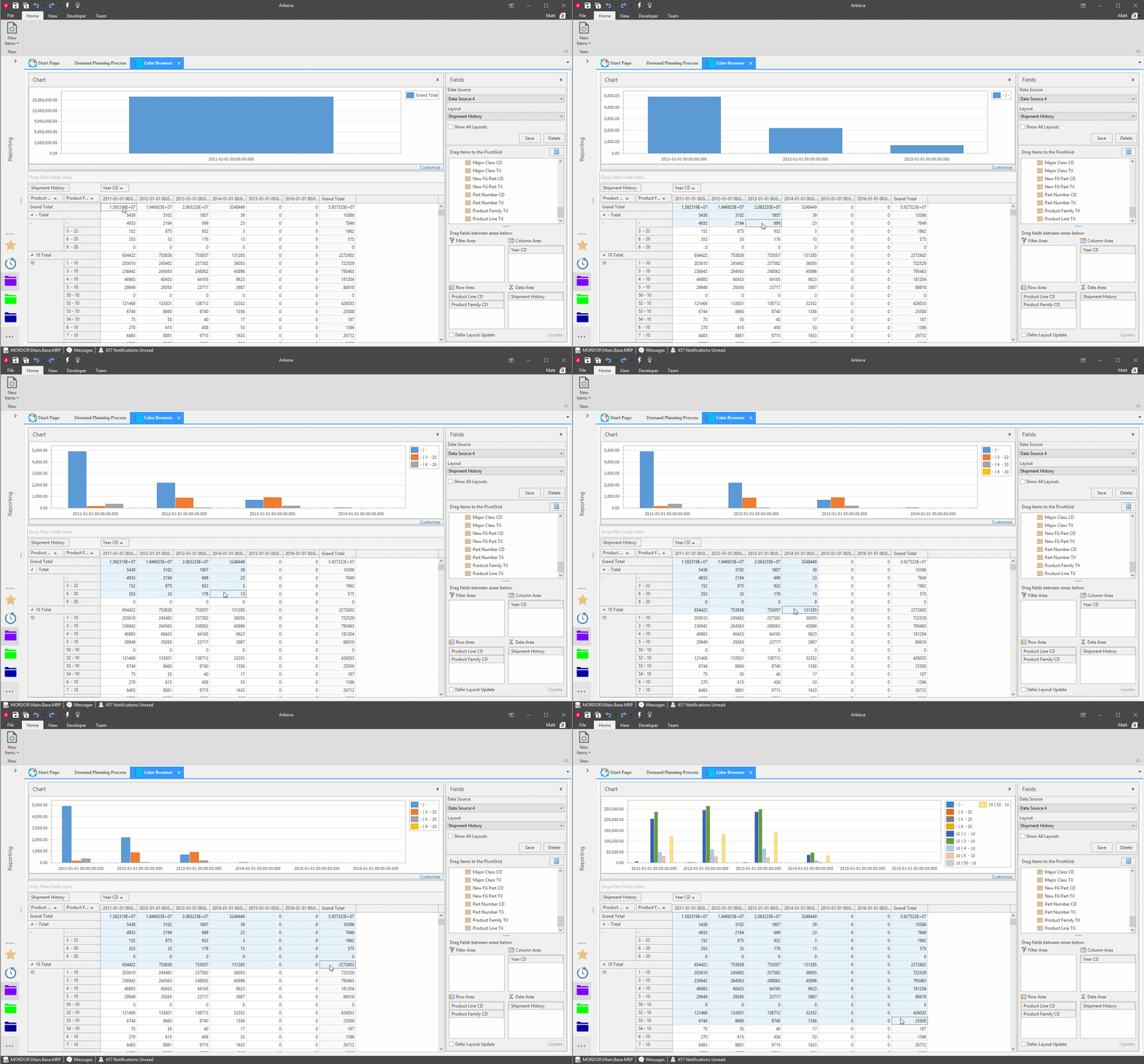
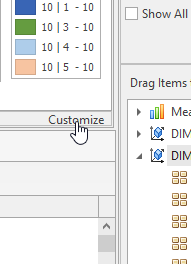
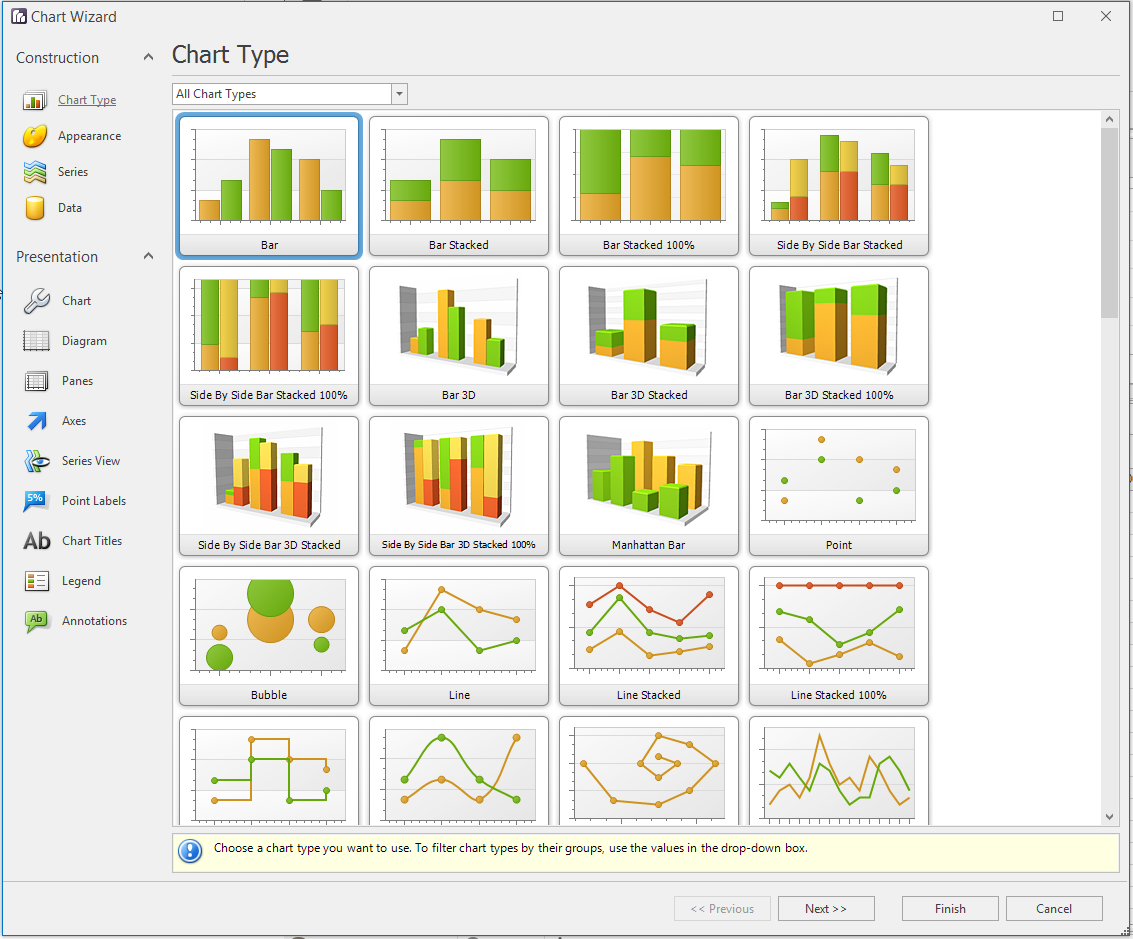
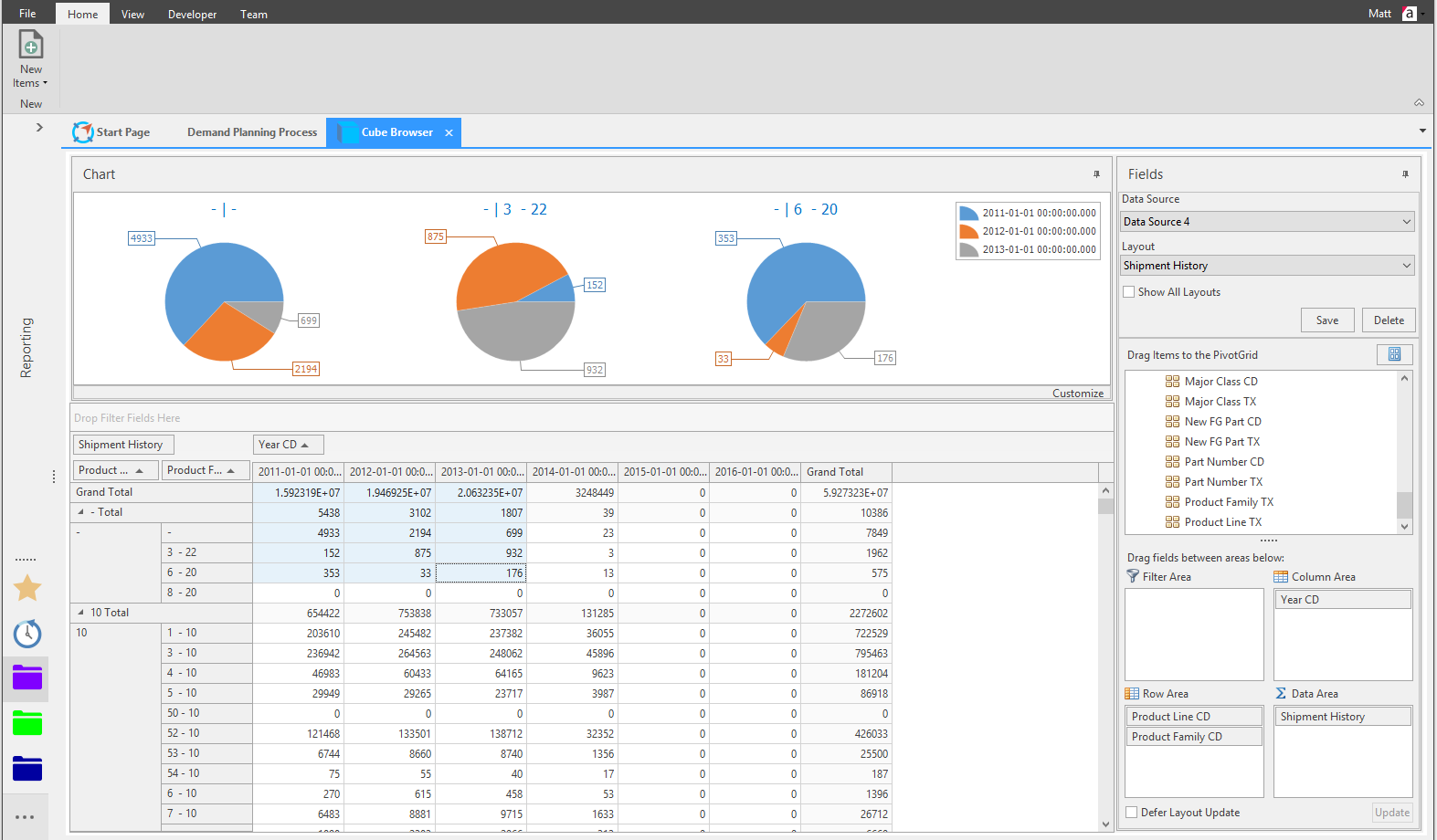
Data will populate in the grid area as items are dragged to the area boxes. Click and drag across columns and rows to populate the Chart. The Chart can be customized with the Customize button. The Customize button will launch the Chart Wizard. The Chart and Fields sections can also be popped out and dragged to different positions using Arkieva docking hints.
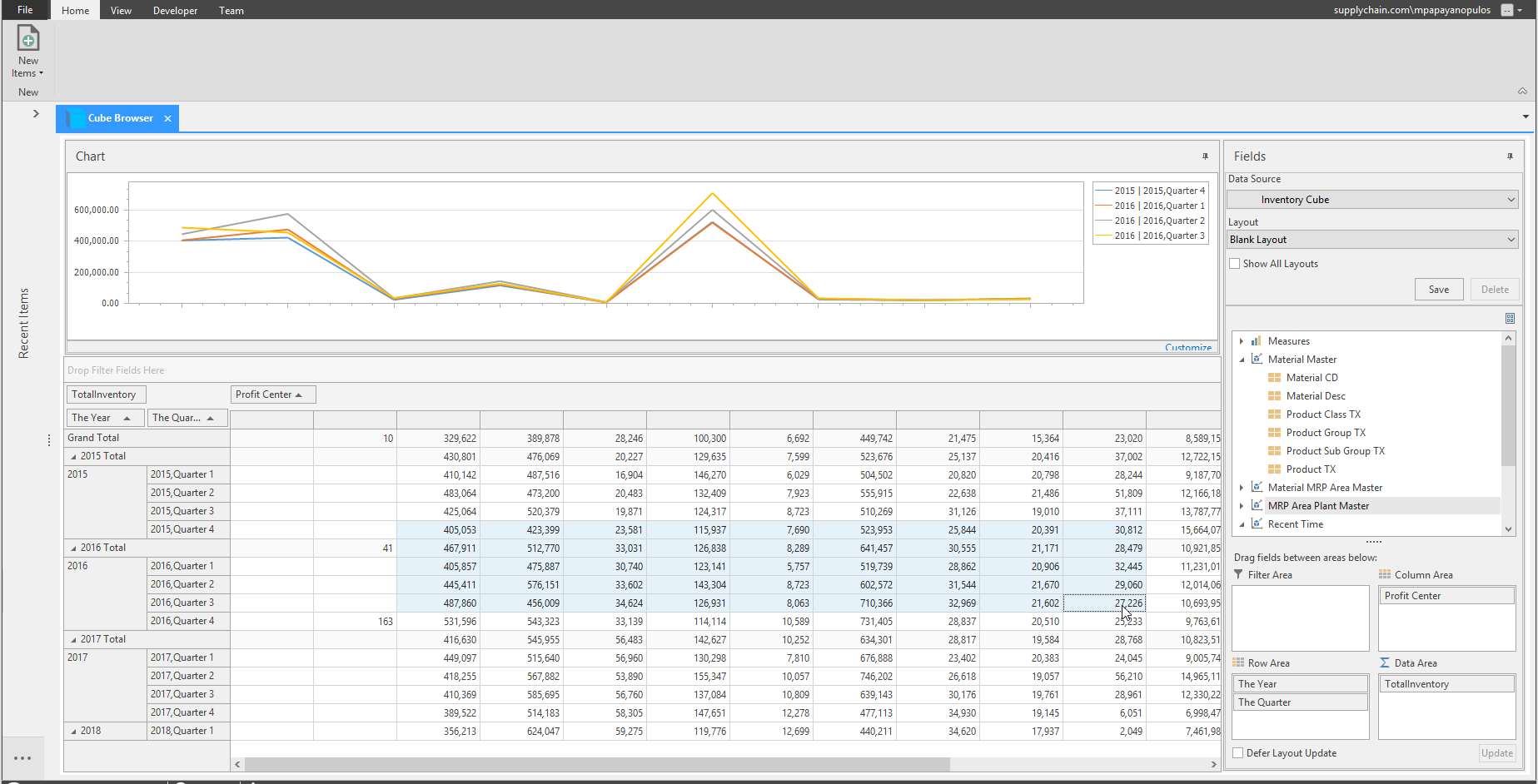
Lastly, click Save to save the layout.
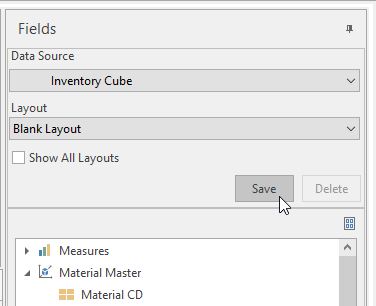
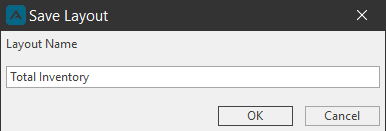
The saved layout can be selected from the layout dropdown in the future.
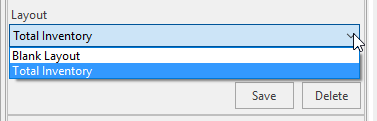
Fields Section
Items in the Fields section of the Cube Browser layout are populated by the Data Source selected.
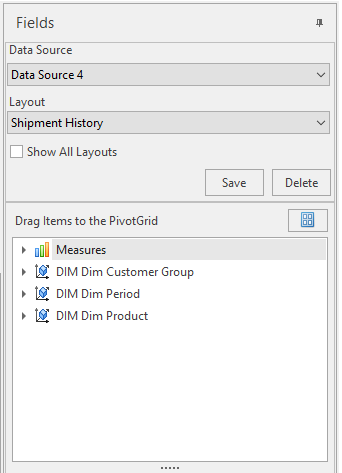
Drag Items to the Pivot Grid box
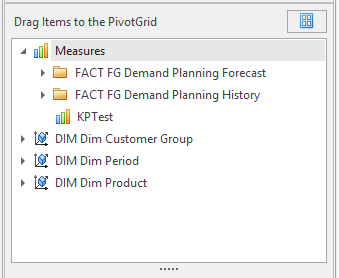
Measures field items are used to populate the Data of the cube browser grid, and the rest of the field items categories (for example, DIM Product, DIM Warehouse, and Time) can be dragged to the Filter, Column, and/or Row area boxes (generally Time field items should only be dragged to the Column area box).
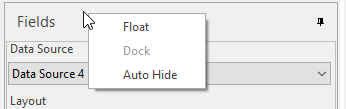
Right-click header menu
The line containing the word Fields for the Fields section can be Right-clicked for the Float, Dock, and Auto Hide options.
- Float: pop-out Fields section into its own window; the window can be docked into another corner of the workspace.
- Dock: when float is selected, click dock to return the fields section into its default position in the workspace.
- Auto Hide: the same as pin command, makes the fields section into a sliding pane.
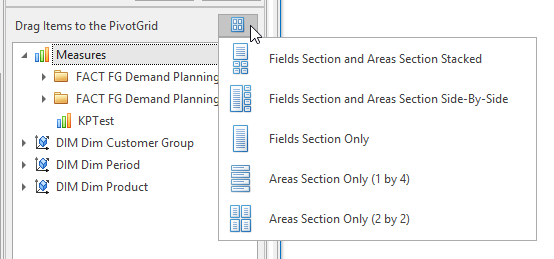
Layout options\ Select different layout types to customize the look of the Fields section.
- Fields and Areas Section Stacked: Default layout: Fields over Areas section.
- Fields Section and Areas Section Side-By-Side: Fields section on the left, areas section on the right.
- Fields Section Only: Hides Areas section.
- Areas Section Only (1 by 4): Hides Fields section, and lists area section boxes from top to bottom.
- Areas Section Only (2 by 2): Hides Fields section, and lists areas section boxes side by side.
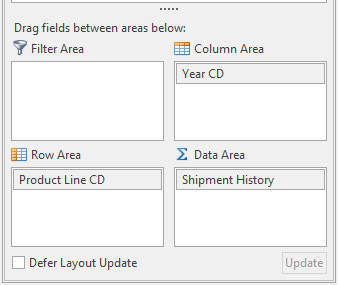
Field Area boxes
Drag field items to the Column, Row, and Data area boxes to build the pivot grid and chart.
Measures field items can only be dragged to the Data Area box. The rest can be dragged to the Filter, Column, and/or Row area boxes; however generally Time field items should only be dragged to the Column area box.
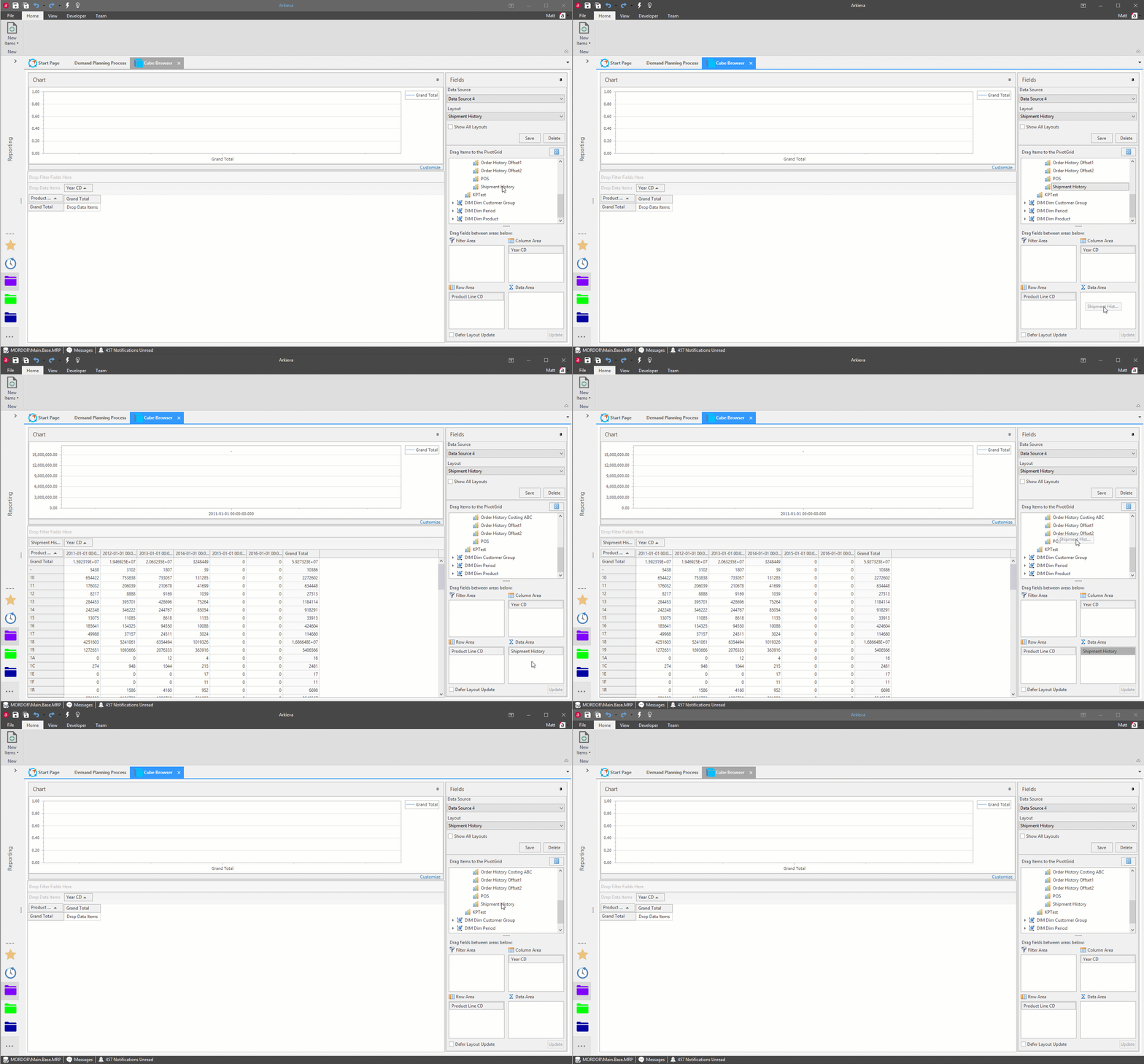
Data Area box\ The Data Area box only accepts field items from the Measures dropdown. Click and drag a measure item from the Fields section to the Data Area to create the pivot grid’s columns. The item will appear in the pivot grid area. Field items can also be directly dragged to the' Drop Data Items Here' section of the pivot grid area.
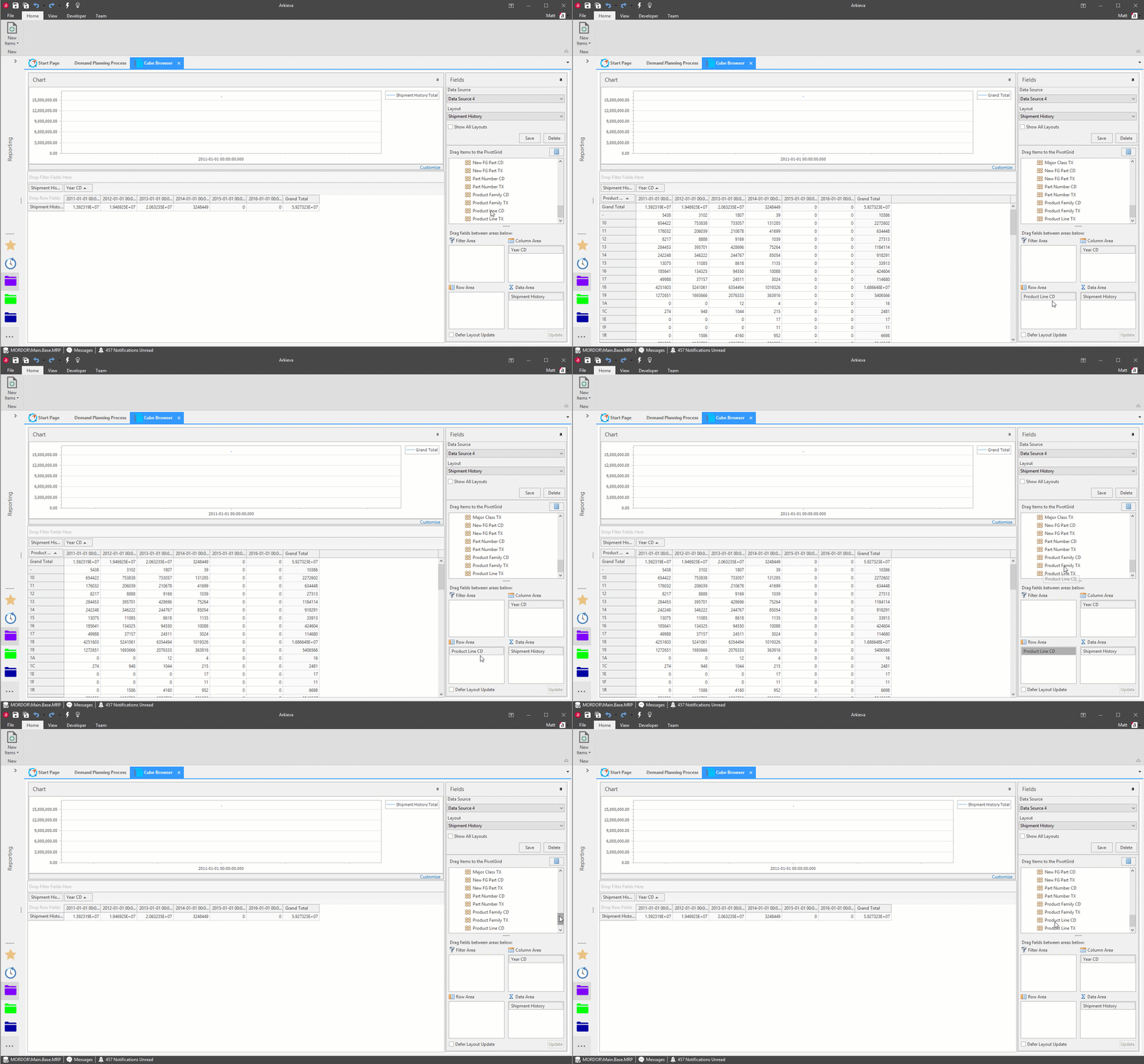
Click and drag a field item from the Fields section to the Row Area to create the pivot grid’s columns; the item will appear in the pivot grid area. Field items can also be directly dragged to the ‘Drop Row Fields Here’ section of the pivot grid area.
Column Area box\ Click and drag a field item from the Fields section to the Column area to create the pivot grid’s columns; the item will appear in the pivot grid area. Field items can also be directly dragged to the Drop Columns Fields Here section of the pivot grid area.
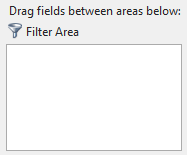
Filter Area box\ Click and drag a field item from the Fields section to the Filter Area box; the item will appear in the pivot grid area. Field Items can also be directly dragged to the Drop Filter Fields Here section in the pivot grid area.
Defer Layout Update / Update\ If the user does not want the grid and chart to automatically update when an item is dragged to a fields box, the user can check the Defer Layout Update checkbox, drag a field, then click Update to update the grid and chart.
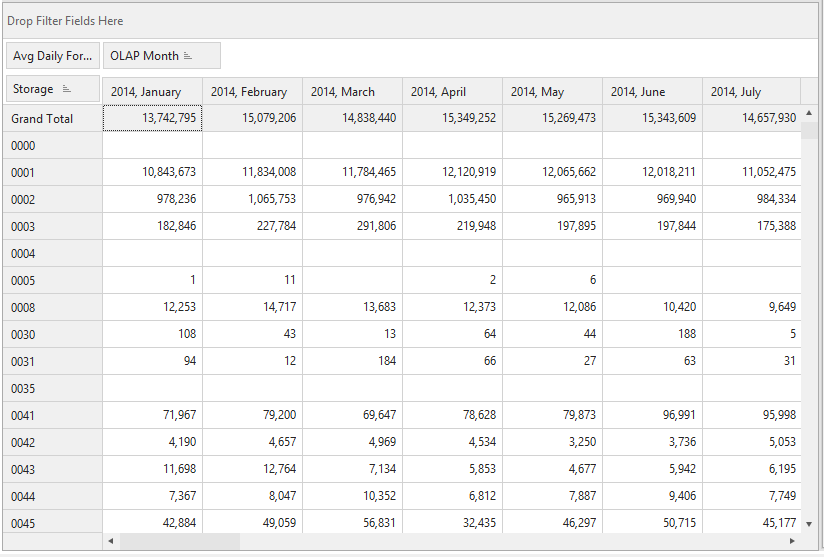
Pivot Grid
The Pivot Grid is populated by the Fields items dragged into it or dragged into their respective Area boxes.
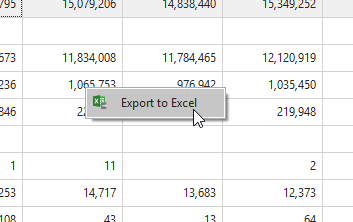
Right-click pivot grid
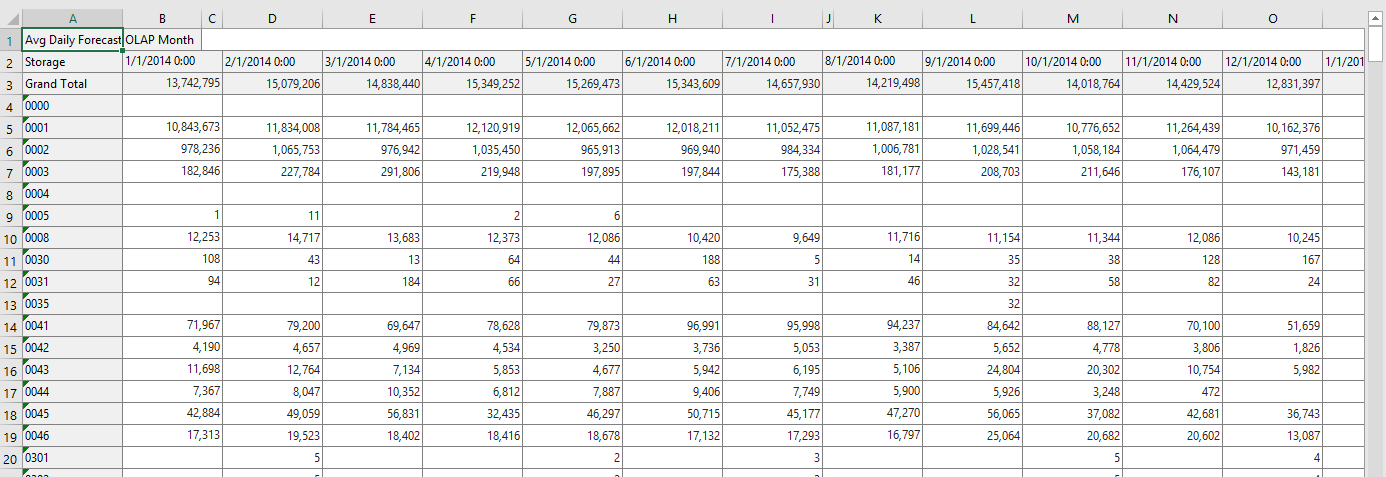
Export the Pivot Grid to Excel.
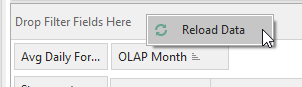
Right-click Drop Filter Fields Here
Reload the data after making changes.
Chart
Populate Chart Data
Click and Drag the mouse pointer across rows/columns to populate a line graph.
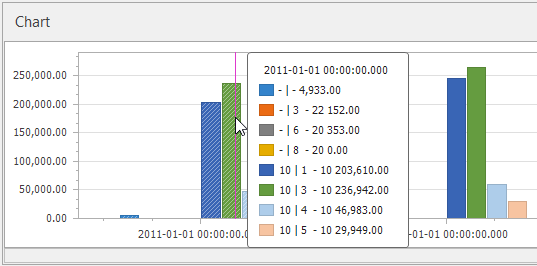
Use the mouse pointer to move the pink vertical line across the chart to highlight important tooltips.
Customize
Highlight rows and columns in the grid first before customizing the chart.
Select a different chart type to represent the data in the cube browser with the chart wizard.
Filter
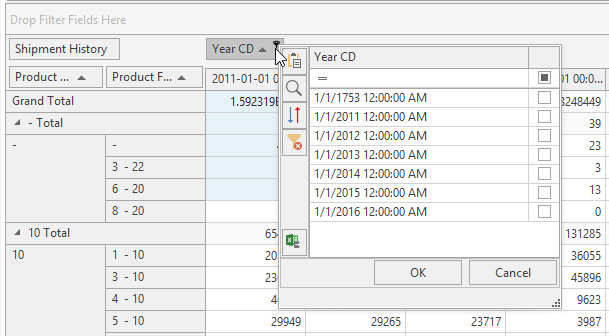
Most items have filter options; click the funnel to open the filter dropdown.