Item Group
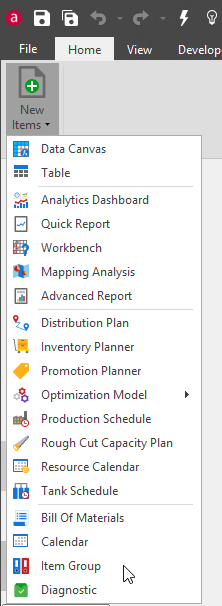
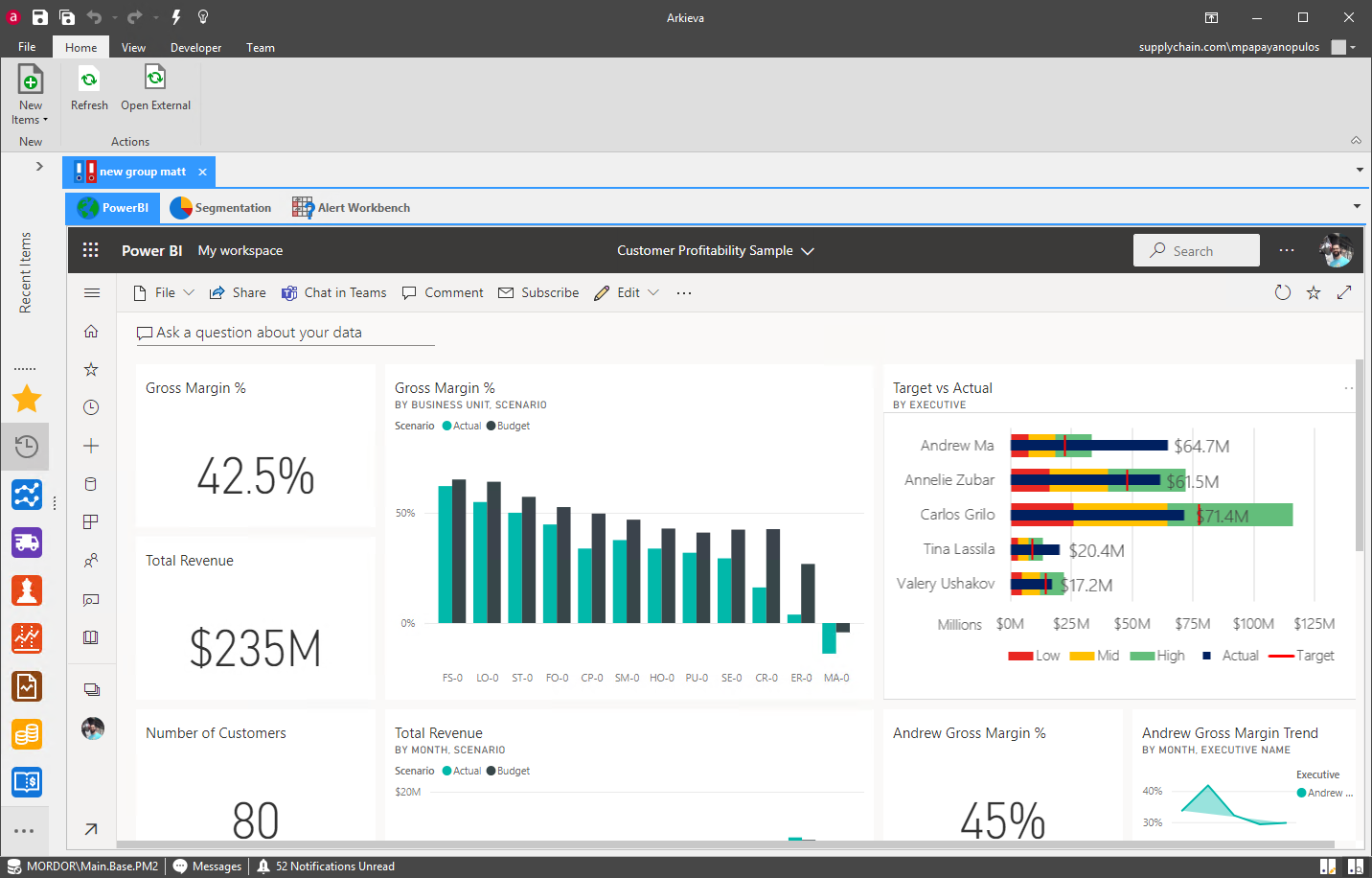
The Item Group component allows you to create an Item Group. Item Groups can be created with components, documents, and urls, such as Power BI documents. Go to the File Tab and click New, then select Miscellaneous to access the Item Group launch button.
Create Item Group
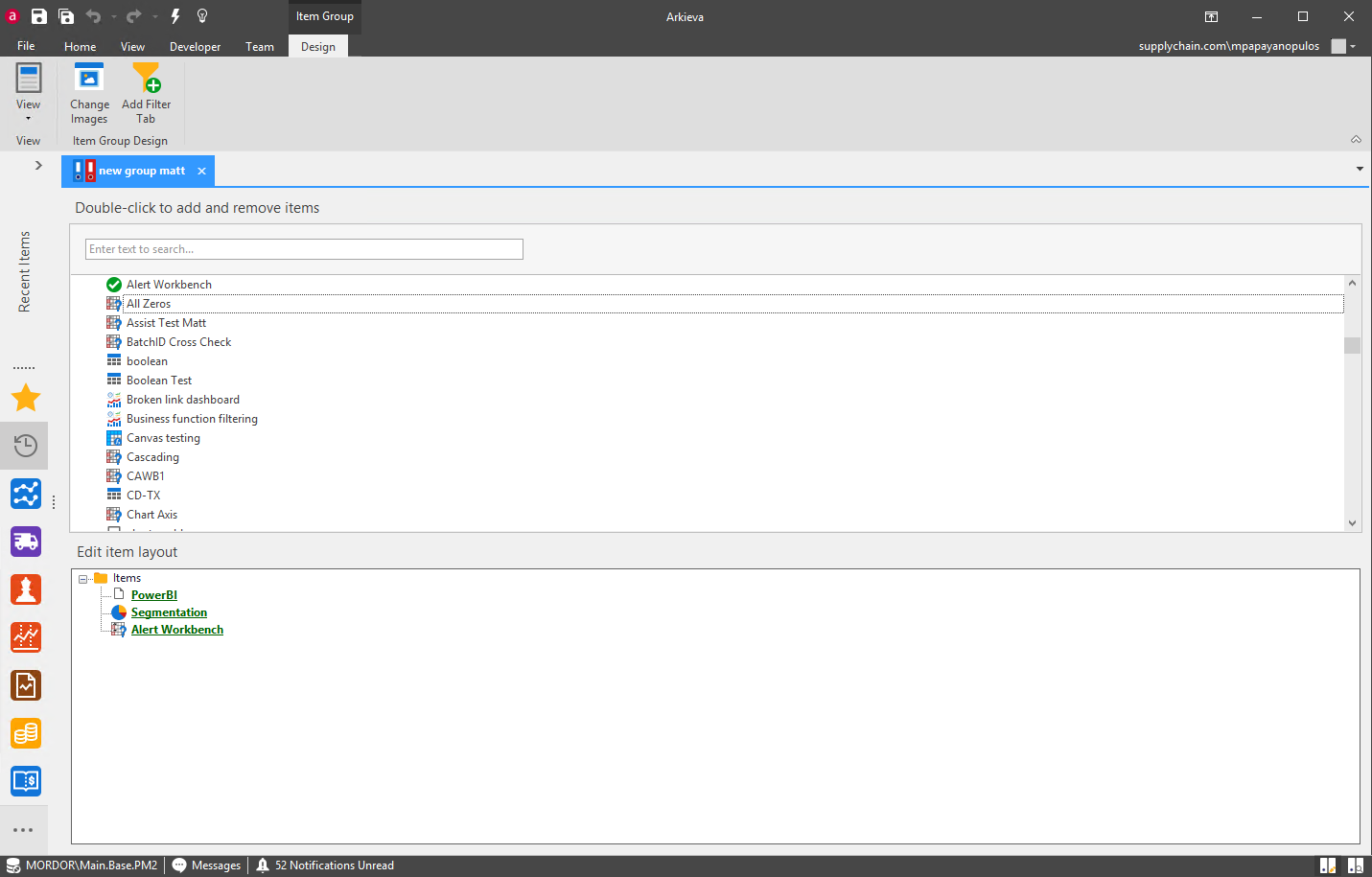
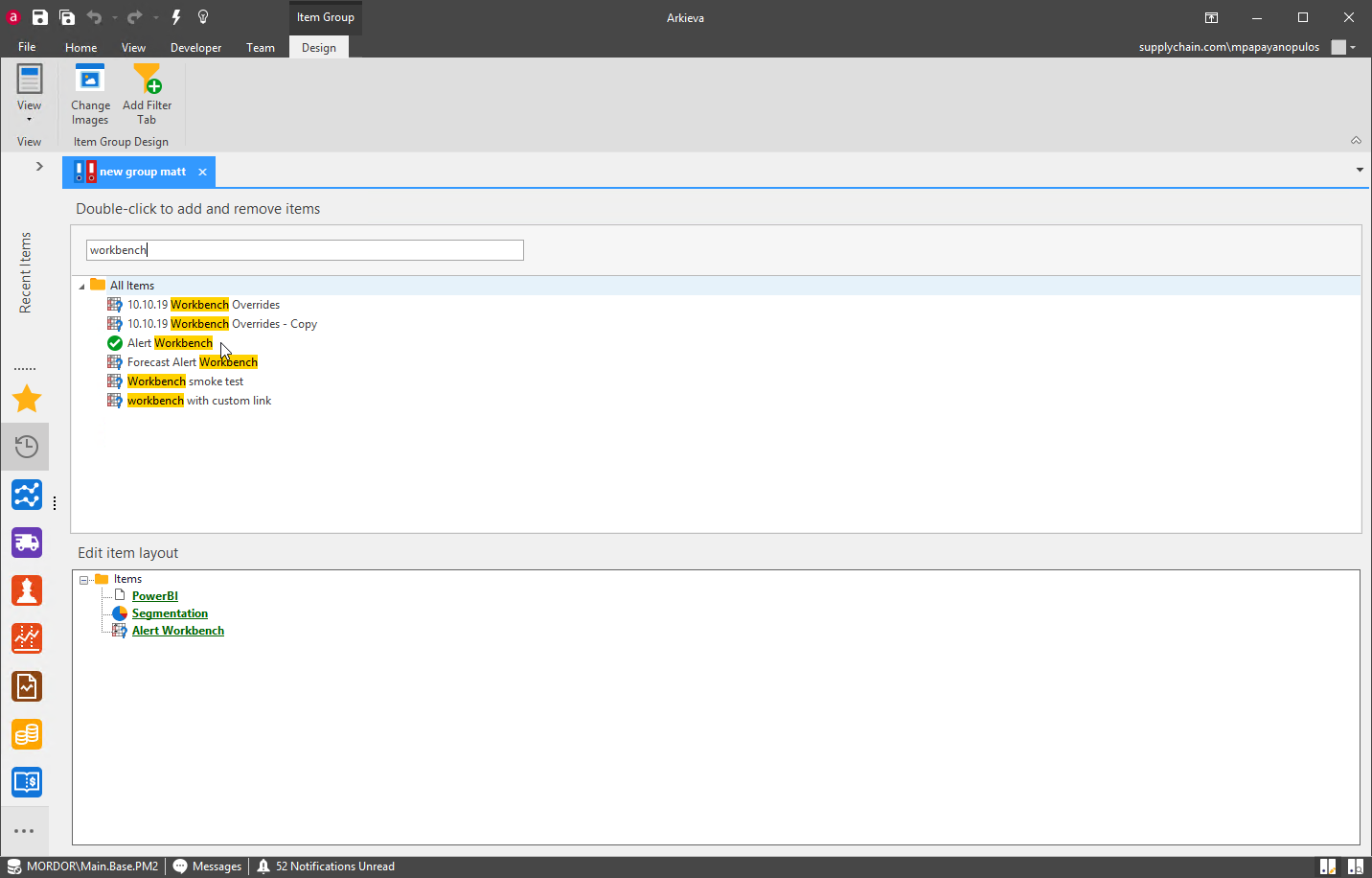
Double-click the desired documents in the top half of the Item Group window to automatically send the document to the Edit document layout section. A green checkmark will appear next the document when selected successfully. You can then click and drag the documents inside the Edit document layout section to customize the order.
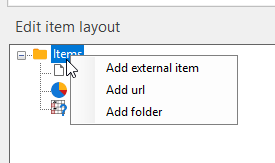
Create folders and subfolders by right-clicking the parent folder (Documents) and folders created from the parent folder.
Click Add external document to import a document to the group document folder. Right-click a document to remove it from Edit document layout.
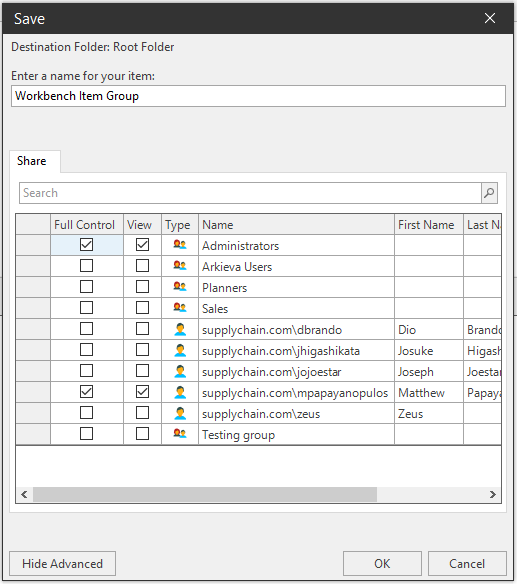
Click the Arkieva toolbar save button to save the Item Group. Make sure to uncheck the Author only checkbox to allow other users to view the Item Group folder. Click Advanced to selectively check users or groups who will be able to see this Item Group.
Click OK; the Item Group will be saved to the Browse All Documents window, accessed from the File Tab.
External Links
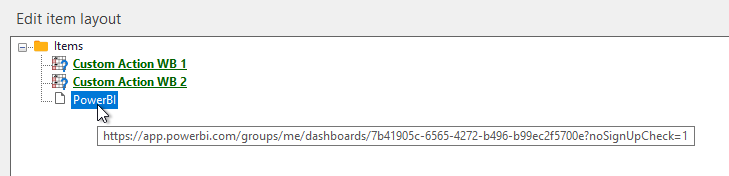
Add an external link to the item group with the right-click Add url option.
Click the added URL to rename it.

Hovering over the link will show the full URL name.
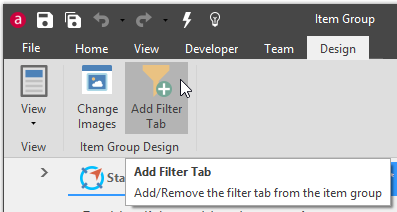
Add Filter Tab
Add a filter tab to the View Item Group view; a document must have the ability to be filtered to be featured in this tab.