Overrides Report
{`
`}
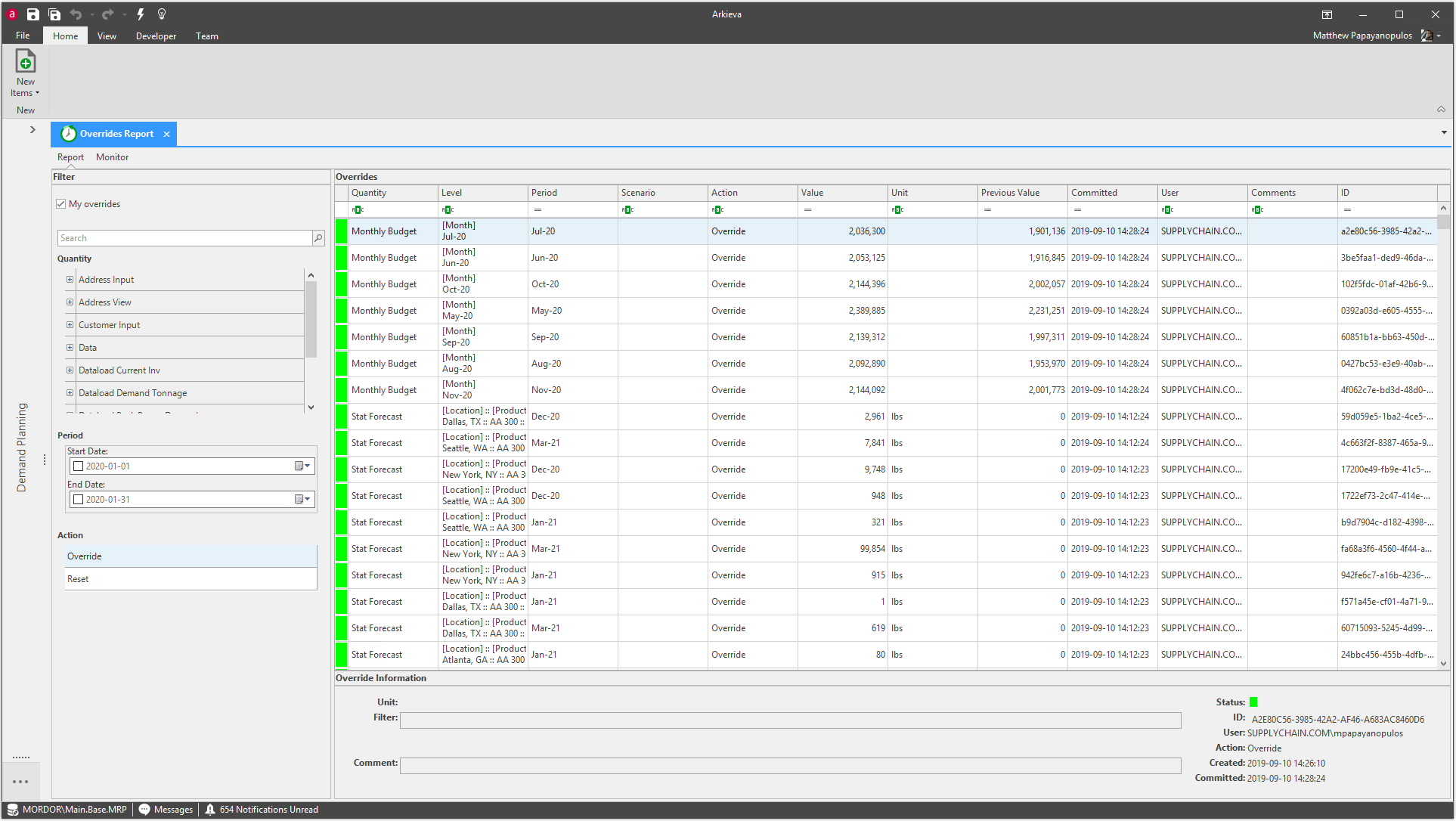
The Overrides Report helps users monitor overrides and prime resets made within Arkieva Workbench. The application also contains different filtering options to manipulate the information viewed in the report.
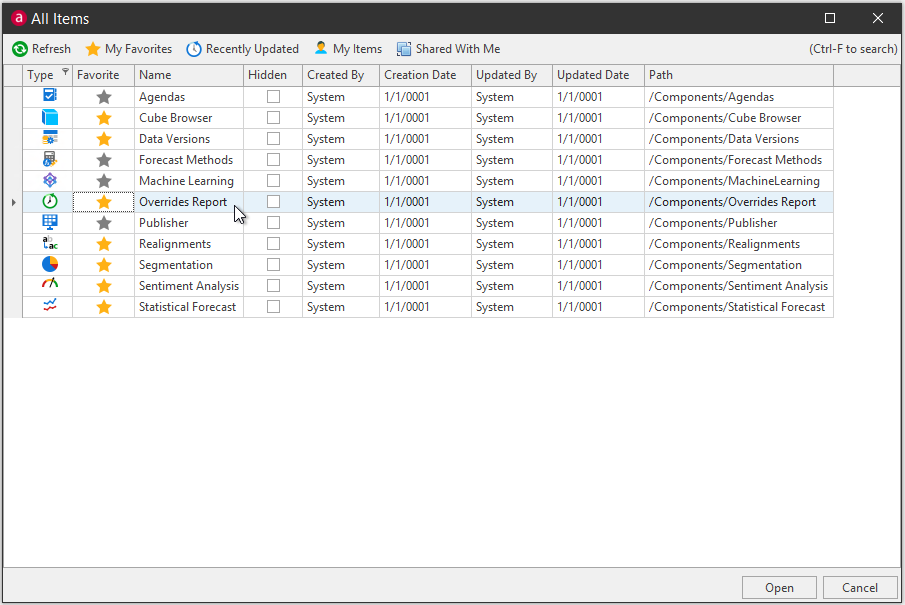
Access the Override Report by clicking Browse All Documents from the File Tab menu.
Filter section
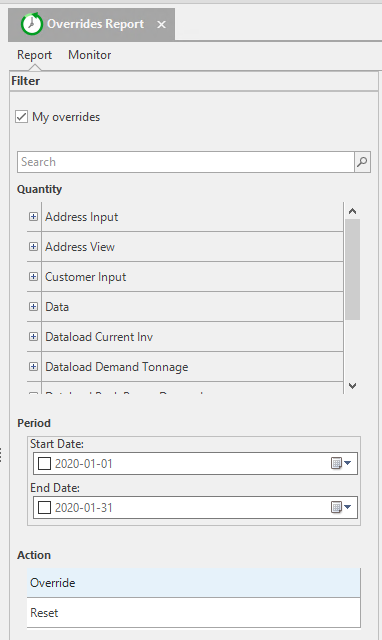
The Filter section allows you to configure what information is seen in the Overrides section.
My Overrides
Check the My Overrides checkbox to show only the Overrides and Resets made by the current user. Leave unchecked to see all user Overrides and Resets made in that database.
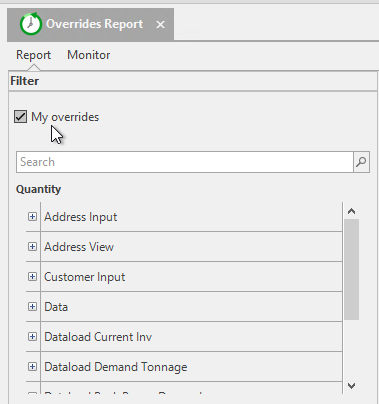
Quantity
The Quantity section contains Entities and their associated Quantities that have or have had overrides made to it in the database.
📘 Note
The Quantity section does not list every Quantity present in that database.
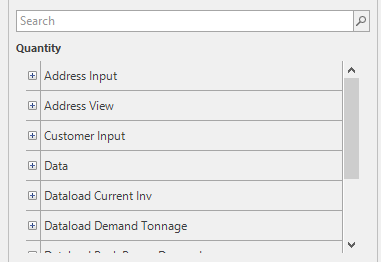
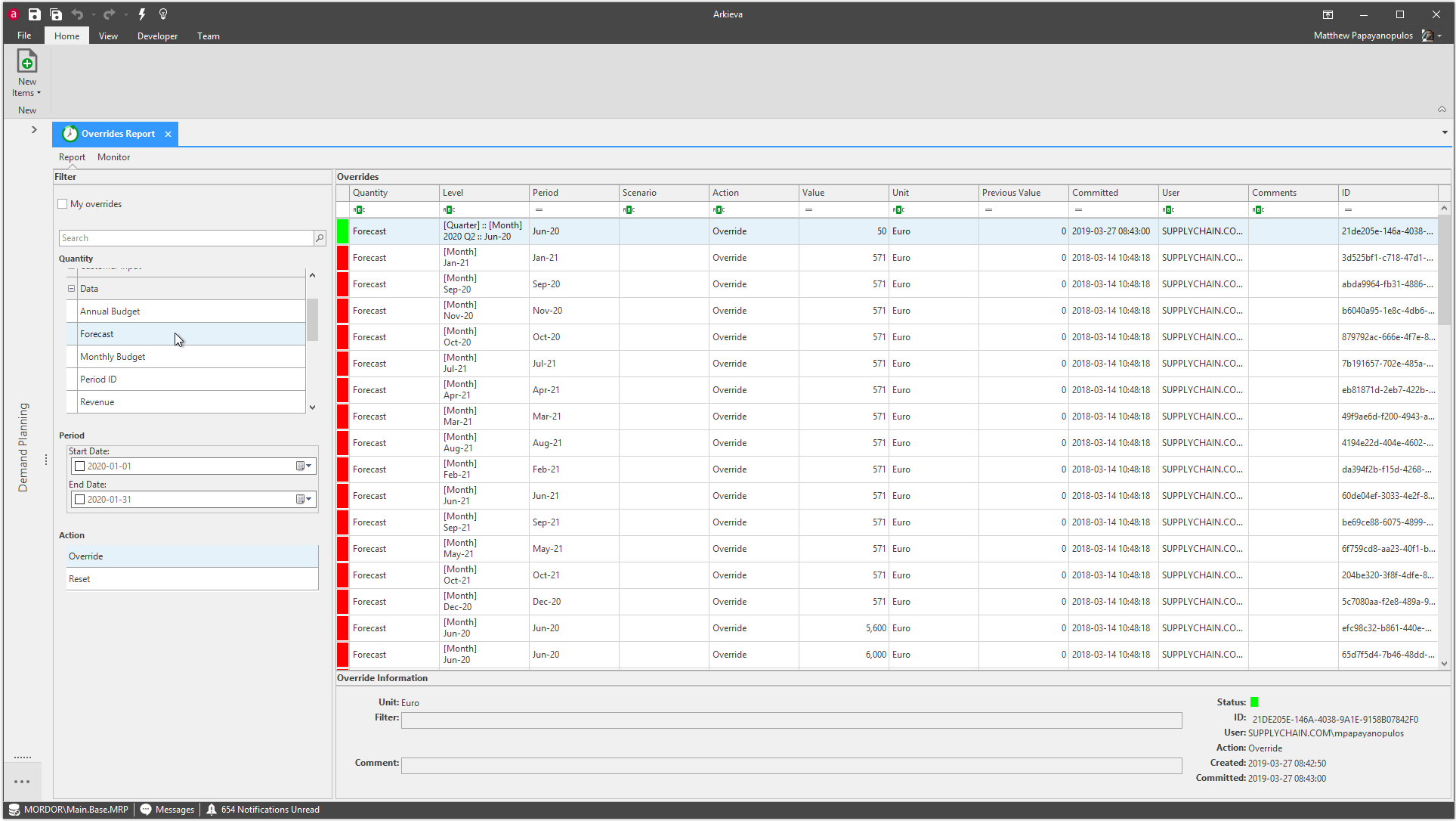
Click the plus (+) button of the Entity to dropdown the list of quantities. Click the quantity in the list to toggle it on (blue) or again to toggle it off (white).
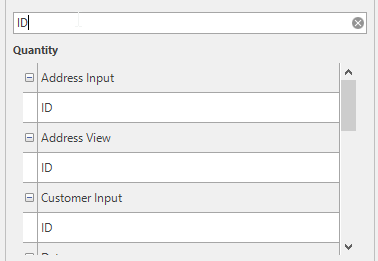
You can also type a keyword into the search bar to drilldown the Quantity list.
Period
📘 Note
The Period filter can be used to select periods the selected overrides effect, not when the overrides were made.
Check the checkboxes to activate the Start and End date calendar dropdown box to filter those dates. Uncheck both checkboxes to view all period overrides.
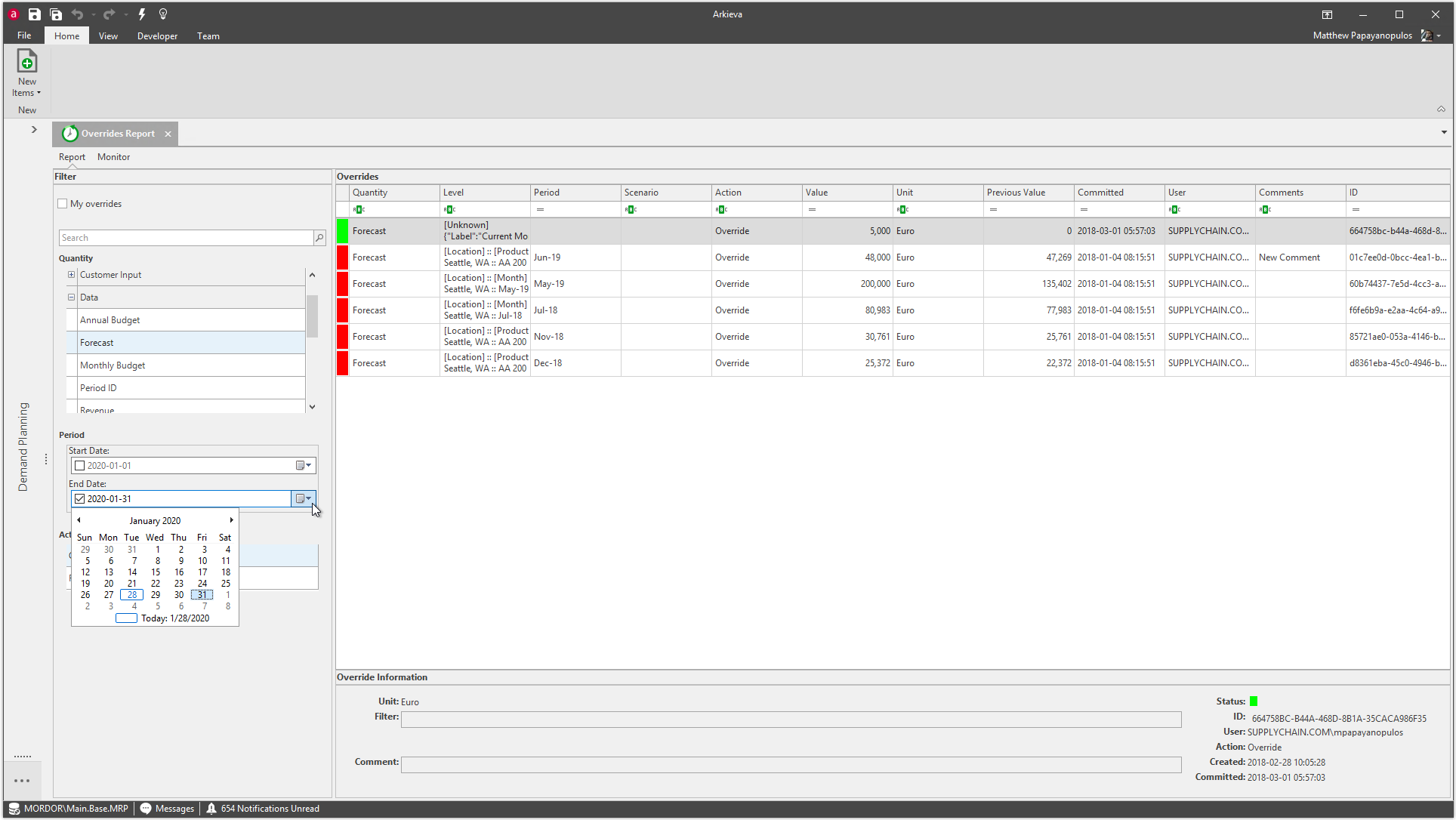
Action
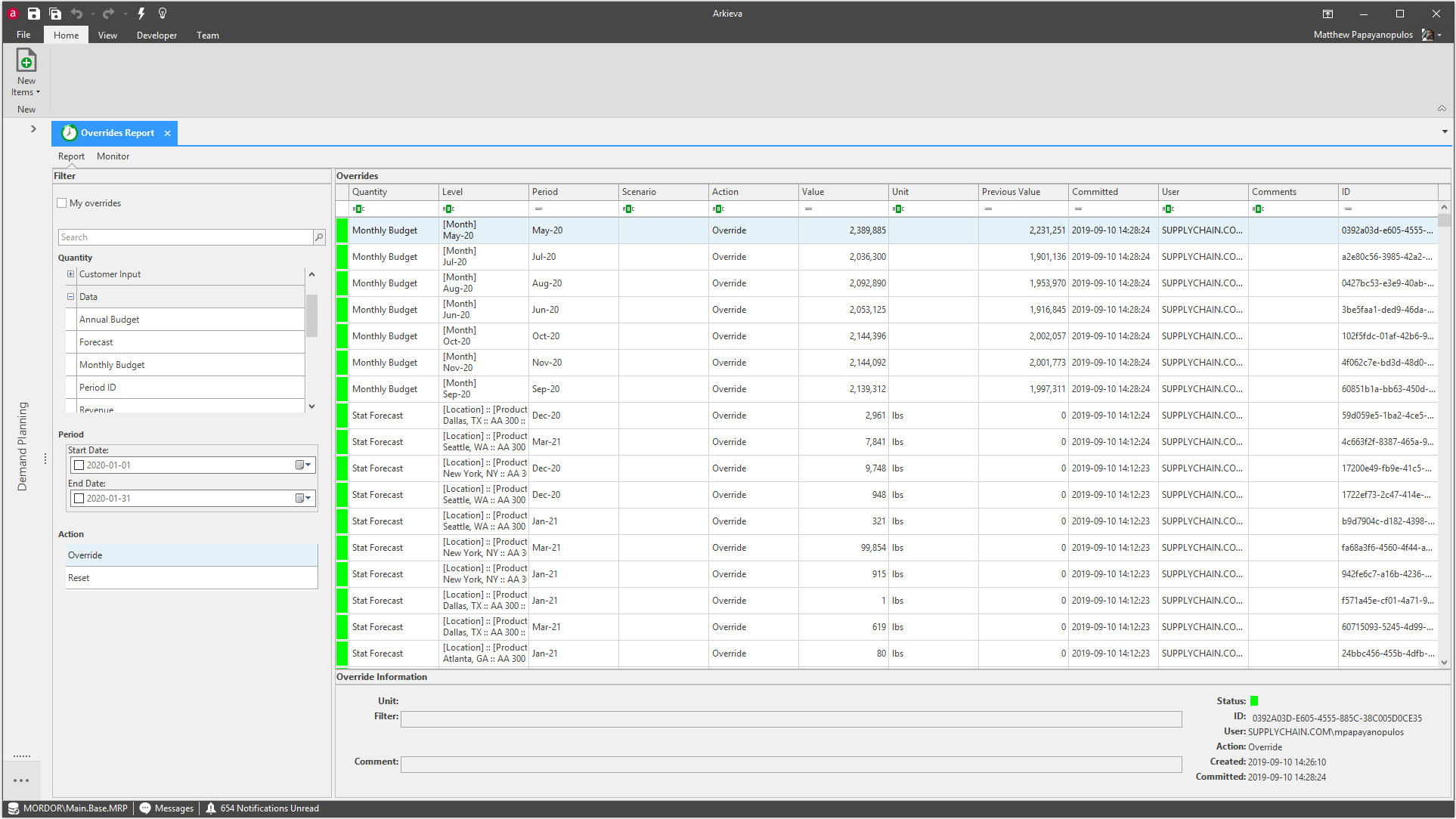
Toggle on or off Override and Prime Reset to view that information in the Overrides section. Override will be toggled on and Reset will be toggled off by default when Override Reports is launched.
Overrides\ All overrides are logged to the Override Report. Toggle whether or not to view these overrides in the Override view by clicking the Override button under Action.
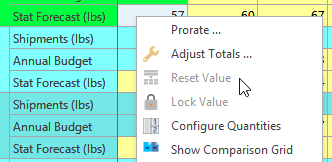
Reset Value\ A Reset is when an override is reset to it's original value. Reset Value is accessed from the right-click grid menu in the Workbench.
Toggle on Reset to view quantities Reset values.
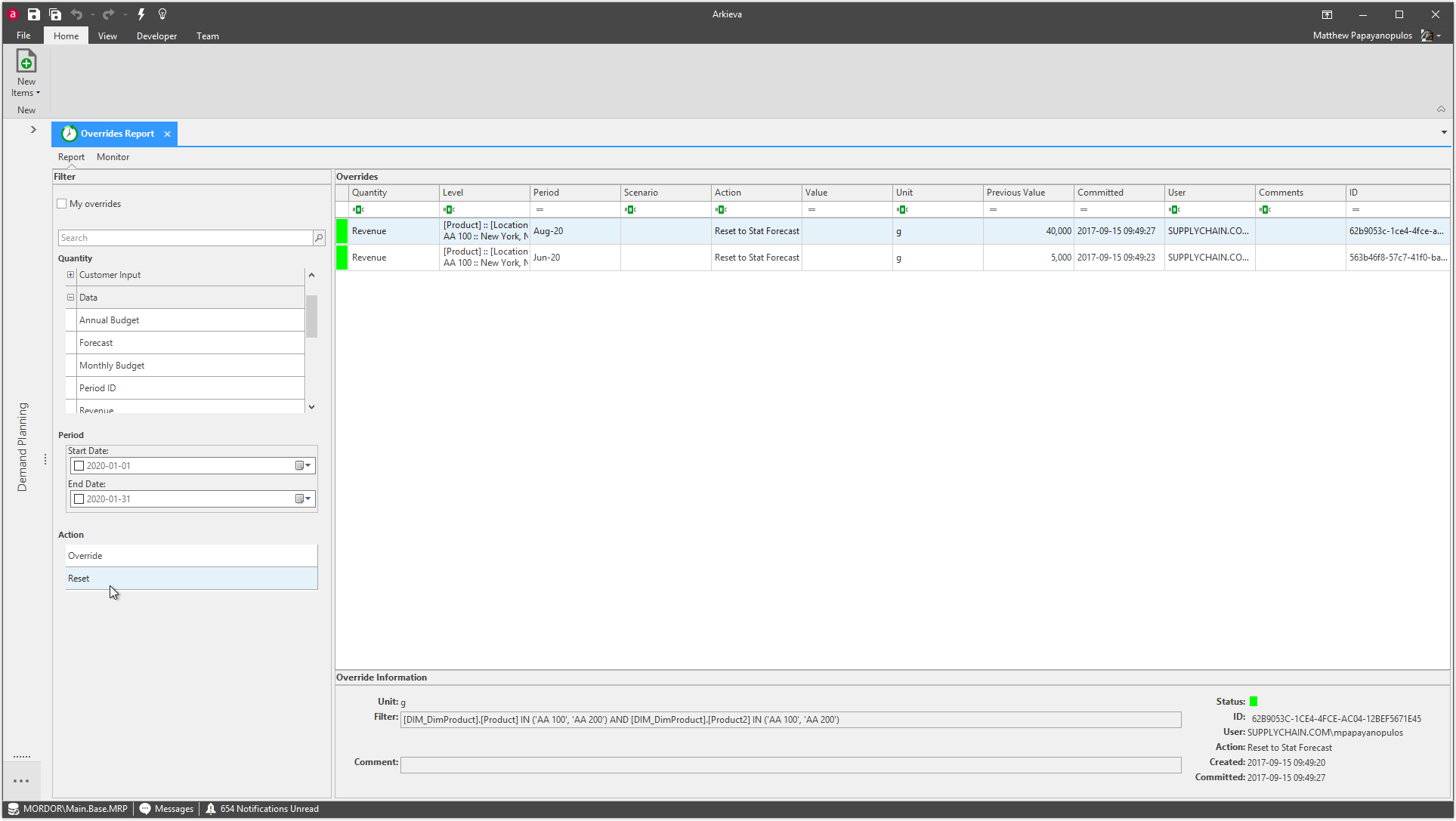
Overrides section
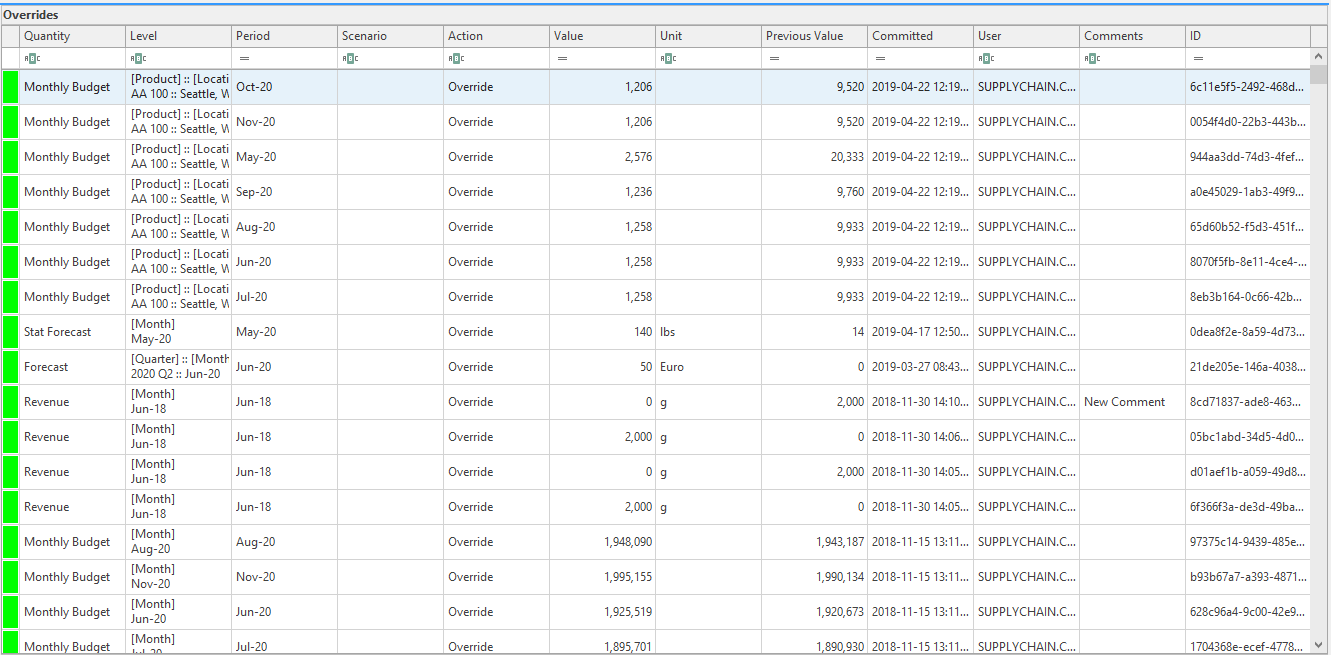
View the override information in this section of the override report. Along the left side of each override and prime reset is a color indicating the status of that action; green means accepted, and red means rejected.
- Quantity: Name of the Quantity.
- Level: What level the override/Prime Reset was made.
- Period: Period the override was made to.
- Scenario: Scenario the override was made on.
- Action: Shows whether an Override or Reset was made to that quantity.
- Value: Numerical value of the override.
- Unit: Units assigned to quantities.
- Previous Value: Previous numerical value of the quantity before the override.
- Committed: When the override was completed.
- User: User who made the override or Prime Reset.
- Comments: Comments assigned to quantities.
- ID: ID assigned to override.
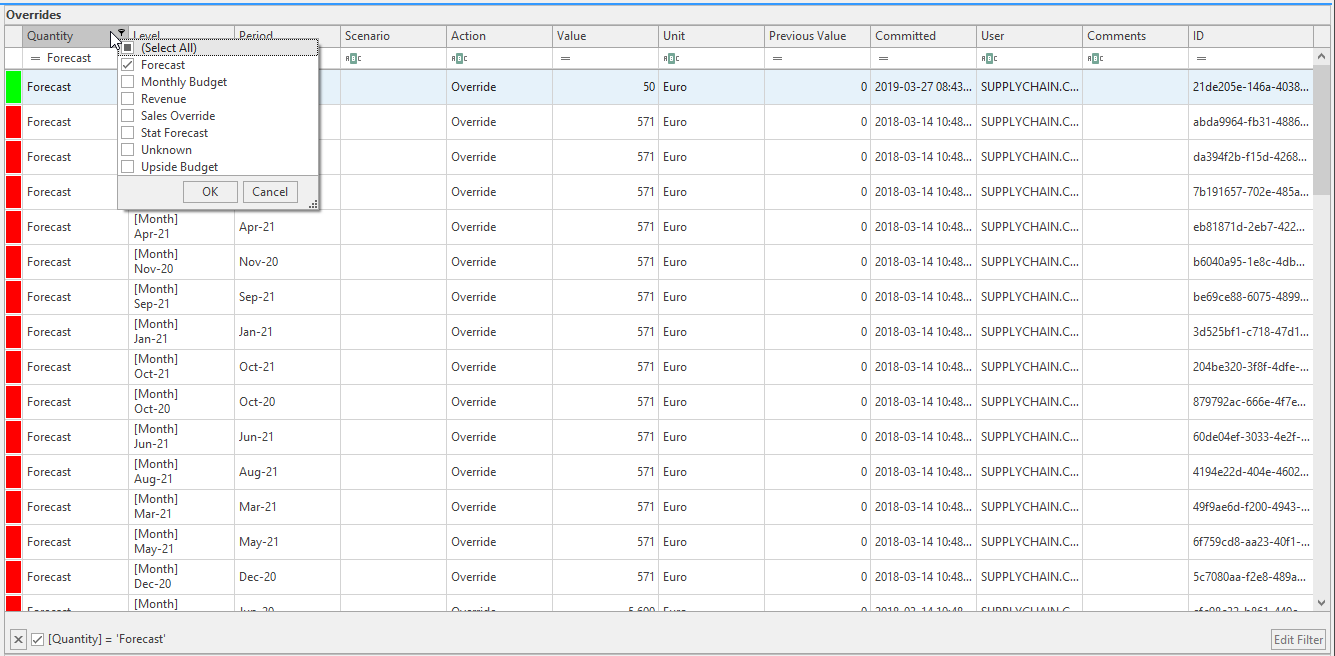
Column Filter
Any Filters applied to the Overrides section will be listed at the bottom of the section. Users can edit the applied filter by clicking the Edit Filter button. Remove all filters by clicking the X button.
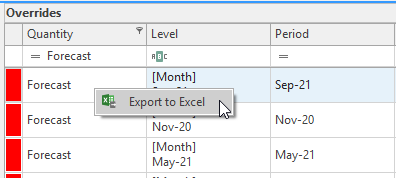
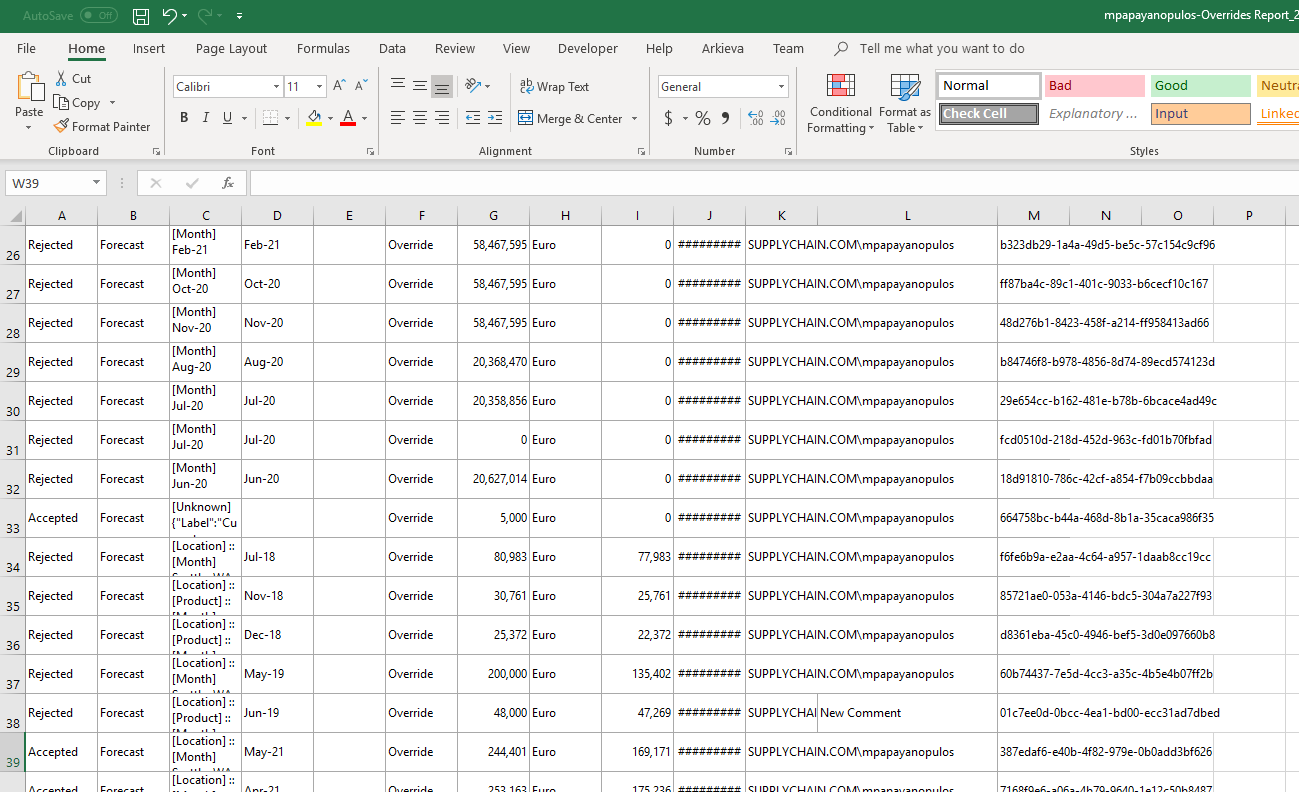
Export Overrides Report to Excel
Right-click anywhere inside the Overrides section of the Overrides Report and click Export to Excel. Any pinned comments made to the Override will also be exported.

Override Information section
Select an Override in the Override section to view any information related to that override.
- Unit: Base unit.
- Filter: Filter and RLS applied to the override.
- Comment: Pinned comment made to that cell.
- Status: Displays Accepted (Green) or Rejected (Red).
- ID: ID of override.
- User: User made that override.
- Action: Shows whether the selected item in Overrides section is an Override or a Reset.
- Created: Date and time the override was proposed.
- Committed: Date and time the override was submitted.

Overrides Monitor
📘 Note
The Overrides Monitor gets override information from the OverrideService.Overrides table in SQL. Overrides Monitor is only available to users with Administrative rights.
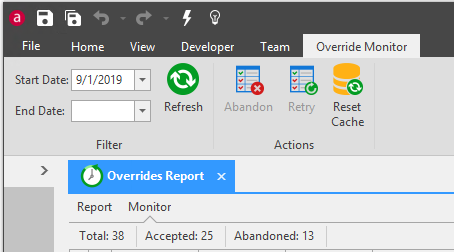
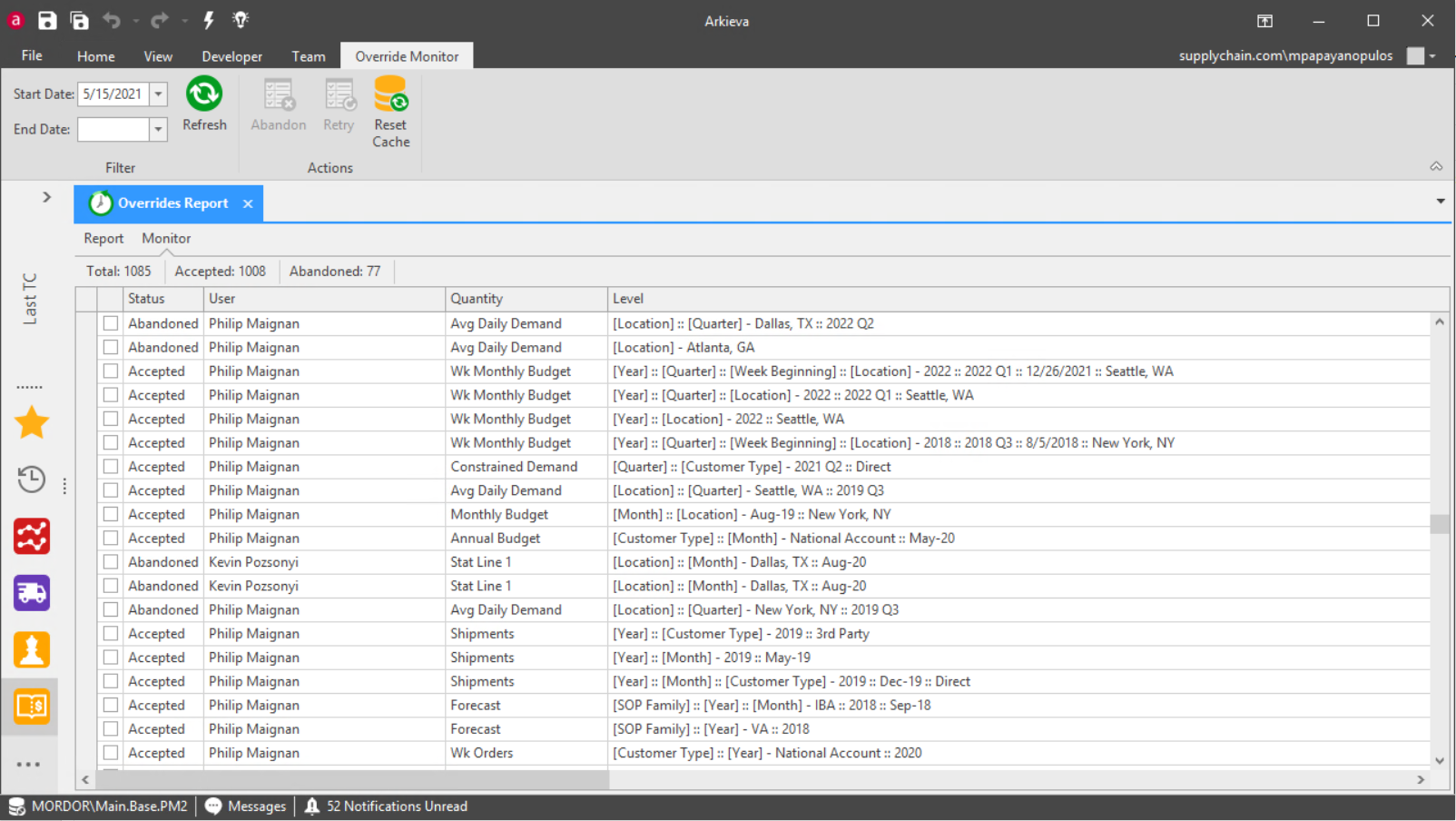
In the Filter section you can set the Start and End Date for the overrides, and refresh the overrides monitor screen. In the Action section you can Abandon an override, Retry an override, and Reset the Cache.
- Checkbox: Check multiple overrides. When selecting multiple rows to Abandon or Retry overrides, you will need to select all overrides from that batch.
- Status: Shows the status of the override. Proposed overrides is an override that was made but not committed. Accepted is an override that was made and committed.
- User: Name of the user that made the override.
- Quantity: Quantity item the override was made to.
- Level: Level the override was made to.
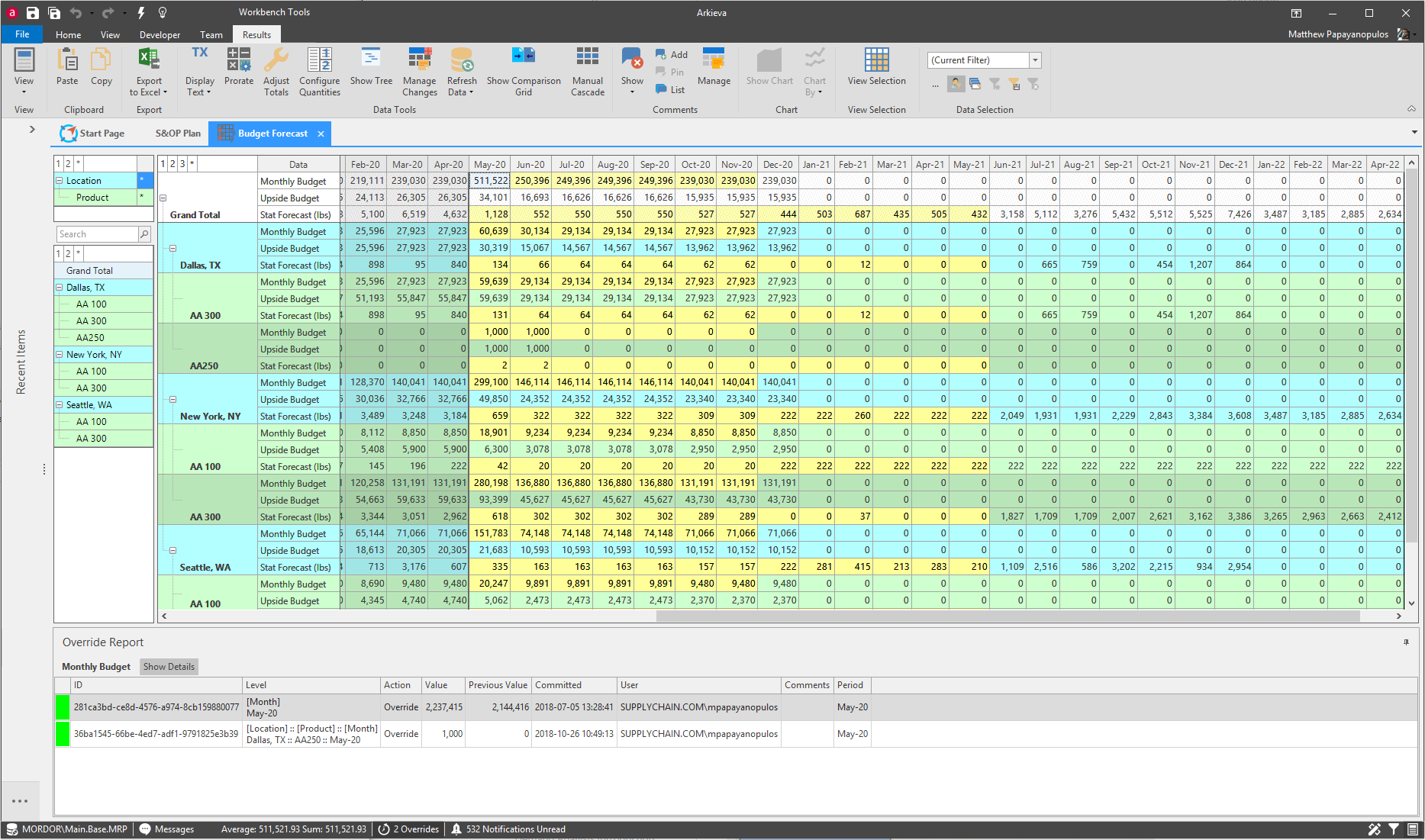
Workbench Override Report
The Override report is also available from the Workbench results view.