How do I verify installation of localdb?
First, you must be logged into the owner account before continuing with the installation verification. Connect in SSMS to the instance “(localdb).\Arkieva”. Alternatively, if you don’t have access there: Open cmd promt (administrator) on the server where the Arkieva services are installed and query: > sqllocaldb info .\Arkieva. This checks if the sql db is running (which Arkieva is using for services).
Backslash ( \ ) means shared instance, which allows other users to access the database.
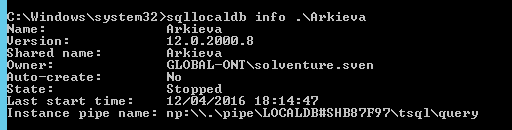
To start the sqllocal db query: >sqllocaldb start .\Arkieva.
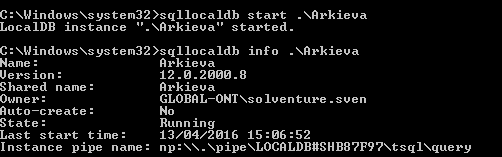
To ensure that it works query: >sqlcmd -S (localdb).\Arkieva. If you get the following, you know the database is active:

If the database isn’t active It could be that this instance has stopped when the server is restarting. In this case, there might be some services that will stop and cannot be restarted. To ensure it starts correctly, you can create a Windows Scheduled Task. Create a .bat file in a folder on the computer called “StartArkievaLocalDB.bat”; paste “sqllocaldb start .\Arkieva”.
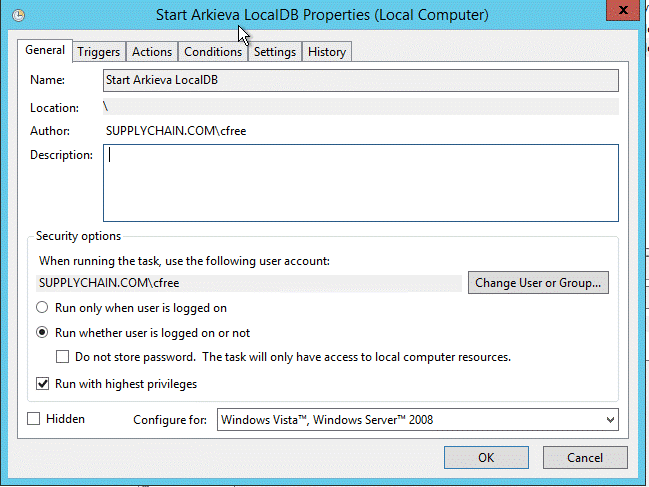
Other ways to restart the service: Create a Windows Task that runs as the owner of the database.

Confirm by running “sqllocaldb info .\Arkieva” in a command prompt and look for the owner property.
In the general tab make sure it runs whether you are logged in or not and run with the highest privileges.
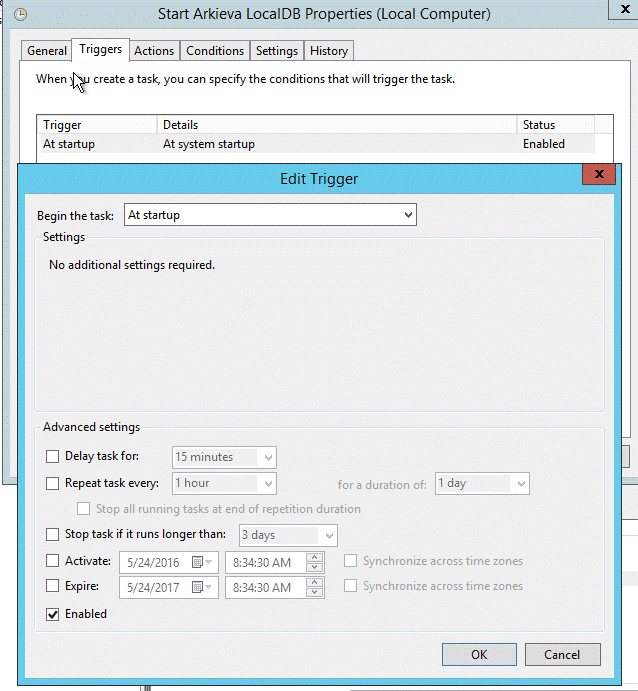
Create a trigger that begins the task at startup.
Create a new action that runs a script and point it to the file you created. It should look like the screenshots below.
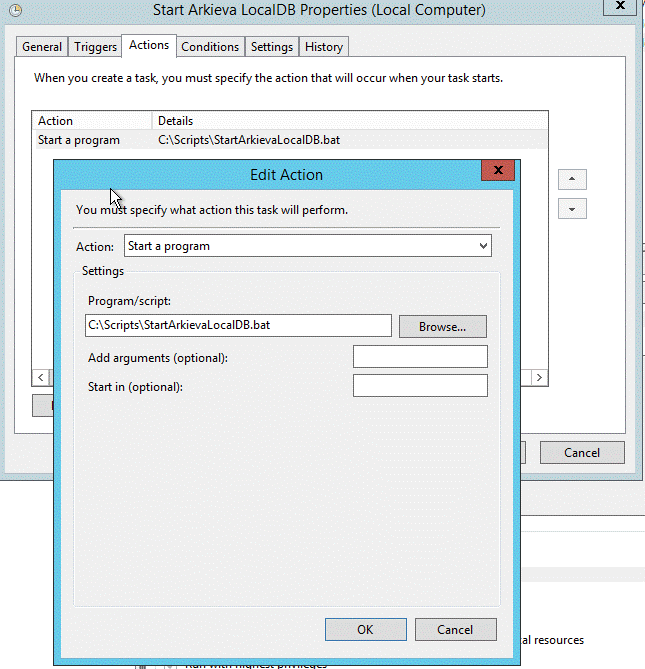
When not able to start the localdb with the impersonation account:
Remove the instances containing “Arkieva” on the localdb server
- Unshare (‘sqllocaldb unshare “Instance”‘)
- Stop (‘sqllocaldb stop “Instance”‘)
- Delete (‘sqllocaldb delete “Instance”‘)
Rerun the installer using the impersonation account.
Related Articles
SQL Tools fail during installation of Arkieva?
The SQL tools part of the installation is related to two programs: Microsoft ODBC Driver 11 for SQL Server' (msodbcsql.msi) and 'Microsoft Command Line Utilities 11 for SQL Server' (MsSqlCmdLnUtils.ms) There are most likely higher versions of these ...Can the Api path be altered after installation of Arkieva?
Yes, the Api path can be altered by the desktop.exe with admin privileges (Api Root URL)'Not enough quota is available to process this command' error?
Restart the server this installation of Arkieva is on. This should fix the issue."TimeoutException occurred" error when reinstalling Arkieva Services?
An mdf file from the previous installation on the local db Arkieva Server can cause this error.Terminal server is connecting to the wrong database?
Terminal server connects to wrong database in case of server cloning. Checks: Check db config Check the dbo.json files Check api root: http://zarkvs01/Arkieva/api/v1/config/databases Check config files on terminal server At a client, first we had ...