Optimization
Introduction
Import
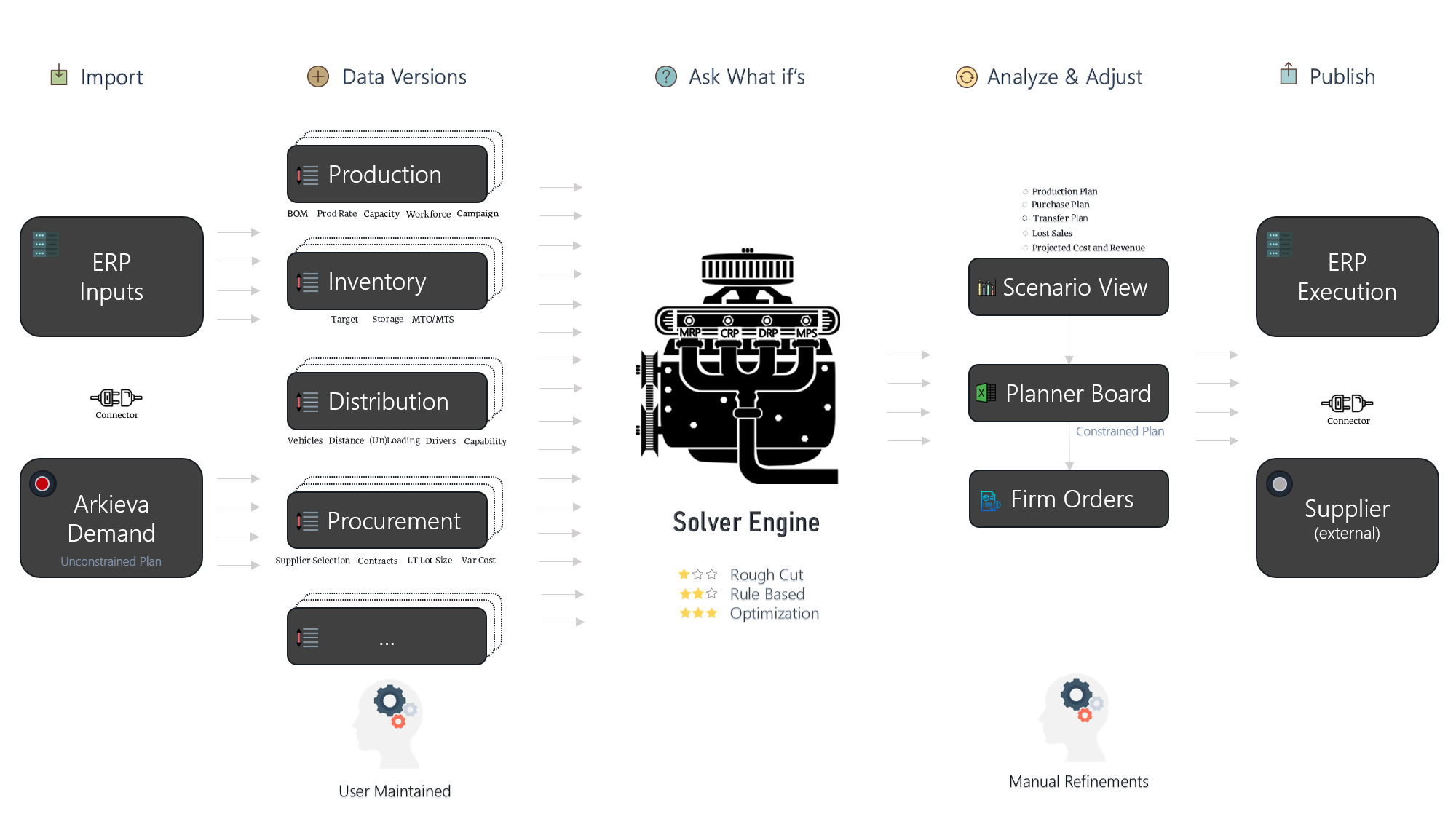
In a business, Linear Programing / Optimization has many different data input areas. These areas are Production, Inventory, Distribution, Procurement, and User Maintained. The data that comes from the business’ ERP system (SAP, Oracle, Microsoft Dynamics) is used to build the constraints around the model, and the data that comes from Arkieva Demand modules is used to build the unconstrained plan. Import data can also come from Excel or any other standalone documents.
Data Versions
Next, we will discuss what kind of datasets are needed to build an LP / Optimization report.
Keep in mind that each of the following dataset inputs can be copied and tweaked to create different Data Versions. For example, you can create an Official dataset, but have copies of that dataset to create What-If scenarios; like how the model will be affected if we need to shutdown production, or if there is an increase in unmet demand, etc. This concept will be discussed later in the documentation.
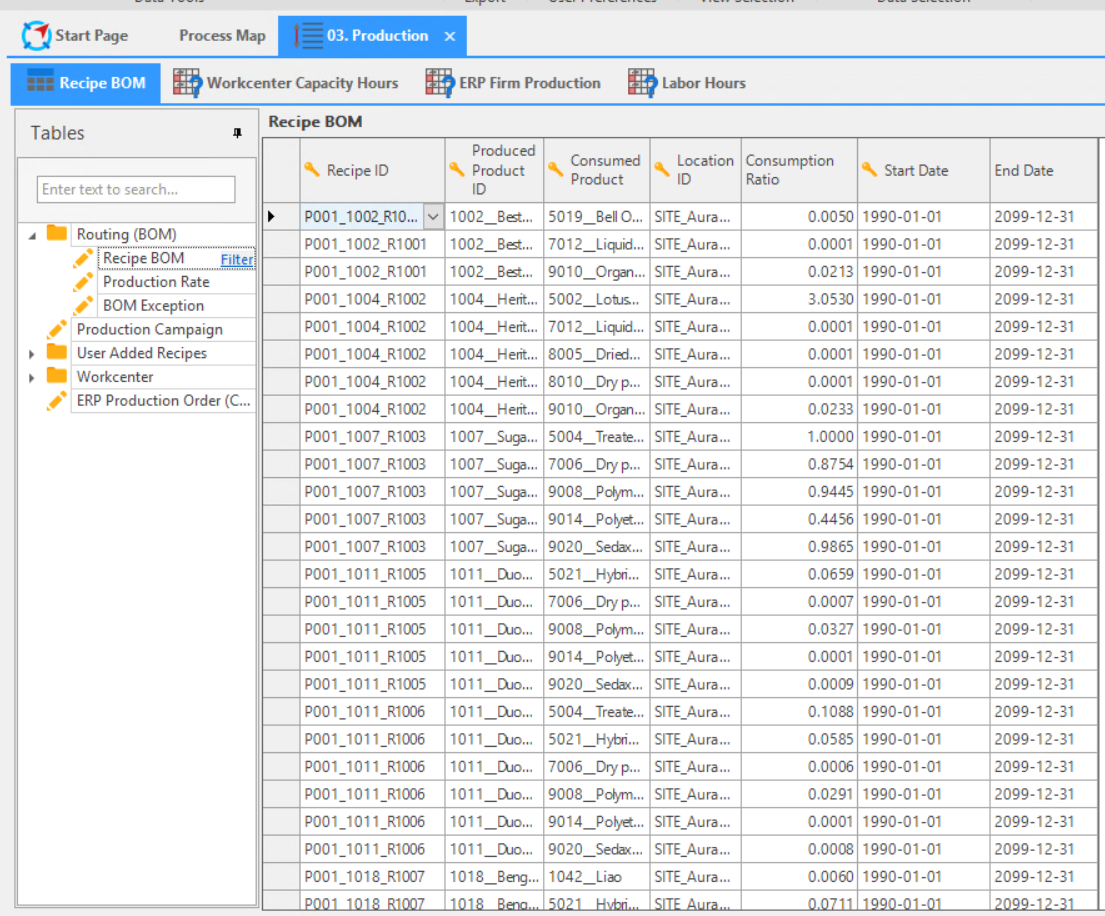
First with the Production dataset, we gather Bill of Materials (BOM), Production Rate, Capacity, Workforce, and Campaign data from the client ERP. Bill of Materials informs the model what raw materials and semi-finished products are needed to produce a finished good, and the locations of finished goods. Production Rate informs the model the rate of production of a machine at a location, as well as multiple machines at a location or at different locations. Capacity informs the model of what capacity the machine can produce at during a given amount of time. And lastly the model will also be informed of a location’s Workforce and if there are any Campaigns put in place.
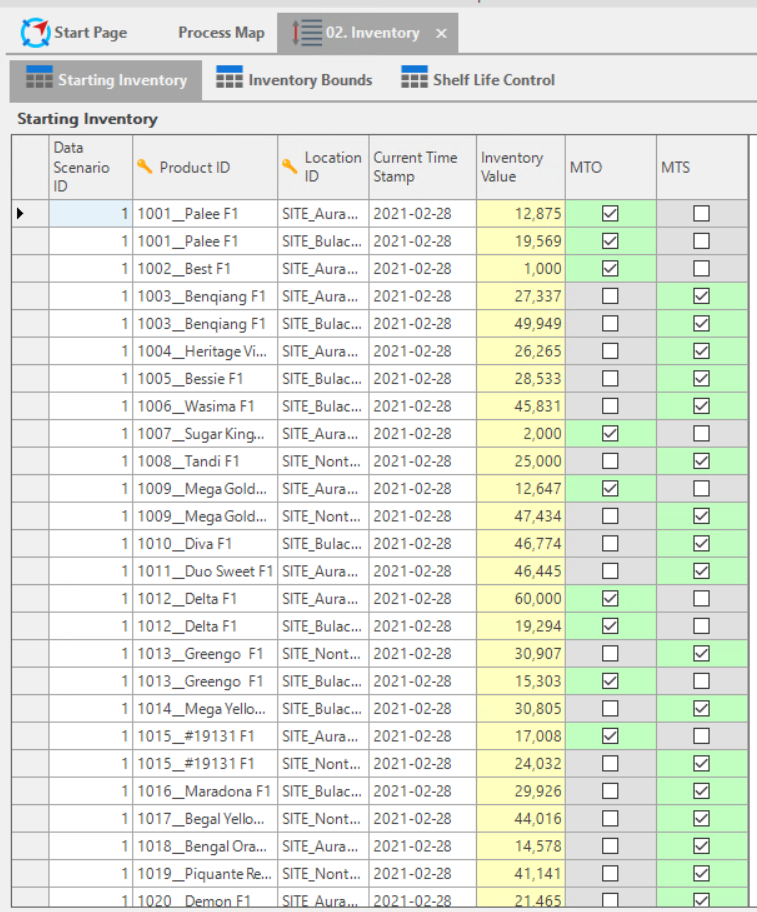
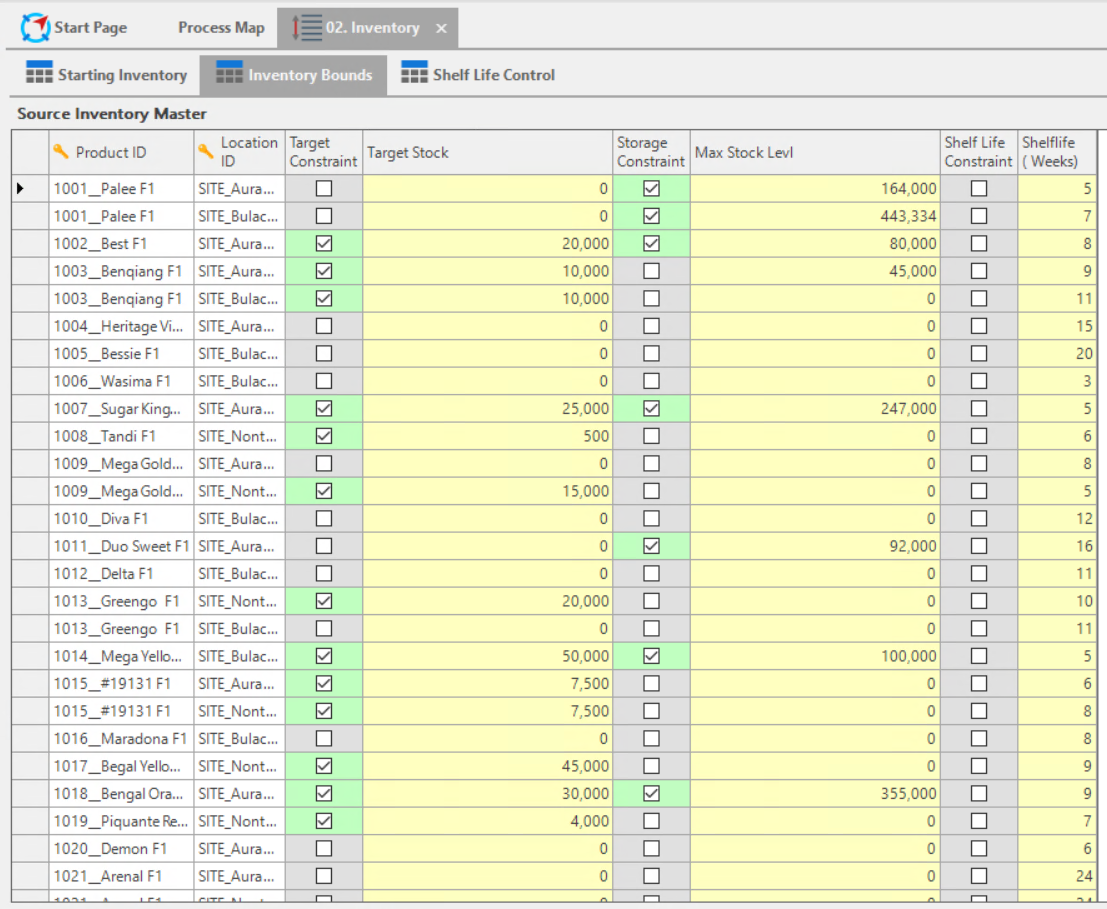
Next with the Inventory dataset, the model gathers your starting inventory positions; meaning as of the current day how much inventory do I have in terms of volume for a product at a location. This information is gathered from the Target, Storage, and Make-to-Order (MTO) and Make-to-Stock (MTS) data. Target data is used to build constraints around safety stock and target stock. Storage refers to the constraint of how much of an item can be stored at a location. And MTO/MTS refers to the stocking policy of a product.
The Distribution dataset gathers information Vehicles Distance, [Un]Loading Drivers, and Capability. Vehicle Distance references the number and type of the vehicles available for transportation of goods and the distance the vehicle will need to travel. Type of vehicles can be anything from rail cars, trucks, ships, etc. [Un]Loading Drivers refers to constraints relating to unloading and loading materials, and information on drivers of the vehicles. And Capability refers to how much vehicle can transport.
Procurement dataset gathers Supplier Selection, Contracts, LT Lot Size, and Variance Cost for the model. Procurement data can help you decide on how, what, and how much product to get to a customer, which customers need what product, how and where to produce a product, etc.
Supplier Selection refers to the data that will help the model select the least expensive supplier who will provide you with the raw materials needed to produce your products. The model can select a supplier out of multiple supplier locations and give you the best option. Contracts information can also be obtained from the ERP to let the model know what suppliers you may have signed contracts with to obtain such raw materials, so you do not break any agreements you may have made by purchasing raw materials from a different supplier. And the model can gather Lot Size information and how that might impact procurement costs.
Lastly, User Maintained data can also be fed into the LP/Optimization model. This data can come from Excel or any other user generated material. User Maintained data is important to planners, because this is where a planner can input a new recipe for product creation, assign it to a Workcenter, create a data set, and perform a What If Analysis.
Model Inputs
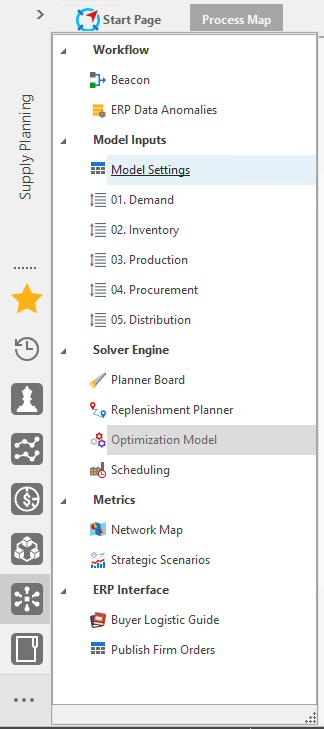
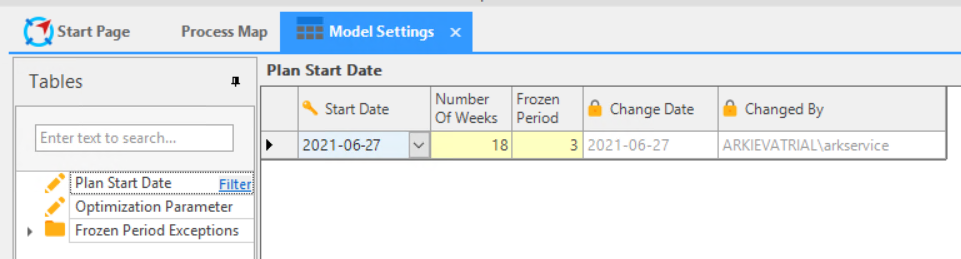
Model Inputs: Model Settings, Demand, Inventory, Production, Procurement, Distribution\ Model Settings\ The Model Settings are where a consultant or super user can go to control the model.\ Plan Start Date is where you can set the starting date for the model, and how man y periods into the future to forecast. In this example, the future forecast will be set in Number of Weeks. Other reports may be Days, Months, etc. You can also set the Frozen Period, which is a length of time you can set to freeze the engine from making any optimized results with any new data, and just carrying through the existing data from the inputs. This is useful for when, for example, you need to ship 10,000 extra units but there is no conceivable way to do that, you can freeze those periods so the model doesn't try to optimize and give you suggestions for how you could meet that demand.
Optimization always tries to minimize penalties by meeting all predetermined objectives. With the Optimization Parameters table editor, as a planner you can edit constraint penalties here instead of going into the optimization model directly. For example you could could edit the parameters to reduce the penalty on ending inventory, even if you aren't maintaining inventory levels.
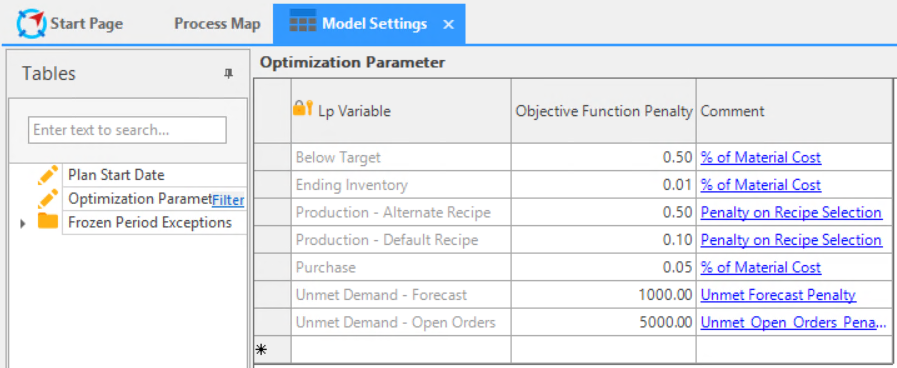
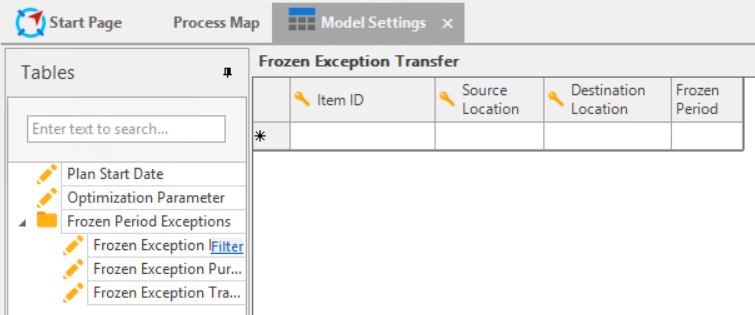
Frozen Period Exceptions tables can be created to add specific exceptions to the model. Below are examples of different types of Frozen Period Exceptions tables that can be created, but they can be whatever you need them to be.
Demand\ One of the key functionalities that a planner requires for demand is the ability to make copies of the official demand version so that they can make what-if scenario versions of the demand to be able to edit the data and try different ideas.
For example, the below tables have been created for Customer Demand. With the Choose Demand Version table, you can select a source demand and create different scenario versions from that official demand, such as a final demand plan, a consensus forecast, stat forecast, etc.
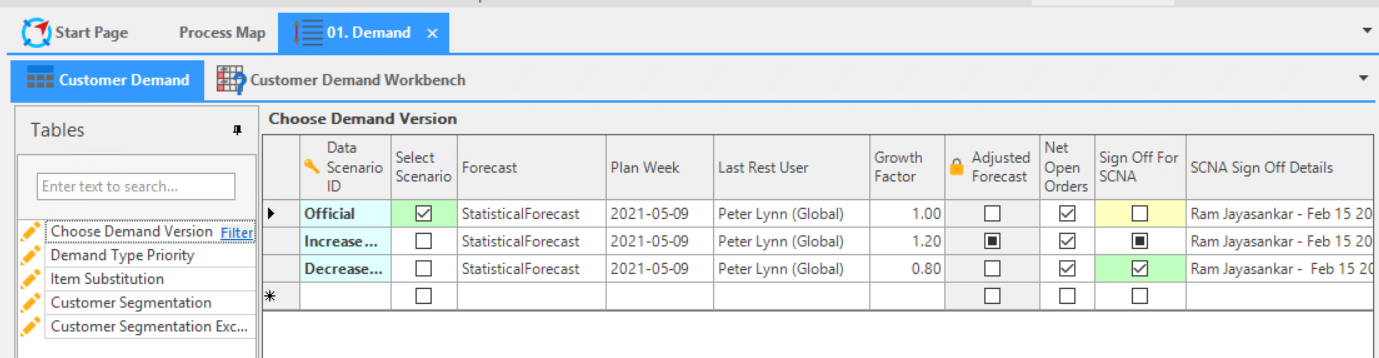
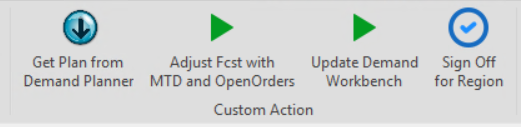
Once the scenario is created, you can click on the 'Get Plan from Demand Planner' custom action button to launch a configurable workbench with that scenario data. And from the workbench at a high level, you can make adjustments to the data and create your own demand version without changing the data in the official demand.
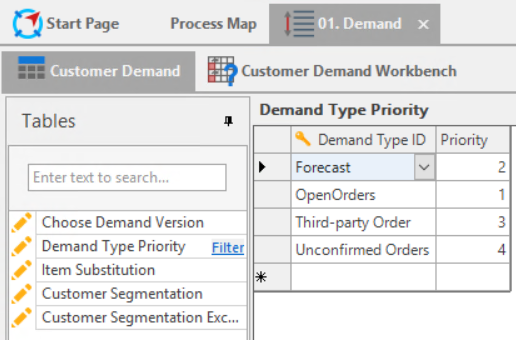
The Demand Type Priority table allows a planner to set the order of priority for the different demand types that are available in the system. The model will then fulfill the demand in the order in which they appear in the table's priority column.
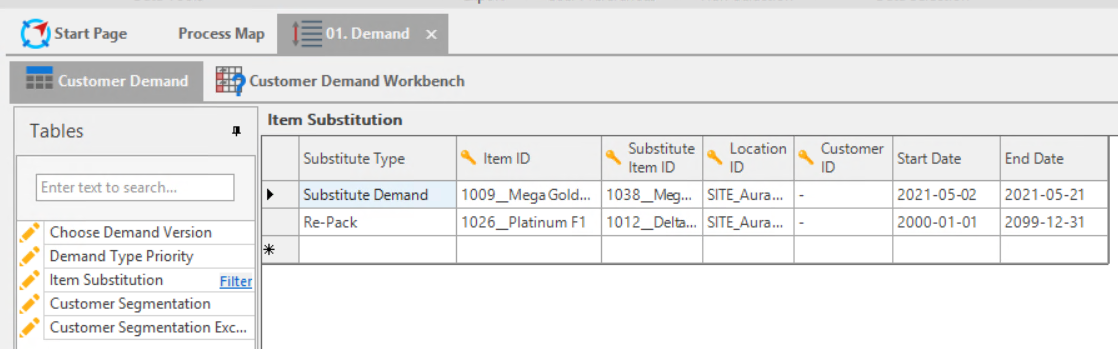
The Item Substitution table helps in setting up product substitutions for customers that allow for substitutions. Such combinations can be maintained in this table, and the model will understand that if Product A becomes unavailable, it will fulfill orders for Product A with Product B.
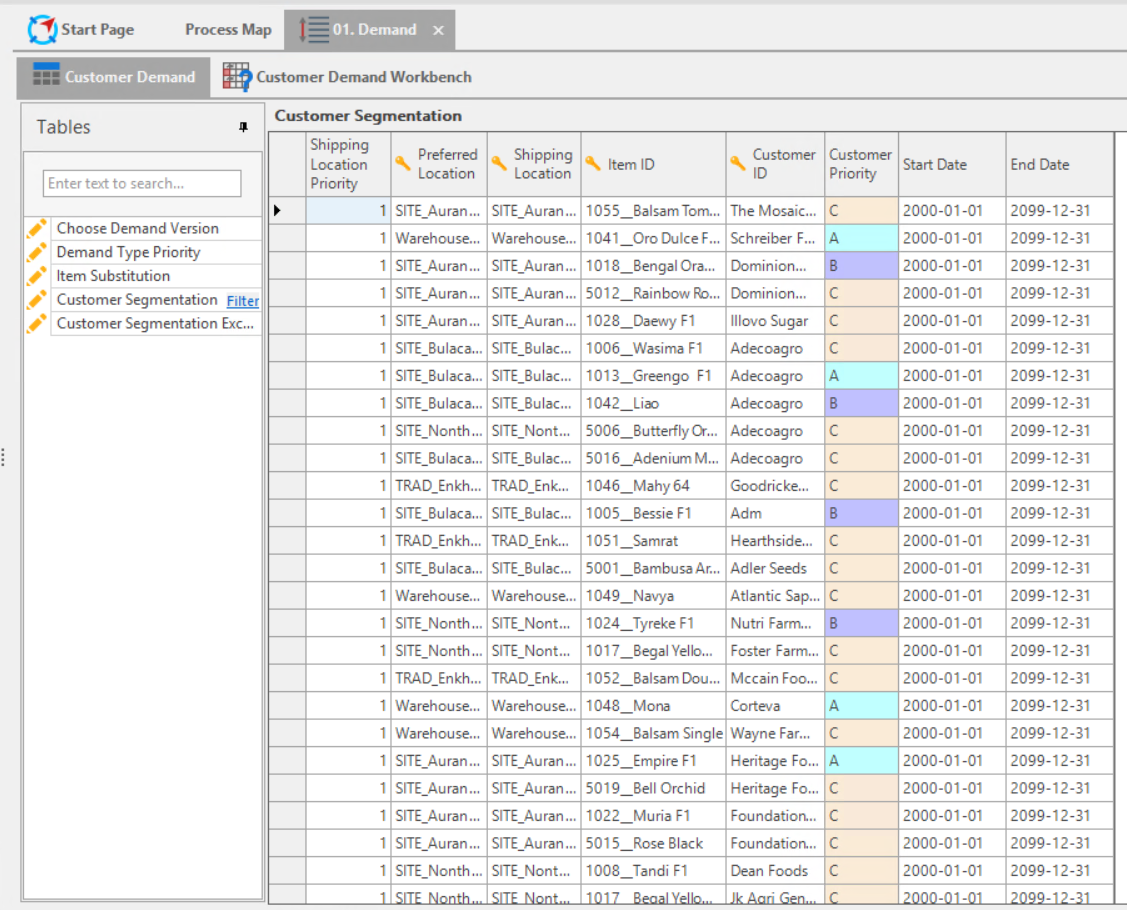
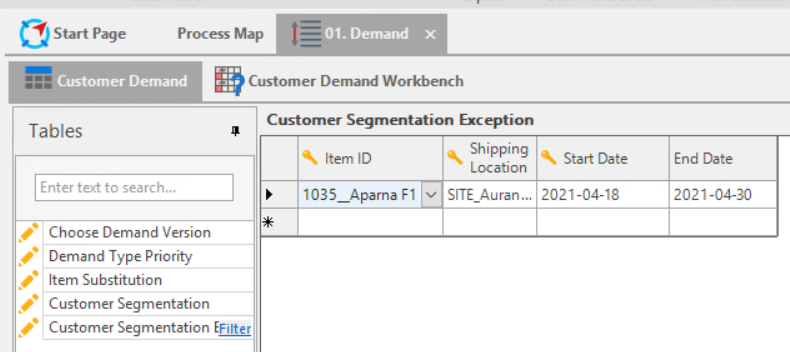
Customer Segmentation helps keep track of the priority of which customers will receive an order of a product being sold to multiple customers. Customer priority is handled by Segmentation, but as a planner you can go into the Customer Segmentation table and make edits to create what-if scenarios based on changing the priority order of the customers.
Inventory\ The Starting Inventory table shows as of today what different products and their quantities are available at a location. This is an important table for the model because it's the first place it will look to know if it able to produce today's demand.
The Inventory Bounds table helps you manage the max storage levels of a location, such as a plant or warehouse.
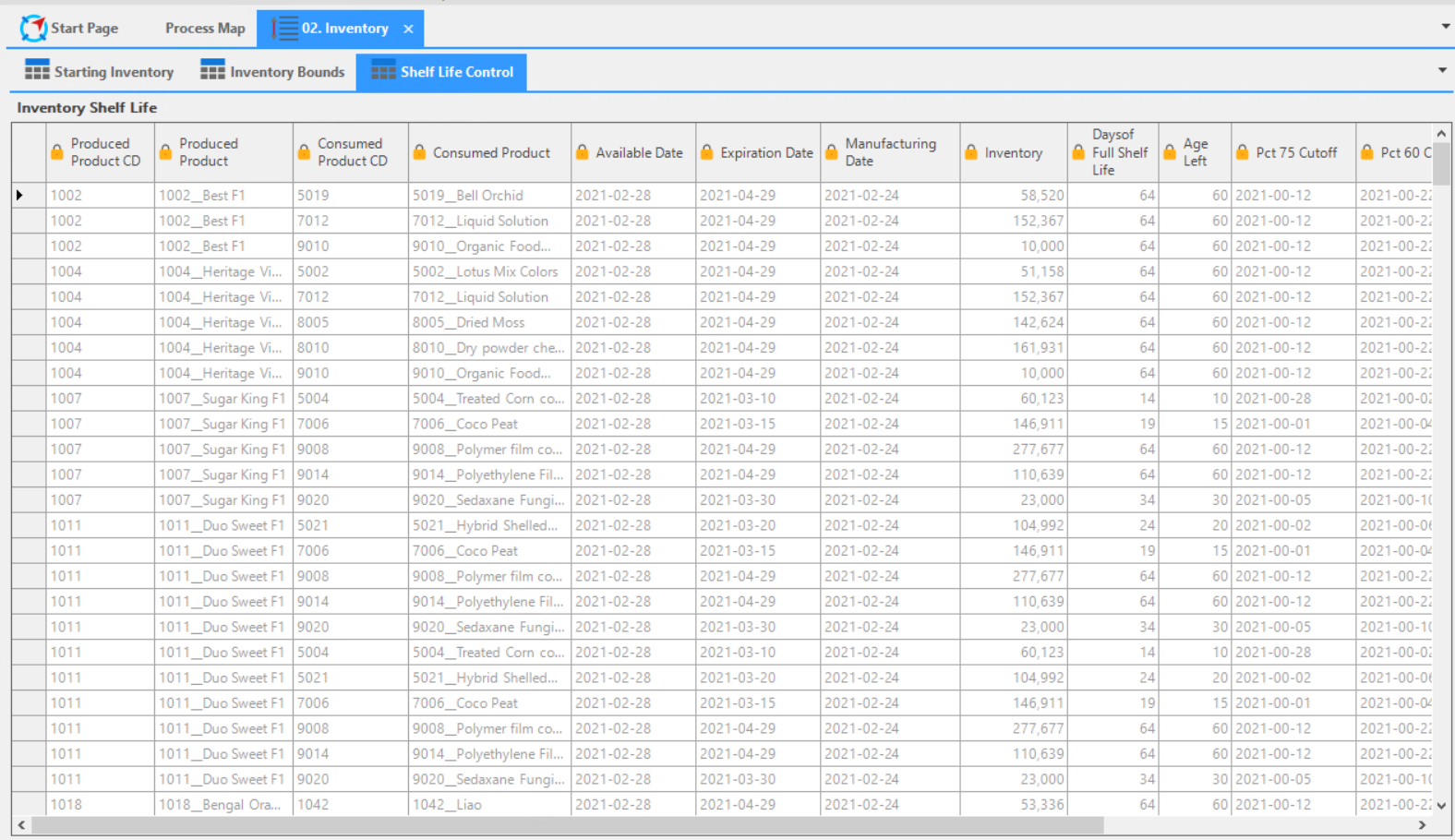
The Shelf Life Control table helps you manage the shelf life of items at locations and perform what-if analysis with the data. This table is most often used by CPG Industries, like food and beverage companies.
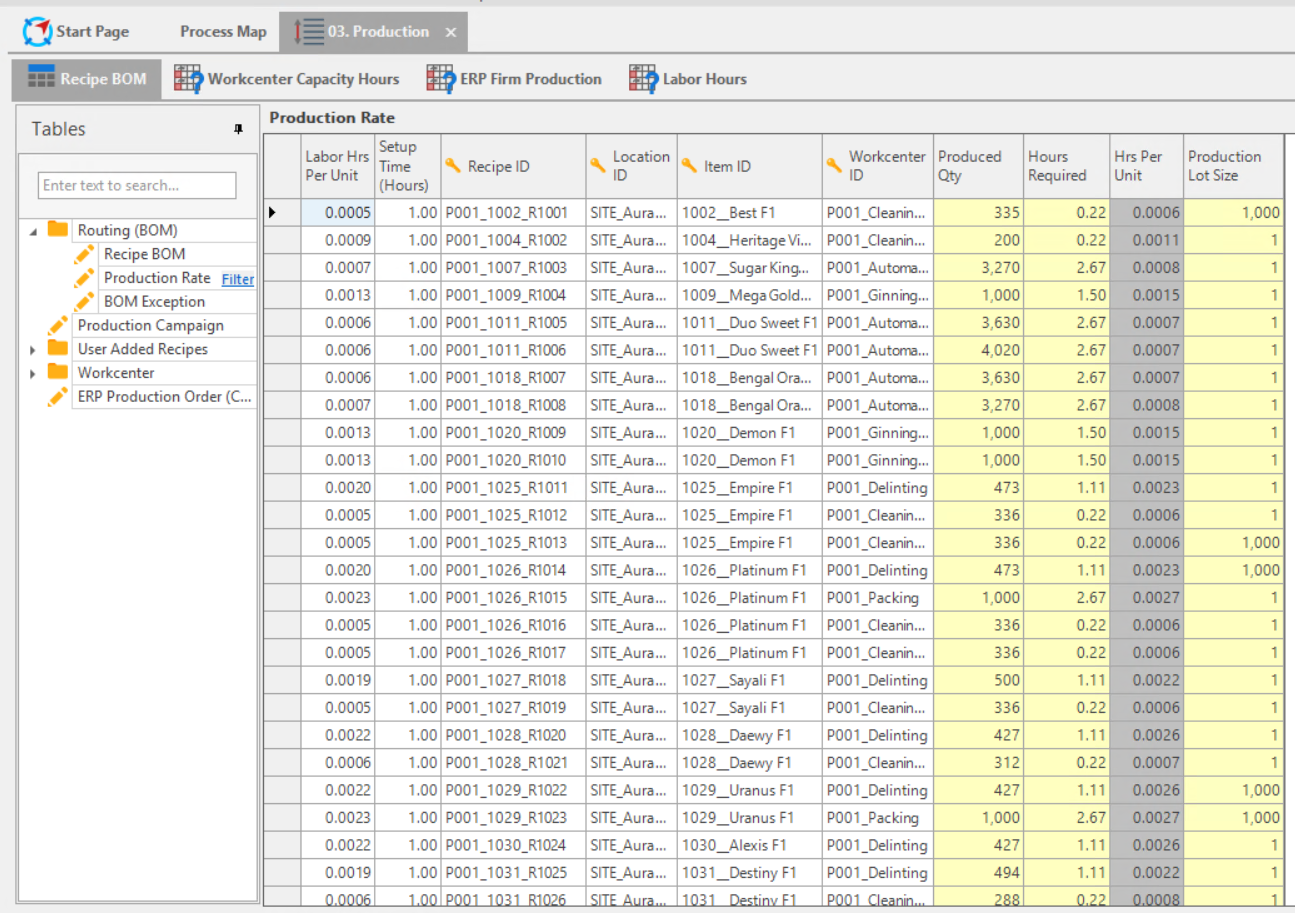
Production\ The first example of a Production tables are the Routing (BOM) tables. The BOM (Bill of Materials) data comes directly from a client's ERP system. The Recipe BOM table has all the data showing what is needed produce a product.
The Production Rate table helps you understand what locations have the materials needed to produce a product.
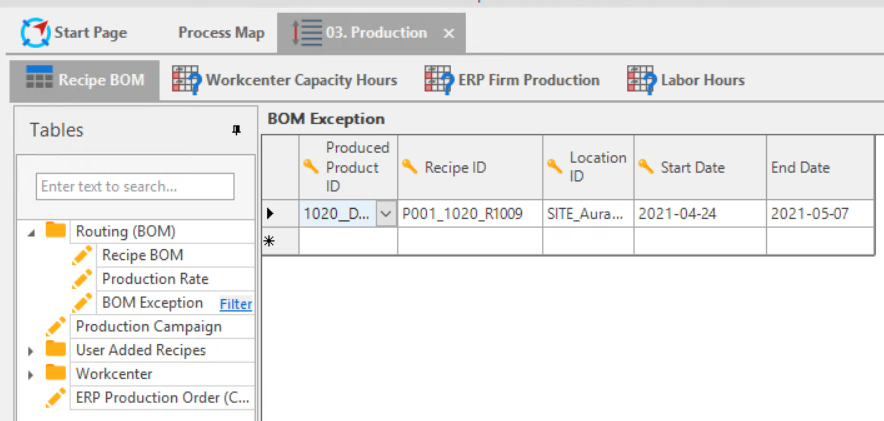
And the BOM Exceptions table allows you to manage any exceptions related to the BOMs.
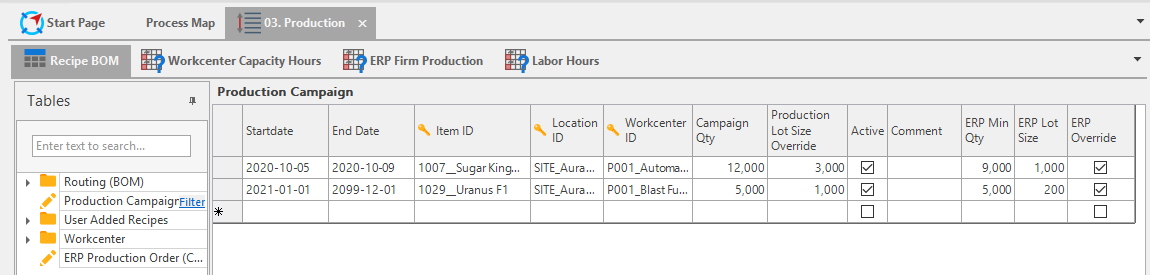
The Production Campaign table allows you to define the start and end date, the product, the location resource, quantity, lot size, and whether the campaign is active or not.
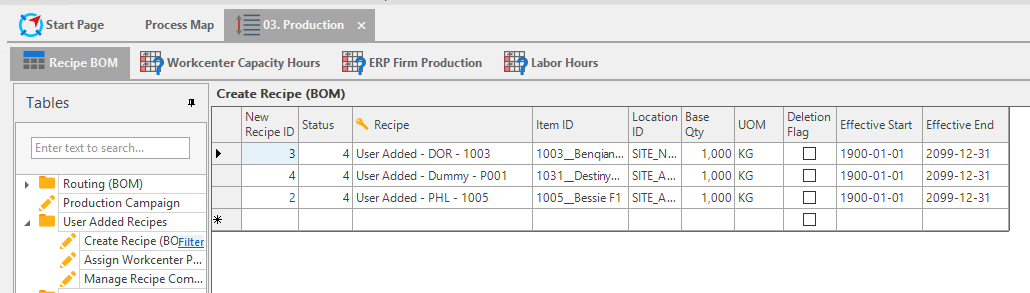
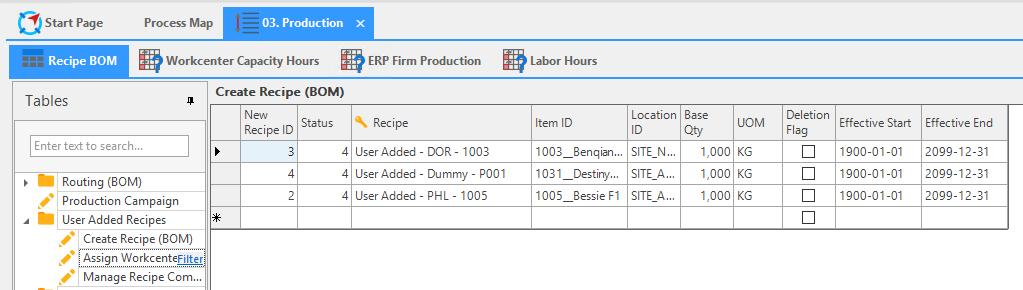
The User Added Recipes tables allows planners to create their own BOMs. This is part of the user maintained data section we discussed earlier. The advantage of creating BOM recipes in Arkieva to perform what-ifs is that it's much faster than creating the BOM in the client ERP. The client ERP needs to perform a lot of checks and pass approval criteria, whereas the data can be selected quickly within Arkieva and see how the system will handle the new recipe against the Model.
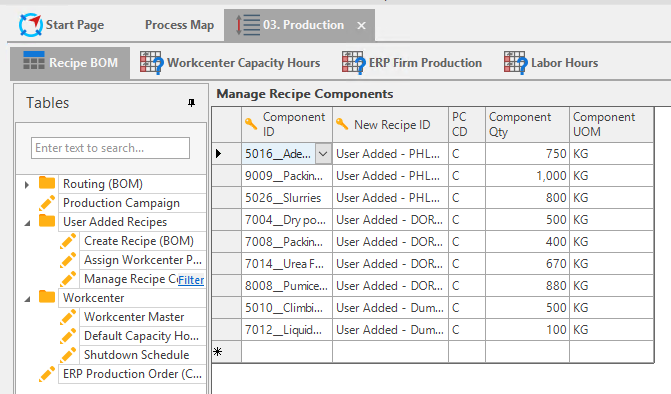
After creating a BOM, you can assign it to a Resource or Workcenter. And you can assign the different semi-finished products and raw materials that the BOM will need to consume to create the product.
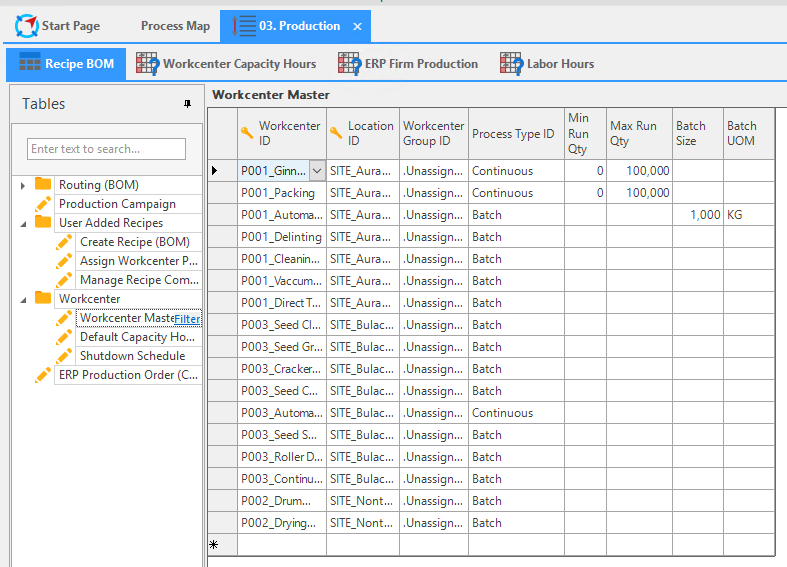
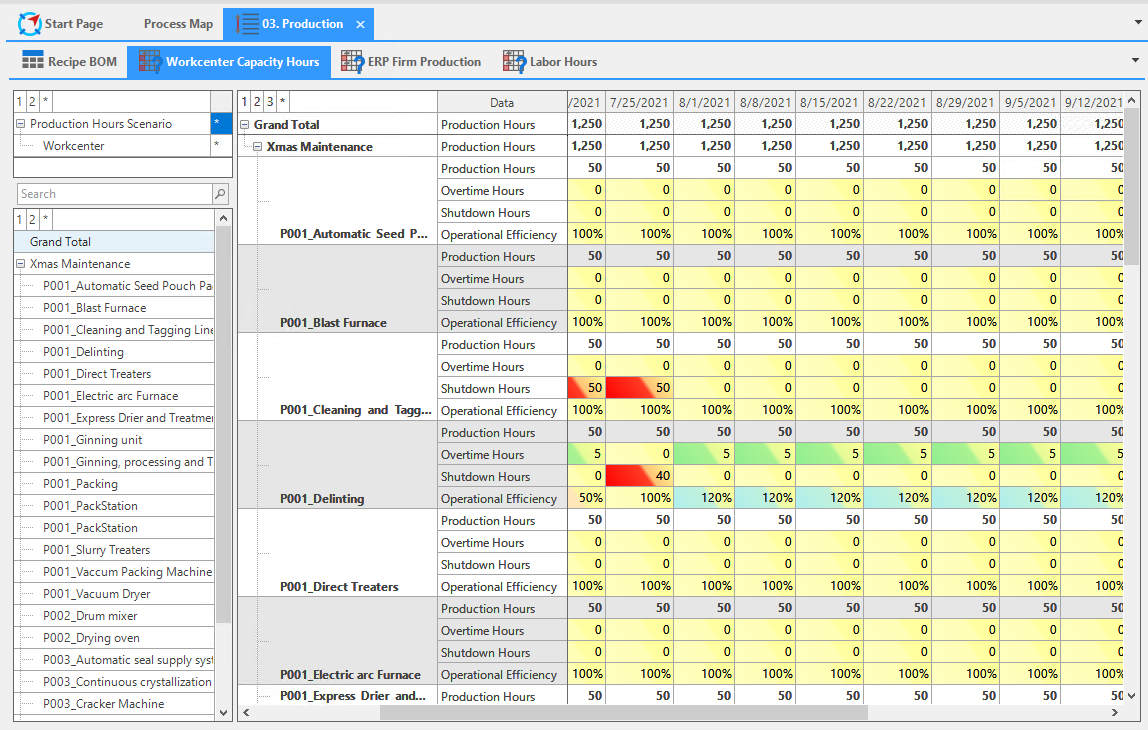
The Workcenter Master table shows the what different resources are available at different locations. And these table examples below show the different ways a planner can manipulate the data to show what-if scenarios for shutdowns, maintenance, etc.
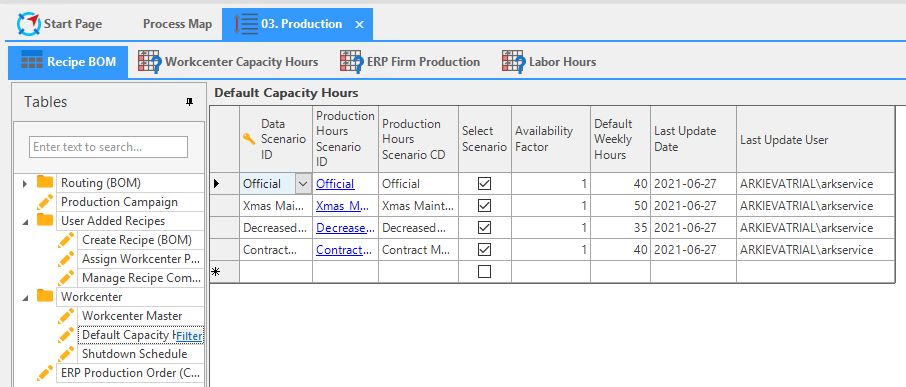
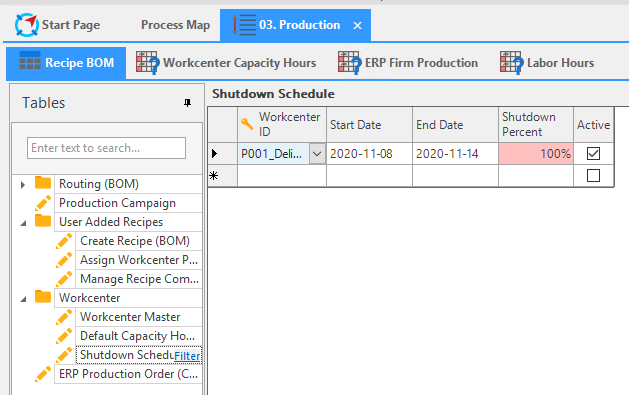
Once the different what-if scenarios are created you can do the Workbench tab and view the results.
Procurement
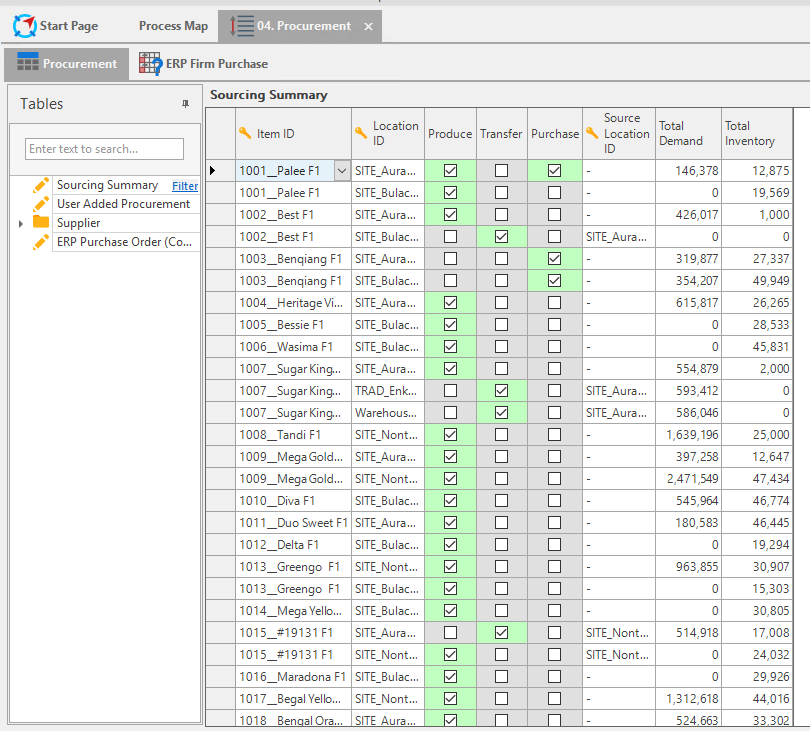
The Procurement tables are important because they inform the model of the combinations needed to meet demand. They help the model understand whether it needs to produce, transfer, purchase, etc.
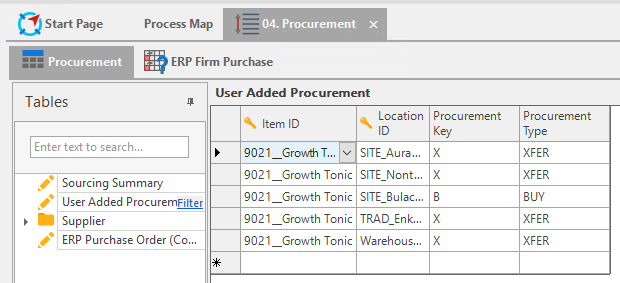
The User Added Procurement table is another example of user maintained data. Here a planner can add combinations and play around with the data to see if it will be able to meet unmet demand.
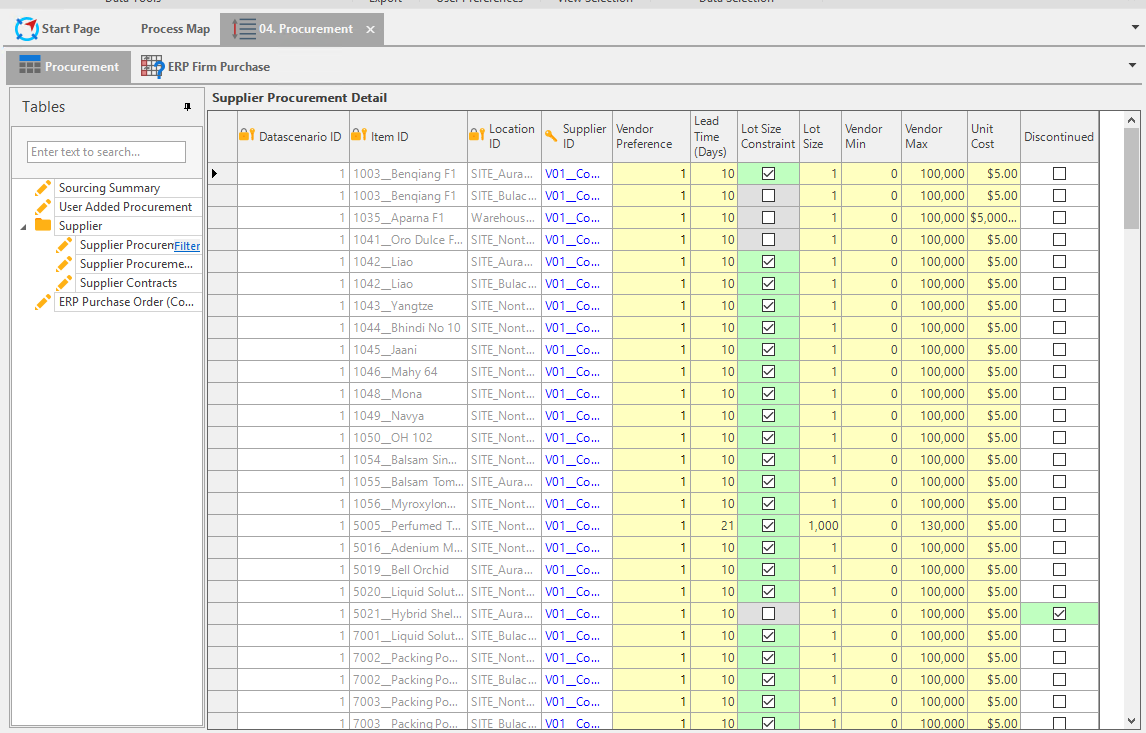
The Supplier tables tell the model from which supplier will we need to purchase from so that our overall costs of purchasing is low.
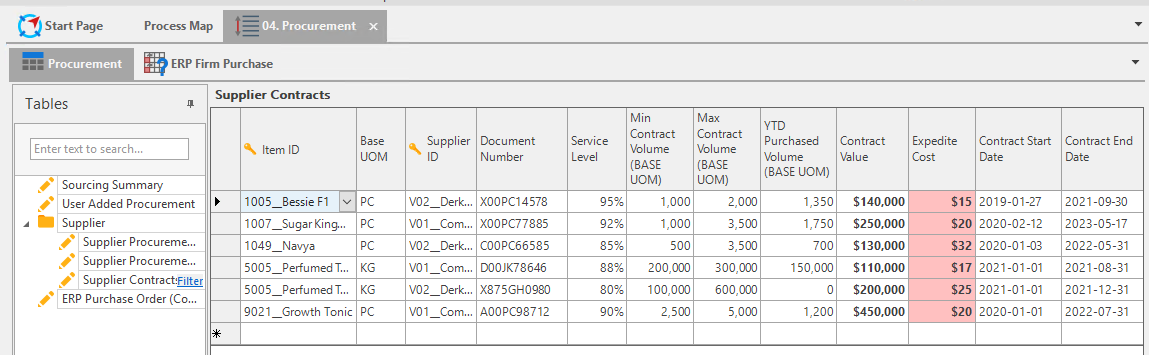
Supplier Contracts tables can help a planner to see at a high level all their supplier contracts and the constraints they entail.
Distribution
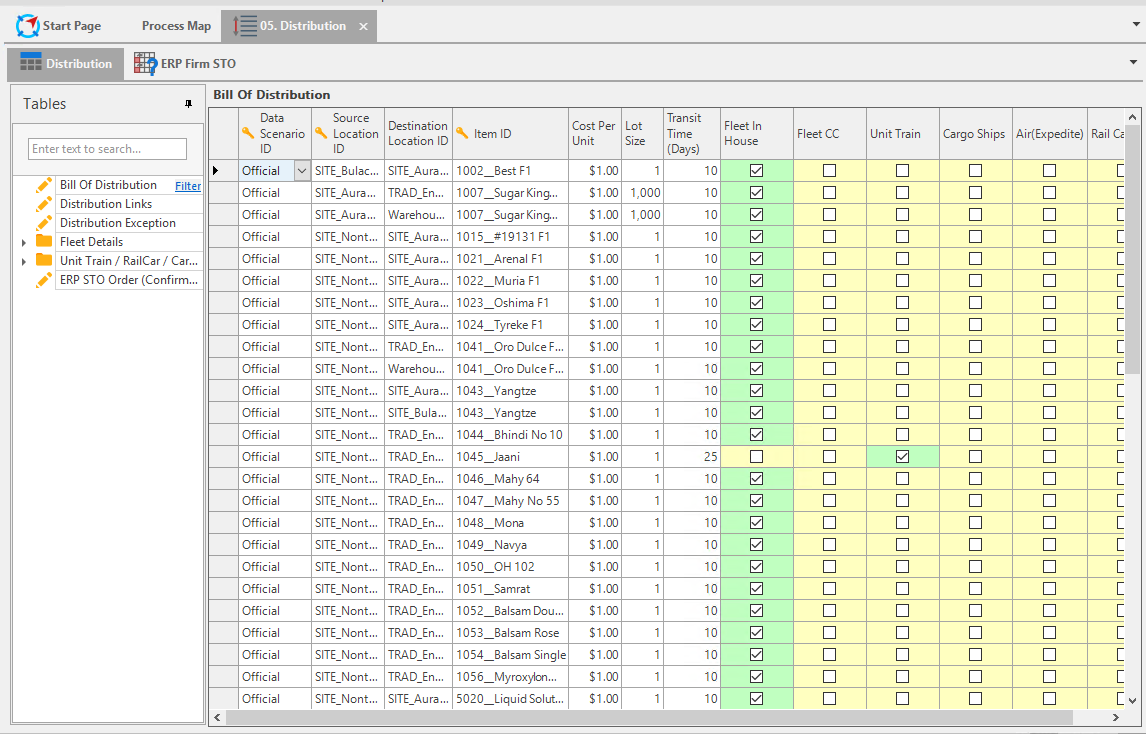
Bill of Distribution shows the source, destination, item, cost, lot size, transit time, and how the type of fleet used to distribute the item; i.e. train, ship, air, etc.
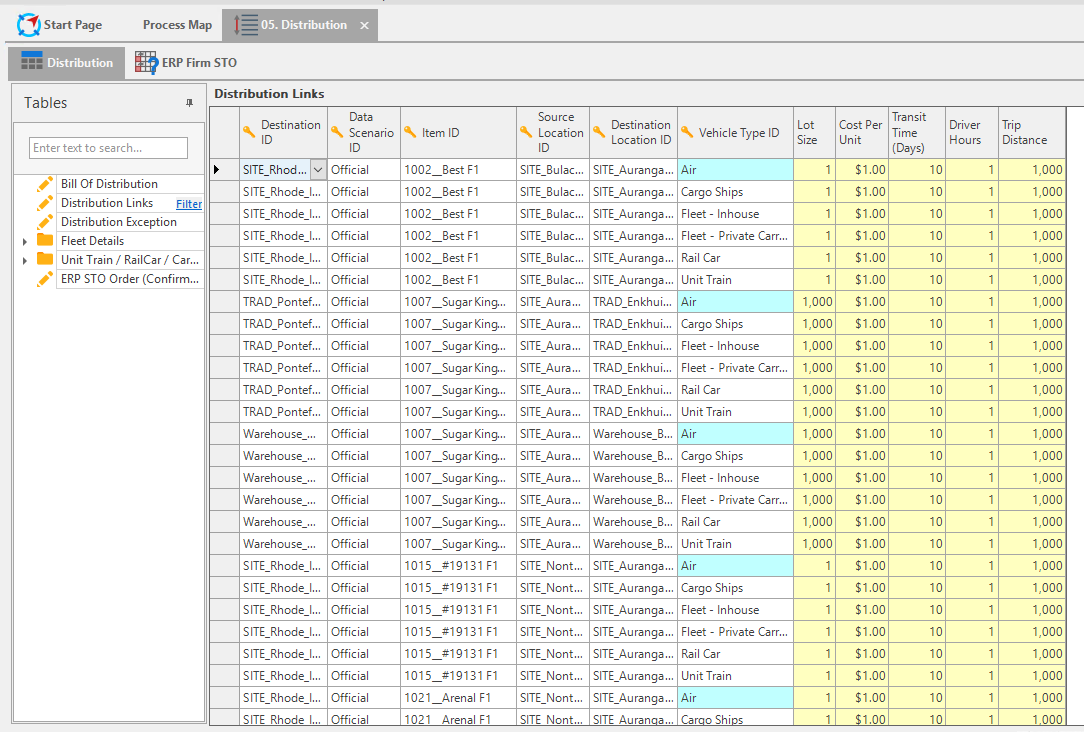
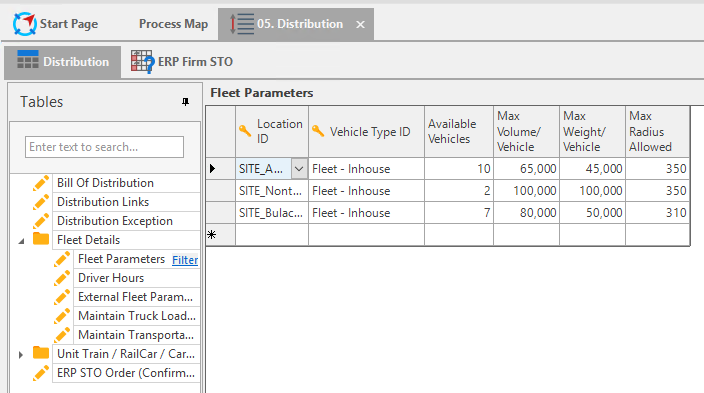
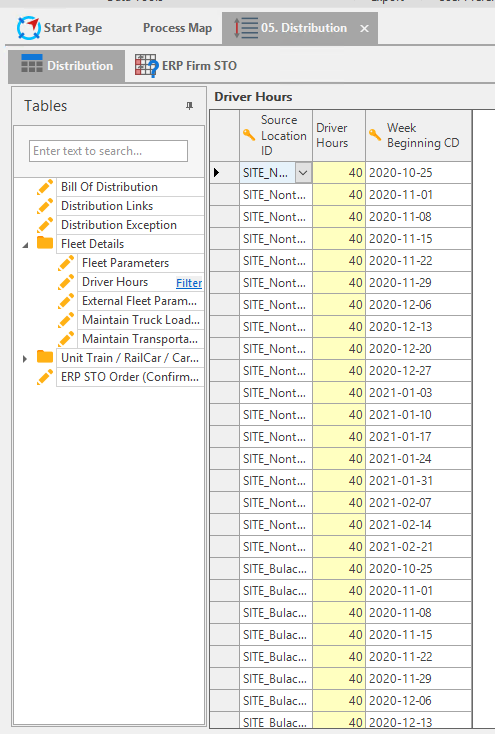
Fleet Details tables can also be created to show detailed information of the types of fleets being used for this model.
Ask What If’s Solver Engine
After these inputs are accounted for, the Solver Engine can perform Material Requirements Planning (MRP), Capacity Requirements Planning (CRP), and Distribution Replenishment Planning (DRP).
Analyze and Adjust
After the engine has analyzed the inputs and constraints, the engine will create Output data. These outputs are Production Plan, Purchase Plan, Transfer Plan, Lost Sales, and Projected Cost and Revenue.
Production Plan will inform you on how much, when, and where to produce. Purchase Plan will tell you how much and when raw materials should be purchased, and from which supplier. Transfer Plan will let you know how much and when an interplant transfer needs to be completed, so demand is fulfilled at a specific location. Lost Sales will inform you to how much lost demand or lost sales will result from the current plan. And lastly the engine will output Projected Cost and Revenue for the forecasted future.
The Adjust aspect of the output step covers the Scenarios, Planner Board, and Firm Orders. You can make copies of an official Scenario to pass different inputs through the engine to solve different what-if problems. And once you’ve finalized the outputs from the model, you can either Publish the results back to ERP or within Arkieva. Manual Refinements can also be performed throughout the process to fine-tune the plan before Publishing the results.
LP/Optimization Component
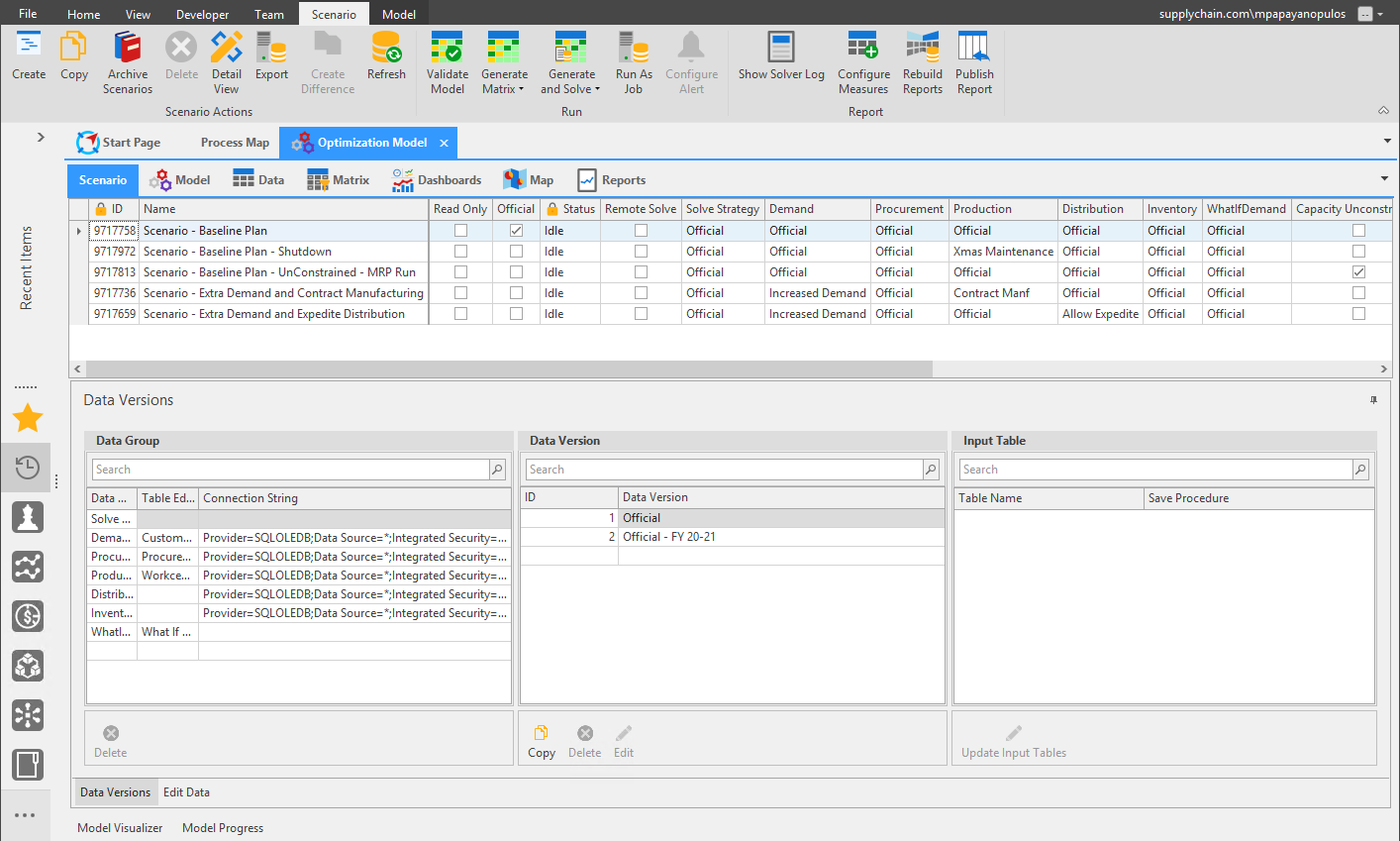
When launching the LP/Optimization component, the Scenario, Model, Data, Matrix, Dashboards, Map, and Reports tabs will open.
Scenario tab
The Scenario tab is where you can create and make copies of scenarios.

The Official Scenario is used by a business to plan their supply, and copies of the Official Scenario can be made to perform What-If analyses. Selecting the Official Scenario and clicking Copy will create a copy of that scenario.
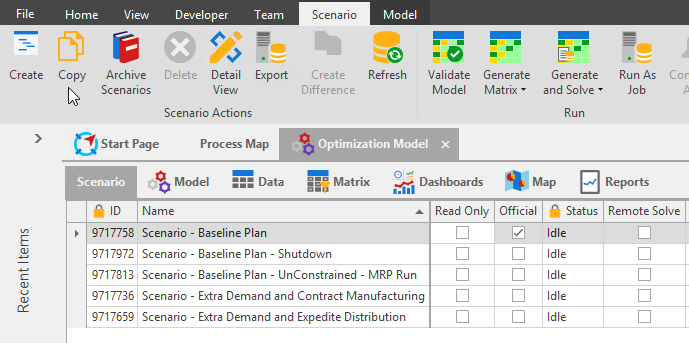
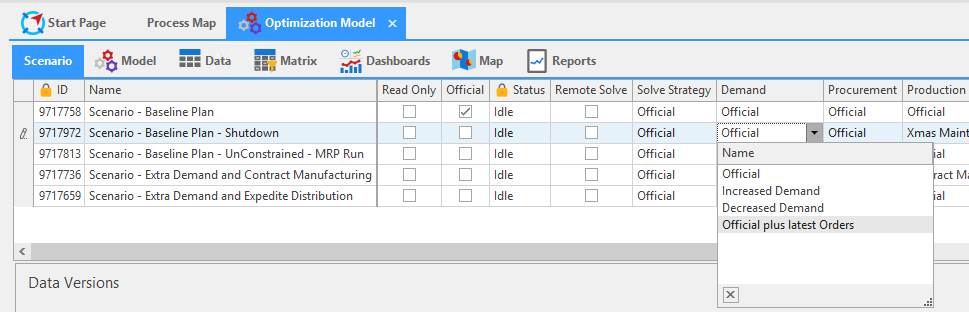
You can also view the inputs for each scenario under the Demand, Procurement, Production, Distribution, Inventory, and What-if Demand columns. If these inputs have multiple datasets, you can select them from a dropdown before selecting the scenario and viewing the Model. As an example, we could run this scenario with increased demand, or decreased Procurement Data, or as a maintenance version in terms of production. Another option could be running a scenario with or without production, lot size, purchase load, size, transfer, load size, or capacity, or whether we run the scenario as constrained or unconstrained. What is important to remember is these scenarios are configurable depending on the needs of your business.
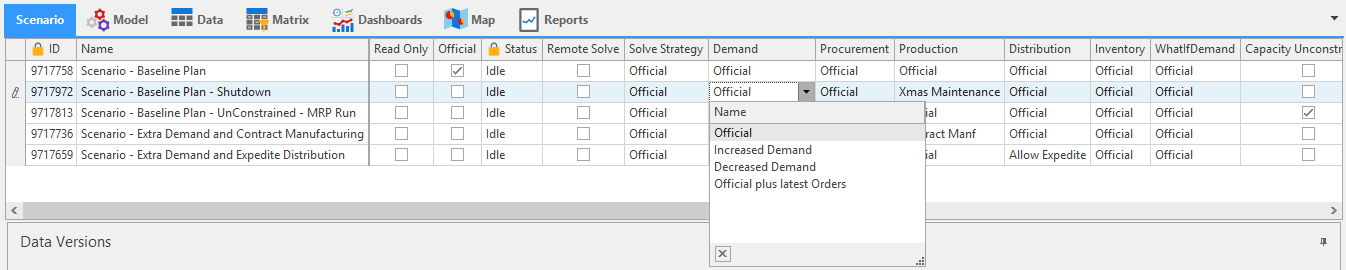
Scenario Status\ There are three statuses a scenario can be: Optimal Solution, Feasible Solution, and Infeasible Solution.
- Optimal means the model was able to output the best possible solution.
- Feasible means it is not the best, but the model was still able to output a useful solution.
- Infeasible means the model became confused with some of the constraints and was unable to output a solution.
Run Buttons
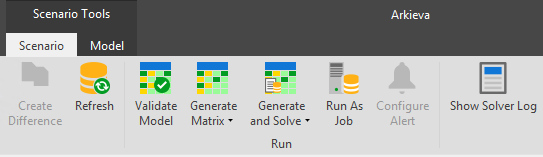
- Validate Model evaluates all inputs that have passed to the model.
- Generate Matrix runs validate model and then transitions to Rate Matrix.
- Generate and Solve performs Validate Model, Generate Matrix, and Rate Matrix, validates and generates the matrix, then solves the model giving us the output data.
- Run as Job allows you to run a scenario that usually takes a few hours but a specified time so that it will run while you are off from work and have the outputs ready for you when you arrive to work the next day.
- Configure Alerts as well show solver log we'll discuss in the next section, then configure measures. These are all related to reporting that we'll discuss in the next session. And there is data version section as well that we'll discuss in the next section.
Data Versions
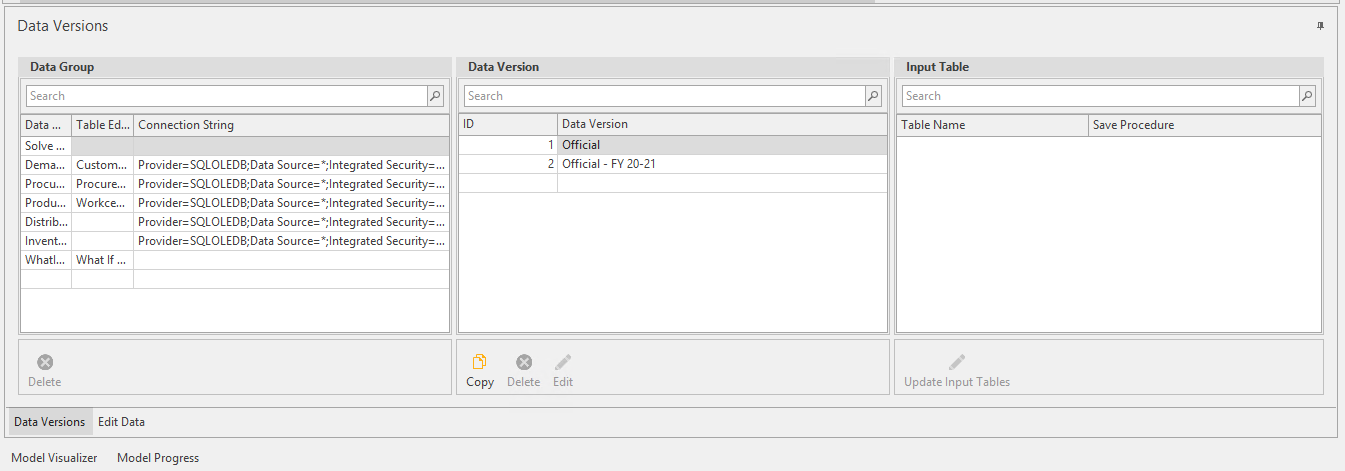
The Data Versions section of the Scenario tab allows you to maintain different sets of data.
Model
Selecting a scenario will launch the model in the Model tab. The model will load with all the defined business constraints.
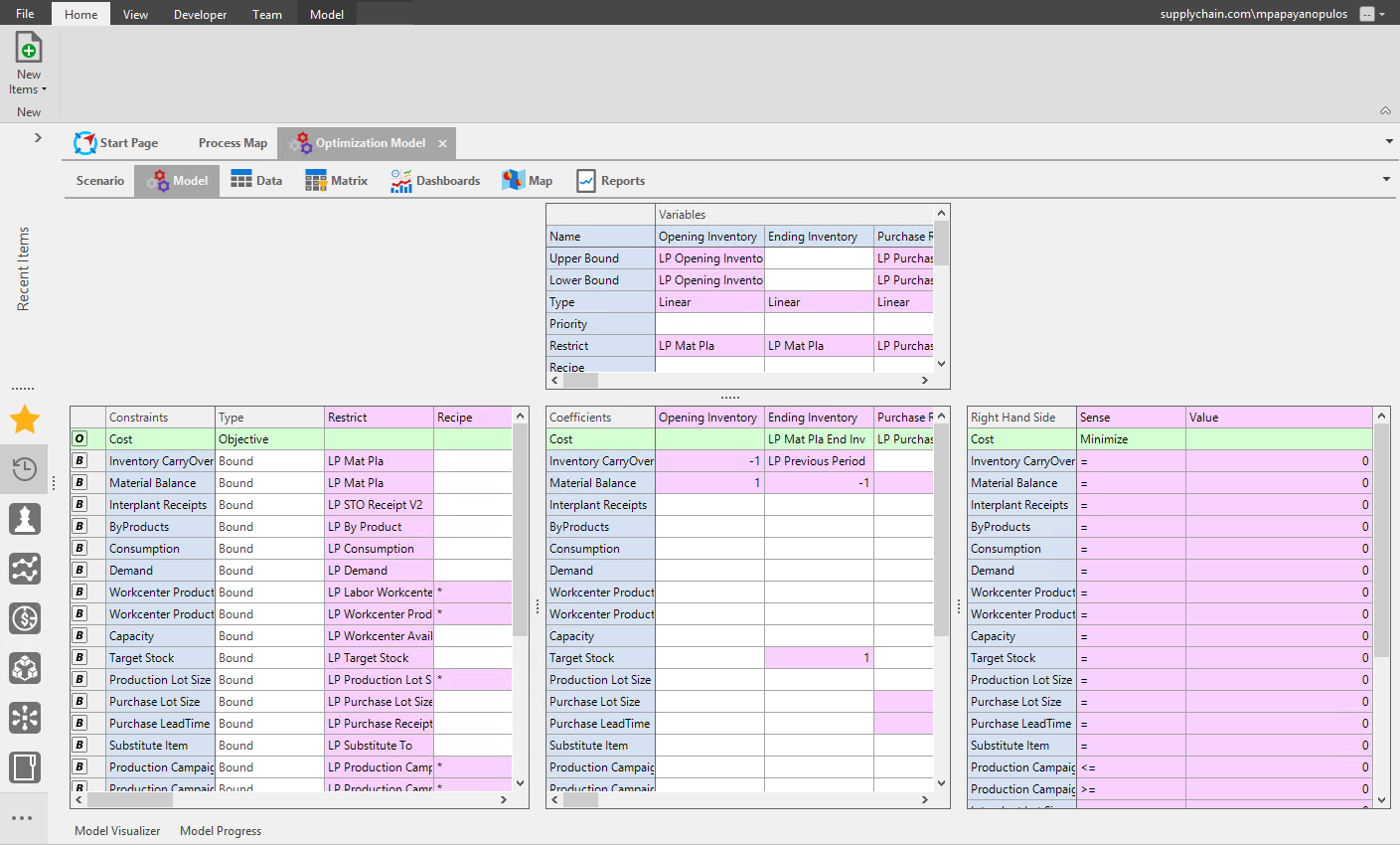
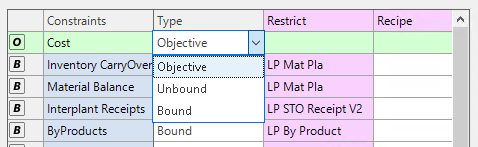
Objectives involve either a maximization or minimization problem. A Minimization problem will help to minimize lost sales or unmet demand. A Maximization problem will help figure out how to maximize profits or margins.
Model Visualizer
The Model Visualizer can be used to view a diagram of how the data links to each other in the model, and to view the mathematical equations of constraints. Select a constraint from the model and click the Model Visualizer pane under the Model. You can pin the pane so that it will not slide back down. Below we have selected the Material Balance constraint to view the Material Balance mathematical equation.
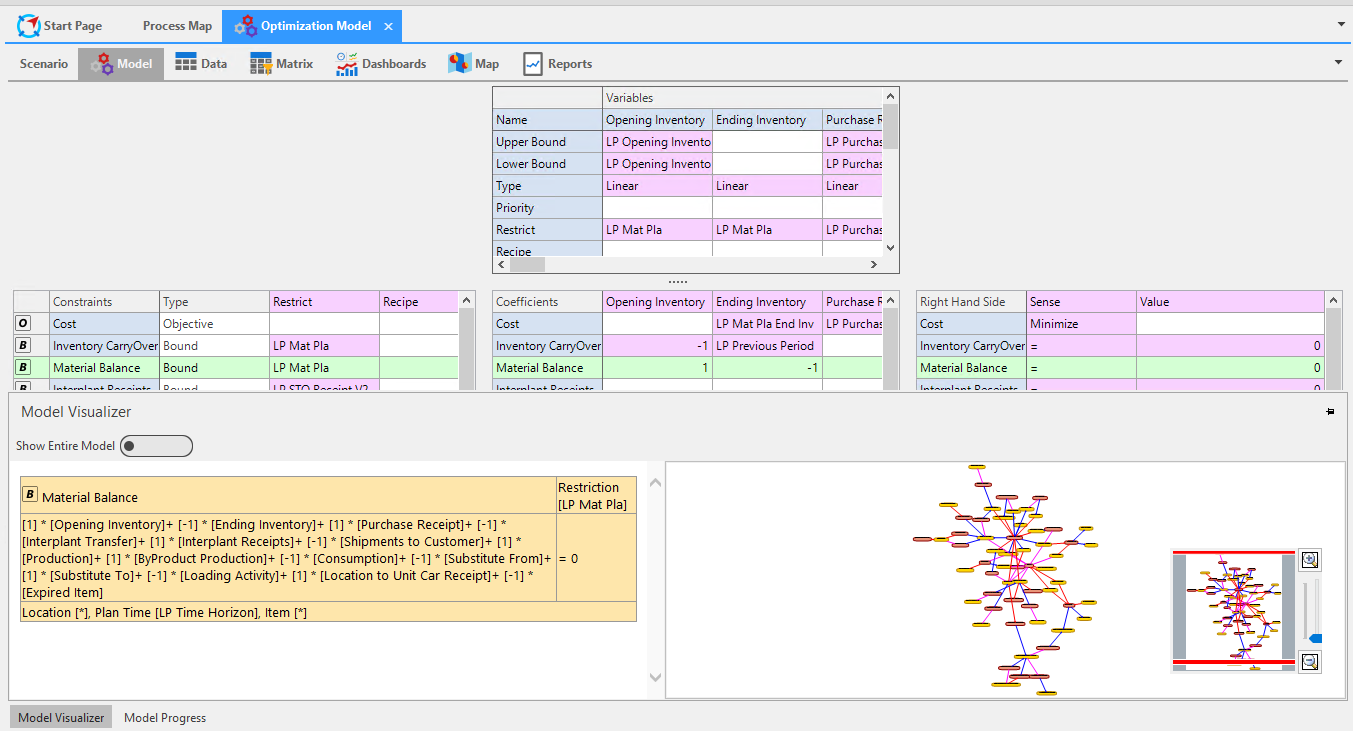
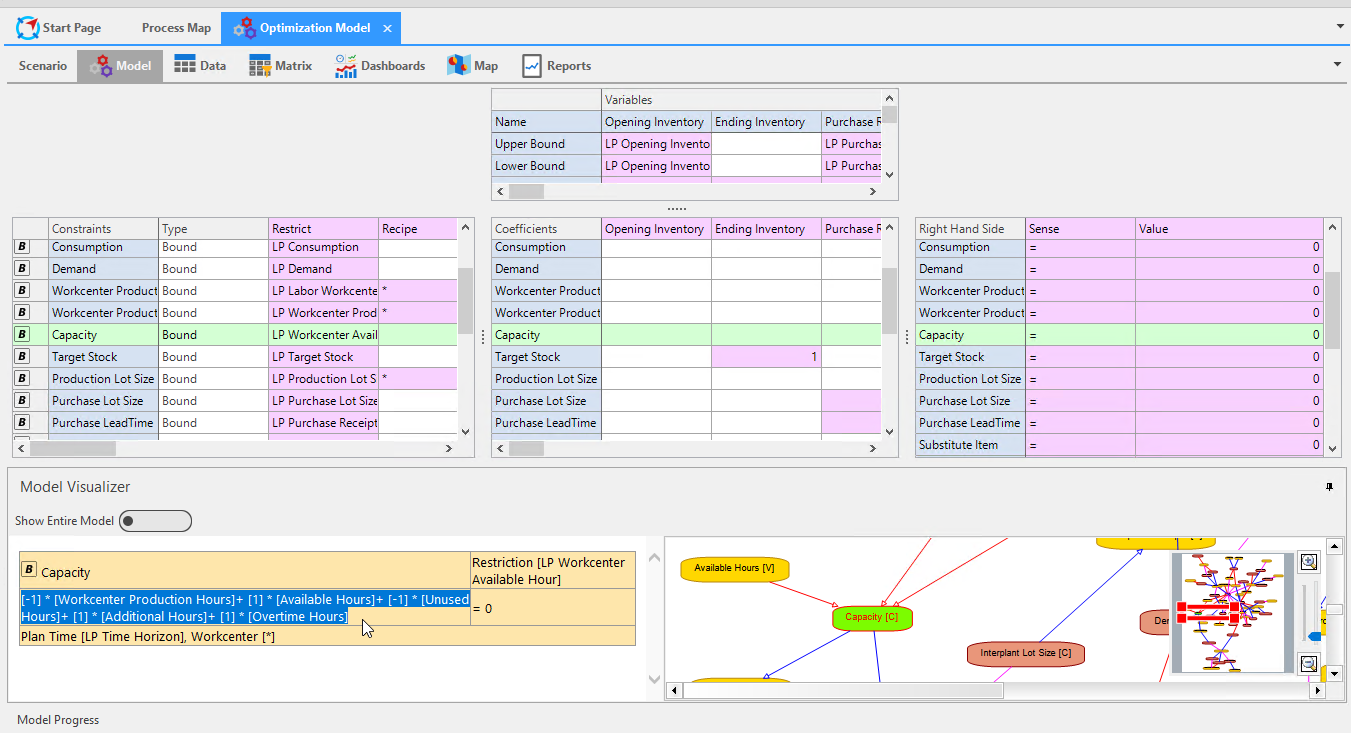
With the Model Visualizer pane pinned, we can select different constraints and view the diagram and mathematical equations in real time.
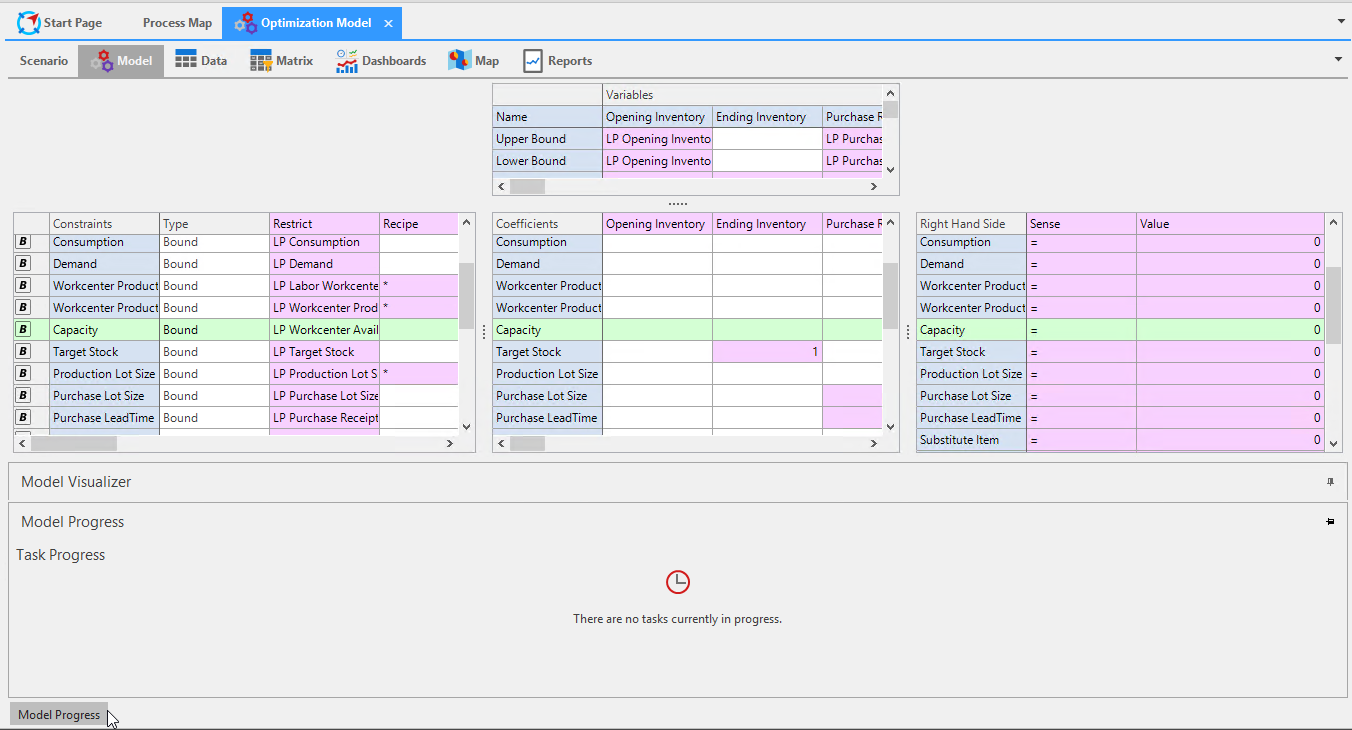
Model Progress
The Model Progress pane shows you what steps are being performed while running Generate and Solve. This will show the length of time specific processes are taking to complete, so that you can adjust accordingly.
Data Tab
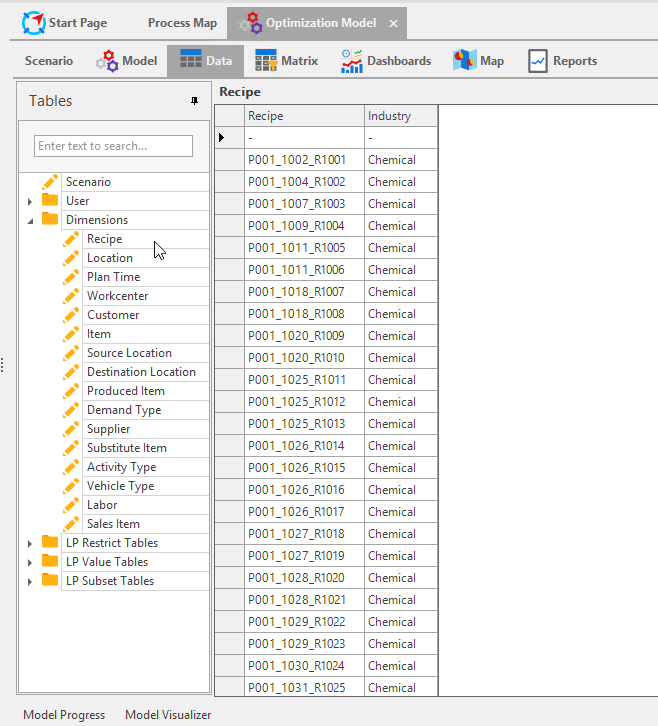
The Data tab holds tables that represent all input data going to the Model. Here you can create your master tables for the model based on these input tables. You can also use these tables to research the reasons for why you are getting a particular output result. This was made available as an alternative from viewing this data in SQL.
Matrix
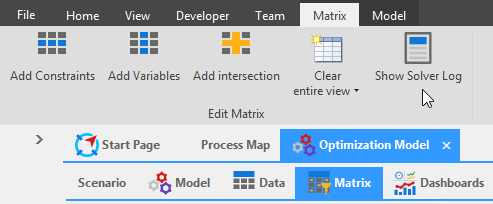
The Matrix tab is restricted to Arkieva Consultant use only. When a model's status is infeasible, a consultant can come to this tab and click the Show Solver Log to debug the model.
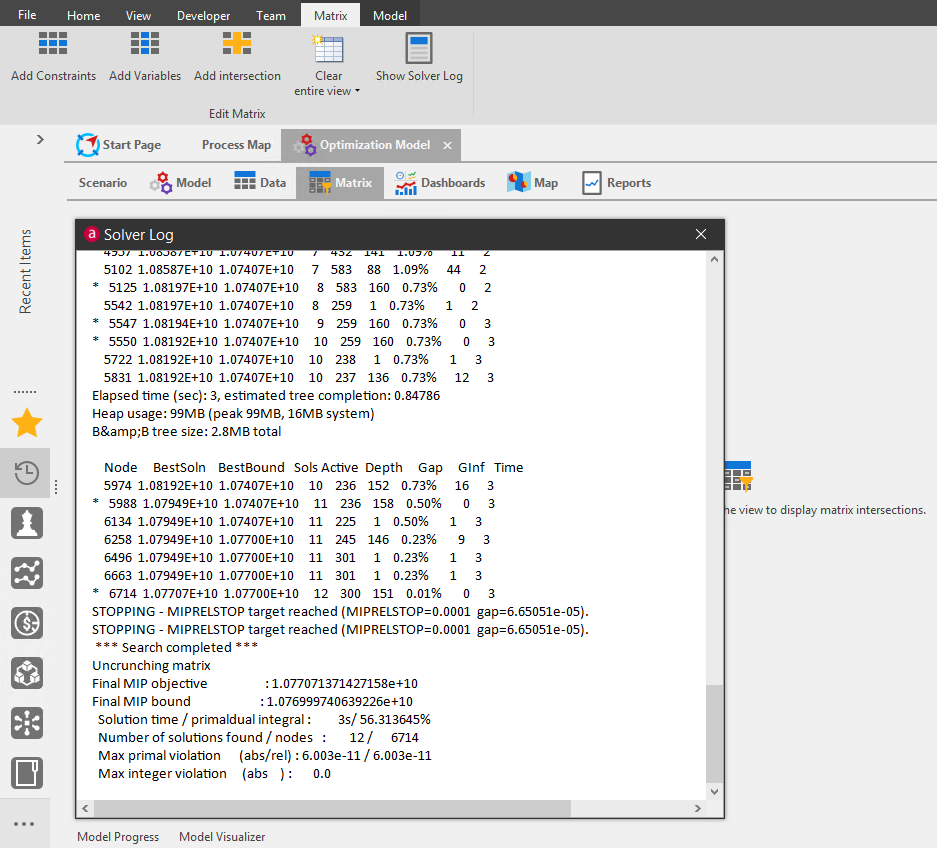
A consultant can then Add a Constraint, Add a Variable, or Add an Intersection to find the the record\ causing the infeasibility and debug the defined model.
Dashboard
The Dashboard tab functions the same as the Analytic Dashboard component. Click here to learn more about Dashboards.
Mapping
Network Mapping can be performed in the Mapping tab's interactive map. Such examples include plotting shipments between locations, interplant transfers, etc.
Reports
Reports are created as part of production planning. The following is a list of the types of reports that could be created for LP / Optimization. These are not standard reports included in Arkieva, rather examples of reports customers have asked for.
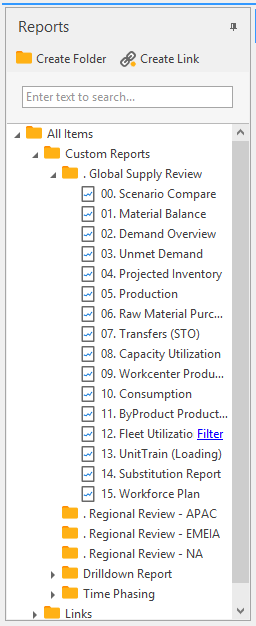
Scenario Compare
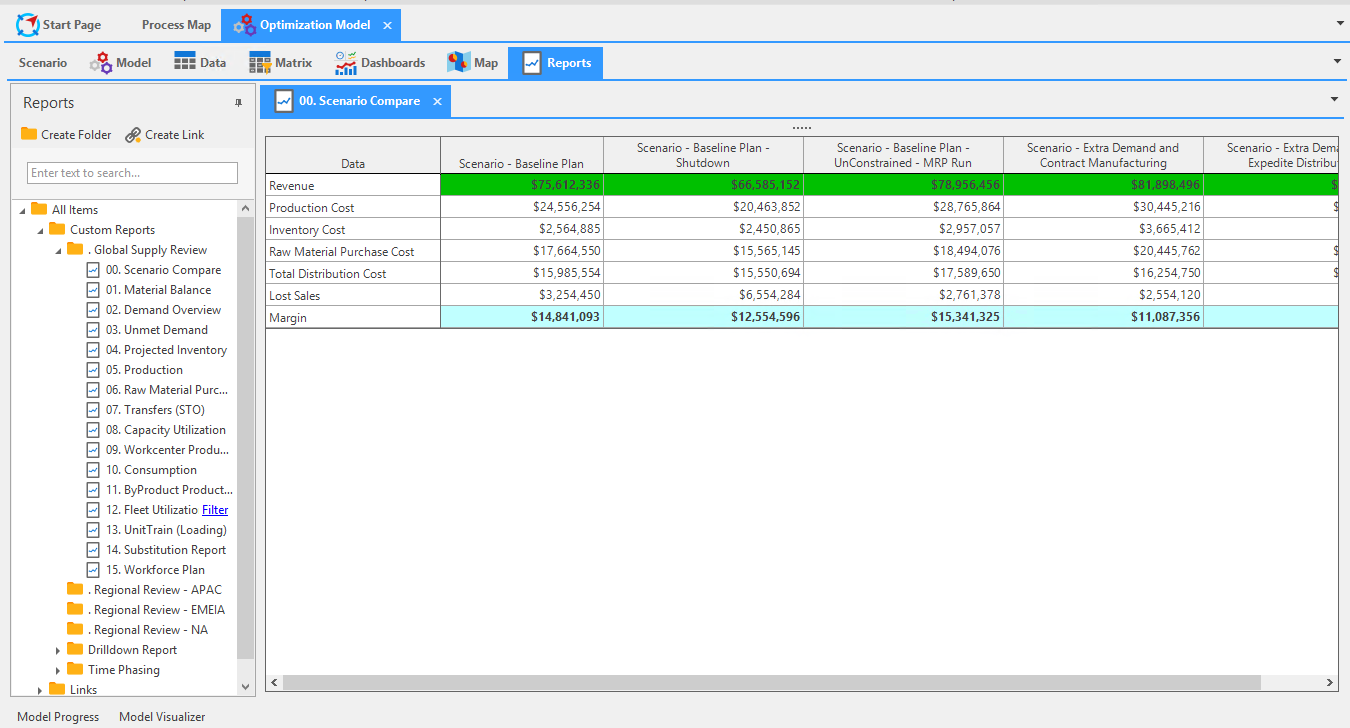
Scenario Compare is a report where you can compare multiple scenarios in terms of value or dollars. An added benefit of Scenarios is that multiple scenarios can be selected and launched. To select multiple scenarios, hold the Control key on your keyboard and click each scenario. Each selected scenario's data will automatically populate the Reports tab, as well as the other LP / Optimization tabs.
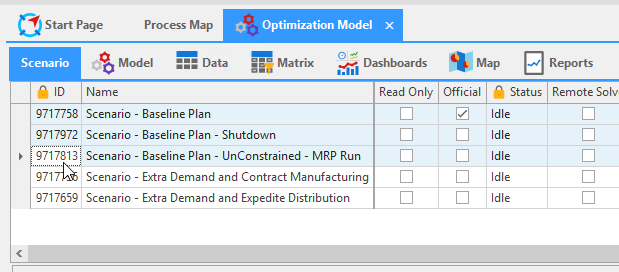
We have selected five scenarios. Below you can see the scenario compare in the Reports tab. This is an example of a Cost scenario compare. If we were to run a baseline scenario, we can see the margin and revenue results. However we could also run a scenario with an added shutdown schedule, which will cause our margin to go down by $2 million, and our revenue will go down by around $9 million. We could also compare different scenario results side by side for not just one report, but scenario results across all reports based on the selected scenarios.
Material Balance
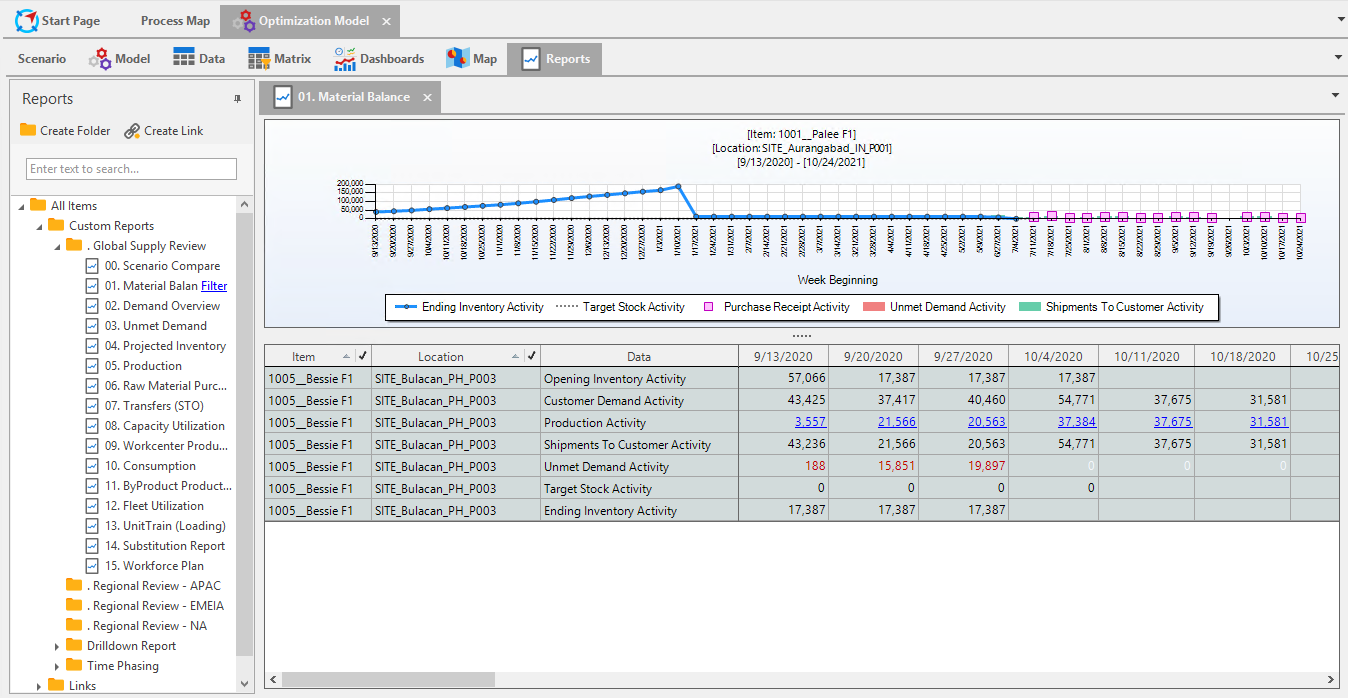
Material Balance report data shows the end to end flow of a product. As an example, we have filtered the report to show product 1005 at the Bulacan location. The quantities at this location are Opening Inventory Activity, Customer Demand Activity, Production Activity, Shipments to Customer Activity, Unmet Demand Activity, Target Stock Activity, and Ending Inventory Activity. These variables were defined inside the model. And based on these inputs and constraints, the model is recommending certain Production Activity, and it is also showing how much Unmet Demand we will incur.
In the specific example, for the week of September 13th, we have an Opening Inventory of 57,066. And the Customer Demand is 43,425. The model has recommended that we Produce 3,557 of product 1005 and once that is produced we Ship 43,236 to the Customer. However this will leave us with an Unmet Demand of 188. The Ending Inventory Activity shows how much product is left at the location, after producing and shipping the product to the customer.
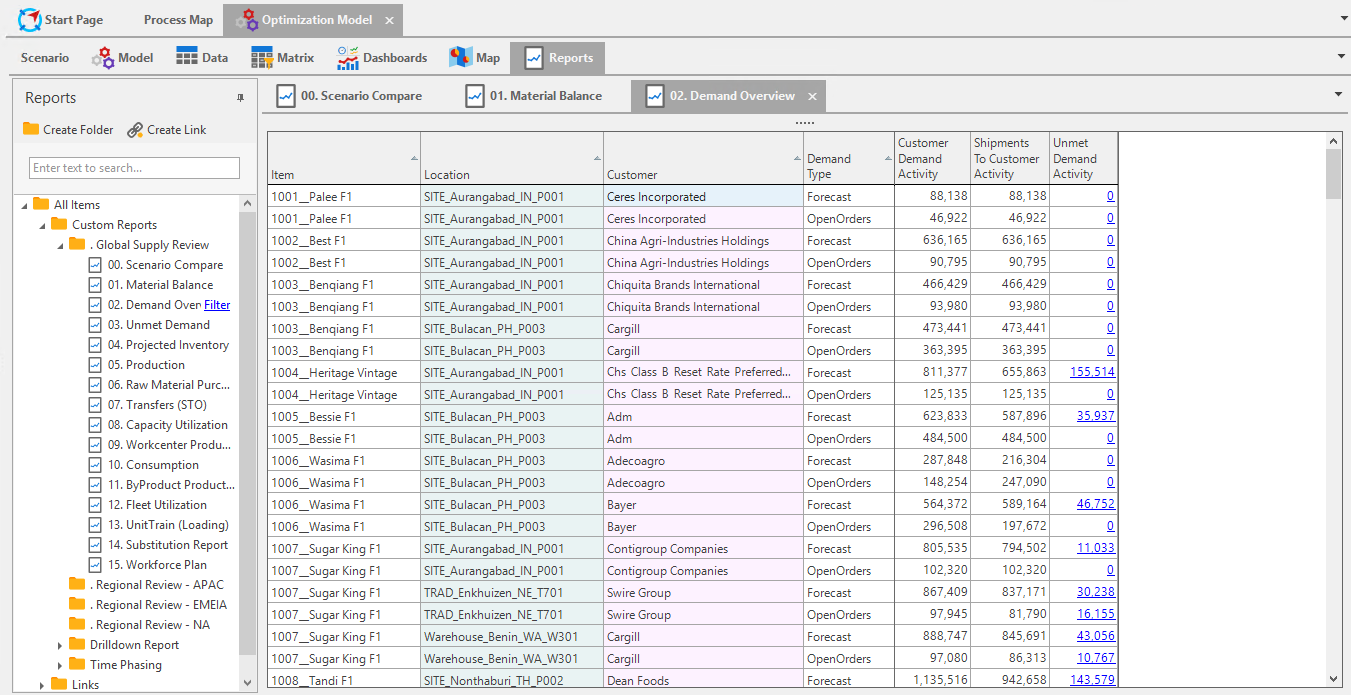
Demand Overview
This report highlights demand data. To reiterate, reports are created to fit your needs, such as creating a report that will focus on demand only by item and location, but not by customer.
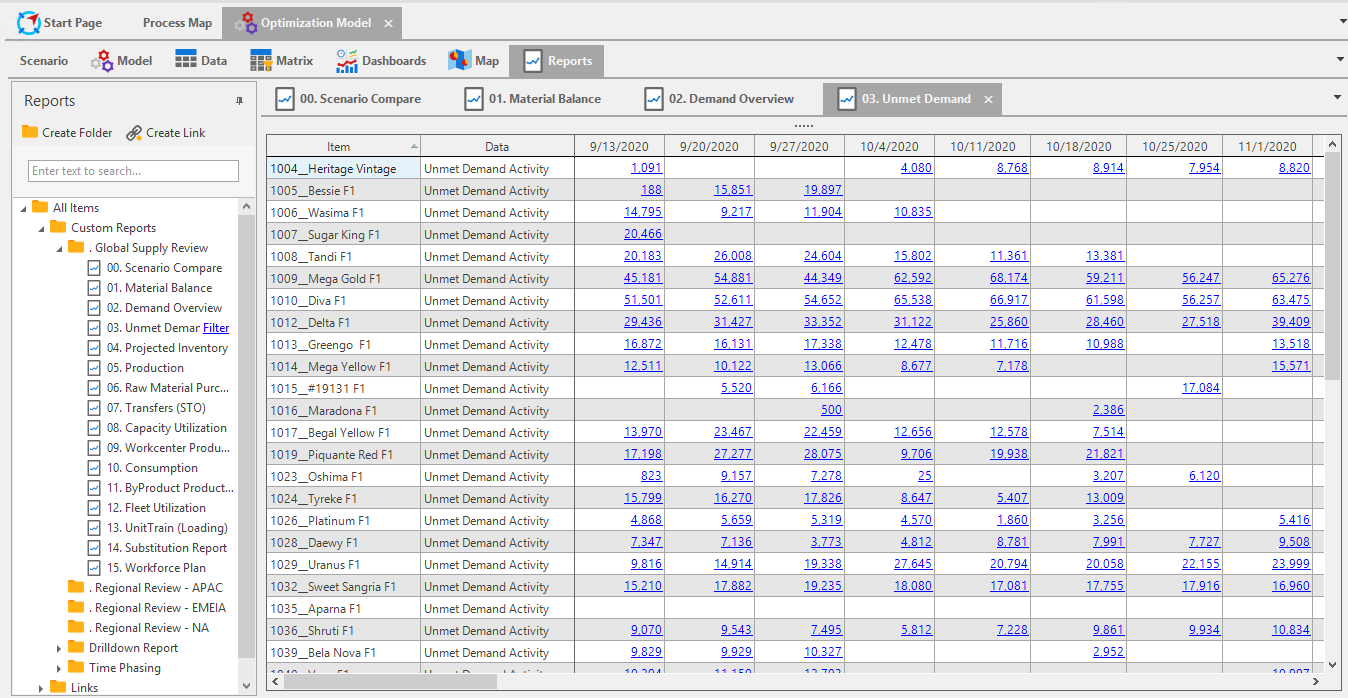
Unmet Demand
Similarly to the Demand report, the Unmet Demand report shows the data of demand that was unmet.
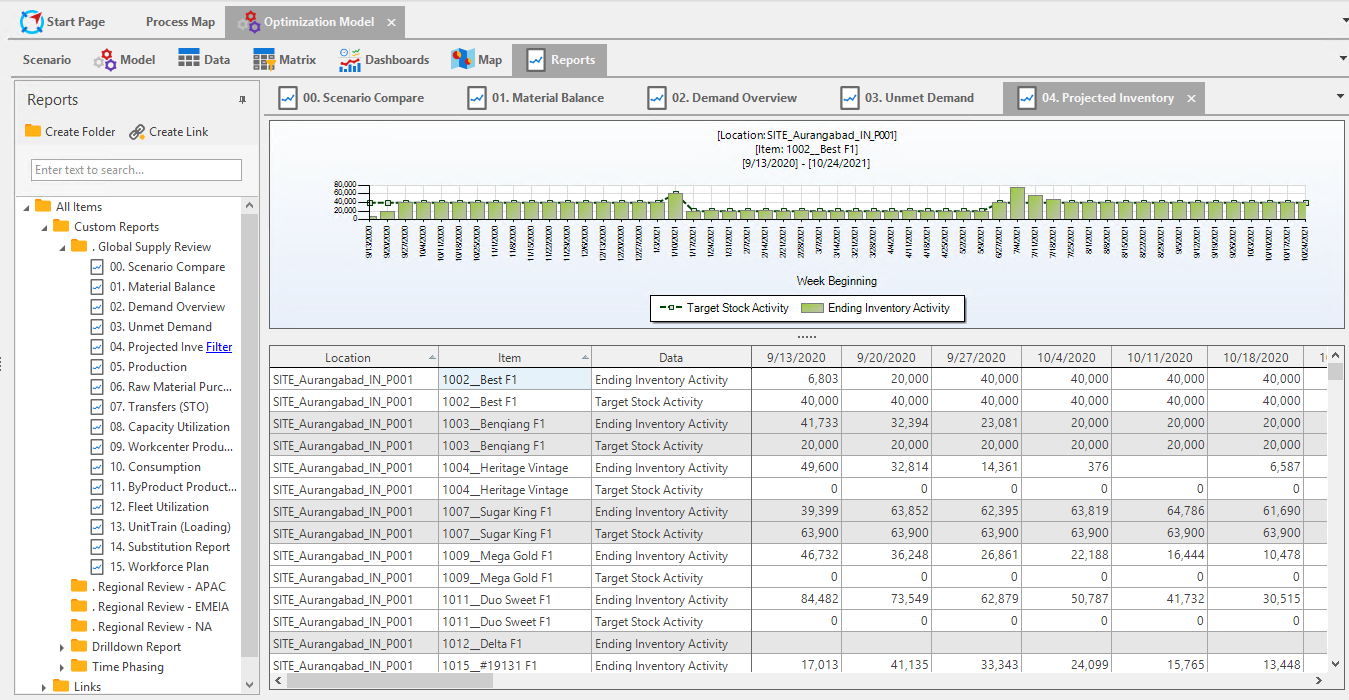
Projected Inventory
Projected Inventory report shows what inventory will be needed to maintain product at a location into the future. The Ending Inventory Projections are recommended by the engine.
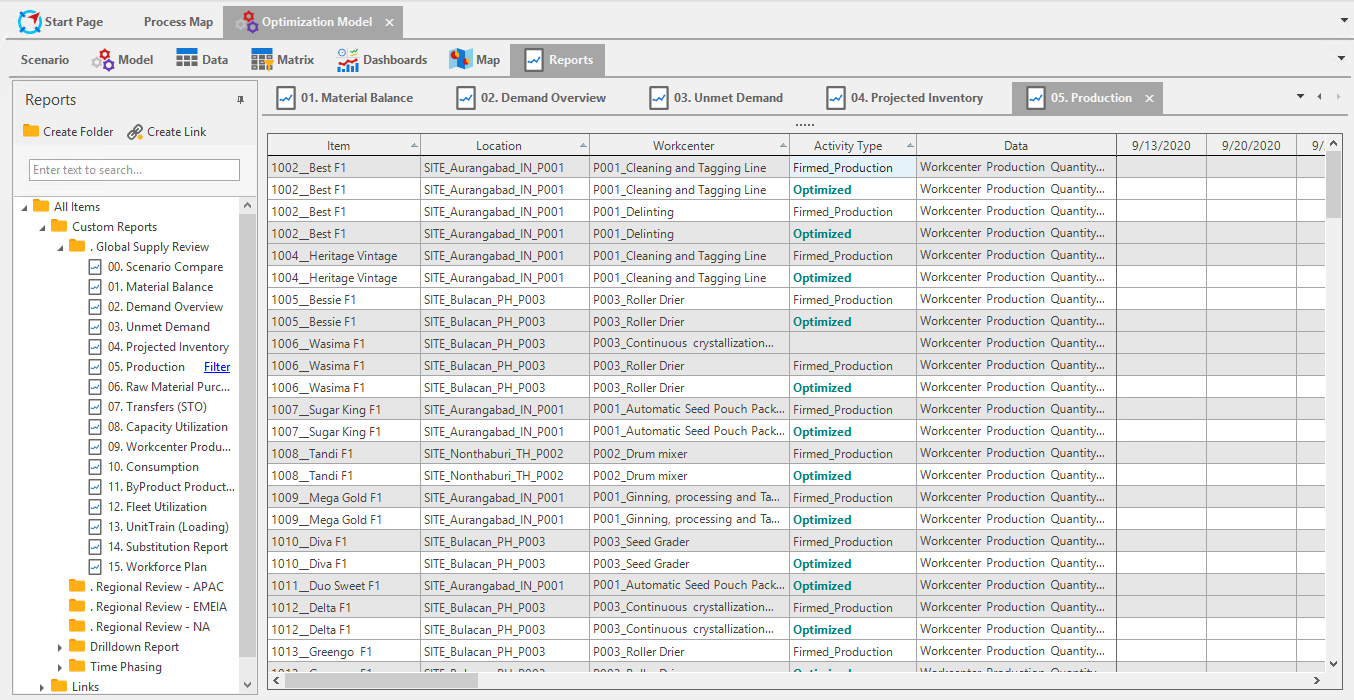
Production
Similar to the Projected Inventory report, the Production report shows what machine at what location will be needed to produce a product. Also it will show what quantity and in what time buckets.
Raw Material Purchases
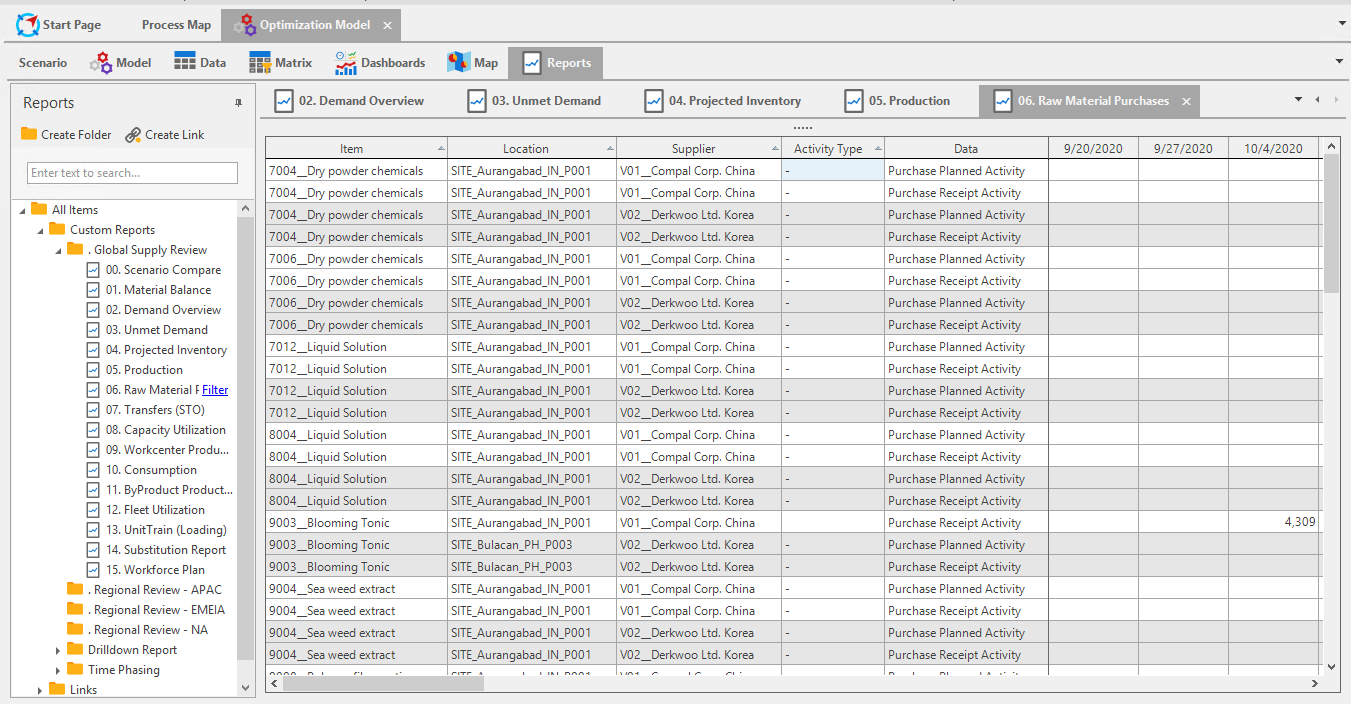
The Raw Material Purchases report informs the planner which supplier raw materials should be purchased from for an item to be produced and at what location. The model will also inform the quantity and in which time bucket the raw material needs to be purchased.
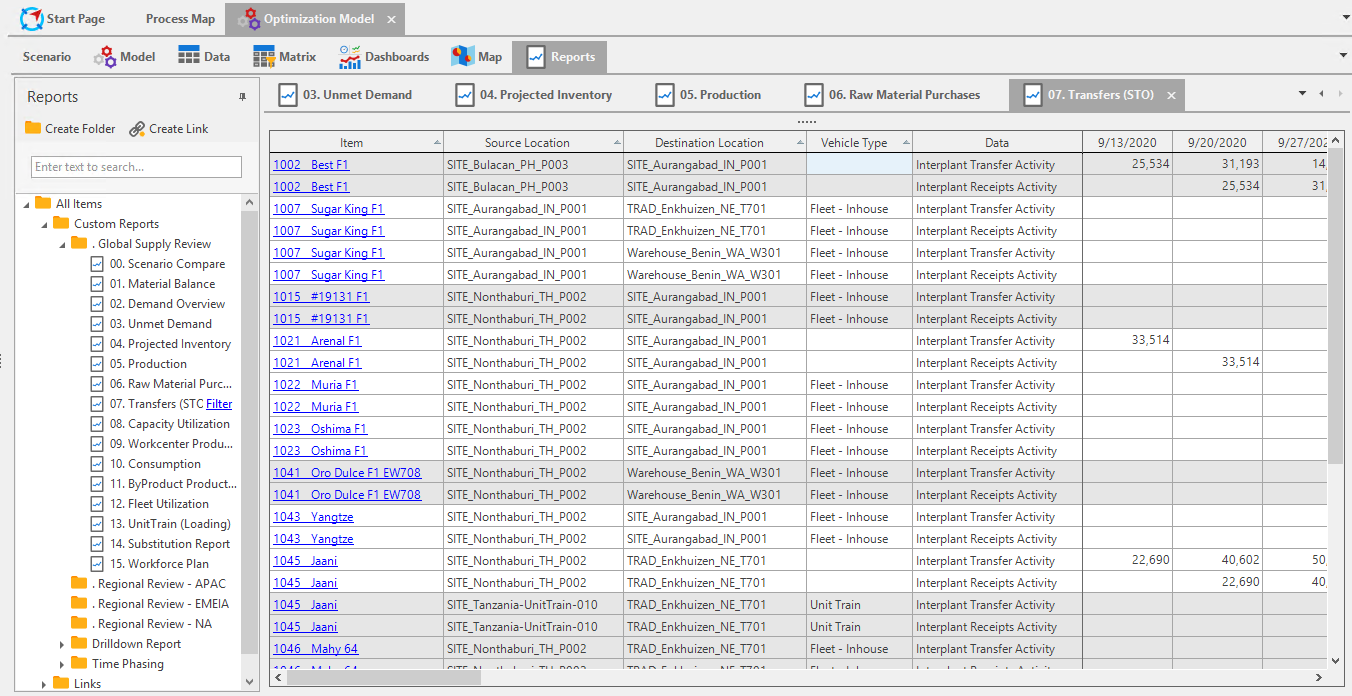
Transfers (STO)
For the Transfers report, the engine will look at your network and made recommendations on how to transfer product from one location to another. The engine will also take into account lead times when making recommendations.
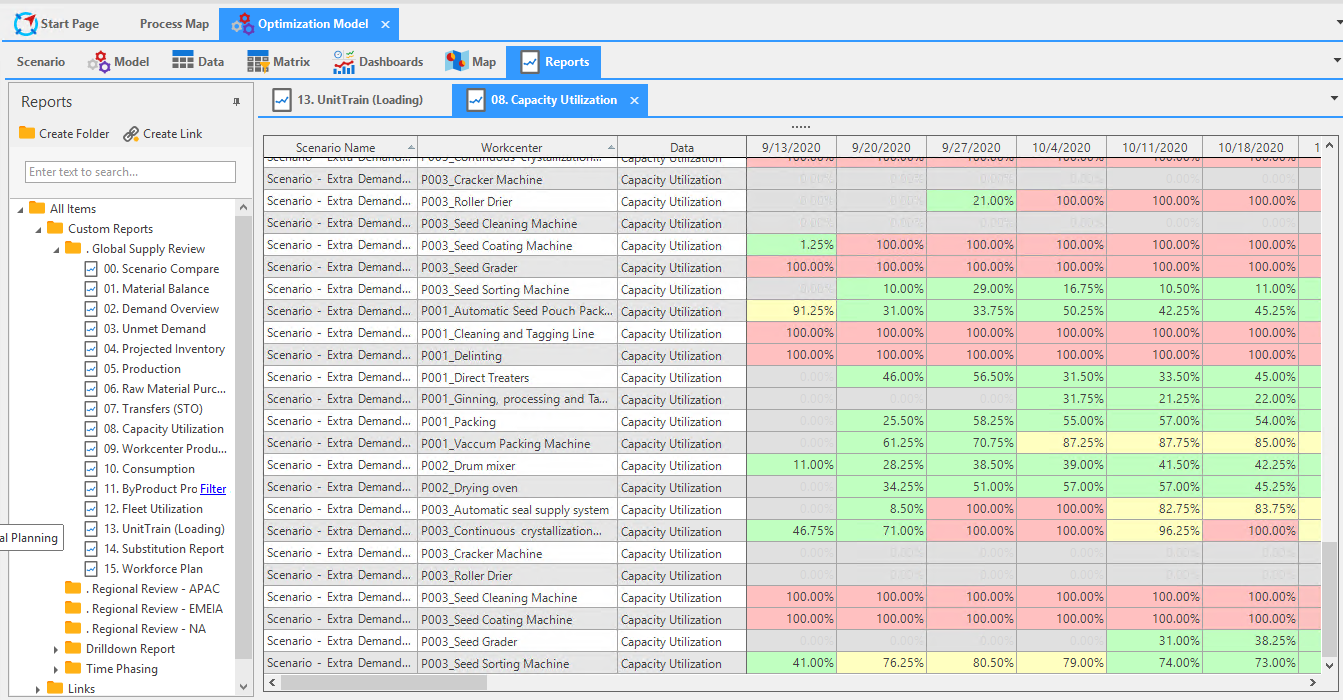
Capacity Utilization
The Capacity Utilization report is a heat map showing a high-level overview of availability of machines into the future time buckets.
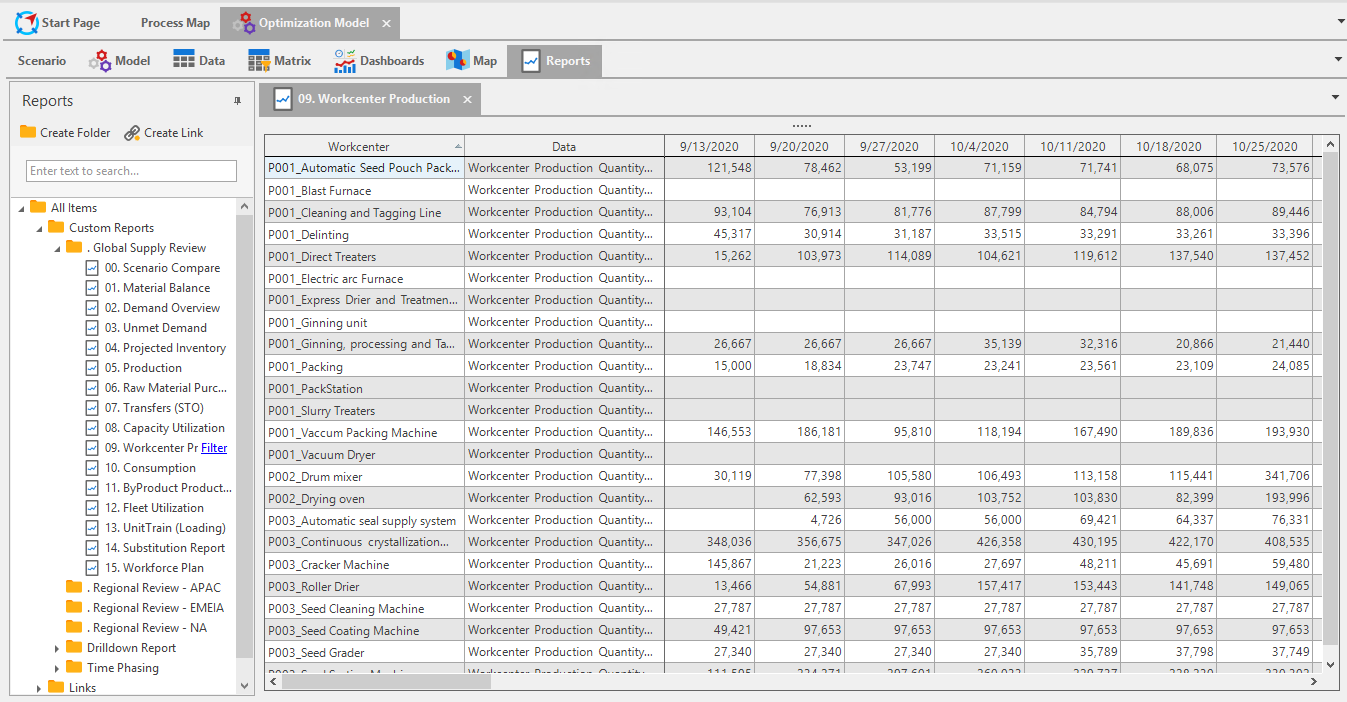
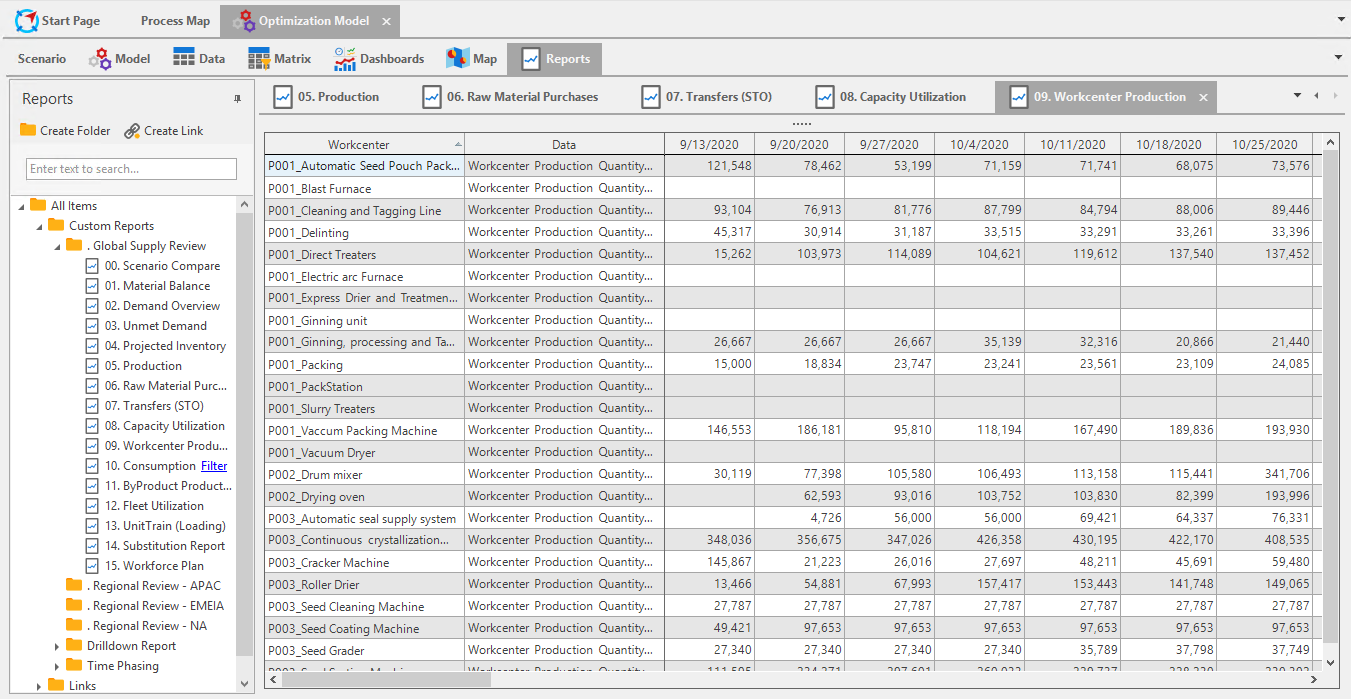
Workcenter Production
The Workcenter Production report shows you each work center, and what was produced and at what quantity.
Consumption
The Consumption report shows what and how much and what raw material will be needed to produce a product.
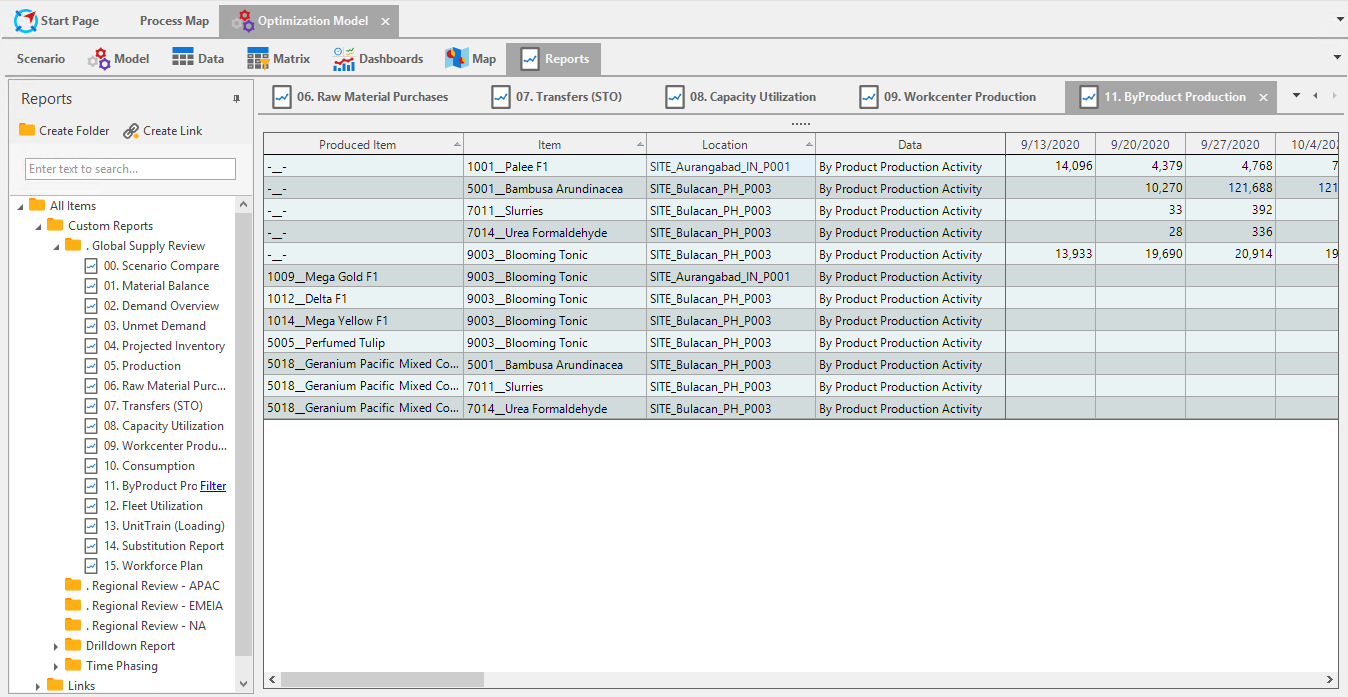
Byproduct Production
Similarly, if you have any byproduct related constraints, the Byproduct Production report will model what byproducts will be produced when producing an item.
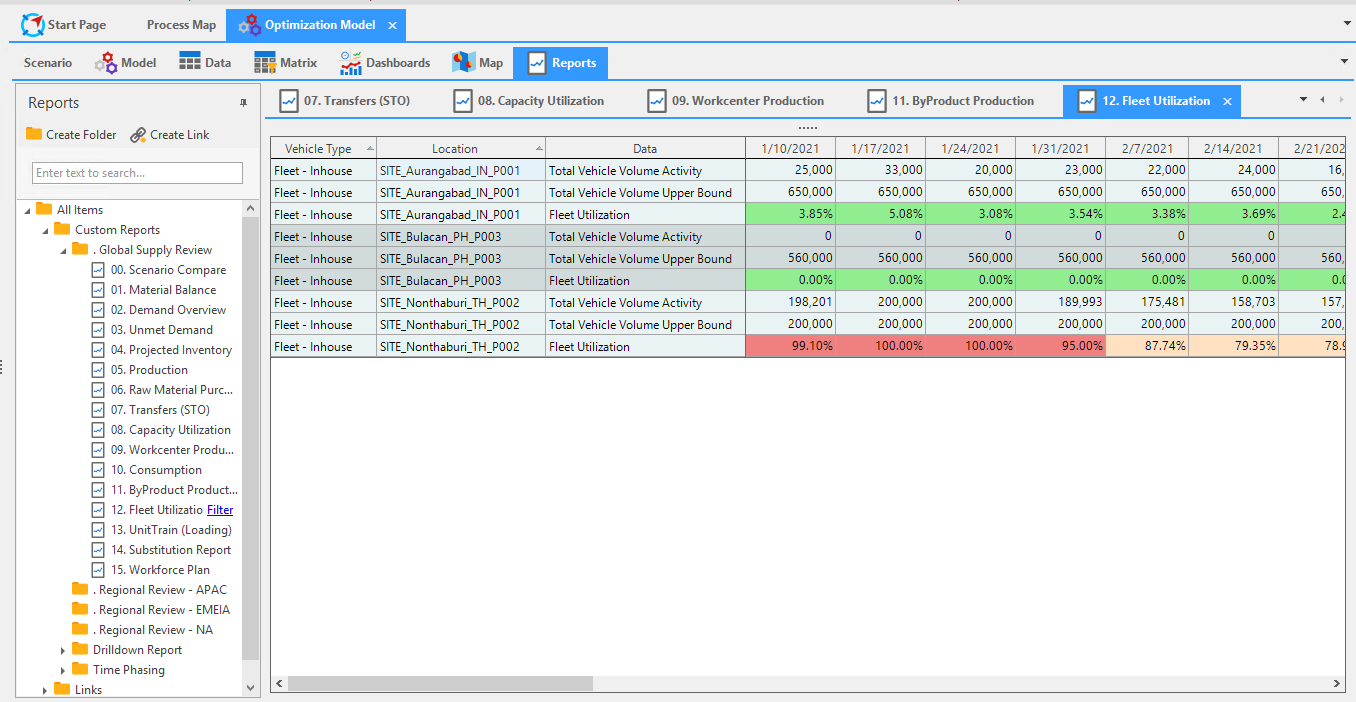
Fleet Utilization
The Fleet Utilization report shows information related to how many units of product could be shipped based on the availability of transport vehicles. These vehicles can be anything from trucks to rail cars.
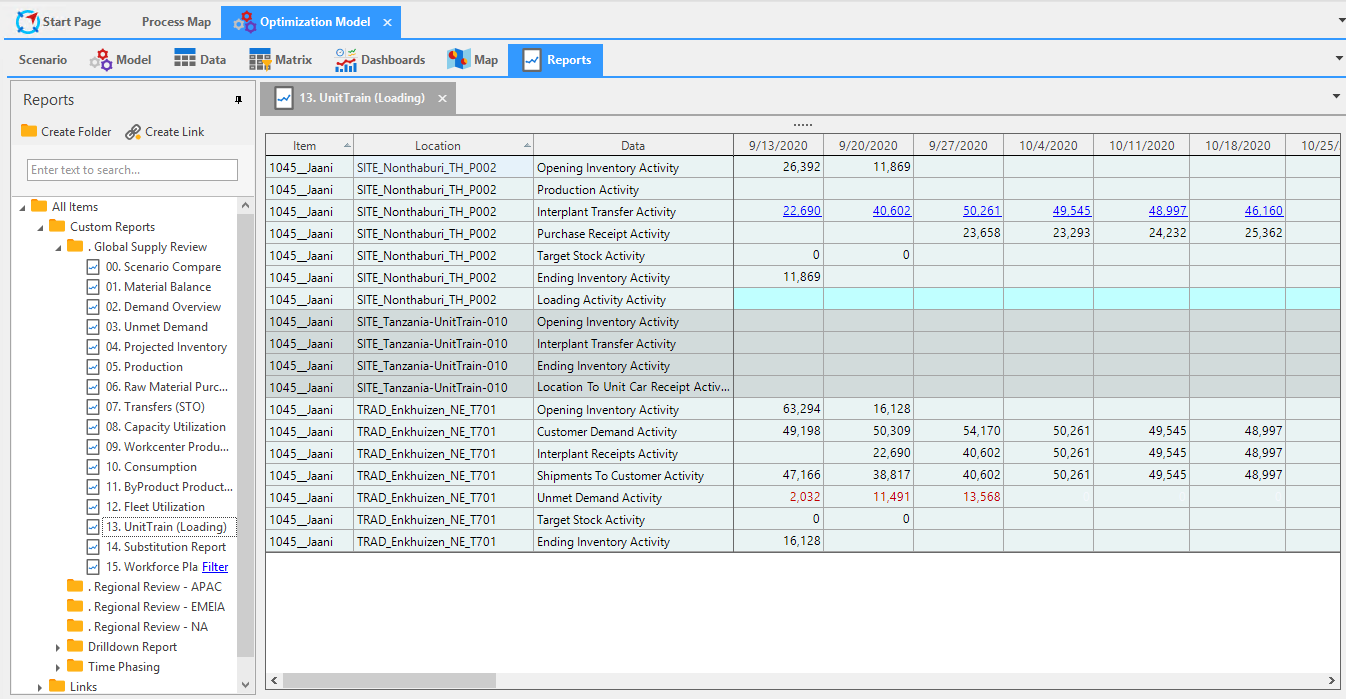
Unit Train
Similarly, if you have any loading related constraints for vehicles, the Unit Train report will show how much load can be transferred from a warehouse to a vehicle, and how much time that will take.
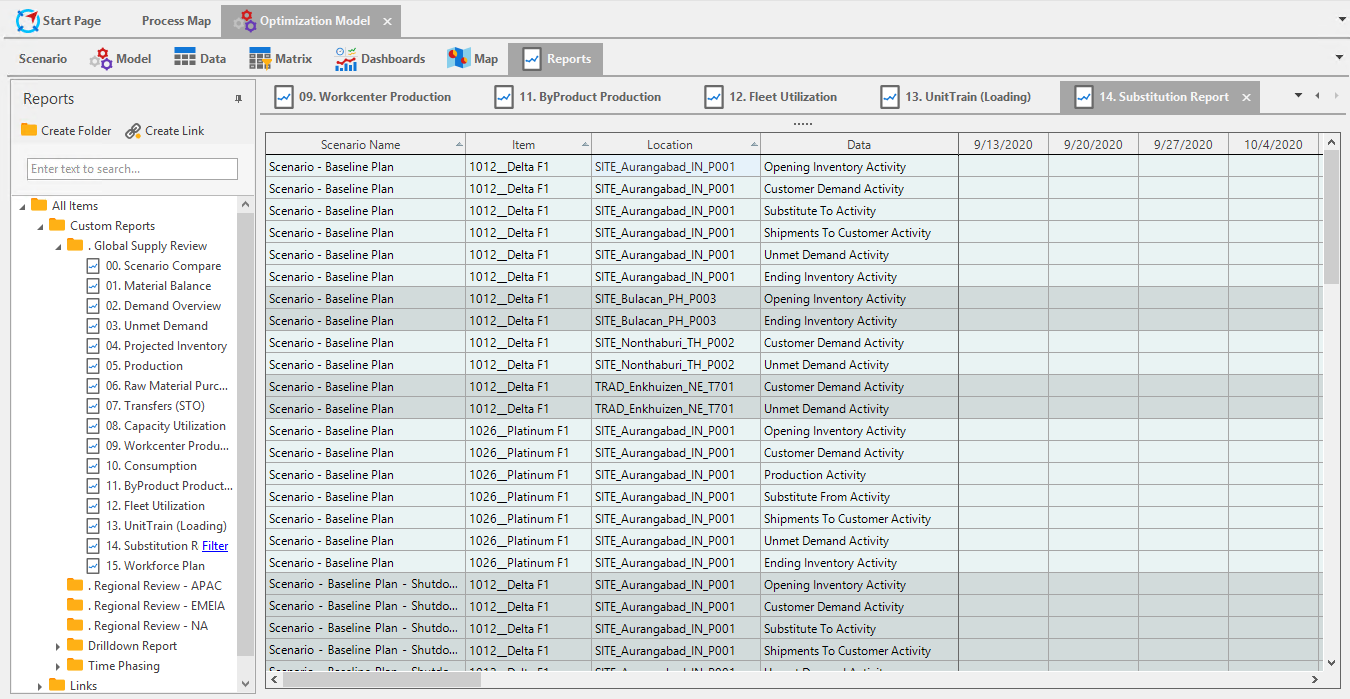
Substitution Report
A Substitution report shows what products can be substituted for another product, if that preferred product cannot be produced at this time.
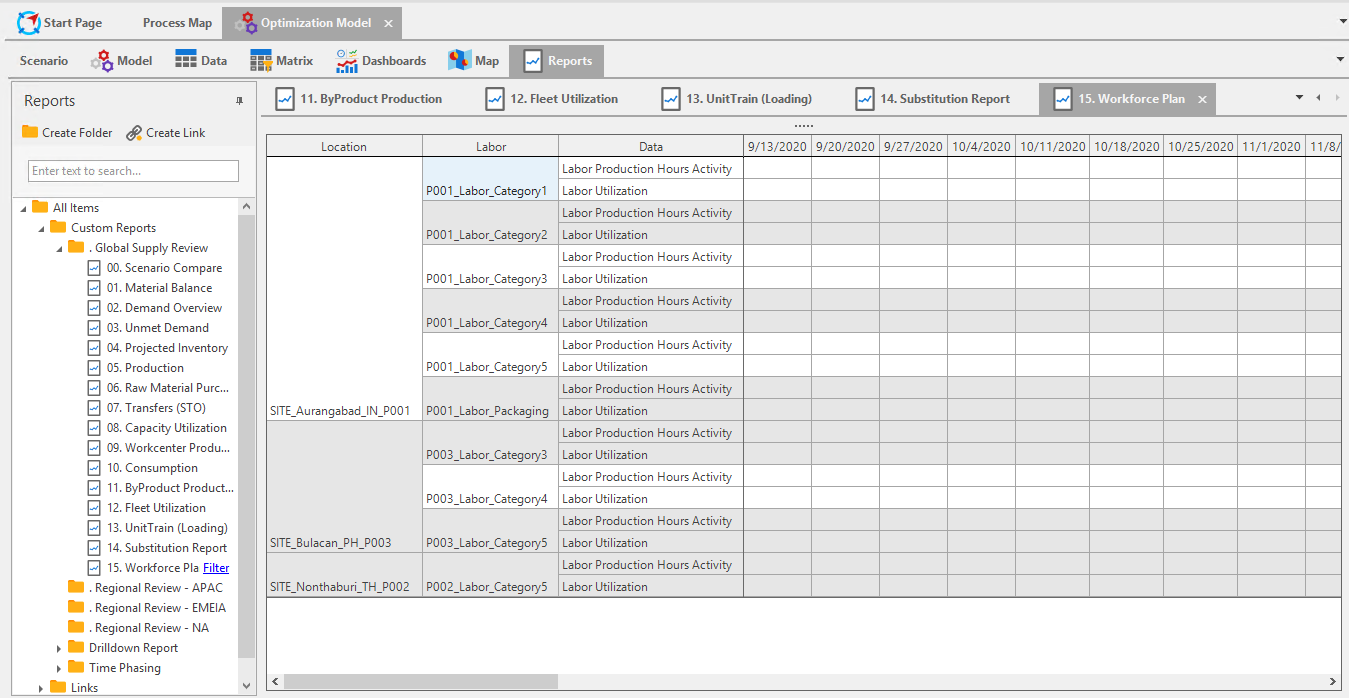
Workforce Plan
A Workforce Plan report shows workforce related constraints such as how many people are working at a location, and if their work load is under, at, or over capacity. This report will give recommendations on whether you should hire more people, renew contracts, etc.
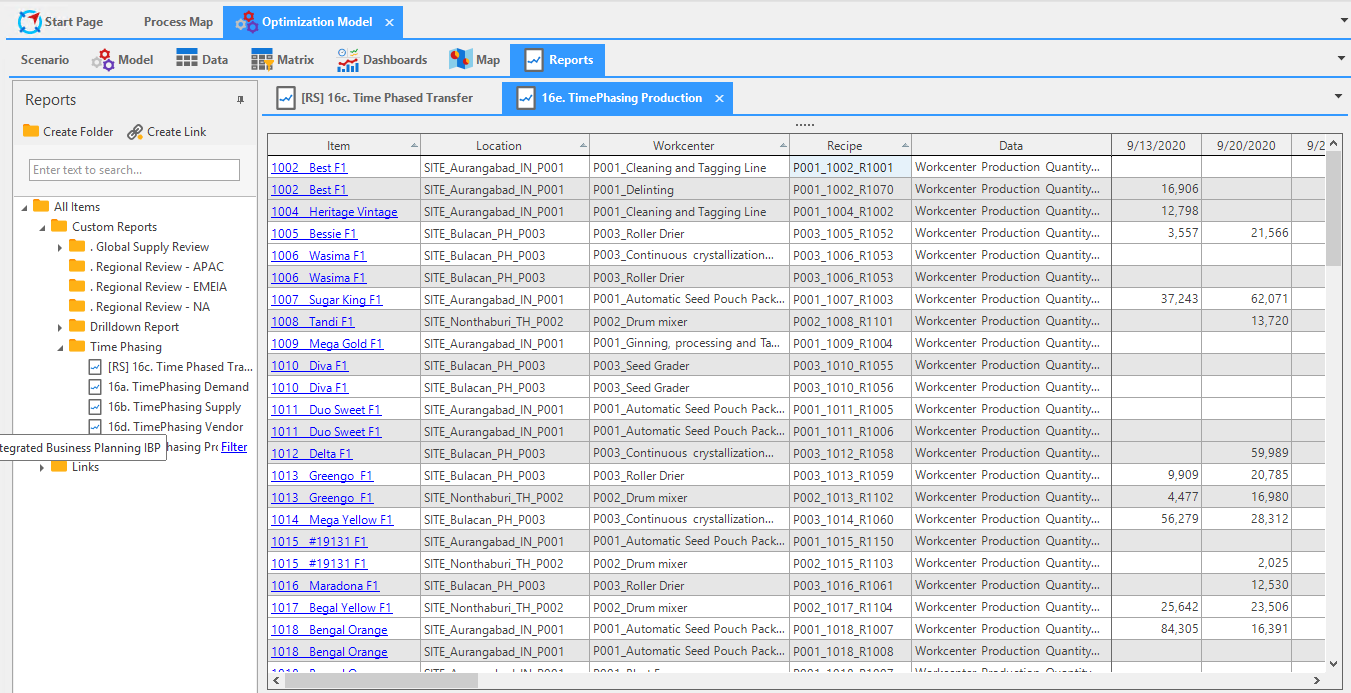
Time Phasing
Time Phasing is creating a constraint on the model that forces a specific action to be carried out during a specific time, which allow for various action options to be carried out during a later time. For example, if you know it will be less expensive to purchase raw material from a plant for the first six months of the year but more expensive during the last six months of the year, Time Phasing will allow you to force raw material purchases to be from the inexpensive plant for the first six months, and then the last six month of the year you will have to option to purchase raw materials from any plant.
Time Phasing can be used not just for purchases, but for transfers, demand, production, etc. for example, you could create a Time Phasing Production report to show that a product should only be produced at one location for the first six months and then shift the production to another location for the last six months.
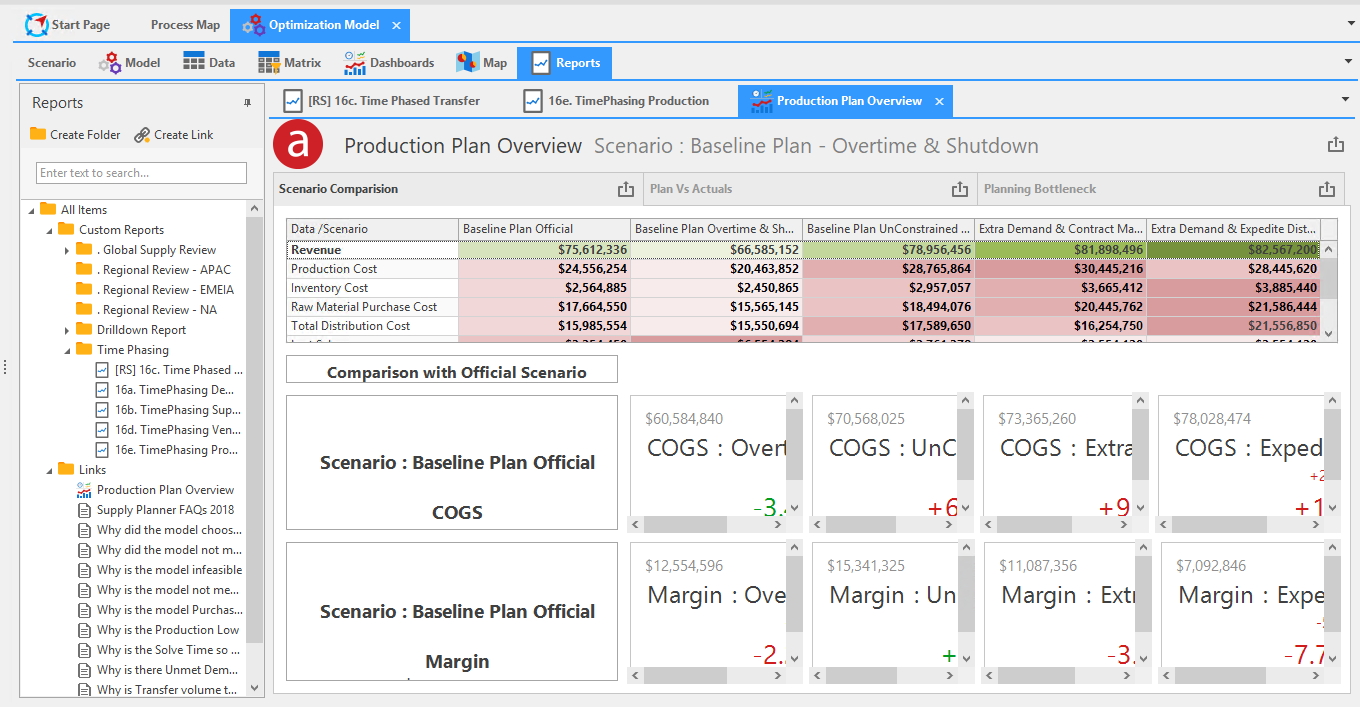
Production Plan Overview
The Production Plan Overview can show a comparison between what was planned and what has actually occurred up to the current time bucket.
Remote LP Solver
In addition to solving LP models through the UI and job service, users also have the option to solve over the internet using Remote LP. This may be an ideal solution for certain clients who do not have the adequate hardware for running large LP models.
Client Settings
Before a client can use the remote solver, a client API key will need to be generated. Please send an email to mlefrancois@arkieva.com to request client credentials to be created. You will be given a unique client name and key pair to configure into the application.

🚧 Caution
The generated client API Key is not stored anywhere in our system. Once you are given the key, be careful not to lose it. A new key can be generated at any time by sending a request to mlefrancois@arkieva.com, but this will require any client installations to update their settings accordingly.
Remote Solve Server
The remote LP solve will be performed on our server, located at https://lpsolve1.arkieva.com. If the server is unreachable, or if an error occurs, the solve will be done on the client end automatically.
Scenario Configuration
Once the client settings have been configured, the last step is to enable remote solve for the LP scenarios you wish to solve remotely. This is done by checking the “Remote Solve” box for the given scenario in the scenario explorer.

Email LP Report
Setup
Before you can email LP Reports, Optimization Settings must be configured, and user emails must be setup in Security.
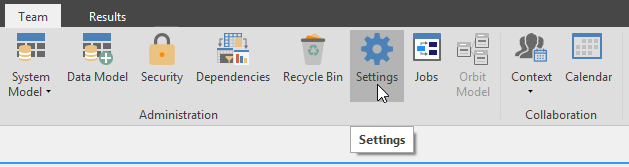
System Settings: Optimization\ Go to the Team ribbon and launch the Settings window. Select the Optimization tab and fill in the Network Shared Directory information.
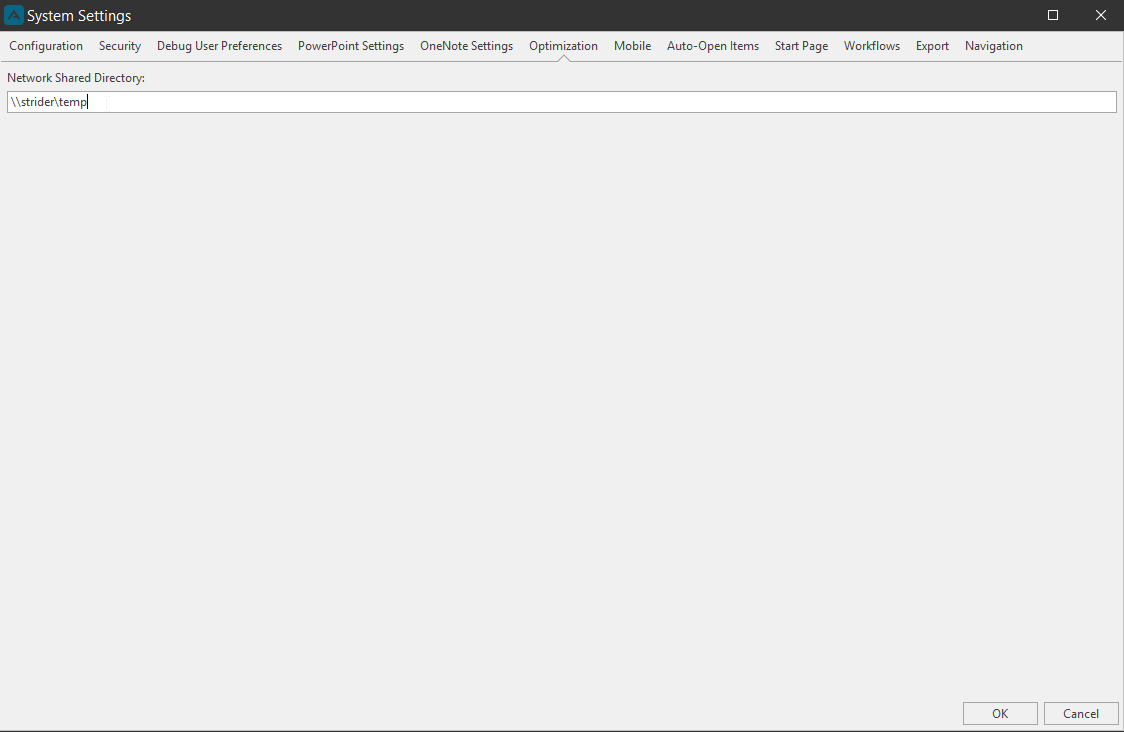
🚧 Network Shared Directory Troubleshooting
A Job is created when you right-click a report and select Email Report. The template job receives all this information from what was setup for the Network Shared Directory in Settings.
When the job is run, it makes a copy of the job template, runs the job, then deletes that copy. The job will fail if the output path is wrong.
If you change the shared directory path to the a different path, the job template will not change. You will need to go to Jobs table and fix the template information there.
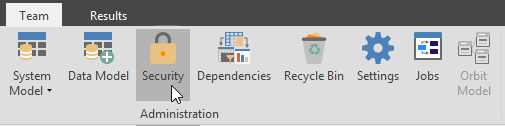
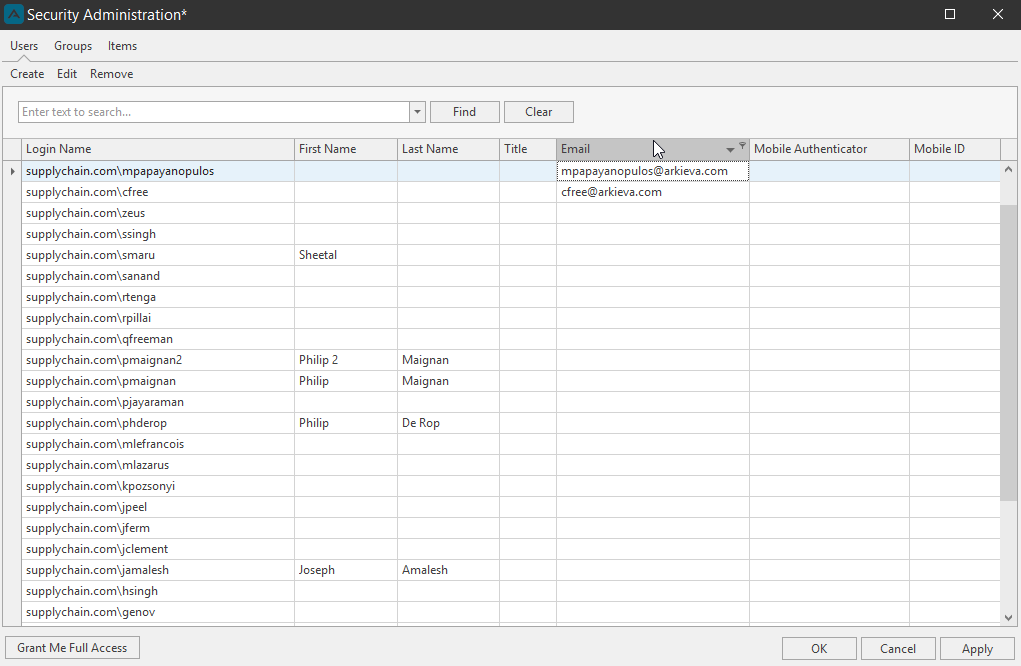
User Email\ Next launch the Security Administration window from the Team ribbon and make sure your user email has been created under the Users tab
The user sending the report must have their email setup as well as the users who will receive the email report.
🚧 Caution
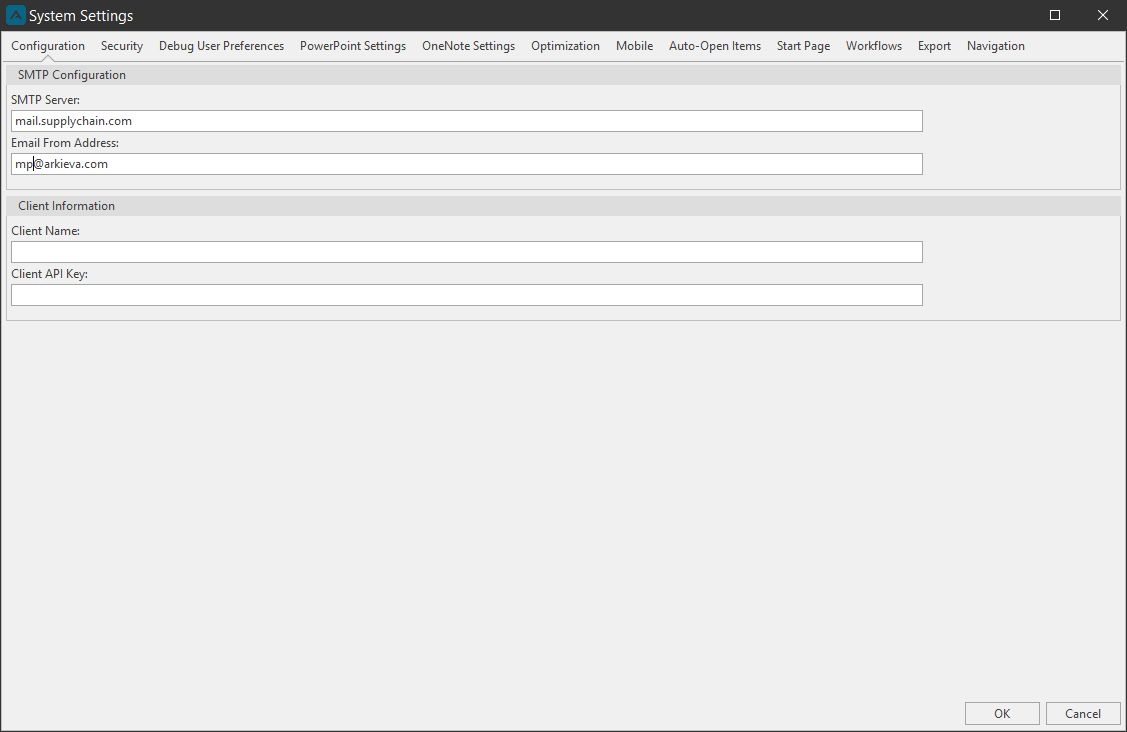
The mail settings for the application must also be configured. This is the way that the mail server and sender's email address is configured.
Email Report
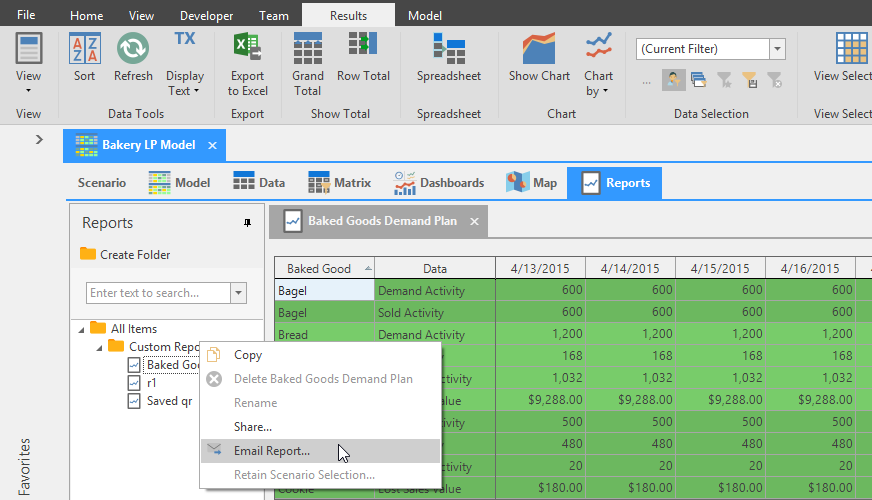
After selecting a scenario and launching the report, go the Reports tab and right-click the Report you want to email. Select Email Report from the right-click menu to open the Email Report Configuration window.
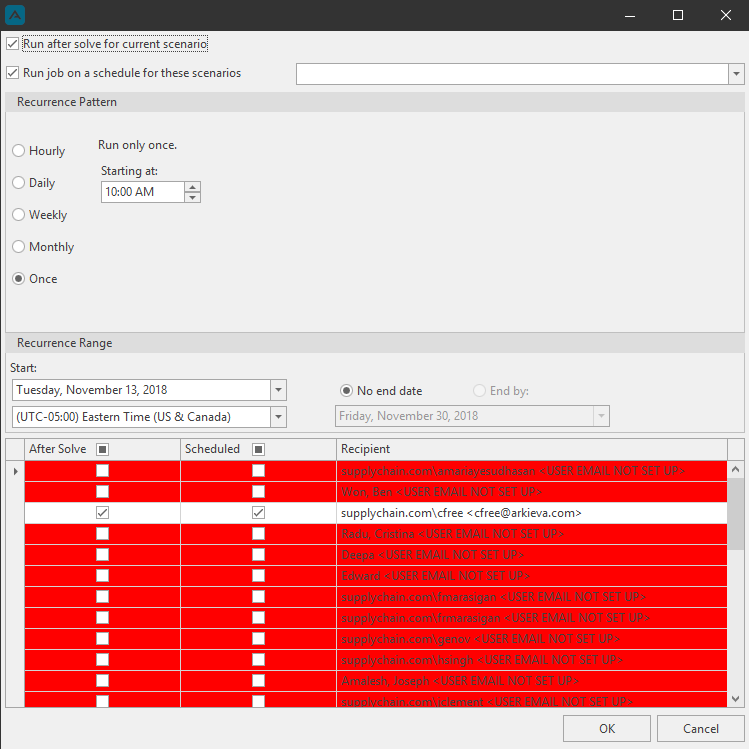
Here you can email the report after solving the current scenario and/or create a job to email the report on a schedule for selected scenarios.
- Run after solve for current scenario:
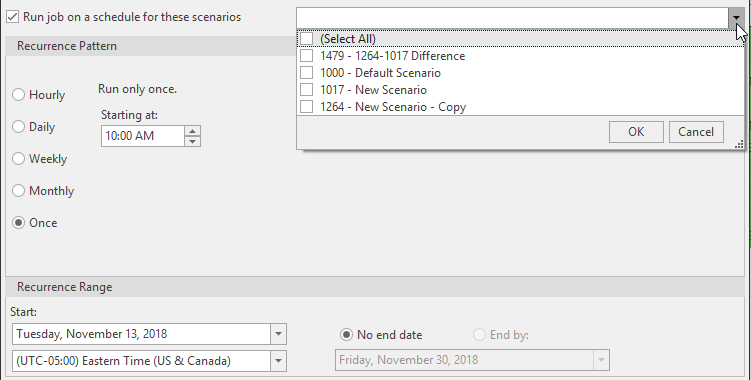
- Run job on a schedule for these scenarios: Select scenarios under the dropdown that you want to email reports from, then select an option for the Recurrence Pattern and/or Recurrence Range.
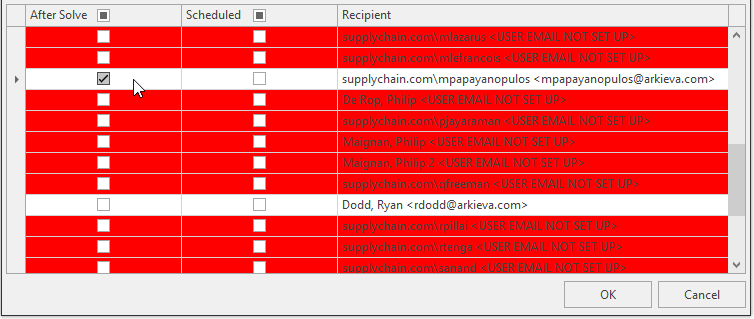
Next, select recipients for the email report. Check whether the user will receive an email after the report is solved, and/or on a schedule. Click OK.
📘 Note
Lines colored red indicates users that do not have their user emails setup under Security.
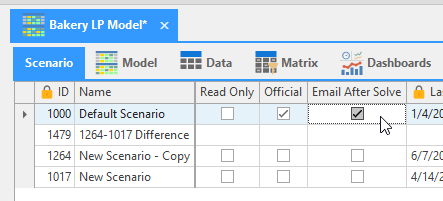
Make sure to check Email After Solve on the Scenario you will be emailing reports from.