Production Scheduler
Introduction
The following is a high-level overview of scheduling and how a planner can interact with Arkieva Scheduling component.
It is recommended that a user have two or more monitors when using Arkieva Scheduling to get the full benefit of the application when working within it.
A Production Schedule is either a Single Operation Model or a Multi Operation Model. Manufacturing Methods in a Single Operation Model are tied to only one operation whereas Manufacturing Methods in a Multi Operation Model are tied to two or more operations.
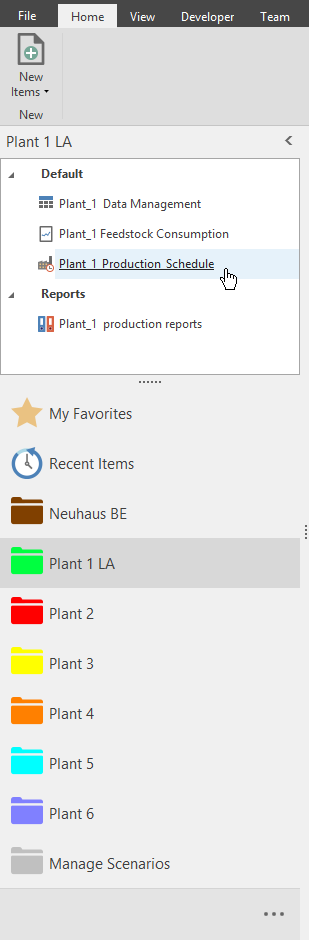
Our model consists of 6 manufacturing sites. We have decided to separate these sites into 6 navigation categories: Plant 1 LA, Plant 2, Plant 3, Plant 4, Plant 5, Plant 6. Ultimately this is up to user preference.
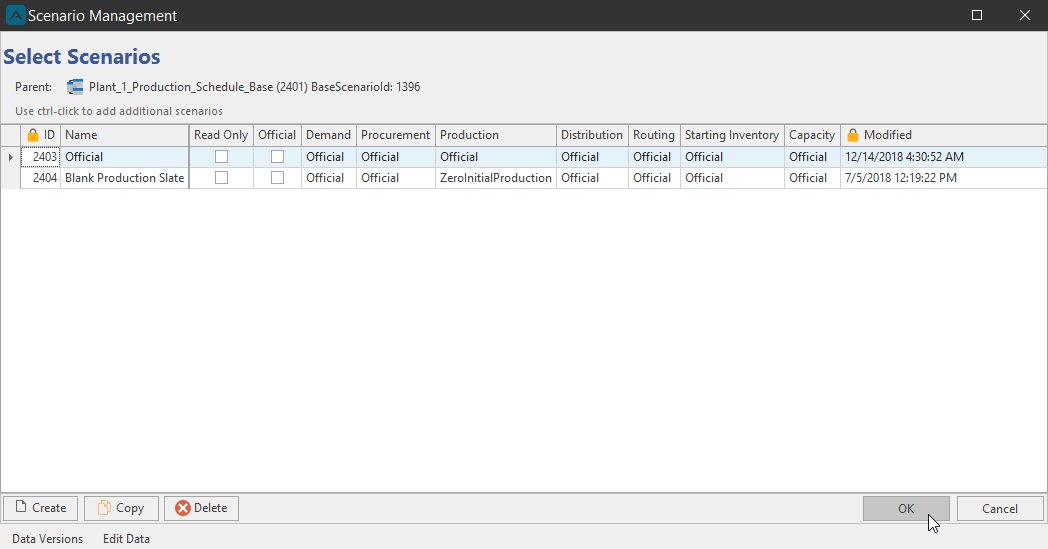
When launching the Production Schedule, the Scenario Management window will launch first. Every scheduling document in the Orbit Model is tied to a scenario. And these scenarios have secured item ID numbers, which you can query in the dotnet. These scenarios have a parent Orbit Model, the GUID of which is shown as well. This GUID signals to the Orbit Model what Static Data to query. You can also see the Base Scenario ID.
We will launch the Plant 1 Production Schedule in the Plant 1 LA category. This model is setup to be a multi operational model.
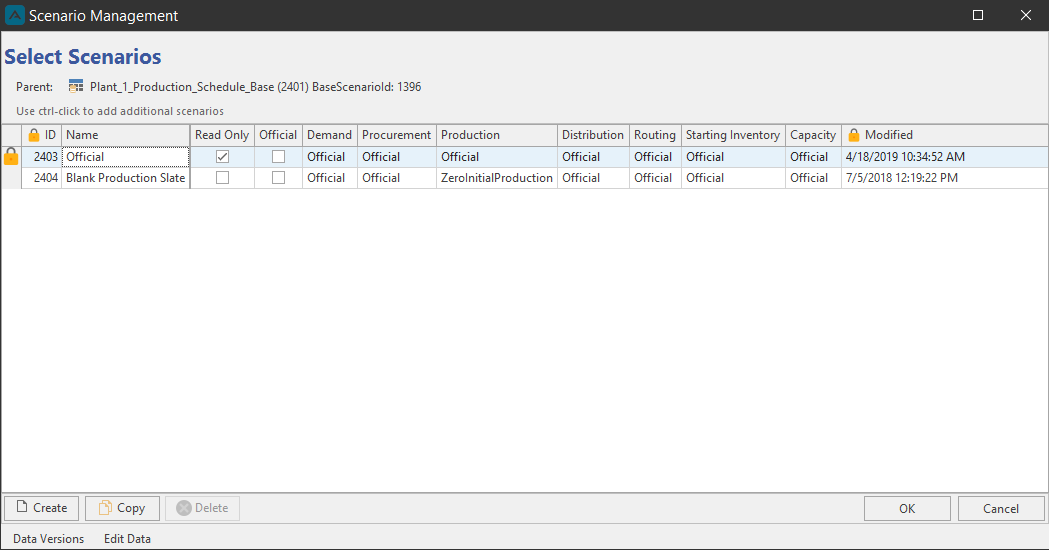
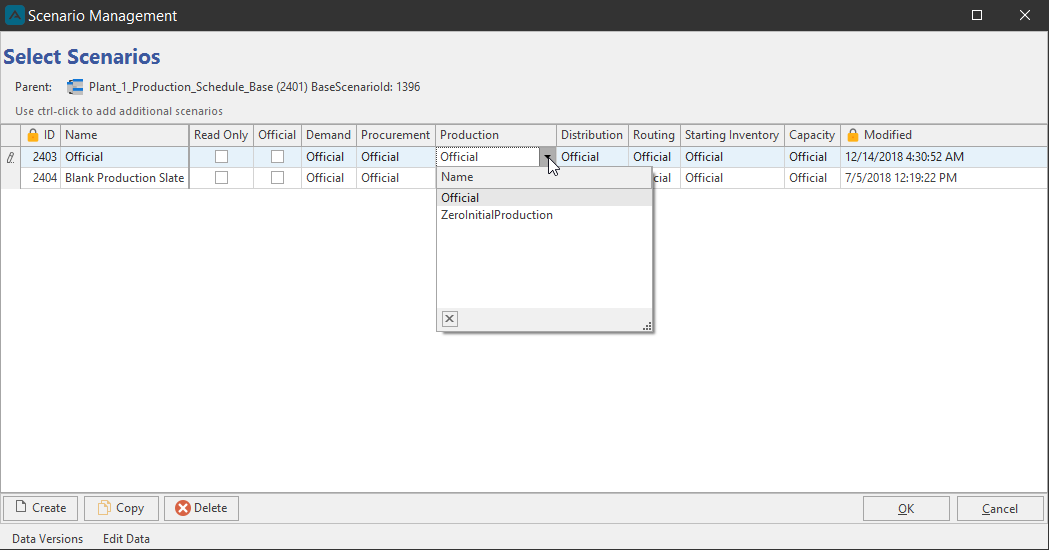
A Production Schedule is configured to allow the user to select a scenario based on different variations called Data Versions. These Data Versions are the eight possible columns shown in the Select Scenarios window: Demand, Procurement, Production, Distribution, Routing, Starting Inventory, Capacity, and Allocation. For example, there are two types of Production scenarios you could select from the Official Scenario: Official and Zero Initial Production.
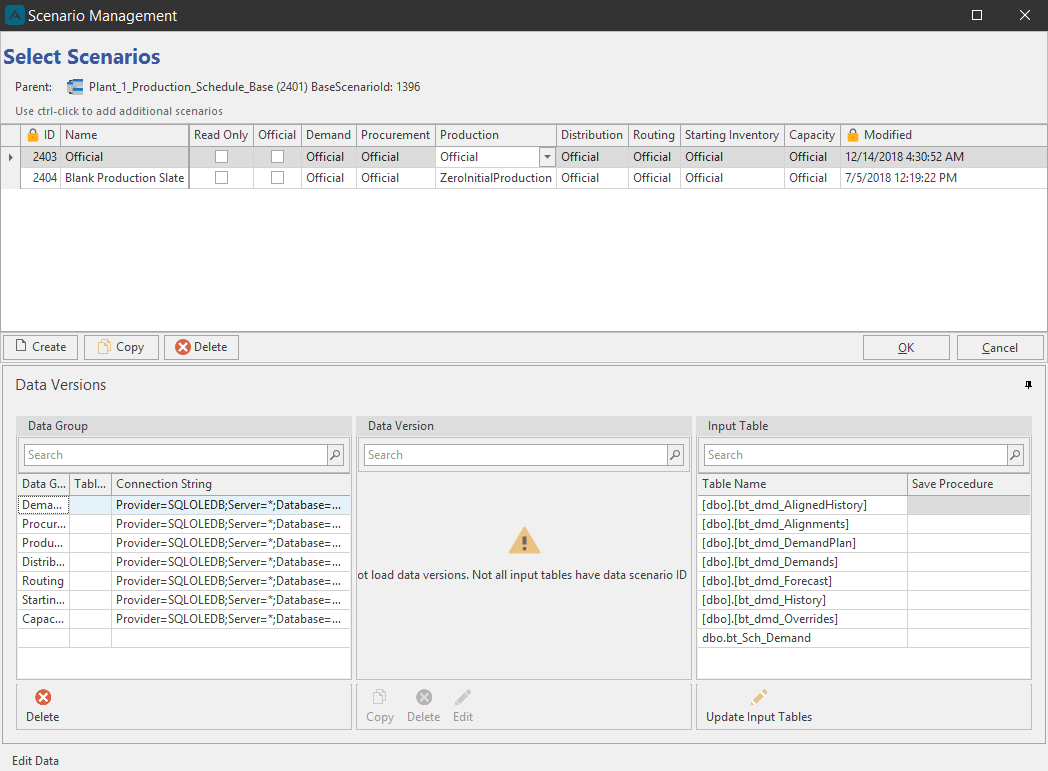
To manage these different scenarios and create new scenarios, use the Data Versions tab located at the bottom of the Scenario Management window.
Select the Official scenario and click OK to launch the schedule.
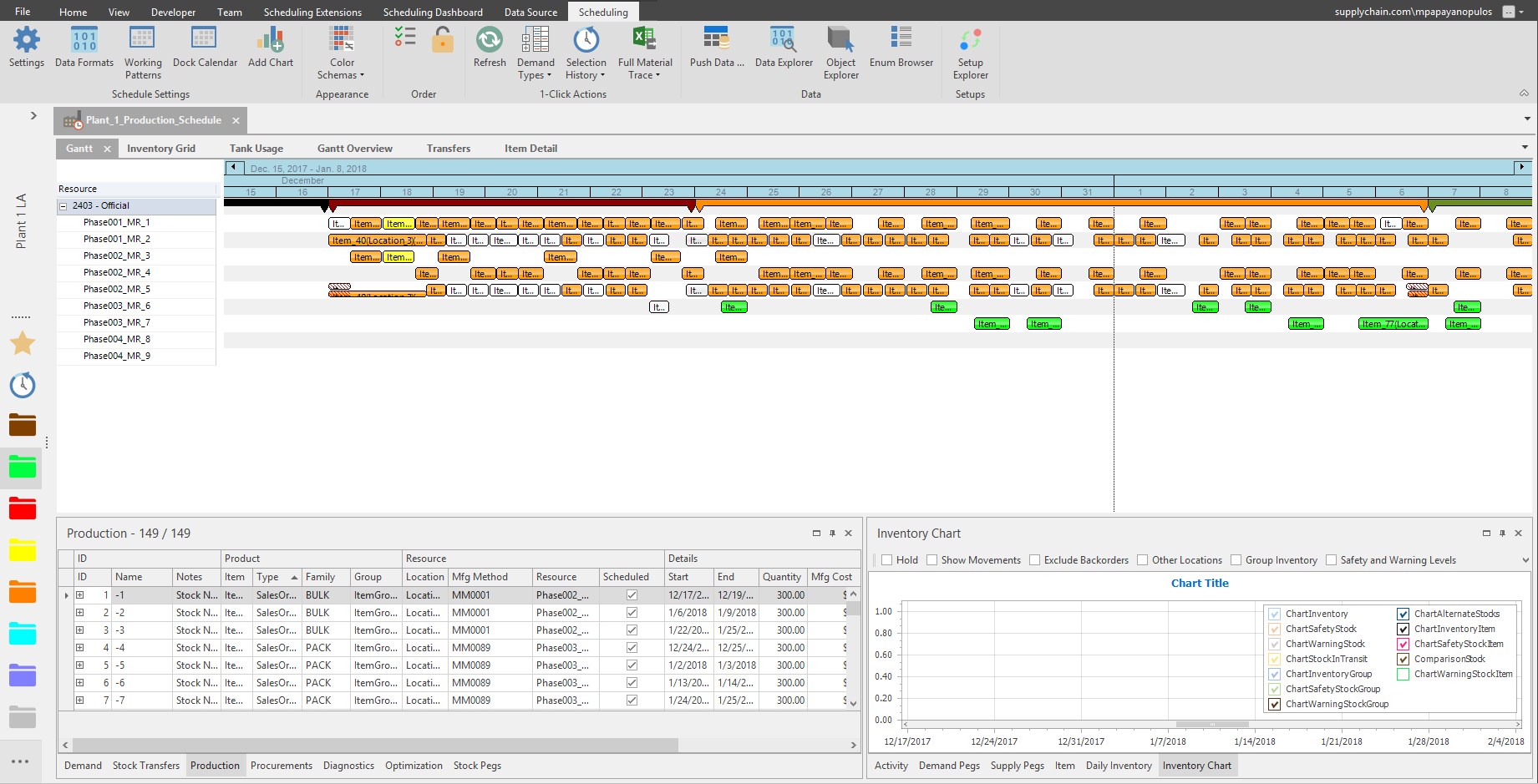
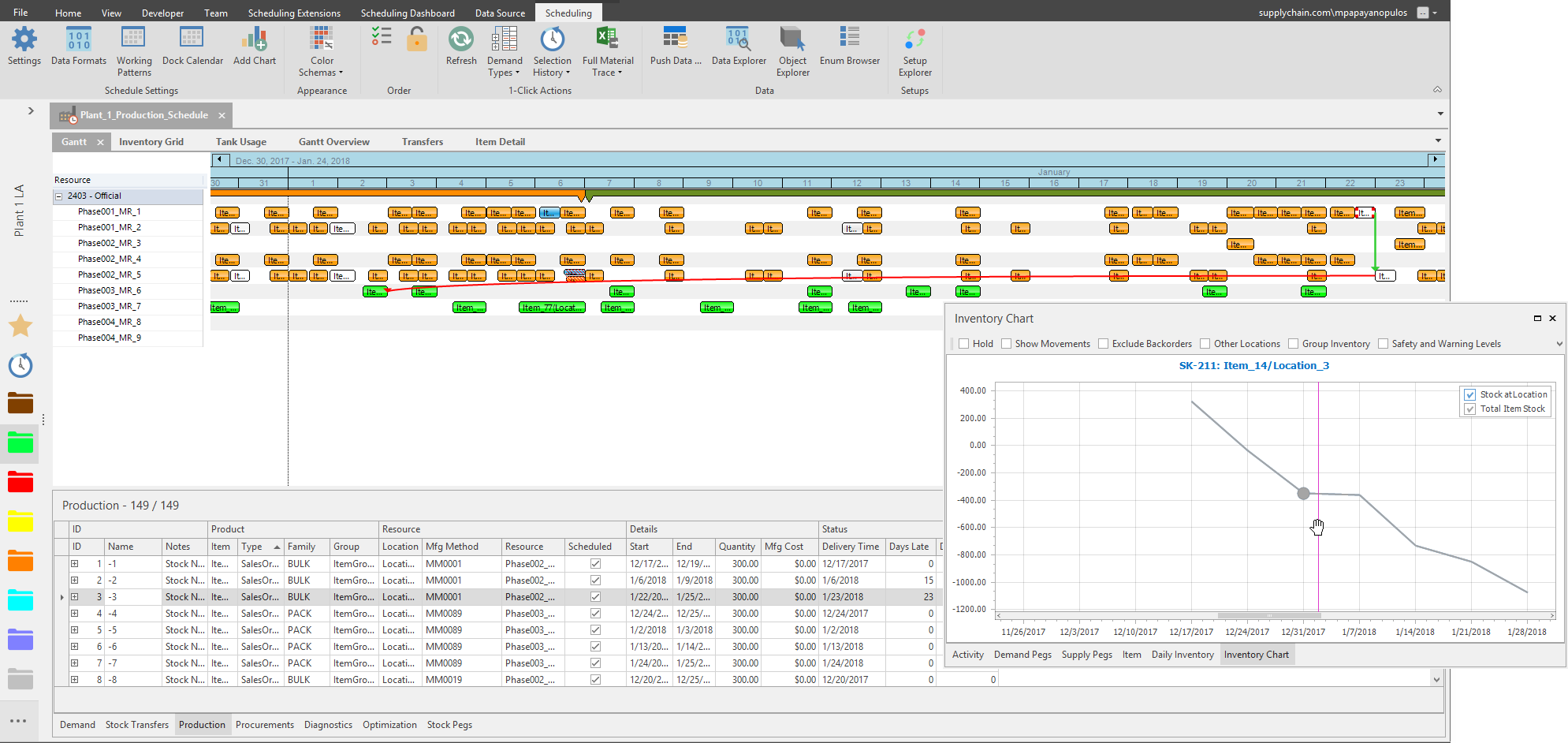
All activities, items, tabs, and sections are connected in some way. For example, if we pop-out the Inventory tab and select an activity on the Gantt chart, we can then use the arrow keys on the keyboard to select the next activity on the timeline, which will then change the Inventory Chart automatically.
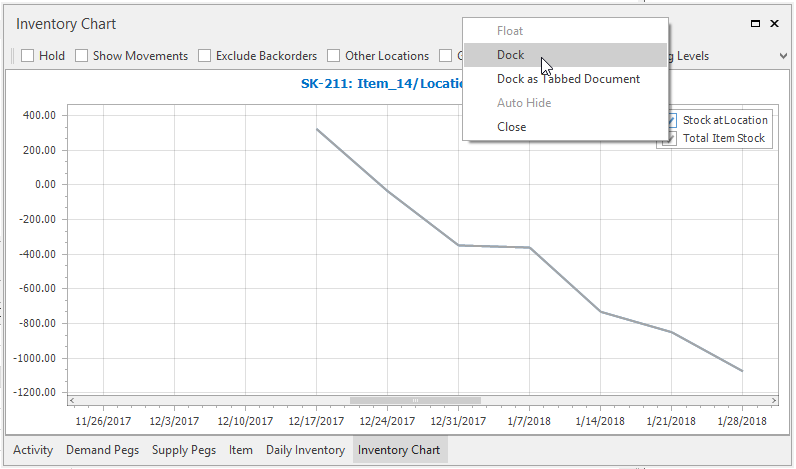
Right-click the banner of the popped-out window and click Dock to reset the window as a tab.
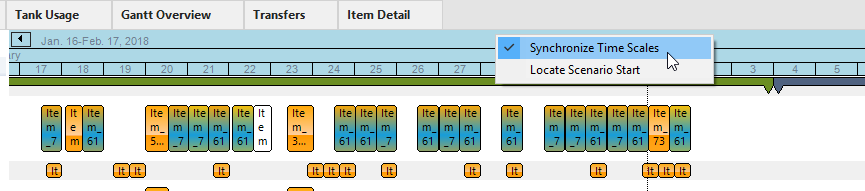
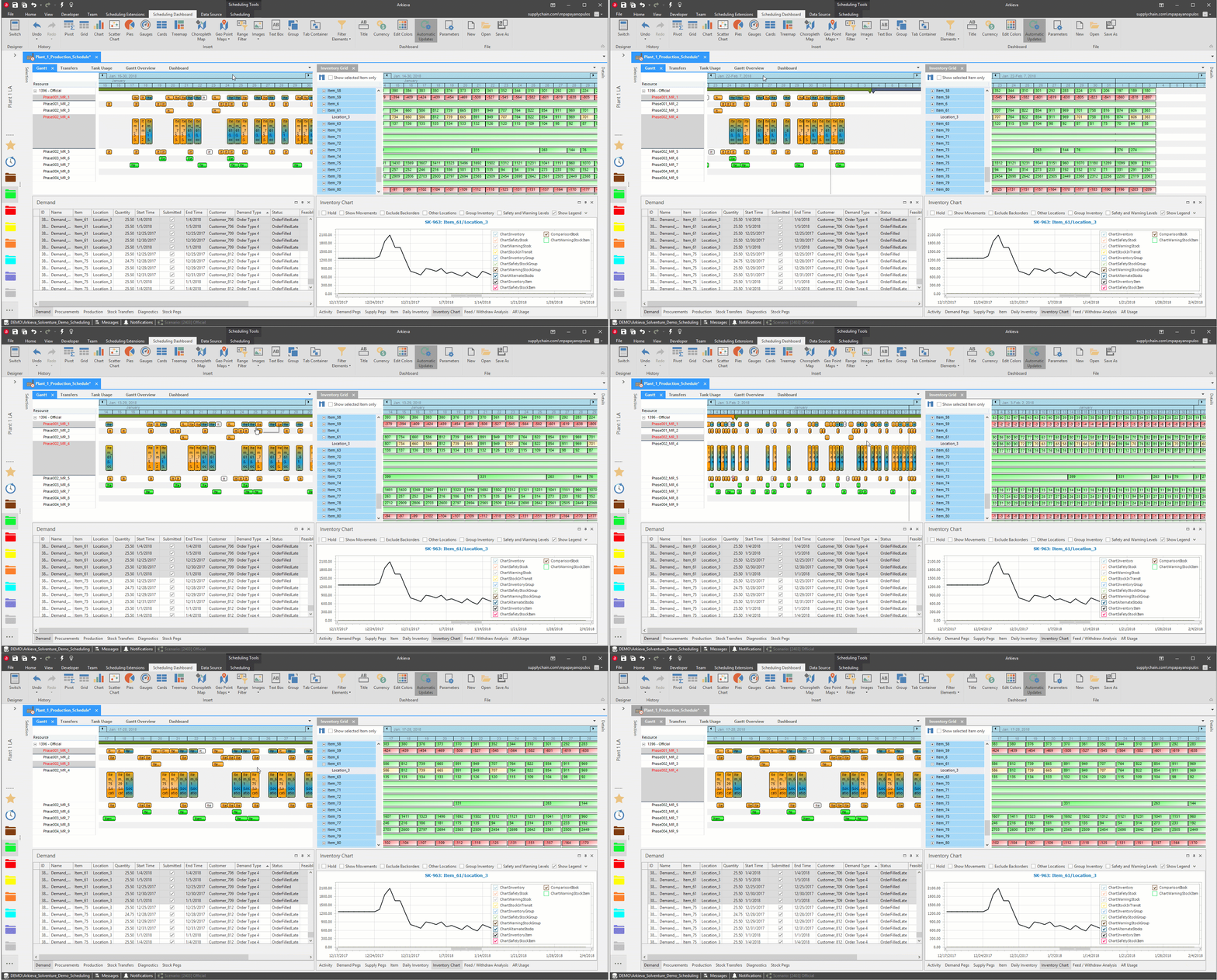
You can also right-click the timeline and toggle on Synchronize Time Scales to sync up each graphical tab in the Graphical Section.
Graphical Section
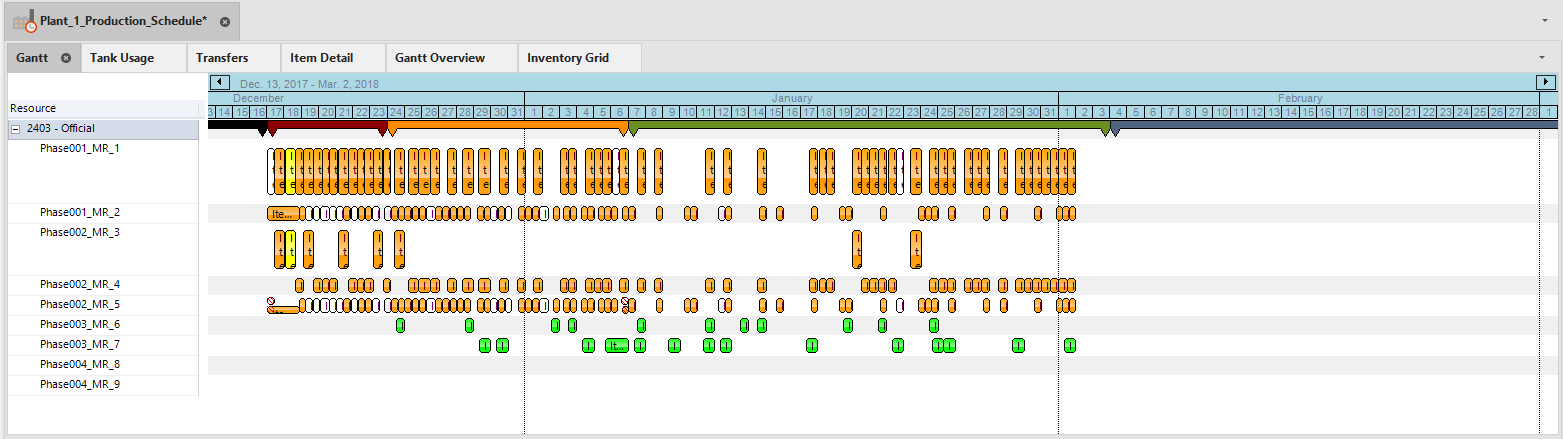
The top segment of the scheduling component is the Graphical Section. This section includes the Gantt, Inventory Grid, Tank Usage, Gantt Overview, Transfers, and Item Detail tabs.
Analysis section
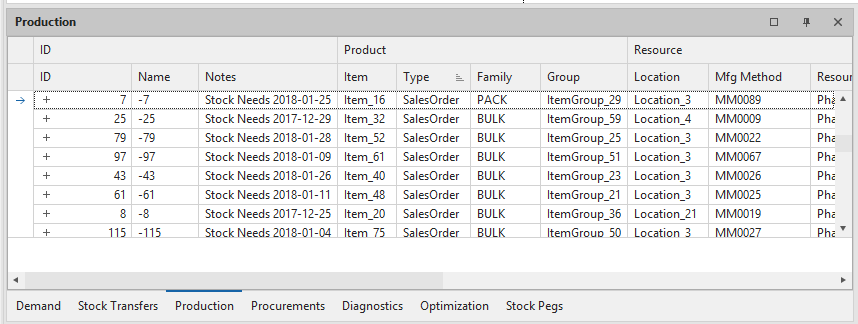
The left bottom segment of the scheduling component is the Analysis section. Shows the higher-level data relative to inputs and outputs. This section includes the Demand, Stock Transfers, Production, Procurements, Diagnostics, Optimization, and Stock Pegs tabs.
This section embodies the standard supplychain building blocks, or SCOR Model (Sell, Distribute, Make, and Buy). In the Arkieva Scheduling component, Demand is Sell, Stock Transfers is Distribute, Production is Make, and Procurements is the Buy.
Detail section
The right segment is the Detail section. This section has the Activity, Demand Pegs, Supply Pegs, Item, Daily Inventory, and Inventory Chart tabs.
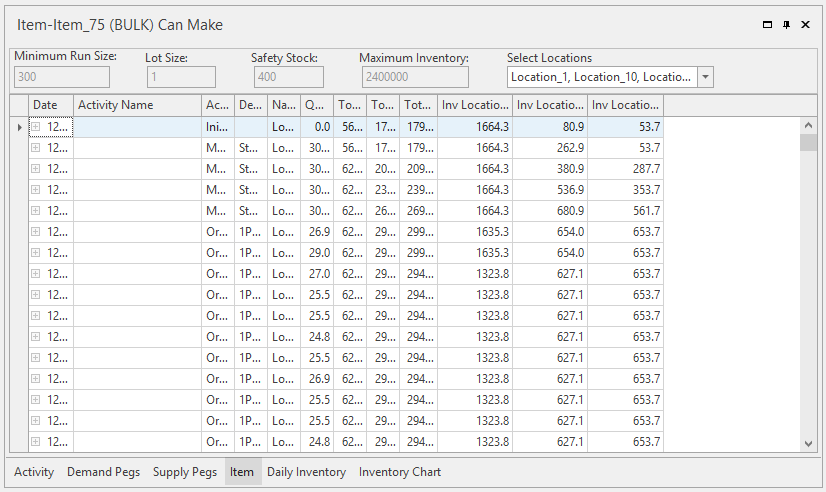
Layout
Gantt tab
The schedule model uses continuous time. It does not utilize the concept of buckets. For example, we can describe what is happening on Monday at 2 o’clock 15 minutes and 10 seconds, in the afternoon. Time buckets only allow you to schedule by allotted time constraints, like days, weeks, months, etc. Continuous Time scheduling is beneficial if say you have very fast cycle times, you can schedule at the hourly level.
To illustrate this concept the scheduler has the Time Bar along the top of the Gantt chart.

The timeline can be zoomed in and out by scrolling the wheel on the mouse. As you zoom in the timeline will show more fine detail like hours, minutes, seconds, etc., and as you zoom out it will show broader detail, like days, weeks, months, quarters, etc.
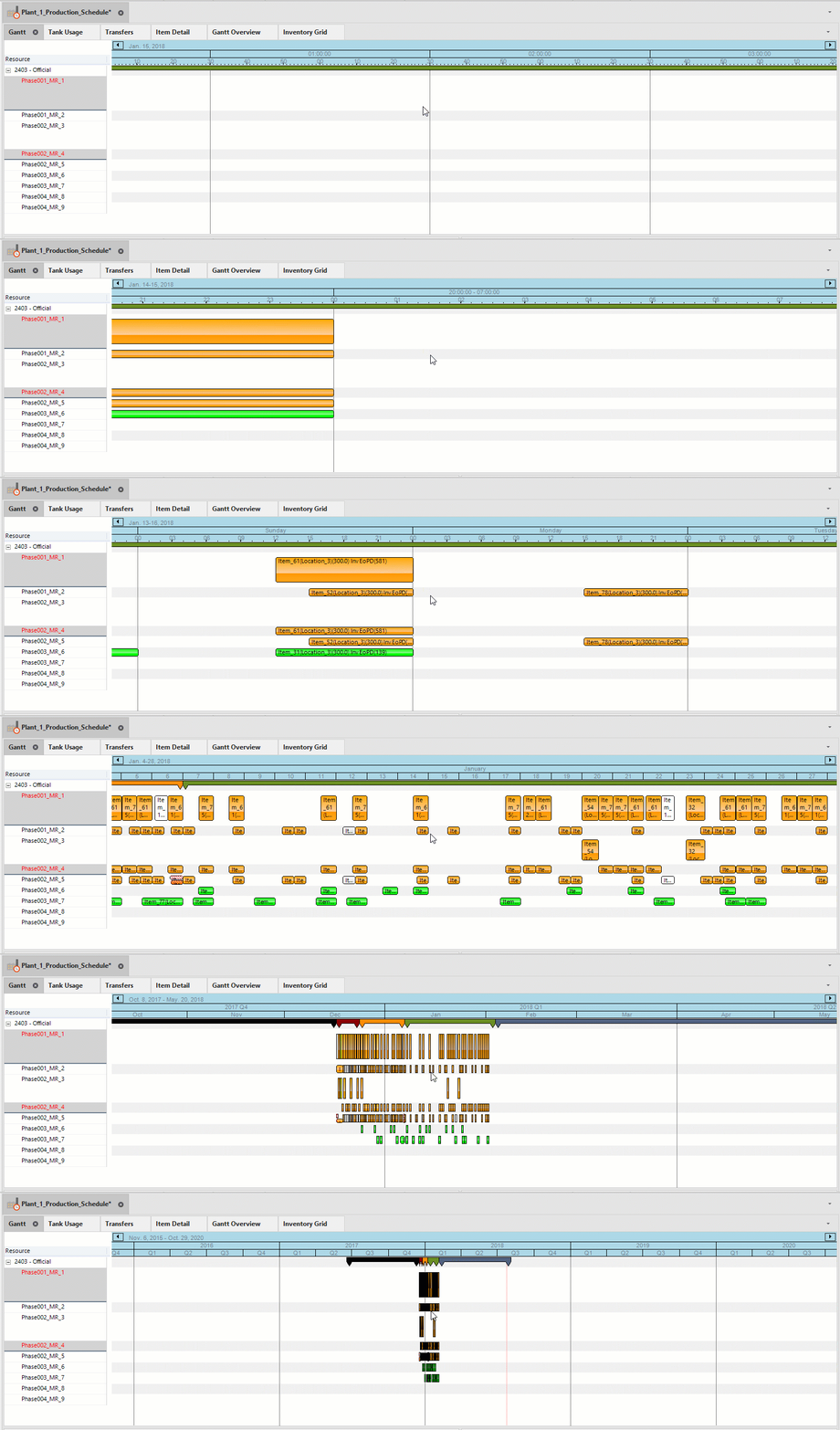
The timeline also has colored zones representing the past (black), frozen (red), flexible (orange), free (green), and future (blue) zones.
The black zone represents the past. Finished Activities can be set to appear in this zone to show the scheduler what has been completed and what still needs to be manufactured. Activities in this zone no longer contribute to the supply chain. Demands in this zone do not increase or decrease inventory. Stock transfers also do not decrease or increase depending on whether they are leaving or arriving.
A scheduler can use this information to see what the past’s actual production was, verses what was planned.
The blue zone represents the future. We use this zone in part to manage ATP (Available to Promise) calculations. A scheduler can see their demand going out six months, however the scheduler module only operates within the red, orange, and green zones.
The red zone shows the scheduled activities that should not be moved or changed, as per manufacturing process. The activities can be moved or changed, however this could lead to scheduling issues.
The orange zone shows scheduled activities that have some flexibility and can be moved or changed. However, a scheduler would still want to avoid that.
The green zone shows activities that are free to move and change.
These colored zones can also be clicked and dragged to cover more or less of the timeline. Hover the louse pointer over the middle of two color zone bars and click and drag to the left or the right. This will push or pull the other zones, depending upon the direction you drag the zone.
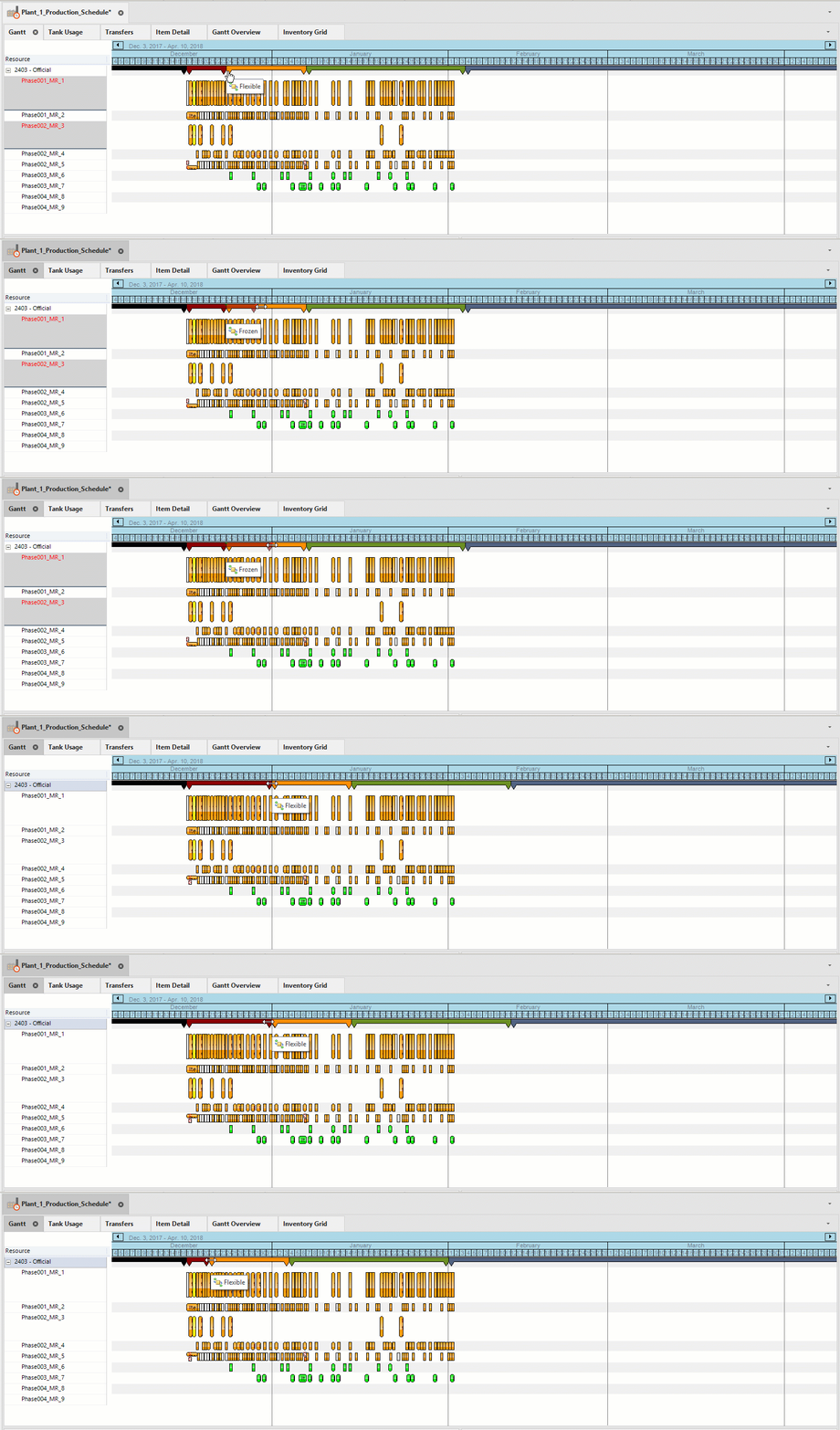
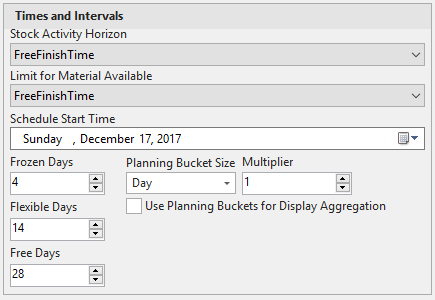
The same can be done from the Settings window, under the Time and Intervals section of the Scenario tab.
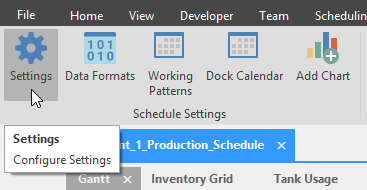
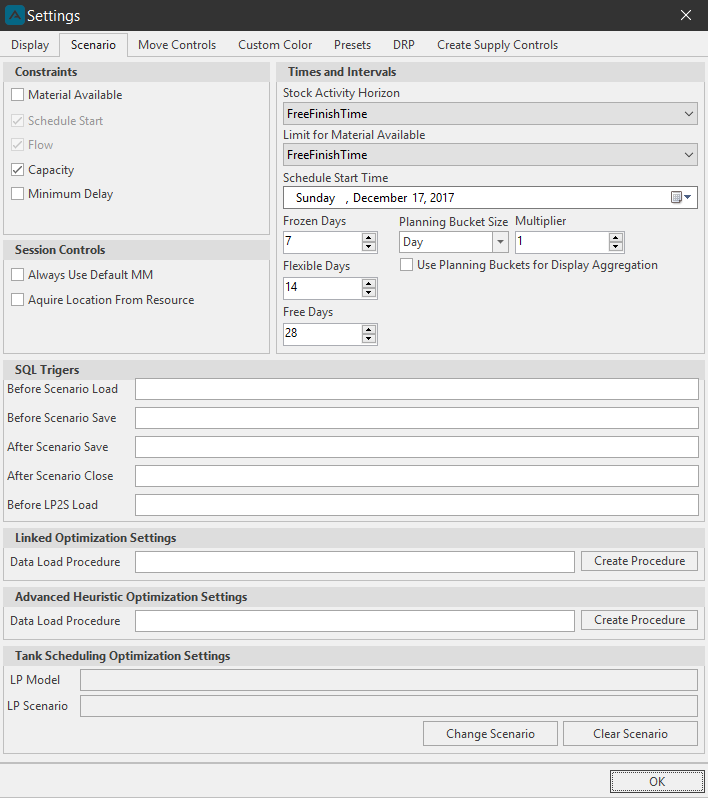
Update the Frozen Days, Flexible Days, or Free Days with a new numerical value, and click Close. The zones will update on the Gantt chart accordingly.
Activities
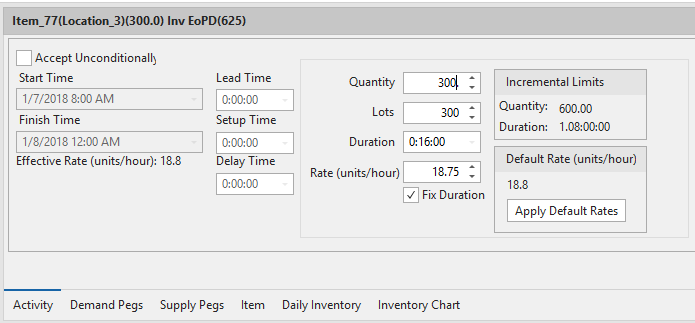
The Activity tab shows the information of selected Activities in the Gantt tab. Select an Activity in the Gantt chart tab to show that activity’s details: Start, Finish, Setup, Delay, and Lead Time, and Effective Rate, as well as the Lot size and Rate in units per hour. The Activity tab will also show if any items are being consumed by the activity.
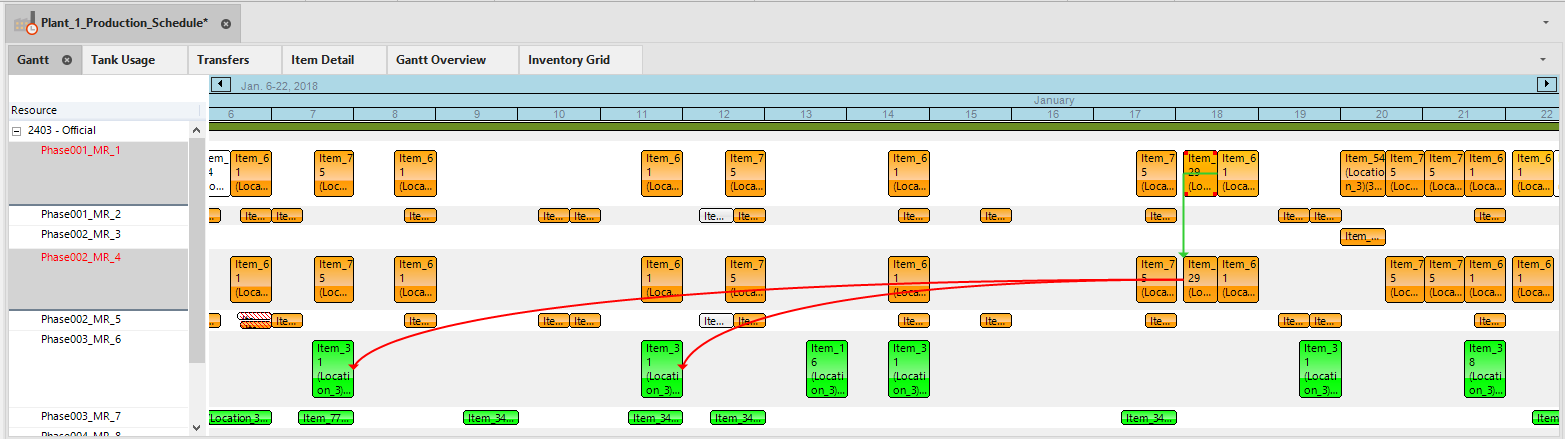
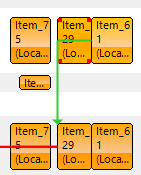
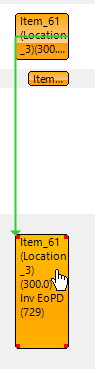
When clicking on an activity, green arrows will show what activities are linked to other activities.
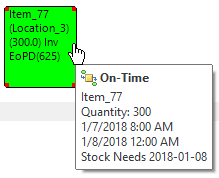
The Manufacturing Order tooltip describes what we are making. The activity shows that we are making Item_77.
The item name is also in the Activity tab header.
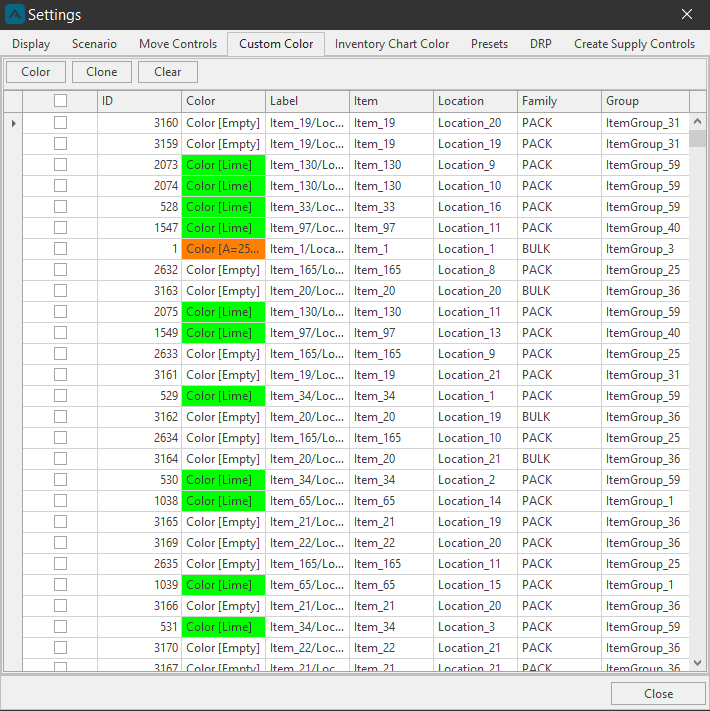
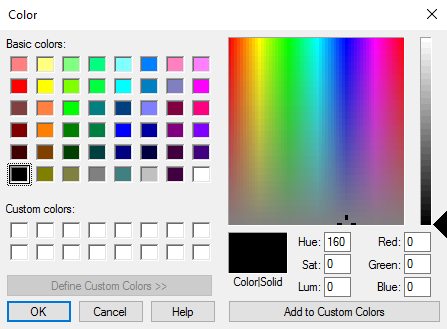
The colors of the activities can be manipulated or changed from the Settings Custom Color tab.
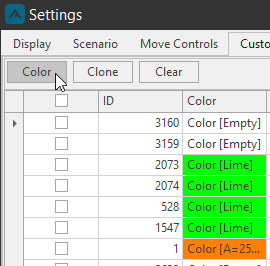
Click the Color button to launch the color picker window.
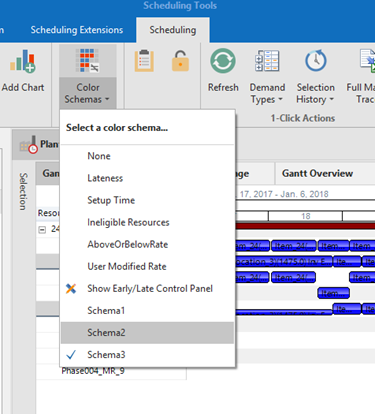
You can also add custom Color Schemas in SQL. Color Schemas in Scheduler work by Item. If you add cs_{schemaname} columns to the bt_Sch_Item_Static table those will show up in the drop down as shown in the screenshot.
Clicking an Activity in the Gantt tab will reveal its connectivity to other Activities by color. The Activities with a blue / orange gradient indicate the next time that item will be made again. This is useful for when planning with sales or management to inform them when this item will be made and at what time.
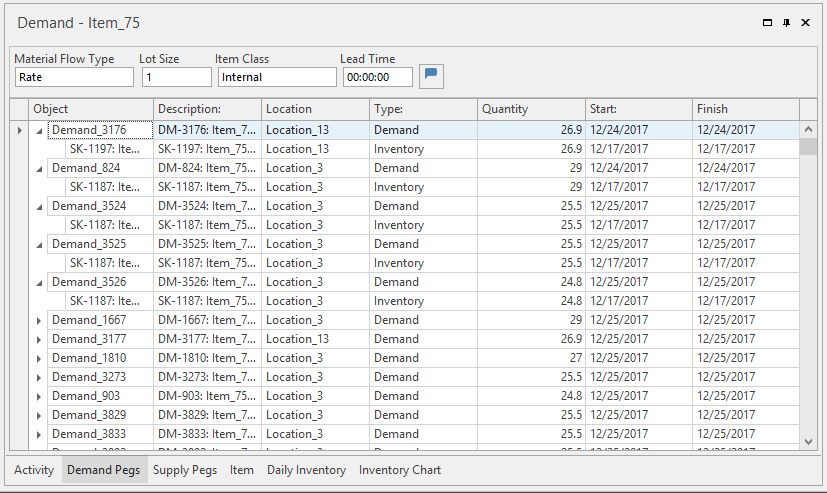
Demand Pegs
Shows which Demand that is being satisfied by which Order of a selected Activity.
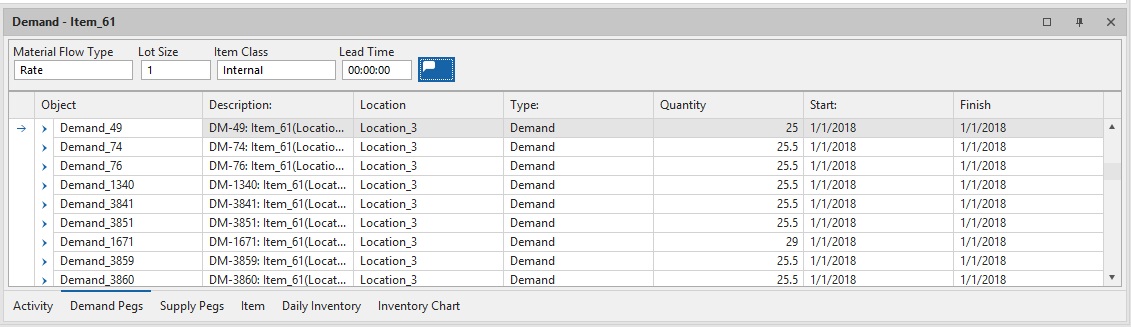
Click the arrow to view what Items will be consumed for the Demand.
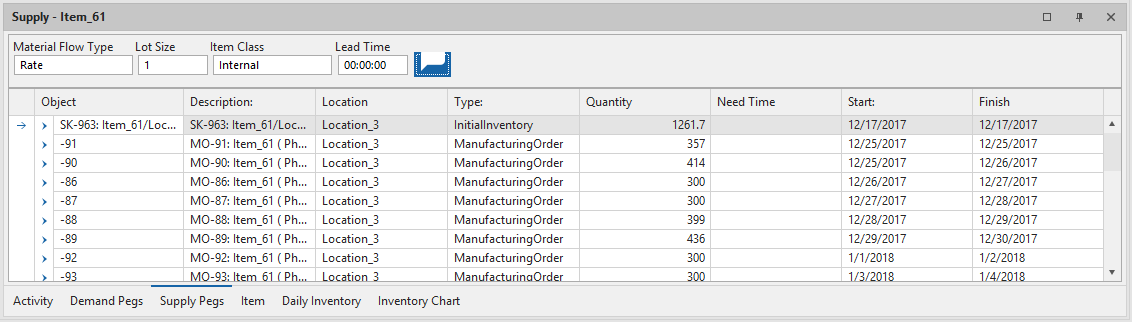
Supply Pegs tab
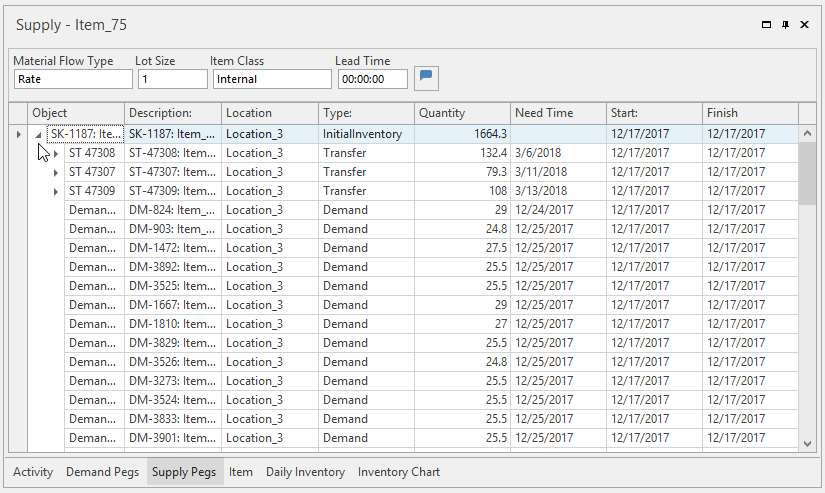
Shows which Order that is being satisfied by which Demand of a selected Activity.
Click the arrow to see what Demands are being satisfied.
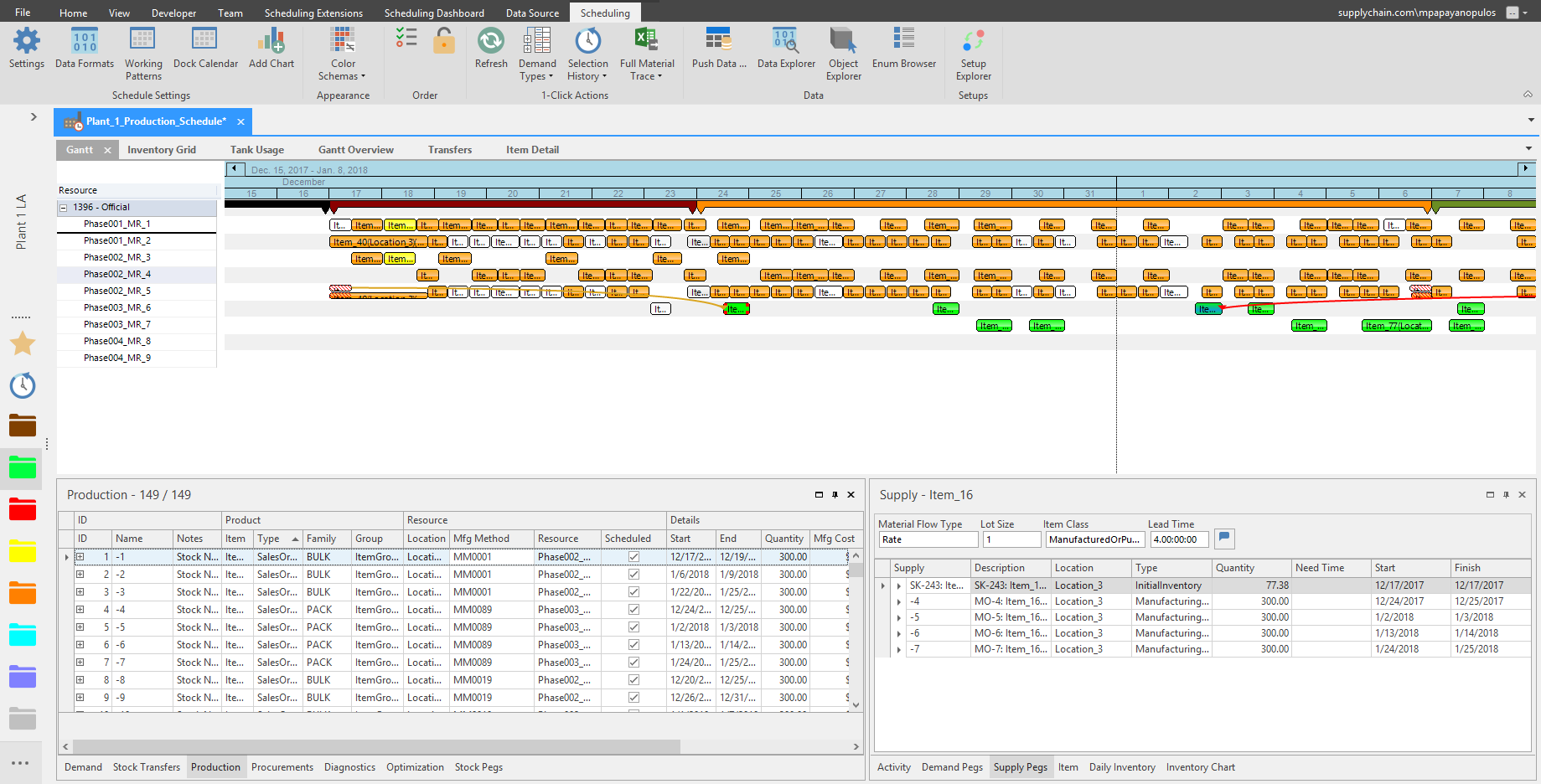
When selecting an Activity, Supply Pegs in combination with Production will show the other related activities.
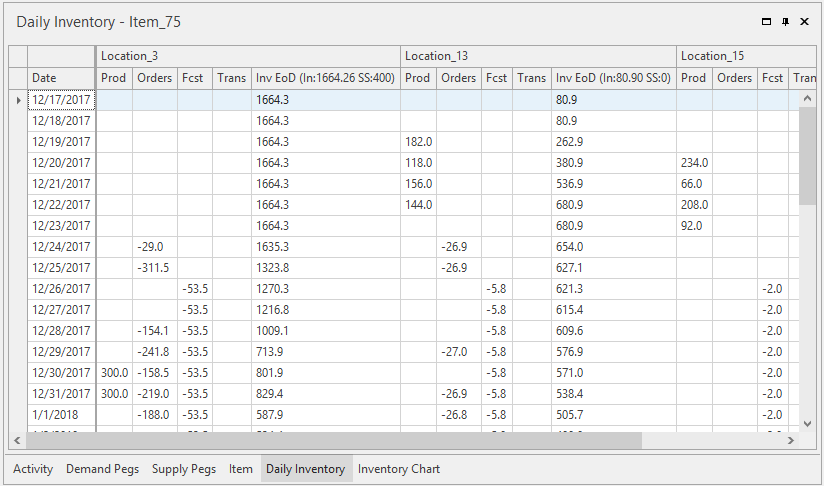
Daily Inventory
Daily Inventory is the tabular view of your supply chain balance by date of the selected Activity.
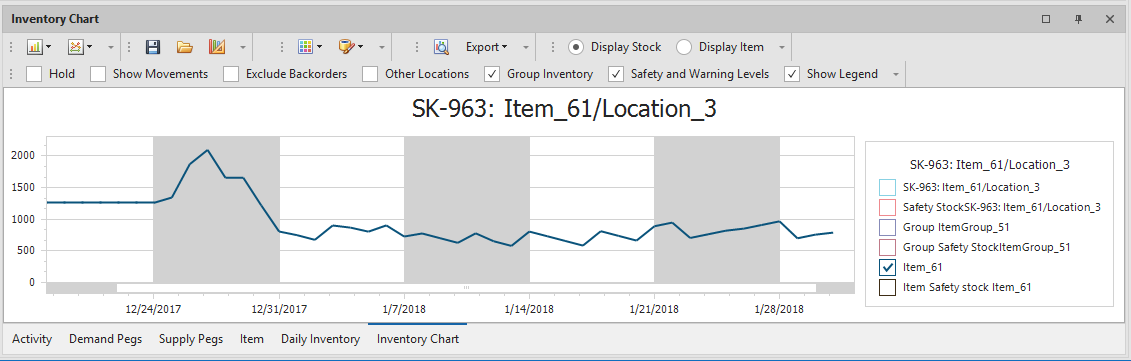
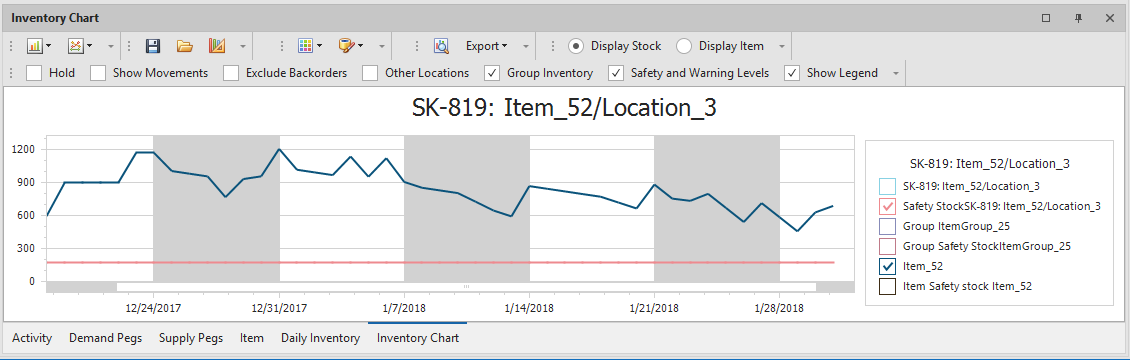
Inventory Chart
The Inventory Chart focuses on the inventory position. The inventory chart is also called the stock position for the selected Activity in a location. Check the Safety and Warning Levels checkbox to enable a line indicating the safety stock level for a selected item.
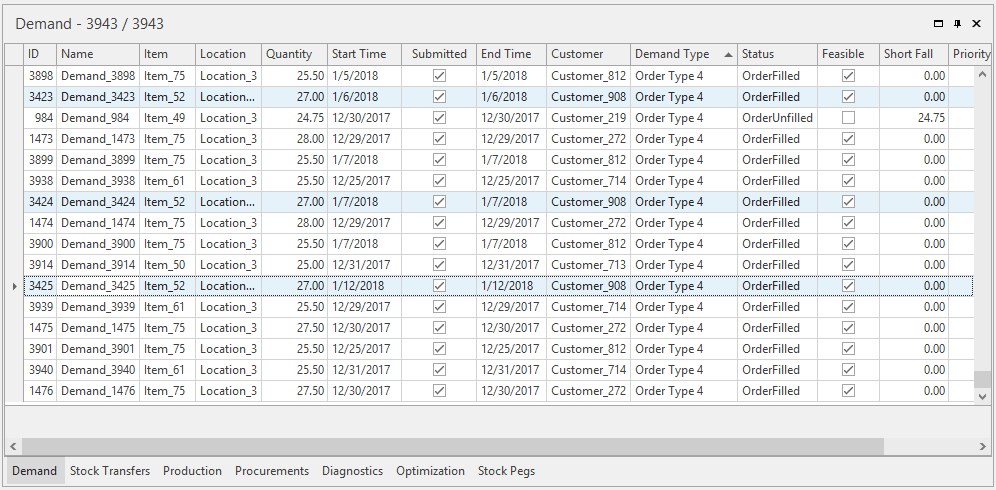
Demand tab
Shows the demand of a selected Activity.
Production tab
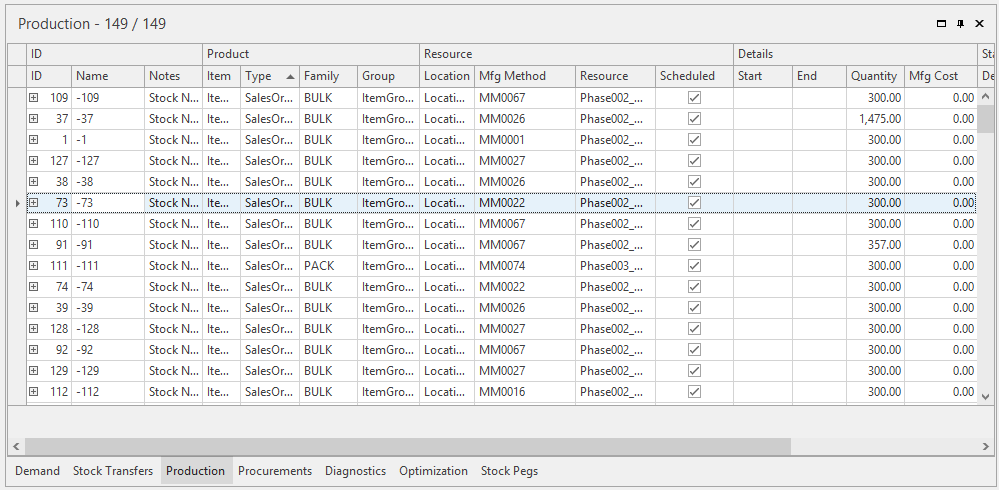
Manufacturing order relative to the selected Activity. You can click the Plus (+) button under the ID Column to view the Orbit tables tied to production. The expanded view will show the Operation, Component, and Activity information.
Inventory Grid
Shows a high-level overview of how your inventory is behaving relative to the ins and outs of the supply chain. ‘Ins’ are procurements and production. ‘Outs’ are stock transfers, demand, and consumption.
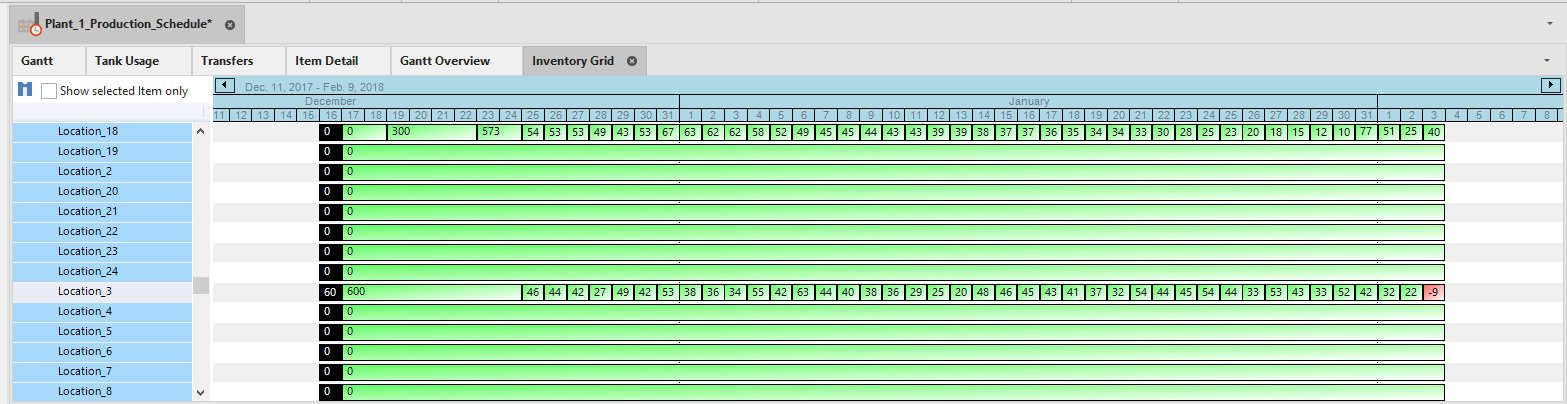
The grid has 4 color codes to inform the scheduler of the health of the inventory. green (no problems), red (below zero), yellow (below safety stock but above zero), and blue is when a scheduler defines a maximum inventory. If the inventory goers above the set maximum, the scheduling model will not stop, but it will turn blue. This is so the scheduling person can make the decision on how to deal with inventory above the maximum set.
Creating a Schedule
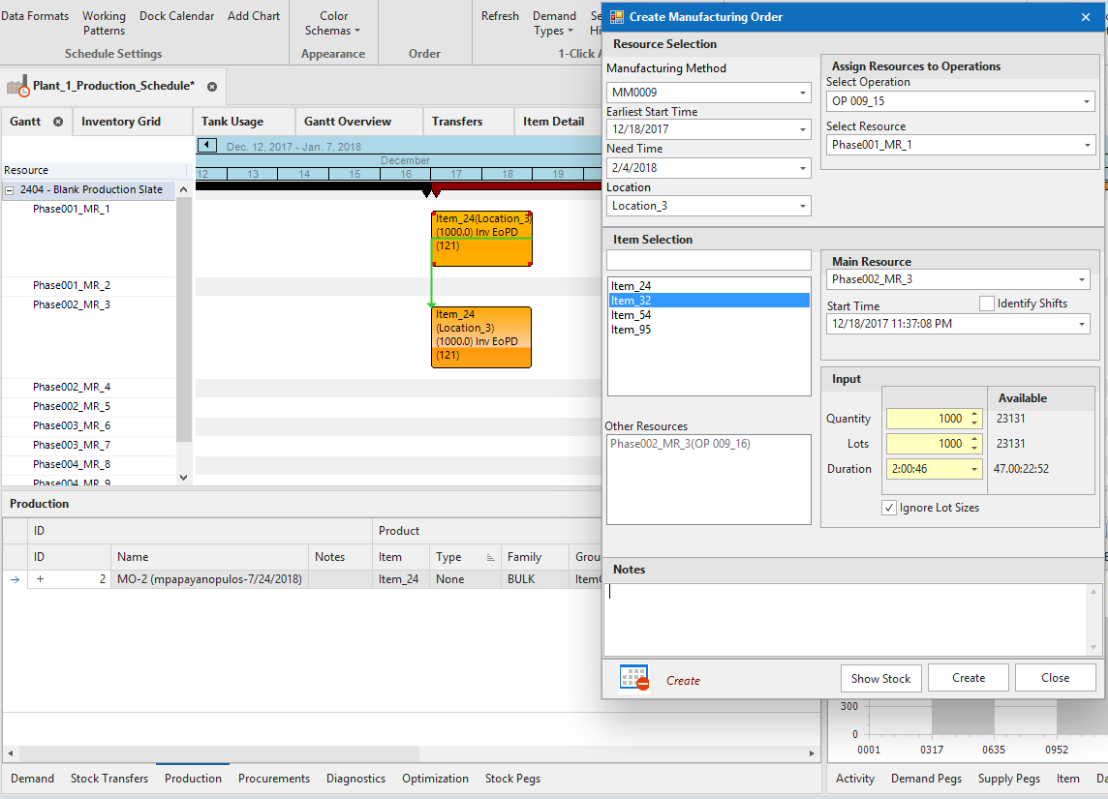
To create a new Activity Item on the Gantt chart, we will right-click on a resource’s timeline, for this example we will right-click on Manufacturing Resource 3’s timeline.
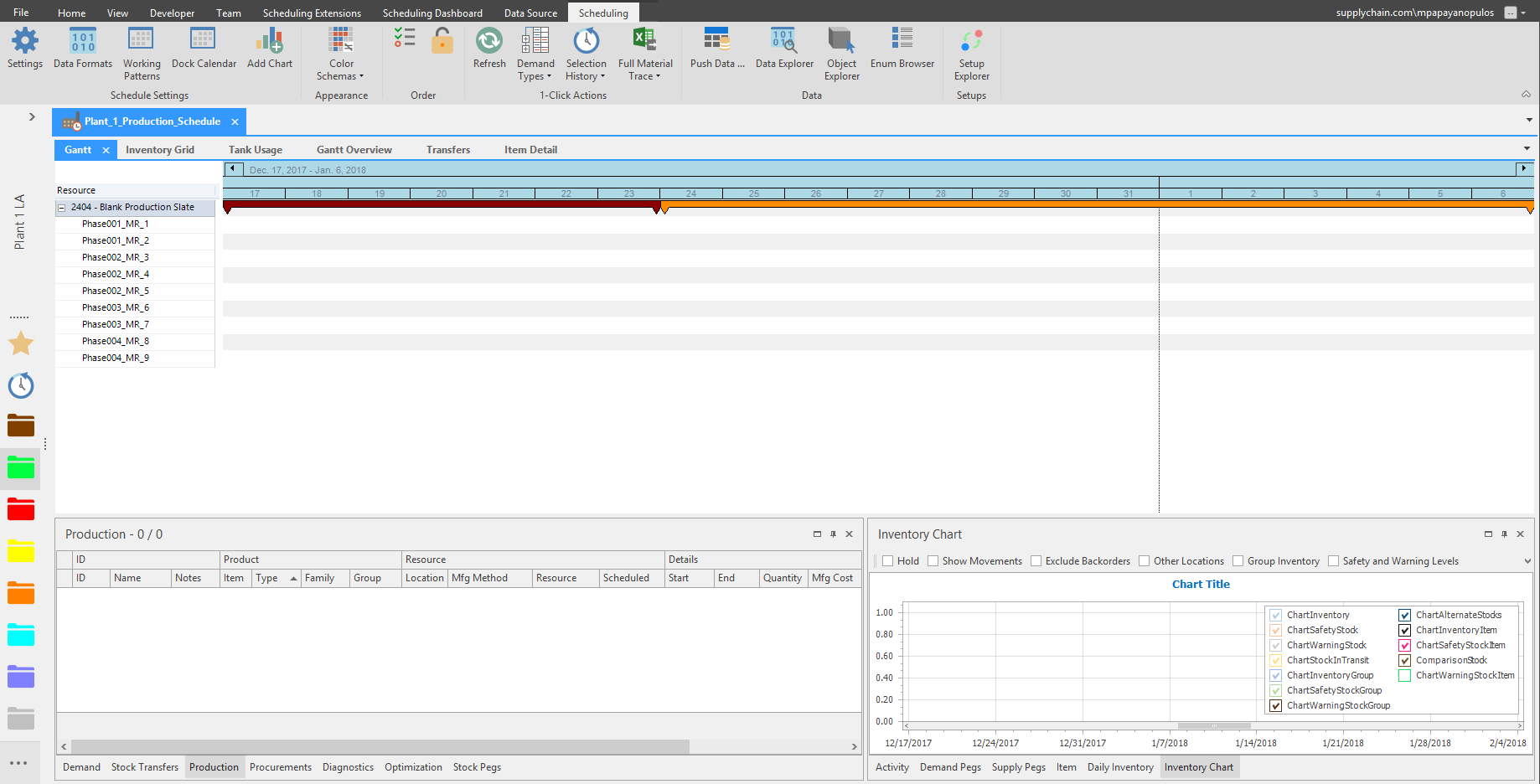
Right-clicking automatically launches the Create Manufacturing Order window. Where on the timeline the planner has right-clicked will be reflected under the Start Time as well, which displays the date and time on the timeline.
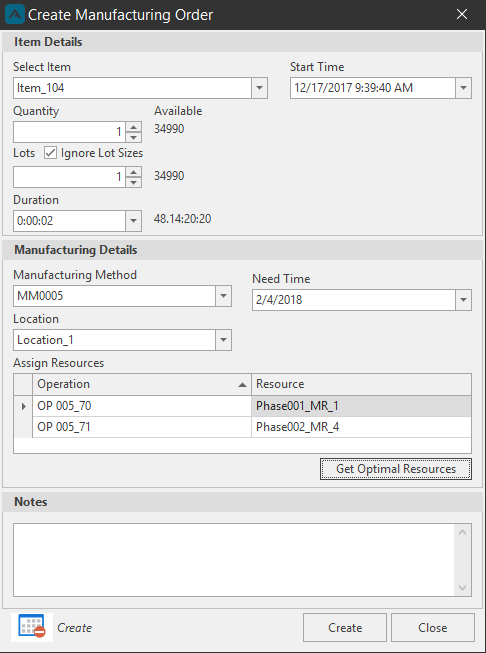
Under the Item Selection box, there are 4 Items that can be created on the Resource: Item_24, 32, 54, and 95. Items available are dependent on how the resource was set up with mappings and routings previously.
Manufacturing Methods are selected from the Manufacturing Method dropdown. We only have one option with this selected Item.
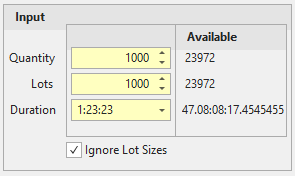
Under the Input section we can see that going to the end of the Green Zone, we can manufacture 12820 units. If a shutdown was scheduled during the Green Zone, this number would show what would be manufactured before the shutdown, not the entire Green Zone.
We can then set the number of units we want to manufacture to 1000, which we can see the duration to manufacture 1000 units will be almost 2 days.
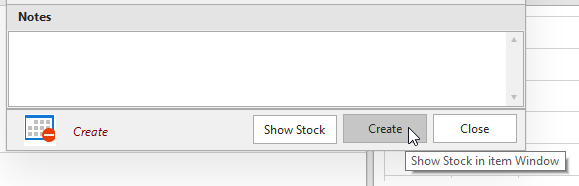
Click create to show the manufacturing order on the timeline.
One Manufacturing Order creates two activities.
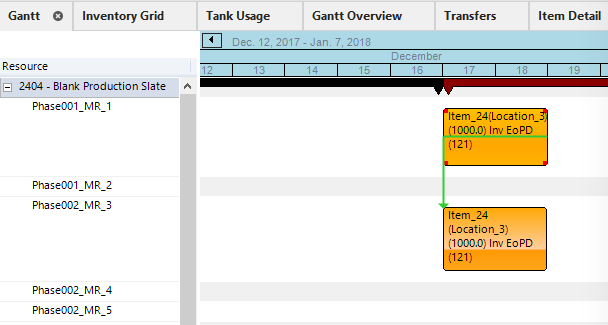
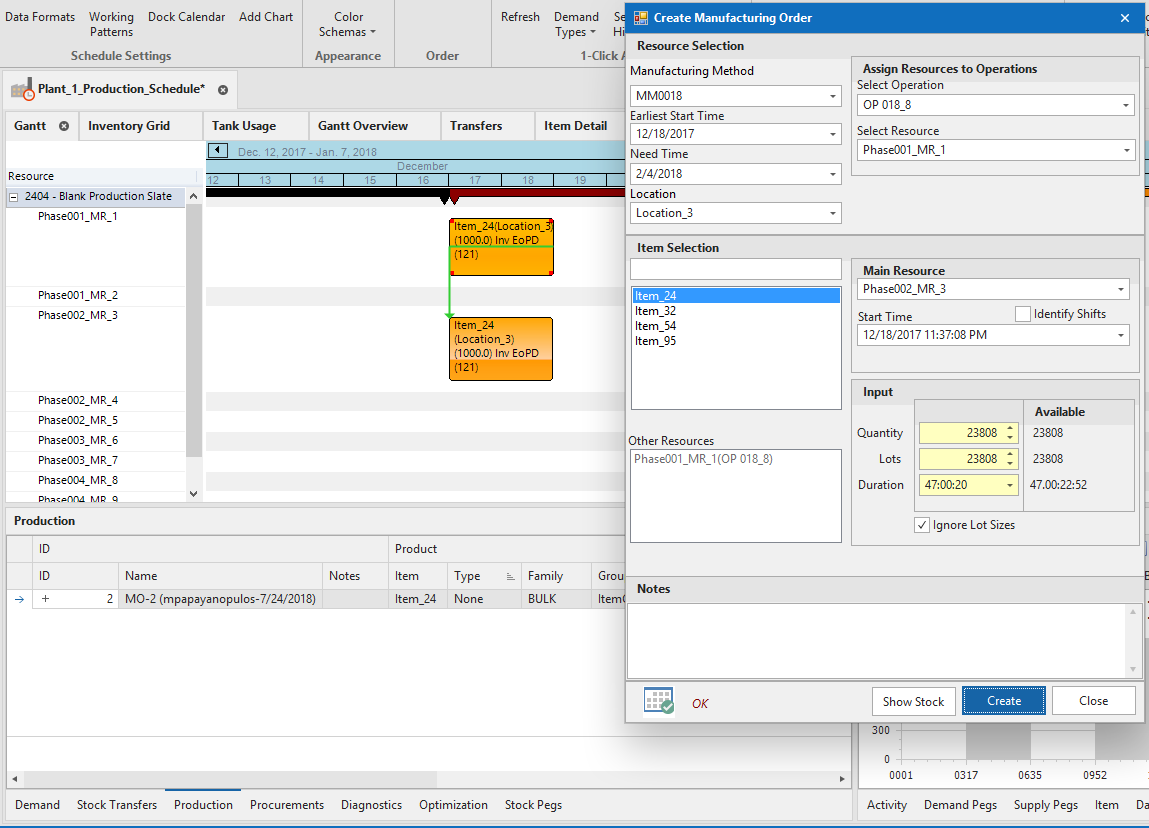
We can create another Manufacturing Order with a different Item, and it will stack the orders one after another on the timeline, allowing schedulers to quickly create orders neatly on the timeline.
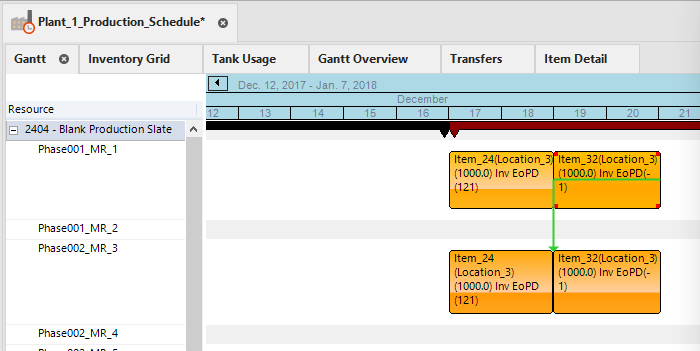
You can easily move Items on the timeline by clicking and dragging them. Warnings have been put in-place if a scheduler makes a mistake and drags the Item to a Manufacturing Resource that cannot manufacture that item.
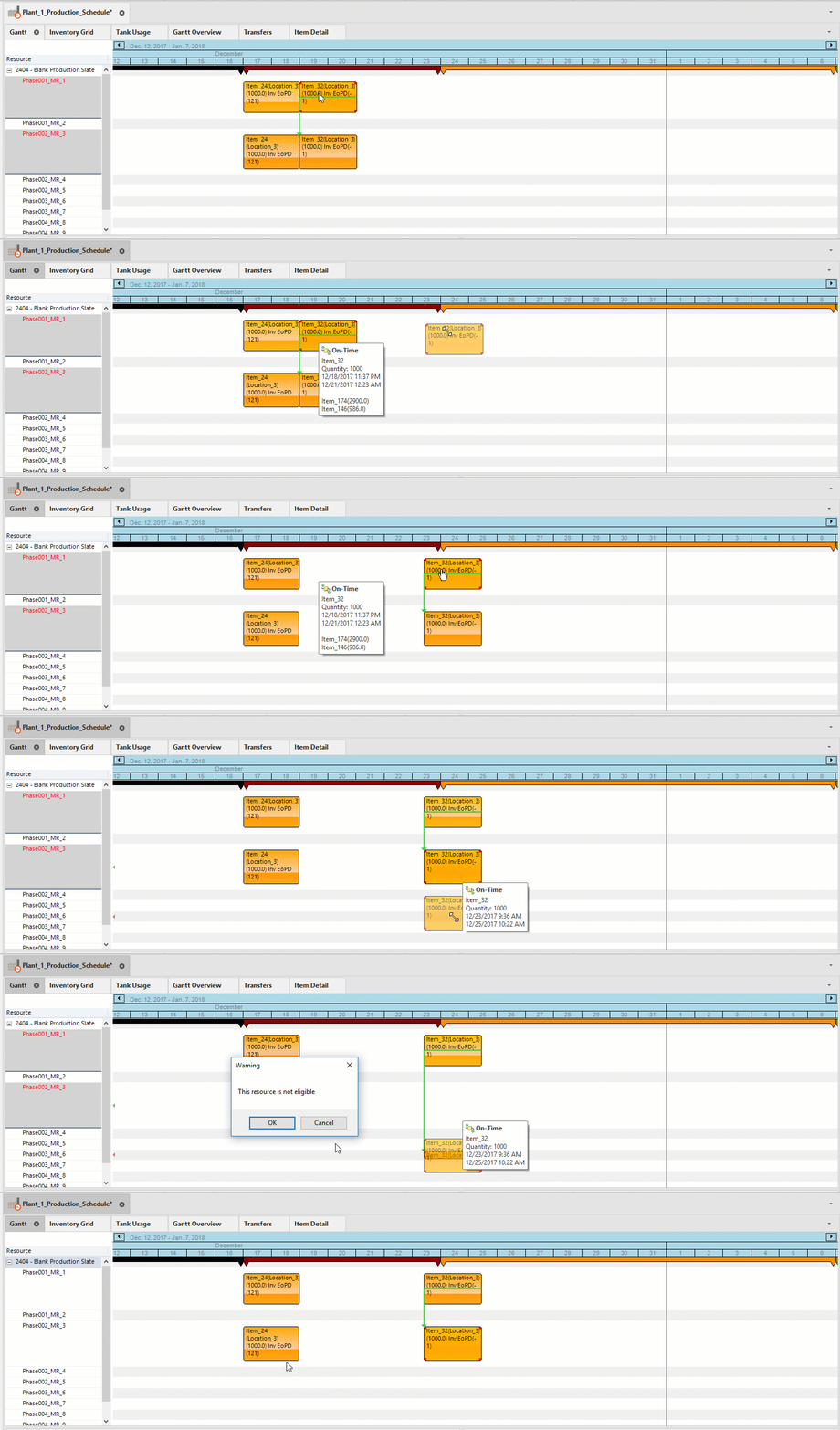
If the scheduler clicks OK the Item will be placed on the Manufacturing Resource line anyway, but the warning is there. Clicking Cancel will put the Item back. You can also CTRL-Z to undo any changes or click the Undo button in the Toolbar.
As Manufacturing Orders are created, the information will also appear in the Production Tab.
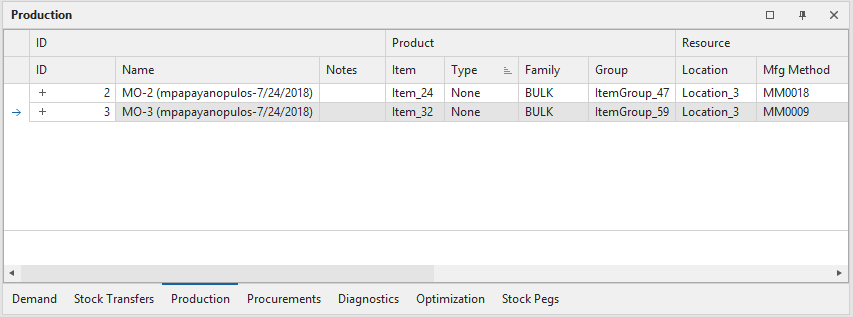
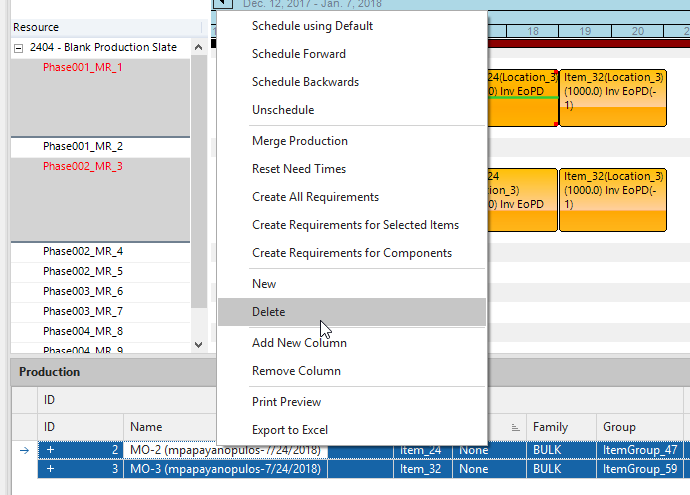
We will delete these two orders and show another way of creating manufacturing orders. Select multiple orders by holding the SHIFT key and clicking the orders. Right-click for more options, we will select Delete. Orders can also be selected from the timeline by clicking the item and pressing Delete on the keyboard.
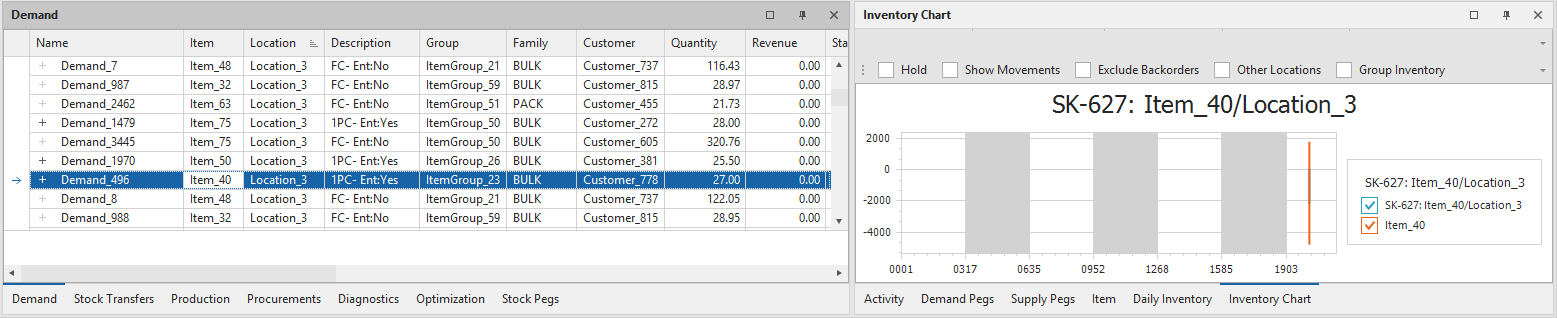
If we look at the Demand tab in combination with the Inventory Chart, we can see what Items are in the negatives and need to be manufactured.
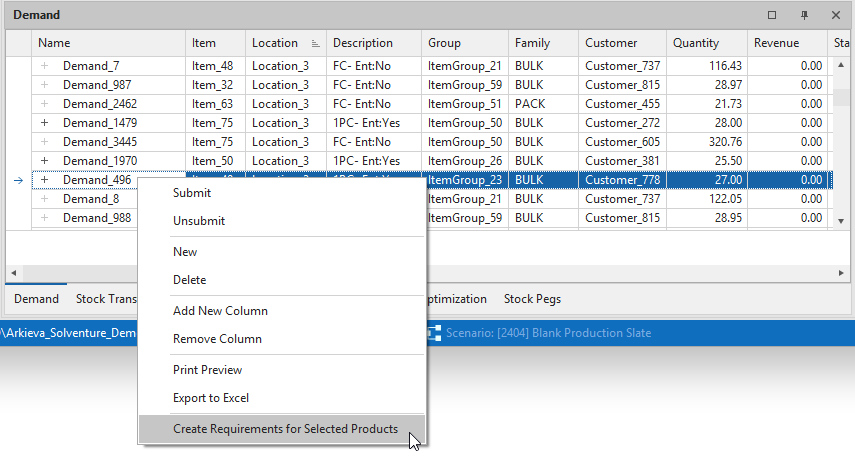
Right-click the Demand item, and select ‘Create Requirements for Selected Products’.
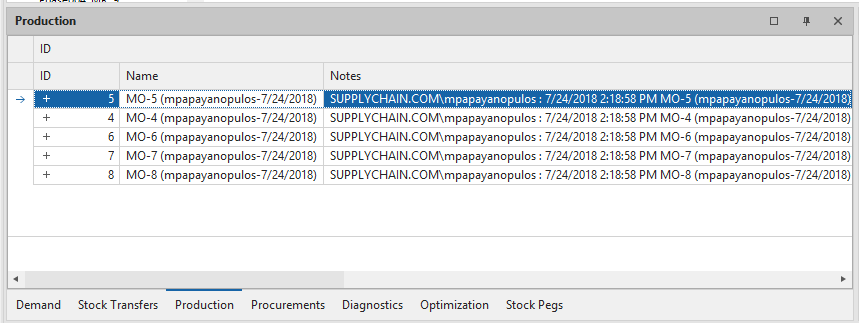
Going to the Production tab we can see the Manufacturing Orders made to manufacturing the right-clicked Item. There are no actions created on the timeline however, because the idea behind this option is for the scheduler to review this tab first, making this feature handy for What-If scenarios.
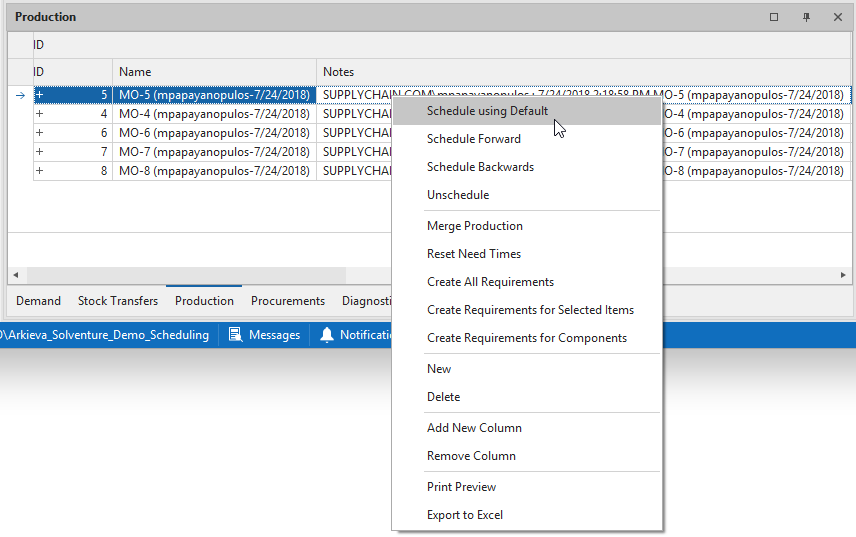
If the scheduler is happy with this scenario, they can select all the production requirements, right-click, and select Schedule using Default, Schedule Forward, or Schedule Backwards. Typically, we recommend Scheduling Backwards for schedules that are demand driven, and for production schedules to select Schedule Forwards. Schedule using Default is set as Forward or Backwards.
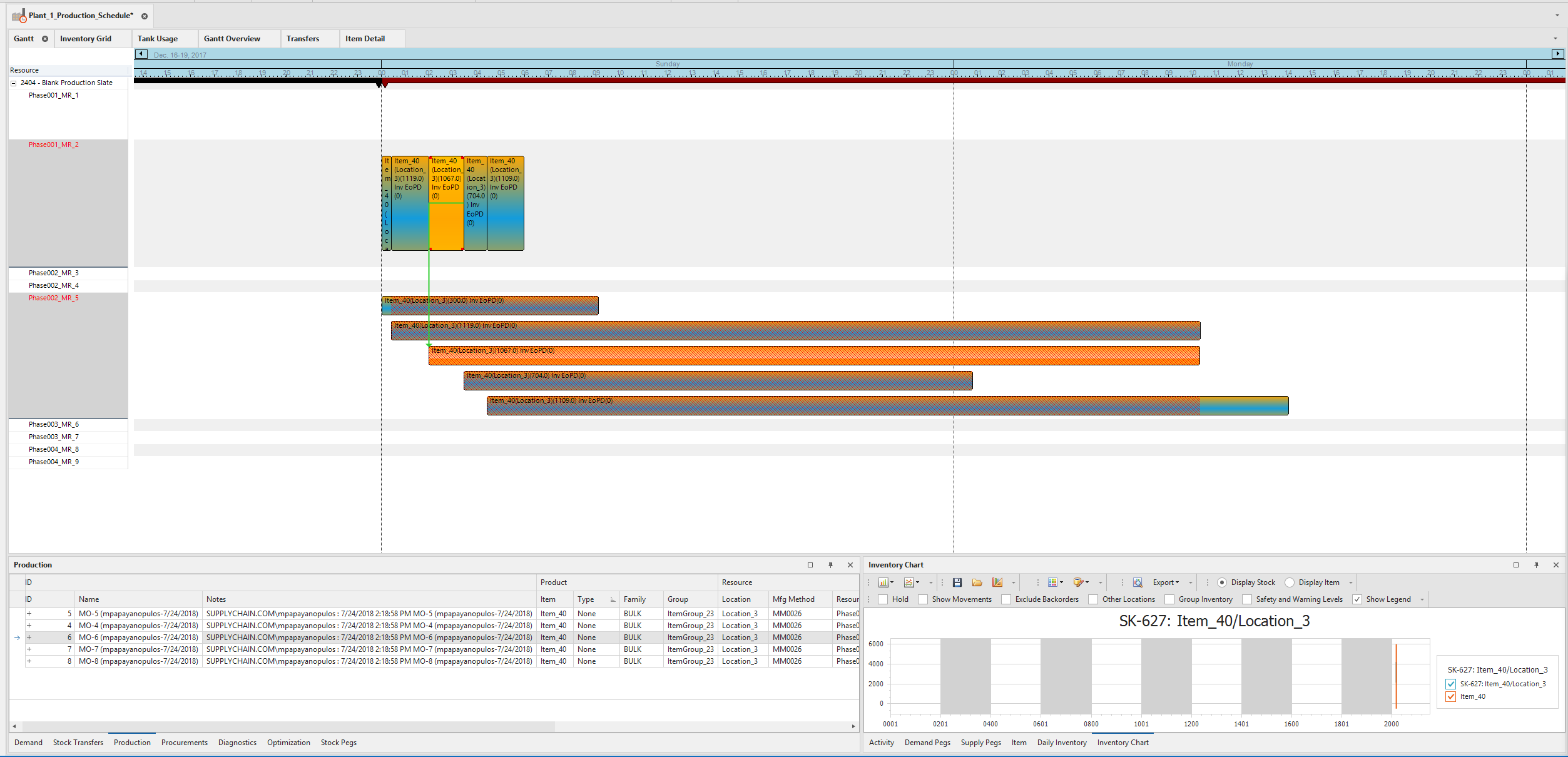
Notice that in this example, the Manufacturing Order is trying to produce multiple items from one Resource. The items are hatched colored in this way to show the scheduler that this will not be possible. This is another warning system within Arkieva Scheduler.
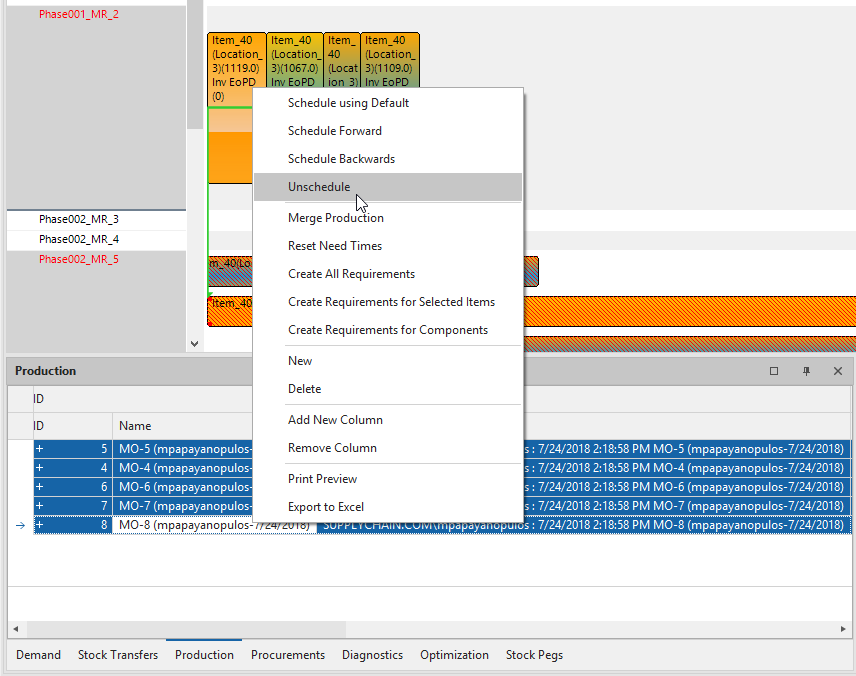
Selecting production items in this tab and clicking Unschedule will remove Manufacturing Orders from the timeline but not delete them.
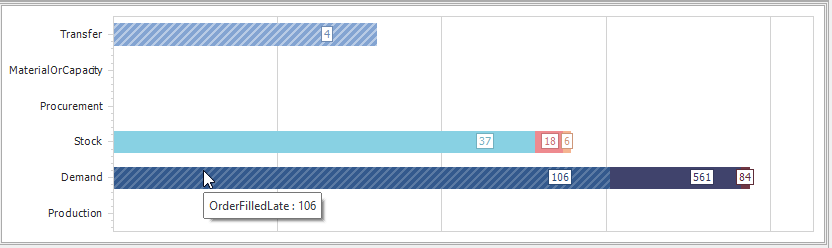
We can try to fix these issues by looking at the information in the Diagnostics tab.
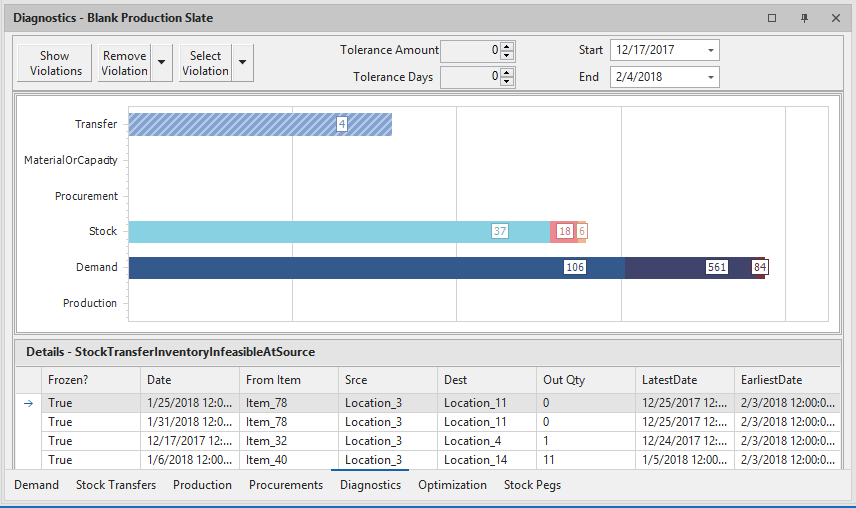
By hovering the mouse over each colored bar, we can view a tooltip that will give us some information, such as the stock transfer inventory is infeasible at the source, there’s a material shortage, etc. Clicking the bar will give us more detail.
Custom Extensions
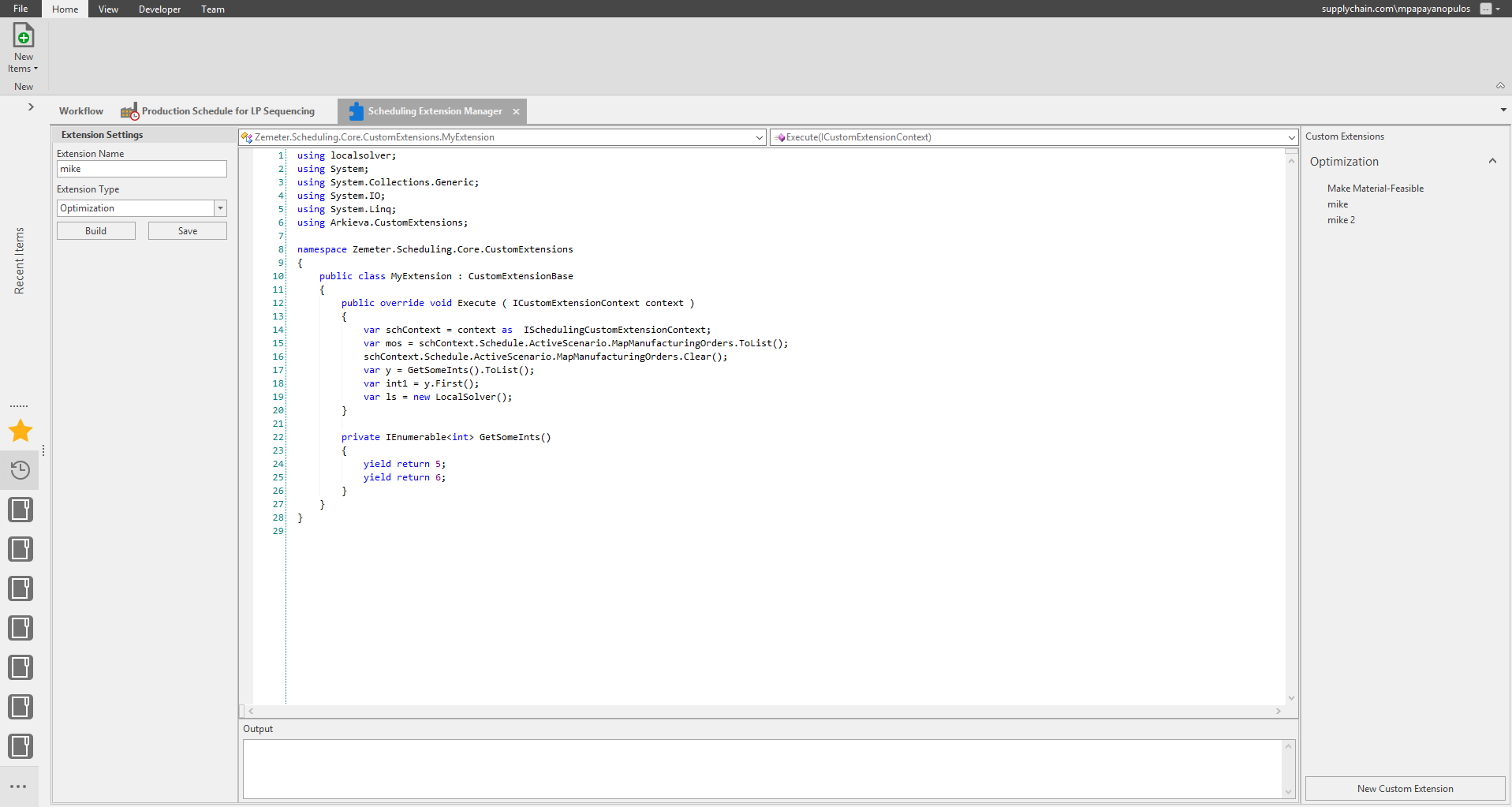
You can now create custom extensions for the Schedule with the Extension Manager tab.

Click the Manage Custom Extensions button located in the Scheduling Extensions ribbon to launch the Extension Manager tab. From here you can create code for your custom extensions.
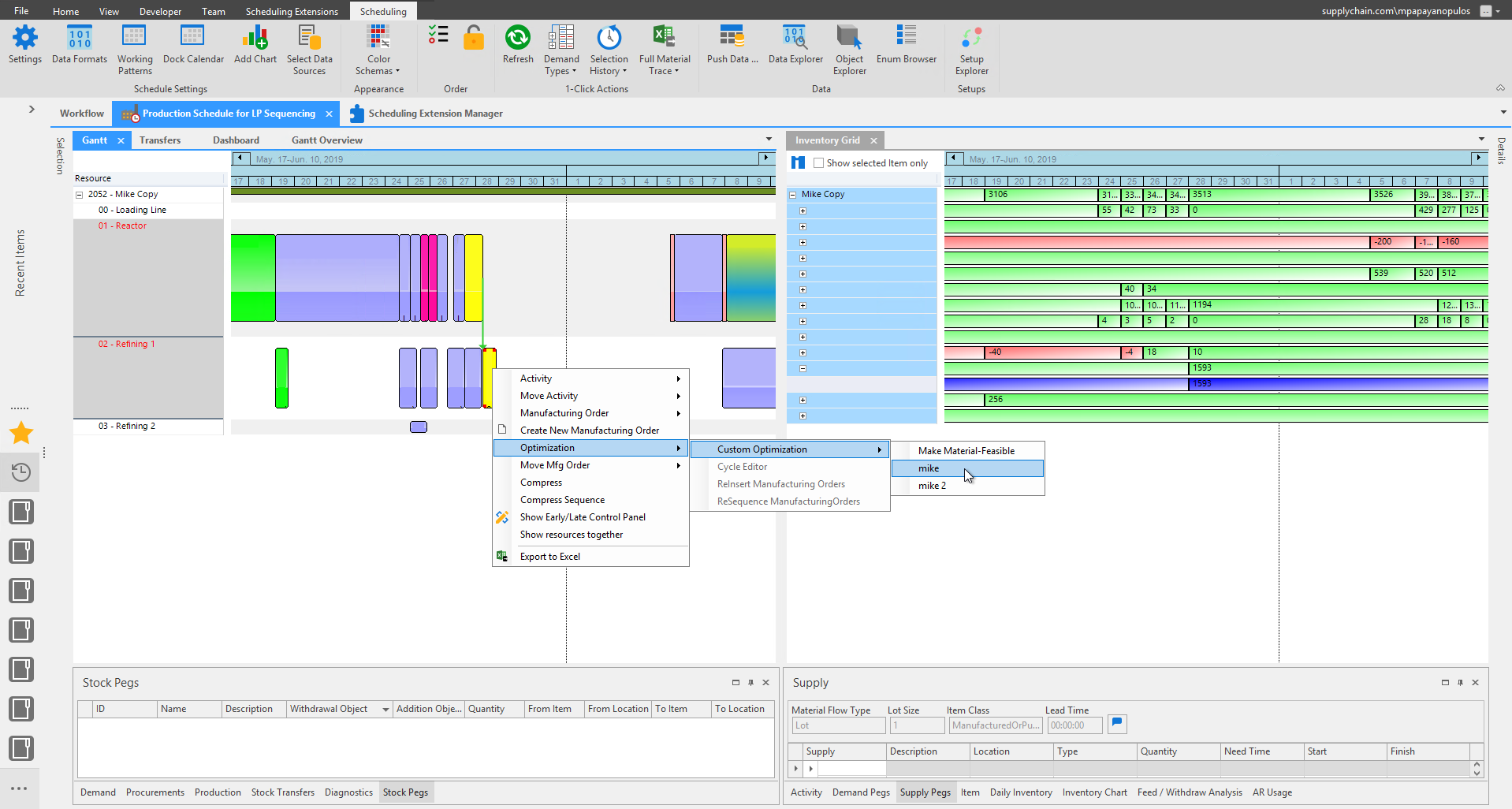
After creating and saving the custom extension, you can select the custom extension from the right-click menu. Select Optimization, then select Custom Optimization to view any created custom extensions.
Related Articles
Production Scheduling Introduction
The Scheduler is designed from the ground up to support the needs of the modern supply chain. Scheduling and distribution functions are integrated in the production-planning software, making the entire production-distribution chain visible to the end ...Creating Production
Create Default Production in Planning Grid The objective when creating default production is to create production that meets the demand for that month, so a planner can maintain the same ending and beginning inventory and safety stock for the next ...ATP, AATP, CTP and PTP
Available-to-Promise, Able-to-Promise, Advanced Able-to-Promise, Capable to Promise, Profitable to Promise: all are catch phrases describing different offerings that support the order commitment process. Such a proliferation of jargon makes it harder ...RCCP
Introduction RCCP stands for Rough Cut Capacity Planning. RCCP is not a Finite Scheduler; it does not calculate the rates at which to produce items. RCCP is meant to give an estimate of whether you can meet demand with the Input given. When the RCCP ...Orbit Documents Introduction
The four Arkieva documents that use the Orbit Database are DRP, RCCP, Production Schedule, and Tank Schedule. The highest level is the DRP and RCCP, the next level is Production Schedule, and the lowest level is Tank Schedule. Tank Schedule requires ...