Creating Production
Create Default Production in Planning Grid
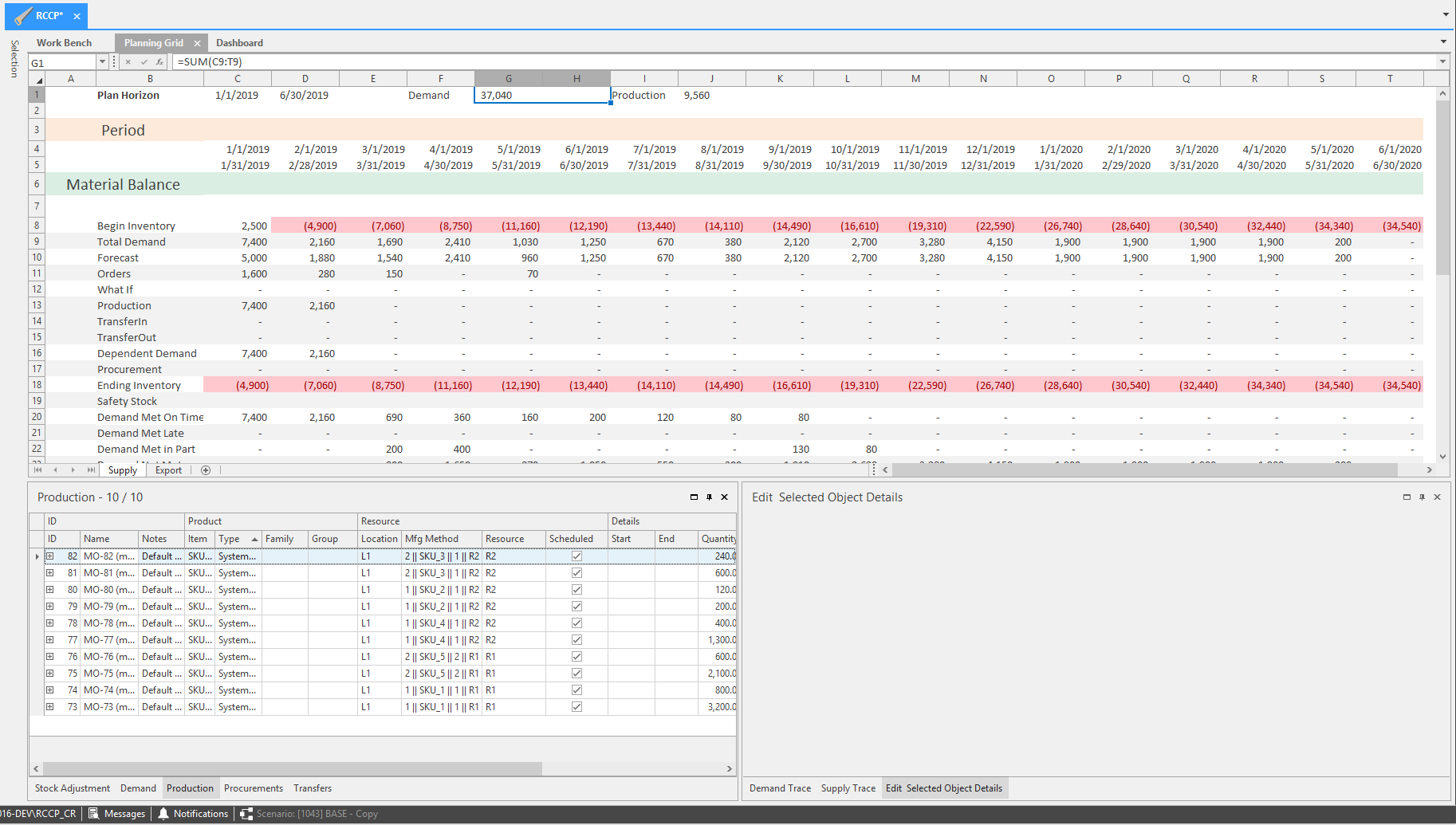
The objective when creating default production is to create production that meets the demand for that month, so a planner can maintain the same ending and beginning inventory and safety stock for the next month. This is possible as long as the correct manufacturing methods were setup in the model. Creating Default Production will create Manufacturing Orders (MOs) for all the items to meet the demand.
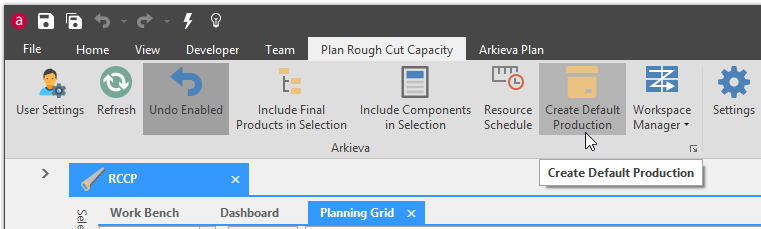
Click Create Default Production which will give a time horizon on which to create a production that meets the demand for that month.
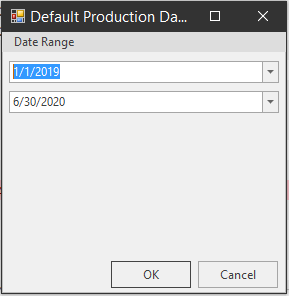
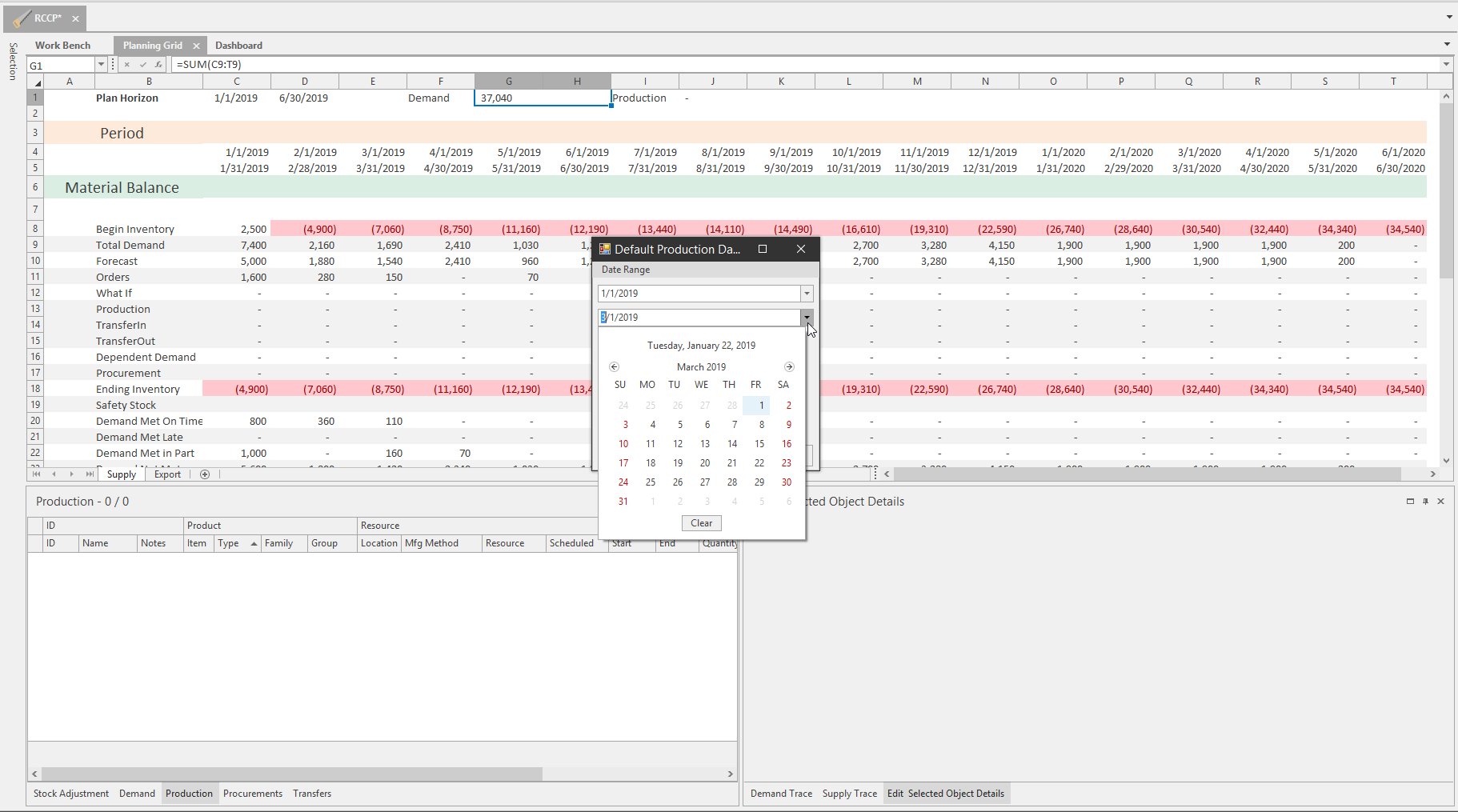
If selecting the entire time horizon, it should produce all that is needed to meet the demand across the entire time horizon. If we reduce the time horizon to a couple of months, then it will create production to meet these two months.
🚧 Troubleshooting Production not meeting demand
One reason may be there are some items that don't have a set default manufacturing method, or it has multiple valid manufacturing methods. The RCCP engine will not select a manufacturing method when there has not been one set as default. A planner would have to manually select a manufacturing method, or the planner would have to manually create the production for that item and select which manufacturing method to use to produce for that item.
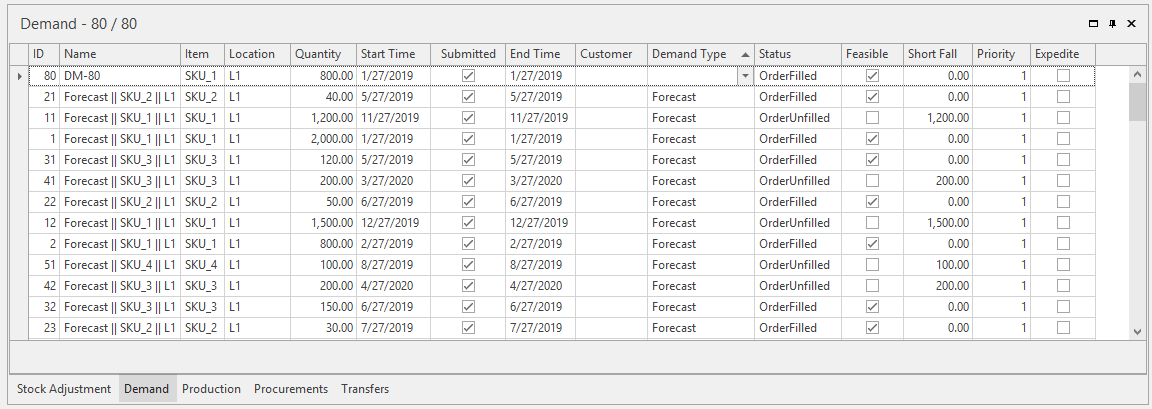
To get a breakdown of this information, you can view the Demand tab. The Demand tab shows the demands for these items, for these periods of times.
Production tab
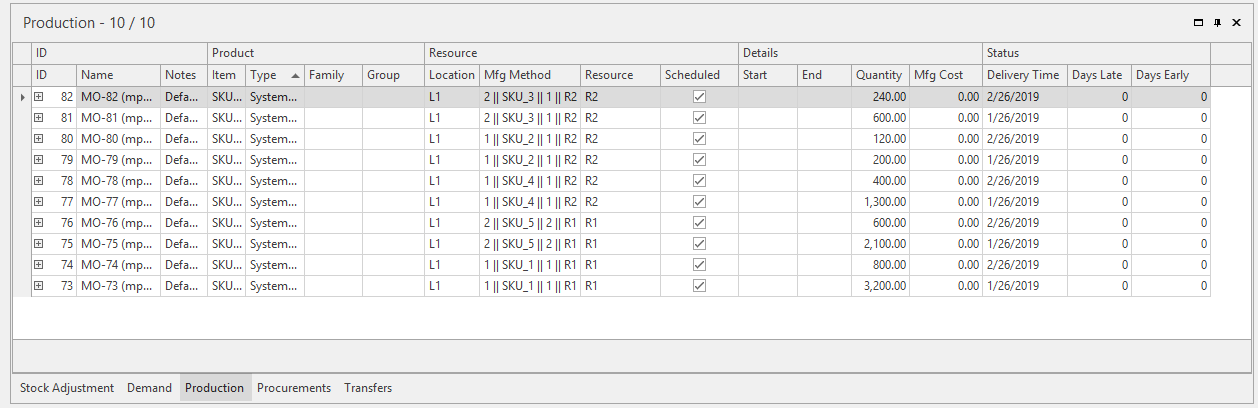
Select the production tab for the created MOs. The Name column shows who created the MO, the MO number assigned to it, and how it was created. The selected MO was created by default production. Also the Production tab shows the Item produced, and the Production Family of that Item.
📘 Note
Item groups, the resources that are being used to produce these items, the quantity, how much it costs, and when these can be done are not necessarily as accurate as it would be in an LP Model, because this is rough cut. Remember, you are planning at a very high level and should not be concerned with capacity constraints, because you want to assume that you could produce as much as you can, in as small of a time period as you want.
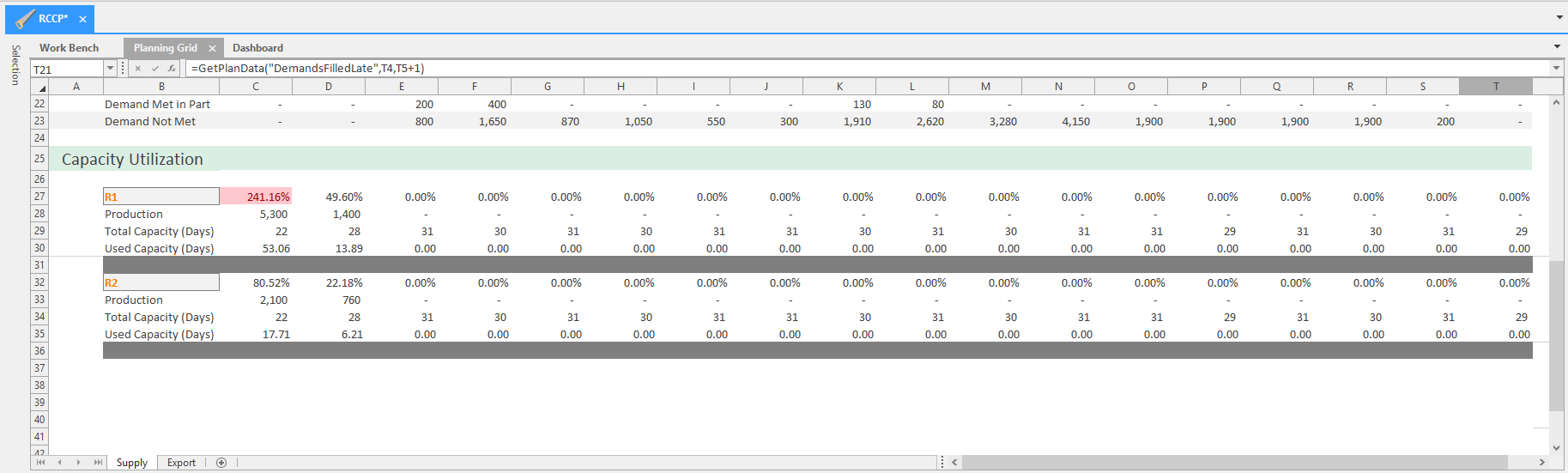
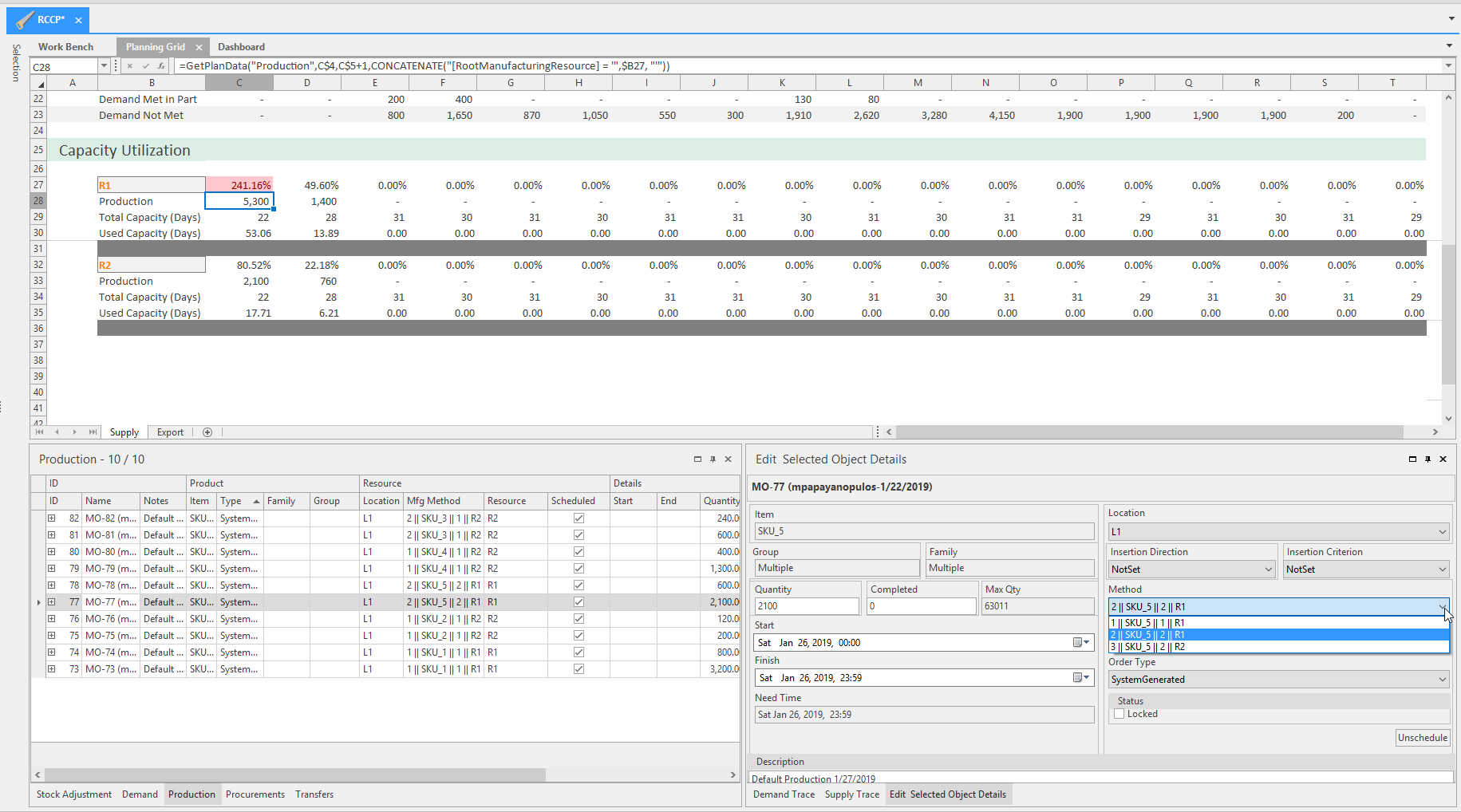
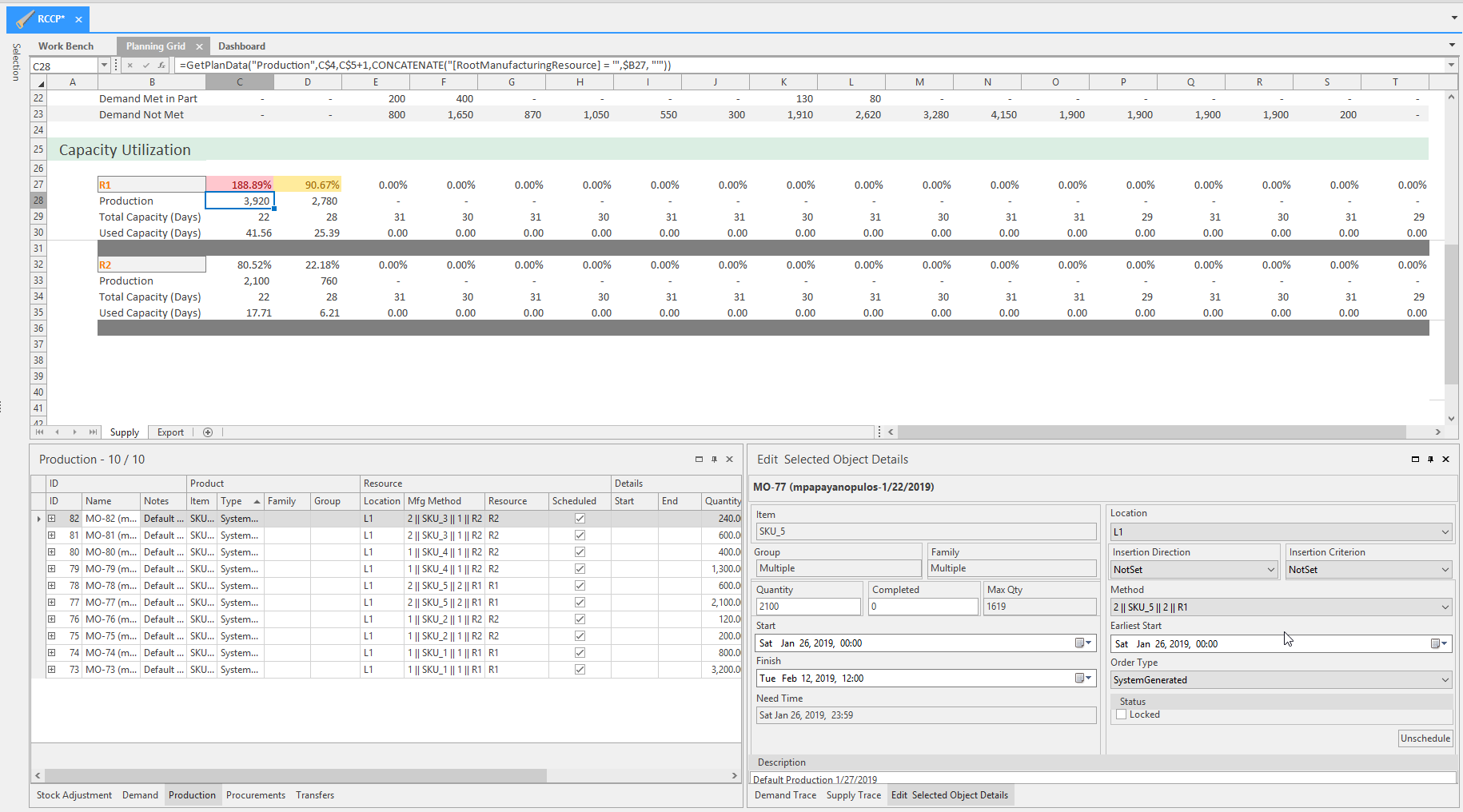
After creating default production for these two months, scroll down to see the resources under the Capacity Utilization section. We can see that several resources are overcapacity (highlighted in red) meaning we are overproducing for those months.
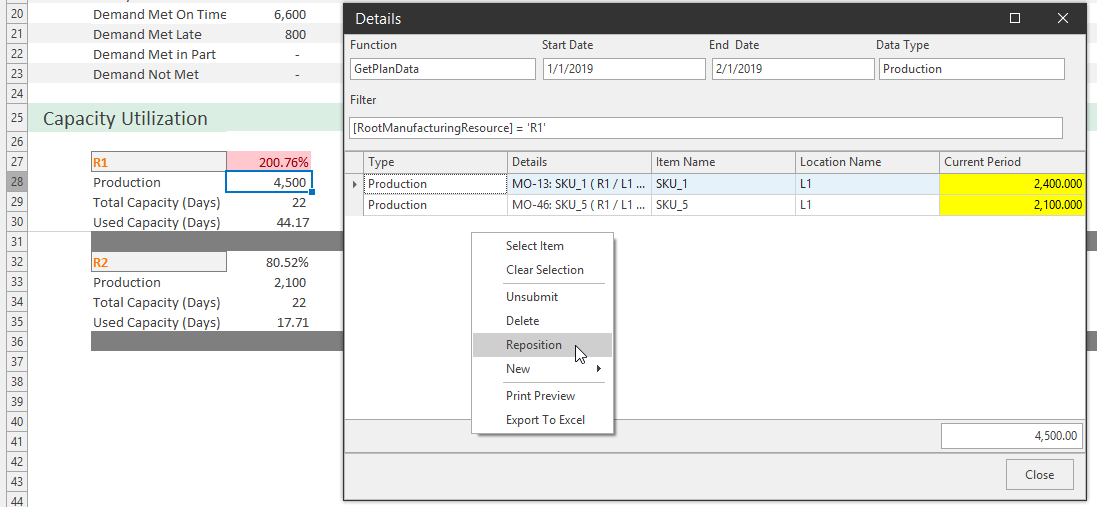
Double clicking the production cell for that item will launch the Detail window which allows you to see what's being produced on that machine.
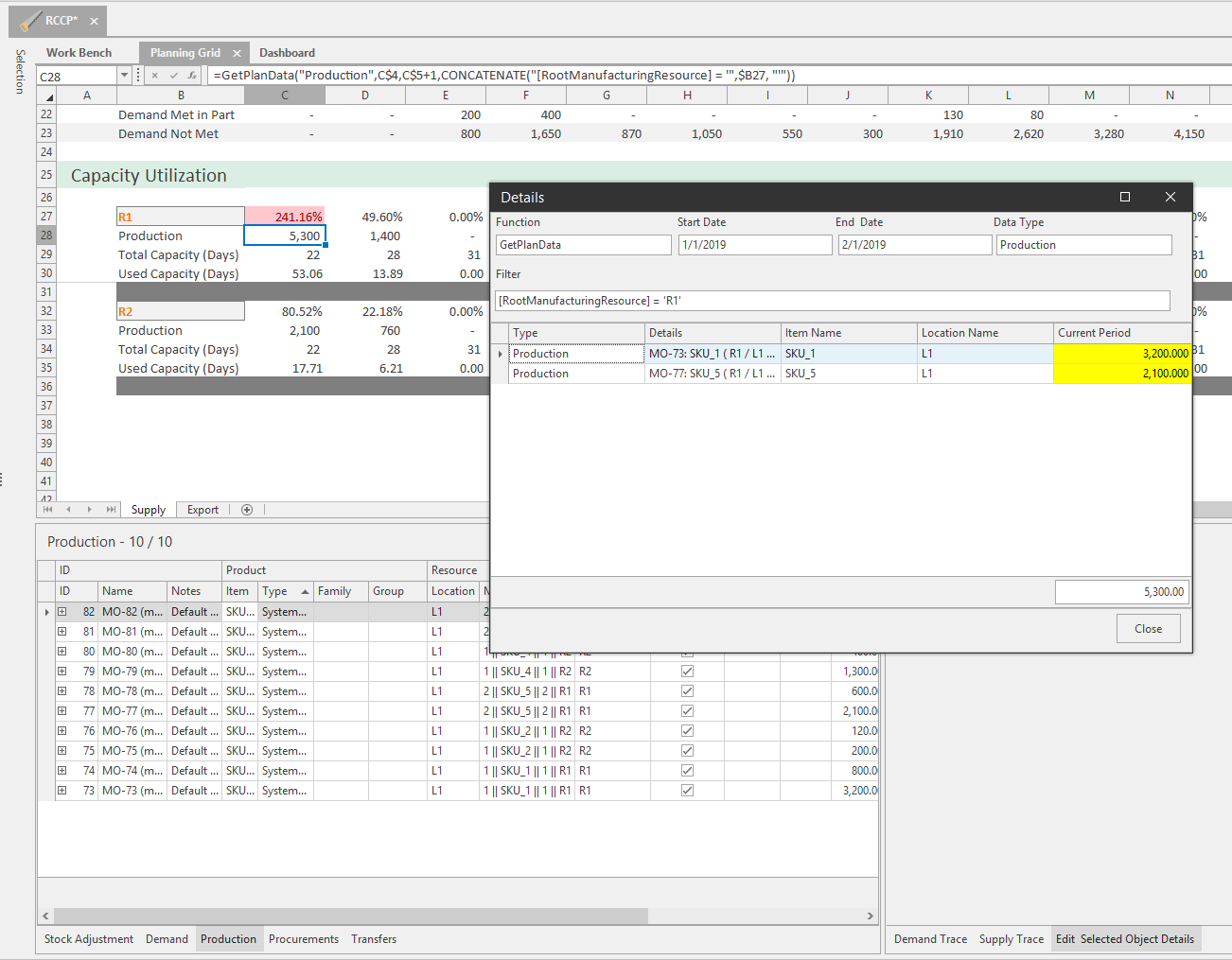
If something has a valid manufacturing method or a second manufacturing method, you can search for the MO in the production tab. Selecting the MO in the production tab, change the Manufacturing Method (MM) in the Edit Selected Object Details tab on the right, under the Method dropdown. Selecting the secondary MM will relieve some of the strain from the overcapacity resource.
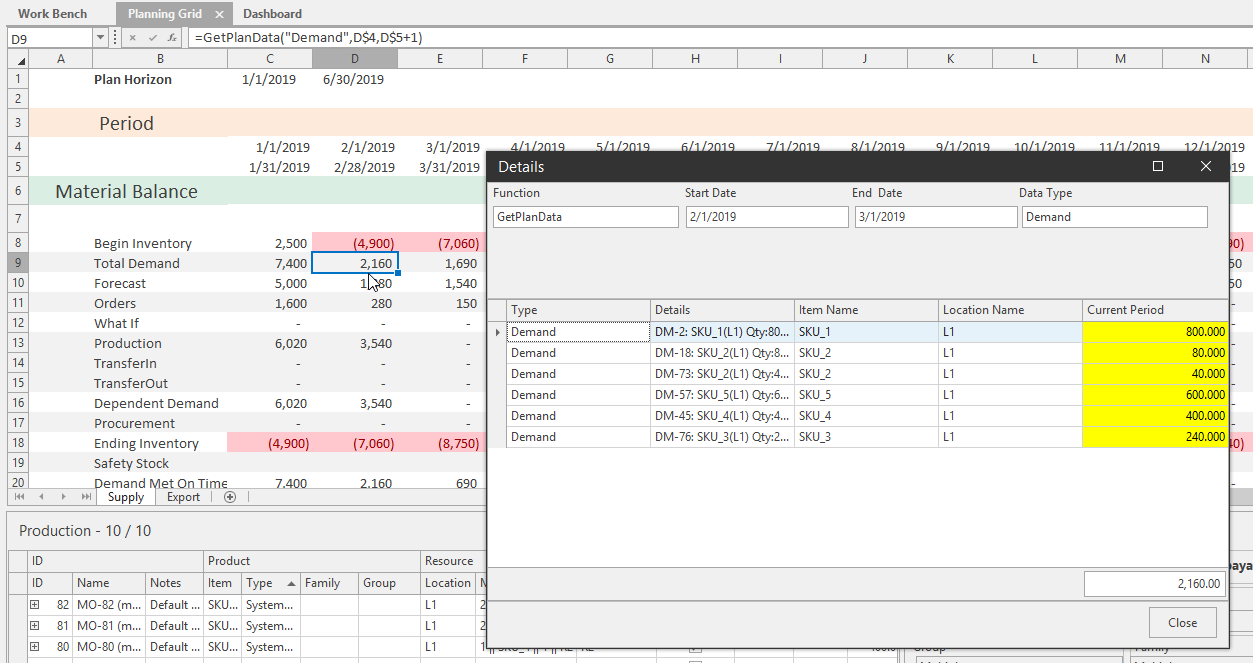
You can generally double-click anywhere on the planning grid. For example, you can double-click on Total Demand and view the Details and see the demand for each individual item, and how much is needed.
Create Production from the Planning Grid
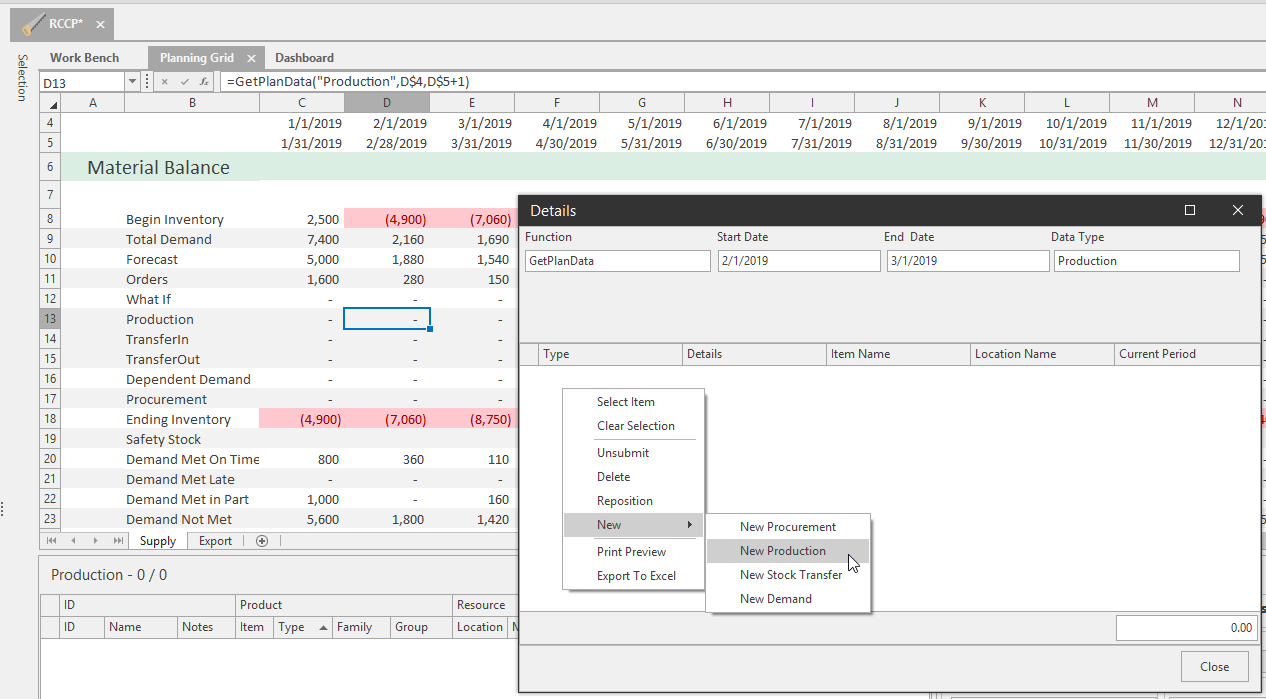
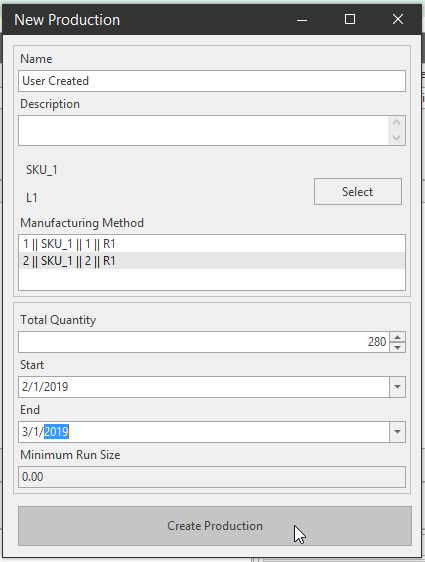
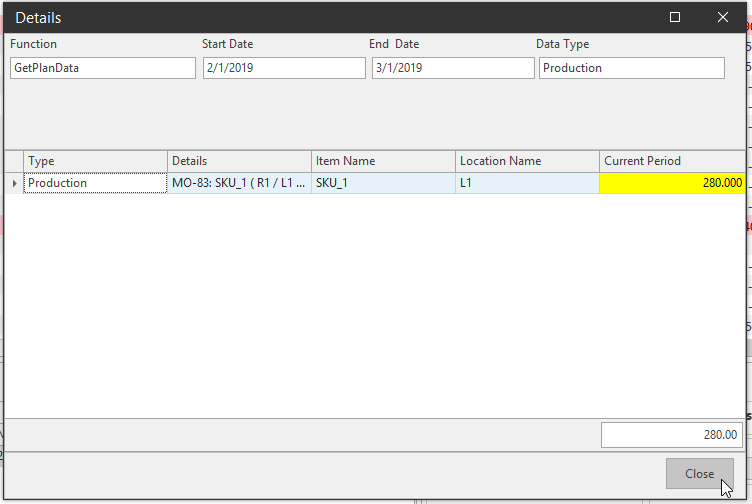
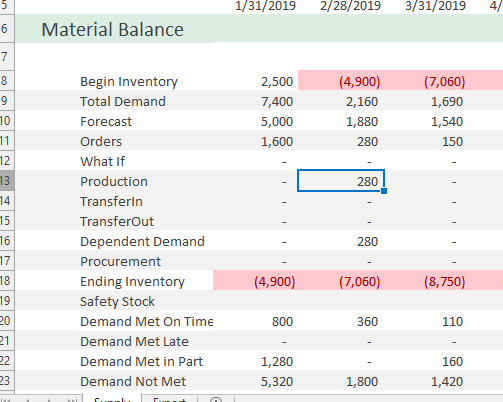
Double click Production from the Planning Grid to launch the detail window. In the detail window, right click and select New Production to create new production. From this menu New procurements, New Stock Transfers, and New Demand can also be created.
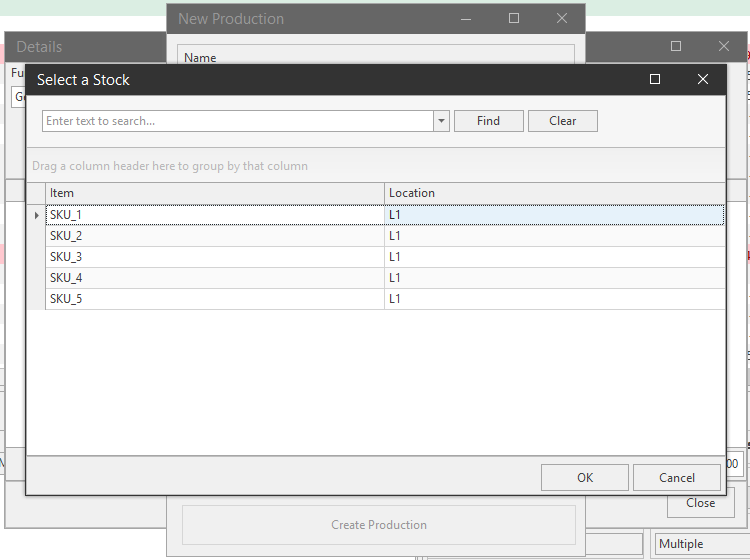
Click Select to launch the Select a Stock window to select an item to produce. Select the rest of the appropriate information to complete the New Production process.
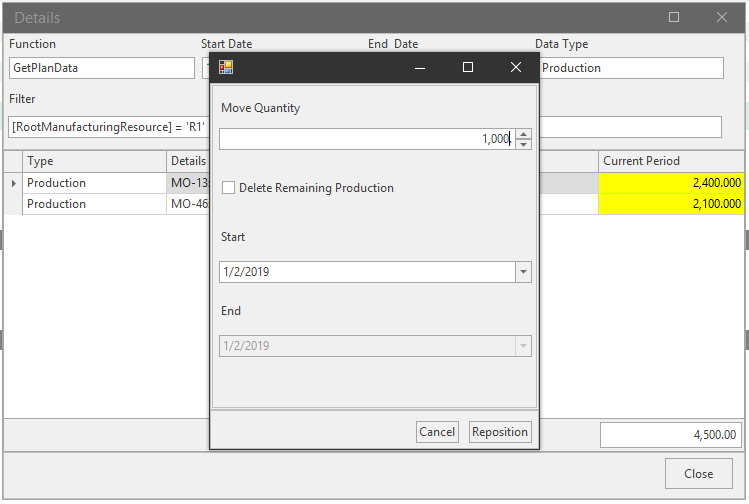
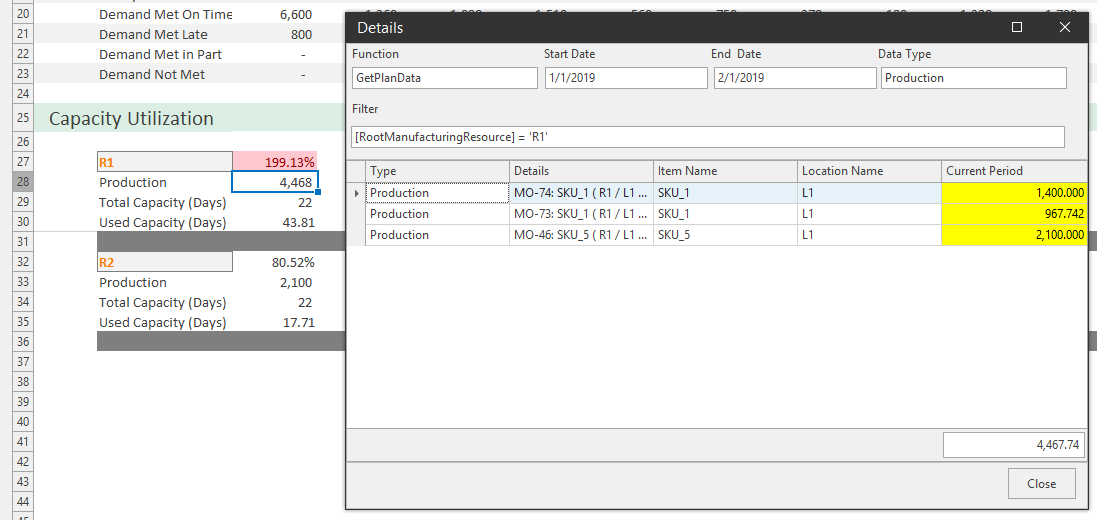
Reposition Production\ You can also reposition production from the Production Detail window. If an item is overcapacity on a resource in one month, but it the demand does not need to be met until 2 months into the future, use the Reposition window to move some production from this month into another. Make sure to uncheck Delete Remaining Production.
Manually Create Production in Work bench
Manually create production to meet demand directly in the work bench’s editable production row. This will create production and assign it the default manufacturing method that was set in the model.

Manufacturing Order
If you want to view the details of a manufacturing order, you can select an MO and all the MO’s details will be listed in the Edit Select Object Details tab. On the left side is the item, the group, and the family information. Quantity, Completed, Max Quantity, and time periods (Start, Finish, and Need Time) are editable.
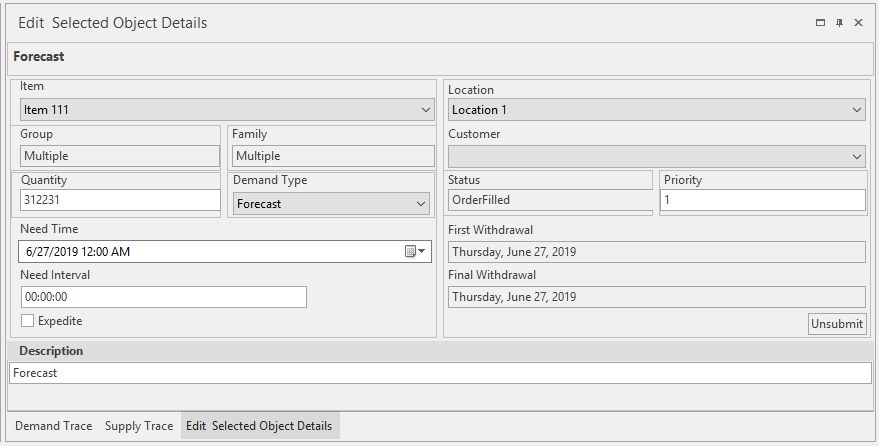
📘 Editing the quantity here is not recommended because it will take into account runtimes. The Edit Select Object Details tab is more for DRP and the LP Model system, because once you modify something in here it will move your manufacturing order to match your run rates.
If you were trying to produce one million units within a day, it will take the run rate and apply it to that and say that's not possible, and it will spread that out to a different time bucket.
It is possible to have an MO that stretches across several different time buckets. So saying that you need to produce 60,000, but you need it over a span of three months, it is possible to have your start period in November and your end period in January 2019.
On the right side, the Location shows what plant you have. The way this RCCP is setup is each individual plant is its own Orbit database. You will not see any more than a single plant for the RCCP in this model, but you could have multiple plants in a single Orbit model, so you could plan across different plants. You can also change the MM for the production here from the method dropdown. You can change the earliest start time and the order type.
Reminders
- If no production is present for the item AND there are multiple default MM’s selected for this item. Production falls under the first MM that is listed for the item that is selected as default.
- If production is created using multiple resources through different MOs, and workbench is modified without specifying MM, production is split evenly between all existing MOs regardless of resources used.
- If Production is created using multiple resources through different MOs, and Multiple under a single resource, if a resource is selected in the workbench for production, all MO’s convert to that resource.
Related Articles
Production Scheduler
Introduction The following is a high-level overview of scheduling and how a planner can interact with Arkieva Scheduling component. It is recommended that a user have two or more monitors when using Arkieva Scheduling to get the full benefit of the ...Production Scheduling Introduction
The Scheduler is designed from the ground up to support the needs of the modern supply chain. Scheduling and distribution functions are integrated in the production-planning software, making the entire production-distribution chain visible to the end ...Orbit Documents Introduction
The four Arkieva documents that use the Orbit Database are DRP, RCCP, Production Schedule, and Tank Schedule. The highest level is the DRP and RCCP, the next level is Production Schedule, and the lowest level is Tank Schedule. Tank Schedule requires ...Creating Your Own Arkieva Jobs
Superusers can create jobs in Arkieva. This session will cover the basics of how to do that. {` `}Optimization
Introduction Import In a business, Linear Programing / Optimization has many different data input areas. These areas are Production, Inventory, Distribution, Procurement, and User Maintained. The data that comes from the business’ ERP system (SAP, ...