RCCP
Introduction
RCCP stands for Rough Cut Capacity Planning. RCCP is not a Finite Scheduler; it does not calculate the rates at which to produce items. RCCP is meant to give an estimate of whether you can meet demand with the Input given. When the RCCP engine is told to produce items for demand, it will schedule the entire amount of items needed the day before it is due.
The RCCP document is configured by an Arkieva consultant. RCCP is highly configurable because it uses formulas like an Excel Spreadsheet. Anything you can do in Excel you can do in RCCP.
RCCP can be thought of as large material balance worksheet. It is very similar to an Excel spreadsheet, where you have the freedom to be able to manipulate and setup the data for the RCCP document any way you would like.
The RCCP component is comprised of three tabs: Planning Grid, Work bench, and Dashboard.
And just like DRP, RCCP should point to Orbit data structures.
Planning Grid\ The Planning Grid is for high level planning. The planning grid will highlight issues such as overcapacity, and if you will meet production for a time period.
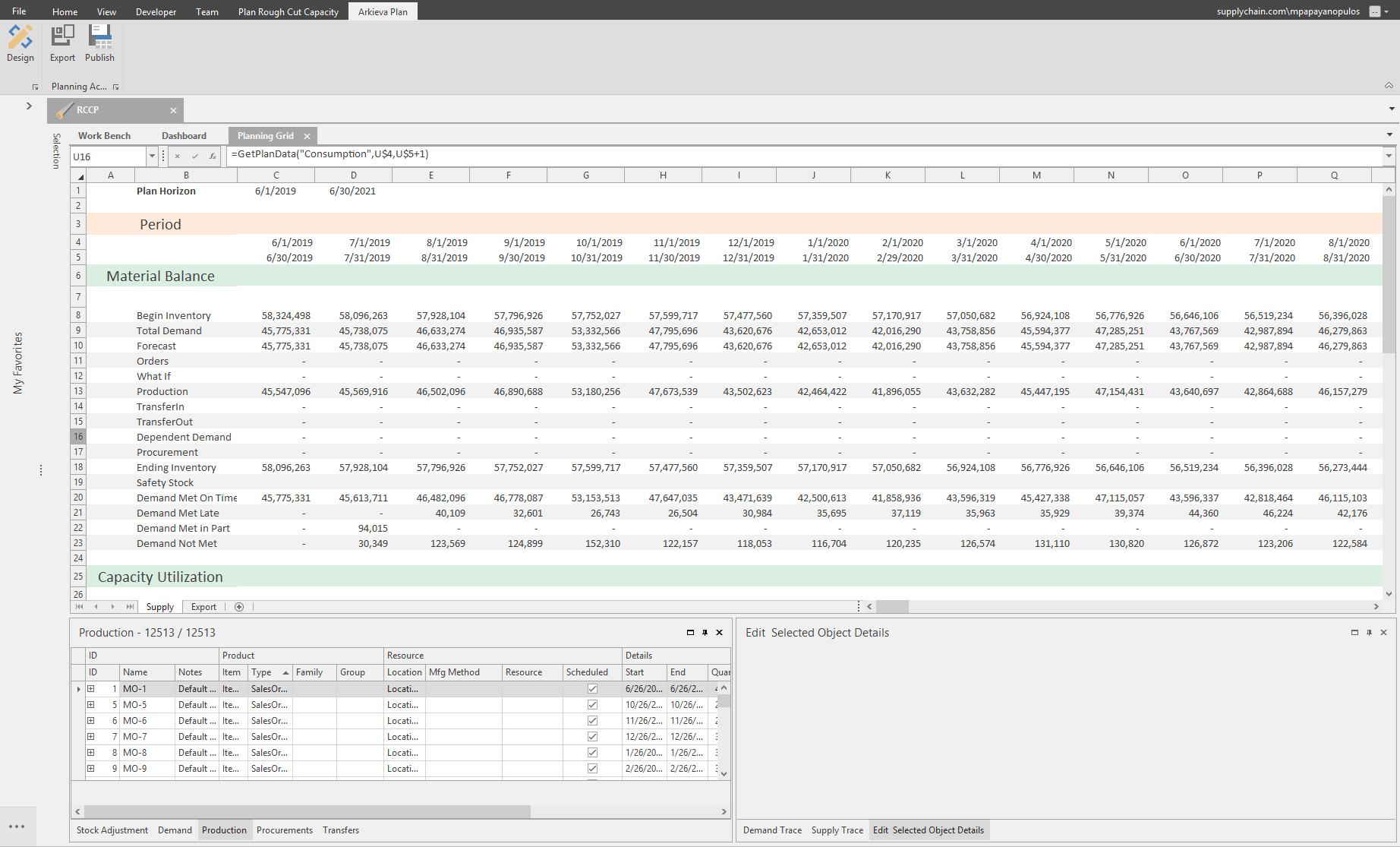
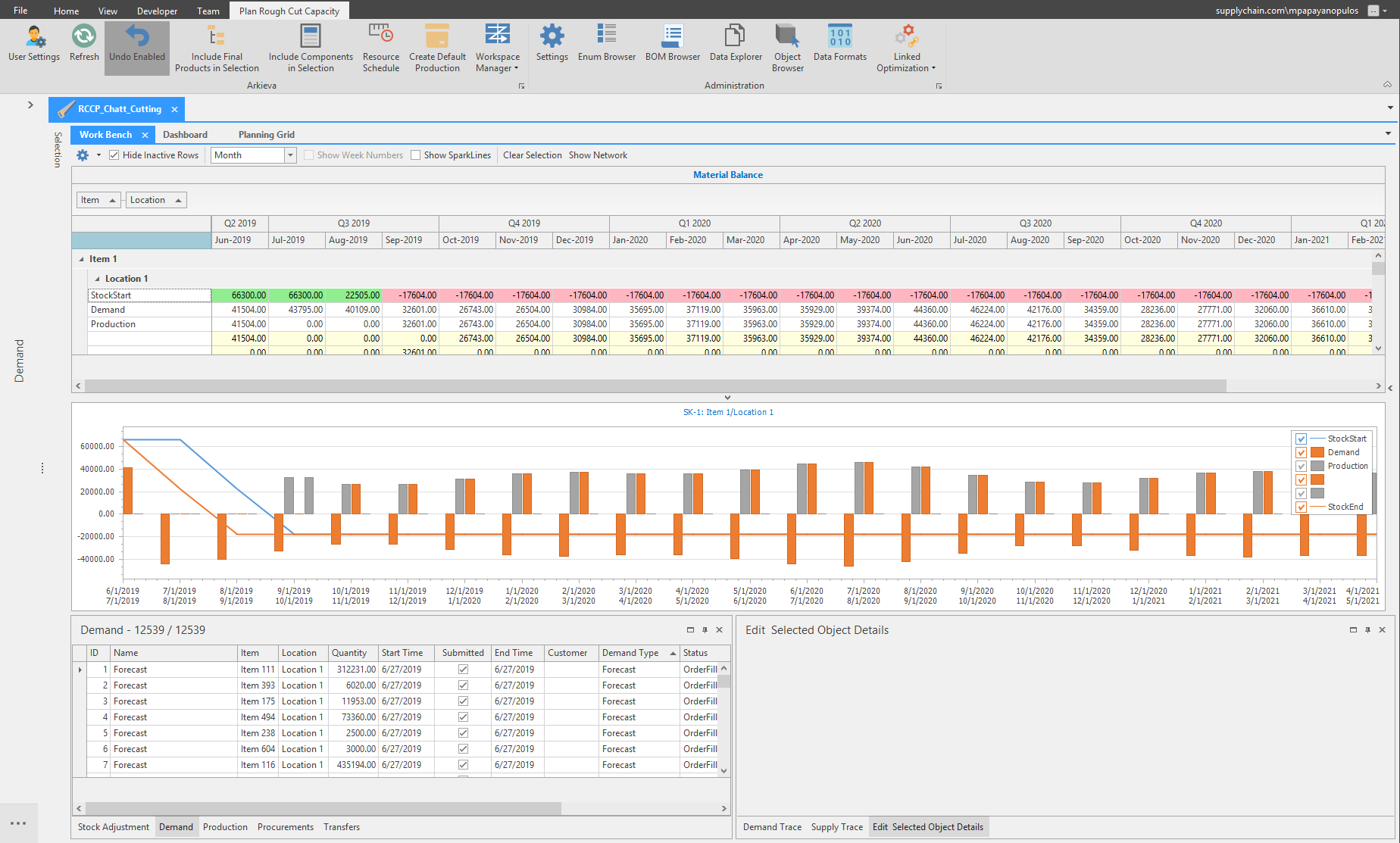
Work bench\ The RCCP Work bench is for low level planning. The Work bench can be filtered to show individual items so that a planner can plan production at a very detailed level.
RCCP Schema
RCCP documents are saved to a .Net database, but the data the document is based on is in a Federated Database. A Federated Database is not an Arkieva Database. The federated database contains the Unified Supply Chain Model tables which can be consumed by the RCCP model (or the Scheduling model, or other upcoming Arkieva Models).
Where to Start with RCCP
Your demand planning process is complete and demand statement is created; excellent, but the sales and operation planning journey is far from complete – the next critical step is matching or balancing assets (capacity, materials, people and projected supply of finished goods) with demand to answer three questions that are part of being a responsive organization:
- How to intelligently meet demand given available assets, the production and distribution network, and business policies?
- What do I need to do to meet unmet demand? Trade-off with demand, improving the asset position, and/or reducing the demand position?
- How to synchronize the activities of the supply chain or demand-supply network?
Answering these questions requires a computational model that captures the relationship between production decisions, consumption of resources, and the creation of exit parts. There are two primary approaches to support management and planners in answering these questions:
- Rough Cut Capacity Planning (RCCP)
- Production Planning or Supply Chain Planning – sometimes referred to as Supply Planning (SP) or Central Planning Engines (CPE)
The methods deployed differ based on the level of granularity, the inherent nature of the industry, organization specific requirements, and the algorithm(s) used to match or balance assets with demand. Often, but far from always, RCCP is a good place to start since it is simpler, inherently more intuitive, and often a path to the more powerful methods in supply planning (aka the “genie” mathematics of optimization).
Typically in Rough Cut Capacity Planning (RCCP) a high-level model that relates demand to the consumption of assets is structured; the planner makes the decision on how to align key assets with the demand; the model is run using the planner decisions as input and calculates the impact of the planner’s decision; a set of output tables is placed into a dynamic planner workbench analytics environment to enable the planner to understand the impact of the decision and support iterations. Typically a detailed projected supply of exit parts is not created. It is critical to note RCCP is a model type, not a specific model. Let’s look at a very simple example.
The footwear company produces two products – boots and sandals – and has estimated quarterly demand for each product as follows:
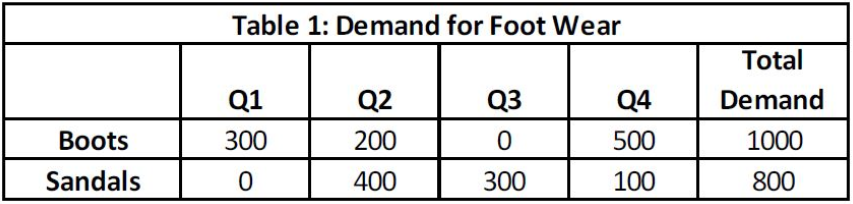
For simplicity we assume there is one manufacturing facility to produce both boots and sandals and we view the factory as a single capacity unit. The available units of capacity for each quarter for the factory are:

The workload for each boot and sandal three units and two units, respectively:

The decision made by the planner that serves as an input to the model is the number of each product to produce each quarter. Table 4 shows this decision, where the initial decision is to divide total demand by four and produce that quantity each quarter.
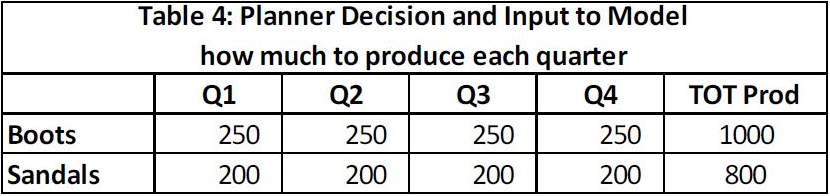
The role of the RCCP model is to provide the planner information about the impact of this decision on meeting demand, capacity, and inventory.
Table 7 (the intermediary calculations in tables 5 and 6 are not shown) informs the planner about the relationship between available supply and demand. A negative value indicates a shortage, which is unmet demand. A positive value indicates inventory is being created.
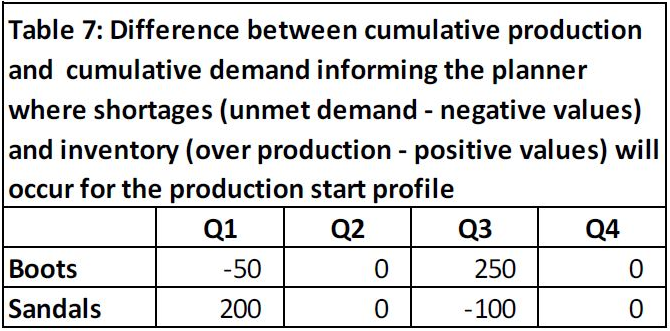
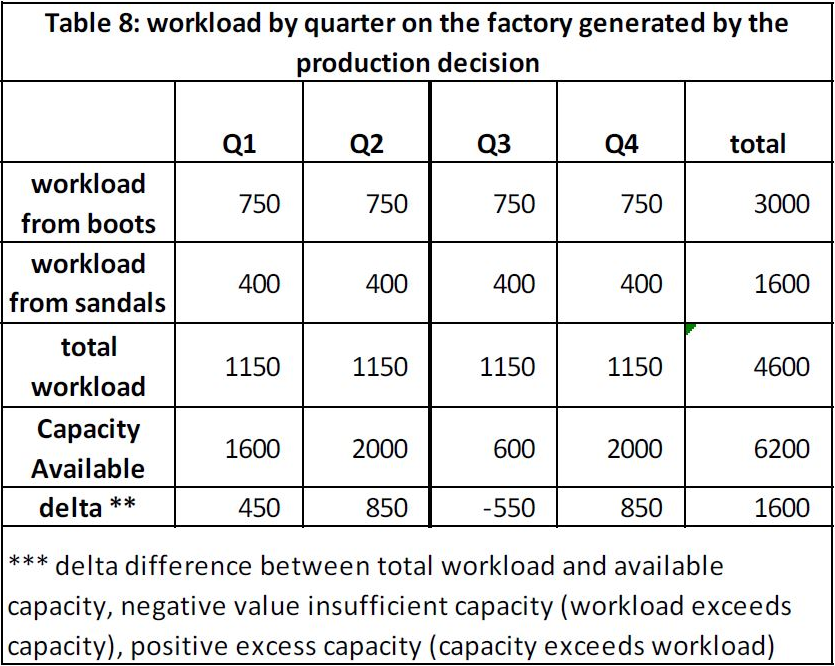
Table 8 informs the planner about the impact of the production decision on the factory. A positive value in the delta row indicates capacity exceeds workload and a negative value indicates an insufficient capacity to meet workload.
RCCP models scale up quickly to capture key aspects of the relationships between production, capacity, and demand in an intuitive and flexible manner. This facilitates planners and managers from different organizations to agree on the nature of key relationships, the sources of data to instantiate the model, and run rapid what-if scenarios – that is better understand their demand-supply network. Often the first RCCP model is making a significant business contribution in a few months.
RCCP models have and continue to be effective models in many situations – for large firms and small firms. We have seen and have firsthand experience the successful use of such models in many industries such as semiconductor, chemicals, pharma, health care, etc.
Additionally, such models often serve as the pathway to the successful development and use of more “sophisticated” Supply Planning (SP) or Central Planning models. Below are two examples from IBM semiconductor manufacturing where the initial work using RCCP later led to the successful use of more sophisticated methods.
In SP, a more detailed model of the demand-supply network is structured that relates consumption of assets with demand, the planner provides guidance (for example demand priority) on how to align assets with demand, the model is run using the planner guidance as input making decisions on how to align assets with demand and calculates the impact of the model’s decision. Click here to view a quick comparison between SP and RCCP.
RCCP Setup
The following information will give you an understanding of how the SQL tables tie together and how the RCCP engine works with the inputs you give it. It is very important to understand that RCCP can only run as well as the input it is given, so you must read the following information closely. Only after this information has been input into their respective SQL tables, will RCCP be ready to use. RCCP can then give you an idea of the production that you need to schedule Demand for a specific month time-period.
There are two types of SQL tables used in RCCP: Static and Dynamic. Static tables contain Base Data. This base data does not change when running a scenario. Static tables have the word Static at the end of their table names, ex: Rccp.bt_Sch_Customer_Static. Dynamic tables do not have the suffix Static, and the data can be edited by the user. Data manipulation can be done within the Arkieva RCCP application, with the Scenario Manager.
📘 Note About Time Horizons
Because the Planning grid is similar in function to an Excel sheet, the dates do not have to refer to a table in Arkieva (however it is possible). The time buckets are formulas taking in account the planning horizon date set in another cell. This can be manually updated or pulled from a table in the database. Either way, the Planning Grid and Workbench tab can use separate planning horizons. Ideally, we would want these to match.
Rough Cut Capacity Planning in Arkieva
Discover how to balance your supply and demand with RCCP.
{`
`}
Launch RCCP
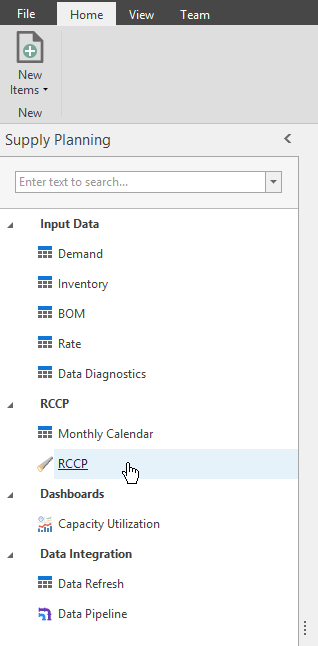
Click the RCCP document to launch the RCCP component.
Next select a Scenario from the Scenario Management window. The types of Scenarios depend on how your tables are setup in the Data Versions.
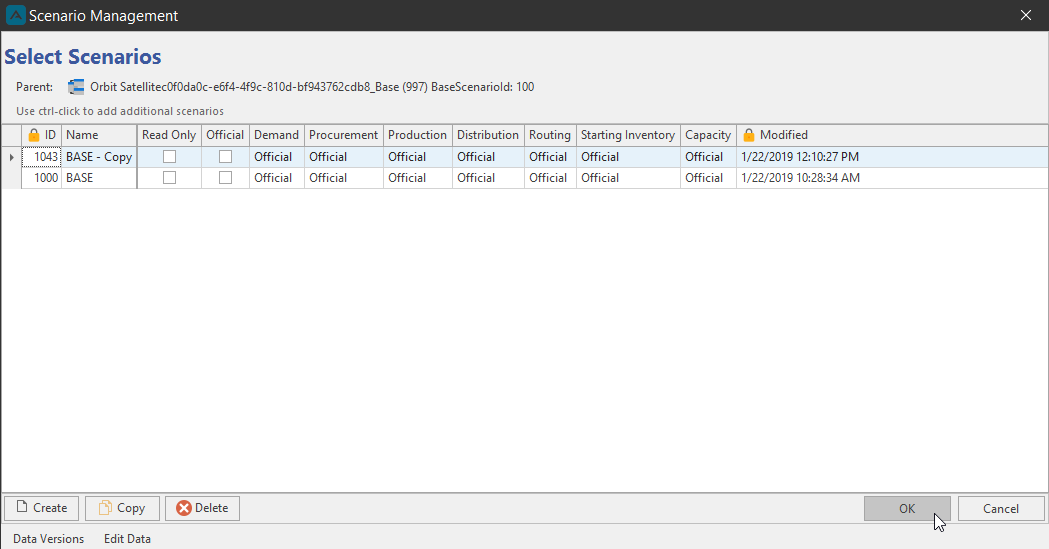
These scenarios can be used to test different plans against other scenarios. Scenarios not marked Official are Test scenarios. These test scenarios allow you to setup plans with different demand, setup your own production, different resources, etc.
Under Data Versions, demand will always be the same, so there is only one demand data version. This was only true in the scenarios that I was showing. It is possible to have different demand scenarios. There can be multiple procurement, production, distribution, routing, starting inventory, and capacity data versions. Select a Scenario and launch it by clicking OK.
The RCCP component will open on one of the three tabs; Workbench, Planning Grid, or Dashboard. This depends on what tab was open during the last session.
RCCP Work Bench
We understand that most people who use Arkieva are very familiar and proficient with Excel, so we designed the work bench with Excel in mind, to make the transition from Excel to Arkieva RCCP work bench as easy as possible. The work bench Material Balance and Resource Use grids simulate how Excel lays out numbers from left to right, and time periods left to right at the top of the grid. The work bench also provides filtering techniques, conditional formatting, and detailed information on all quantity values. Graphs are also available to add another visual element of understanding the values populated in the work bench.
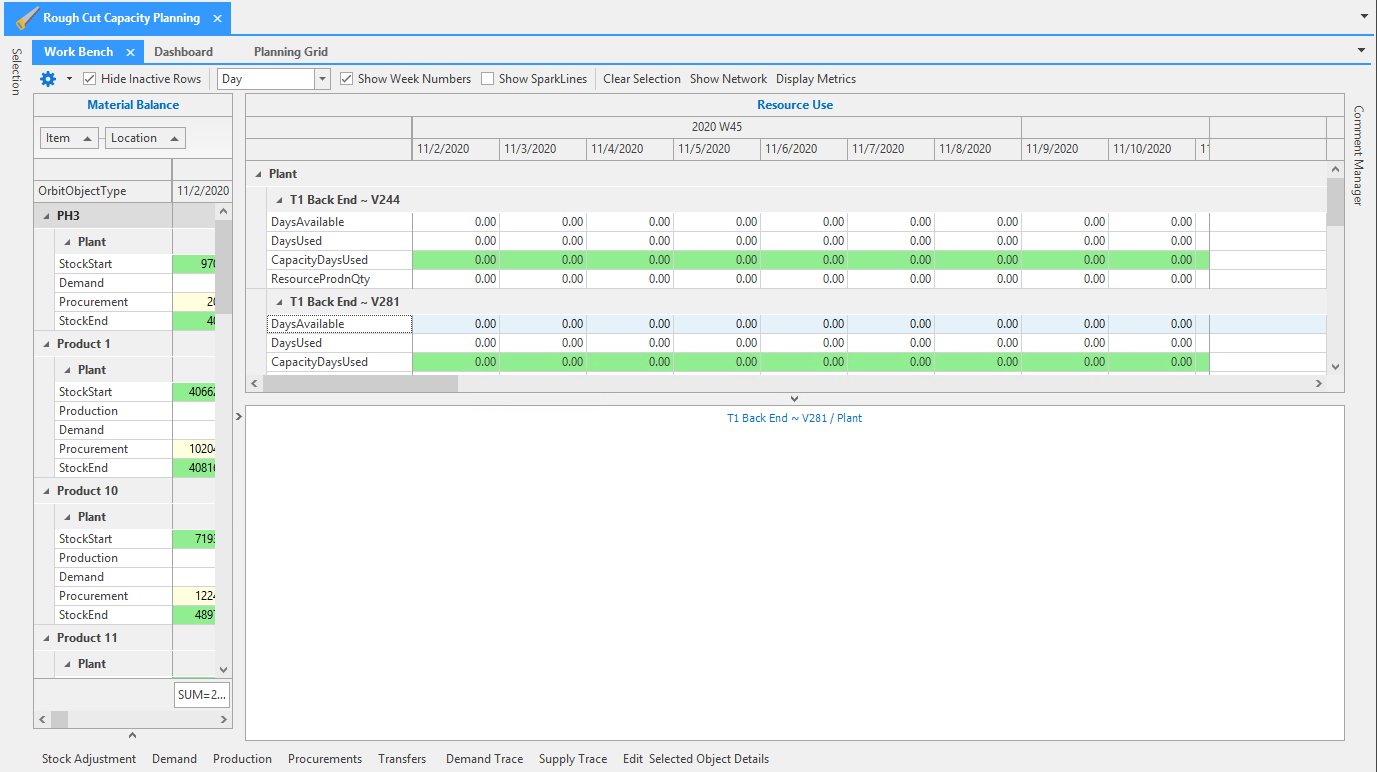
The Work bench component is used in RCCP, as well as DRP and the Production Scheduler. It is split up into two main sections: Material Balance, and Resource Use.
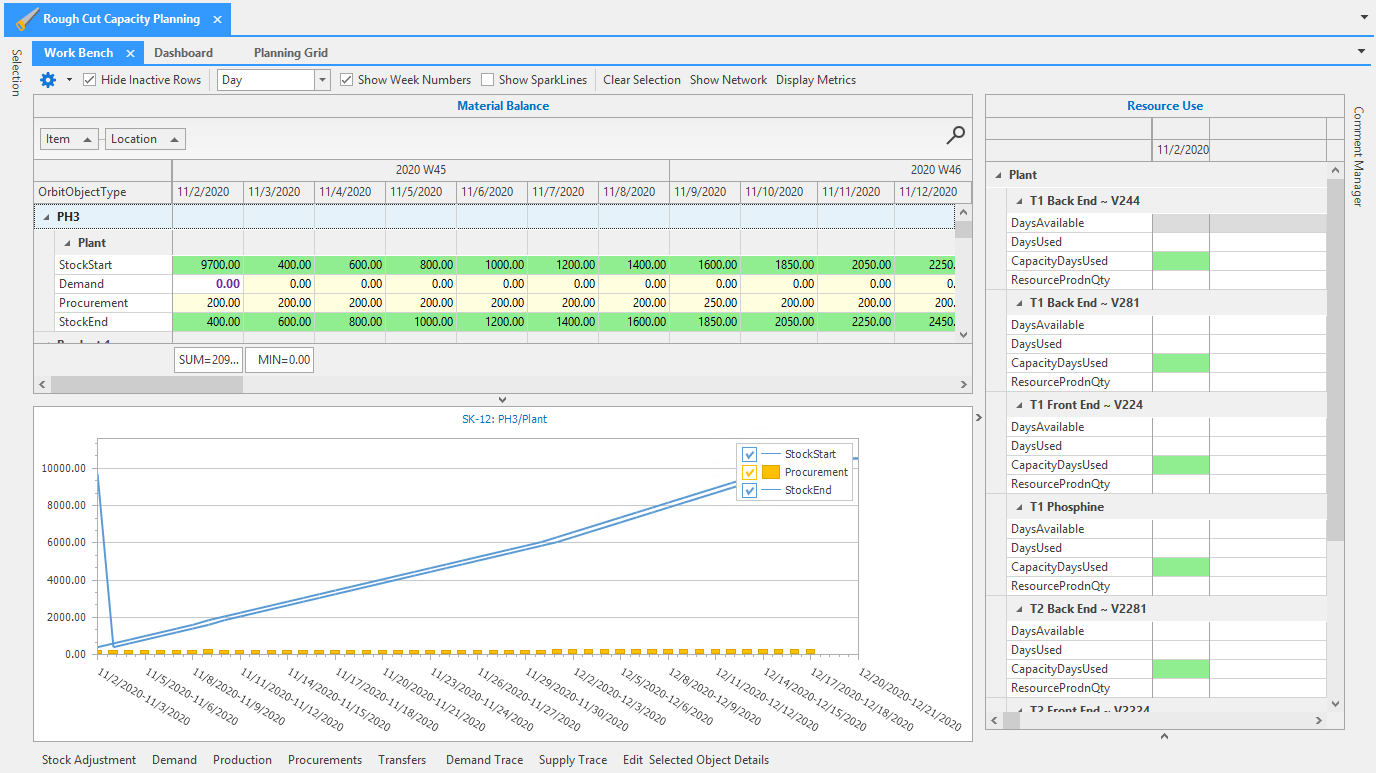
Material Balance grid
The Material Balance grid allows you to see what inventory value you started the day with and what inventory value you ended the day with. It shows all the 'ins' and 'outs' for those items at those locations. An example of 'ins' could be the transfer of inventory for production, and an example of 'outs' could be a transfer of production for demand. This will help you balance your material ins and outs, and cut down on material loss.
Material Balance grid is organized by Item and Location. Items, Locations, and Orbit Object Types populate the rows of the grid. This data is pre-filtered by the scheduling filter selections you have made.
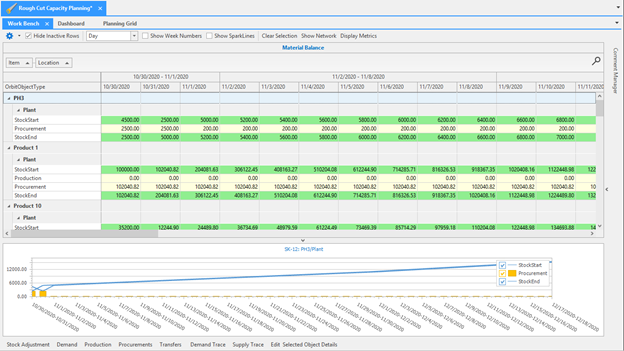
High-level Work bench introduction\ For more detailed information on these features and more, please continue reading the RCCP documentation.
- Editing quantities: editable row cells will be colored yellow. Click inside a cell and type a new value to edit the work bench.
- Filtering and Rules: Filtering the data in the work bench view allowing for a more detailed and configurable experience. You can also select for create rules with conditional formatting.
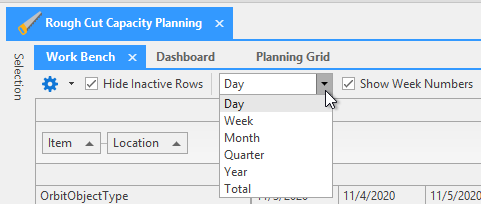
- Time Buckets dropdown: work bench data in a Day, Week, Month, Quarter, Year, or Total overall value time bucket. Selecting a time bucket will update the grid on the fly.
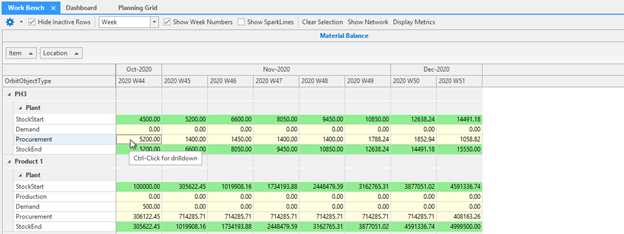
- Material Details: CTRL + Click a cell in the work bench to view that value's material details.
Resource Use
The resource grid shows you the overall capacity picture by resource. Here you can see how much capacity is available, how much was used, how much is still not used, and how much is available.
Time Buckets
Click the dropdown to view the work bench data in a Day, Week, Month, Quarter, Year, or Total overall value time bucket. Selecting a time bucket will update the grid on the fly.
Access the Time Bucket views by selecting a time bucket from the dropdown.
When viewing the grid data in daily or weekly time buckets, you may optionally check the Show Week Numbers checkbox to see the week numbers in ISO week number standard.
Editing a quantity in a high-level time bucket will split that quantity evenly through the lower time bucket levels. For example, if we edit the Procurement quantity on the weekly time bucket it will equally distribute that quantity at the Daily Time Bucket level.
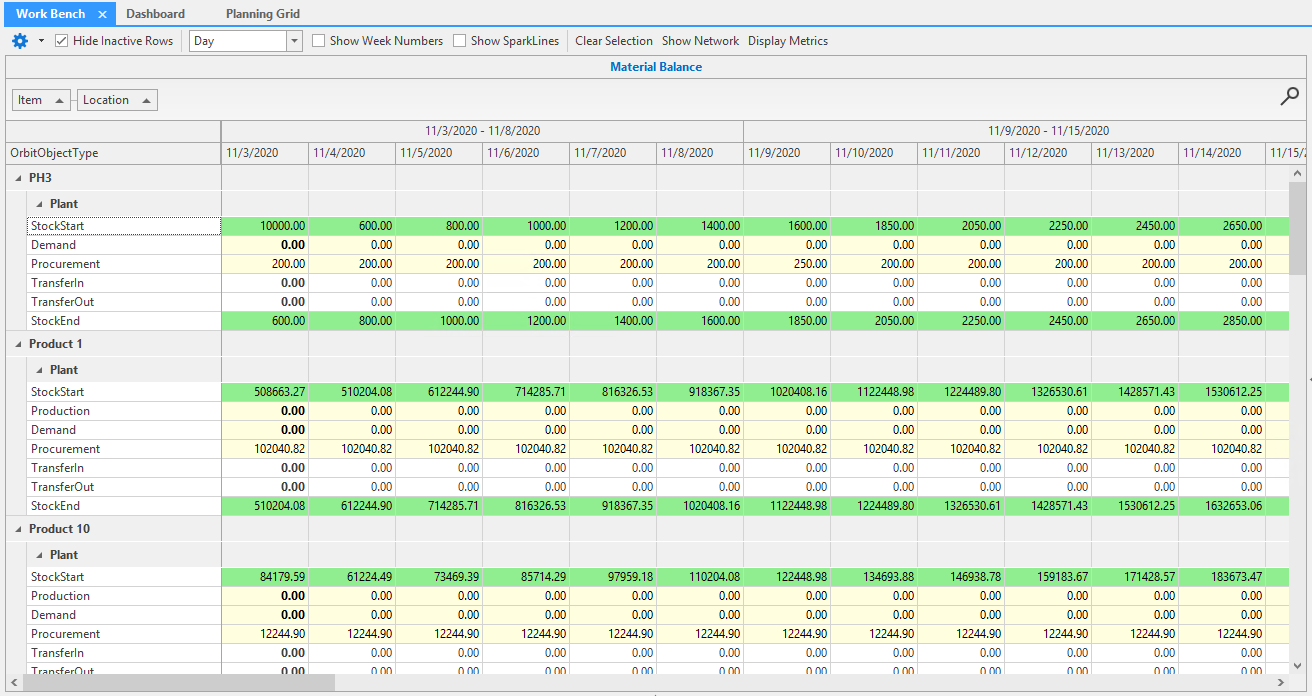
Total Time Bucket
Yearly Time Bucket
Quarterly Time Bucket
Monthly Time Bucket
Weekly Time Bucket
Weekly Time Bucket with Week Numbers
Daily Time Bucket
Daily Time Bucket with Week Numbers
Editing quantities
Rows with yellow colored cells are editable. Demand, Production, and Procurement are the only object types that are editable in the work bench grid.
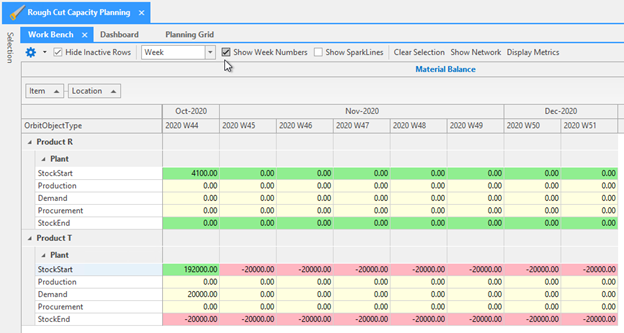
Editing a quantity in a high-level time bucket will split that quantity evenly through the lower time bucket levels. For example, if we edit the Procurement quantity on the weekly time bucket it will equally distribute that quantity at the Daily Time Bucket level.
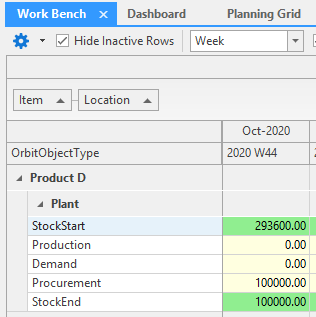
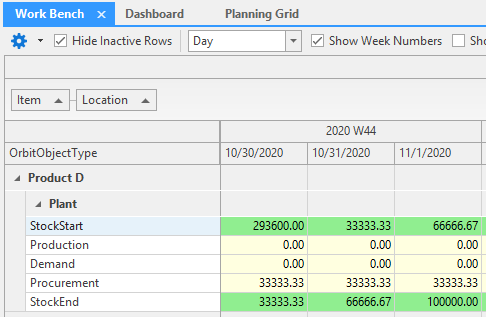
Input Rules\ Input rules are set by your Arkieva Consultant. These rules define whether the editable rows of the workbench values will be prorated, show at the beginning of the period, or show at the end of the period.
For example, if you were editing at the monthly bucket level:
- The Prorated rule states that your activity will Start on 11/1/2020 and End on 11/30/2020.
- The Beginning of Period rule states that your Activity will Start on 11/1/2020 and End on 11/1/2020.
- The End of Period rule states that your activity will Start on 11/30/2020 and End on 11/30/2020.
Right-click Group by Orbit Object
Right-clicking an Orbit Object in the Group By box will launch the following menu items.
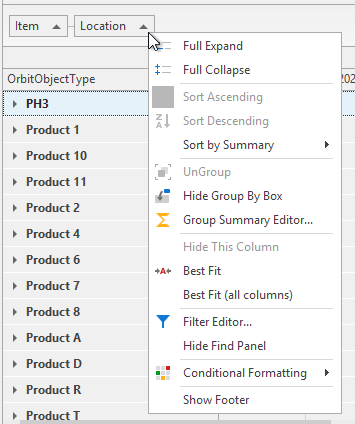
- Full Expand / Full Collapse: expand or collapse the Orbit Object Type list on the work bench grid.
- Sort Ascending / Sort Descending: not applicable
- Sort by Summary: shows a list of sort by history.
- Group / UnGroup: not applicable
- Hide Group by Box: hide the Group by Box from the application. To show again, right-click a column header in the Work bench and select Show Group by Box.
- Group Summary Editor: if applicable, sort column items value by Max, Min, Average, Sum, or sort their order.
- Hide This Column: not applicable
- Best Fit: best fit a column width in the work bench.
- Best Fit (all columns): best fit all column widths in the work bench.
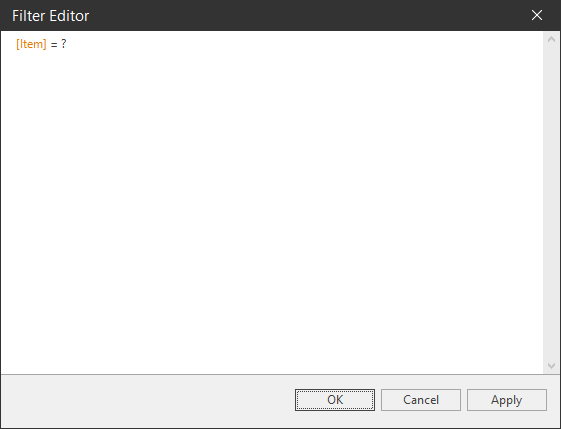
- Filter Editor: use the Filter Editor window to create a formula to filter items in the work bench.
- Hide / Show Find Panel: hide or show the search bar.
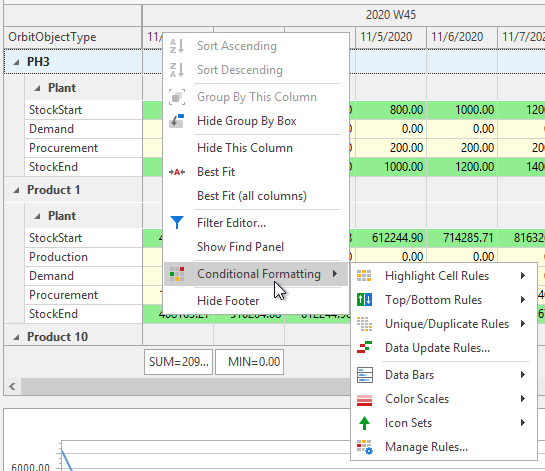
- Conditional Formatting: Right-click inside a column header to access the Conditional Formatting options. Use conditional formatting to define the format of the work bench as well as formulas.
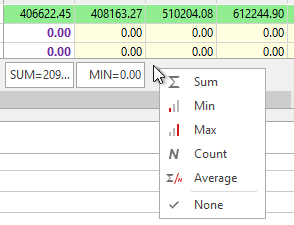
- Show Footer: Show Footer column. Right-clicking in the footer allows for further filtering of values.
Right-click Column Header
Right-click a column header to access the following options.
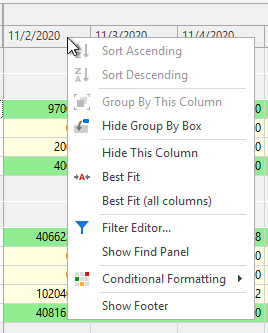
- Sort Ascending / Sort Descending: not applicable
- Group by This Column: not applicable
- Hide / Show Group by Box: hide or show the Group by Box from the application.
- Hide / Show This Column: hide or show the selected column in the work bench.
- best fit a column width in the work bench.
- Best Fit (all columns): best fit all column widths in the work bench.
- Filter Editor: create a formula to filter items in the work bench.
- Hide / Show Find Panel: hide or show the search bar.
- Conditional Formatting: Right-click inside a column header to access the Conditional Formatting options. Use conditional formatting to define the format of the work bench as well as formulas.
CTRL + Click cell
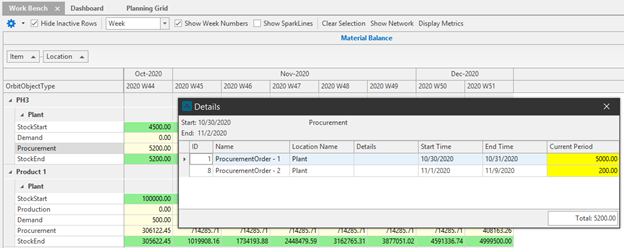
CTRL + Click a cell to see the details of that quantity. CTRL + clicking a cell will bring up the Details window showing the possible multiple items that make up the quantity that you see on the work bench.
For example we can see the 5200 quantity for procurement is getting it's value from two Plants, one with 5000 and the other with 200.
Show Network
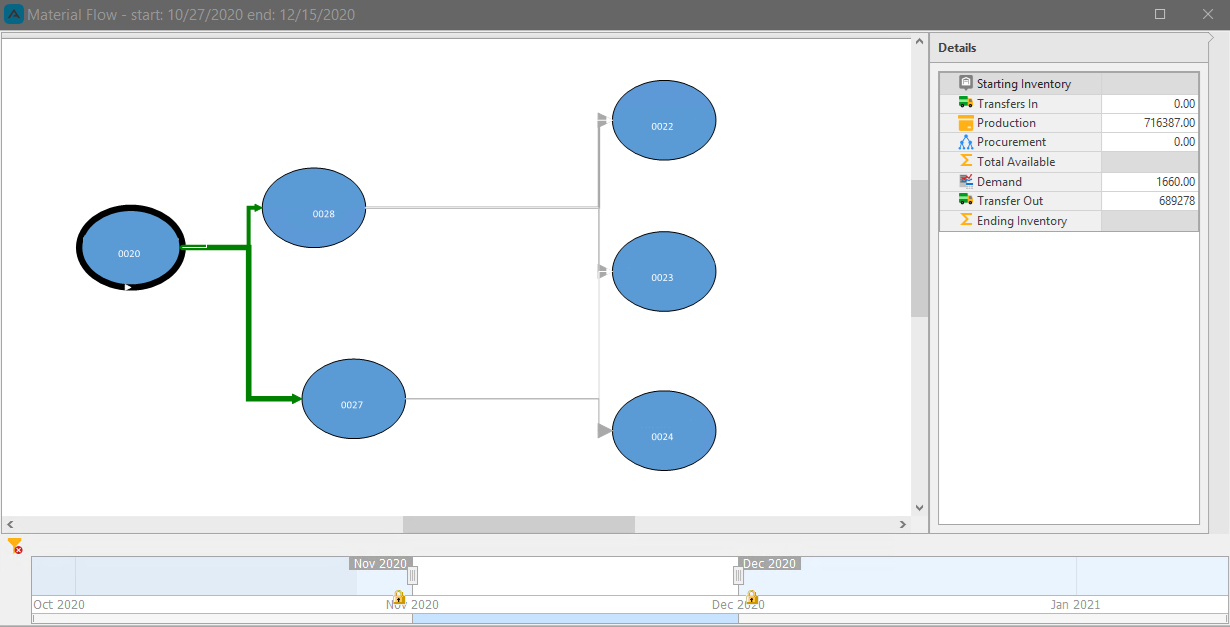
Design Network Display in combination with Show Network allows you to visualize your Supply chain network in the RCCP work bench document. This diagram is created for you by your Arkieva Consultant.
Clicking on an object will show the material balance on that location level. There is also a time slider is available so that you can focus on a specific time range.
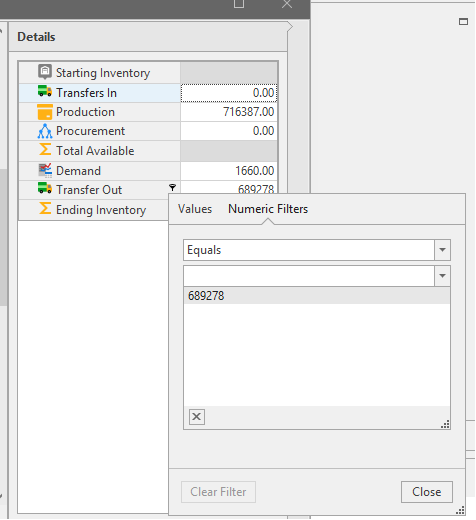
You can use the Details tab to apply filters on quantity values.
Comments
The RCCP Work bench allows you to enter a comment on each stock and time-combination.
To create a comment, first right-click the target cell and select New Comment from the pop-up menu.
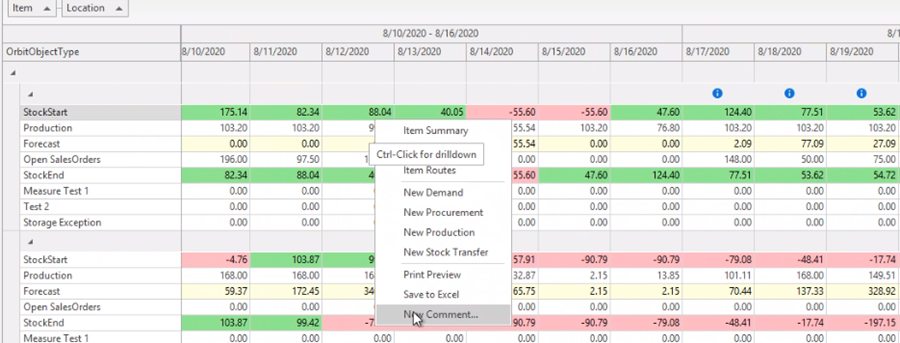
Selecting New Comment will launch the Create Comment window. Notice that the cells you selected will show in the Item/Location section.
Next, under the Date Range section, select a Start and End date from the calendar dropdowns.
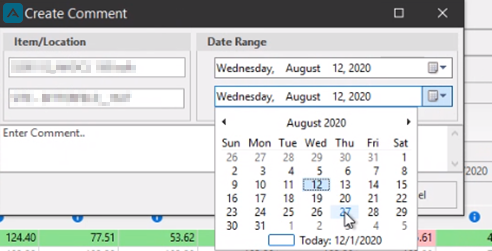
Now you can enter your comment in the 'Enter Comment...' field. When typing a comment, always start with syntax, for example: Production: Lorem ipsum dolor sit amet or Demand: Lorem ipsum dolor sit amet, etc.
An example of utilization of comments could be a situation where you have 0 demand because of a customer shutdown.
Click OK when finished.
🚧 Caution
You cannot configure one comment for multiple time periods. You must configure a new comment for each time period.
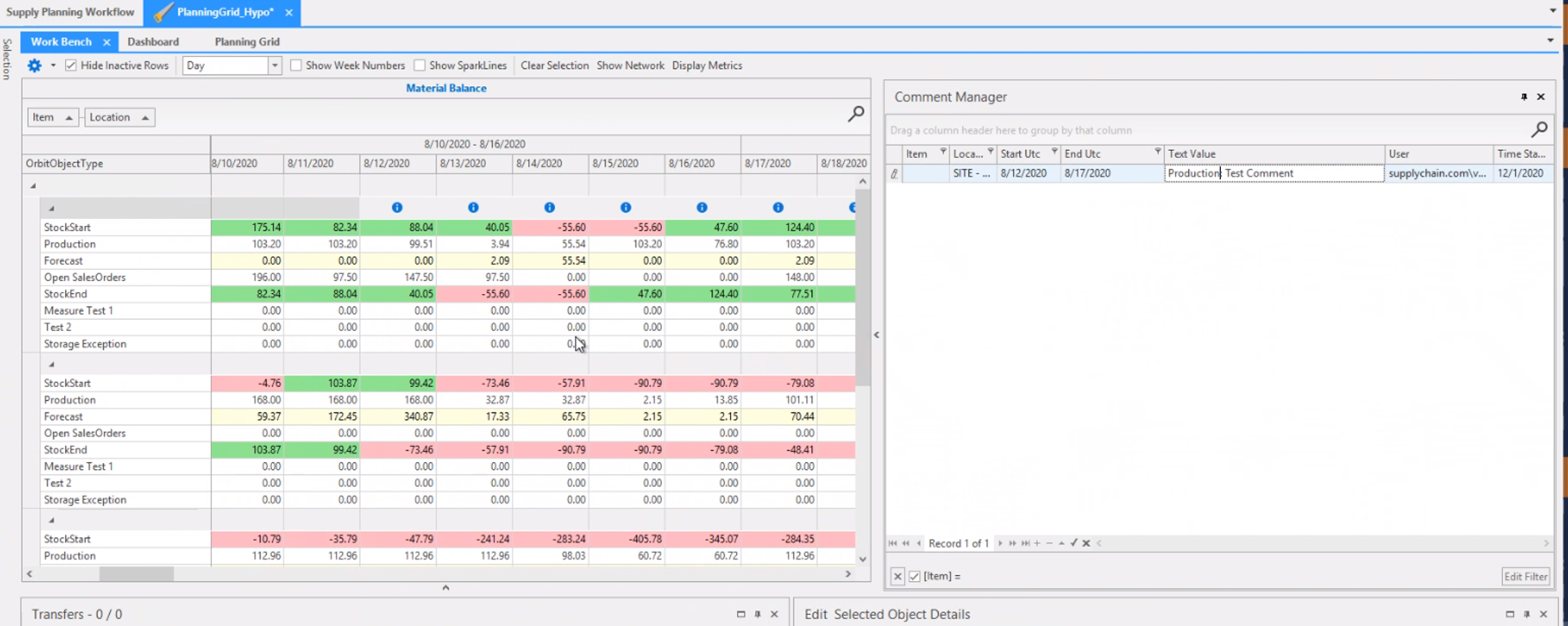
All commented stock/time combinations will have a blue circle above them in the work bench. An overview of the comments are available in the Comments Manager pane located to the right of the work bench.
Conditional Formatting
Use conditional formatting to define the format of the work bench as well as create conditional formatted formulas and create new conditional format rules.
There are two ways to access the Conditional Formatting menu: right-clicking the Orbit Object in the Group By box, and right-clicking a column header in the work bench grid.
- Orbit Object conditional formatting only allows use of the Highlight Cell, Unique / Duplicate, and Manage Rules options.
- Column conditional formatting allows for selection of the Highlight Cell, Top / Bottom, Unique / Duplicate, Data Update, and Manage Rules options, as well as Data Bars, Color Scales, and Icon sets selection.
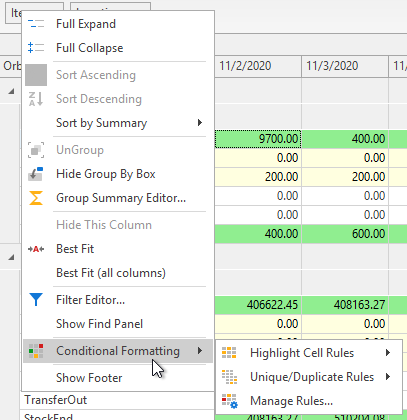
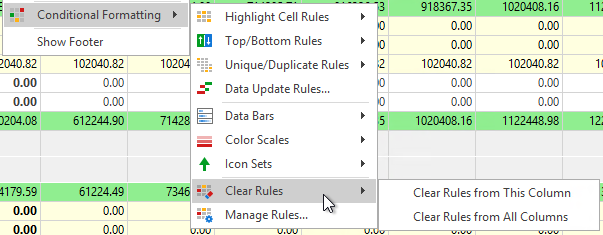
To clear rules from the Work bench, select Clear Rules from This Column or Clear Rules from All Columns from the Conditional Formatting Clear Rules list.
You can also remove individual rules from the work bench in the Manage Rules window.
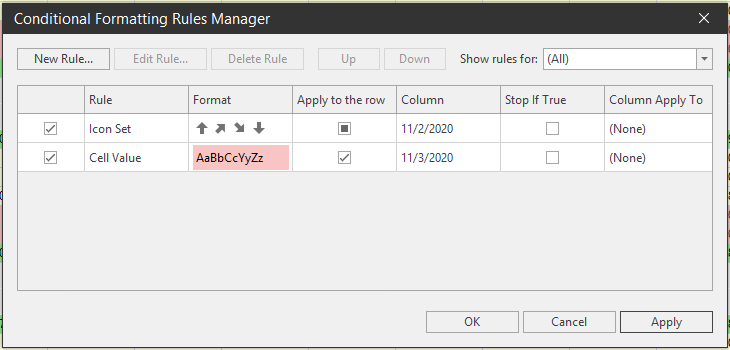
Manage Rules
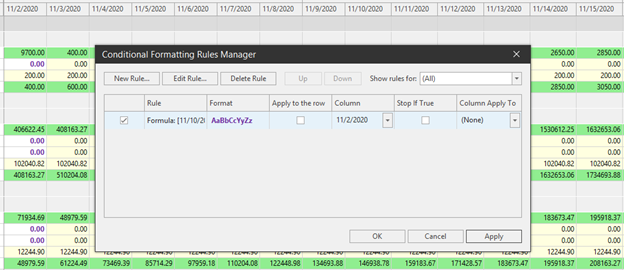
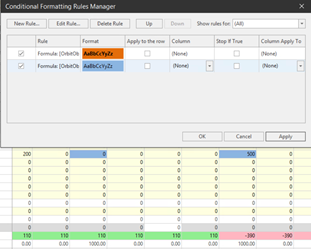
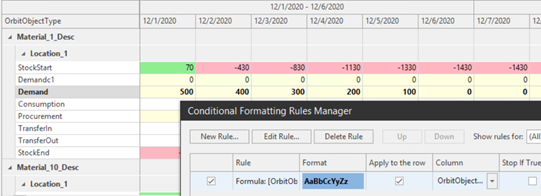
The Conditional Formatting Rules Manager window will list any rules you have selected or created. You can create a new rule by clicking New Rule, Edit a rule, delete a rule, move a rule up or down by priority, apply or not apply the rule to an entire row, and check to stop the rule if the conditions are True.
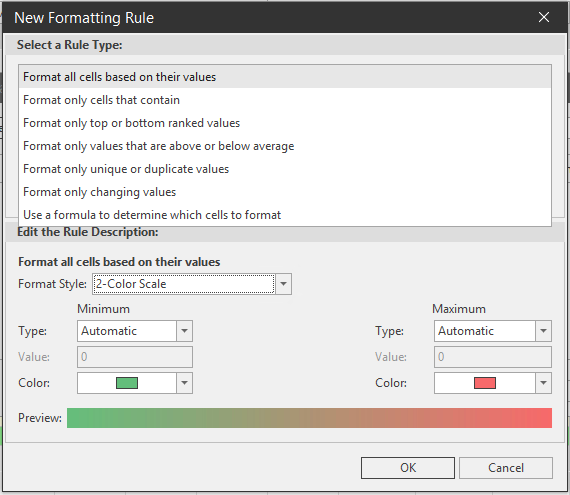
New Rule\ Selecting New Rule allows you to create a rule or formula with unique rule criteria such as font, fill, and predefined appearance.
When available, the Format Cells window allows you select the Font, Fill, or Predefined Appearance for your new rule.
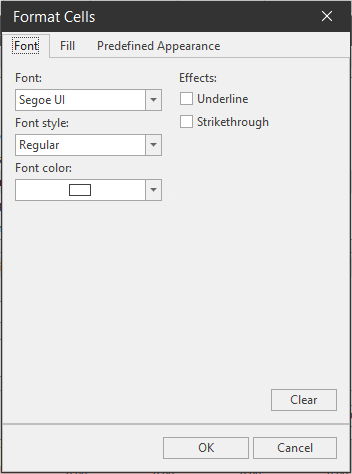
Use a formula to determine which cells to format\ This rule allows you to create a conditional format using the Filtering edit tool.
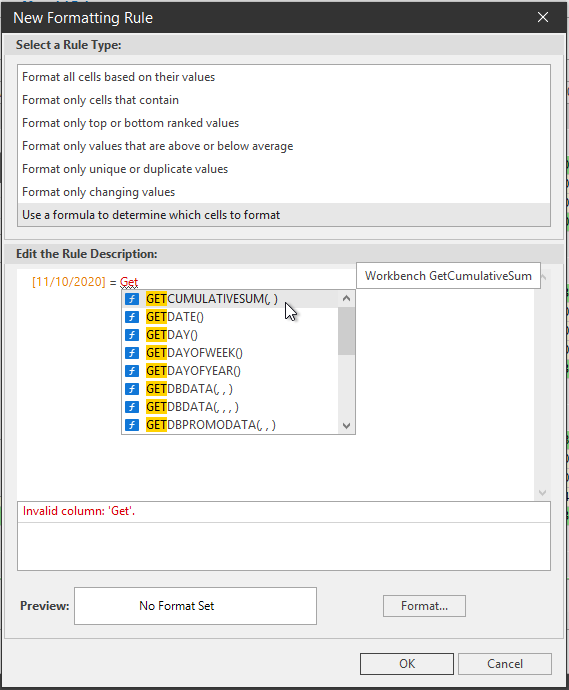
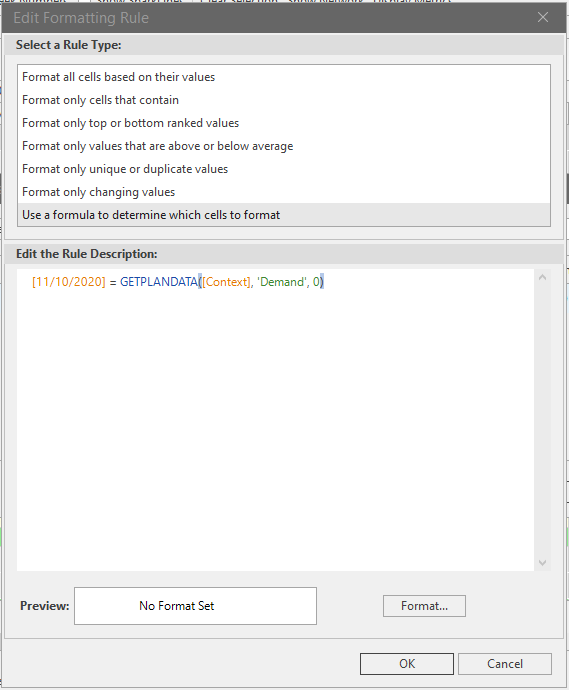
For example, we will create a rule that highlights values that are zero in purple text.
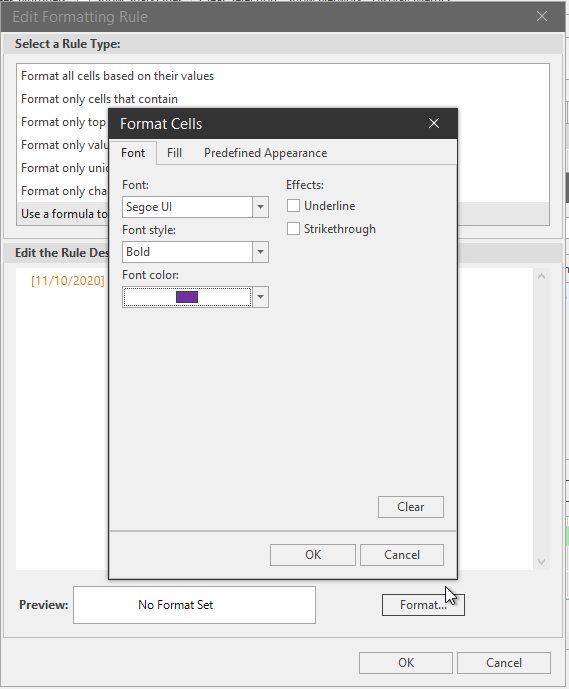
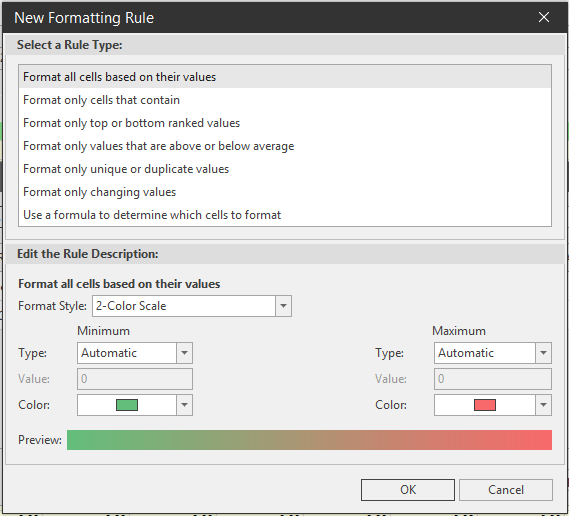
Format all cells based on their values\ This rule allows you to format all cells based on their values and assign it a color scale, data bar, or icon.
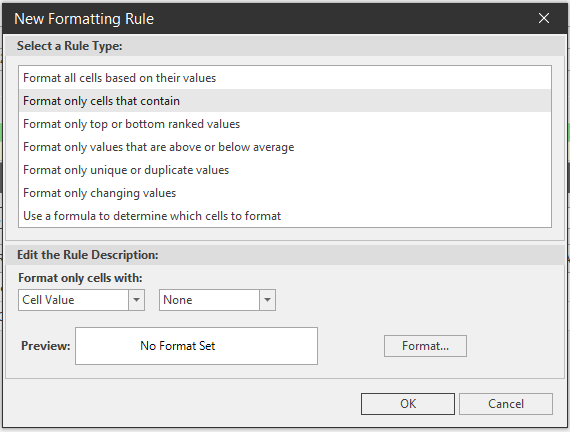
Format only cells that contain\ This rule allows you to create a format only for cells with a Cell Value or Dates Occurring Between, Not Between, Equal To, Not Equal To, Great Than, Less Than, Greater Than or Equal To, or Less Than or Equal To a value.
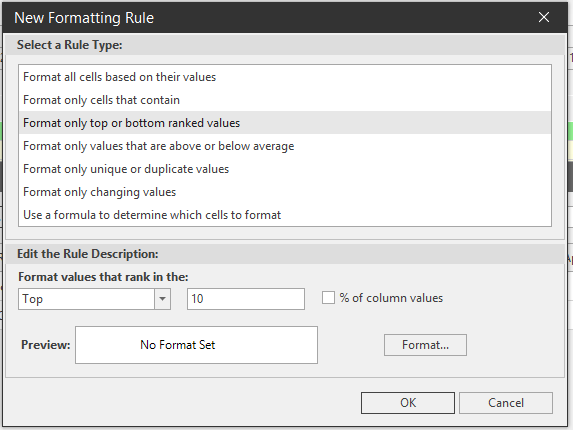
Format only top or bottom ranked values\ This rule allows you to format values that rank in the Top or Bottom or percentage value of a specified column.
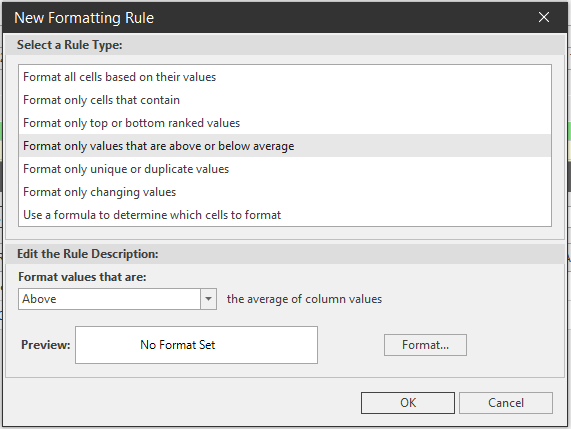
Format only values that are above or below average\ This allow you to create a conditional rule that formats values Above, Below, Equal or Above, or Equal or Below the average of that column's values.
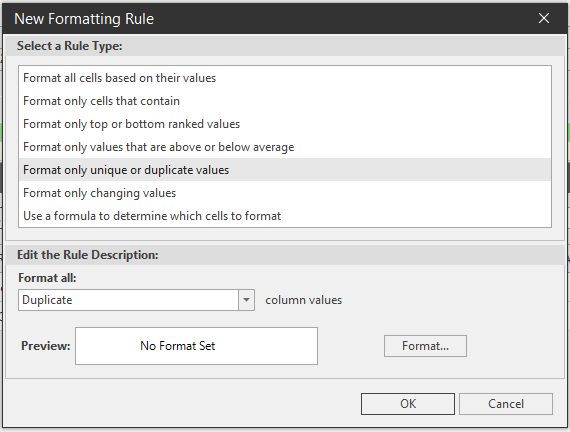
Format only unique or duplicate values\ Similar to the Duplicate / Unique Rule, but you can format the cells as you wish.
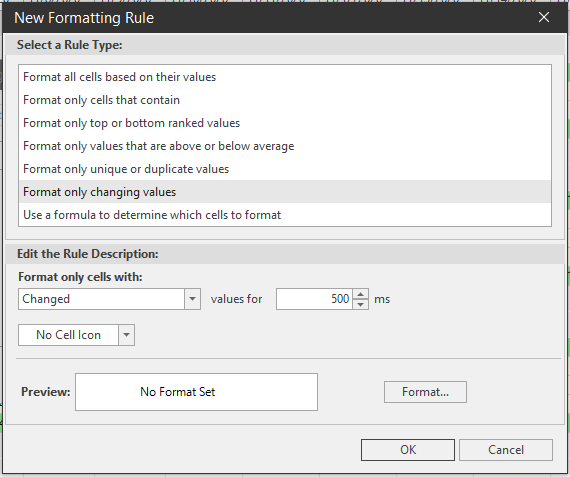
Format only changing values\ Similar to the Data Update Rules selection, this will also allow you to individually manipulate the ms value, cell icon, and format of the changed, increased, or decreased cell values.
Predefined Appearance
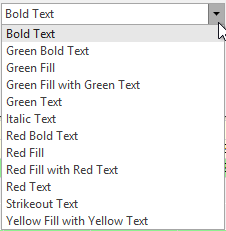
The following conditional formatting options have predefined appearance that you can select for their respective rules. These conditions are: Bold Text, Green Bold Text, Green Fill, Green Fill with Green Text, Green Text, Italic Text, Red Bold Text, Red Fill, Red Fill with Red Text, Red Text, Strikeout Text, and Yellow Fill with Yellow Text.
📘 Note
The Stock Start (green), Stock End (red), and Editable (yellow) colors will override any conditional formatting selections made under the predefined appearance that involve fill colors. These colors can only be changed using the Manage Rules option discussed above.
Apply formatting to an entire row\ Check the 'Apply formatting to an entire row' checkbox. Checking this box will apply this rule to the entire cell row, as appose to just the cells under that column.
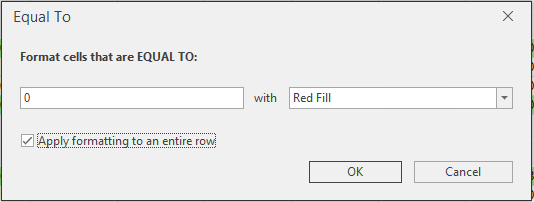

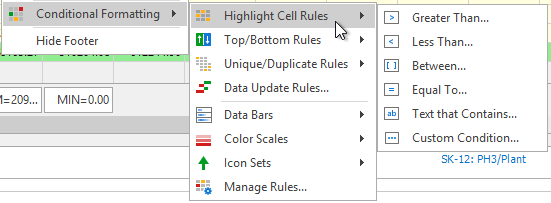
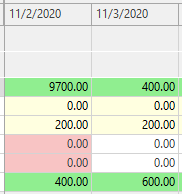
Highlight Cell Rules\ Highlight Cell Rules allows you to format cell values by Greater Than, Less Than, Between, Equal To, Text that Contains, and Custom Condition with a dropdown list of predefined appearance.
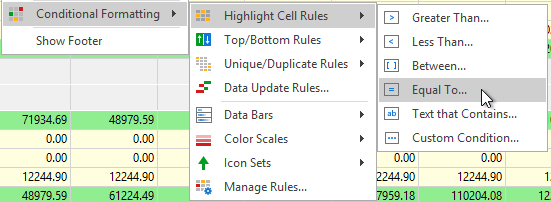
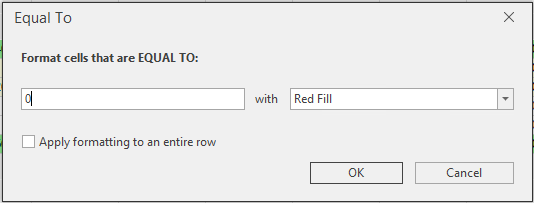
For example, we will select Equal To, and create a rule that fills in red any cell under this column with a value of zero.
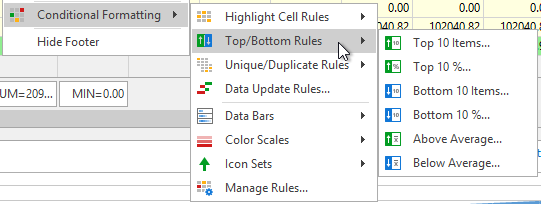
Top / Bottom Rules\ This list allows you to format a rule that will highlight the Top 10 Items, Top 10%, Bottom 10 Items, Bottom 10%, Above Average, or Below Average values in the work bench.
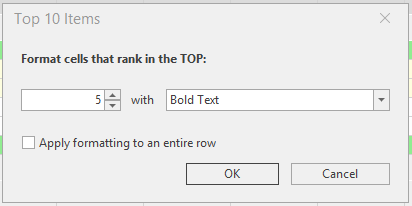
For example we will select the Top 10 Items rule, change the rank to 5, and highlight these cell values in Bold.
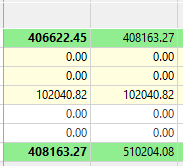
Unique / Duplicate Rules\ Select this rule to highlight values that are unique or duplicated in the work bench.
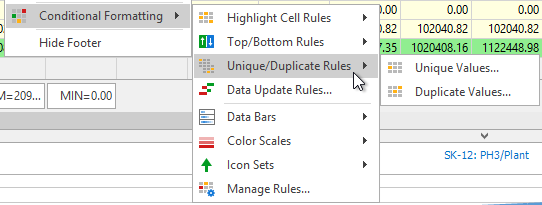
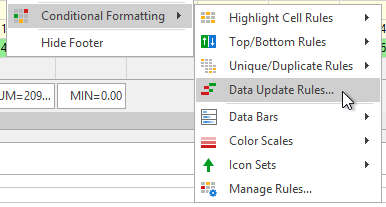
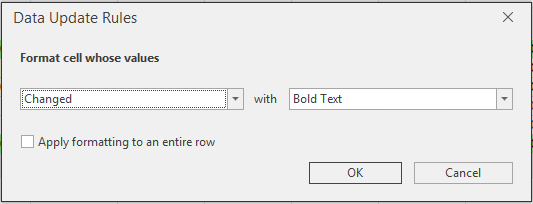
Data Update Rules\ Select this rule to highlight values that have changed, increased, or decreased in the work bench.
Select Changed, Increased, or Decreased from the dropdown.
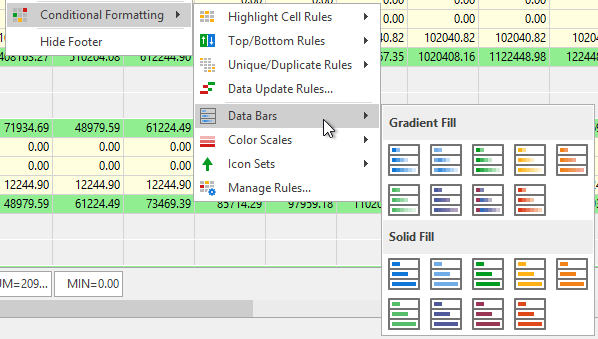
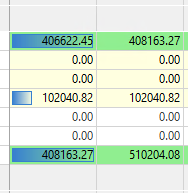
Data Bars\ Select the Data Bars rule to fill cells with a colored bar graph showing a visual representation of the values in the work bench.
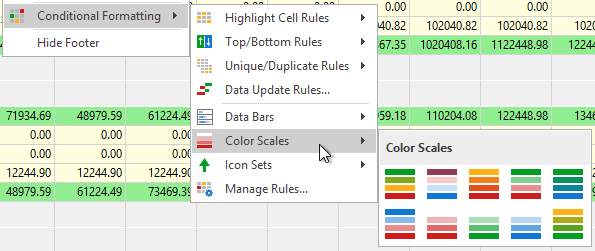
Color Scales\ Select this rule to fill the cells with a color scheme that will represent the value decrease and increase across the work bench.
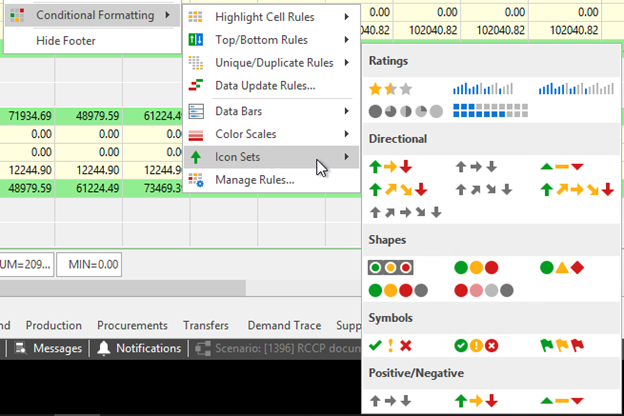
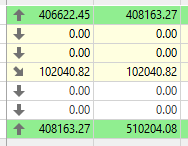
Icon Sets\ Select this rule to show an icon that will represent the changes in values across the work bench.
Conditional Formatting on Rows
The GetPlanData and GetDBdata functions are used to apply conditional formatting on rows. GetPlanData and GetDBdata can be used to:
- Create new rows in the workbench (GetDBdata).
- Define conditional formatting for rows (GetDBdata & GetPlanData).
The following is an example is of a measure created with the GetDBdata function.

This function also passes a filter.
Storage Exception Test 1
Storage Exception Test 2
SELECT * FROM ztb_ConditionalFormatTest

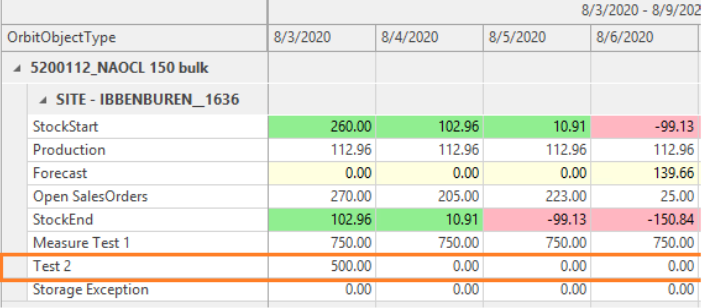
Here we see it extracted the test quantity of 500 on the correct day:
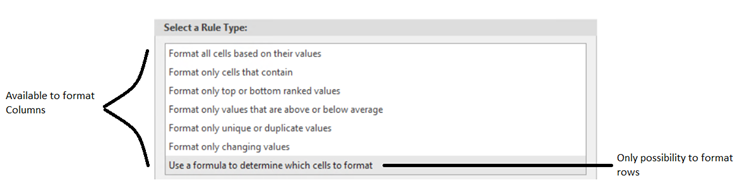
To conditionally format a row, you will need to select the 'Use a formula to determine which cells to format' option under the Select a Rule Type box. All the formatting options under this box can be used to conditionally format a column, however this one is the only one that can be used to format a row.
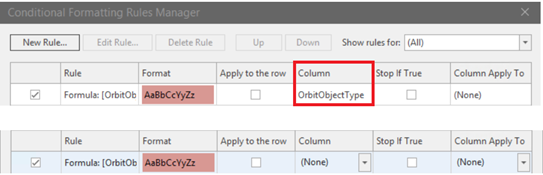
When applying a conditional format to a row-rule make sure Column is set to (None). This will be the column you clicked in, to format the rule, by default.
The equation will mostly consist of two parts, where the equation and formatting will be applied to and if the equation defines if the formatting will be applied or not.
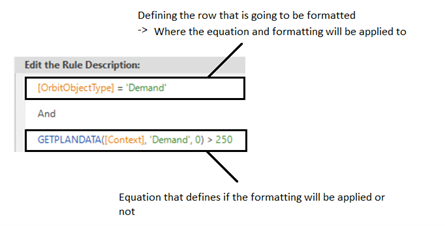
Basic Row formatting examples\ Coloring a specific row\ Define which row to apply conditional formatting to (the basis for most all equations).
Structure:\ [Column] = ‘Value’
Example:\ [OrbitObjectType] = ‘Production’
In column OrbitObjectType, we are looking for the row that has ‘Production’. This equation only defines which row we want to format. Scan over Column x to check if it is Value y. If so, the equation is fulfilled.
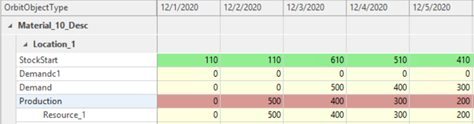
Coloring a specific row where the row exceeds a specific value
[Column] = 'Value'
AND
GETPLANDATA([Context], 'ObjectType', Timebucket) > 250
Define how to apply the conditional format to the row. The equation will get the info from the workbench-chart, with the following parameters:
- [context] = to define context in next parameters
- 'ObjectType’ = which data row
- ‘Timebucket’ = which time bucket rule applies to
- 0 stands for: Check equation in current bucket, apply formatting to current bucket
- 1 stand for: Equation applies to next time bucket, formatting will be done in current bucket
[OrbitObjectType] = 'Demand'
And
GETPLANDATA([Context], 'Demand', 0)
> 250
Format Demand Row when Demand values in this context and current time bucket exceed 250.

Advanced Row Formatting examples\ Creating a measure, and coloring a row when the new measure exceeds that row.
```sql Creating the measure (named ‘Test’) create table ztb_ConditionalFormatTest( [Item] nvarchar NULL, [Location] nvarchar NULL, [Plantime] [datetime] NULL, [Quantity] INT NULL, [OrbitObject] nvarchar NULL )

```sql Arkieva expression editor
GETDBDATA(
[Context]
,'Select Item, Location, Plantime, Quantity from ztb_ConditionalFormatTest'
,'Quantity'
,'PlanTime >= #@start# and Plantime < #@end#')
)
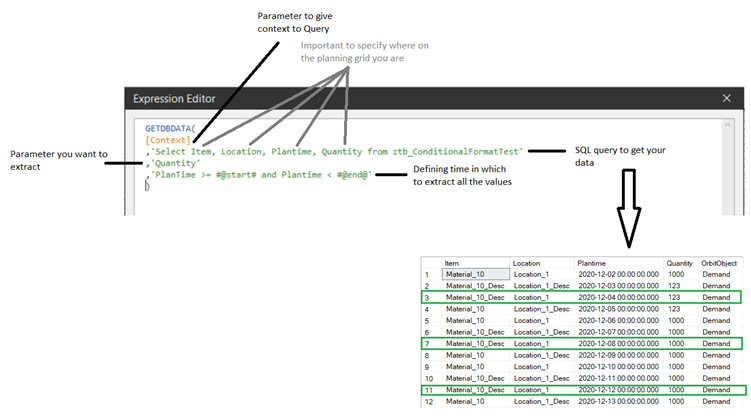
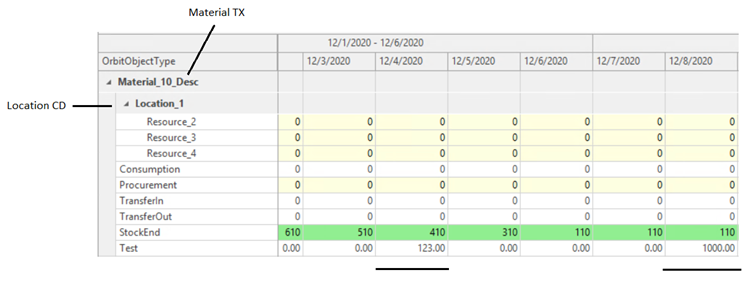
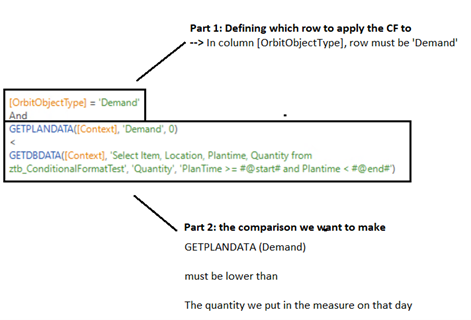
Applying conditional formatting when measure exceeds Orbit Object (Demand)
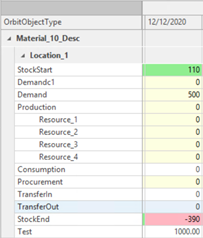
[OrbitObjectType] = 'Demand' And

GETPLANDATA([Context], 'Demand' ,0 )
<
GETDBDATA([Context], 'Select Item, Location, Plantime, Quantity from ztb_ConditionalFormatTest', 'Quantity', 'PlanTime >= #@start# and Plantime < #@end#') – Aka expression of the measure
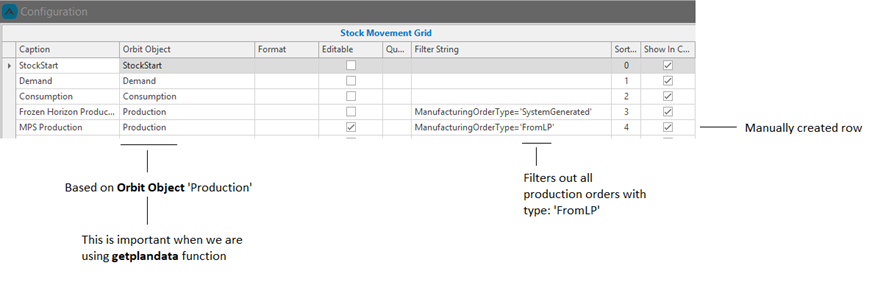
Formatting a manually-created row – based on a filter string (Basic row filtering)\ Formatting of self created row MPS Production.
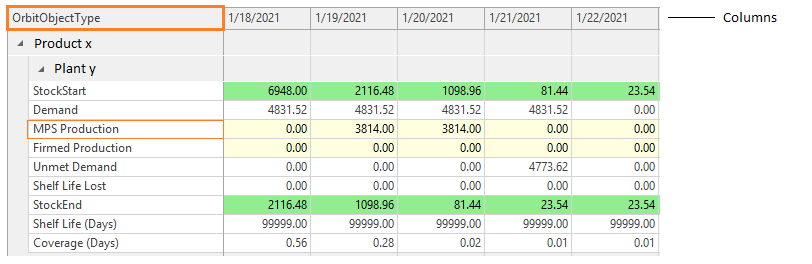
[OrbitObjectType] = 'MPS Production'
Set column to (None), so it applies over the whole row.
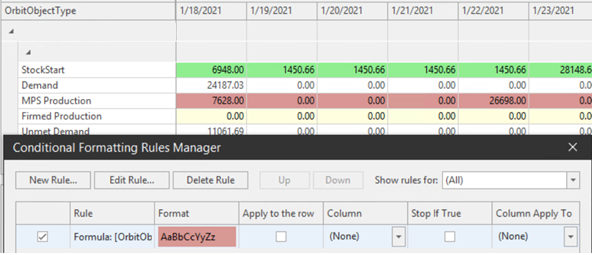
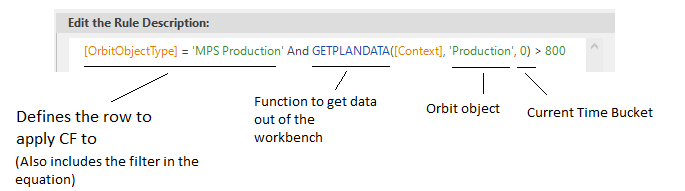
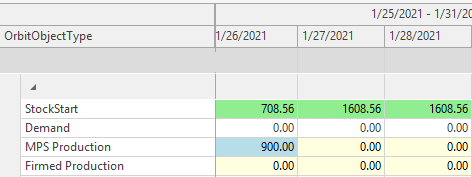
Formatting a manually-created row when it exceeds a certain value\ MPS Production is a manually created row based on: Orbit object ‘Production’ + a filter.

To define which row we want to format, we will have to filter out ‘MPS production’ in the Orbit Object Type Column. For the comparison of actual data we will have to use the function GetplanData together with Orbit Object ‘Production’, as the row is based on that orbit object; the first part of the expression makes sure we are focused on MPS production with the correct filter.
[OrbitObjectType] = 'MPS Production' And GETPLANDATA([Context], 'Production', 0) > 800
Formatting a manually-created row (or measure in this case), when it exceeds a different row\ Formatting coverage (measure) orange, when it exceeds Shelf life.
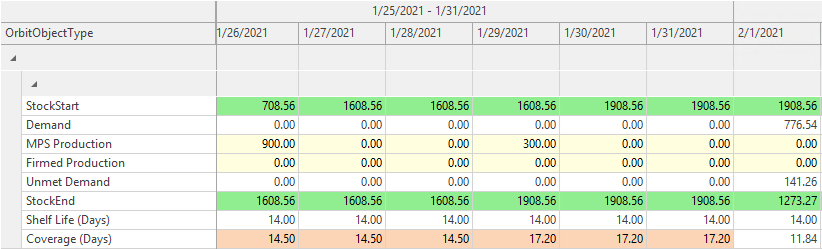
Shelf life is based on the orbit object ‘SafetyStock’ (important).

Coverage is created by the expression:
MAX(
IIF(((GETPLANDATA([Context], 'Demand', 1)+GETPLANDATA([Context], 'Demand', 2)+GETPLANDATA([Context], 'Demand', 3)+GETPLANDATA([Context], 'Demand', 4)+GETPLANDATA([Context], 'Demand', 5)+GETPLANDATA([Context], 'Demand', 6)+GETPLANDATA([Context], 'Demand', 7))/7)=0,999 , GETPLANDATA([Context], 'StockEnd', 0)/((GETPLANDATA([Context], 'Demand', 1)+GETPLANDATA([Context], 'Demand', 2)+GETPLANDATA([Context], 'Demand', 3)+GETPLANDATA([Context], 'Demand', 4)+GETPLANDATA([Context], 'Demand', 5)+GETPLANDATA([Context], 'Demand', 6)+GETPLANDATA([Context], 'Demand', 7))/7))
, 0)
To format coverage when it exceeds shelf life, we must define which row to format, simply by the basic first part of the equation:
[OrbitObjectType] = 'Coverage (Days)'
Secondly we define the real equation: Coverage data > shelf life data.
```sql Coverage (as defined in the measure) Max(Iif((GETPLANDATA([Context], 'Demand', 1) + GETPLANDATA([Context], 'Demand', 2) + GETPLANDATA([Context], 'Demand', 3) + GETPLANDATA([Context], 'Demand', 4) + GETPLANDATA([Context], 'Demand', 5) + GETPLANDATA([Context], 'Demand', 6) + GETPLANDATA([Context], 'Demand', 7)) / 7 = 0, 999, GETPLANDATA([Context], 'StockEnd', 0) / ((GETPLANDATA([Context], 'Demand', 1) + GETPLANDATA([Context], 'Demand', 2) + GETPLANDATA([Context], 'Demand', 3) + GETPLANDATA([Context], 'Demand', 4) + GETPLANDATA([Context], 'Demand', 5) + GETPLANDATA([Context], 'Demand', 6) + GETPLANDATA([Context], 'Demand', 7)) / 7)), 0)
```sql Data of Shelf life
GETPLANDATA([Context], 'SafetyStock', 0)
Note as we filter on orbit object type ‘safetystock’. Together we end up with the complete equation:
[OrbitObjectType] = 'Coverage (Days)'

And

Max(Iif((GETPLANDATA([Context], 'Demand', 1) + GETPLANDATA([Context], 'Demand', 2) + GETPLANDATA([Context], 'Demand', 3) + GETPLANDATA([Context], 'Demand', 4) + GETPLANDATA([Context], 'Demand', 5) + GETPLANDATA([Context], 'Demand', 6) + GETPLANDATA([Context], 'Demand', 7)) / 7 = 0, 999, GETPLANDATA([Context], 'StockEnd', 0) / ((GETPLANDATA([Context], 'Demand', 1) + GETPLANDATA([Context], 'Demand', 2) + GETPLANDATA([Context], 'Demand', 3) + GETPLANDATA([Context], 'Demand', 4) + GETPLANDATA([Context], 'Demand', 5) + GETPLANDATA([Context], 'Demand', 6) + GETPLANDATA([Context], 'Demand', 7)) / 7)), 0)

>

GETPLANDATA([Context], 'SafetyStock', 0)
Additional Examples
Usage of GetDBData
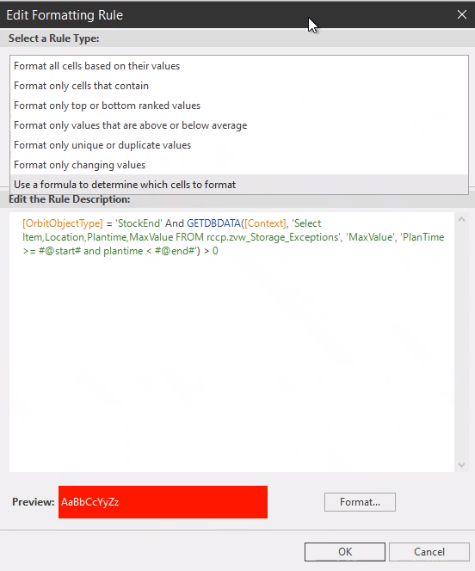
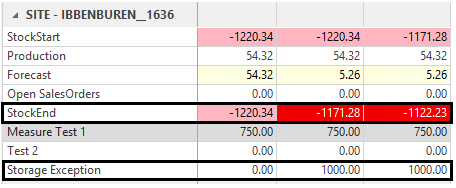
The following equation will format the Stockend row, when there is a storage exception present.
-
OrbitObjectType: Element you want to mark (row)
-
GetDBDATA([Context], select…: Element equations apply to
-
'> 0': Part of the equation
[OrbitObjectType] = 'StockEnd' And GETDBDATA([Context], 'Select Item,Location,Plantime,MaxValue FROM rccp.zvw_Storage_Exceptions', 'MaxValue', 'PlanTime >= #@start# and plantime < #@end#) > 0
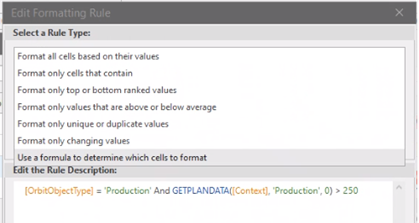
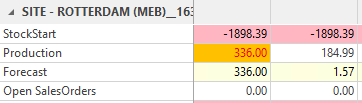
Formatting production in yellow when the value exceeds 250\ Indicating production-row in yellow when the value exceeds 250.
- OrbitObjectType: Row to which it applies to
- GETPLANDATA([Context], ‘Production’, 0) > 250: Data it refers to + rule
[OrbitObjectType] = 'Demand'


sql Demand to bold text and blue background
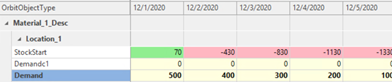
[OrbitObjectType] = 'Demand'
Filtering RCCP Data
Selection pane
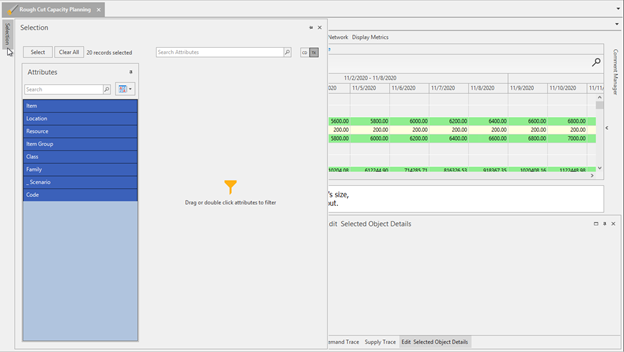
To filter attributes, click the Selection pane located to the left of the Material Balance grid. Here you can filter data based on the selected attributes when the document was created.
Group By box
Filter data on an Orbit Object, organize the order of the Orbit Objects, and use the Find Panel to search for keywords in the Work bench. You can also right-click an Orbit object for more data filtering options.

You can filter the items and locations orbit objects by clicking the funnel icons. Select what values to filter and click Close to select.

Related Articles
Where to Start with RCCP
Your demand planning process is complete and demand statement is created; excellent, but the sales and operation planning journey is far from complete – the next critical step is matching or balancing assets (capacity, materials, people and projected ...Orbit Documents Introduction
The four Arkieva documents that use the Orbit Database are DRP, RCCP, Production Schedule, and Tank Schedule. The highest level is the DRP and RCCP, the next level is Production Schedule, and the lowest level is Tank Schedule. Tank Schedule requires ...Planning Grid tab
Time Horizon The planning horizon is along the top of the Planning Grid spreadsheet. The planning horizon information is pulled from a table in Arkieva. You can view the table name by clicking a time bucket cell. Time Horizons can be different ...User Interface
Assist: Create custom documentation for use with Arkieva Assist. Cloud: Arkieva Cloud offering information. Data Models: Scheduling, DRP, and RCCP Data Model table and data information. Function Parameters: Data management tools information. Orbit: ...Release Matrix
? Release Schedule Arkieva releases are quarterly: February, May, August, November. Demand Planning Feature 5.22 5.21 5.20 5.19 5.18 Anomaly Component Forecast Methods Machine Learning Link Promotion Planning Link Link Link Segmentation Link Link ...