Publisher
Introduction
Arkieva Publisher automates your S\&OP meeting presentation preparation processes for pre-S\&OP and consensus meetings. With Arkieva Publisher, select dashboards, images, notes from agendas, and custom text to publish to slides. Once you’ve gathered all your assets, you can publish your content to your company’s presentation template, simplifying your S\&OP meeting preparation process and eliminating non-value added tasks.
Setup New Publisher Deck Properties
Launch the Publisher from the All Items window.
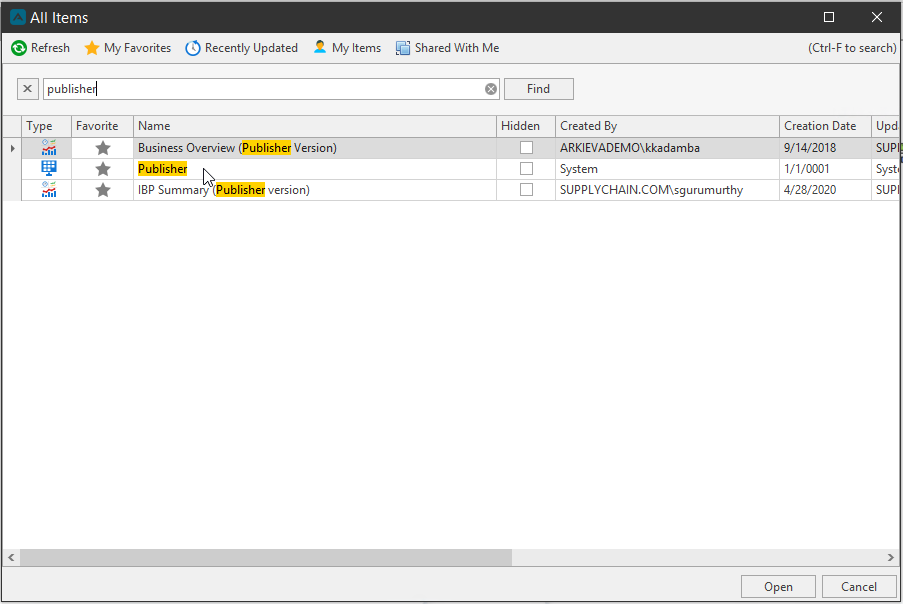
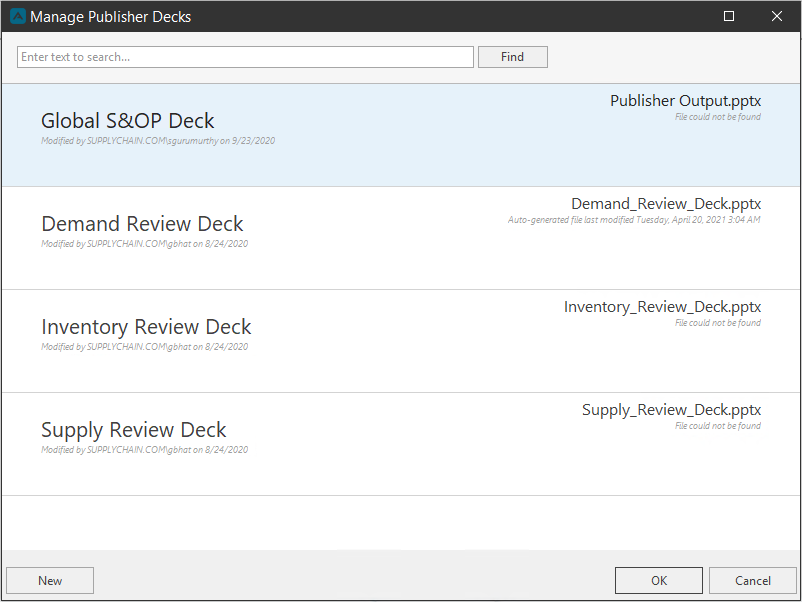
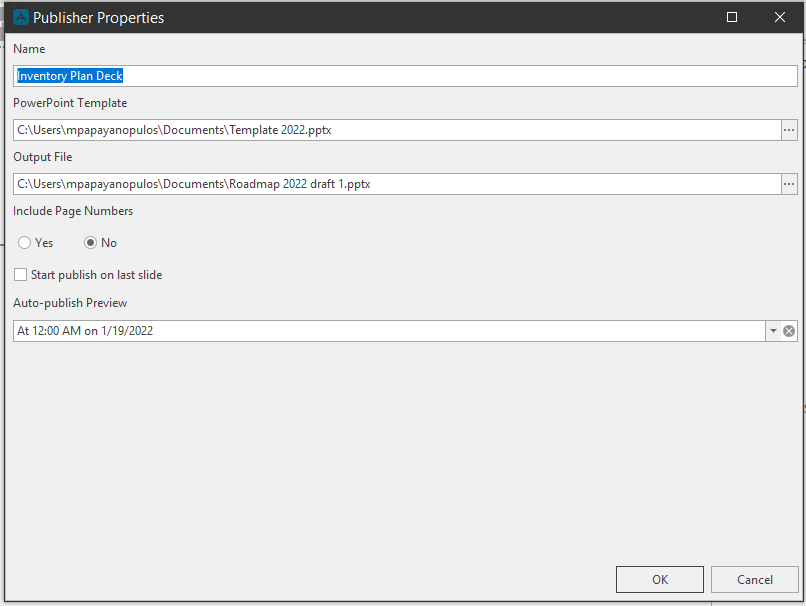
Launch the Publisher from the Browse Document window; the Manage Publisher Decks window will launch. Click New to launch the Publisher Properties window.
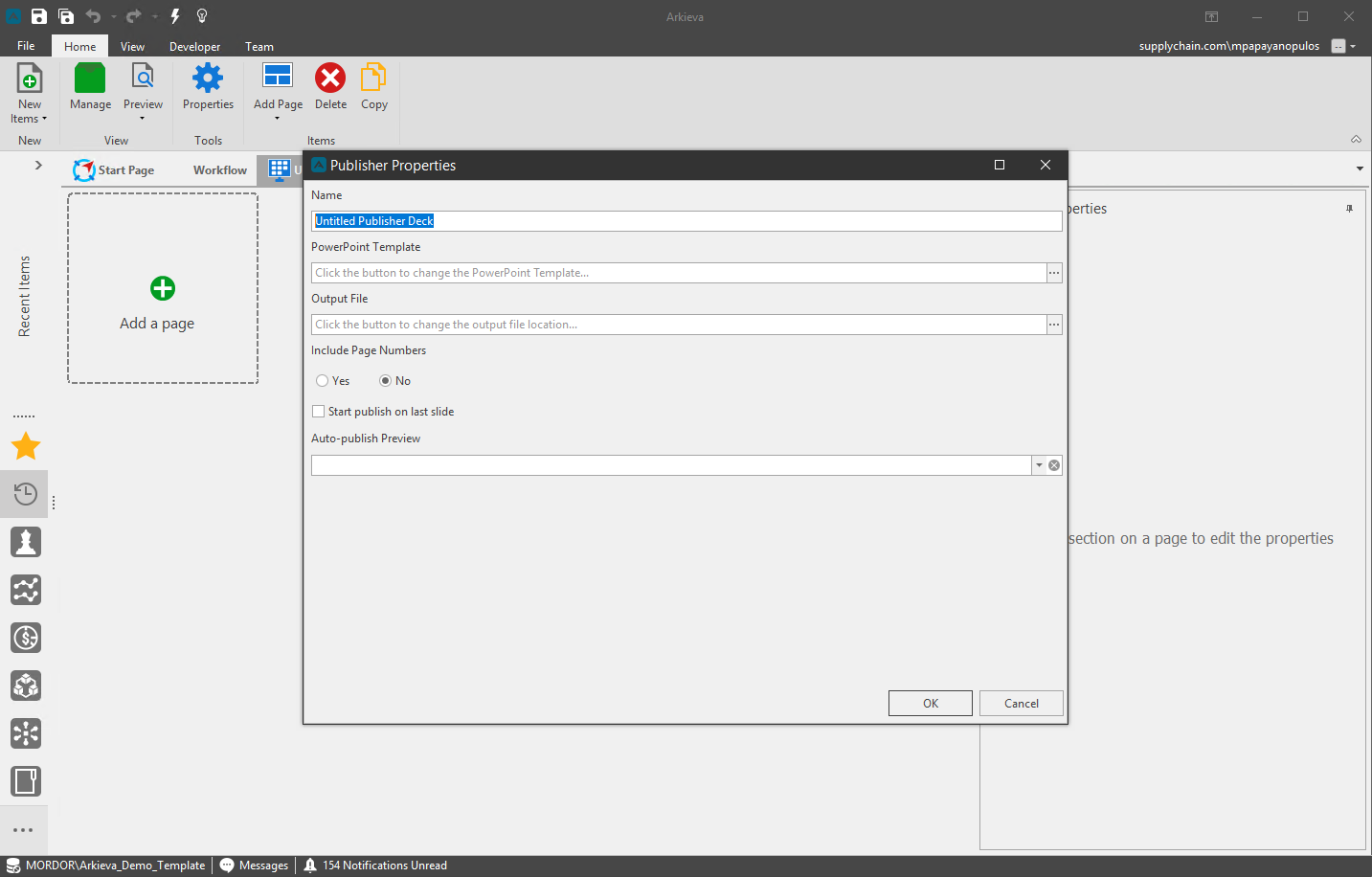
Type a Name for the new Publisher Deck.
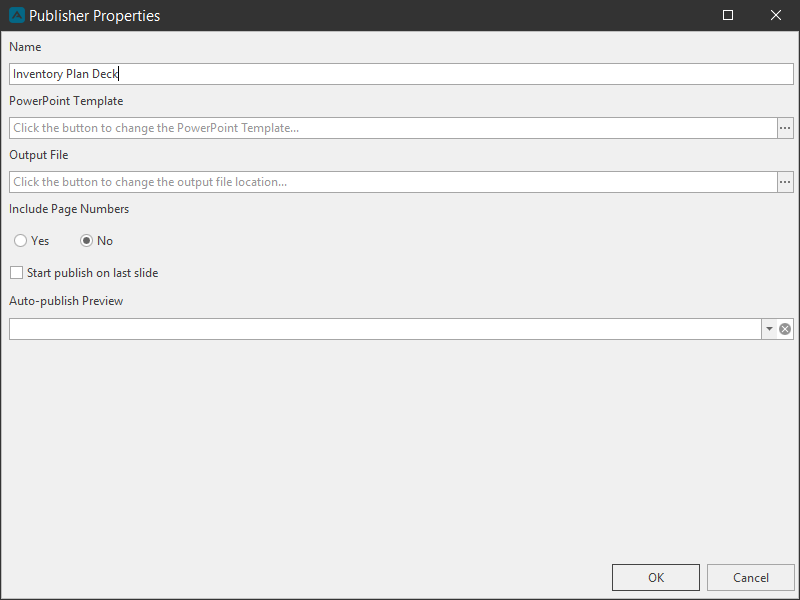
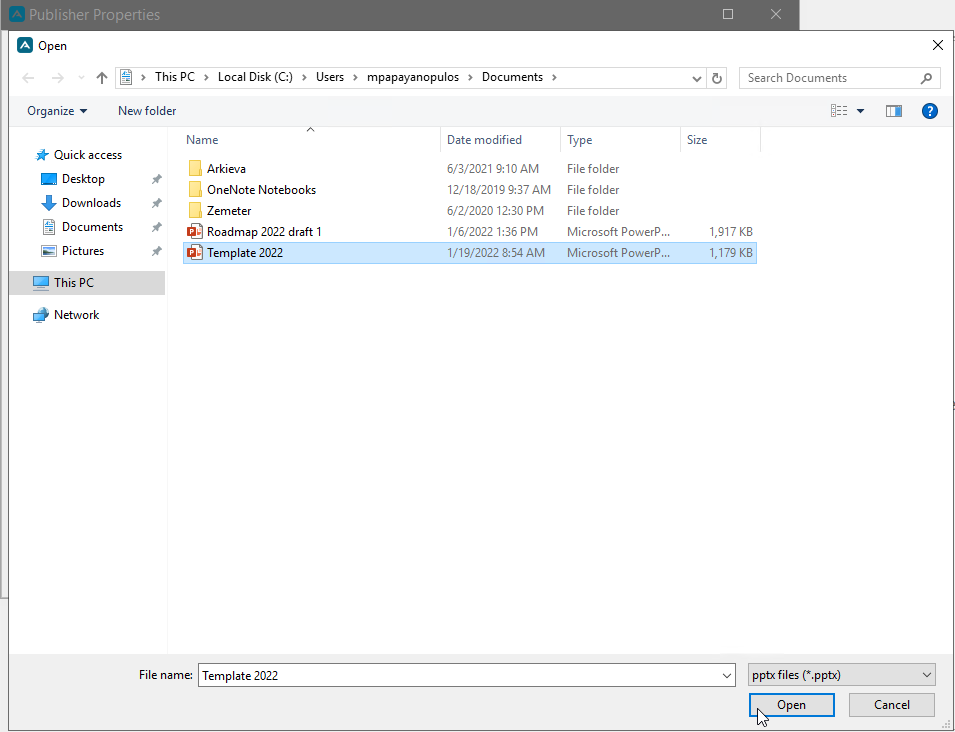
Click the ellipses button next to the PowerPoint Template field to select the slides you wish to use for the Publisher Deck.

Select your PowerPoint Slide deck and click Open.
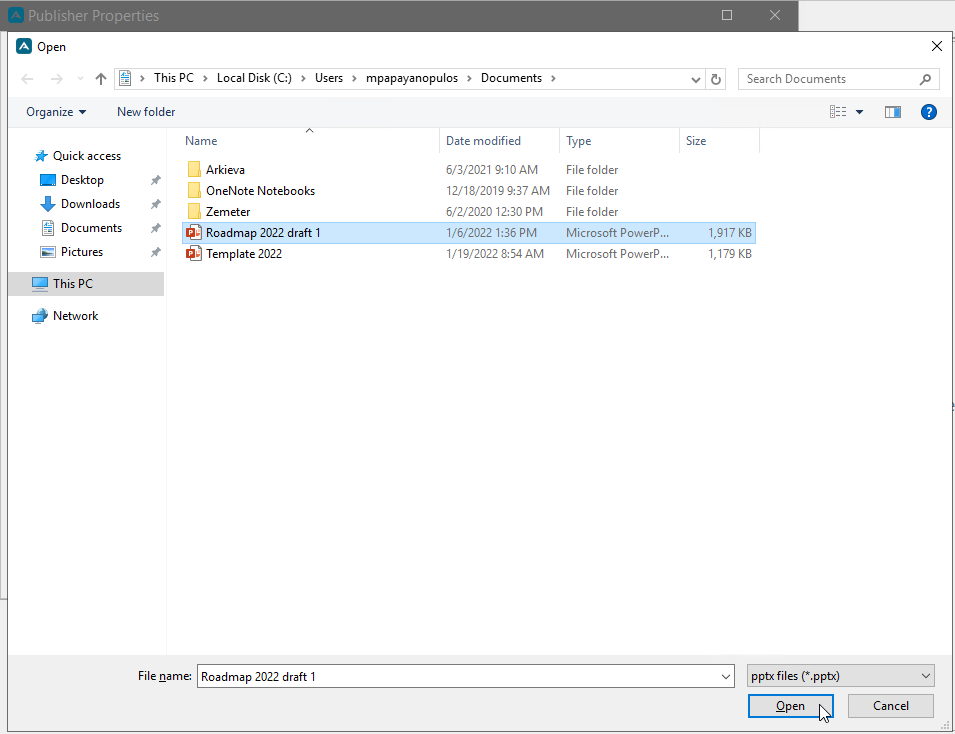
Click the ellipses button next to the Output File field to create the output slides for the Publisher.

Under the File Name field type the name of the output deck. The output deck will be the template selected earlier. Click Save.
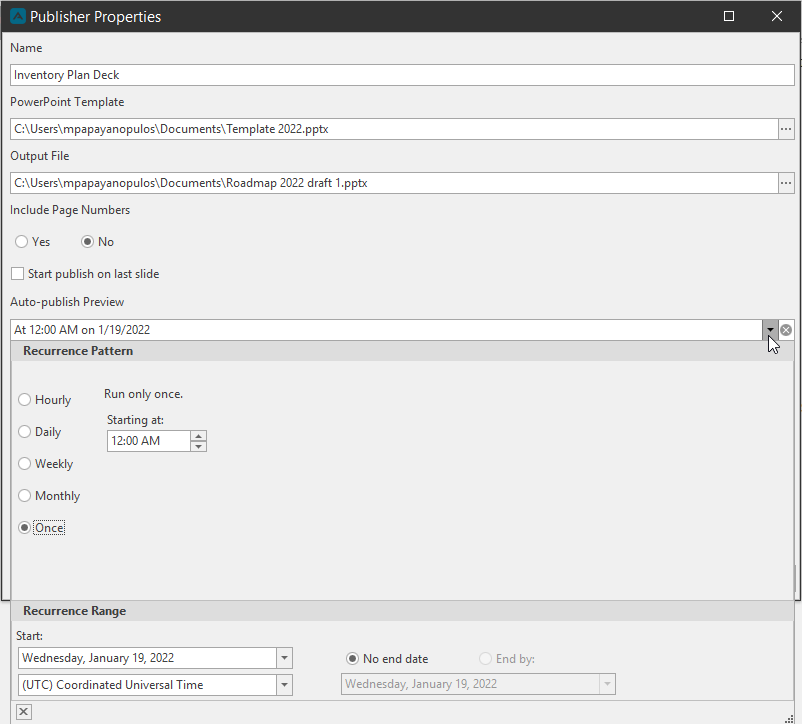
Toggle whether to include page numbers with the slide deck.
If publishing the deck more than once, click the arrow dropdown under the Auto-publish Preview to create a publishing schedule.
Click OK to begin creating the slides for the Publisher.
Create New Publisher Slides
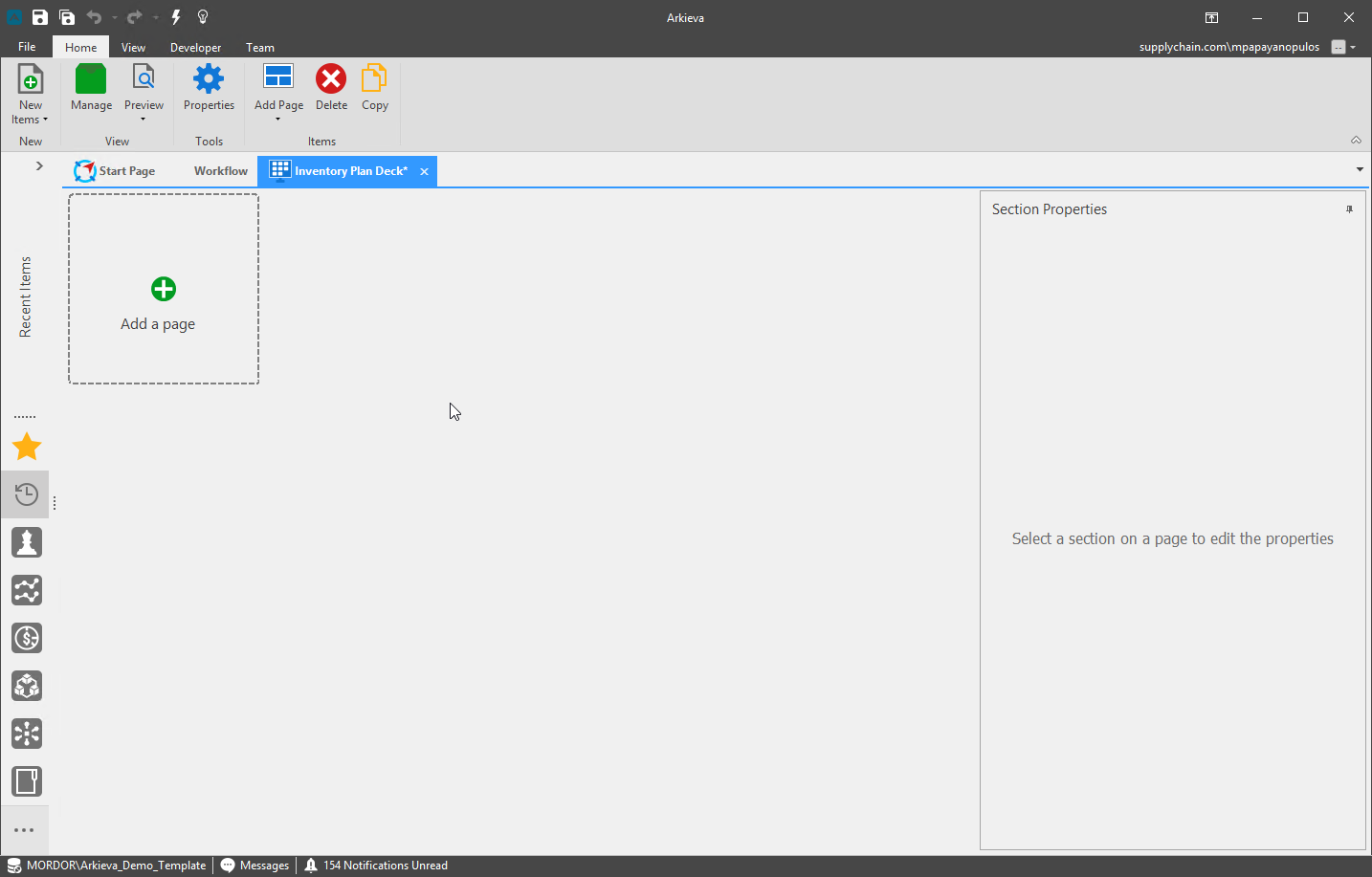
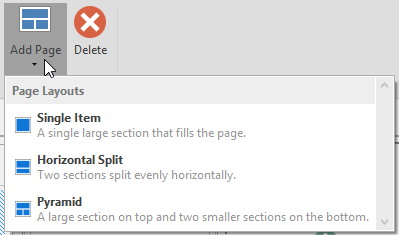
From the design view, there are several ways to create slides for the Publisher. To add a new slide, click the Green Plus button under the layout, or click the Add Page dropdown from the ribbon.
- Single Item: A single large section that fills the slide.
- Horizontal Split: Two sections split evenly horizontally on the slide.
- Vertical Split: Two sections split evenly vertically on the slide.
- Pyramid: A large section on top and two smaller sections on the bottom of the slide.
- Quadrant: Four equal sections on the slide.
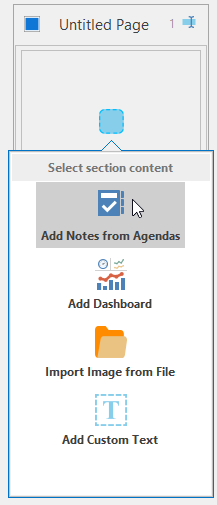
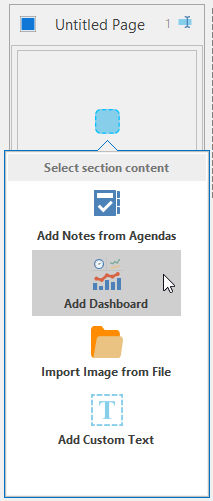
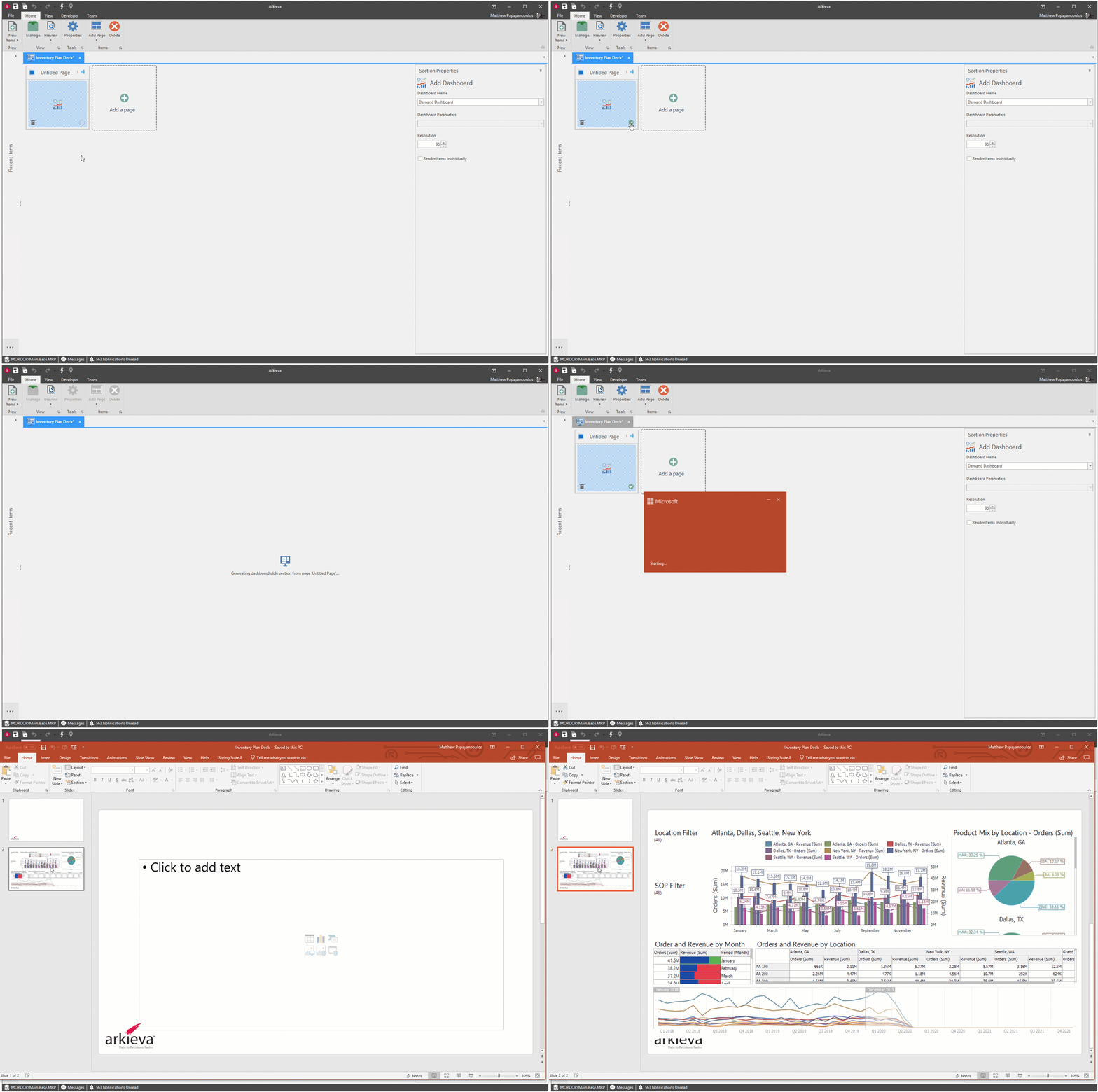
Next, click the blue square to Select section content for the publisher slide.
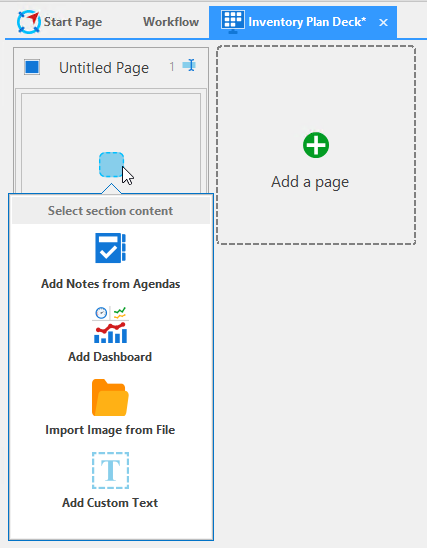
- Add notes from Agendas: Select to add agenda notes to the publisher slide.
- Add Dashboard: Click Add Dashboard to create a slide with a selected Dashboard.
- Import Image from File: Click 'Import Image from File' to create a slide with an image.
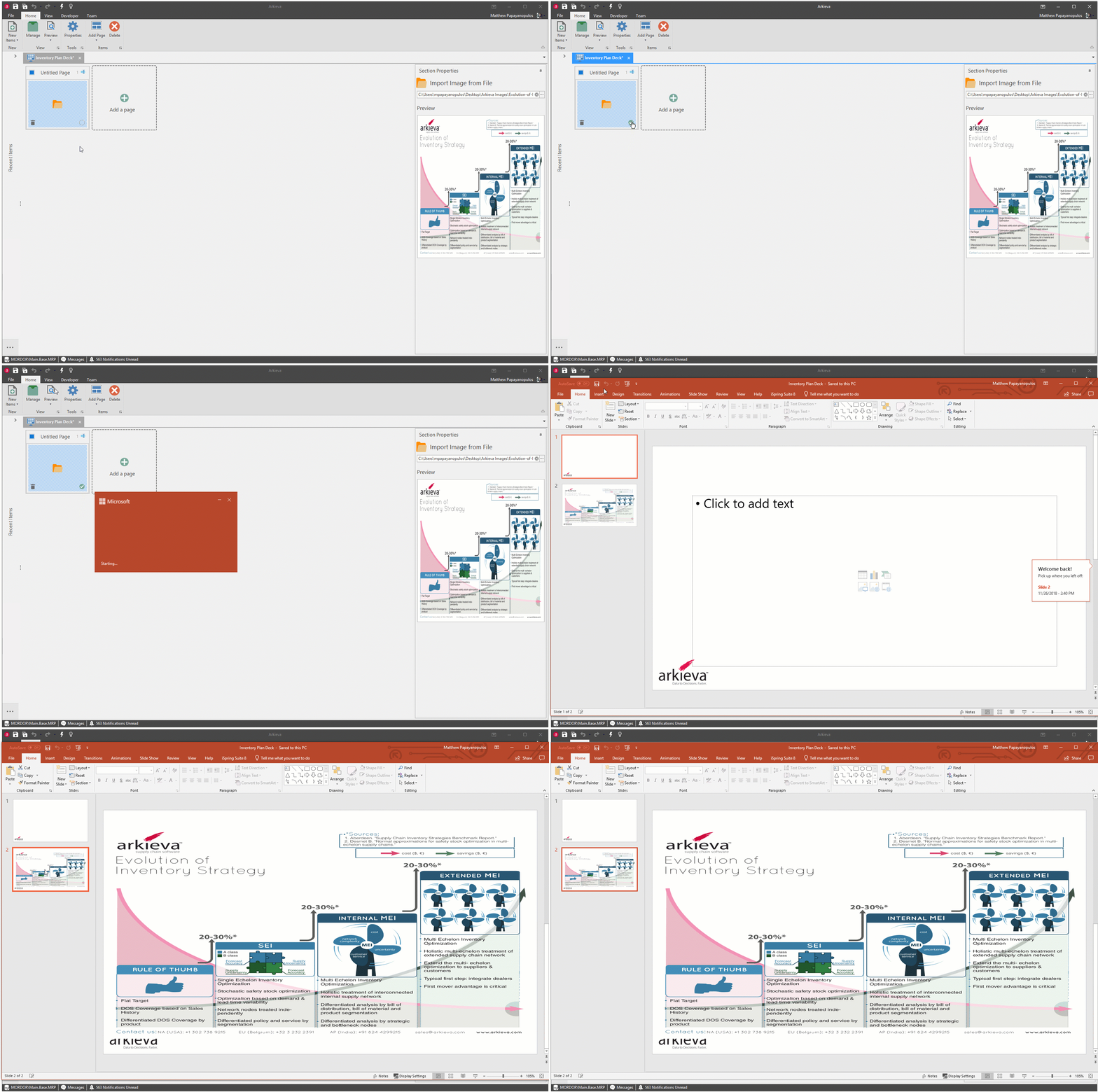
- Add Custom Text: Click 'Add Custom Text' to create a slide with typed text from the user.
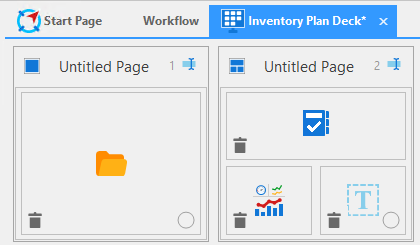
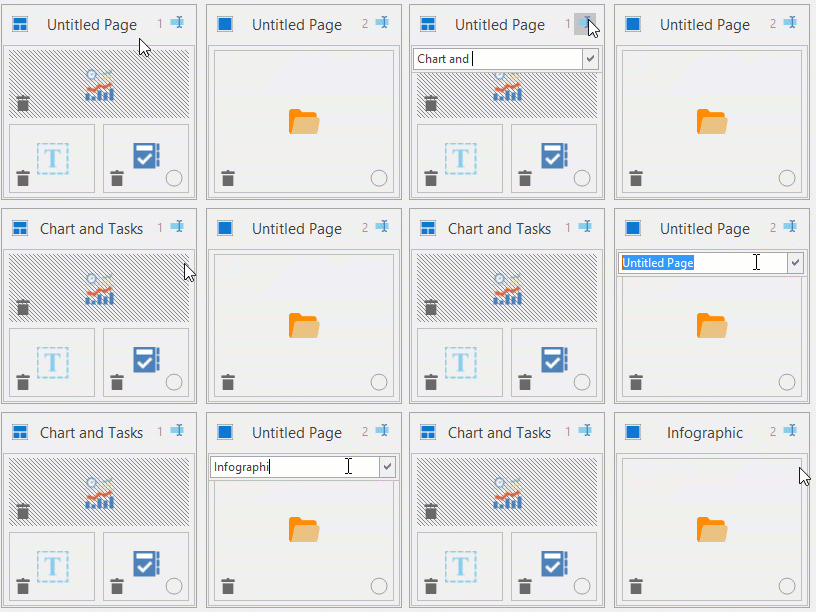
Click the cursor button to rename the pages.
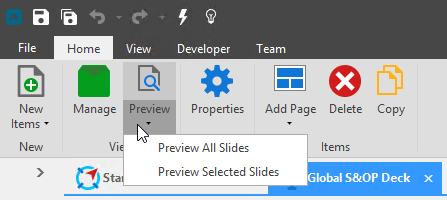
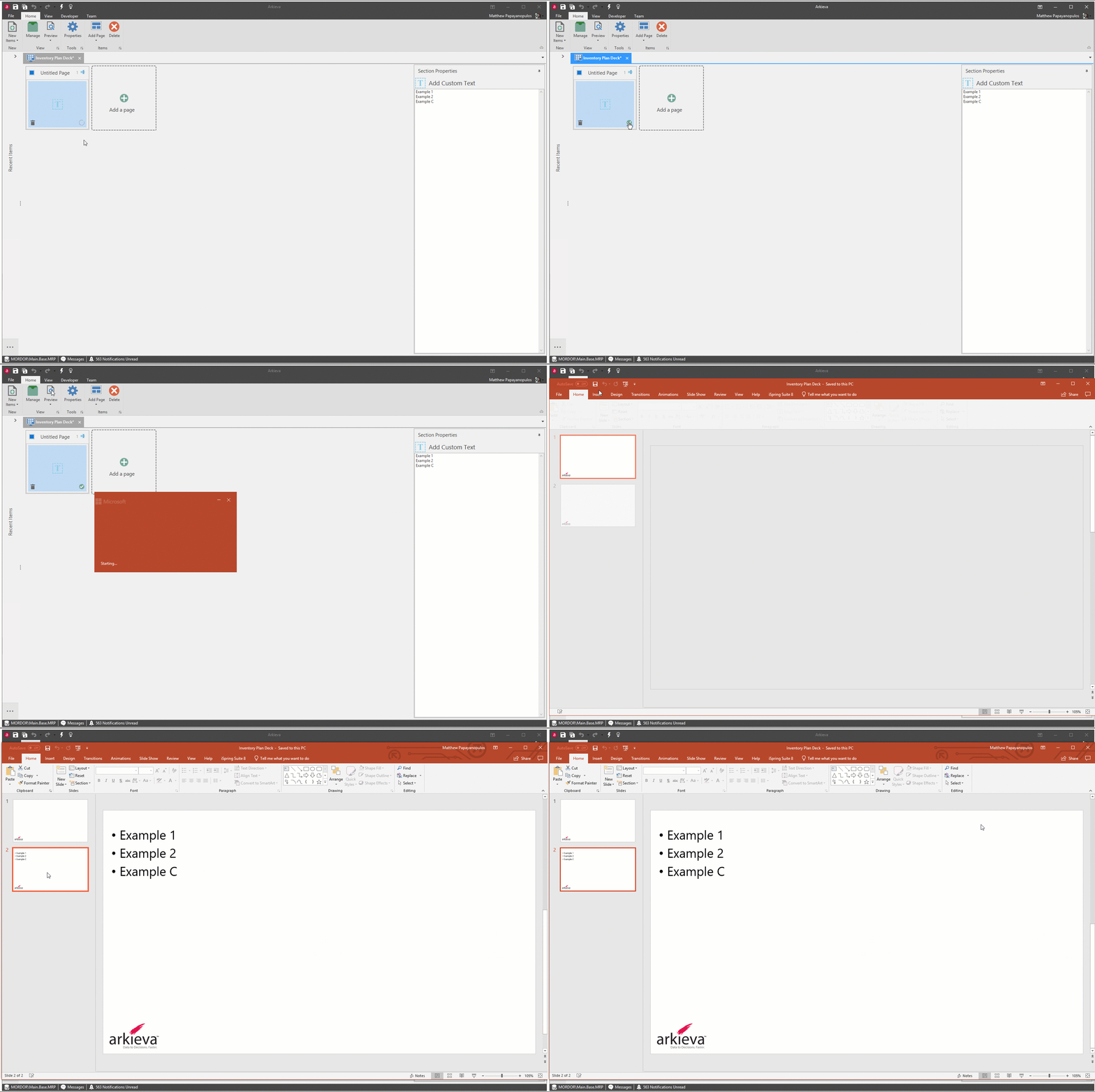
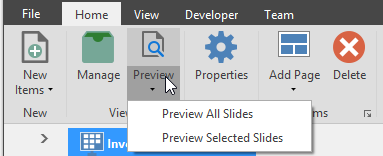
Preview the pages with the Preview button in the ribbon. You can preview all created pages, or select pages by checking the radial button and selecting 'Preview Selected Slides'.
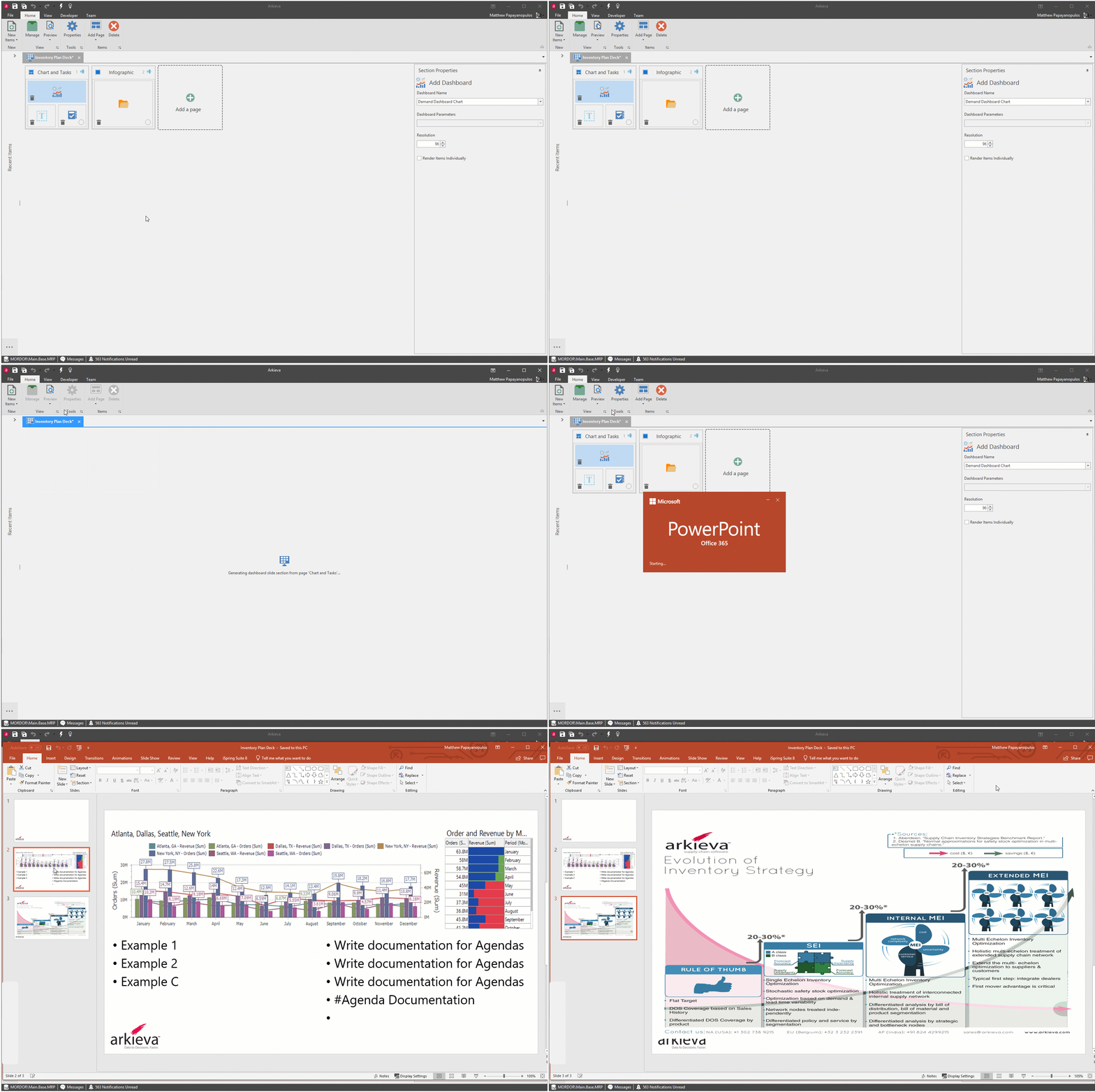
Save the Publisher Deck when happy with the preview.
Add Notes from Agendas
Select 'Add Notes from Agendas' to add agenda tasks to the publisher slide.
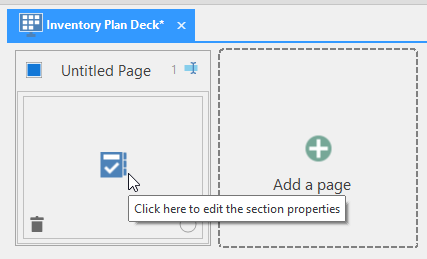
Click the Agenda image to edit the section properties. The Section Properties pane will show the Add Notes from Agendas information.
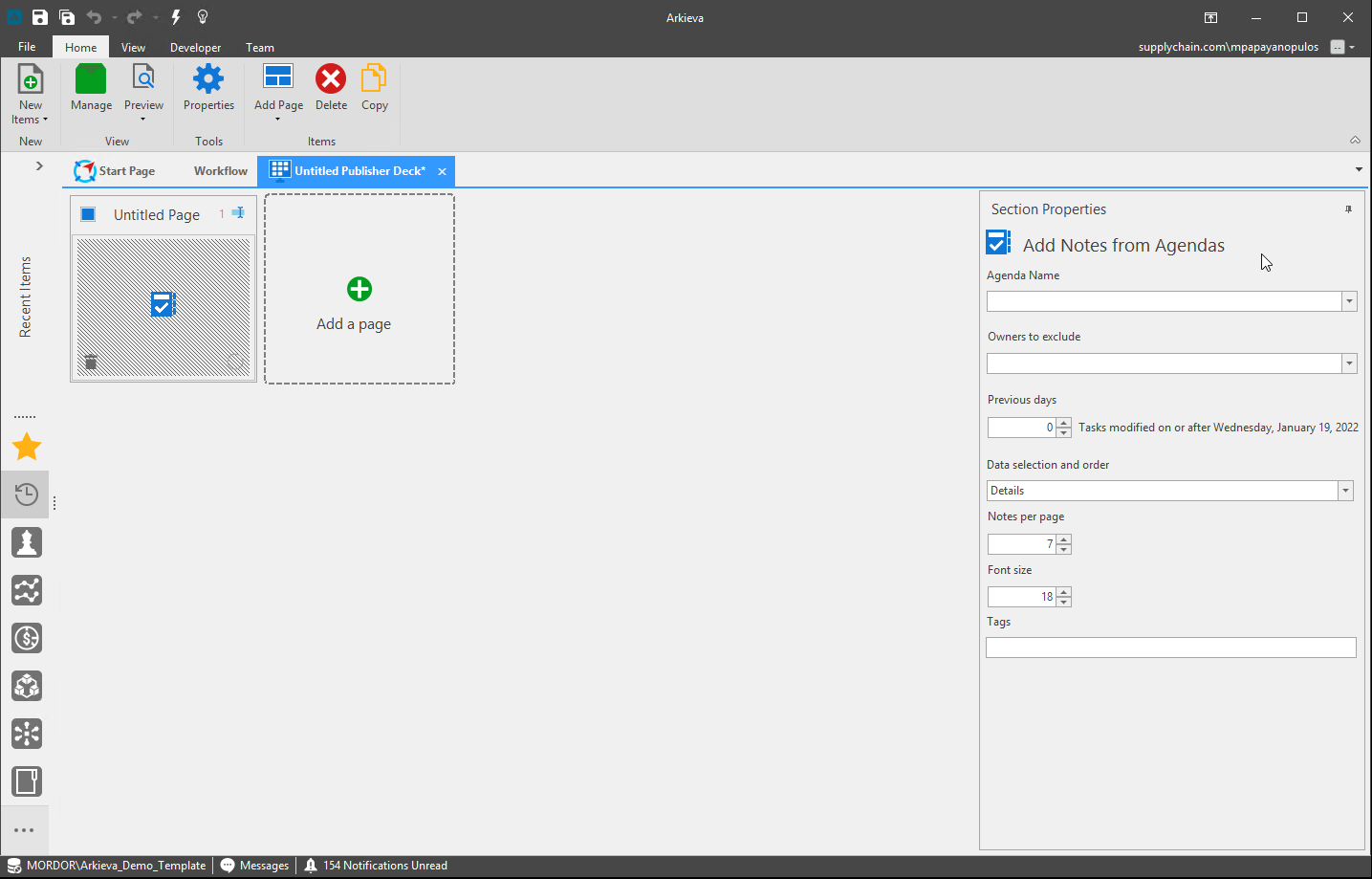
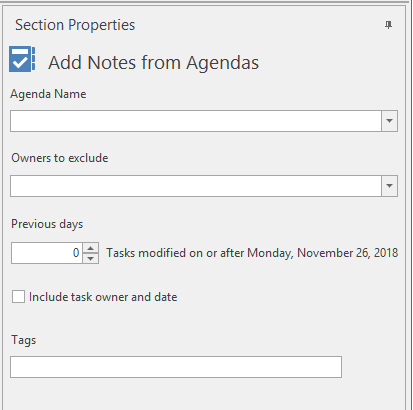
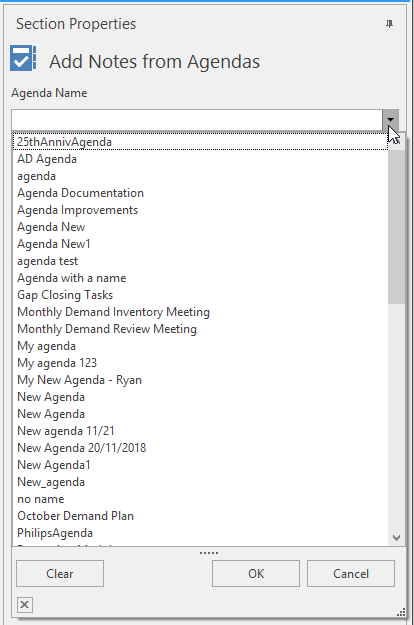
From the Agenda Name dropdown, select the agenda to pull the notes from for the slide. Click an agenda and click OK to select.
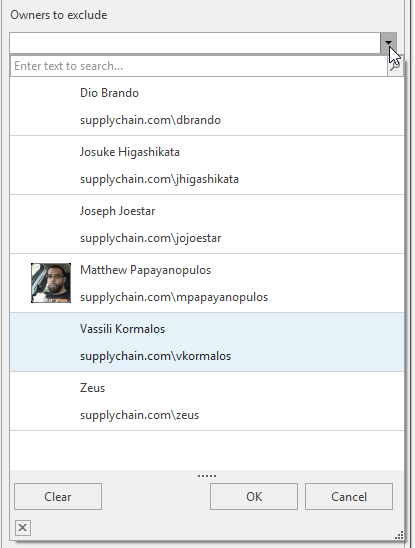
From the Owners to exclude dropdown, select users who's tasks are included with the agenda you selected to exclude those tasks.
Tasks modified on or after the current date will be included for the amount of days selected under the Previous Days section.

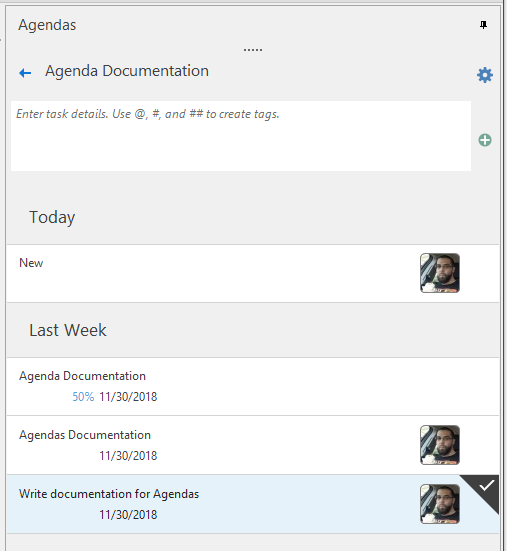
As an example, the below tasks we created the previous week. To include these tasks we will need to set a number of previous days equal to or higher than a week.
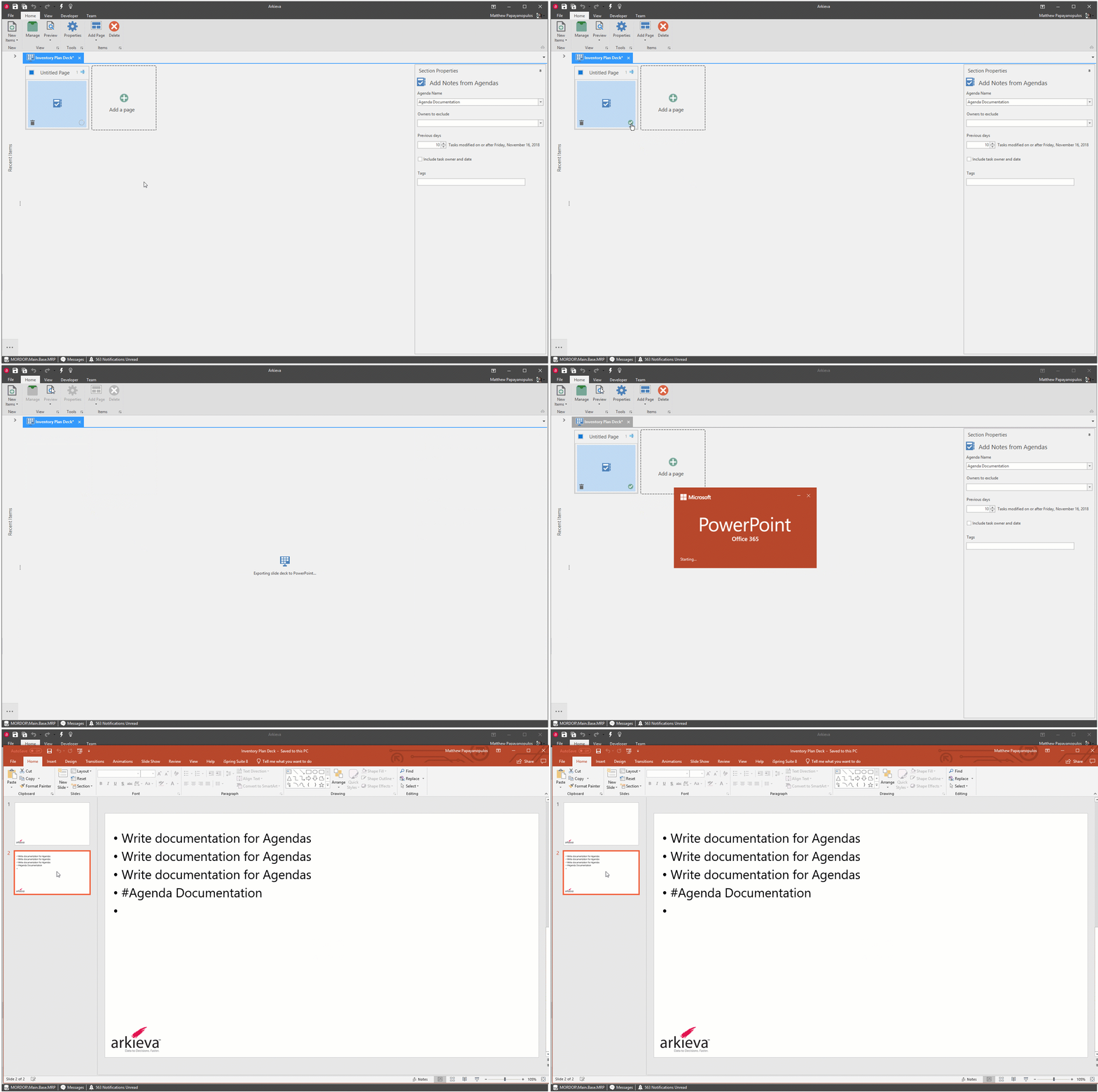
Type tags of tasks you want to include on the slide. Tags need to have been typed on those tasks for those tasks to be included.

To preview the slide, select the page by clicking the radial button and then clicking the Preview button from the ribbon.
Add Dashboard
Click Add Dashboard to create a slide with a selected Dashboard.
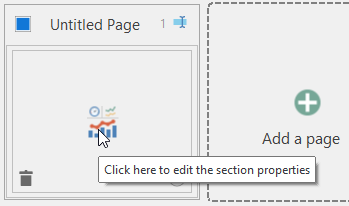
Click the Dashboard icon to launch the Add Dashboard Section Properties.
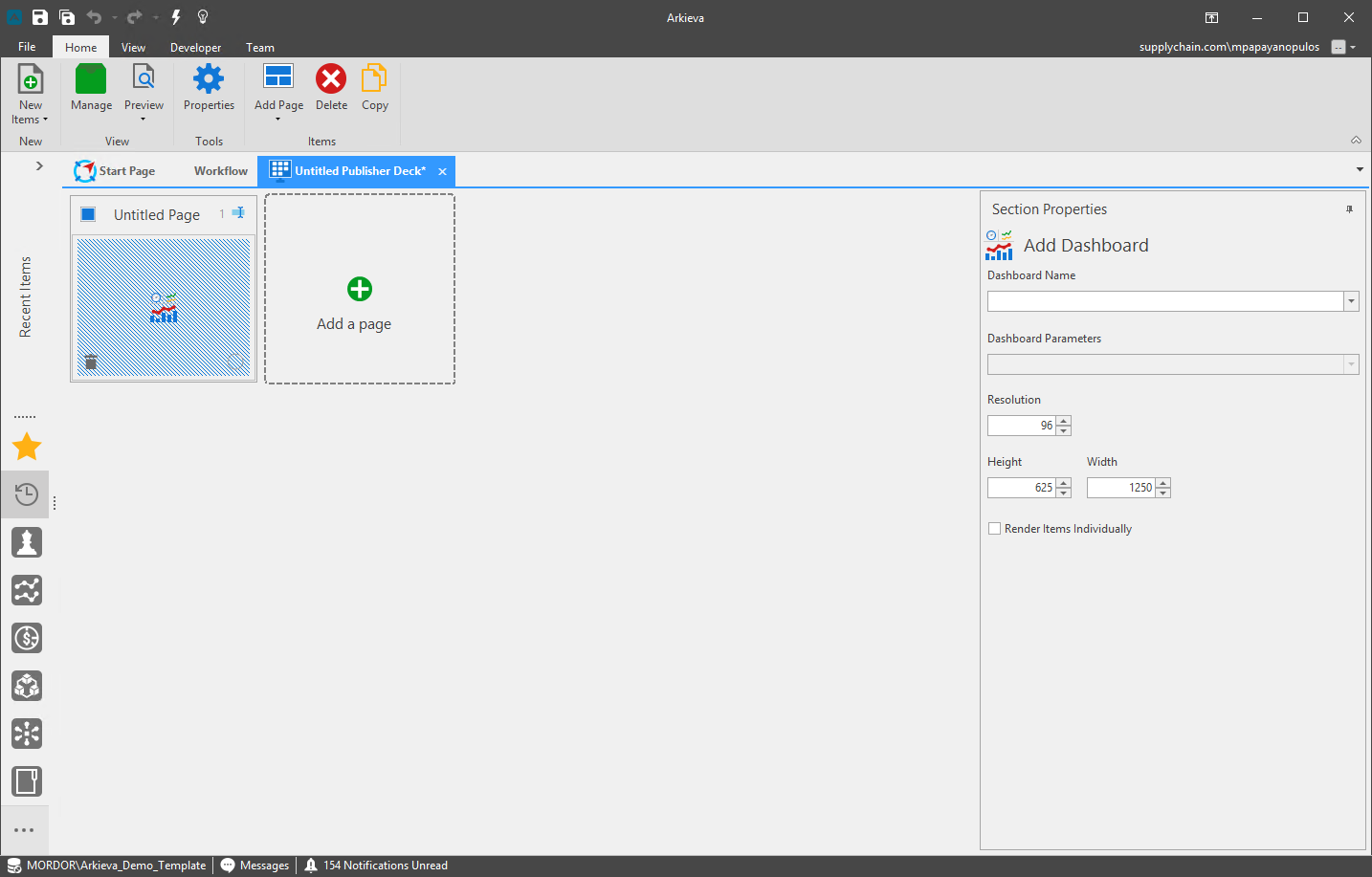
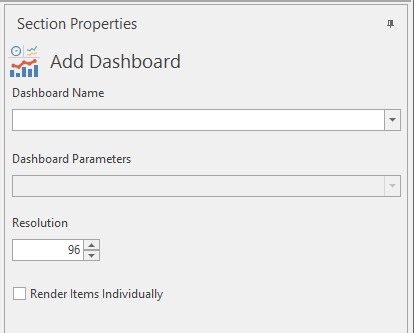
Click the Dashboard Name dropdown to select a dashboard. Click a dashboard and click OK.
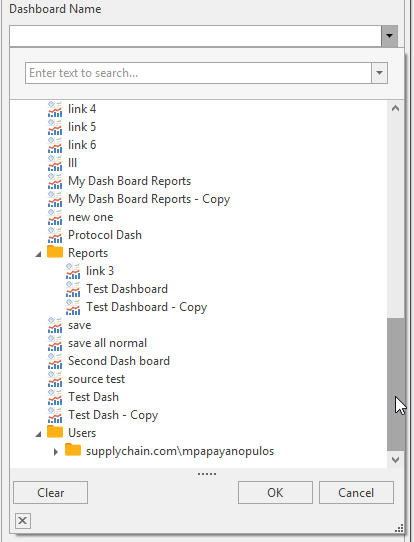
- Dashboard Parameters: If the selected dashboard has parameters created for it, this dropdown will be active.
- Resolution: Use the arrows to select a dpi value. 96 is recommended.
- Render Items Individually: check this checkbox if the dashboard has more than one item created for it and you want each item to be rendered as separate images.
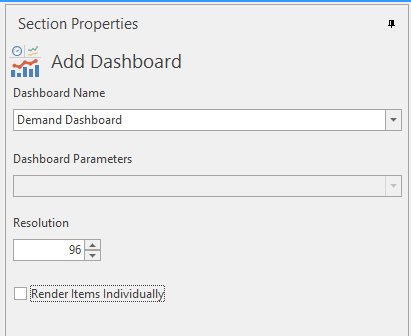
Preview the Dashboard slide by clicking the Preview button in the Home ribbon.
Import Image from File
Click 'Import Image from File' to create a slide with an image.
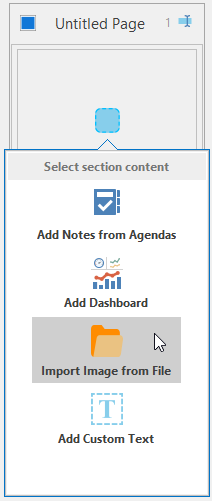
Click the Image icon to launch the Import Image from File Section Properties.
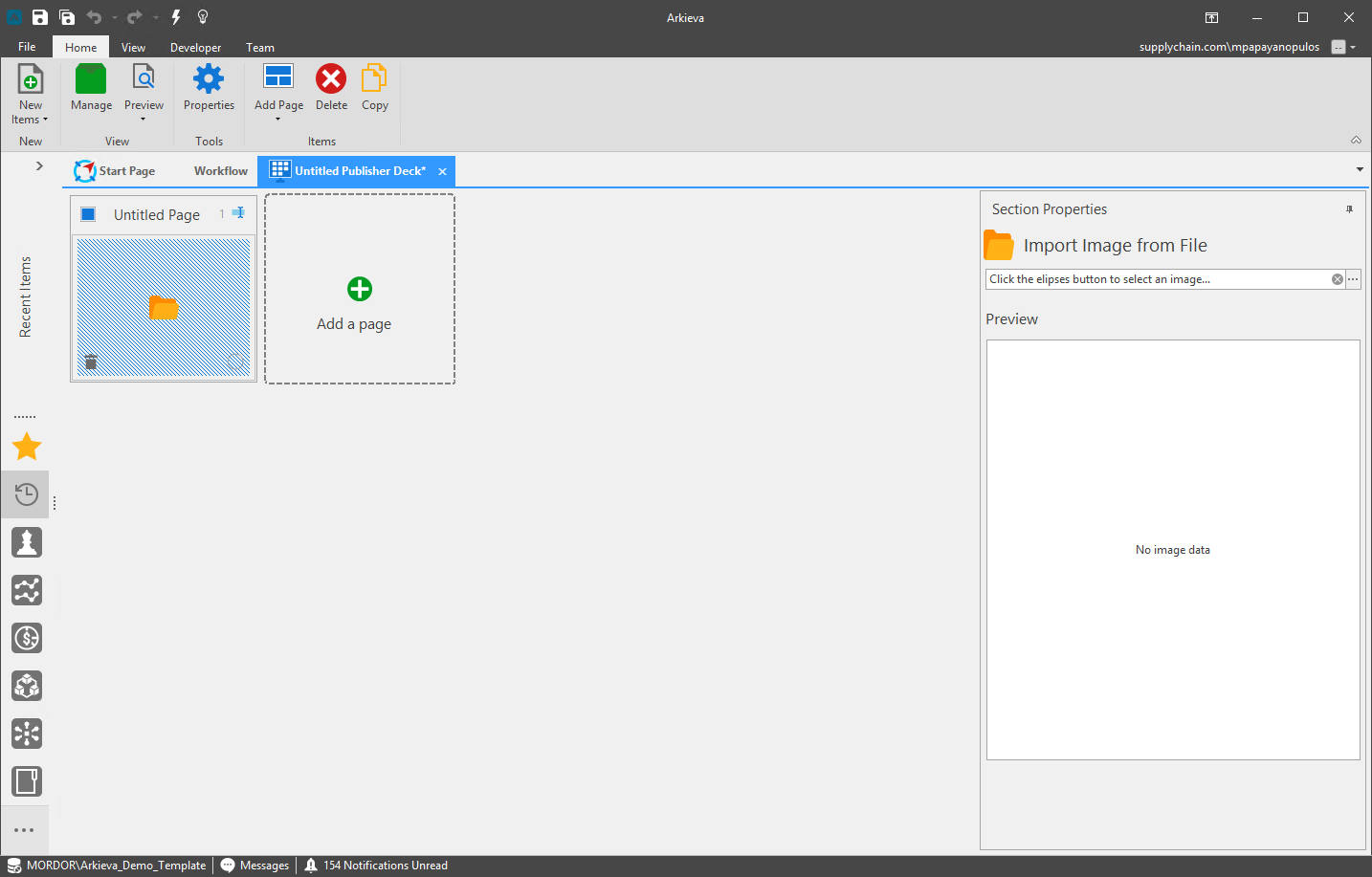
Click the ellipses button next to the empty field to launch the file selection window. Select an image and click OK. The image will appear in the Preview window in the Section Properties pane.
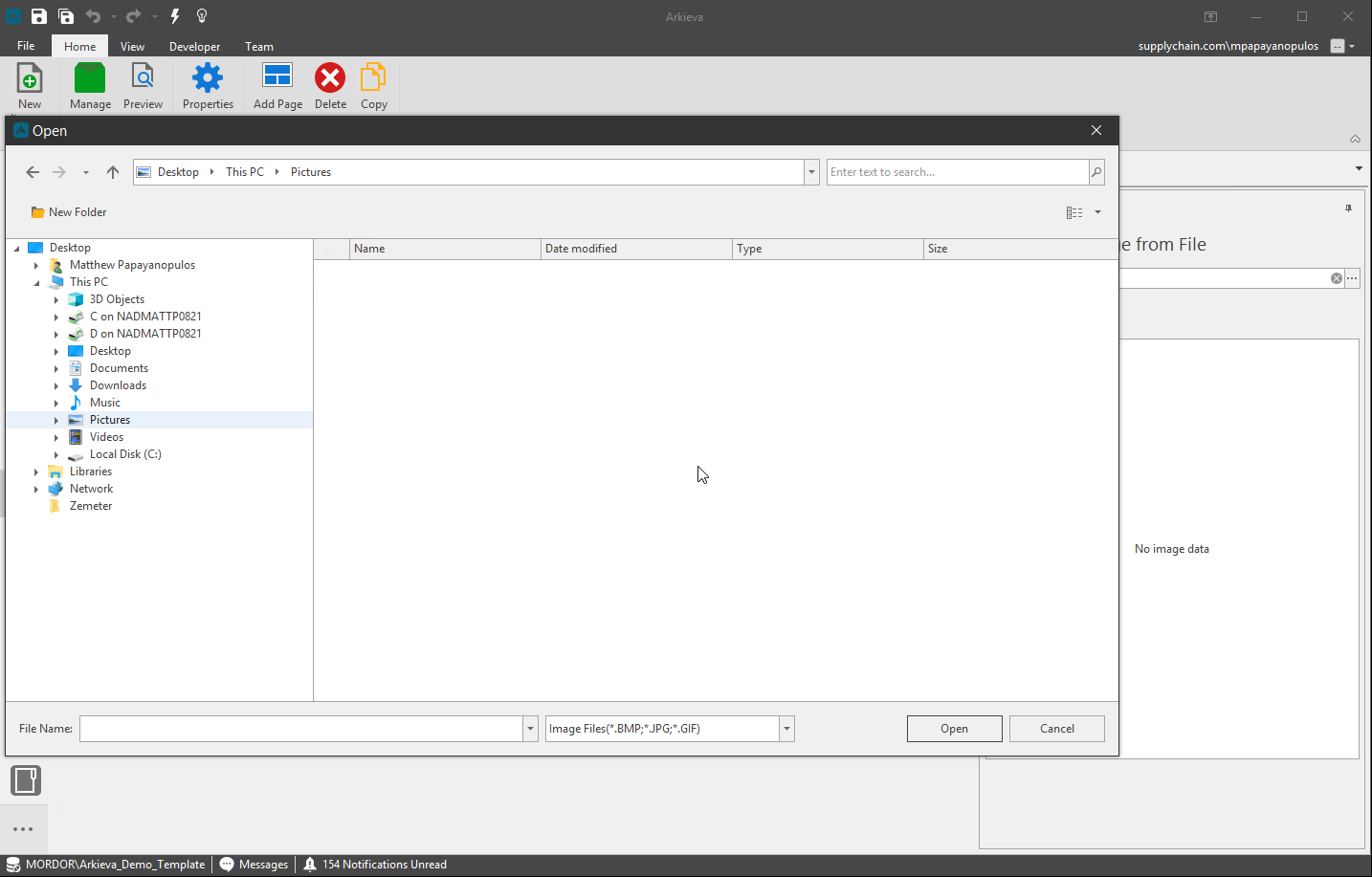
Preview the image slide by clicking the preview button in the Home ribbon.
Add Custom Text
Click 'Add Custom Text' to create a slide with typed text from the user.
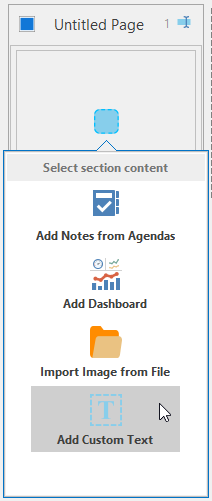
Click the Text image to launch the Add Custom Text field in the Section Properties pane.
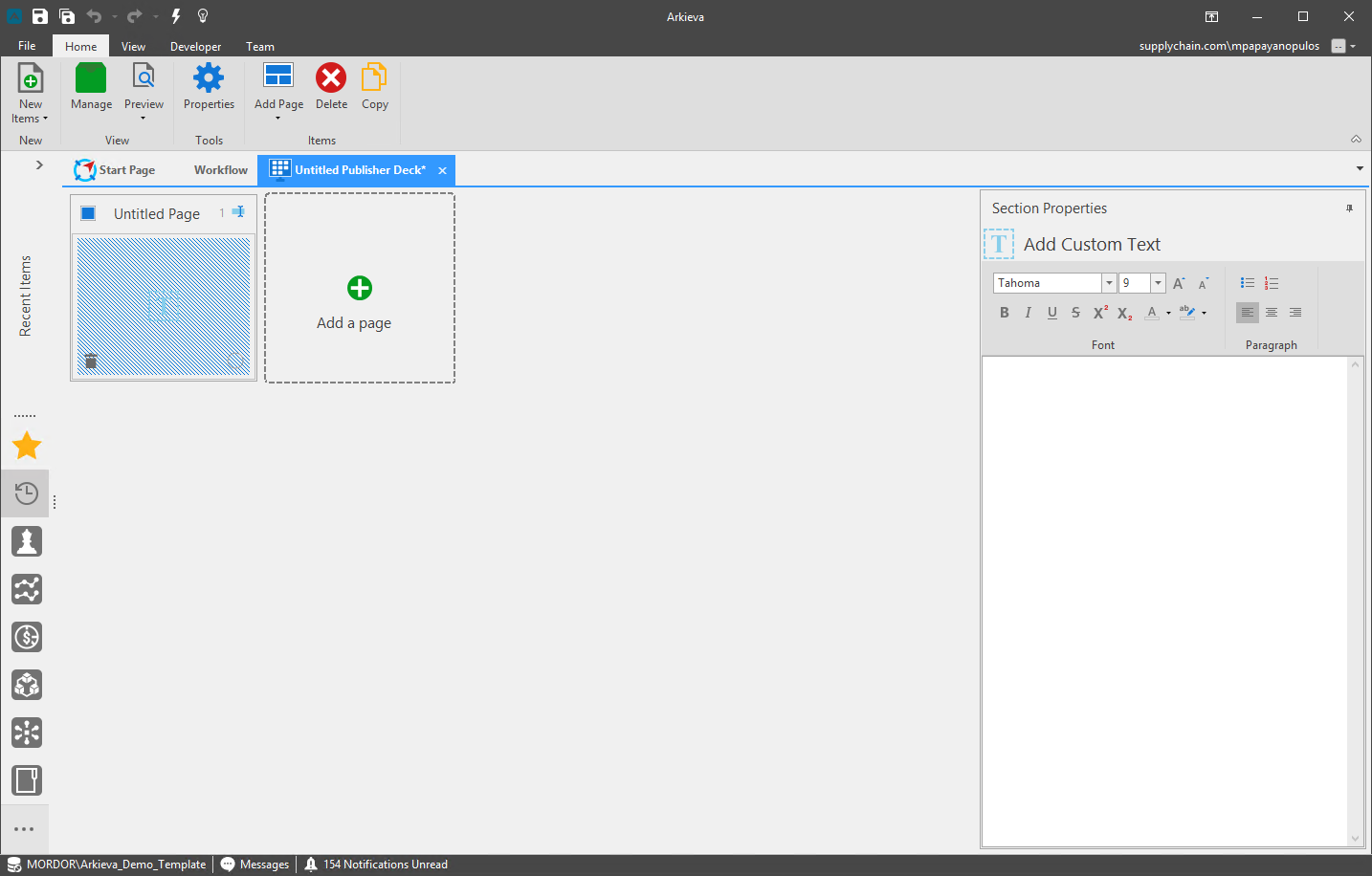
Type text into the empty field. Press Enter to create a new line of text, which will become bullet text on the slide.
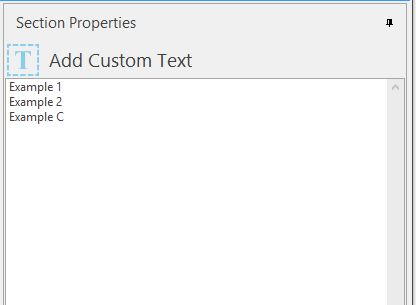
Click the Preview button in the Home ribbon to view the Custom Text slide.
Duplicate pages
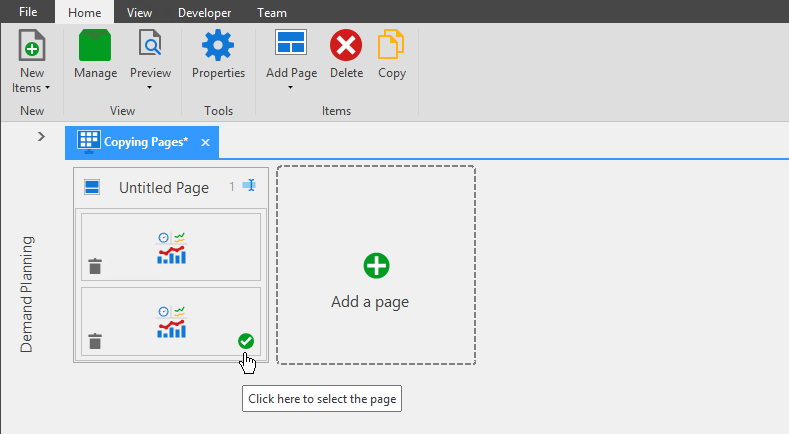
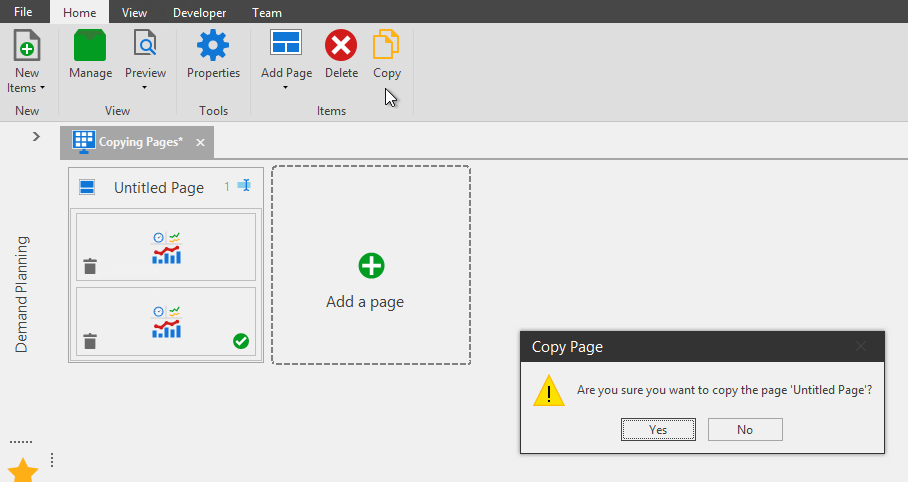
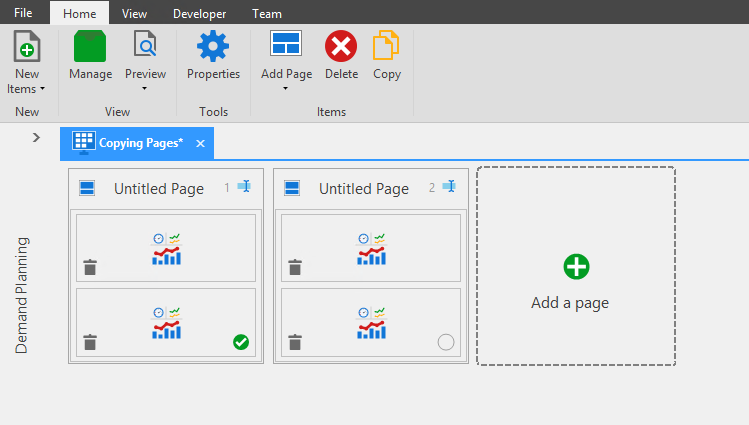
Publisher\ Check the radial to select the page, click copy in the Items section of the ribbon, and click yes. The page will now be duplicated.
S\&OP Process for Decks
Creating the Publisher Deck pages is the first step to creating a final PowerPoint presentation for your S\&OP meeting. The next step is to download the pages, upload drafts, and downloading the final version of the slides to present at the meeting.
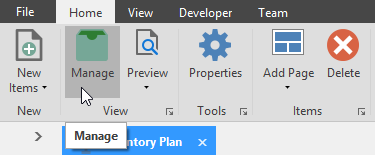
To access the download and upload options for the Publisher deck, click Manage to launch the Manage Publisher Decks window.
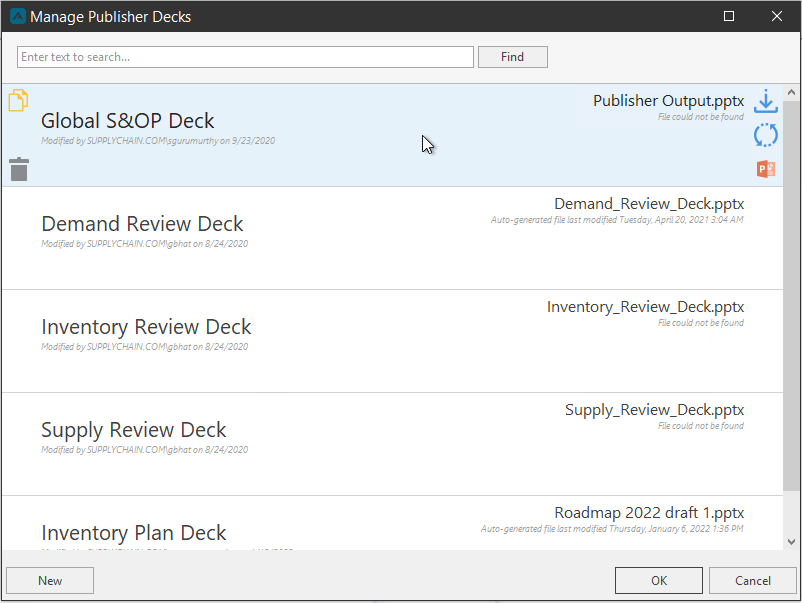
From this window, hover the mouse over the saved deck to view the Download the latest pre-generated slide deck, Upload finished version of pre-generated slide deck, and Upload finished version of pre-generated slide deck buttons.
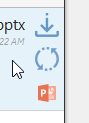
1. Download the latest pre-generated slide deck
Downloading the Publisher Pages is essentially downloading a first draft of the PowerPoint Slides. Clicking the button will download the slides as they were created and saved in the Publisher.
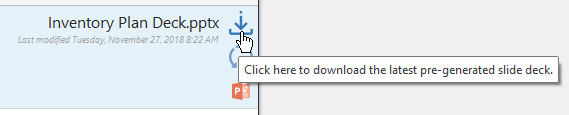
Type a name for the pre-generated slide deck. Click Save. You can now edit the slides however you wish, and upload these slides later.
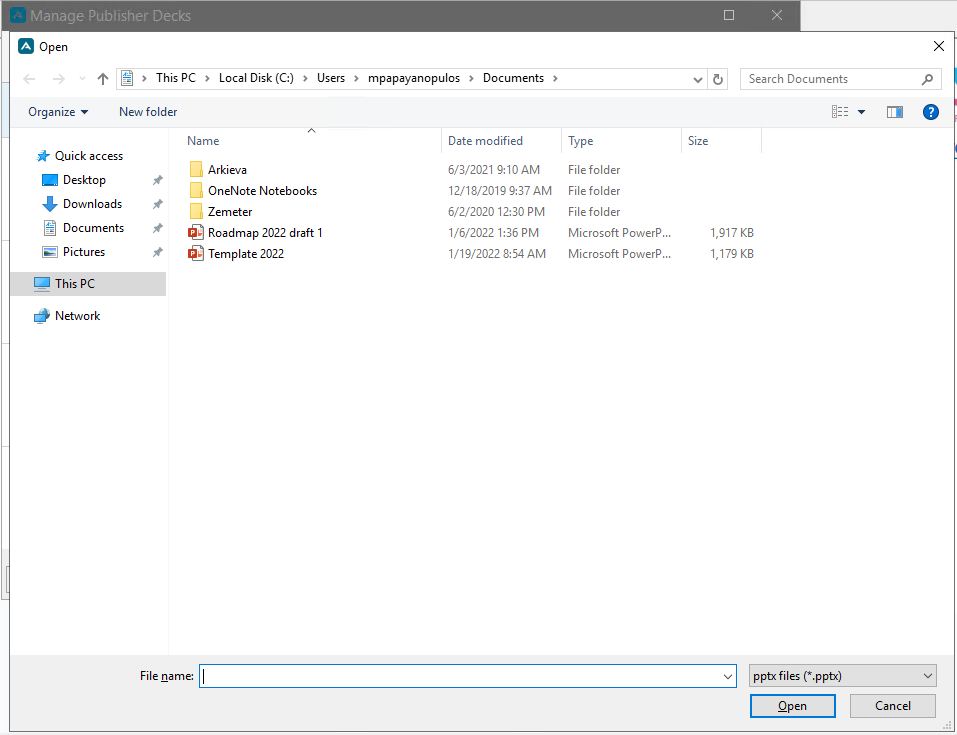

2. Upload finished version of pre-generated slide deck
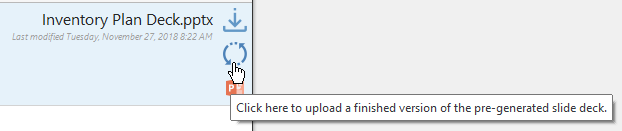
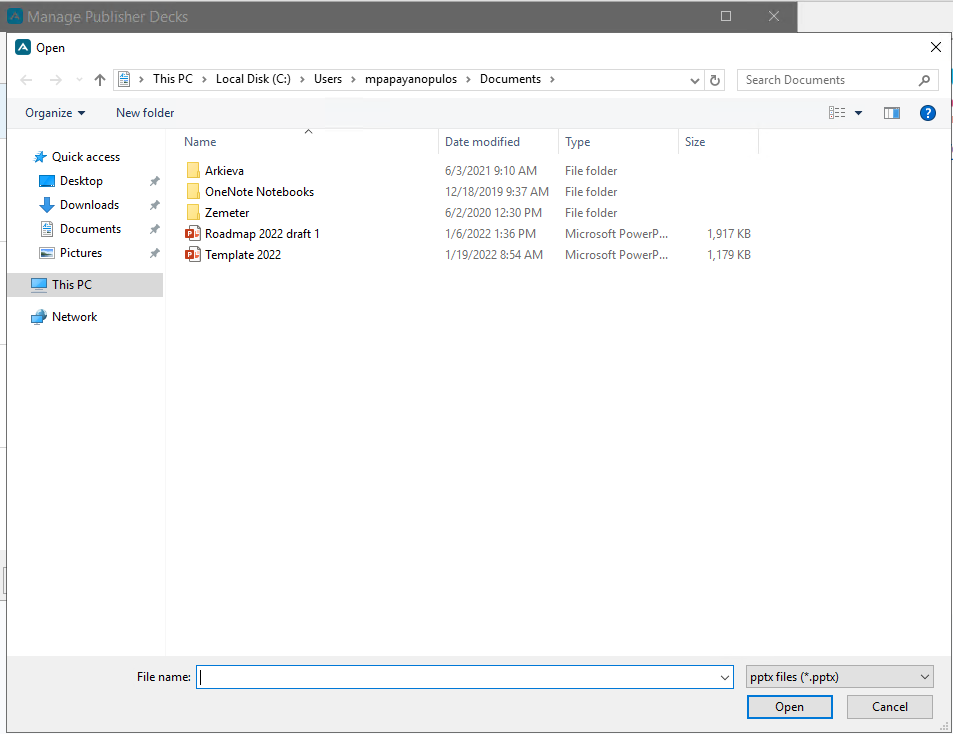
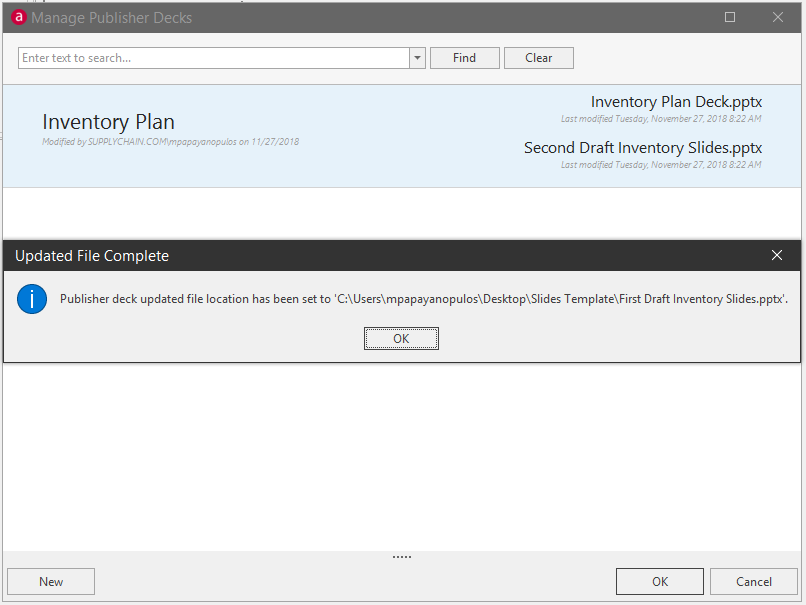
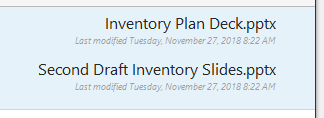
After editing the downloaded slides, you can now upload the slides back to the Publisher. Click the Upload button
🚧 Multiple Uploads
The last user to upload a draft of the slides is the upload that will be committed to the Publisher. There is no history or versioning of the slide uploads.
❗️ File Path
The slides are not uploaded to the Publisher as a file to be downloaded, but rather a file path to the file is created.
Be sure to upload slides from a shared location, and not your local drives. Other users will not have access to the upload if it is saved to a location they cannot access.
3. Download finished version of pre-generated slide deck
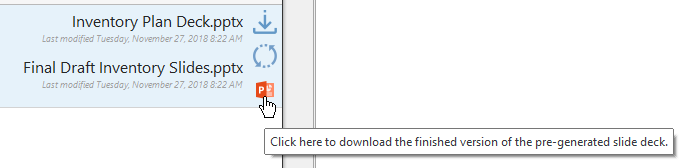
After the final draft of the slides have been uploaded to the Publisher, you can download these slides by clicking the Download Finished Version button.
Ribbon Commands
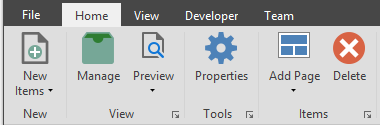
After Publisher is launched from the Browse All Items window, the commands will appear in the Home ribbon.
Manage
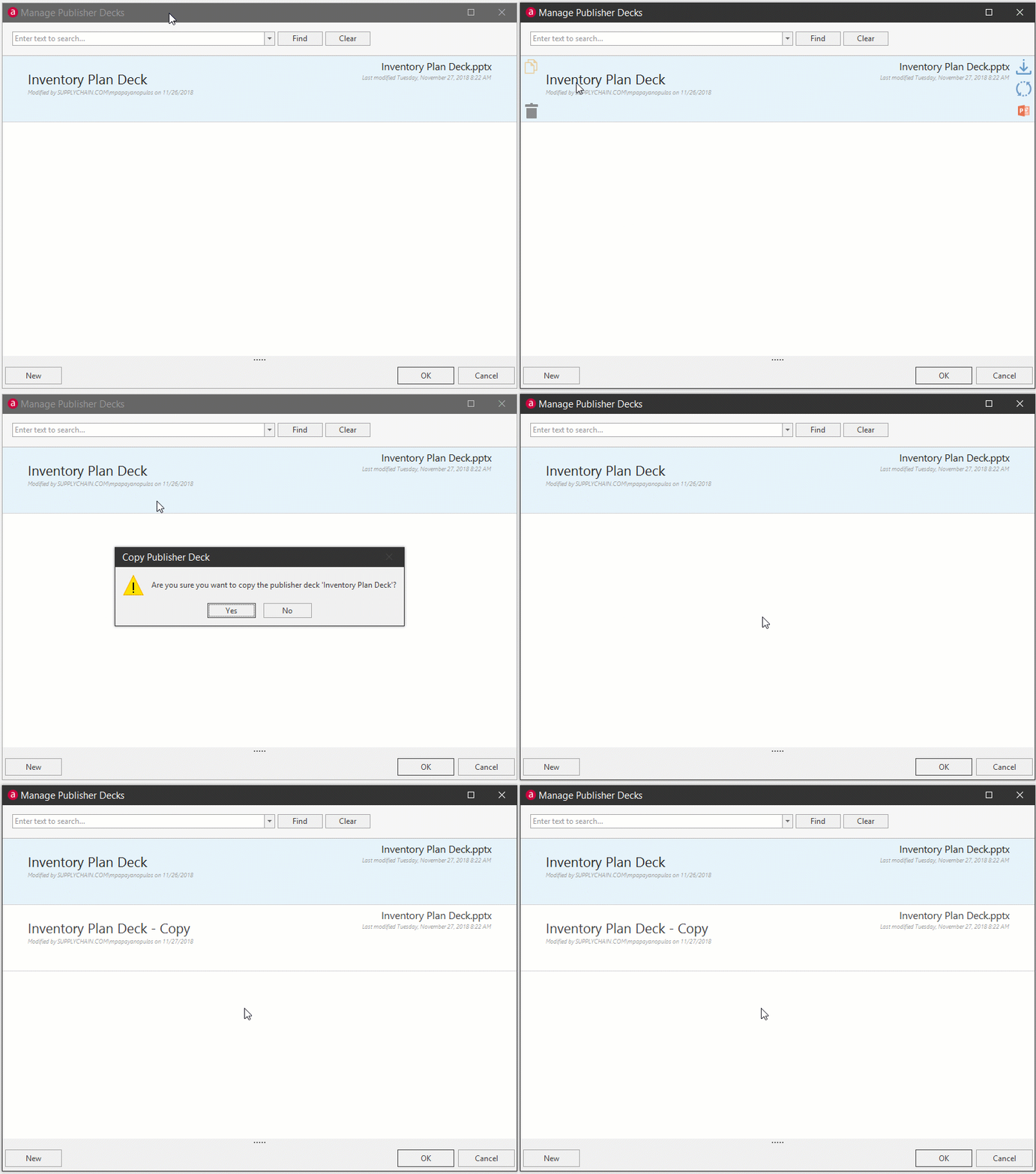
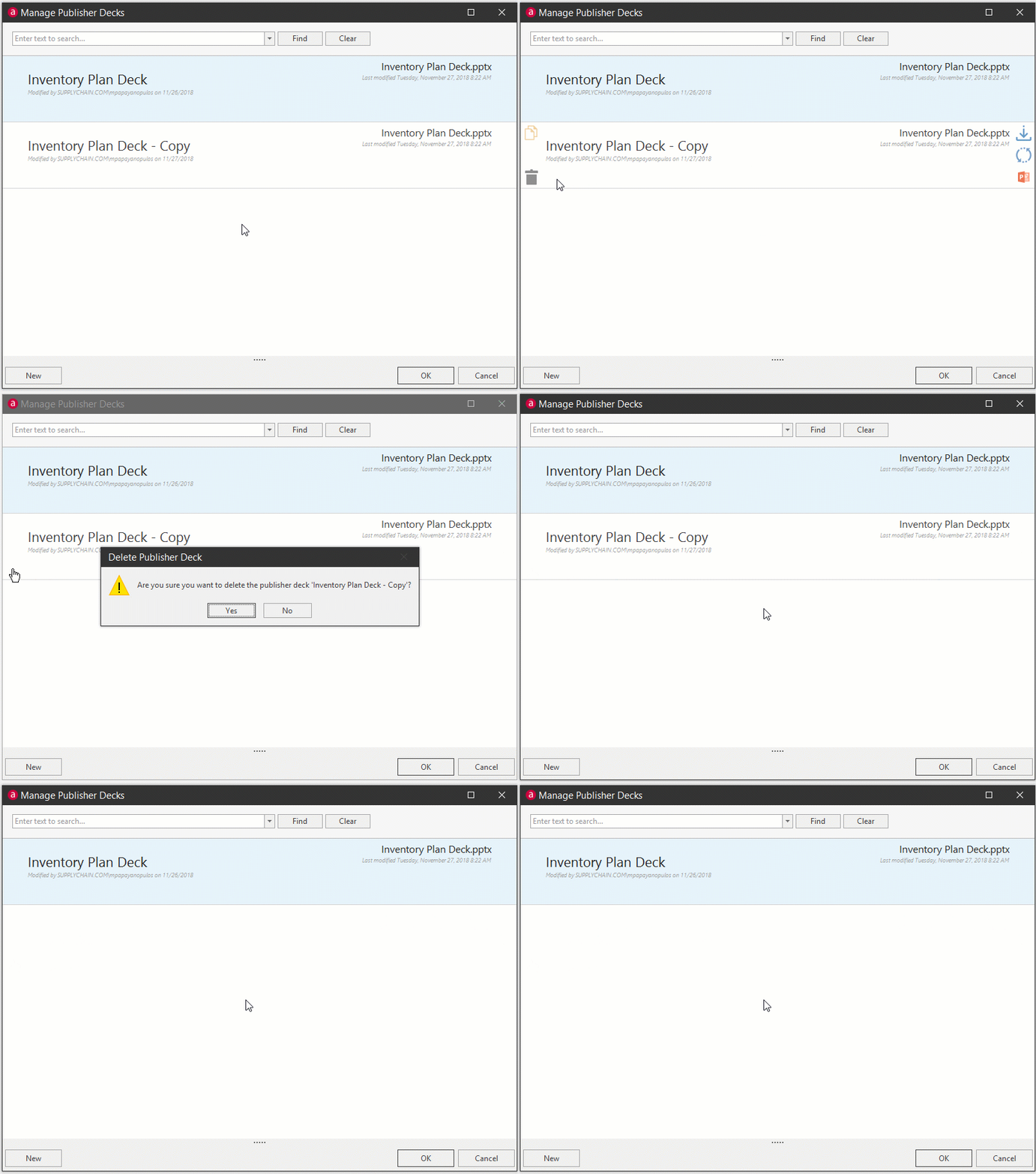
Click Manage to launch the Manage Publisher Decks window. All saved Publisher Decks are saved here.
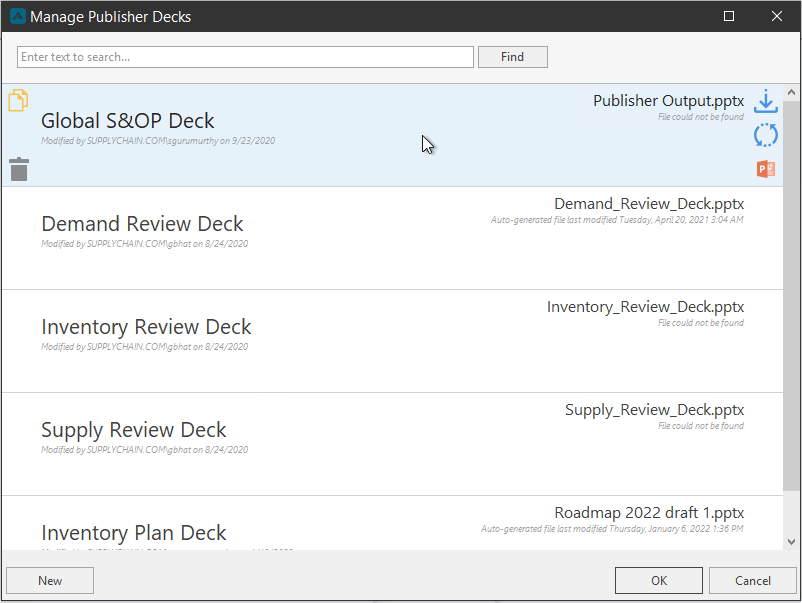
Hover the mouse pointer over the saved deck to view additional commands.

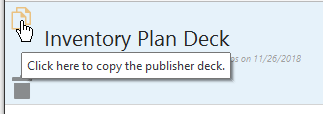
Copy\ Click the copy button to create a copy of the saved deck.
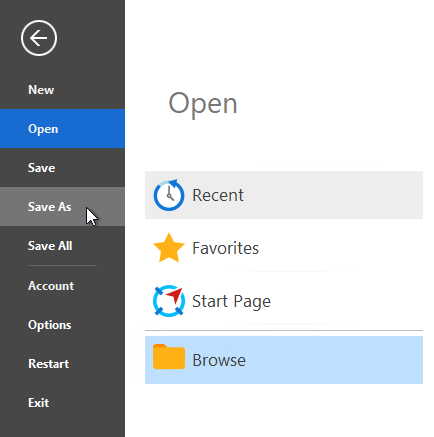
Another way to create a copy of the deck is to open the deck, go to the File Tab and select Save As.
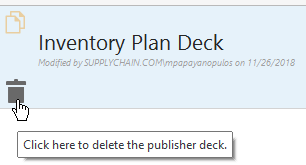
Delete\ Hover the mouse over the saved deck and click the Delete button to delete the deck.
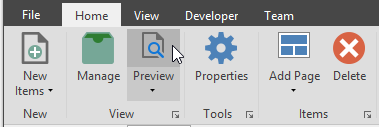
Preview
Click the preview button to launch PowerPoint and view all created publisher pages.
Click the dropdown to select Preview All Slides or Preview Selected Slides in PowerPoint.
Properties
Click the Properties button to launch the deck's Publisher Properties window.
Add Page
Click the Add Page dropdown to select a page layout.
Delete
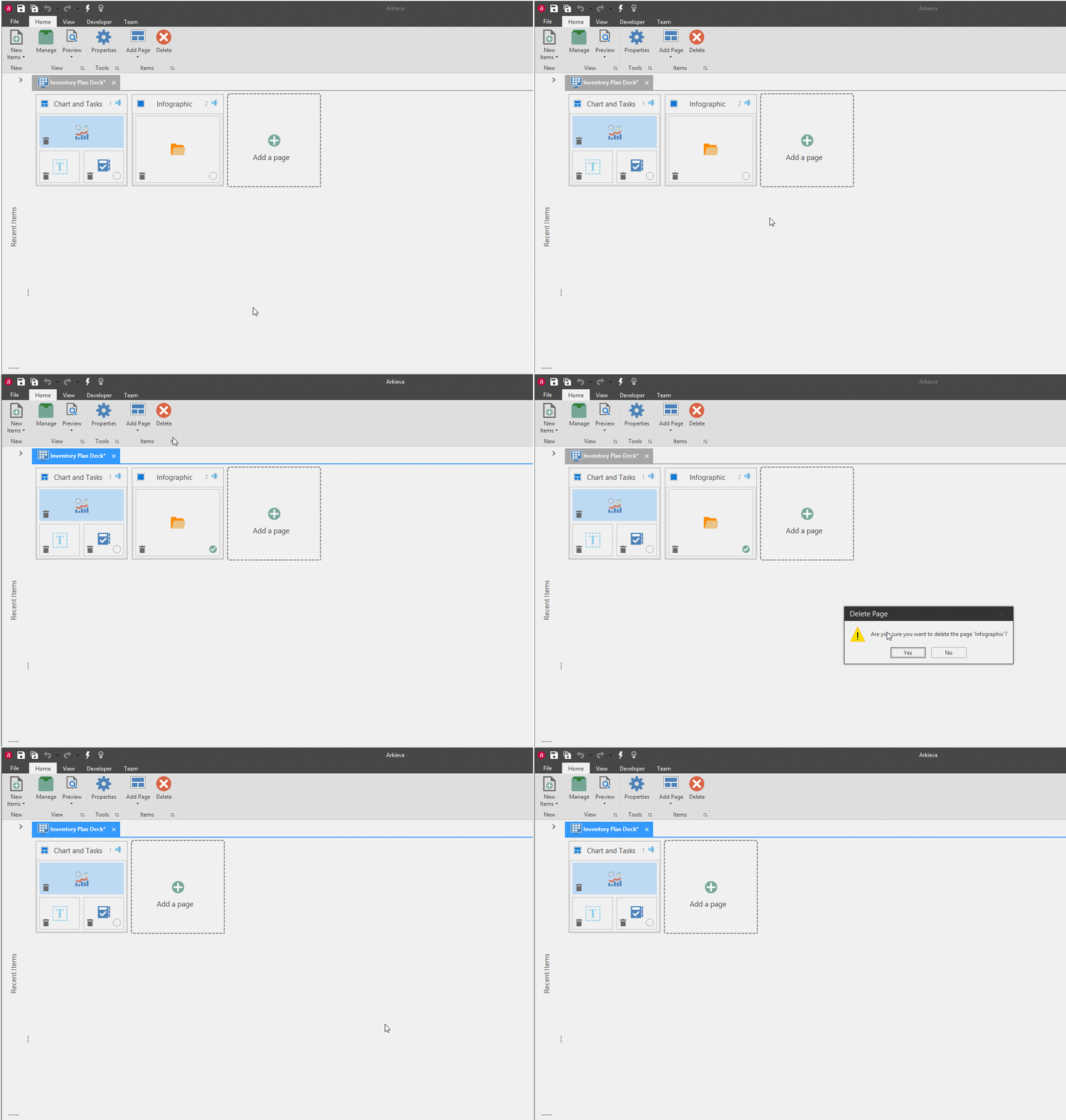
Select a page in the layout and click the Delete button to delete that page.
Related Articles
Agendas and Tasks
Introduction During your S\&OP meeting with the Arkieva Meeting Agenda, you can consolidate S\&OP contextual meeting action items. Capture planning assumptions, tasks, problems, and even collaborate with remote users all within a meeting system ...S&OP Introduction
Why Sales and Operations Planning (S\&OP)?\ Sales and Operations Planning (S\&OP) has been around for decades. S\&OP is much more than just a meeting – it takes into account all the various planning and monitoring processes that are necessary to run ...Arkieva Customer Training Program
The Arkieva Customer Training Program is a customer-centric program aimed at empowering Arkieva customers with the knowledge and skills needed to harness the power of their Arkieva solution to solving complex business problems. ? Go to the bottom of ...