DRP
Introduction
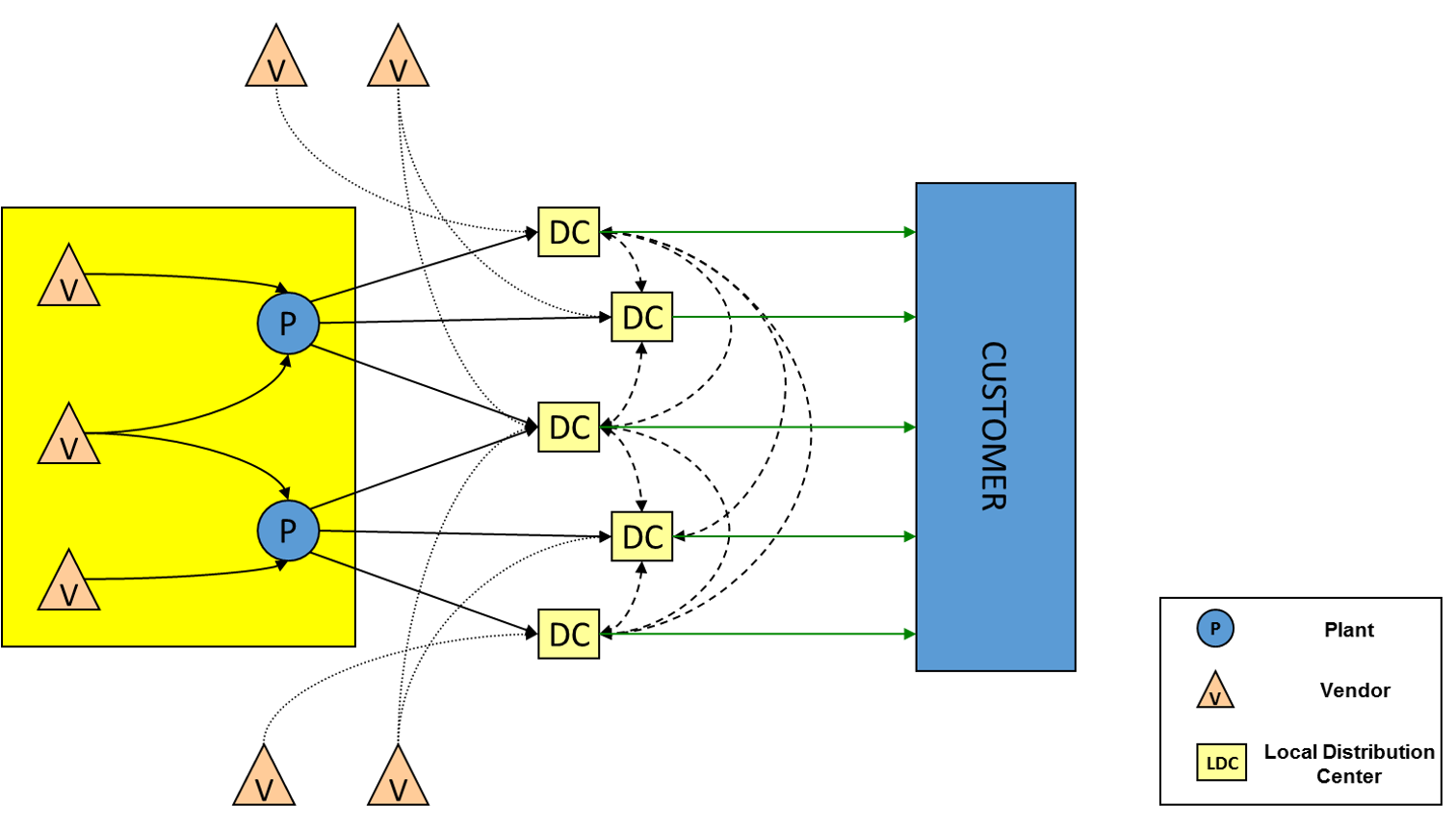
Positioning DRP in the supply chain planning landscape\ Supply chains are often composed of a complex distribution network. There is a need to move products across the different nodes of the network in order to satisfy the customer demand. DRP, in conjunction with inputs from other planning processes, helps calculate how much product to move between the different nodes. Below is an example of a Distribution network:
The picture below shows where DRP fits in the supply chain planning landscape.
Integrated Planning Landscape
Objective of DRP
The objective of DRP is to calculate any stock transfer requirements across locations of a company’s supply chain network. The need for the transfers can originate either from demand (both external and internal), inventory targets, or open production and/or transfer orders. The supply is driven from production (open or calculated with unlimited capacity assumption), procurement, and transfer outs.
📘 Note
The DRP engine is a rule-based engine. It tries to meet the demand by following a sequence of rules. It does not use any costs or penalties to get to the final decision.
Decisions\ The DRP engine makes the following decisions for transport and production:
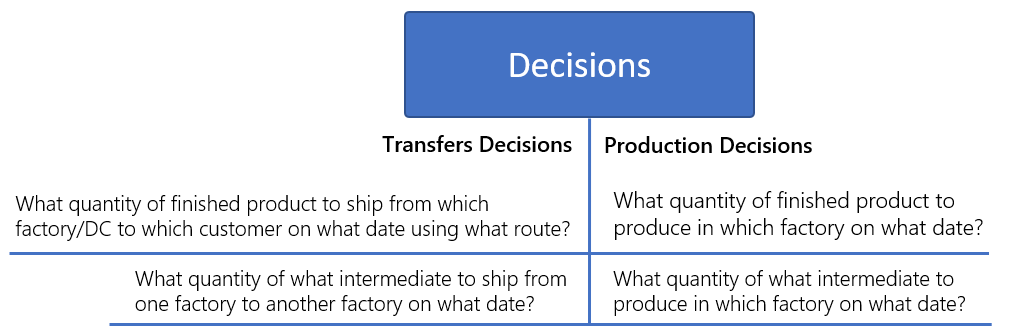
- The shipping plan from each Company shipping location to each customer: the DRP engine will propose the quantities of products to be shipped from each location to each customer using the different possible transportation modes.
- The internal shipping plan from each Company shipping location to the other Company shipping locations: the DRP engine will propose the quantities of products to be shipped from each location to all other locations using the different transportation modes. This includes intermediate movements from one factory to another.
- The production requirements for all factories: the DRP engine will propose which products to produce in what period. This calculation assumes infinite capacity. This includes finished goods, and intermediates.
Objectives
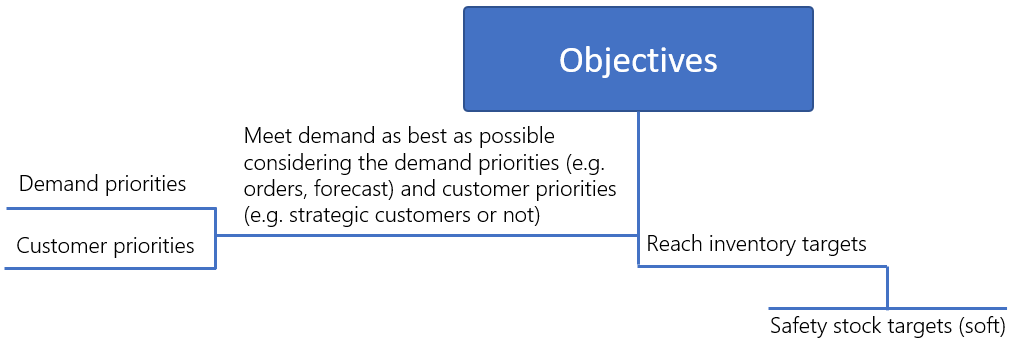
The main objective for the DRP engine is to meet demand. If it is possible to meet all demand, then all is good. If it is impossible to meet all demand, and some demand must be left unmet, the engine will use priorities to decide which demand is more important to serve. Priorities will be defined based on demand type (orders, forecast) and based on customer priorities (strategic, or not). Demand in the near future will be considered more important than demand later on. For example, demand in Period 1 is more important than demand in Period 7. In the same way, unmet demand in the past can also be considered. If demand cannot be satisfied on the day of the demand, unmet demand will be carried forward.
The second objective for the DRP engine is to reach the inventory targets. For inventory nodes in the distribution network, users can define safety stock targets.
Constraints\ DRP works within the bounds of the constraints in the supply chain network in question. Both transportation and production related constraints are considered. This is fed to the model using tables in the database. Examples include:
- What product can be moved between two network nodes?
- What is the lead time between the two nodes?
- What can be produced where?
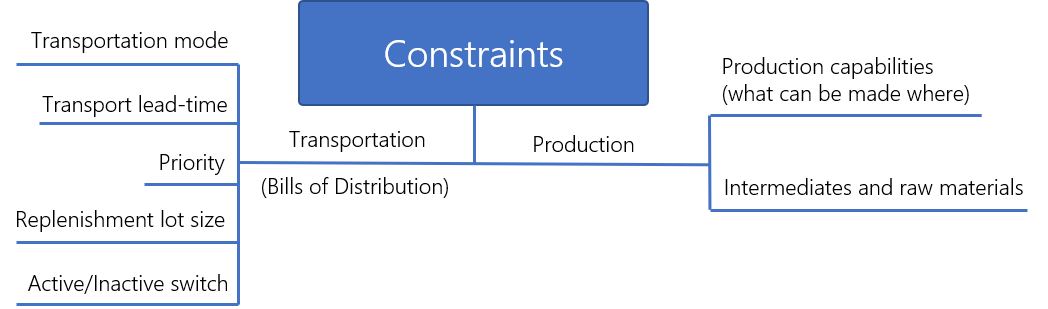
The transportation constraints are listed in the Bill of distribution. It is a table by item, source location, and destination location that allows a user to say how products can be moved across locations. If a particular item-source-destination combination is not listed in the table then the engine will not make transfers for that combination. This table can have multiple columns defined.
- Replenishment lot size is the allowed minimum number of units to be shipped in a particular shipment or transfer. All shipments decided by the engine will be multiples of these numbers.
- Transportation Mode is the travel mode that is used to move the product. Each mode can have different lead time, priority, or replenishment lot size. For the same item-source-destination combination, each allowed mode will have its own row in the table.
- Transit Lead Time is the number of days it takes for the transfer or shipment to happen. In other words, it is the number of days it takes to get the product from the source to the destination using the transportation mode specified in that line.
- Priority allows us to define which source has highest priority for the item-source-destination combination in question. This also allows us to define which mode has higher priority for the item-source-destination combination in question.
- Active/Inactive Switch allows turning off a particular link such that the model will no longer consider it. This allows a user to quickly consider alternatives as what-ifs by shutting a particular link down and measuring the impact.
Resource Availability is used to indicate the time period a particular resource is available. Availabilities are time-dependent. Since the DRP engine is capacity unconstrained, this control is only used to define whether or not a resource is available.
Bills of materials will be used to indicate the relationships between the different product codes. Bills of materials will depend on the routing used. They will indicate the following parameters:
- Intermediates and raw materials: the quantities of each product to be consumed to produce the finished product or intermediate.
- The packaging material needed to produce the finished product.\ This feature in DRP allows to plan intermediate requirements in addition to finished goods requirements. If no bill of materials table is provided, the engine will not calculate material requirements for intermediates and stay at finished good level.
DRP Data Requirements and Data Model
Input Data
DRP is entirely dependent on input data for decision making. The data requirements are quite robust. Data can be imported from a parent source and/or maintained in Arkieva. The section below details the data requirements. Standard input data requirements overview at object level. The following data objects are required.
Master data:
- Item Master
- Location Master
- Bill-of-Distribution (BOD) or routing
- Bill-Of-Material (BOM)
- Inventory targets
- Rules & priorities: Order & forecast priority rules
Transactional data:
- Forecast (incl. different demand types)
- Open Sales Orders
- Historic Sales Orders
- Historic & Open Stock Transfer Orders
- Inventory incl. multiple stock types unrestricted use, blocked, …, in-transit
- Frozen & Planned production
The above tables are imported from the ERP system. Depending on the ERP system the column names and sequence can be different. Usually, after extraction from the ERP system there is a transform step to make it aligned with Arkieva data structures.
For importing data from an ERP system, Arkieva’s data connector is used. If the data is not coming from an ERP system but instead from a data mart, the integration can still be enabled at the database level from SQL server.
These data tables are exposed to the user inside the Arkieva system. The actual tables that are exposed at a particular implementation may look slightly different from what is shown in the templates below.
Bill of Distribution
Bill of Materials
Target Inventory
The above tables and data are then further translated to fit the Arkieva DRP standard data structures. These data structures follow a very strict schema and are designed to work directly with the DRP engine. The section below documents the structure of these tables.
Data model
The DRP data model supports the DRP module within Arkieva. The different data objects and fields are designed to be an end-to-end representation of the physical material flow through the supply network. The data objects can be classified in two categories:
- Objects holding static data
- Objects holding dynamic data\ Static data does not change when making different DRP plans. Examples include material master, location master, etc.
On the other hand, dynamic data does change. Examples include shipment or transfer plans, production requirements, etc.
The DRP module shares the data model with different other Arkieva modules like: Scheduling and RCCP.
Through below links more information on the DRP data model can be found:
- Item
- Stock
- Bill of Materials
- Demand Type
- …
- Demand
- Procurement
- Distribution
- Routing
- Stock Adjustments
- Transfers
- …
DRP GUI
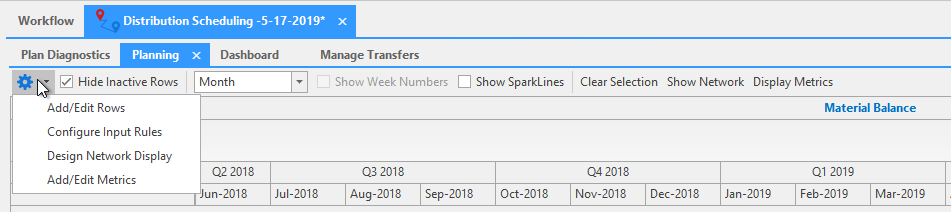
Below screenshot shows the DRP GUI.\ In addition, the Arkieva DRP uses general features such as table editor, quick reports, and workbenches to make data available to the users. One can read more about at the links below.
- Workbench
- Tables Editor
- Quick Reports
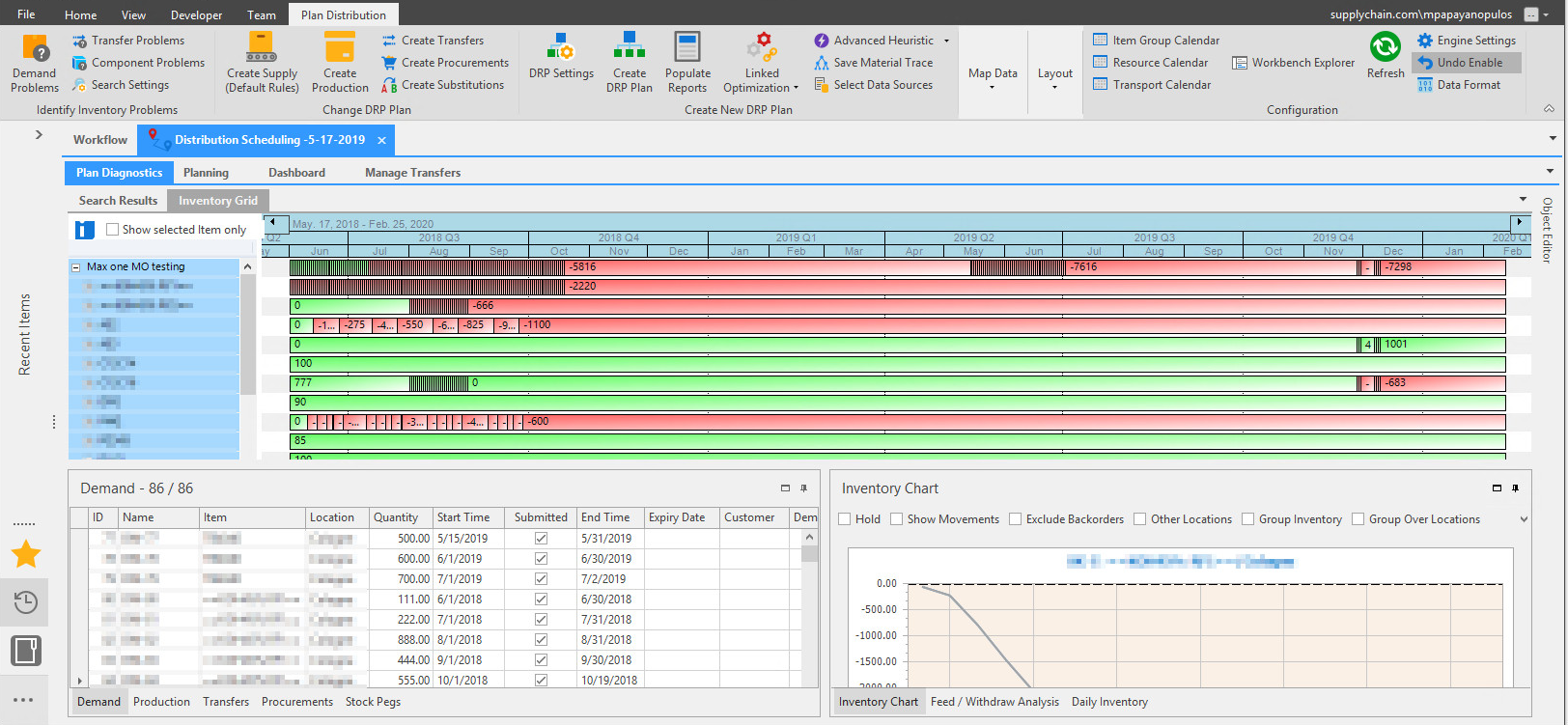
Search
- Shortages: Looks at each object that uses inventory and reports if there is insufficient inventory.
- Shortages by Order: Looks at each demand and reports the material shortages.
- Shortages by Transfer: Looks at the list of stock transfers and reports if there is insufficient material at the source for the transfer.
- Shortages by Component: Looks at each manufacturing order and the components required to make the production based on the Bill of Material. Displays the components and how much tis required.
- Find Alternates: This looks for the alternate items that can be substituted, checks their stock position and if feasible, creates product substitutions. The substitutions are represented by stock transfers (at the same location) which take zero time.
- Search Settings: (Not used by DRP)
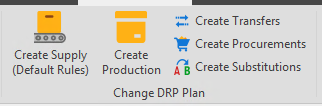
Change DRP Plan
- Create Supply: The algorithm creates supply for each shortage that is identified.
- Create Production: Looks at the search results and creates production orders for materials.
- Create Transfers: Look for stock at other locations, and if there is inventory available which will not be used to satisfy demand, create transfers to replenish the inventory at the required location.
- Create Procurements: Looks at each of the shortages displayed and if necessary, creates a procurement order for the stock.
- Create Alternate Transfers: Look for alternate stock at other locations, and if there is inventory available which will not be used to satisfy demand, create alternate transfers to replenish the inventory at the required location.
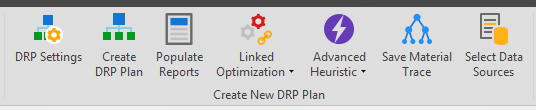
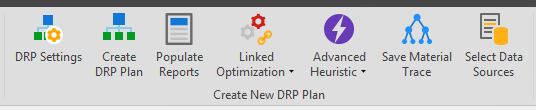
Create New DRP Plan
- DRP Settings: Check General, Production, Order Controls, and Transfer Settings to configure the Engine. Click on the link for explanation: DRP Setting
- Create DRP Plan: Create a DRP plan by looking at the demands in time and priority order.
- Populate Reports: create reports after creating the DRP plan.
- Linked LP: Create an LP report or import an LP report to be apart of the DRP.
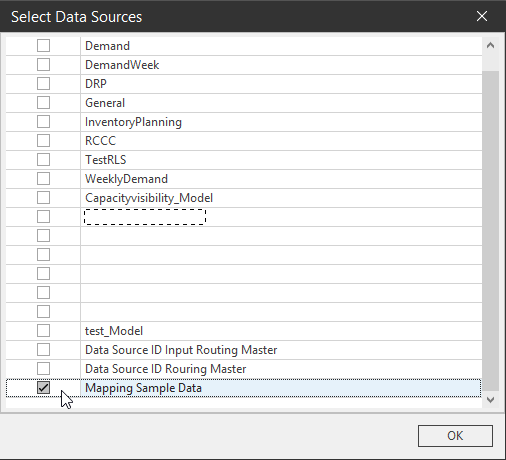
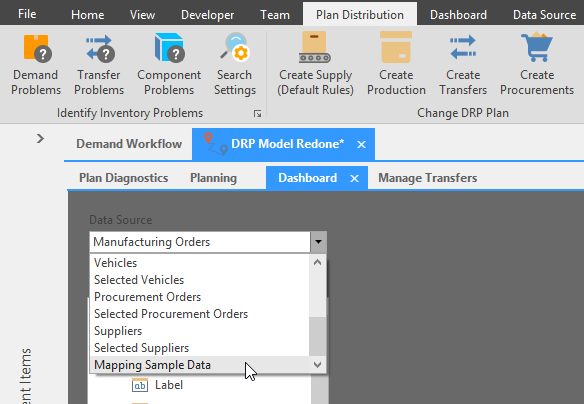
- Select Data Sources: Click the button to select an outside Data Source for use in creating a dashboard in the DRP document.
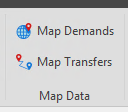
Map Data
- Map Demands: display the demands geographically.
- Map Transfers: display the transfers geographically.
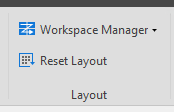
Layout
- Workspace Manager: capture the DRP and save it to the desktop.
- Reset layout: reset to default layout after rearranging tabs and windows.
Configuration
- Item Group Calendar: view the item group against the calendar.
- Resource Calendar: view resources against the calendar.
- Transport Calendar: view transports against the calendar.
- Workbench Explorer: List of available work benches can be selected from the drop down. From the selected workbench, it gives provision to drag and drop required columns in the workbench.
- Refresh: refresh the DRP
- Engine Settings: launch the DRP engine Scenario tab settings.
- Undo Enable: If this button is enabled in the screen, when clicked, the last change made on the screen can be undone.

Select Data Sources
Click the button to select an outside Data Source for use in creating a dashboard in the DRP document.
The selected data sources will be the only ones loaded into the dashboard aside from the standard scheduling object data sources. This selection list is saved at the document level.
Planning Workbench
Workbench Settings saved to Document\ Previously workbench settings changes could not be saved, now when a user makes changes to the workbench settings, they are saved to the document.
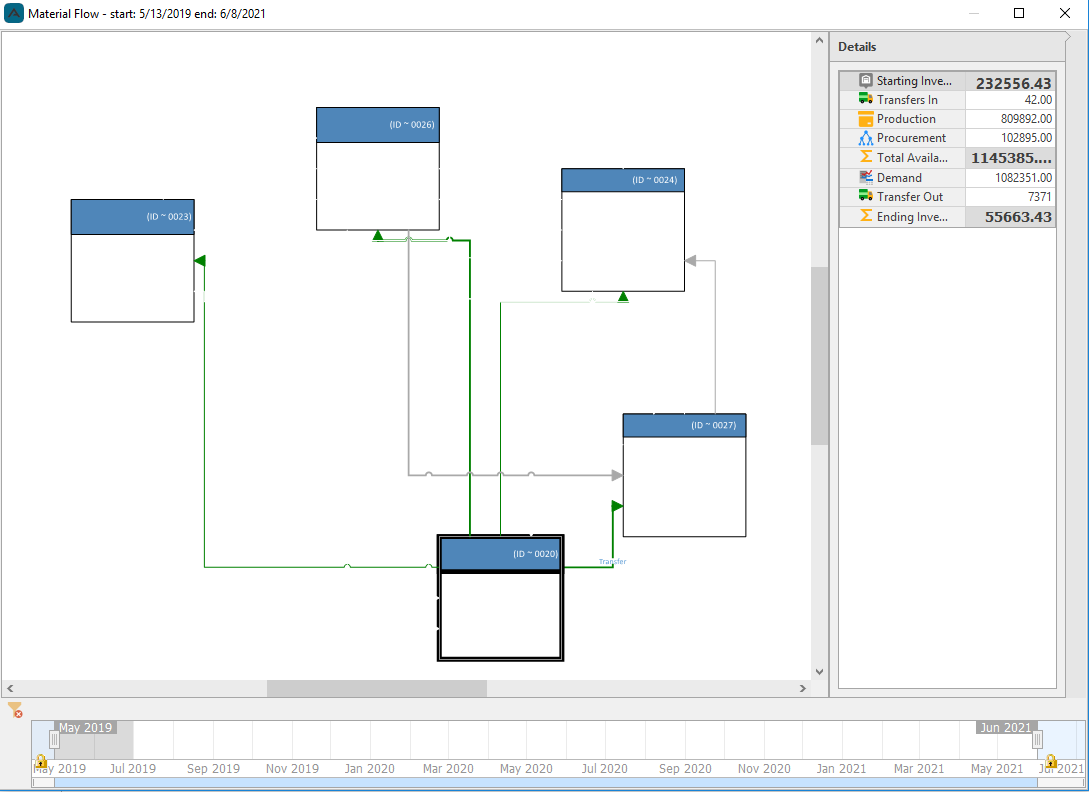
Material Flow\ Consultants can create workflows that users can then view in the DRP Planning Workbench.

Planning Process
The Arkieva DRP is used in a business setting with many participants in the planning process. Therefore, a detailed planning process is needed to ensure that all steps are carried out. There are three distinct parts of this process:
- Planning Team Process Overview: this is followed by the supply chain planning team as a whole and provides inputs into the DRP process.
- Planner Process Overview: this is what the planner has to do right before and after running the DRP engine.
- Engine Process Overview: this is what the engine does in the background to run the calculations.
Planning Team Process Overview
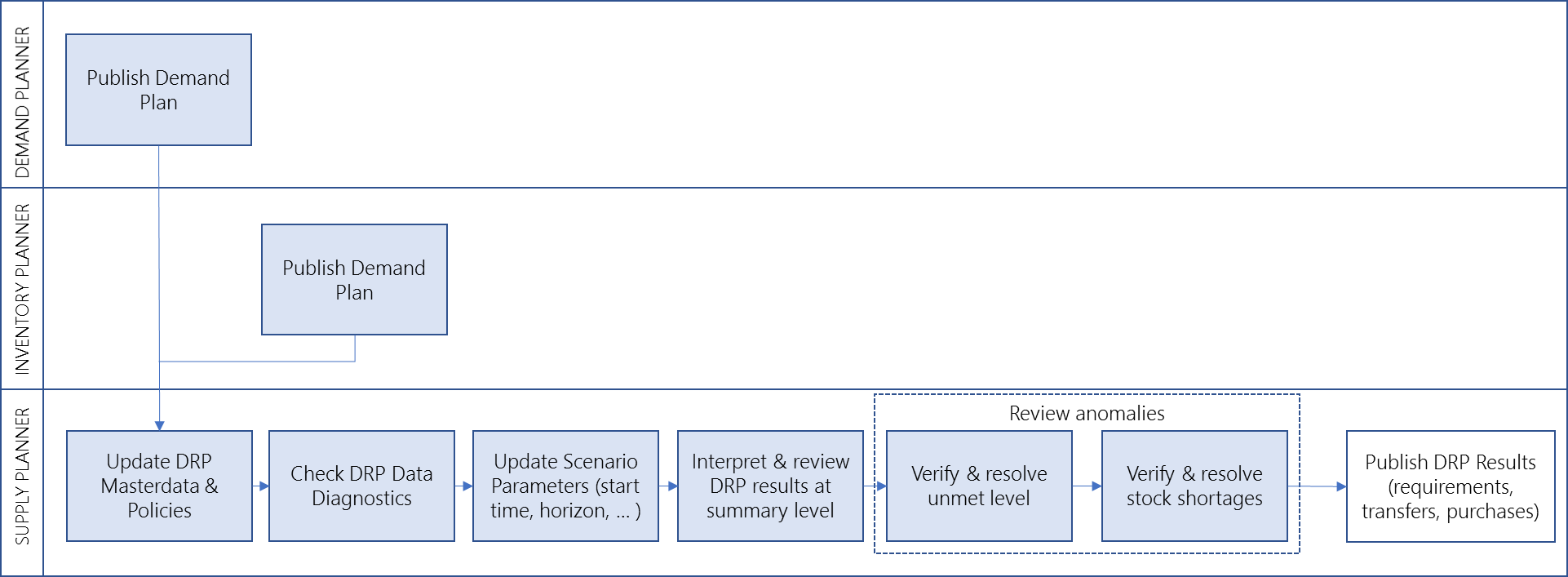
Envisioned best practice business process (steps & roles involved)
Steps
- The Demand Planner finalizes the Demand Plan.
- The DRP Planner updates the DRP data in ERP or in Arkieva.
- The DRP Planner or the Automated Connector imports the demand and other data from ERP as needed.
- The DRP Planner validates the quality of the data using the data diagnostics.
- The DRP Planner updates the scenario parameters. These parameters include start time, horizon, etc.
- The DRP Planner reviews the results at the summary level via dashboards and reports.
- The DRP Planner reviews anomalies such as unmet demand and unmet inventory targets via detailed drilldown reports.
- The DRP Planner finalizes and publishes.
Planner Process Overview
The user has to execute the right process to use the engine to come up with a plan. The following steps show how a planner goes through this process.
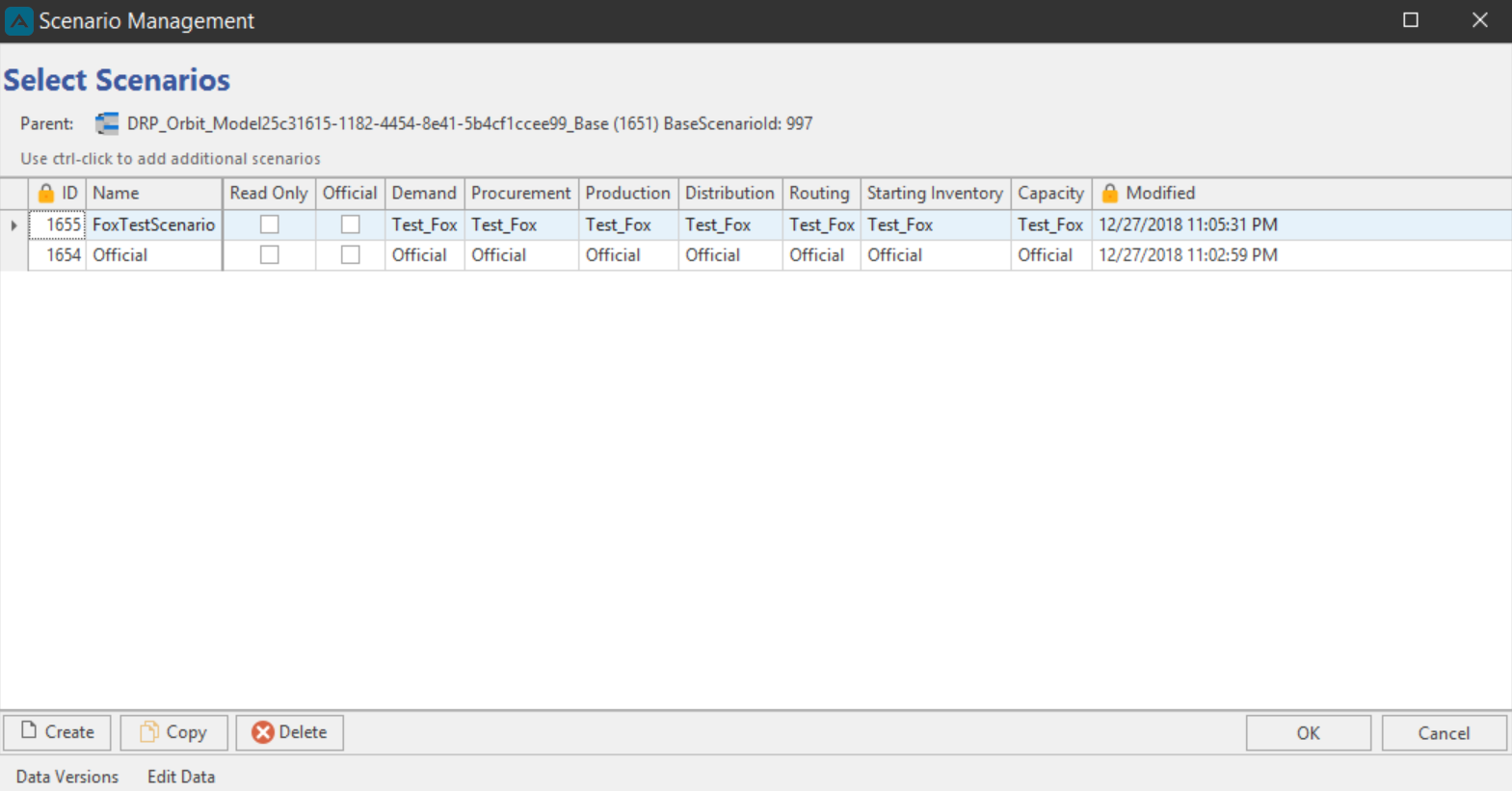
1. Validate Scenario Settings\ When the DRP component is launched it shows the scenario management screen.
The planner should select the appropriate scenario and also check the relevant settings. For example, ensure that the right demand, production, procurement, and tables have been selected via dropdown in the scenario screen as shown in the screenshot below. Check if other scenario settings are correct.
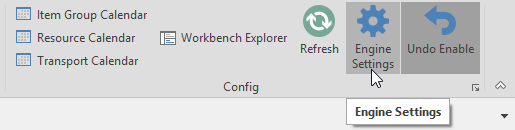
2. Validate Engine settings\ You can launch the Engine Settings from the Plan Distribution ribbon’s Config section. The DRP horizon starts at the Schedule Start Time and the number of days in the horizon equals Frozen Days + Flexible Days + Free Days.
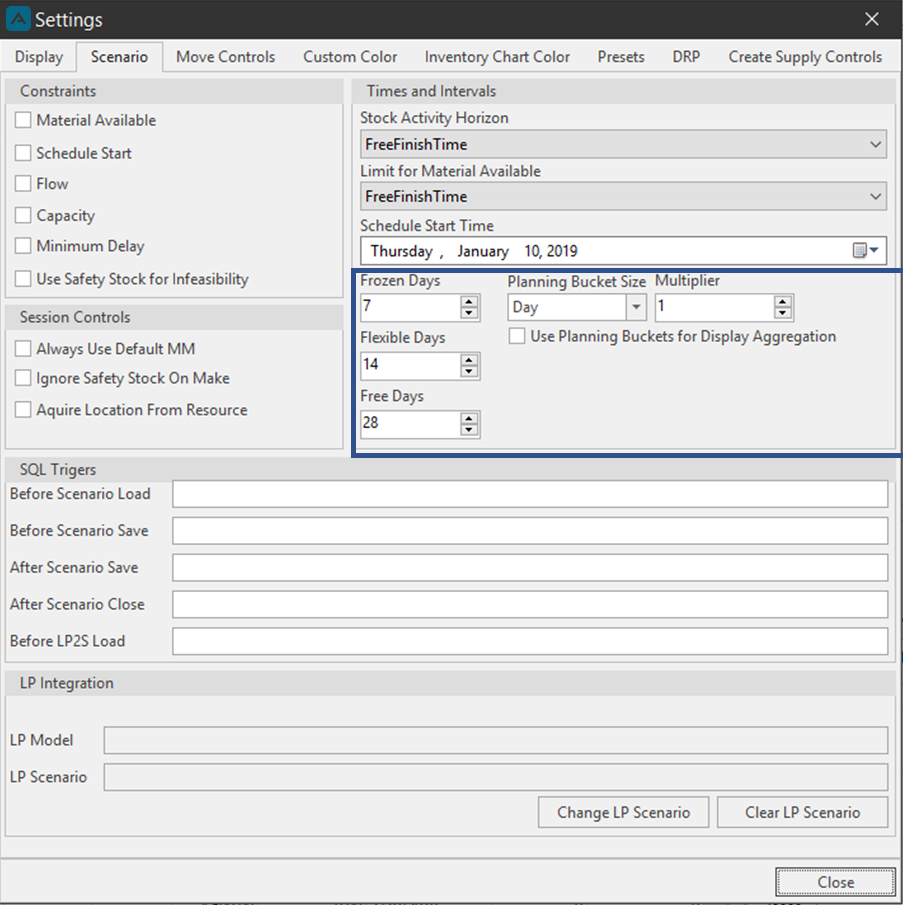
There are many tabs in this dialog. Most of them pertain to scheduling. The DRP tab and the Scenario tab are relevant to DRP. For the DRP tab, see below. The following controls in the scenario tab are used by DRP:
- Schedule Start Time: Start time of the model
- Frozen Days + Flexible Days + Free Days describe the horizon of the model. The planner should ensure that the number of days matches their desired planning horizon.
- Planning Bucket Size describes the size of the planning bucket.
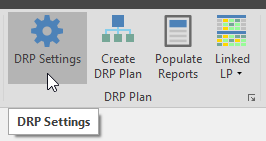
3. Validate DRP settings\ You can launch the DRP settings from DRP Plan section of the Plan Distribution ribbon. It is also available under the DRP tab in the Engine settings as shown above.
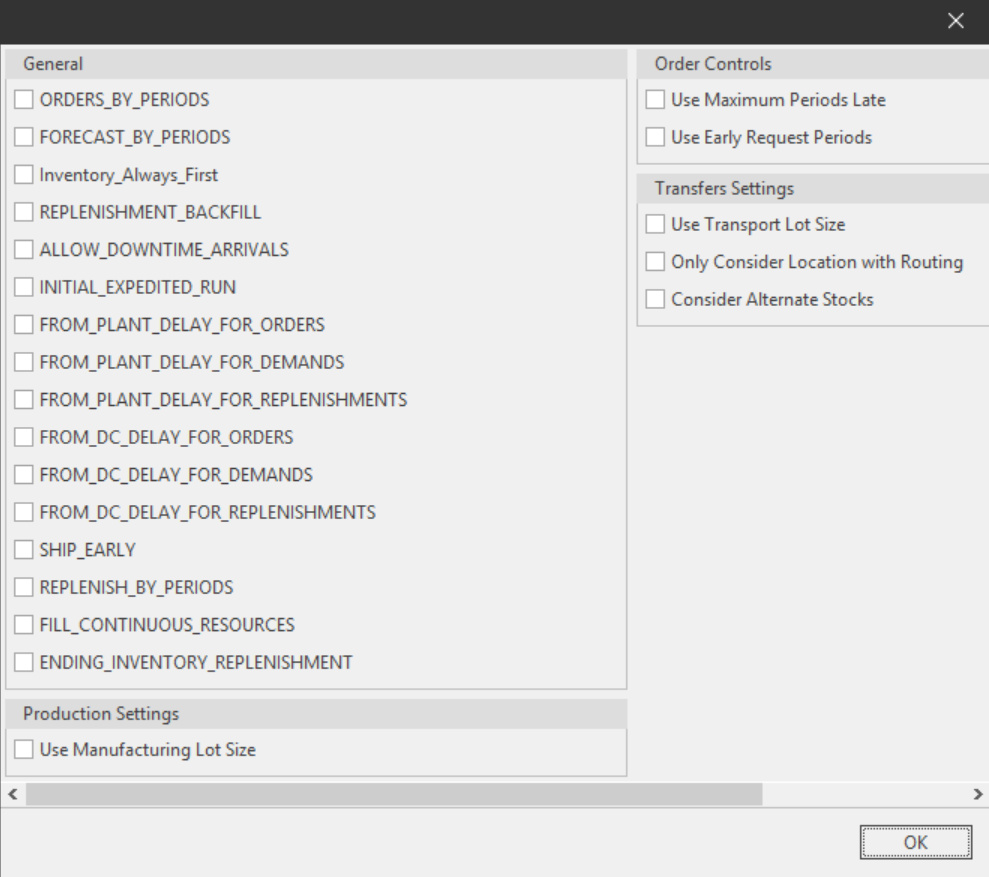
Currently, only the following entries are considered by the engine. The rest are place keepers for future functionality.
- Orders By Periods: When this is checked, The open orders are processed in sequence, with the DRP stepping through the entire time horizon attempting to satisfy a single order before moving on to the next one.
- Forecast By Periods: When this is checked, the forecasts are processed in a similar way after the open orders have completed.
- Replenish By Periods: When this is checked, the replenishments are processed as defined in the section called Engine Process Overview.
- Initial Expedited Run: When this is checked, all of the orders marked for expedite are processed first, before the remaining demands, forecasts, or replenishments. The expediting is only done for those demand items that are marked as yes in the expedite column of the demand table (bt_sch_demand).
- Ship Early: Normally produced items remain at the plant until the latest time they can be shipped in order to meet demand. When this option is checked, items are shipped to the demand site immediately after production.
- Use Manufacturing lot size: the model will use the manufacturing lot size that is defined. In this case all manufacturing quantities will be integer multiples of the manufacturing lot size.
- Use Transport lot size: the model will use the transport lot size that is defined. In this case all shipment and transfer quantities will be integer multiples of the transfer lot size.
- Only Consider Location with Routing: when checked, the model will only consider the possible locations with routes defined.
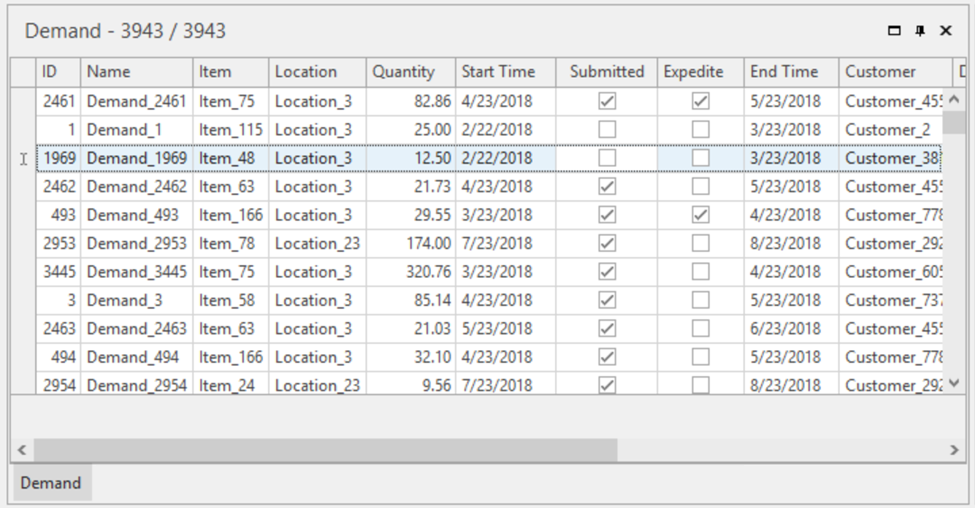
4. Select Demand\ Select demand(s) for which the DRP plan has to be created by making sure the submitted column is checked. See screenshot below. The Demand tab is located at the bottom left hand side of the component.
An example of where this might be useful is that the planner might want to take out all forecasts or some forecasts or some orders from consideration of the engine. They can do so by unchecking the submitted box for those demand line items in the GUI.
As you can see in the screenshot below demand on rows 2 and 3 have not been submitted to demand.
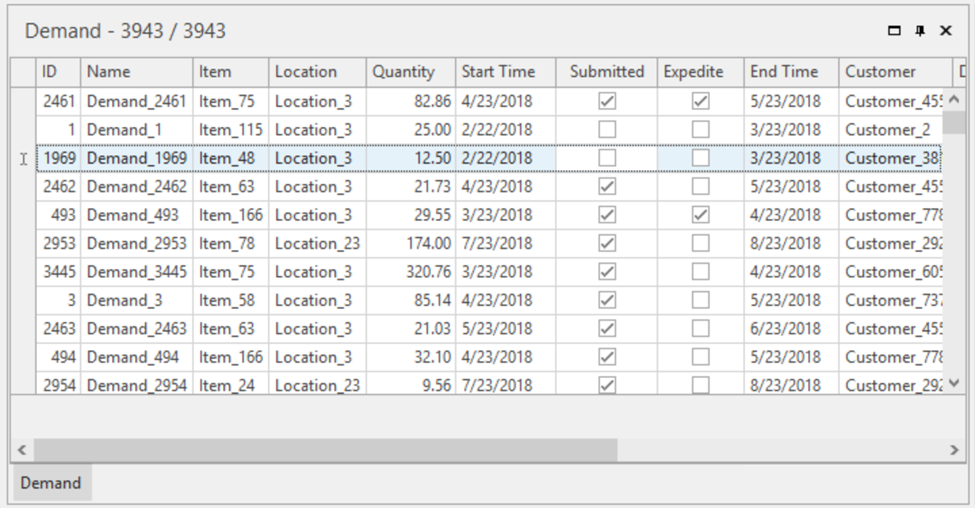
5. Select demands for expediting\ In the demand table (bt_sch_demand), there is a field which allows expediting that particular demand. The planner can do so by checking the expedite box in the demand section of the GUI. See screenshot below to see that demand in rows 1, 5 have been selected for expediting.
6. Check other input data via data diagnostics\ The DRP Engine comes with Data diagnostic reports to facilitate the detection and correction of data issues. The planner can review any inconsistent data that can result in wrong results or abnormal outputs using the data diagnostic reports. Below is an overview of these reports together with a short description of each.
The data diagnostics are context sensitive and are configured for individual projects. The diagnostics listed below and the screenshots after are templates that can be used as a starting point for further fine-tuning.
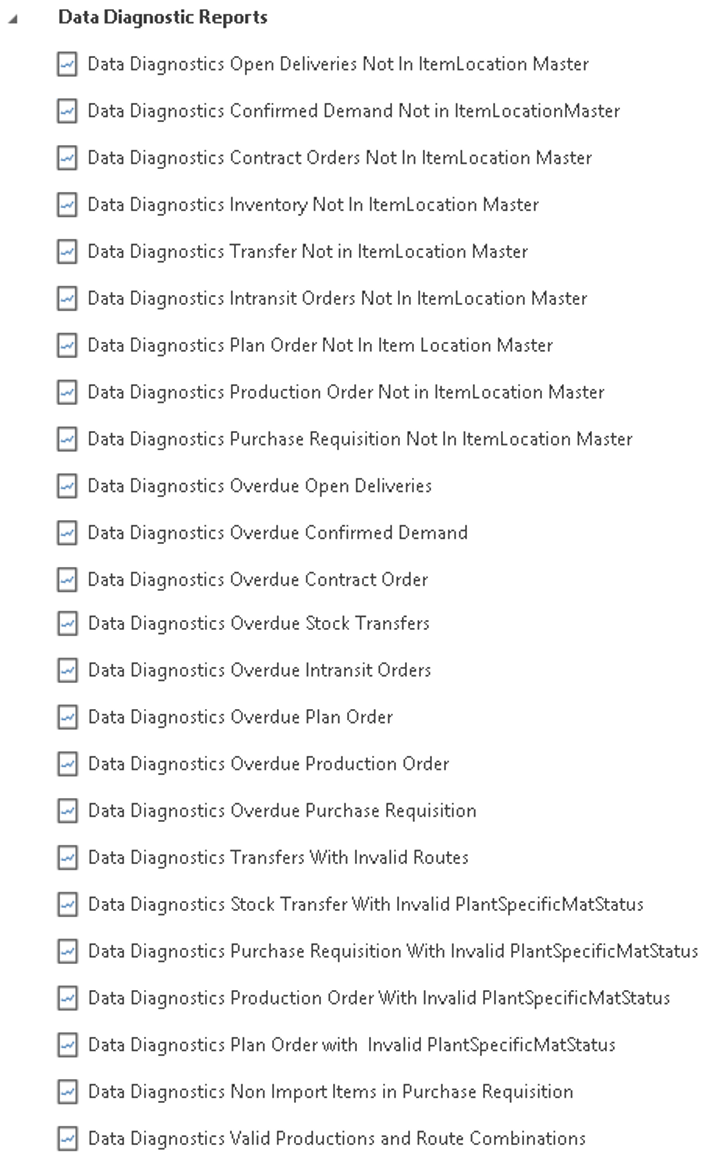
Data Diagnostics Open Deliveries Not in Item Location Master
- This report displays all the open deliveries that are not present in the Item Location Master. Details such as SKU, location, sales document number, item number, delivery document number, delivery document item number, delivery document category, delivery type, customer number, overall document processing status, batch number, storage capacity, sales UOM, base UOM, transaction date, delivery date, conversion of sales quantity into SKU, committed quantity and issued quantity are displayed.
Data Diagnostics Confirmed demand not in Item Location Master
- This report displays all the confirmed demand that are not present in the Item Location Master table. Details such as sales document number, item number, schedule line number, plant code, item code, sold to customer, sales UOM, confirmed delivery date, requested delivery date, cumulative ordered quantity, ordered quantity, confirmed delivered quantity and open quantity are listed.
Data Diagnostics Contract Orders not in Item Location Master
- This report displays all the contract orders that are not present in the Item Location Master table. Details such as sales document number, item number, schedule line number, plant code, item code, customer code, confirmed delivery date, requested delivery date and cumulative ordered quantity are listed.
Data Diagnostics Inventory Not in Item Location Master
- This report displays the inventory that are not present in the Item Location Master table. Details such as SKU, location, Batch number, storage location, shelf life expiration date, unrestricted use stock, in transfer stock, in quality inspection stock, blocked stock, total restricted stock and total stock are displayed.
Data Diagnostics Transfer not in Item Location Master
- This report displays all the transfers that are not present in the Item Location Master table. Details such as Purchasing document number, Item number, Schedule line number, Source Plant, Destination Plant, item code, Purchase order UOM, item Delivery date, item quantity, scheduled quantity and quantity of goods received are also displayed.
Data Diagnostics In-transit orders Not in Item Location Master
- This report displays all the in-transit orders that are not in Item Location Master table. Details such as Purchasing document number, Item number, delivery document number, SKU, source plant, destination plant, goods issue date, goods receipt date, delivery data and quantity in transit is displayed.
Data Diagnostics Plan order not in Item Location Master
- This report displays all the plan orders that are not in Item Location Master table. Details such as Planned order number, Planning plant, plant code, storage location, item code, planned order start date, planned order finish date, firming indicator and planned quantity are displayed.
Data Diagnostics Production Order not in Item Location Master
- This report displays all the Production orders that are not in Item Location Master table. Details such as production order number, planned order number, planning plant code, item code, scheduled release date, start date, finish date, scheduled finish date, actual delivery finish date, commitment date, opening date, production UOM, total order quantity, order item quantity, goods received quantity and open quantity are displayed.
Data Diagnostics Purchase Requisition not in Item Location Master
- This report displays all the Purchase Requisition (PR) that are not in Item Location Master table. The report also has details such as PR number, PR item number, destination plant, item code, requisition date, item delivery date, UPM, quantity, ordered quantity and open quantity are displayed.
Data Diagnostics Overdue Open Deliveries
- This report gives a list of overdue open deliveries. Details such as delivery document number, item number, delivery document category, delivery type, customer number, location, SKU, overall document processing status, overall document item processing status, storage location, batch number, delivery date, sales document number and sales document item number are also displayed in the report.
Data Diagnostics Overdue Confirmed Demand
- This report displays overdue confirmed demand. It shows details such as Sales document number, Item number, Schedule line, Plant code, Sold-To customer, requested delivery date, confirmed delivery date, cumulative ordered quantity, ordered quantity, confirmed delivery quantity and open quantity.
Data diagnostics Overdue Contract Order
- This report captures the overdue contract orders. Details such as Sales document number, item number, schedule line, Plant code, Item code, customer code, confirmed delivery date, requested delivery date, sales UOM, cumulative ordered quantity, ordered quantity, confirmed delivered quantity and open quantity are displayed.
Data Diagnostics Overdue Stock Transfers
- This report displays the list of overdue stock transfers. Details such as Purchasing document number, Item number, Schedule line number, Source Plant code, Destination Plant code, item code, Purchase order UOM, item delivery date, item quantity, scheduled quantity and quantity of goods received are also displayed.
Data Diagnostics overdue In-transit Orders
- This report displays the overdue in-transit orders. Details such as Purchasing document number, Item number, Source Plant, destination plant, item code, delivery document number, delivery date, Goods issue date, goods receipt date, UOM and quantity in transit are displayed.
Data Diagnostics overdue Plan Order
- This report displays the overdue Plan order. Details such as Planned order number, Planning plant, plant code, base UOM, Storage location, item code, firming indicator, planned order finish date, planned order start date and planned quantity are displayed.
Data Diagnostics Overdue Production Order
- This report displays the overdue production order. Details such as Production order number, planned order number, planning plant code, production plant code, item code, commitment date, opening date, actual delivery finish date, scheduled finish date, start date, finish date, scheduled release date, production UOM, Total order quantity, order item quantity, goods received quantity and open quantity are displayed.
Data Diagnostics Overdue Purchase Requisition
- This report displays all the overdue Purchase Requisition (PR). The report also has details such as PR number, PR item number, destination plant, item code, requisition date, item delivery date, UOM, quantity, ordered quantity and open quantity.
Data diagnostics Transfer with Invalid Routes
- This report displays all the transfers existing in SAP and that do not have a valid route defined in Arkieva table. Details such as - from location, to location, purchasing document number, Item number, Schedule line number, source plant code, destination plant code, Item code, UOM, item delivery date, quantity, scheduled quantity and quantity of goods received are displayed.
Data Diagnostics Stock Transfer with invalid Plant specific material status
- This report shows all the stock transfers existing in SAP with invalid plant specific material status. Details such as Purchasing document number, item number, schedule line number, source plant code, source material status, source procurement type, source procurement key, destination plant code, destination material status, destination procurement type, destination procurement key, item code, delivery date, quantity, scheduled quantity, quantity of goods received are displayed.
Data diagnostics purchase requisition with invalid plant specific material status
- This report displays all the purchase requisitions (PR) IN SAP with invalid plant specific material status. Details such as PR number, item number, destination plant, item code, requisition date, item delivery date, UOM, plant specific material status, procurement type, special procurement key, quantity, ordered quantity and open quantity.
Data Diagnostics Production order with invalid plant specific material status
- This report shows all the Production orders existing in SAP with invalid plant specific material status. Details such as Production order number, planned order number, planning plant code, production plant code, item code, Scheduled release date, start date, finish date, opening date, Actual delivery finish date, commitment date, scheduled finish date, Total order quantity, order quantity item, Goods received quantity and open quantity.
Data diagnostics plan order with invalid plant specific material status
- This report shows all the planned orders in SAP with invalid plant specific material status. Details such as Planned order number, Planning plant, plant code, Storage location, item code, planned order start date, planned order finish date, plant specific material status, procurement type, special procurement key, firming indicator and planned quantity are displayed.
Data diagnostics non-import items in purchase requisition
- This report lists all the non-import items in purchase requisition (PR) file in SAP. Details such as PR number, item number, Location, SKU, destination plant, item code, base unit of measure, item delivery date, requisition date, quantity, ordered quantity and open quantity are displayed.
The following screenshots show some template data diagnostics screens.
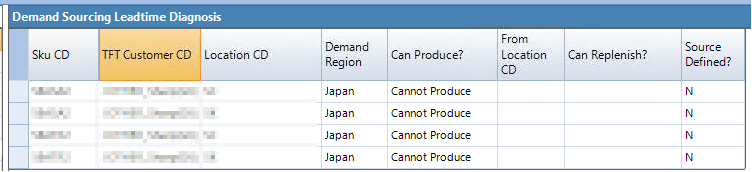



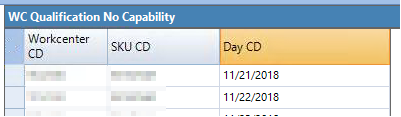
7. Run the engine\ The planner should run the engine by clicking on the ‘Create DRP Plan’ button as shown in screenshot below. The engine follows the engine process as defined later in this document.

8. Validate results\ The engine creates a list of reports which can be used to analyze the results. The reports shown below are templates which can be used to configure other reports. The reports created are Workbenches and Quick Reports.
Inventory summary report
Demand summary report
Material balance report
Transfer summary report
Purchase summary report
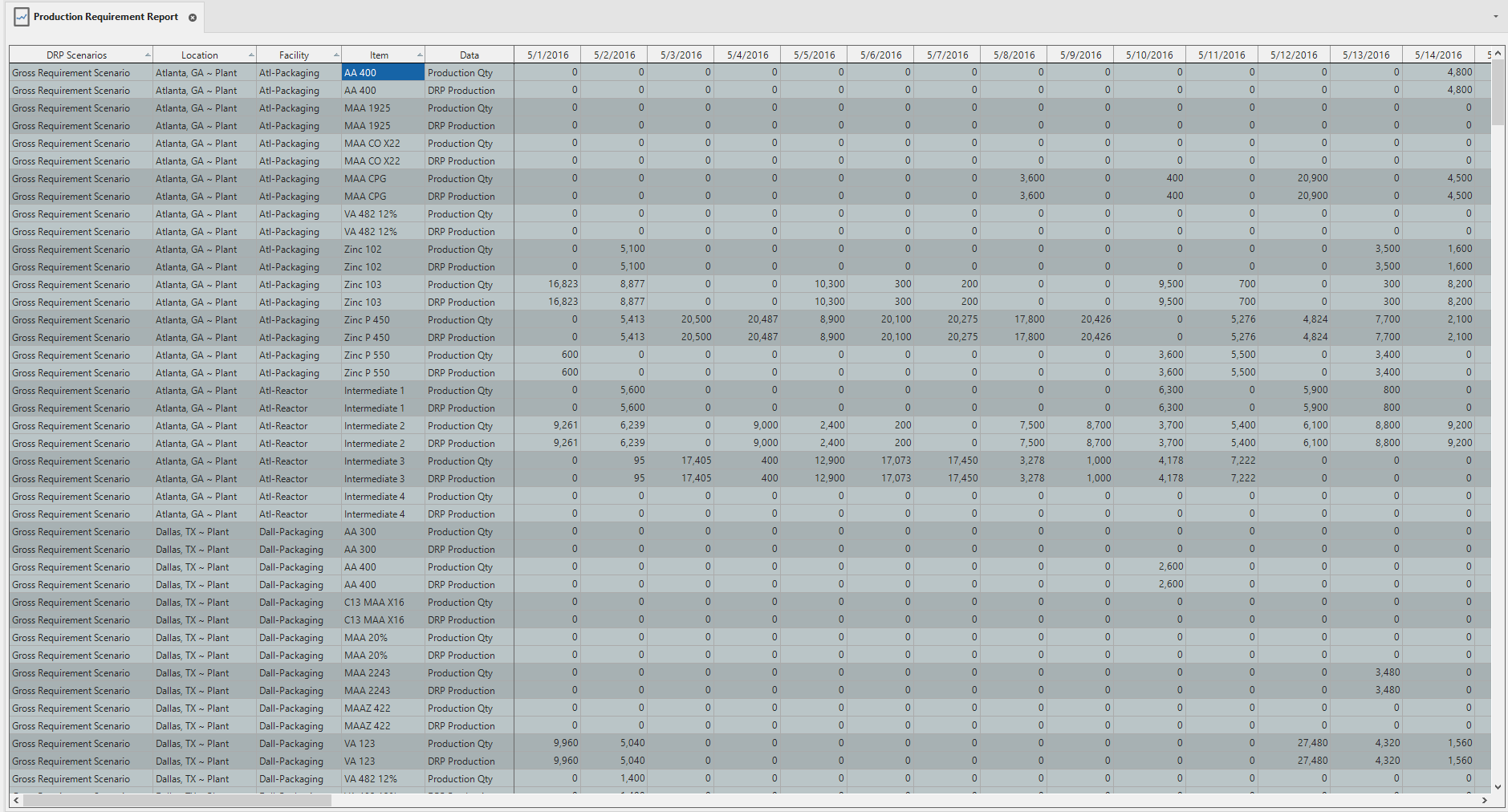
9. Check for Anomalies and/or Imbalances\ Every time the engine is run, the planner should ideally look for anomalies in the result. This is needed more in the stage right after the project goes live. The steps below usually help with this.
Summary checks\ These are only required in the very early part of the project, in many cases, before going live.
- Check high level summary of the major variables and see if it makes sense.\ For example, if total production (which is for meeting demand) is higher than total demand plus inventory target, this can mean there is a need to revisit the results. Likewise, if total Export (or shipment to customer) is greater than demand, it can indicate there is something wrong.
- Check the total unmet demand and see if it is similar to expected value. If it is significantly lower or higher than the expectation, there can be some errors.
- Load material balance report and validate result of some random products and locations.
Specific checks\ Even a well working model can sometimes throw odd results. In these cases, the planner can review the check using these steps as examples.
Case 1: Unmet demand
- Load the unmet demand report and add a subtotal of columns at the end. Sort this column by clicking on column header. Make sure sort order is descending (click twice)
- Check for reasons why model is not meeting the demand via drilldowns. The primary reasons for this are: No available transportation route, Not enough lead time to get the product in, No defined capability to produce.
Case 2: Unmet Inventory Targets
- Load the inventory target shortage demand report and add a subtotal of columns at the end. Sort this column by clicking on column header. Make sure sort order is descending (click twice)
- Check for reasons why model is not meeting the inventory target via drilldowns. The primary reasons for this are: No available transportation routes, Not enough lead time to get the product in, No defined capability to produce.
10. Publish results\ Once the planner deems the results to be acceptable, they push the results into the system of record (usually the ERP). In some cases, configurable screens are setup for users to indicate which suggestions from the engine they will accept and send to the system of the record. See data integration documentation for more specifics on this.
Engine Process Overview
Rule Based Logic for Distribution and Replenishments Planning\ The basic processes of DRP past the integration with ERP works like the human thought process of prioritization. Below are the steps that the engine goes through to generate the requirements and the plan.
1. Load Data\ This step loads the data specified in the fields below into the DRP engine. The essential mechanism is the engine reads the DRP specific tables from the database. The data offered to the engine needs to be aligned on the Base Unit Of Measure. Conversions to other UOM are possible within the model based on conversion rates provided from the ERP.
- Time horizon: this is defined in the scenario table by the user or via a rule. The start date and end date of the model are defined via dropdowns. There is a setting that allows the model to run in days, weeks, or months.
- Starting Inventory: this data is read in from ERP or other data source. This data is by item and location and represents the starting inventory at the beginning date of the model. The DRP engine expects the inventory for all products to be in one unit of measure. For reporting purposes, we sometimes need inventory in different units of measure including financial, DOS, etc. This is handled in the inventory visibility module of Arkieva, which is documented in that section.
- Demand: demand data consists of a table with every row representing a specific demand. Different demand types (e.g. customer orders, internal orders, forecast, backorders) can be included in this table. It has a demand type and a date and a quantity for every demand. This is also the table where the process order column denotes a sequence in which the individual demand will be considered by the engine.
- Bill of distribution: This is a table by item, source location, destination location that allows a user to say how products can be moved across locations. If a particular item-source-destination combination is not listed in the table then the engine will not make transfers for that combination.
- Inventory targets: this table contains data such as safety stock and reorder point for the individual item location combinations.
- Capacity Constraints: Since the DRP engine is capacity unconstrained, this control is only used to define whether or not a resource is available. So, in this sense it’s an on/off switch.
- Transactional data: any open production, transfer, and purchase orders are read into the engine.
2. Initialize Stock\ Starting inventory is initialized from stock file for the first period.
3. Process demand\ Demand fed to DRP via the bt_sch_demand table can be of multiple types. These demand types are stored in the bt_sch_demand_type_static table.
There is no hardcoded sequence in which these demands are processed. The only implied priority is of the time period. For example, there is no default rule that bigger demands will be processed first. When dealing with a particular demand type or inventory targets, the earlier periods will be considered before the later periods. Thus, for the same demand type, demand in period 3 is always going to be higher priority than demand in period 4.
Depending on the company, different business rules are applied. A business can specify via a user editable table the priorities associated with different demand types. For example:
| Demand Type | Priority |
|---|---|
| Customer Orders | 1 |
| Internal Demand | 2 |
| Forecast | 3 |
These priorities are then translated via code configured as part of the project to have a sequential process order number which is then stored in the bt_sch_demand table. The engine uses this column to process the orders. In this configured code, business specific rules such as treat this customer’s demand above others, or prioritize demand based on the quantity can be incorporated.
Once the priority sequence is defined, the engine follows the following steps.
4. Satisfy demand for a particular demand type\ For a particular demand type, the engine follows the same sequence of steps.
Demand is processed sequentially from period 1 to period N based on the priority within each period.
At any period, the model has no visibility to the future.
For any demand the model goes through the following steps:
- Is the product in inventory or projected inventory? If yes, satisfy the demand and quit.
- If not, consider making a transfer.
- If not, consider producing it.
- In all considerations the engine will go to prior periods first, such that the demand can be satisfied by the previous inventory buildup.
- If still not possible to meet the demand the engine will look in forward periods to see if it can satisfy the demand, albeit late. See diagrams below.\ Unsatisfied forecast is backordered to the next period, prioritized above next period’s demand. The process moves to the next demand.
The above process repeats sequentially for different demand types based on the priority sequence.
5. Replenish Inventory Targets\ Inventory Targets are replenished at the Product/Location/Period level. The model first determines which product’s safety stock will be satisfied first. This is done based on the sequence identified in DRP_ReplenishmentPolicy in bt_Sch_Static. In case of ties it uses stock ID. Once it identifies a particular item to replenish, it does so by using one of the two options defined below:\ o Option 1 – Period-by-period: This option is triggered when replenished by periods under DRP settings is checked . Under this option the engine will replenish Product A at Location X from period 1 to N followed by Product A at Location Y from period 1 to N and then Product A at Location Z from 1 to N. In this setting, the available inventory and capacity are first used to replenish targets for Product A across all periods and locations before moving to the next Product.\ o Option 2 – Product-by-product: This option is triggered when replenished by periods under DRP settings is not checked. Under this option in Period 1, the engine will replenish Product A at Location X then at Location Y and Z. This is followed by replenishing targets for Product B at Location X then at Location Y and Z. After the targets for all products are replenished in period 1, model will repeat the same process for period 2. In this setting, available inventory and capacity will be used to replenish targets for each product in the existing period before moving to the next period.
6. Sequence of decision points for replenishment\ Whether satisfying demand or inventory target, the engine tries to meet the requirement in the following sequence – see flowchart 3:
- Sourcing from projected inventory on the day of the requirement
- Sourcing it from another location via stock transfer – see flowchart 1 below; If needed, the engine will make multiple transfers to meet one demand.
- Sourcing it from a production requirement – see flowchart 2 below
- If it cannot meet the demand on the day of the requirement, it tries to meet it early by looking backwards in time
- If it cannot meet the demand early, it tries to meet the demand late.\ How late is determined by the need interval column of the demand table. If the setting is three days, e.g., it will try to meet the demand up to three days late and not beyond. The default is zero. Which means it will try to meet the demand up until the end of the horizon.
Flowchart 1: Sourcing via stock transfer
Flowchart 2: Sourcing by production requirement
Flowchart 3: Meeting Demand/Inventory requirement
7. Publish Reports\ All reports are published to the database by the engine in the form of RPT tables. These are then exposed the users via quick reports. See examples in the planner process section of this document.
- Demand
- Inventory
- Replenishment
- Production
- Capacity
- Purchase
- Transfer
Managing Supply Through Rule-based Engine
Understand how DRP is used to meet demand using a sequence of rules.
{`
`}
Related Articles
Orbit Documents Introduction
The four Arkieva documents that use the Orbit Database are DRP, RCCP, Production Schedule, and Tank Schedule. The highest level is the DRP and RCCP, the next level is Production Schedule, and the lowest level is Tank Schedule. Tank Schedule requires ...User Interface
Assist: Create custom documentation for use with Arkieva Assist. Cloud: Arkieva Cloud offering information. Data Models: Scheduling, DRP, and RCCP Data Model table and data information. Function Parameters: Data management tools information. Orbit: ...Rule Based Logic for Replenishments Planning
Integrated Scheduling Motivation Distribution is handled as an afterthought or contracted out Little or no coordination between transfers/delivery and production planning Cost of delivery (transport, administration, low asset utilization) can be as ...Supply Planning Introduction
One of the most critical tasks for any manufacturing organization is balancing assets (e.g., capacity, materials, people) with demand. Planners must determine how best to meet the demand given (1) available assets, (2) the production and distribution ...Production Scheduling Introduction
The Scheduler is designed from the ground up to support the needs of the modern supply chain. Scheduling and distribution functions are integrated in the production-planning software, making the entire production-distribution chain visible to the end ...