Excel Collaboration
Introduction
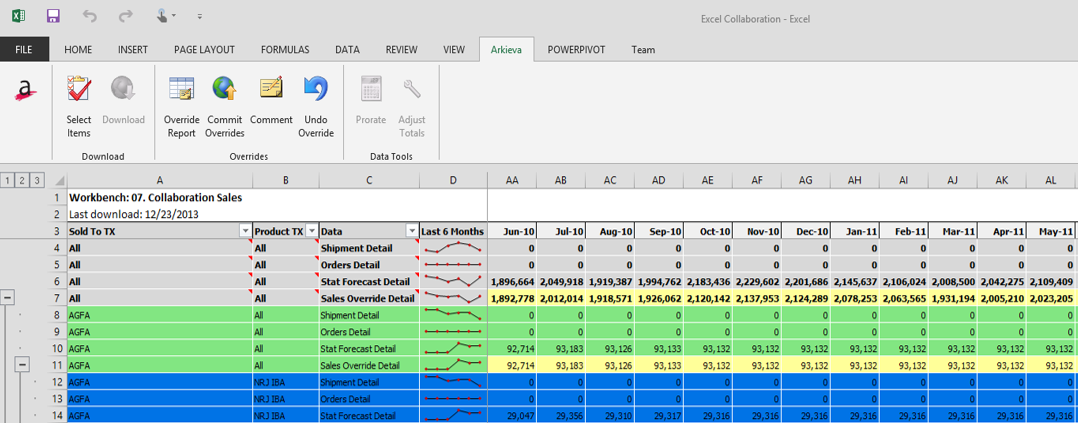
When on the go, sometimes you do not have direct access to data like you would when in the office. With Excel Collaboration, Sales Reps can download their forecasting Workbench and reports from Arkieva into Excel. The Excel Collaboration works just like the Arkieva Workbench, and keeps its securities and hierarchy intact. And the best thing is all overrides and calculations can be made offline. When connected again to your company’s network, all these changes can be submitted with one click of the Commit Overrides button.
Use
🚧 Warning
Excel Collaboration tool can only load reports that have 7 or less attributes. Please filter the source report to 7 or less attributes before using it for Excel Collaboration.
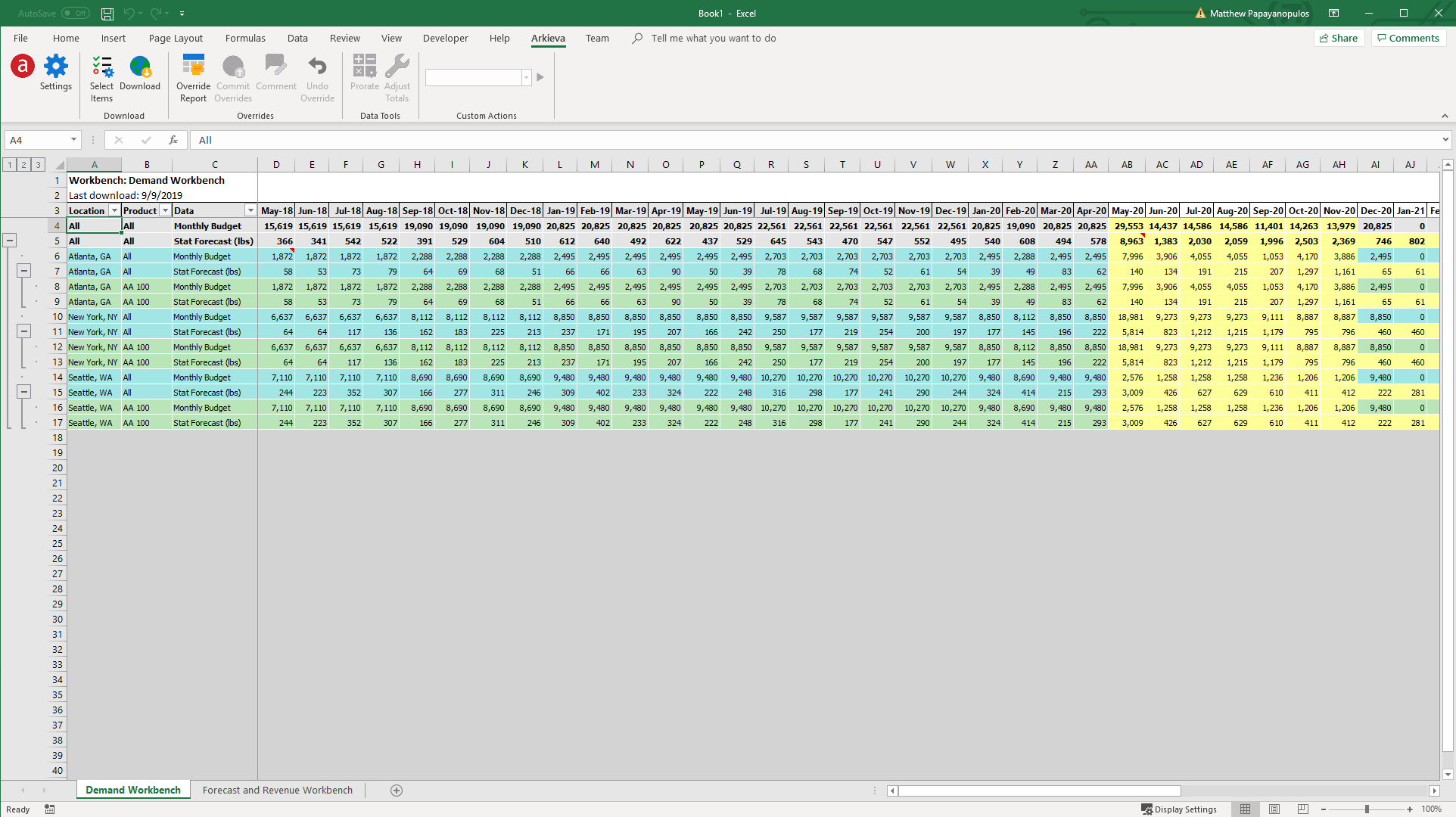
Launch Excel; Arkieva’s Excel Collaboration plug-in tool will appear as a separate tab in the Excel Ribbon.

About
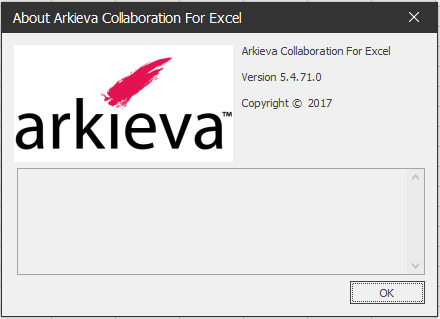
Click the Arkieva logo to view the About Arkieva Collaboration for Excel information; Version and Copyright.

Settings
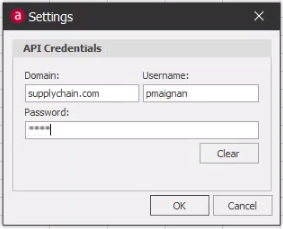
When launching Excel and using the Arkieva Excel Collaboration tab, you will need to click the Settings button and enter your credentials to use Excel Collaboration outside of the client domain. The file will be stored locally on the C:\Users\username\AppData\Local\Arkieva\Excel. This file is encrypted.
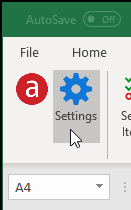
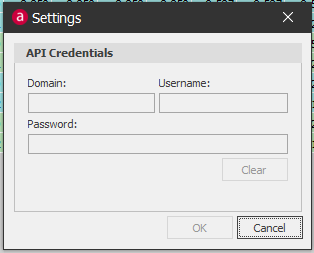
If the 'Use Api for data download' checkbox was not checked during installation, the Settings window will be grayed out.
Select Items and Download
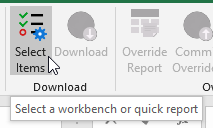
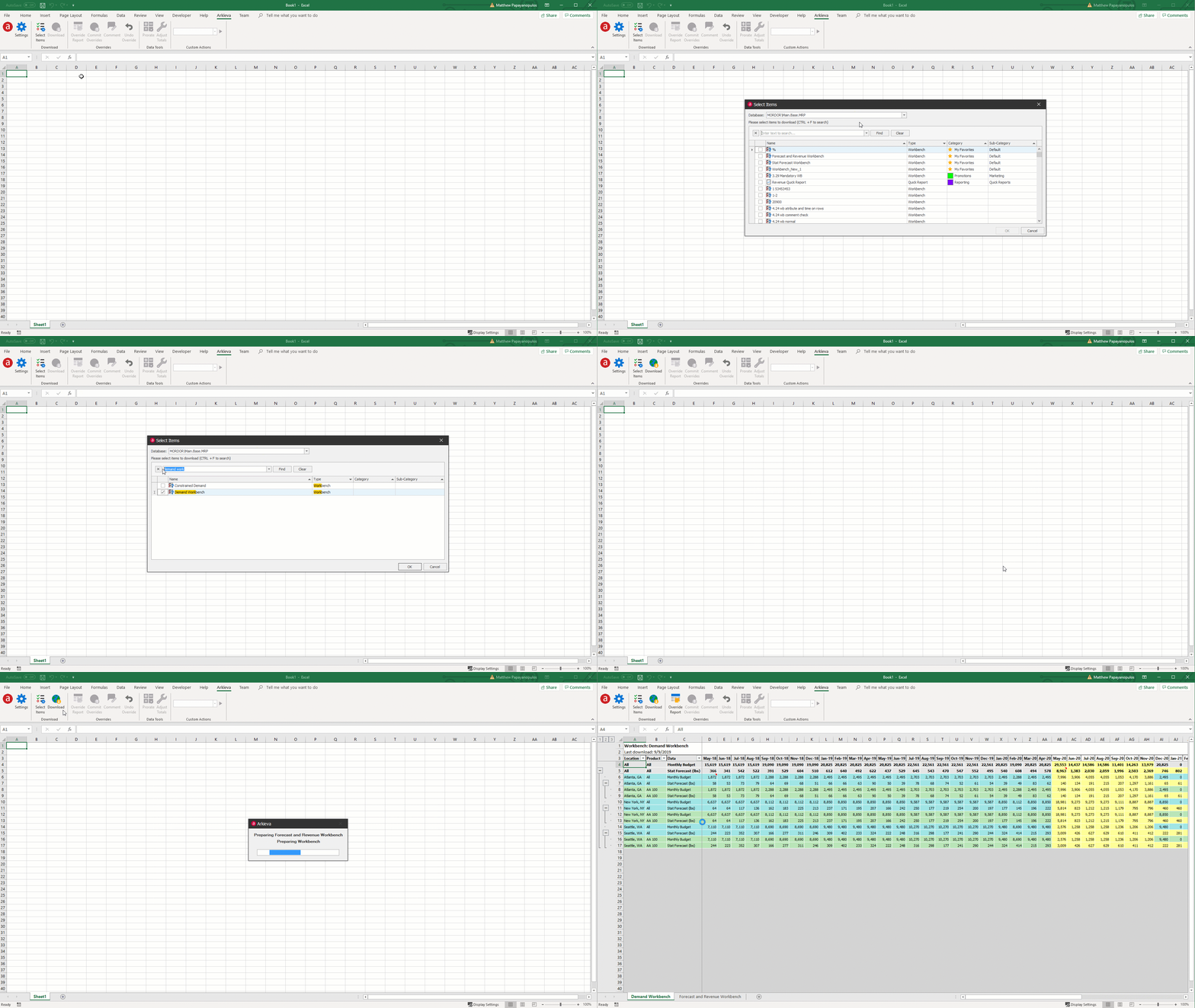
Click the Select Items button to launch the Select Items window. Then click the Database: dropdown the select the database the quick report or workbench is located.
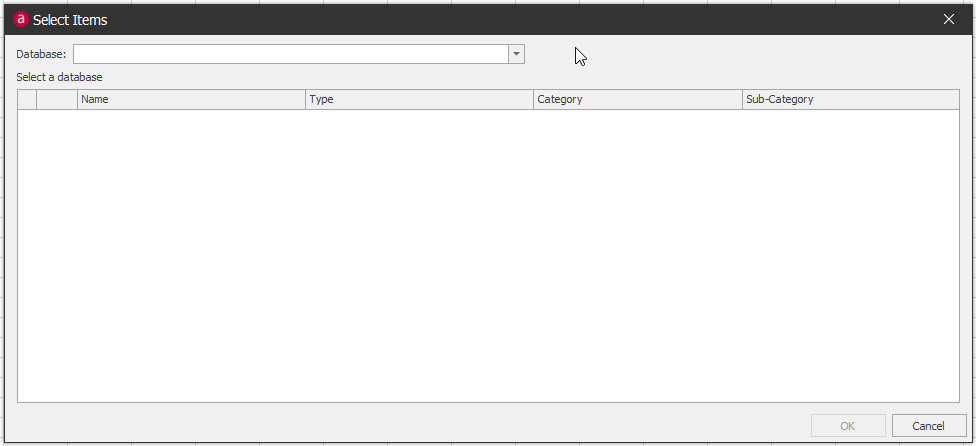
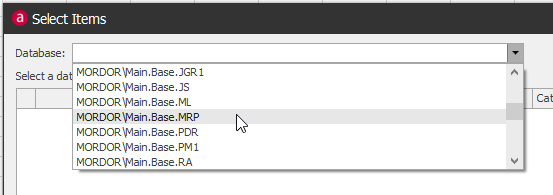
To open the search bar, Press CTRL+F on the keyboard. Type a keyword into the search bar and click Find.
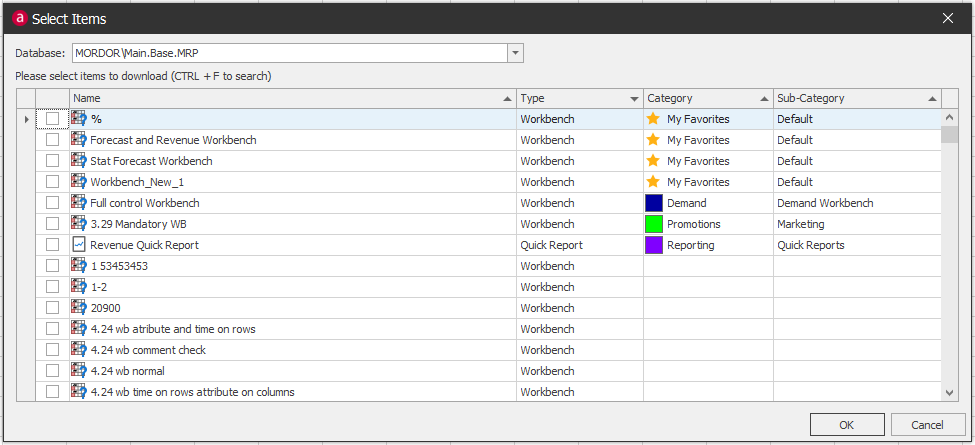
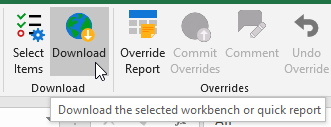
To select a quick report or workbench, check the checkbox of the quick report or workbench in the ‘Please select items to download’ section. Click OK. Click Download to retrieve the selected Workbench or Quick Report.
Overrides
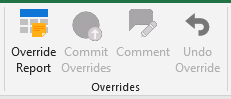
Overrides buttons become available as overrides are made to a workbench in the Arkieva Excel Collaboration tab.
Undo Override
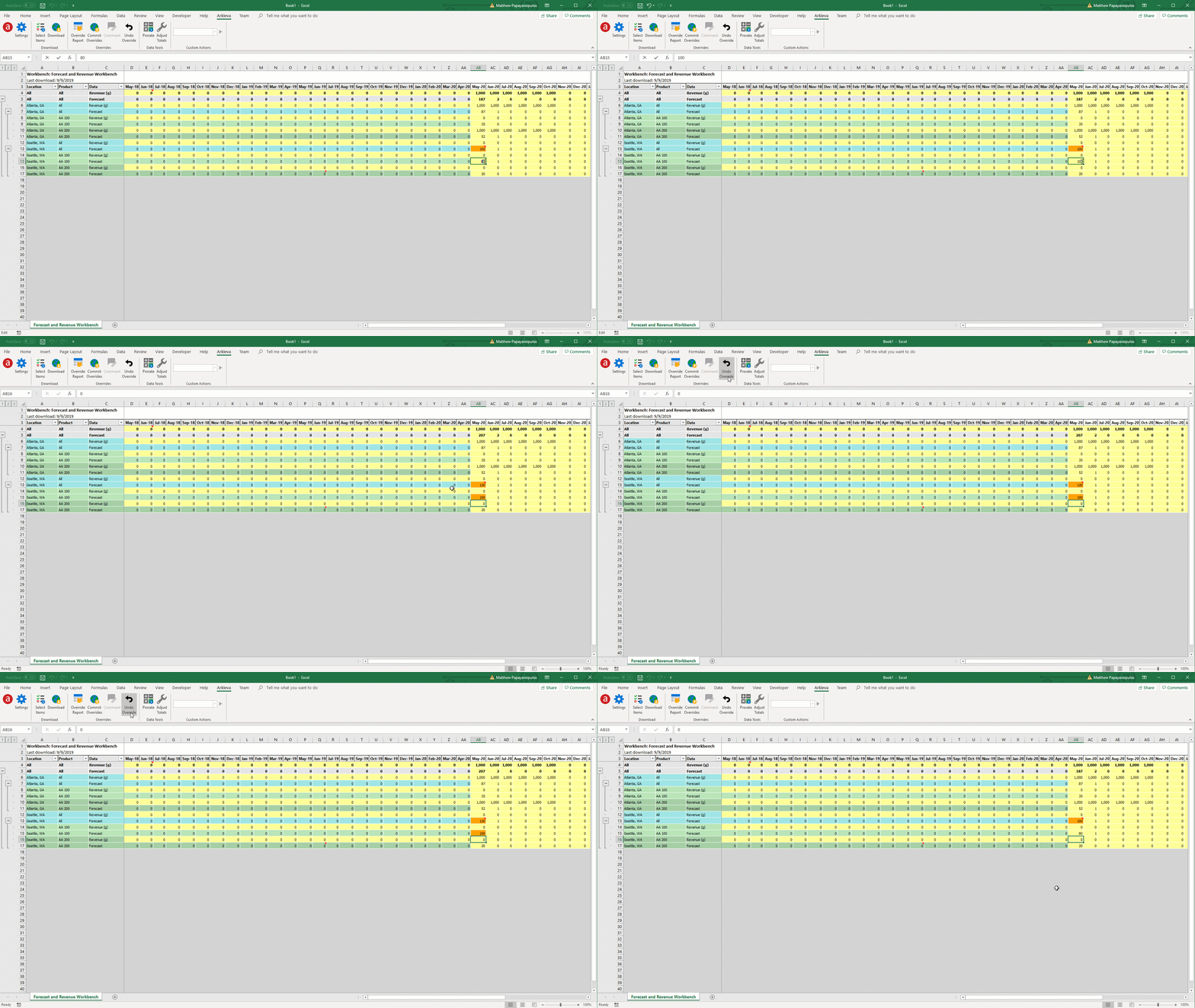
Click the Undo Override button to undo any overrides made to the workbench in Arkieva Excel.
Comment
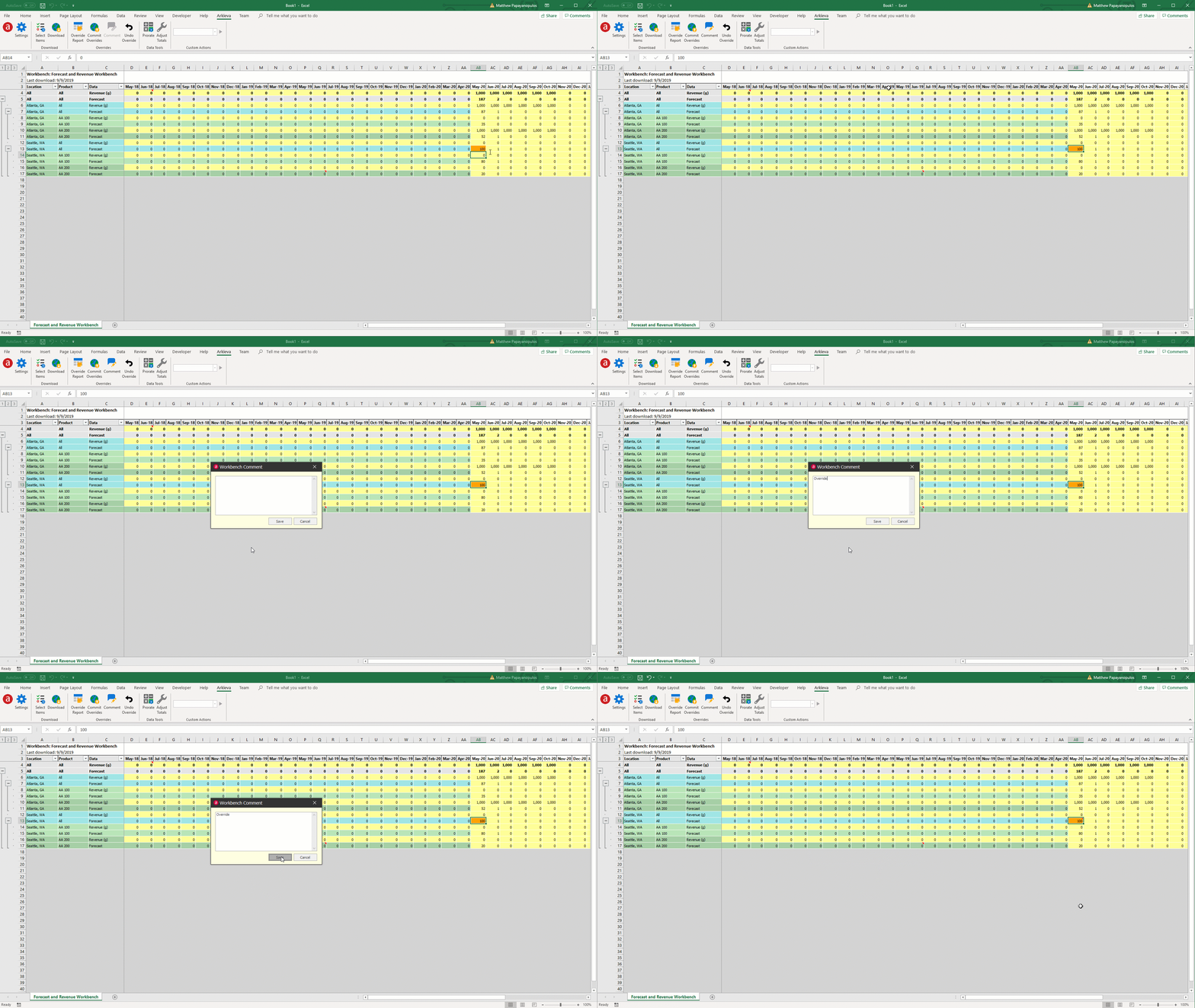
The Comment button allows a user to type a comment in a cell of the workbench; only cells with overrides can have comments. To activate the Comment button, go to the Review tab in Excel and toggle the Show All Comments button on.
To create a comment on an overridden cell, first select a cell with an override. Then click the Comment button to launch the Workbench Comment window. Type a comment, then click Save. A red arrow and a tooltip with the comment will appear on the workbench in Excel.
Override Report
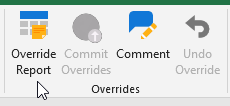
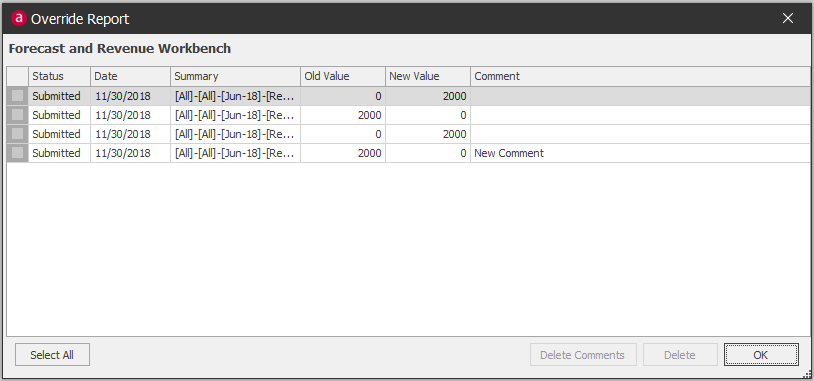
Click Overrides Report to view detailed information on overrides and comments made to the workbench. Check the checkbox next to an override to either:
- Delete a comment made to an override by clicking Delete Comments button
- Delete an override by clicking the Delete button
Commit Overrides
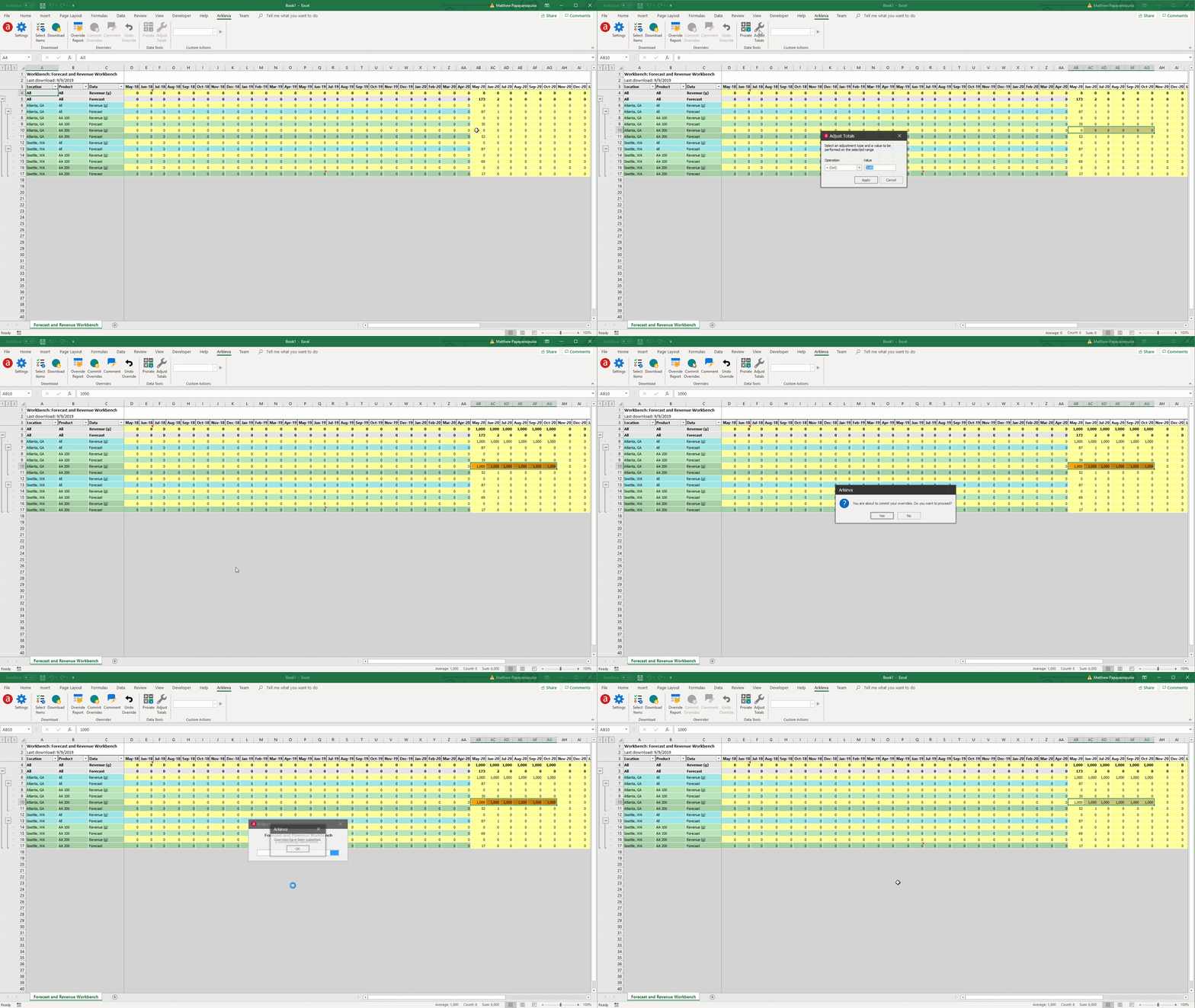
After making overrides to the Workbench, commit them to the database by clicking the Commit Overrides button.
Data Tools
Prorate
The Arkieva override tools that are available in the Arkieva workbench are also included in the Arkieva Excel Collaboration tool.
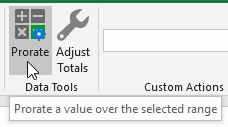
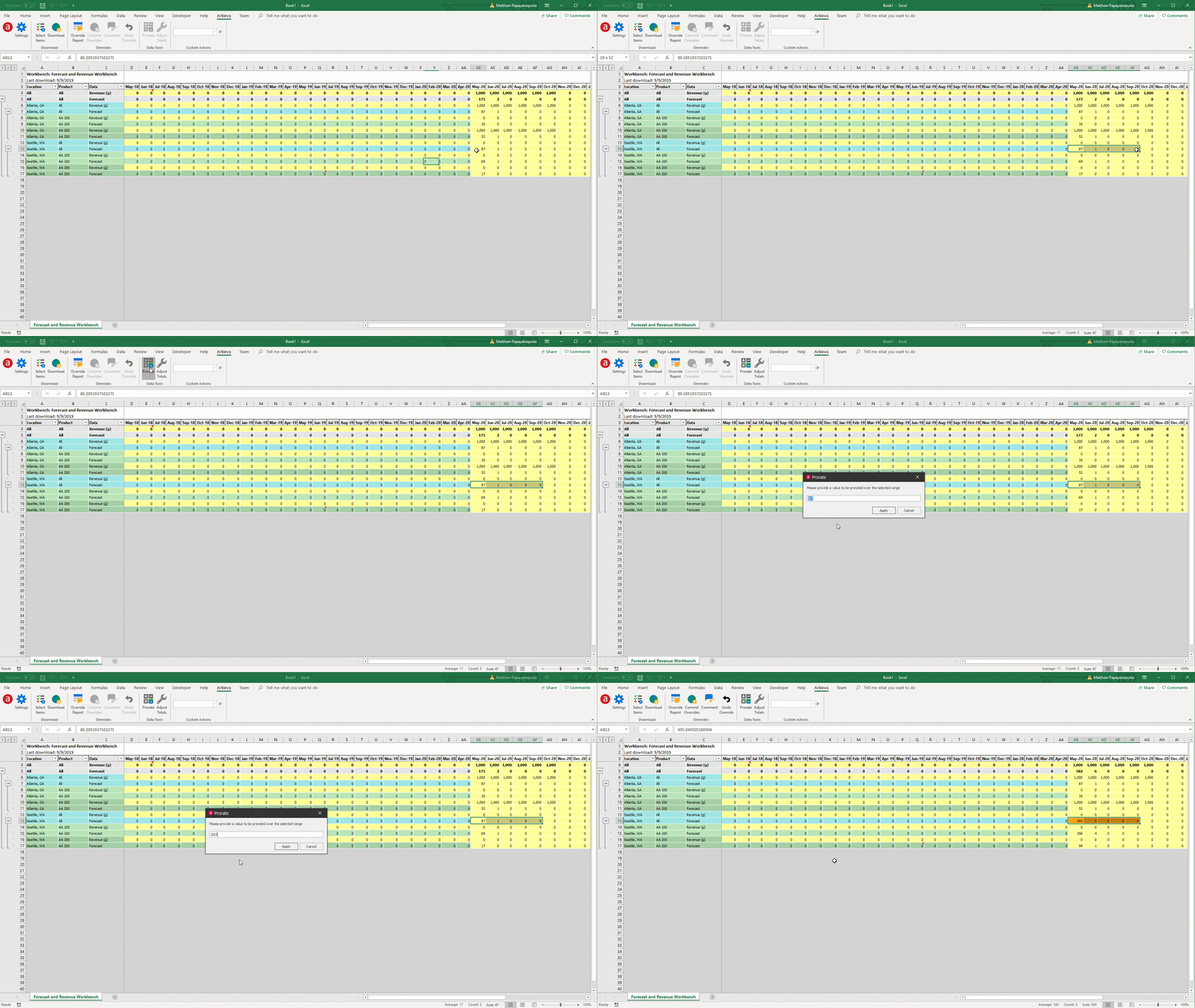
To Prorate values in the workbench, first highlight more than one cell on a row, then click the Prorate button to apply a prorated override. Type a new value in the Prorate window and click Apply.
Adjust Totals
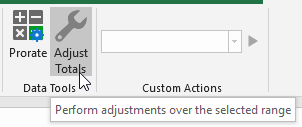
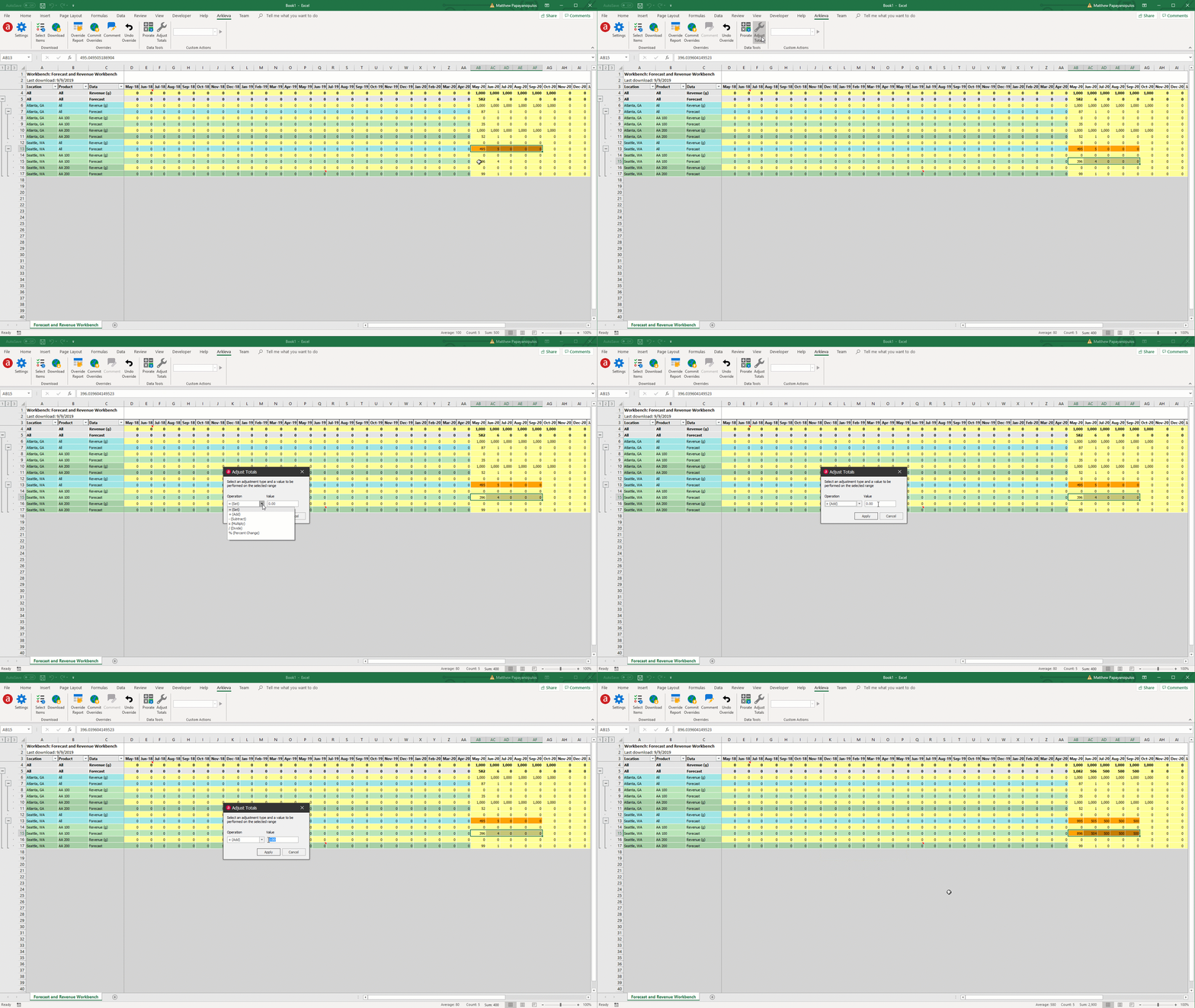
To Adjust values in the workbench, first highlight more than one cell on a row, then click the Adjust Totals button to apply an adjusted total override.
Select an operation from the Operation dropdown and then type a value. Click Apply.
Custom Actions
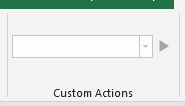
A user can select and execute custom actions that have been stored with the workbench in the Arkieva application from the Custom Action dropdown.
Filter Workbench/Quick Report
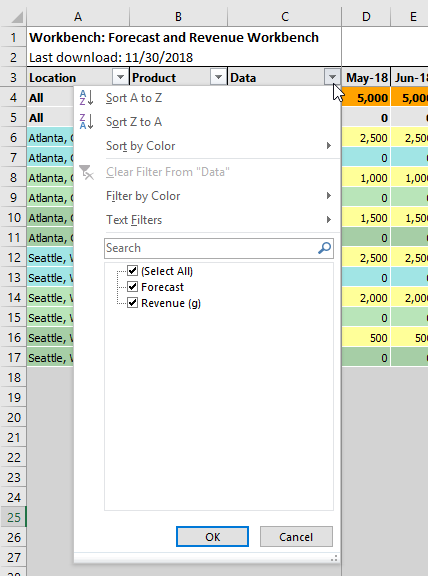
Use Excels filter options to filter the Workbench/Quick Report in the Arkieva Excel Collaboration tool.
Making Workbench Overrides Through Excel Plug-in
Explore how to collect forecast overrides from sales and other traveling teams through Excel plug-in via your Arkieva solution.
{`
`}
Related Articles
Release Matrix
? Release Schedule Arkieva releases are quarterly: February, May, August, November. Demand Planning Feature 5.22 5.21 5.20 5.19 5.18 Anomaly Component Forecast Methods Machine Learning Link Promotion Planning Link Link Link Segmentation Link Link ...Calendars
Introduction Collaborative, Secured Item, and Resource Calendars\ Arkieva has three calendar types: Collaborative, Secured Item, and Resource. Collaborative: users can create calendars to share with other users on the database. Secured Item: users ...Sales Predictor
The Arkieva Sales Predictor is a Sales and/or Customer Relationship Management tool. Its purpose is to flag the most probable and most profitable sales lead opportunities based on analysis of historical data patterns by Customer and Item. The results ...Arkieva Customer Training Program
The Arkieva Customer Training Program is a customer-centric program aimed at empowering Arkieva customers with the knowledge and skills needed to harness the power of their Arkieva solution to solving complex business problems. ? Go to the bottom of ...Financial Planner
Introduction Increasingly, our customers would like to tie-in financial metrics to their operational plans. To accomplish this, we have incorporated strategic benchmarking into the Arkieva platform so that we can design the operational supply chain ...