Calendars
Introduction
Collaborative, Secured Item, and Resource Calendars\ Arkieva has three calendar types: Collaborative, Secured Item, and Resource.
- Collaborative: users can create calendars to share with other users on the database.
- Secured Item: users can create calendars that can be shared only with specific users through role security.
- Resource: allows users to schedule resources and then Published to a Secured Item Calendar as Events.
Both the Collaborative and Secured Item Calendars function the same, and use the same dbo.btCal tables. The Resource Calendar uses rc_(Sche).ResourceCalendar tables.
Collaboration and Secured Item Calendars
Collaboration Calendar
Create appointments and alerts with the Collaboration Calendar in Arkieva. The Collaboration Calendar is available from the Team Ribbon.

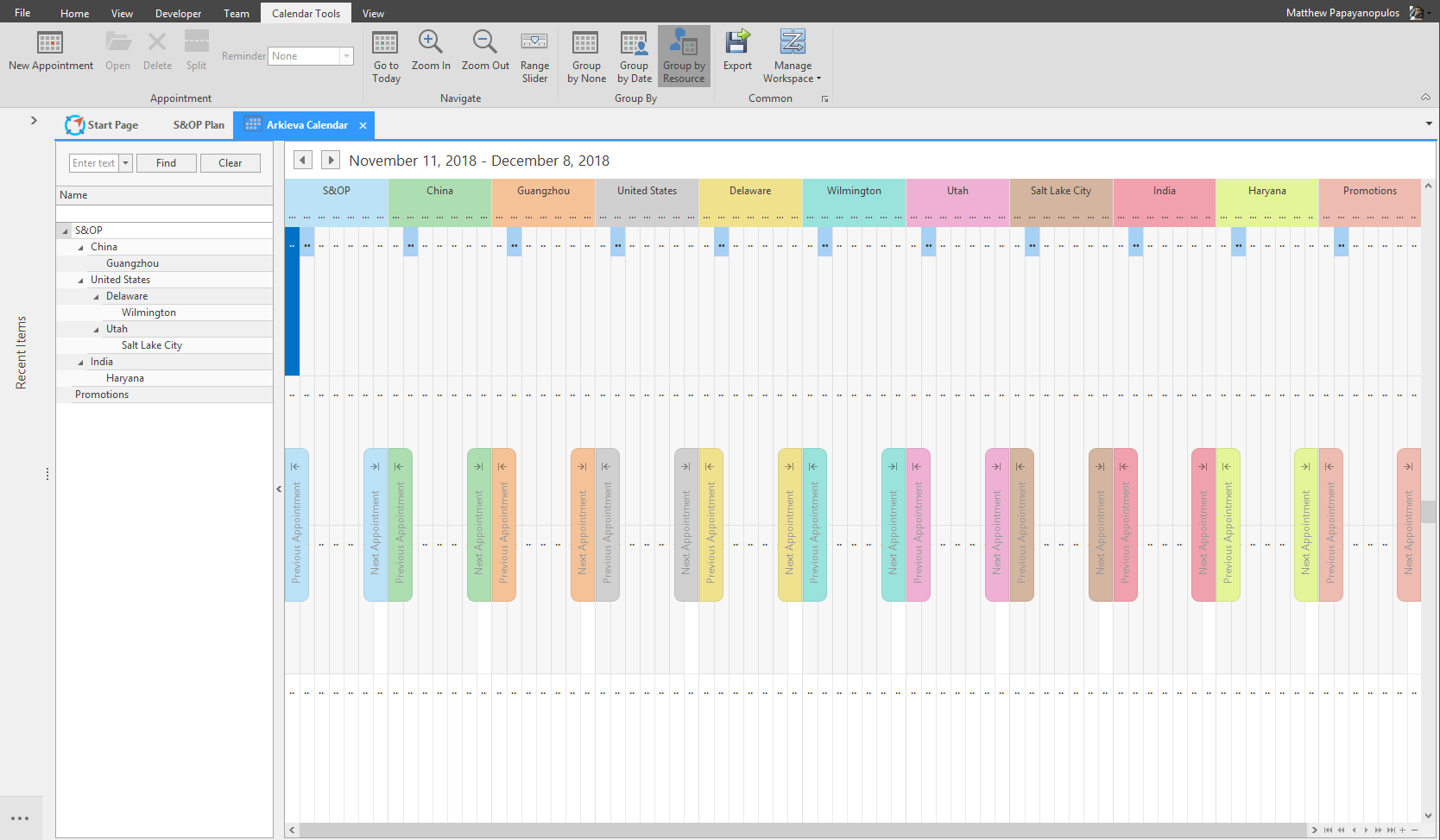
Secured Item Calendar
The Secured Item Type Calendar functions like the Collaboration Calendar, however this Calendar can be saved with security restrictions like any other Arkieva document.
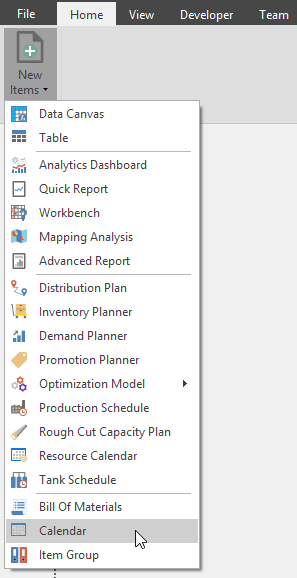
From the Home ribbon click the New Item dropdown and click Calendar to launch the Calendar Configure window.
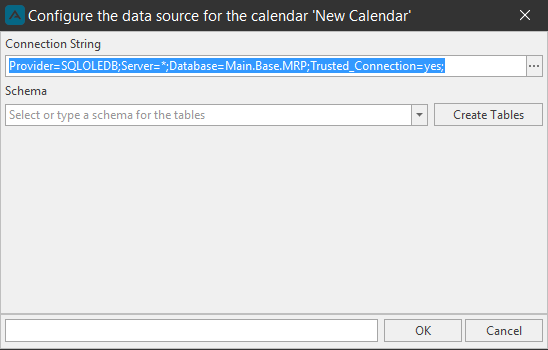
Create a Schema name for the calendar and click OK. The new calendar will launch.
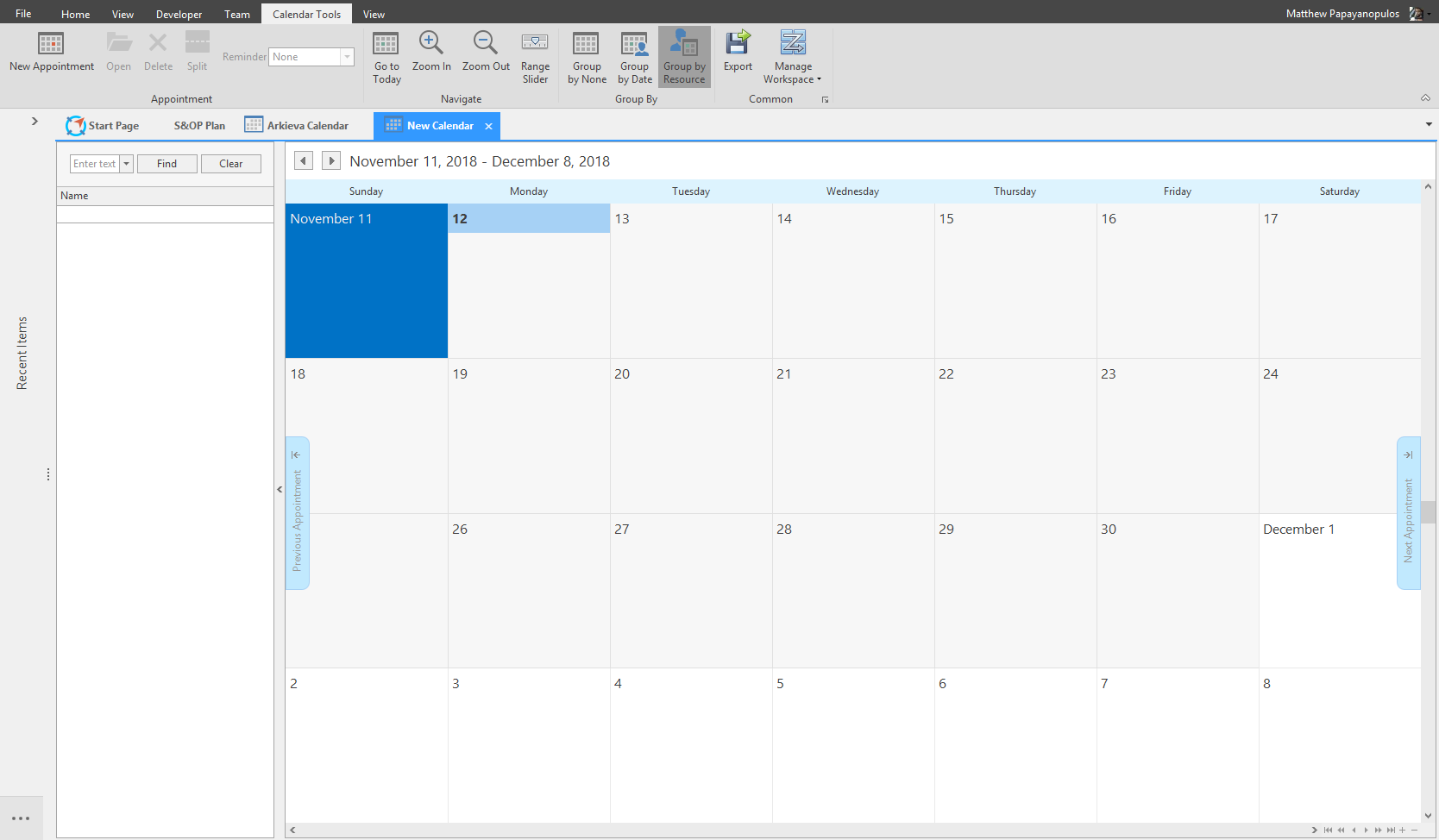
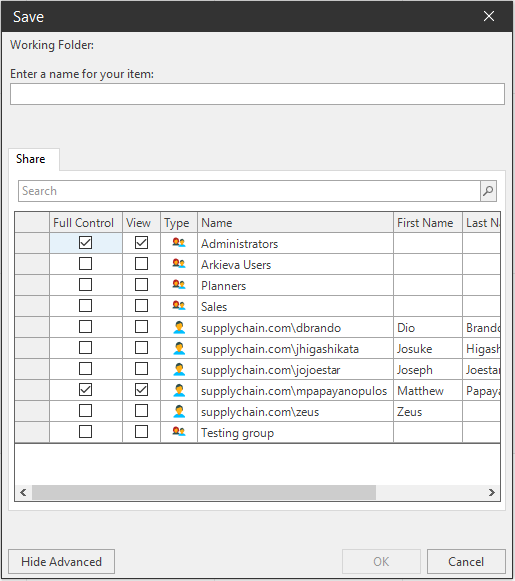
Save the Secured Item Calendar by clicking the Save button in the Arkieva toolbar. Create a name and check the users and groups to share the calendar with. Click OK.
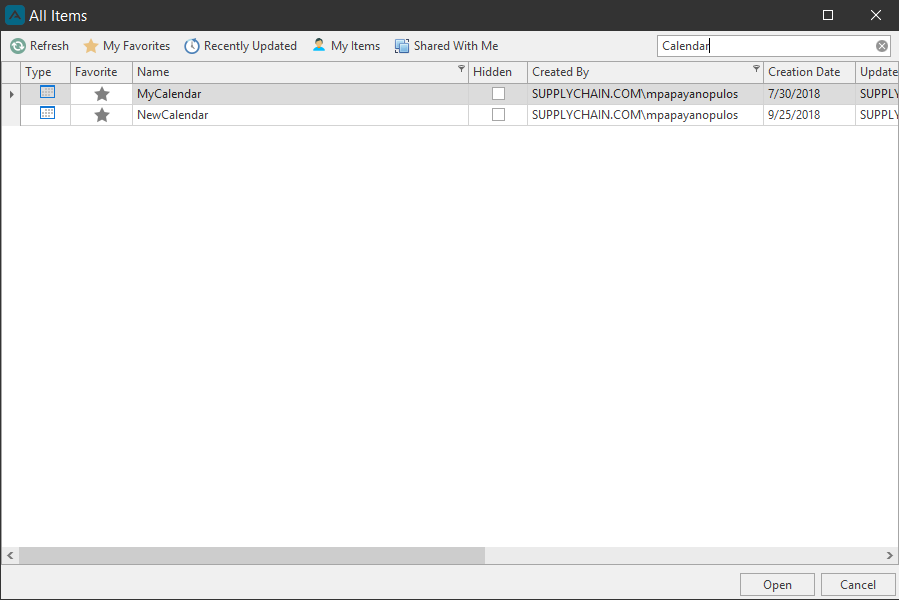
Go to All Documents to open the Secured Item Calendar document.
Click the following links to learn more about collaboration and secured item calendars:
- Features and SQL Tables: Arkieva calendar SQL data tables.
Calendar Navigation
Use the Calendar ribbons and right-click menus to navigate the Calendar.
Calendar Tools ribbon

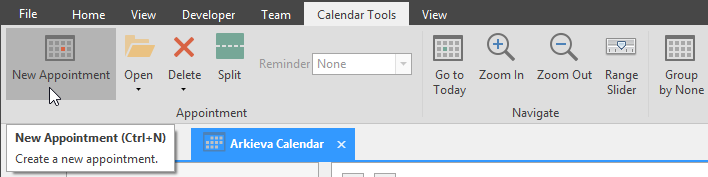
- New Appointment: Create a new calendar event.
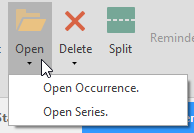
- Open: Select an event in the calendar grid and click Open to open that event. If the selected event is a recurring event, select from the dropdown whether to just open that occurrence, or open the entire series.
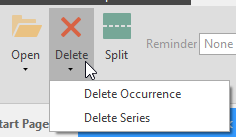
- Delete: Select an event in the calendar grid and click Delete to delete that event. If the selected event is a recurring event, select from the dropdown whether to just delete that occurrence, or delete the entire series.
- Split: Select an event on the calendar grid, and click Split to cut the event to separate it into separate events. Right-click to exit from the Split function.
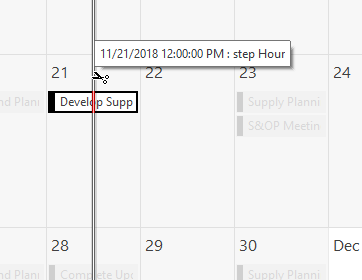
- Reminder: Shows the reminder time of a selected calendar event.
- Navigate: navigate the calendar by clicking Go to Today to go to the present day, zoom in and zoom out, and the range slider, which shows the sliding timeline control.
- Group By: Select whether to group the calendar by None, by Date, or by Resource.
- Export: Save the Calendar as an .ics file.
- Manage Workspace: Manage Workspace allows users to save a version of the Calendar workspace without affecting the Calendar for other users. Follow the link to learn more about the Manage Workspace feature.
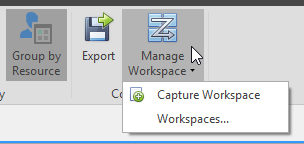
Collaboration View ribbon
Active View: Change the way the calendar is viewed; by Day, Work Week, Full Week, Month, Timeline, Gantt, or Agenda View.\ Time Scales: Toggle on different time scales for the calendar.

- Scale Width: When Timeline View is selected, change the number value to change the width of the Time columns of the calendar.
- Compress Weekend: With Month View selected, click Compress Weekend to Saturday and Sunday as one column.
- Working Hours: With Day, Work, or Full Week View selected, click Working Hours to show hours for the entire day or only work hours.
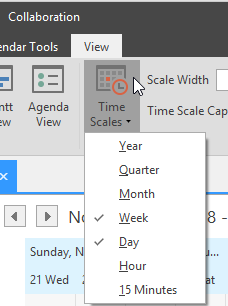
Right-Click menus
* Right-click Calendar grid
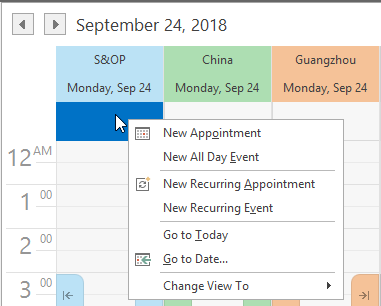
- New Appointment: Create a new appointment (calendar event).
- New All Day Event: Create a new event with the All Day checkbox checked.
- New Recurring Appointment/ New Recurring Event: Selecting this option will launch the Recurrence window automatically.
- Go to Today: Go to the present date.
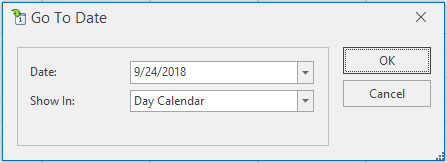
- Go to Date: Select a date to go to in the calendar.
Right-click Calendar Event
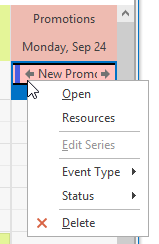
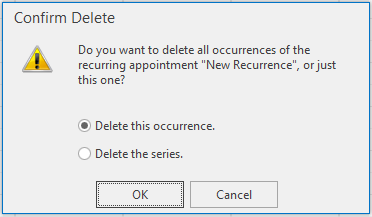
- Delete: If the event is part of a series, the user will be given the option to delete the occurrence or the series.
Create an Event
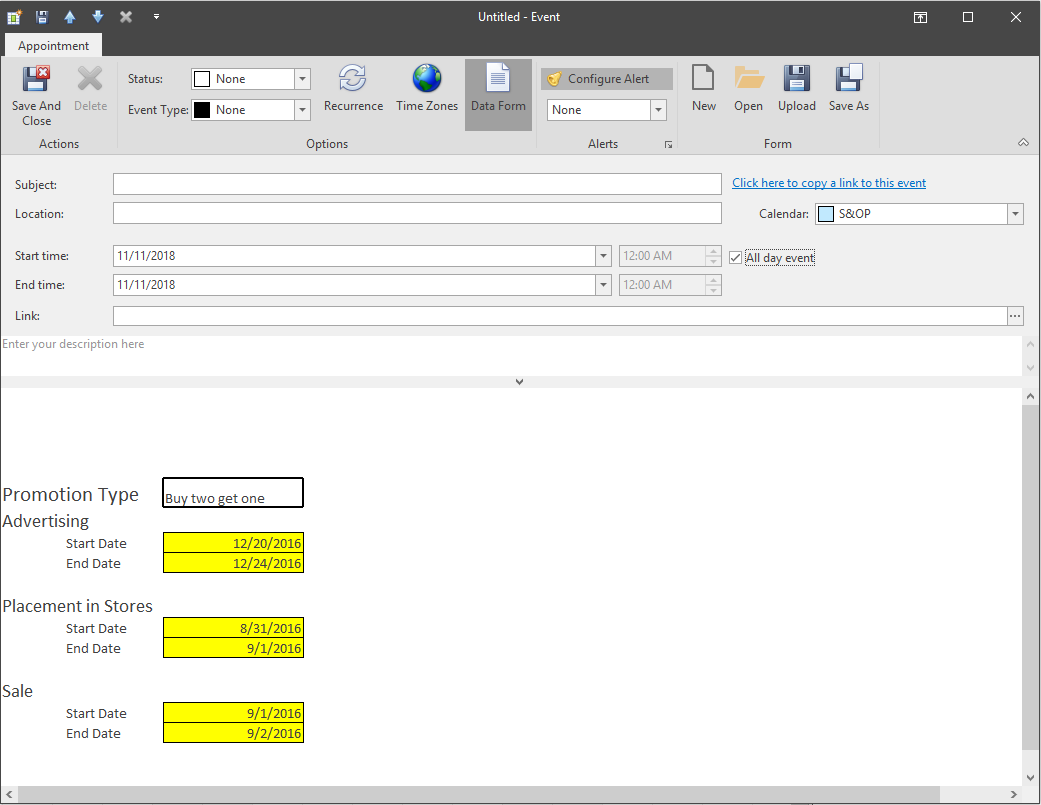
Recurring Event with an Alert\ For this example, we will create a recurring calendar event alert to remind us to review the data for a promotional sales event. From the Collaboration Calendar window, click the New Appointment button to launch the Appointment window.
First, type a title for the calendar event in the Subject line. The Location line is optional. If this was a one-time event, you would select a Start and End Time, or checking the ‘All Day Event’ checkbox, but since this will be a recurring event, these fields will be grayed out after the Reoccurrence selections have been made.
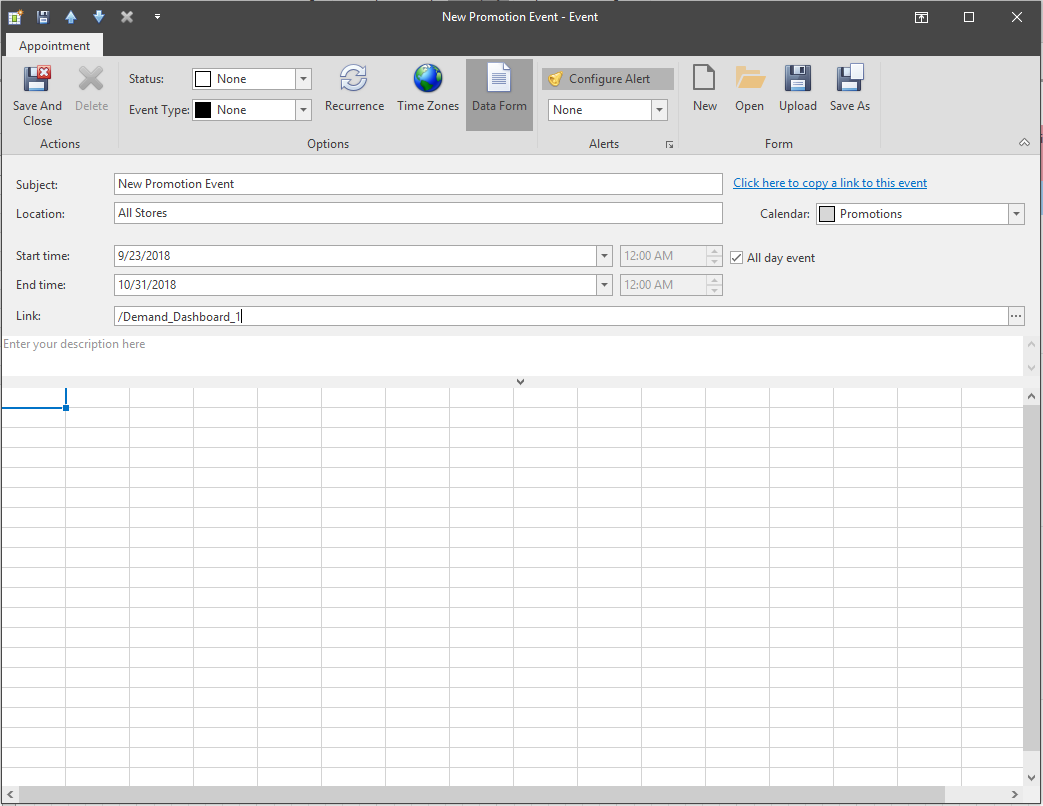
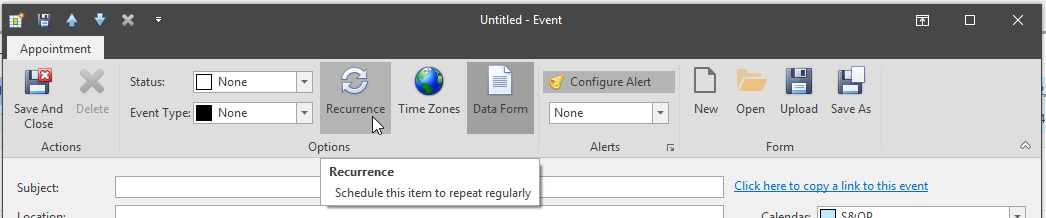
Next, click the Recurrence button under the Options section of the Appointment window to launch the Recurrence window.
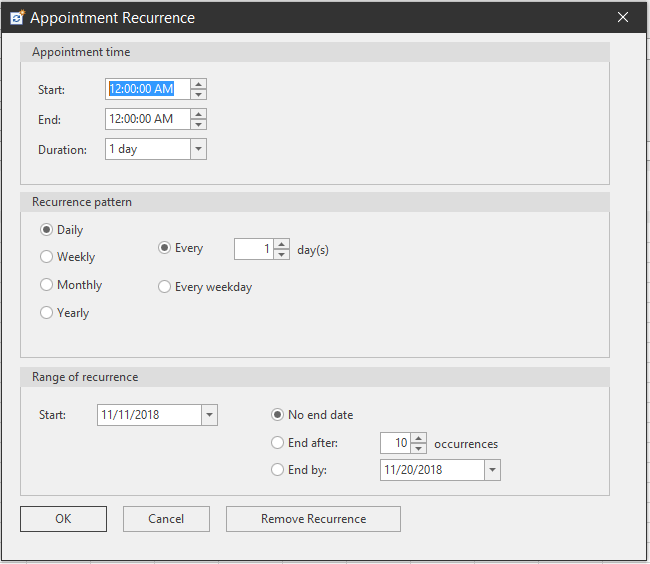
For this recurring event, we have selected the appointment time for 8:30 to 9:30 AM (1 hour) and for this appointment to recur twice a week, with no end date. Click OK to return to the Appointment window. The Recurrence button will be highlighted in orange to show a recurrence has been selected.
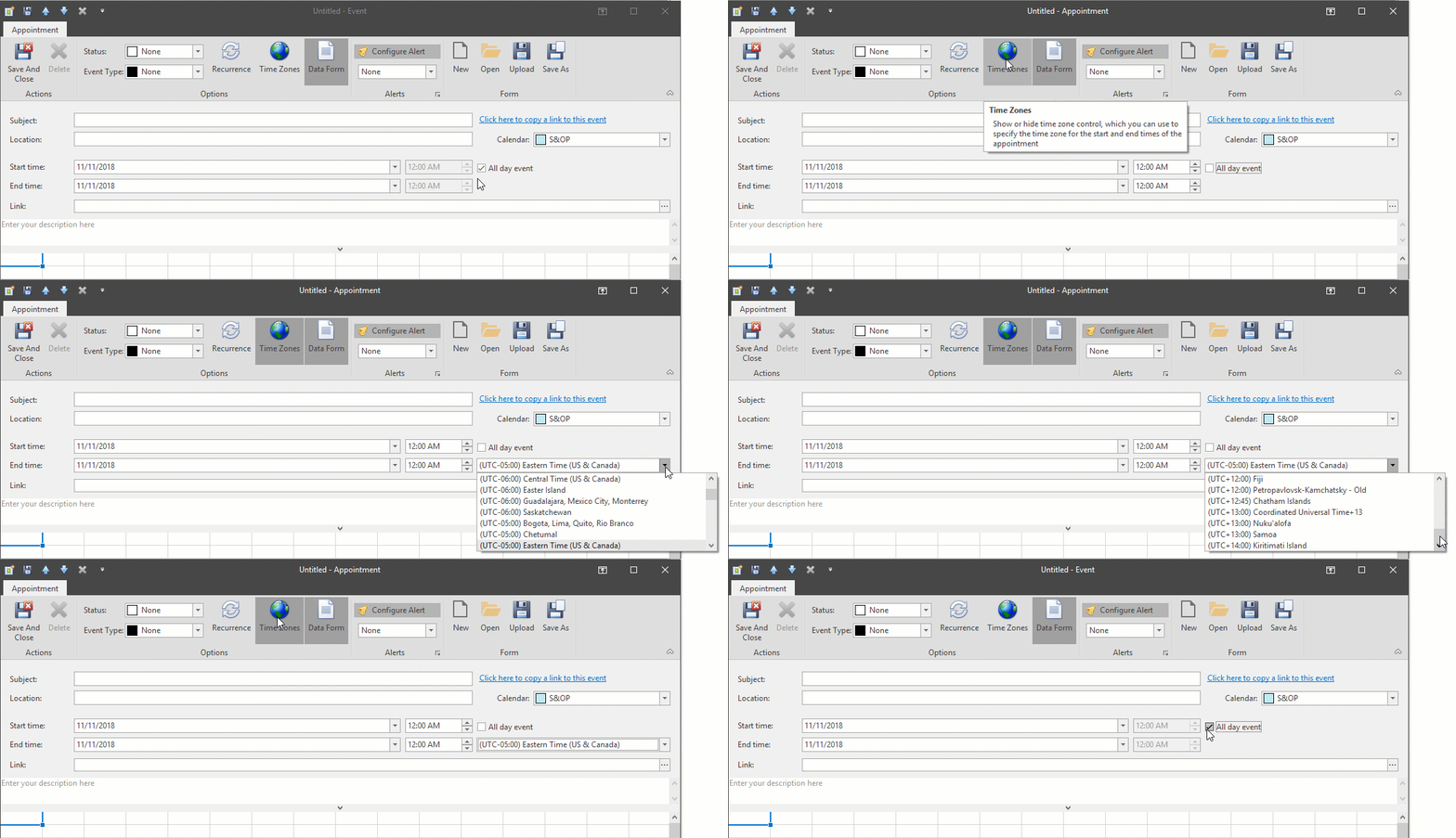
Next click the Time Zones button, this will retrieve the current database and server’s time zone.
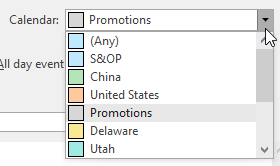
Make sure the appointment will be saved to the correct calendar if you have multiple calendars created on this database. Use the calendar dropdown to select the calendar.
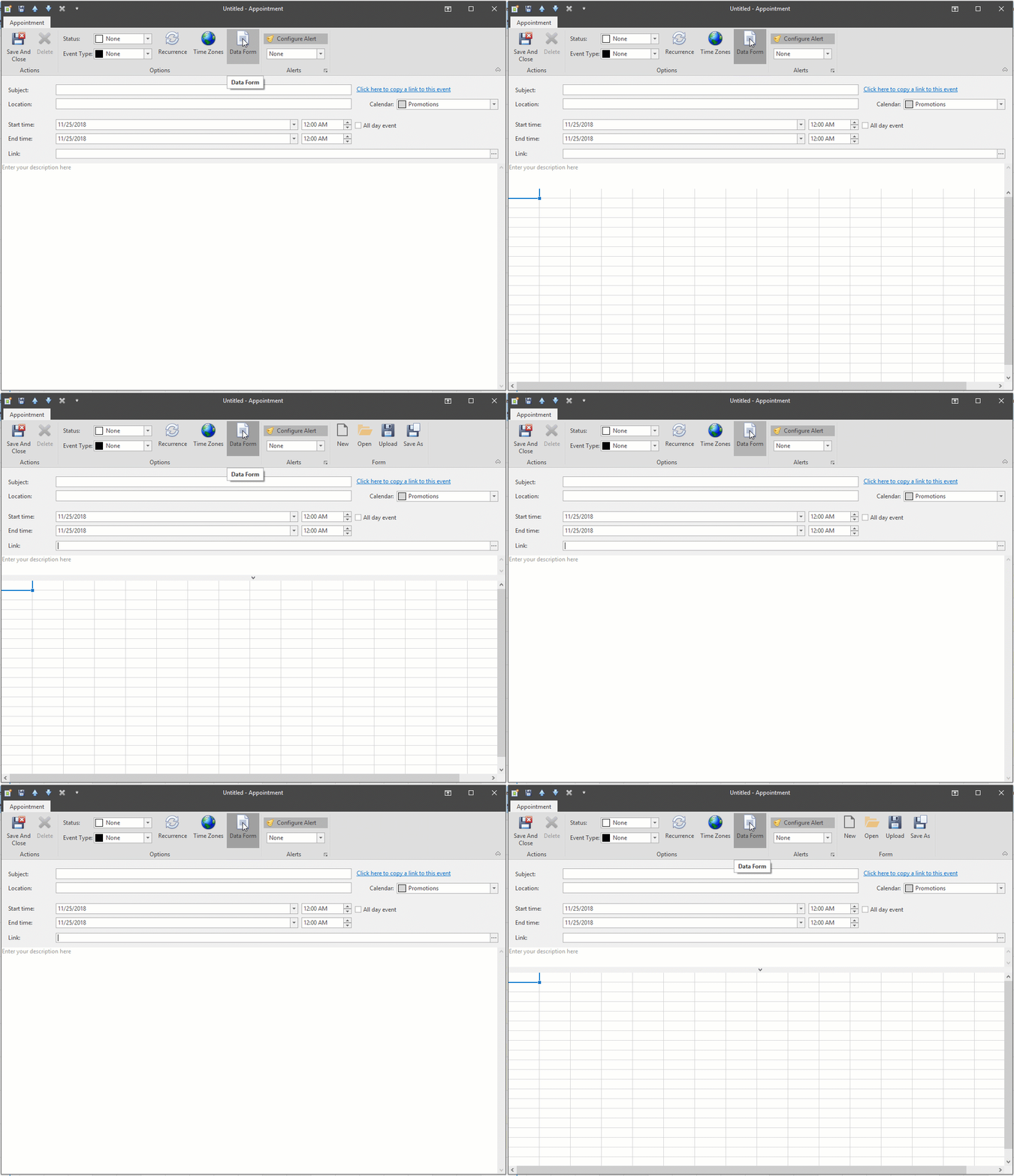
Next, since this a promotional event, we have created an excel spreadsheet to accompany the appointment. Click the Data Form button to toggle on the spreadsheet section and the Form buttons.
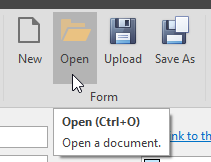
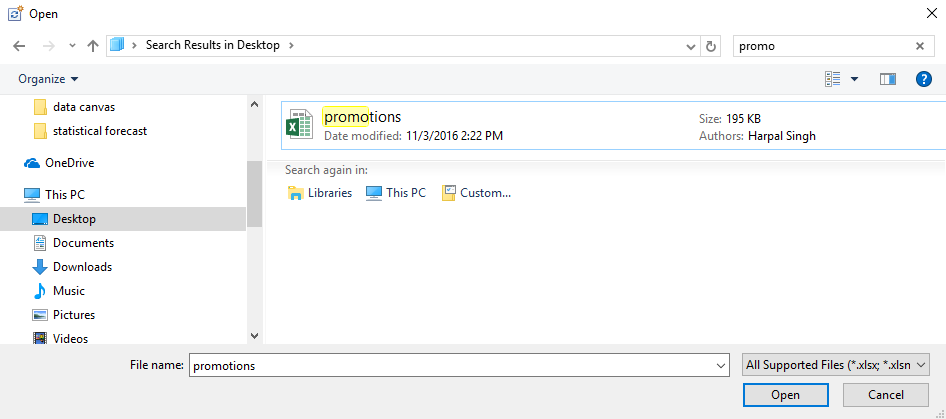
Next click the Open button in the Form section of the Appointment window to retrieve the excel spreadsheet and upload it to the spreadsheet section of the Appointment window.
Lastly, click Save and Close to save the event to the calendar.
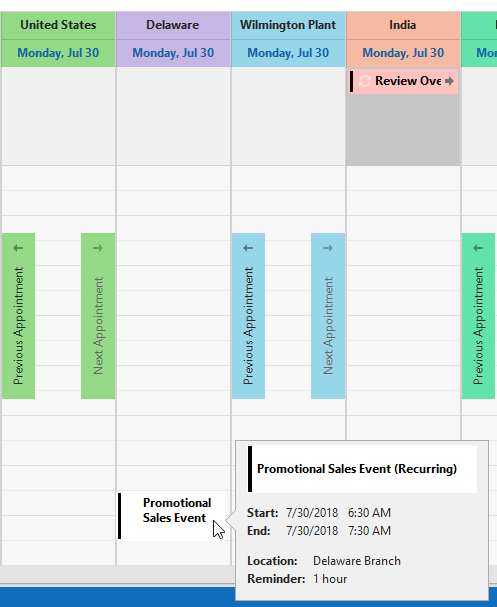
Recurring Event
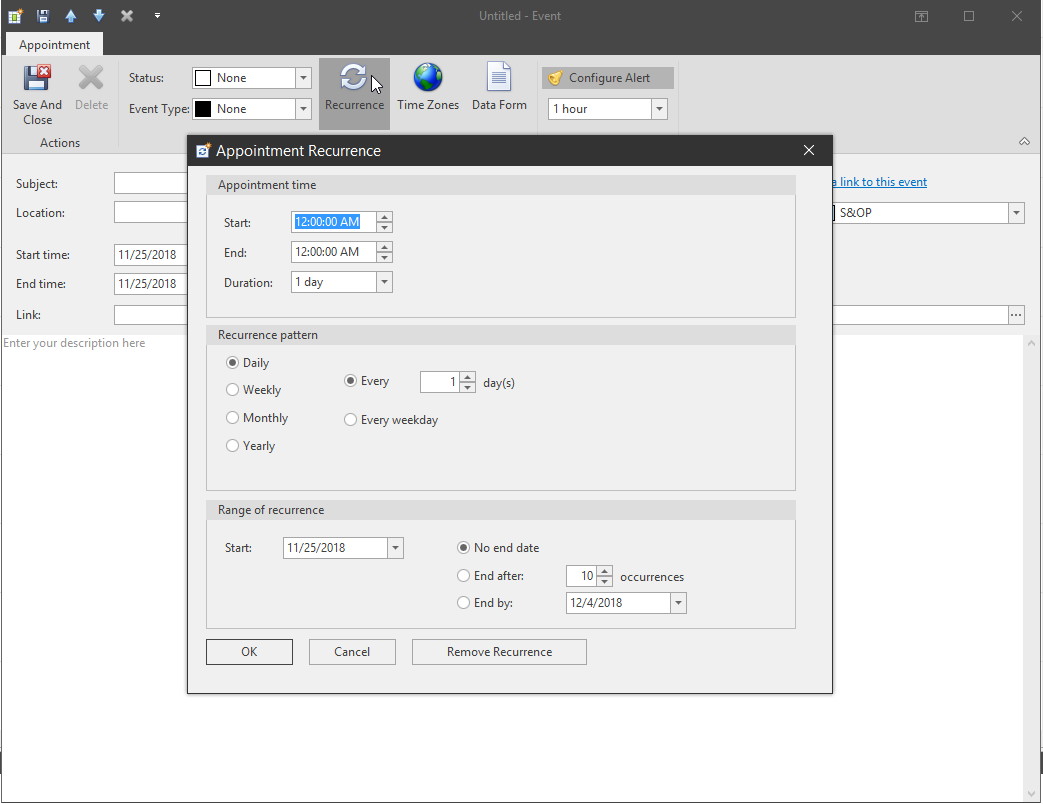
Appointment time
- Start: Select a start time for the appointment.
- End: Select an end time for the appointment.
- Duration: Select a number of days duration for the appointment.
Recurrence pattern\ Select a recurrence pattern: Daily, Weekly, Monthly, Yearly, Every (Days), aor Every weekday.
Range of recurrence
- Start: Select a start date for the recurrence.
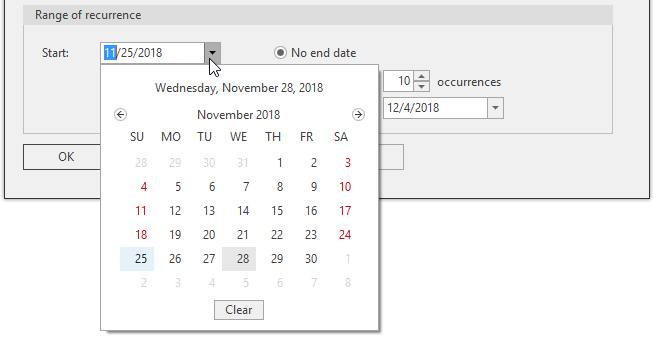
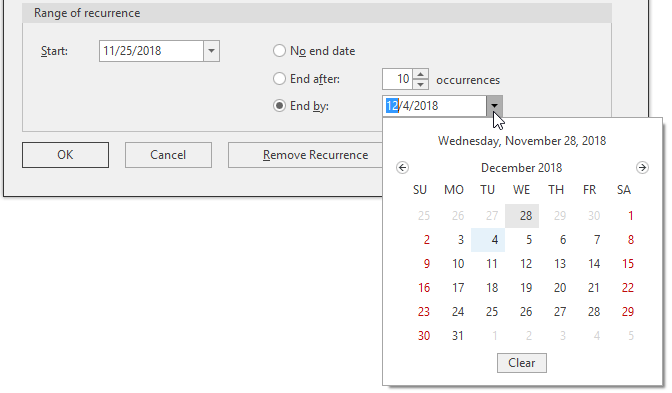
No end date: toggle on 'No end date' to extend the range of recurrence indefinitely.\ End After: toggle on End after and type a value to create a finite number of recurrences.
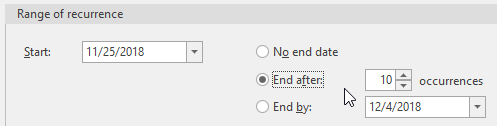
- End by: toggle on End by and select a date from the calendar dropdown.
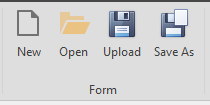
Data Form
Toggle the data form spreadsheet options for the event window by clicking the Data form button.
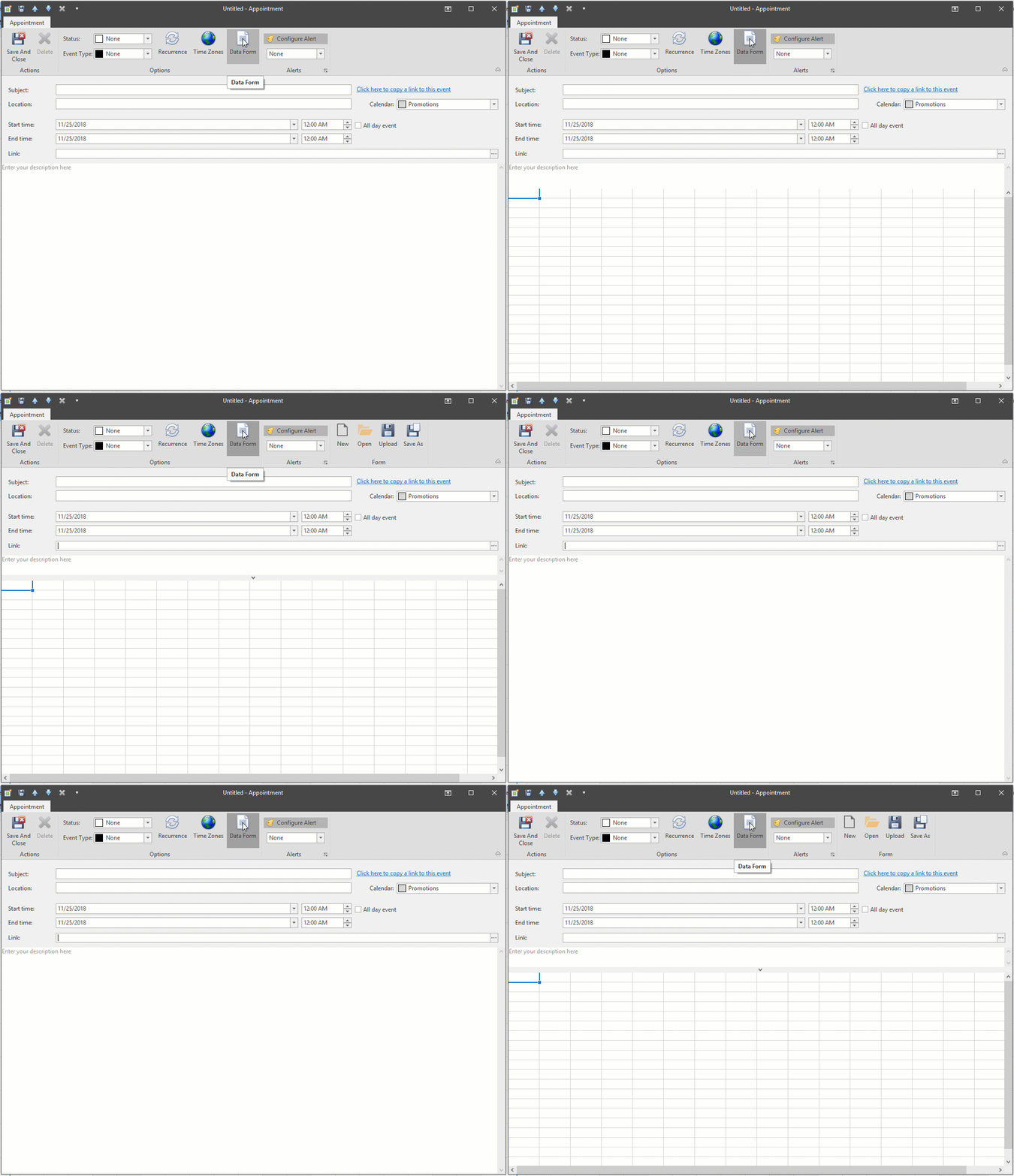
- New: Clear any data in the spreadsheet.
- Open: Import an existing Excel spreadsheet
- Upload:
- Save As: Save spreadsheet data as an Excel file.
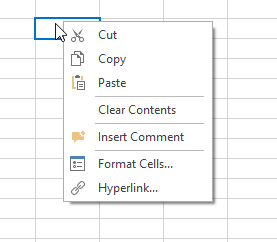
Right click the spreadsheet for more options.
Time options
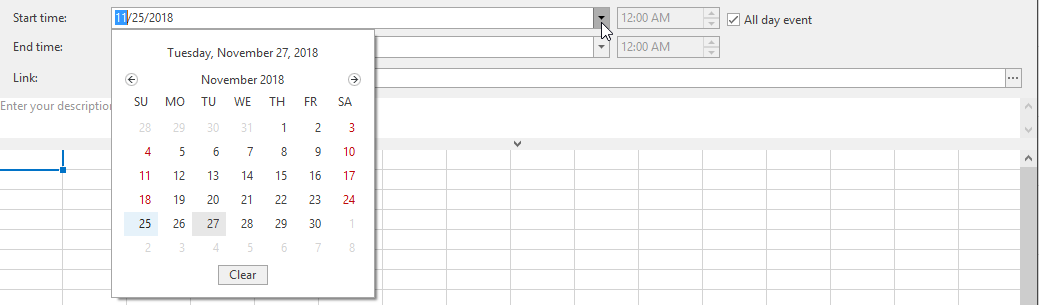
Start and End Times\ Use the dropdown arrows or type in the fields to select a Start and End date for the event.

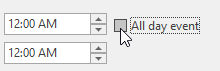
Uncheck the All Day Event checkbox to select specific times the event will start and end on the selected dates.
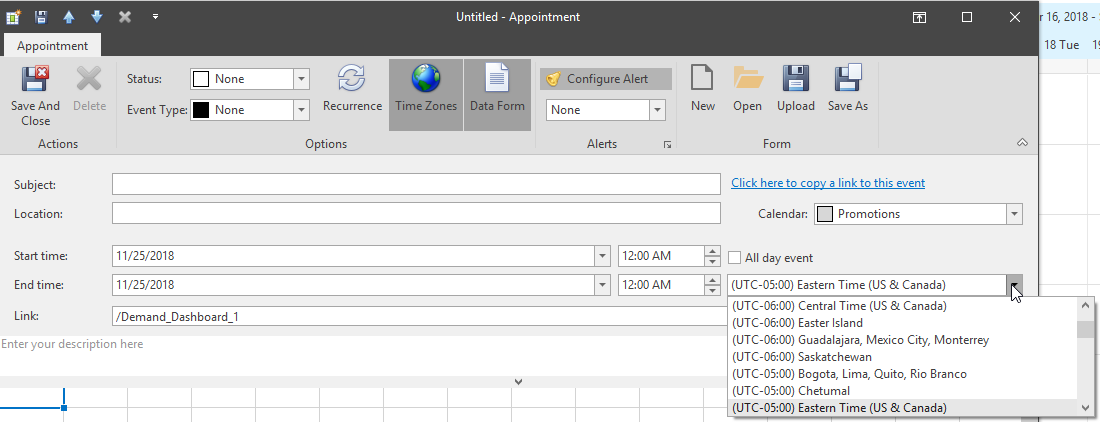
Time Zones\ To change the time zone of the event, access the Time Zone control dropdown menu by toggling the Time Zones button on.
By the default the Time Zone control is set to the current database and server’s time zone. Select a time zone from the dropdown.
Resource Calendar
Resource calendar is a special type of editable calendar, that allows resources to be scheduled on a day by day basis.
Use the Resource Calendar tool to build a schedule to manage resources. It has a two-level hierarchy, allowing for a custom structure. Each first level attribute can have many second level attributes. And each second level attribute can have many resources associated with it. The list of resources that show in the dropdown box for a specific second level attribute and the department class are configured in separate mapping tables in SQL.
For each first level attribute, the calendar shows which resource is scheduled to be utilized on which second level attribute for each day.
With additional work, a procedure can be created to populate the resource calendar to produce a rough schedule based on what needs to be produced, and this rough schedule can then be used as a starting point by the users who will fine tune it. Or it can be set up so that all entries are made only by users.
Applications in the real world
- The resource calendar is used to manage the production schedule at various plants simultaneously. Each plant has multiple departments that will have their own schedule. Multiple plant managers can access this tool at the same time. Any change made to the calendar by one plant manager can be seen by other plant managers in real time, and adjustments can be made accordingly.
- The weekly and monthly views allow building a schedule quickly at a higher level and then adjust as necessary at the day level, saving a lot of time.
- The resource calendar can be quickly populated and go out 30 to 40 weeks beyond the frozen zone, vs a manually built schedule that might go out only a handful of weeks.

Creating the Resource Calendar
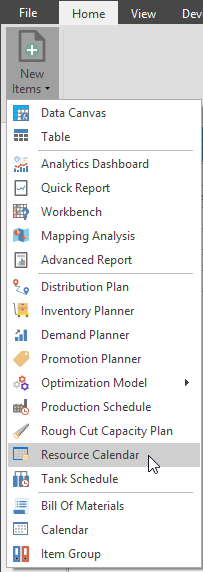
When launching the Resource Calendar for the first time from the Home Ribbon's New Item dropdown, the Resource Calendar will be completely blank.
Publishing Resource Calendar
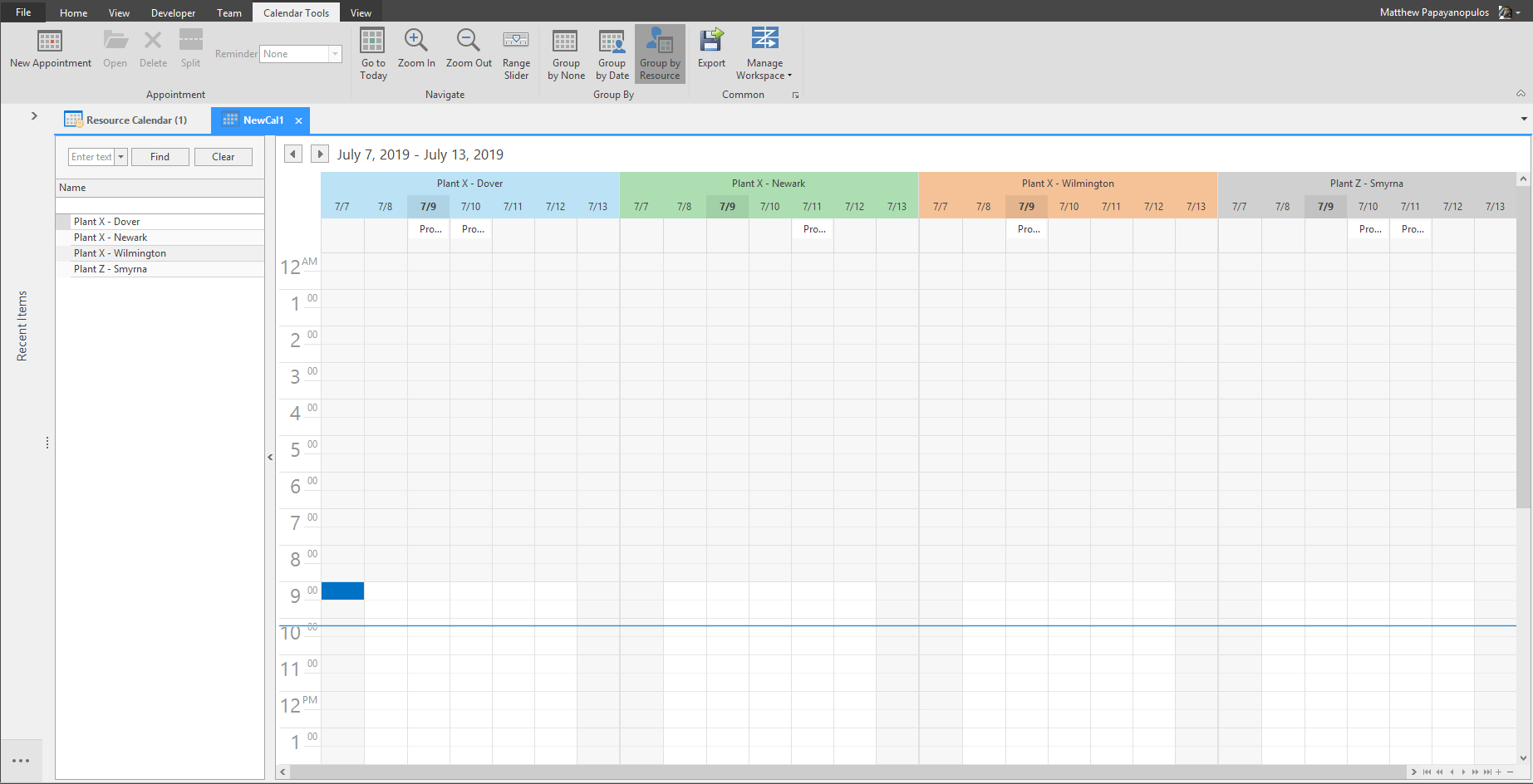
You can publish the Resource Calendar to a selected Secured Item Calendar at any time, if you have a calendar linked to it. All scheduled Resources will become events on the Secured Item Calendar.
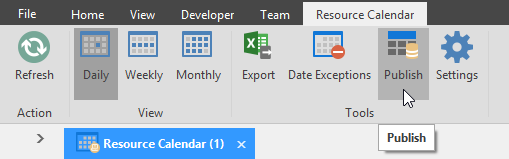
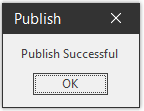
First click the Publish button to Publish the calendar. The Publish Successful window will launch.
If creating a new Secured Item Calendar, launch a new Secured Item Calendar from the Home Ribbon's New Item dropdown.
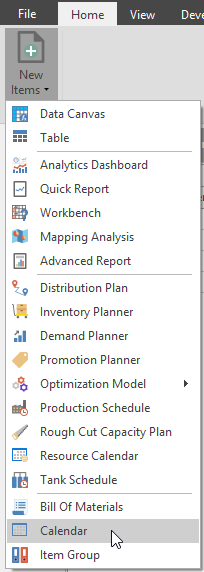
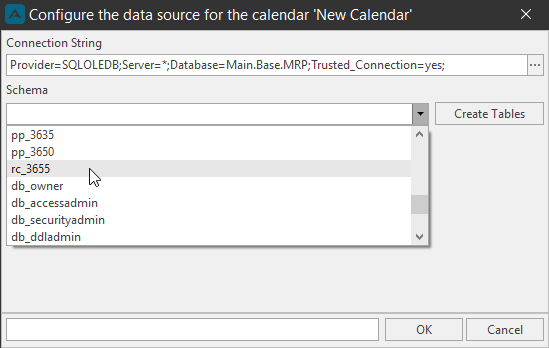
The 'Configure the data source for the calendar' window will launch. Under Schema, select the schema name of the Resource calendar. This information is found in SQL.
Click OK to launch the new Secured Item Calendar.
Now whenever a user clicks Publish from that Resource Calendar, it will update this Secure Item Calendar.
Export Resource Calendar
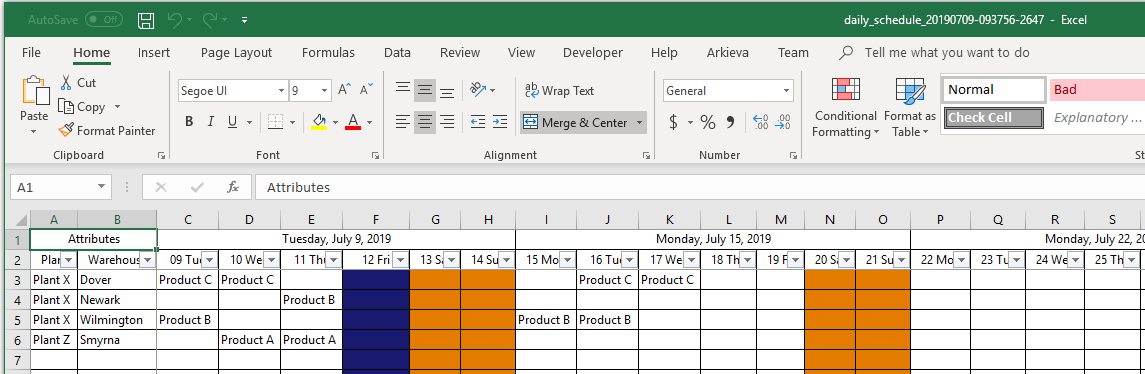
Export the Resource calendar to Excel by clicking the Export button.
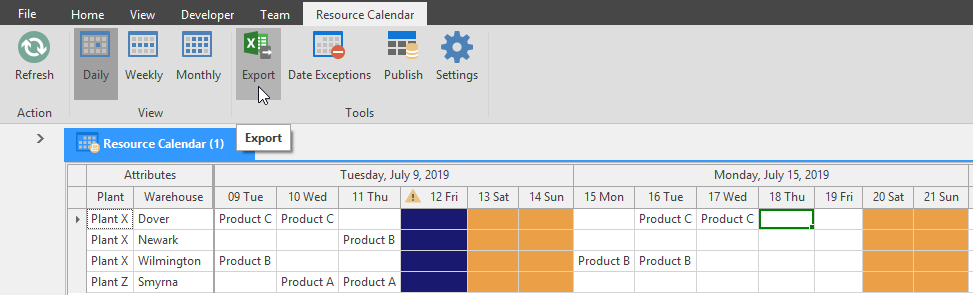
All information including any Date Exceptions will be exported to Excel.
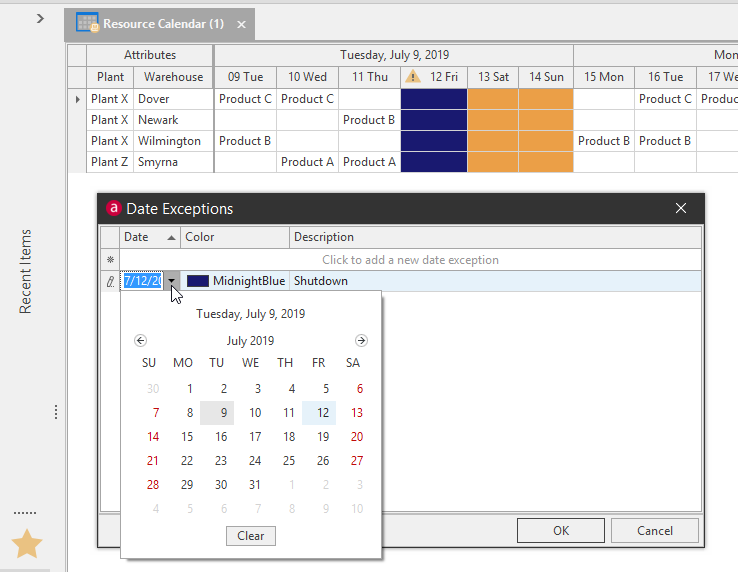
Date Exceptions
In this example we have tagged the 12th as a Shutdown.
Resource Calendar Navigation
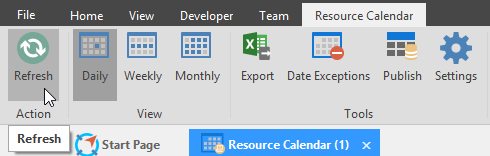
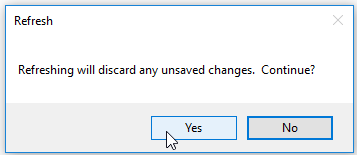
Refresh\ Refresh the Resource Calendar to erase any changes from the calendar if you have not saved the calendar yet.
View\ You can select between Daily, Weekly, and Monthly views for the Resource Calendar.
Daily View
Selecting a resource on Weekly View will select that Resource for all five days.
Weekly View
Selecting a resource on Monthly View will select that Resource for every weekday in that month.
Monthly View
How to Utilize Arkieva Calendar in your Planning Processes
{`
`}
Related Articles
Insights
The following serves as an introduction of how the Arkieva Insights software can be implemented as part of a multinational’s IT landscape. This is intended for IT project managers that are planning or considering the implementation of Arkieva ...S&OP Introduction
Why Sales and Operations Planning (S\&OP)?\ Sales and Operations Planning (S\&OP) has been around for decades. S\&OP is much more than just a meeting – it takes into account all the various planning and monitoring processes that are necessary to run ...General Navigation of Arkieva
Overview of the various navigational commands in Arkieva. {` `} Launching Arkieva Splash Screen Arkieva is installed to a web server and launched from the client intranet (Internet Explorer is highly recommended). The Arkieva version number, build ...Alerts and Notifications
The Arkieva Alerts service is used to send email and popup notifications to Arkieva users. Alerts are triggered using the Calendar, Workbenches (Data Alerts), Custom Actions, Stored Procedures, and LP Model Gen and Solve (Process Alerts).\ There are ...