General Navigation of Arkieva
Overview of the various navigational commands in Arkieva.
{`
`}
Launching Arkieva
Splash Screen
Arkieva is installed to a web server and launched from the client intranet (Internet Explorer is highly recommended). The Arkieva version number, build date, installers, and build notes information is listed on this page.
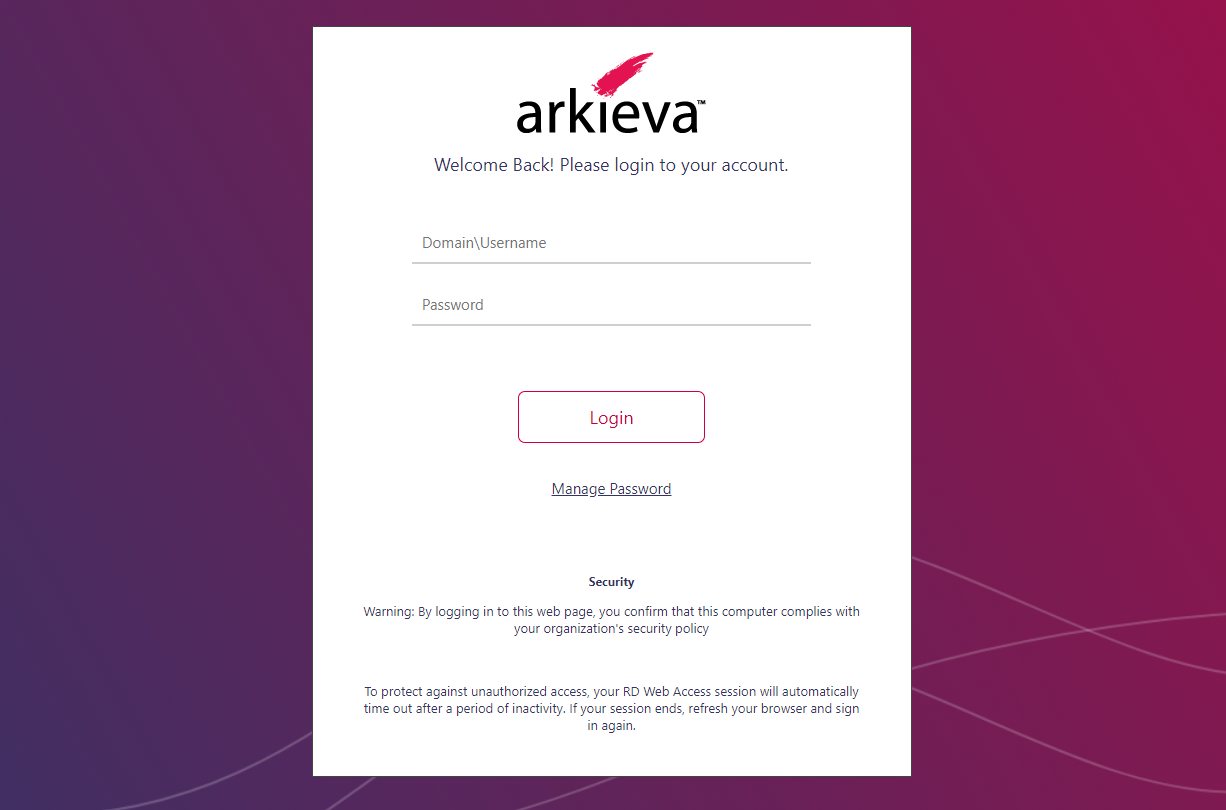
Run the Arkieva application and type your Domain\Username and Password, then click Login.
After the user has accepted the Arkieva Data Privacy Arkieva Data Privacy statement, the Connect to a Server and Database window will launch.
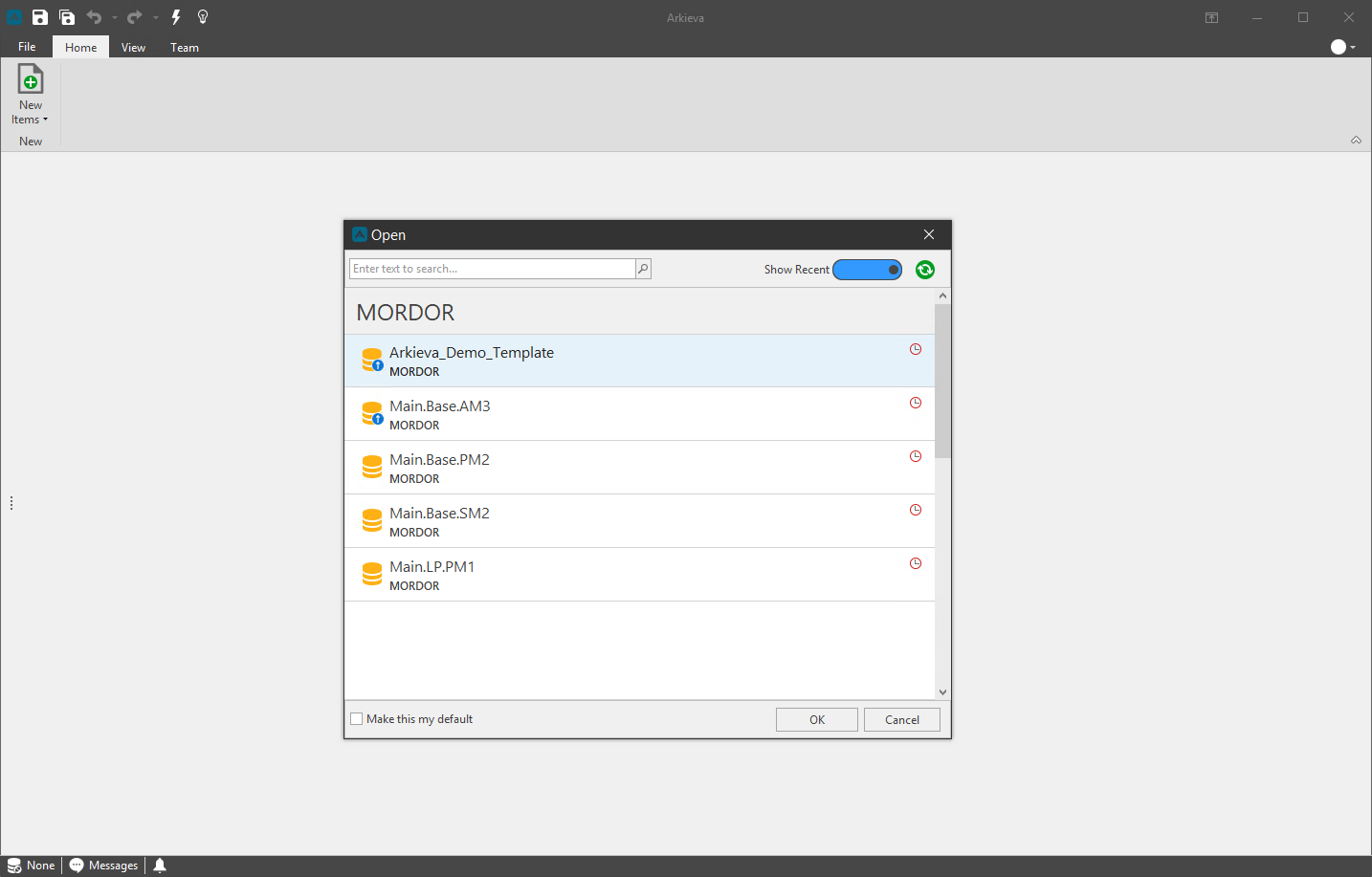
Data Privacy Agreement
General Data Protection Regulation (GDPR)\ After the Arkieva application launches, the Arkieva Privacy statement will popup. This is mandatory for Data Protection Compliance in Europe.
Please check the ‘I accept’ checkbox and click OK. To read more about Data Protection please follow this Wikipedia link.
Connect to a Server and Database
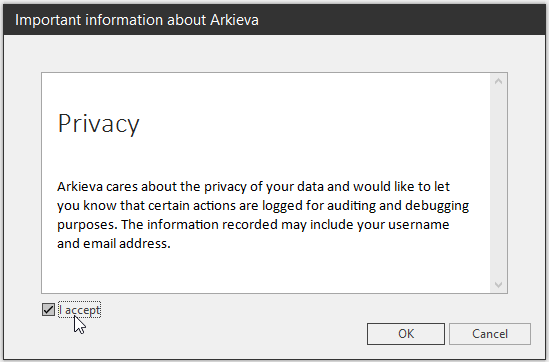
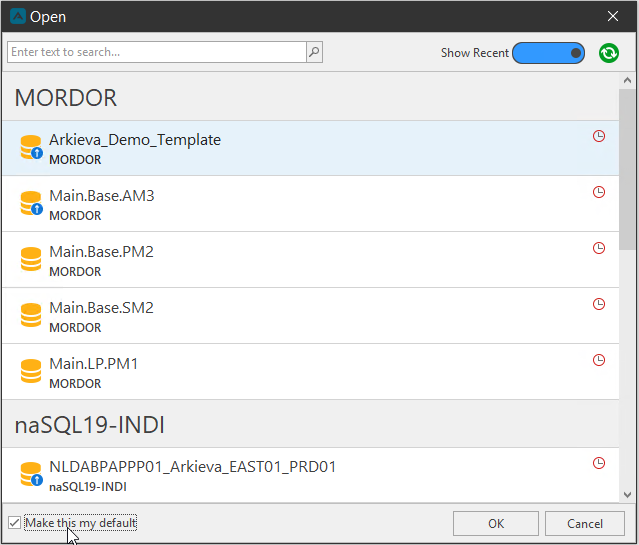
Connect to database\ Servers and databases are unique to each individual business. Arkieva populates each server and database automatically after launch.
When launching Arkieva, the service finds the databases. Select a Server and Database by clicking it from the list and clicking OK.
You can also type a search term into the search bar to highlight and drilldown the server and database list.
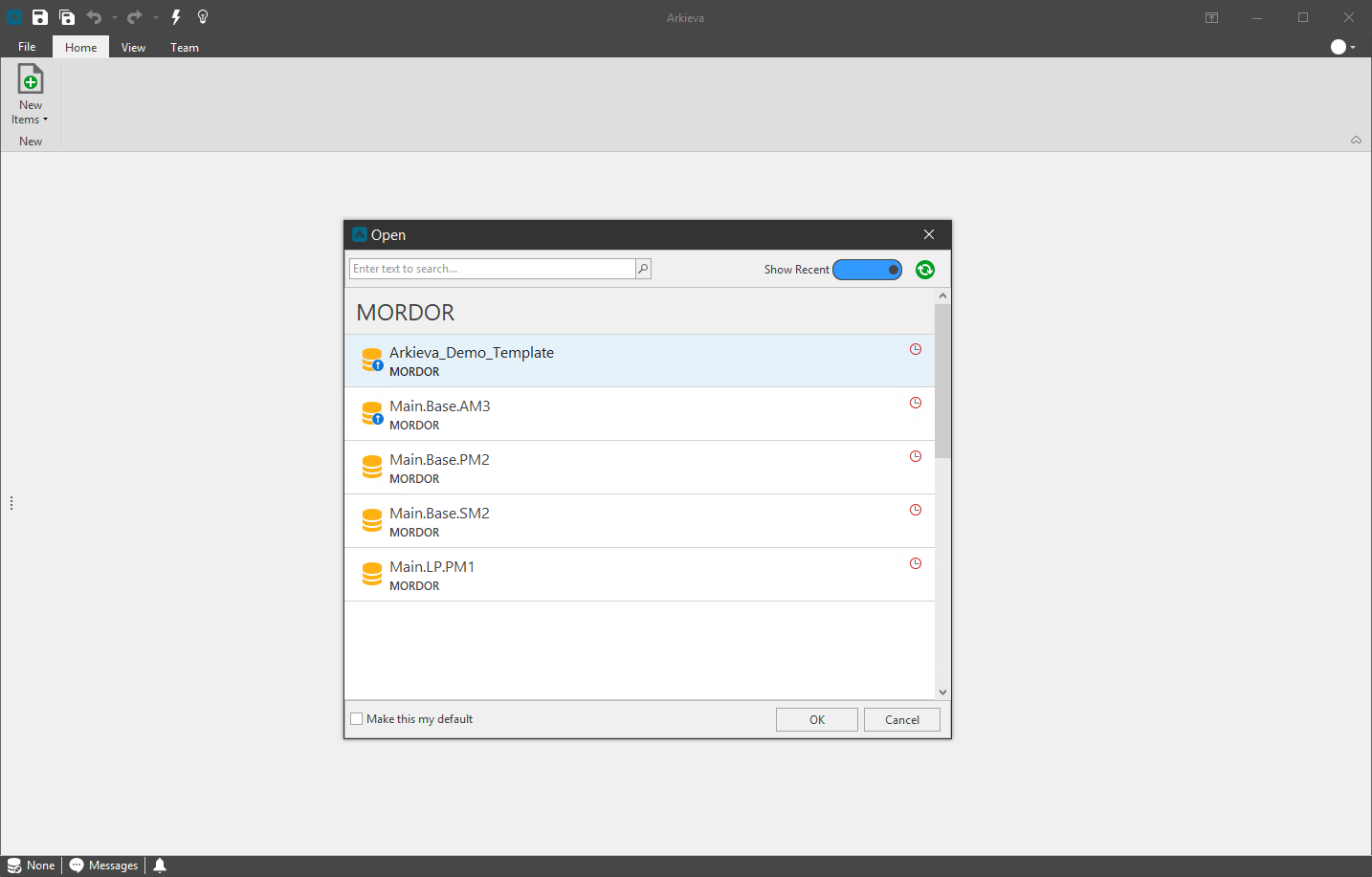
Update Available\ A Blue Arrow will appear over the database icon to show that an update is available for that database.
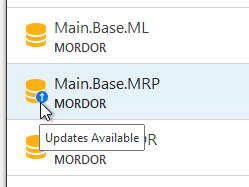
Show Recent\ Toggle the Show Recent slider on to show recently launched servers and databases. The system will remember what you select when Arkieva is closed and launched again.
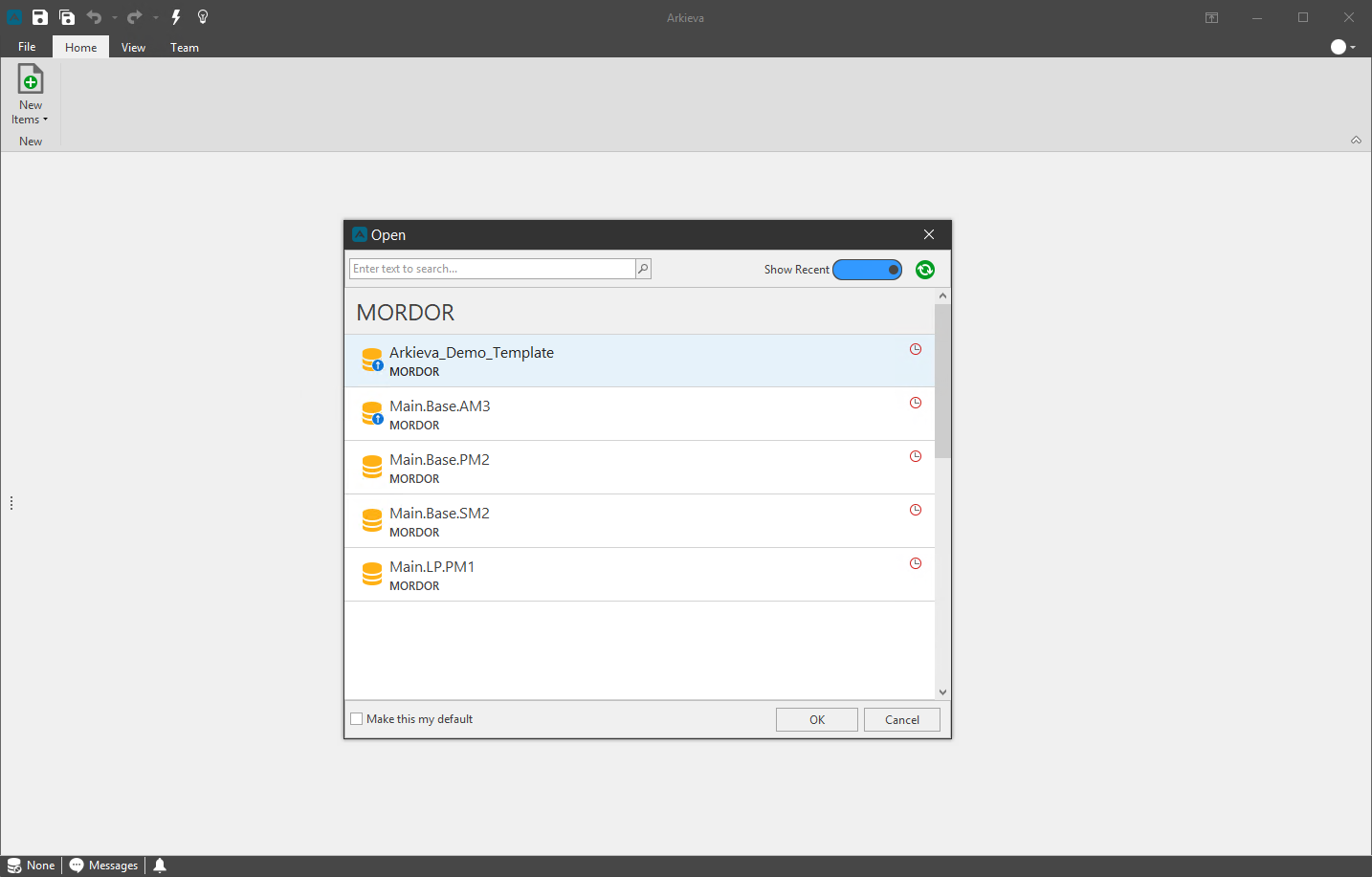
Hover the mouse pointer over the server and database to reveal the 'Clear Recent' button to remove the server and database from the Recent page.
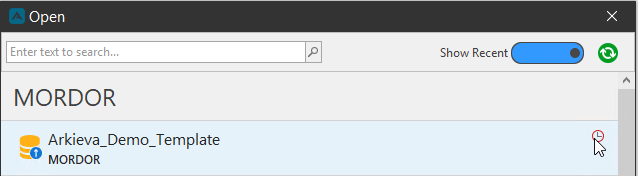
Auto-launch a server and database\ Make this my default\ You can select a server and database to auto-launch at the start of Arkieva, which will skip the Connect to Database window. This can also be set in the Database and Server Default Connection under Options.
First, select a server and database, then check the ‘Make this my default’ checkbox. Click OK to then launch that database.
To remove the default connection and be able to select a different server and not skip the open database window, go to the File tab and click Options. Select Logon, then select \ from the dropdown to remove a default connection. You could also select another server/database for a default connection here. Click OK.
Refresh\ Click the green circle arrow button to refresh the database list.
Home Page
Toolbar
The toolbar is your hub for saving documents, undo and redo keystroke commands, Quick Access search, and Assist readme and HTML documentation.

Save and Save All Open Documents\ Click 'Save' to save a new document or save changes made to a document.
Click 'Save All Open Documents' to save multiple new documents or changes made to multiple open documents.
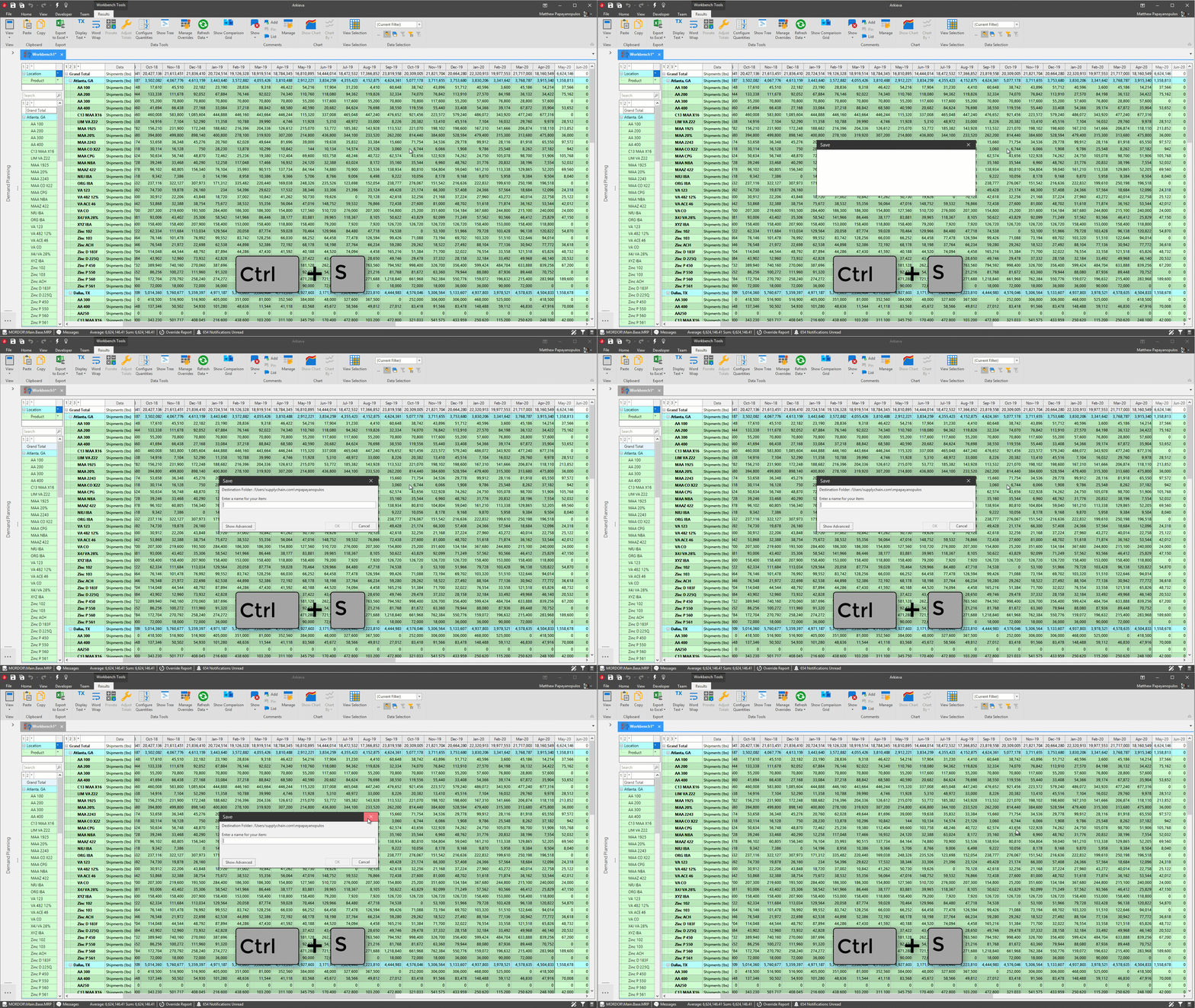
When saving most new documents in Arkieva, the Save window will launch. Enter a name for the new document you wish to save and click OK.
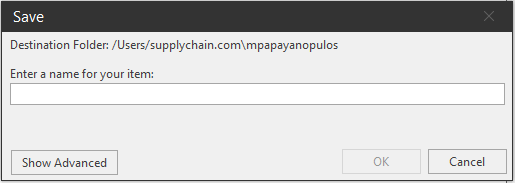
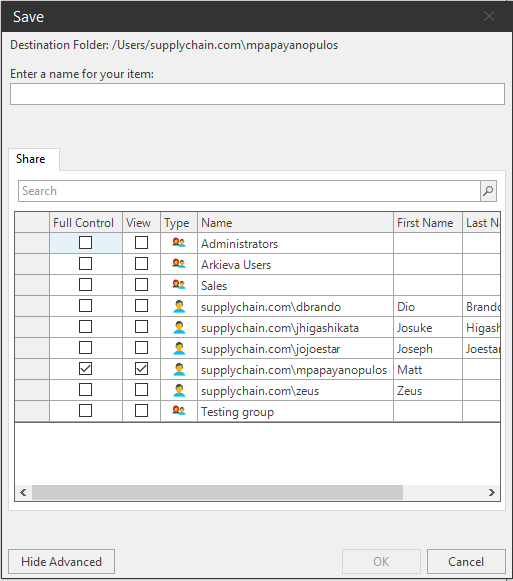
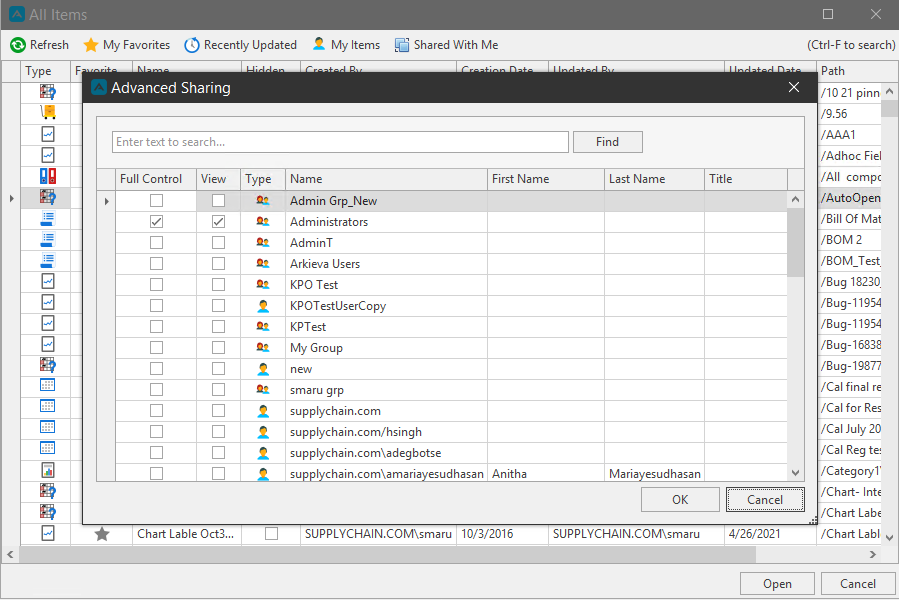
Click 'Show Advanced' for Sharing options. Check the Full Control checkbox next to a group or user to give that group or user read and write permissions to the document. Check the View checkbox next to a group or user to give read only rights to the document. Click OK to save.
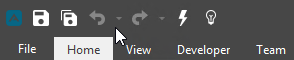
Undo/Redo\ Undo and Redo actions within Arkieva. The dropdown arrows allow access to multiple undo and redo actions when applicable.
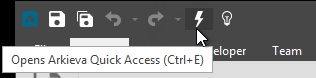
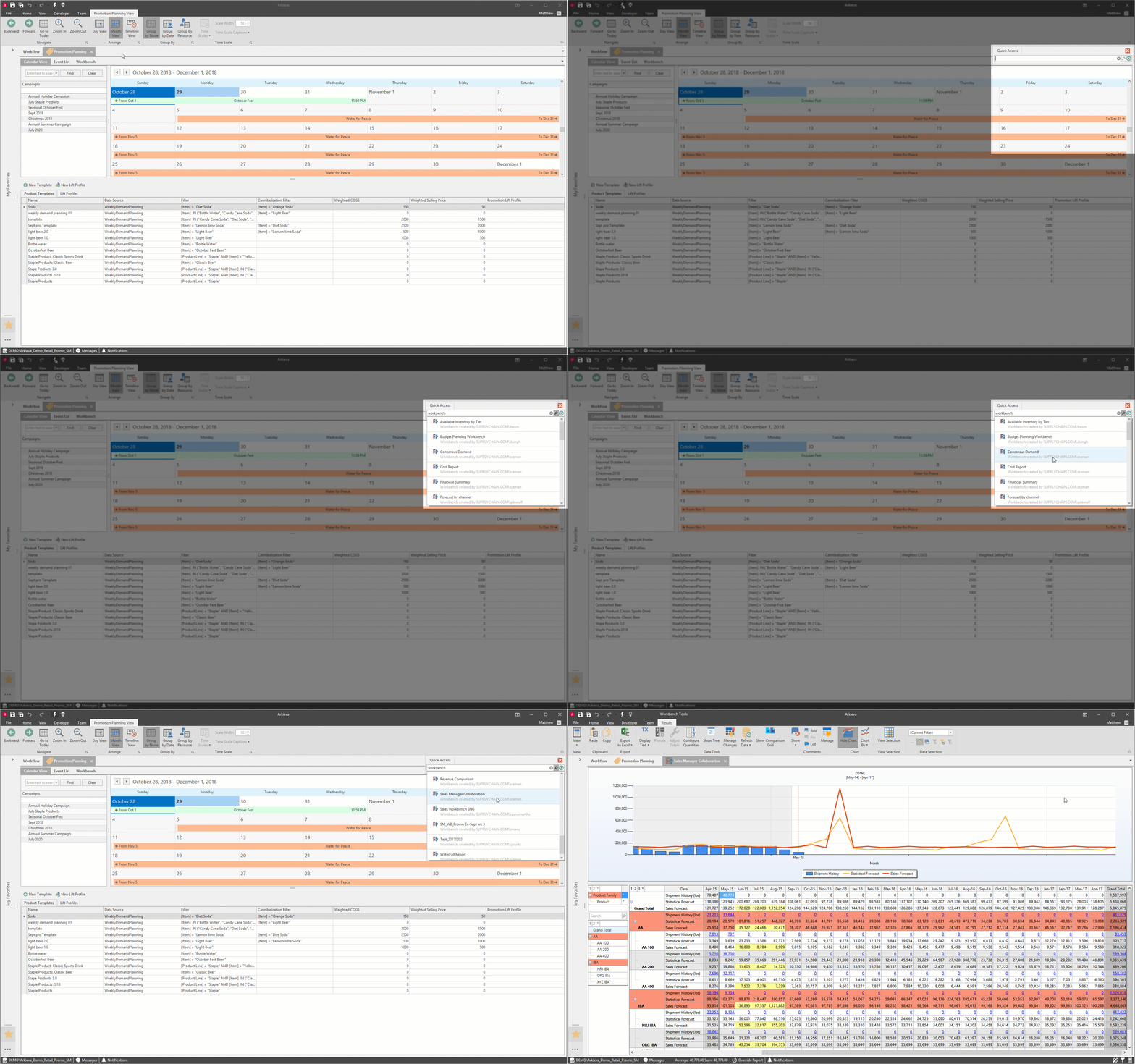
Quick Access\ The Quick Access feature allows a user to search for a document or component quickly without having to go through the Document Navigation Pane or the Browse All Documents window.
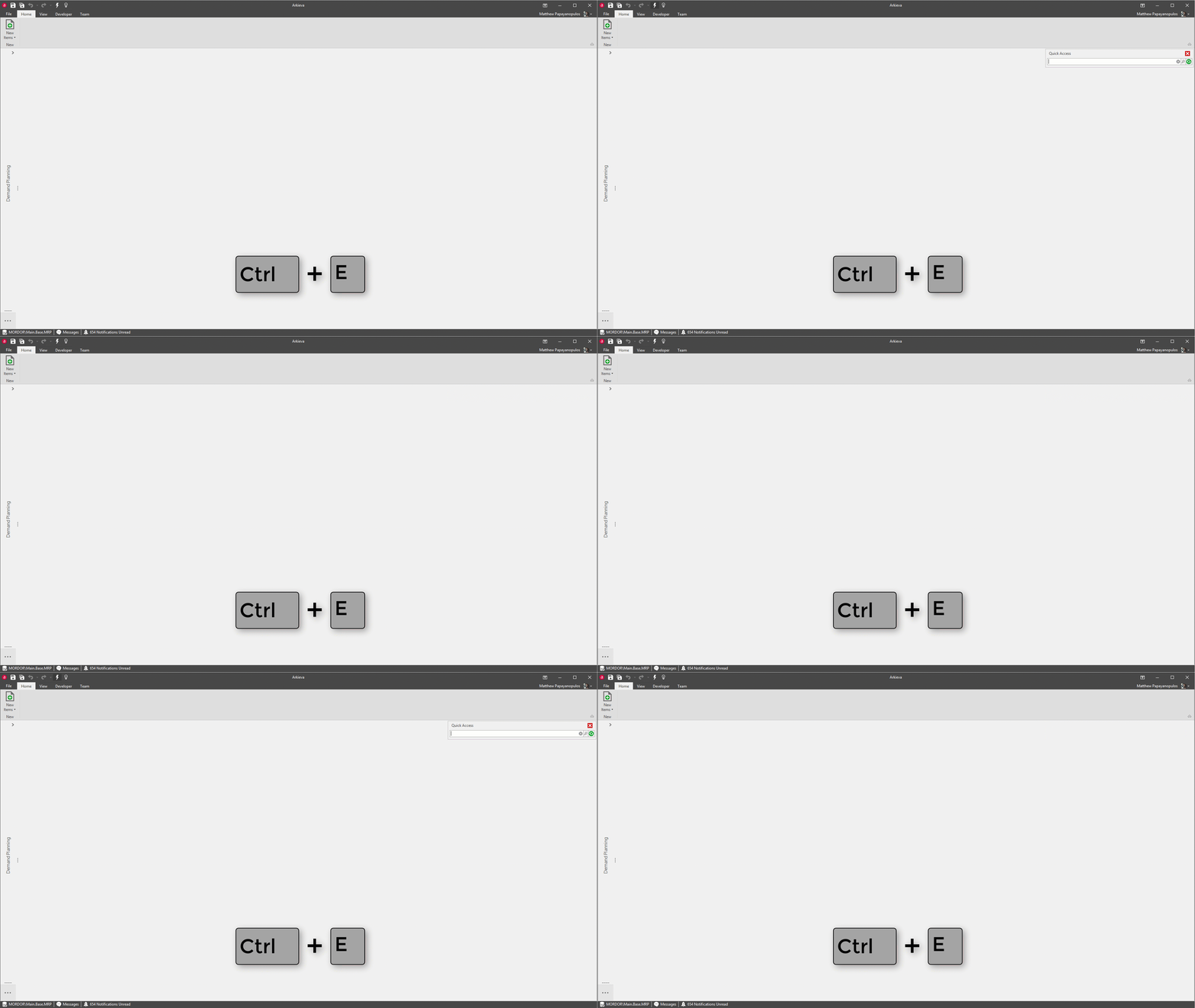
Click 'Quick Access' in the Arkieva toolbar or press the CTRL+E keys to toggle on the Quick Access menu.
Type a search term into the empty field and click the appropriate result to launch that document or component.
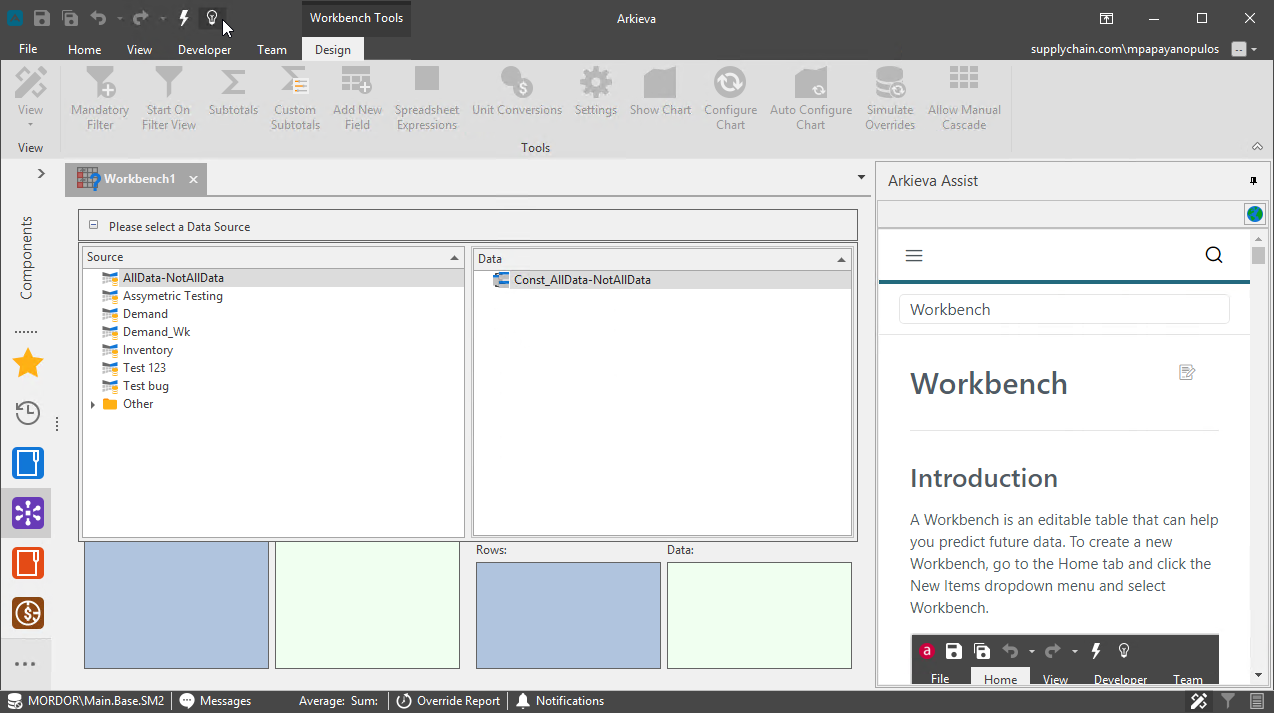
Assist\ Assist is a way for Arkieva Consultants and Super Users to attach a user guide written in HTML to documents in Arkieva.
Start Page
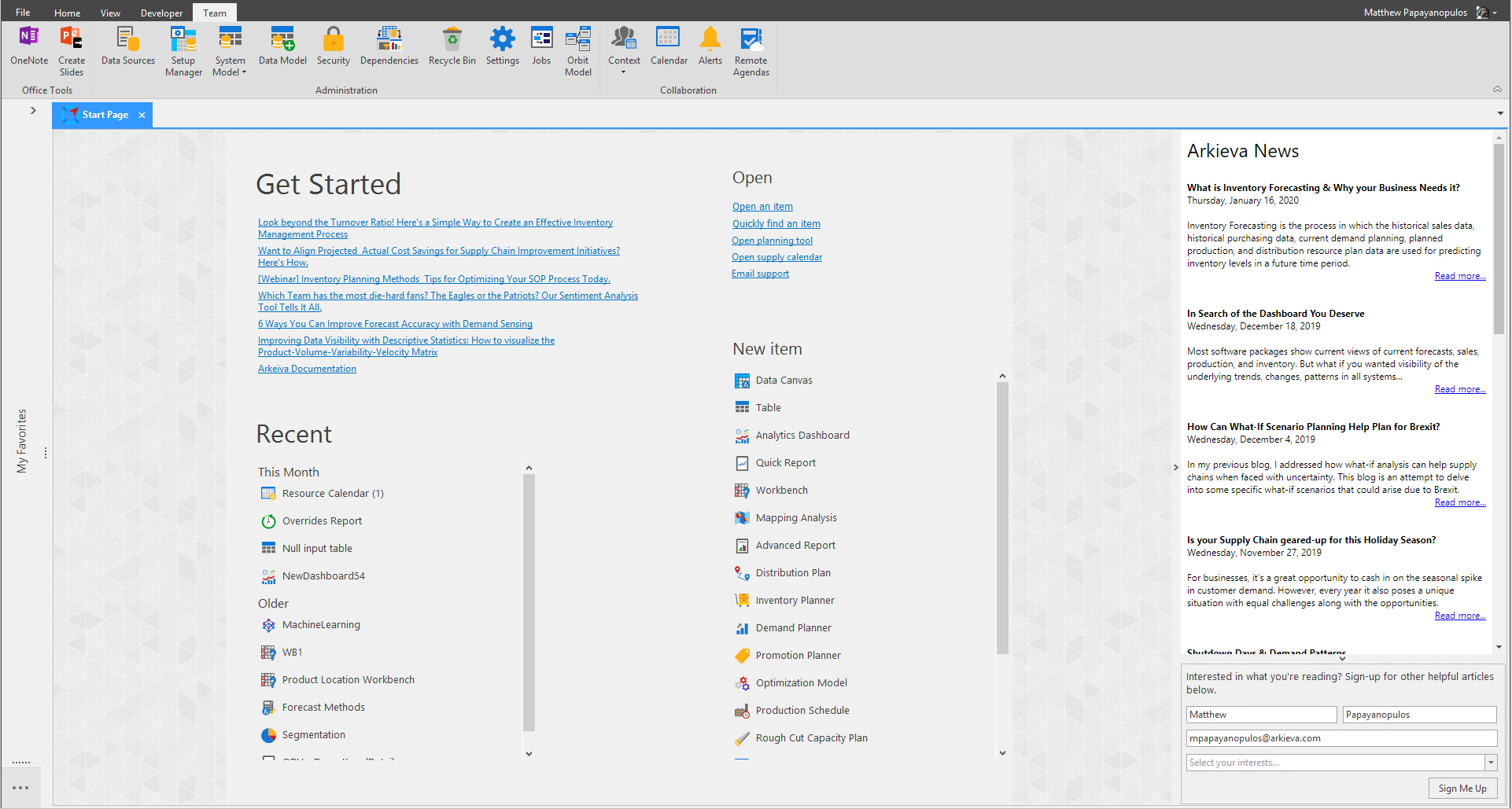
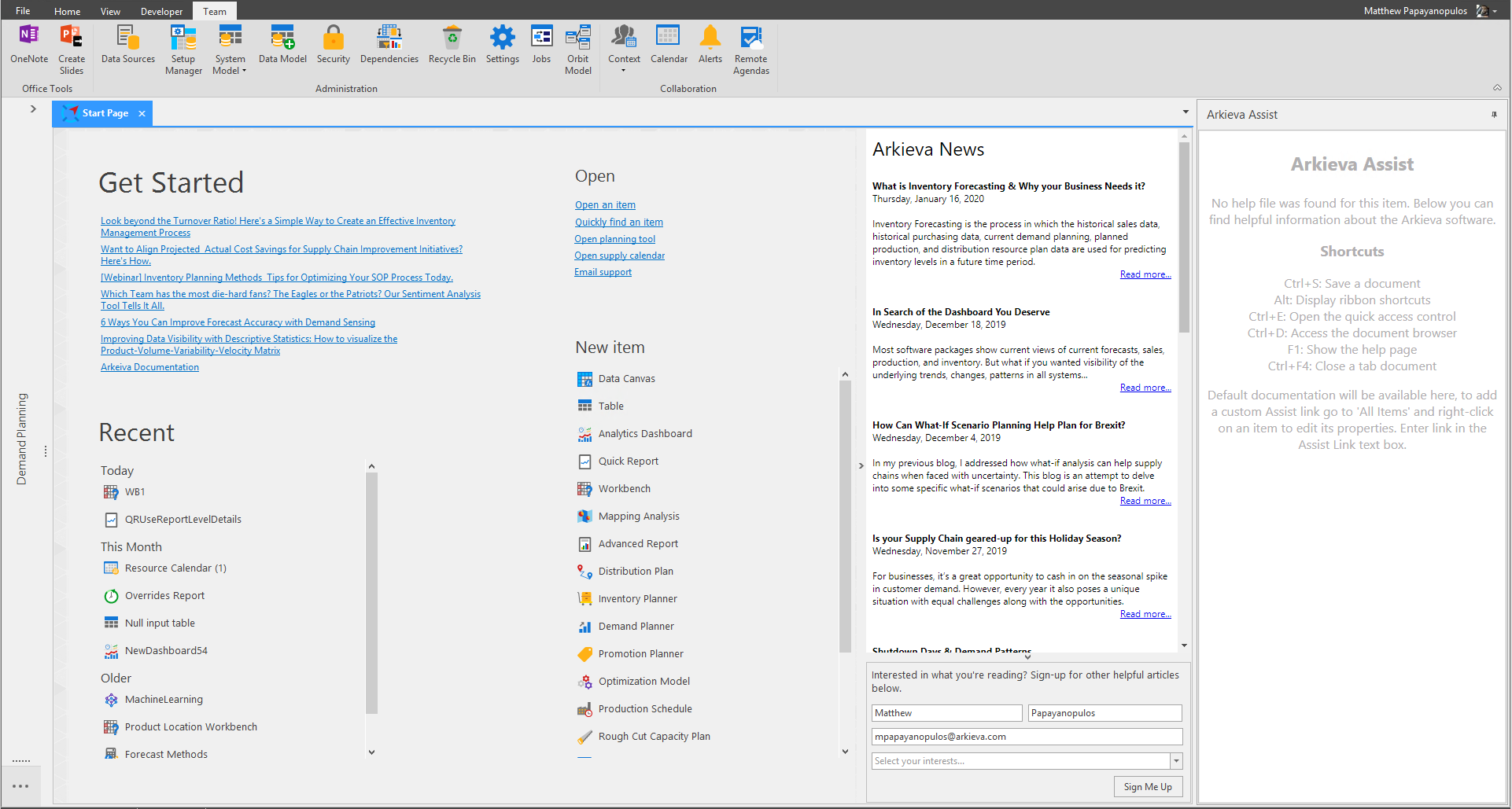
Arkieva Information Hub\ The Start Page is the Arkieva Information Hub for users to access external links under Get Started, recently viewed documentation under Recent, a list of hyperlinks under Open, and a list of document / component hyperlinks under New Item on the Start Page. You can also view a blog feed and opt-in to receiving emails.
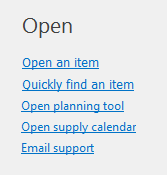
Open Links\ ‘Open an item’ and ‘Quickly find an item’ are default to Arkieva. These links are configured in the Administration settings.
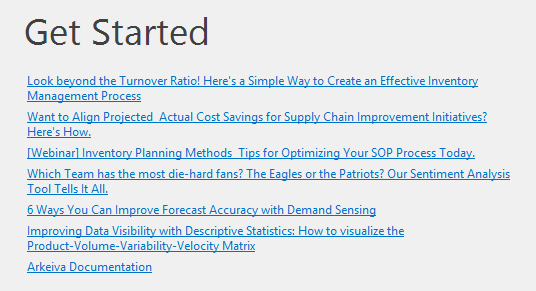
Get Started\ The Get Started section can be fully configured to have custom hyperlinks. These links are configured in the Administration settings.
A default message to the user will be here in place of links if no links are configured.
'Welcome to Arkieva! In the start page you'll find useful links and controls to help you get started using our application.
Below you'll find the most recent documents you've interacted with to quickly get back to work.
You'll also find links to browse the items in the system or quickly find them using the name, description and other key words. You can also create new items directly from the start page as well.'
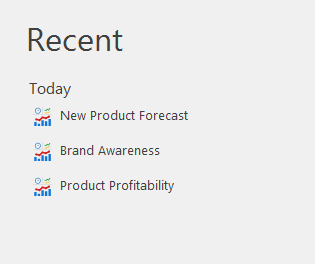
Recent\ The Recent items section shows all the components you have worked on recently. Instead of using the navigation pane, you can quickly select the last recently used component from the Recent list. Recent items are categorized under Today, Last Week and Older.
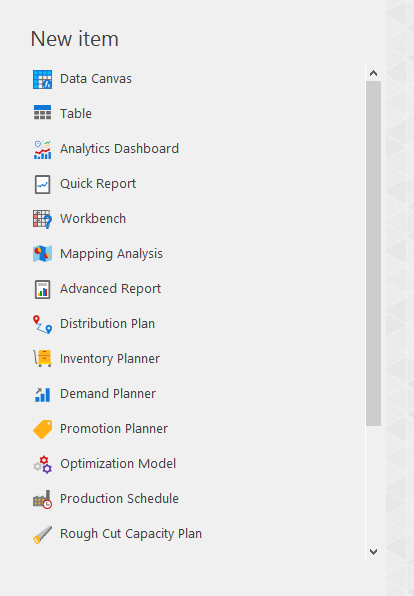
New Item\ The New Item section lists all documents and component creation tools in alphabetical order. These links are also available from the Home ribbon's New Items dropdown and the All Documents window.
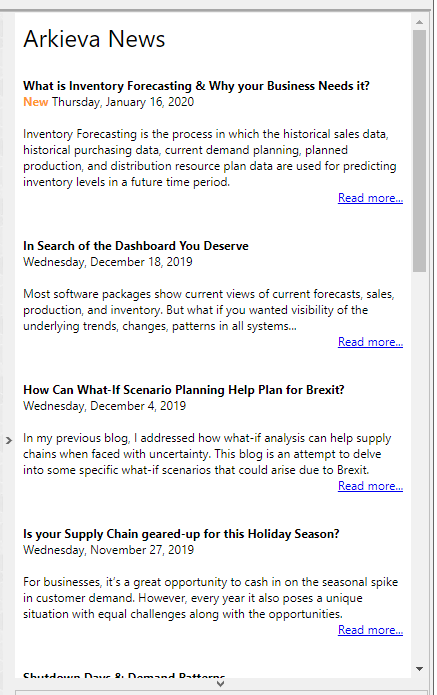
Blog section\ The blog or RSS URLs or a Static HTML page can be configured to appear in this window. The blog section can be configured to show Arkieva news and blogs or a customer's news and blogs. This section sorts the news and blog items by most recent, and provides a web link for each article. This is set in the Administration Settings.
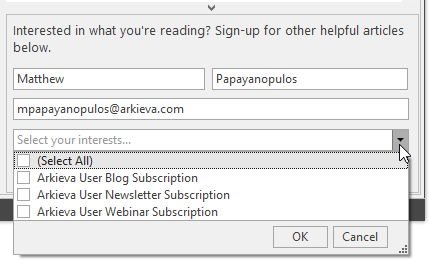
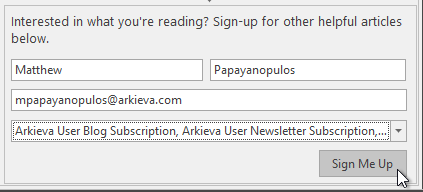
Opt-In Mailing List\ The Opt-In Mailing List ‘Select your interests…’ dropdown includes a checklist for a user to subscribe to receive notifications from the Arkieva Blog and Newsletter, and to get updates on future Arkieva Webinars. These selections are synced to Hubspot.
If you are an administrator or consultant, please click the following link to learn more about configuring the Start Page.
Document Navigation Pane
The Document Navigation Pane gives access to created documents, favorite documents and components, recently viewed documents and components, and custom document categories. The categories and what documents appear under those categories are configured in the Settings Navigation tab from the Team ribbon.
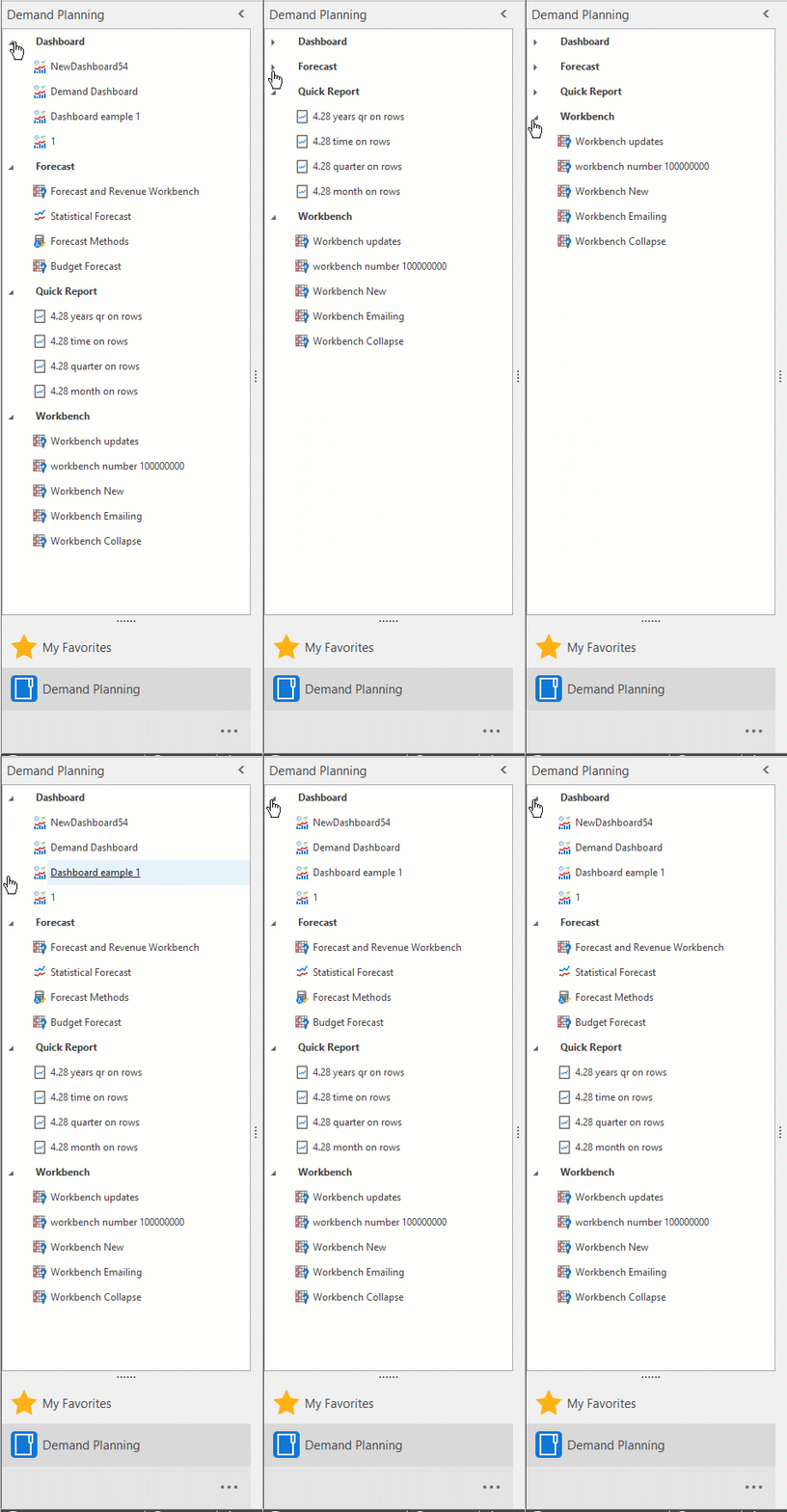
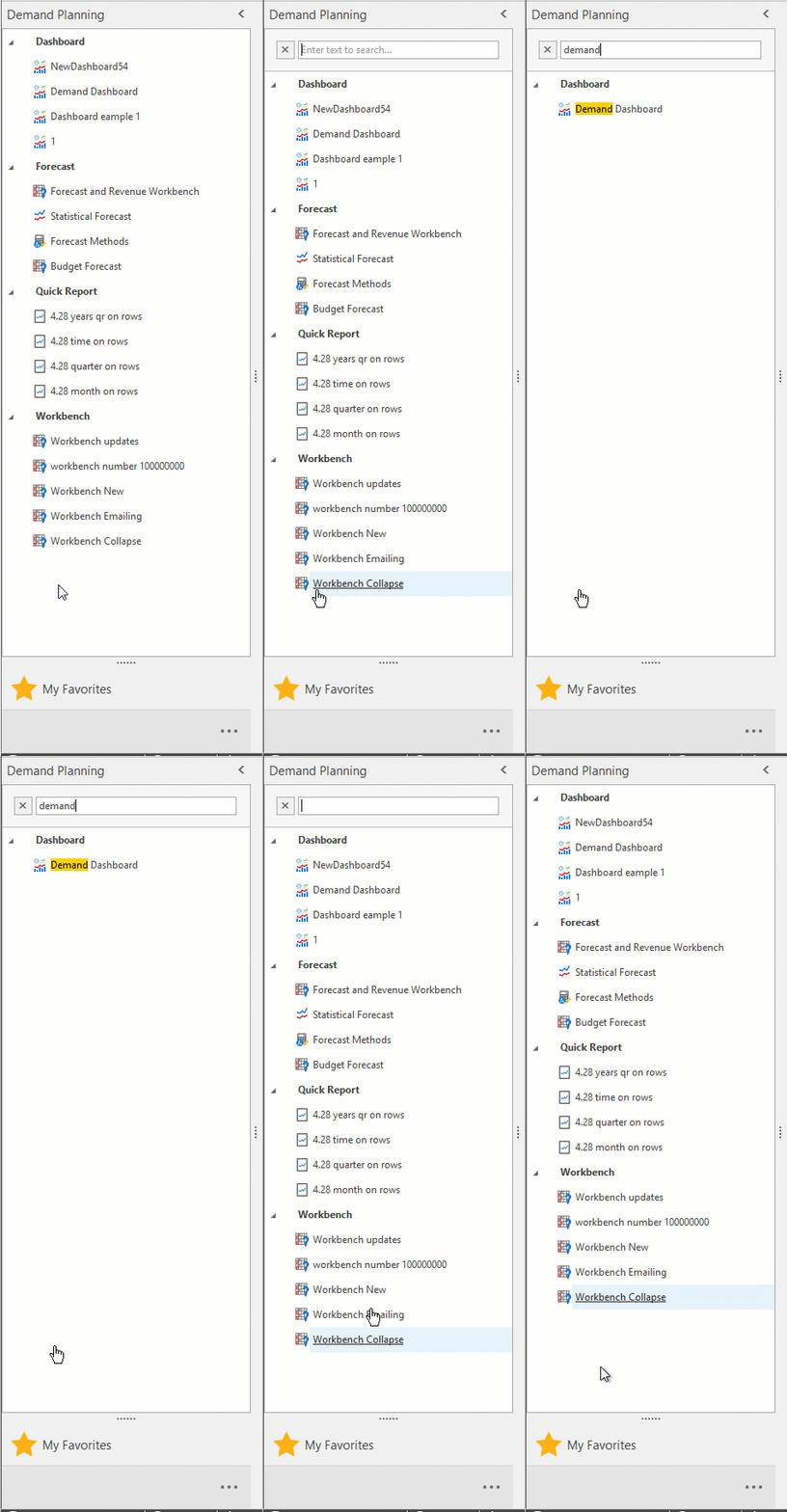
Collapse and open all categories and sub-categories in the navigation pane by holding SHIFT and clicking the arrows. Hovering the mouse pointer over a category will show a tool tip giving these instructions.
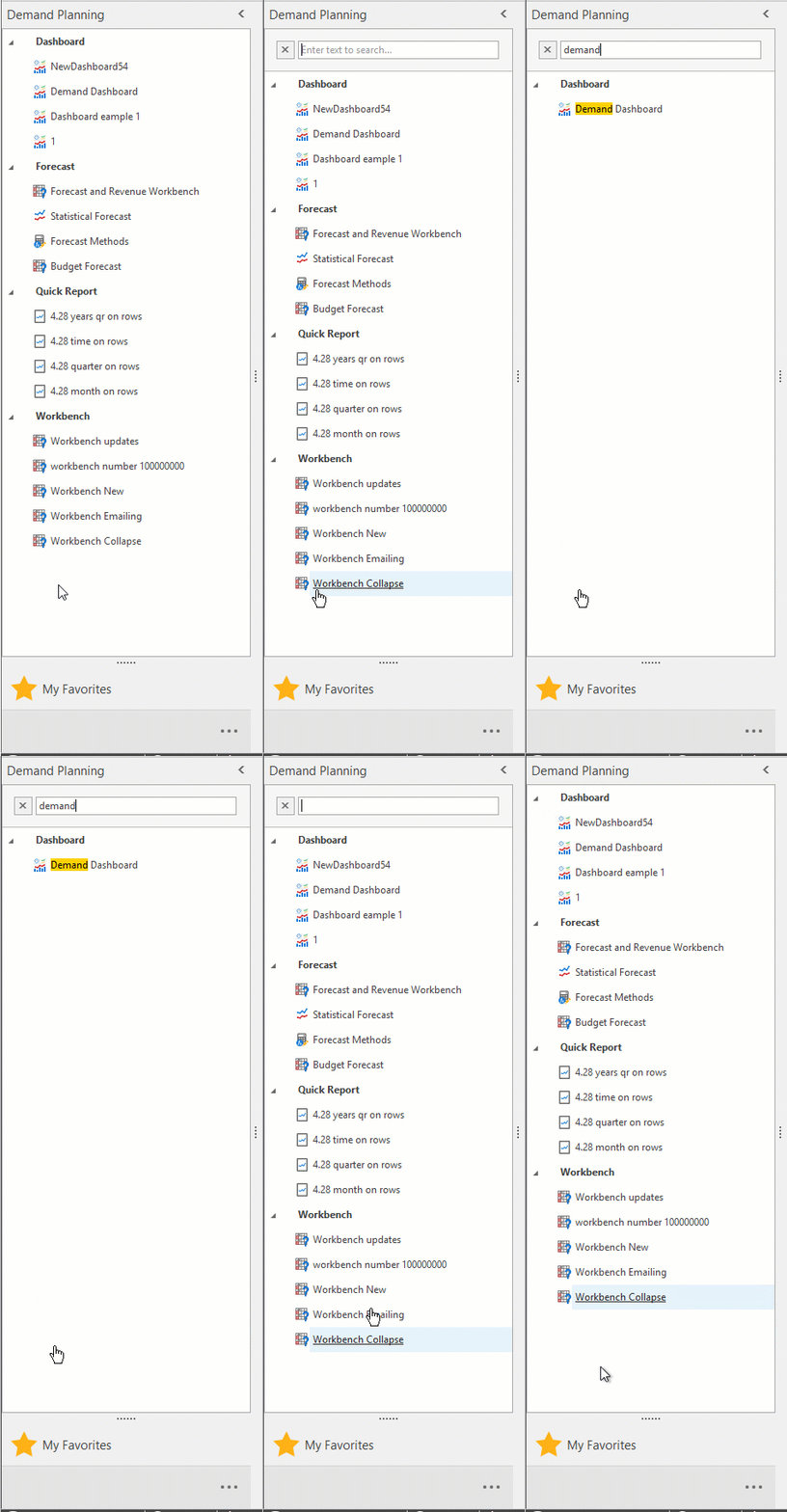
Search bar\ Press the CTRL+F keys to access the Navigation Search bar. Type a keyword into the search bar to drilldown the list of documents in the navigation pane. This will create a filter that can be edited.
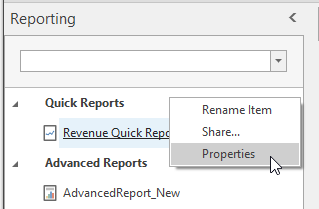
Right-click an Item\ Right-click a document to access additional menu commands including Rename Item, Share, and Properties. Not all documents have these options.
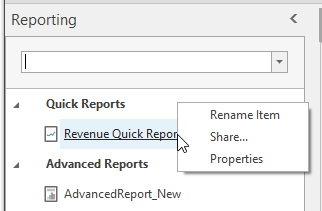
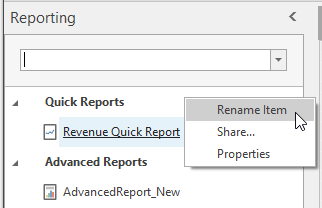
Rename Item\ Click Rename Item to create a different name for a document.
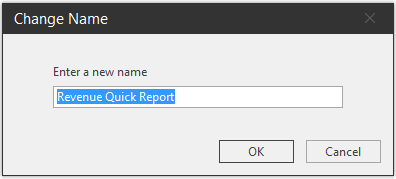
Type a new name and click OK.
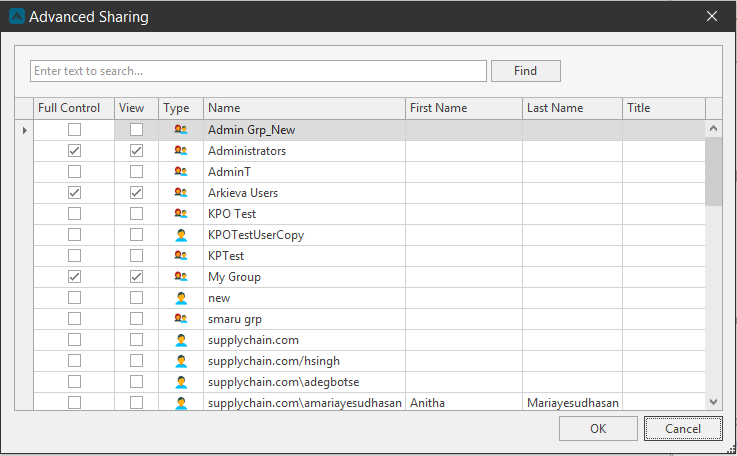
Share\ Give users and groups read and/or write security permissions to documents.
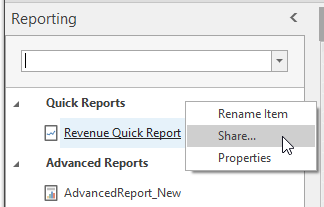
Next to a user’s name check the Full Control checkbox to give that user read and write security on that document, or check the View checkbox to only give that user read only rights. Click OK.
Properties\ Modify a document or component’s properties from the Properties window. Follow the link to learn more about Document and Component properties.
Bottom Menu\ Accordion Menu\ The bottom of the navigation pane has the buttons for My Favorites, Recent Documents, and created document categories. Hovering the mouse over the bar between the document list and the buttons will turn the mouse pointer into a double-arrow pointer. Click and hold the mouse and drag up or down to show more buttons or show less buttons.
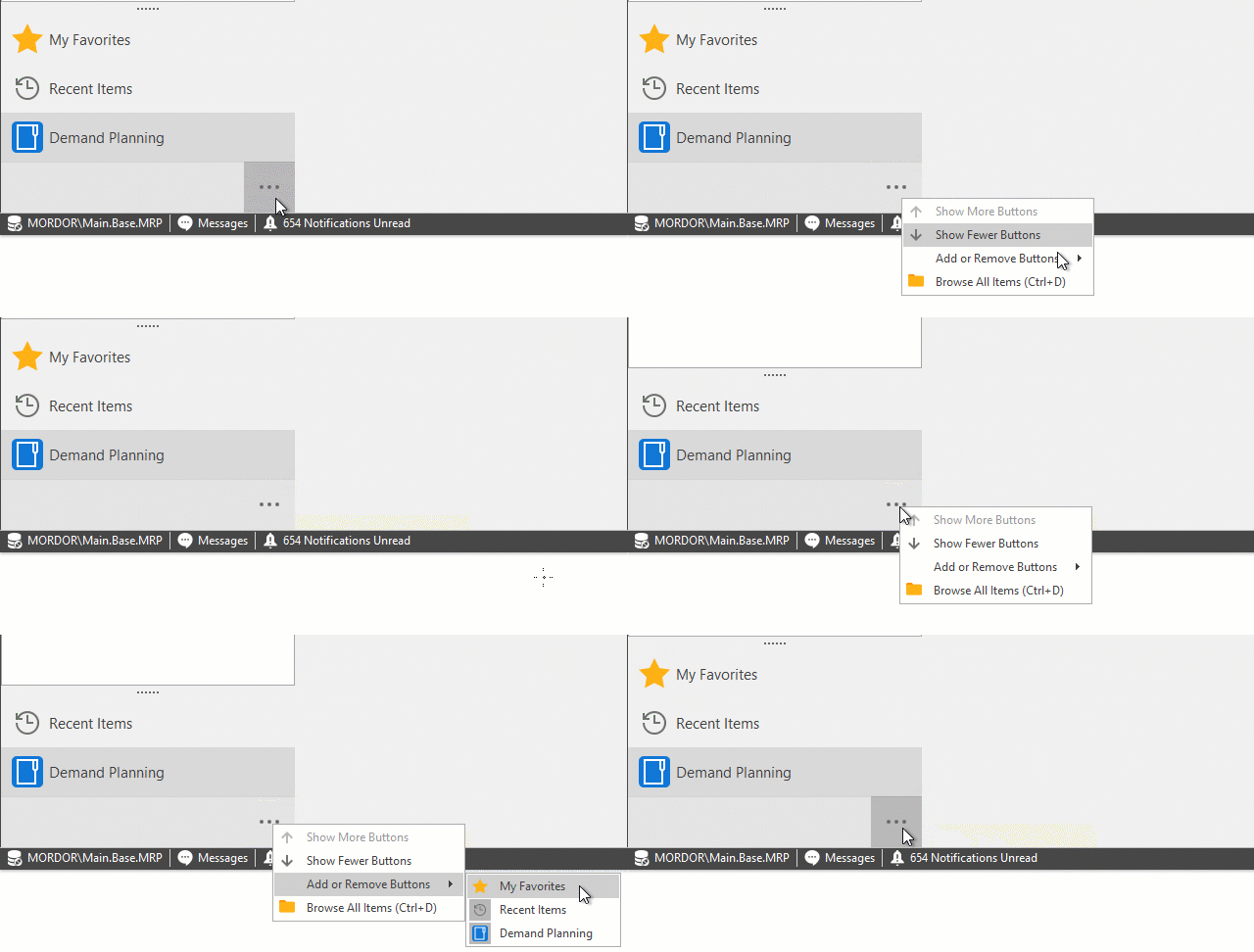
Configure Buttons\ Click the ellipses button for the Show more / Show fewer buttons, and the Add or Remove Buttons menu. Toggle on or off My Favorites, Recent Items, Browse All Documents and any created categories to add or remove them from the Navigation Pane bottom menu.
Workflow Manager
Organizing the Unit-Based Approach in Your IBP Monetization Process\ Explore how individual decisions within your supply chain affects your IBP monetization process.
{`
`}
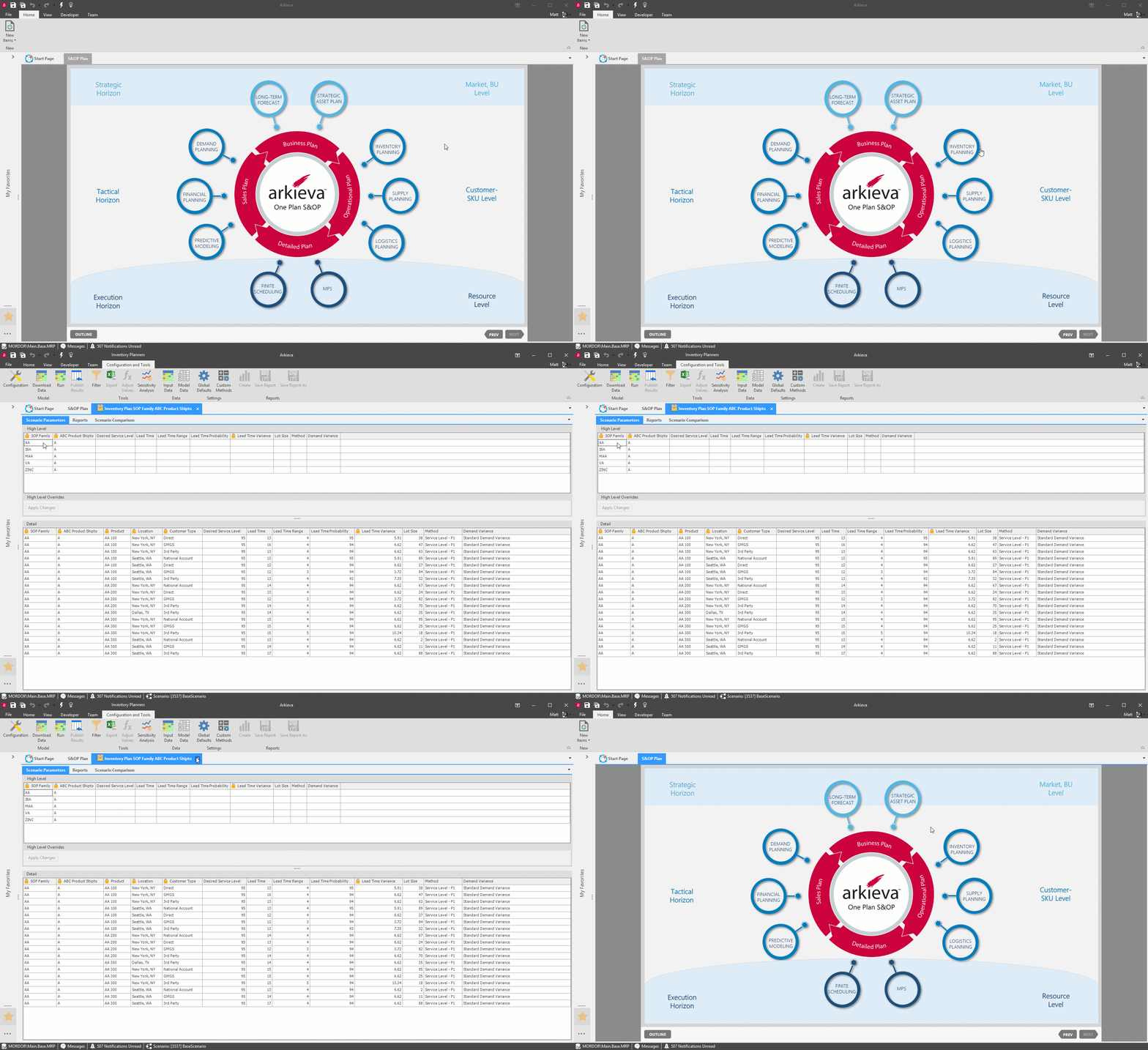
Import HTML5 into Arkieva\ Arkieva Workflow Manager allows for importing PowerPoint presentations exported as HTML5 into Arkieva. All the features of PowerPoint can be used for Workflow Manager, such as animations, buttons, and hyperlinks.
For help converting slides to HTML5 please contact Harshala Fernandes [hfernandes@arkieva.com](mailto:hfernandes@arkieva.com).
Creating PowerPoint slides for Publishing\ A PowerPoint deck and slides will need to be designed first before the following steps can be completed. The example below features a workflow with multiple buttons to launch Arkieva components and documents.
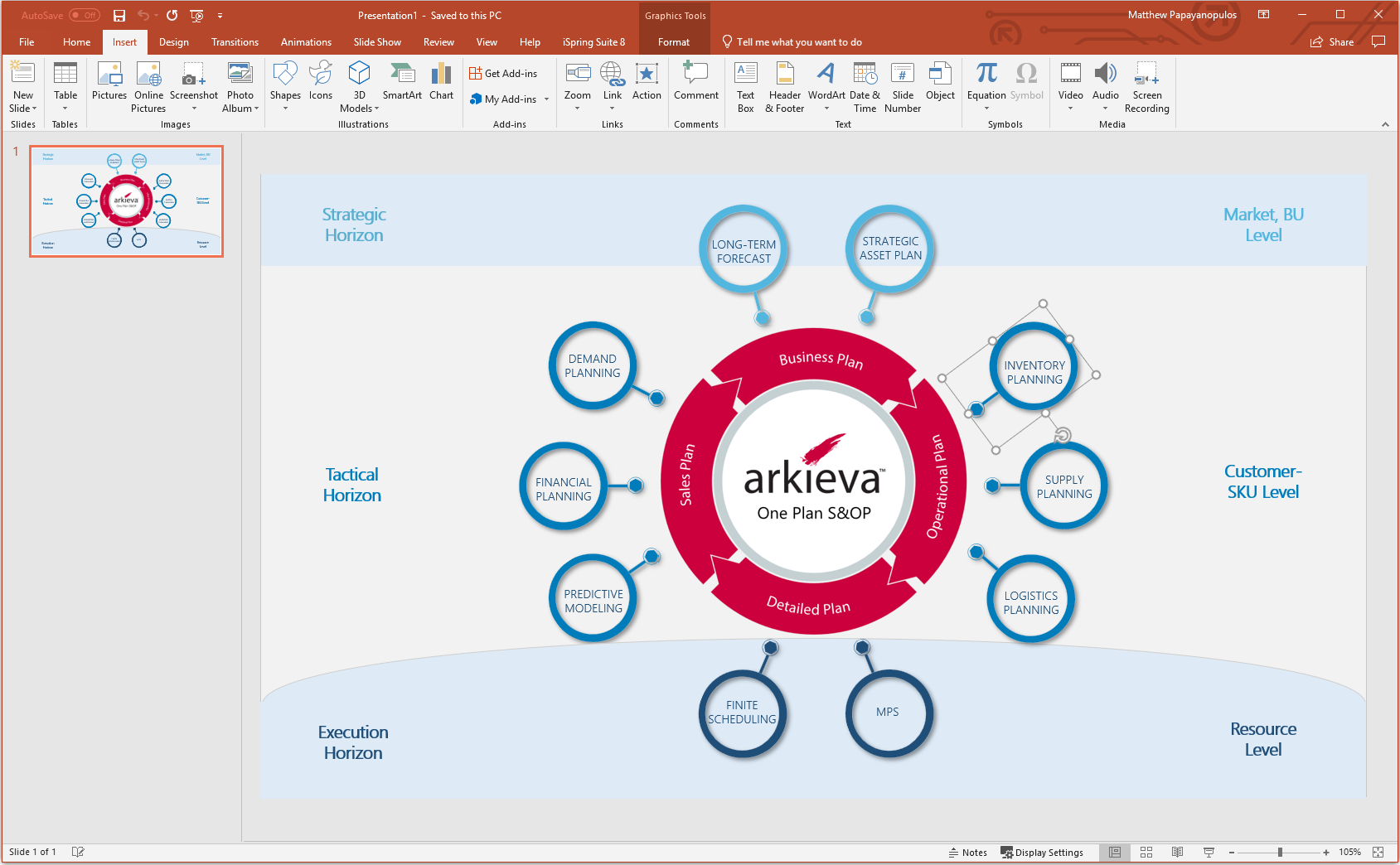
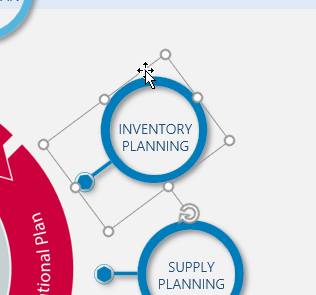
To create a button in PowerPoint that will launch a document in Arkieva, create a shape or place an item you wish to be that button, then select the shape or item.
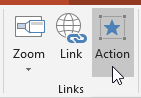
Next go to the Insert tab and click the Action button in the Links section to launch the Action Settings window.
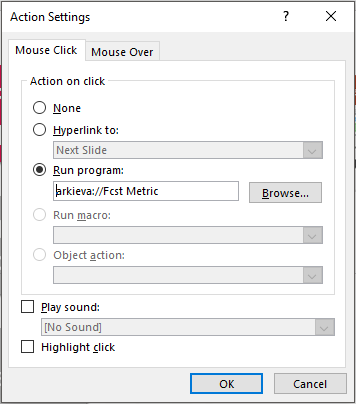
In the Action settings window, click the Run Program radial button. In this field, type: narkieva:/ and the file path name of the document in Arkieva.
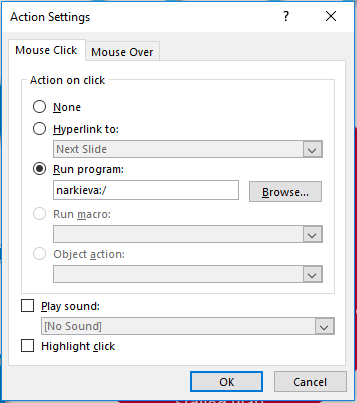
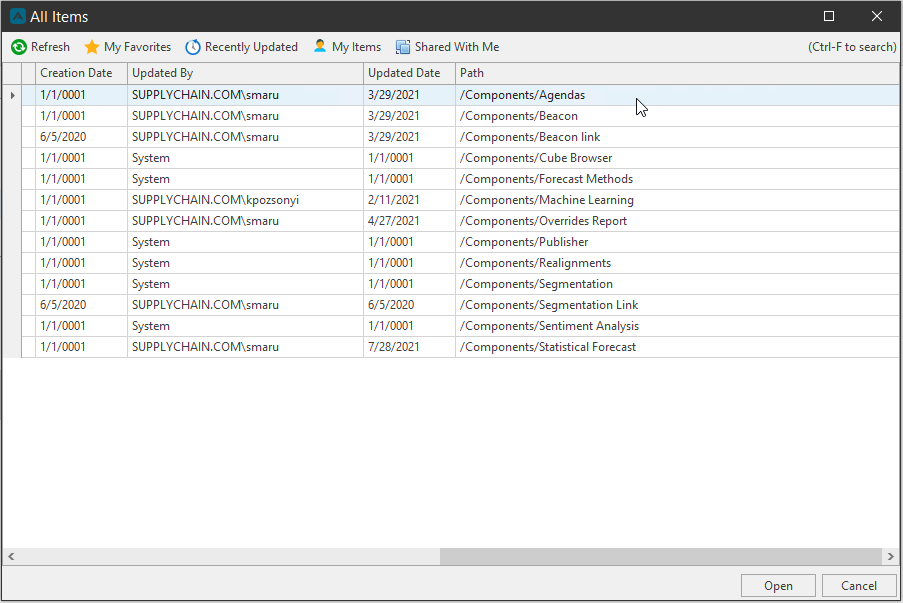
The file path name can be found in All Documents in the Path column.
Type the Path name exactly as it appears in Arkieva in the Run Program field. Click OK.
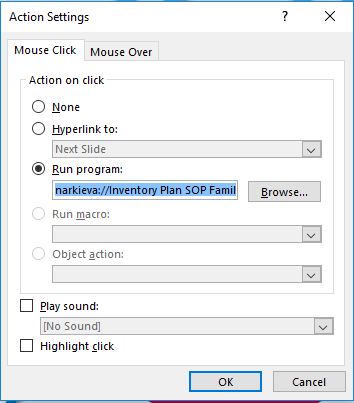
Save the Powerpoint slide deck after creating all desired buttons to open documents and/or components. Send the slide deck to an Arkieva consultant for conversion to HTML.

Importing HTML5 into Arkieva\ After creating the slide deck and converting it to HTML5, the next step is to select the Published content to launch in the Workflow Manager. Launch Arkieva and open the Settings window from the Team Ribbon.

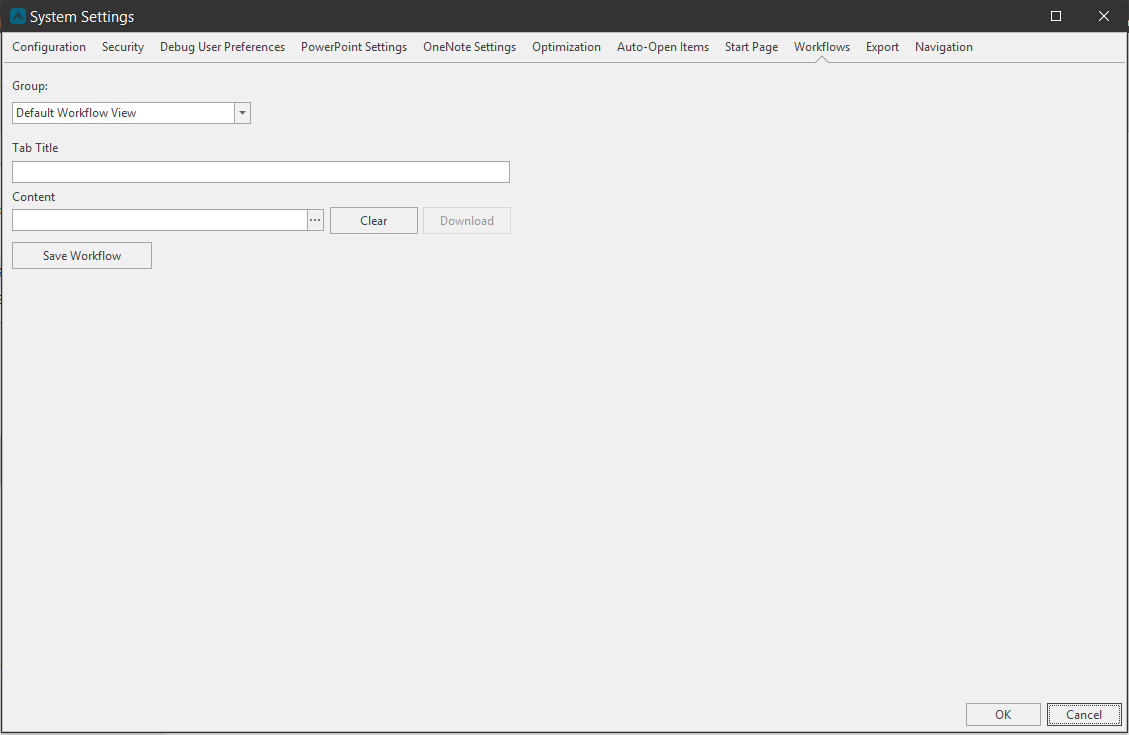
Click the Workflows tab. Click the link to continue the steps for importing HTML5 into Arkieva.
Information Status Bar
The Information Bar offers helpful information while using the various Arkieva components and documents. Documents and components have different features that will populate the Information Bar, but four features remain constant throughout Arkieva:
- Connect to a Server and Database
- Alert Notifications
- View buttons: Toggle through Design, Filter, and Results views for some component documents.
- Messages: record of errors, comments, overrides, etc.

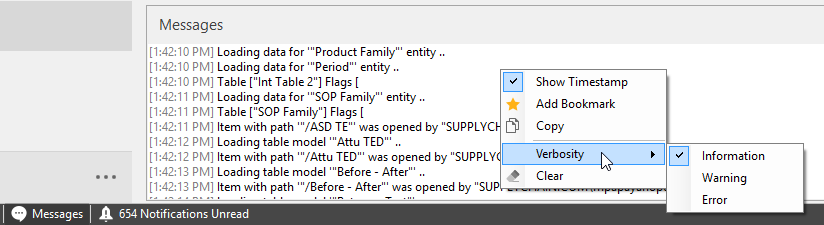
Messages Pane\ Arkieva will keep track of your activities such as overrides, comments, before and after values, etc., and keep a record of any errors that may have occurred. To view messages, click the message button in the information bar.

The messages mostly list information from the database side of what’s happening, but you can send this data to your support and development team by right-clicking and copying to the notepad or email.
- Show Timestamp: Toggle on or off the time stamp of the message.
- Add Bookmark: Create a bookmark to separate a group of messages.
- Copy: Copy messages to paste into another program, like WordPad.
- Verbosity: Information, Warning, and Error.
- Clear: Clear all messages.
Shortcut Keyboard Commands
Arkieva has several shortcut key commands that make your Arkieva navigation experience easier. Below you will find the list of shortcut keyboard commands and how to perform them: Access All Documents, Close Tab, Display Ribbon Commands, Open Quick Access, Save a Document, and Show Assist.
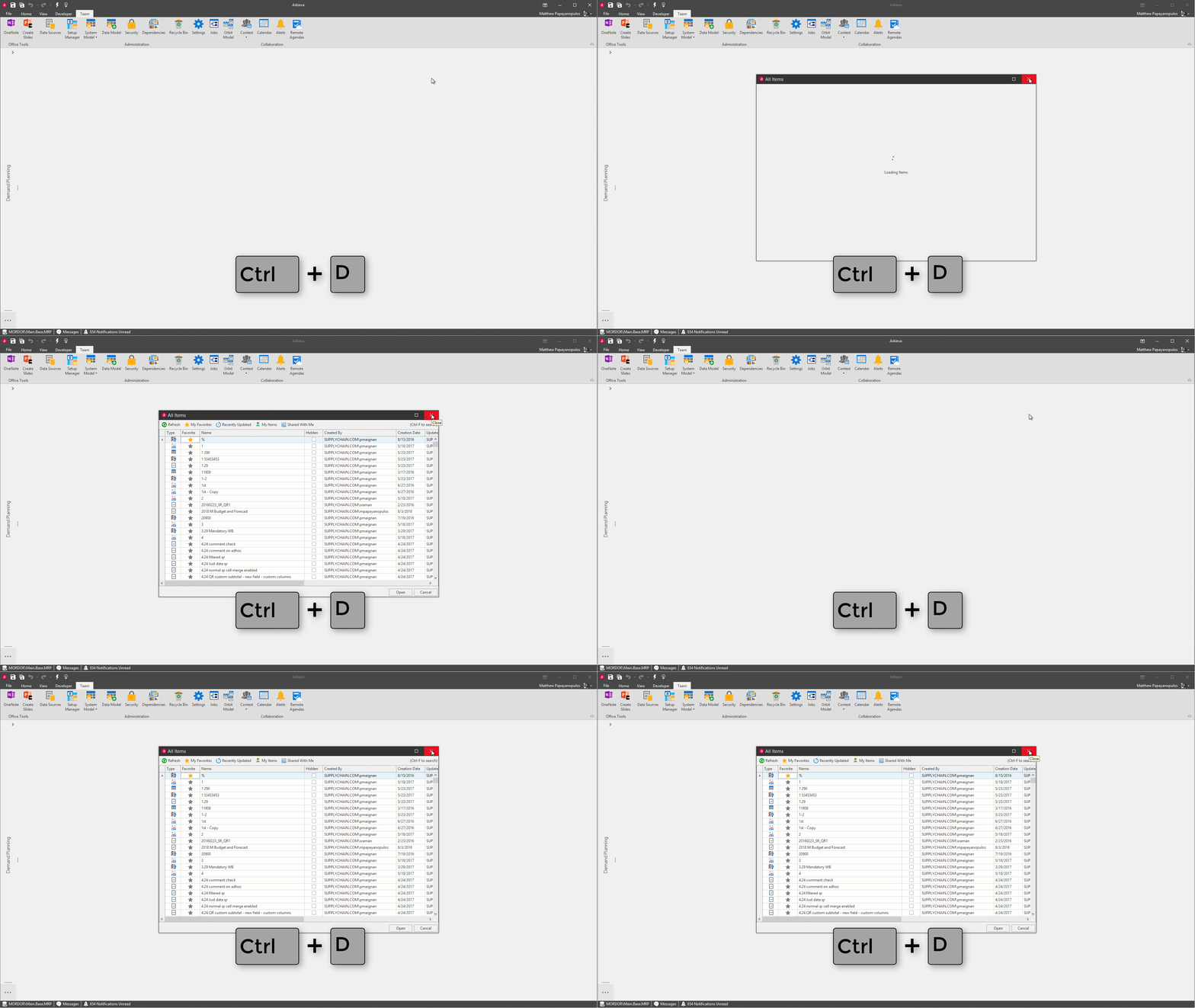
Access All Documents\ Press Ctrl + D to access the All Documents window.
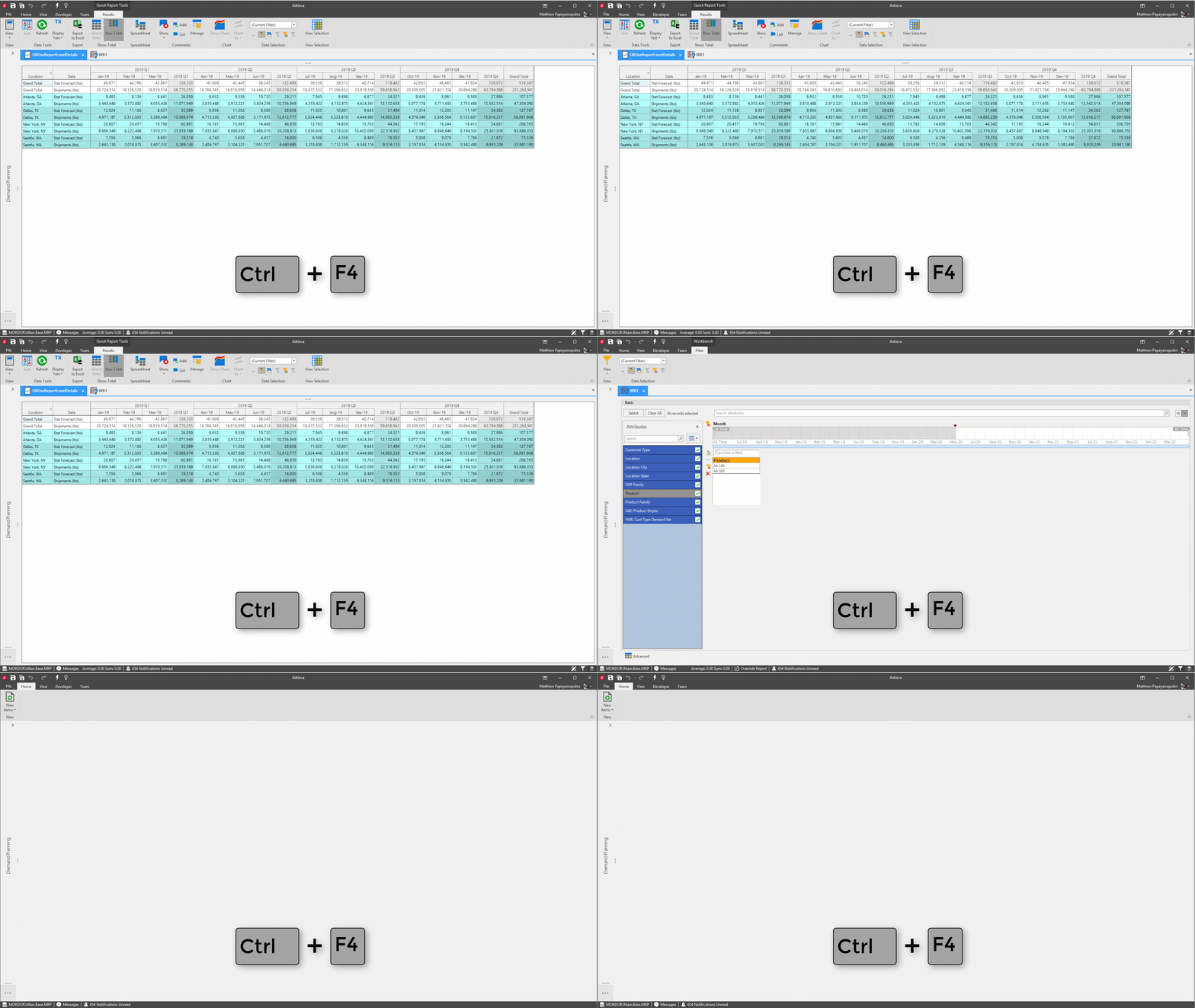
Close tab\ Press Ctrl + F4 to close a tabbed document.
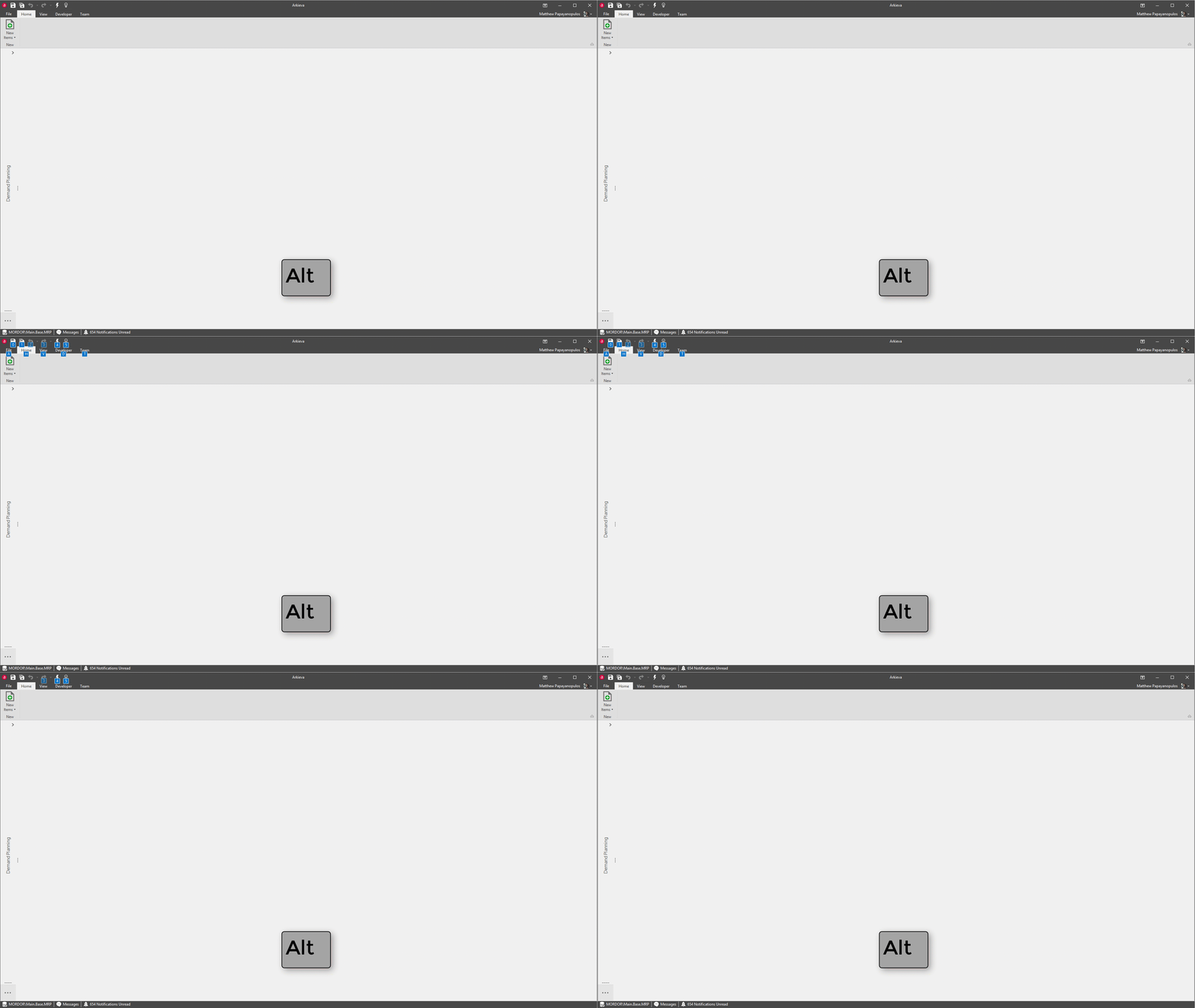
Display Ribbon Commands\ Press Alt to display the ribbon keyboard commands.
Open Quick Access\ Press Ctrl + E to open the Quick Access.
Save a document\ Press Ctrl + S to save a document.
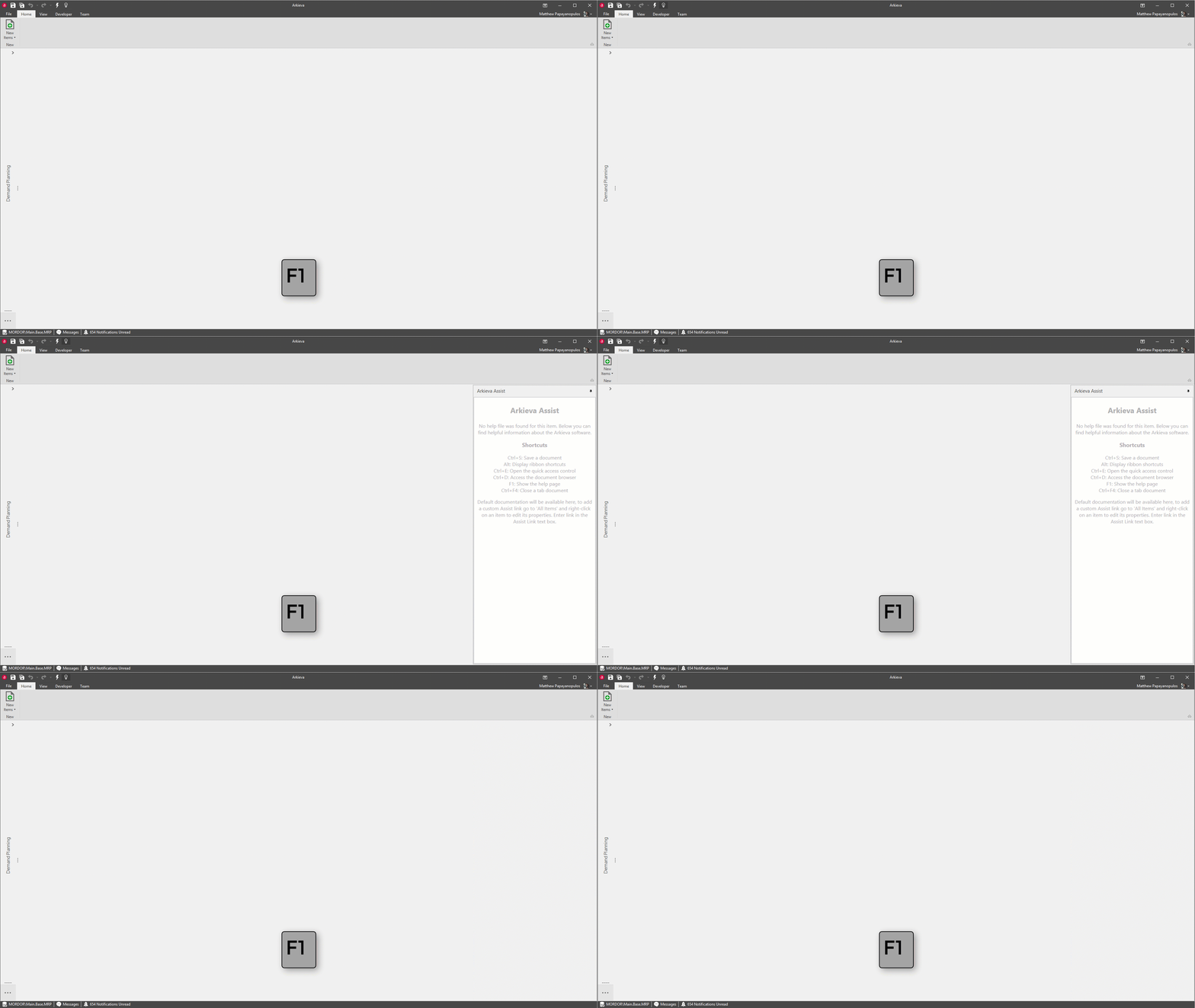
Show Assist\ Press F1 to show the Arkieva Assist tab.
Docking Hints and Window Sizing
Window Sizing\ If you resize the Arkieva application window and then exit Arkieva, the application will remember the dimensions it was last sized to.
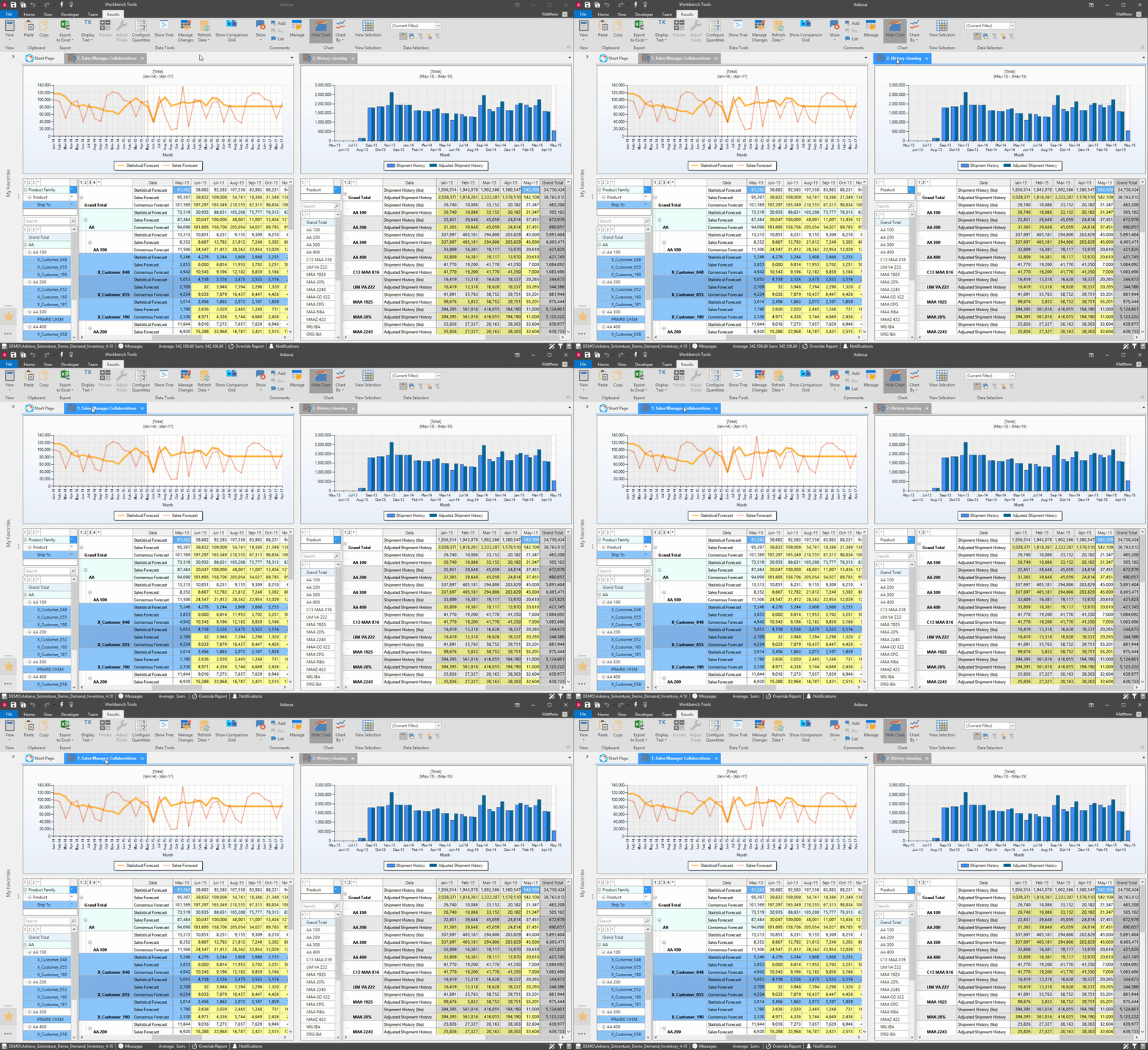
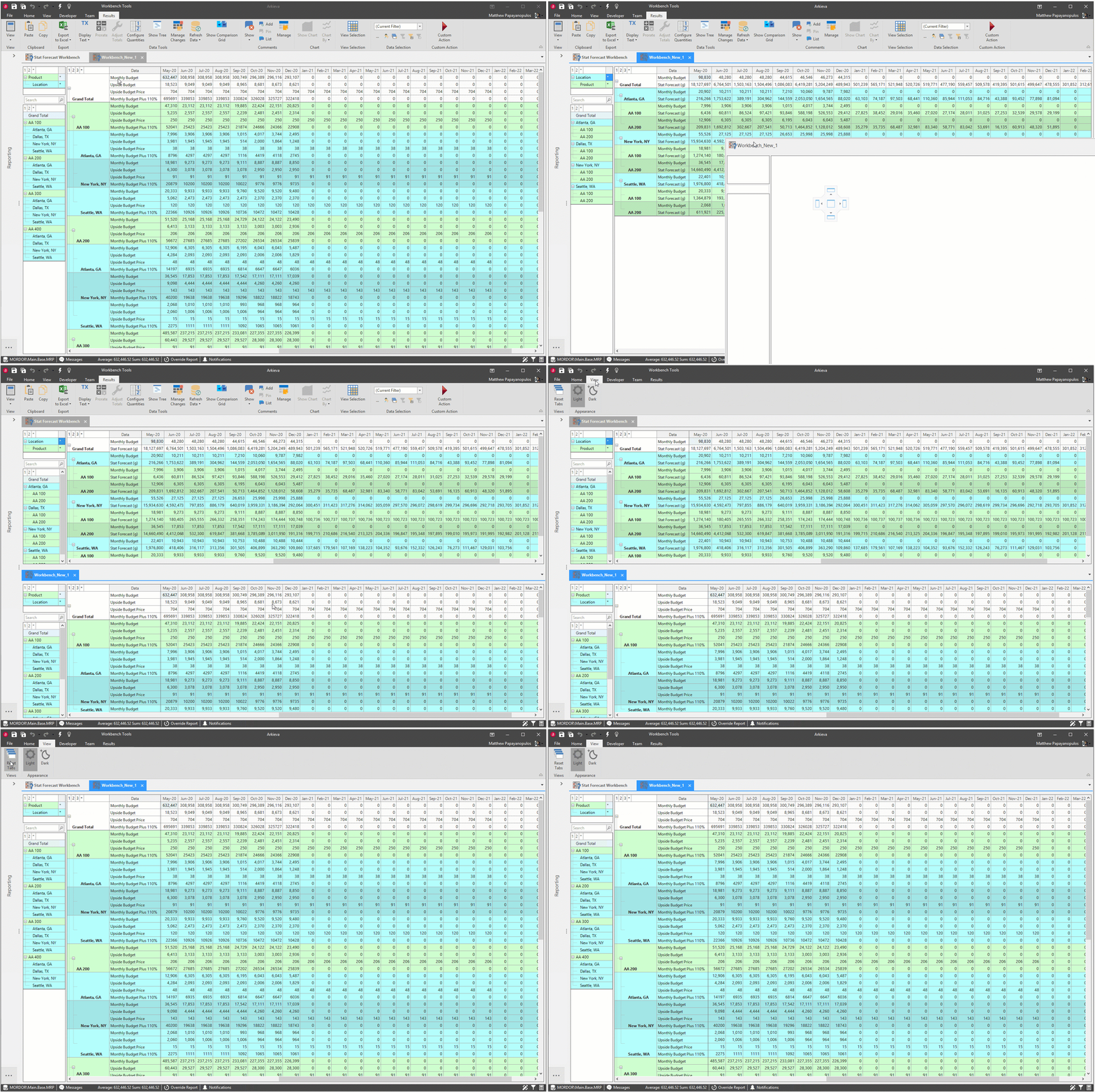
Docking Hints\ When multiple documents are open in Arkieva, the default action is to open all documents in tabs along the top of the application below the ribbon. Click and drag the tabs to activate the Docking Hints icons to organize the document tabs.
If a tab can be clicked, the tab will have a dark blue line around it when dragged, and the Docking Hints icons will appear in the middle, bottom, right, left, and top of the workspace. Some tabs can pop out to create new windows; click and drag the tab outside the border of the Arkieva software window.
Tabs popped out into windows can be reset by holding CTRL and Clicking the window twice. Reset the workspace with the Reset Tabs button in the View Ribbon.
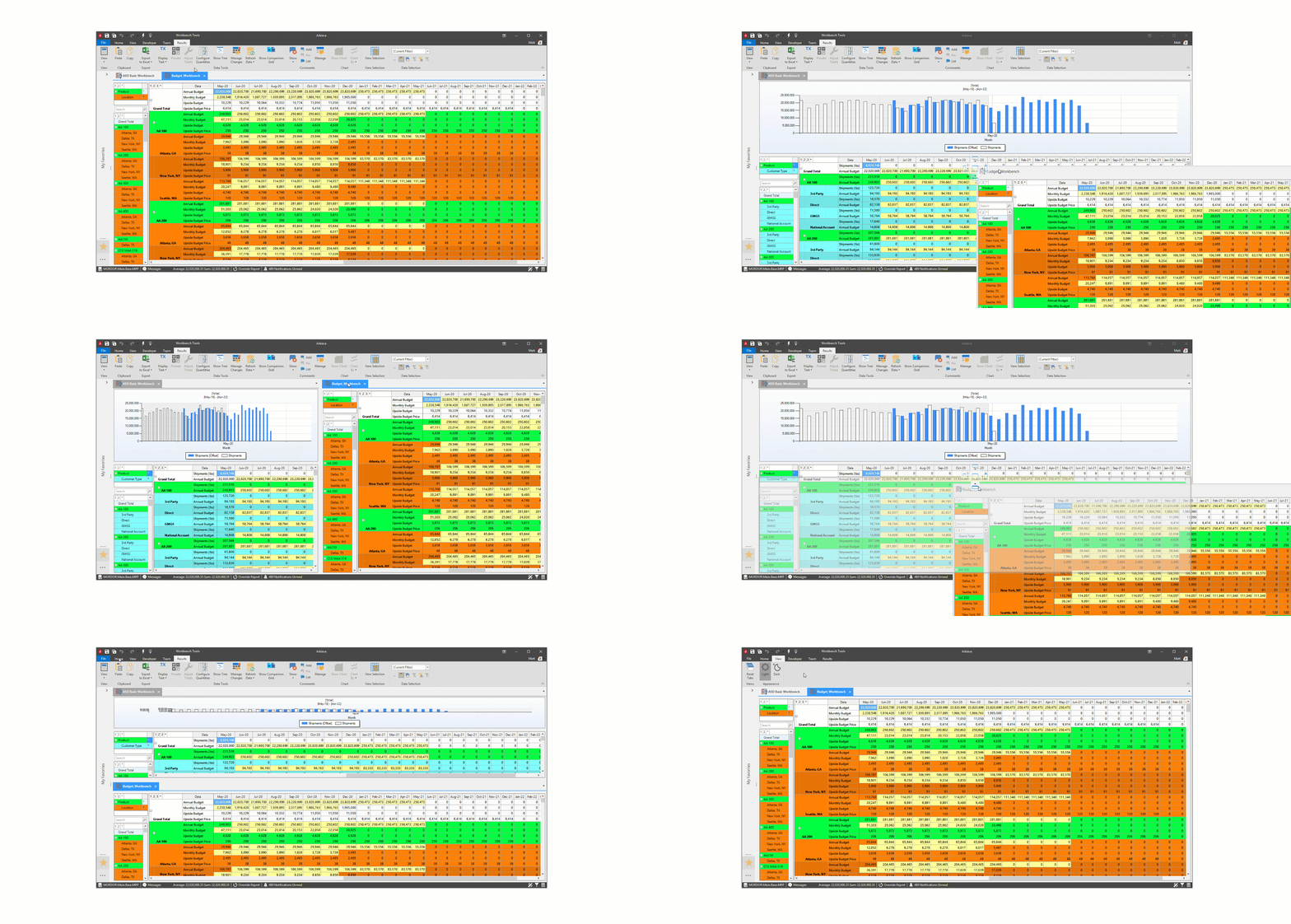
When docking two windows side-by-side that are the same document type, the ribbon will stay consistent to the window selected, instead of the ribbon staying static to the application like in previous builds.
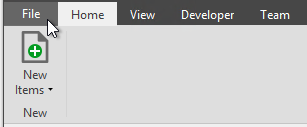
File Tab
The File tab has additional commands for creating new documents, opening existing documents, and saving documents. As well as allowing access to your account information, additional software options, and restarting or exiting Arkieva.
- New: Create new documents from the component hyperlinks in the General, S\&OP Tools, Reports, Data Models, and Operational Planning categories.
- Open: Access Recent and Favorite documents, and access the Start Page and Browse window.
- Save: Save changes made to a document/component currently selected in Arkieva.
- Save As: Save a document/component with a new name.
- Save All: Save all changes to all open documents/components in Arkieva.
- Account: Shows the currently logged in user's information and the Arkieva product information.
- Options: From the Options window a user can access the User Interface Options, Database and Server Default Connection, Overrides, and HTML Navigation Configuration.
- Restart: Relaunch Arkieva.
- Exit: Exit back to the Arkieva ribbon and workspace.
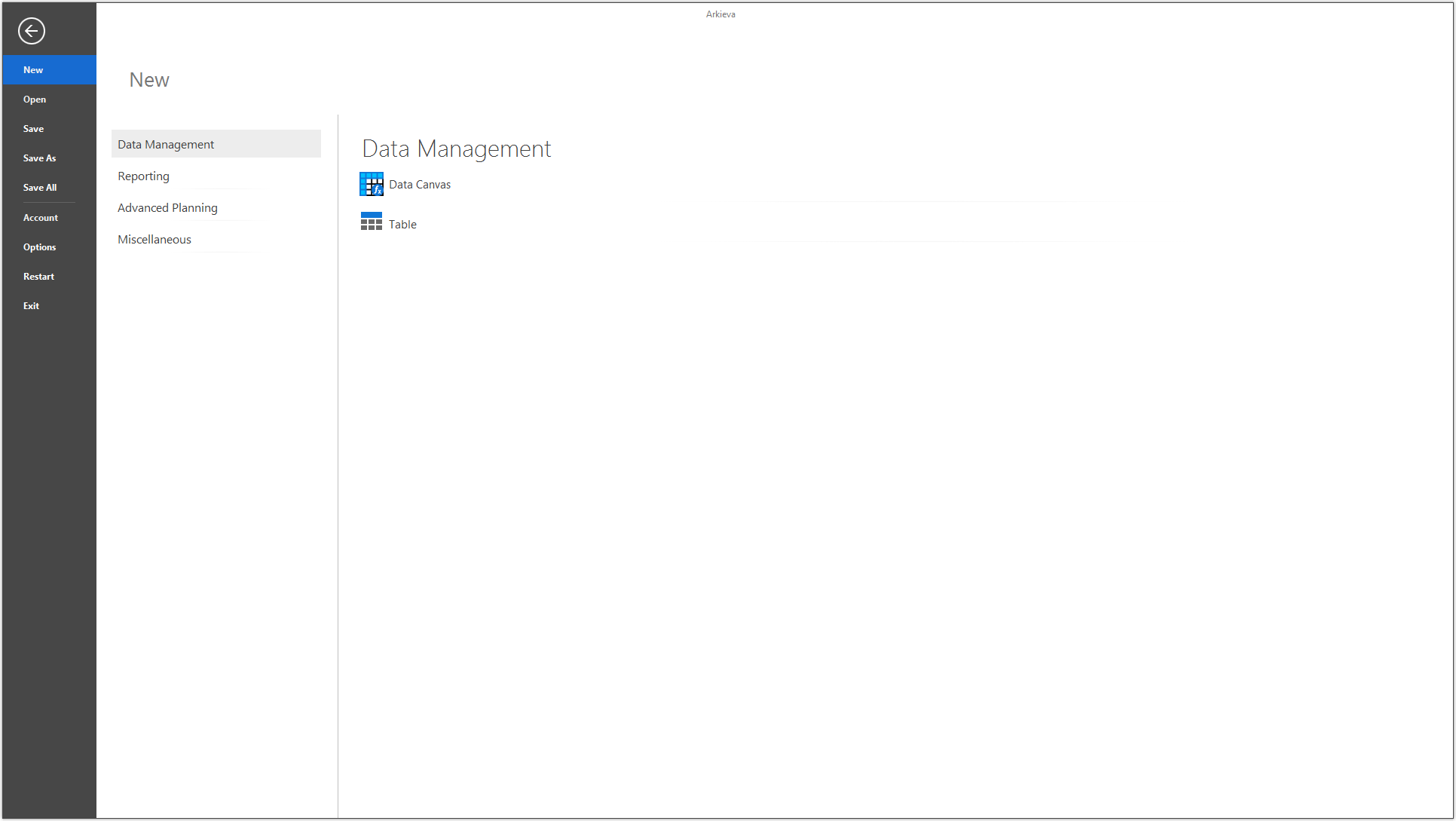
New
Create new documents from the component hyperlinks in the General, S\&OP Tools, Reports, Data Models, and Operational Planning categories. Other components are only available from the Browse All Documents window.
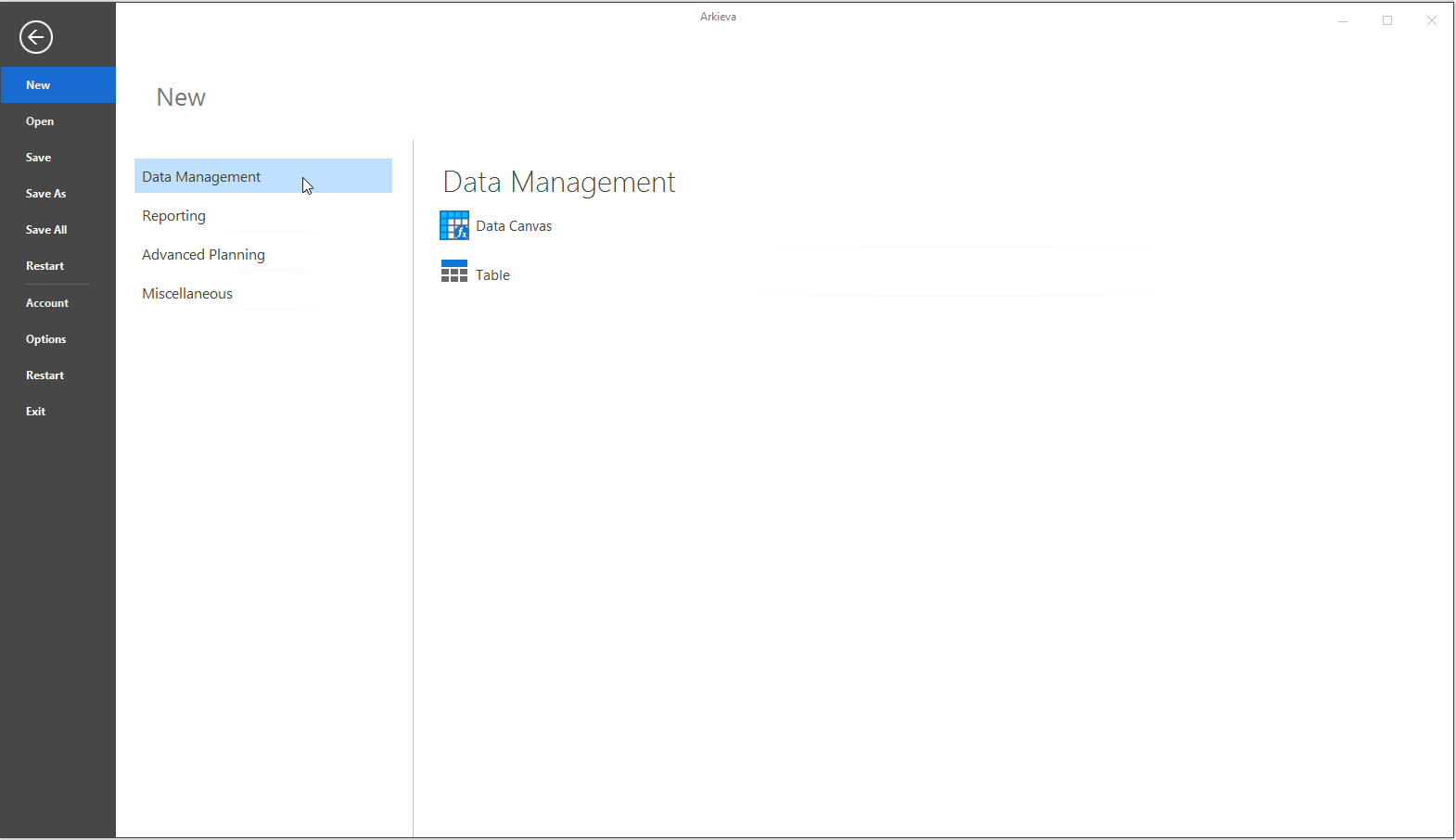
Data Management
- Data Canvas: edit table and data source data in a Grid and Spreadsheet views.
- Table Editor: use System Model data to select entities and fields to create Tables that can be used in other Arkieva components, such as LP Models, Data Canvas, etc.
Reporting
- Analytics Dashboard: provides users the opportunity to display a lot of information, organized into one tab window.
- Quick Reports: visually displays Data Model data into rows and columns of attributes and quantities.
- Workbench: create and edit a table that can help you predict future data.
- Mapping Analysis: Routing and Analysis has been added to the Arkieva Mapping Analysis component.
- Advanced Reports: create custom documents with the Advanced Reports component (No longer supported since 5.4).
Advanced Planning
- DRP (Distribution requirements planning): DRP, in conjunction with inputs from other planning processes, helps calculate how much product to move between the different nodes.
- Inventory Planner : supports sustained inventory reductions by providing a comprehensive view of how stocks are serving customer demand.
- Promotion Planning : Promotions optimization throughout the entire Promotions Planning Process.
- Optimization Model: Linear Programming (LP) Model.
- Production Schedule: Scheduling and distribution functions are integrated in the production-planning software, making the entire production-distribution chain visible to the end user; from shop floor to shipment schedule.
- RCCP (Rough Cut Capacity Plan): (RCCP) meant to give an estimate of whether you can meet demand with the Input given.
- Resource Calendar: Editable calendar whereas the Quick Report is used to report data from various tables.
Miscellaneous
- Calendars: users can create different calendars to share with other users on the database, or with the Secured Item Type Calendar, create calendars that can be shared only with specific users through role security.
- Item Group: create a folder with multiple documents that can be launched at the same time.
Open
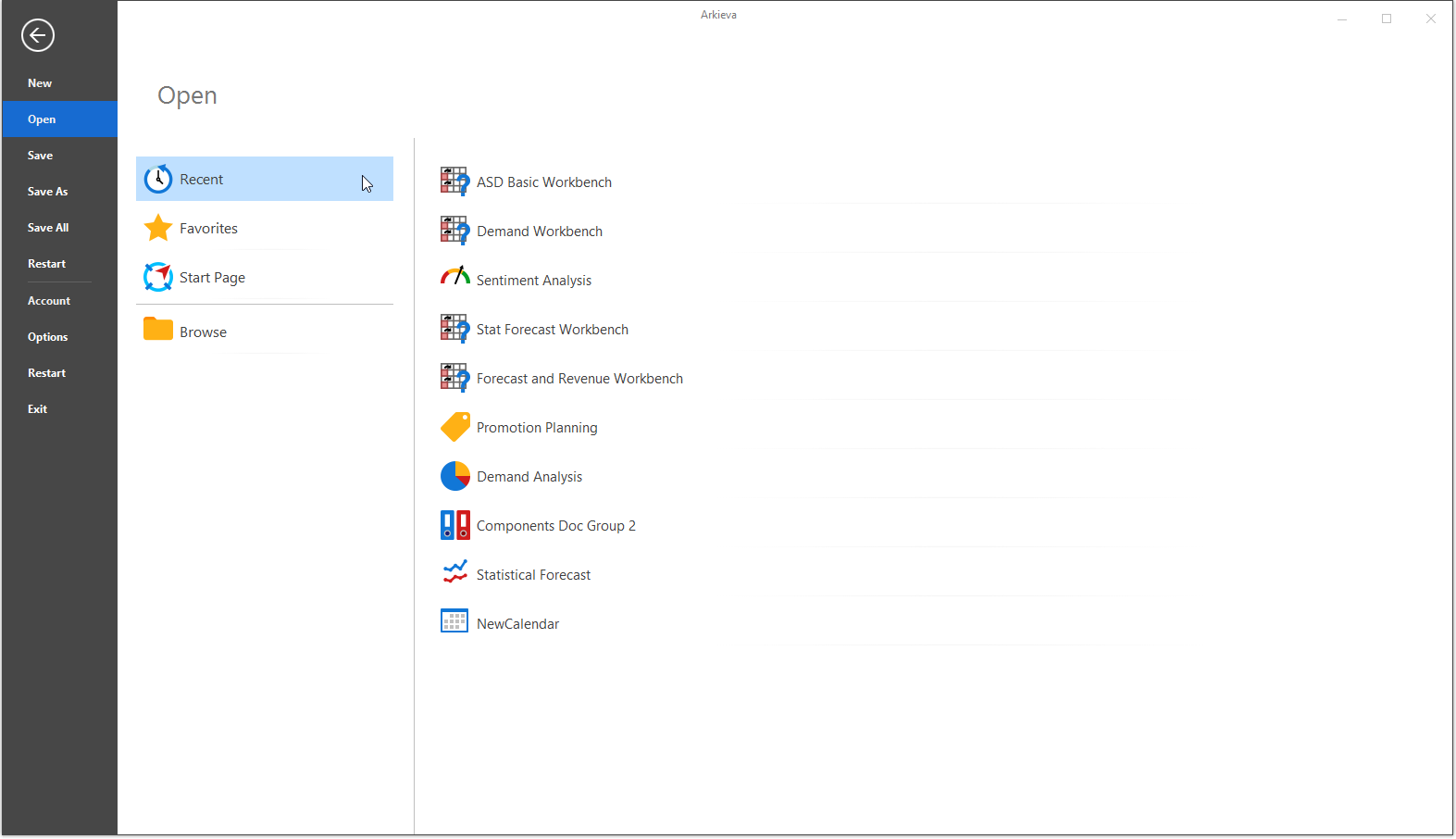
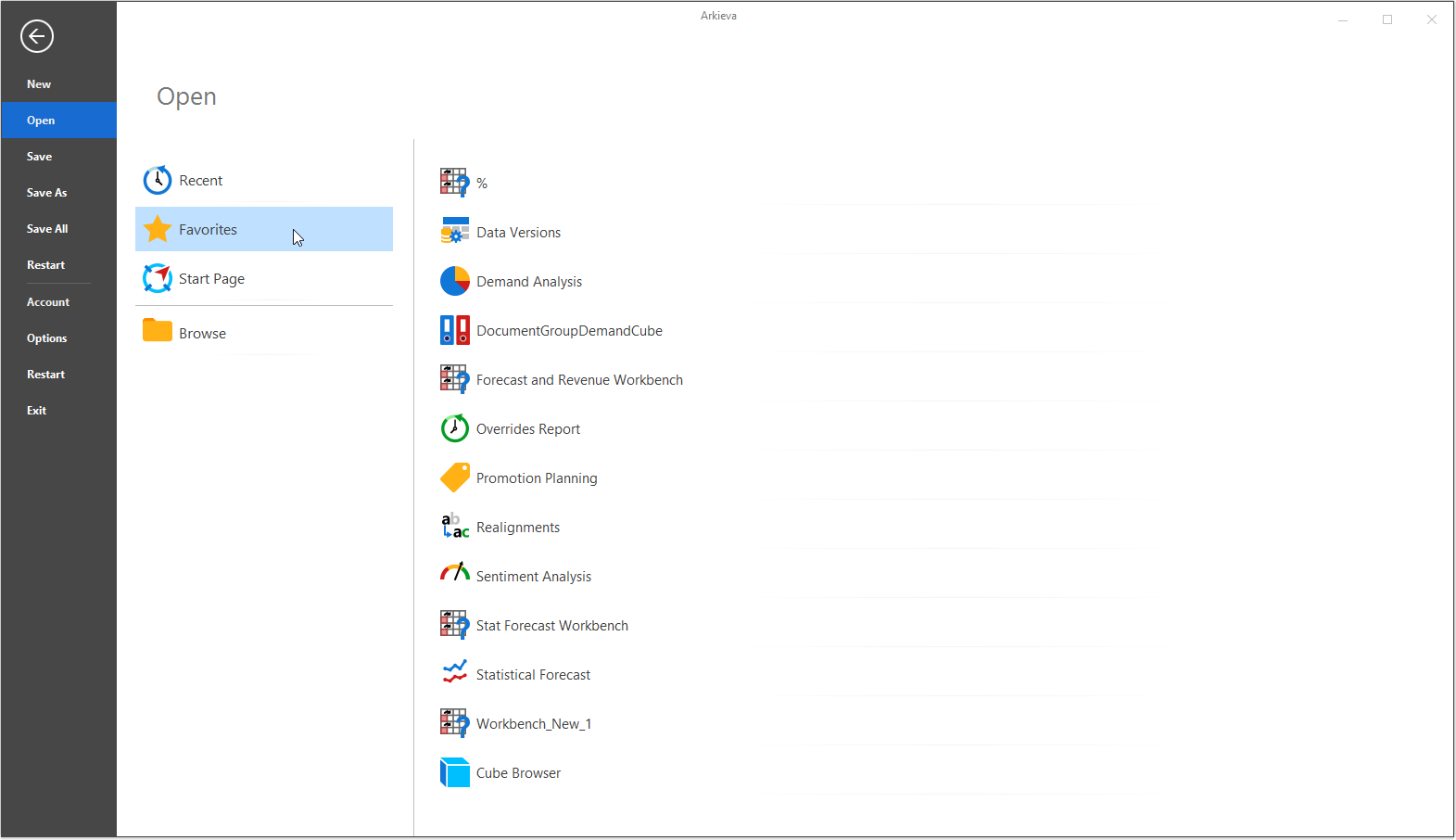
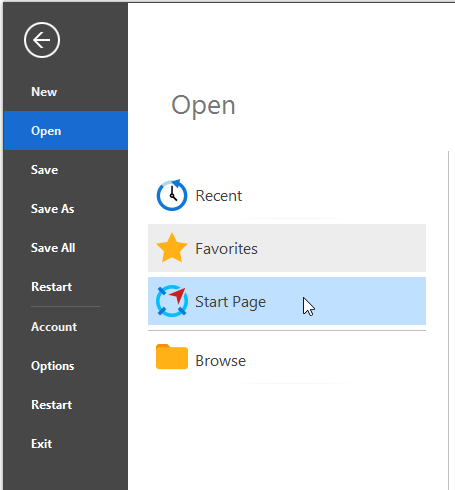
The File tab's Open pane allows you access to Recent and Favorite documents, and the Start Page.
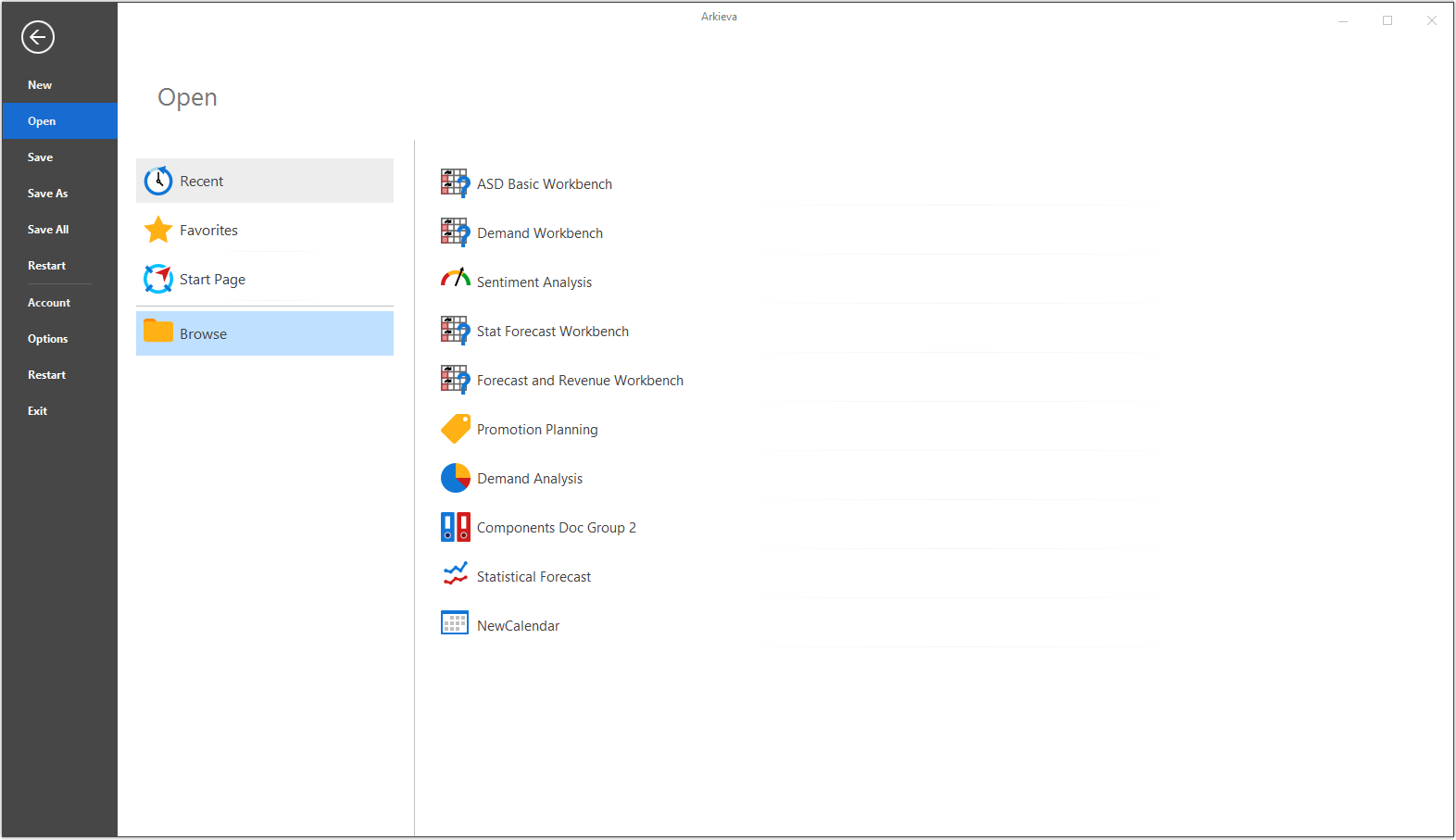
Recent\ Recently used documents and components can be accessed here.
Favorites\ Documents and Components that have been favorited by the user from the All Documents window will be listed here.
Start Page\ If the Start Page has not been set to launch automatically at the start of Arkieva, you can still access the Start Page from the File tab open menu. Follow the link to learn more about Start Page configuration.
Browse All Documents
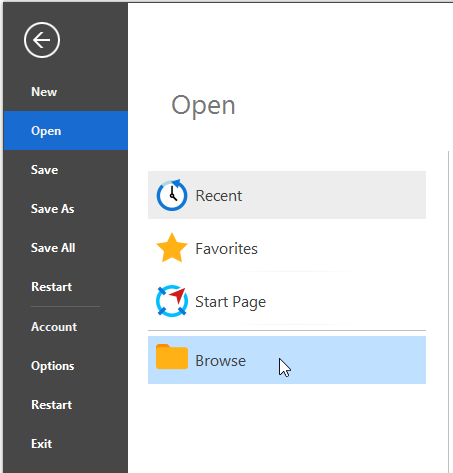
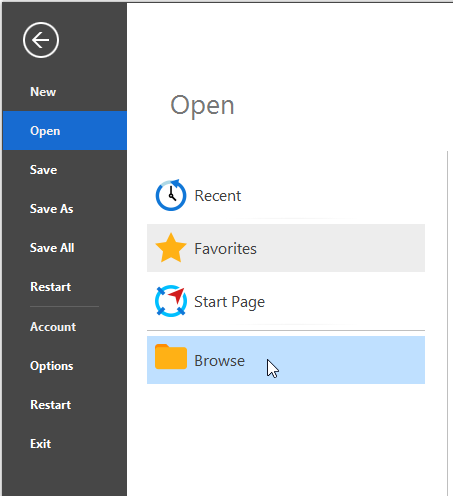
Click the File Tab button to view the backstage options of Arkieva. Click the Open tab and click Browse to open the All Documents window. Document and component information is available from this window. All documents and components can also be launched from this window.
Press CTRL+F to open the search bar.
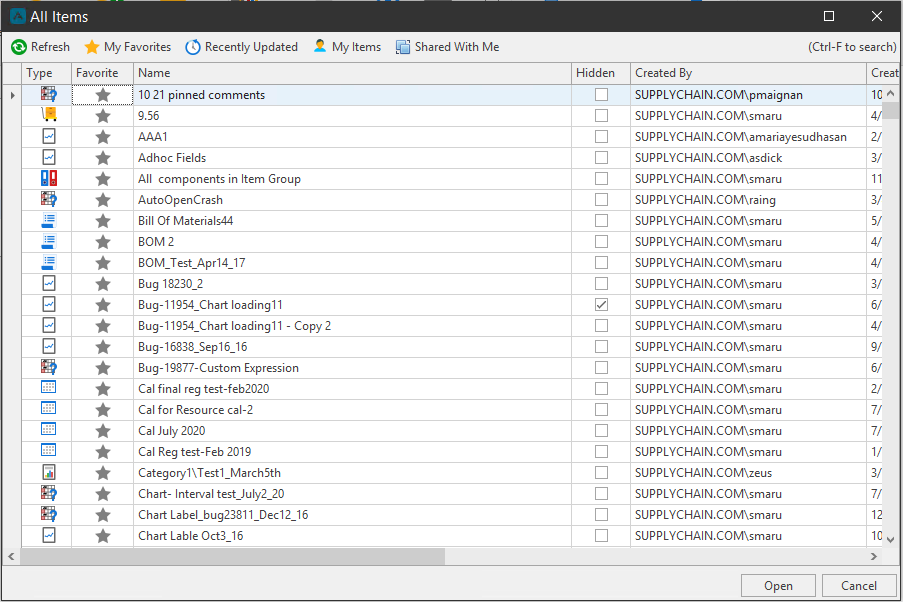
- Refresh button: Refresh the list of documents and components.
- My Favorites toggle: Displays documents saved to the Favorites category in the navigation pane.
- Recently Updated: Shows only documents that were recently updated.
- My Items: Shows documents created by the current user.
- Shared With Me: Shows only documents that the currently logged in user has view or edit rights to.
- Search: Type in the search bar to drilldown the list of documents and components in the All documents window. Press CTRL+F to open the search bar.
- Open: To launch a document, double-click a document or click a document once and click Open.
- Cancel: Close out All Documents window and cancel any changes made.
Columns
- Type: Displays the image that represents the document type or the component module.
- Favorite: Click a the star to mark that document or component as favorite.
- Name: Name of the document or component.
- Hidden: Check-boxes showing whether a document is hidden or not; these check boxes are not interactive, setting a document to hidden is done through that document’s Document and Component Properties.
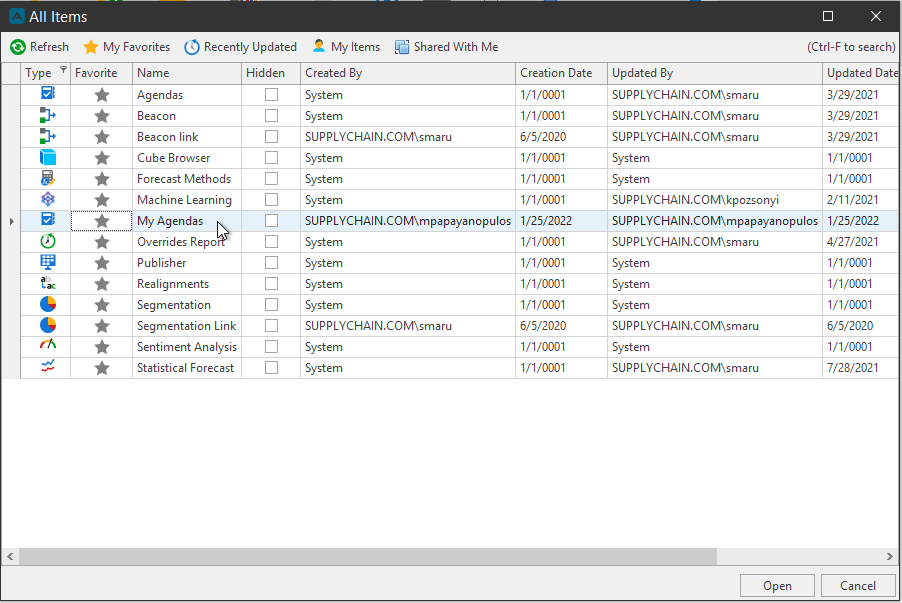
- Created By: Name of the user who created the document, link, or copy. Components are listed as created by ‘System’.
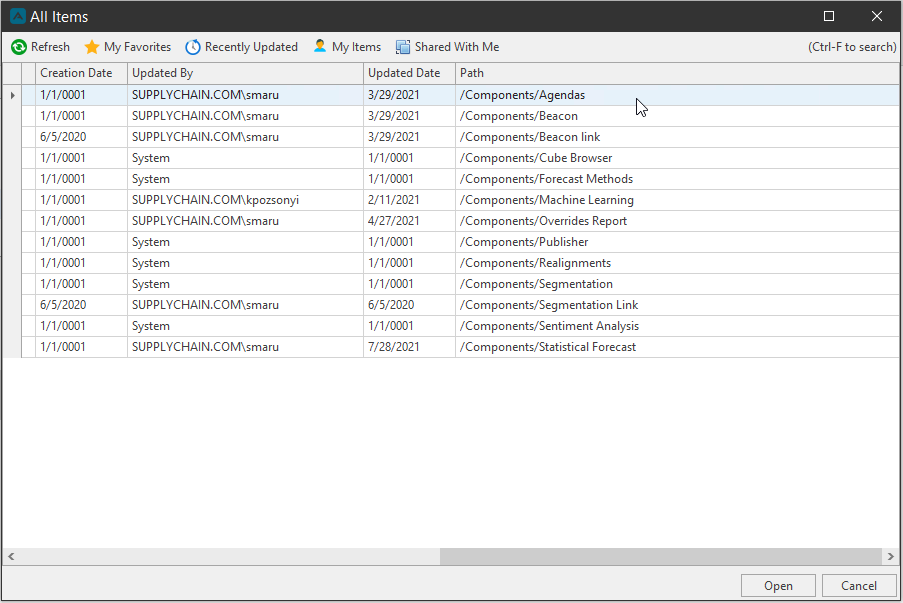
- Creation Date: Displays the created document date.
- Updated By: Name of the user who last updated or saved the document.
- Updated Date: Displays the date the document was last updated or saved.
- Path: Location of the document or component.
-
Agendas and Tasks: Capture planning assumptions, tasks, problems, and even collaborate with remote users all within a meeting system integrated with the Arkieva S\&OP suite and specifically designed for maximizing meeting productivity.
-
Cube Browser: Build pivot tables with charts.
-
Data Versions: Data Versions define and manage alternative data sets. Business What-Ifs require comparison between alternatives. Each alternative is defined by a set of business rules and a set of data.
-
Forecast Methods: Create custom methods to be used in the Statistical Forecast component.
-
Overrides Report: Helps Arkieva users monitor overrides and prime resets made within Arkieva Workbench. The application also contains different filtering options to manipulate the information viewed in the report.
-
Realignments: Help to generate new characteristic value combinations based on existing characteristic value combinations and copy data from the source combinations to new ones.
-
Segmentation: Helps to set up a framework for the entire planning process across demand planning, collaboration, inventory management and supply optimization.
-
Sentiment Analyzer: Solution for monitoring market signals and customer sentiment from social media channels.
-
Statistical Forecast: Statistical forecasting uses different statistical methods to help predict the future by determining trends using past and present data.
-
Path name and Workflow tab: The Path name is also used to create link buttons in PowerPoint to linked documentation in the Workflow Manager tab.
-
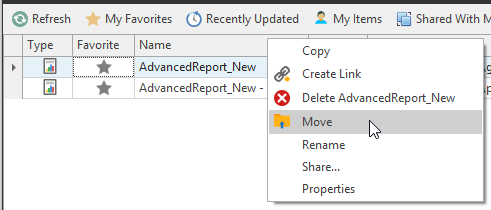
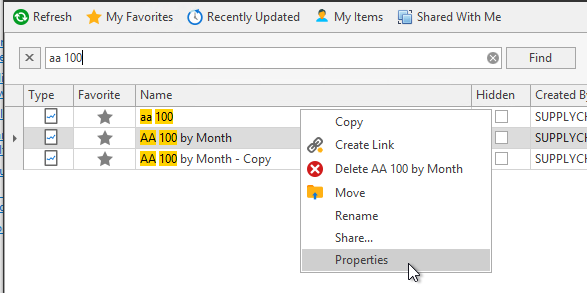
Right-click Menu: Most documents and components share the following options: Copy, Create Link, Delete, Move, Rename, Share, and Properties.
Path name and Workflow tab
The Path name is also used to create link buttons in PowerPoint to linked documentation in the Workflow Manager tab.
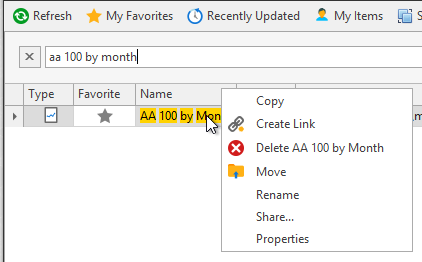
Right-click Menu\ Some components and documents have unique right-click options from within the All Documents window. Most documents and components share the following options: Copy, Create Link, Delete, Move, Rename, Share, and Properties.
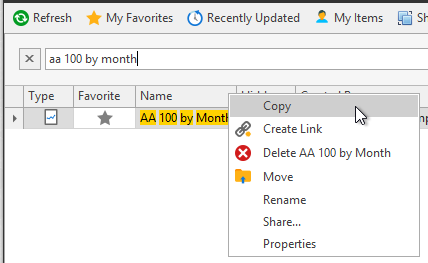
Copy\ Right-click a document and click Copy to create a duplicate of that document.
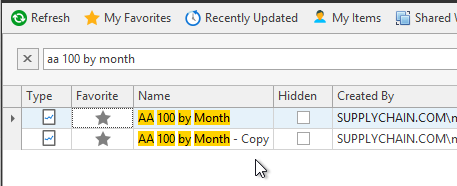
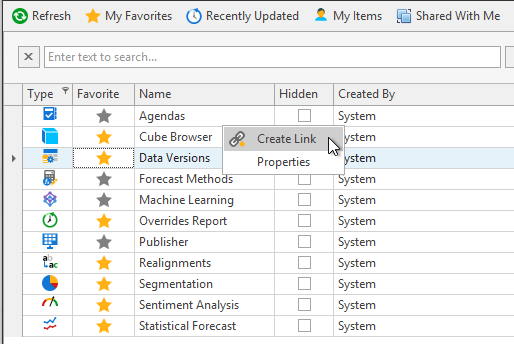
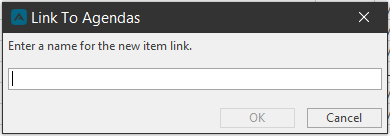
Create Link\ Right-click a document or a component to create a link that a user can rename. This was implemented for users to rename components without affecting the name of the system component.
Notice that a component is created by the System, but the Link is created by the user.
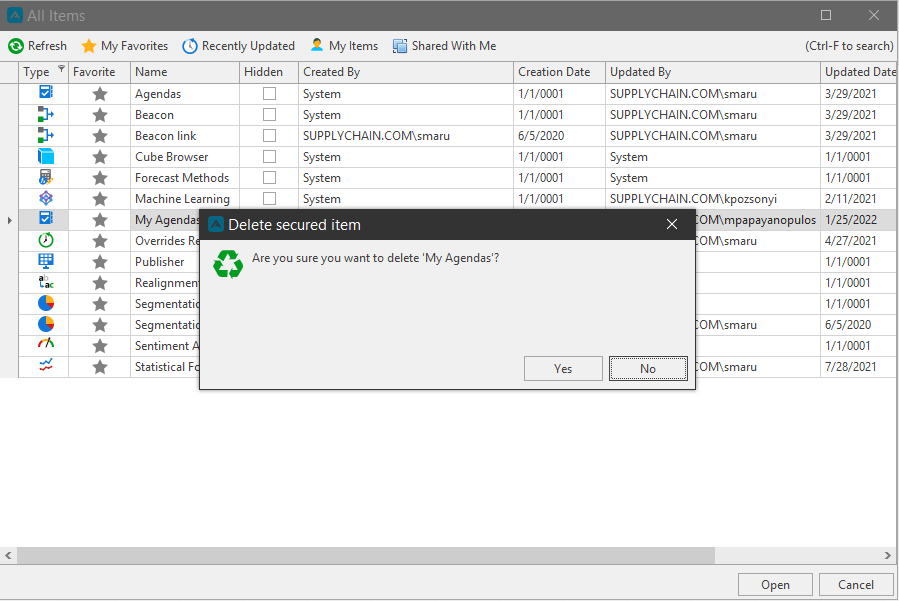
Delete\ Move a document to the Recycle Bin. Documents can be restored or deleted permanently from the Recycle Bin.
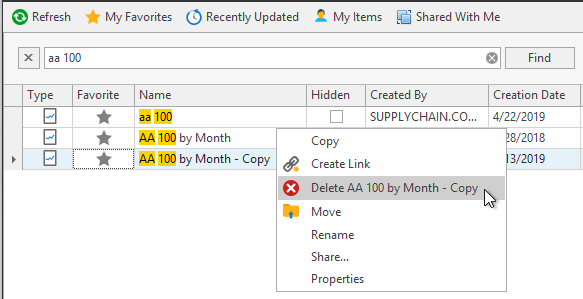
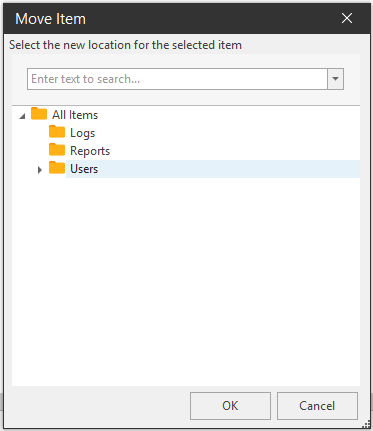
Move\ Move a document to a new location.
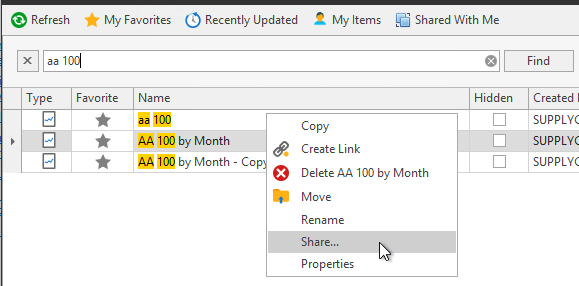
Share\ Check Full Control or View rights for users and groups on the database for that document.
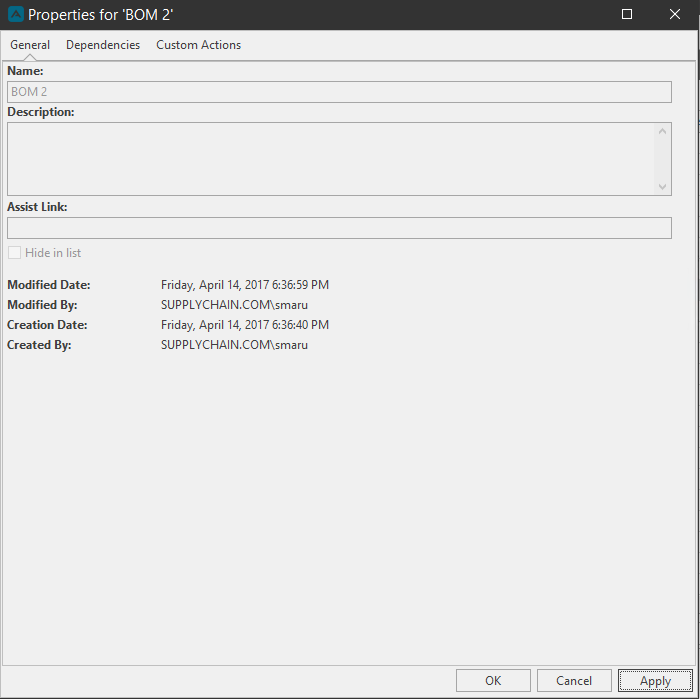
Properties\ Each document and component has different properties.
Account
The Account pane shows the currently logged in user's information and the Arkieva product information. Click the Switch account hyperlink under the User Information to login as another user.
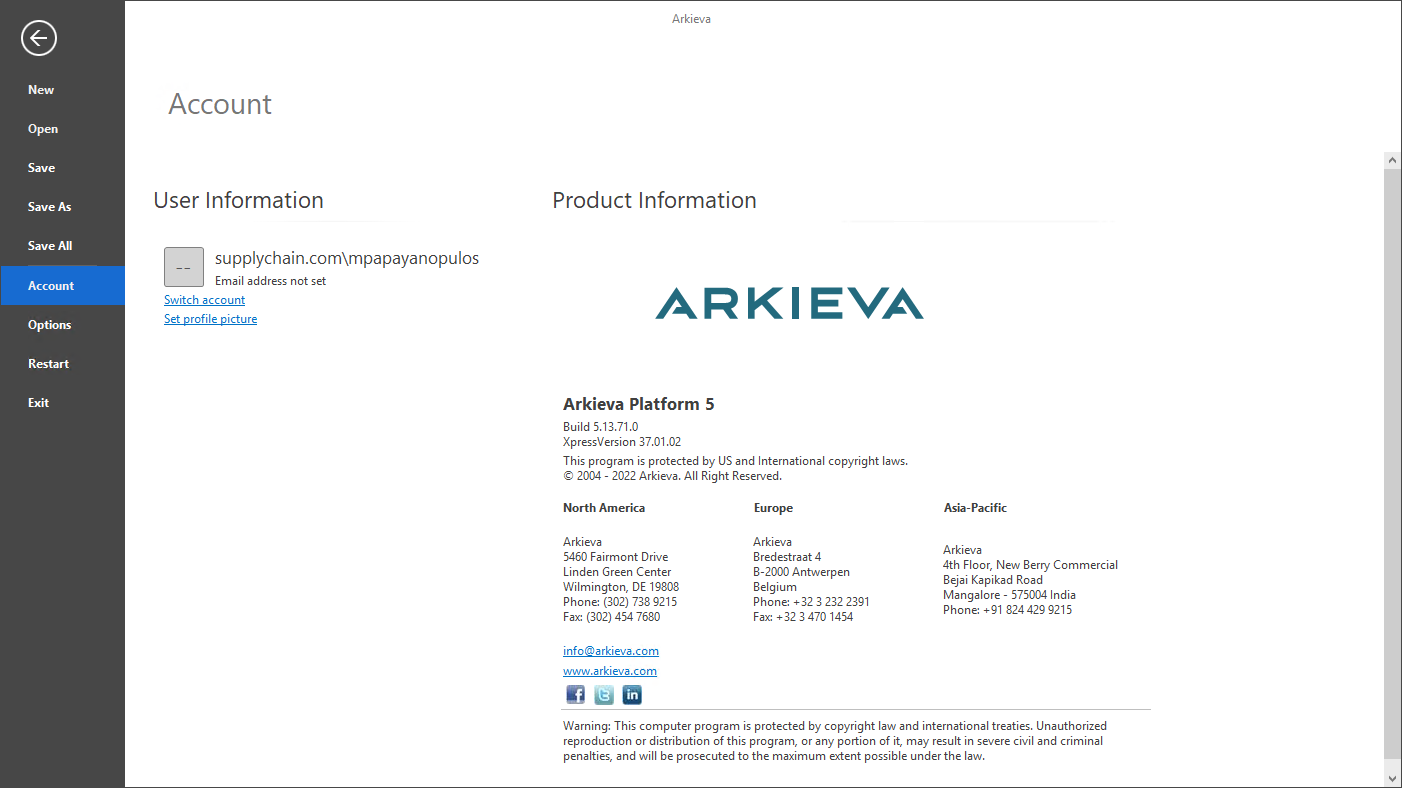
Click the profile image dropdown from the workspace (or mainstage) to access the Switch Account hyperlink, or access this option from the Account section of the File tab menu (or backstage).
📘 Note
In order to use this feature the user account must have either the ‘sysadmin’ or ‘securityadmin’ SQL server role.
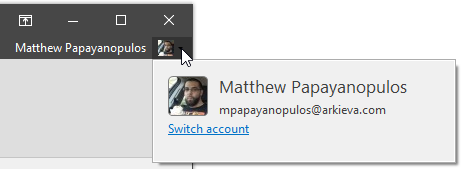
Click Switch Account to launch the list of available users, from Security Administration.
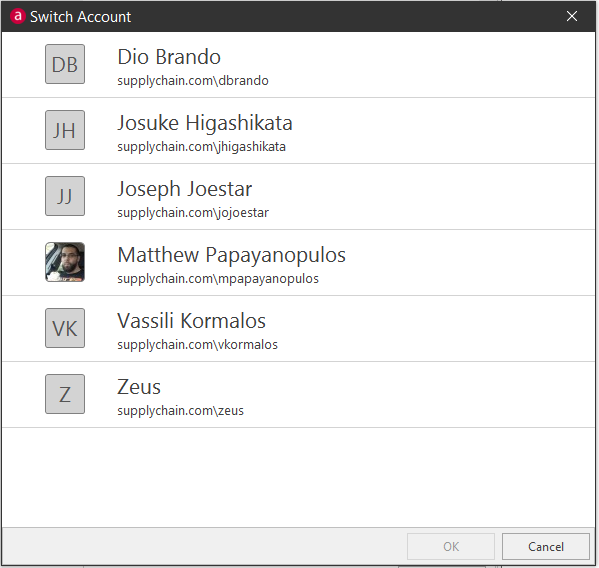
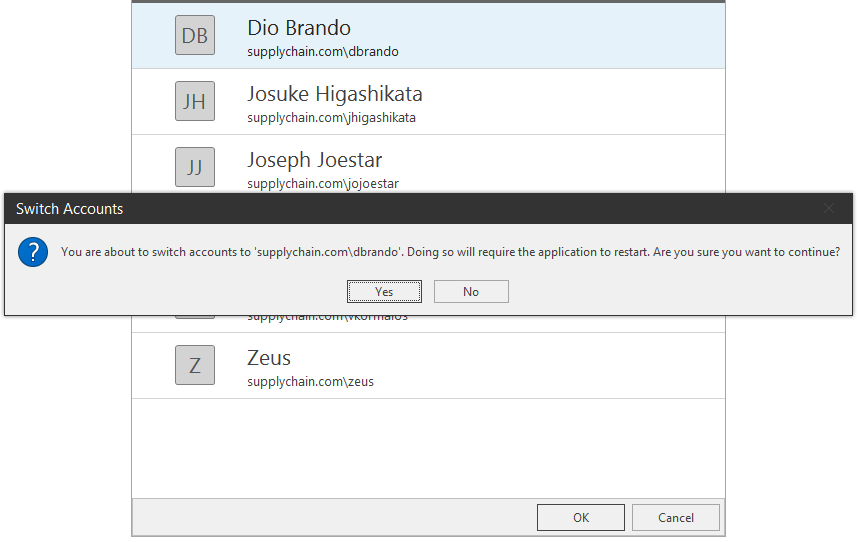
Select a user, click OK, then click Yes. This will restart the application.
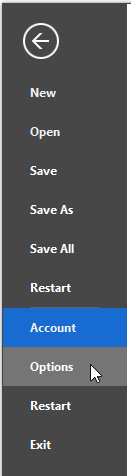
Options
Click Options to launch the Options window. From the Options window a user can access the User Interface Options, Database and Server Default Connection, and Overrides Email Confirmation.
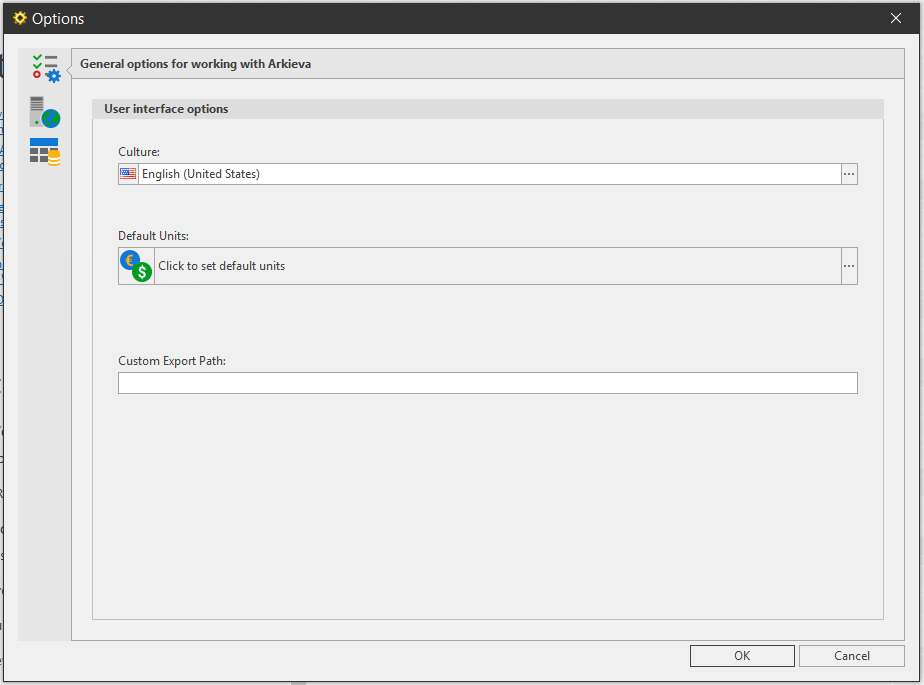
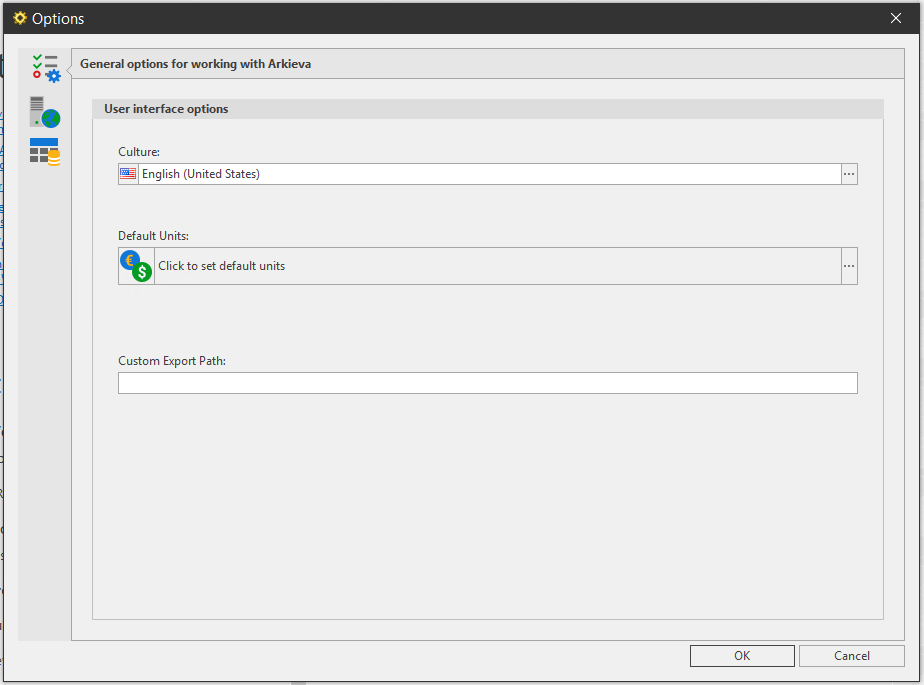
User Interface Options\ Set the universal culture and default units for the Arkieva application from the 'General options for working with Arkieva' tab.
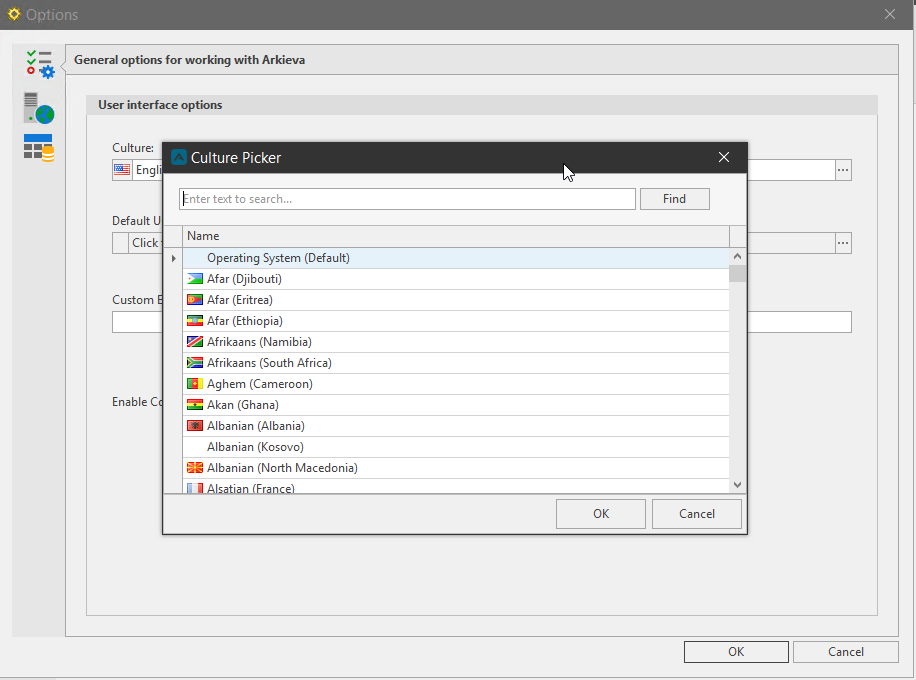
Culture\ Change the default culture to a new culture using the Culture Picker. Click the ellipses button to launch the Culture Picker window.
Select a Culture from the list and click OK to confirm selection.
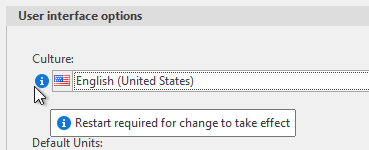
📘 Note
You will be prompted to restart Arkieva to set the new default culture. Click the Restart button in the File Tab backstage menu to restart Arkieva and set the selected Culture as the default global culture for the Arkieva application.
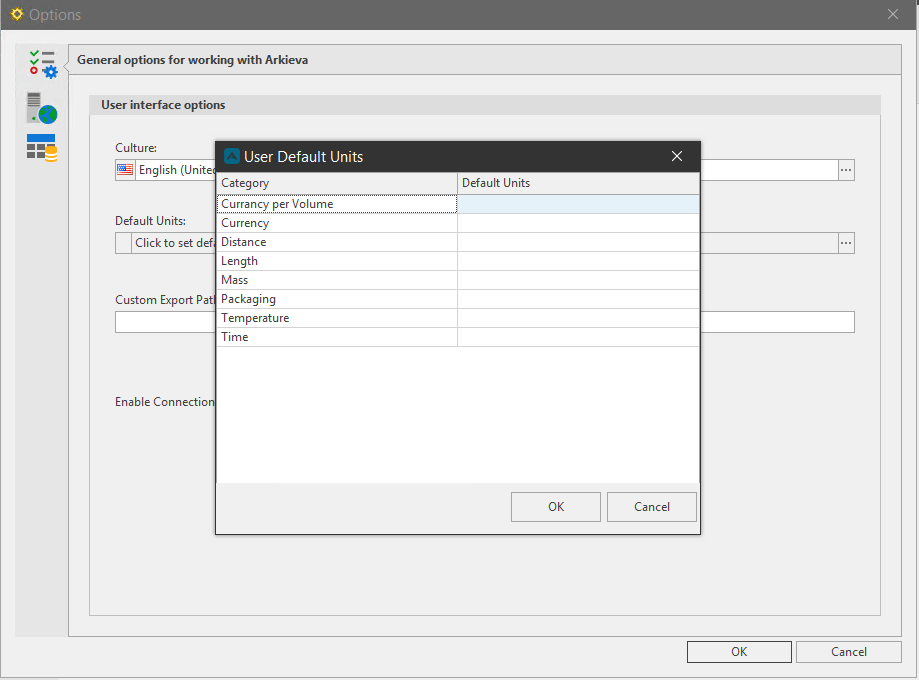
Default Units\ Select the default units for the application from the User Default Units window. Click the ellipses button to open the User Default Units window.
Use the dropdown menus under the Default Units column to select default units for each Category. Categories and Units are created in the Setup Manager's Units tab. Click OK to confirm selection.
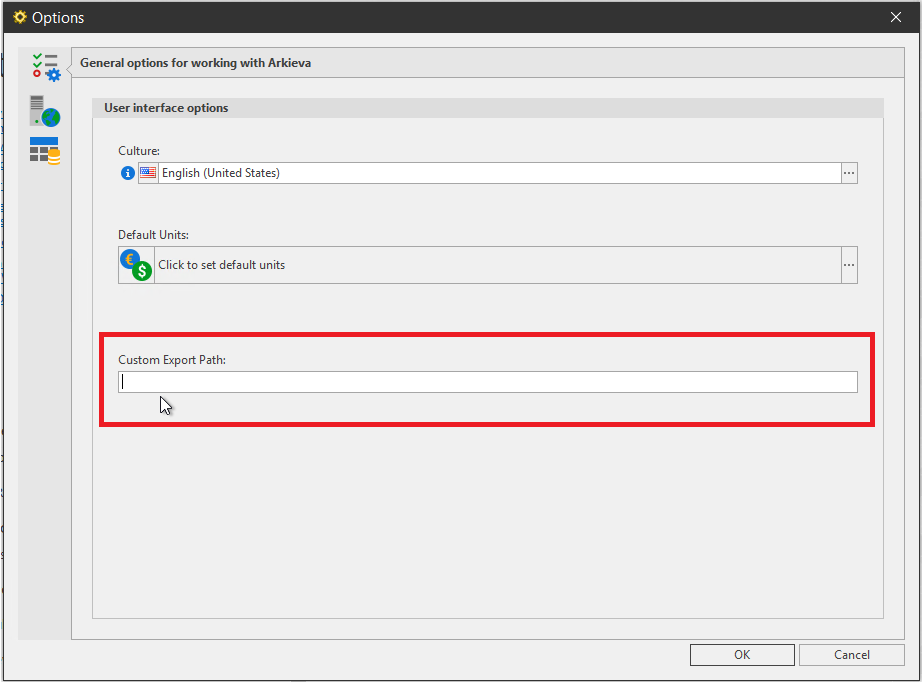
Custom Export Path\ Create a Custom Export Path under the Options window in the File tab to have a personal file path for documents exported from Arkieva. The exported fill will save to the user specified path location.
You can add a path for export to your local machine or any other shared drive. If you do not provide a custom export path an exported file will go to the default location provided in Export Settings. The File Path typed into the Custom Export Path takes priority over the Path File typed into the Settings Export field.
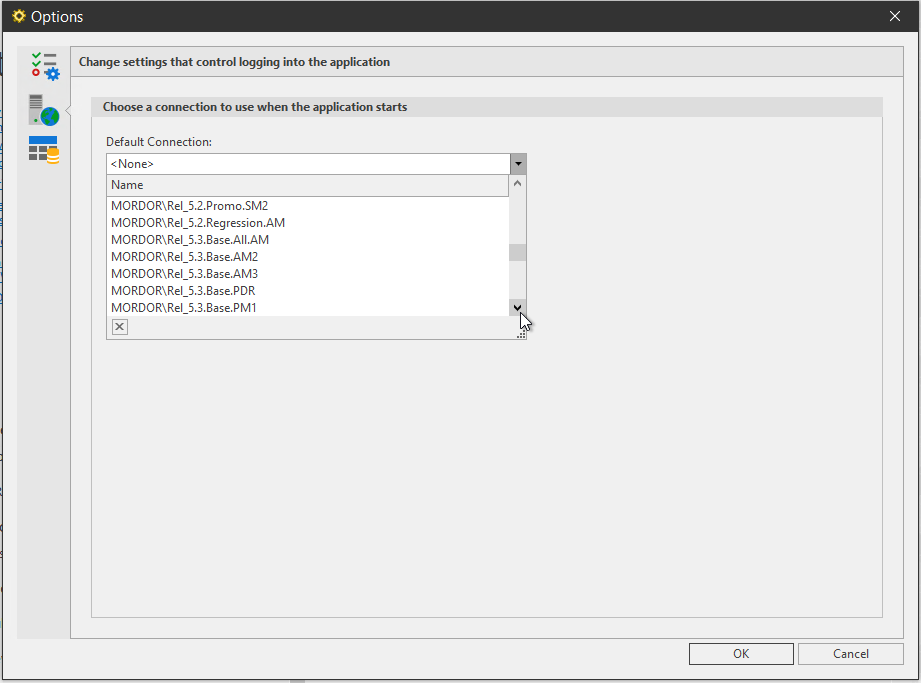
Database and Server Default Connection\ Change settings that control logging into the application by selecting a Server and Database from the dropdown.
To remove the default connection so as to be able to select a different server and database at launch, select Logon, then select \ from the dropdown to remove a default connection; or select another server/database for a default connection. Click OK.
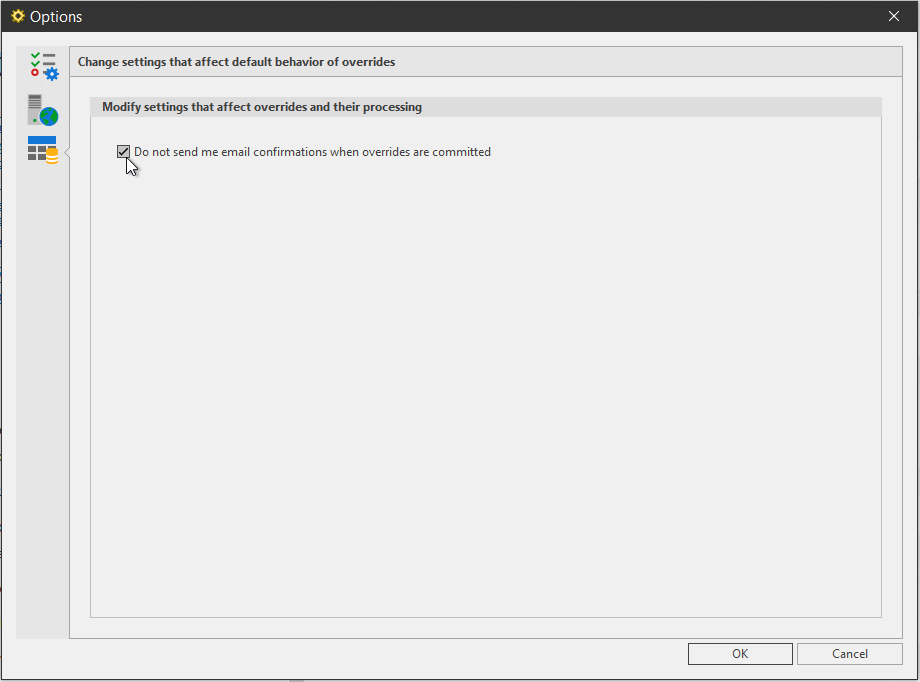
Override Email Confirmation\ Check the checkbox to not be sent email confirmations when overrides have been committed.
Assist
Setting up company and process specific documentation.
{`
`}
Assist is a way for Arkieva Consultants and Super Users to attach a user guide written in HTML to documents in Arkieva. The light bulb button is 'off' when there is no link configured, and 'on' when there is a link configured. You can also link the Arkieva documentation site assist.arkieva.com within the application using Arkieva Assist. Users will not need a username and password when accessing the documentation site from within Assist because Assist authenticates the site.
Link configured
Clicking the assist button when there is no link configured will show Arkieva Shortcut Keyboard Commands as well as instructions for link configuration.
Click the Arkieva Assist button to open the Arkieva Assist tab. The F1 key will also toggle on or off Arkieva Assist. The Arkieva Assist tab can also be undocked, and be popped out as its own window.
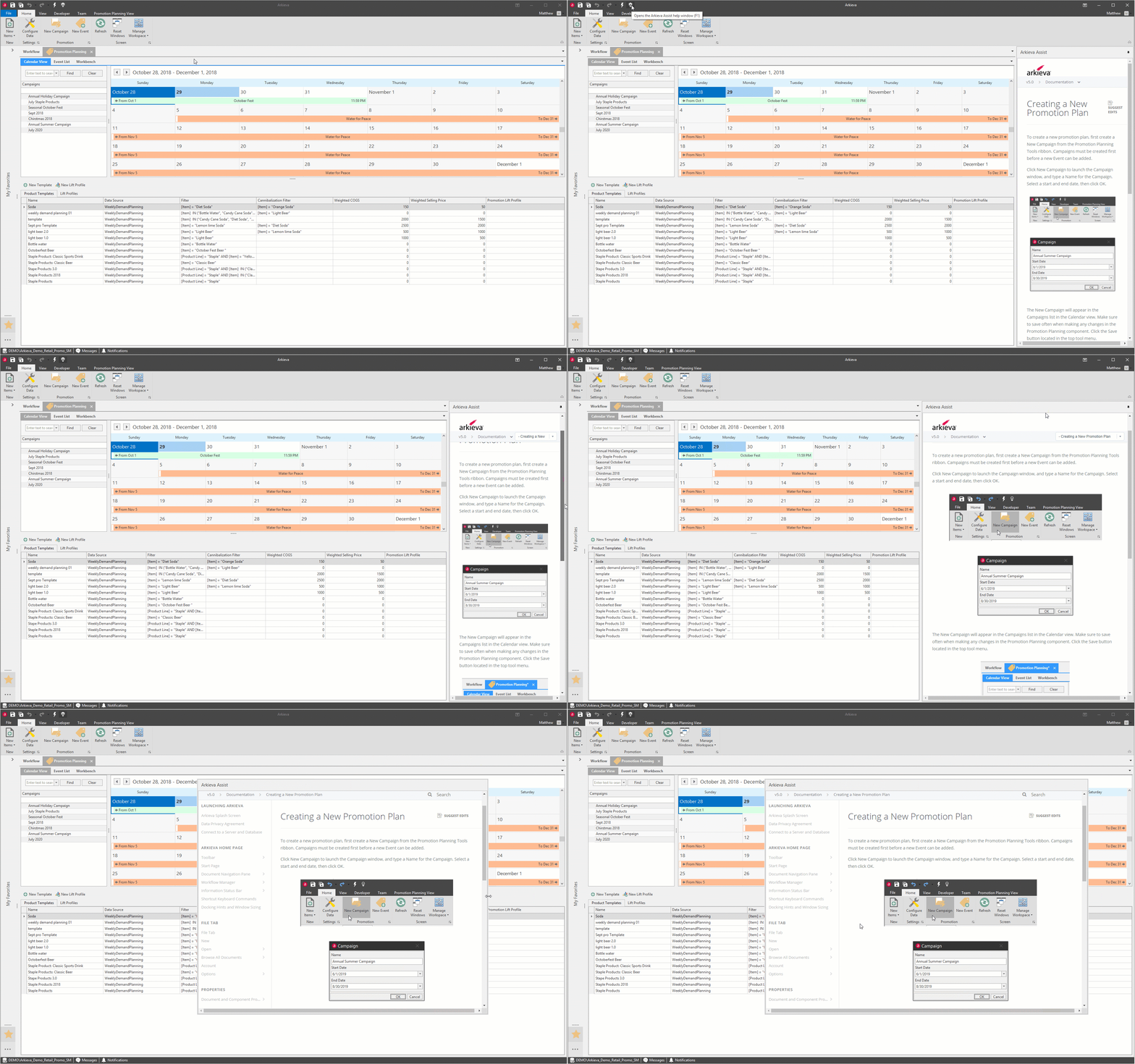
Default documentation links\ Default links to this documentation site are provided with Arkieva installs. The Assist icon will not 'light-up' with these default links.
The following components have default documentation Assist links:
- Data Canvas
- Table Editor
- Analytics Dashboard
- Quick Reports
- Workbench
- Advanced Reports
- Inventory Planner
- Production Schedule
- Calendars
- Item Group
- Cube Browser
- Segmentation
- Overrides Report
- Realignments
- Sentiment Analyzer
- Statistical Forecast
Ribbons
There are four main ribbons in Arkieva: Home Ribbon, View Ribbon, Developer Ribbon, and Team Ribbon.
Which ribbons are visible to the user is dependent on their security permissions given to them by an Arkieva consultant.
Ribbons change depending on the document or component being used. For example, selecting the Analytics Dashboard component will launch the Dashboard Design ribbon. After launching the Dashboard Design ribbon selecting an Insert such as the Scatter Chart will launch the Scatter Chart Tools Data and Design ribbons.
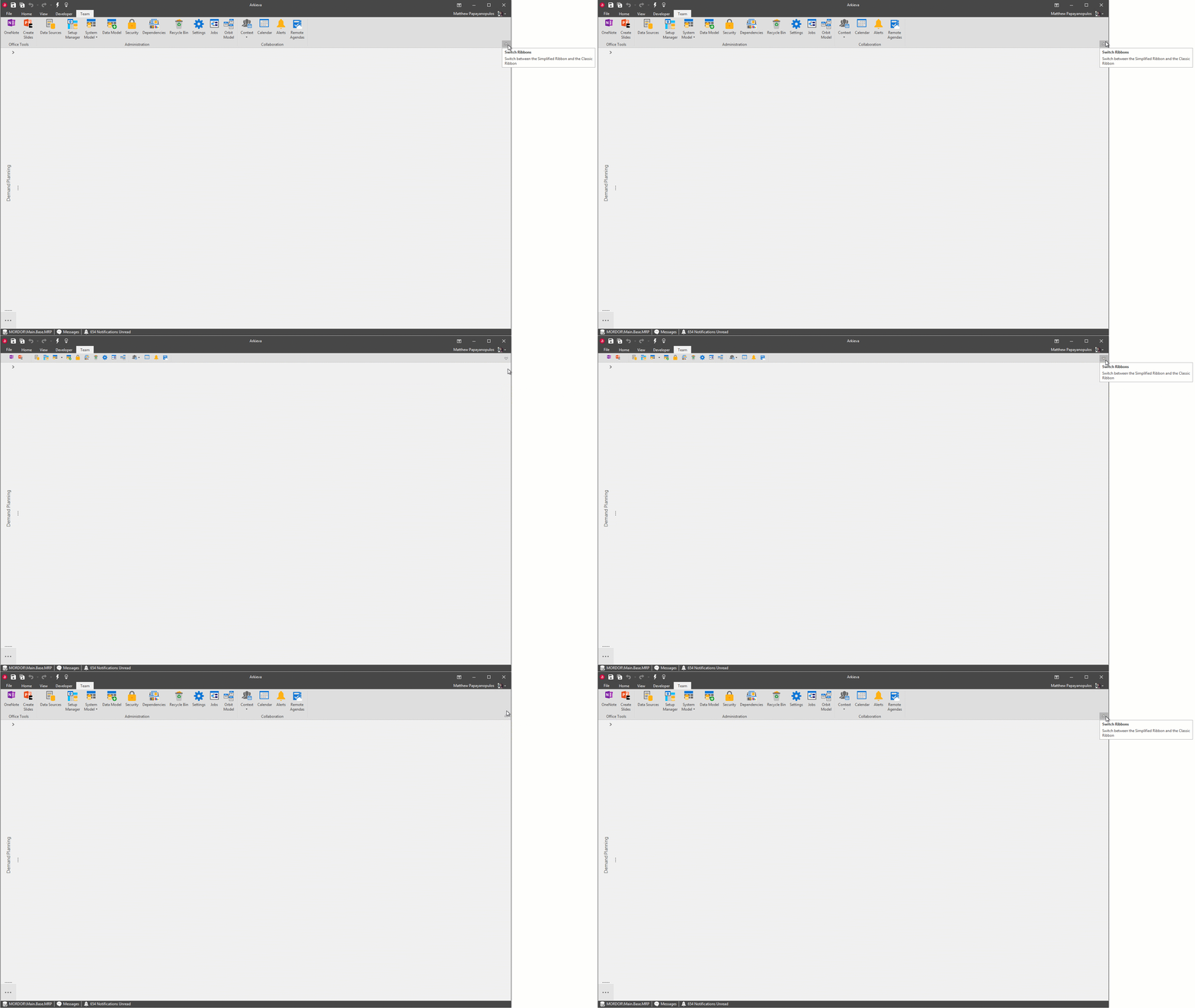
Click the arrow to make the commands in the ribbon normal (classic) or compact.
Home Ribbon
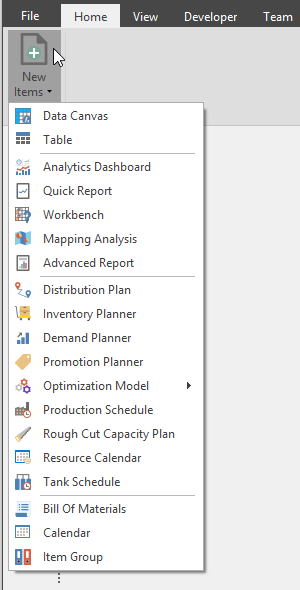
New items dropdown\ Click the New Items button to access the list of documents that can be created by a user.
View Ribbon
Reset Tabs\ Reset the workspace when multiple tabs have been docked.
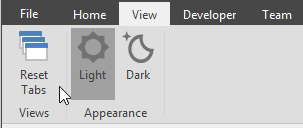
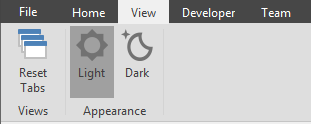
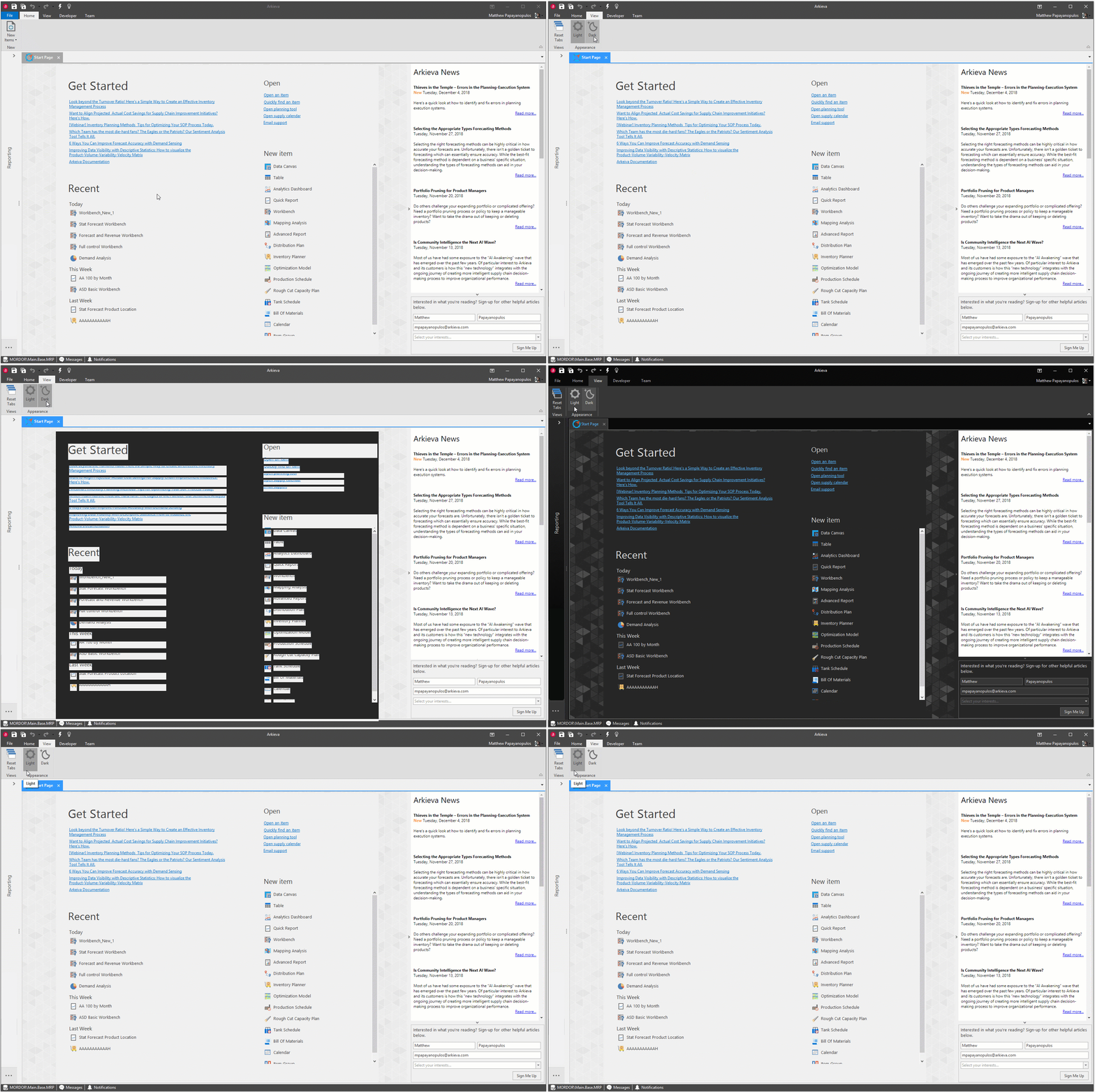
Appearance\ Users can change the appearance of Arkieva between Light and Dark. Toggle the Light or Dark appearance in the View Ribbon.
Developer Ribbon
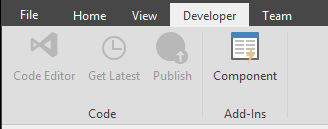
Developer Ribbon is used by consultants and super users to access code and add-Ins functions to create custom components for Arkieva.
Team Ribbon
The Team ribbon is the hub for Office Tools, Administration, and Collaboration tools. Regular users will be able to access the Office Tools and Collaboration tools but only Super Users and Arkieva consultants will have access to the Administration tools.

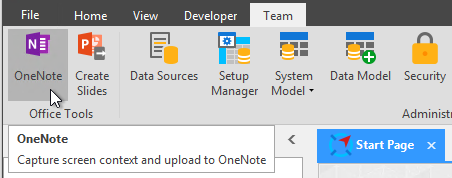
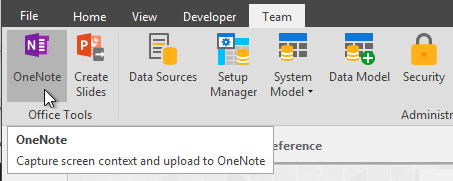
Office Tools\ OneNote and Create Slides can be used by users to share content with other users.
- OneNote: Create and send snapshots.
- Create Slides: Export Documents as PowerPoint Slides.
Administration\ These options are only meant for Arkieva Consultants and Super Users.
- Data Sources: Create new data sources and configure connection settings.
- Setup Manager: Define and configure dataset sources for creating Tables, Quick Reports, Workbenches, etc.
- Security: Add users and set security permissions for users and documents.
- Dependencies: Shows all available documents and their dependence to each other.
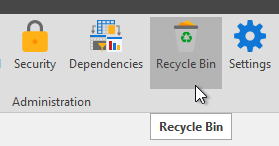
- Recycle Bin: Restore deleted documents or remove documents permanently.
- Settings: Control Configuration, Security, PowerPoint Settings, OneNote Settings, Optimization, Auto-Open Documents, Start Page Configuration, Workflows, Export, and Navigation options.
- Jobs: Create and manage jobs.
- Orbit Model: Advanced in-memory supply chain planning data platform.
Collaboration\ Users can use the collaboration tools to share, manage, and alert other users to important information.
- Context: When OneNote is used the meta data will be saved as text alongside the screenshot in OneNote in this dropdown.
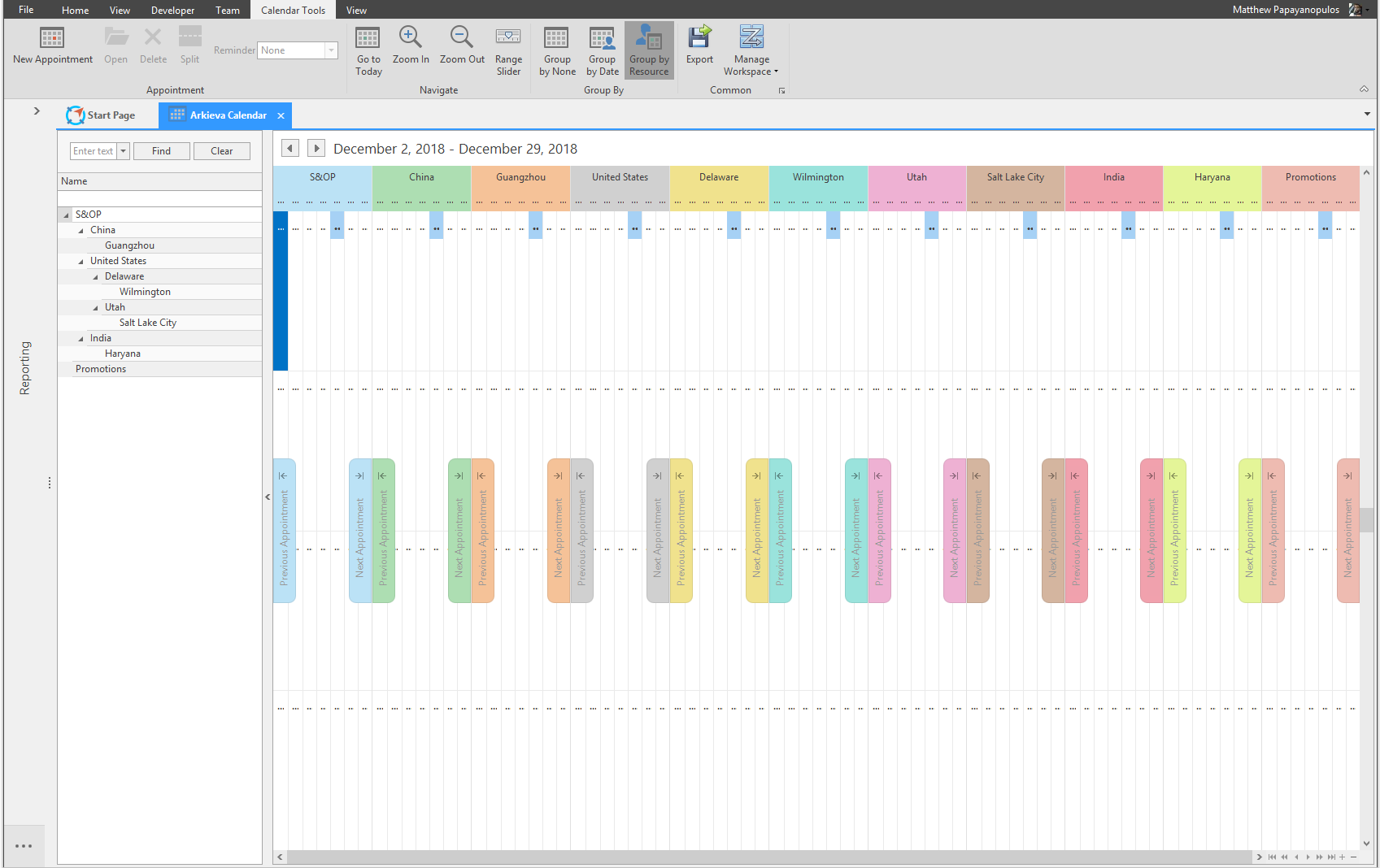
- Calendar: Create appointments and alerts.
- Alerts: Manage, edit and delete created alerts.
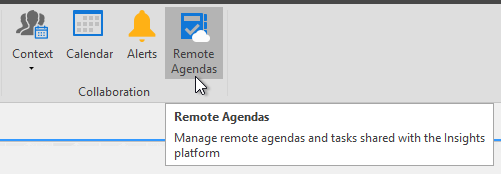
- Remote Agendas: Create meeting tasks.
OneNote Meeting Manager\ Setup for OneNote is accessed from the Team ribbon in the System Settings OneNote Settings tab. Follow the link to learn more about setting up OneNote Meeting Manager.
Meeting Manager is in the Office Tools section of the Team ribbon. Use the OneNote tool to send a screenshot directly to OneNote or SharePoint.
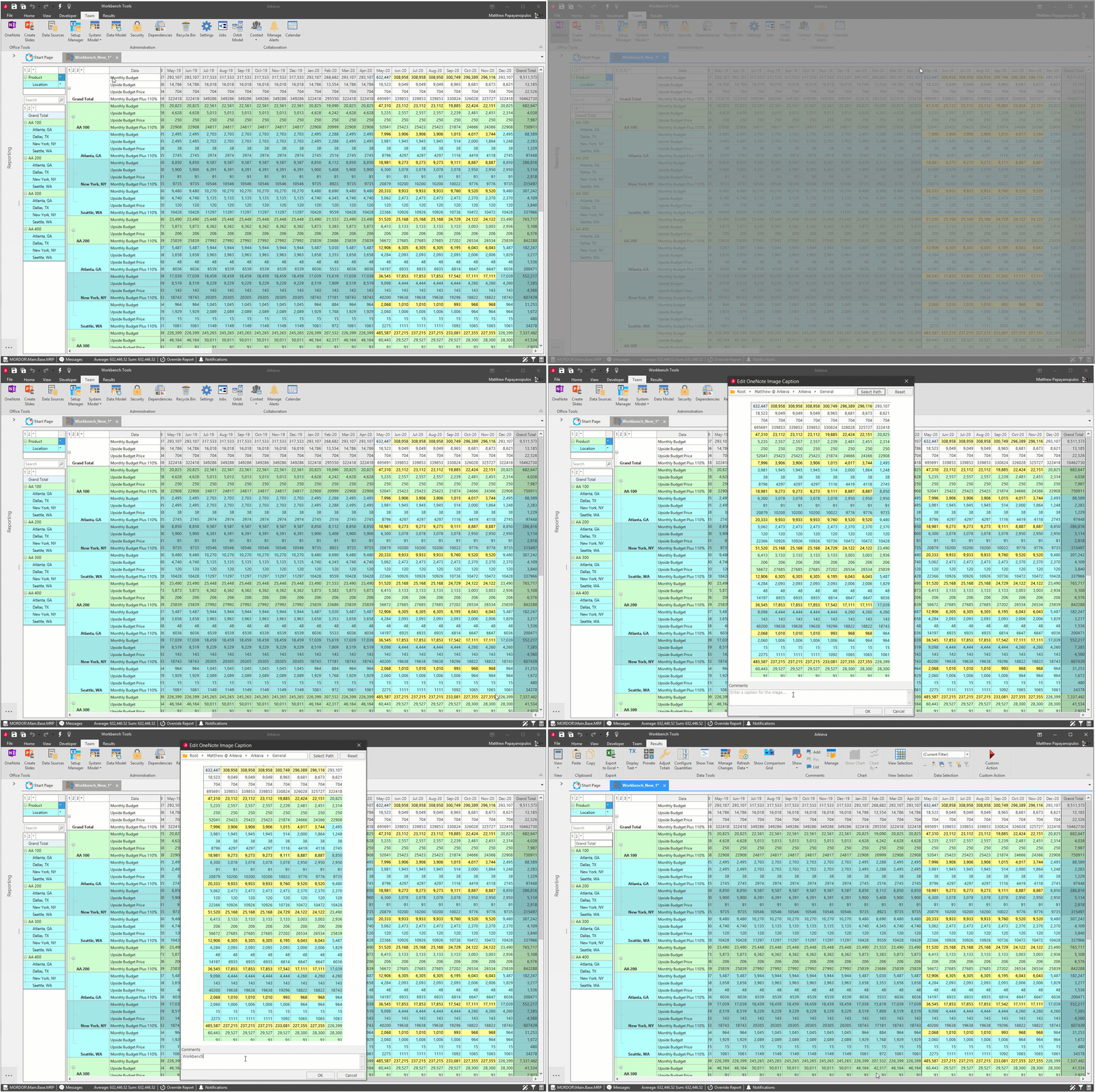
Use\ After setup, click the OneNote button in the Home Ribbon and use the crosshairs to select the area to send a snapshot.
Type an optional caption for the image in the Edit OneNote Image Caption window.
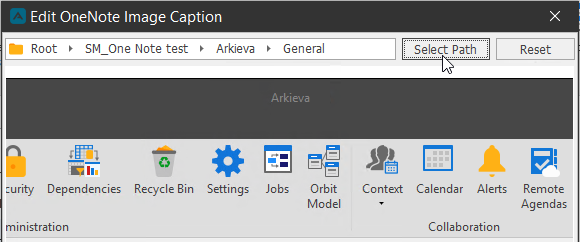
Click Select Path to choose another notebook other than the default notebook selected in the Administration Settings.
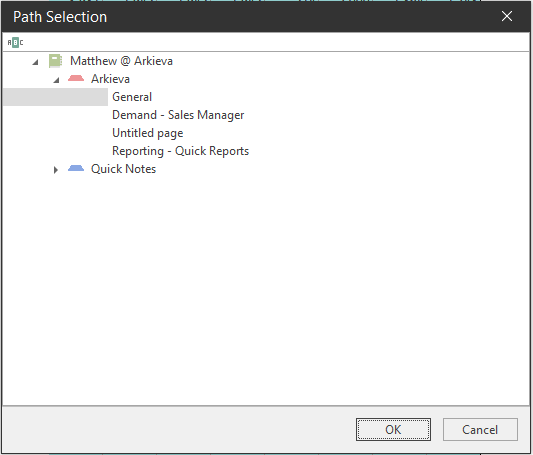
Click OK to close the Edit OneNote Image window. The screenshot will now be available to view from the default notebook or a selected notebook.
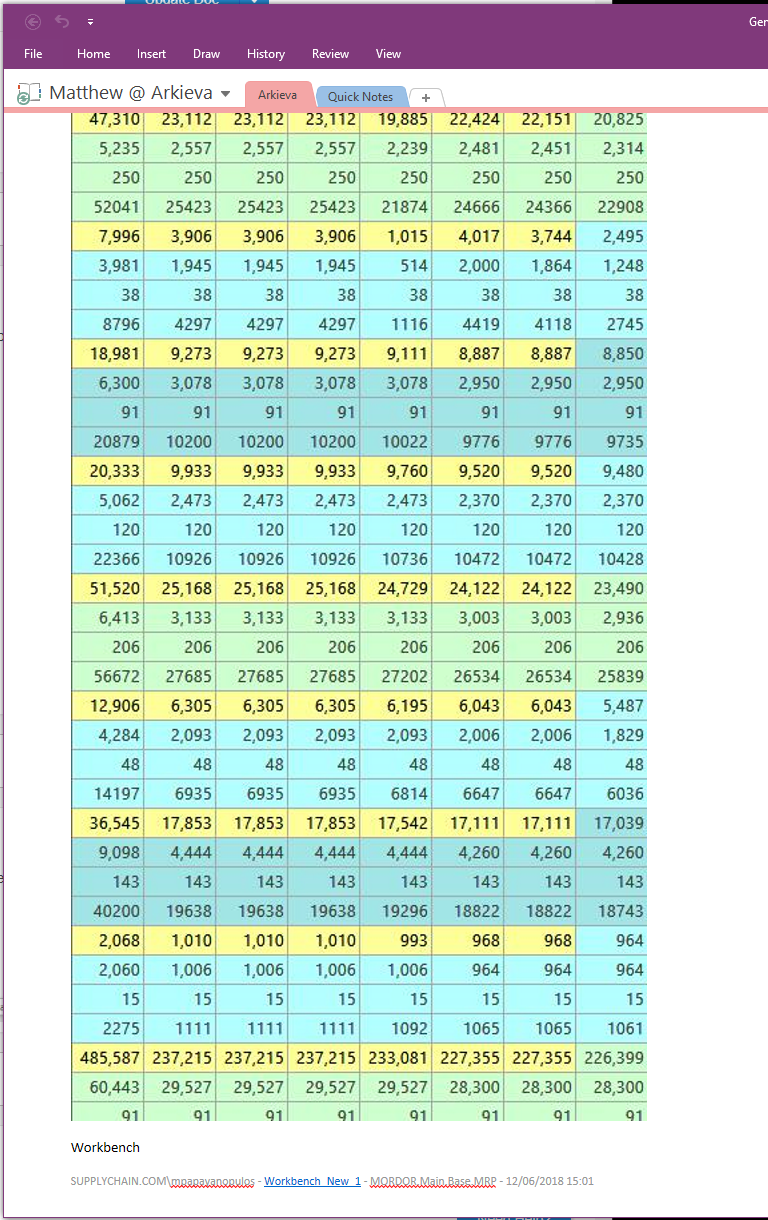
Document screenshots sent to OneNote via Meeting Manager will also contain a link to the document in Arkieva. Click the link to launch that document.

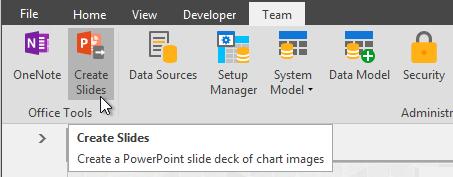
Creating Slides\ Send document graphs to PowerPoint with Create Slides in the Team ribbon. Slide templates are uploaded in the System Settings window accessed from the Team ribbon's Administration section.
Open the desired reports to be exported as slides (the reports must have graphs). Creating slides can take time depending on the amount of data and number of graph reports open; make sure to only have desired graph reports open before continuing.
Next, click the Create Slides button; the Creating Meetings Slides window will launch.
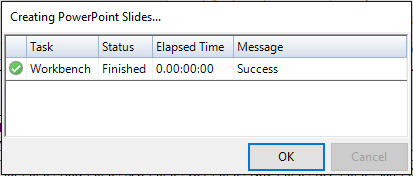
The Creating PowerPoint Slides window contains the information for Task (document), Status, Elapsed Time, and Message. Click OK to close window; Click cancel to stop slides from being created. PowerPoint will automatically launch with the created slides.
Recycle Bin\ Access the Recycle Bin from the Administration Ribbon. Click the Recycle Bin button to launch the Recycle Bin window. Any deleted documents are sent to the Recycle bin; only when items are deleted from the recycle bin are they deleted permanently.
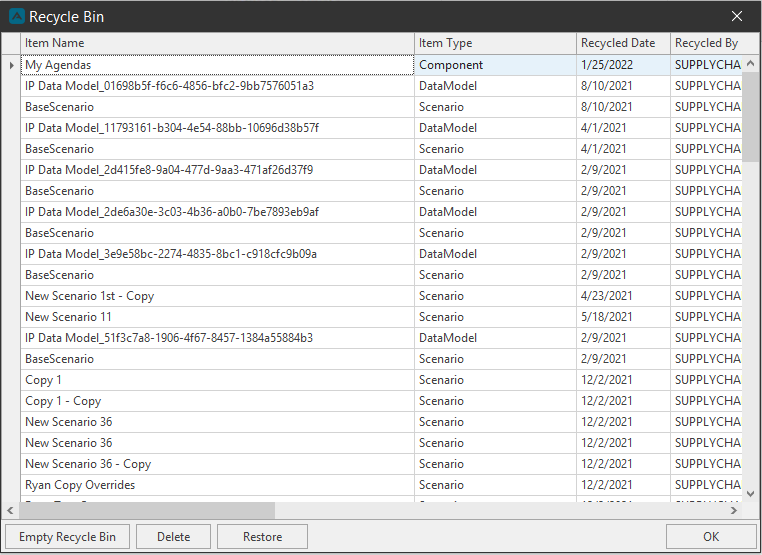
- Item Name: Document Name.
- Item Type: Document type (data model, workbench, etc.).
- Recycled Date: Day, month, and year the document was sent to the recycle bin.
- Recycled by: User Name of who sent the document to the recycle bin.
- Created On: Day, month, and year the document was created.
- Created By: Name of the user who created the document.
- Last Modified: Day, month, and year the document was last edited.
- Path: Path name where the document was saved to.
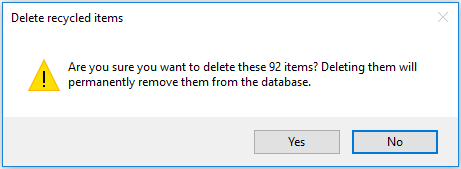
Empty Recycle Bin\ Click Empty Recycle to delete all items in the recycle bin.

Click Yes to confirm.
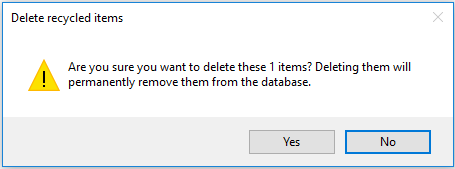
Delete\ Select an item or multiple items and click to delete to remove them completely.

Click Yes to confirm.
Restore\ Select an item or items to restore it for use; some warnings may occur, otherwise restoration does not give a prompt, it happens automatically.

Collaboration\ Collaboration tools are used to manage events and alerts and track information, and manage Arkieva Calendars.
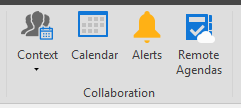
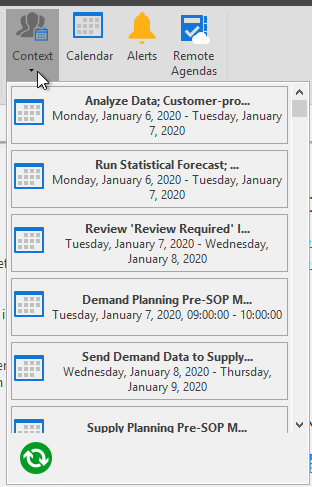
Context\ When taking multiple screenshots with the OneNote Office Tool, sometimes the context of the screenshot and how it relates to a calendar event was lost. With the Context dropdown, Calendar events listed in the dropdown can be selected, and when OneNote is used the meta data will be saved as text alongside the screenshot in OneNote.
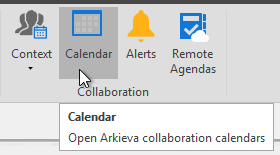
Calendar\ Follow the link to learn more about Calendars.
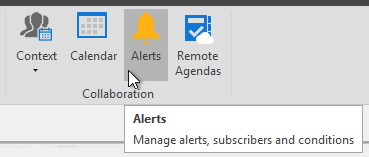
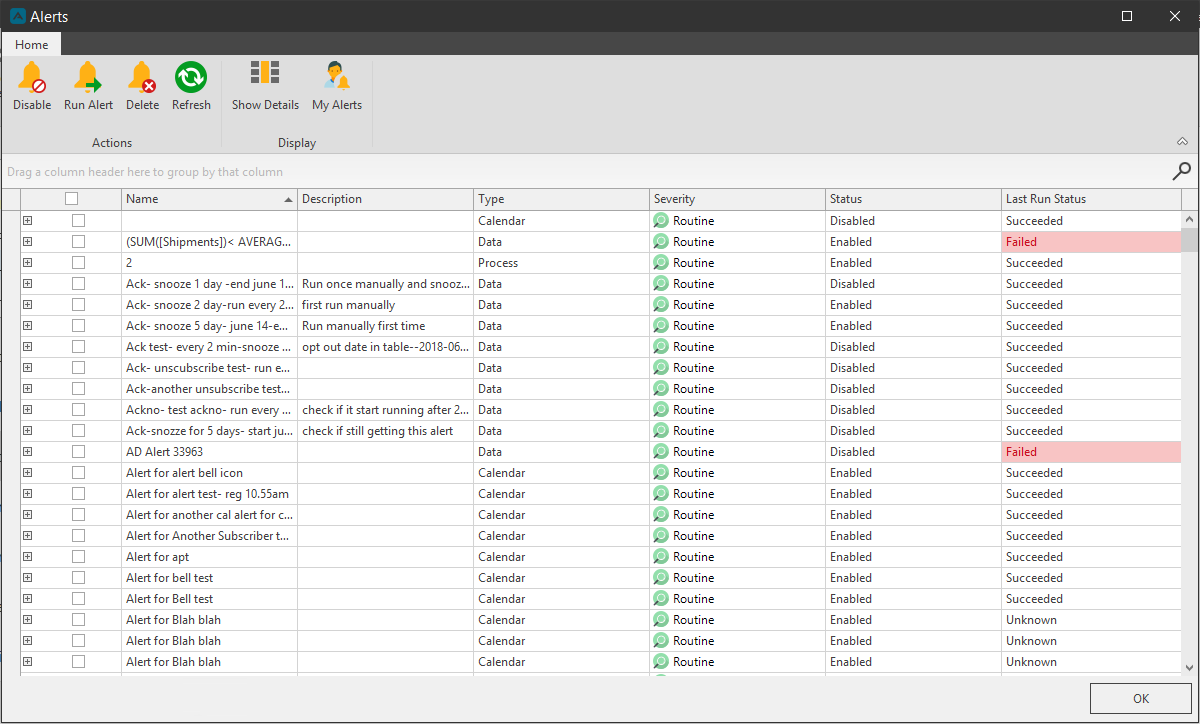
Alerts\ Manage Alerts is in the Team ribbon under the Collaboration tools. Edit and delete created alerts from the Manage Alerts window. Double-click an alert to edit it, or click an alert and click Delete to remove it.
Remote Agendas
Document and Component Properties
📘 Note
Each document and component has different properties. Please review the different document and components to learn more about these properties.
General
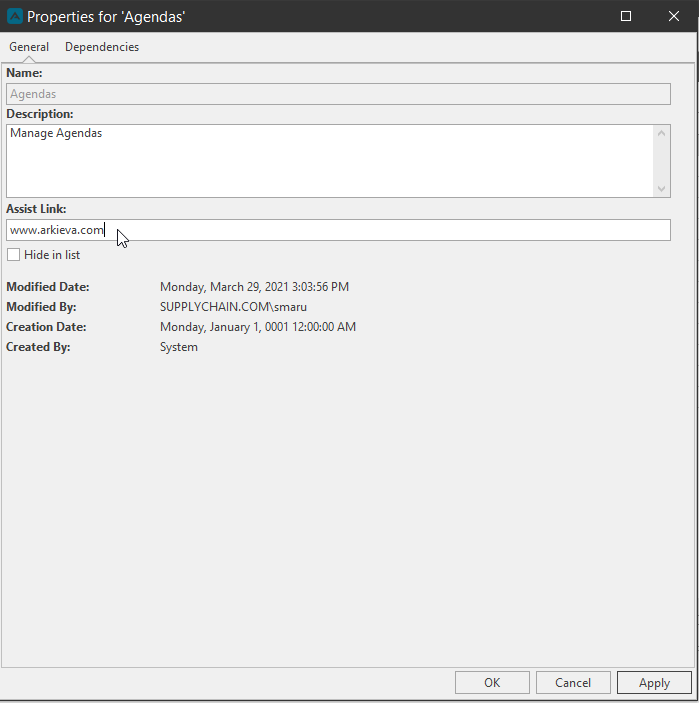
Shows when the document was last modified, who modified it, when the document was created, who created it, and the name of the document. A description can be added in later and is also optional. The 'Hide in List' checkbox will hide the document in the Browse All Documents window from users who do not have administration read or view permission rights.
Assist Link\ Arkieva Assist is a way for Arkieva Consultants and Super Users to attach a user guide written in HTML to documents in Arkieva. Under the General Tab, paste in the URL of the HTML page into the Assist Link field.
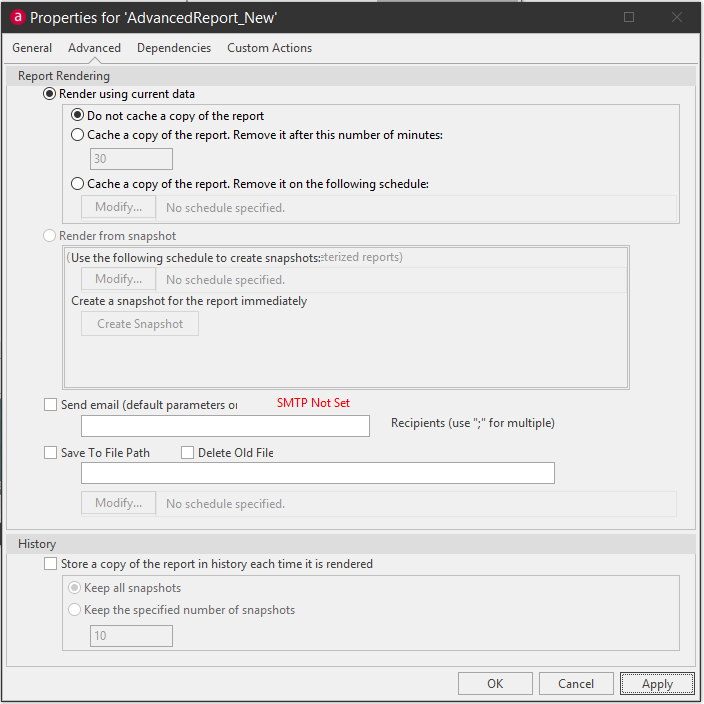
Advanced
Advanced options for some specific documents.
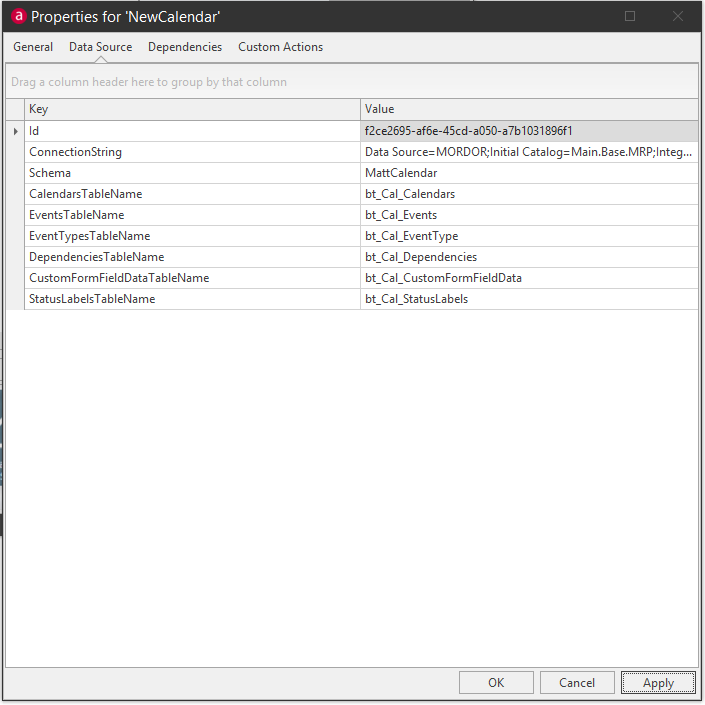
Data Source
Calendar properties.
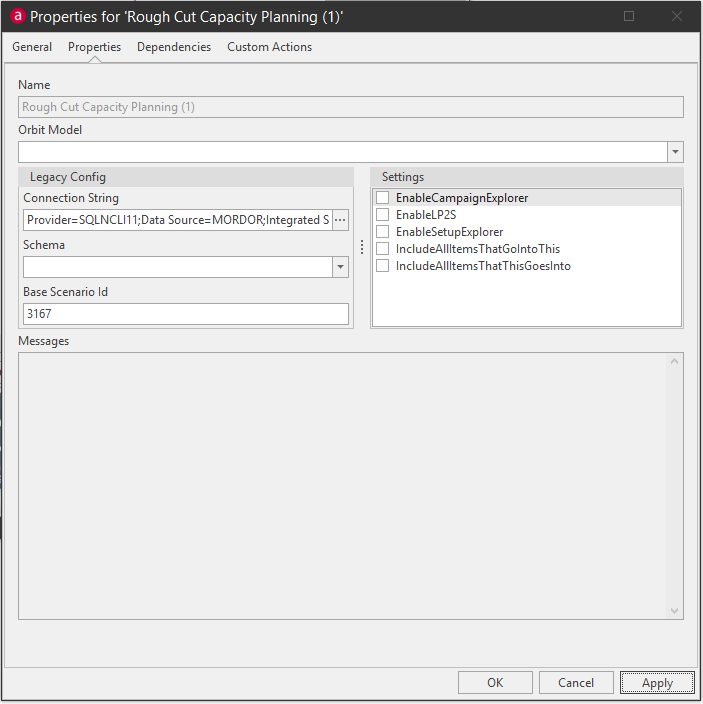
Properties
RCCP properties.
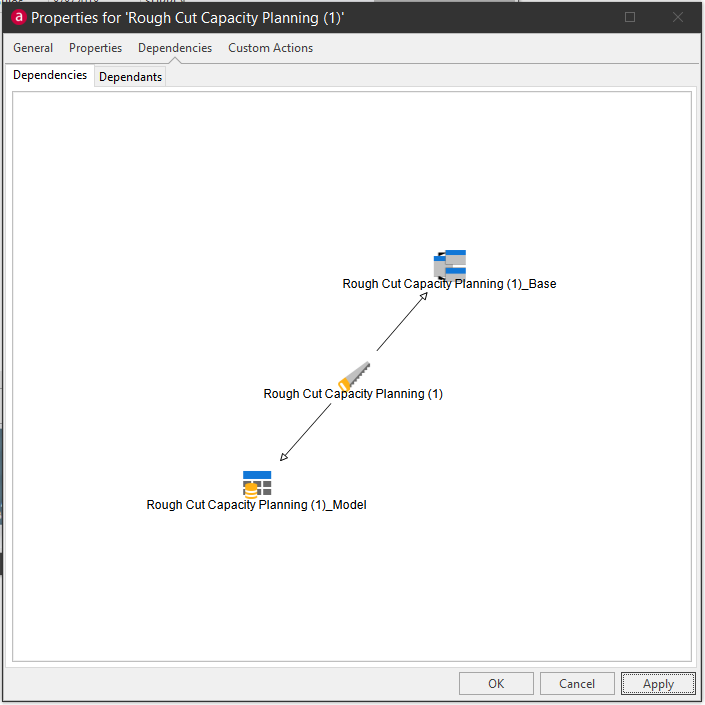
Dependencies
Shows the interdependencies of documents with data models and other documents.
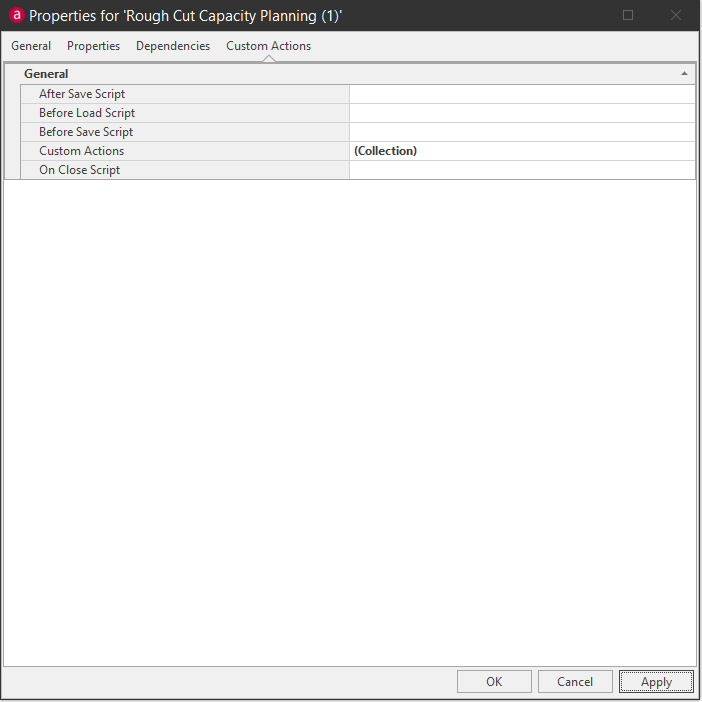
Custom Actions
Add custom actions and stored procedures to any created document.
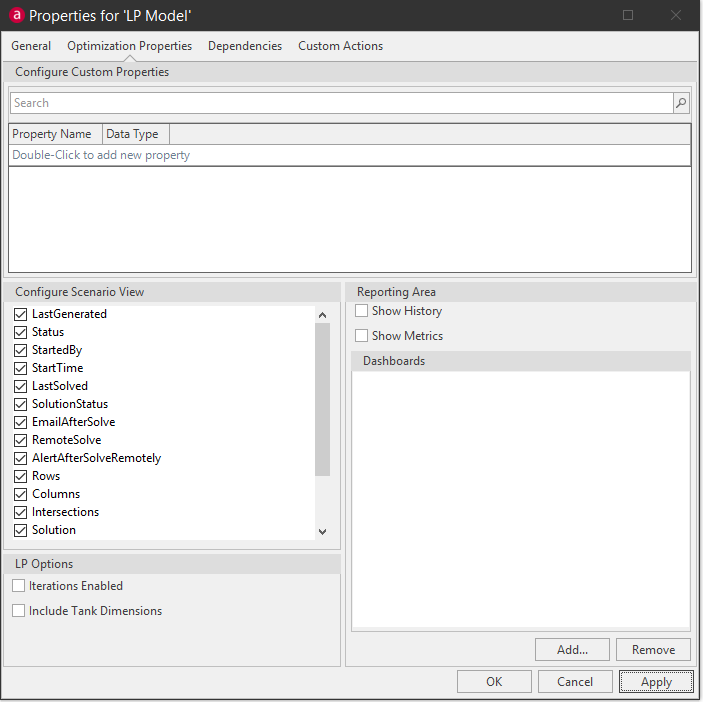
Optimization
LP Document Properties.
Related Articles
Arkieva Customer Training Program
The Arkieva Customer Training Program is a customer-centric program aimed at empowering Arkieva customers with the knowledge and skills needed to harness the power of their Arkieva solution to solving complex business problems. ? Go to the bottom of ...Misc. / General
Streets Version Update Update maptiler Users will need to update the Streets URL to Streets-v2. Be sure to empty the map tile cache folder first to test.\ \Users\\AppData\Local\Temp\Arkieva\MapCacheData ...Creating Your Own Arkieva Jobs
Superusers can create jobs in Arkieva. This session will cover the basics of how to do that. {` `}Workbench
Introduction A Workbench is an editable table that can help you predict future data. To create a new Workbench, go to the Home tab and click the New Items dropdown menu and select Workbench. How to design a Workbench In this session, we will touch on ...Promotion Planning
Introduction Running promotions to increase sales is an essential part of the product marketing process. The Arkieva Promotions Planner provides powerful forecasting analytics tools that help you quickly align your promotions with your demand or ...