Quick Reports
Introduction
A Quick Report visually displays Data Model data into rows and columns of attributes and quantities. Design the Quick Report in the Design View, filter attributes in the Filter View, and view the data in the Results View.
How to design a Quick Report
In this session, we will touch on the various ways that you can quickly you can visually display data into rows and columns of attributes and quantities with Quick Reports.
{`
`}
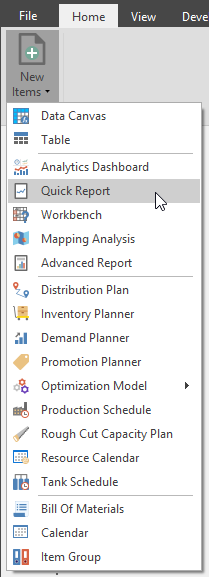
Click the Create tab to open the create ribbon, then click the Quick Report button; the Select a Data Source dropdown will automatically open when creating a new Quick Report.
Select a Source and Data.
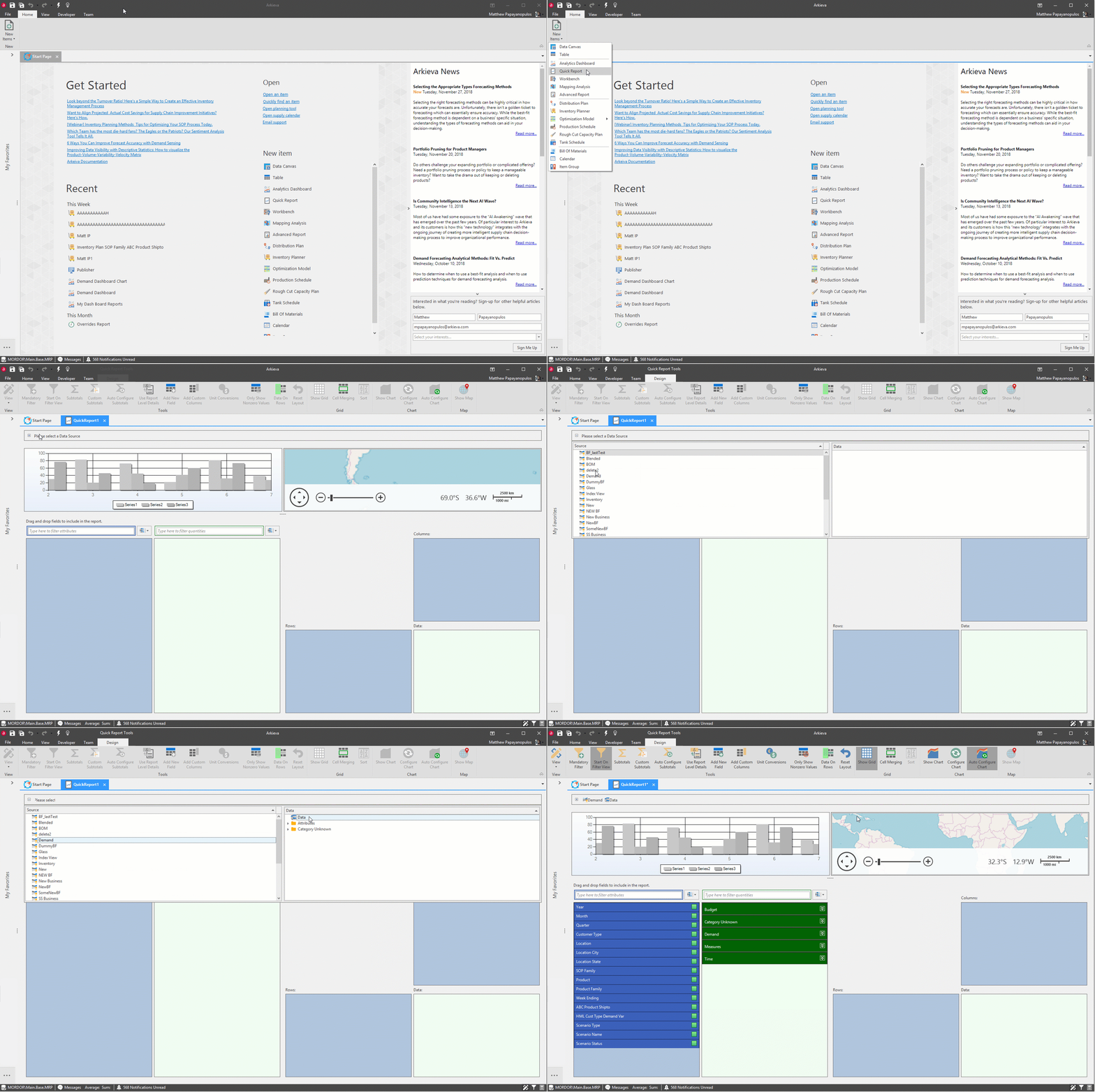
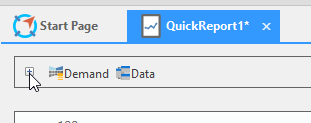
The selected Source and Data will appear in the Data Source dropdown.
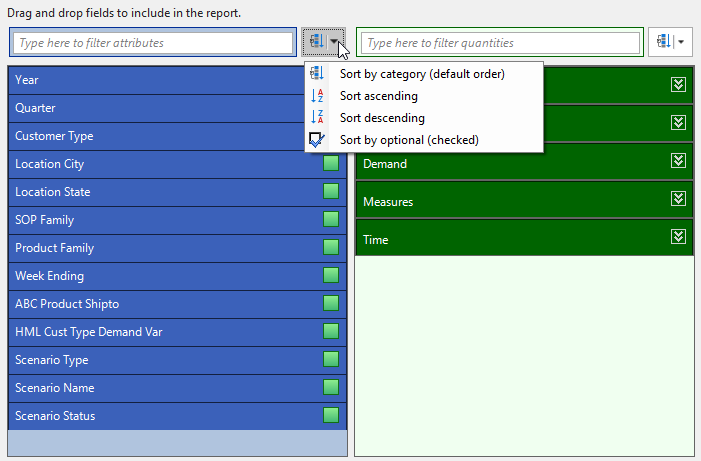
The Business Function’s attributes (blue) and quantities (green) will populate in the fields below. Use the dropdown menu to change how the fields appear in what order.
Click and drag attributes to the Rows and Columns containers, and a quantities to the Data container.
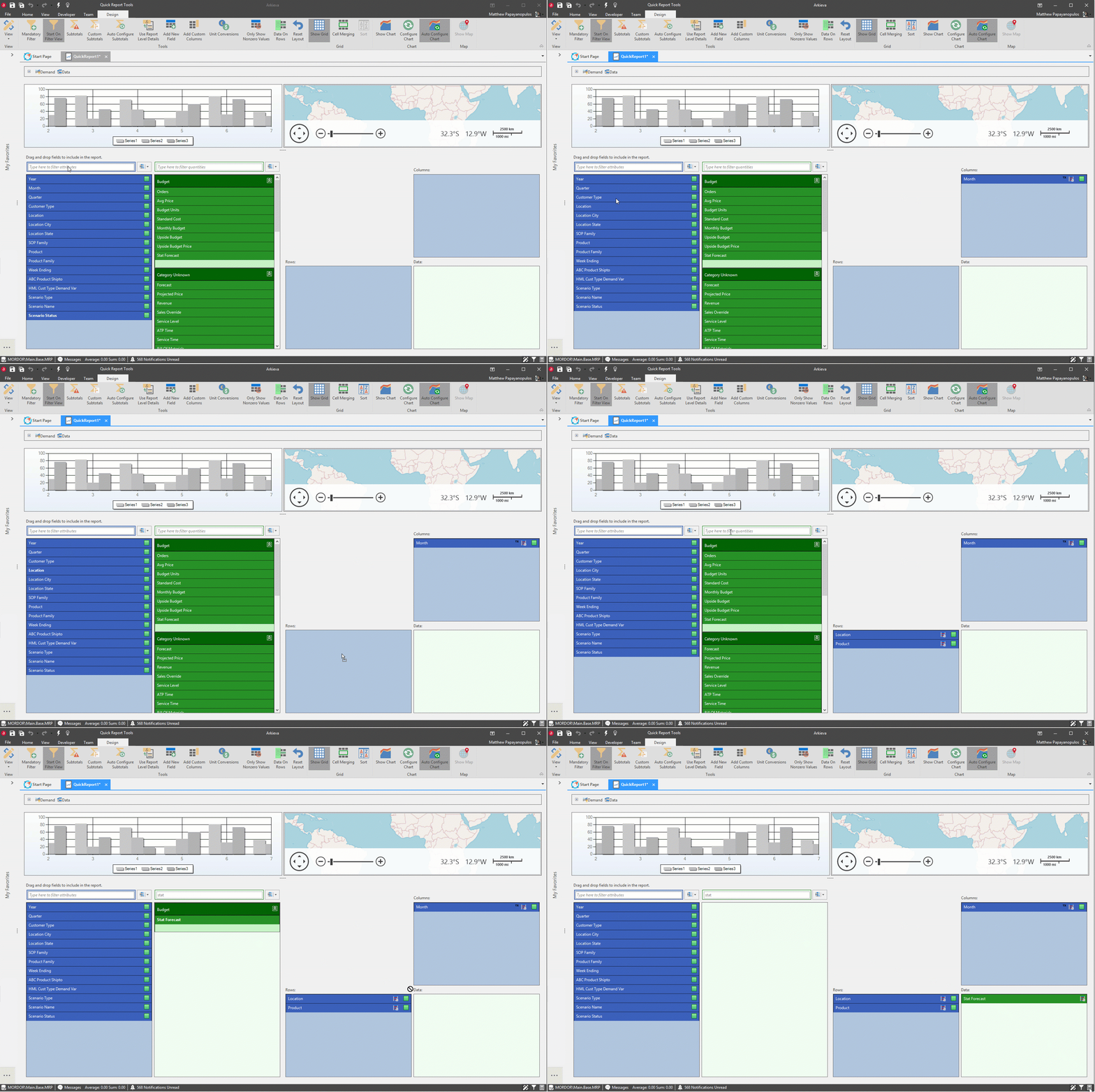
Click Results View to review the Quick Report.
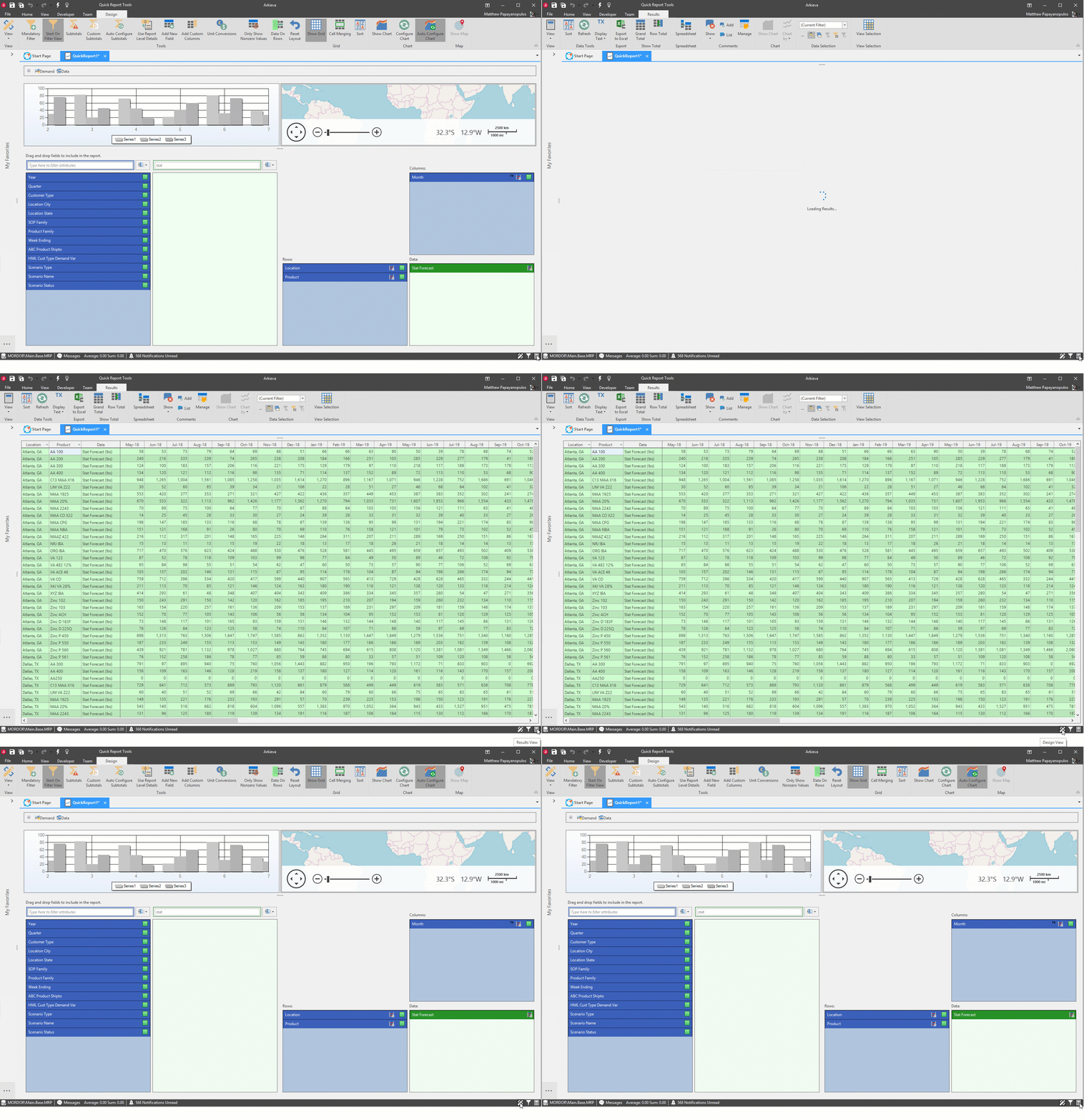
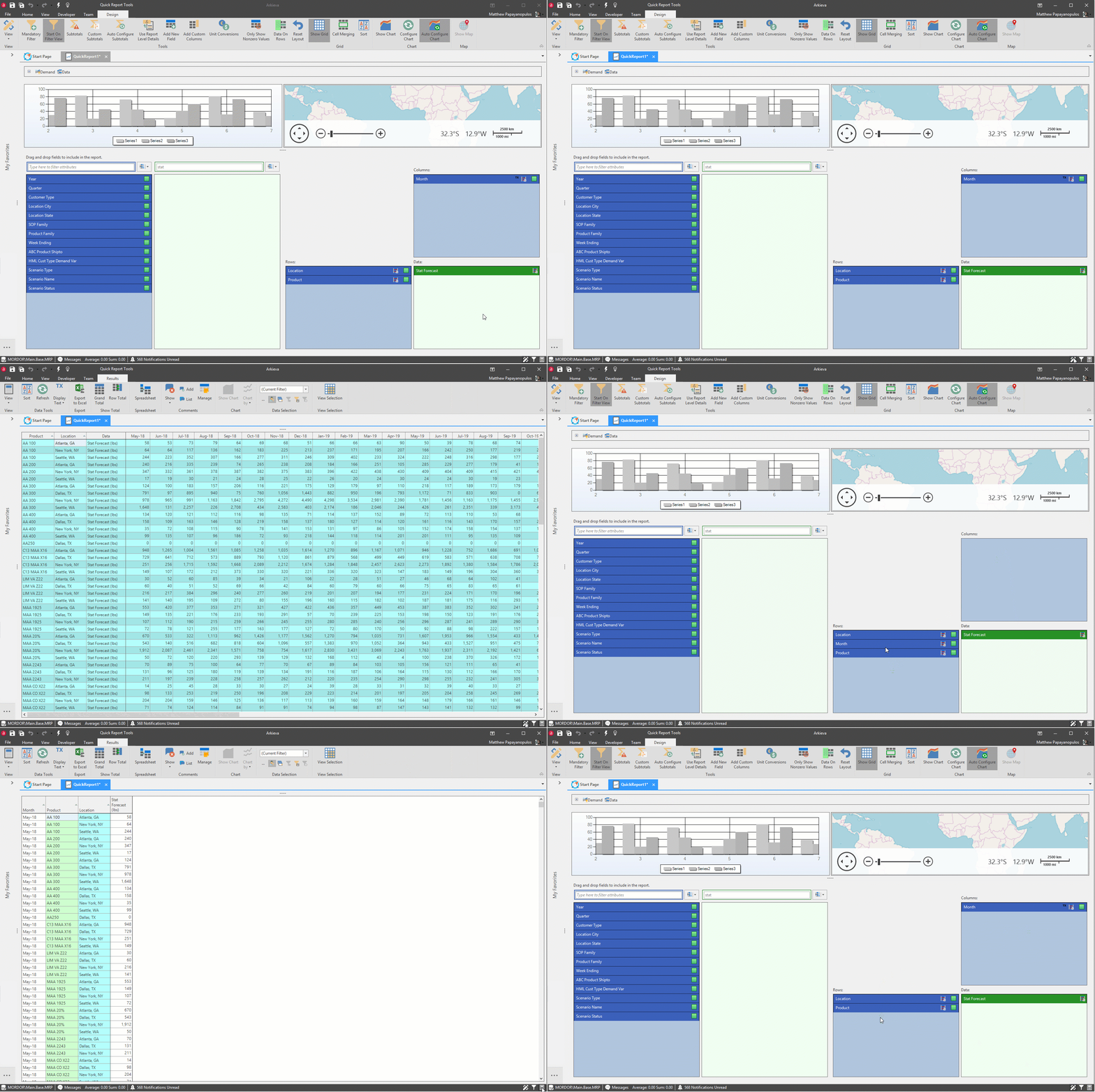
The order in which attributes and quantities are added to the rows, columns, and data containers will affect the design of the Quick Report. Quick Reports are designed to work best when physical attributes (products, places, customers, etc.) are placed in the Rows container and time attributes (months, periods, years, etc.) are placed in the Columns container.
📘 Note
Depending on what the focus of the data will be is how you will design the table; and by clicking between the design view and results view, you can design the table in real time.
The following example illustrate how the order of attributes and quantities in the rows, columns, and data containers can change the design of the table.
Design Layout Controls
Click and drag an attribute (blue) to the Rows/Columns containers, and a quantity (green) to the Data container. Double-clicking an attribute/quantity will automatically place it in it’s appropriate rows, columns, or data box.
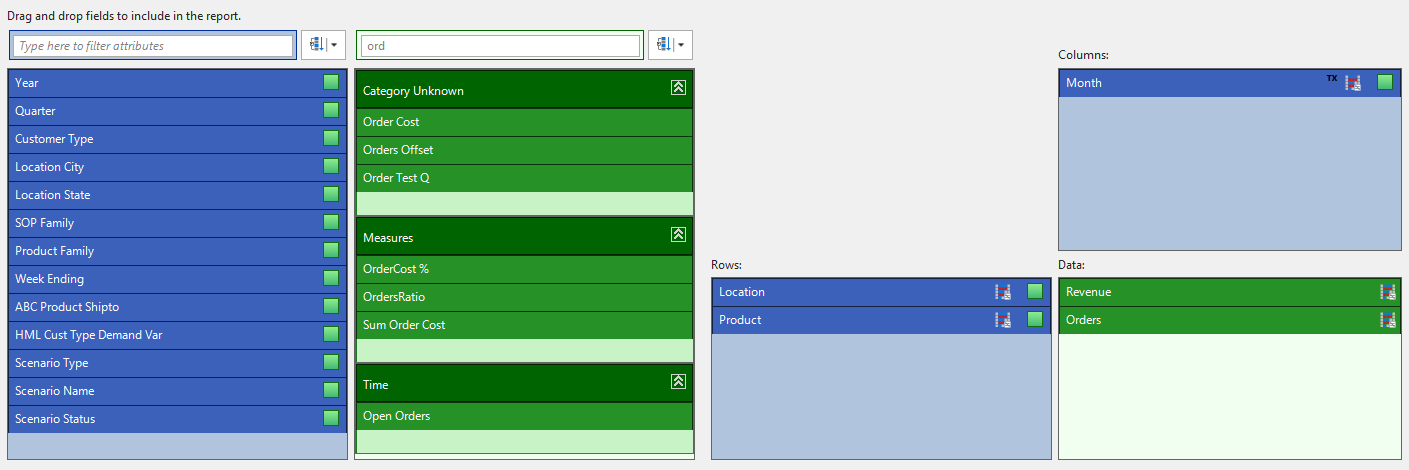
Multiple attributes or quantities can be selected at once and dragged over to the appropriate selection boxes:
- Hold CTRL and click each item.
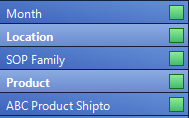
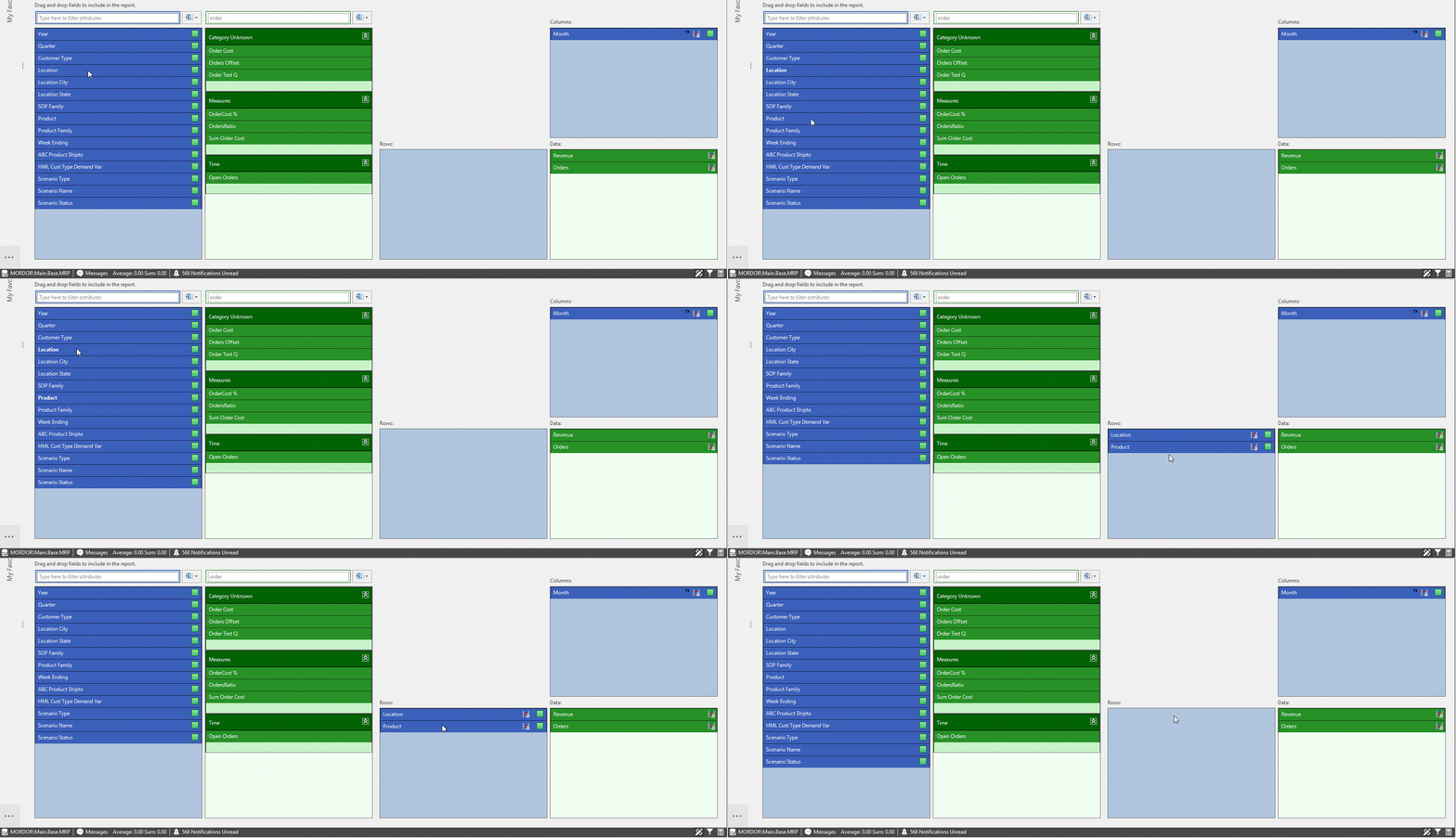
- Click an item, hold SHIFT, then click another item to select every item in-between.
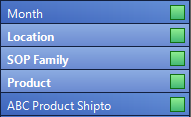
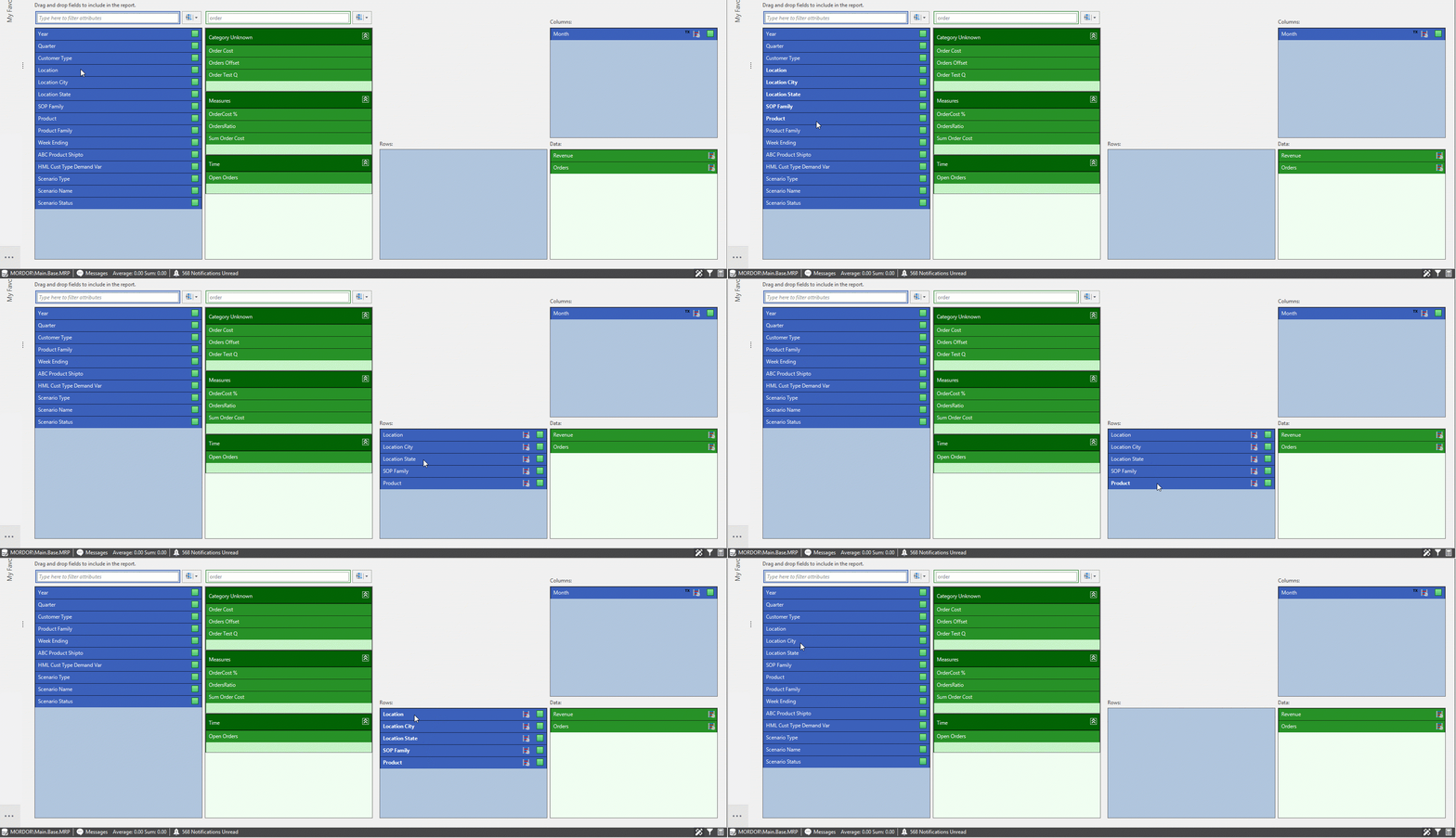
Search
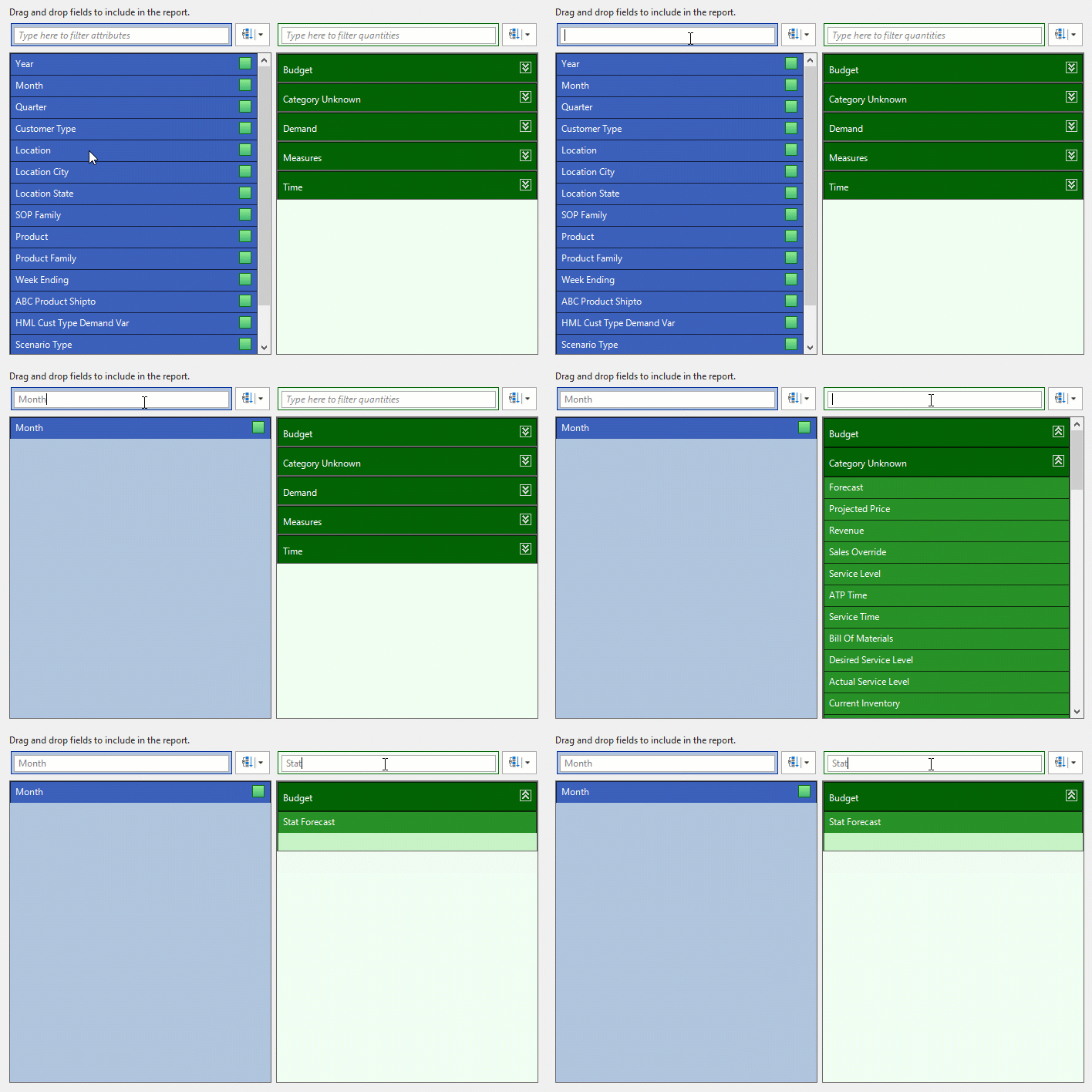
Type a keyword into the attribute and quantity search bars to drilldown through the list.
Sort
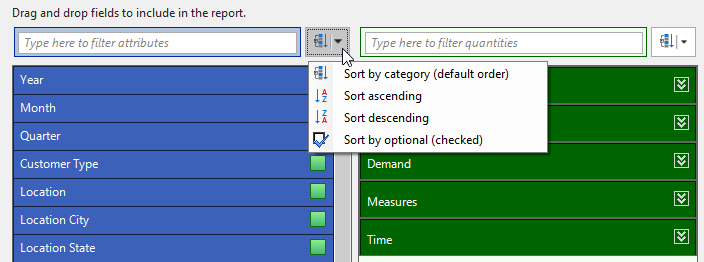
Click the dropdown arrow to access Attribute and Quantity sorting options.
Quantity Categories
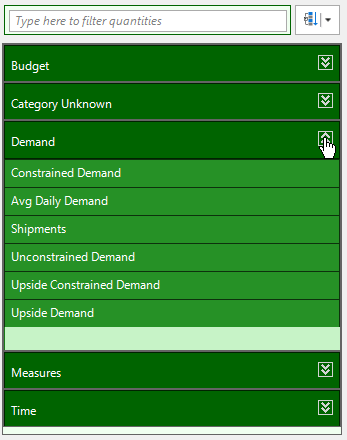
Click the arrows to dropdown or hide the list of quantities; Categories are created by Administrators under the Category column in the Setup Manager.
Compatibility
Colored squares denote compatibility between attributes and quantities.
- Green: All quantities defined.
- Yellow: Some quantities defined.
- Red: No quantities defined.



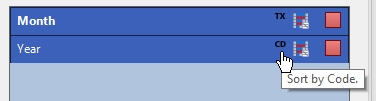
Text/Code Column attribute toggle
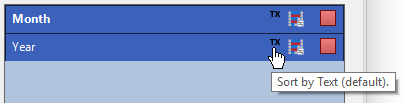
Click the TX/CD button to toggle if the column data will be shown as text (TX) or as code (CD).
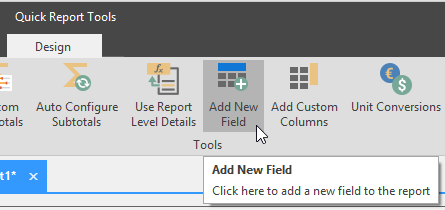
Adding New Fields
Create custom attributes and quantities with the Add New Field button.
Create Calculated Fields and Apply Formatting
{`
`}
Definition tab
Use to create the attribute. Follow this link to see the list of Expressions.
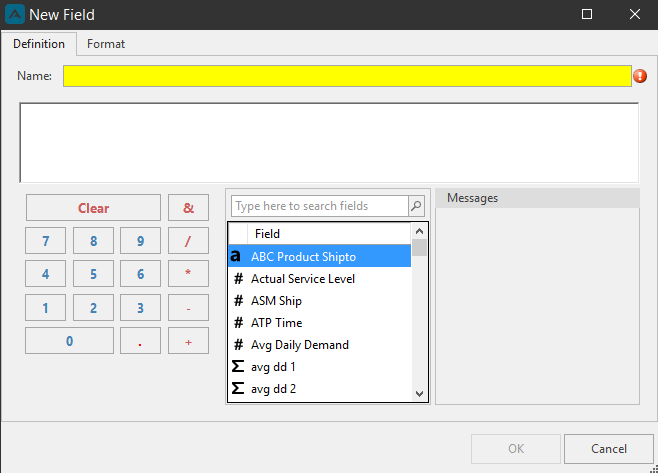
- Name: type a name for the new attribute.
- Calculator: Use the calculator in combination with the Field list to create a new attribute or use the blank field under Name and type the required information to create a new attribute.
- Messages: The messages box will display error warnings if the contextual commands typed or the calculator and Field inputs are incorrect.
🚧 Using the FIND function
If creating a new field that will use the FIND function (like in SQL to find the position of a character in a string), you need to use the % symbol.
Ex. RIGHT([\], (LENGTH([\]) - FIND([\], "%_%")) - 1)
Format tab
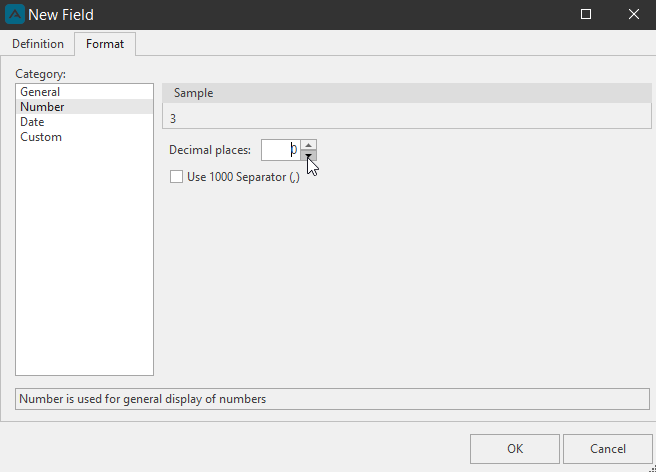
Use the Format tab to design the appearance of the new attribute.
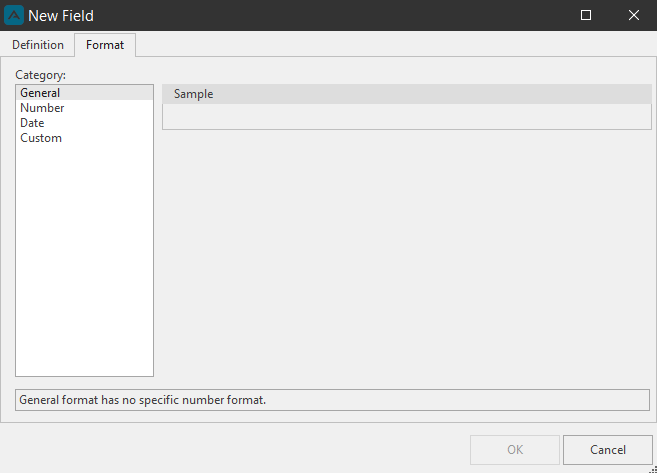
- General: no specific number format.
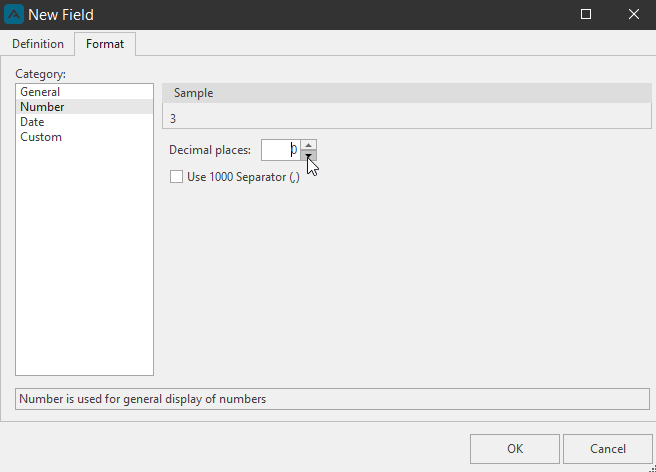
- Number: number is used for general display of numbers; set the number of decimal places visible in the report results view with the arrows or type a numerical value into the field.
- Date: Select how data/time attribute will be displayed in the report.
- Custom: use an existing code from the list to create a custom number format code.
Edit
Click the Edit button of the new quantity to reopen the New Field window to alter the Definition or the Format tab information.
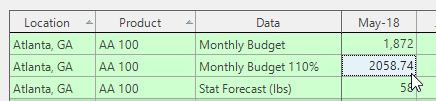
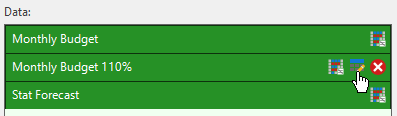
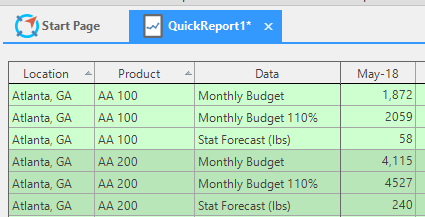
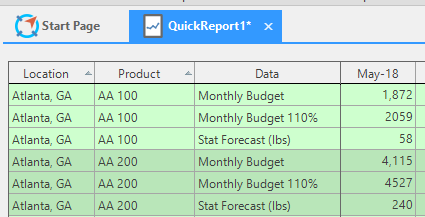
Monthly Budget 110%
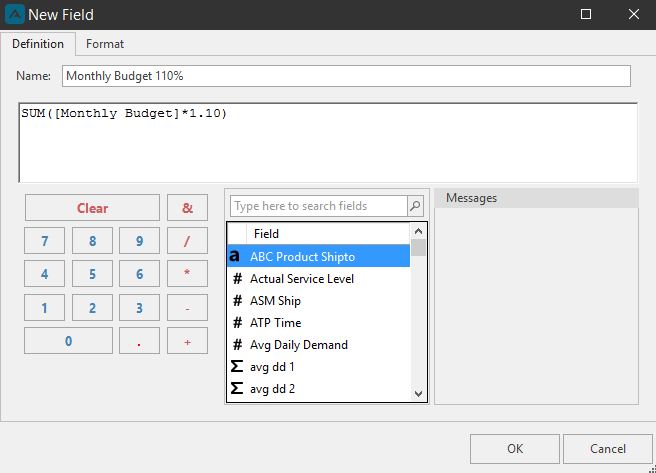
For this example, we’ll create a monthly budget plus 110% calculated field.
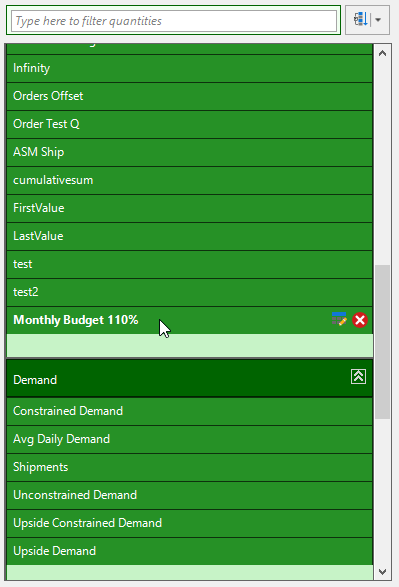
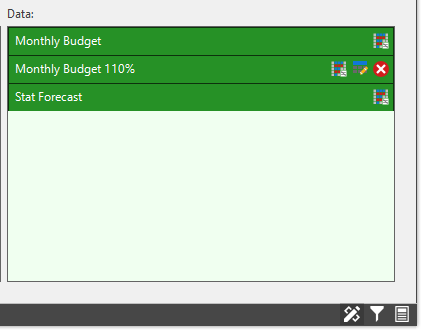
Click Add New Field to open the New Field window and type a name (Monthly Budget 110%). Input the formula into the expression field: SUM([Monthly Budget]*1.10); then click OK.
MAPE
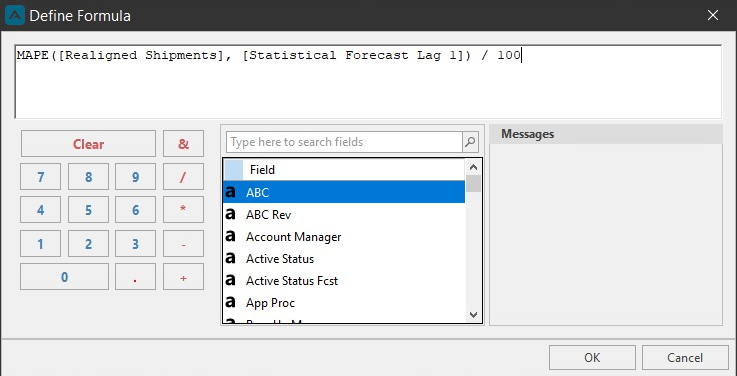
MAPE (mean absolute percent error) can be used to aggregate percent levels as a mean of the error at the line level in a Quick Report. This metric should be used against a saved (Lag) quantity.
Formula: MAPE([Actual],[Forecasted])/100
Click Add New Field and create a new field as an aggregate statistical function.
WMAPE
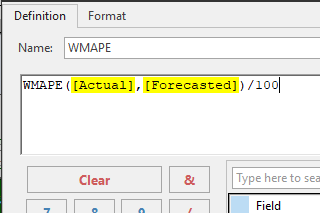
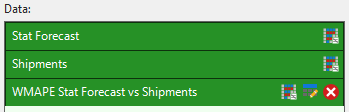
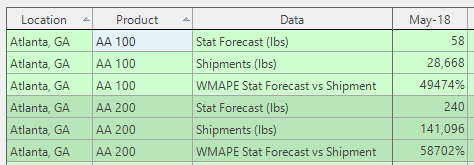
WMAPE (weighted mean absolute percent error) can be used to aggregate percent levels as a weighted mean of the error at the line level in a Quick Report. Click Add New Field and create a new field as an aggregate statistical function.
Formula: WMAPE([Actual],[Forecasted])/100
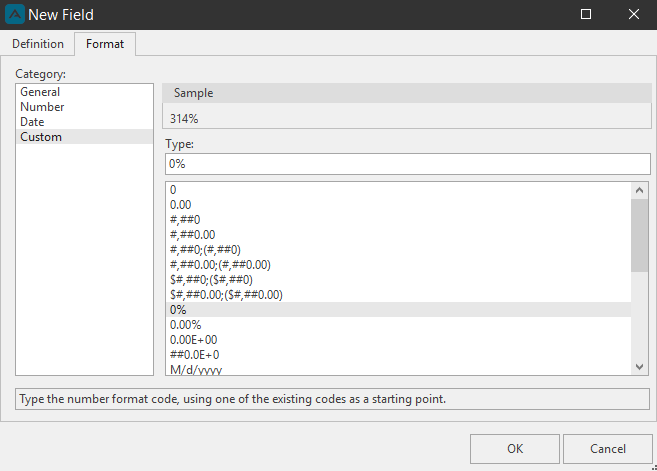
Click on the Format tab and select the Custom Category and select the 0% under Type. Click OK.
Subtotals
Quick Reports will automatically subtotal two-time periods in the design view. However there are three ways to design subtotals for the Quick Report: Setting Subtotals, Custom Subtotals, and Auto Configure Subtotals.
Set Subtotals
Custom Subtotals
Auto Configure Subtotals
Set Subtotals
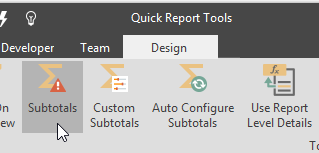
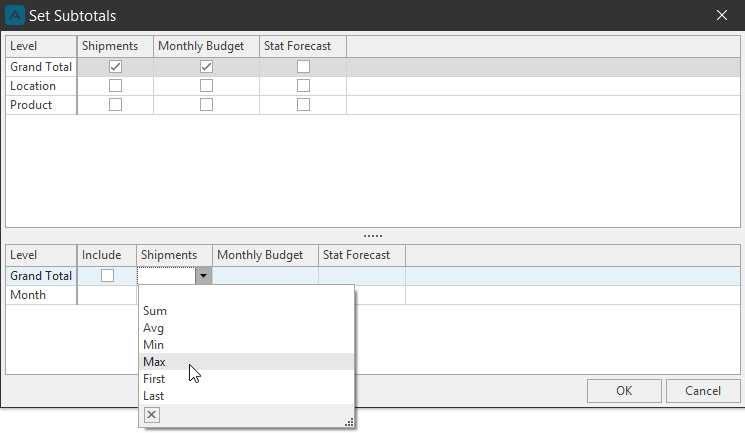
Click the Subtotals button located in the Design ribbon of the Design View to launch the Set Subtotals window.
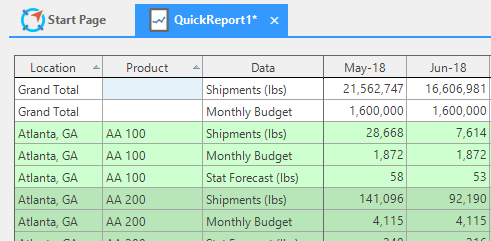
The options within the fields of the Set Subtotals window are selected from what attributes and quantities have been placed within the rows, columns, and data containers, and what filters (if any) have been placed upon the data.
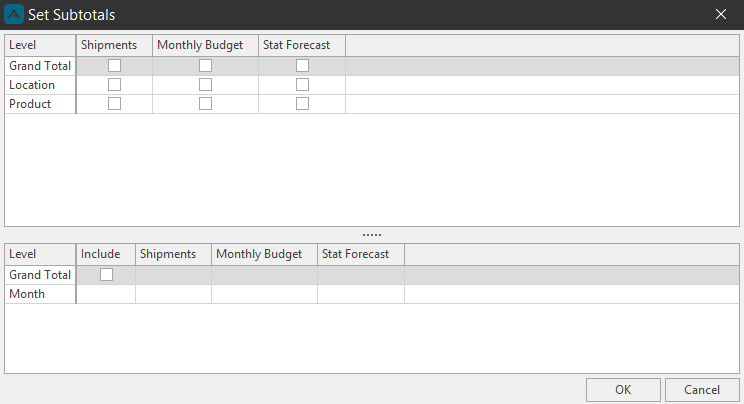
Check a Quantity and Level the Subtotal will calculate. Set the type of calculation from the dropdown under the quantity columns. Click OK.
Custom Subtotals
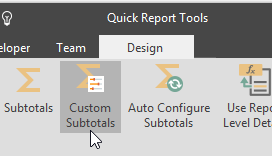
Create custom subtotal columns in the results view. Click the Custom Subtotals button in the design ribbon.
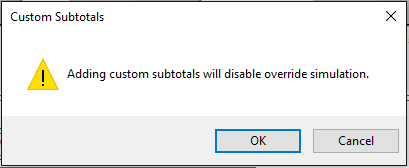
If Override Simulation is toggled on, the custom subtotals will toggle that off if continuing to create custom subtotals.
The Custom Subtotals window will launch.
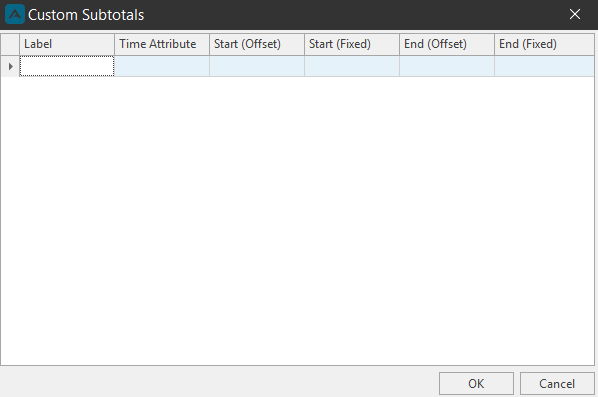
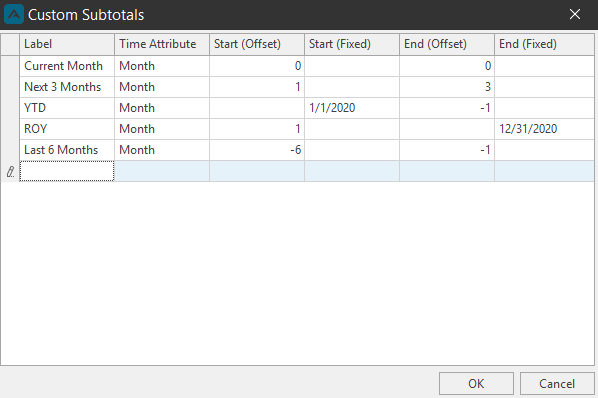
Under the Label column, type a name for the Custom Subtotal column. Depending on the type of subtotal, type a value or use the calendar selection to create the type of subtotal. Click OK when finished.
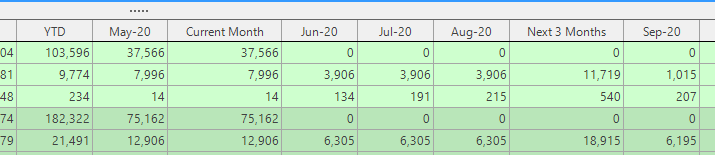
Go to the Results view to view the custom subtotal columns.
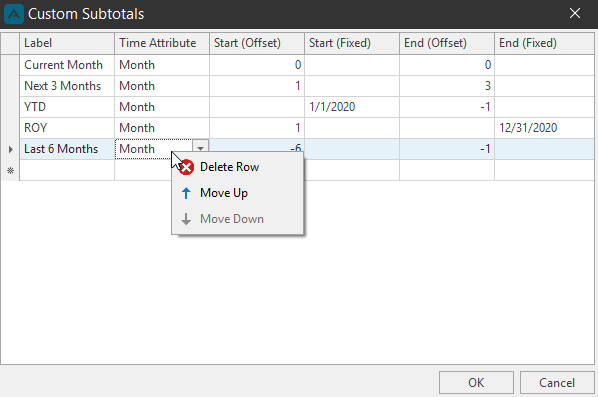
Right-click menu\ In the Custom Subtotals window, right-click a custom subtotal for the Delete Row, Move Up, Move Down options.
Auto Configure Subtotals
The Arkieva application also allows for automatic creation of subtotal columns/rows. Toggle Auto Configure Subtotals ON or OFF in the Design View, and go to the Results view to view the subtotals generated.
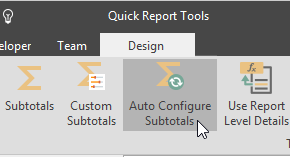
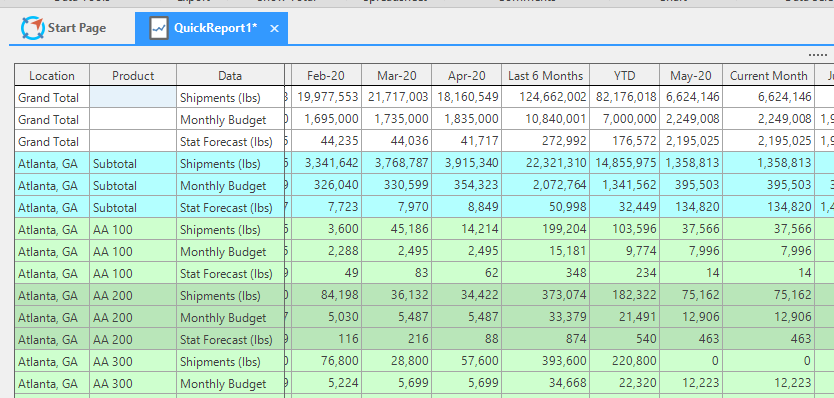
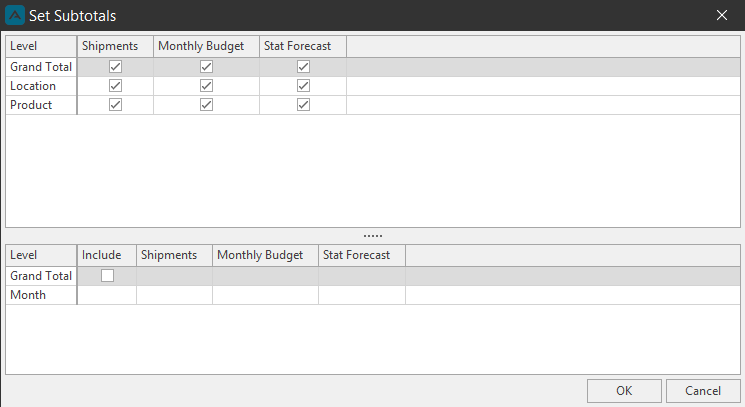
Toggling ON Auto Configure Subtotals selects every Quantity and Quantity Level in the Subtotals window.
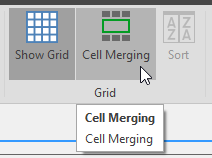
Cell Merging and Spreadsheet buttons
Cell Merging
Located in the Design View. Merge similar cell rows with the Cell Merging button.
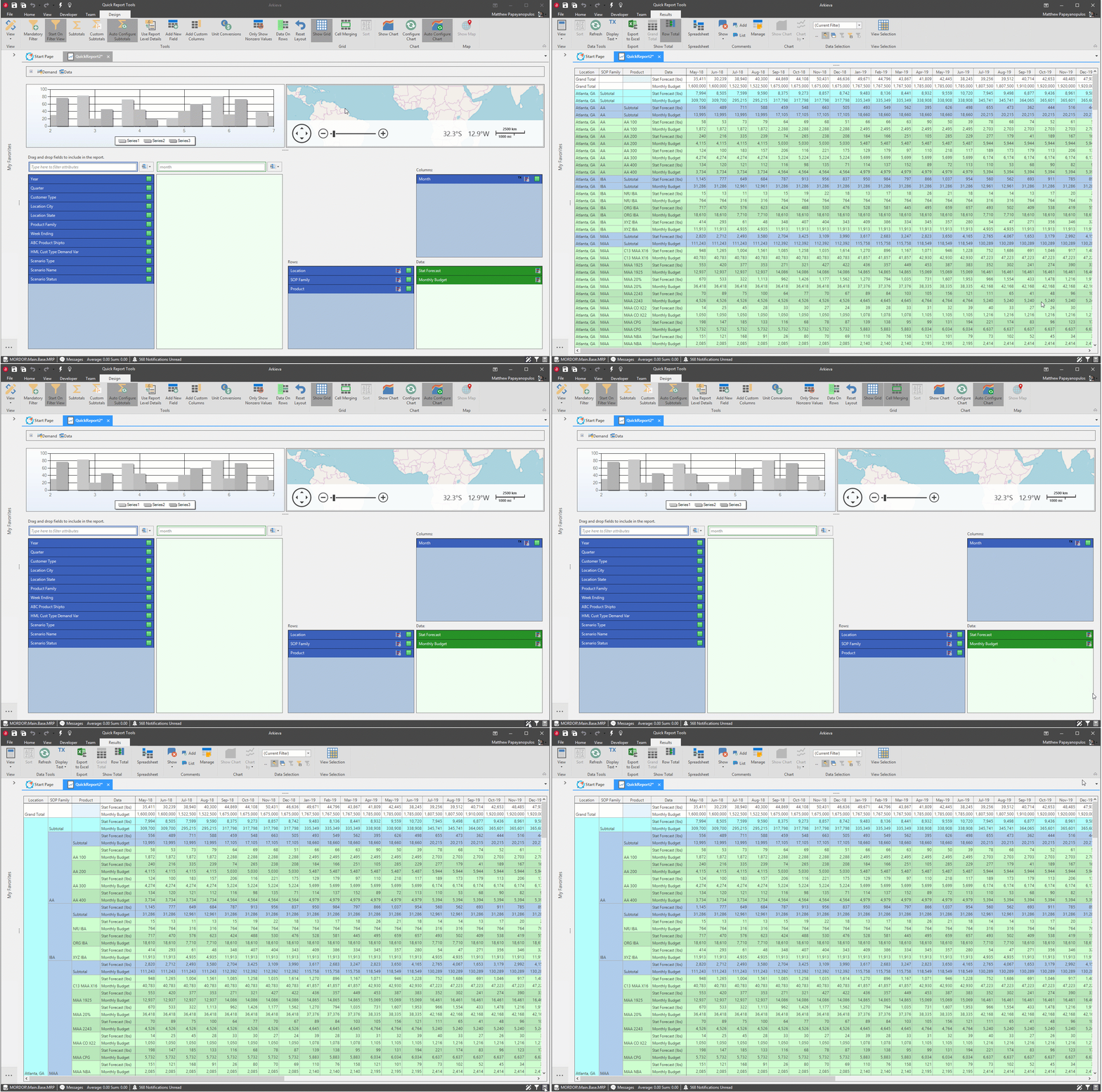
Spreadsheet
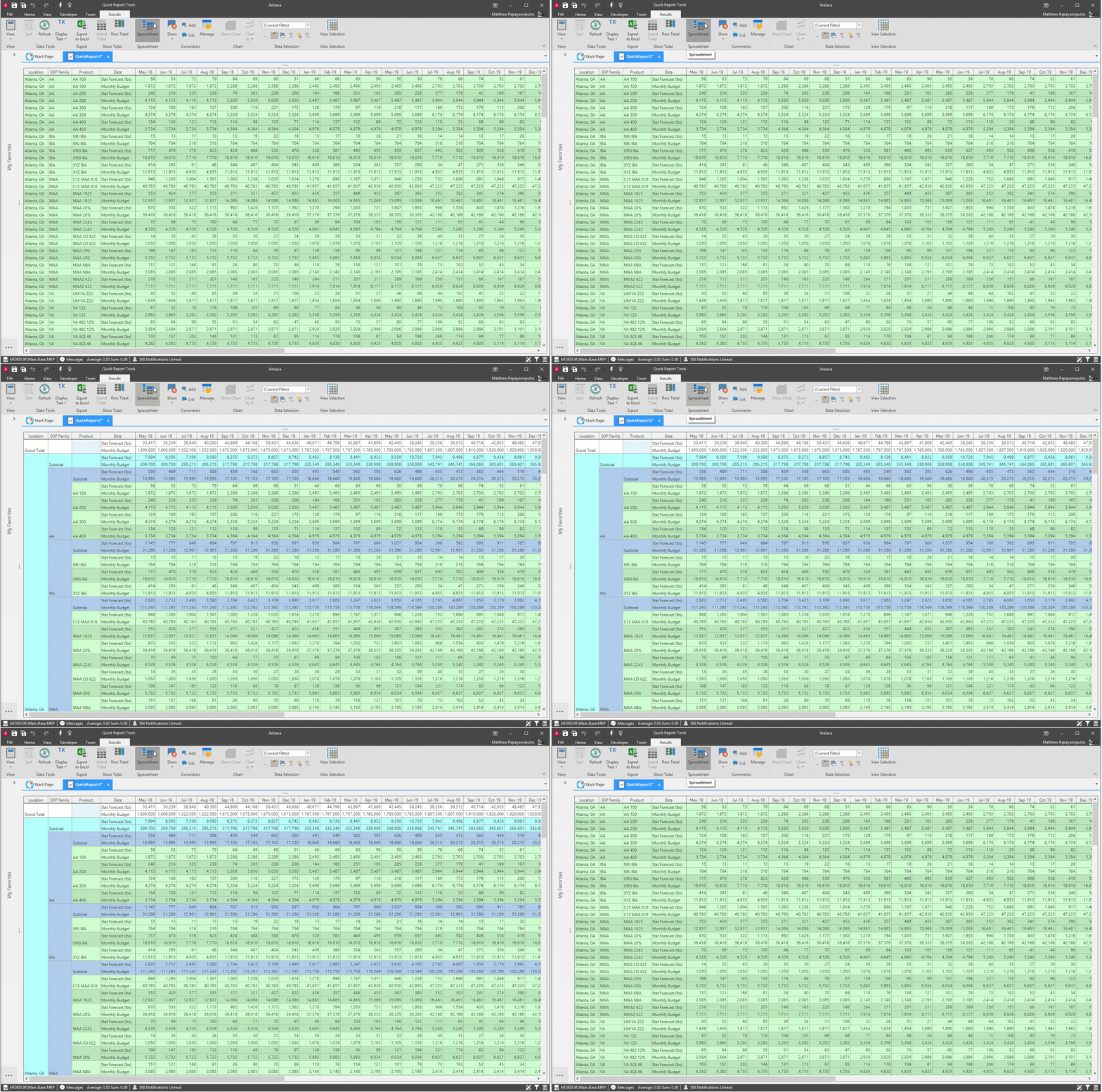
Located in the Results View. Removes Cell Merging when Cell Merging is toggled on in the Design View. Spreadsheet mode will also remove subtotals.
Hide blank rows
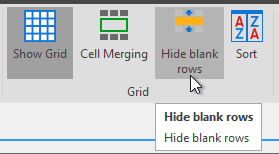
When designing a Quick Report that will have NULL rows, you can hide those rows from the Results view with the Hide blank rows button in the Grid section of the Design ribbon.
Hide blank rows 'Off'
Hide blank rows 'On'
Chart Report
Show Chart
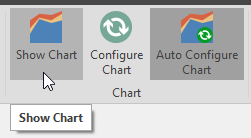
Click the Show chart button to show report and activate the properties tab. Properties allow further design options to be explored. The Arkieva application offers many options to customize the graph and chart.
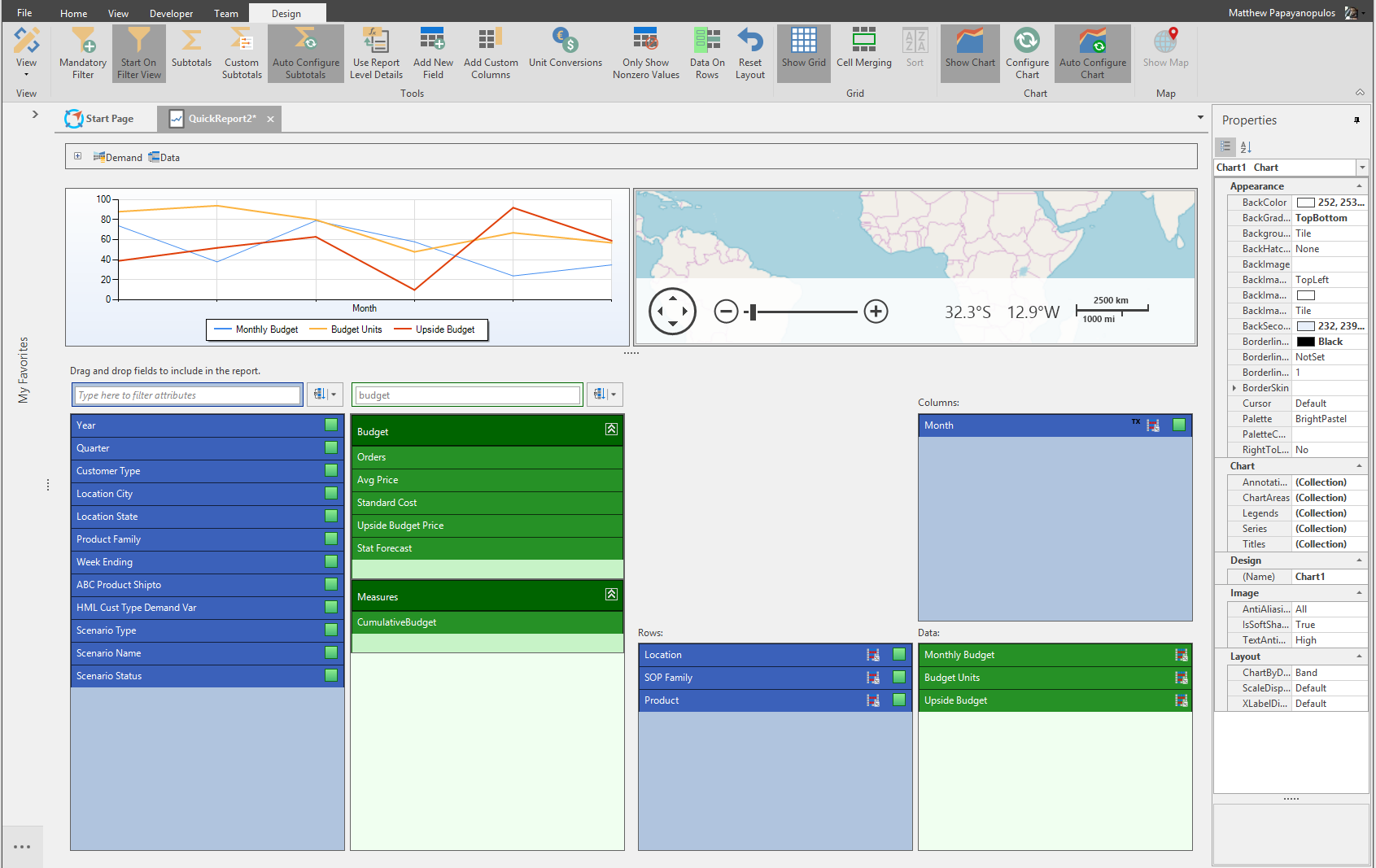
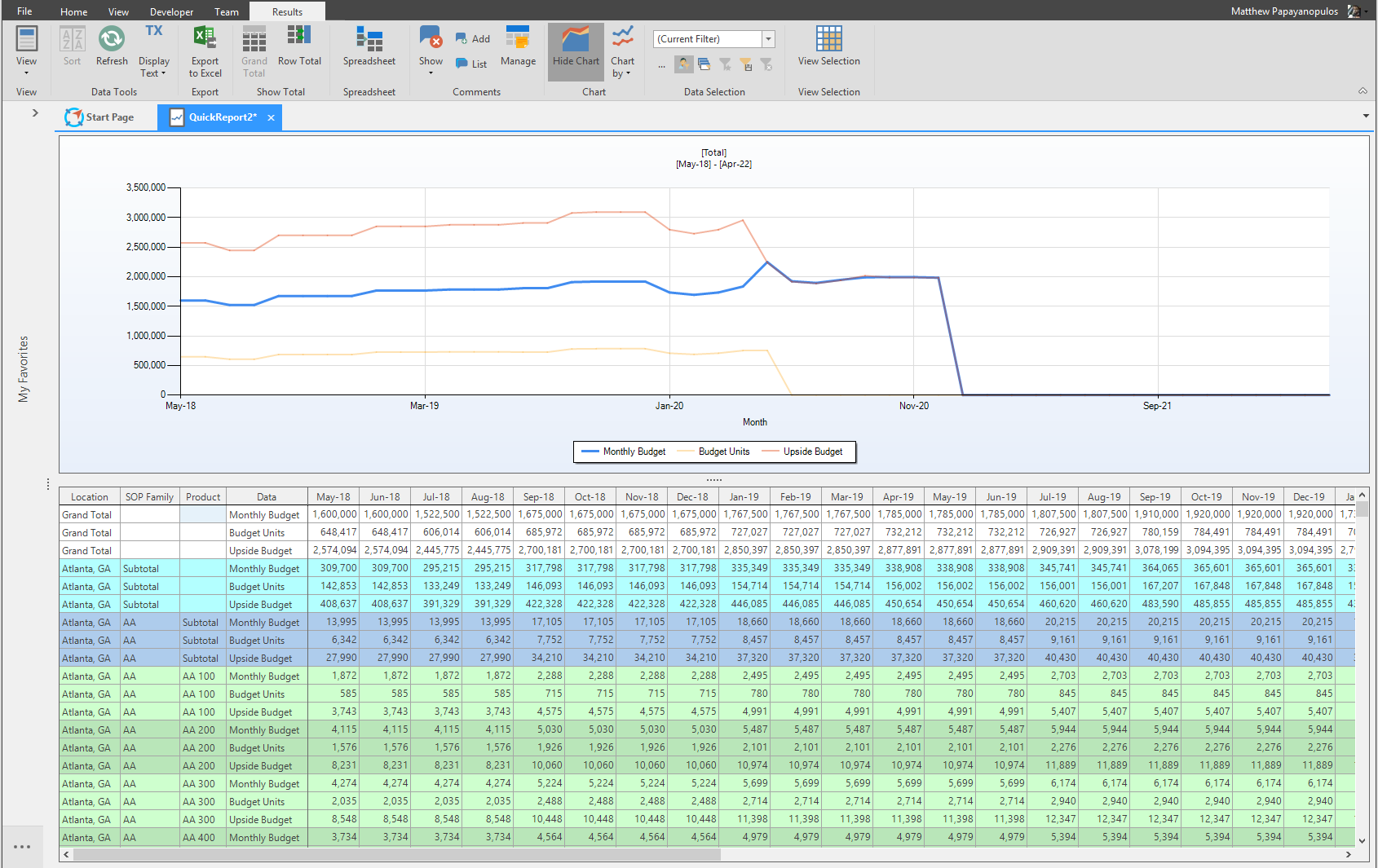
Configure Chart
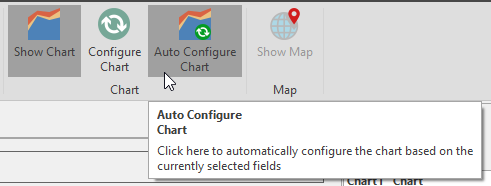
Auto Configure chart is helpful for automatically updating a chart when new fields are added or removed from the columns, rows, and data boxes. Auto Configure Chart is toggled ON by default.
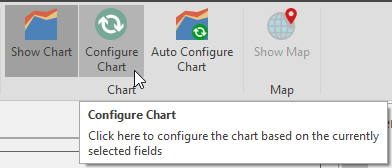
To manually configure the chart, toggle Auto Configure Chart OFF, and click the Configure Chart button after making changes to the layout of the chart.
Tooltips
Hover the mouse pointer over the chart to view tooltip information.
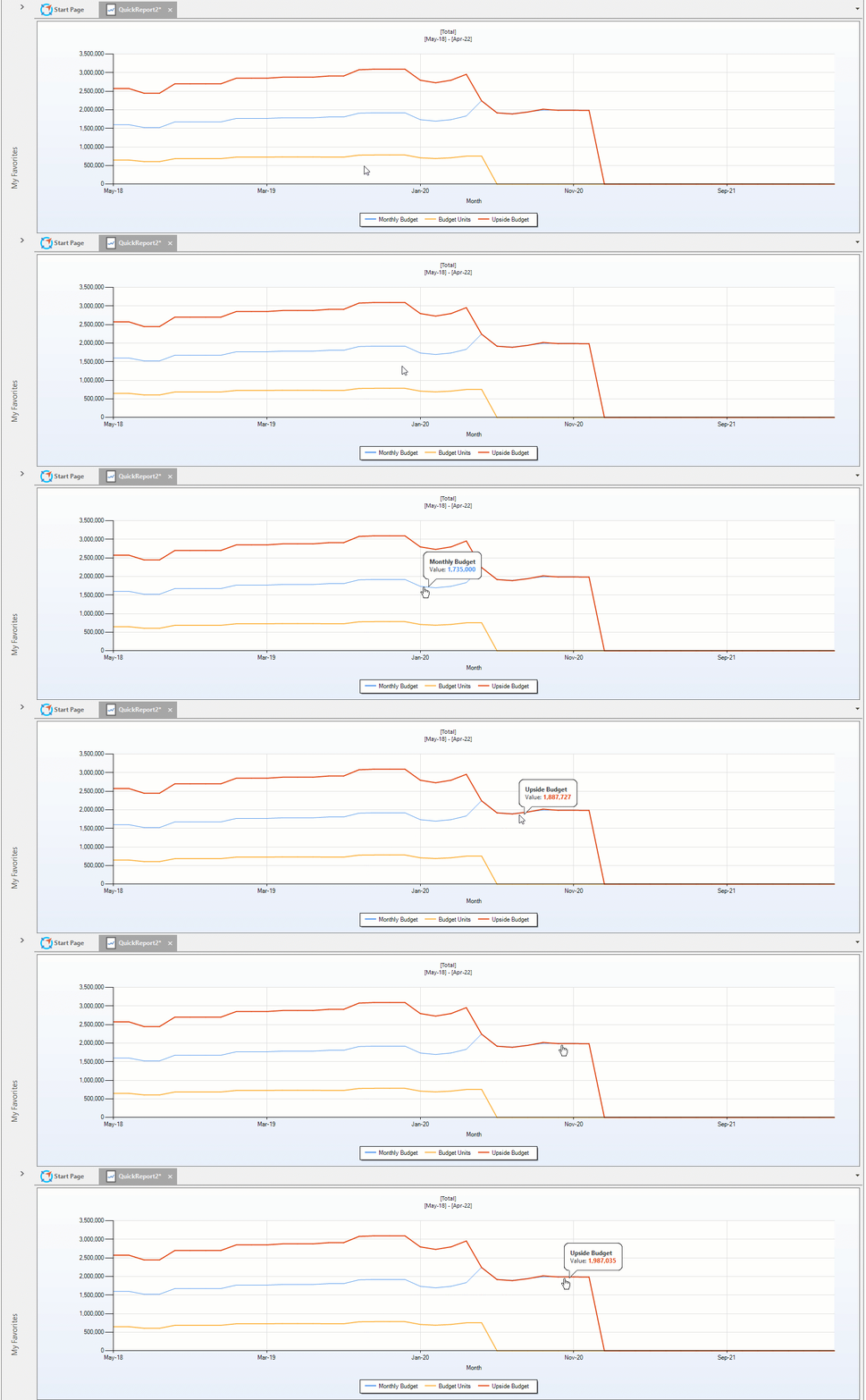
Chart right-click menu
Right-click anywhere inside the chart area of the quick report to access the right-click menu.
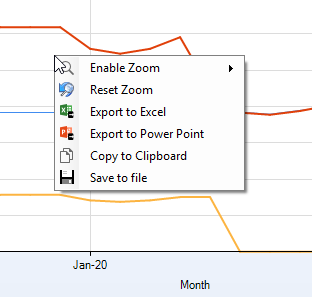
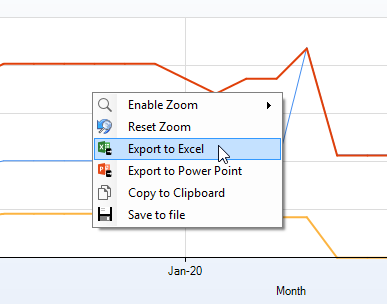
- Export to Excel: Export the chart to Excel
- Export to Power Point: Export chart as a power point slide
- Copy to Clipboard: Copy chart to paste elsewhere; copied chart with keep the same dimensions as it appears in Arkieva
- Save to file: Save the chart as a .jpeg
Right click the chart and select X-Axis or Y-Axis from the Enable Zoom menu item, then click and drag the red line across the desired area. Reset the Zoom by right-clicking and clicking Reset Zoom.
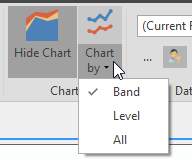
Chart by Band, Level, and All
Show the data in the chart by Band, Level, or both Band and Level (All).
The default setup for the chart report is Chart by Band. Charting by band means when a quantity data is selected in the spreadsheet section, the chart report will reflect the attribute in the same line as the quantity selected.
Charting by Level Shows all attributes as they compare to the quantity data selected.
How to Fine Tune Graphs in Quick Reports
{`
`}
Exporting to Excel
Export Selected Row
Click a Row in the Quick Report and click the Export to Excel button to only export that row data, filter information, and chart information to Excel.
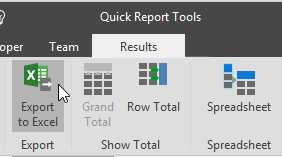
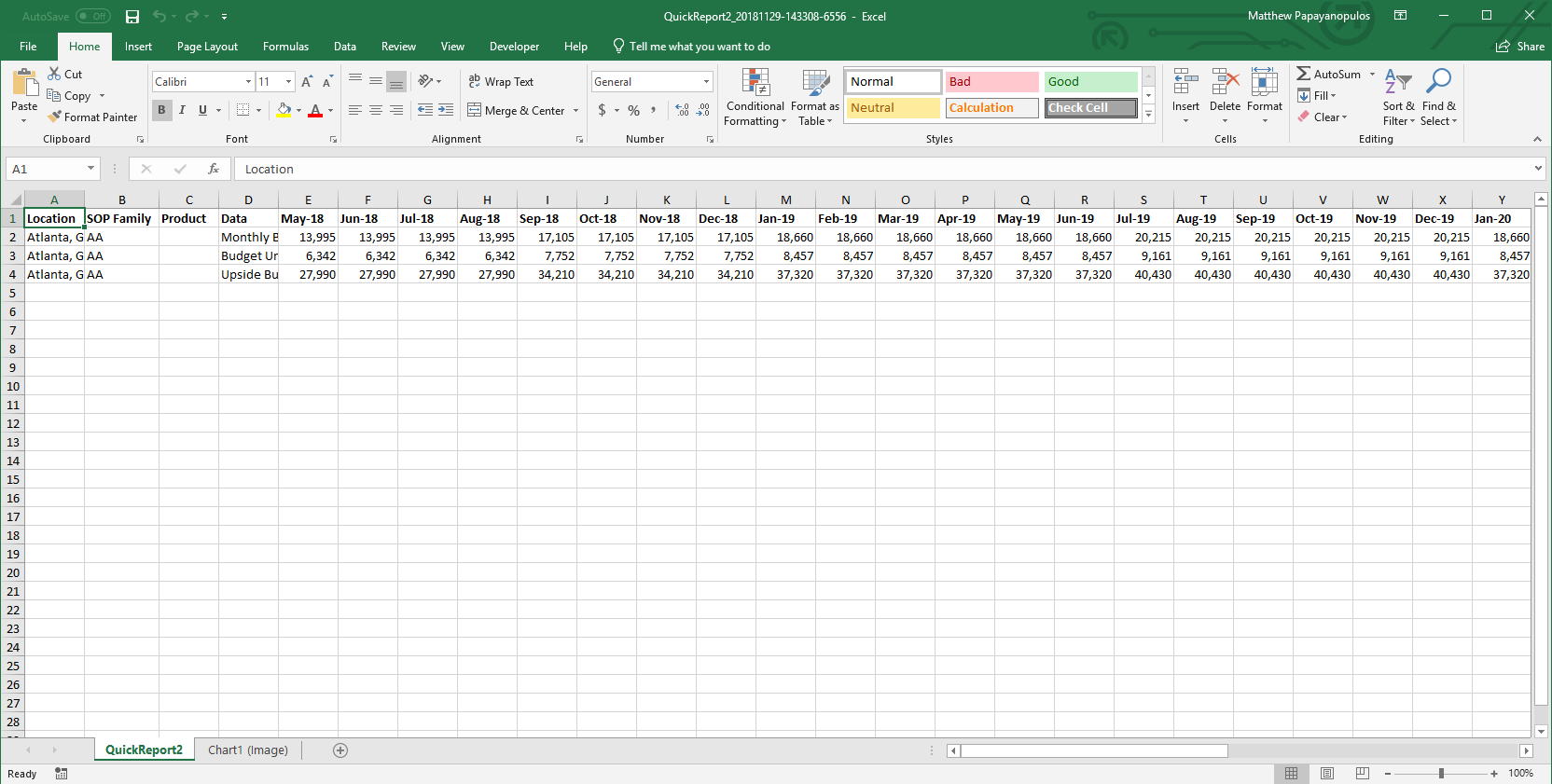
You can also export selected row data by clicking a spot on the Chart, right-clicking, and selecting Export to Excel.
Export All Row Data to Excel
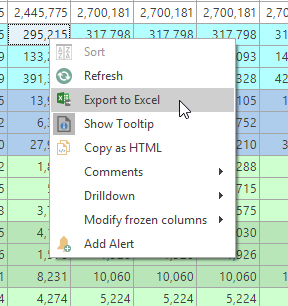
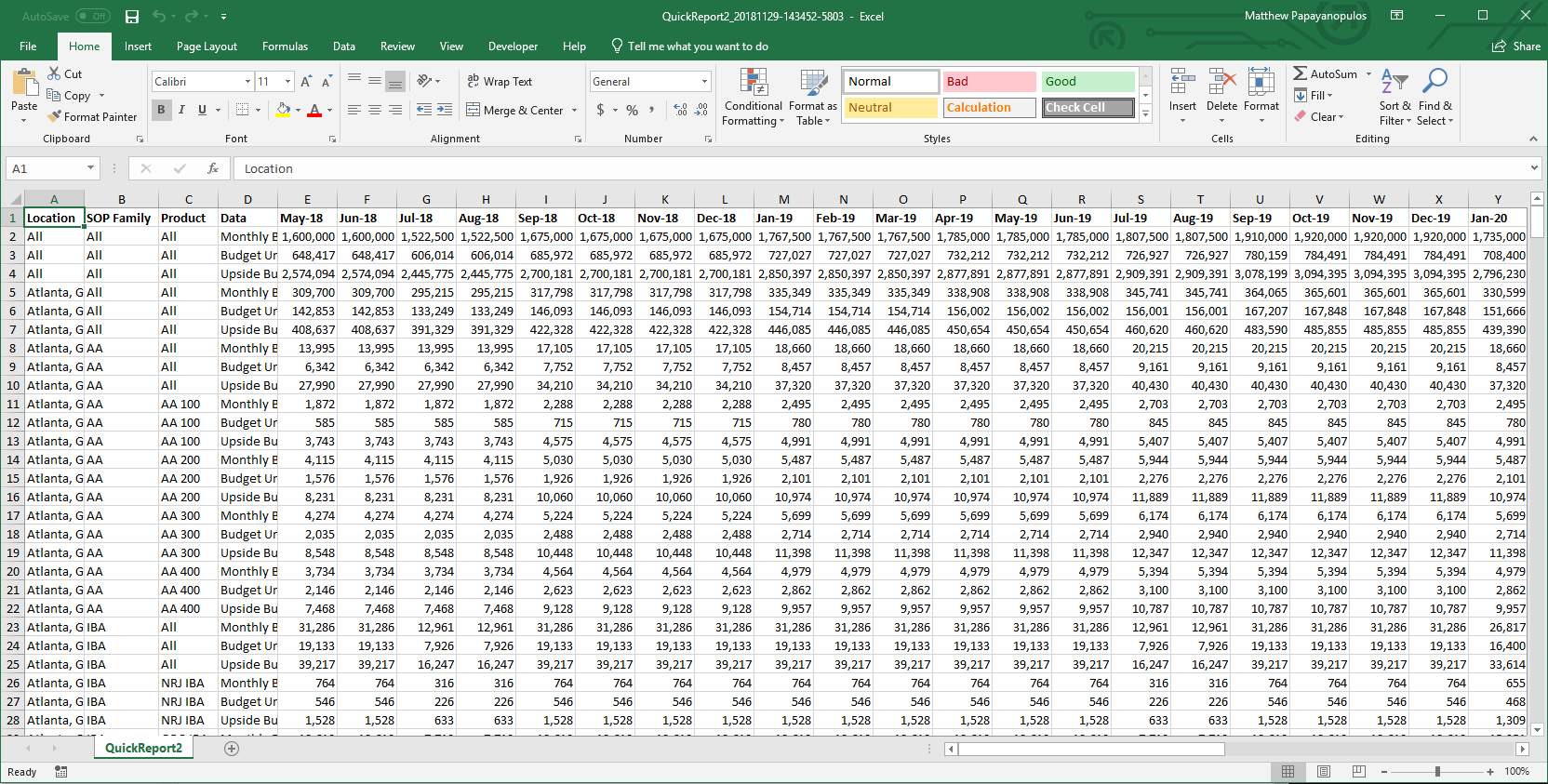
Right-Click the Grid and select Export to Excel to export all grid row data and filter information to Excel.
Commenting
🚧 Exporting Comments
When exporting a Quick Report with comments, only the first 5 recent comments will appear in the Excel Spreadsheet. Comments are only exported for documents set to Chart by Band and Level.
The comments section of the results view ribbon allows users to add comments to the quick report, as well as show those comments, manage comments, and view a list of those comments.
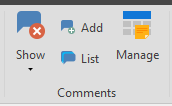
Comment commands are also available from the right-click menu.
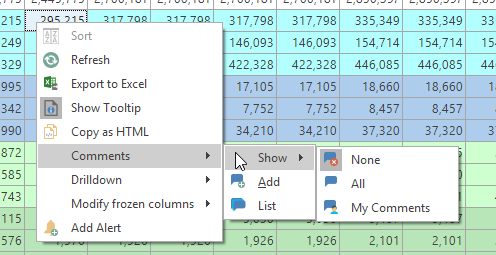
Add Comments
To add a new comment, click a cell in the grid, and click the Add Comment button from the ribbon or from the right-click menu.
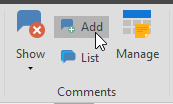
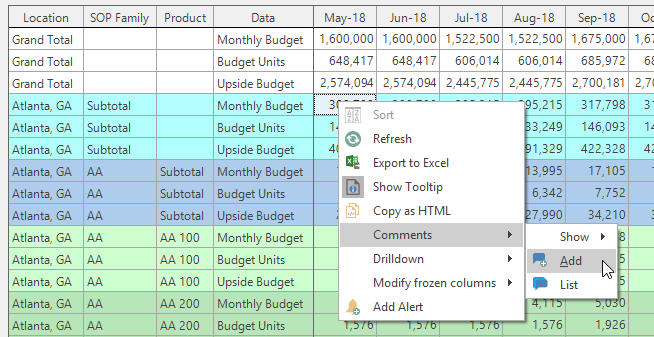
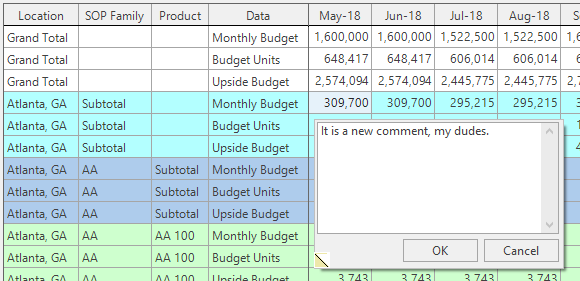
The comment box will launch, allowing the user to type a comment. Type a comment and click OK.
Comments will not show by default, the user must use the Show Comments dropdown to select what comments to view.
Show Comments
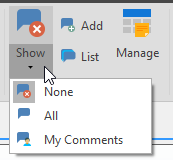
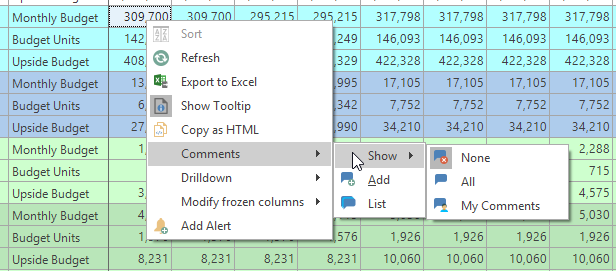
Click the Show Comments dropdown or right-click the grid to select whether to show No comments (None), All Comments, or only comments made by the logged-in user (My Comments).
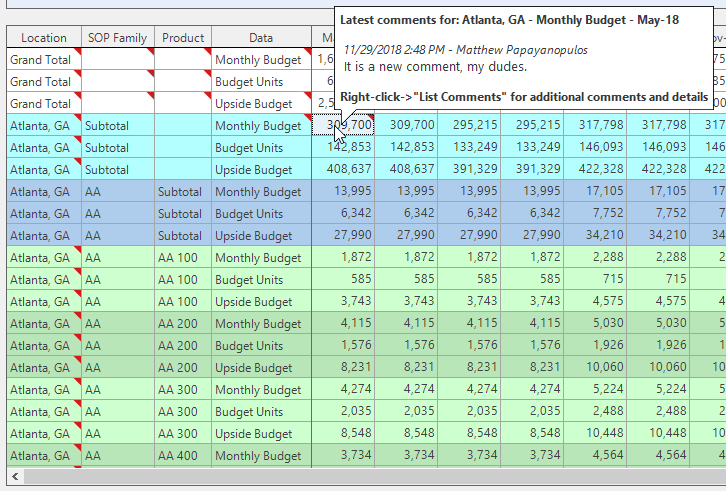
A table cell with a comment will have a red triangle; hover the mouse over the cell for a tooltip of the comment. If many comments have been created, additional comments can be seen in the List Comments.
List Comments
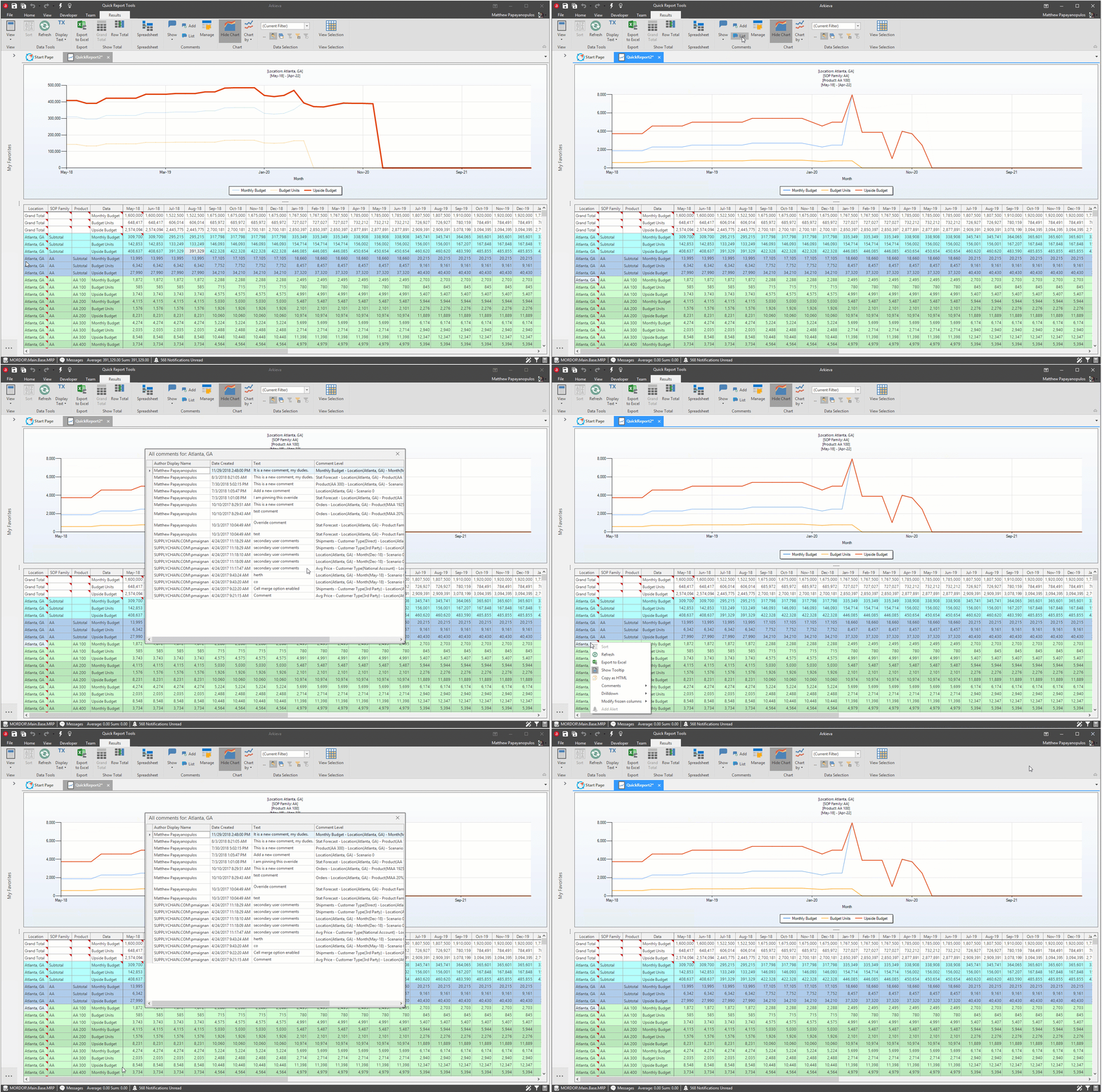
To see a list of comments made to a specific cell in the Quick Reports, click the cell and click List Comments from the ribbon or from the right-click menu.\ The List Comments window will show the following information:
- Cell Selection: The value of the cell selected in the window header bar (in the above example 'All comments for: Atlanta, GA')
- Author Display Name: the name of the user who created the comment.
- Date Created: The Month, Day, Year, and Time the comment was created.
- Text: The comment created.
- Comment Level: The grid location of the comment; ex. Shipments - Location(Atlanta, GA) - Product(AA 200) - Month(Jun-18) - Scenario 0
Manage Comments
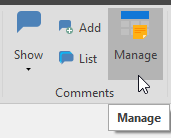
Use the Manage Comments window to manage all user generated comments on all saved documents. Click the Manage Comments button or select Manage Changes from the right-click menu to launch the Manage Comments window.
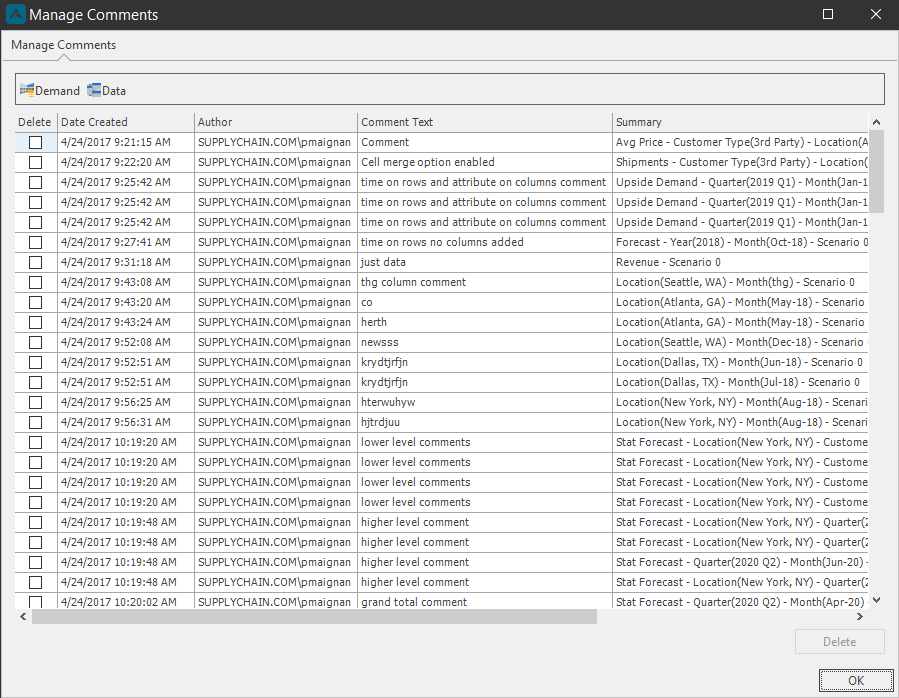
- Delete: Check the checkbox next to the comment and click the Delete button to remove the comment.
- Data Created: Date and time the comment was made.
- Author: User name of the person who created the comment.
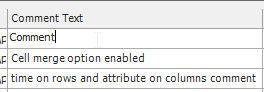
- Comment Text: Text of the comment; Double-click inside the cell containing the comment under the Comment Text column; click OK.
- Summary: Where in the report the comment was made.
Delete a comment
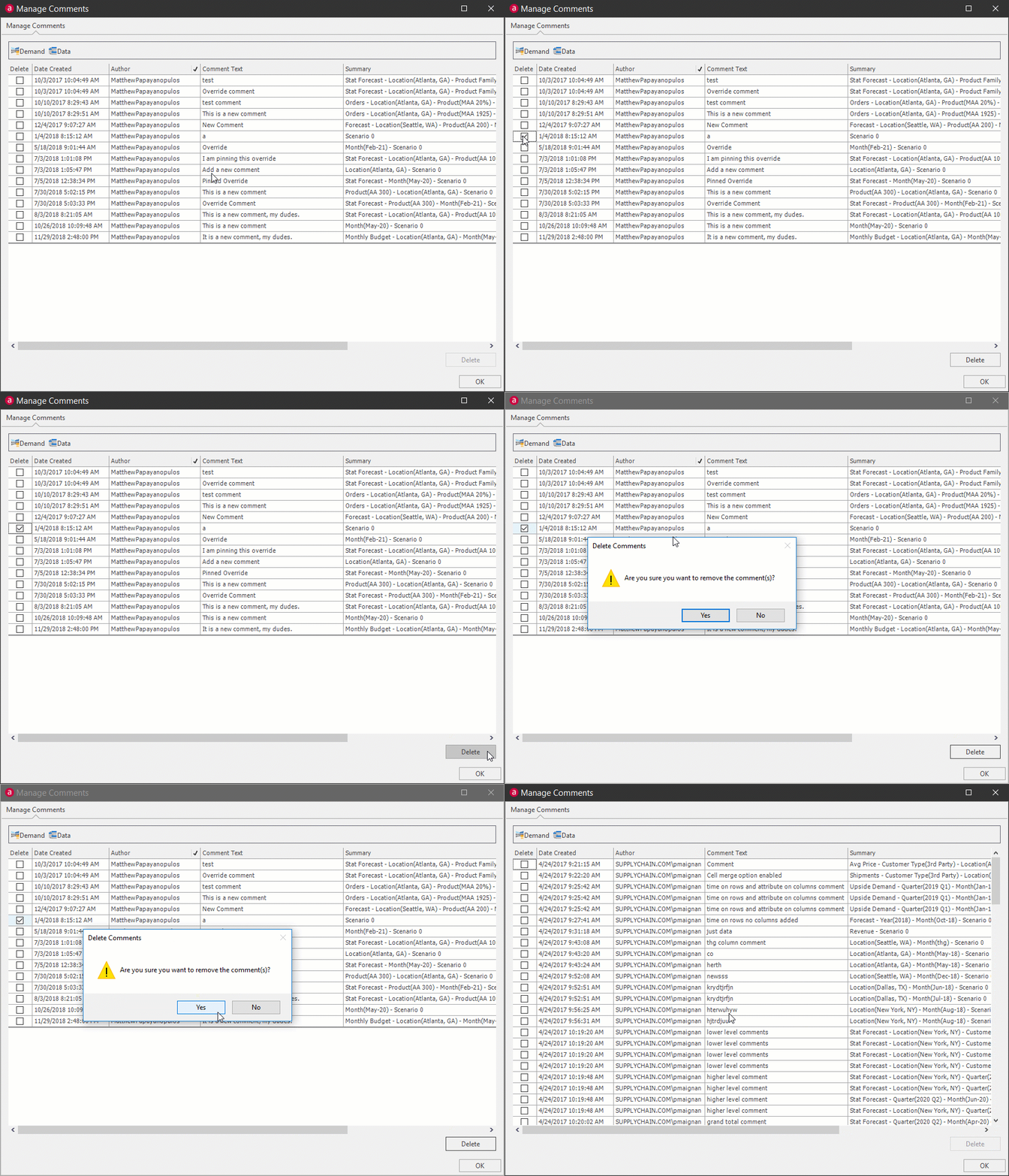
Check a comment's checkbox and click the Delete Button to delete that comment. Click OK to permanently delete the comment.
If you need to delete multiple comments at once, click a checkbox cell, hold down SHIFT to select multiple checkboxes. Check a checkbox and all the selected checkboxes will be checked.
Edit a comment\ Double-click inside the cell containing the comment under the Comment Text column; click OK.
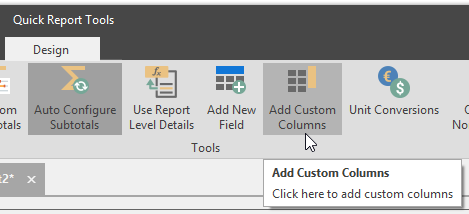
Add Custom Columns
Create custom quantity columns for the report with the Add Custom Columns button and design window.
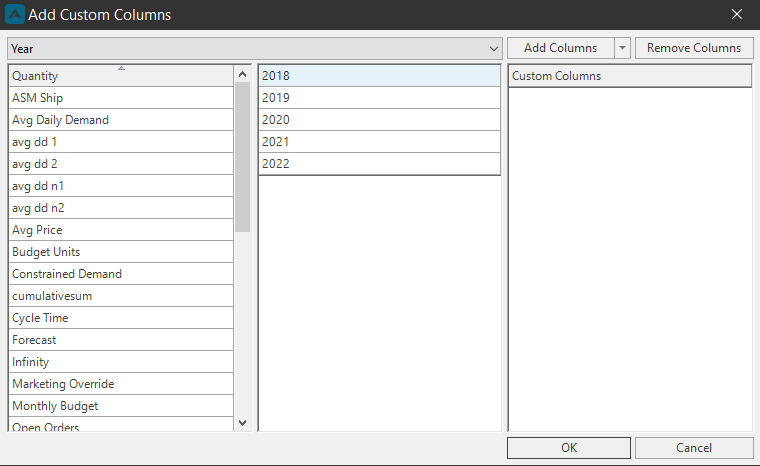
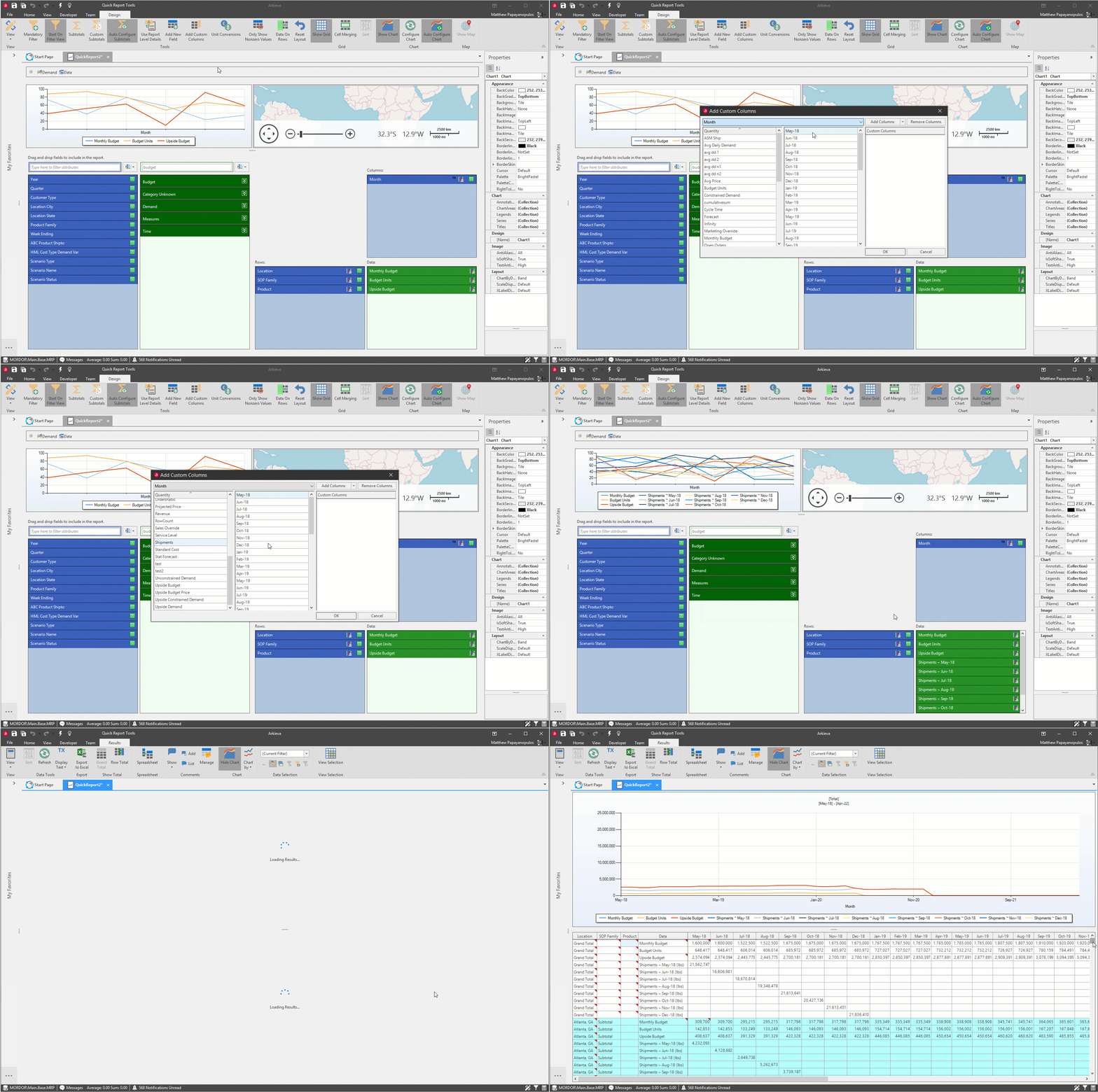
Select a quantity from the Quantity list and use the gray dropdown list to select an attribute.
Select the data for the column from the attribute chosen from the gray dropdown list. To select more than one data from the list, hold down CTRL while using the mouse pointer; hold down SHIFT and select all the data in between two pieces of data with the mouse pointer.
After choosing the quantity, attribute, and attribute data, click the Add Column button. Click OK; the new column will appear under the Data box in the Data Layout section of the Design view.
Unit Conversions
There are two types of Unit Conversions: Custom and Built-in Unit Conversions.
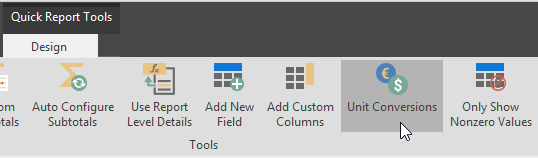
Click the Unit Conversions button located in the design ribbon.
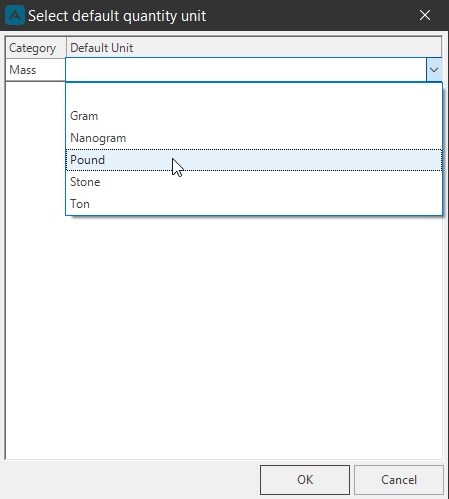
Use the dropdown menu next to the quantity to set the conversion unit and click OK.
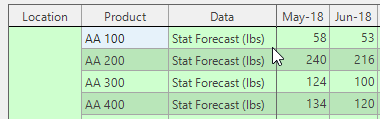
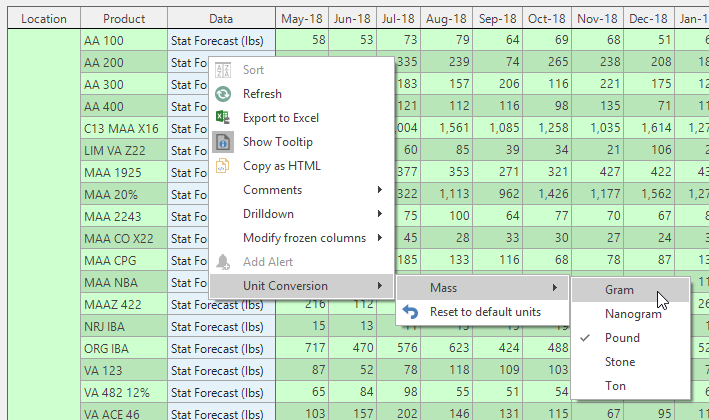
The Unit Conversion can also be changed in the results view by right-clicking the quantity.
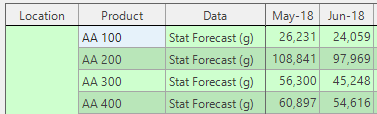
Context Sensitive Drilldown
Arkieva gives you the ability to drilldown to another report from a quick report. The drilldown documents are context sensitive, meaning that the level a document is placed within the quick report will be reflected in the drilldown document.
{`
`}
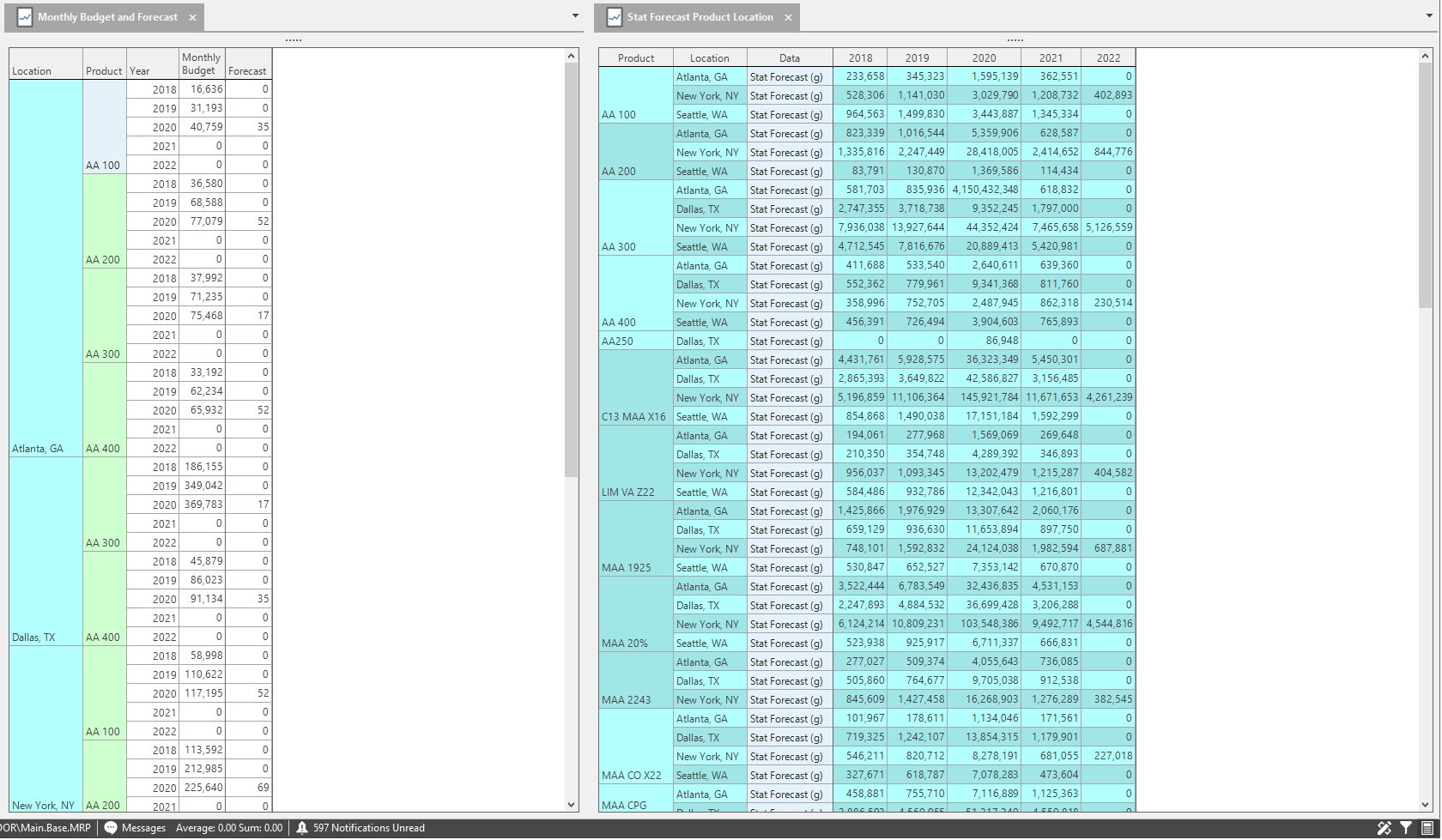
We've created two reports, we will select the Budget and Forecast report and have it drilldown to the Revenue report.
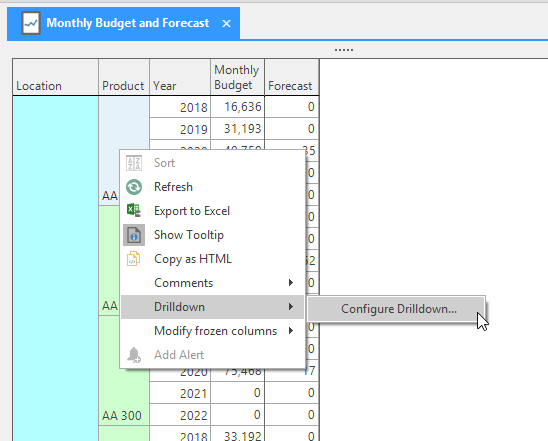
Right-click under the level you want the drilldown report to appear under. Configuring a drilldown under the Product level, for example, will create a context sensitive drilldown in all the cells under that level.
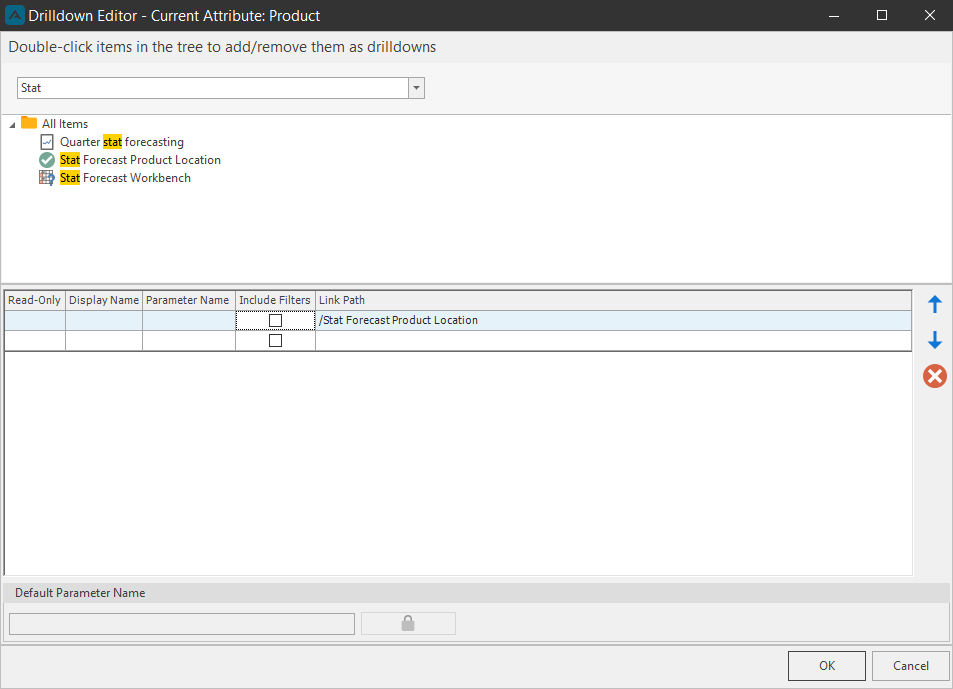
Double-click the report to select it for drilldown. The report will have a green checkmark next it to to indicate it has been selected. Click OK to set the report as the drilldown report.
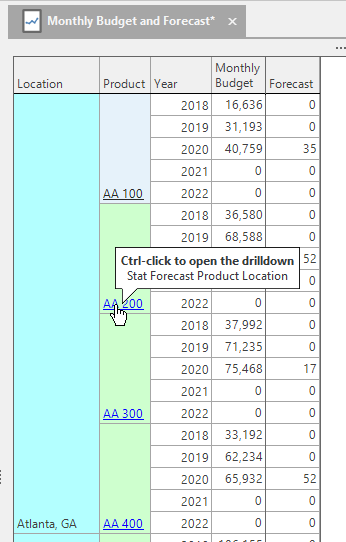
Cells will have a blue hyperlink to indicate it has a drilldown report. The cell will also have a tooltip. Hold CTRL and click the hyperlink to open the drilldown report.
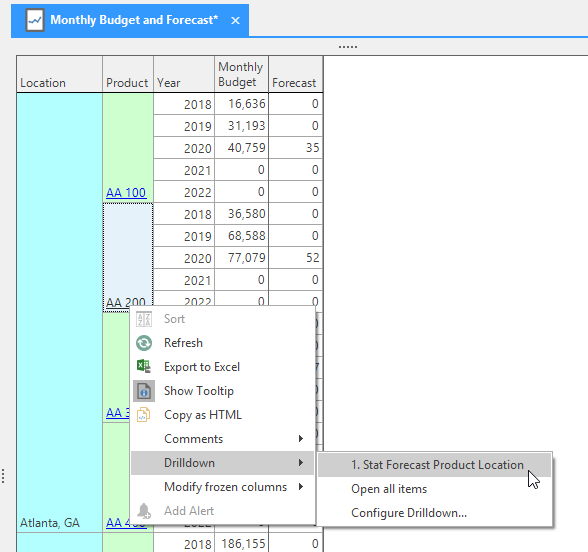
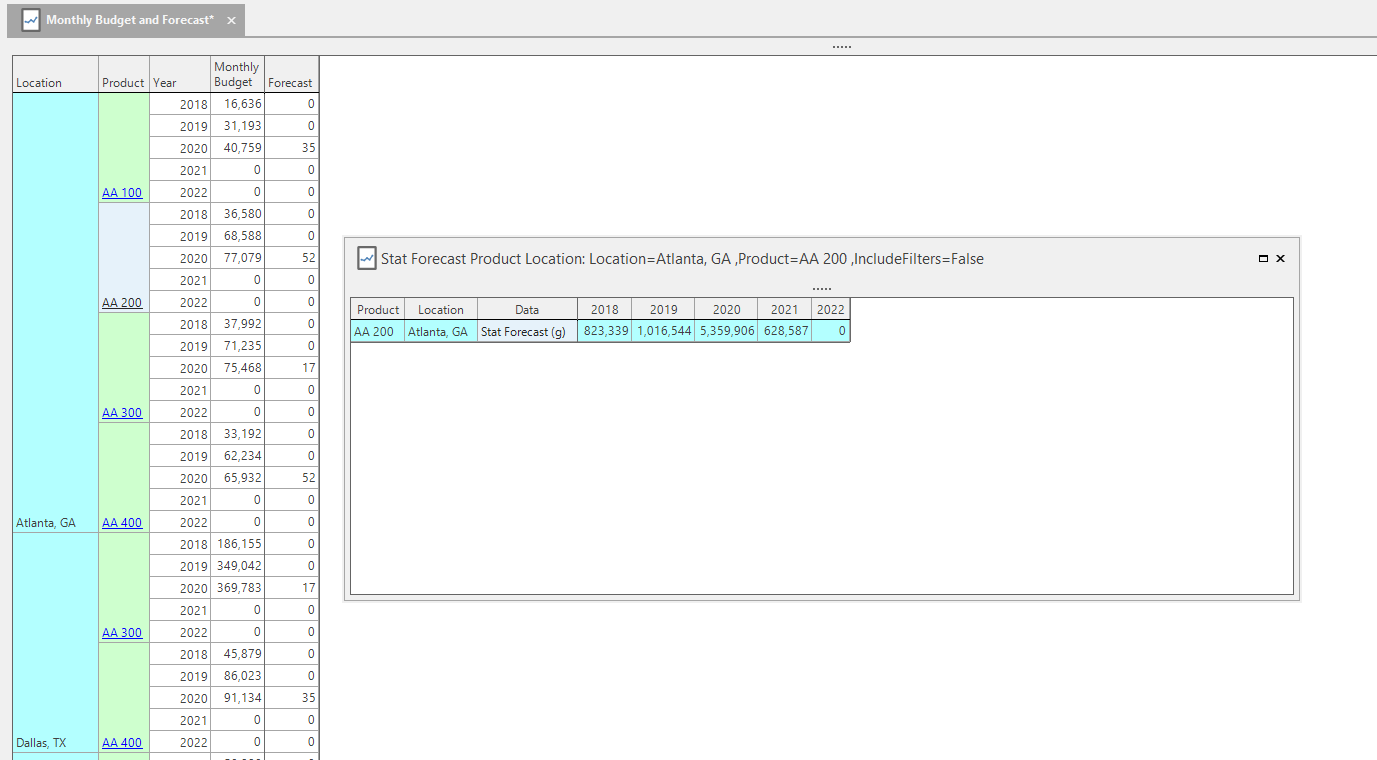
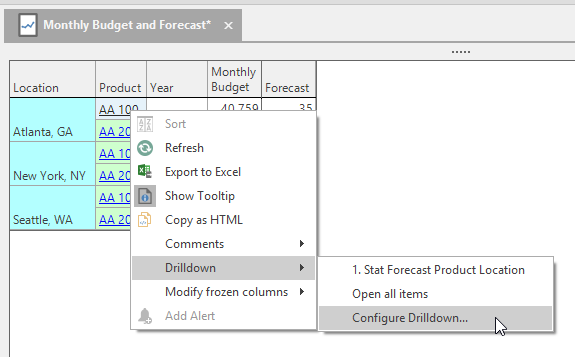
You can also right-click the cell and select the report from the Drilldown menu to open the report as a pop-out window.
Include Filter
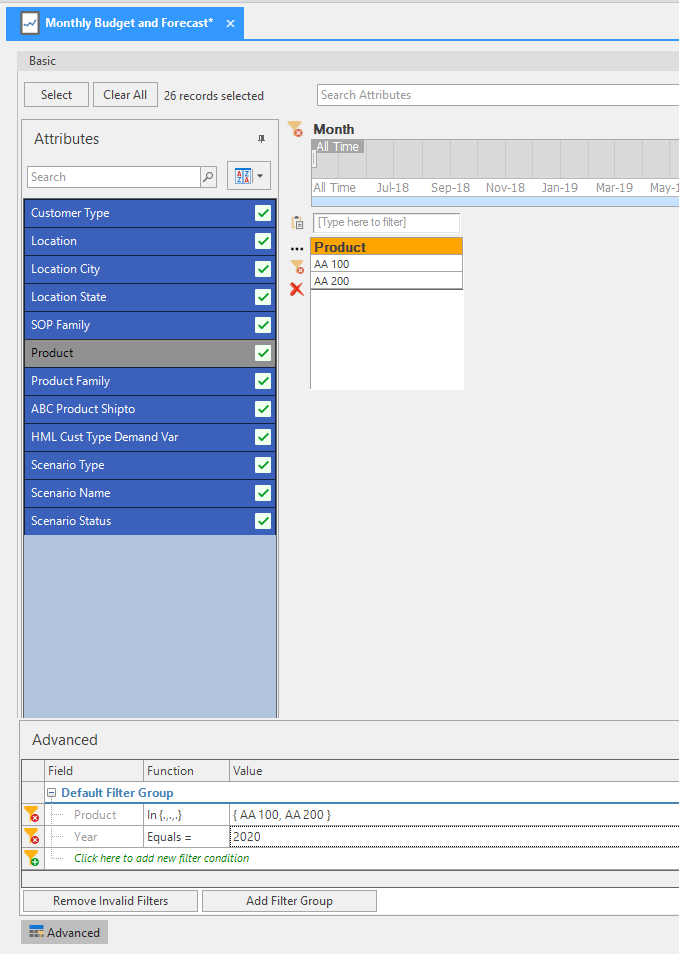
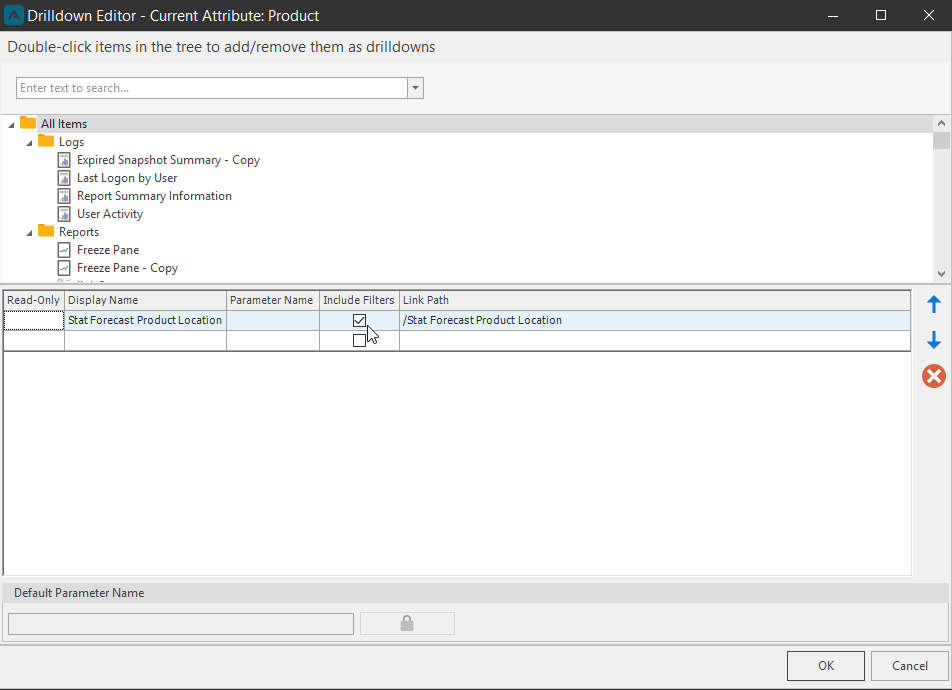
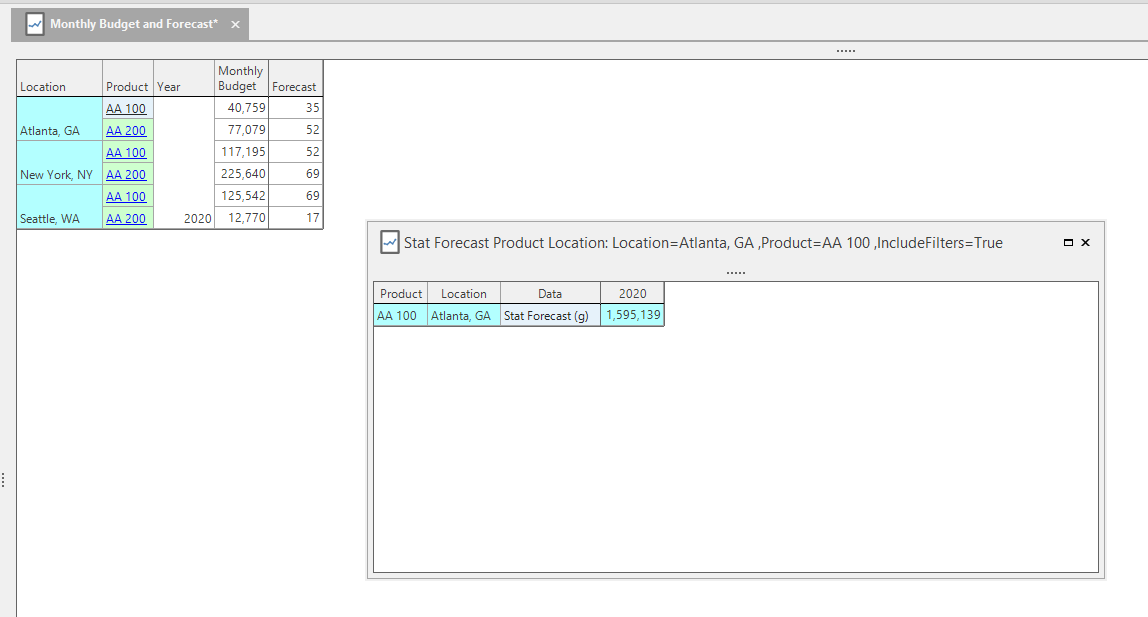
Filters can be carried through the drilldown report by checking the Include Filters box in the Drilldown editor configure window.
Parent Report
Drilldown Report
Go to the parent report and edit the drilldown configuration. Right-click the cell and select Configure Drilldown.
Check the Include Filters checkbox of the selected report and click OK.
Now the drilldown report has been filtered the same as the parent report.
Only Show Nonzero Values
Toggle the Only Show Nonzero Values ON to only view quantities in the report results view that are not zero; toggle it again to turn the feature OFF to view the zero values. Only Show Nonzero Values will also hide rows and columns with only zero values.
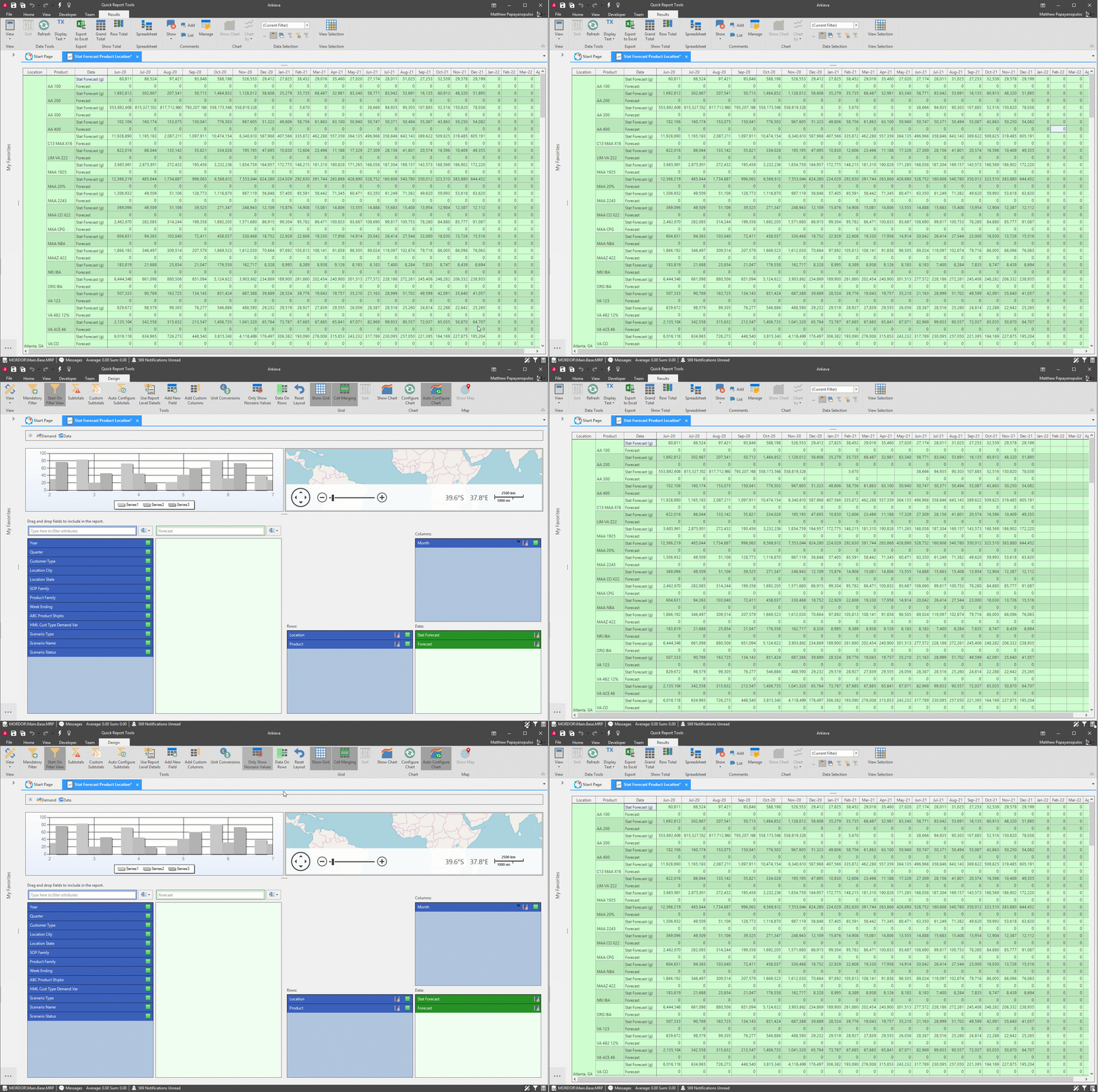
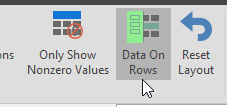
Data on Rows
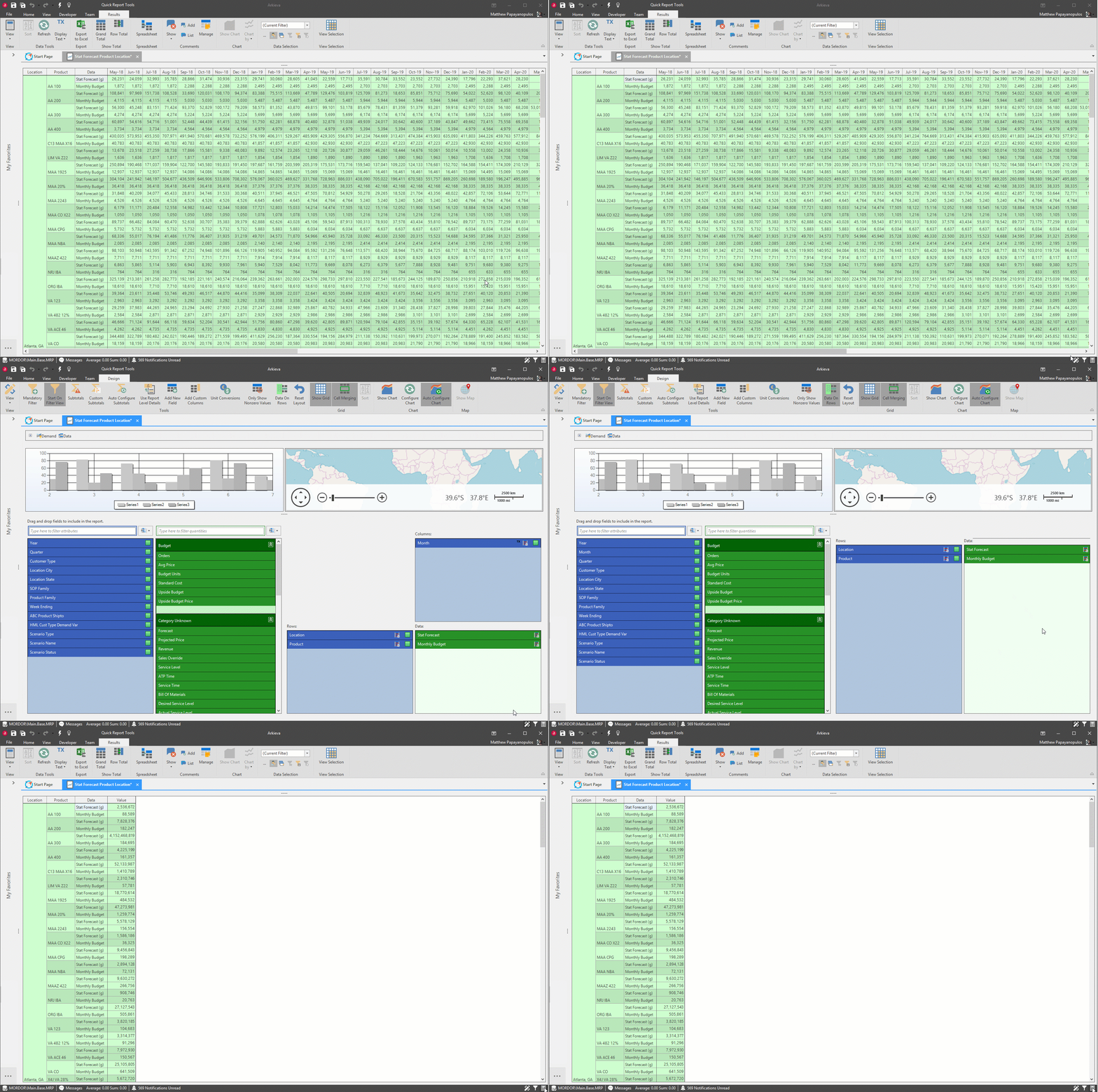
To create a report with only rows and not columns, in the Design View turn the Data On Rows button ON (the Column box in the Data Layout section of the design view will not be available). Click the button again to use the Columns box for design.
When toggling on the Data on Rows button in the Results View the quantity data columns will be replaced with the grand total Value column.
Sorting
Sort columns by attribute values ascending or descending. Sorting is also available in the Results view. To launch the Sort window, click the Sort button in the ribbon or right-click the grid and click Sort. Saved sortings will appear in the sorting window when launched from the results view.
🚧 Sort is disabled if Cell Merging is toggled on in the Design View.
Design View
Results View
Results View right-click
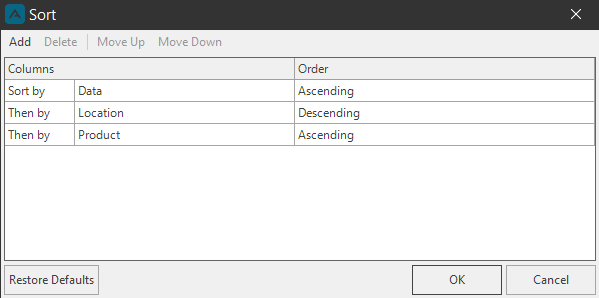
Click the Add button to add an item to sort under the Columns and Order fields (once an item is added, the DELETE and arrow commands will become available). Use the dropdown arrow next to ‘Sort by’ to select an attribute or quantity to sort.
After selecting an attribute or quantity to sort, use the dropdown arrow under Order to select how the attribute or quantity will ascend or descend in the results view.
Before Sorting
Click OK when finished, or add another sort item and repeat the above steps. Save the report.
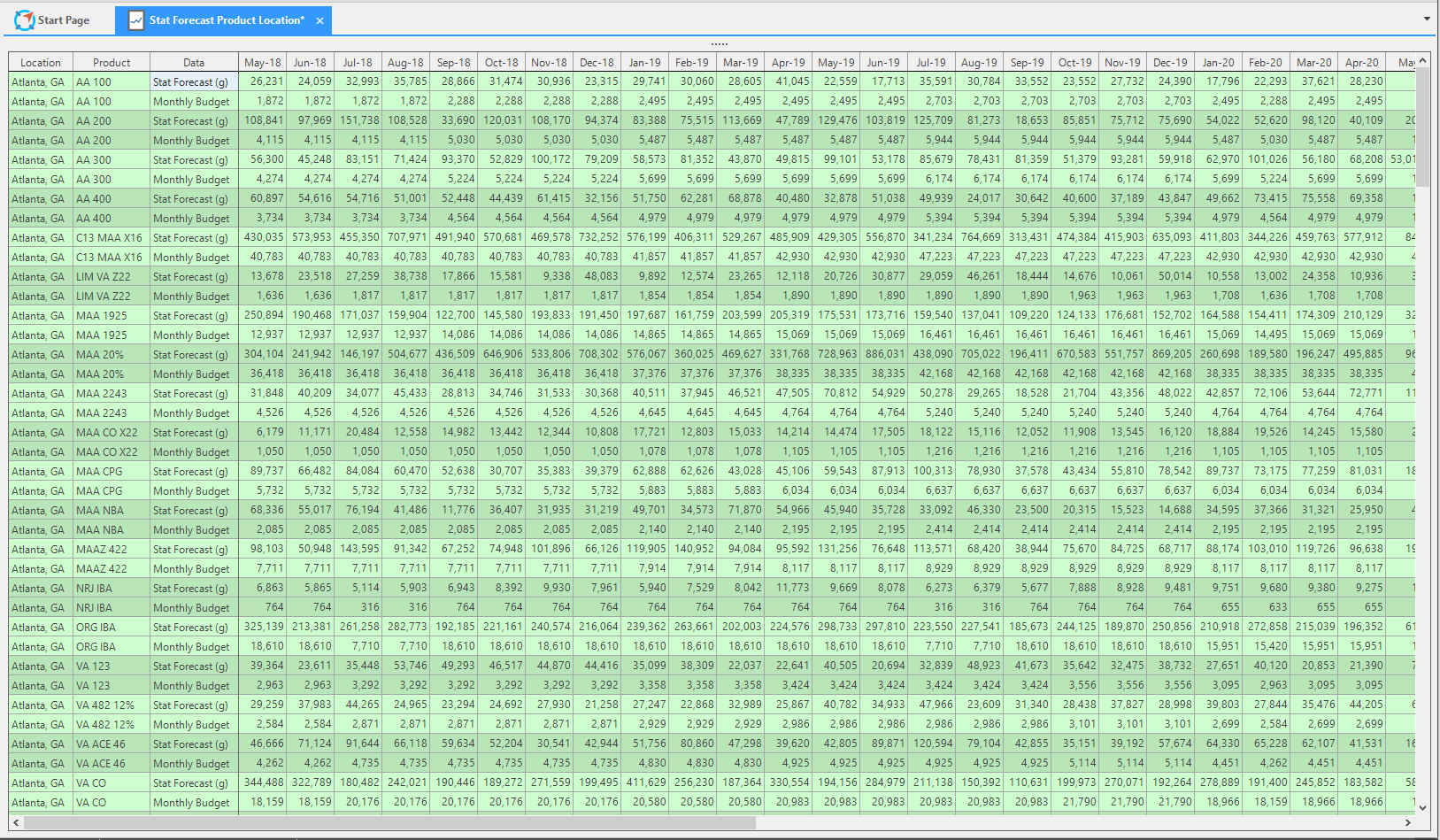
After Sorting
Table Grid
View all selected data in the Table Grid. Click the following links to learn about all the options available for the table grid.
Show Grid
When Show Chart is enabled, toggle OFF the Grid to show only the chart graphic.
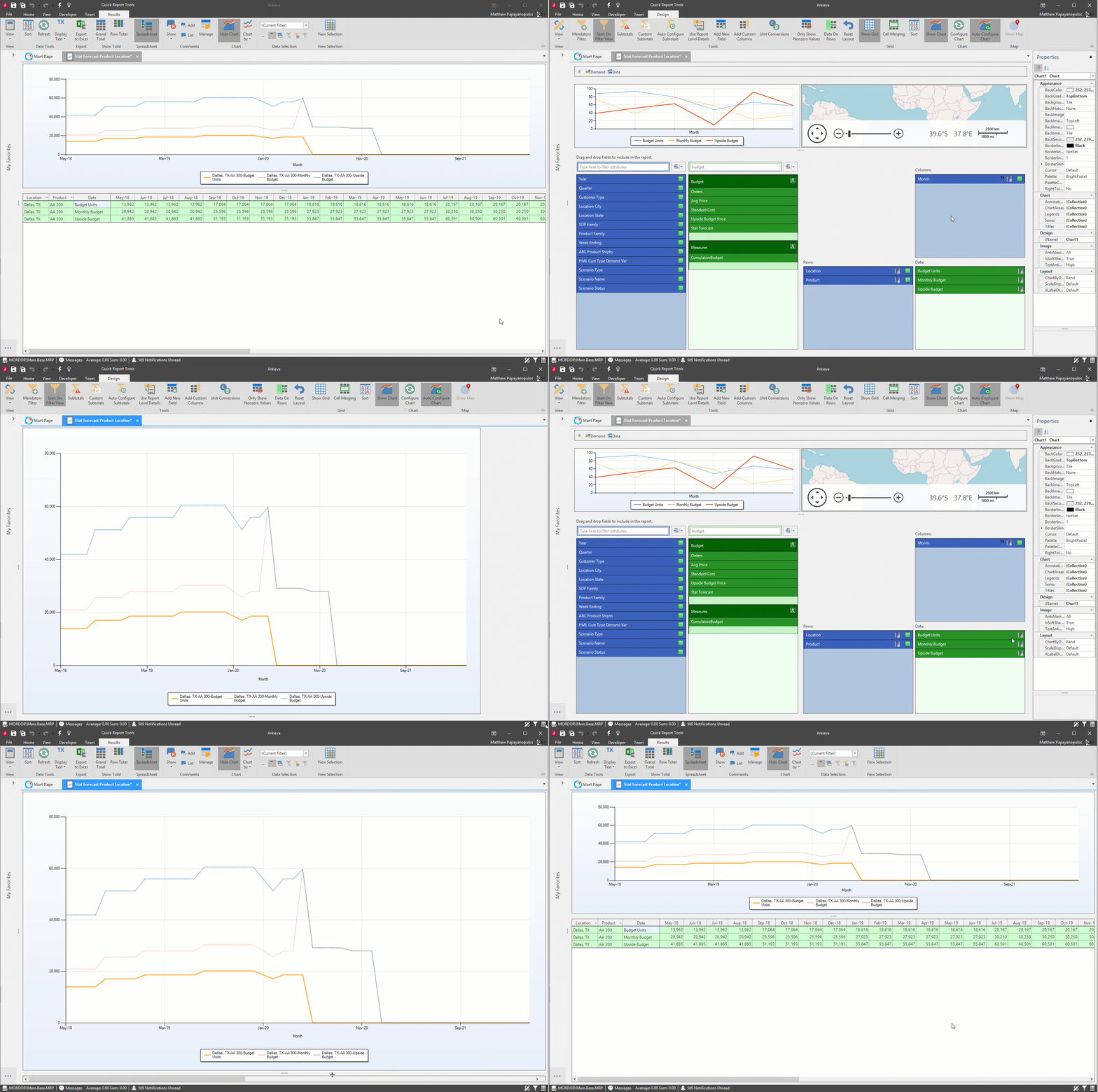
The Comments and Chart options become disabled in the Results View when Show Grid is toggled OFF in Design View.
🚧 Warning
If there is no Chart, toggling Show Grid OFF will disable the Results View.
Freeze/Unfreeze columns and rows
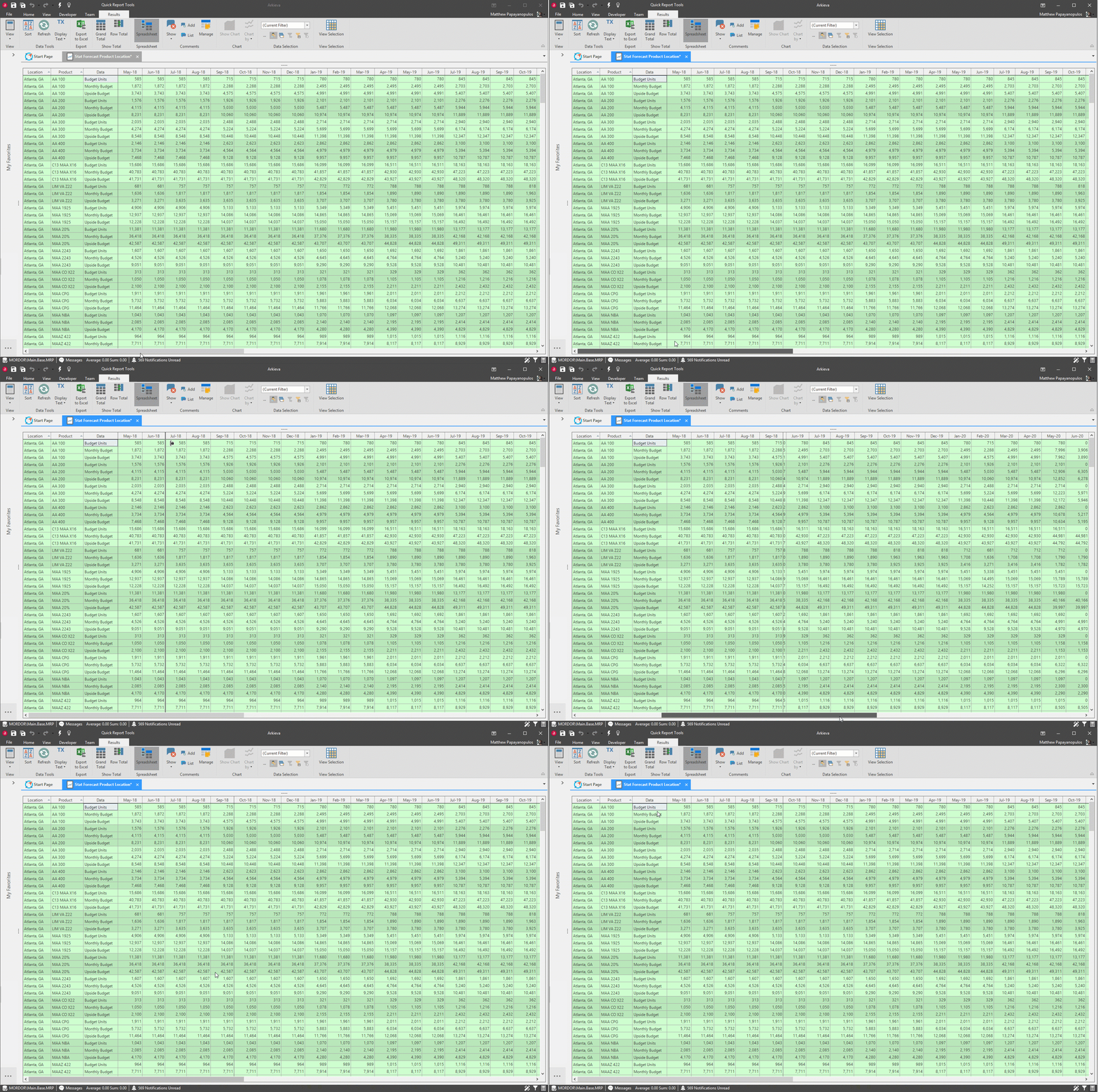
Columns and rows in the grid section of the Quick Report can be adjusted to fix specific columns and rows so that they stay stationary while scrolling through a large set of data.
Hover the mouse pointer over the solid black line representing the frozen column or row of the grid; the mouse arrow will turn into a padlock symbol.
Click and hold to drag the frozen line left and right (column) or up and down (rows) to affix that column/row data.
Every column will be frozen to the left of the solid black line. Every row will be frozen above the solid black line.
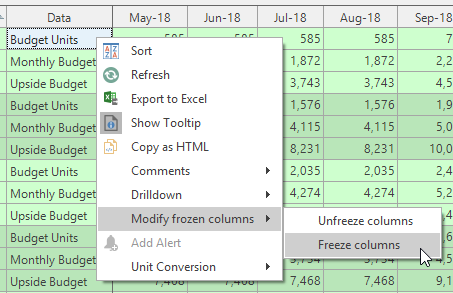
Right-click Modify frozen columns\ Right-click the Quick Report grid to access the Modify frozen columns options Unfreeze columns and Freeze columns.
Click Unfreeze columns to remove all solid black lines to scroll freely though the quick report. Right-click a column and click Freeze columns to freeze all columns to the left of the selected column.
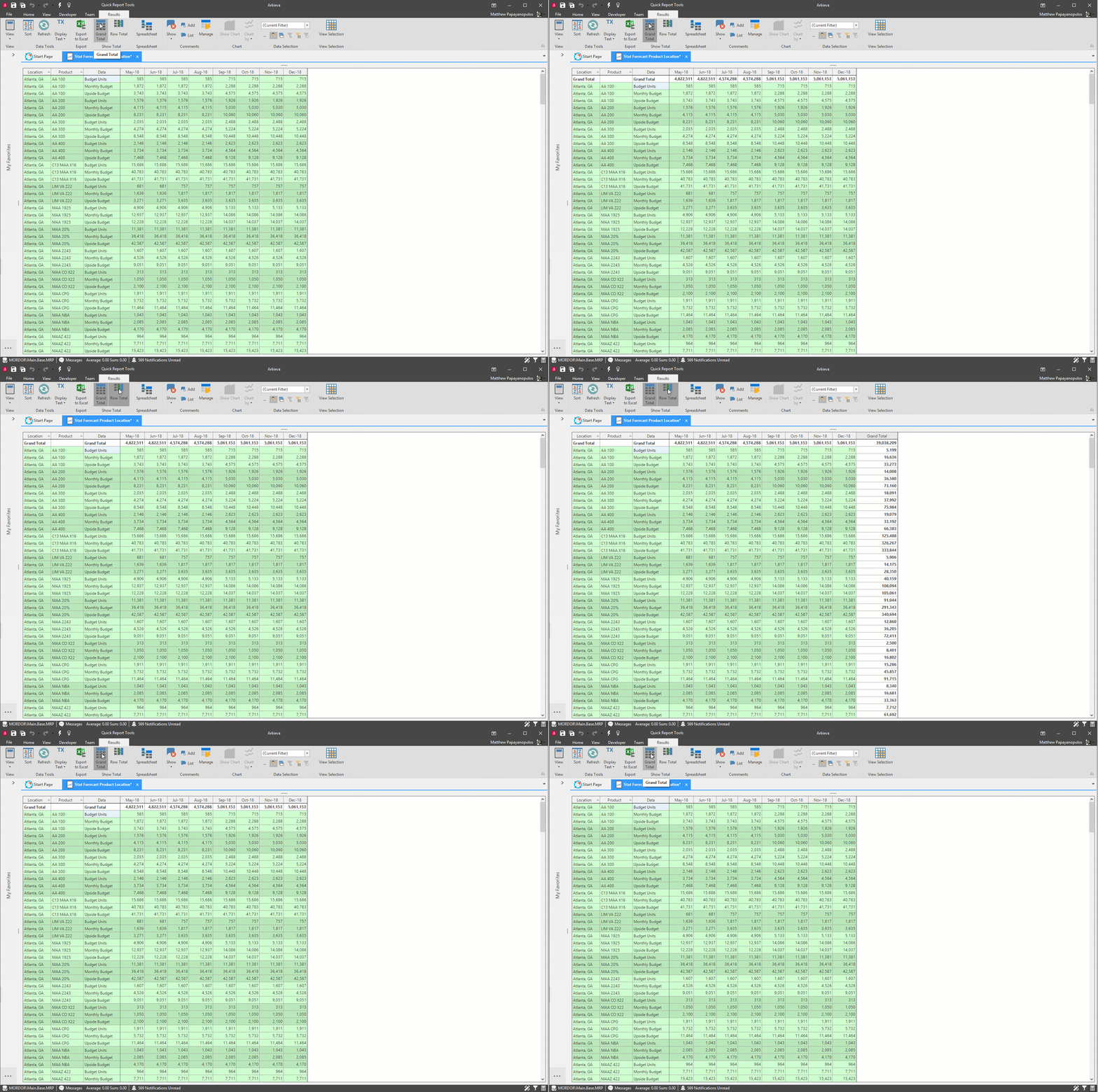
Show Total
Use the Grand Total and Row Totals buttons to switch grand total rows and columns on or off. Grand Total will be disabled if a Subtotal has been created in the Design View.
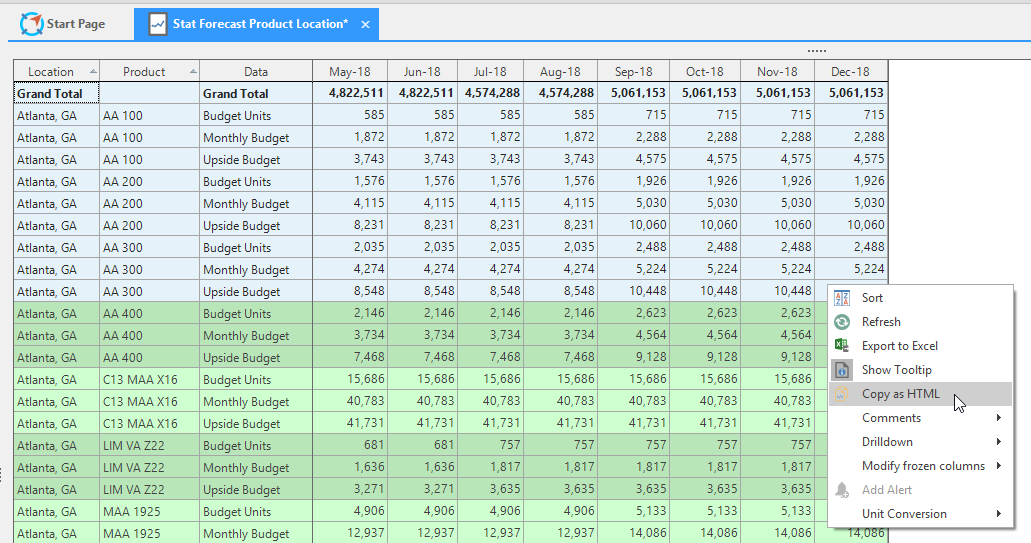
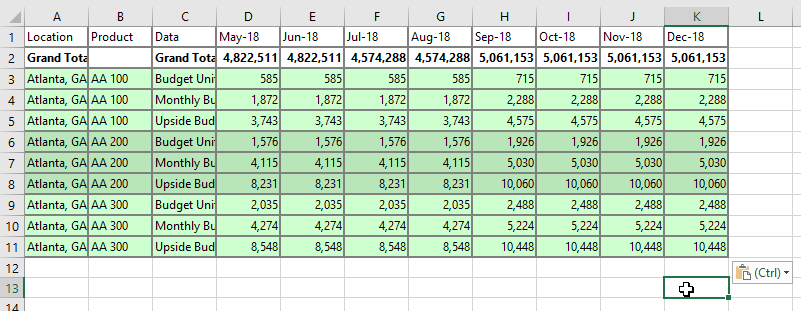
Copy as HTML
This function allows users to copy cells from the report and paste them in Excel while keeping the color settings.
Compress Columns
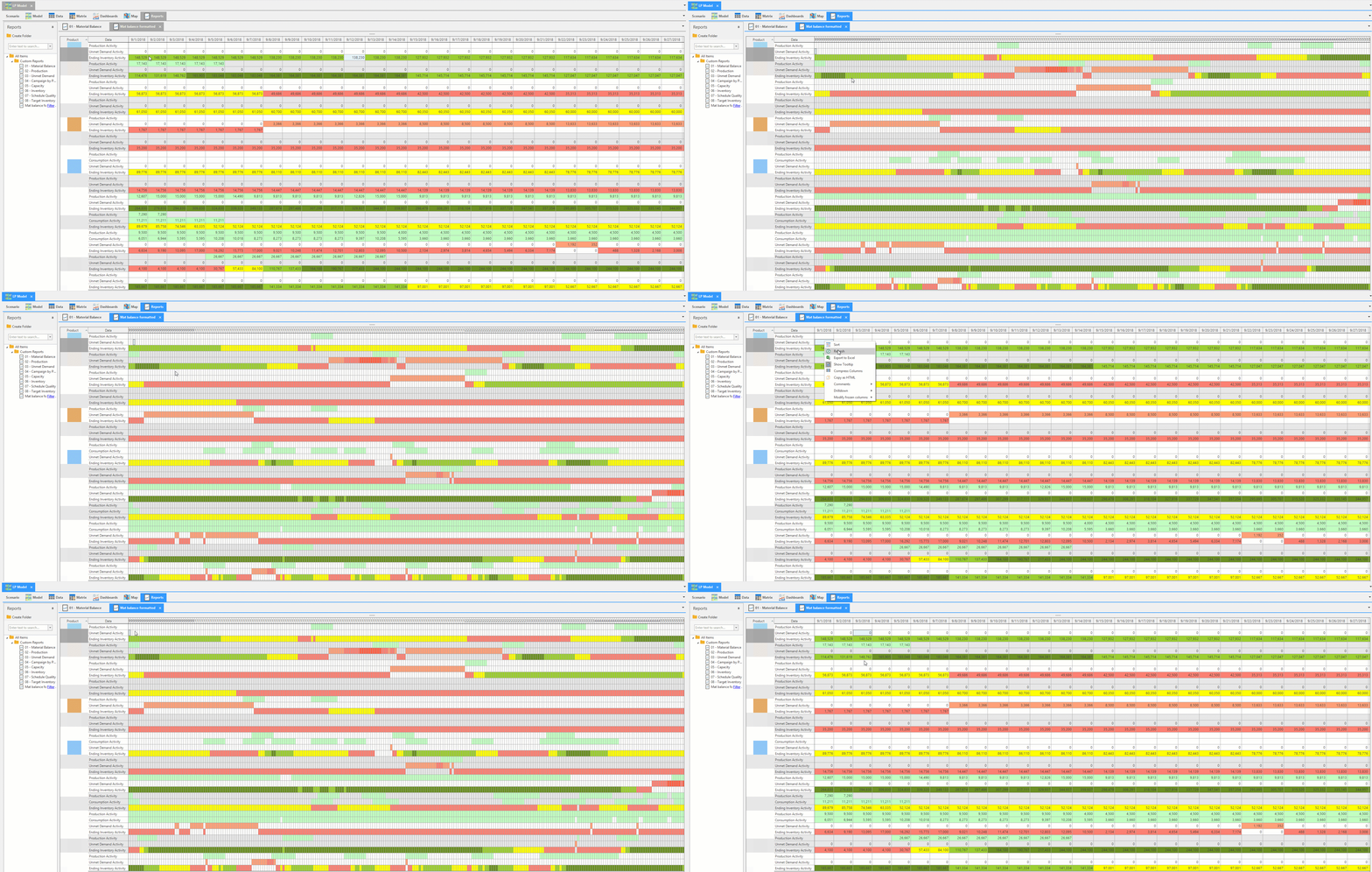
Compress columns in Quick Reports so only the colors are visible has been added to the right-click menu. Planners who color code their data can compress the report and view trends like a heat map.
Use Report Level Details
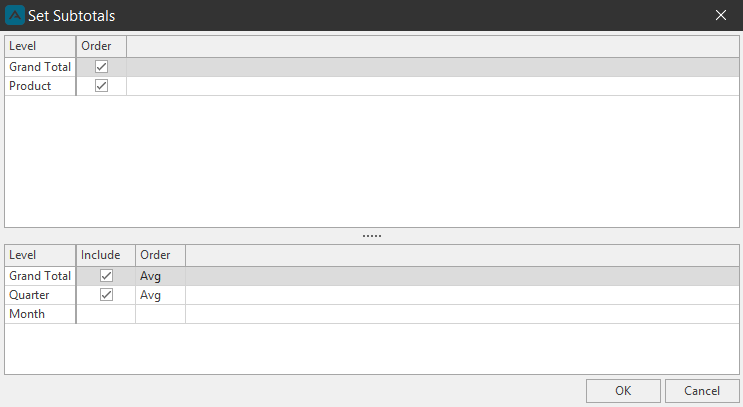
In order to support the column subtotals in Arkieva, we are using report level details. When using Subtotals and creating a Quantity Filter, sometimes Average and Sum totals would appear incorrect because using both of these features would cancel out the Filter. With the Use Report Level Details toggled on, the report will respect the Quantity Filter correctly.
For this example we have created a Subtotal to calculate the average of the Orders.
KPIs and Quick Reports
Building off Session #31, learn how to utilize the built-in functions to create KPIs within quick reports.
{`
`}