Advanced Reports
❗️ Arkieva will no longer support newly created Advanced Reports
Arkieva will only support Advanced Reports created prior to the 4.9 release.
Introduction
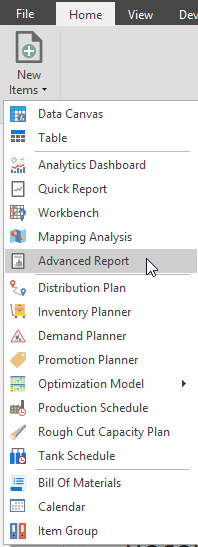
Create custom documents with the Advanced Reports component. Access Advanced Reports by clicking the Advanced Report button located in the Create ribbon.
Results and messages tabs
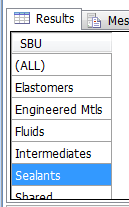
The results tab shows the results of the data set when it is run by clicking the View Data Set button.
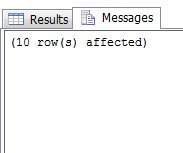
The messages tab will show information for the data set after it has been run by clicking the View Data Set button.
An example is the amount of rows that were affected.
At the very bottom of the Data design window there is an information bar that will also show if the query executed successfully and how many rows were affected.

Designing a Simple Report
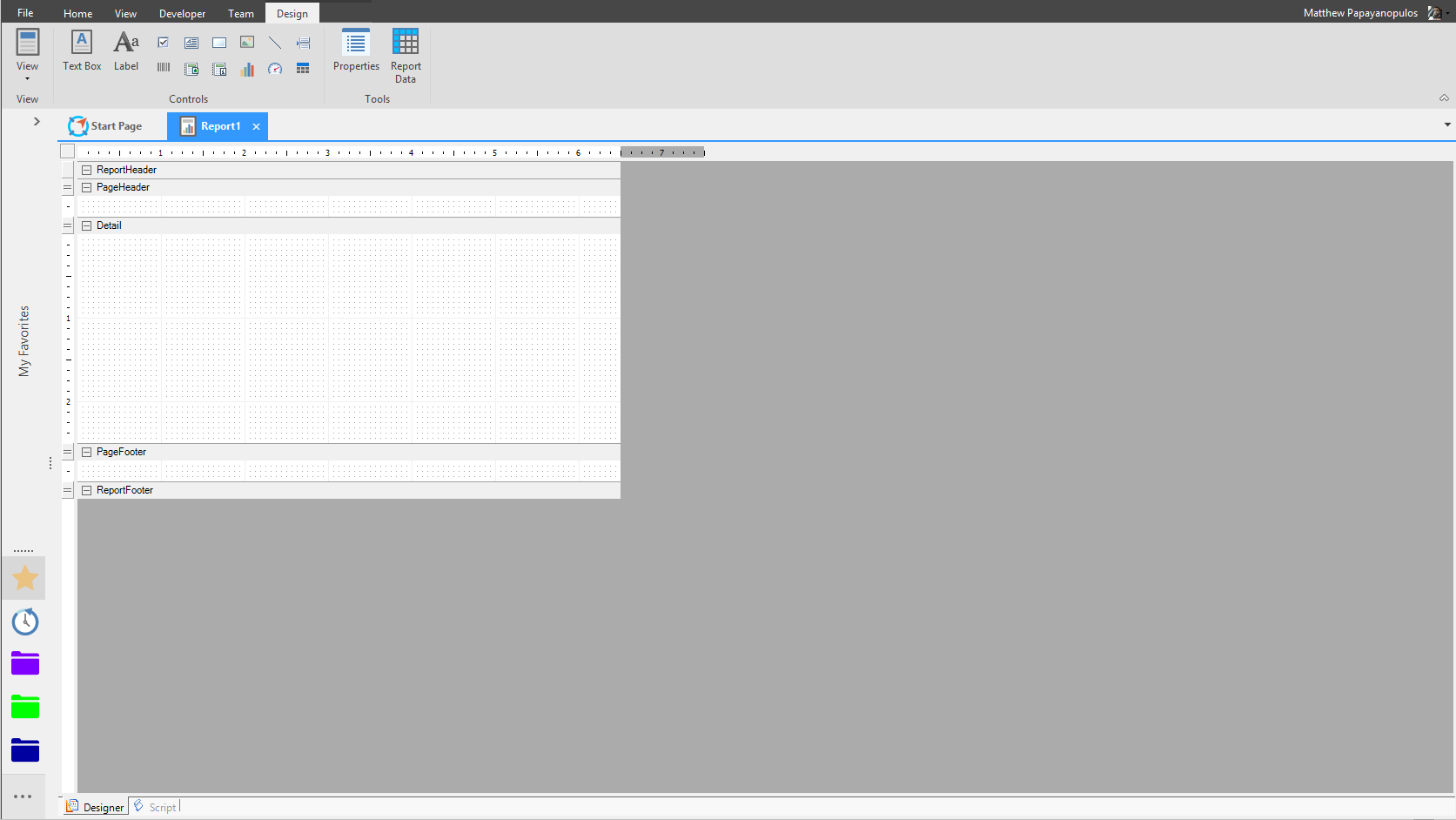
Click the Text Box button in the Controls section of the Design ribbon. Inside the Report Header section of the design grid, click and drag the mouse cursor to create a Text Box.
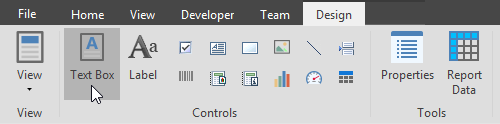
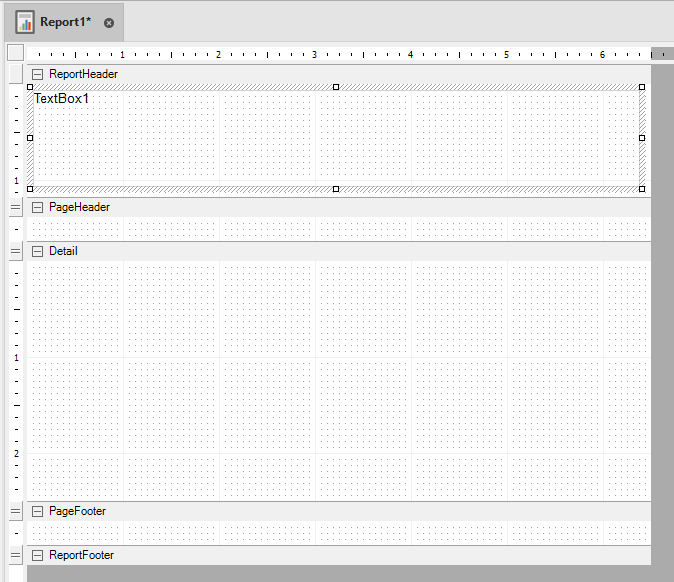
Next, we will change the contents of the Text Box. Click the Properties button in the Tools section of the Design tab or right-click the control to access the properties window.
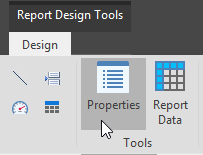
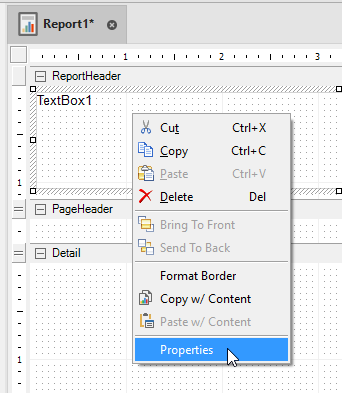
There are two ways to access the properties for any controls after clicking the Properties button: The Report Explorer and clicking the control directly from the design grid.
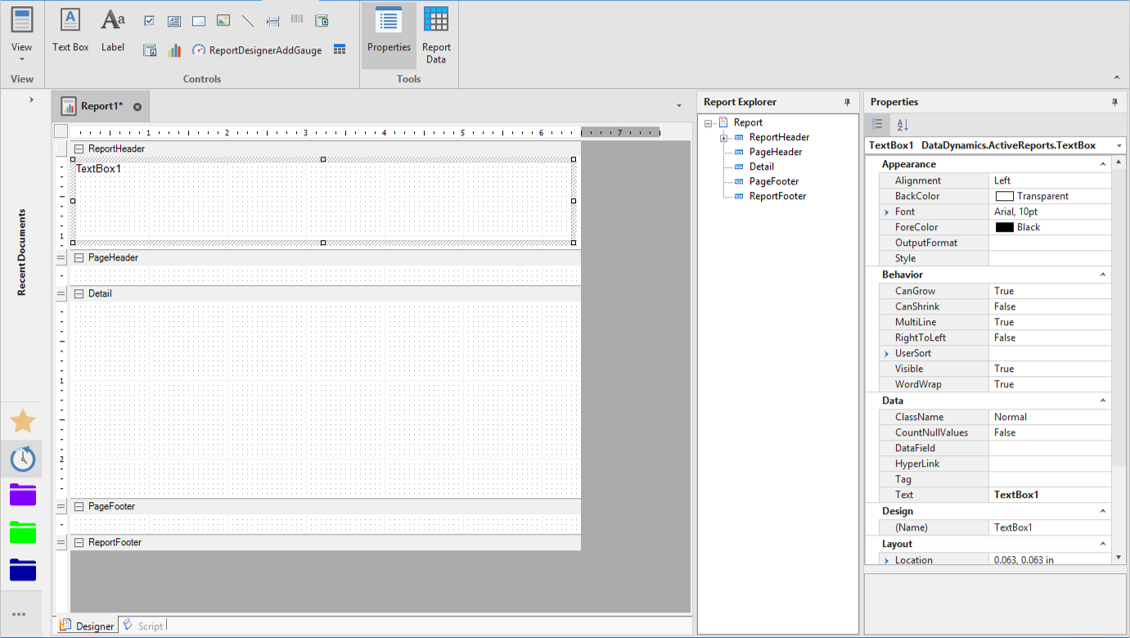
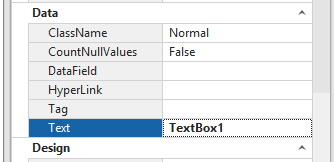
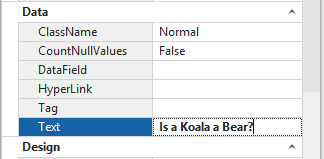
To change the default text of the text box, double-click inside the Text field under the Data section of the Text box properties.
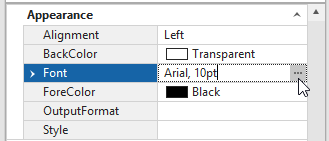
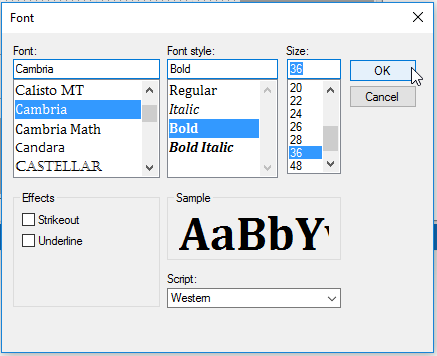
Locate Font under the Appearance section of the Text box properties, and click the ellipses button to access the Font options window.
Select Cambria under Font, Bold under Font Style, and 36 under Size; click OK to confirm and return to Text box properties.
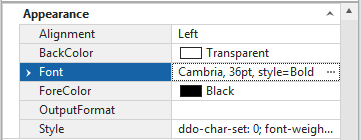
Note the properties under the dropdown arrow for Font have changed to reflect the selected choices in the Font options window.
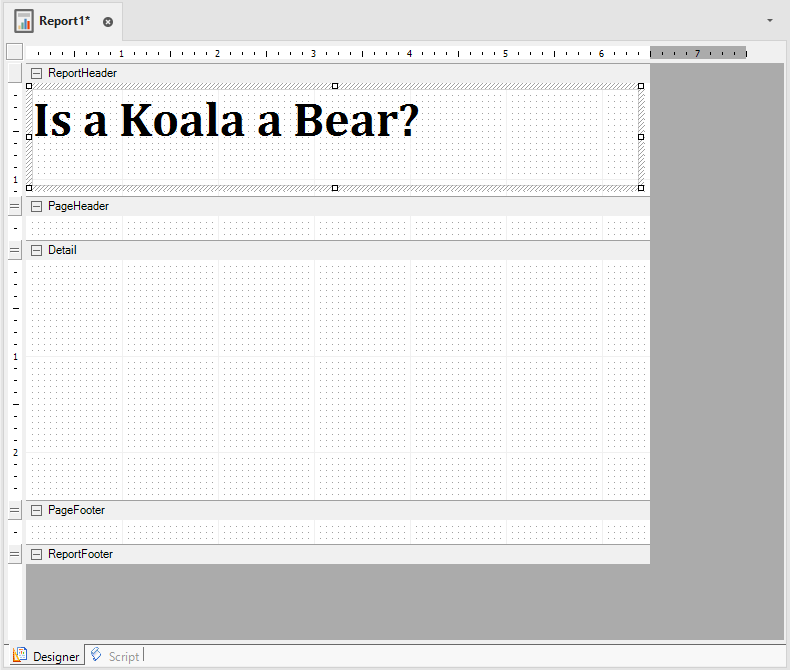
At this time the Textbox control appearance inside the design grid should be like this:
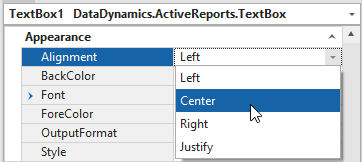
Locate Alignment under Appearance and use the dropdown arrow to change the alignment to Center.
Close the Page Header section by clicking the minus button (for this exercise we do not need a page header).


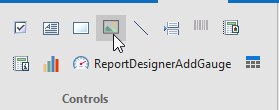
Next, Select the Picture control and add it to the grid under the Detail section.
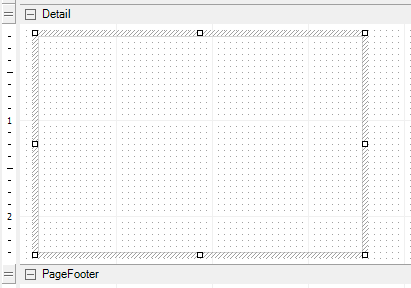
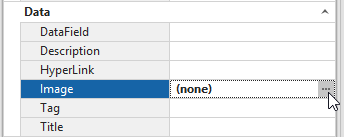
Locate Image under Data inside the Picture properties. Click the ellipses button to access the local machine’s Pictures library or other local and network drives, select a picture and click Open.
By default, the picture selected will fill the control box with its native dimensions.
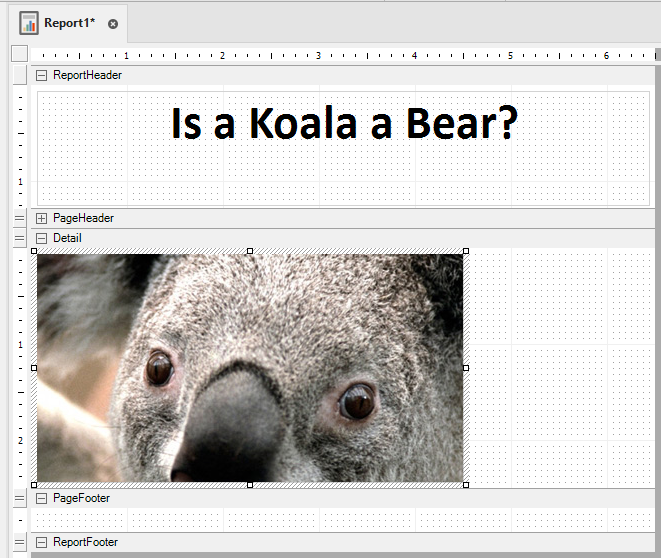
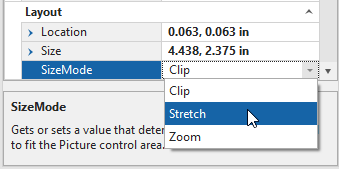
Locate Size Mode under the Layout section of the picture properties and use the dropdown arrow to select Stretch.
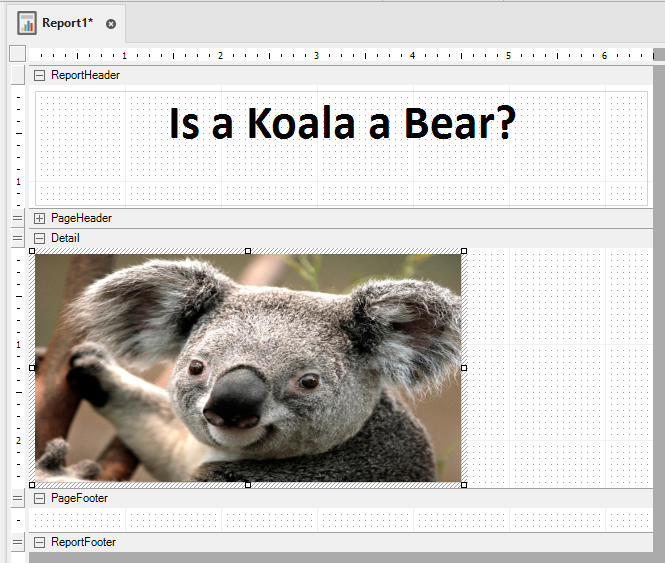
Click and drag the resize box corners of the picture control box to resize the picture, then add a second and third Text box to the report, under the Detail section, to the left of the image control.
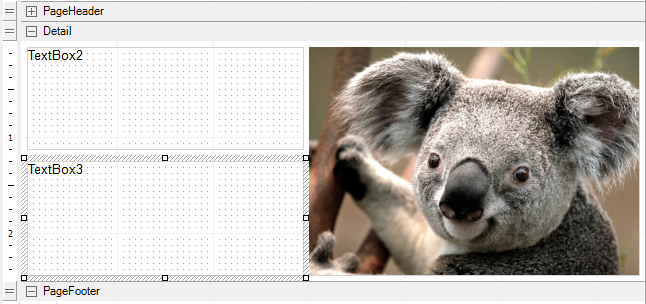
Change the Text and Size of each text box’s text (Impact, 20).
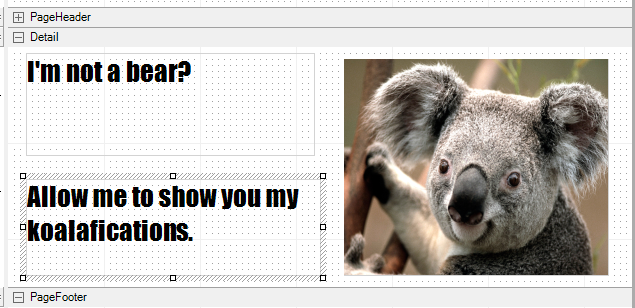
Click Results to view the report.
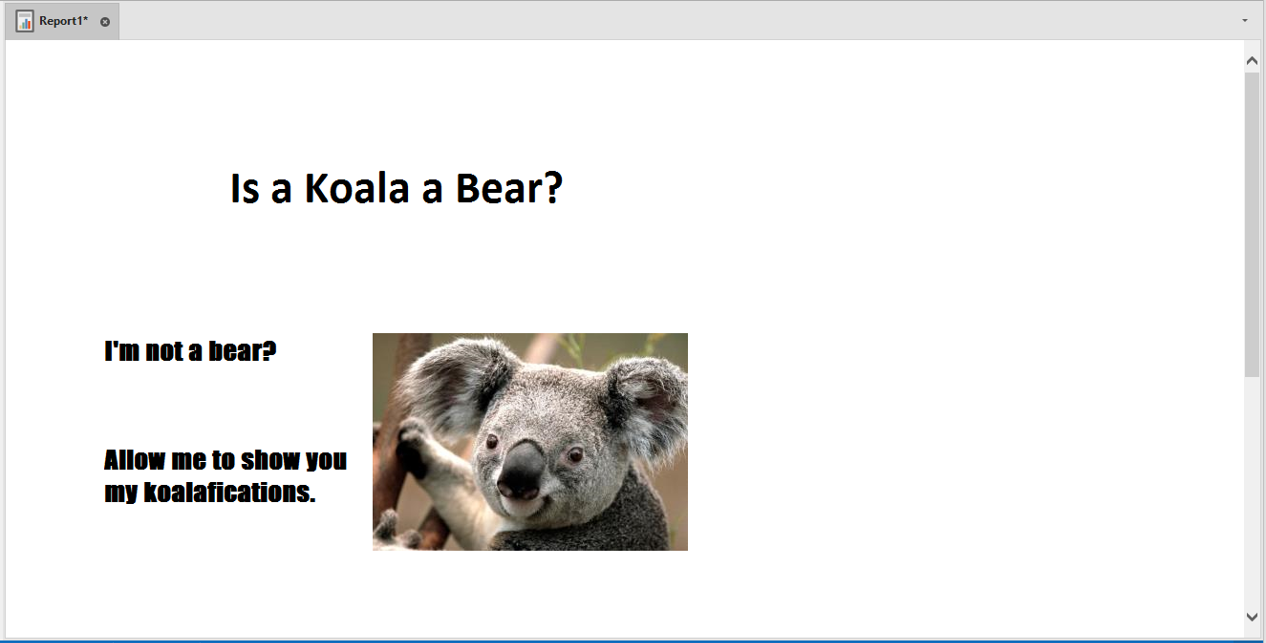
Table Report
Locate the table control button and place the table template onto the design grid.
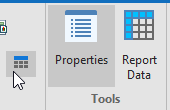
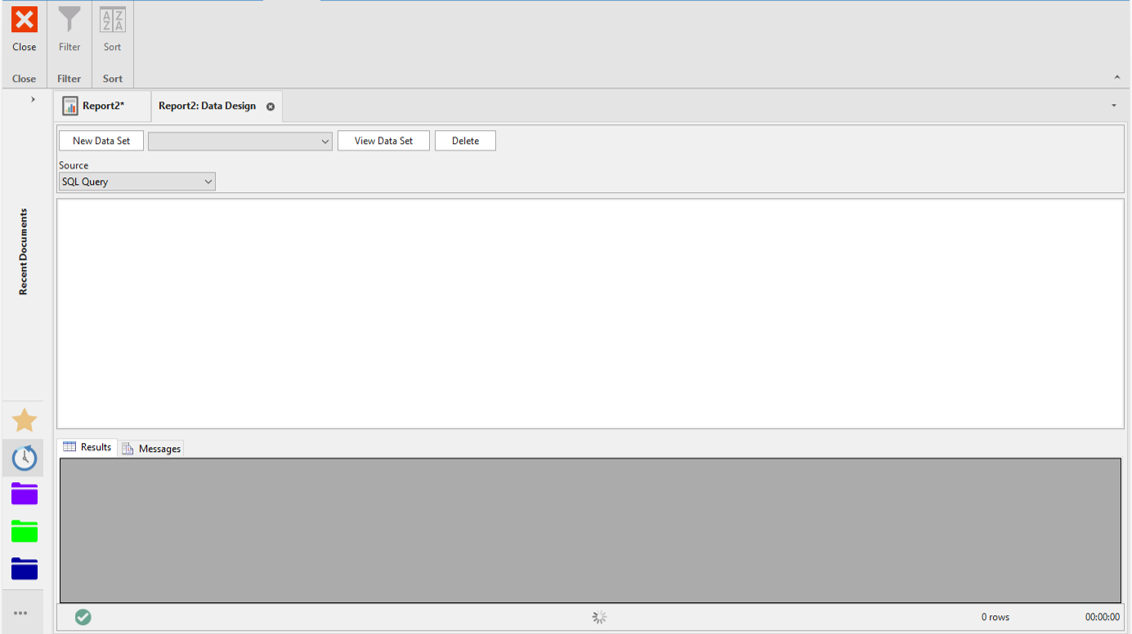
Click the Report Data button to create a Data Set.
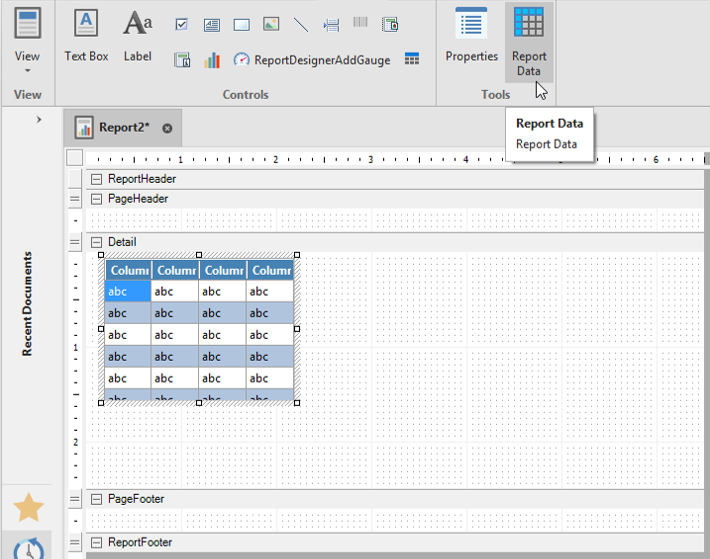
Select properties and locate Dataset under the Data section and use the dropdown box to select the created Data Set. Further changes can be made to the font type, size, and colors of the table, and parameterize the table.
Data Set Report
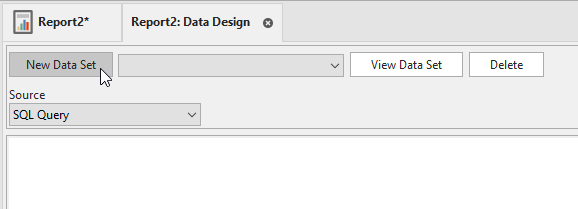
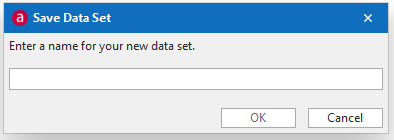
The process for creating a data set is the same for Advanced Reports. Click New Data Set and type a name for the Data Set, click OK.
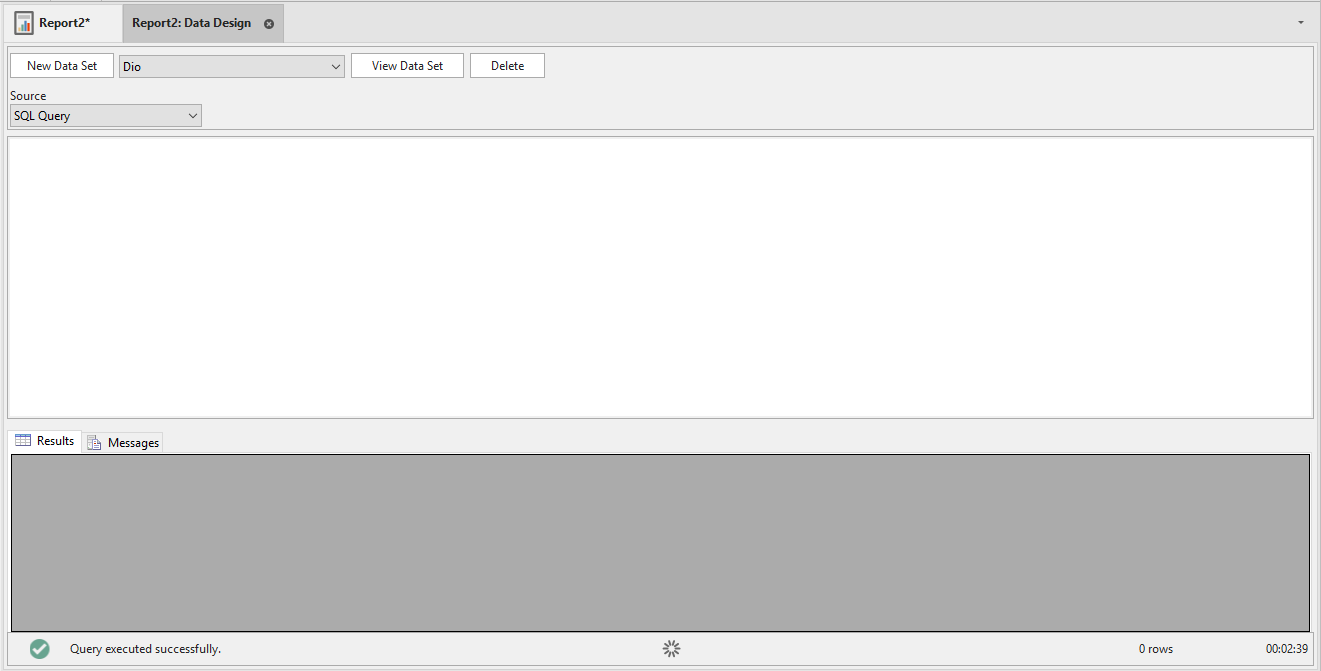
The Data Set name will appear in the gray dropdown box next to the New Data Set button, along with any other created and saved Data Sets.
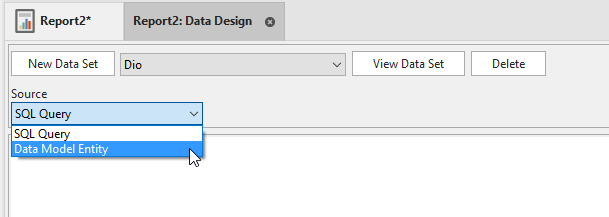
A Data Set can be created with a SQL Query or a Data Model Entity. Under Source, click the dropdown box to select SQL Query or Data Model Entity.
SQL Query
Type the SQL code for where the data will be pulled for the Chart; click the Close button when finished.
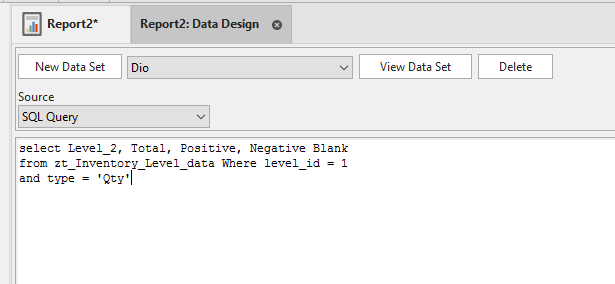
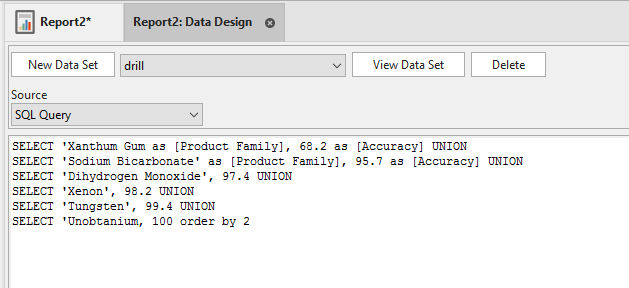
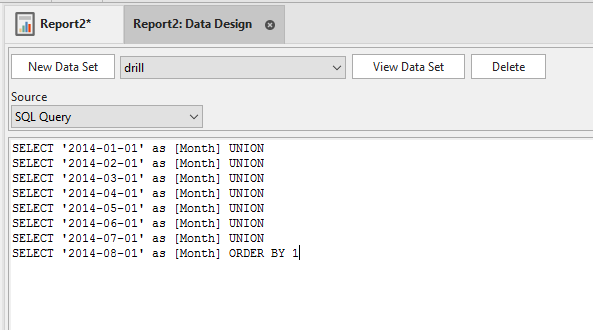
Here is an example of the SQL used to create a drilldown report.
Data Model Entity
Either select a Data Model and Entities from the Source, Data Models, and Entity dropdown boxes to create a Quick Report or select a previously created Quick Report from the Load from a Quick Report gray dropdown box. After making a selection, the Attributes and Quantities will populate:
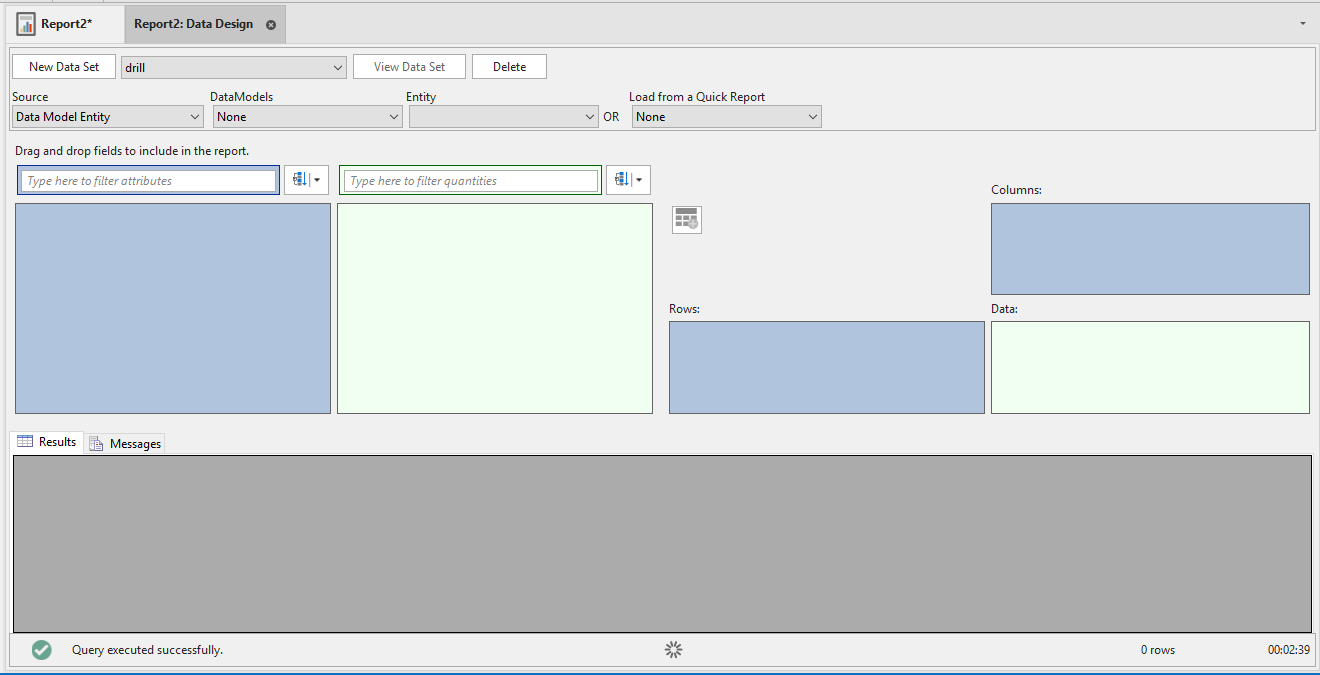
When finished click the Close button located under Design.
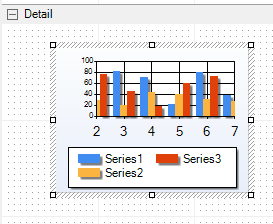
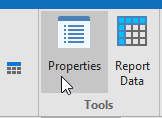
Click the chart that has been placed in the Advanced Reports workspace and click Properties to open the Chart properties tab.
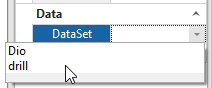
In the Properties tab, click inside the empty field next to Dataset under the Data category and select the name of the Data Set saved earlier in the Data Design window. The Chart is now tied to this Data Set.
Locate and click Series (Collection) under the Chart section of Chart Properties to activate the ellipses button to open the Series Collection Editor window.
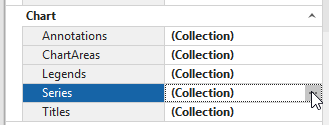
A chart defaults to three series; series tie data to a graph. Click the ADD button to create a series; click a series under the Members box and then click the REMOVE button to delete the series. Remove Series 2 and 3 so only Series 1 is left inside the Members box.
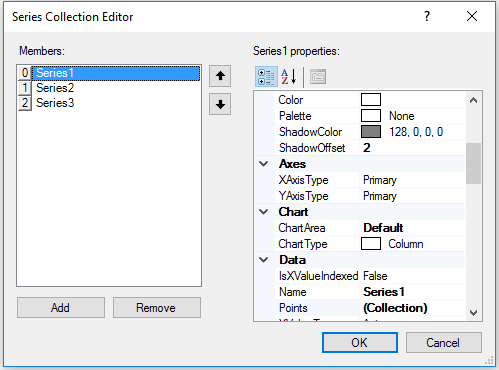
With Series1 highlighted, scroll through the properties box on the right and locate the Data Source section. The Data Source section of the Series Collection Editor window is how the attributes and quantities will be selected to be represented in the graph. The attributes and quantities are contingent on the Data Set selected from the Data section of the Chart Properties.
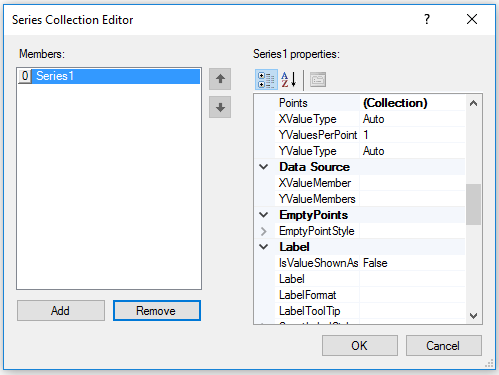
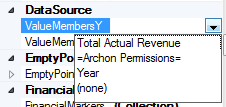
Click the empty field next to ‘Value Members Y’ to tie the data set’s attribute or quantity to be represented on the Y axis of the graph. Click the empty field next to ‘Value Members X’ to tie the data set’s attribute and quantity to be represented on the X axis of the graph.
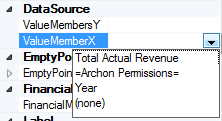
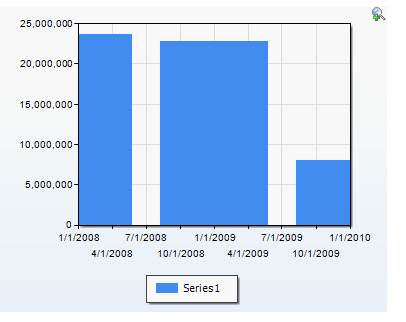
Switch to the Advanced Reports Results View; at this point in the exercise the chart and graph should look similar to the chart and graph shown.
📘 Note
Remember that depending on if you created a new chart report or you are editing a copy of a chart report, your chart and graph will not have the same data, but should be aesthetically similar.
Related Articles
Quick Reports
Introduction A Quick Report visually displays Data Model data into rows and columns of attributes and quantities. Design the Quick Report in the Design View, filter attributes in the Filter View, and view the data in the Results View. How to design a ...KPIs and Quick Reports
Building off Session #31, learn how to utilize the built-in functions to create KPIs within quick reports. {` `}Reports and Visualization
Table Editor Ability to have a dynamic dropdown in a table editor Users not have the ability to write a custom expression that enables a dropdown to filter its contents based on the value of another column. For example, the selection of 'INDOOR ...Arkieva Customer Training Program
The Arkieva Customer Training Program is a customer-centric program aimed at empowering Arkieva customers with the knowledge and skills needed to harness the power of their Arkieva solution to solving complex business problems. ? Go to the bottom of ...General Navigation of Arkieva
Overview of the various navigational commands in Arkieva. {` `} Launching Arkieva Splash Screen Arkieva is installed to a web server and launched from the client intranet (Internet Explorer is highly recommended). The Arkieva version number, build ...