Mapping Analysis
Introduction
With Mapping Analysis you can view and plan your distribution networks with configuration, filter, and style tools.
Configuration
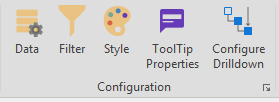
The Configuration section of the Mapping Analysis ribbon will allow access to the following tools.
- Data: Select a source and at least one Mapping Information item for the Mapping Analysis.
- Filter: Launches the Filter pane.
- Style: Access different views for the map data.
- ToolTip Properties: Lists the Source location name, type, and Outbound and Inbound information.
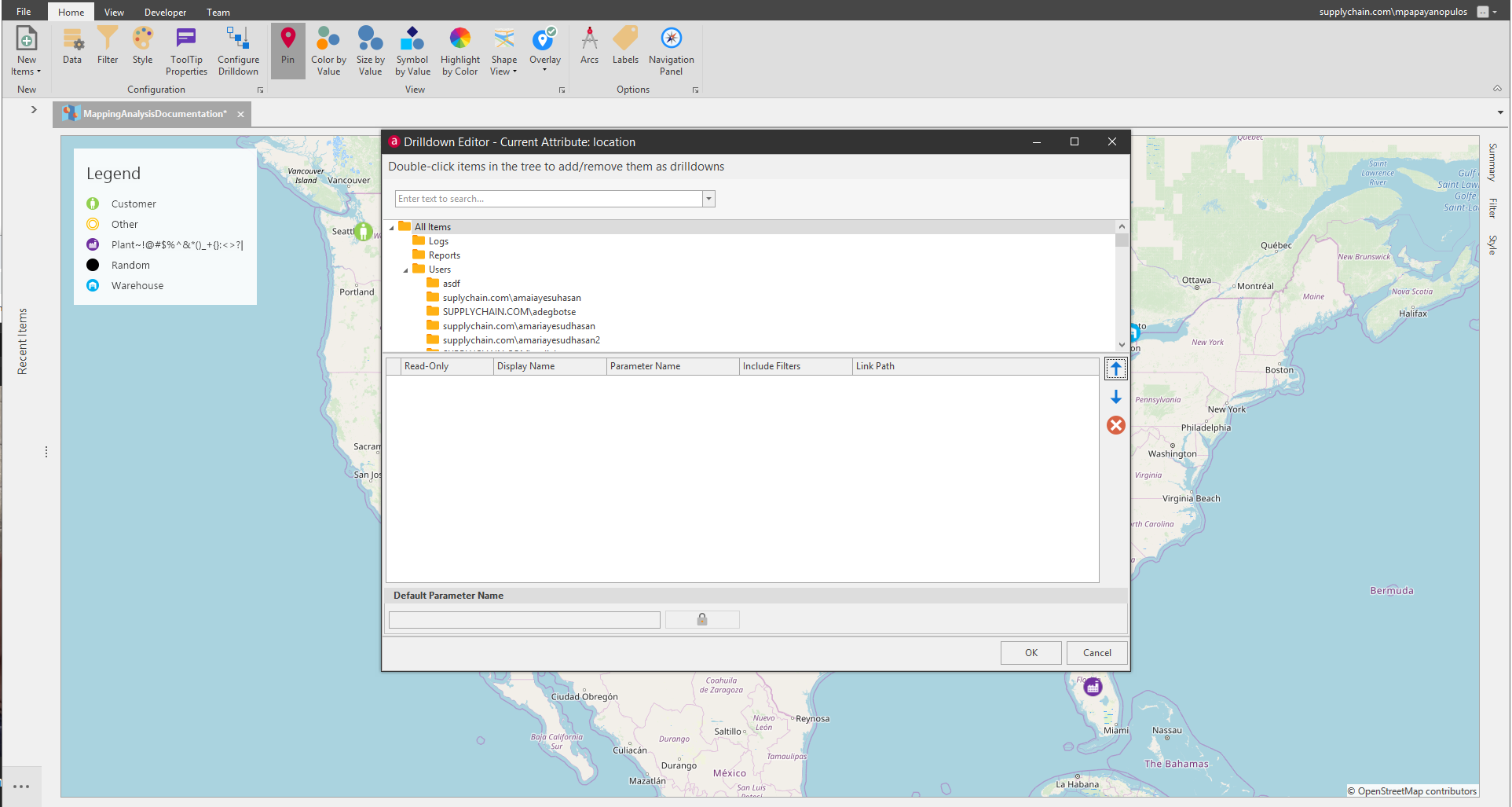
- Configure Drilldown:
Data
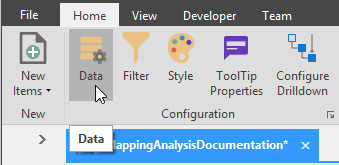
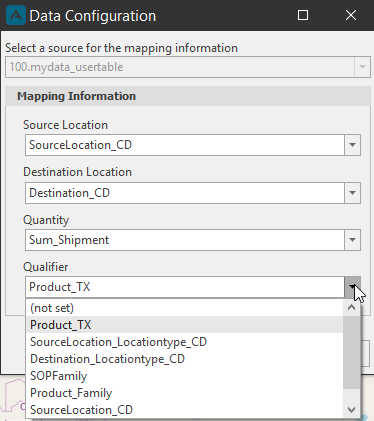
When launching a new Mapping Analysis document, you will need to select a source for the mapping information and at least one Mapping Information item. After you've done this, you can click the Data button located the Configuration section of the ribbon to launch the Data Configuration window again, to select different Mapping Information data. You will not be able to change the Source for the Mapping information.
Filter
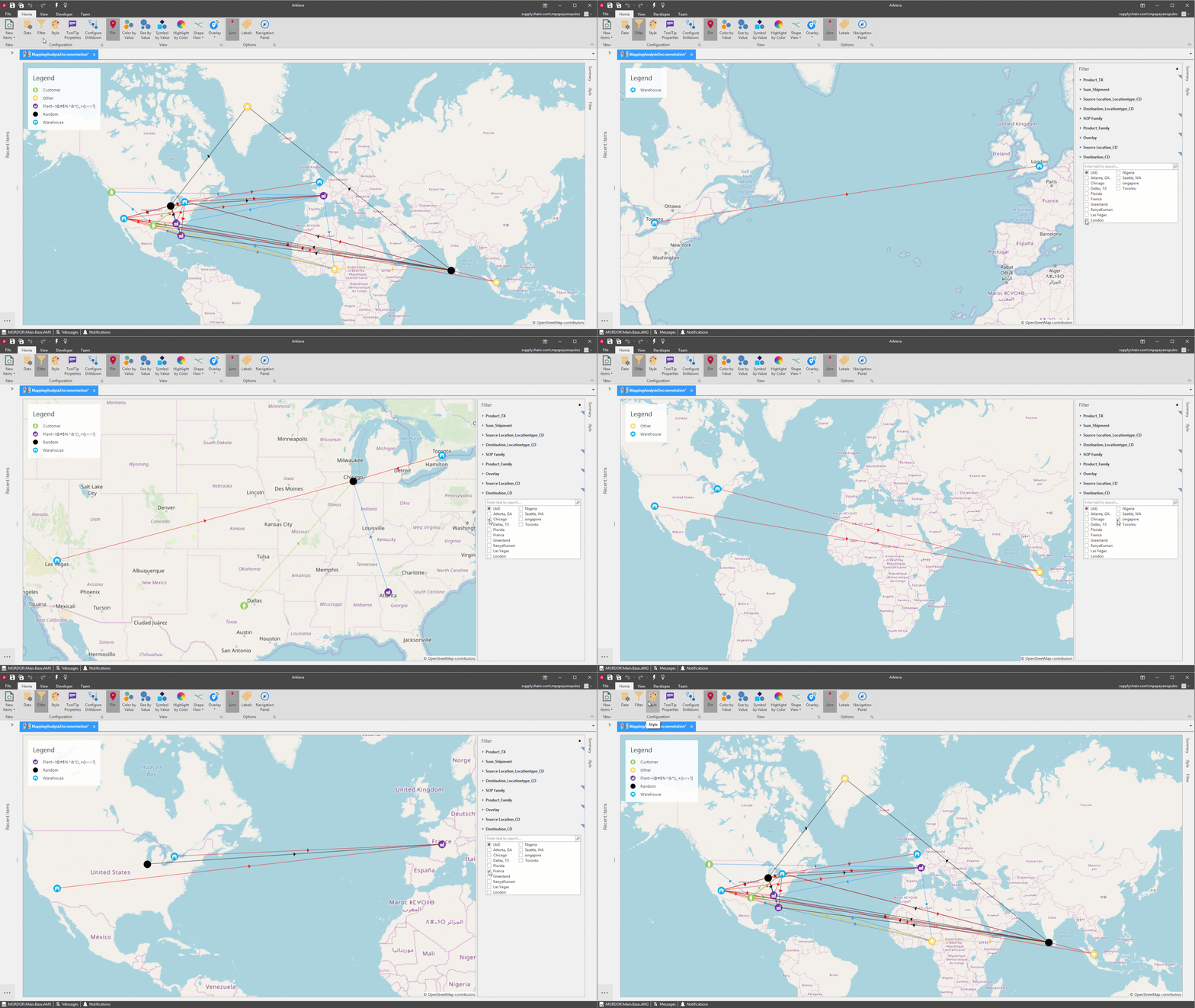
Click the Filter button located in the configuration section of the ribbon to access the Filter pane. Check and Uncheck items in the Filter Pane to drilldown the information viewable in the map.
Style
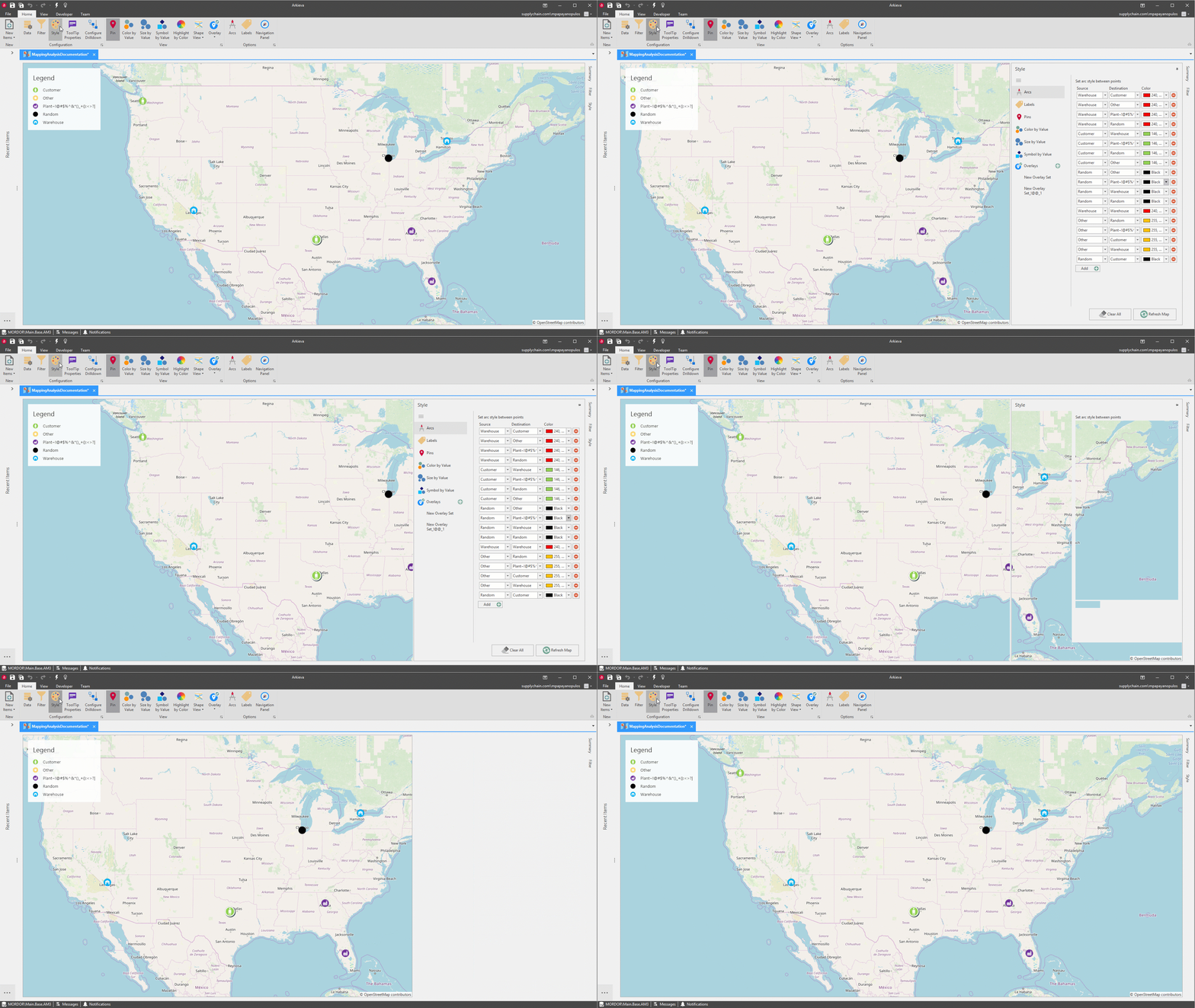
The Style pane allows access to customizing how the map data is viewed. Clicking the Style button location in the Configuration section of the ribbon will pin the Style Pane to the map. Clicking it again will unpin the pane. You can also access the Style pane by clicking the pane's tab located on the right of the map.
Options
- Labels: Toggle on or off the names of the Source locations and destinations.
- Arcs: Toggle on or off the arcs between the Source and Destinations points.
View
- Pin: Set symbols and colors for the pins.
- Color by Value: Customize Source Locations to be highlighted by a value range based on their sum.
- Size by Value: Toggle the Size by Value button to set the icons to change size depending on their sum value.
- Symbol by Value: Allows you to have a different symbol for a source location depending on the sum value.
- Overlay:
ToolTip Properties
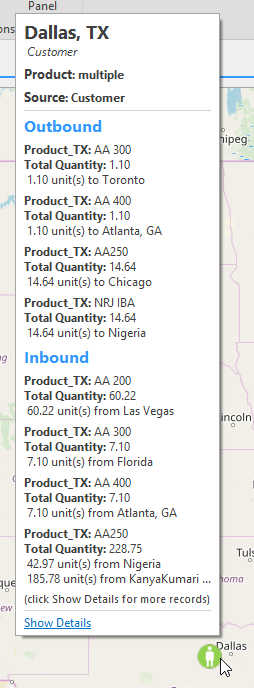
Each Source node has a ToolTip that lists the Source location name, type, and Outbound and Inbound information.
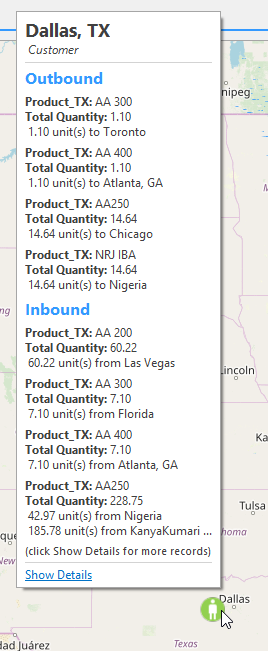
You can also click the Show Details link at the bottom of the ToolTip to open the Detailed Data tab.
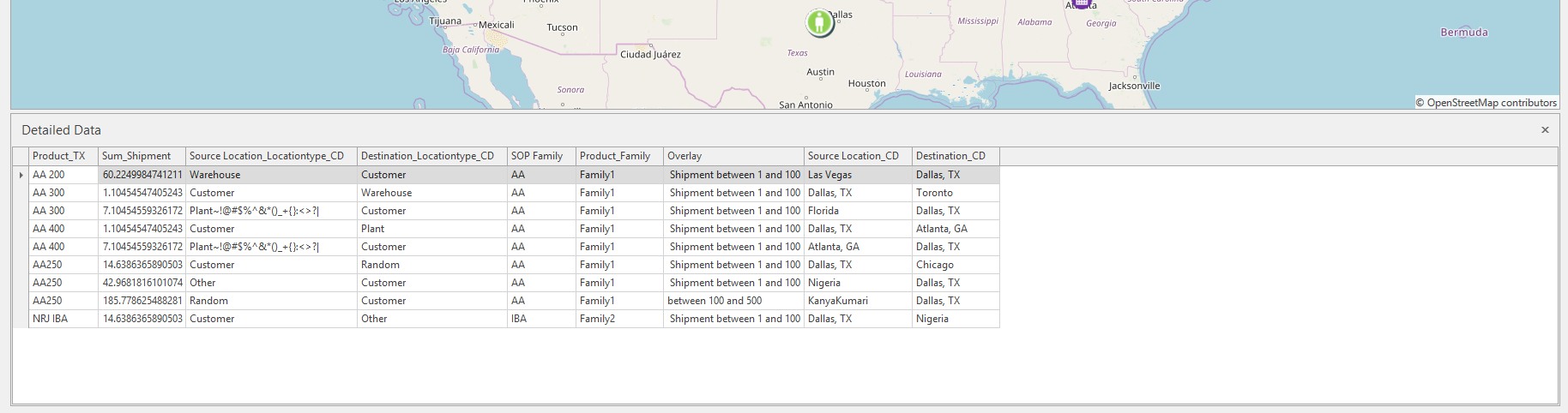
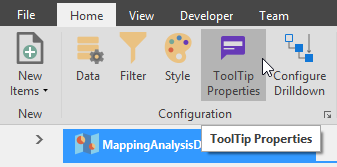
You can add additional information to the ToolTip by clicking the ToolTip Properties button located in the Configuration section of the ribbon. This will launch the ToolTip Editor window.
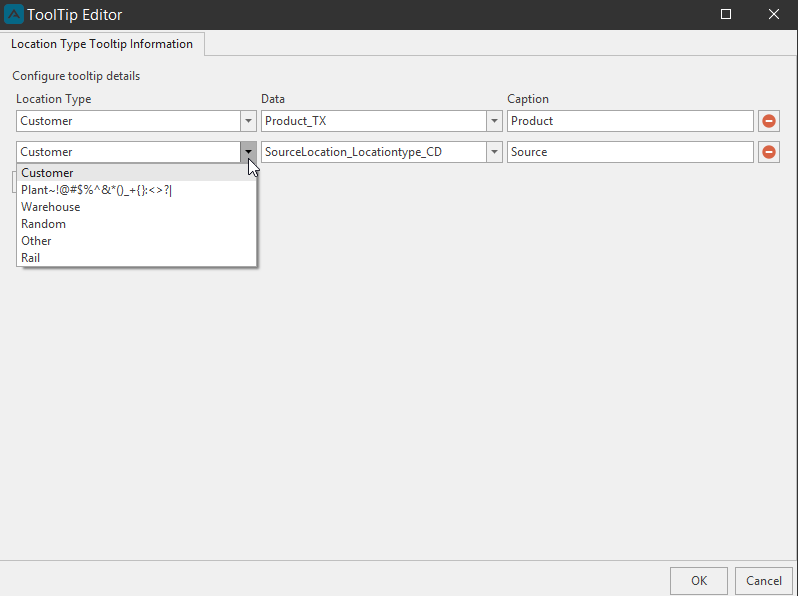
Configure the ToolTip information by selected the appropriate data from the Location Type and Data dropdown. Type the information you want displayed in the Caption field. Click OK.
In the example below you can see that now the Product and Source data is represented in the ToolTip.
Configure Drilldown
Context Sensitive Drilldown
View
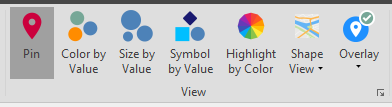
Change how the map data is viewed with the following View tools.
- Pin: Set symbols and colors for the pins.
- Color by Value: Customize Source Locations to be highlighted by a value range based on their sum.
- Size by Value: Toggle the Size by Value button to set the icons to change size depending on their sum value.
- Symbol by Value: Allows you to have a different symbol for a source location depending on the sum value.
- Highlight by Color
- Shape View: Toggle between Street View and Country view with the Shape View dropdown.
- Overlay
Pin
Source Location\ By default the source locations pins will take one of two forms, a map marker Pin when only the Source Location was selected in the Data Configuration window, and a Pie Chart when the Destination Location, Quantity, and/or a Qualifier has been selected along with the Source Location. Pins are shown with colors that are randomly generated and tied to the Qualifier colors in the Display Data Count tab.
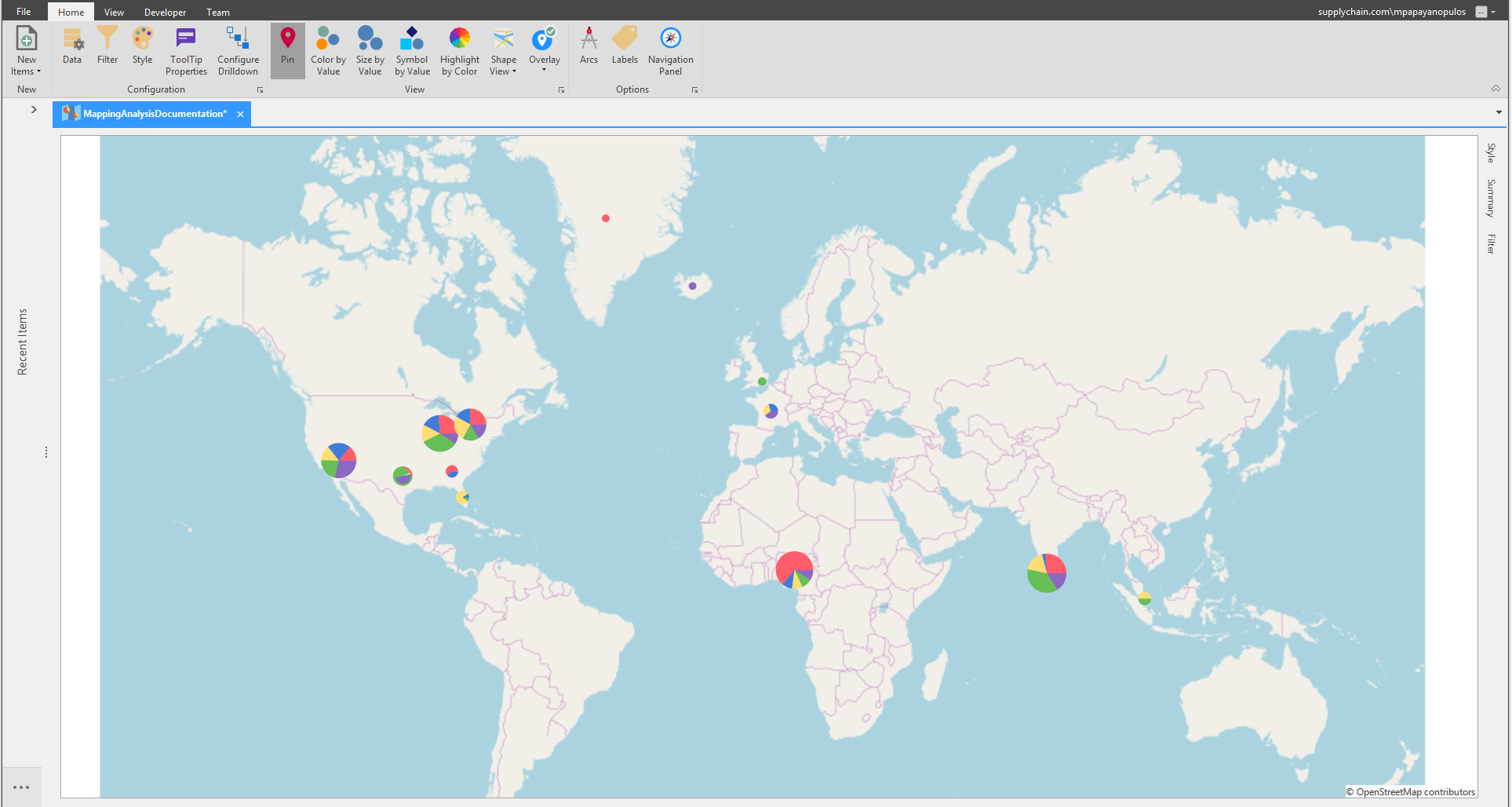
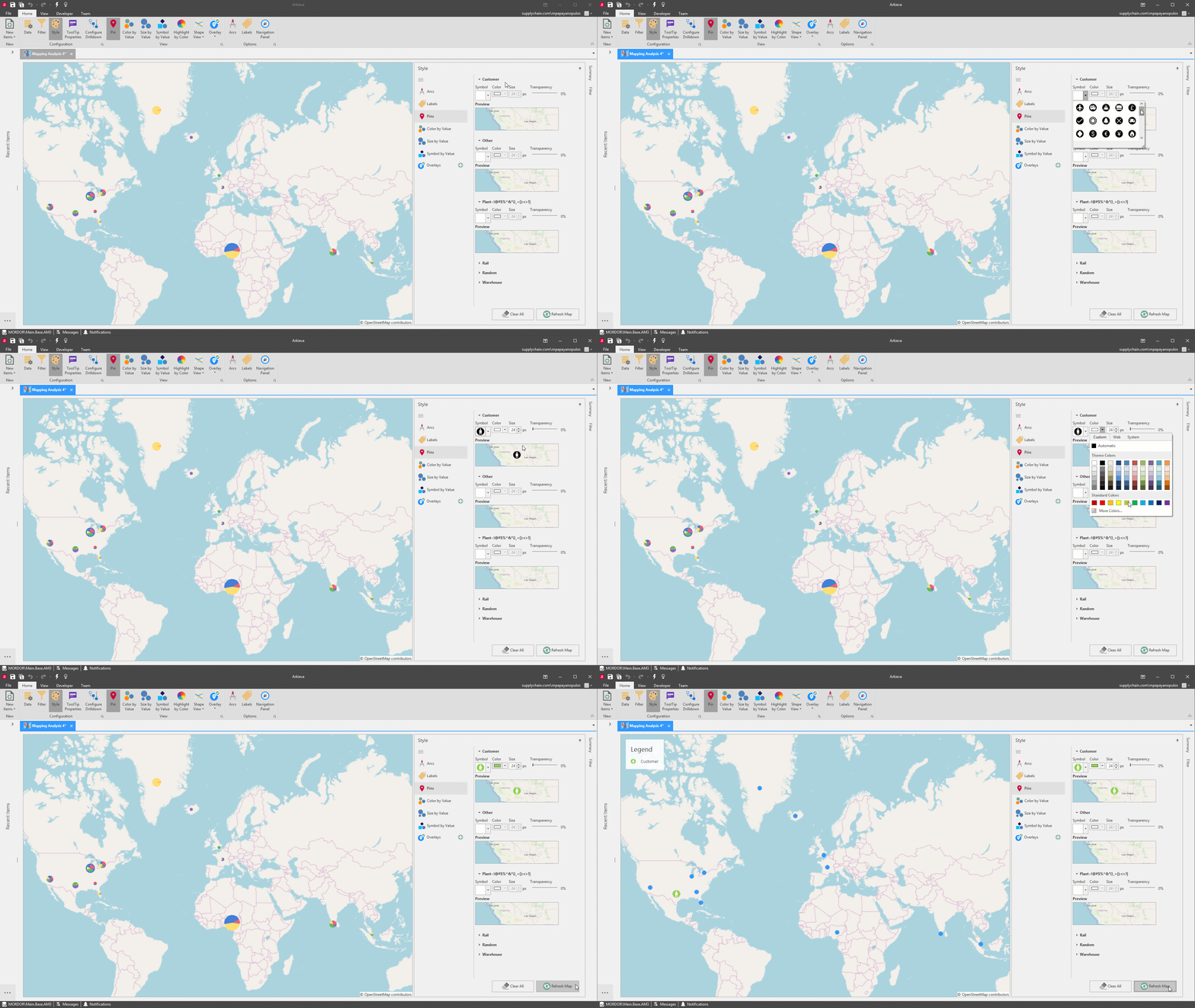
To set symbols for the Pins, go to the Style pane located to the right of the map, or click the Style button located in the Configuration section of the ribbon to launch the Style pane.Then click the Pins tab.
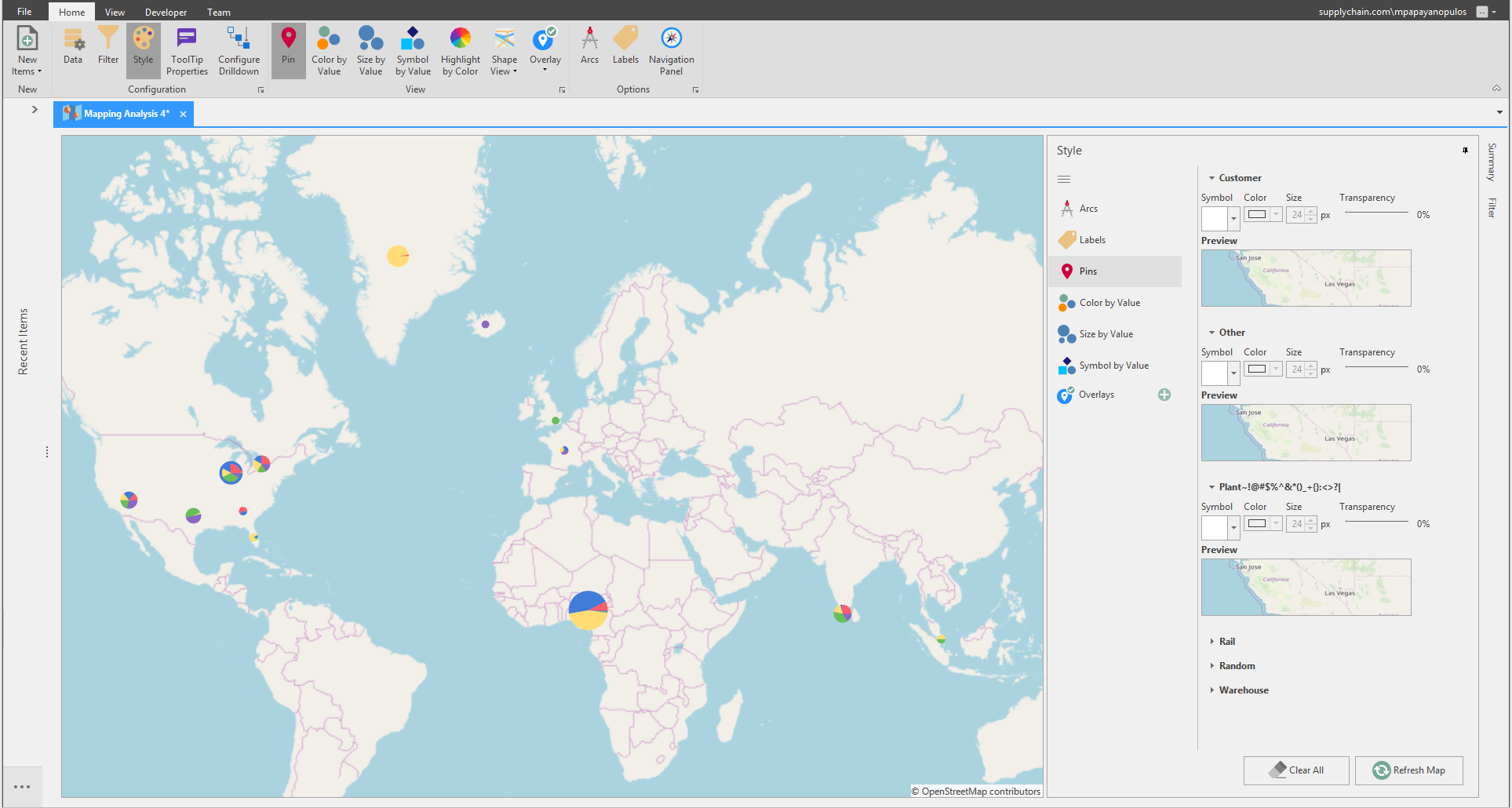
From the Style pane you can select a Symbol for the Source Location, and the Color, Size, and Transparency of the Symbol. Click Refresh Map to set the Pin selections.
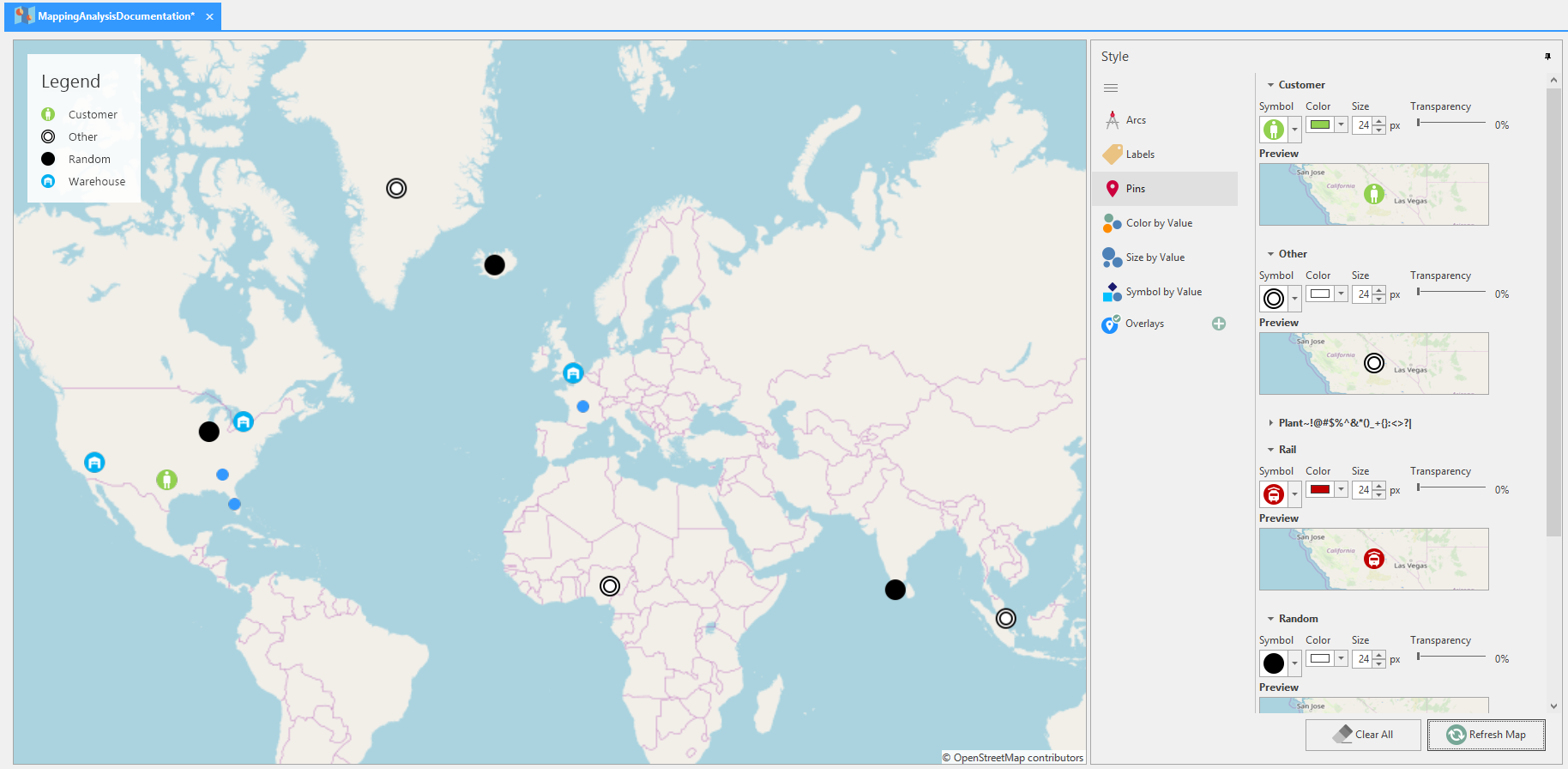
A Legend will be automatically created with the Source Location pin selections.
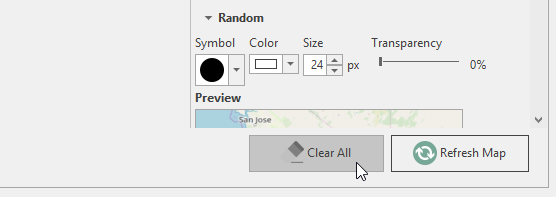
You can clear all pin selections by clicking the Clear All. This will reset the source locations pins to the default map marker pin or pie chart.
Color by Value
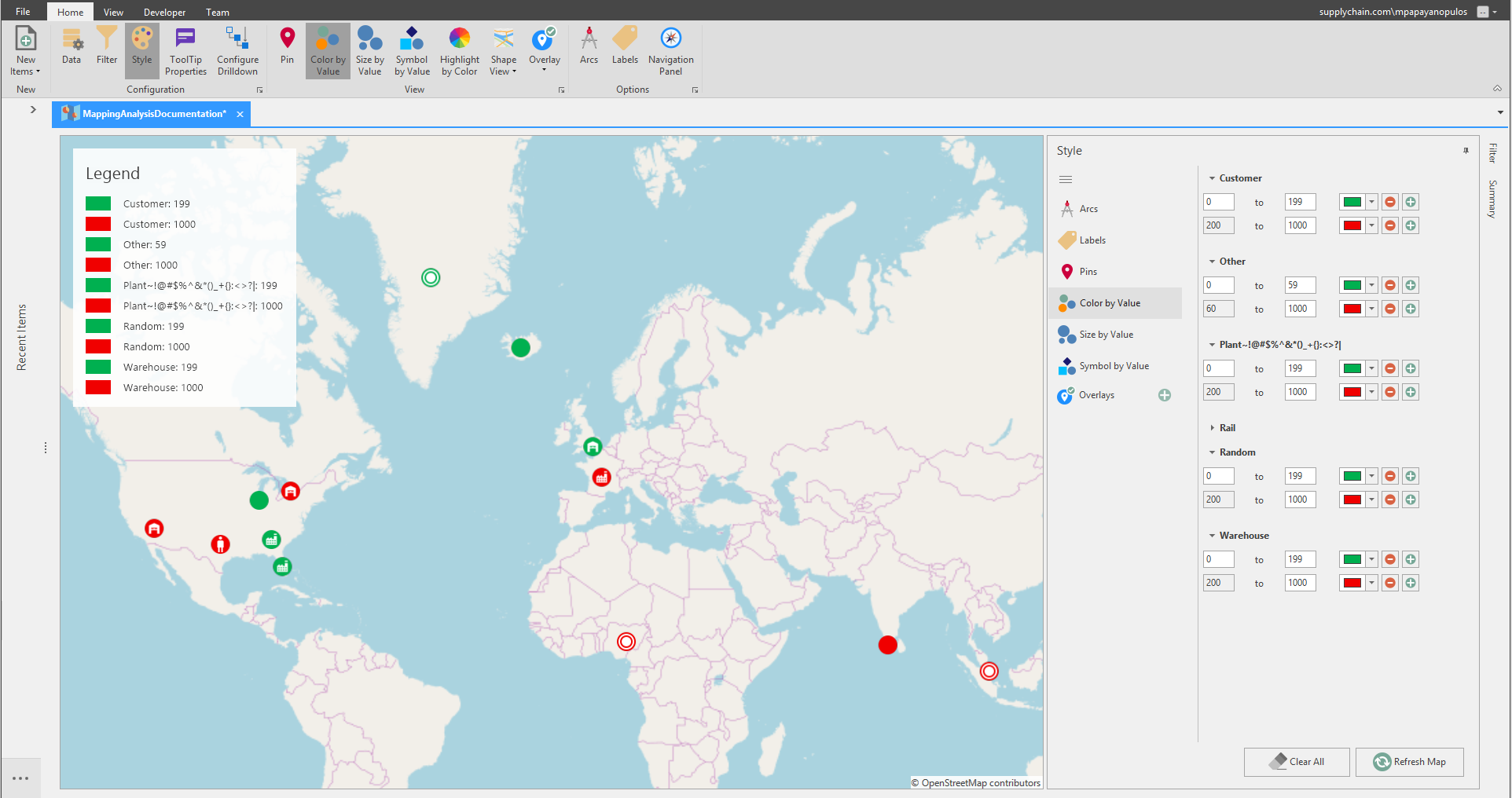
Color by Value allows you can customize Source Locations to be highlighted by a value range based on their sum.
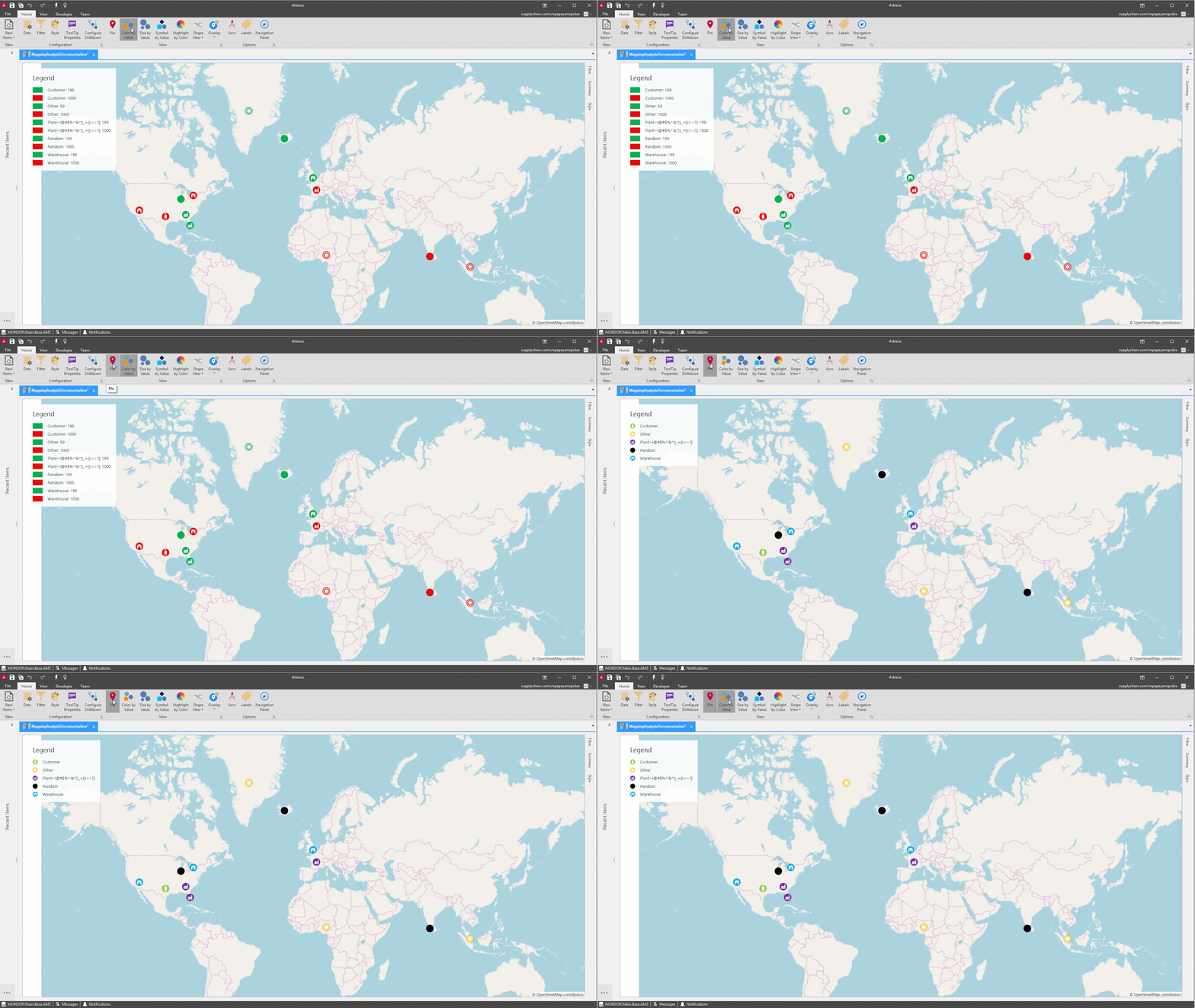
Click the Style button or the Style tab and select the Color by Value tab to customize the source location values. You can create multiple color values by clicking the Green Plus button.
Size by Value
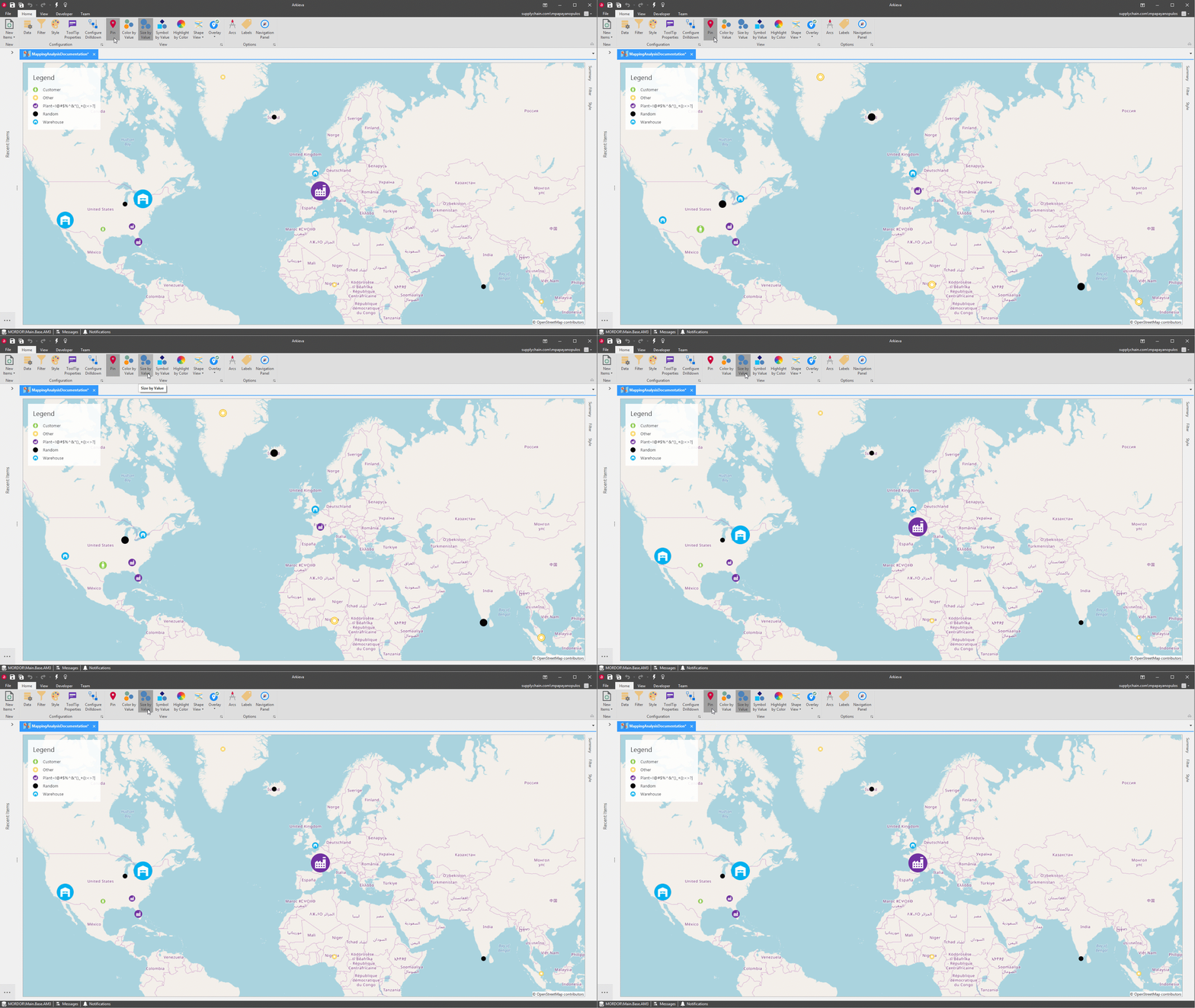
Toggle the Size by Value button to set the icons to change size depending on their sum value. You can customize the value and size of the source location icons from the Style tab.
Symbol by Value
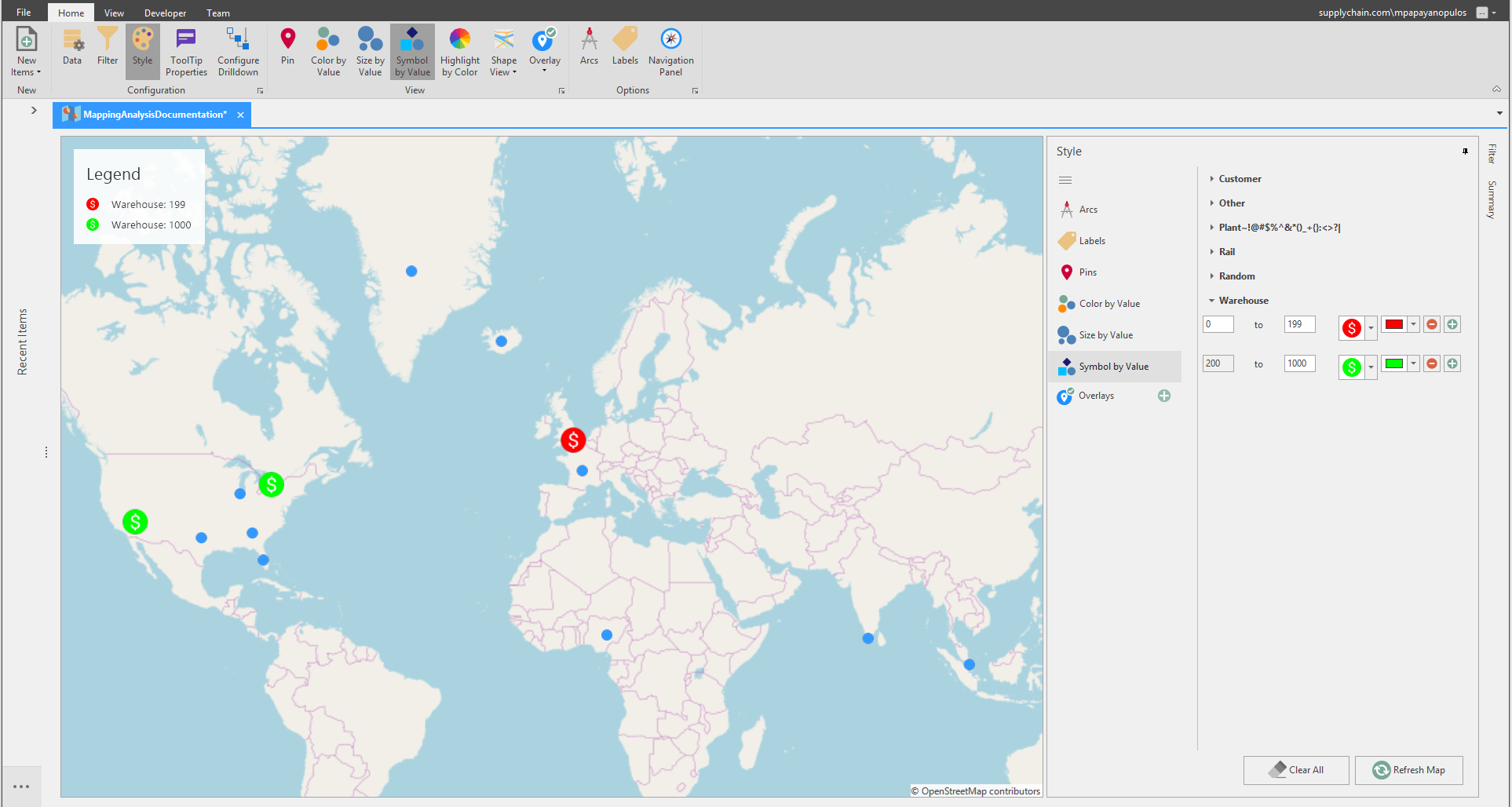
Symbol by Value allows you to have a different symbol for a source location depending on the sum value.
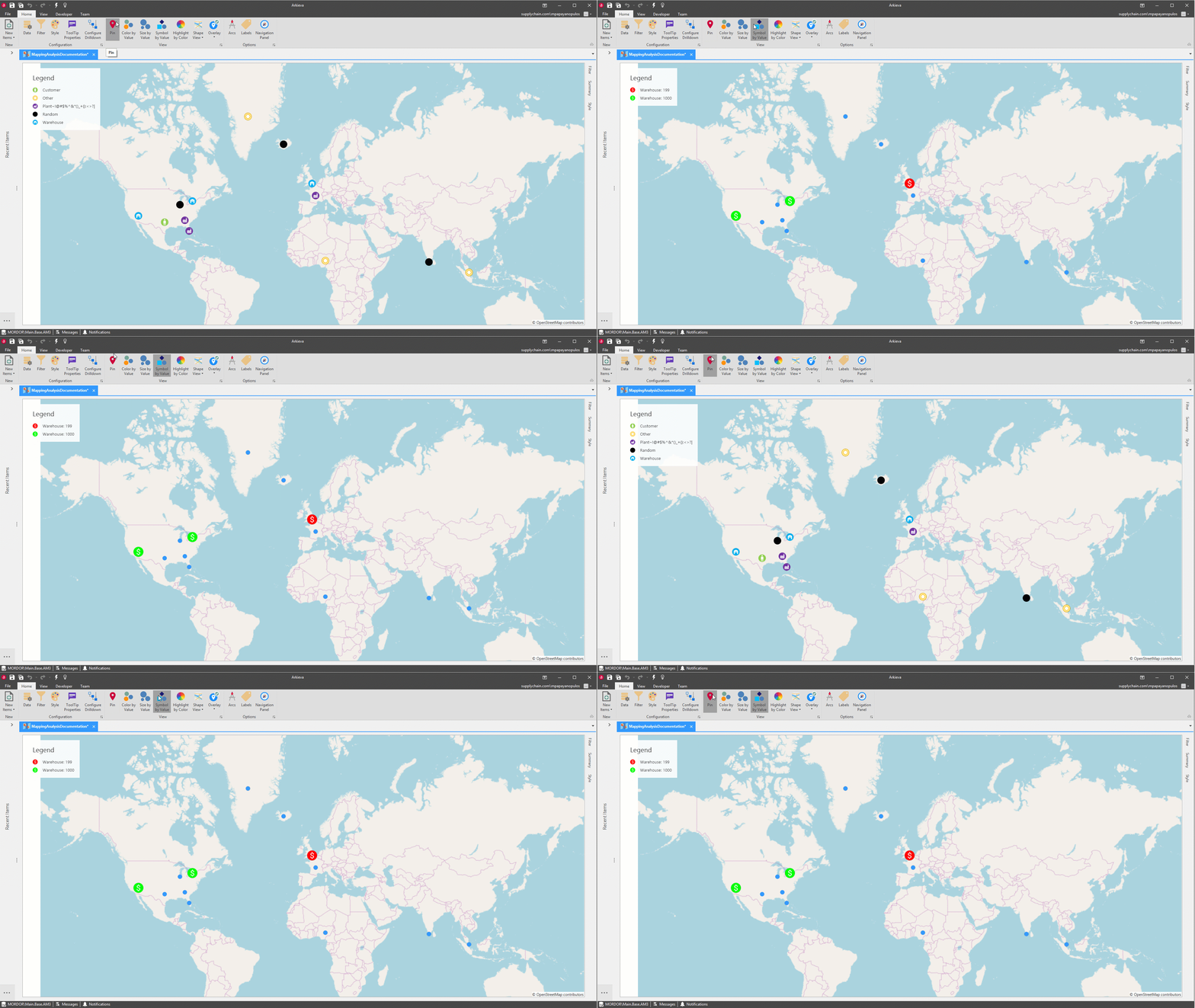
Click the Style button or Style tab and select the Symbol by Value tab to customize the source location symbols by value.
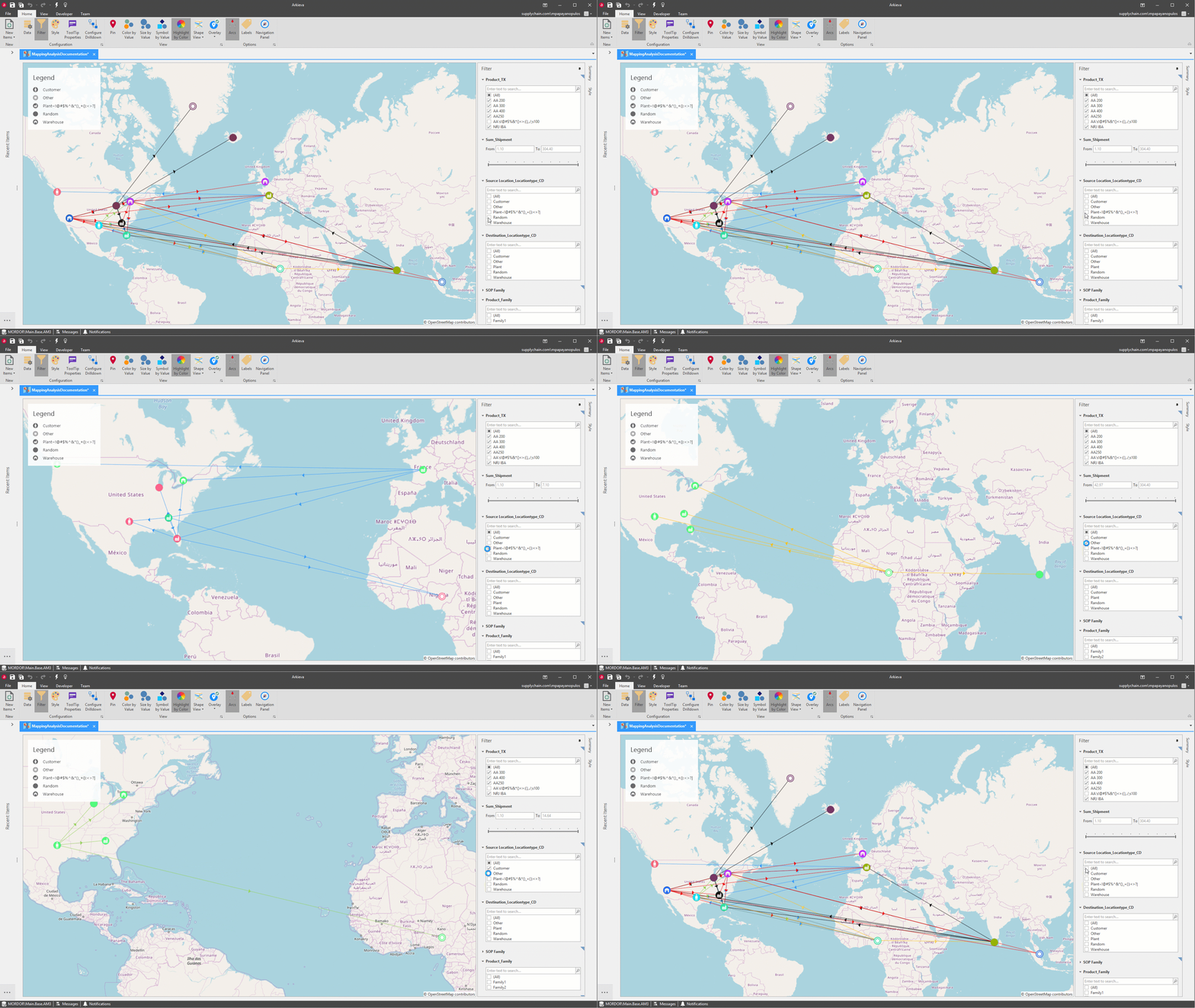
Highlight by Color
Check and Uncheck filter items to include or exclude from the mapping analysis. You can also set a filter range for values of shipments.
Use the filter pane along with the Highlight by Color and Arc toggle buttons to show data points that meet a specific filter requirement. The colors are randomly generated, and the colors will represented what locations are connected by an arc.
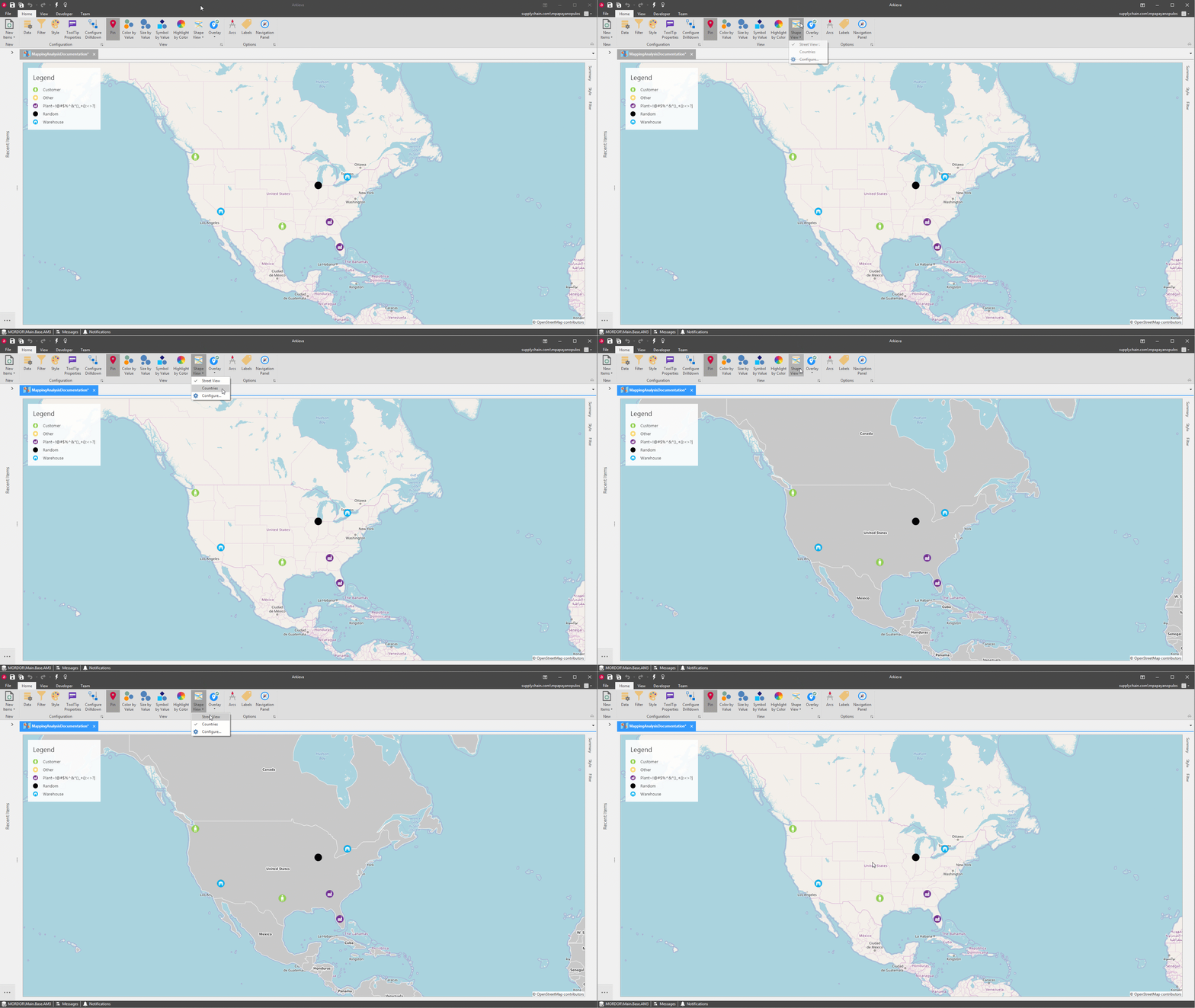
Shape View
Toggle between Street View and Country view with the Shape View dropdown.
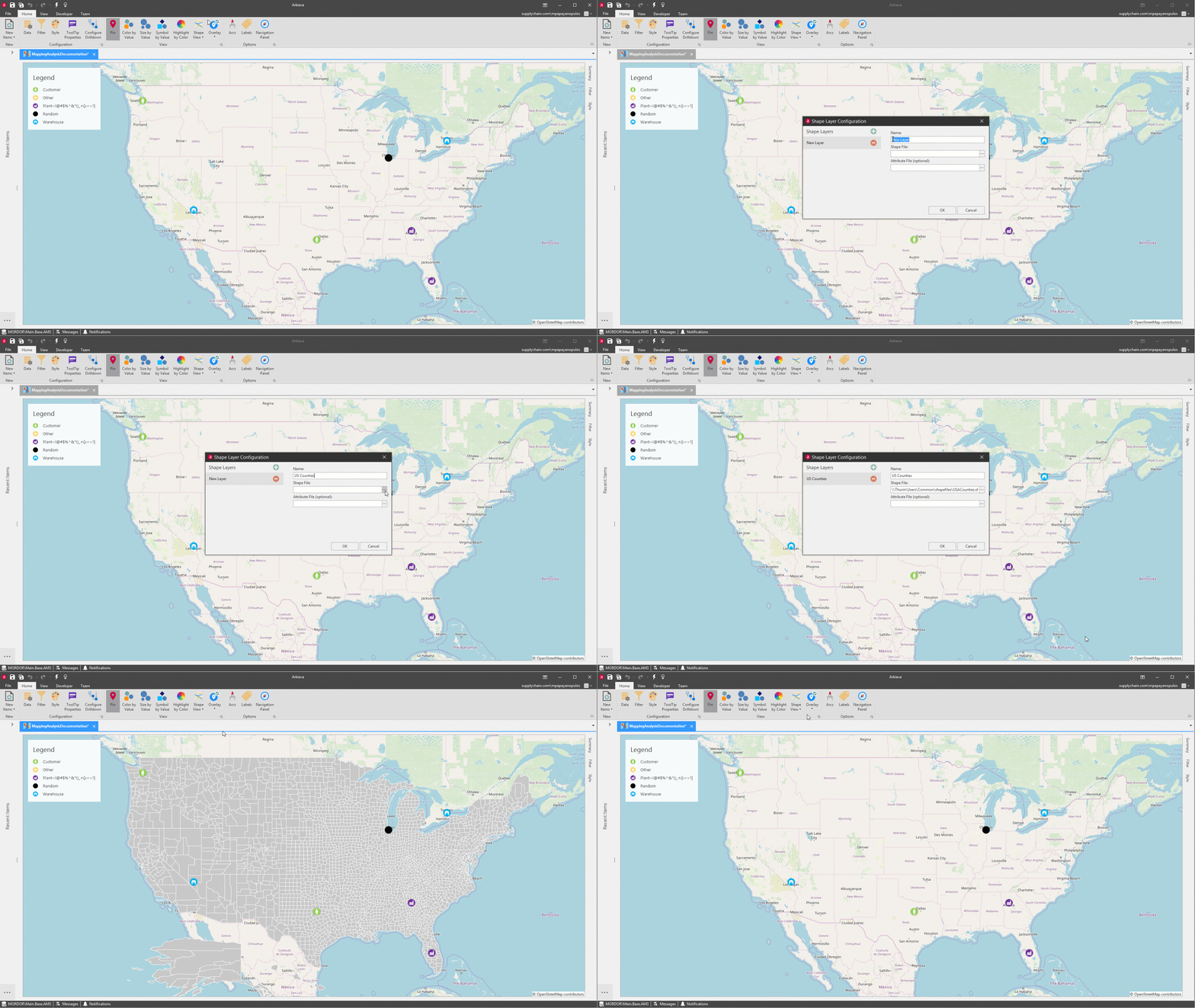
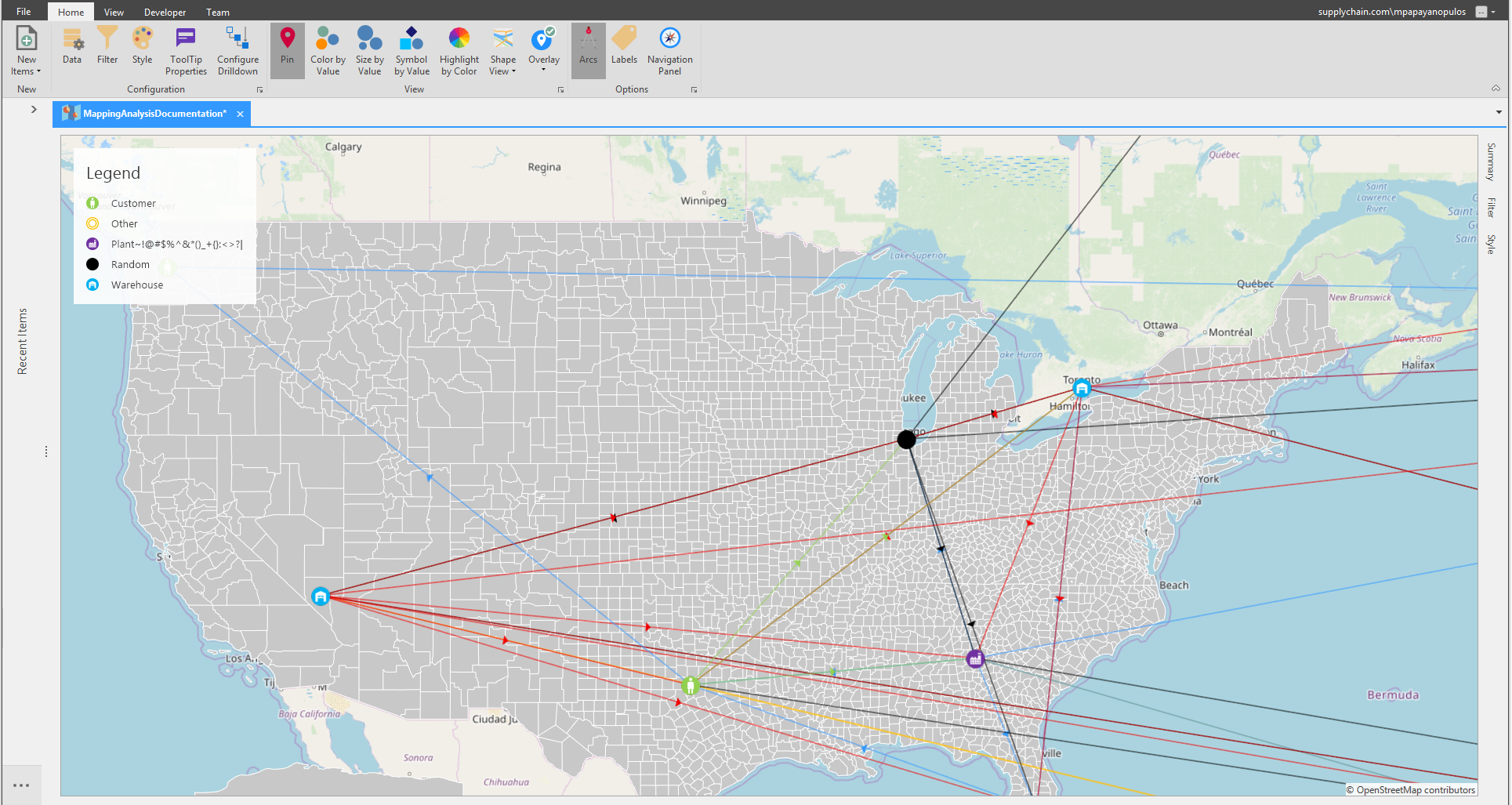
You can also configure more Shape Views with .shp files. Click Configure from the Shape View dropdown to access the Shape Layer Configuration window. Click the Green Plus button, type a name, and click the ellipses button to select a .shp file. These files can be found online. Click OK and select the new view from the dropdown.
Options
Control how the data is displayed in relation to other data with the Options tools.
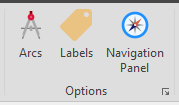
- Labels: Toggle on or off the names of the Source locations and destinations.
- Arcs: Toggle on or off the arcs between the Source and Destinations points.
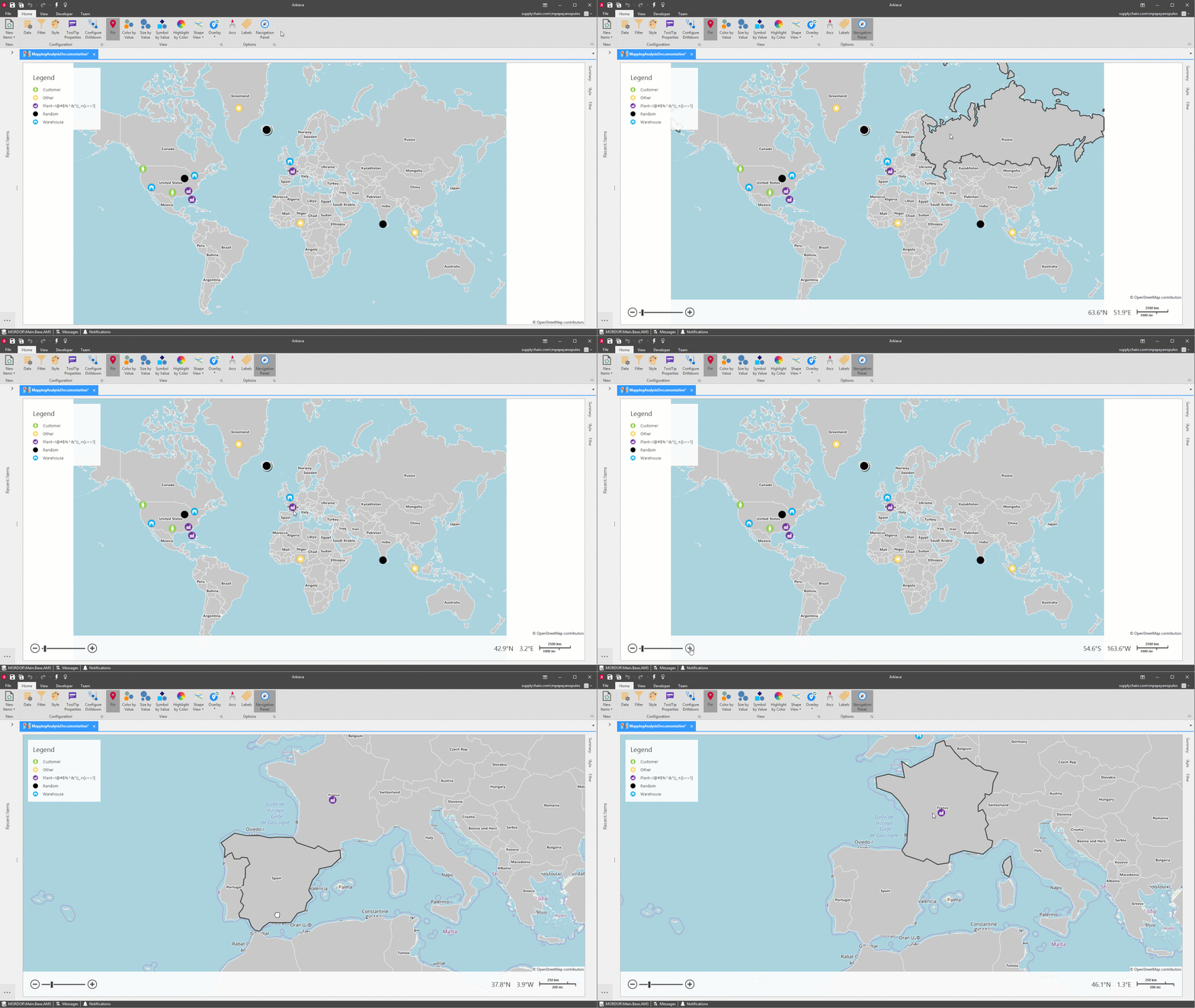
- Navigation Panel: Toggle the Navigation Panel on to view latitude and longitude, and use the zoom in and out buttons.
Labels
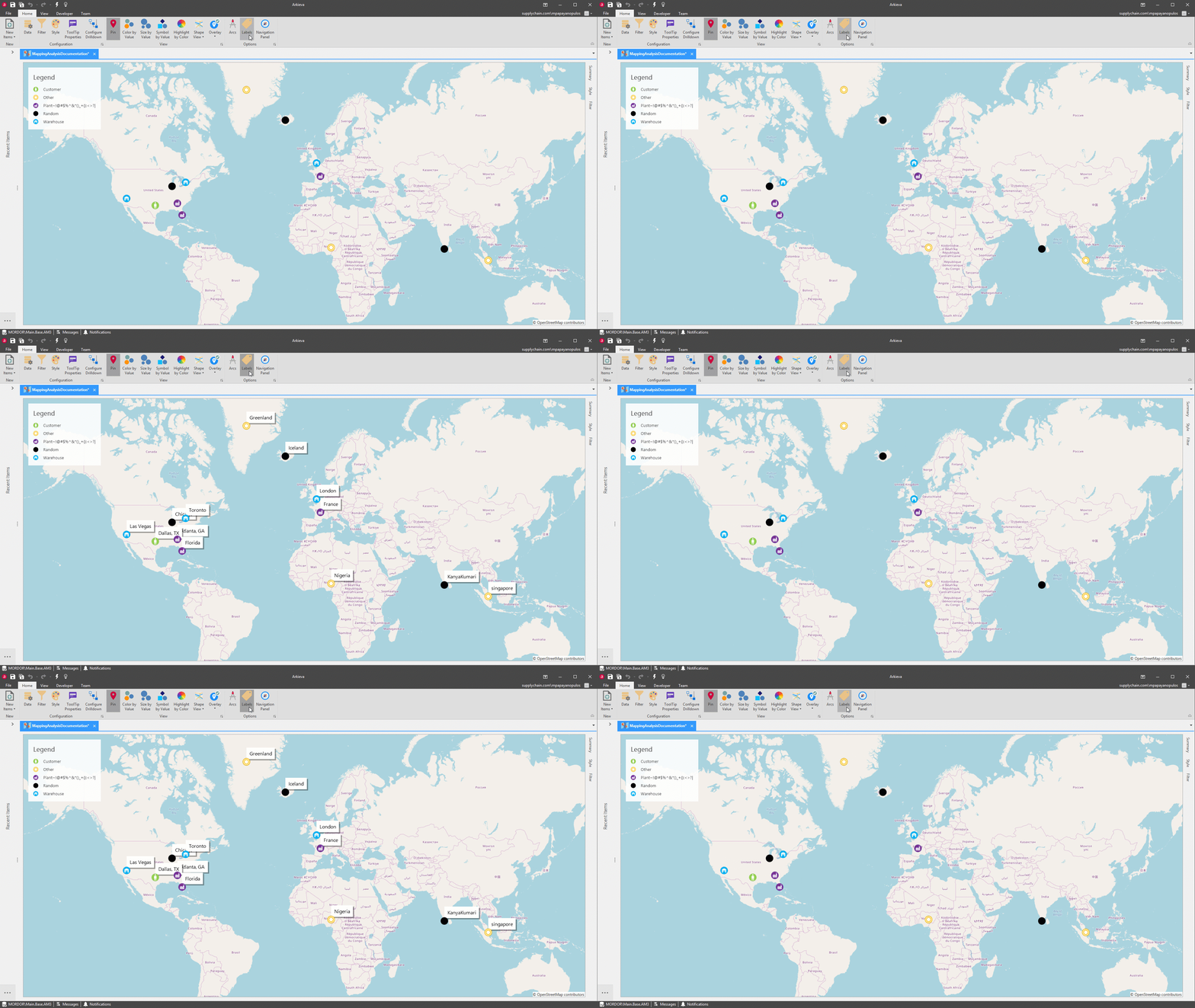
Labels show the names of the Source locations and destinations on the map. Toggle on Labels by clicking the Labels button located in the Options section of the ribbon.
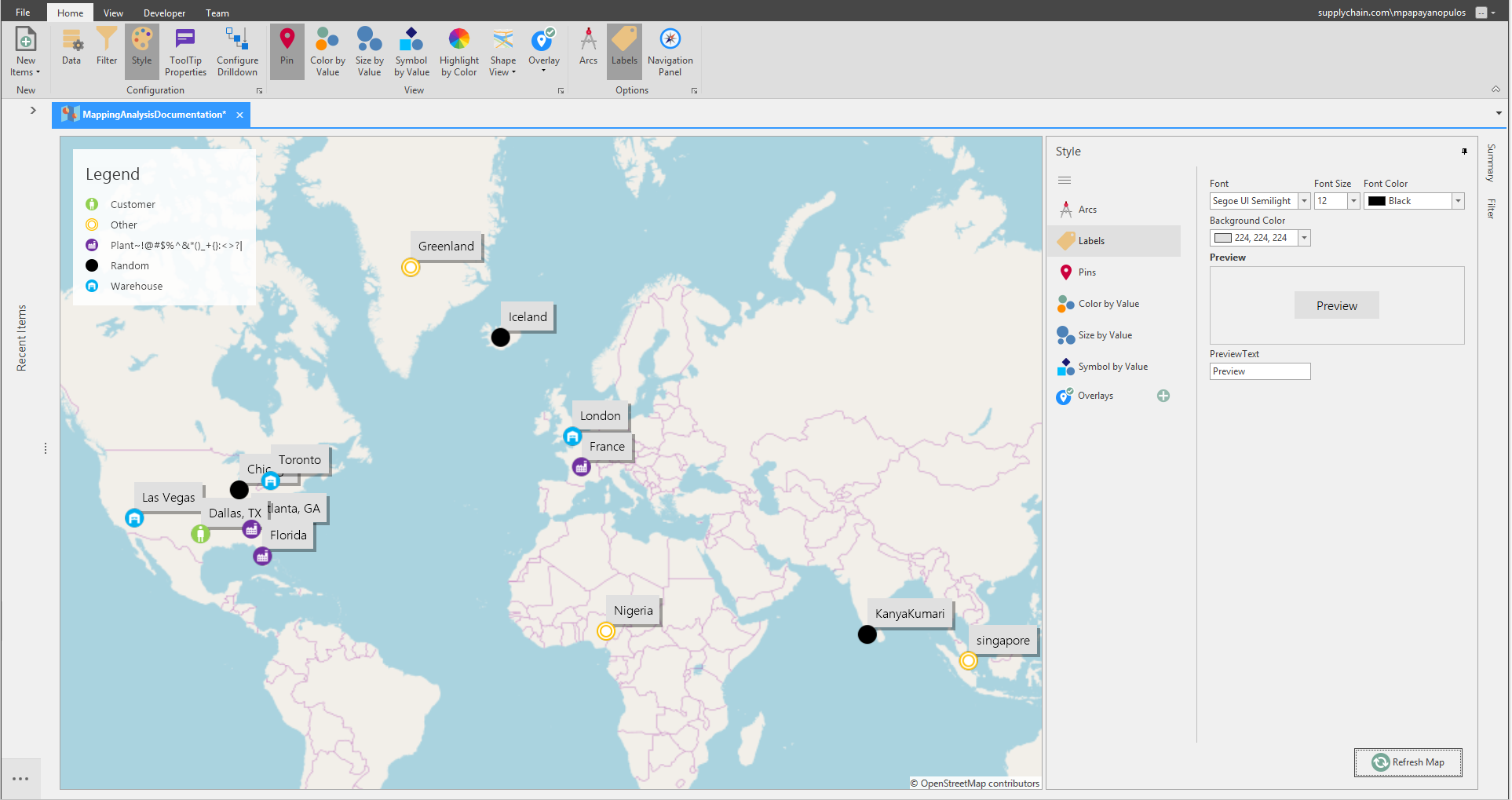
Click the Style button or the Style tab and select the Labels tab to customize the labels. Select the Font, Font Size, Font Color, and Background Color for the Label. Click Refresh Map to set the changes.
Arcs
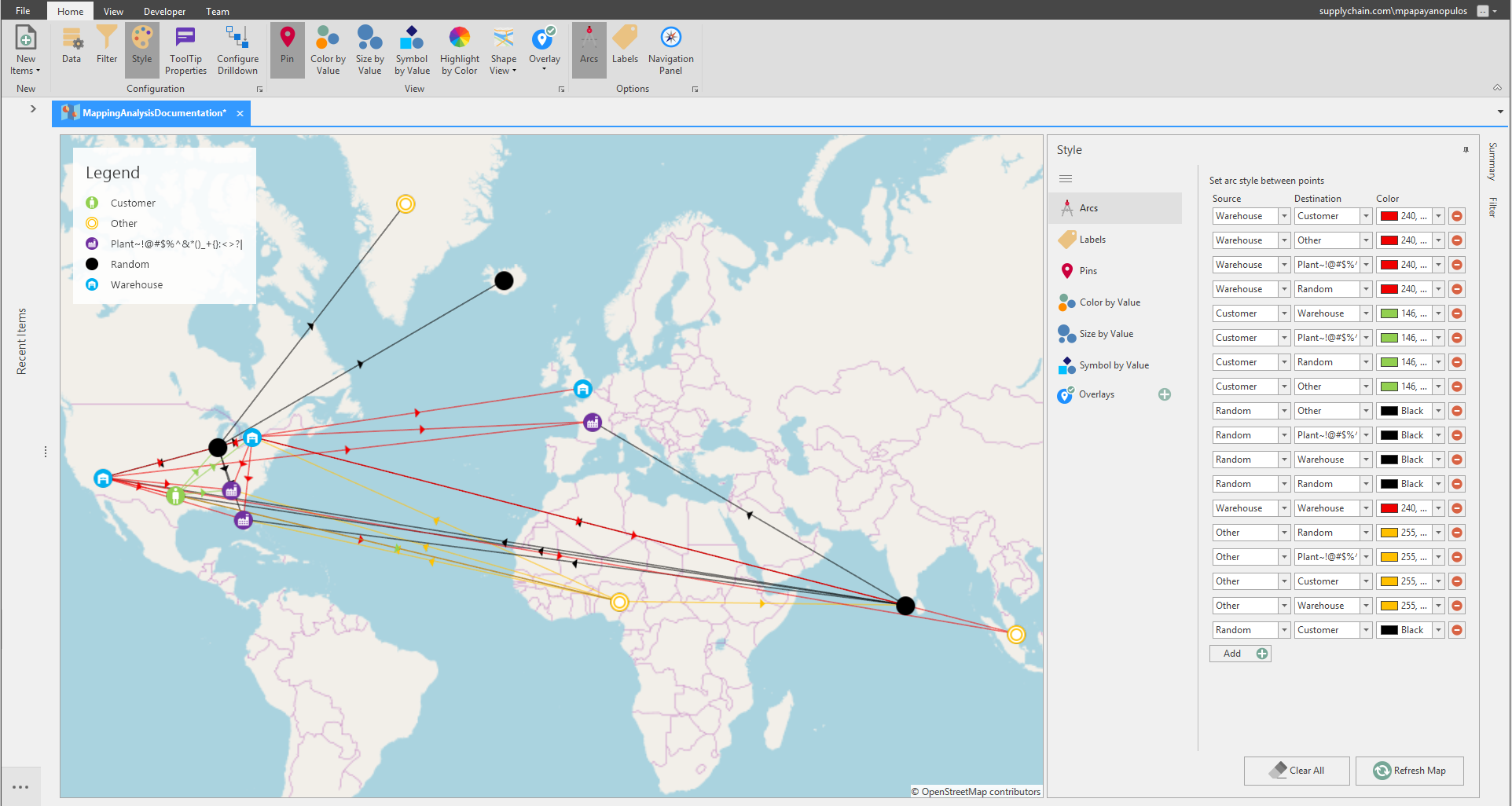
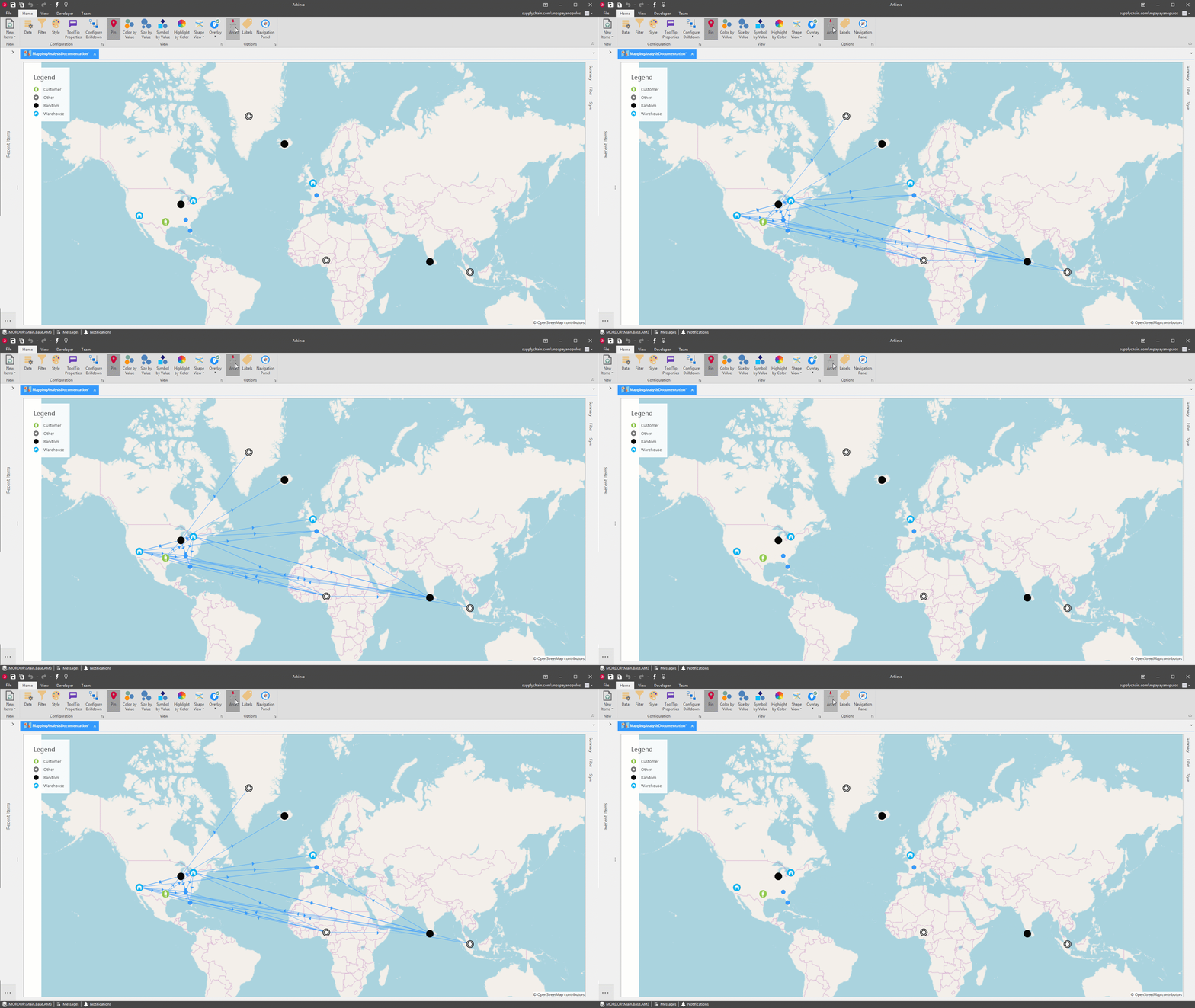
The Arcs option will show you the relationships between the Source and Destinations points on the map. Toggle on the Arcs by clicking the Arc button located in the Options section of the ribbon. The Arc style is set to blue by default.
To edit the Arc, launch the Style pane by either clicking the Style button located in the Configuration section of the ribbon or clicking the Style tab located at the right of the Map. Then click the Arcs tab.
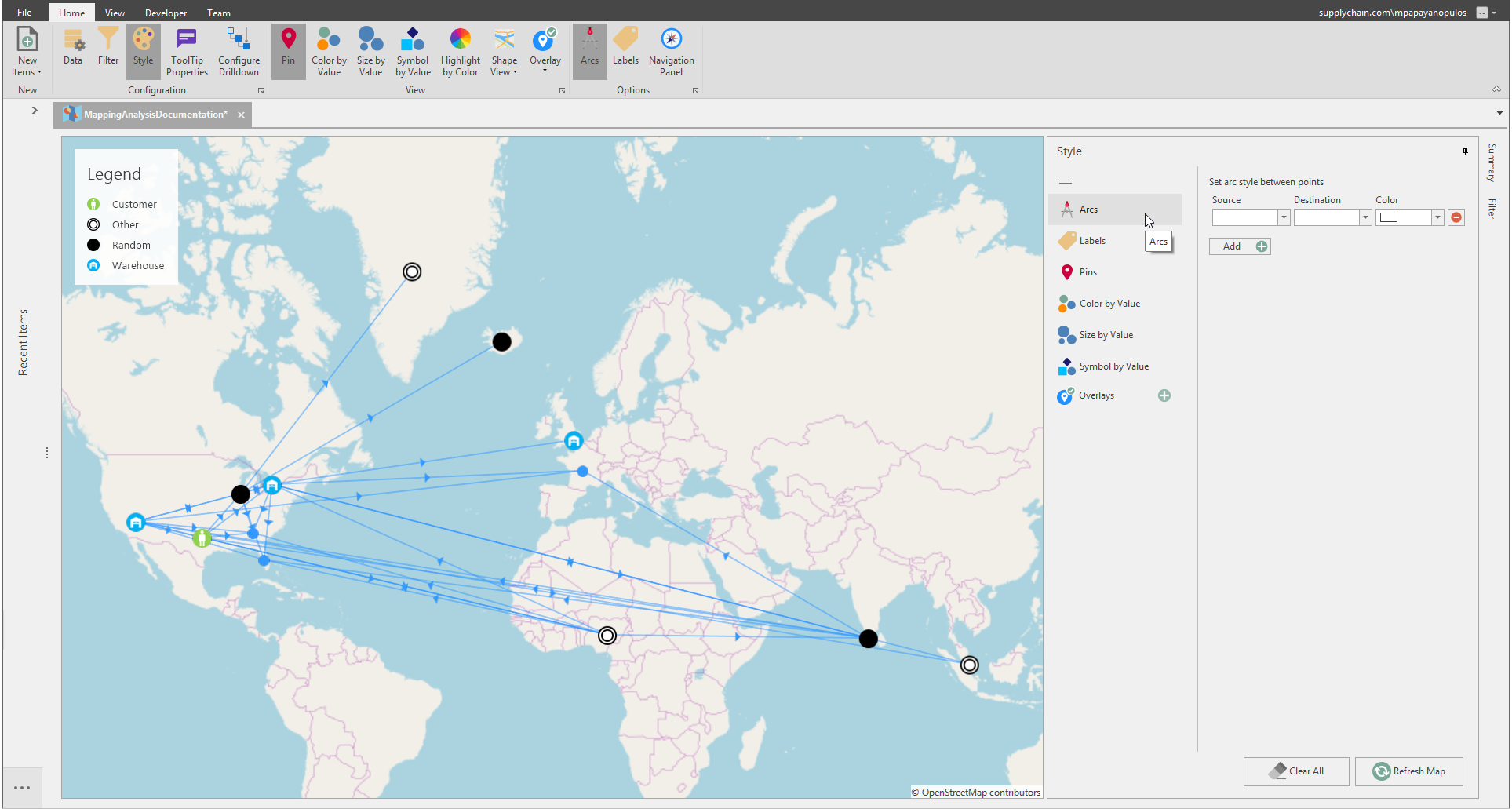
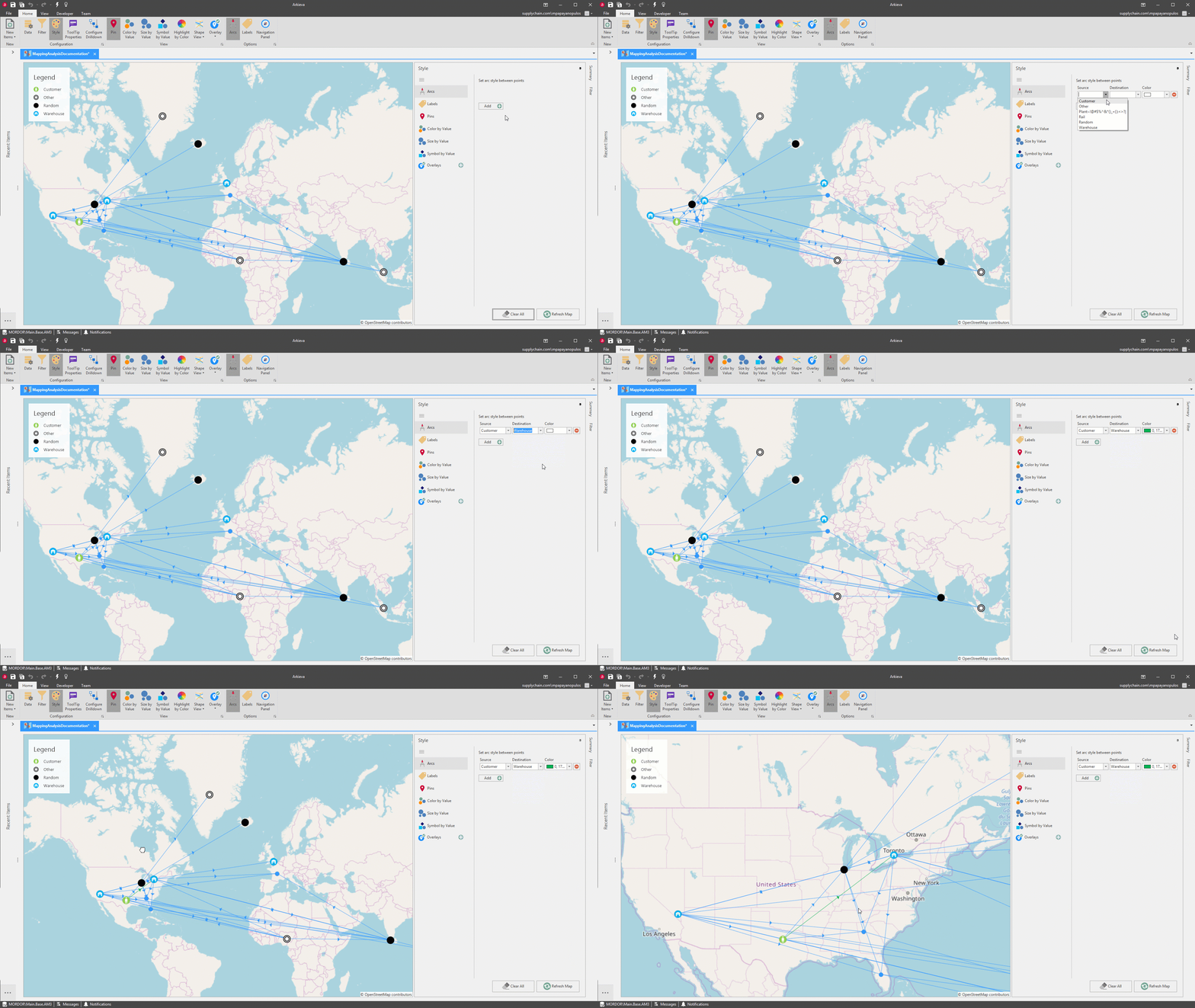
Click the Add button to begin customizing the Arcs. Select a Source point and a Destination point to connect the arc. Select a Color from the dropdown. Click Refresh Map to set the style selections.
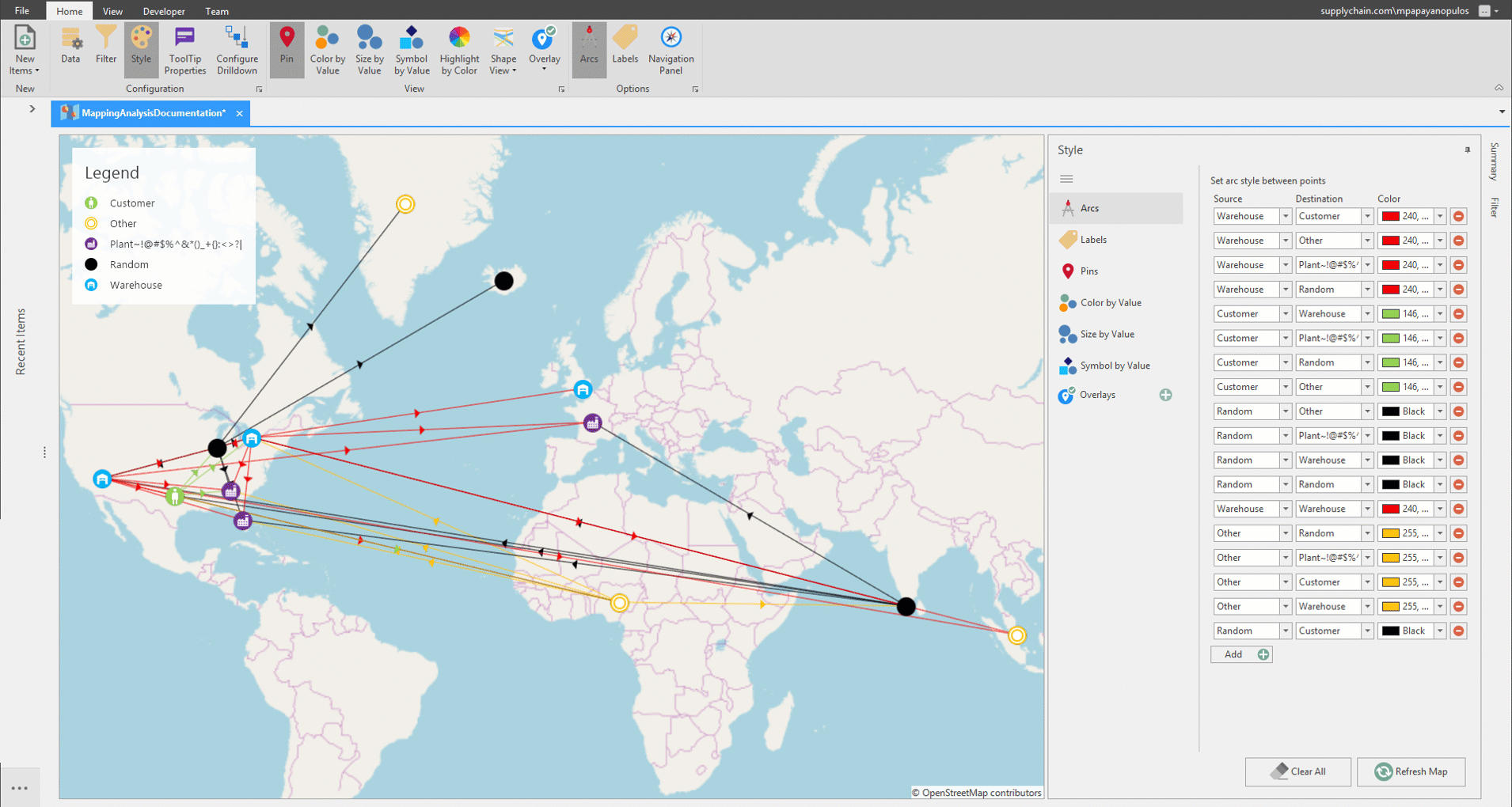
You can create as many different style arcs between points as you wish.
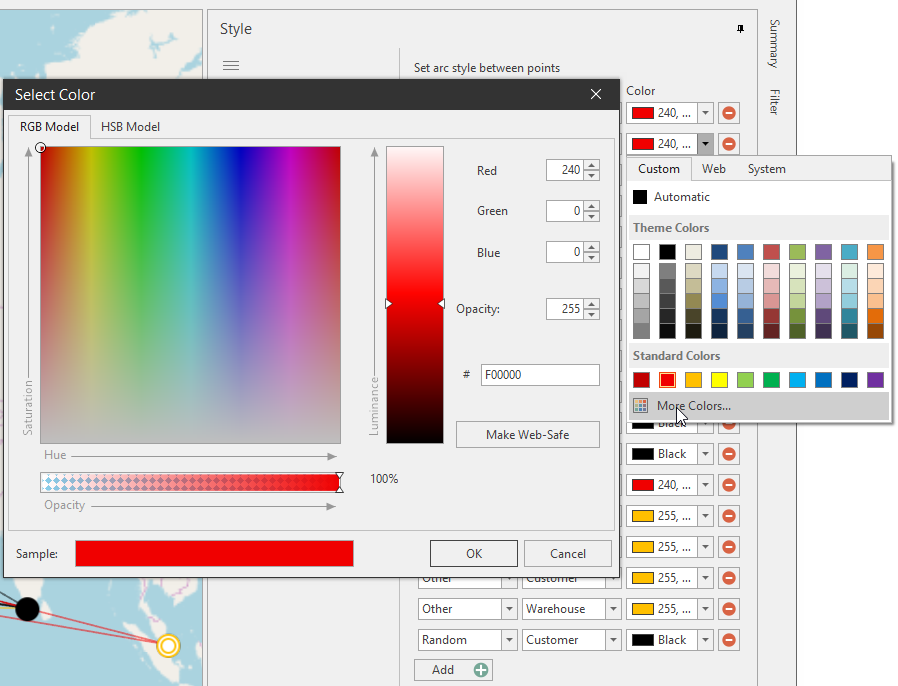
From the color dropdown you can click the More Colors link to select the opacity for the arc.
Click the Red Minus button to remove an arc style, or click Clear All to reset all arc styles back to the default blue.
Navigation Panel
Toggle the Navigation Panel on to view latitude and longitude on the map, and use the zoom in and out buttons. You can also use the mouse wheel to zoom in and out.
Overlay
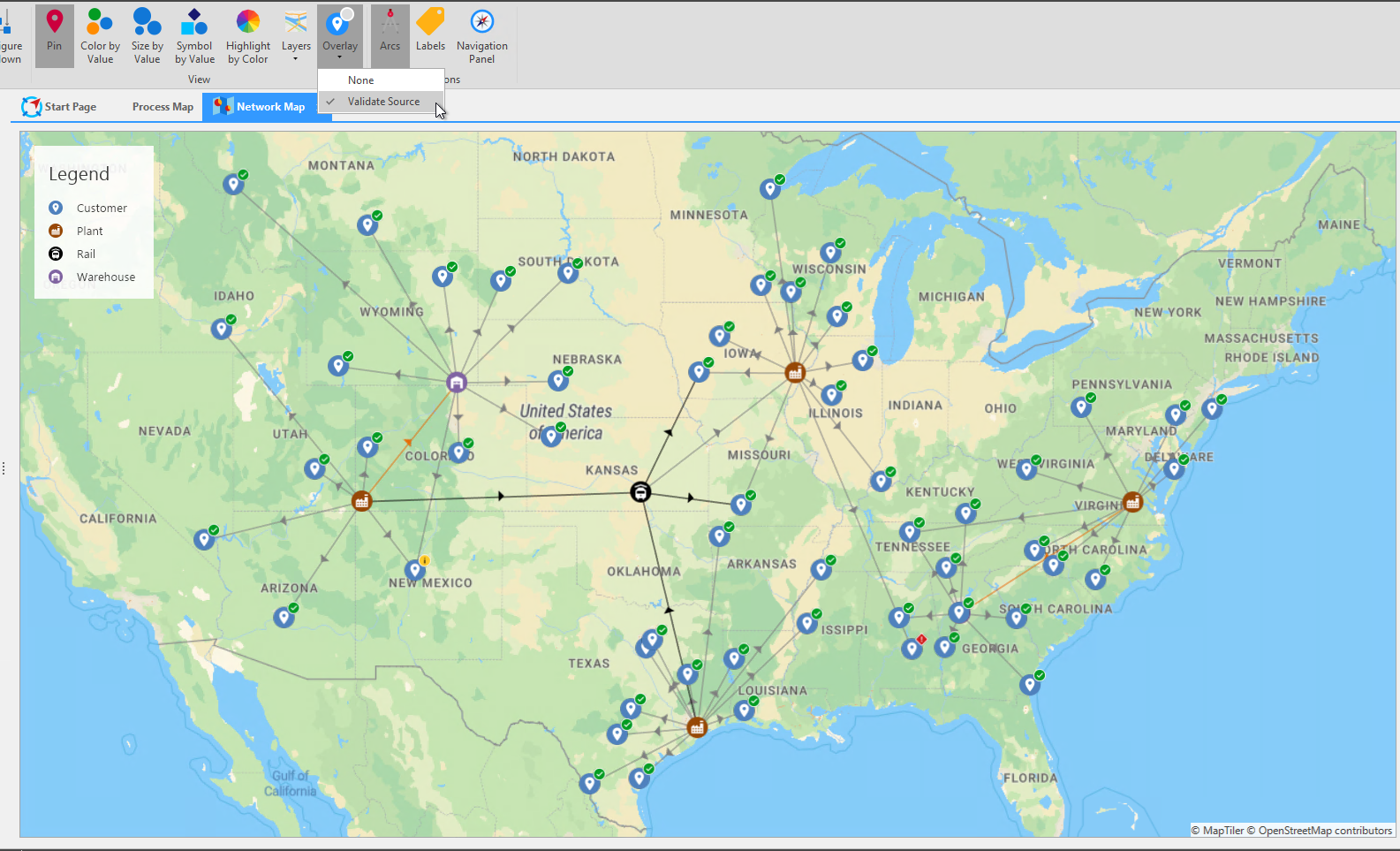
With the Overlay settings you can apply custom lines or icons over the existing map and validate business rules.
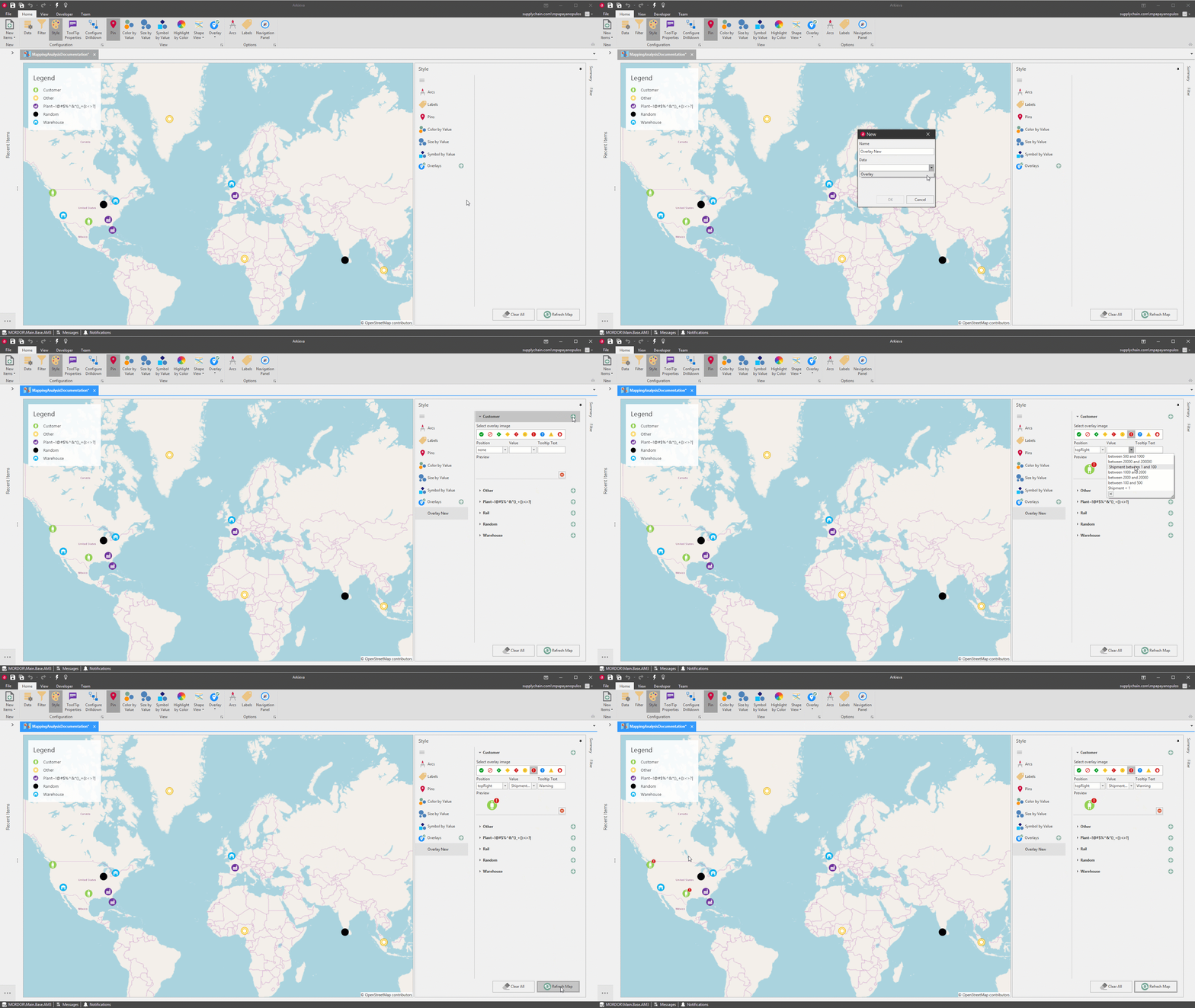
The Overlay option helps you to validate on the map business rules created in SQL by your Arkieva consultant. At this high-level you can quickly define if there are any issues with the network.
After the rules have been defined, go to the Overlay button and click the dropdown to access the Validate Source button. Clicking Validate Source will validate all mappings and highlight if there are any anomalies or issues in the network. A green checkmark means there are no issues, A yellow 'i' is a warning, and a red '!' means there are major issues with the mapping.