Data Canvas
Introduction
Data Canvas is an easy way to edit table and data source data in a Grid and Spreadsheet view. Select the source of the data, Table Editor or Data Source, to create a Data Canvas. A table or a data source must first be created before the Data Canvas can be used. When creating a data source for Data Canvas, avoid using tables containing Identity Columns and Computed Fields.
Data Canvas also allows a user to import data directly to Arkieva from Excel or import text files and edit the data using the Grid and Spreadsheet views.
Changes made to table data in Data Canvas gets saved back to the table data in SQL immediately, and changes made to data source data will save after clicking the Reload Data Source dropdown button. Data Canvas can be used as a stand-alone component or inside the Linear Programming (LP) Model and RCCP.
If a column is marked ‘read only’ it is hidden in the spreadsheet view. Auto ID columns and computed fields are hidden in the spreadsheet.
How to Make Table-editor Edits Through Excel or Data Canvas
Check out how to update your planning data through Excel or Data Canvas.
{`
`}
Launching Data Canvas
Create a Data Canvas by clicking the Data Canvas button located in the General section of the Create Ribbon.
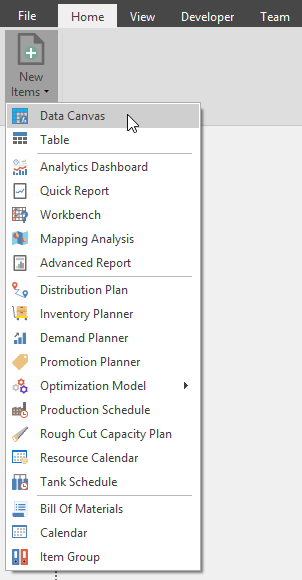
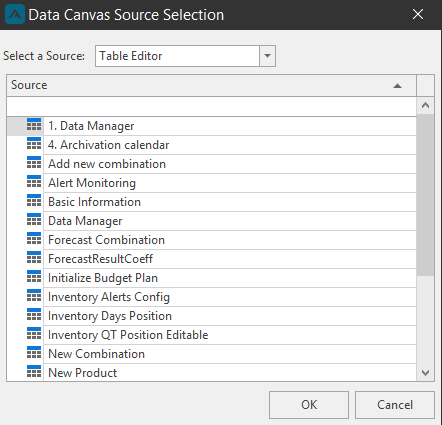
Next, select a Source from the Source dropdown: Tables Editor or Data Source. Then select a table or data source to load into the Data Canvas. Click OK.
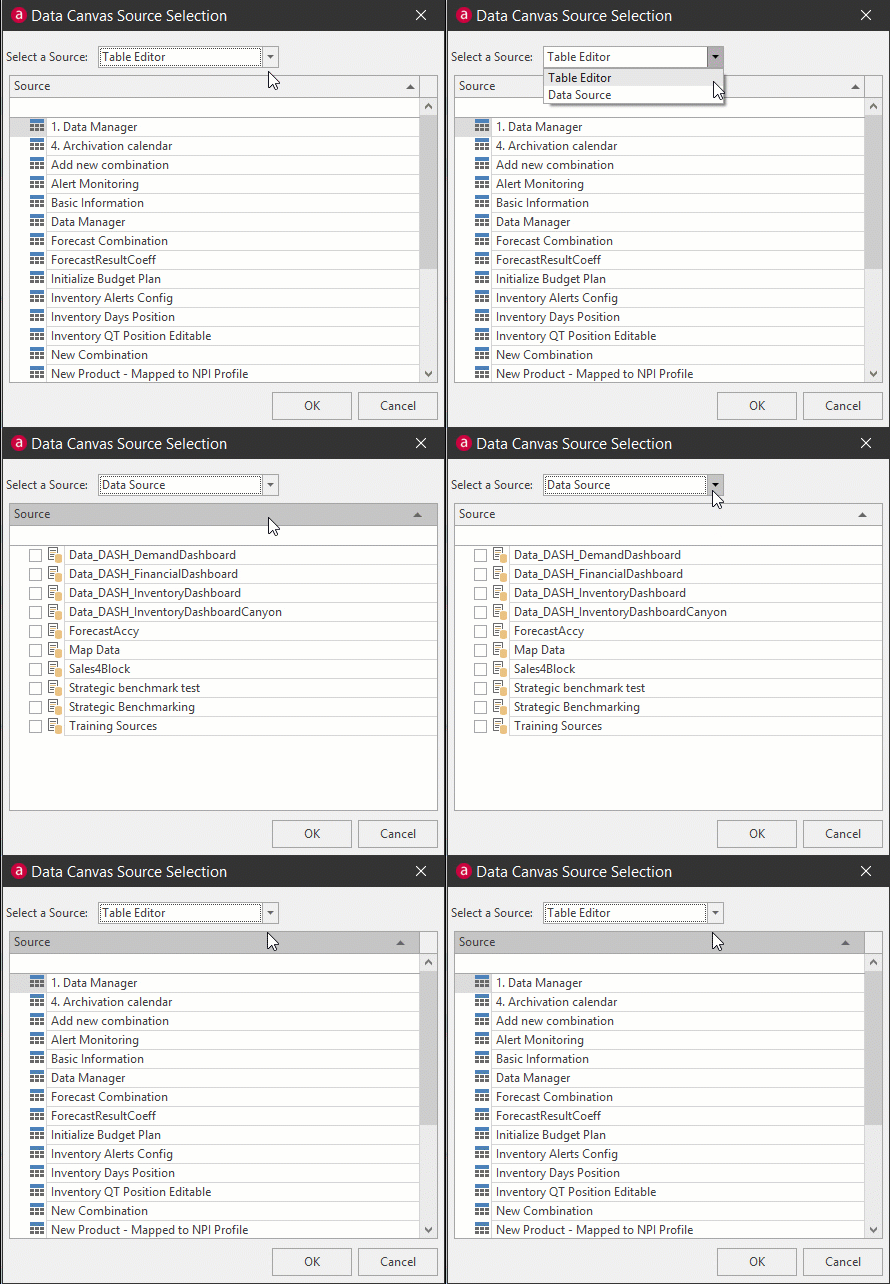
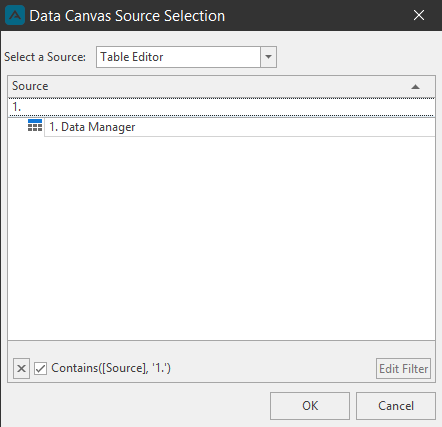
Select a source for the Data Canvas, and click OK to launch it. Use the Source search bar to drilldown a large list of sources. There is also the Edit Filter button to drilldown to numerous specific sources.
Grid View
Spreadsheet View
Grid View
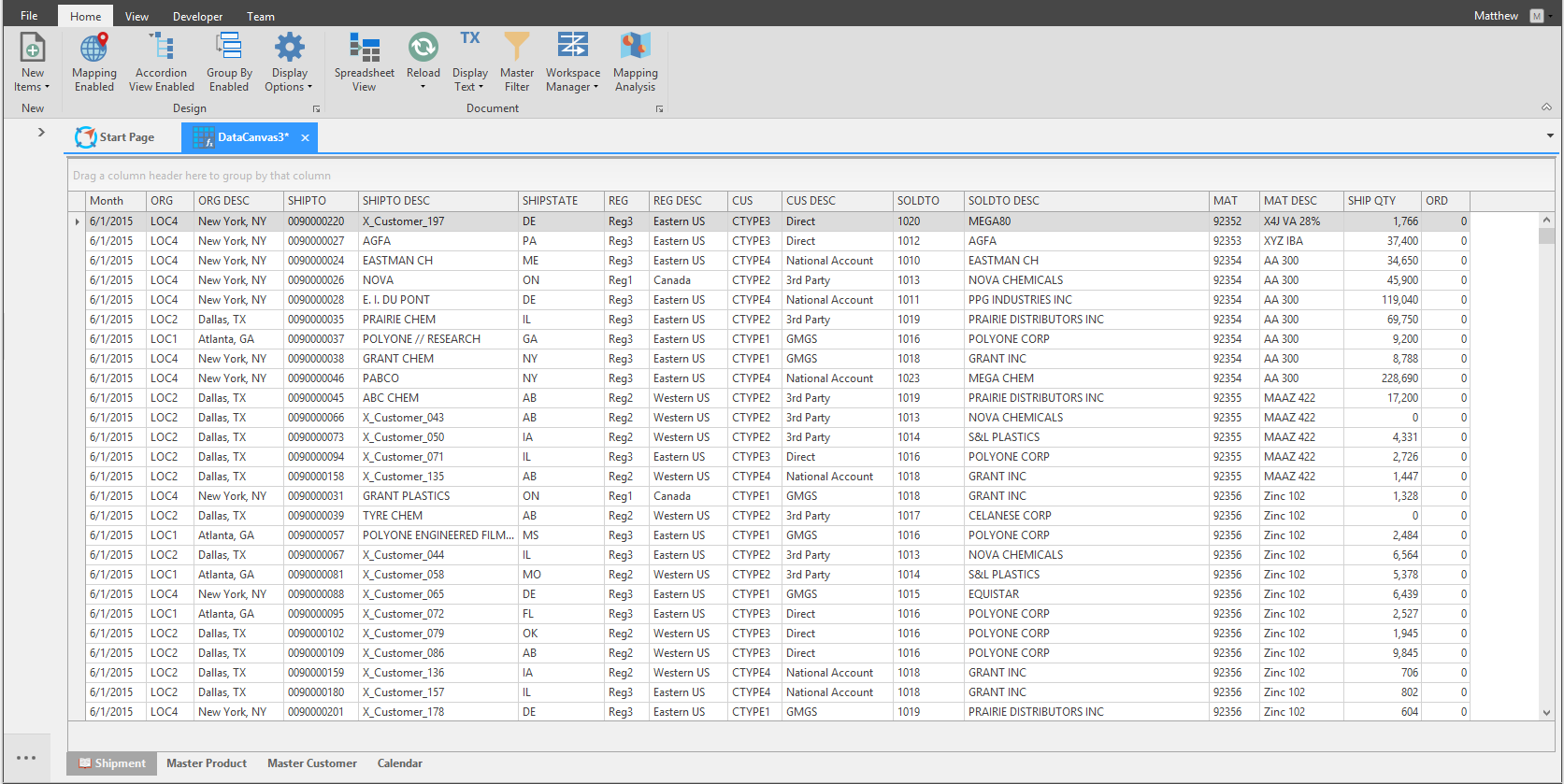
The Data Canvas will launch in the Grid View by default.
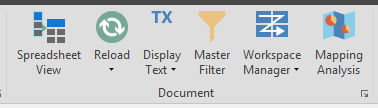
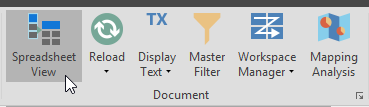
Spreadsheet View button
The Spreadsheet View exposes Excel Spreadsheet-like control over the data in the Data Canvas, and allows for the exporting and importing of the data to and from .xslx format. Click Spreadsheet View to go to the Spreadsheet layout. Spreadsheet View can only handle one million records.
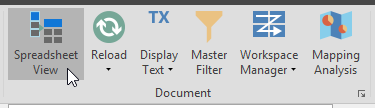
Reload
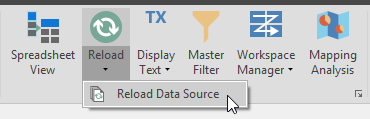
Reload discards any unsaved changes, and reloads the data directly from the database. Click Reload to load any changes made to the Table data Data Canvas document and save changes to the Table made in the Data Canvas.
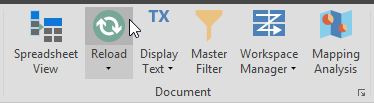
Click the Reload dropdown and select Reload Data Source to bring in and changes to a Data Source Data Canvas document and save any changes to the Data Source made in the Data Canvas.
Display Filter
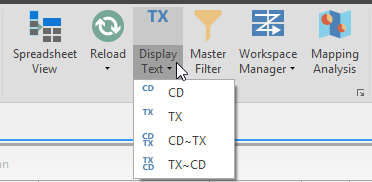
Click the Display Text dropdown to change the display text to CD, TX, CD-TX, or TX-CD.
Master Filter
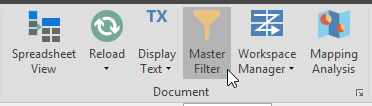
Each Data Canvas tab can be filtered from the column headers individually or multiple tabs at once by using the Master Filter toggle button. Toggle on Master Filter to apply a filter to multiple table tabs with the same data.
For this example, we will we will use the Master Filter to filter Product Family CD in both the Product Family and Inp Product Family tabs.
To Filter data in the Data Canvas, hover the mouse over a column header to reveal the funnel icon. Click the icon to open the filter menu.
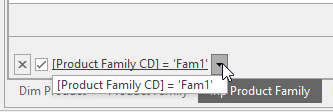
Check the checkboxes of items to filter. Click OK to set that filter. The filter will show at the bottom toolbar of the Data Canvas layout.
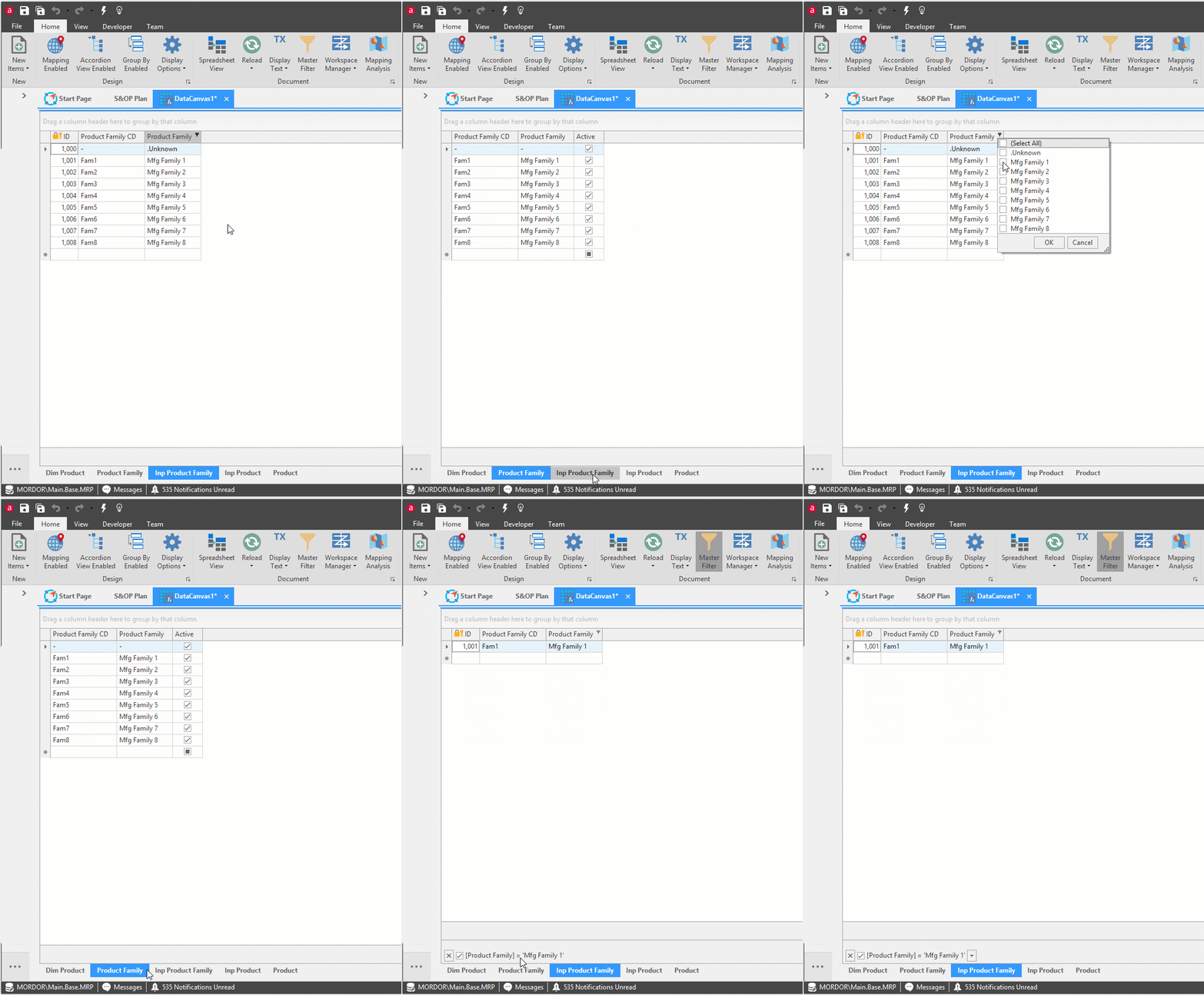
Click the down arrow to see all filters created on this Data Canvas document. These previous filters can be selected for use or deleted by hovering the mouse over the filter and clicking the red X button.
Workspace Manager
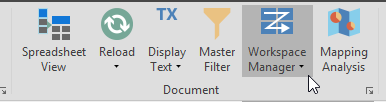
A user can capture the workspace and save it to their desktop with the Workspace Manager.
Click Workspace Manager to open the dropdown, and click Capture Workspace. Create a name for the New Workspace and click OK.
Mapping Analysis
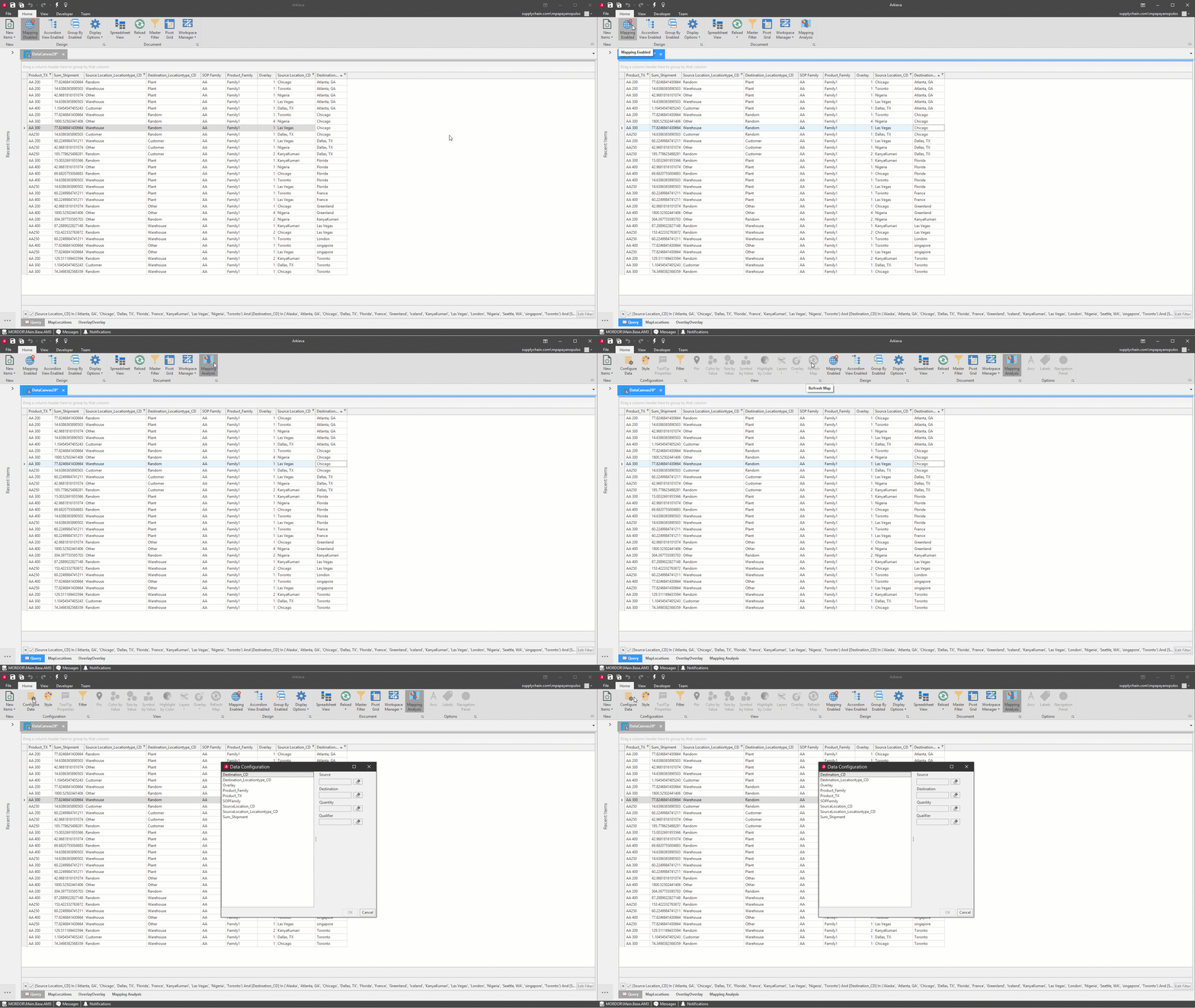
You can use the Mapping Analysis within Data Canvas to track the location and destination movements for products, customers, etc. The setting up of a Mapping Analysis in Data Canvas works a little differently than the standalone Mapping Analysis component.
If mapping has been disabled on the Data Canvas, click the Mapping Disabled button to enable Mapping. The Mapping Analysis button will appear in the Document section of the ribbon. Click the Mapping Analysis button, the Mapping Analysis document will launch as a tab along the bottom of the Data Canvas.
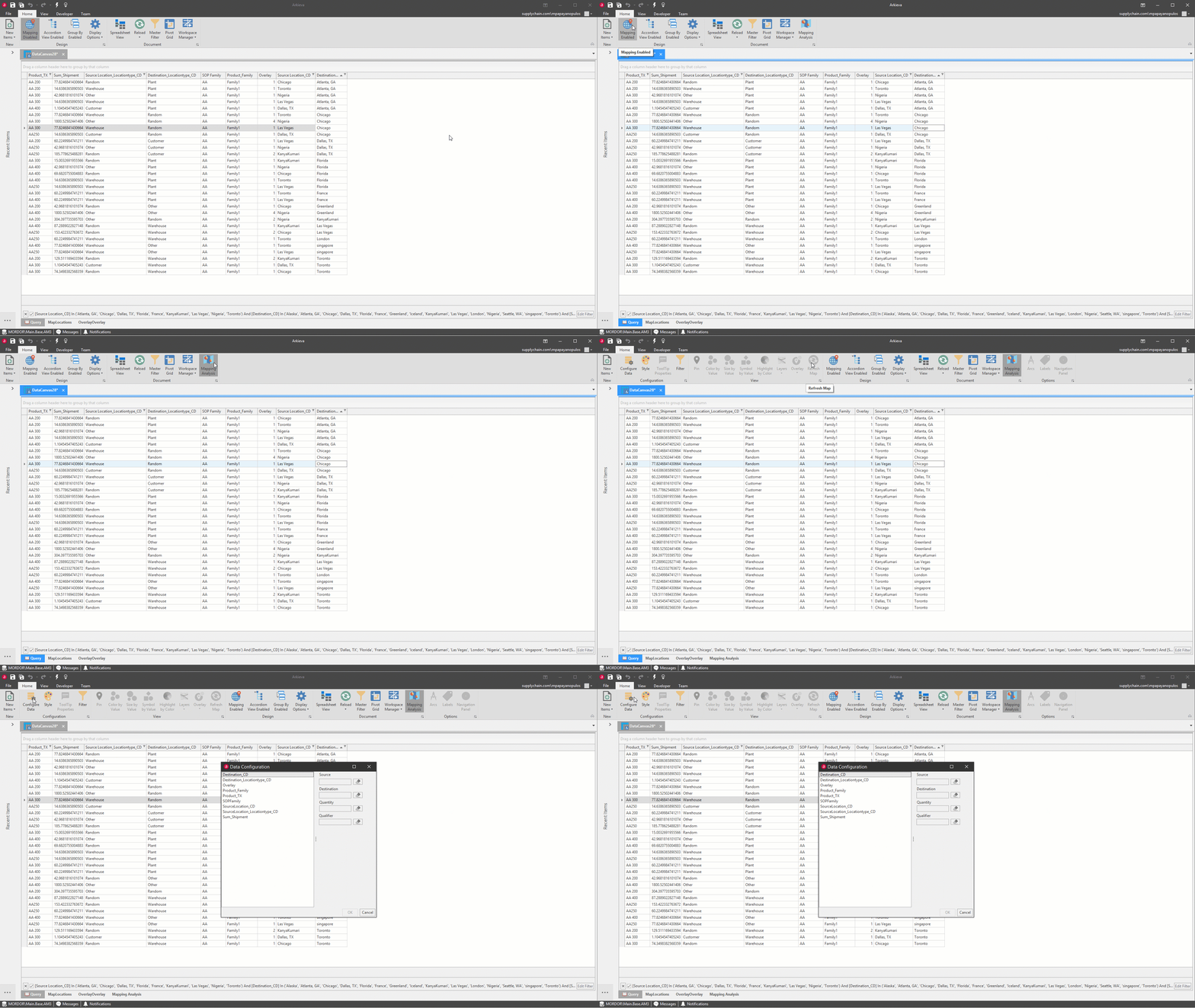
Click the Configure Data button in the Configuration section of the ribbon to launch the Data Configuration window. Click and drag data to the appropriate Source, Destination, Quantity, and Qualifier boxes.
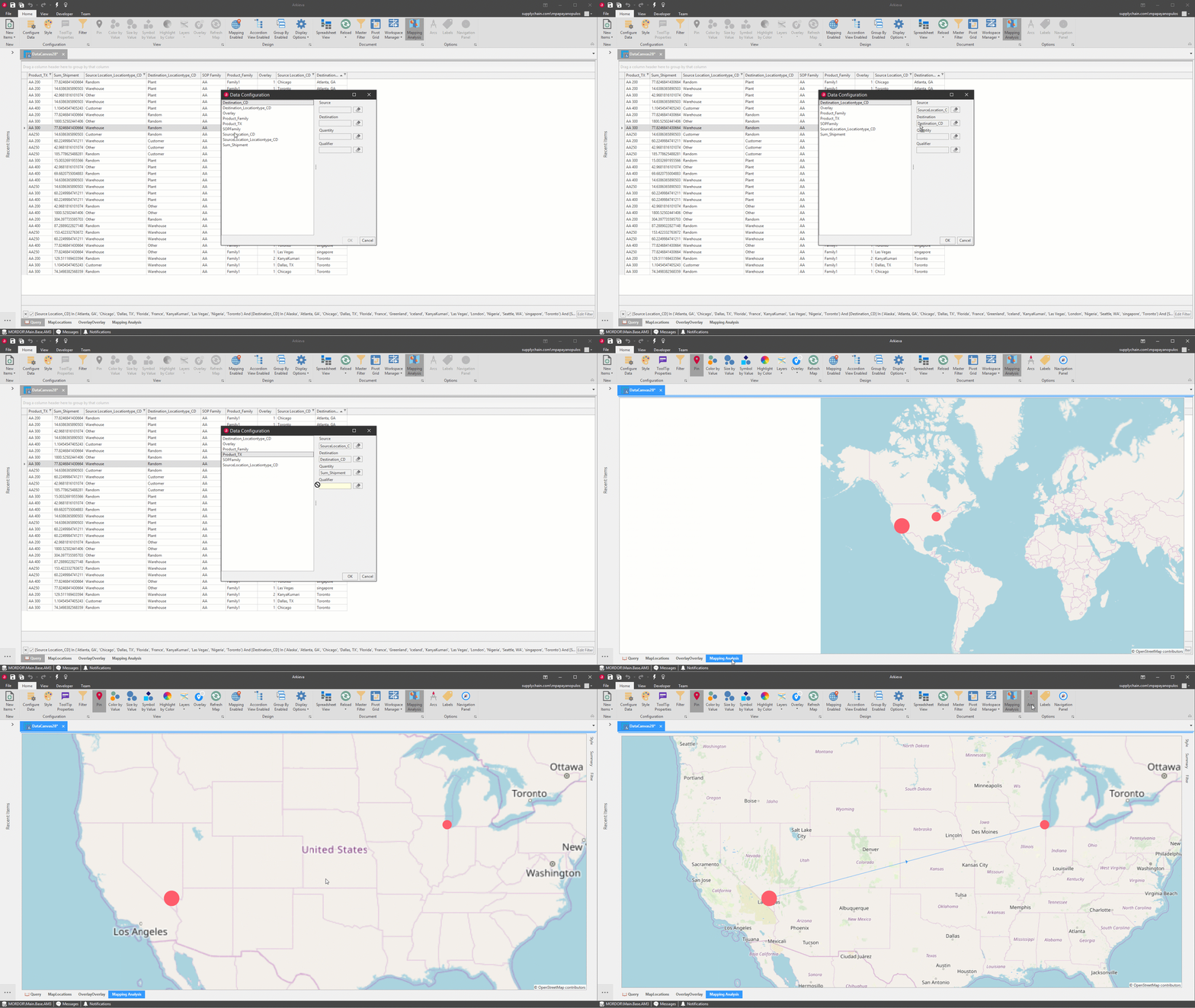
After Data Configuration, the Data Canvas Mapping Analysis functions the same as the Mapping Analysis component. Customize the map by utilizing the Style, Summary, and Filter tabs.
Header Column Right-Click Menu
Header Columns reflect a selected Table’s Entity Fields or a selected Data Source’s fields.
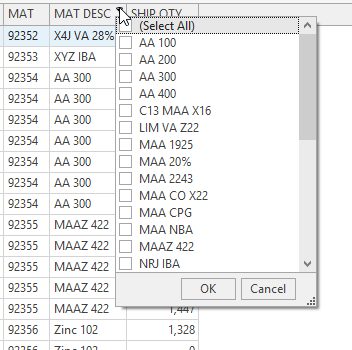
Right-click a Column Header for the right-click menu. Click here for an explanation of the column header right-click menu options found elsewhere in Arkieva.
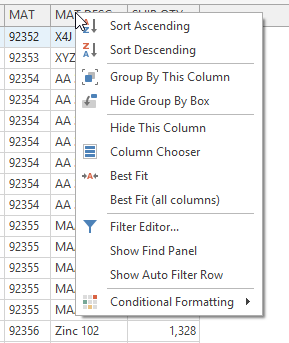
There are however some unique right-click options found in Data Canvas.
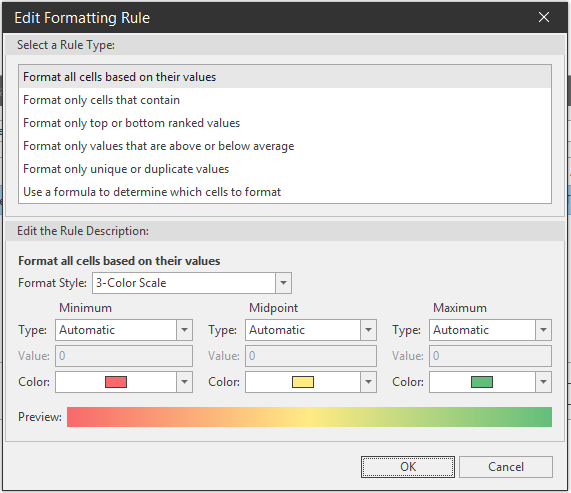
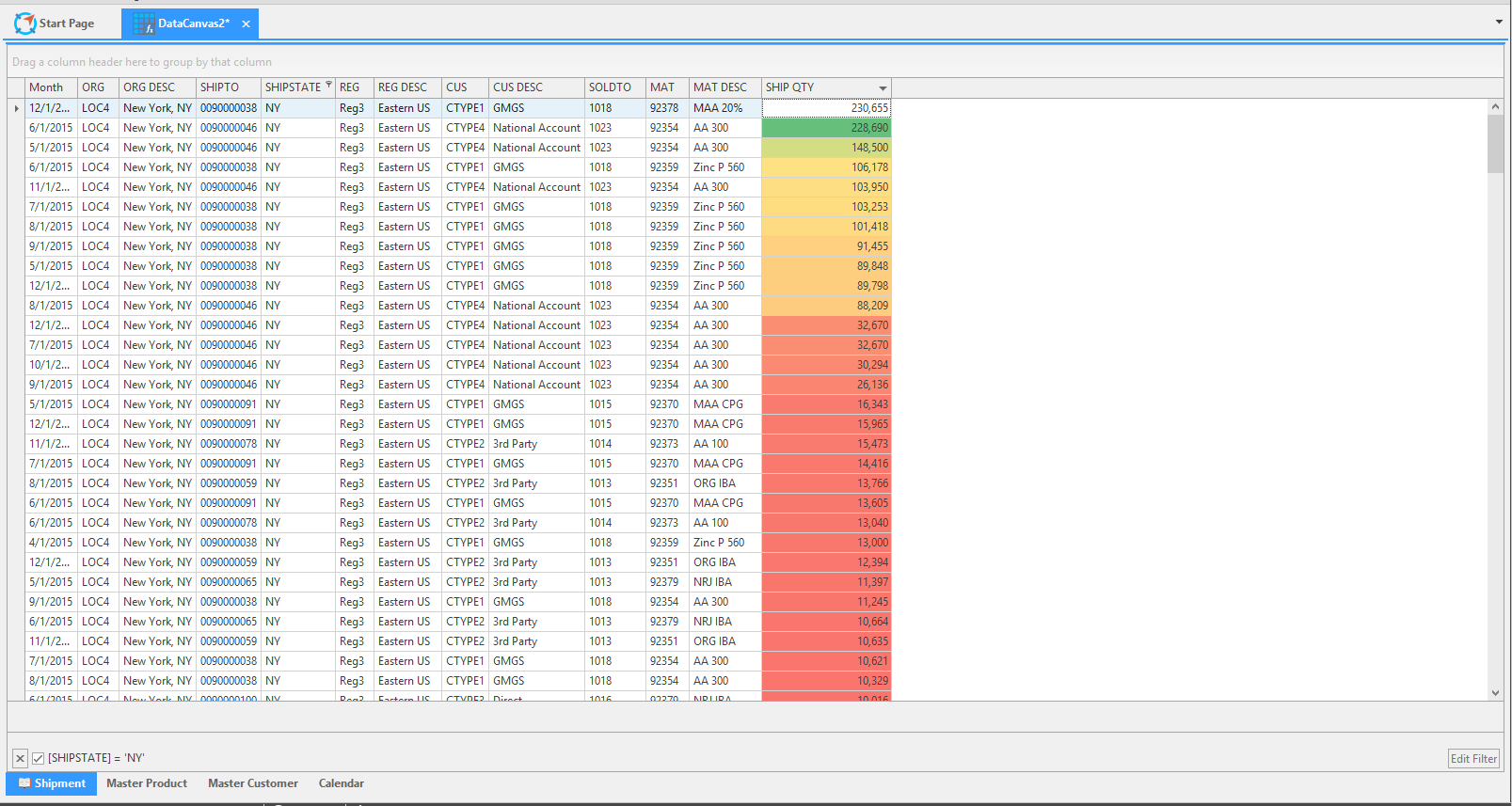
Conditional Formatting\ Use conditional formatting to place visual changes and filtering to the column data.
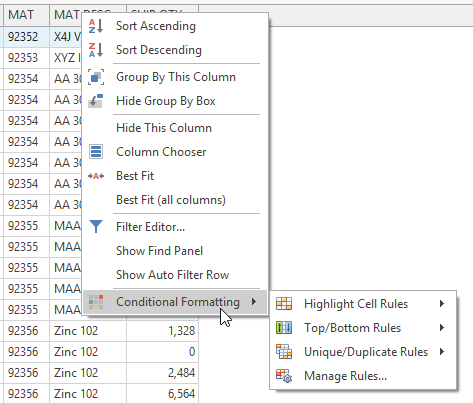
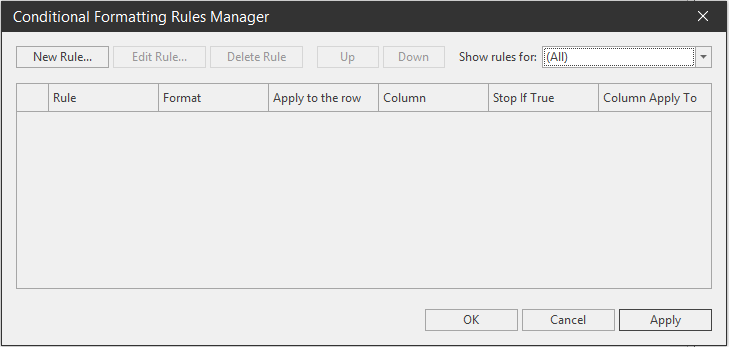
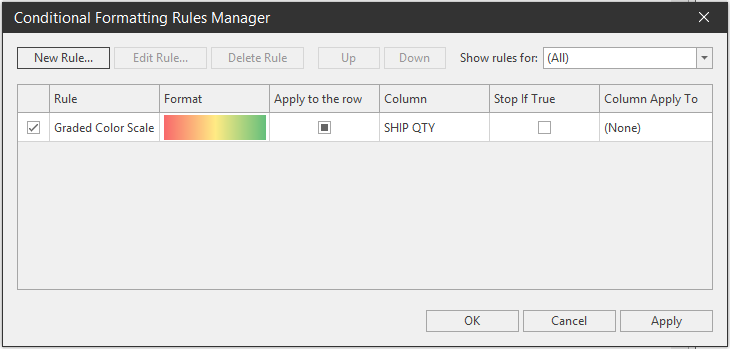
Manage Rules\ Any conditional formats created for the columns will be listed in the Conditional Formatting Rules Manager window.
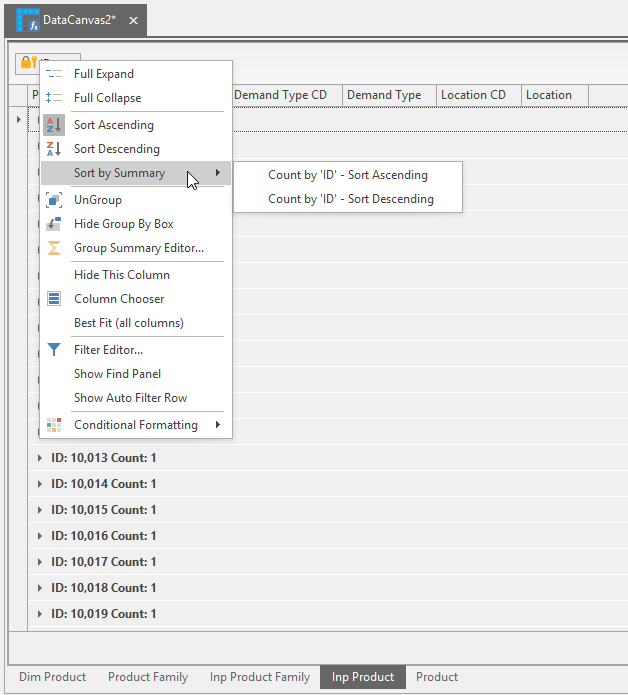
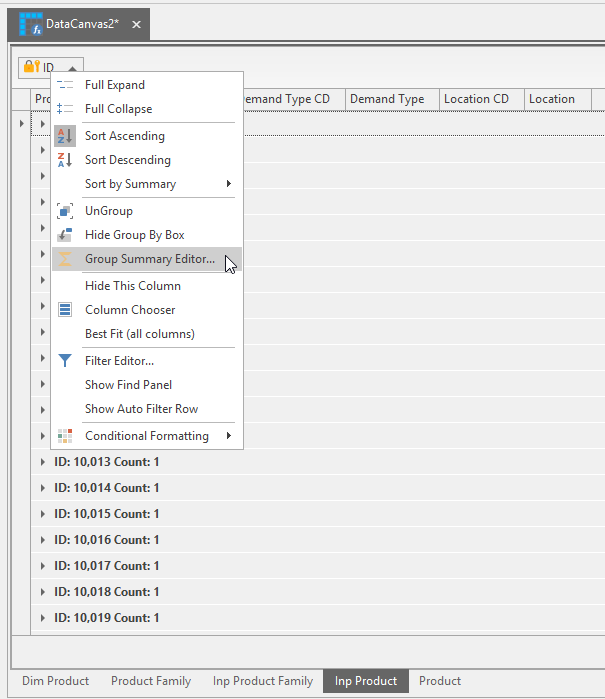
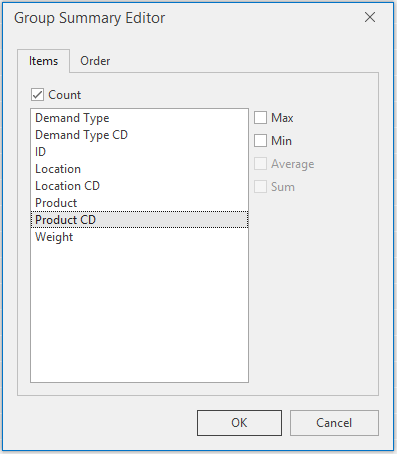
Grouping Sorting Options\ Two additional options for header columns are available when they have been dragged to the column group section:
- Sort by Summary: Additional sorting options.
- Group Summary Editor…: Sort columns by Max, Min, Average, and Sum.
Grid Layout right-click menu
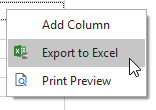
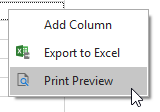
Right-click a grid cell for Add Column, Export to Excel, and Print Preview options.
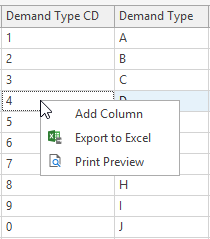
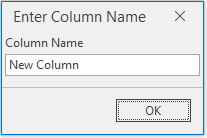
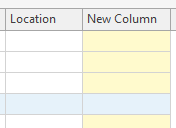
Add New Column (Expression Editor)\ Adding a new column allows users access to the Expression Editor. Right-click any cell and click Add Column. Type a name for the column and click OK.
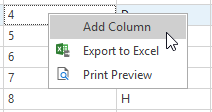
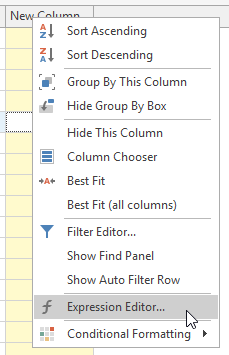
Right-click the new column header to access the Expression Editor.
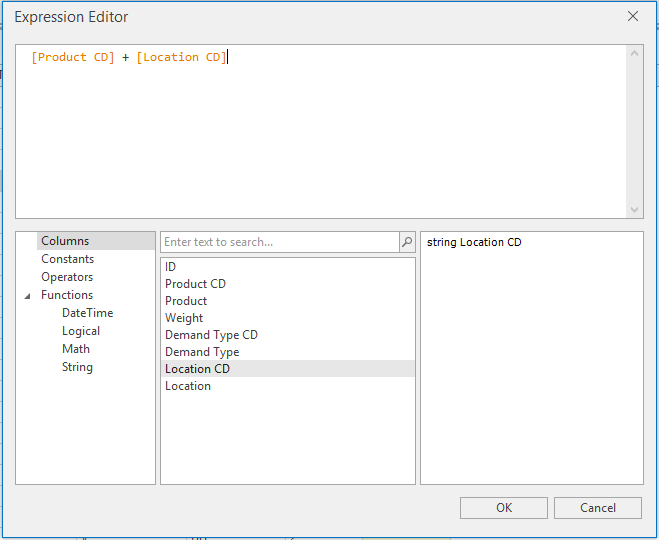
Select items or type an expression for the new column; click OK to set the expression. Multiple new columns can be created to create more expressions.
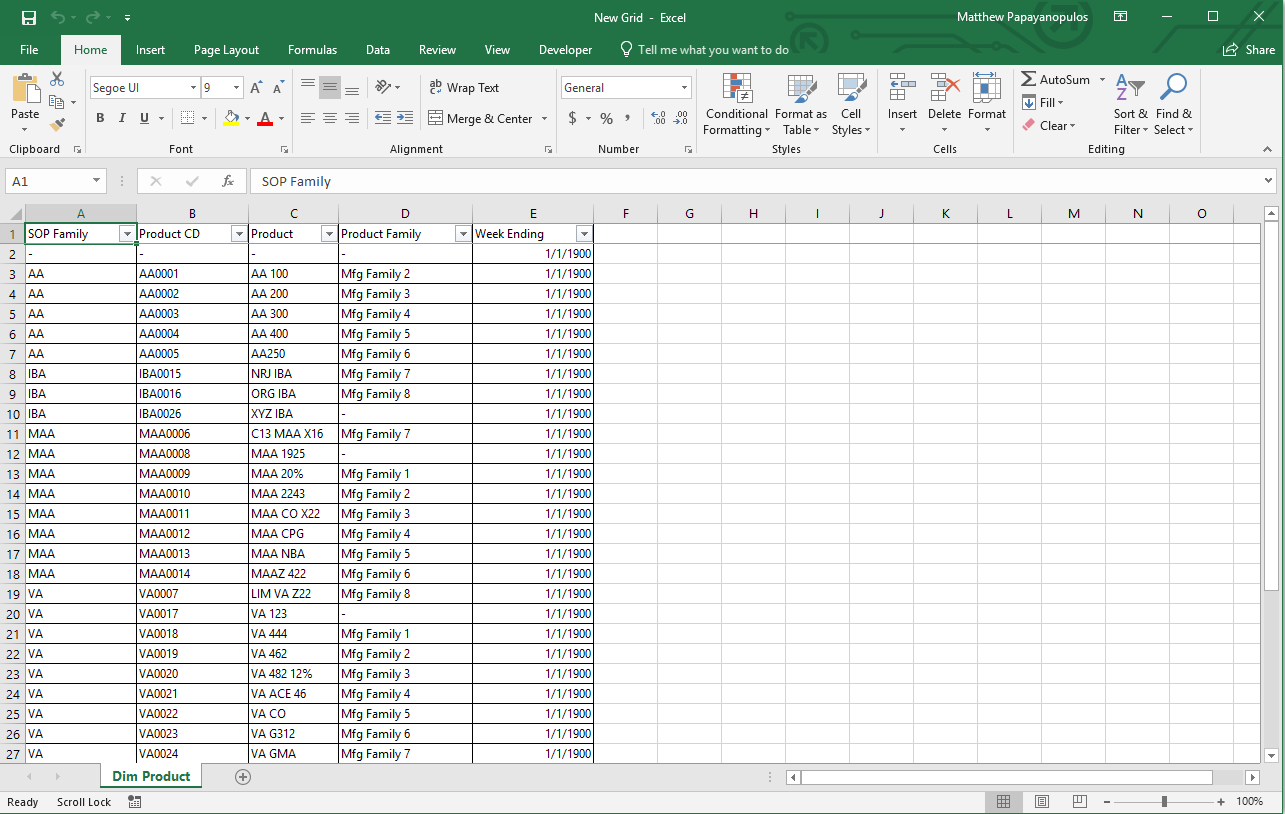
Export to Excel\ Export the Grid Layout to Excel.
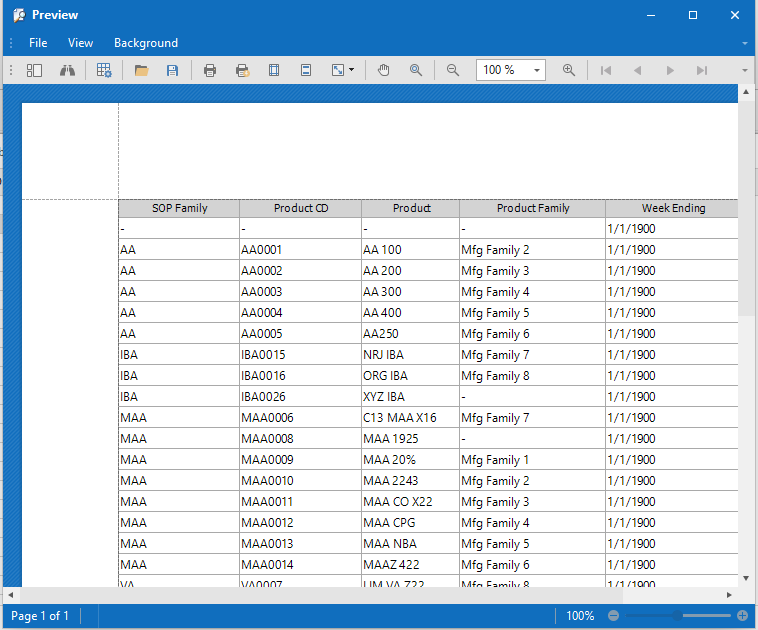
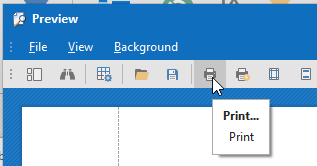
Print Preview\ Click Print Preview to create a printable version of the data canvas grid view.
Column Calculations
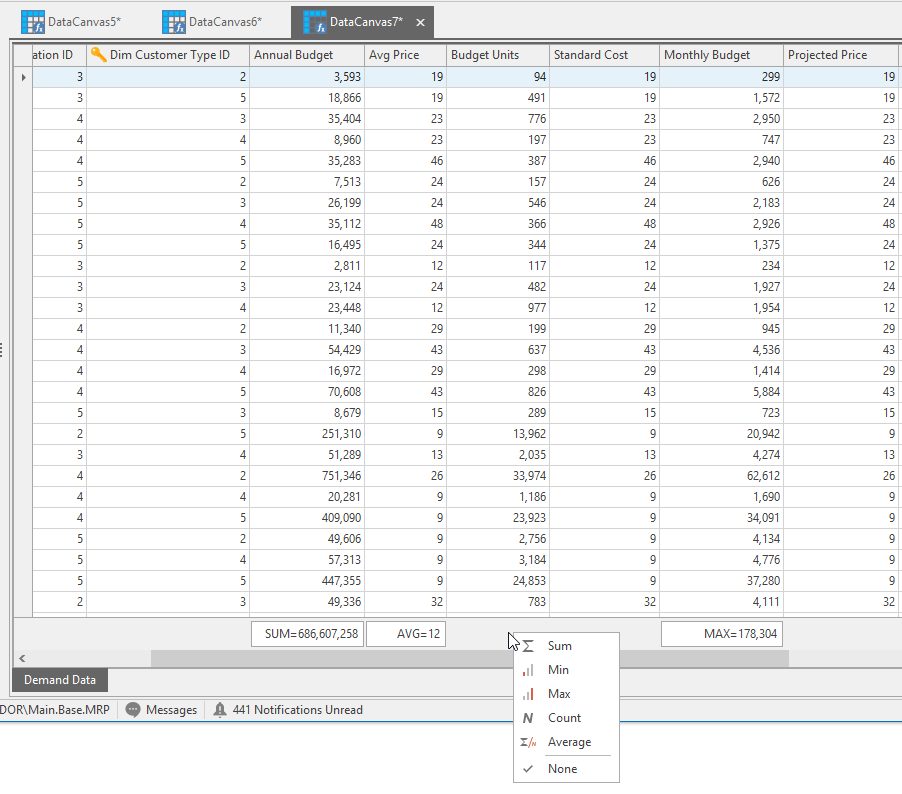
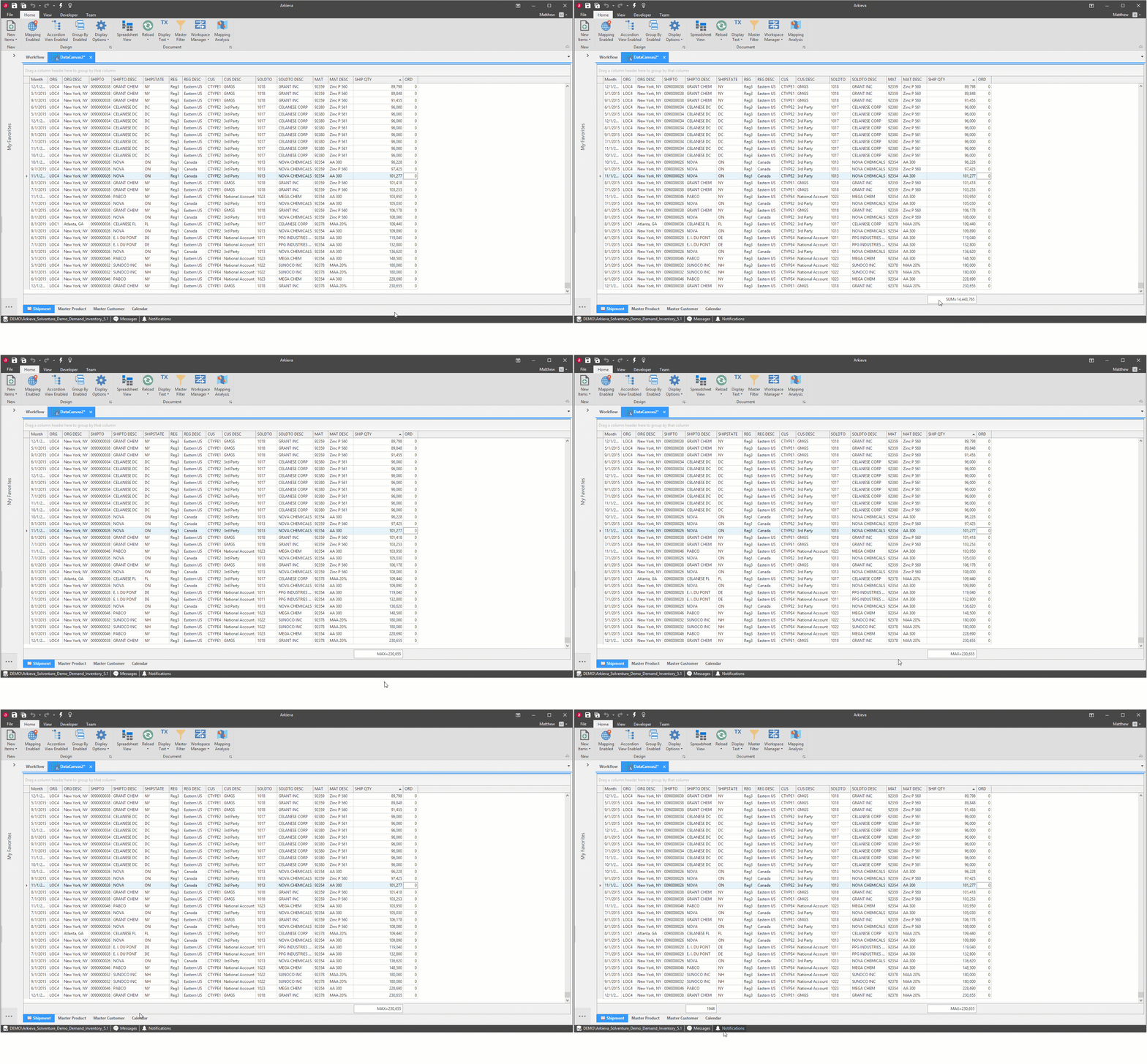
The empty space under the column information can be right-clicked to reveal additional column calculations that can be performed on each column. Right-click under a column then select Sum, Min, Max, Count, and Average to calculate the values in that column.
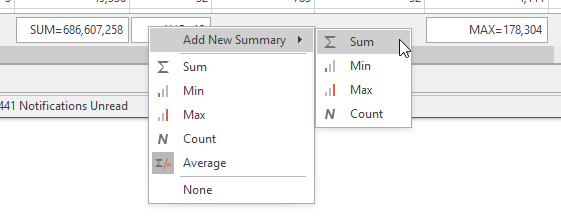
Add another calculation to the column by right-clicking under a column and selecting Add New Summary; select another calculation.
Spreadsheet View
Spreadsheet View exposes Excel Spreadsheet-like control over the data in the Data Canvas, and allows for the exporting and importing of this data to and from .xslx format. Many options available in the Data Canvas Spreadsheet View are similar to Excel; if you know how to use Excel you will feel right at home in the Spreadsheet view.
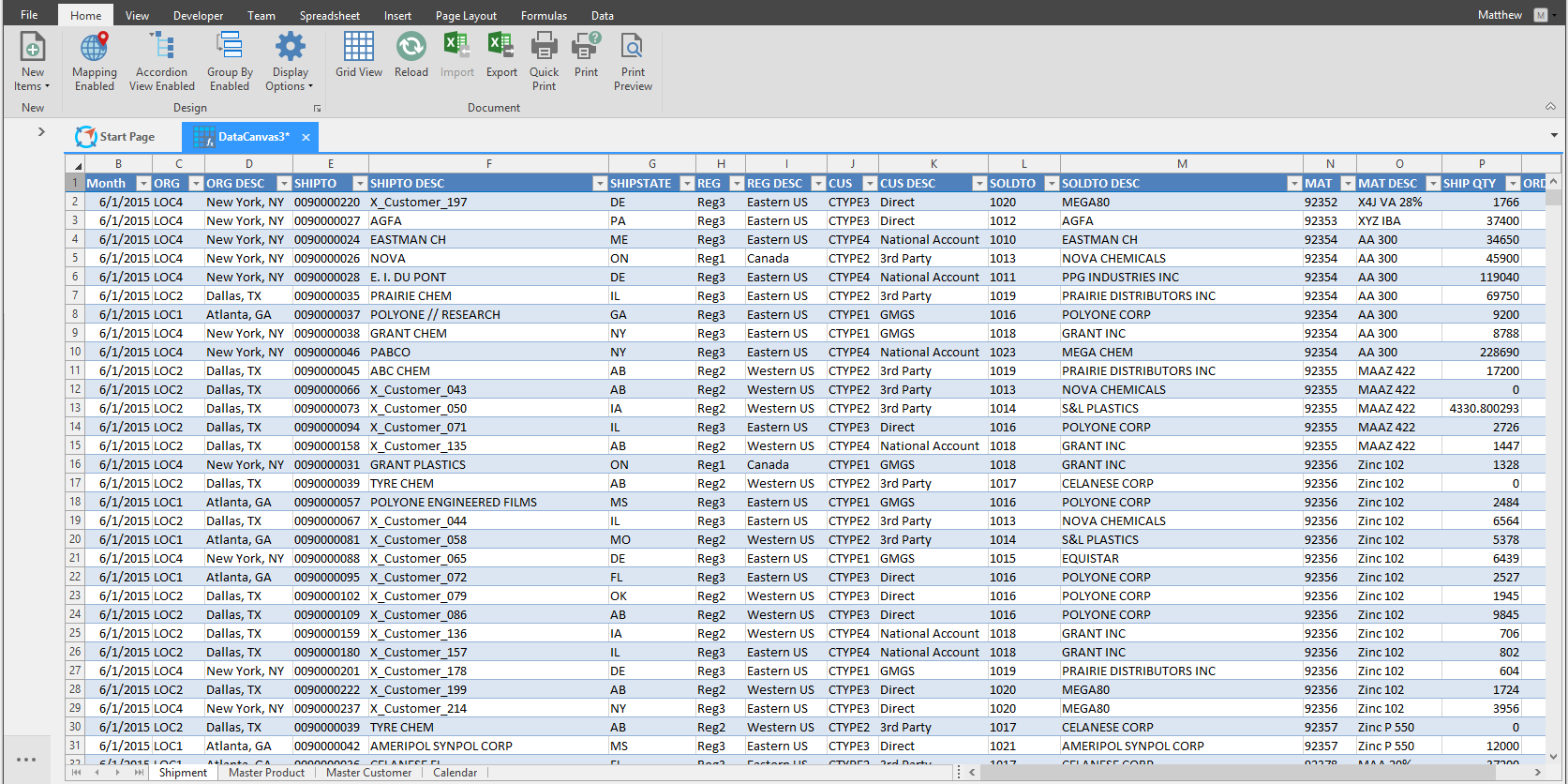
Spreadsheet View allows for further manipulation of the table data; anything you can do in Excel, you can do in Data Canvas. The only requirement being the structure of the file remains unchanged, meaning the column names and worksheet name is unchanged.
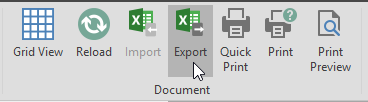
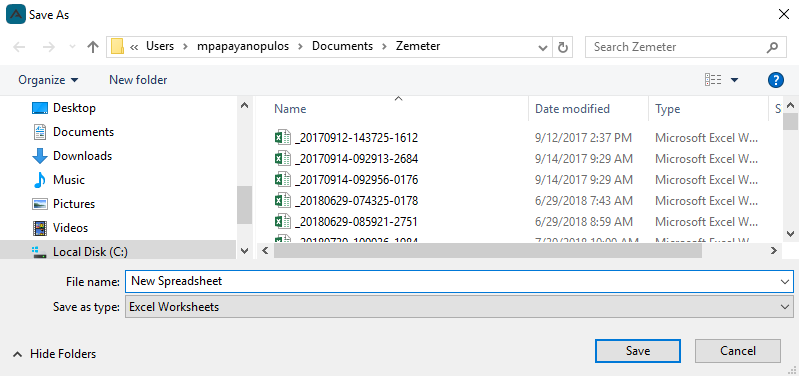
Save any changes made to the Excel worksheet, then Import the same file into Data Canvas by clicking the Import button in the Data Canvas ribbon.
A user can also select a portion of the spreadsheet by clicking and dragging, then right-clicking to select Copy and then pasting that data into Excel. Excel data can then be pasted into Data Canvas Spreadsheet by right-clicking and selecting Paste.
🚧 There is a limit of 65,000 rows that can be pasted into the Data Canvas.
Insert Ribbon: Charts\ Charts can be inserted into the spreadsheet view easily by highlighting the data in the spreadsheet and selecting a Chart from the Insert ribbon.

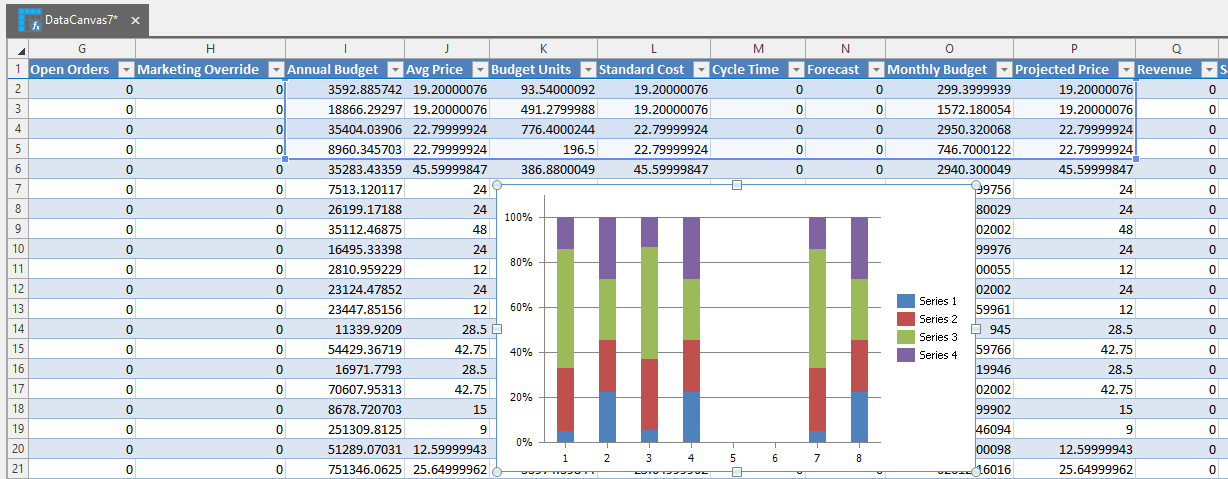
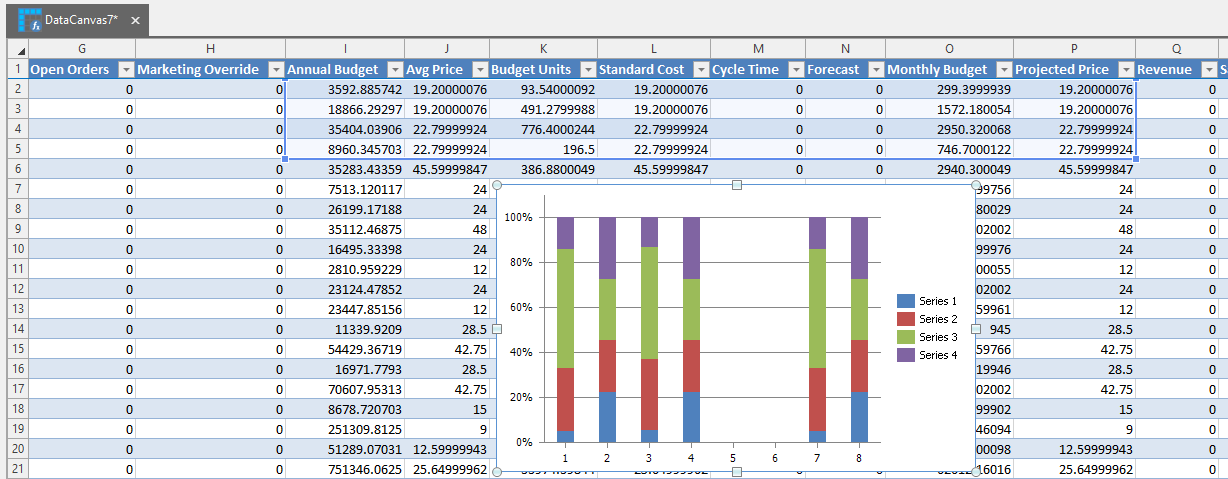
Chart Tools will be available from the Spreadsheet ribbon when highlighting a chart on the spreadsheet.

Spreadsheet
- Clipboard: Copy and Paste data.
- Font: Select font type and style.
- Alignment: Align font in spreadsheet cells.
- Number: format cells.
- Styles: Create conditional formats, table, and spreadsheet styles.
- Cells: Insert, delete, and format cells.
- Editing: Edit cell data.

Insert
- Tables: Create a pivot table and a data table.
- Illustrations: Insert an image.
- Charts: Insert a Column, Line, Pie, Bar, Area, Scatter, Stock, and Radar charts.
- Links: Add a hyperlink to the spreadsheet.
- Symbols: Open a Symbol keyboard window.

Page Layout
- Page Setup: Manage the page layout for viewing and printing.
- Show: Toggle whether to show the gridlines and headings.
- Print: Toggle whether to print the gridlines and headings.
- Arrange: Arrange inserts backwards or forwards.

Formulas
- Function: Select functions to insert into the spreadsheet from the various dropdown lists.
- Defined Names: Access the Name Manager, define names, use formulas, and create names from a selection.
- Formula Auditing: toggle on of off formula visibility.
- Calculation: Access the calculation options, calculation sheet, and calculate now button.

Data
- Sort & Filter: Sort from A to Z, Z to A, and toggle on or off the column filter options.
- Data Tools: Access Data Validation options.
- Outline: Access the Group, Ungroup, Subtotal options, and show or hide details.

Design
Spreadsheet Design ribbon
- Properties: shows the default table name.
- Tools: Convert spreadsheet to Range.
- Table Style Options: Toggle on and off various table style options.
- Table Styles: Select a table visual style.

Chart Tools Design, Layout, and Format ribbons\ When placing a chart from the Insert ribbon onto the spreadsheet, the chart will have it's own design ribbons.
Design ribbon

- Type: Change the Chart type from the type you selected initially.
- Data: Pivot the row and column data with the Switch Row/Column button, and select a data source from the Select Data button.
- Chart Layouts: select from different layout presets from the chart layout dropdown.
- Chart Styles: select from different style presets from the chart styles dropdown.
Layout ribbon

- Axes: select from preset axes and gridline visual options.
- Labels: select preset chart title, axis title, legend, and data labels visual options.
- Analysis: select preset lines, up and down bars, and error bars visual options.
Format ribbon\ When there are two or more charts placed on the spreadsheet,select a chart and arrange them using the bring forward and send backward options.

Read Only
When creating a data canvas using a data source sometimes queries will be marked as read only depending on the following:
- If it’s a custom query
- If the query is updating multiple views
- If a column is hidden\not selected that does not allow nulls
A book icon in the tab will indicate if a data canvas is read only.
Design
Access various design and layout options from the Design section.
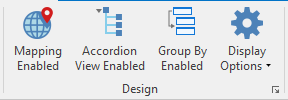
Mapping Enabled
Enable or Disable Mapping Analysis.
Accordion View Enabled
Click the Accordion View button to enable the accordion view for the data canvas.
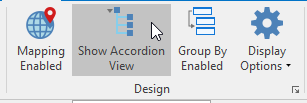
Data Canvas Accordion View
When the Accordion View button is toggled on, the button will be replaced with the Show Tabbed View button. Click this button to return to the default data canvas view.
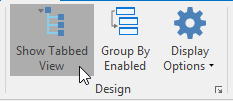
Group by
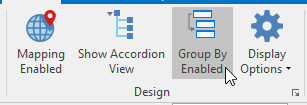
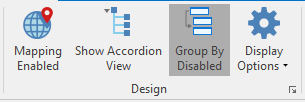
Click the Group By Enabled / Disabled button to toggle on and off the Group by functionality.
Display Options
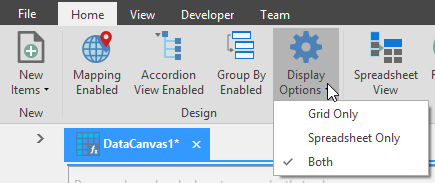
Toggle on a display option from the dropdown.
- Grid Only: Show only the Grid view and Grid options.
- Spreadsheet Only: Show only the Spreadsheet view and Spreadsheet options.
- Both: Show both the Grid and Spreadsheet views and their options.
Related Articles
Data Pipeline
Data Pipeline was created as an Arkieva Add-in Component as an alternative to Data Canvas to better handle importing large Excel files into an Arkieva database in a much shorter time. Data Processing Data Import Selection and Load Import File To ...Data Versions
Data Versions define and manage alternative data sets. Business What-Ifs require comparison between alternatives. Each alternative is defined by a set of business rules and a set of data. Data Versions can be accessed from the Linear Programming (LP) ...Filtering Data
Introduction Create filters to drilldown data, place conditions on data, and prioritize viewable data. Various filter options are accessible through the Design, Filter View, and Results View. Below are a few examples of where you can find the Arkieva ...Data Download Process
Data Download process data is downloaded from the ERP and exposed to Arkieva. The Data Download business process loads the ERP data needed in the Supply Planning process, then the data is transformed to the format needed in Arkieva. Figure 1. Process ...Data Anomaly Detection
Why Detect anomalies? Anomaly detection refers to the problem of finding patterns in data that do not conform to expected behavior. In the domain of supply chain management (SCM), anomaly detection is a key factor in making better forecast decisions. ...