Data Pipeline
Data Pipeline was created as an Arkieva Add-in Component as an alternative to Data Canvas to better handle importing large Excel files into an Arkieva database in a much shorter time.
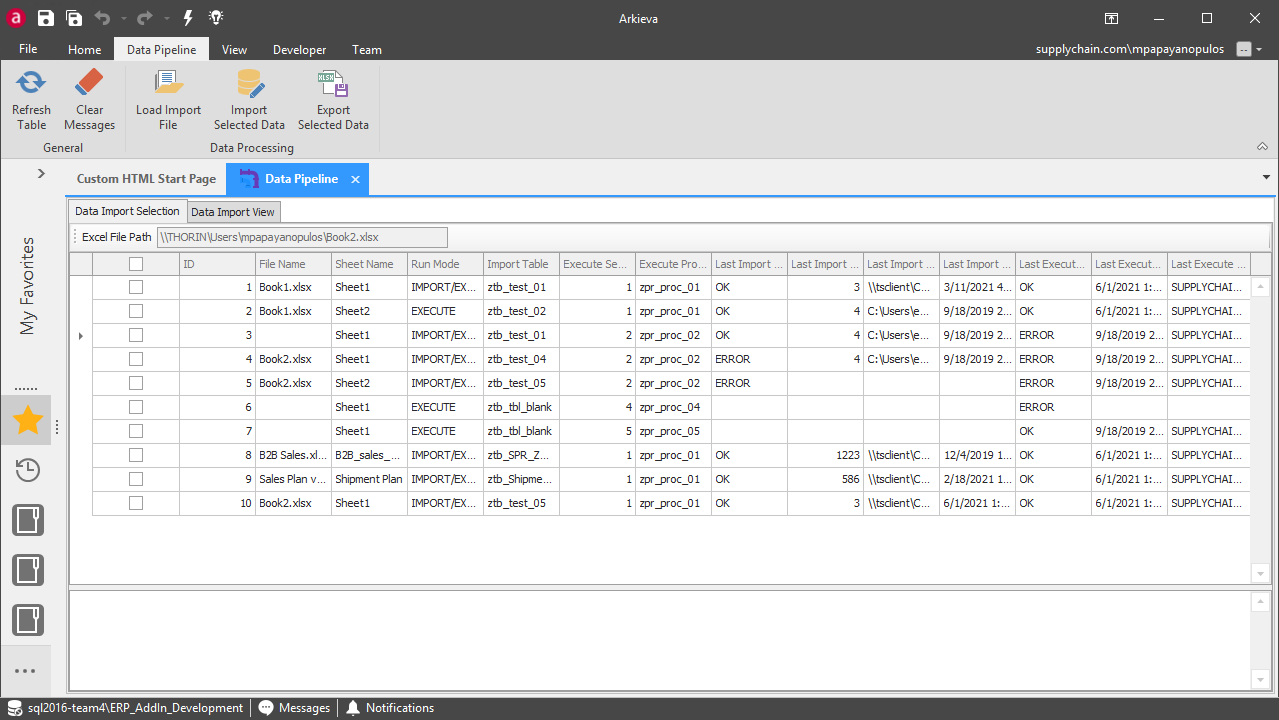
Data Processing
Data Import Selection and Load Import File
To import your Excel File to Data Pipeline, first launch the Data Pipeline Add-Component and click the Load Import File button located in the Data Processing section of the Data Pipeline ribbon.
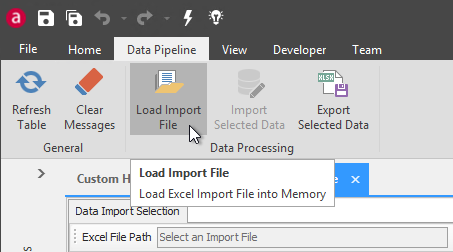
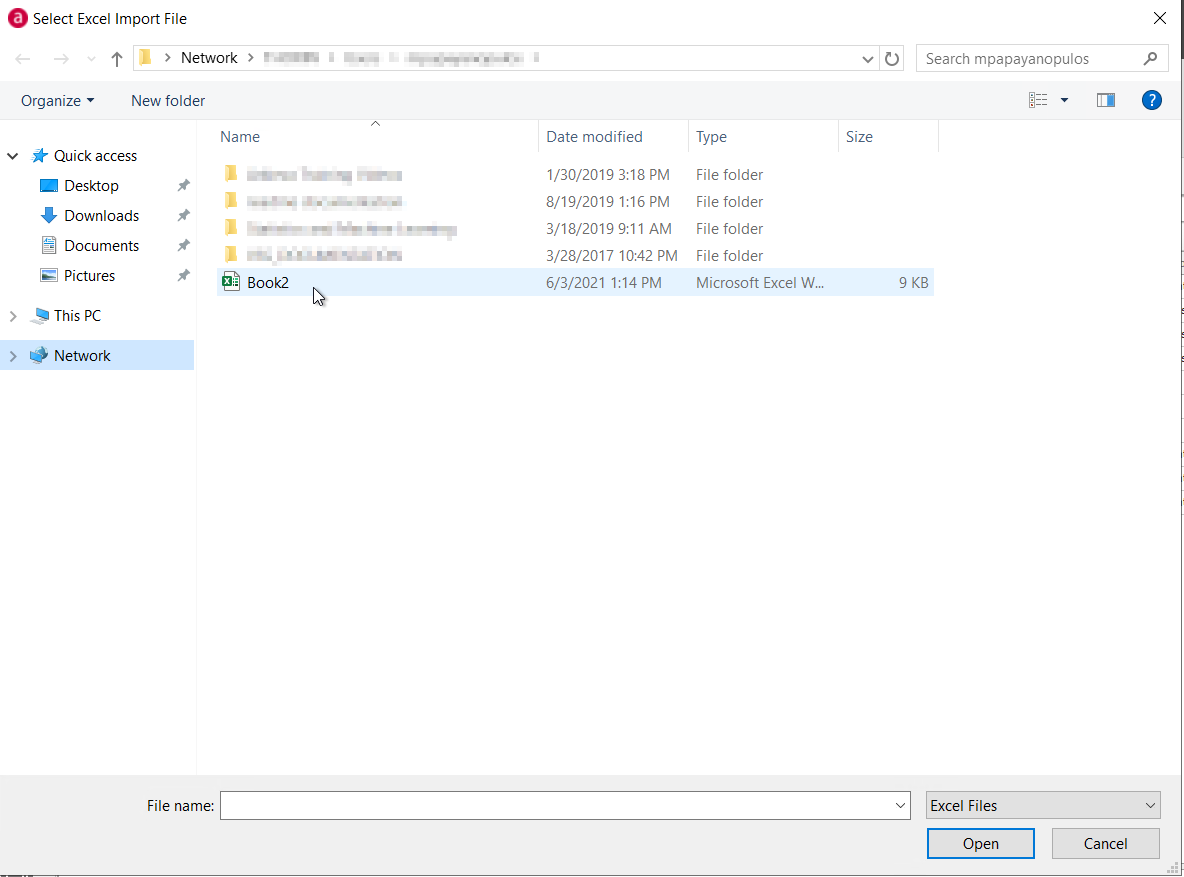
Select the Excel file and click Open. If using a Cloud Deployed version of Arkieva, make sure to have your Excel files saved to an accessible machine (in some instances/deployments, you may be able to access files on your local machine).
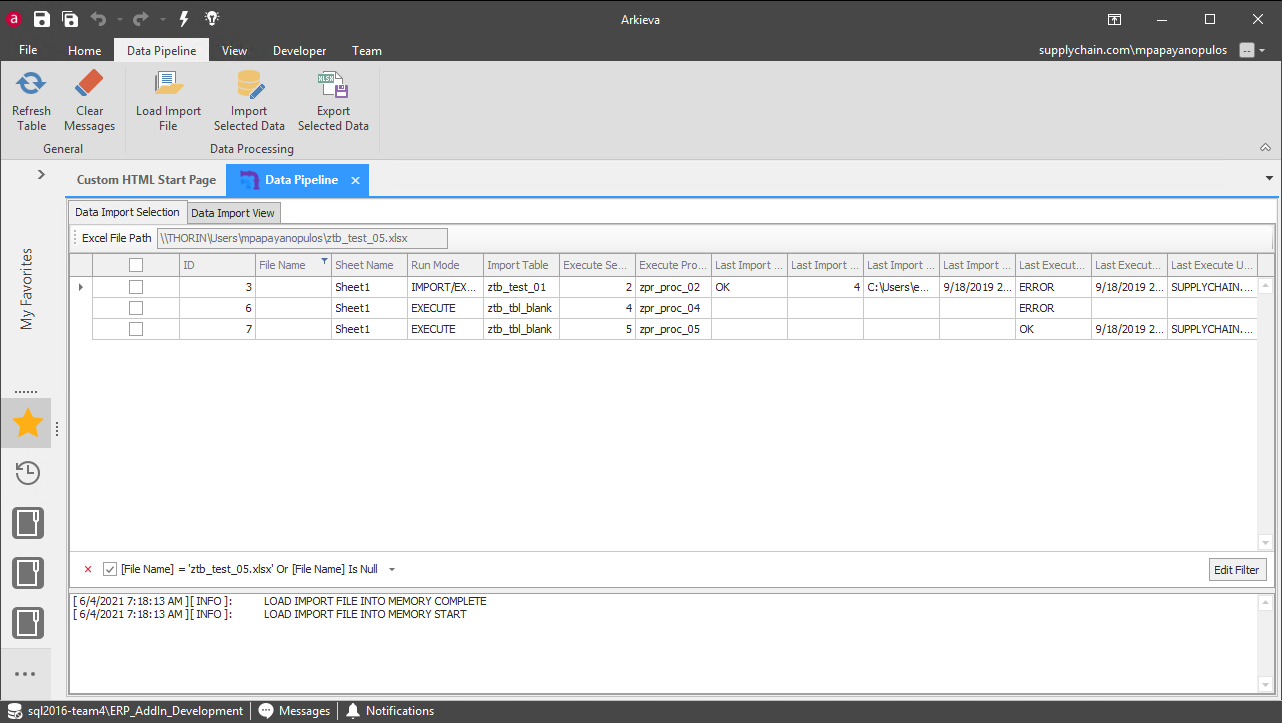
After clicking Open, the Excel file data will be loaded into memory. The "Data Import View" tab will appear and contain the content of the last loaded file. The "Excel File Path" field will be updated with the selected file path of the import.
The Data Pipeline grid will apply a filter to rows where the "File Name" is NULL or matches the imported file. Rows with a matching "File Name" will be automatically selected for import.
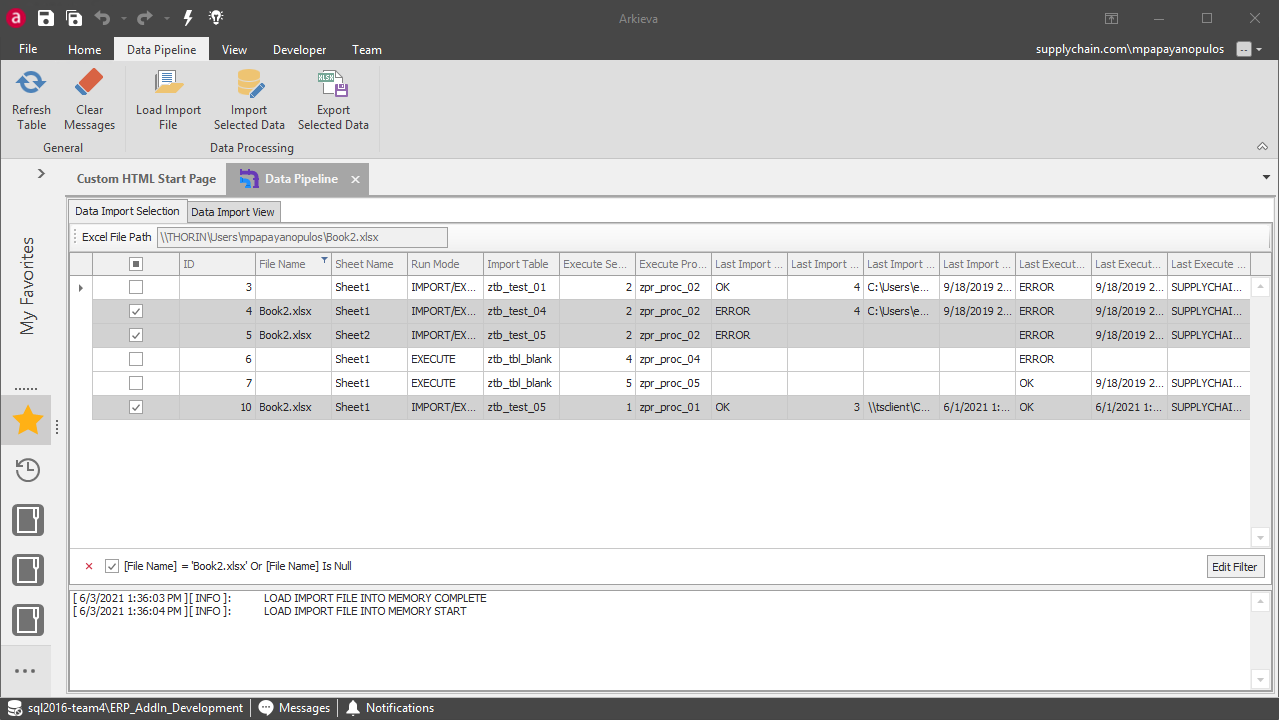
The following is an explanation of each column function.
Checkbox Column\ The Checkbox column will determine which rows the component will attempt to iterate over when the "Import Selected Data" button is clicked.
ID Column\ The ID column shows the ID number of the row in the backend SQL table. These ID numbers define the order over which selected rows will be iterated over when the "Import Selected Data" button is clicked.
File Name Column\ The File Name column shows the name of the Excel file specfied in the backend SQL table. This column is used to enable the auto-select and filtering functionality, and is an optional field.
Sheet Name Column\ The Sheet Name column shows the Excel sheet in the uploaded Excel file that the component will attempt to find and import.
Run Mode Column\ The Run Mode column determines the behavior of the iteration. Execute mode will place the specified "Execute Procedure" into the queue at the specified "Execute Sequence". Import/Execute mode will attempt to import data from the specified "Sheet Name" into the specified "Import Table", then place the specified "Execute Procedure" into the queue at the specified "Execute Sequence". Import/Execute mode first truncates the data in the "Import Table", then performs a bulk insert of the Excel sheet data into the "Import Table". If you only want to import data, create a dummy execute procedure that does nothing.
Import Table\ The Import Table Column shows the tables in which the Excel sheet data will be copied to.
Execute Sequence\ The Execute Sequence column shows the numerical sequence in which the stored procedures will be executed in the queue.
Execute Procedure\ The Execute Procedure column shows the stored procedure that will be executed.
Last Import Status\ The Last Import Status column shows if the sheet was successfully imported into the table. OK means the import was successful, ERROR means the import has failed. Check the Messages Pane to learn why the sheet failed to import.
Last Import Rows\ The Last Import Rows column shows the number of rows from the sheet that were imported to the table.
Last Import File\ The Last Import File column shows the file location of the Excel file sheets.
Last Import Time\ The Last Import Time column shows the time when the import was executed.
Last Execute Status\ The Last Execute Status column shows if the execution was successful or not. OK means the execution was successful, ERROR means the execution has failed. Check the messages pane to see why the execution has failed.
Last Execute Time\ The Last Execute Time column shows the time when the data was executed.
Last Execute User\ The Last Execute User column shows the name of the user who executed procedure.
Data Import View and Import Selected Data
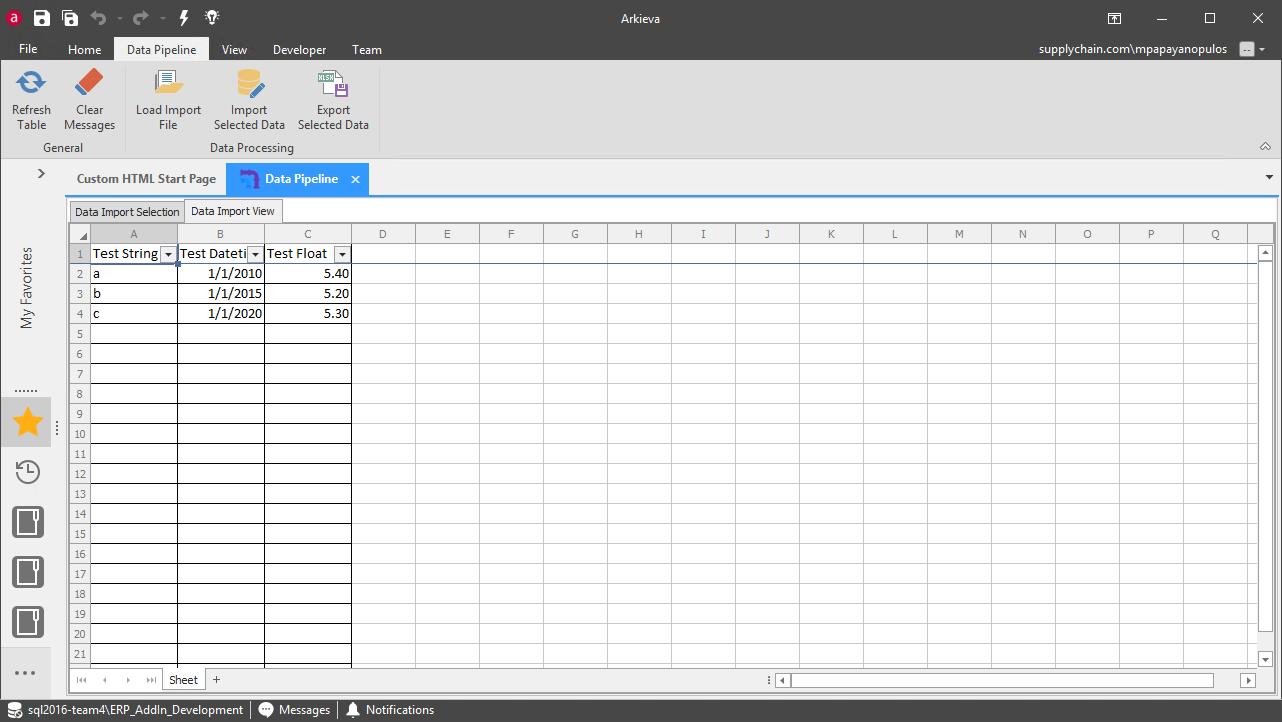
You can use the "Data Import View" tab spreadsheet to edit the content of the imported file before running an import.
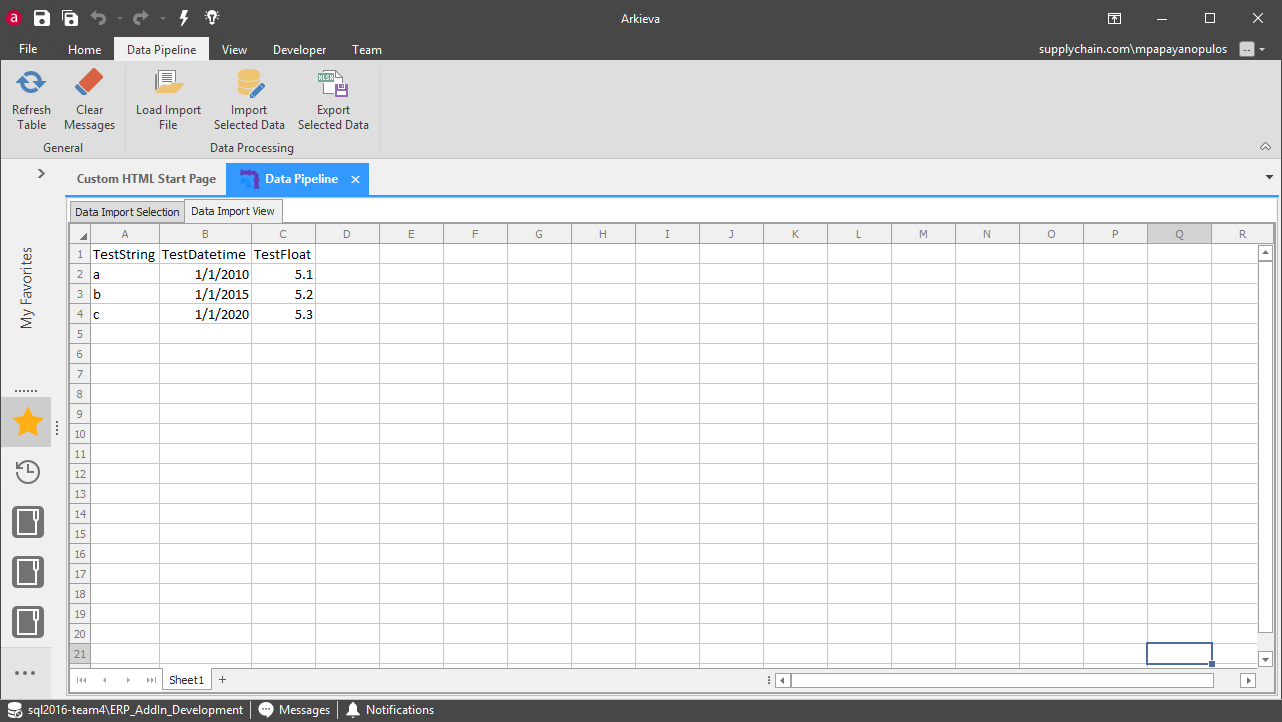
Edit the spreadsheet data, if needed, and click Import Selected Data
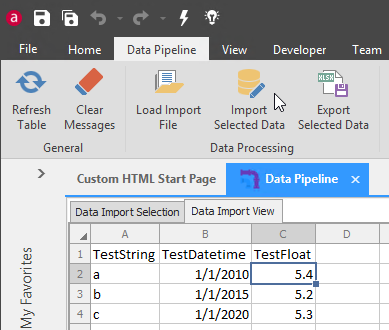
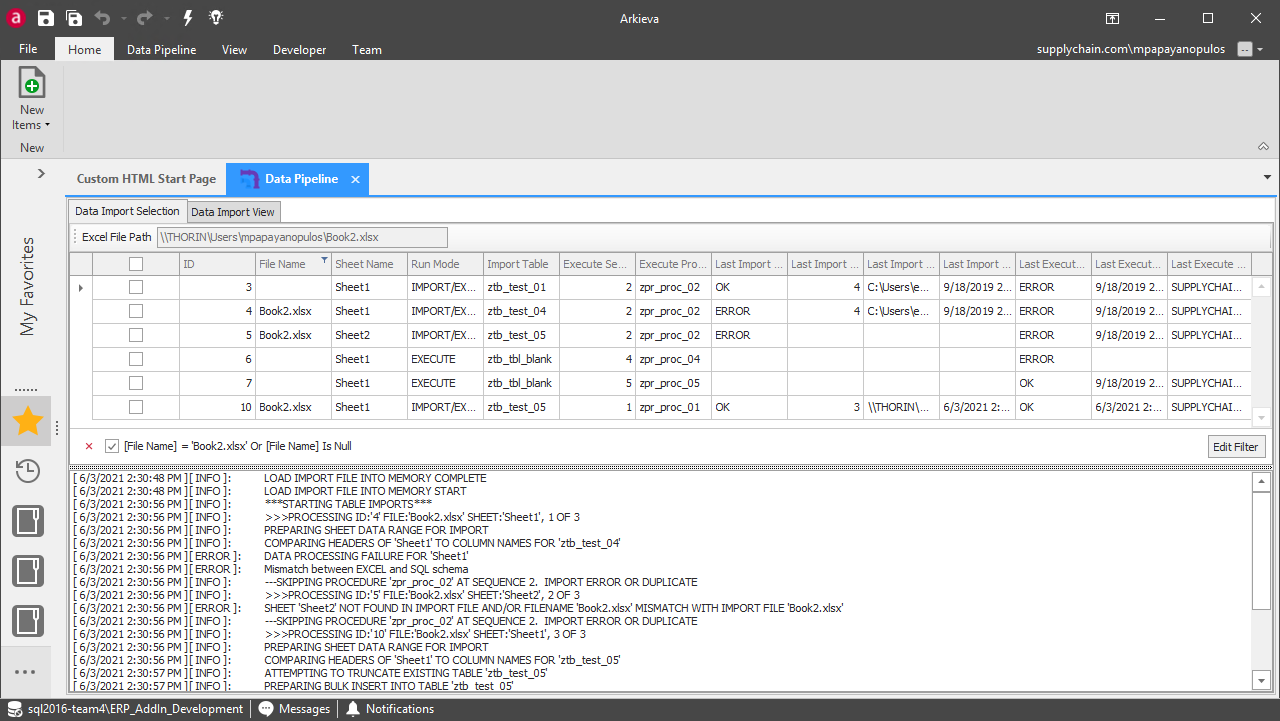
The component will iterate over all selected rows and attempt to perform the requested operation, depending on the run mode. The data imports from sheets to tables run first in order of "ID", followed by the procedures in the queue in order of "Execute Sequence".
Check the messages pane to make sure all data was imported successfully. If a table fails to import, its "Execute Procedure" will not be added to the queue and it will not be executed.
Export Selected Data
You can also export row data as a table to the database. First, check the checkbox of the row data you wish to export.
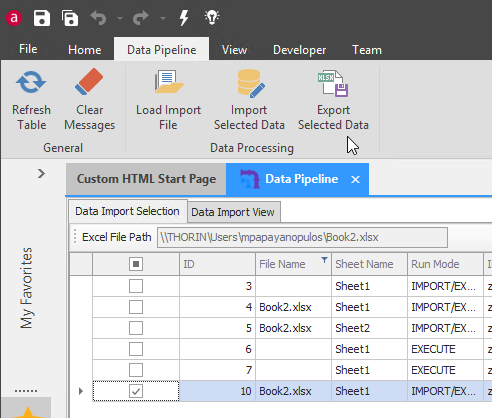
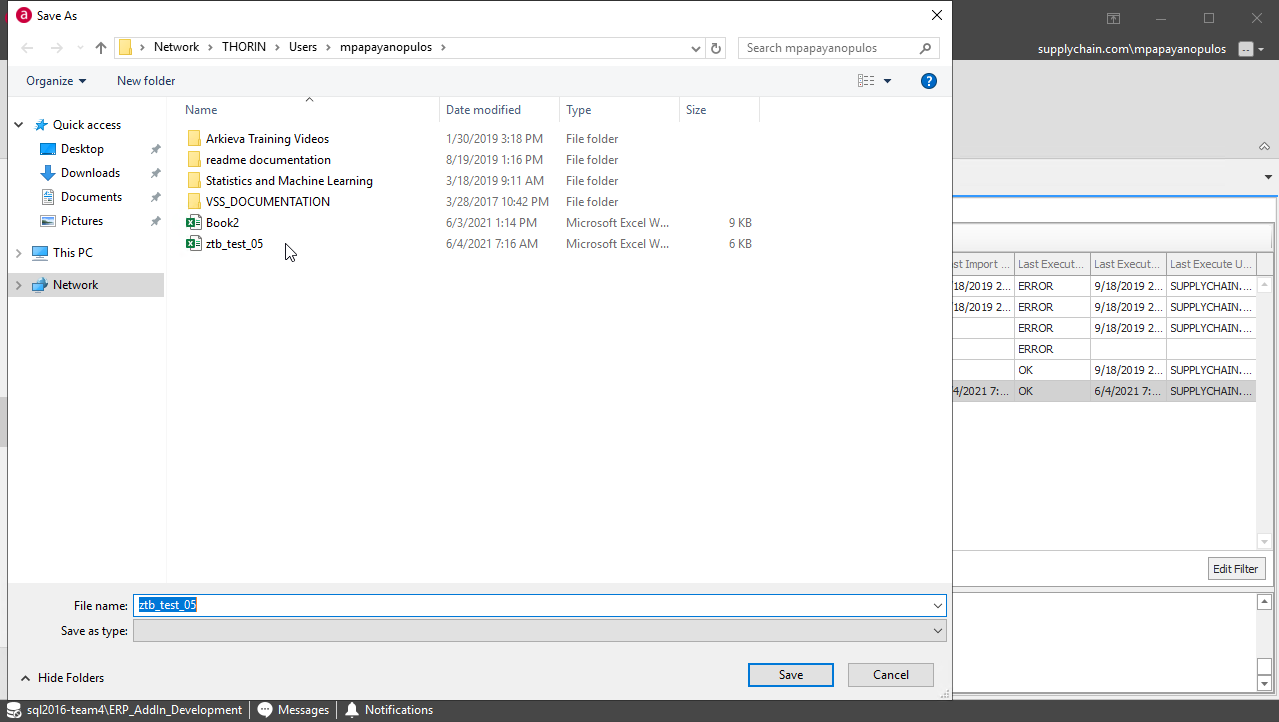
Next, click Export Selected Data, and Data Pipeline will auto-populate the file name with the Input Table name, which you can then save.

You can then load this excel file with the Load Import File feature to view the data.
General
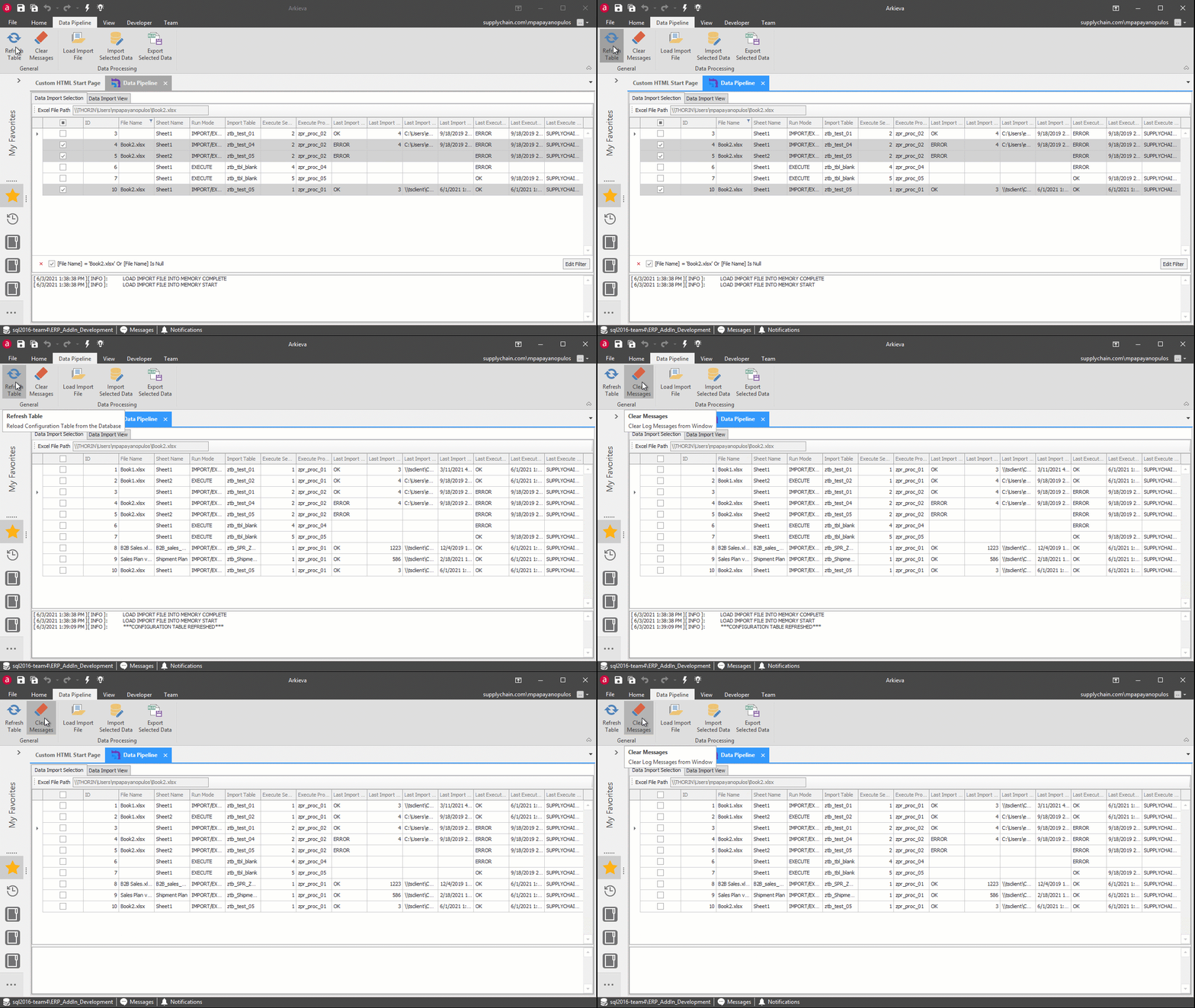
If you are actively working in the config table, you can refresh the Data Pipeline without having to close and reopen by clicking the Refresh Table button. You can clear messages from the message pane by clicking the Clear Messages button.
Related Articles
Data Versions
Data Versions define and manage alternative data sets. Business What-Ifs require comparison between alternatives. Each alternative is defined by a set of business rules and a set of data. Data Versions can be accessed from the Linear Programming (LP) ...Data Canvas
Introduction Data Canvas is an easy way to edit table and data source data in a Grid and Spreadsheet view. Select the source of the data, Table Editor or Data Source, to create a Data Canvas. A table or a data source must first be created before the ...Filtering Data
Introduction Create filters to drilldown data, place conditions on data, and prioritize viewable data. Various filter options are accessible through the Design, Filter View, and Results View. Below are a few examples of where you can find the Arkieva ...Data Download Process
Data Download process data is downloaded from the ERP and exposed to Arkieva. The Data Download business process loads the ERP data needed in the Supply Planning process, then the data is transformed to the format needed in Arkieva. Figure 1. Process ...Data Anomaly Detection
Why Detect anomalies? Anomaly detection refers to the problem of finding patterns in data that do not conform to expected behavior. In the domain of supply chain management (SCM), anomaly detection is a key factor in making better forecast decisions. ...