Data Anomaly Detection
Why Detect anomalies?
Anomaly detection refers to the problem of finding patterns in data that do not conform to expected behavior. In the domain of supply chain management (SCM), anomaly detection is a key factor in making better forecast decisions. An important problem in SCM is to reduce decision cycle times, despite the huge amount of data being generated at every stage. This overload of data may result in difficulty discerning useful signals, leading to confusion between meaningful and meaningless decisions. By implementing anomaly detection, questionable data is quickly analyzed to determine anomalies or unexpected patterns, making effective decisions easier and thereby also contributing to accurate forecasts.
Where does it fit?
Today, consultants write business rules to prevent bad data from sneaking into planning. This is more often than not done after having experiencing an issue in production. With Anomaly detection, we have automated some of these business rules and also apply newer Machine Learning algorithms to better detect data anomalies. Anomaly detections also prescribes and suggests corrections, with freedom given to the user to accept, reject, or modify the suggested values.
Using Arkieva Anomaly Detection Diagnostic
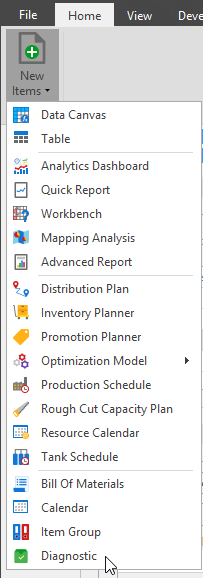
To access Diagnostics, go to the Home ribbon and click the New Items dropdown menu. Click the Diagnostic document to launch the DataSource Selection popup window.
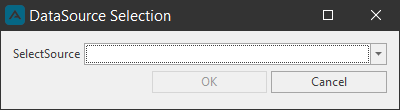
From the SelectSource dropdown you can select Data Sources or System Model to begin putting together the data for your diagnostic report. For this example we have selected System Model.
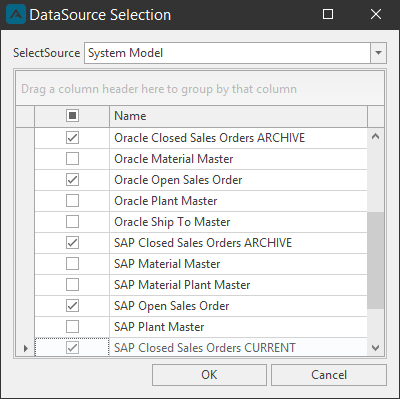
Selecting System Model will populate the data tables that we can then select for the Diagnostic report. Check the data tables checkboxes you wish to include in the diagnostic and click OK.
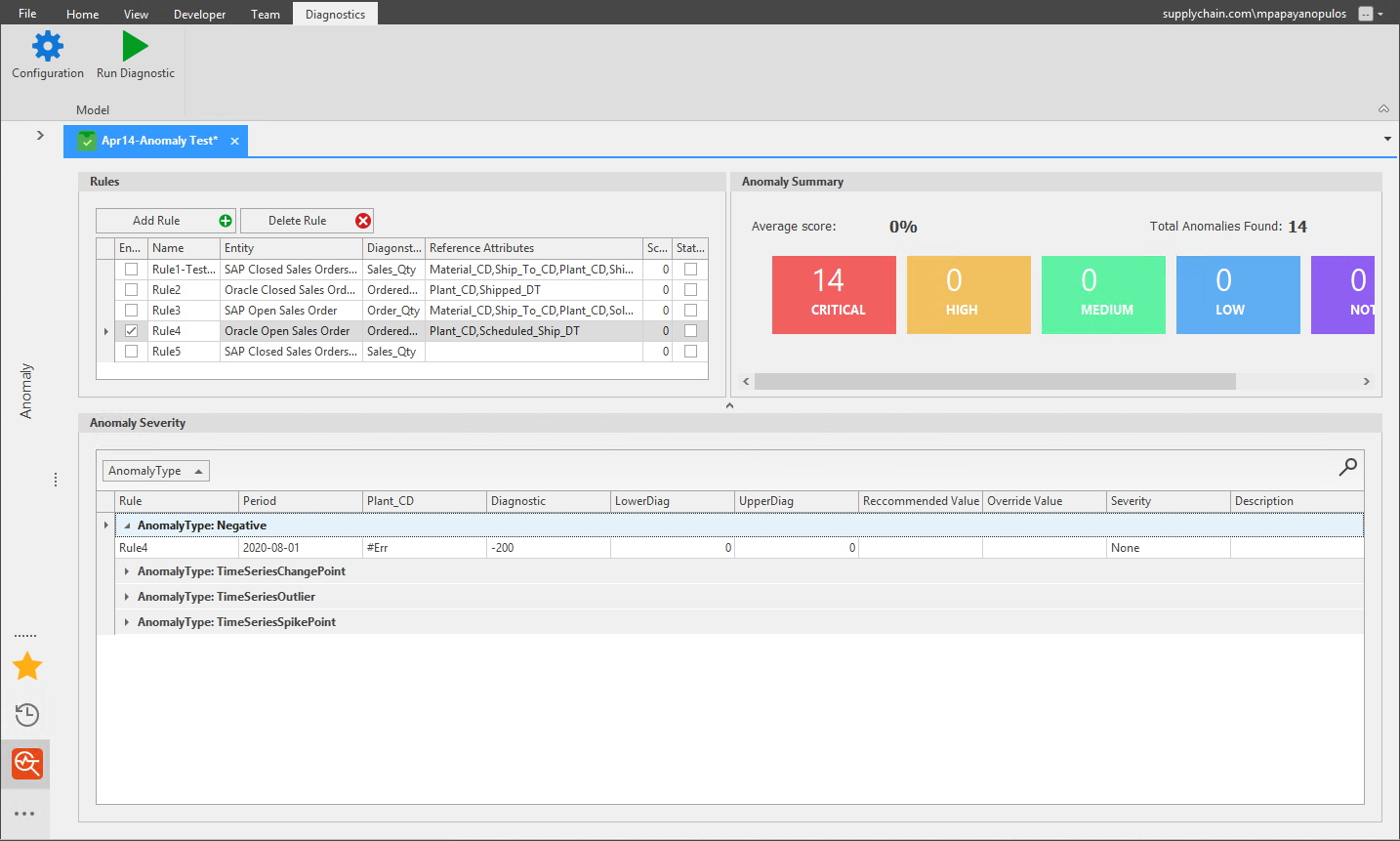
After selecting the data source and data tables and clicking OK, the Diagnostic window will launch. The Diagnostic layout has four sections: Diagnostic ribbon, and the Rules, Anomaly Summary, and Anomaly Severity boxes.
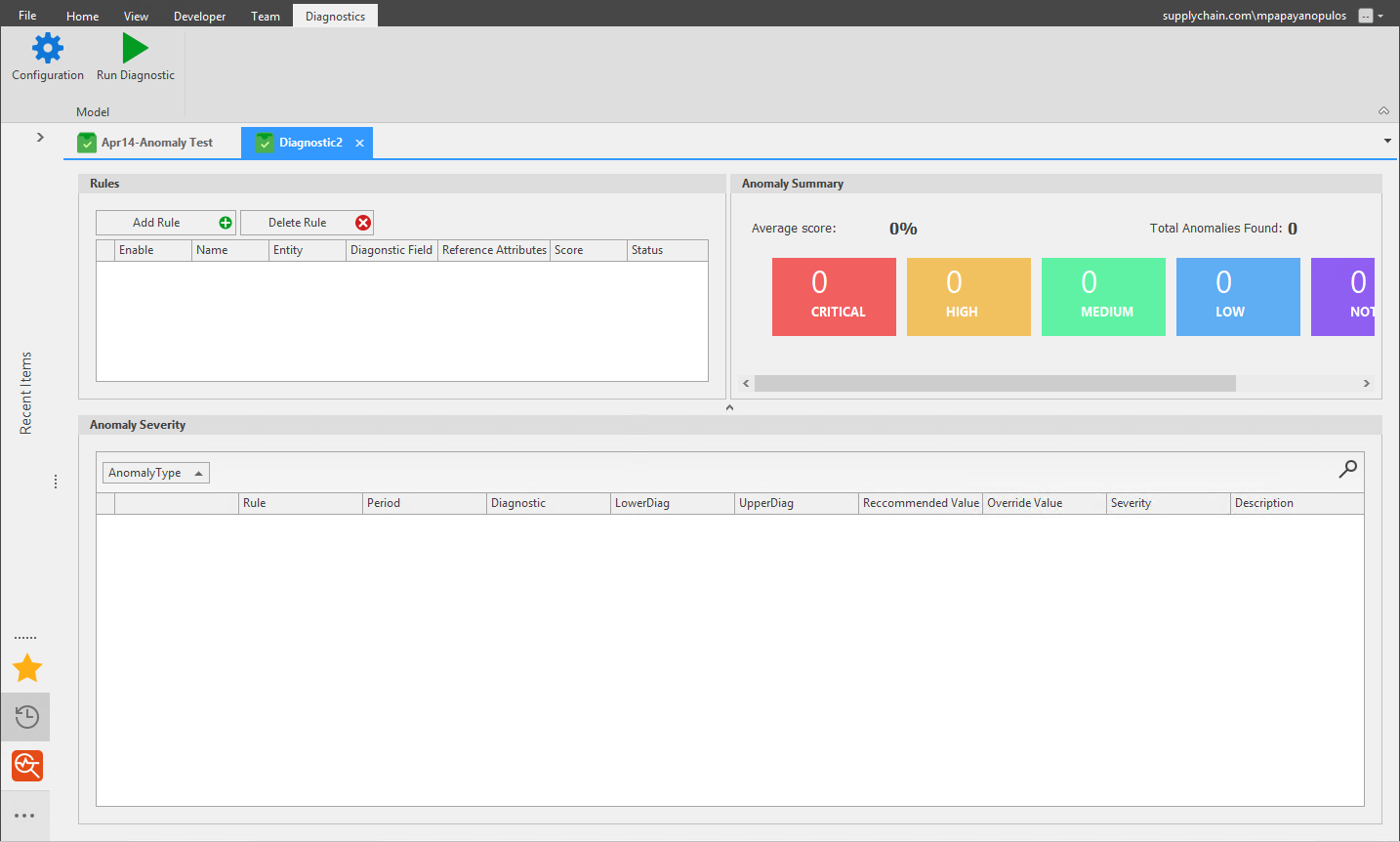
First click the Add Rule button to create rules for the diagnostic to be able to find any anomalies in your selected data. Clicking Add Rule will launch the Edit Rule window.
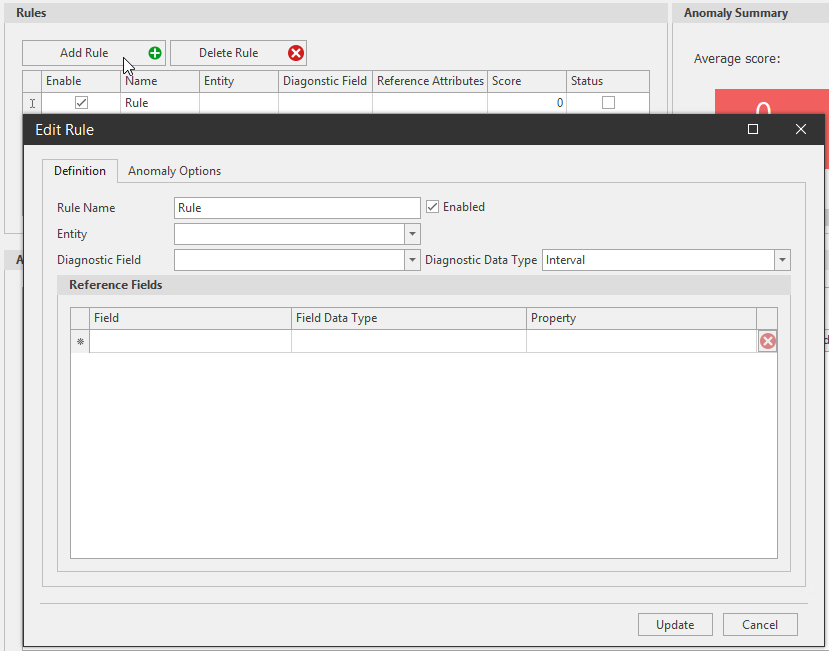
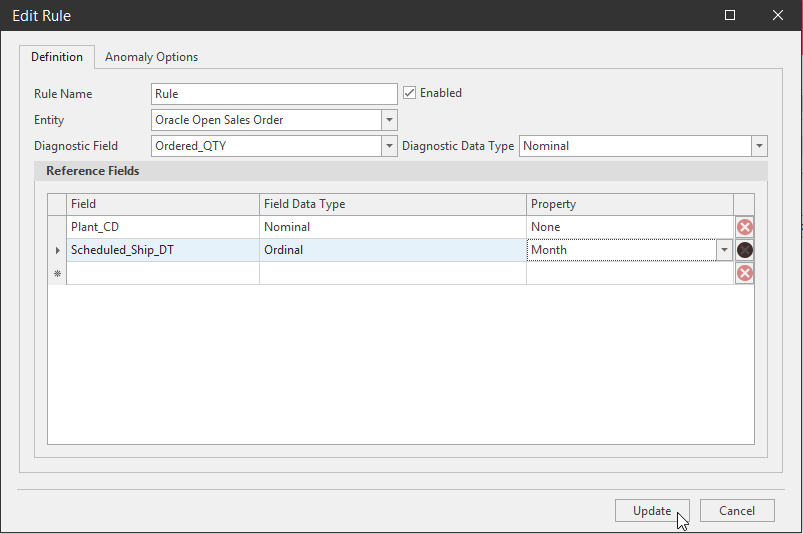
Define the Rule Name, Entity Table, Diagnostic Field, Diagnostic Data Type, Reference Fields, and check whether or not to Enable the Rule.
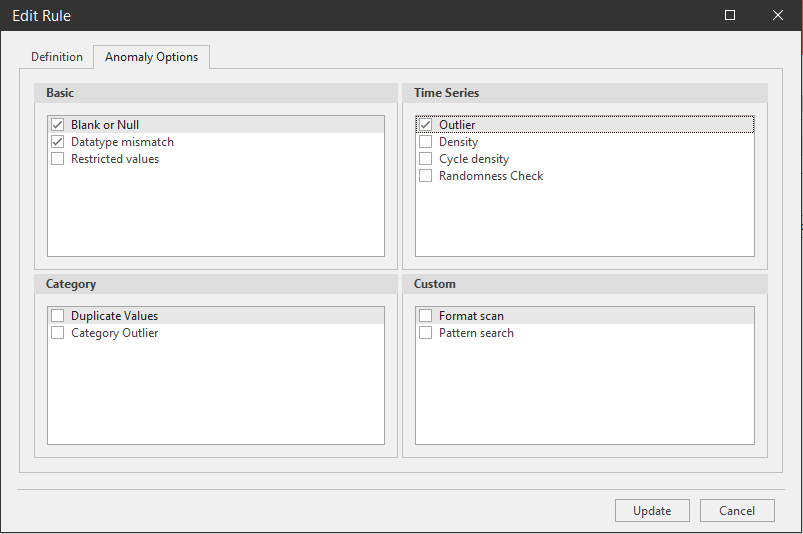
Next go to the Anomaly Options tab of the same Edit Rule window. Check the checkboxes of any type of default anomaly for the diagnostic to check against. Click Update to close the window.
When finished creating rules for the diagnostic report, save the diagnostic and click Run Diagnostic from the Diagnostic ribbon.
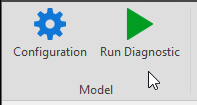
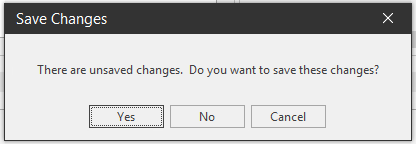
If you haven't saved the diagnostic and click Run Diagnostic, you will be prompted to save any unsaved changes made to the diagnostic first.
After the diagnostic has run, the Anomaly Summary and Anomaly Severity sections will be populated with appropriate anomaly information.
Anomaly Summary
The Anomaly Summary section at a glance the Average score and Total Anomalies Found after the diagnostic has been run against your selected data tables. Anomaly Summary also shows colored boxes with the type of severity and the number of anomalies found in that severity level.
- Red: Critical severity -
- Yellow: High severity -
- Green: Medium severity -
- Blue: Low Severity -
- Purple: Note
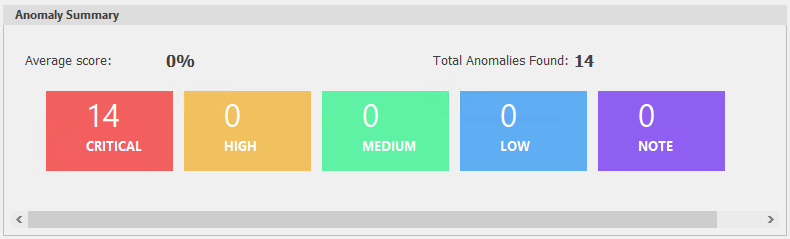
Clicking a severity box will highlight and drilldown that specific information in the Anomaly Severity section.
Anomaly Severity

Edit Rule Definition tab
- Rule Name: The name of the rule.
- Entity: Selected data table or source for anomaly detection.
- Enabled: Check the checkbox to enable the rule (ON); leave the checkbox unchecked to not enable the rule (OFF).
- Diagnostic field: The field on which anomaly detection is run on; usually the sales quantity field.
- Diagnostic Data Type: Data type of Diagnostic field.
Reference fields
- Field: The reference fields; attributes.
- Field Data Type: Nominal, Ordinal, Interval, Ratio, DateTime.
- Property: None, Day, Week, Month, Qtr, Year.
Edit Rule Anomaly Option tab
Select a type of scan for the anomaly detection.
Basic scan: an initial scan to check data integrity.
- White space/Nulls/Blanks
- Data type mismatch
- Restricted values (e.g. \<0)
Time Series scan
- Outlier: Unusual values in a time series, Additive and Innovational outliers.
- Density: Proportion of positive values.
- Cycle density: Number seasonal cycle in a data.
- Randomness Check: Matrix check for trends or randomness in data.
Category scan
- Duplicate values
- Category Outlier: Attribute value that is out of place.
Custom Scan
- Format scan: String size.
- Pattern search: Excluded characters, white space, or blanks.
Related Articles
Data Versions
Data Versions define and manage alternative data sets. Business What-Ifs require comparison between alternatives. Each alternative is defined by a set of business rules and a set of data. Data Versions can be accessed from the Linear Programming (LP) ...Data Canvas
Introduction Data Canvas is an easy way to edit table and data source data in a Grid and Spreadsheet view. Select the source of the data, Table Editor or Data Source, to create a Data Canvas. A table or a data source must first be created before the ...Data Pipeline
Data Pipeline was created as an Arkieva Add-in Component as an alternative to Data Canvas to better handle importing large Excel files into an Arkieva database in a much shorter time. Data Processing Data Import Selection and Load Import File To ...Filtering Data
Introduction Create filters to drilldown data, place conditions on data, and prioritize viewable data. Various filter options are accessible through the Design, Filter View, and Results View. Below are a few examples of where you can find the Arkieva ...Data Download Process
Data Download process data is downloaded from the ERP and exposed to Arkieva. The Data Download business process loads the ERP data needed in the Supply Planning process, then the data is transformed to the format needed in Arkieva. Figure 1. Process ...