Filtering Data
Introduction
Create filters to drilldown data, place conditions on data, and prioritize viewable data. Various filter options are accessible through the Design, Filter View, and Results View.
Below are a few examples of where you can find the Arkieva filter options, but filtering data is available throughout the Arkieva application.
Quick Report filter view and Workbench filter view
Table filter view
Statistical Forecast filter view available from New and Edit window
Design and Results View commands
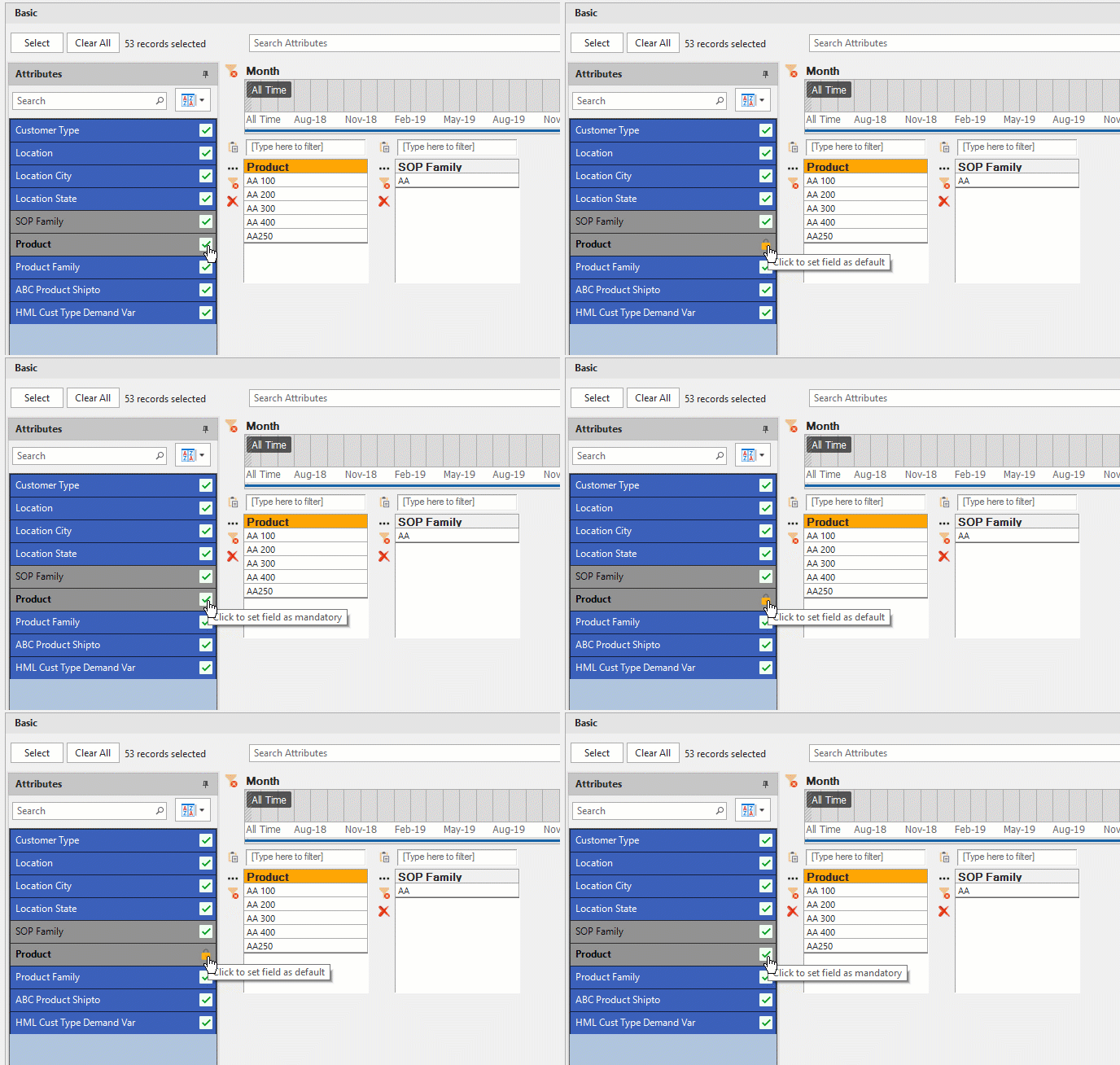
Lock Attributes in Filter View
Click the green checkmark next to the attribute name under the Attribute navigation pane to lock that attribute. Locking an Attribute removes the ability to delete that attribute; notice the delete button (red X) is hidden from the SOP Family attribute but is available for the Product attribute.
Conditional Formatting
Conditional Formatting allows a user to highlight specific values. For this example we want to highlight all Forecast values that equal 0.
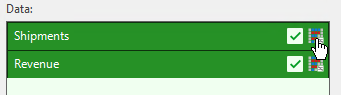
The Conditional Formatting button becomes available after placing an attribute or quantity into the Rows, Columns, and Data boxes in the Design View. Click the Conditional Formatting button to open the Conditional Formatting window; the title bar will have the name of the attribute or quantity that was chosen.
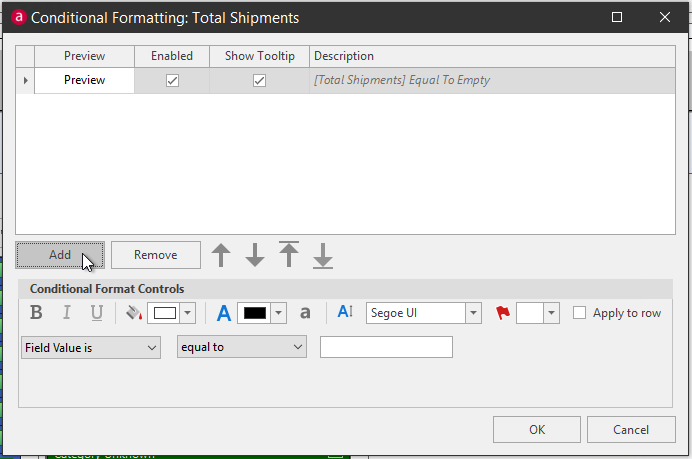
Click ADD to create a conditional format. More than one conditional format can be added to an attribute or quantity. This depends on how many fields are contained within the attribute and how much data to specify in a quantity.
Click the Enabled field to turn on the conditional format. Check/Uncheck Show Tooltip to show/hide tooltips. The tooltip can be customized by clicking in the field under the Description column and typing a new tooltip.
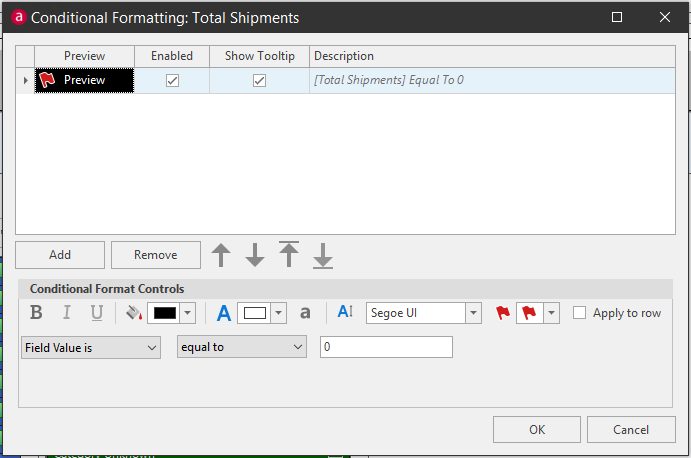
Use the Conditional Format Controls to edit the conditional format appearance; the Preview field will change depending on what is chosen, so as to not have to switch between Results and Design view.
- Bolding, italicizing, and underlining text.
- Cell fill color fill.
- Font color.
- Attribute dropdown menu allowing a user to choose the attribute the conditional format will be aligned with.
- Text size and font type.
- The Attribute dropdown menu allows a user to choose the attribute the conditional format will be aligned with.
- Icon selection options
- Apply to Row checkbox; check the box to apply conditional formatting setup to rows as well as columns. Apply to Rows will ignore column subtotals when enabled.
We have changed the cell color to black, the font color to white, and selected a Red flag from the icons. The condition to flag will be when a Field Value is equal to Zero.
A Green Checkmark will appear over the conditional formatting button on the quantity or attribute to indicate that quantity or attribute has a conditional format.

Go to the Results view to see the conditional format. Notice that since the columns data can be overridden, the conditional formatting is shown as a gradient, so as to not interfere with overriding the data.
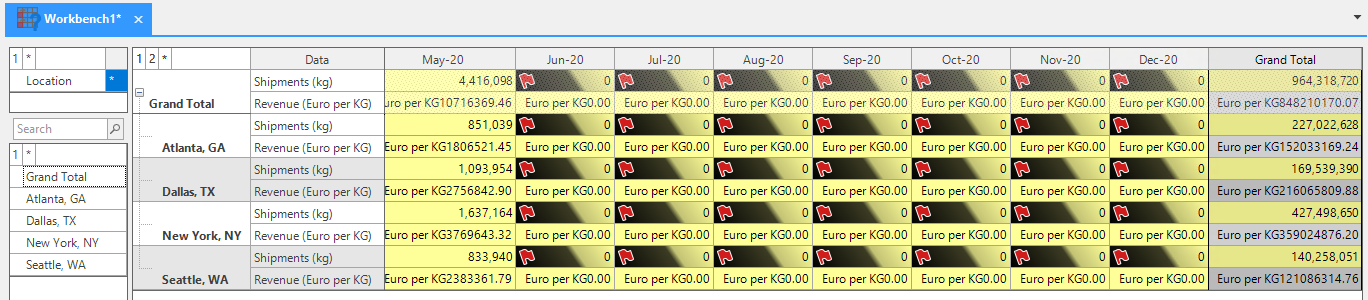
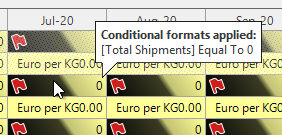
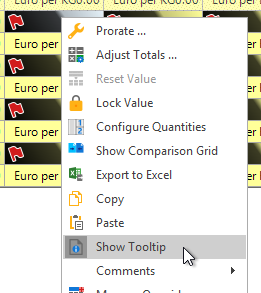
From the results view, a user can right-click the grid to toggle the Tooltips ON or OFF for the conditional format.
Mandatory Filter (Design View)
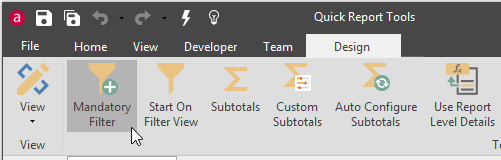
On documents that have a lot of rows to load, designers may want to toggle the Mandatory Filter button ON to force users to select a filter before they are allowed to go to the Results View.
Toggling Mandatory Filter ON will disable the Results View both in the View dropdown and the View buttons in the bottom toolbar.
A User must go to the Filter View and create a filter before the Results View becomes available.
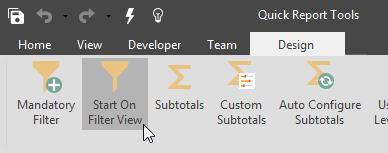
Start On Filter View (Design View)
If you want a user to see the Filter View first when they launch a document, toggle the Start on Filter View button ON in the Design View and Save the document. The next time the document is launched, the Filter View will open first. The User can still go to the Results View without making any changes to the Filter View, unless this is used in combination with the Mandatory Filter (Design View) function.
View Selection (Advanced Filter)
Click the View Selection button to launch the Advanced Filter window for application of filters on the fly without having to go to the Filter View.

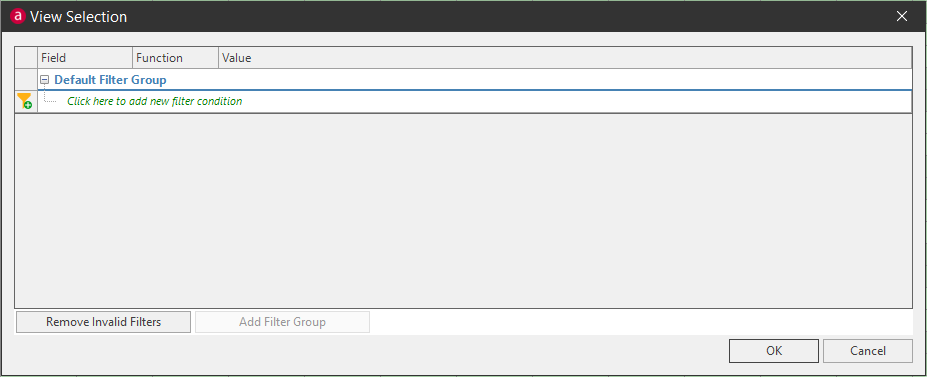
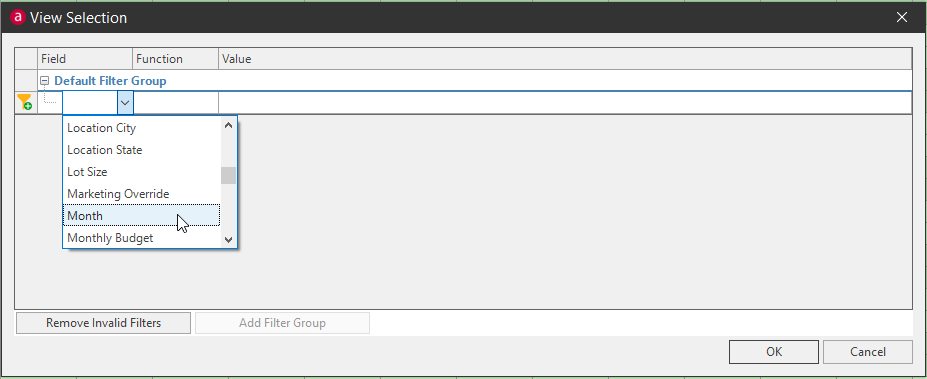
Add a filter condition\ To create a filter, click the green 'Click here to add new filter condition' text, then under the Field column, select an attribute to filter by using the dropdown menu.
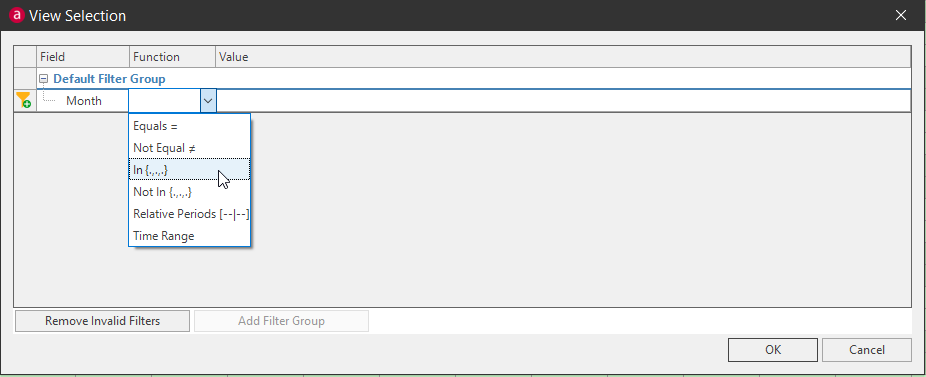
Next select the function of the filter using the dropdown menu under the Function column (the function is dependent on the Field selected).
The options available under the Value field are dependent on the Function selected.
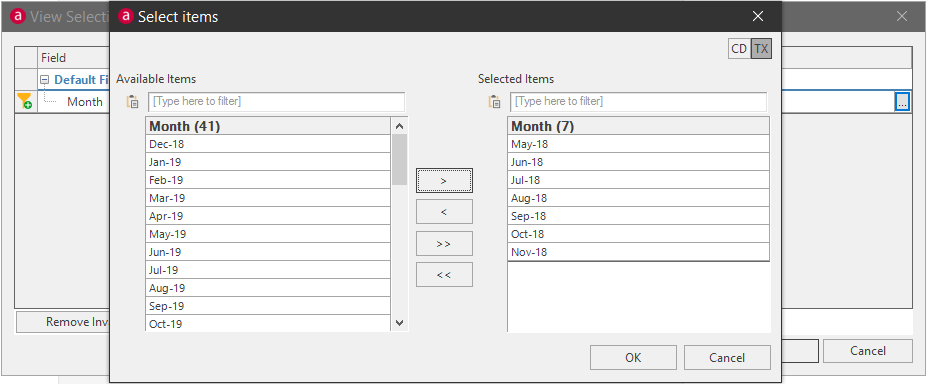
Click OK to set the created advanced filter.
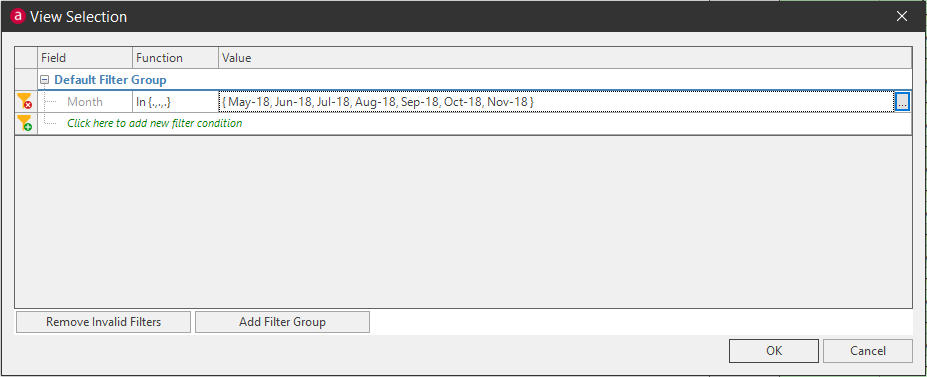
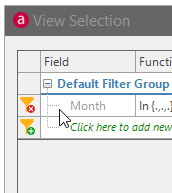
Delete a Filter Condition\ Delete a filter from the advanced section by clicking the Red Minus button next to that filter.
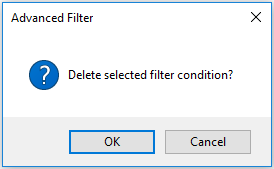
Click Yes to delete the selected filter.
Data selection
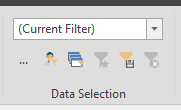
The Data Selection options are used to select created filters. These options are available in both the Filter View and the Results View.
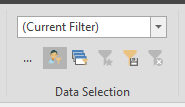
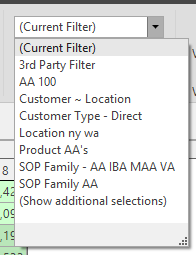
- Filter dropdown: Use the dropdown arrow to open the filter list to show saved filters
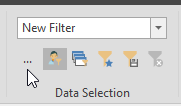
- …ellipses button: Pops out the filter list and search box
- Show only my selections: Show current user’s created filters
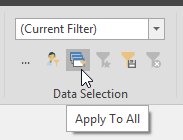
- Apply to All: Apply filter to all open documents
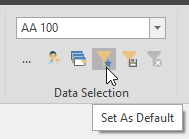
- Set as Default: Set selected filter as default
- Save: Save selected items as a filter for selection
- Delete: Delete a created filter
Save\ After creating a filter, click Save to save the filter selection to the dropdown list.
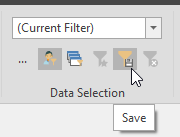
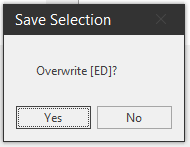
When saving a new filter, the New Data Selection window will launch. Type a name for the selection and click OK. If saving over a saved filter, select that filter from the New Data Selection window from the dropdown and click Save. A popup window will ask if you want to overwrite that filter. Click Yes to overwrite the existing filter.
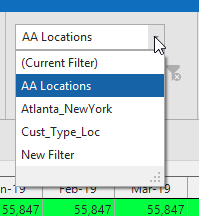
The saved filter will be available from the Data Selection dropdown list.
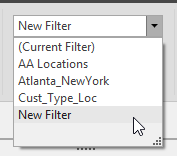
Saved Selections\ Saved filters are available from the Data Selection dropdown. However, you can also view saved filters from the Saved Selections window.
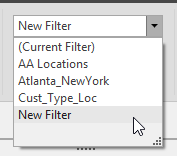
Click the ellipses button to pop-out the Saved Selections window; select a filter and click OK to use that filter.
Toggle the Show Only My Selections button ON to show the current user’s saved filters.
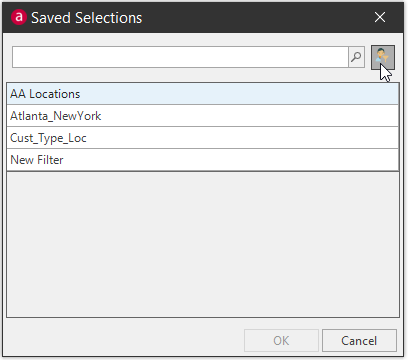
Toggle the Show Only My Selections OFF to show all available saved filters from all users.
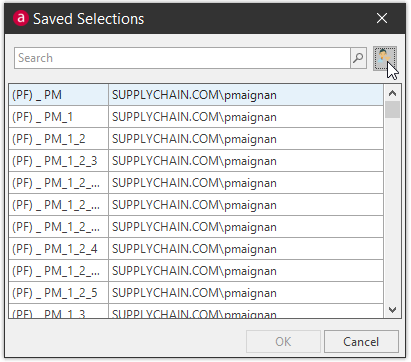
Show only my selections\ Toggle on to show only current user’s created filters in the dropdown list; toggle off to show all user created filters in the dropdown list; Available from the Data Selection box and in the ellipses Saved Selection window.
Apply to All\ Apply current document’s filter to all open documents.
Set as Default\ Set a default filter to always be applied when launching the document. Select the filter from the selection dropdown or from the Selection Window, then click the Set As Default button.
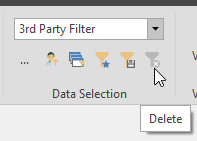
Delete\ Select a filter from the selection dropdown or from the Selection Window and click the Delete button.
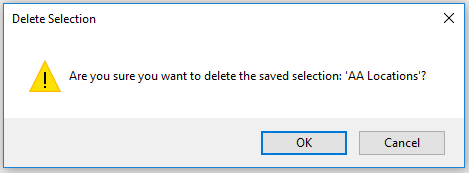
Click OK to delete the filter selection.
Column controls
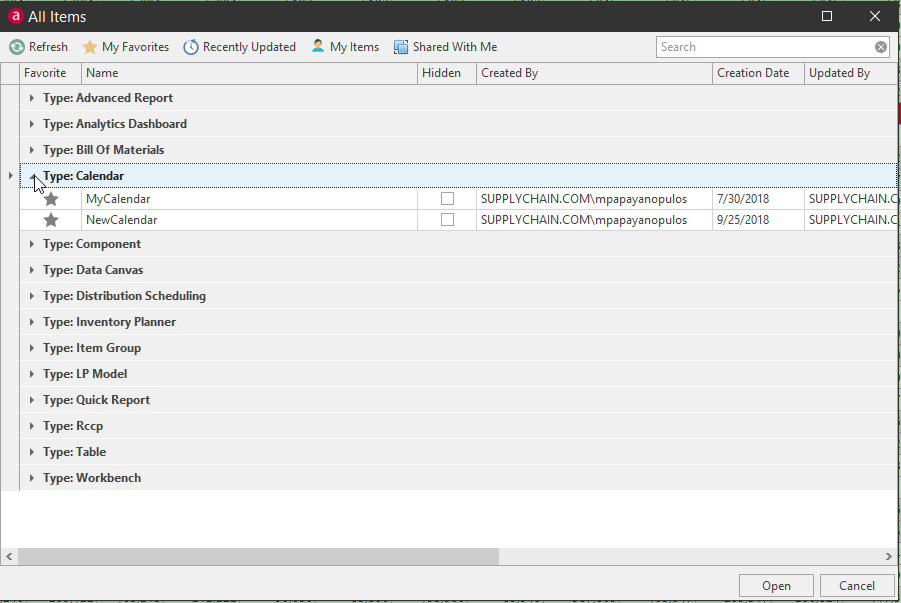
Column controls are found in many places in Arkieva, if there is a table structure in a document, it is likely to have the following controls and options. For this example we will use the Browse All Documents window.
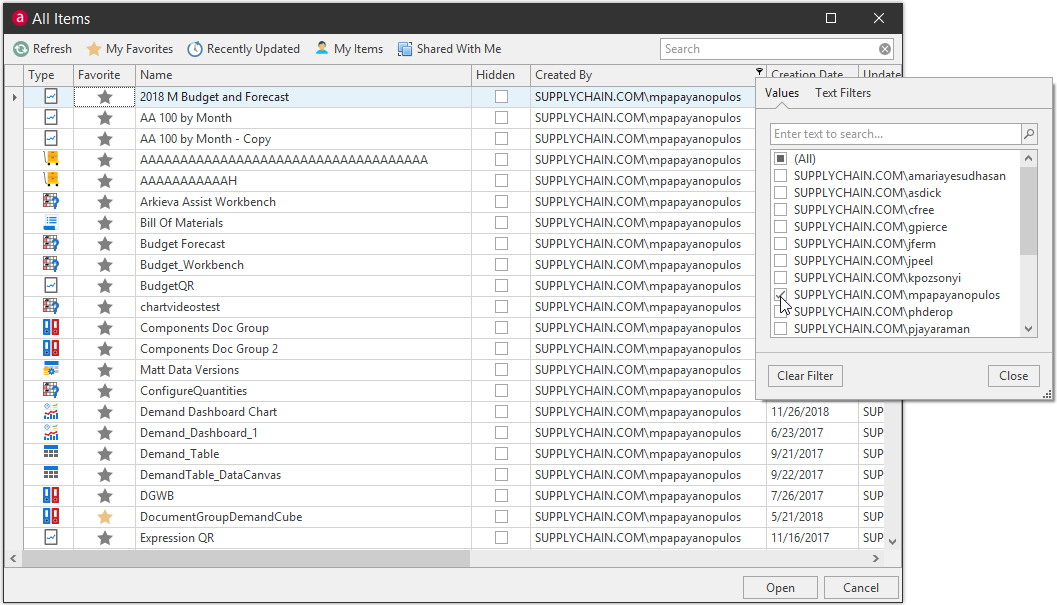
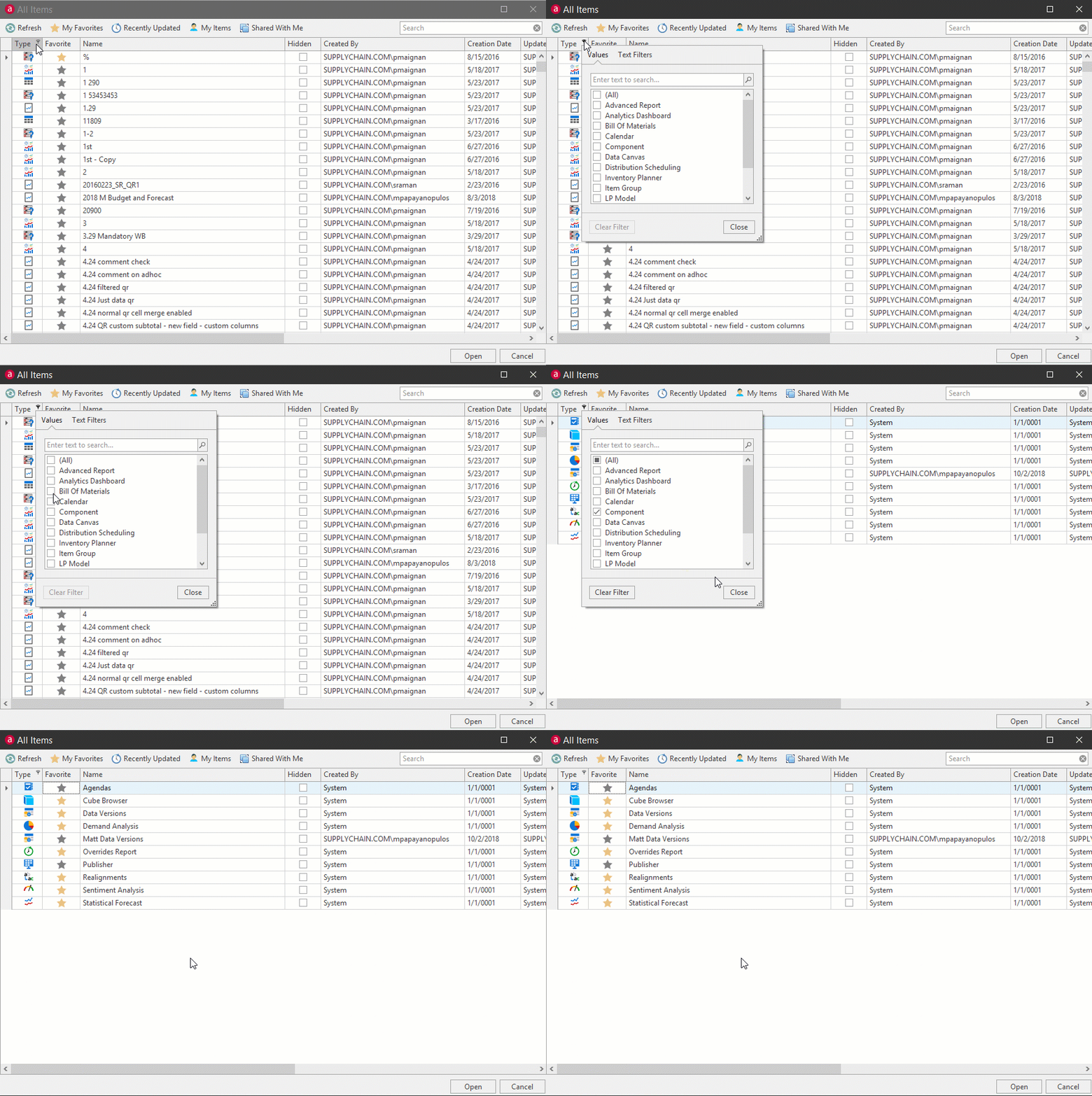
Column Filter (Funnel button)
Hover the mouse pointer over a column to make the Funnel button visible.
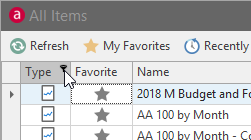
Click the Funnel to open the filter dropdown. Check the check boxes for the data you wish to include under the column.
Click the Close button to submit the selected filter.
Open the filter dropdown again and click the Clear Filter button to remove any filters.
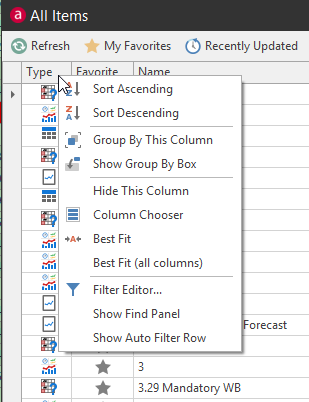
Column right-click menu
Right-click column headers for contextual menu options.
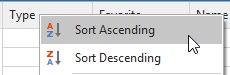
Sort Column Data\ You can sort data under a column by ascending or descending by either simply clicking the column or by right-clicking the column header and selecting Sort by Ascending or Sort by Descending. Select Clear All Sorting to return the column to the default sorting option.
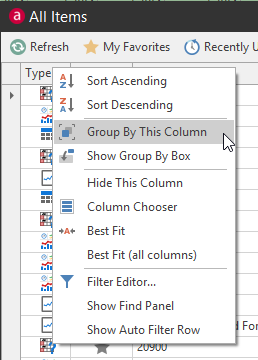
Group By\ You can also group columns in a tree / dropdown layout. To group by a specific column, right-click that column and select Group By This Column.
To group by more columns, right-click any column and click Show Group By Box.
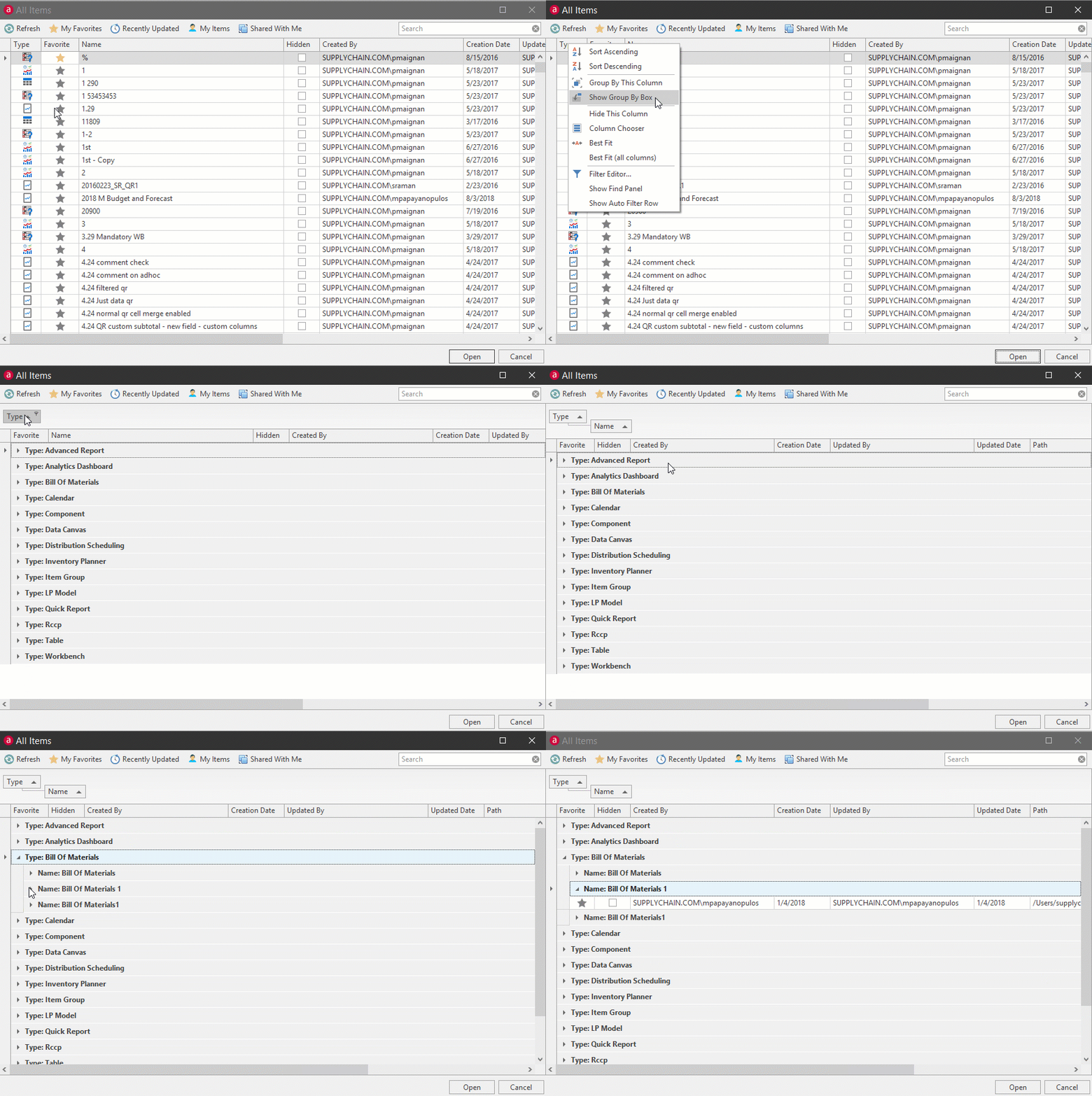
Next, either right-click the next column you would like to group by, or simply click hold and drag columns to the Group By Box.
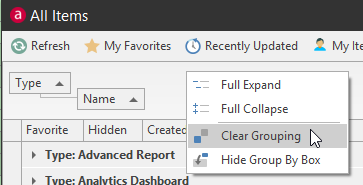
Right-click the Group Box for additional options.
- Full Expand: opens the entire tree view list.
- Full Collapse: closes the entire tree view list.
- Clear Grouping: Clears all column grouping and returns the table view to default.
- Hide Group By Box: minimizes the Group By box from view.
Hide Column / Column Chooser\ Right-click a header and select Hide Column to remove the column from view.
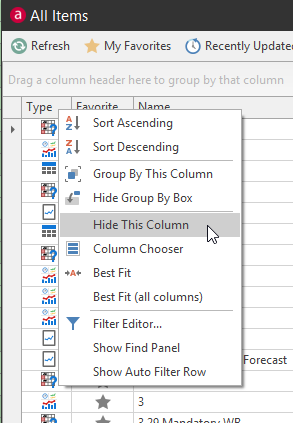
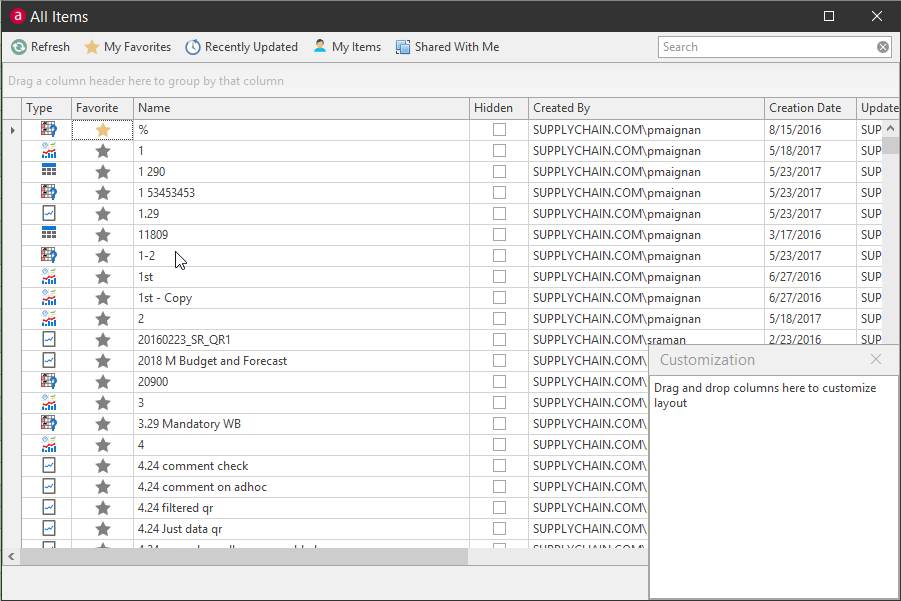
To show the column again, right-click any column header and select Column Chooser. The Customization box will open with all the columns that have been hidden.
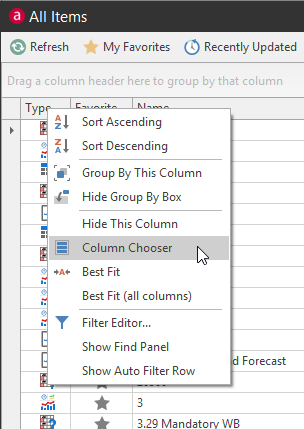
Double-click the column items to return the column to the table layout. The Customization box can also be opened to give you the ability to click and drag columns to the box, to hide columns from the layout.
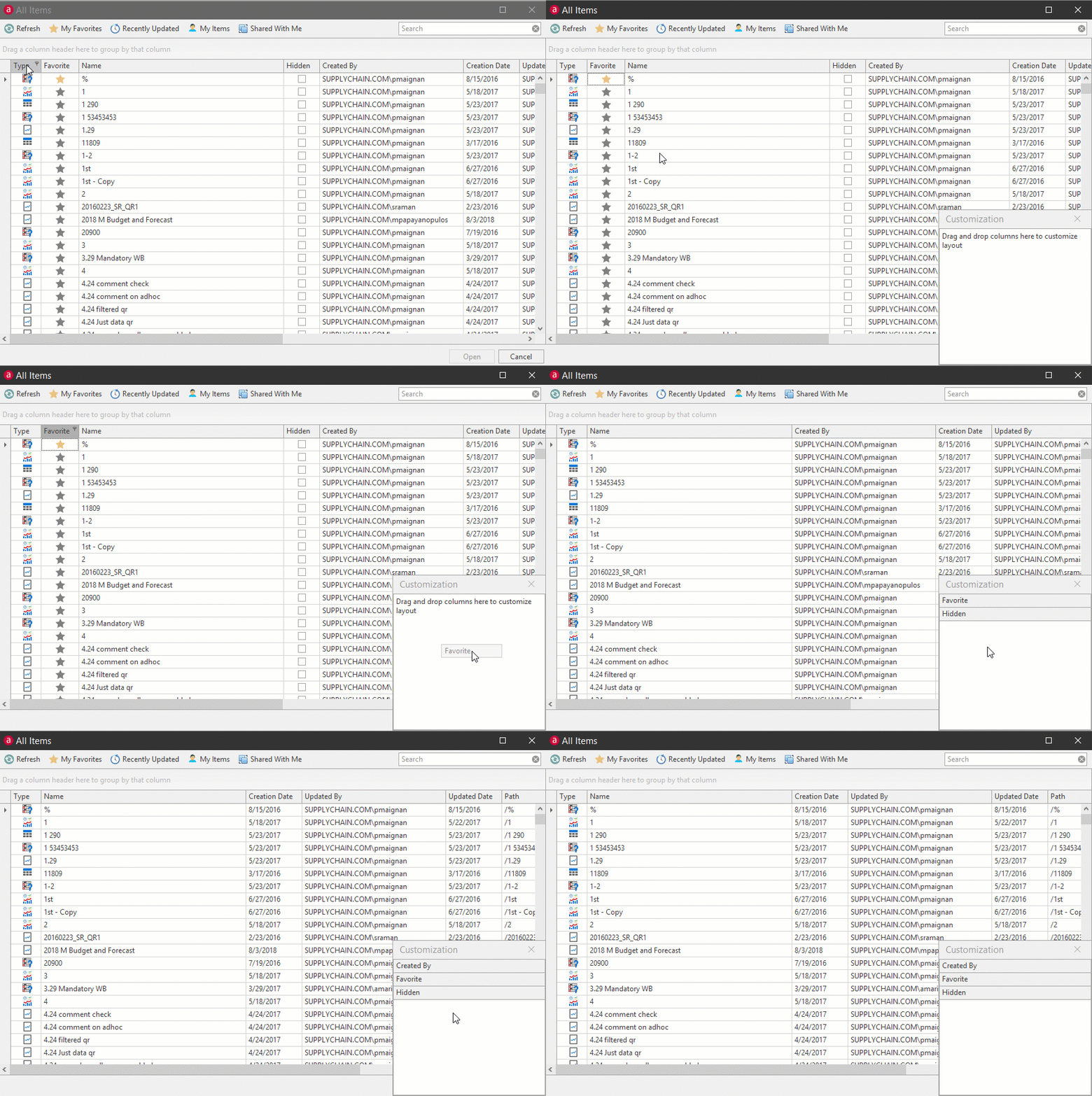
Close the Customization box by clicking the X button.
Best Fit Columns\ Right-click a specific column and select Best Fit to expand or narrow the column to best fit the data. Right-click any column and select Best Fit (All Columns) to expand or narrow all columns to best fit the data.
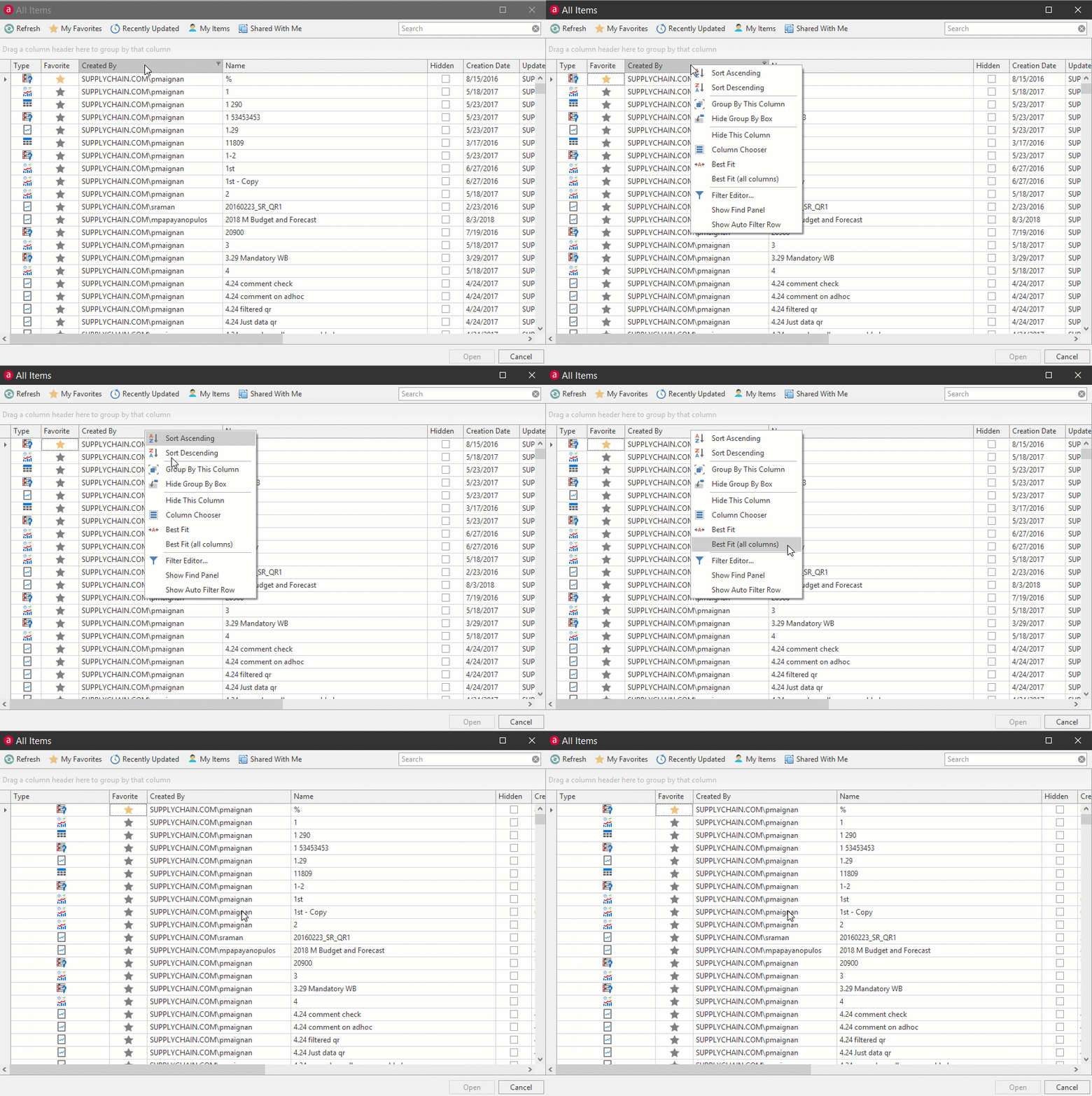
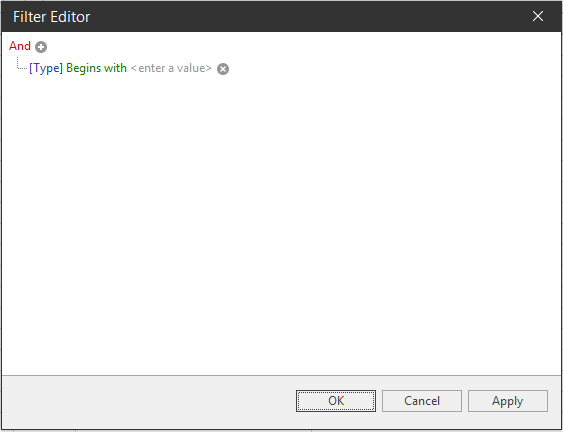
Filter Editor\ Right-click a column header and select Filter Editor for more filter options.
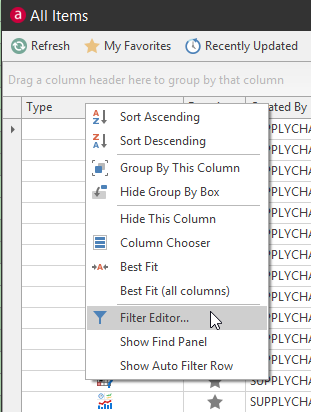
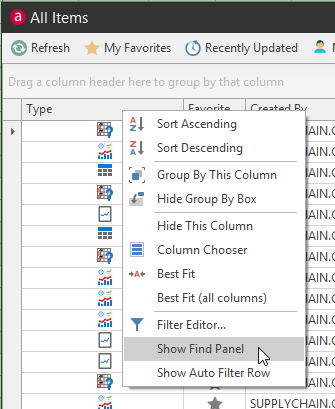
Show Find Panel\ Right-click any column header and select Show Find Panel to open the search box.
Type keywords into the search bar to drilldown the list of data. After clicking Find, that search term will be available from the dropdown for future use while the document is still open. Click Clear to clear the search and return to the default data layout.
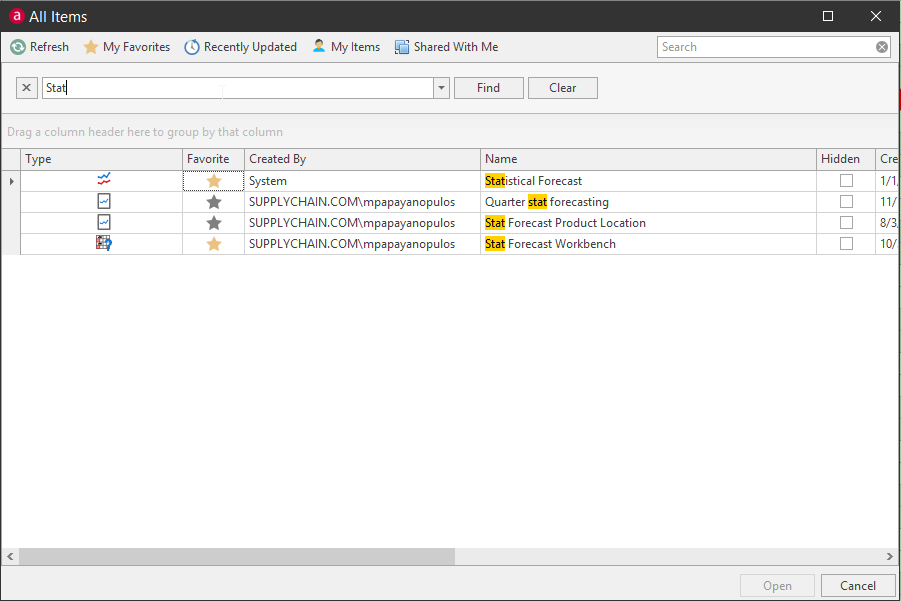
Hide the Search Panel by either clicking the X button or right-clicking the a column again and selecting Hide Search Panel.
Show Auto-Filter Row\ The Auto-Filter Row gives the user more filter and sorting options. Right-click any column header and select Show Auto-Filter Row to open the filter row.
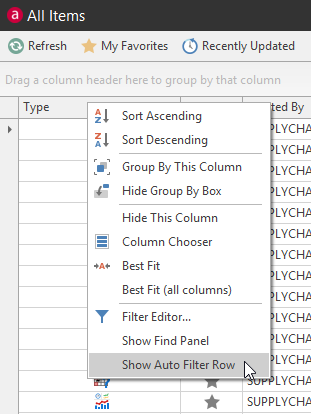
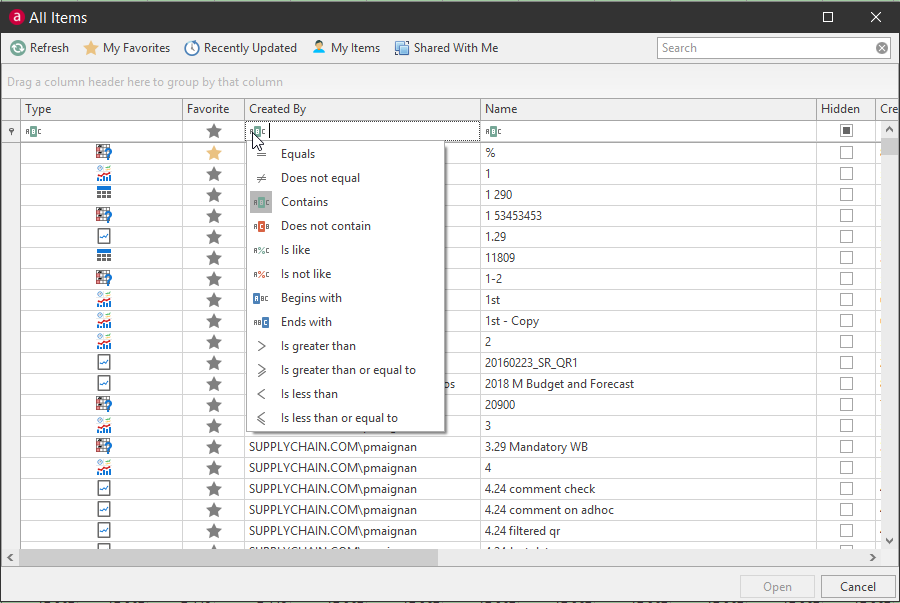
The filter options will depend on the type of data under the column. Value or text based data will yield the following dropdown filter options. Hide the Auto-Filter row by right-clicking any column header and selecting Hide Auto-Filter Row.
How to filter data
In this session, we will touch on the various ways that you can quickly filter out data, select one entry, and multiple entries all through your Arkieva system.
text If video does not play, please copy and paste the below URL into an internet browser.
https://readme.arkieva.com/docs/design-and-results-view-commands
{`
`}
Basic Filter
Shortcut Keys and Commands
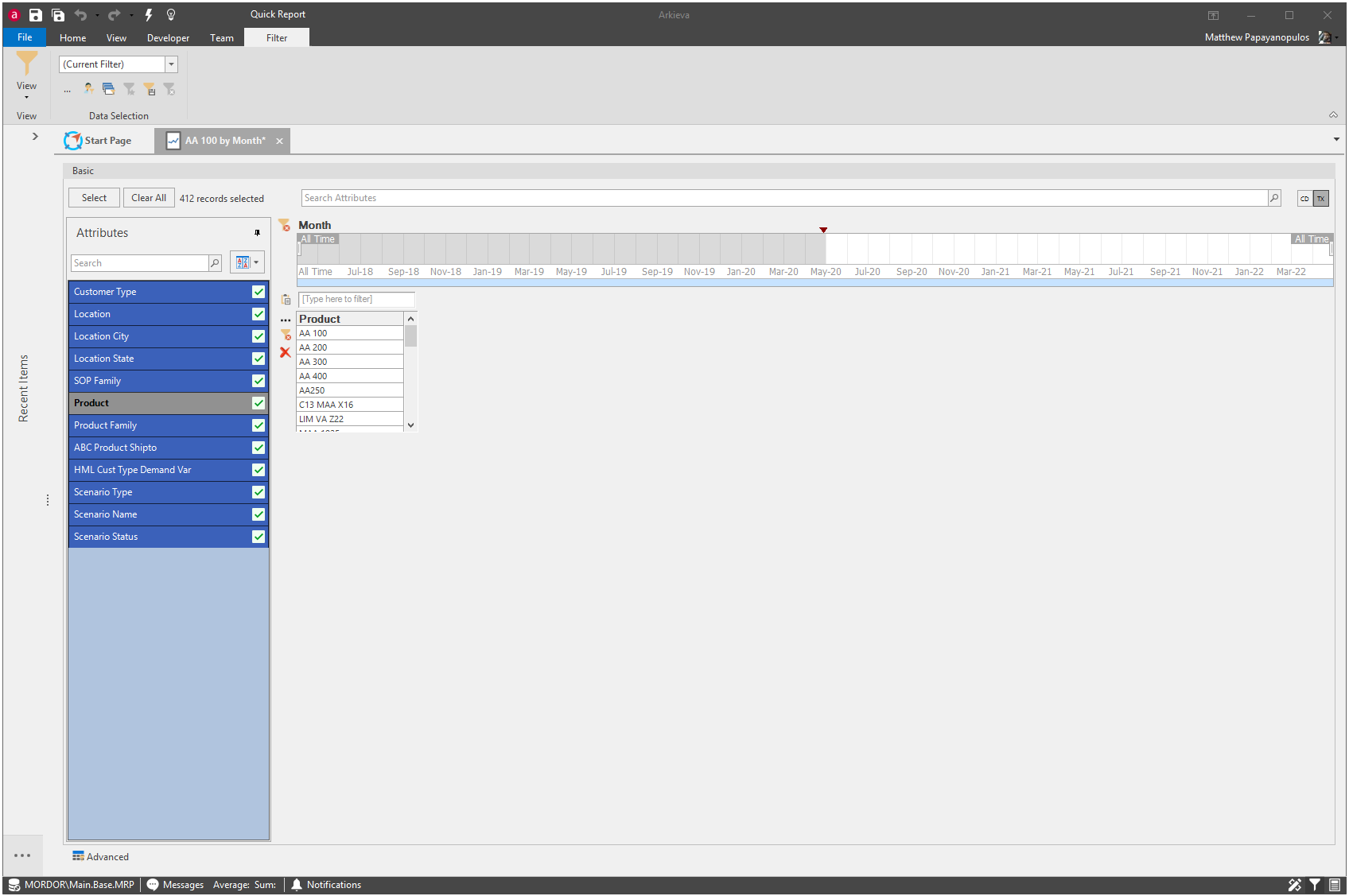
There are many shortcut keys programmed into Arkieva that can help you quickly and efficiently filter data in the Filter view.
- Double-click selection: double-click an a single item to select it for filtering without having to click the Select button or press the Enter button.
- Multiple item selection: Hold CTRL while left-clicking items to highlight in blue; press Enter or Click Select button.
- Group selection: While holding SHIFT click the first and last item to highlight all items in-between in blue; press Enter or Click Select button or left-click and hold while dragging across all items to highlight in blue; press Enter or Click Select button.
- Single item exclusion: Hold ALT and left-click the item to highlight in red; press Enter or Click Select button.
- Multiple item exclusion: Hold CTRL + ALT and left-click items to highlight in red; press Enter or Click Select button.
- Group exclusion: Hold CTRL + ALT and hold left-click and drag across the items to highlight in red; press Enter or Click Select button.
Time Range Filter
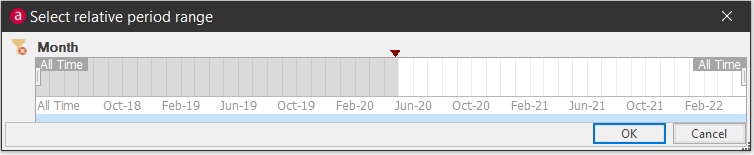
Select a start and end time with the Time Range Filter slider. The same filter can be created using the Advanced filter tools.

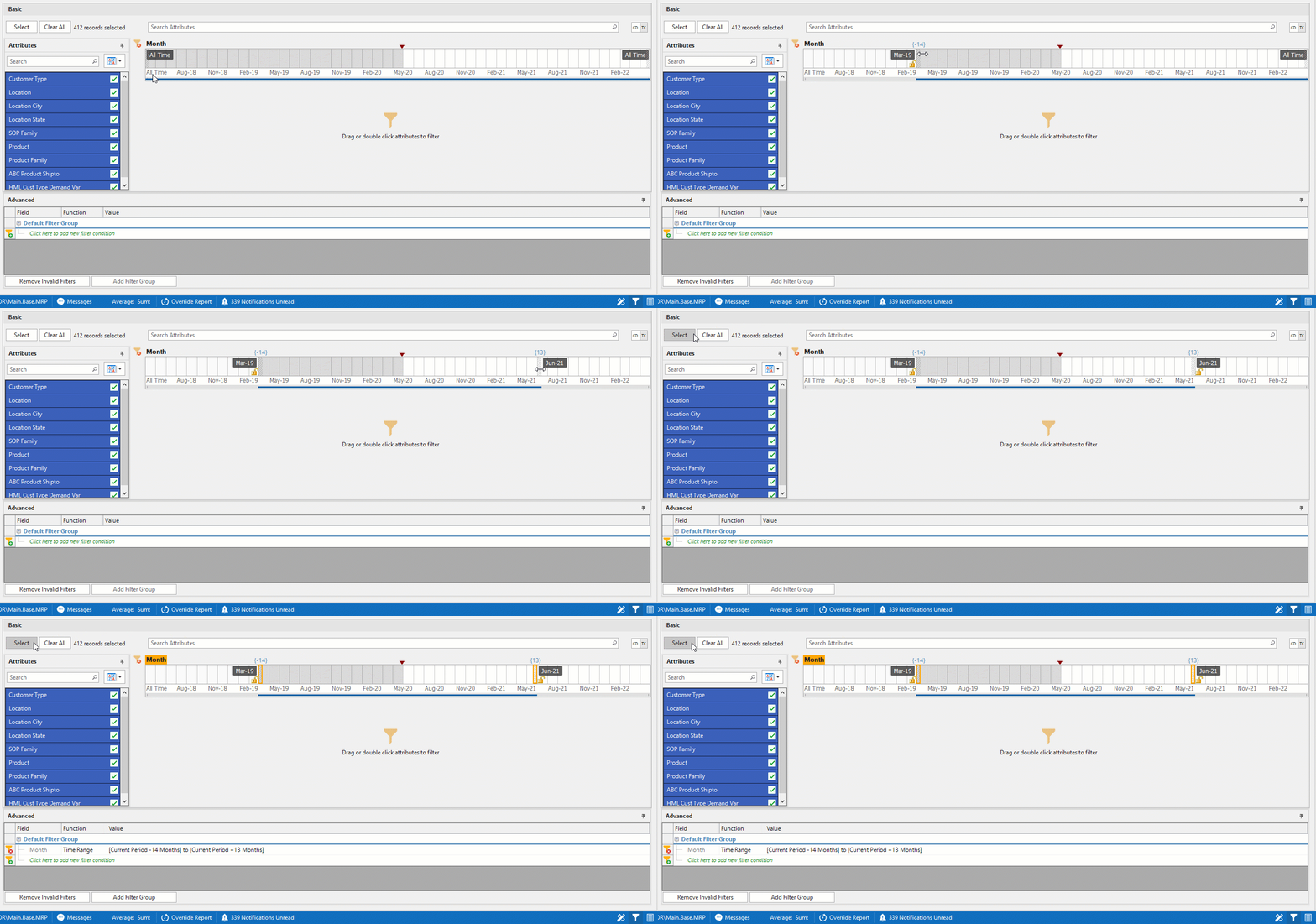
Click and drag the left slider to the right to a position where you would like to start and the right slider to the left to a point where you would like to stop. Click the Select button to select that time range filter, the sliders and the word ‘Month’ will be highlighted in orange to show they have been selected.
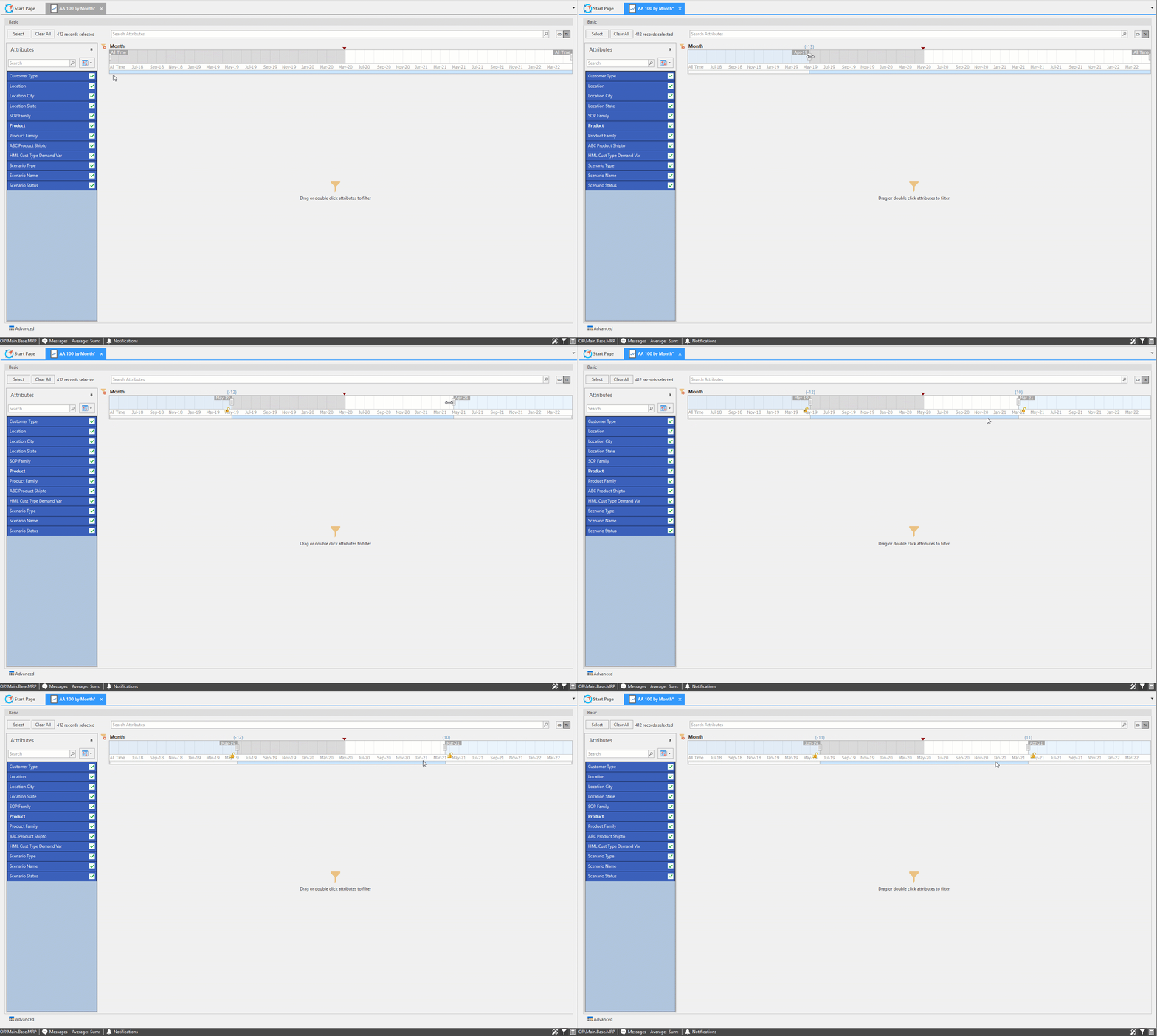
These periods move with the current month setting; however, you can click the padlock icon (the padlock icon appears on a slider once it is moved) to lock a slider to always be from that period or until that period, regardless of the current month setting.
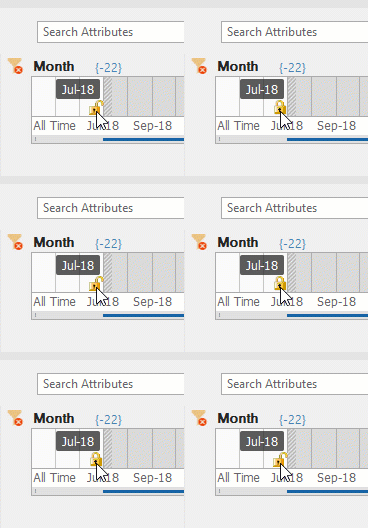
The white bar underneath and between the sliders can be grabbed with the mouse pointer and moved both sliders left or right while also keep the same period width.

When a time range filter is selected, the information will also be reflected in the Advanced section of the filter view.
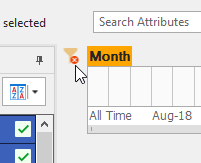
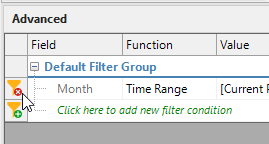
Remove the Time Range filter by either clicking the Red Minus Filter icon next to the Time Range slider, or clicking the Red Minus Filter button next to the filter in the Advanced filter section.
Attributes navigation pane
All attributes contained in the data selected from the Data Model to create the Arkieva document will be listed under the Attributes navigation items pane. Time attributes will not be listed.
Below is an example taken from a Quick Report document.
Design View
Filter View
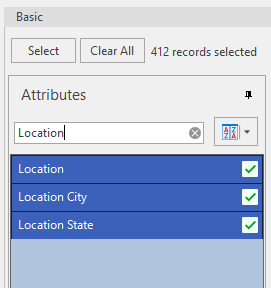
Search\ Type the name of an attribute to drilldown a large list of attributes in the navigation pane.
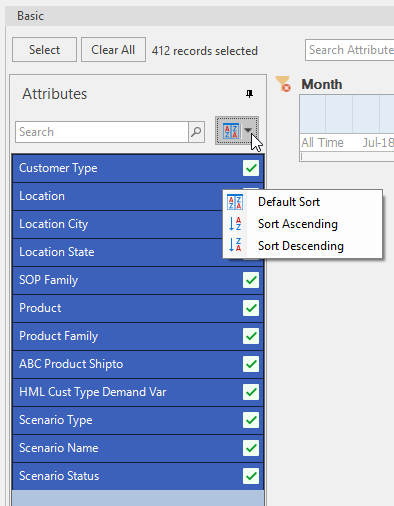
Sort dropdown\ Select a sorting option from the sort dropdown box; Default Sort, Sort Ascending, or Sort Descending.
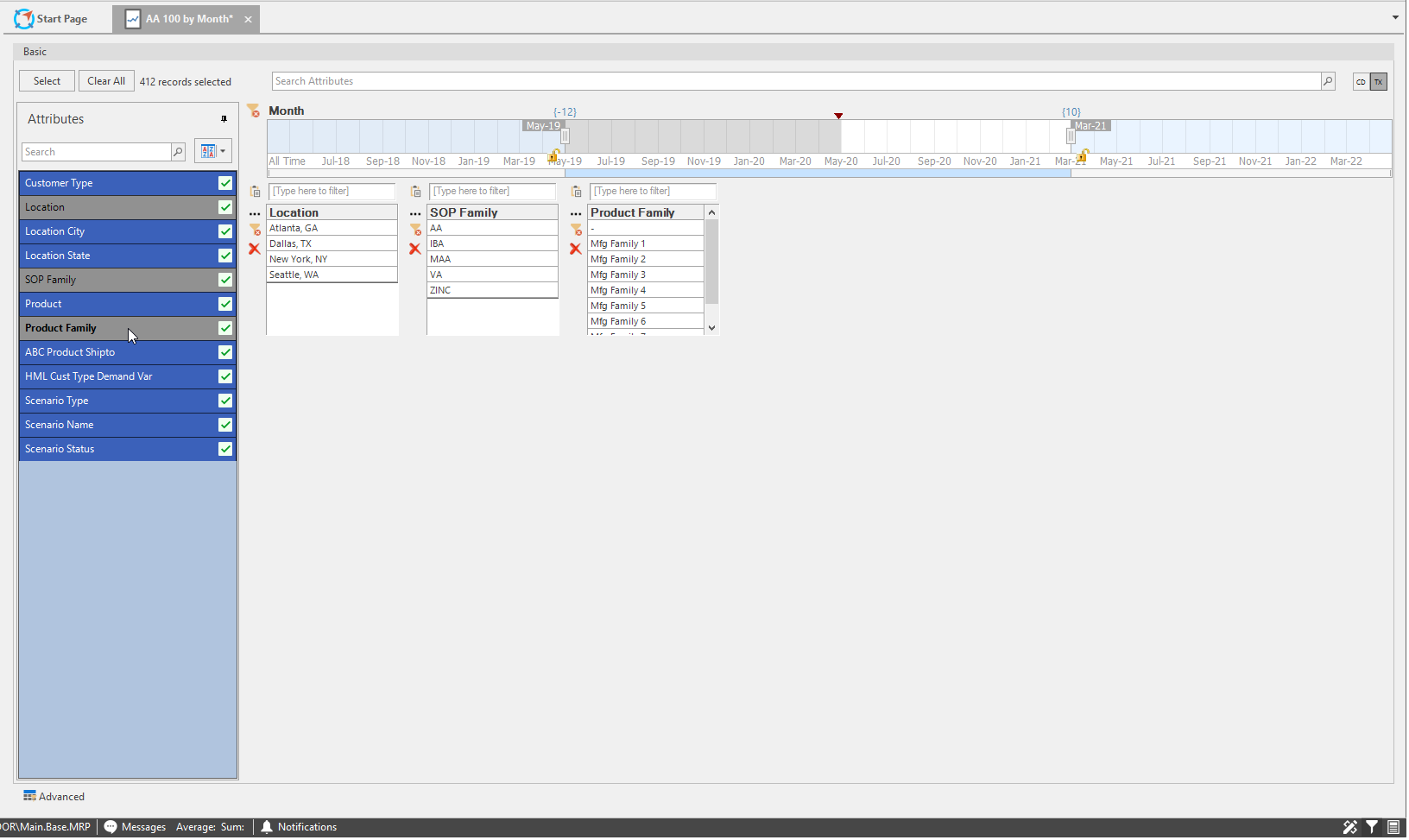
Attributes selection\ Double-click an attribute name to launch that attribute’s records box. Selected attributes names will be in bold and gray in the navigation pane. Click the red X to remove the record box.
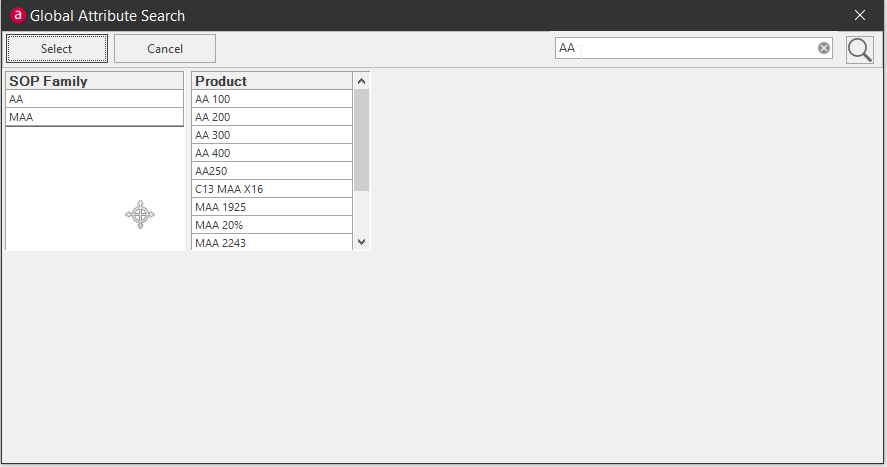
Global Attribute Search in Filter View
Use the Global Attribute Search to search through all records under all attributes.
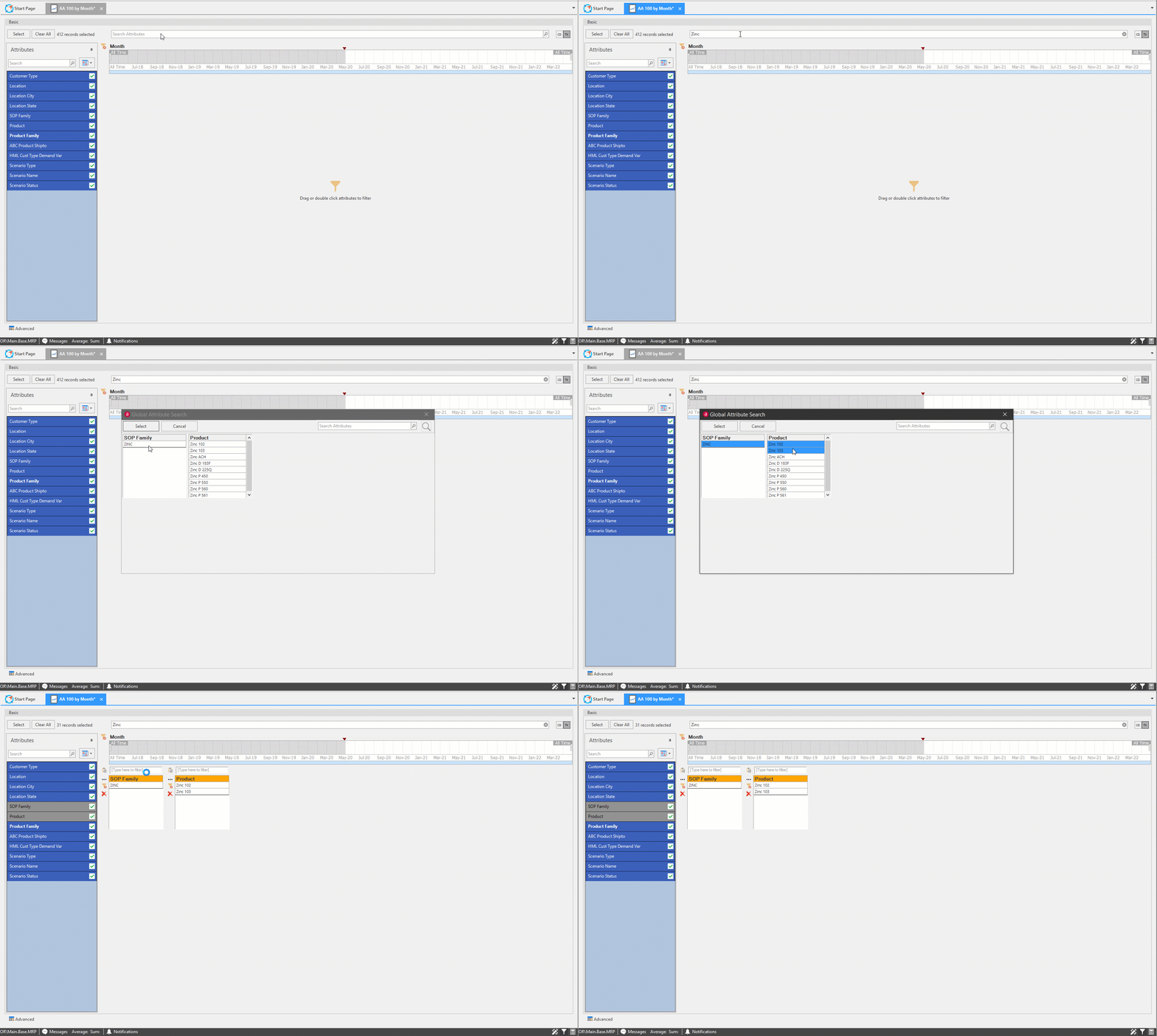
Type a record name in the Search field and press the ENTER key on your keyboard.
Further searchability is available in the Global Attribute Search. Type a record name again in the search box.and press ENTER or click the magnifying glass button.
Click the record to select it then click the Select button. The Global Attribute Search will close and the user is returned to the filter view window with the records selected.
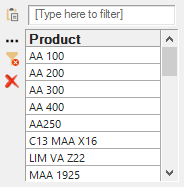
Filter records box
Double-clicking an attribute in the attribute navigation pane will launch that attribute’s records box.
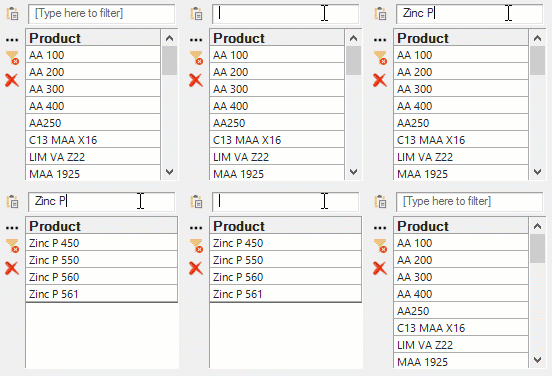
Search\ Type into the search field to drill down the list of records. Press ENTER to select that record when using the search field.
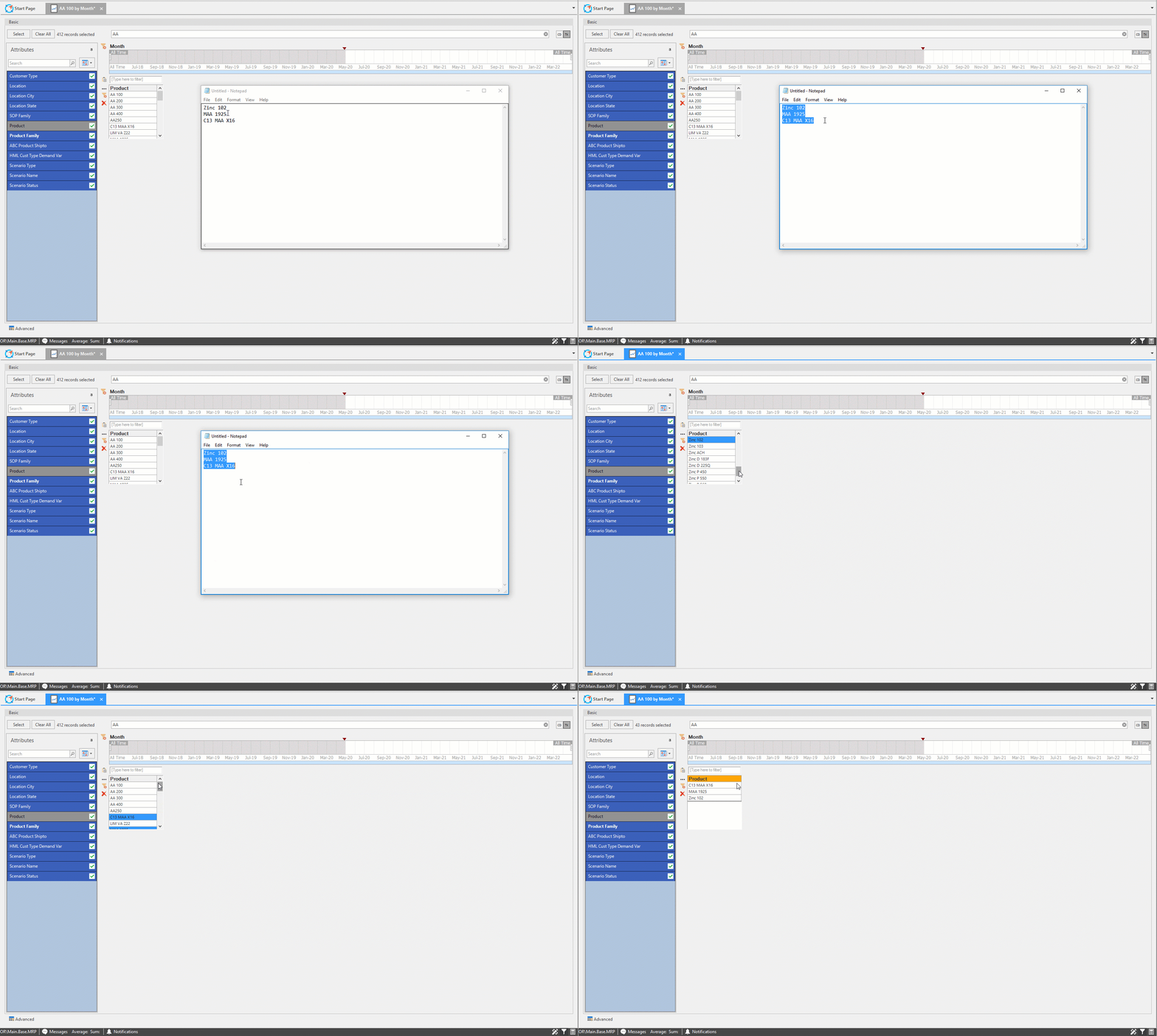
Paste Clipboard\ If another user sends a list of filterable data in an existing document (.txt, .doc; etc.), a user can copy the list and paste it into a filter box to be automatically selected.
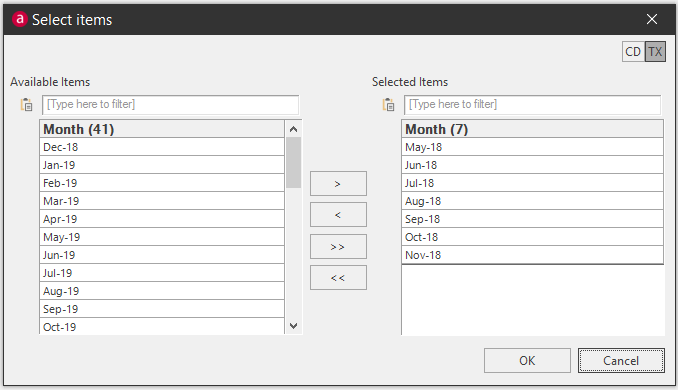
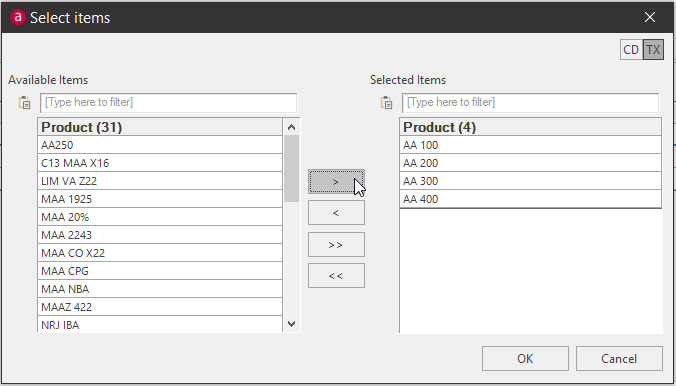
Ellipses: Select items\ Click the ellipses button to launch the Select Items window to make selecting records in a large list easier.
Click records from the available items list (hold CTRL and click to select multiple items at once) and use the arrows to move those items to the Selected items list; click OK to select those records for filtering.
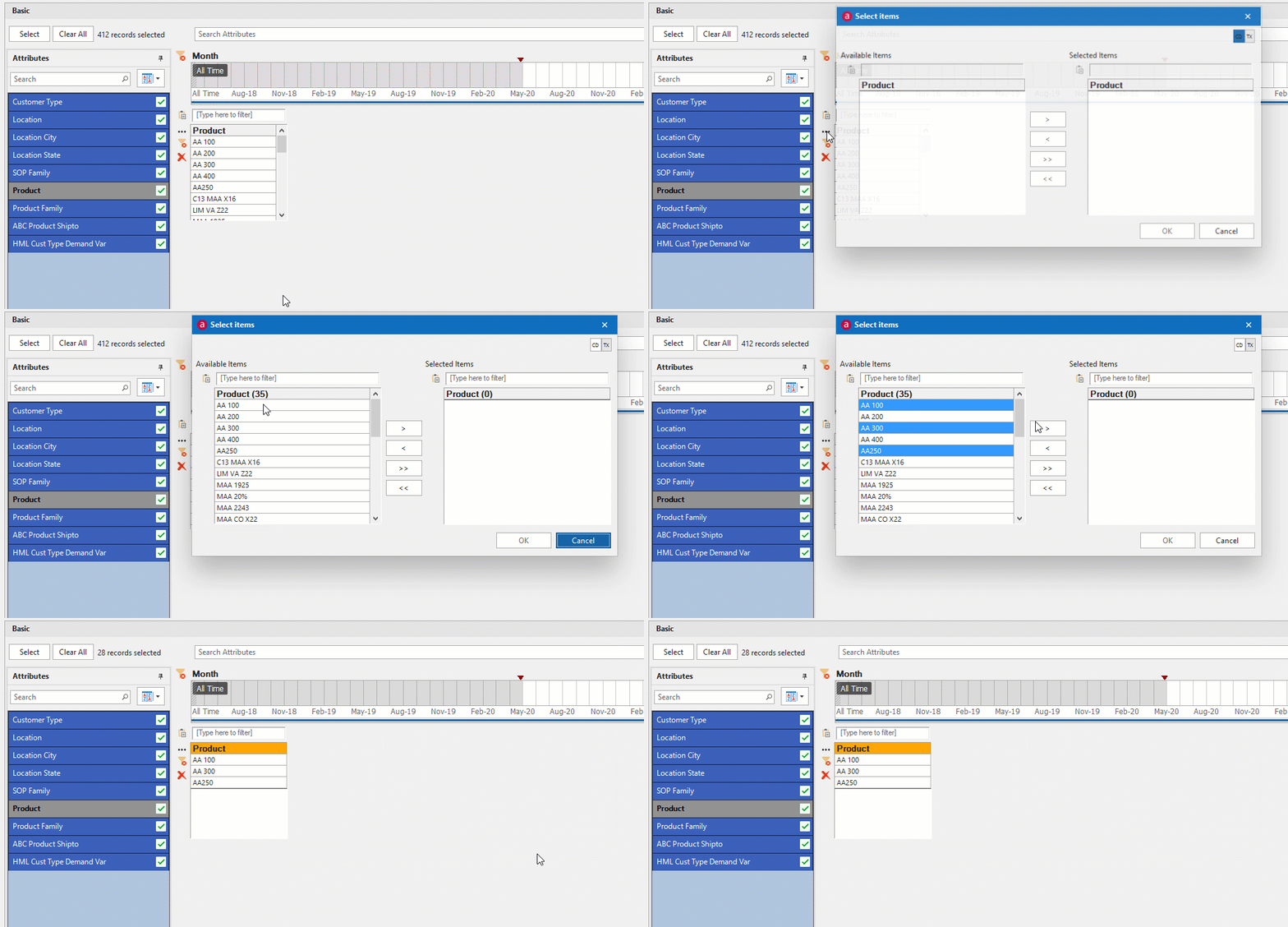
Remove Filter\ Click the red minus funnel button to remove selected filter items from being selected.
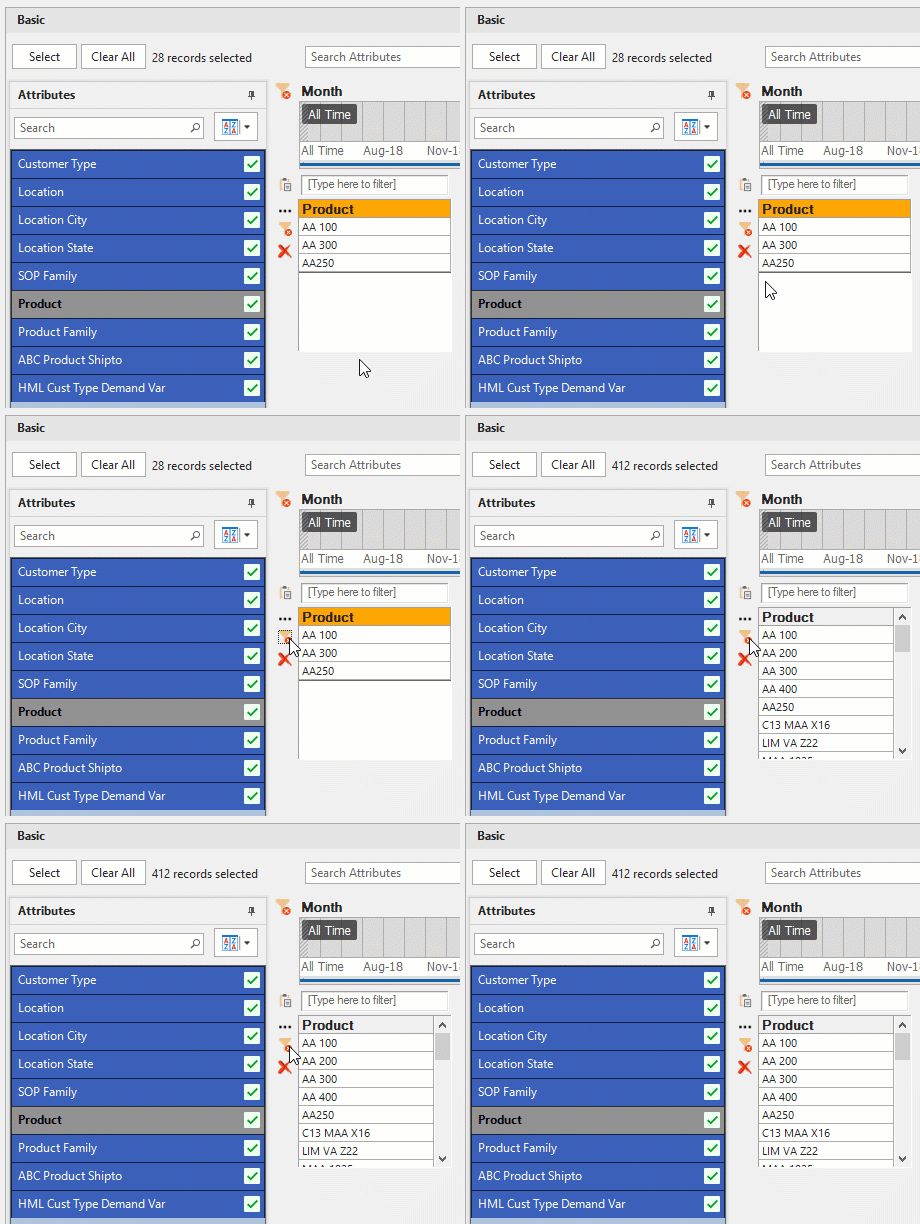
Remove filter records box\ Click the red X to remove the selected attribute from the filter layout.
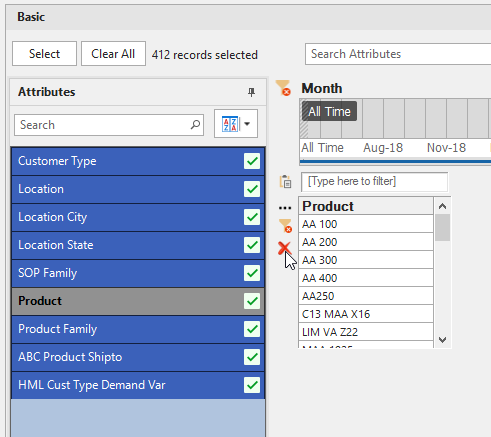
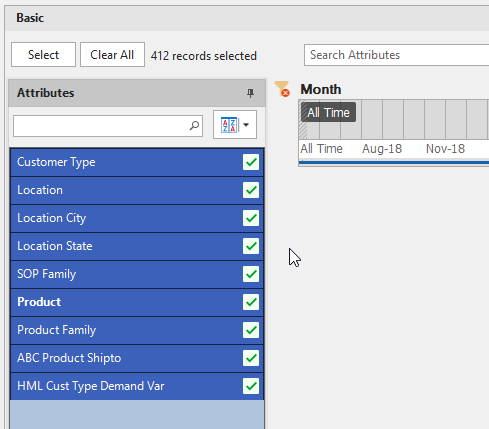
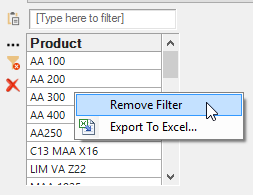
You can also right-click the records box and select Remove Filter to remove the records box from the filter selection grid.
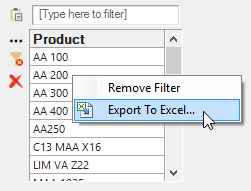
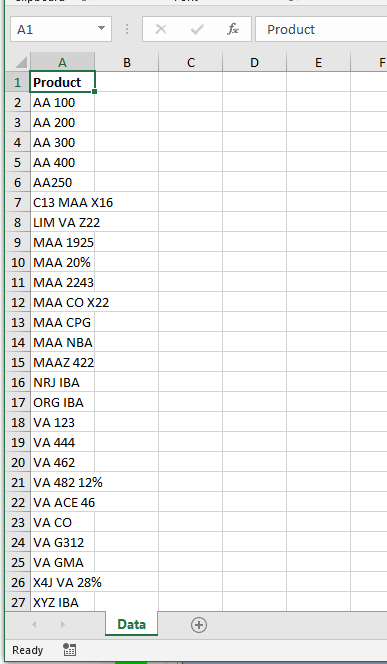
Export to Excel\ Right-click the records box and select Export to Excel to export the entire list of items to Export.
Basic Filter Example
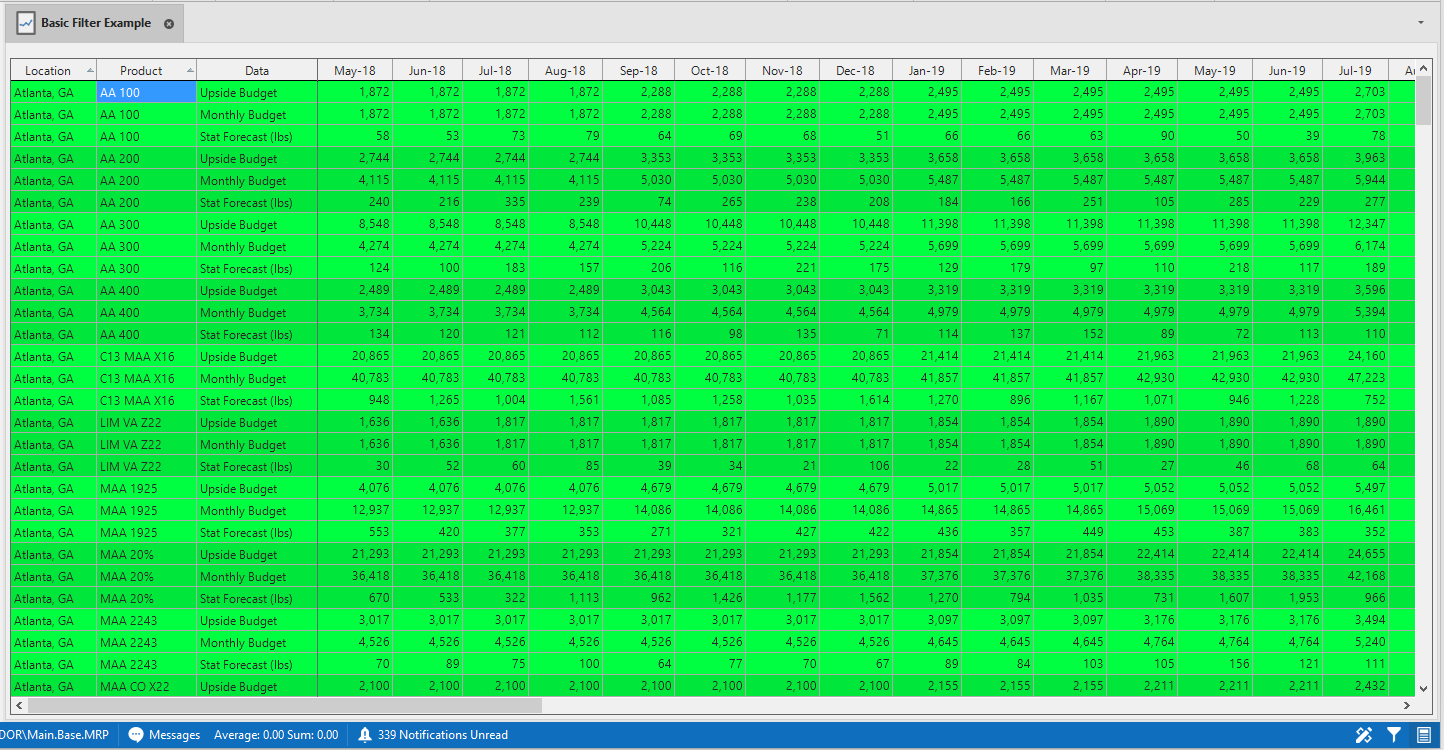
For this exercise we will include three attributes and three quantities:
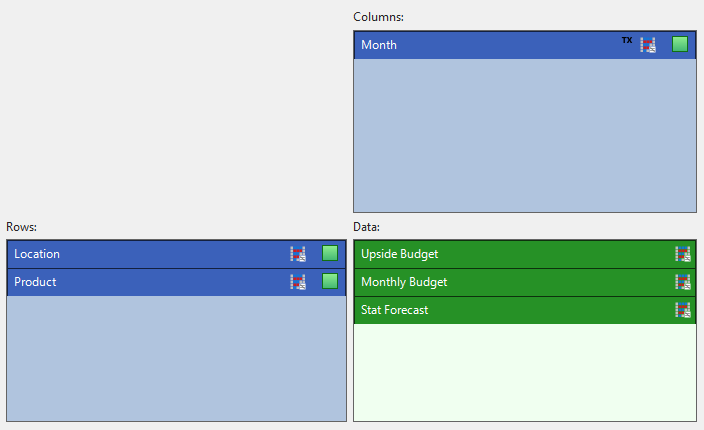
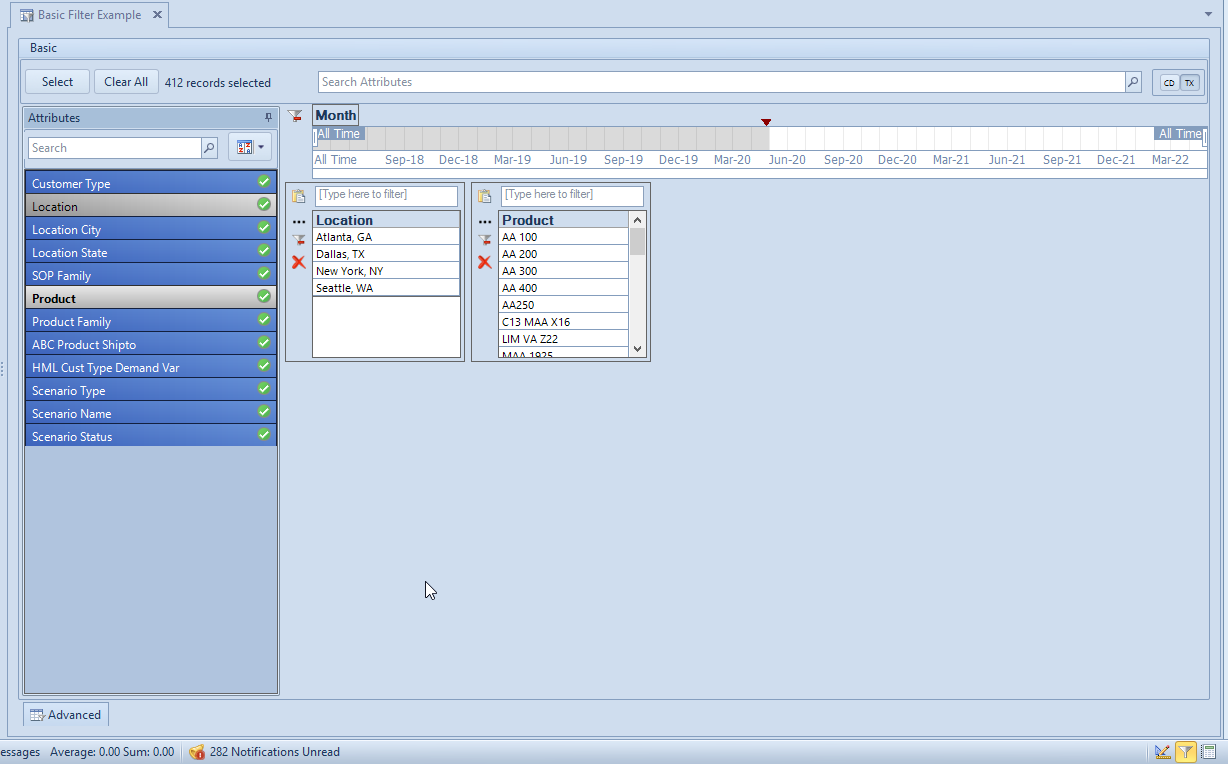
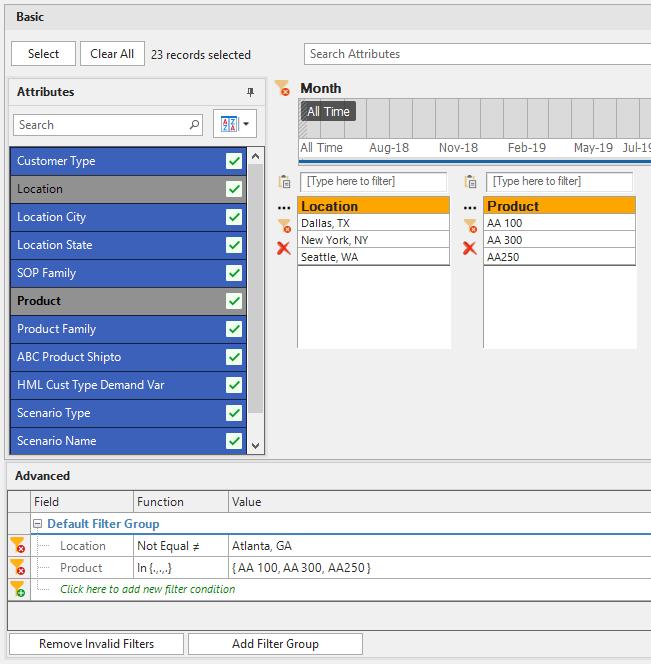
Go to the Filter view, and double-click the attributes to include for filtering. We will include both the Location and Product attributes.
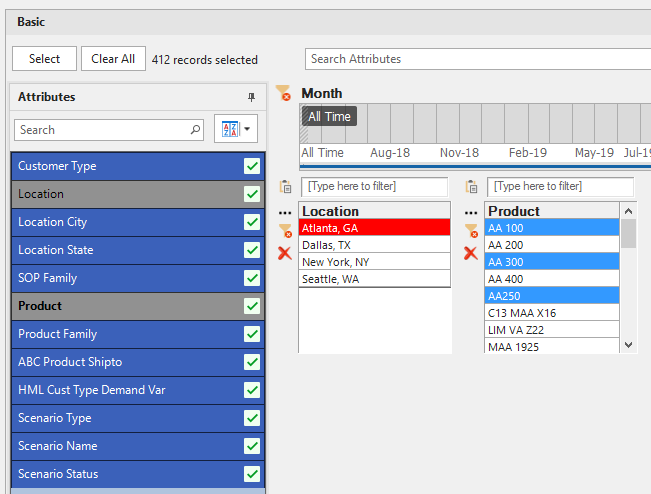
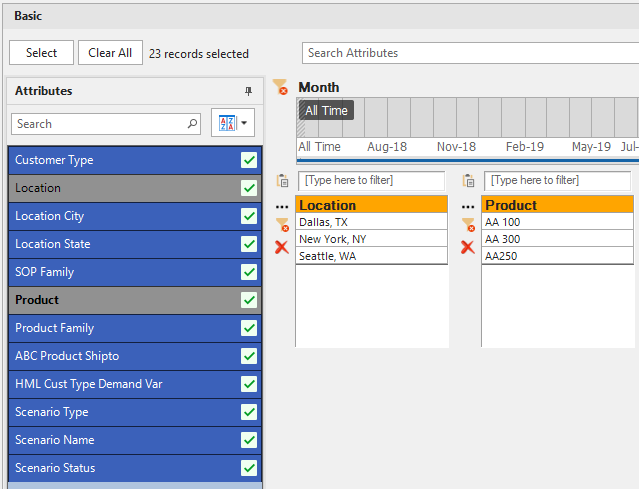
- We will hold ALT and click Atlanta to exclude from filtering, selecting Dallas, New York, and Seattle to include in the report.
- We will hold CTRL and click AA 100, AA 300, and AA250 for the report, excluding the rest of the product items.
📘 Note
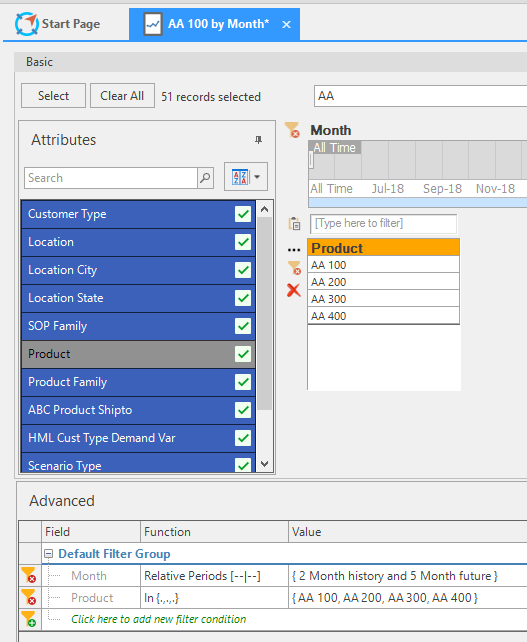
Filters selected in the Basic section will also be automatically selected in the Advanced Section.
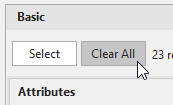
Clicking the clear button will remove all selected items for filtering.
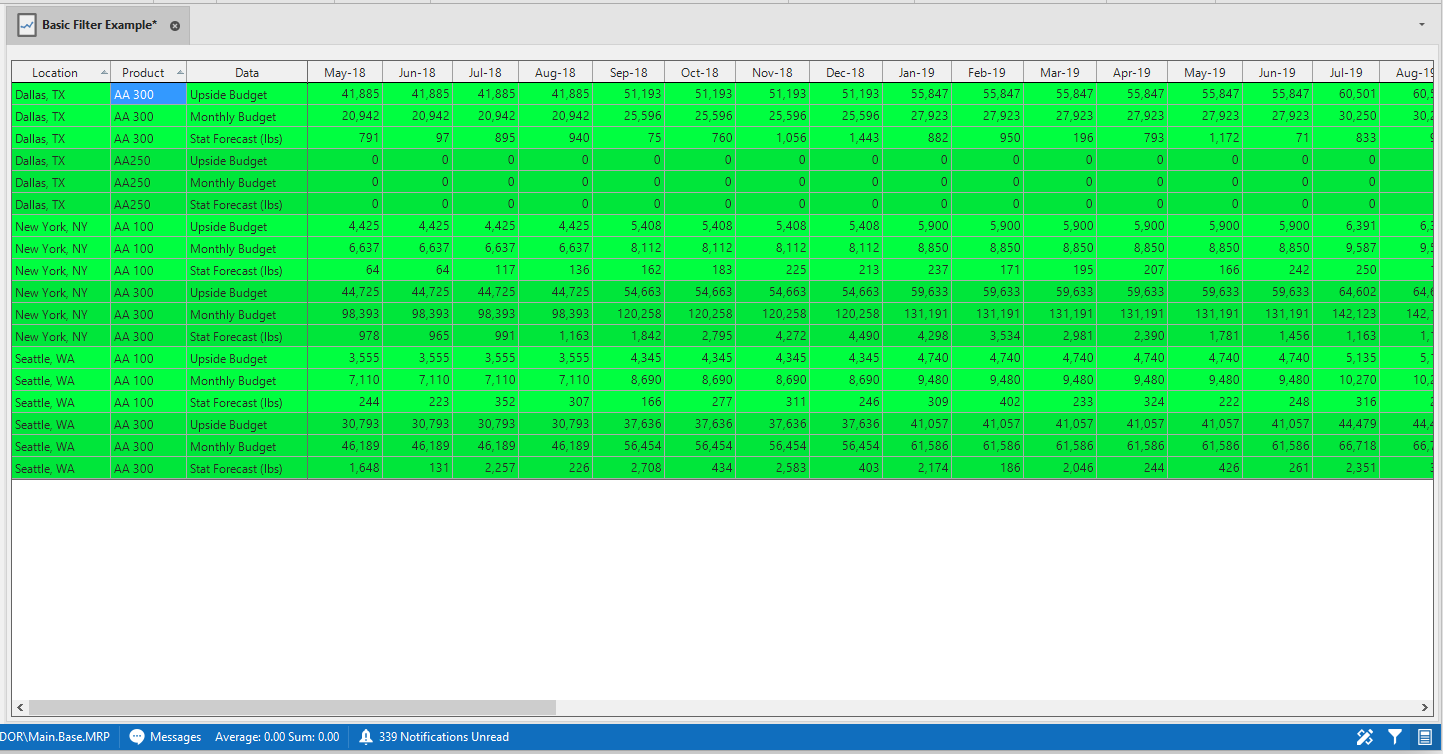
Go to Results View. Always make sure to switch between the Filter View and Results View to check that the Filters selected make sense for the report data and design.
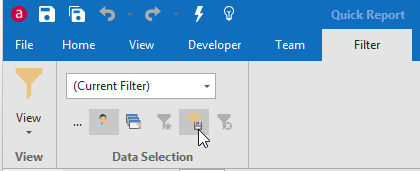
When finished creating a filter, click Save in the Data Selection section of the Filter ribbon of Filter View and name the Filter; click OK.
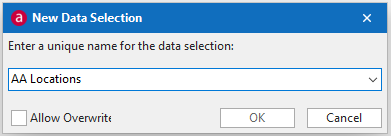
The filter will also be available for selection from the Data Selection in the Results view.
Advanced Filter
Use the Advanced section of the filter view to filter attributes and quantities.
- Default Filter Group: Within a filter group, the quantities and attributes added are considered an AND clause
- Adding Another Filter Group: You can create multiple Filter Groups with the 'Add Filter Group' button. The data between different Filter Groups are considered an OR clause.
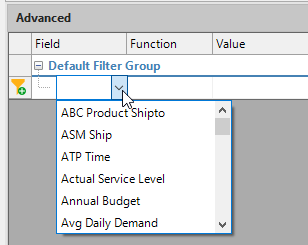
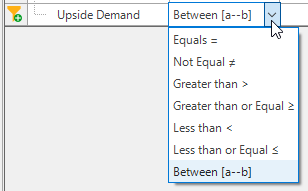
To create a filter, select an attribute to filter under the Field column by using the dropdown menu. Then select the function of the filter using the dropdown menu under the Function column (the function is dependent on the Field selected). Lastly type or select a value under the Value column (the options available under the Value field are dependent on the Function chosen).

To create a filter, select an attribute to filter under the Field column by using the dropdown menu. Then select the function of the filter using the dropdown menu under the Function column (the function is dependent on the Field selected). Lastly type or select a value under the Value column (the options available under the Value field are dependent on the Function chosen).

Field, Function, and Value selection
Field\ The Field dropdown contains all attribute data from the Data Model selected to create the document. This includes attributes, time attributes, and quantities.
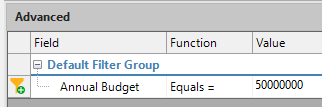
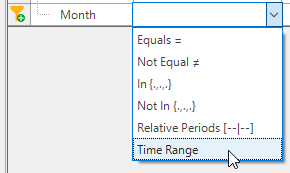
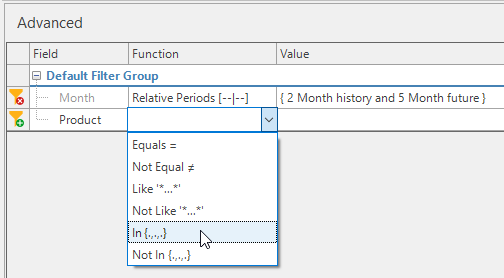
Functions and Values\ User Entered Values\ Equals, Not Equal, Less than, Less than or Equal, Greater than, Greater than or Equal, Like, Not Like.
In, Not In\ Select an attribute. Click the right arrows to move the selected attributes to the Selected Items box. Remove selected items with the left arrows.
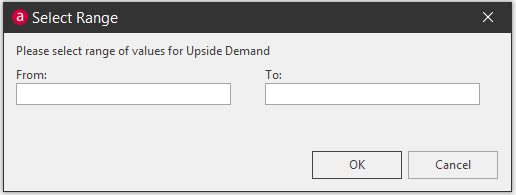
Between\ Type a ranged value into the From: and To: fields; Click OK.
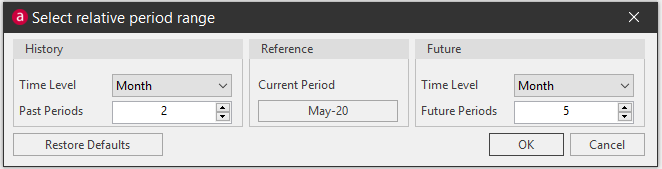
Relative Periods\ Select History and Future time levels and periods; Click OK.
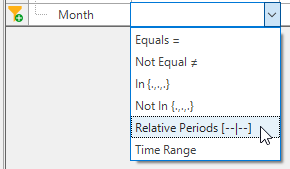
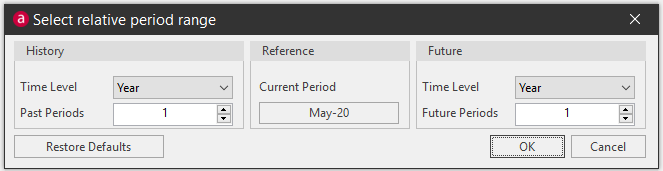
- Time Level: Select Day, Week, Month, Quarter, or Year.
- Past Periods: type a numerical value to represent the time period.
- Reference: shows the current period by default. Click Restore Defaults to reset values to default.
Time Range\ Select a start and end time range. The same filter can be created by using the Time Range Filter slider located in the Basic filter section.
Advanced Filter Example
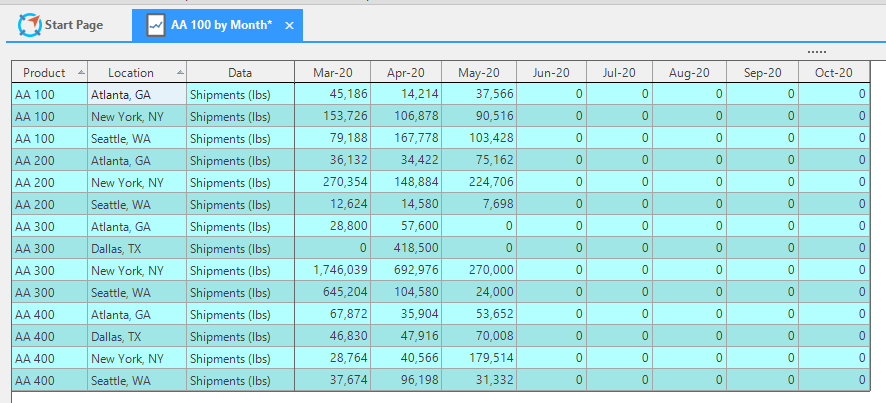
Under the Advanced section we can create filters using quantities and time attributes.We will create a filter showing 2 History and Future Periods (2 months Past and 5 months Future) and show five products.
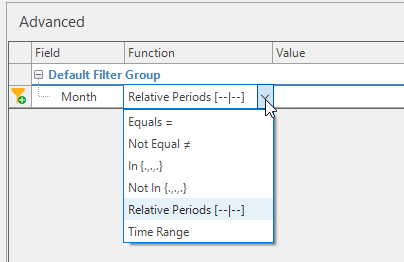
Advanced Filters will also appear in the Basic Filter section.
Related Articles
Data Pipeline
Data Pipeline was created as an Arkieva Add-in Component as an alternative to Data Canvas to better handle importing large Excel files into an Arkieva database in a much shorter time. Data Processing Data Import Selection and Load Import File To ...Data Canvas
Introduction Data Canvas is an easy way to edit table and data source data in a Grid and Spreadsheet view. Select the source of the data, Table Editor or Data Source, to create a Data Canvas. A table or a data source must first be created before the ...Data Download Process
Data Download process data is downloaded from the ERP and exposed to Arkieva. The Data Download business process loads the ERP data needed in the Supply Planning process, then the data is transformed to the format needed in Arkieva. Figure 1. Process ...Data Versions
Data Versions define and manage alternative data sets. Business What-Ifs require comparison between alternatives. Each alternative is defined by a set of business rules and a set of data. Data Versions can be accessed from the Linear Programming (LP) ...Data Anomaly Detection
Why Detect anomalies? Anomaly detection refers to the problem of finding patterns in data that do not conform to expected behavior. In the domain of supply chain management (SCM), anomaly detection is a key factor in making better forecast decisions. ...