Sentiment Analysis
Introduction
The Arkieva Customer Sentiment Analysis is a solution for monitoring market signals and customer sentiment from social media channels. The Customer Sentiment Analysis provides real-time social monitoring to help you react in real-time to marketplace changes that result from social interactions to improve your forecasts. Using natural language processing, the solution assigns a sentiment score to indicate if marketplace sentiment via social media channels are positive, negative or neutral. This allows you to proactively respond to marketplace changes.
Social Media
Product Reviews
Gain the Visibility Needed to Sense Social Signals – As They Happen\ The Arkieva Social Sensing and Sentiment Analyzer uses social media listening and monitoring features that track specific keywords, analyze the results for relevant keywords, and then attribute a sentiment score to show how a conversation can negatively or positively affect your business. This allows you to track and react, in real-time, to social conversations.
Track, Analyze, and Align Your Social Signals with Your Demand Plan in Real-Time\ Your customers are always on. Therefore, you need to be able to sense and instantly react to changes caused by a result of customer social interactions online. When a product suddenly increases or decreases in demand as a result of unplanned social activity, you need to be able to quickly adapt your demand and supply plans.
What happens when a new or existing product suddenly increases in popularity (goes viral)?
Improve Your Social Sensing and Demand Planning\ Sense demand in real-time
- Create a better process for tracking demand and sensing signals by using customer interactions shared via social media.
Identify positive and negative demand signals
- The Arkieva Sentiment Analysis Solution assigns a sentiment score to each social media post, allowing you to easily analyze and identify positive or negative drivers of demand.
Join customer conversations
- Track keywords or hashtags that your customers are using and join conversations to better shape demand.
Give weights to social interactions
- A post by a celebrity with millions of followers might make a huge impact on your sales. Easily identify accounts and posts with the highest social media followers and shares to get ahead of possible demand implications.
Social Media
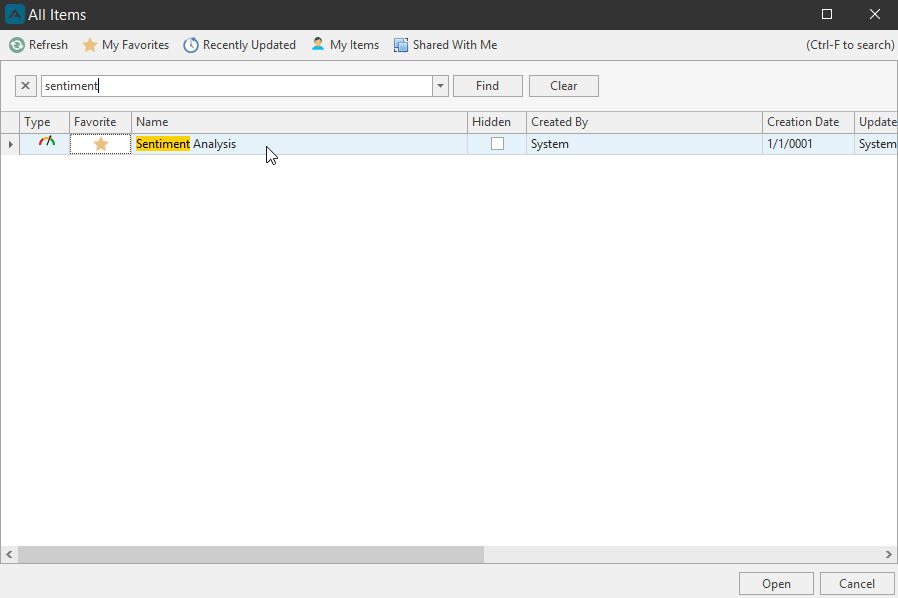
Monitor social media score with the Social Media tab in Sentiment Analysis. Launch the Sentiment Analysis from the the All Items window.
New search query configuration
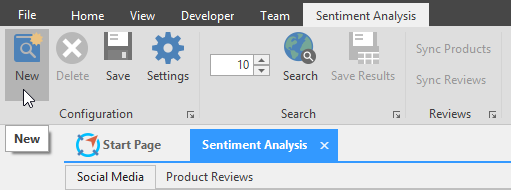
Click New to start a new Query Configuration. Clicking New will also clear any fields with previous information in the Search Configuration section. When saved, this information will be saved to the dbo.SearchConfiguration SQL table.
- Name: Type a name for the search configuration.
- Description: Type an optional description explaining the search configuration.
- Enabled: If this search query is setup as a Job, check the Enabled checkbox to enable that Job search query.
- Included Terms: Type query terms to search for; use commas to separate multiple individual search terms.
- Excluded Terms: Type query terms to leave out of the search; use commas to separate multiple individual query terms.
- By Account: query a specified Twitter account by typing that account into this field (@arkieva).
- To Account: Search for tweets made to (@) a specified Twitter account.
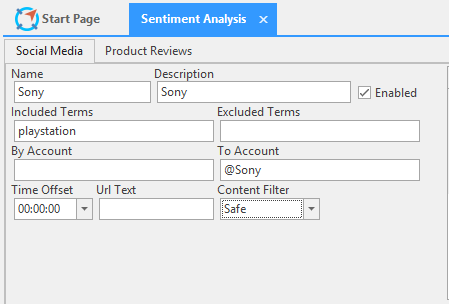
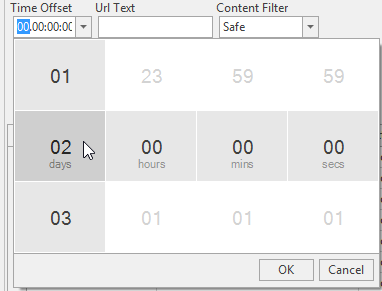
- Time Offset: Select how far back to search through Twitter; the default time is 1 week. Hover the mouse pointer over each time column and use the mouse wheel to scroll up or down. Click OK to select that time offset.
- URL Text: Search tweets for a specified URL by typing the URL into this field.
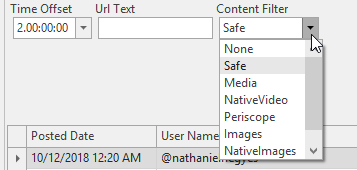
- Content Filter: Select a Filter for the search configuration: None, Safe, Media, Native Video, Periscope, Images, Native Images, and Links.
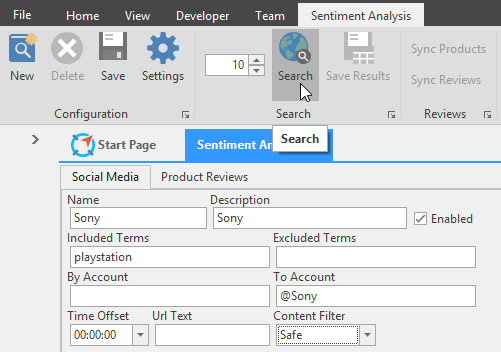
Search
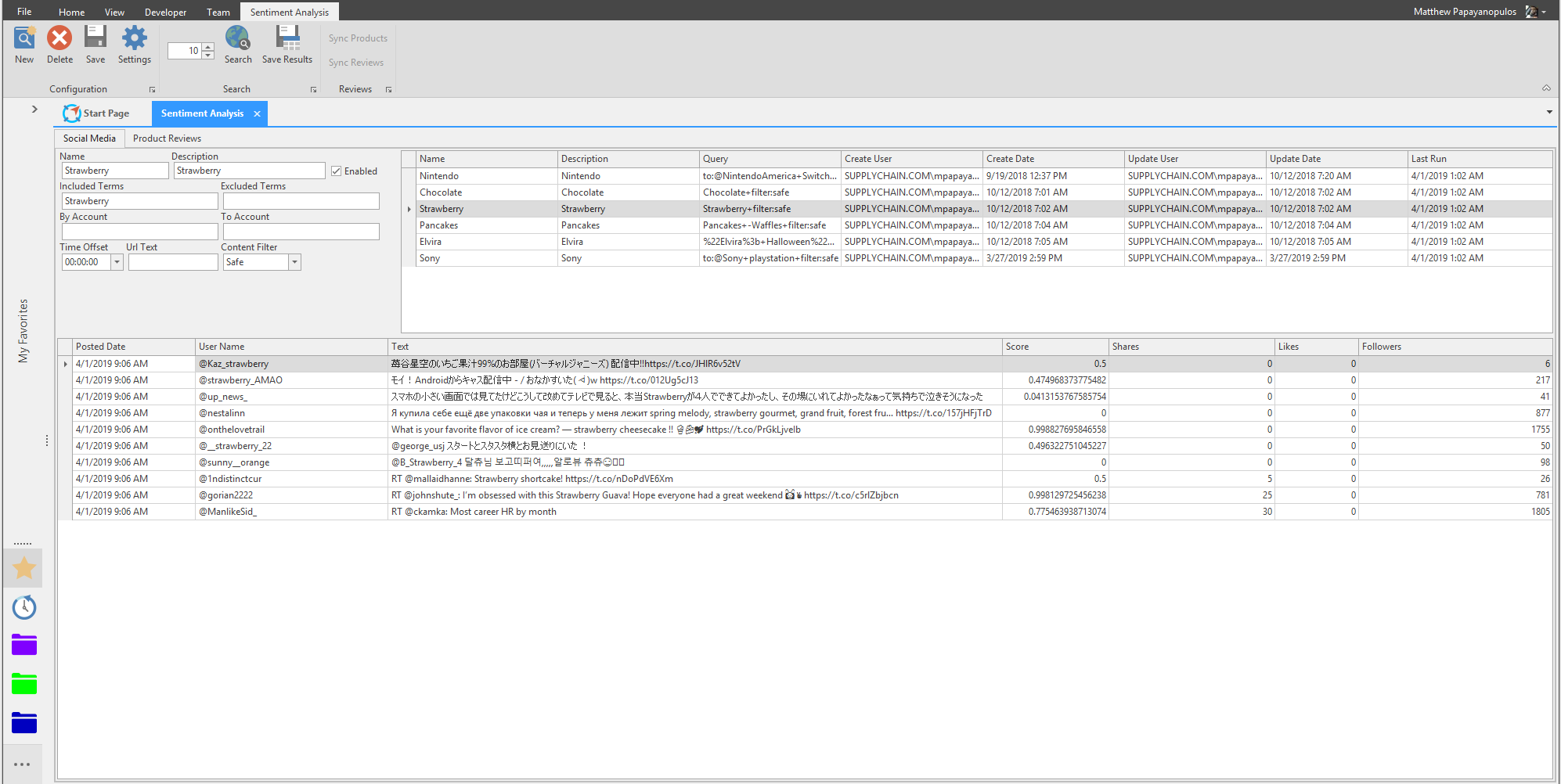
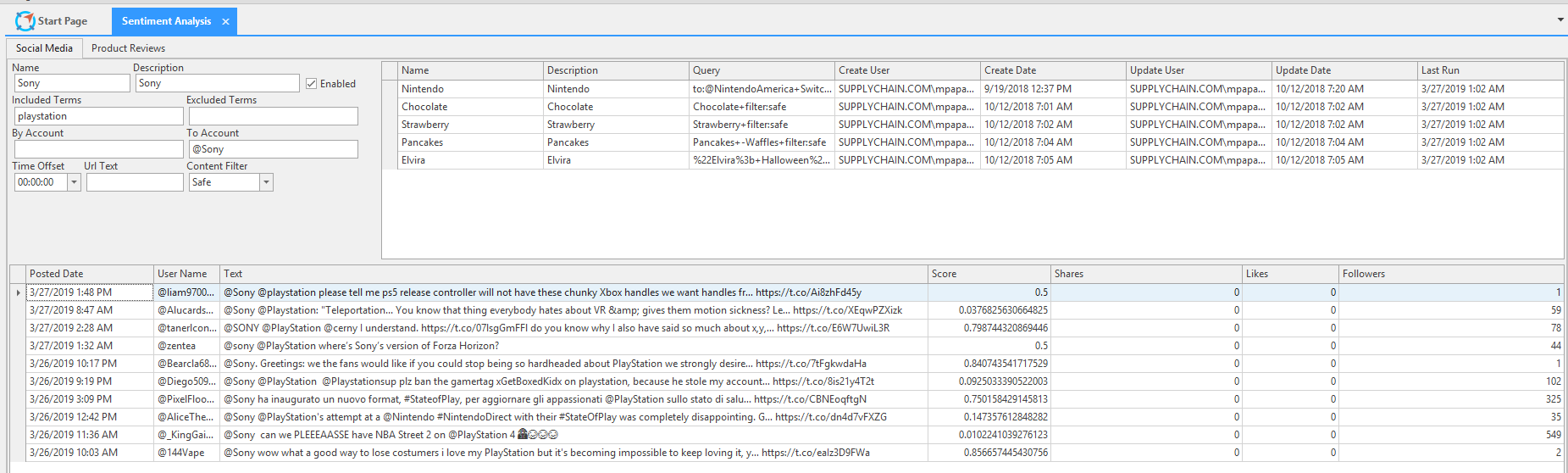
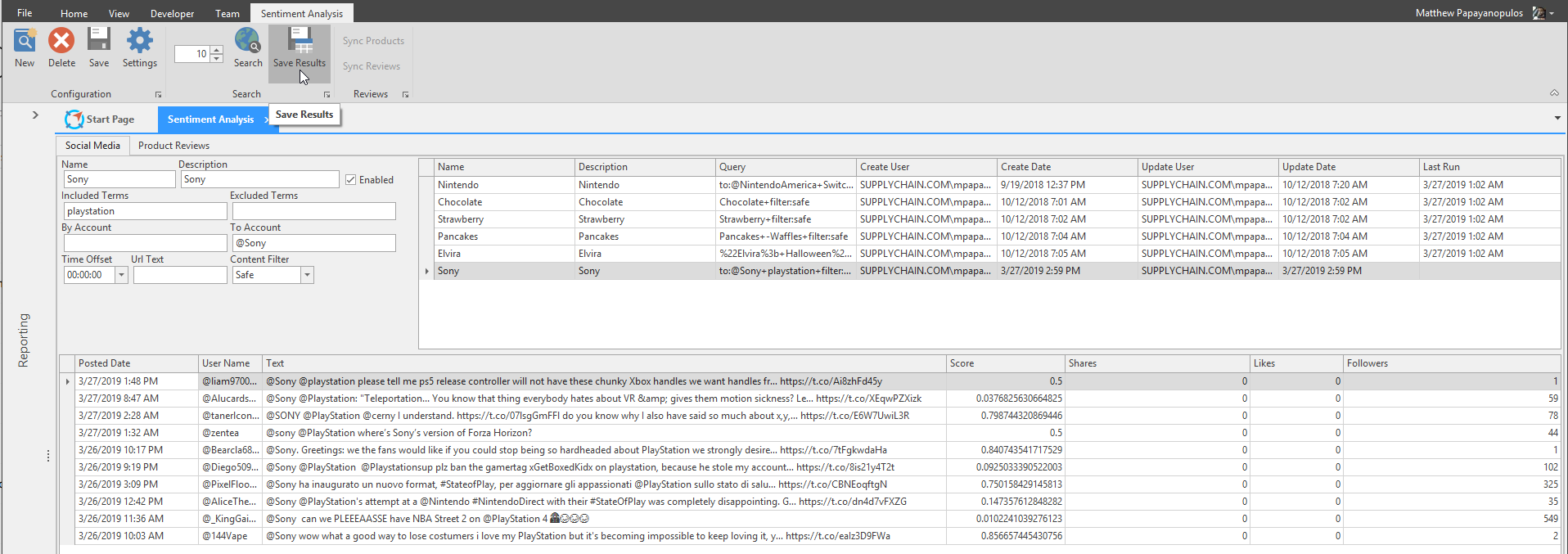
Click Search after completing the search configuration section to populate the Search Results section.
- Posted Date: The date the Tweet was posted.
- User Name: The Twitter name of the person who made the Tweet.
- Text: The text of the Tweet.
- Score: The number scale showing if a tweet positive or negative (.90 to .000…), if the Tweet could not be scored (0), or if the Tweet is neutral (0).
- Shares: How many shares the Tweet has gotten.
- Likes: How many likes the Tweet has gotten.
- Followers: How many followers the user who made the Tweet has.
Save Search
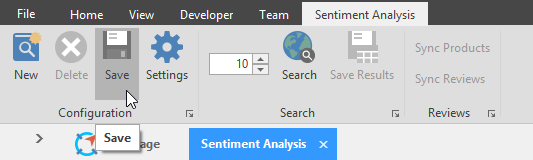
Click to save the Search configuration. Saves to dbo.SearchConfiguration.


Save Results
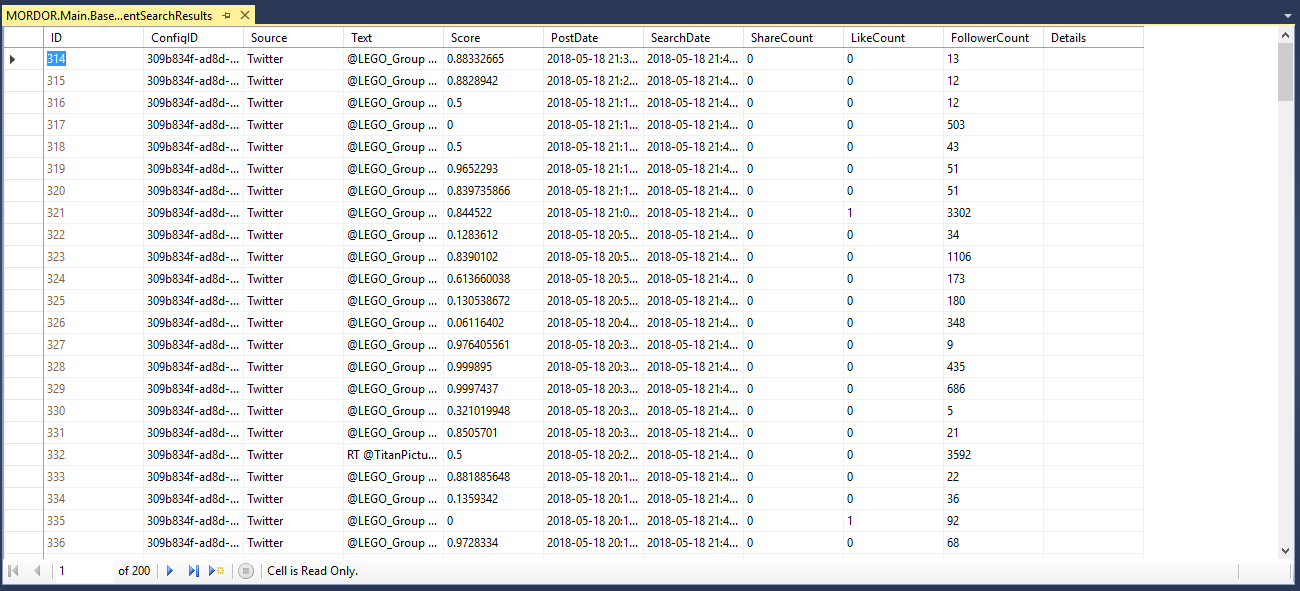
After selecting a Search Configuration from the Saved Search Configuration list section and clicking Search, you can click Save Results to save the search results. Search Results save to the dbo.SentimentSearchResults SQL table.
Delete
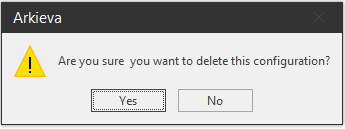
Click and select a saved search Configuration and click Delete to remove that search result.

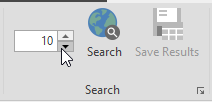
Search Results amount
Change the number value to set the amount of search results in the Search Results section. 10 is the default amount of search results that will be returned.
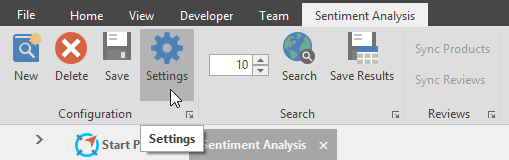
Settings
Access the Jobs and Reviews options from the Settings.
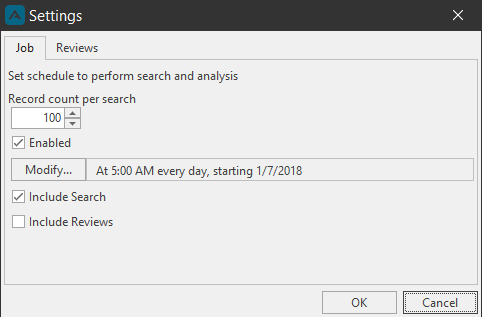
Jobs\ Set up a job to run search queries with the Settings options.
- Record Count per Search: Change the number value to set the amount of search results in the Search Results section. 10 is the default amount of search results that will be returned.
- Enabled: Enable the Job to run.
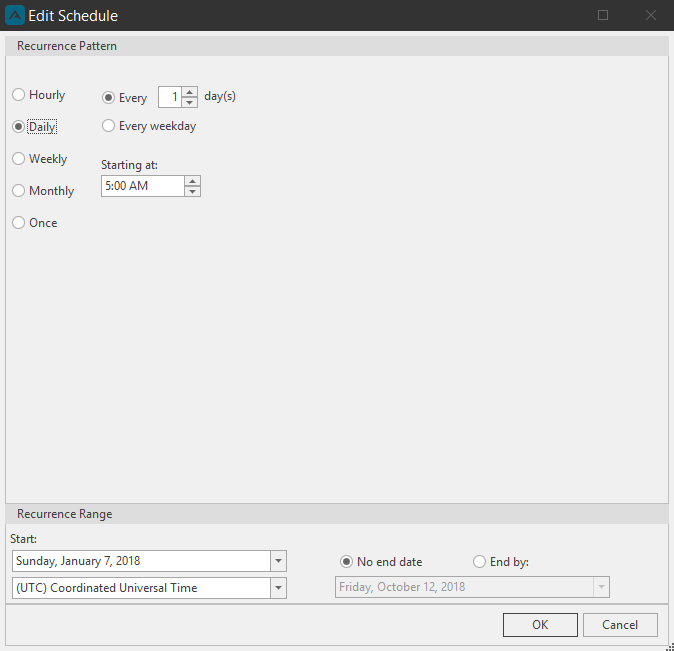
- Modify: Click Modify to launch the Edit Schedule window to set the Recurrence Pattern and Recurrence Range.
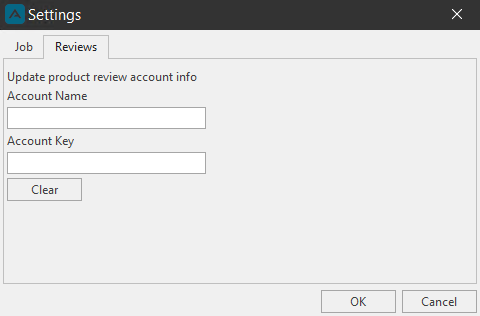
Reviews\ Enter your Account Name and Account Key and click OK. Account Name and Account Key will be provided to you by an Arkieva Consultant.
Product Reviews
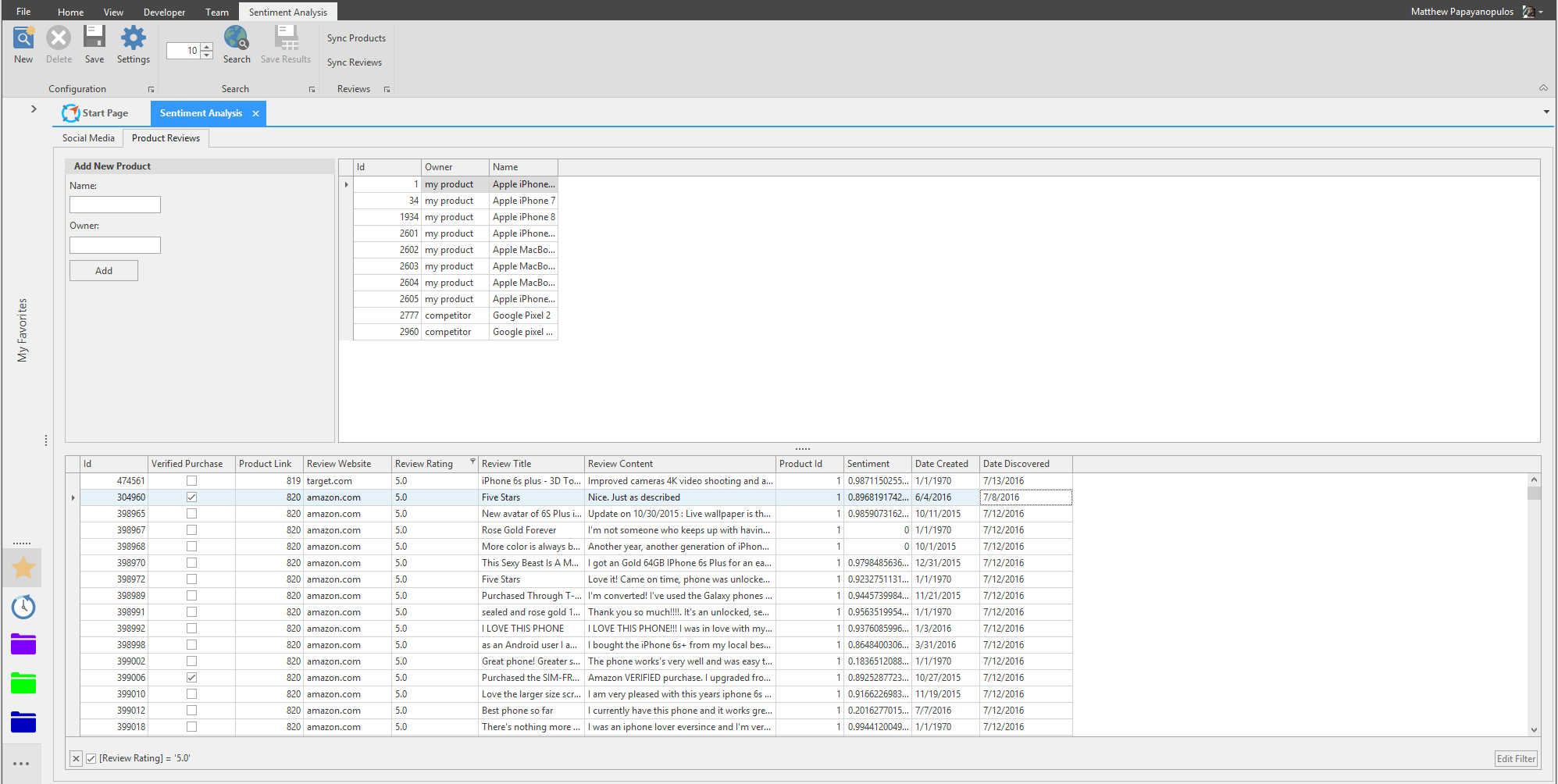
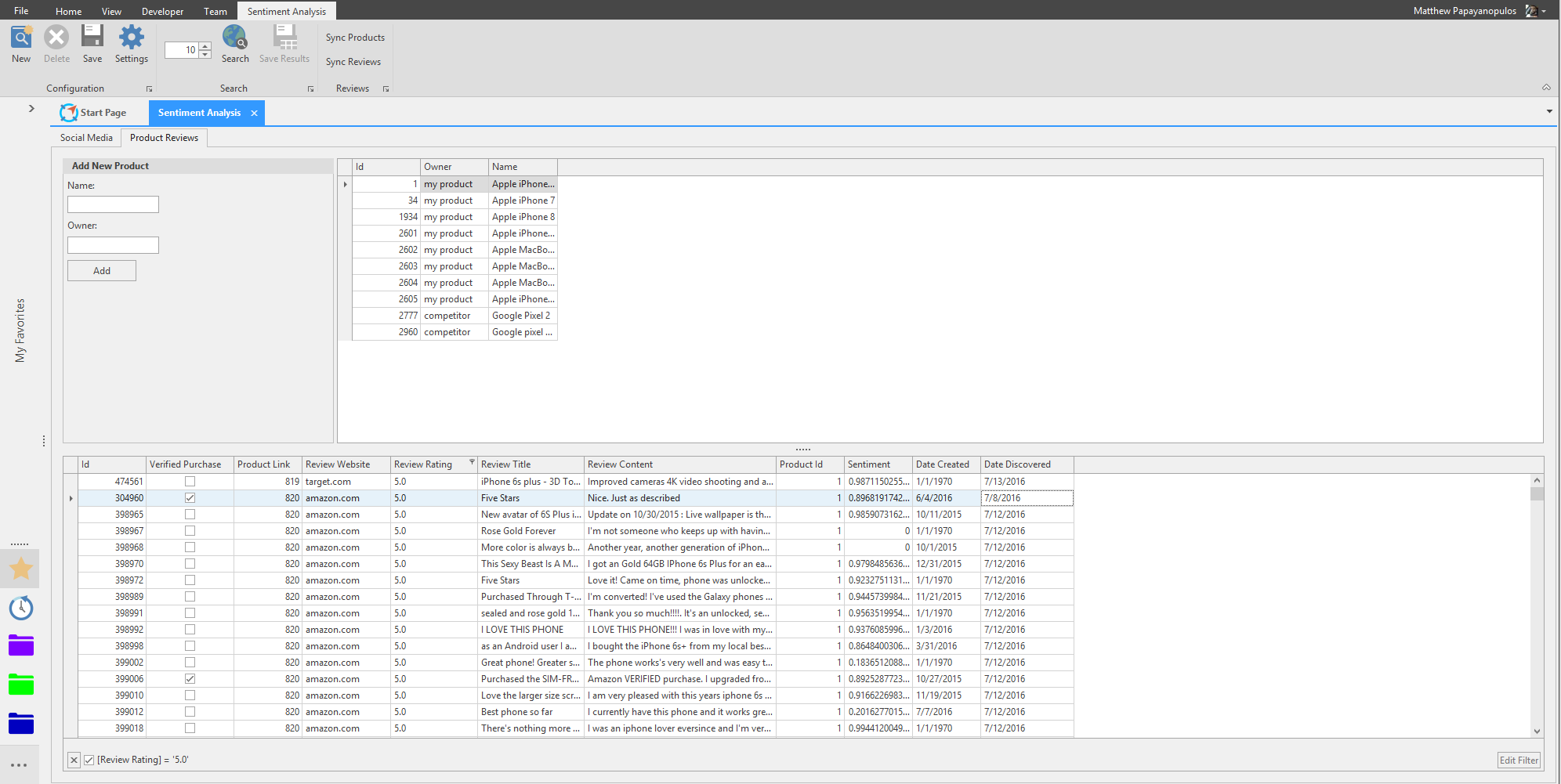
With the Product Reviews tab, you can gather product reviews and ratings from customers of your products.
Setup
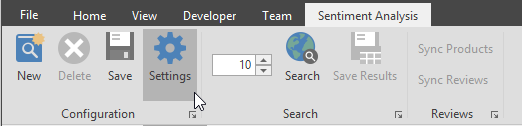
Click the Settings button in the Sentiment Analysis ribbon and go to the Reviews tab of the Setting window.
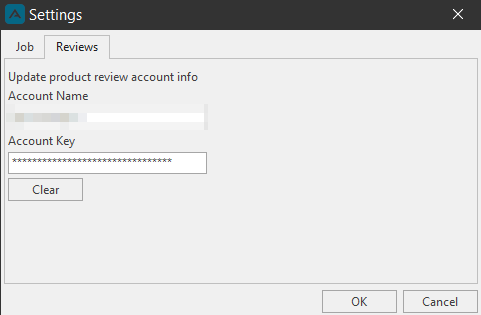
Enter your Account Name and Account Key and click OK. Account Name and Account Key will be provided to you by an Arkieva Consultant.
The Sync Products, Sync Reviews, and Add New Product fields will no longer be grayed out.
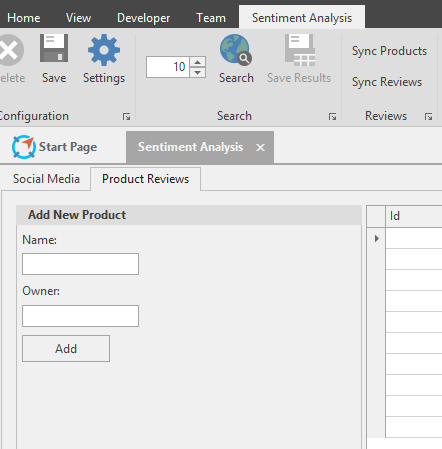
Add New Product
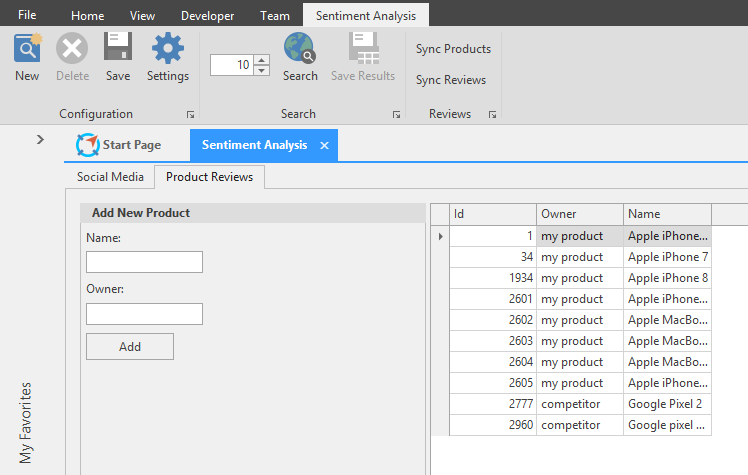
Under the Add New Product section, type the Name for your products and and product owner. Click Add to add the new products to your account.
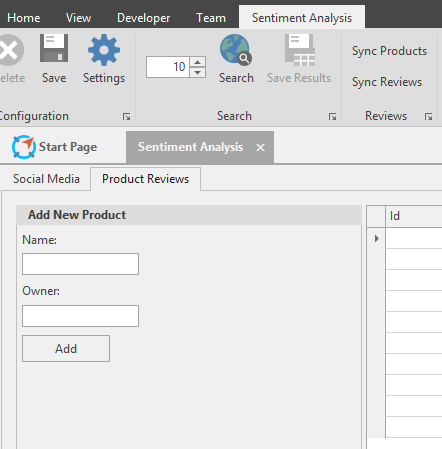
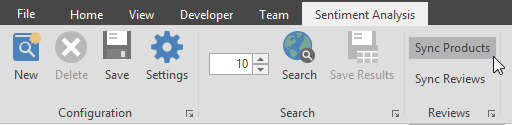
Sync Products
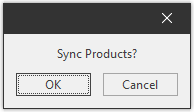
Access the information for the added products by clicking the Sync Products button in the Sentiment Analysis and clicking OK.
The information available for products are the ID number, Owner, and Product Name.
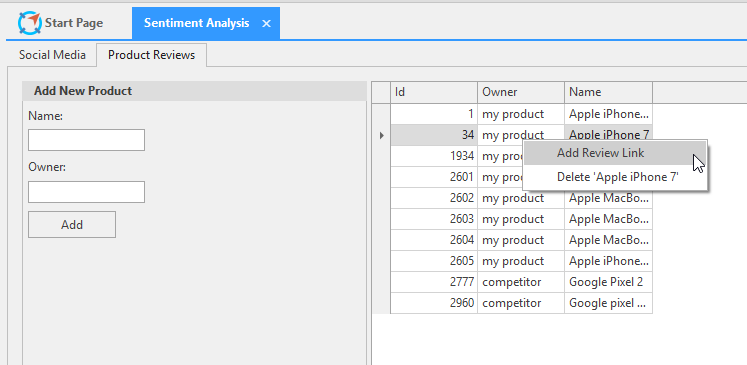
Products Right Click Menu
- Add Review Link: Adds review links to the products. These links will allow the Sync Products and Sync Reviews options to work properly.
- Delete: Delete a product.
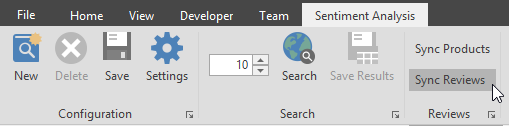
Sync Reviews
Collect the customer reviews for your products by clicking the Sync Reviews button in the Sentiment Analysis ribbon and clicking OK.
The customer reviews will populate in the bottom half section of the Sentiment Analysis layout.
- Verified Purchase: Shows if a customer's purchase was validated by the purchasing site.
- Product Link: Link added in the Add Link window.
- Review Website: The name of the site fro which the customer purchased the product.
- Review Title: The title of the review.
- Review Content: The review itself.
- Product ID: ID number of the product when adding new products.
- Sentiment: The score the Sentiment Analysis has given the customer review.
- Date Created: When the review was created.
- Date Discovered: When the review was found.
Related Articles
Mapping Analysis
Introduction With Mapping Analysis you can view and plan your distribution networks with configuration, filter, and style tools. Configuration The Configuration section of the Mapping Analysis ribbon will allow access to the following tools. Data: ...General Navigation of Arkieva
Overview of the various navigational commands in Arkieva. {` `} Launching Arkieva Splash Screen Arkieva is installed to a web server and launched from the client intranet (Internet Explorer is highly recommended). The Arkieva version number, build ...Segmentation
Introduction ? Ignore Leading Zeroes Segmentation calculations always ignore leading zeroes. Businesses strive to stay competitive in a global, complex and competitive marketplace. Arkieva Segmentation helps organizations make sense of what is ...Sales Predictor
The Arkieva Sales Predictor is a Sales and/or Customer Relationship Management tool. Its purpose is to flag the most probable and most profitable sales lead opportunities based on analysis of historical data patterns by Customer and Item. The results ...S&OP Introduction
Why Sales and Operations Planning (S\&OP)?\ Sales and Operations Planning (S\&OP) has been around for decades. S\&OP is much more than just a meeting – it takes into account all the various planning and monitoring processes that are necessary to run ...