Segmentation
Introduction
🚧 Ignore Leading Zeroes
Segmentation calculations always ignore leading zeroes.
Businesses strive to stay competitive in a global, complex and competitive marketplace. Arkieva Segmentation helps organizations make sense of what is important to the business based on historical sales, revenue and ordering patterns. Arkieva Segmentation uses configurable multi-dimensional, multi-criteria analyses over millions of rows of data to identify the precious few that maximize value for the business from the trivial many. Planners can create segmentation analyses within seconds by choosing:
- Level (product, customer or product and customer)
- Time horizon and Level
- Criteria (Pareto, Volatility, Intermittence, Unstable, Trend)
- Data (shipment, revenue, gross margin)
- Performance (Forecast Accuracy, MAPE, FVA)
Segmentation helps to set up a framework for the entire planning process across demand planning, collaboration, inventory management and supply optimization.
Different supply chain functions within the organization can perform segmentation analyses to identify business criticality, measure volatility, set customer service, or prioritize production. Results such as outliers, minimum thresholds, or intersecting data can then be flagged in the system manually, by simple rule or through complex logic to identify segments of the data that need follow up action.
All results from the Segmentation can be used downstream in each of the other modules. It is recommended that Segmentation be set up as one of the first actions when implementing Arkieva.
Pie Matrix
Dashboard
Scatter Analysis
Detail
Segmenting customer data
Find out the ways to segment your customer data for your business through your Arkieva solution.
{`
`}
Partitioning Demand Segmentation
Is your A product in one region a C product in another? See how you can use partitions to segment your data appropriately.
{`
`}
Creating a new view
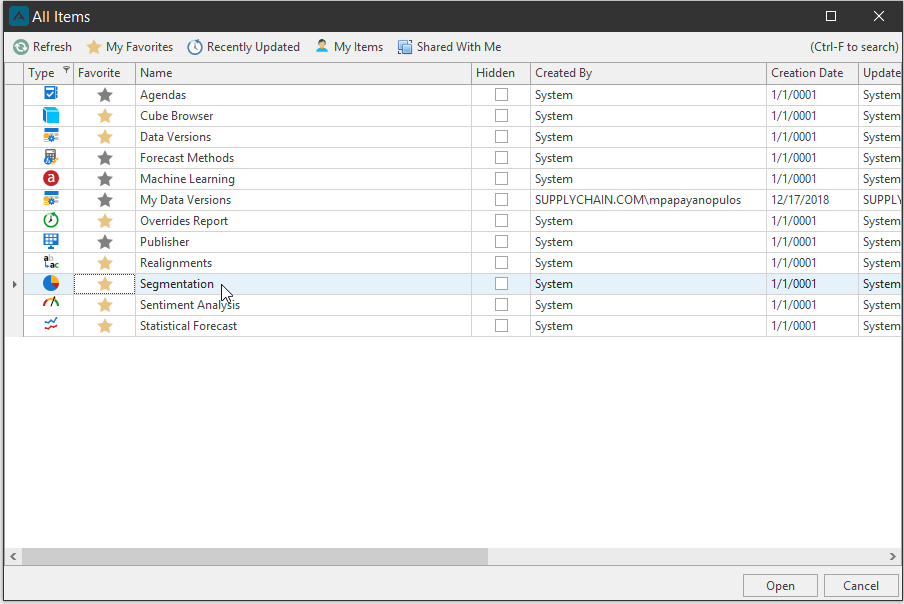
To start using Segmentation, go to the Browse All Documents window and click and open Segmentation.
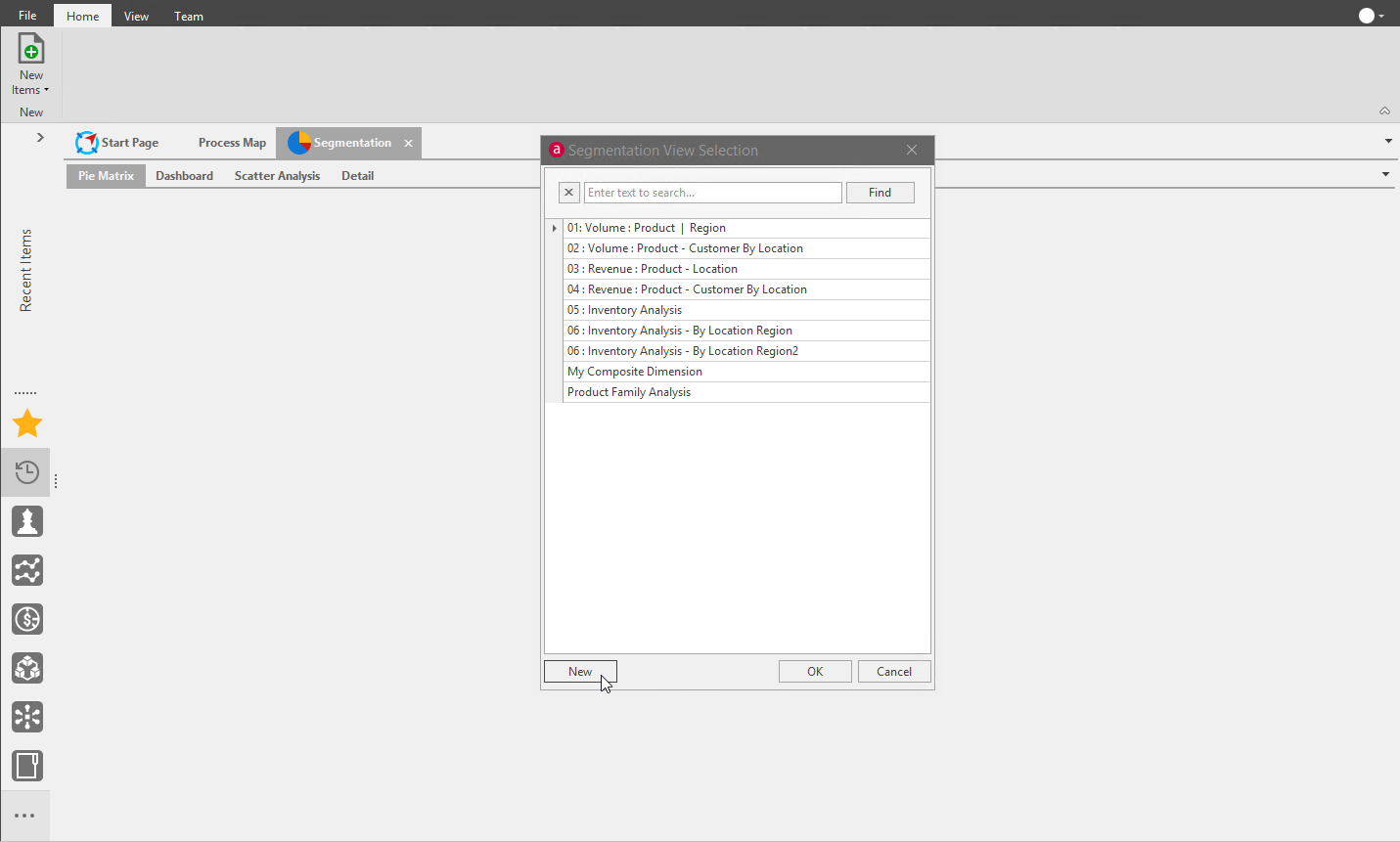
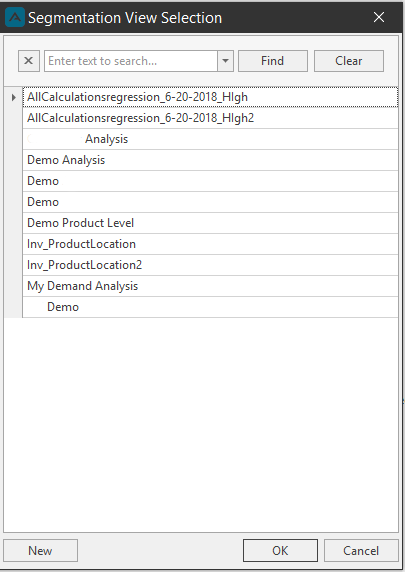
Opening Segmentation will launch the Segmentation View Selection window. Any previously created Segmentation views will be in this window. You can select a previously created Segmentation or click New to start a new Segmentation view.
📘 Note
When you create a Segmentation view, your Default Filter RLS will apply to the filter view. This will help when applying a smaller set of data to the Segmentation, rather than running the entire data set, even when your RLS has access to a specific data set. Only the Default Filter RLS will apply.
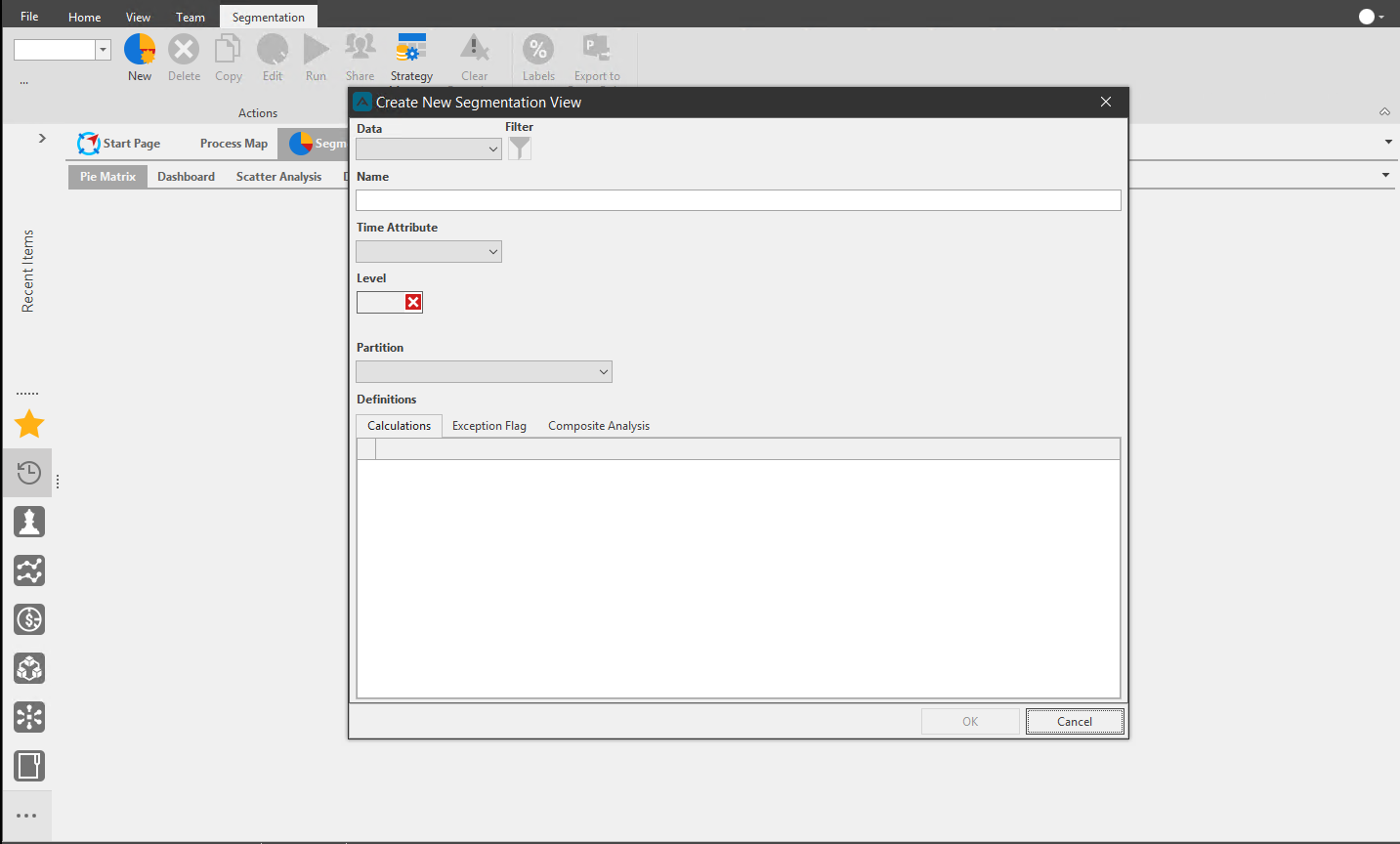
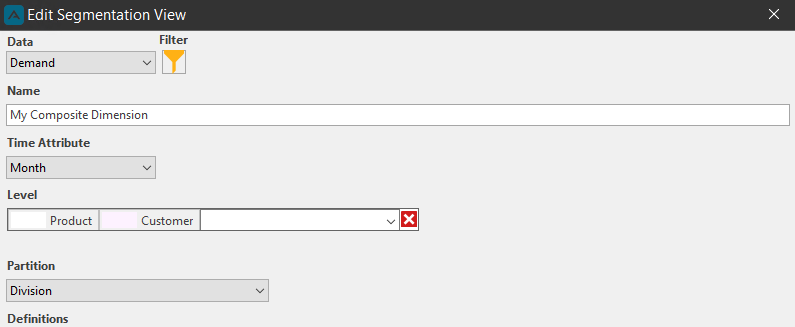
First select a constellation from the Data dropdown to choose what source information will be pulled in, then create a name for the Segmentation under the Name field.
Next select a time bucket attribute (normally by month, quarter, or year), and decide at what level to run the Segmentation. This will decide how the Segmentation will group the data and how it will run the calculations.
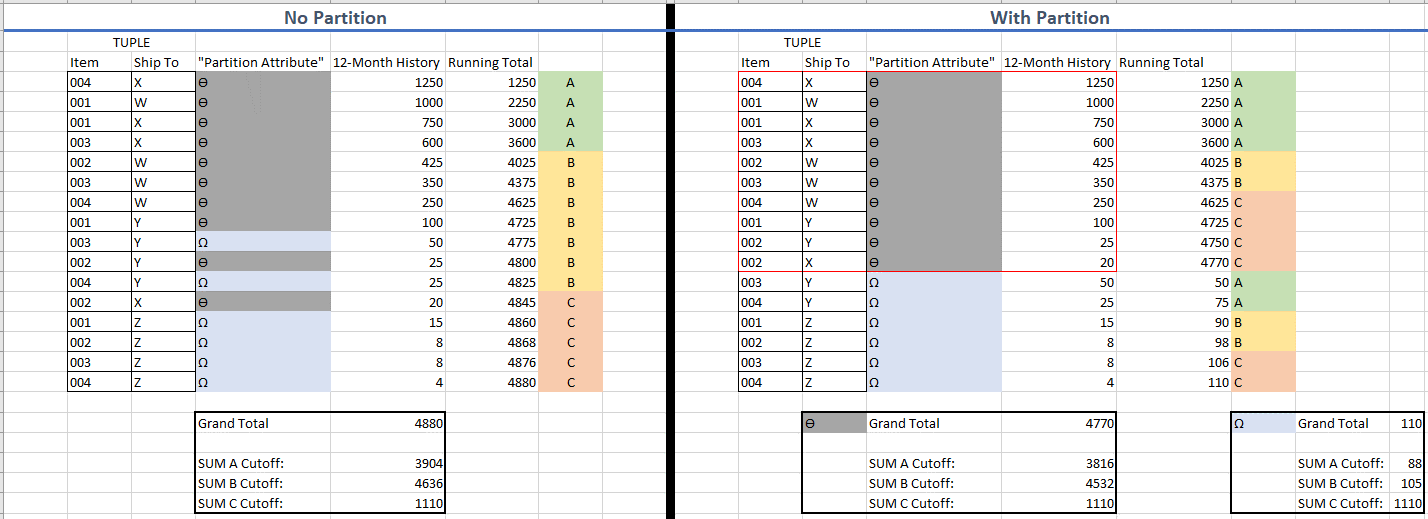
If desired, select a partition for the Segmentation. The partition attribute allows users to run the segmentation on each partition element independently.
For example, utilizing a partition can help pull a “spin off” side portion of the business that would be swallowed up on a volume level into all C’s to have its own analysis.
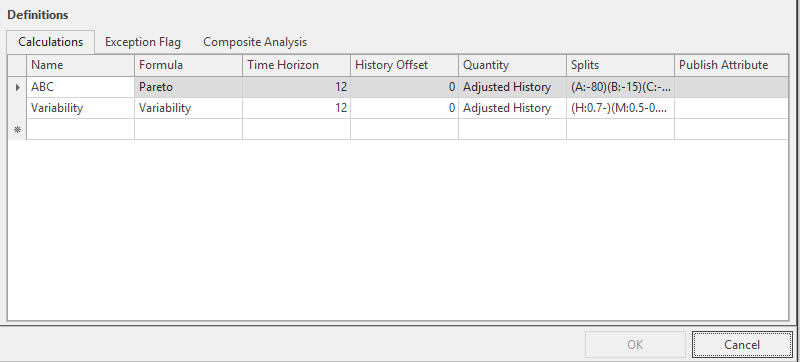
Under the Calculations section, you can create new calculations for the Segmentation.
First type a name for the new calculation, then choose a formula: Unstable, Intermittence, Lumpiness, Pareto, Pattern, Total, Trend Measure, Variability, or Outlier S. Based on the time bucket attribute selected earlier, define the number of historical buckets that the segmentation will cover, then pick a quantity from the source data pulled in from the chosen constellation. The splits will display the default calculation, which can be edited.
Lastly, select a quantity from the Publish Attribute column to choose where to retain the results if you choose to save these results of the segmentation.
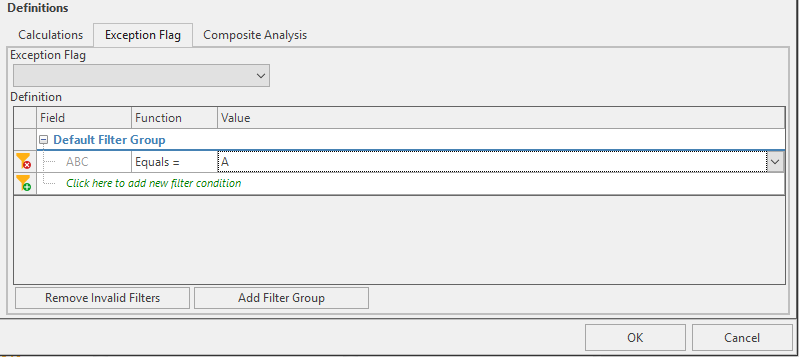
Optionally, under the Exception Flag tab, you can define different rules by which to automatically flag results from the analysis. Based on the definition that is set up, a binary flag (true, false) can be published to the database based at the time the Segmentation is run. To accomplish this, select an available quantity (must be a bit datatype) in the exception flag dropdown, and provide a definition from the builder shown below.
📘 Note
An attribute needs to be a bit data type to be available for publishing.
You can also optionally create a Composite Analysis; this will be explained in more detail below.
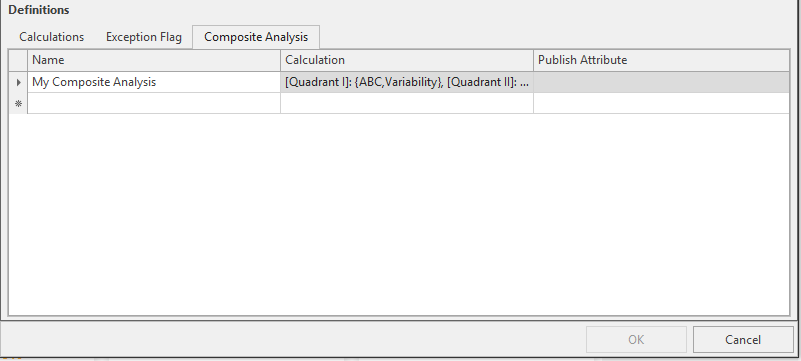
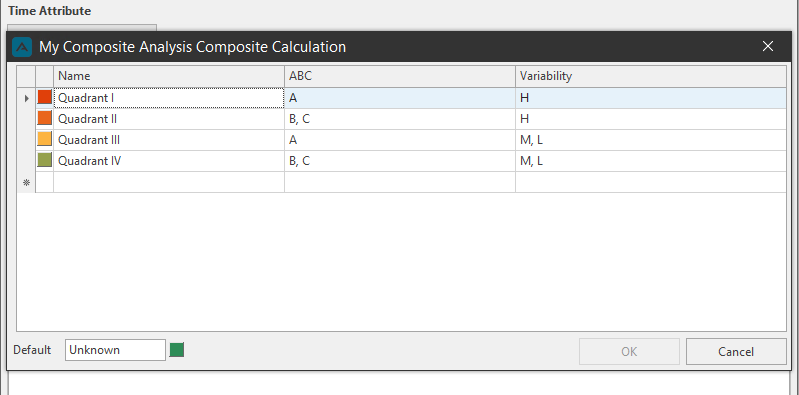
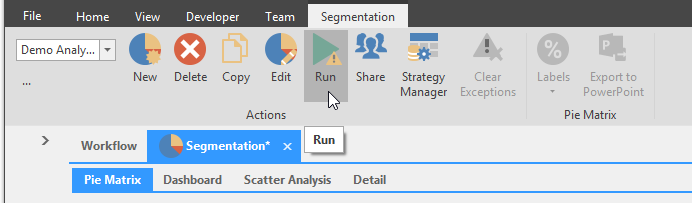
Click OK when finished to close the Edit window. Clicking OK will launch the Segmentation component. You will need to click the Run button to load the data you have selected for the segmentation view to populate.
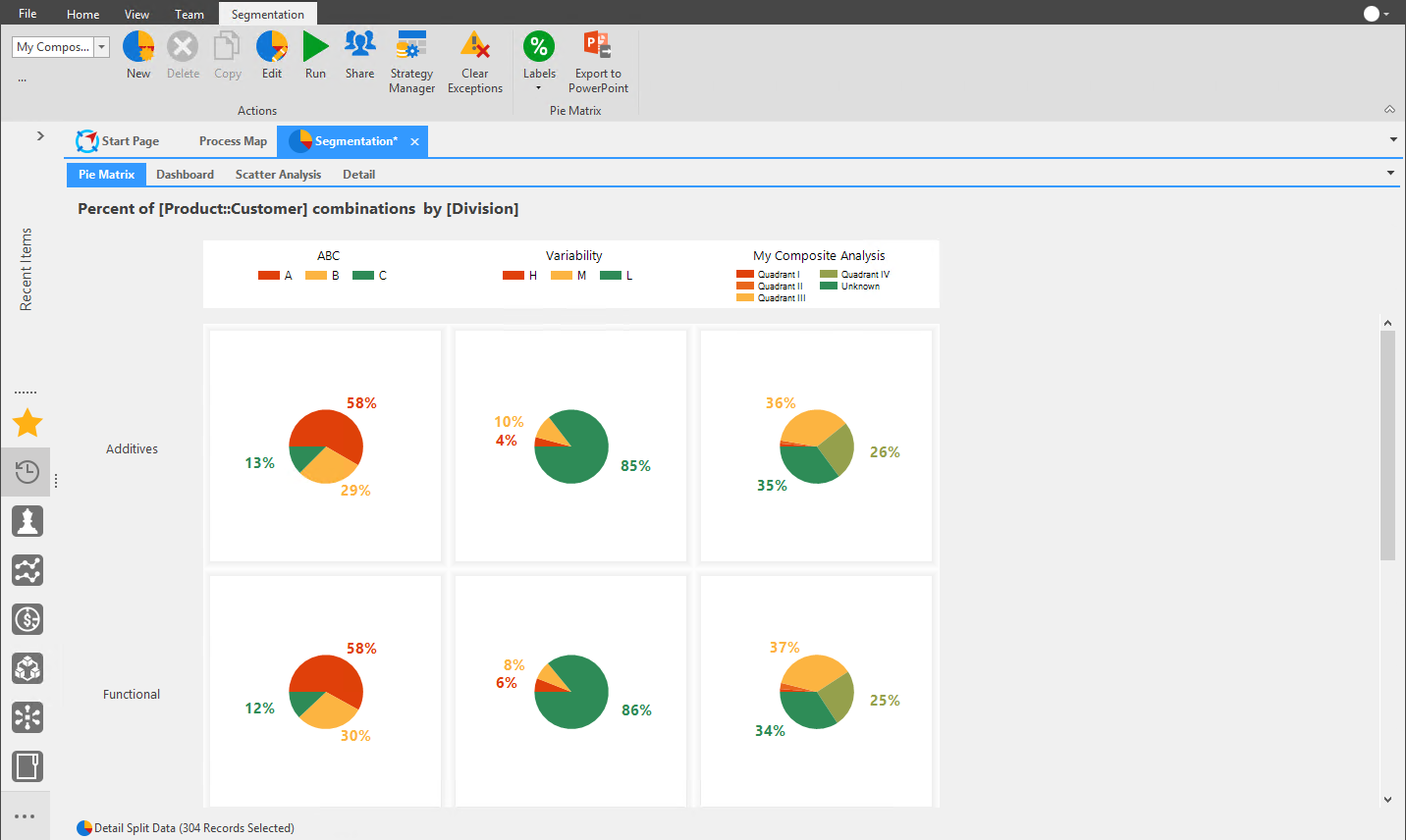
Note the header of the Pie Matrix tab reads ‘Percent of [Product] combination by [Region]’ meaning ‘Percent of [Level] combination by [Partition]’. We can see this side by side by clicking the Edit button in the Segmentation ribbon to reopen the Edit window.
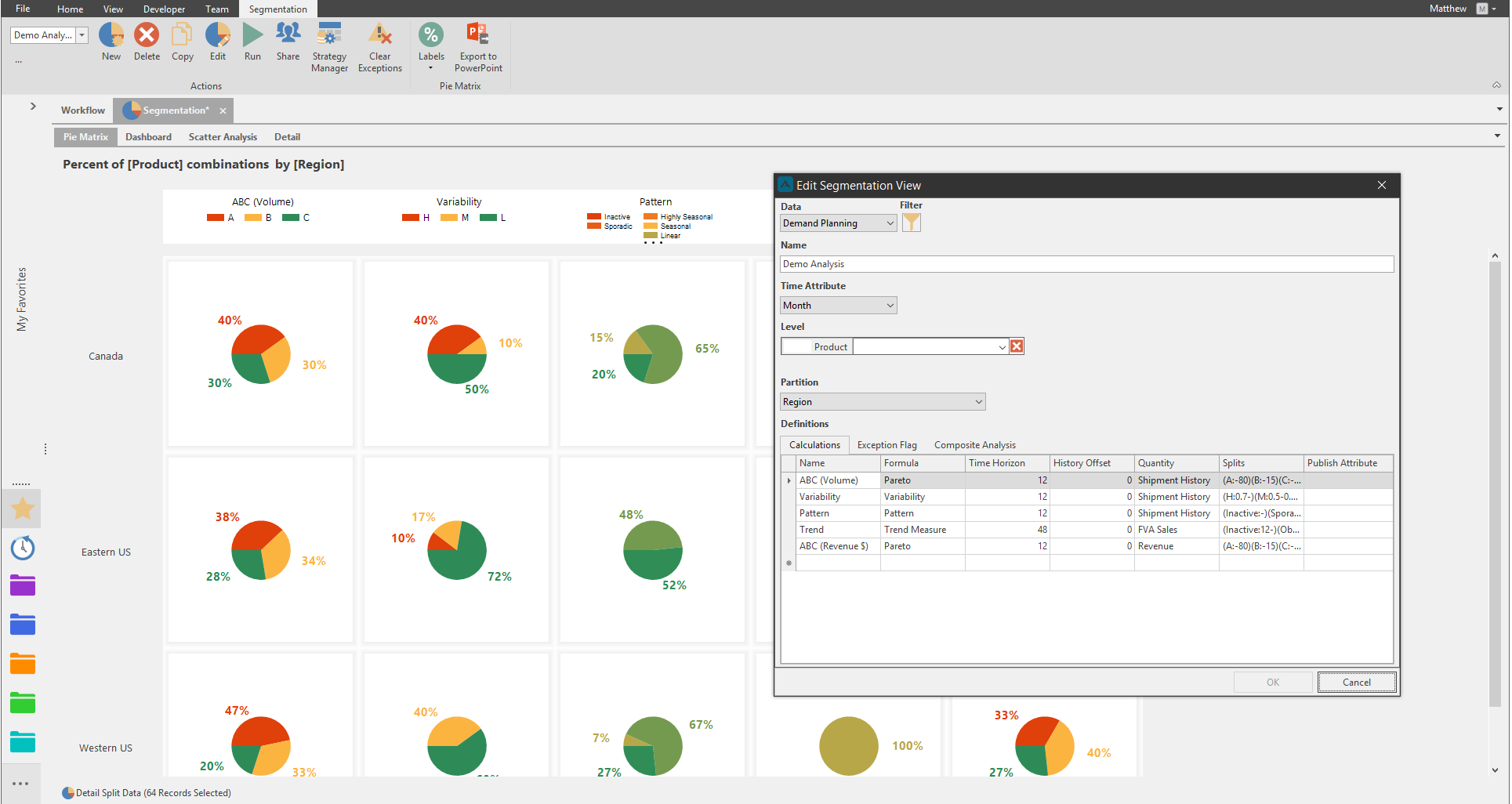
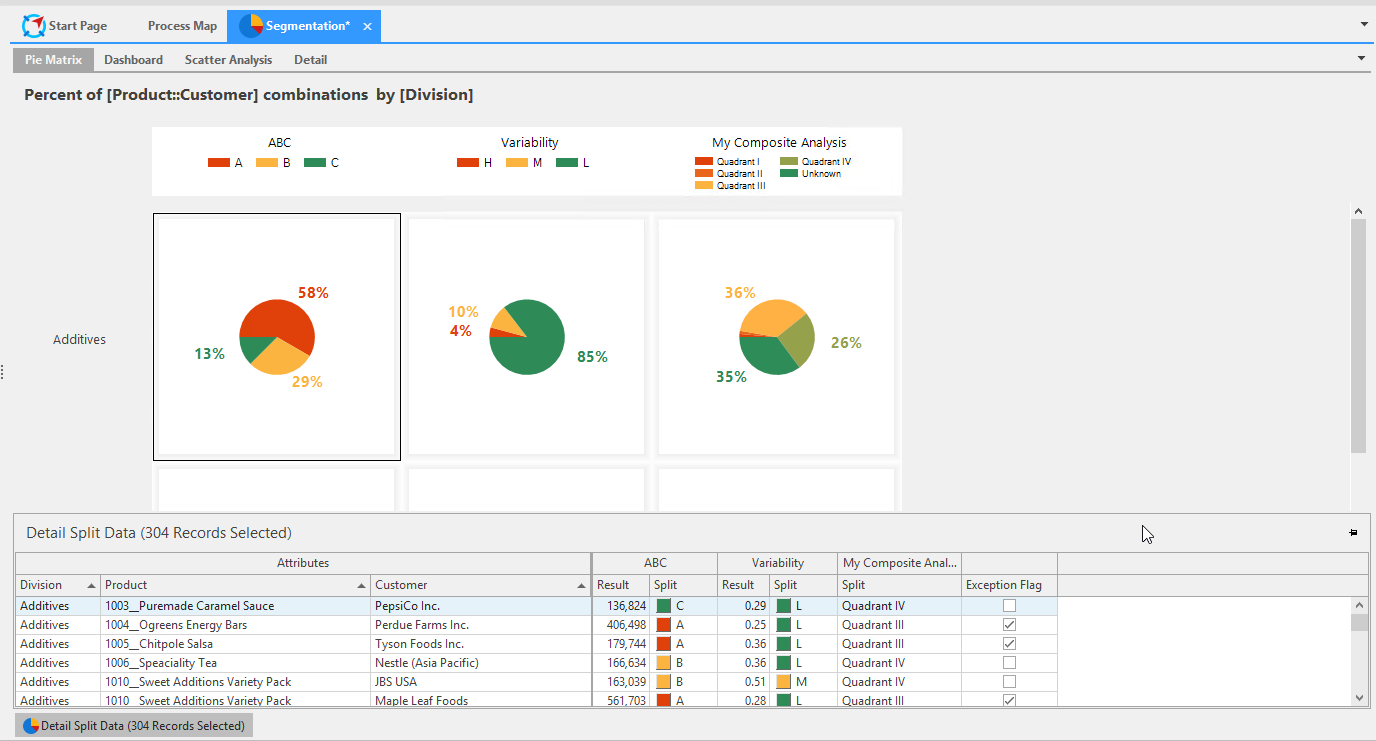
Slide out the Detail pane to view the split data.
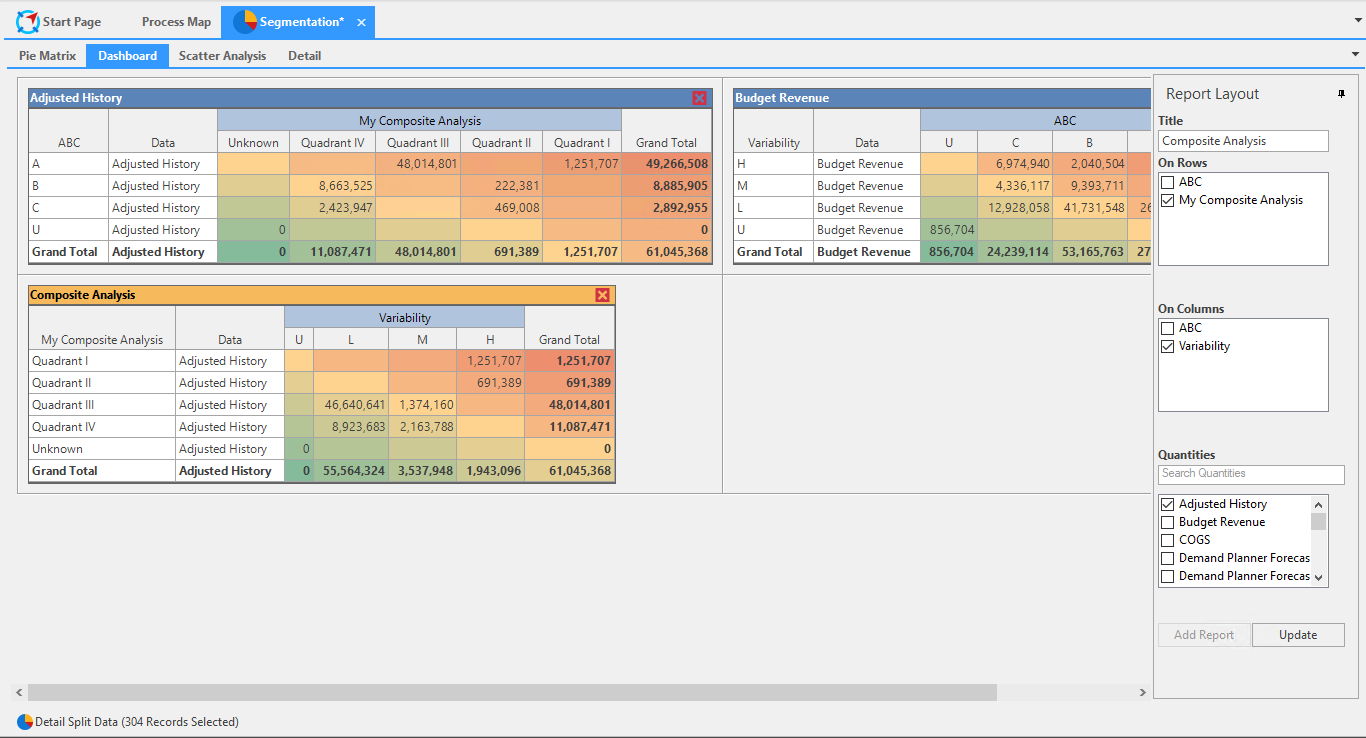
Create a dashboard in the Dashboard tab.
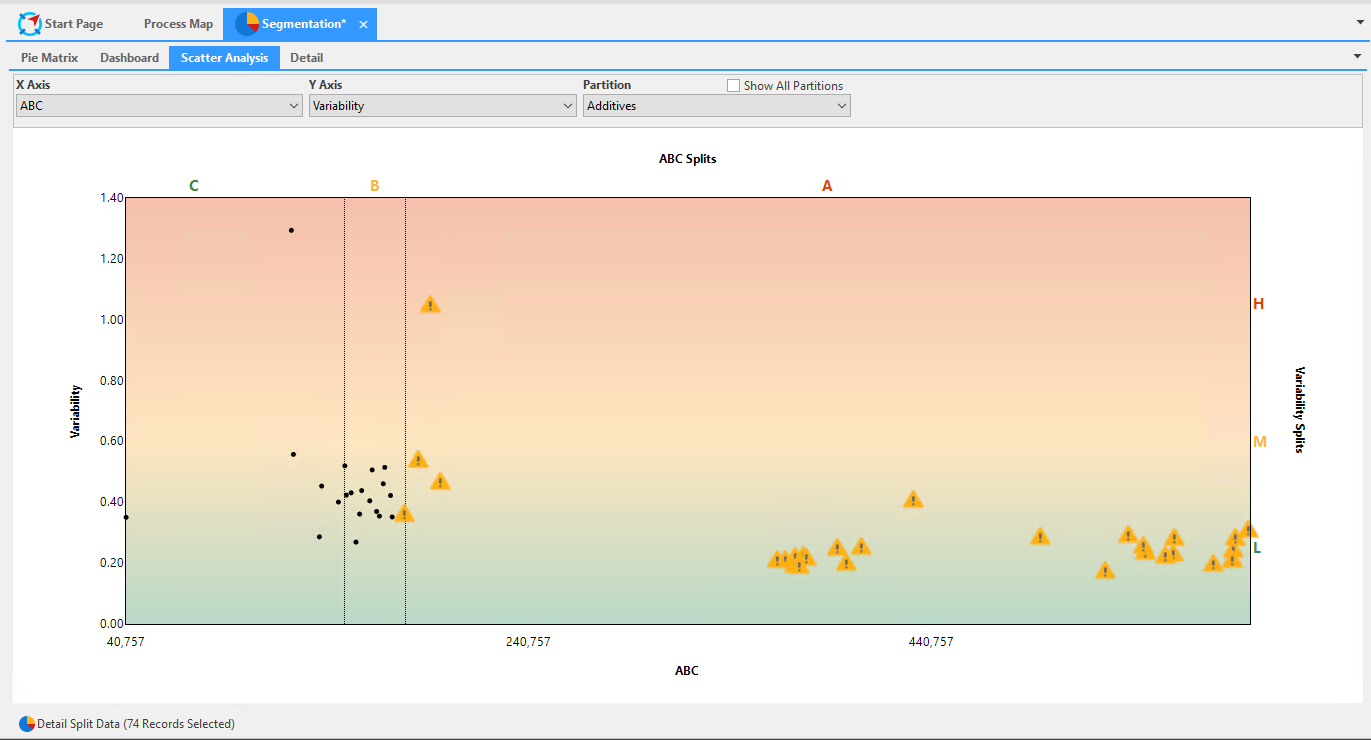
View a Scatter Plot analysis from the Scatter Analysis tab. Customize the view by selecting different calculations for the X and Y Axis, and the different partitions that were created in the New Segmentation View window.
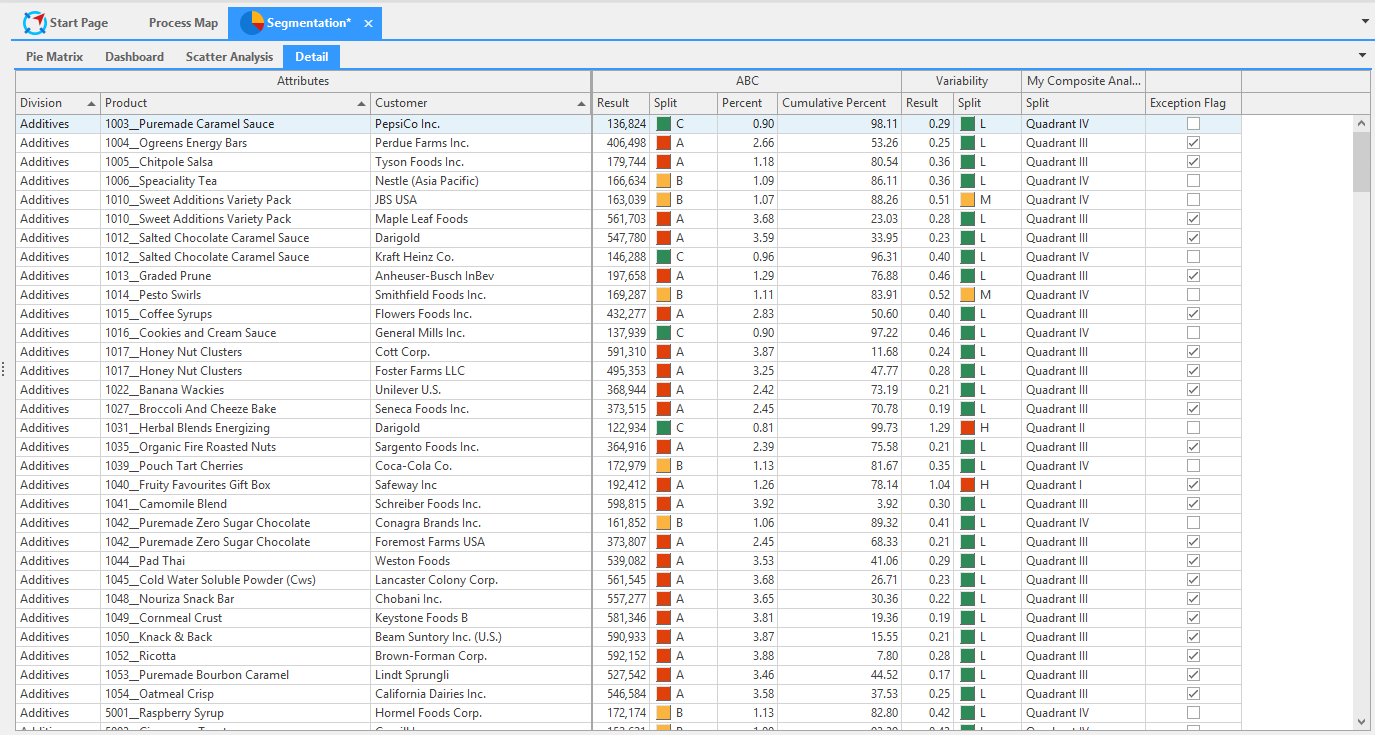
You can also view the detail pane in full in the Detail Tab. Flag data as exceptions from the Exceptions Flag column.
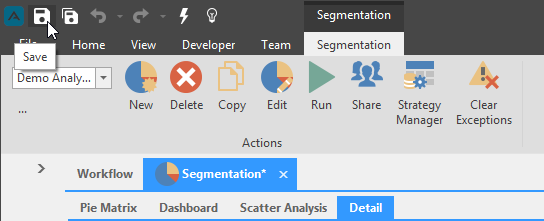
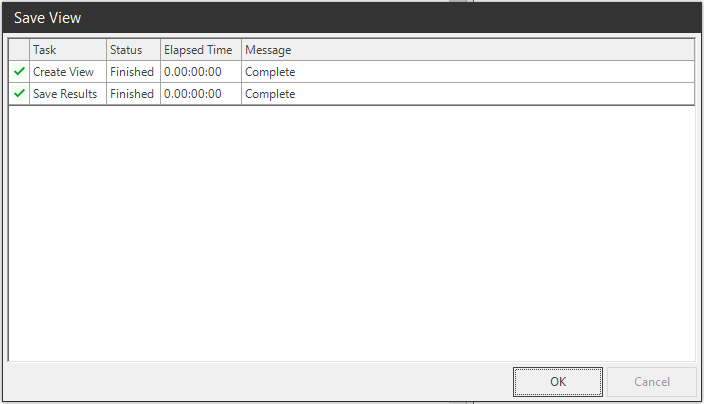
Click the save button in the Arkieva toolbar to save the Segmentation view to the selection dropdown.
📘 Note
You can run as many segmentations at a time as desired. To create a second, third, or nth analysis, repeat the above steps.
Filter Segmentation View
After selecting a constellation from the Data dropdown, the Filter button will activate. You can then click the Filter button to drilldown to specific data for the Segmentation.
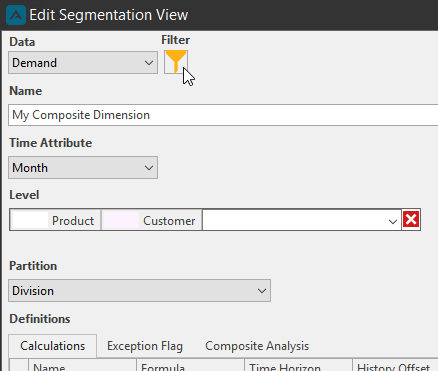
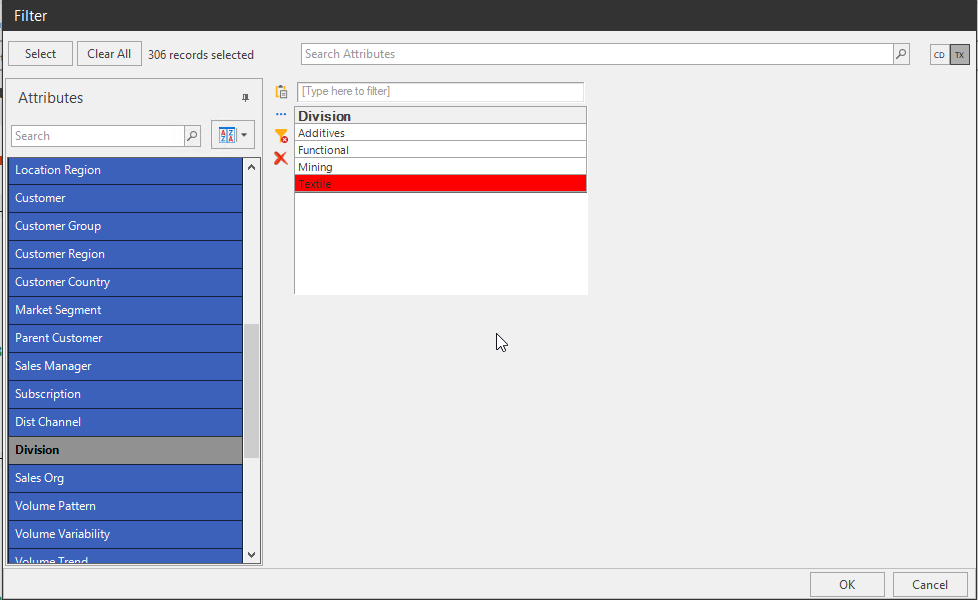
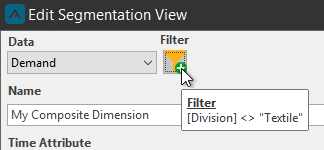
A green plus sign will appear on the Filter button when filter data has been selected. Hover the mouse pointer over the button to view a tooltip of the selected filter data. When editing a Segmentation View you are required to Run the View again to see the changes.
Pie Matrix
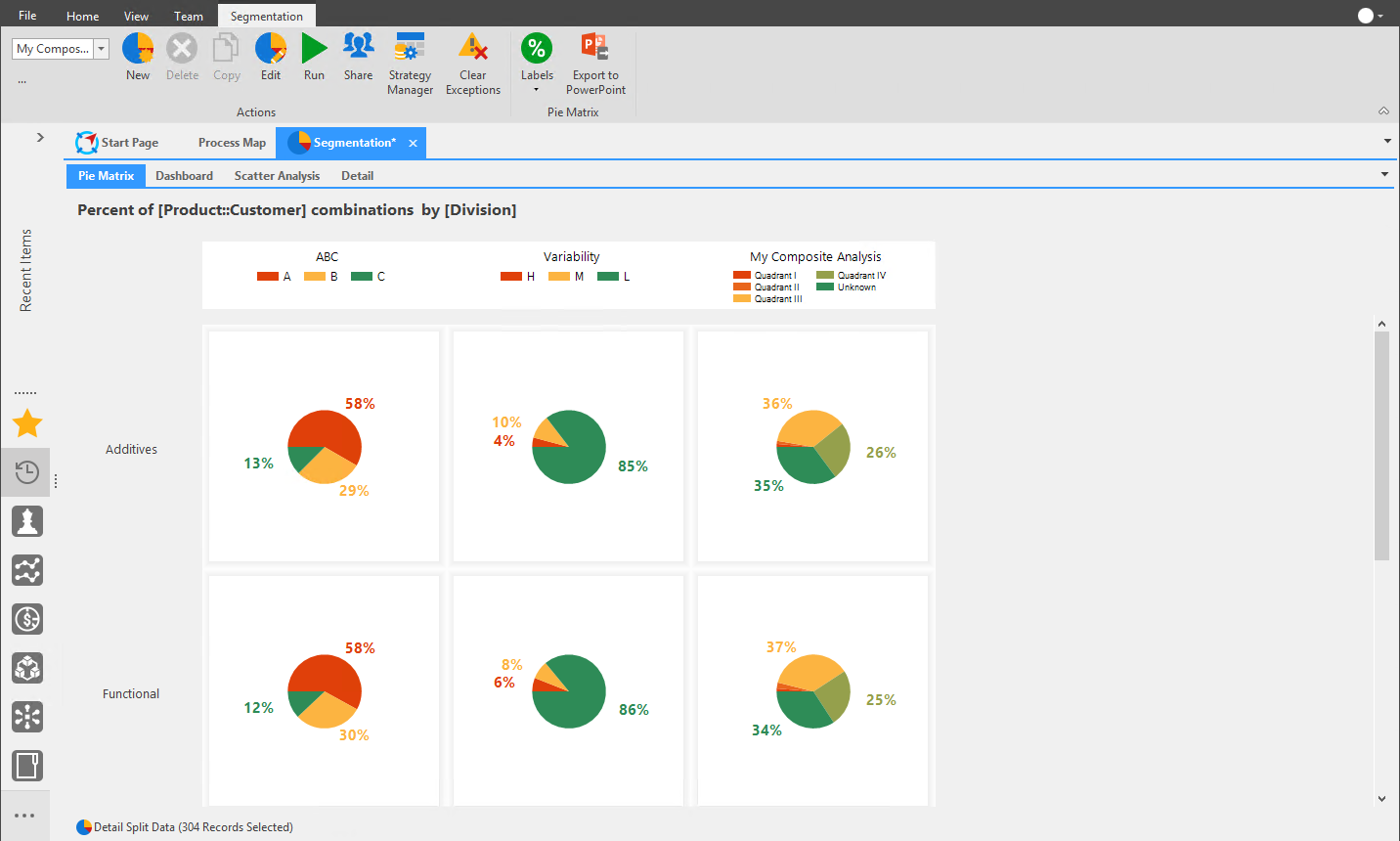
The Pie Matrix tab shows the Segmentation data in pie chart form.
The number of splits created will be reflected in the Pie chart pieces. The number of splits also effects the number of colors, which are shades of Green, Orange, and Red. In general, Green are the combinations that require the least monitoring, Orange are the combinations that require moderate monitoring, and Red are the combinations requiring close monitoring.
Clicking a pie piece will show the resulting data in the Detail Split table.
Pie Matrix Actions
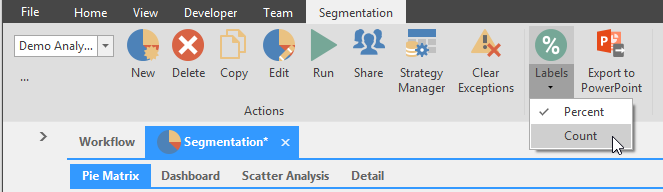
Labels\ Click the dropdown list to select whether to display pie chart values as percentages or whole numbers.
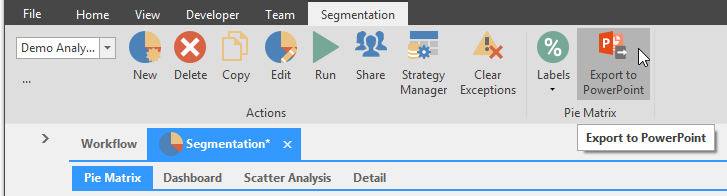
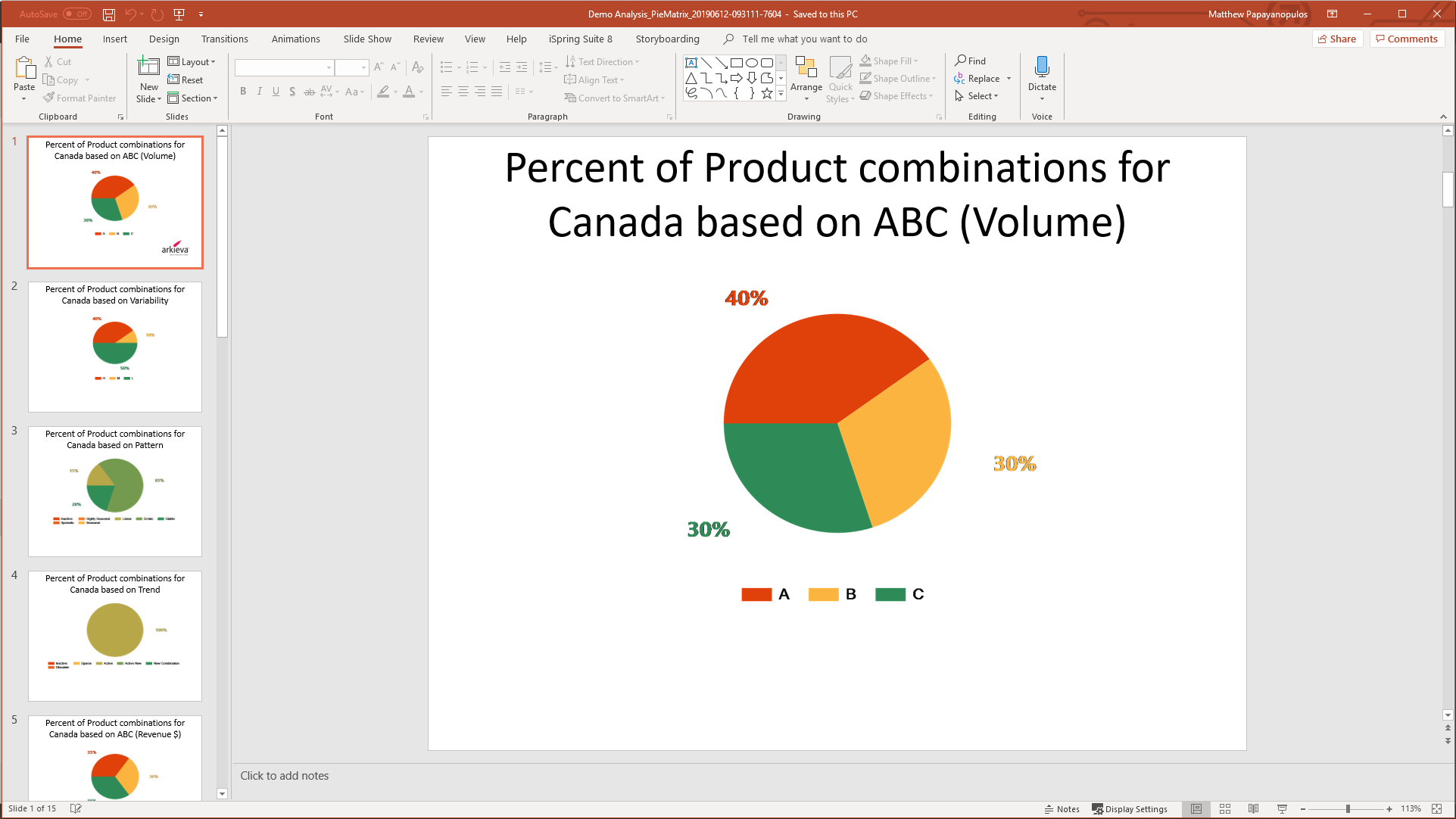
Export Pie Matrix to PowerPoint\ Click the Export to PowerPoint button to export each pie graph as separate PowerPoint slides.
Dashboard
Dashboards can be created in the Dashboard tab, with each dashboard created appearing in rows of two. Typing a new name for a dashboard will start the process for creating a new dashboard.
Report Layout
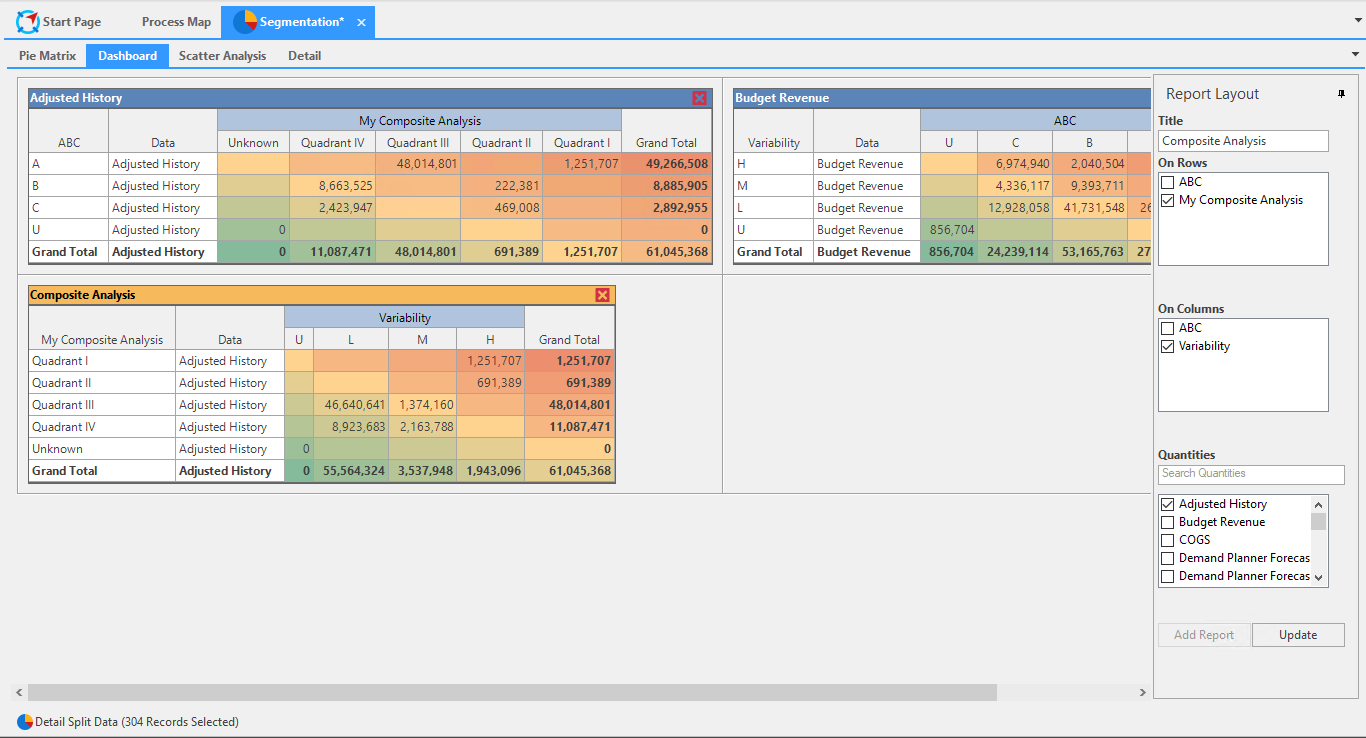
To create a dashboard, first type a name for the new dashboard in the Title Field. Then check the desired items to appear on the rows under the On Rows section, and check the desired items to appear on the columns in the On Columns section. Next, check all desired Quantities to include in the dashboard. Lastly click 'Add Report' to add the dashboard to the dashboard layout.
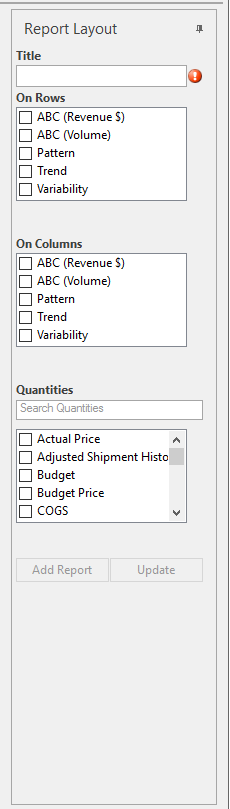
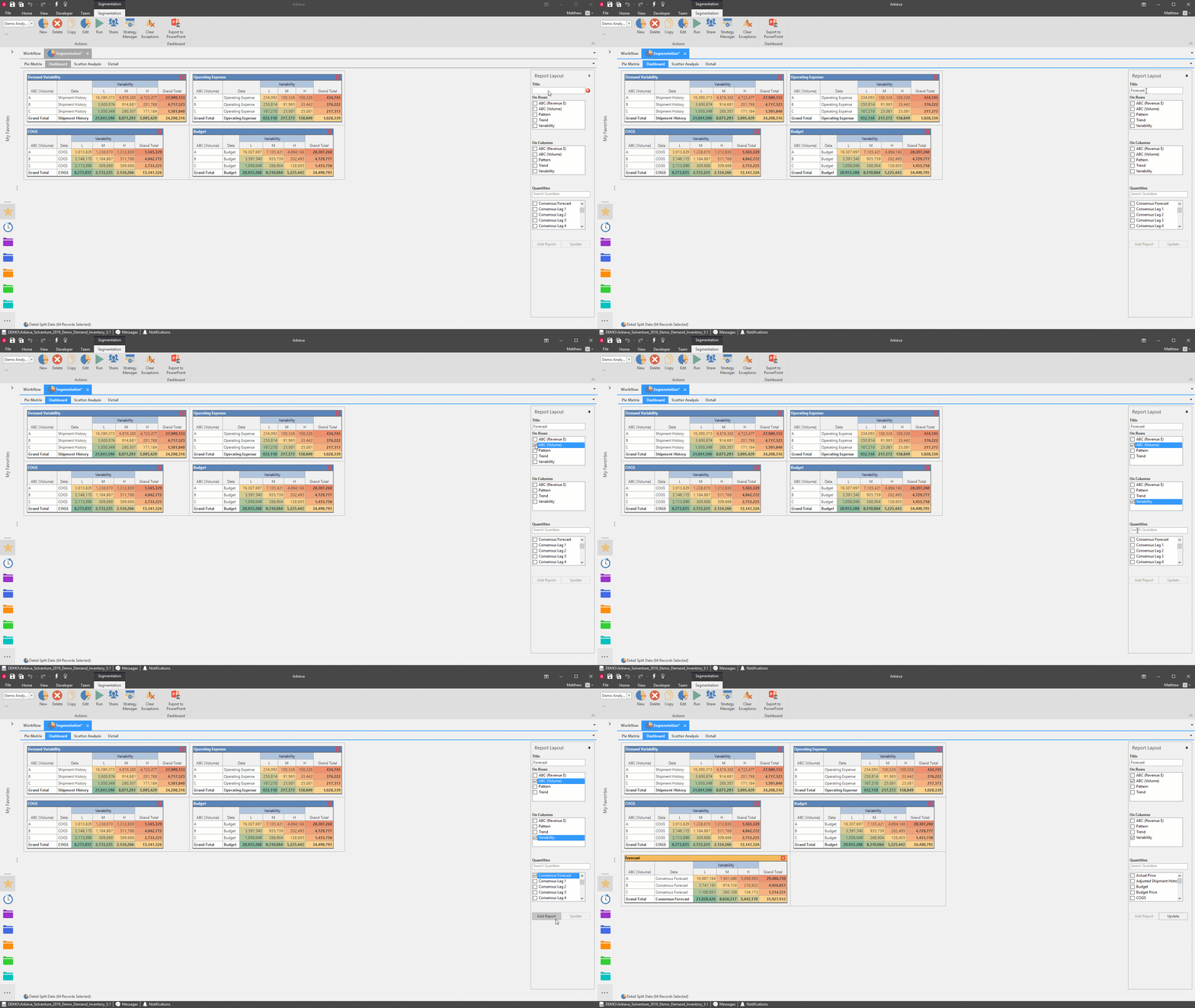
Dashboards will appear to the right of the original dashboard, and additional dashboards will continue as rows left to right. The colors denote the same information ques throughout Segmentation: Green are the combinations that require the least monitoring, Orange are the combinations that require moderate monitoring, and Red are the combinations requiring close monitoring. The Segmentation dashboard colors are fixed and cannot be edited.
Click the Red X to remove a dashboard. Update a dashboard by selecting it and changing the information in the Report layout, then clicking Update. Click and drag dashboards to move the dashboards around the layout.
Export Dashboard to PowerPoint
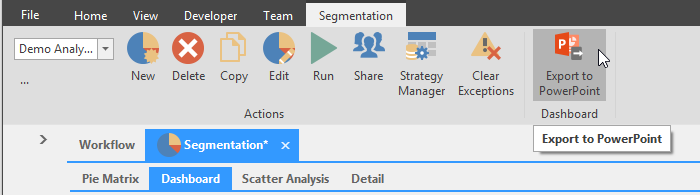
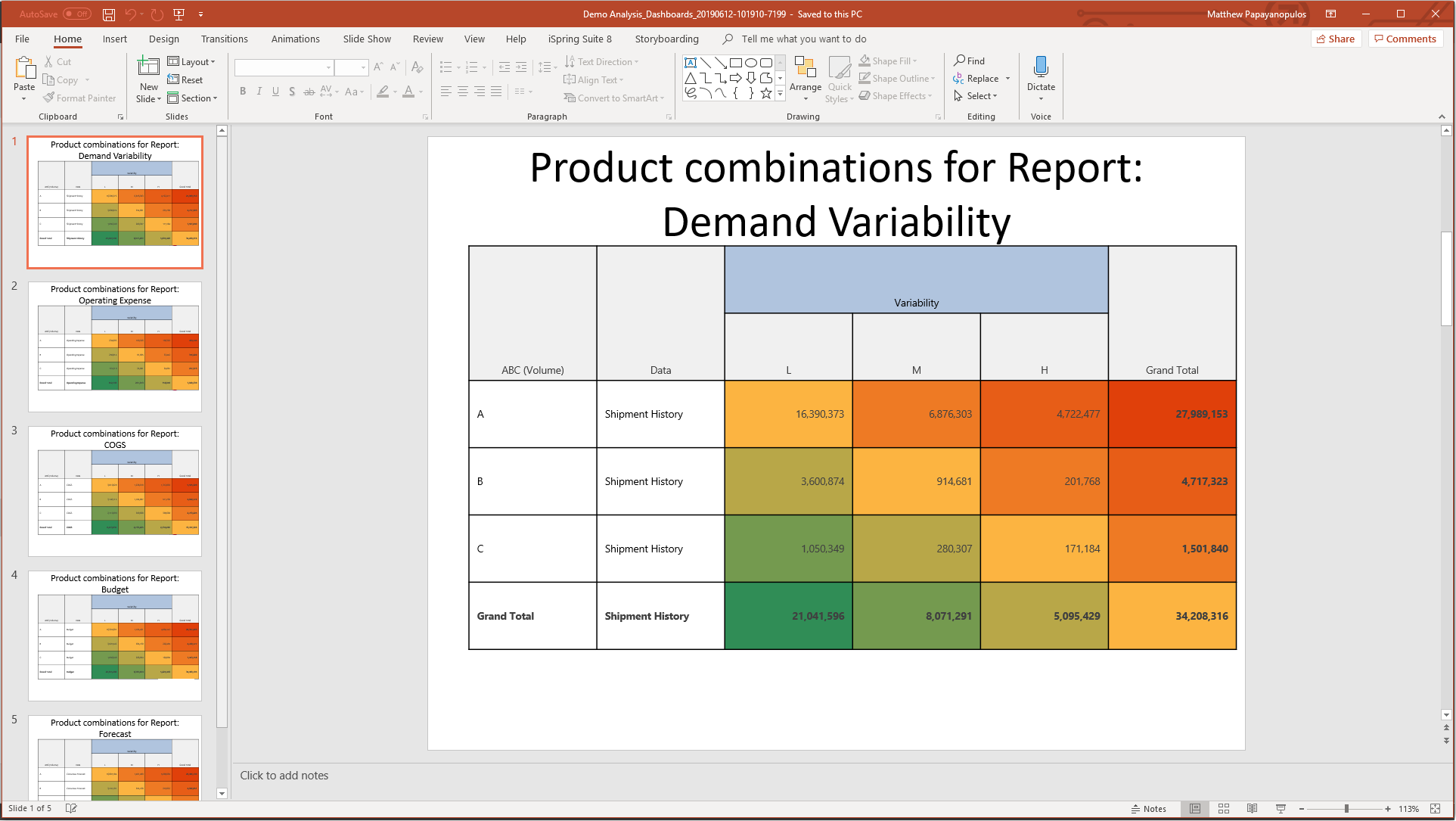
Click the Export to Powerpoint button to export dashboards as separate PowerPoint slide(s).
Scatter Analysis
The Scatter Analysis tab shows a scatter plot of the data selected. The Scatter Analysis tab allows you to compare different attributes graphically, and zoom in to specific area of interest.
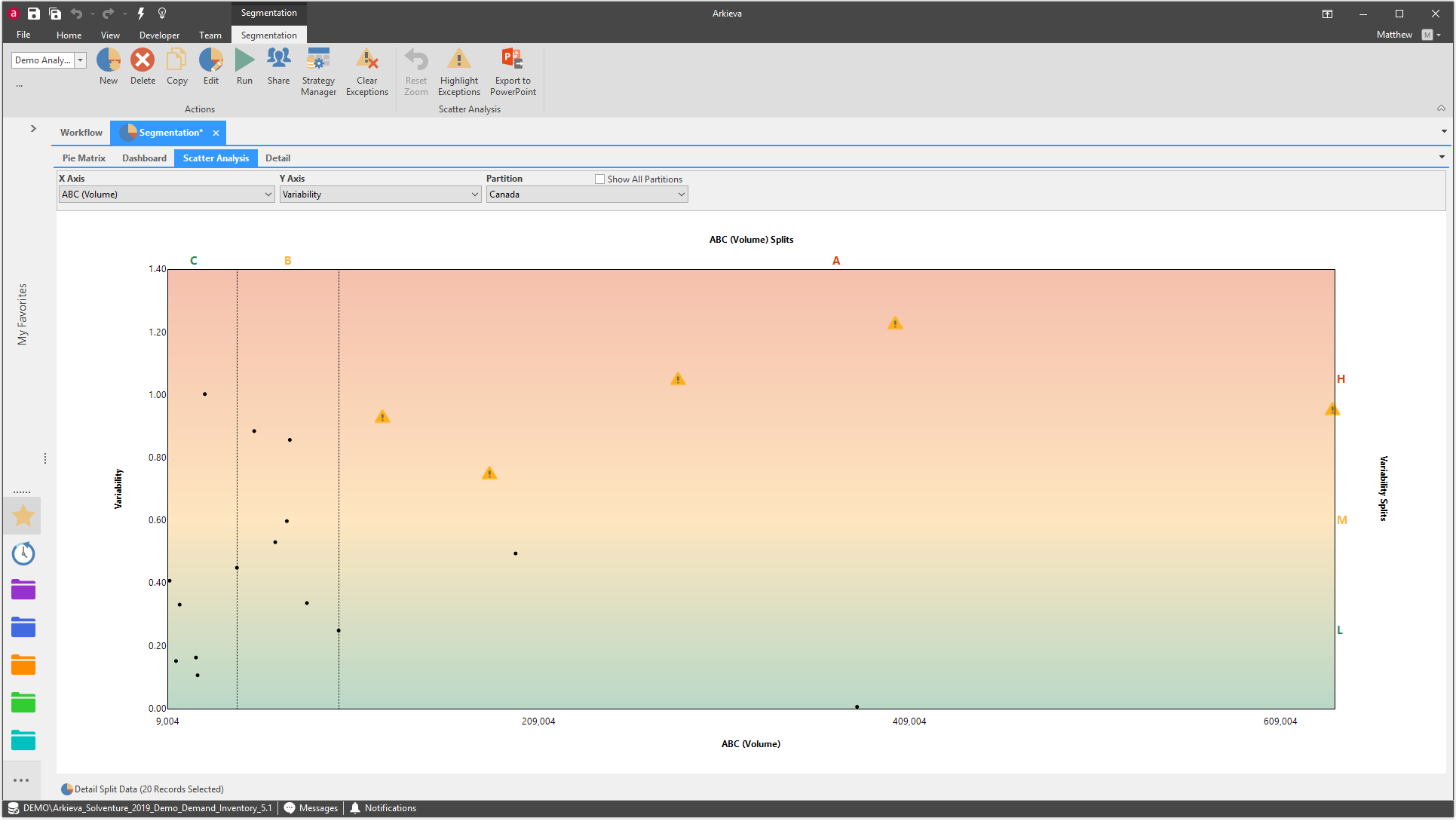
The scatter analysis shows the calculations and partitions made in the Edit window. It also shows any splits created. The colors denote the same information ques throughout Segmentation: Green are the combinations that require the least monitoring, Orange are the combinations that require moderate monitoring, and Red are the combinations requiring close monitoring.
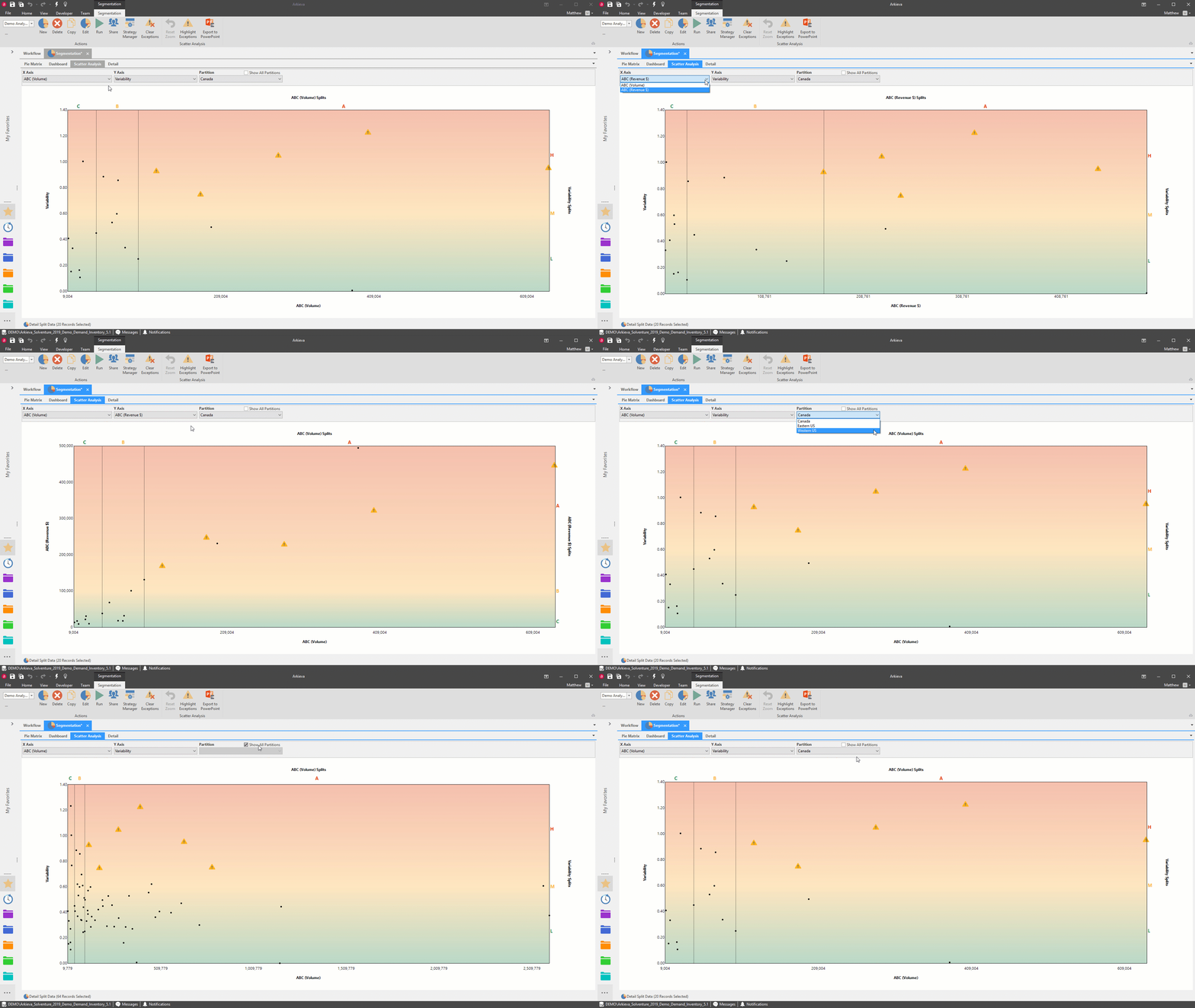
Select different calculations from the dropdowns to show on the X and Y Axis, select different partitions to show in the scatter analysis from the Partition dropdown, or check the Show All Partitions checkbox to show all partitions.
Check 'Show All Partitions' to see all partitions in the Scatter Analysis.
🚧 Scatter Analysis unavailable
A warning message will be in place of the scatter analysis if the Scatter Analysis is not properly setup.

Scatter Analysis Actions
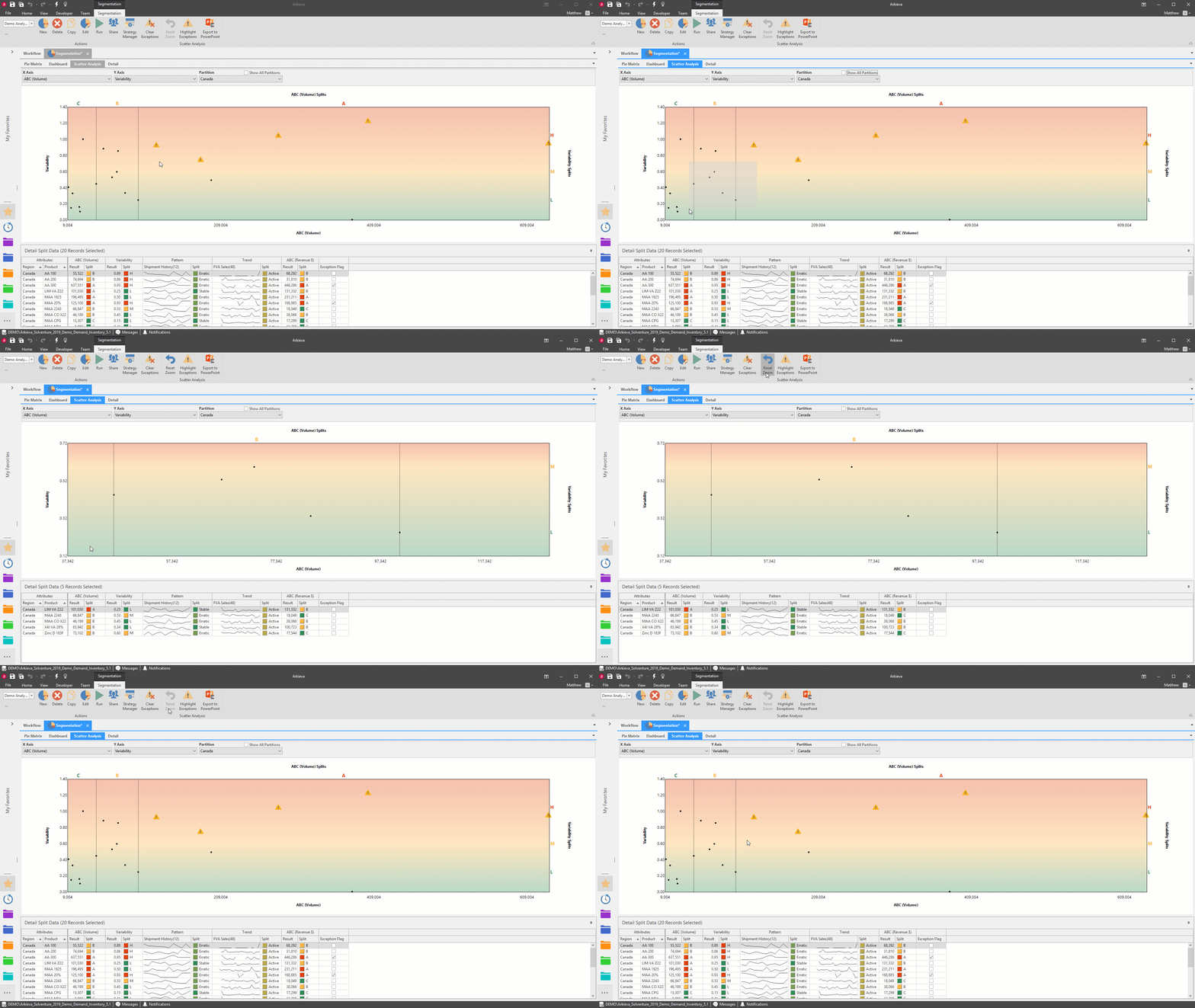
Zoom/Reset Zoom\ To zoom closer into the scatter plot, left-click and hold down the mouse button near the area of interest, then drag the mouse to create a box around the area, and release the left-click mouse button to zoom in. The number of records shown in the Detail tab along the bottom of the Scatter Analysis will also change to reflect the selected scatter points.
Click the Reset Zoom button to go back to the larger view.
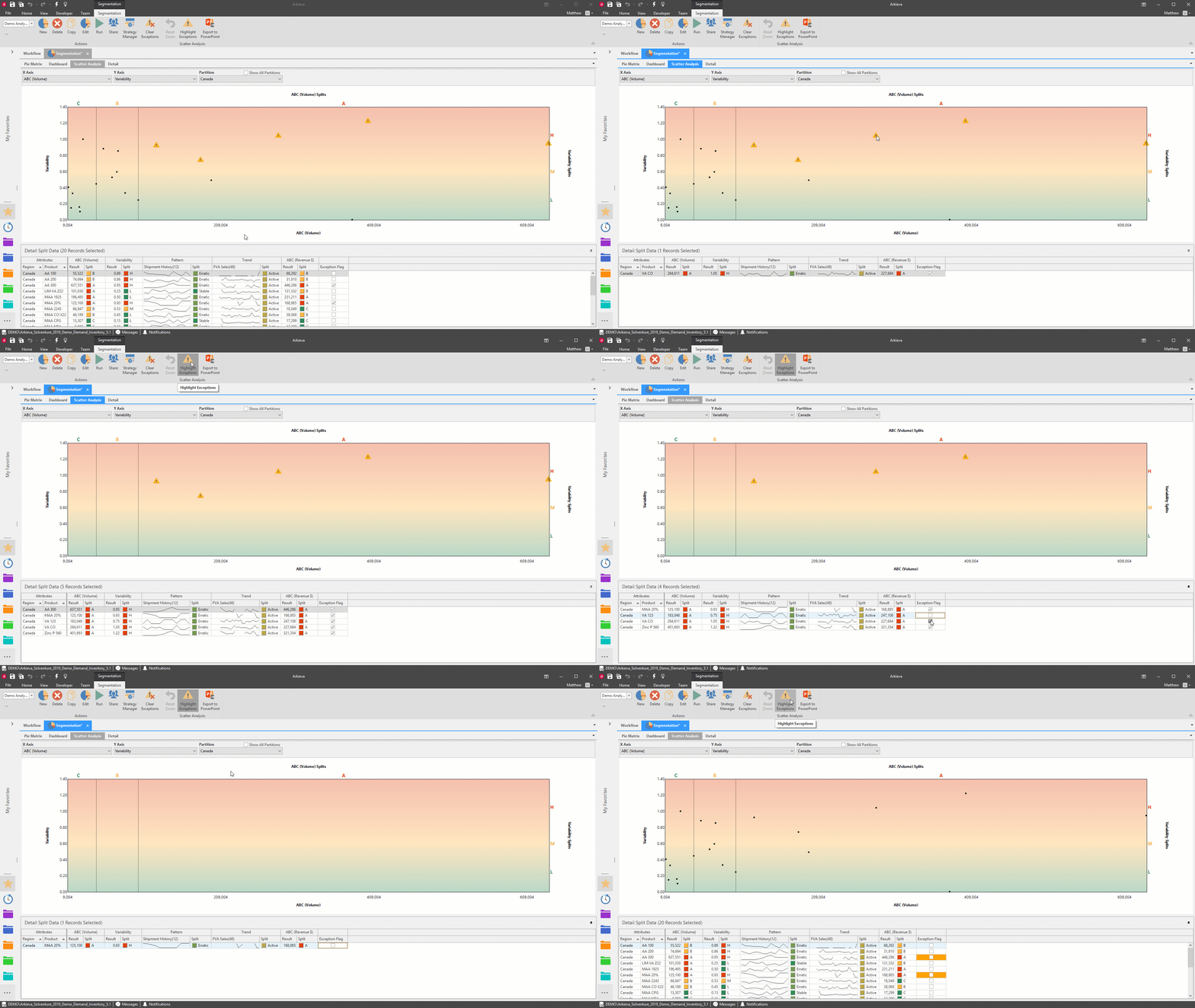
Exceptions/Highlight Exceptions\ To create an Exception, click a Point from the scatter plot; then check the box under the Exception Flag column in the Details section. To highlight only the exceptions in the scatter plot, click the Highlight Exceptions button.
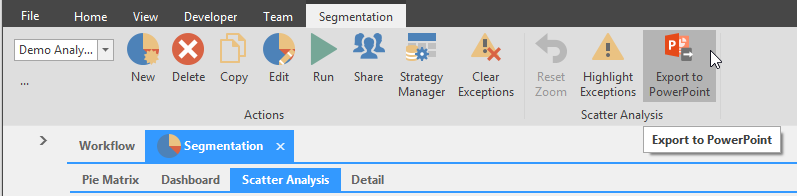
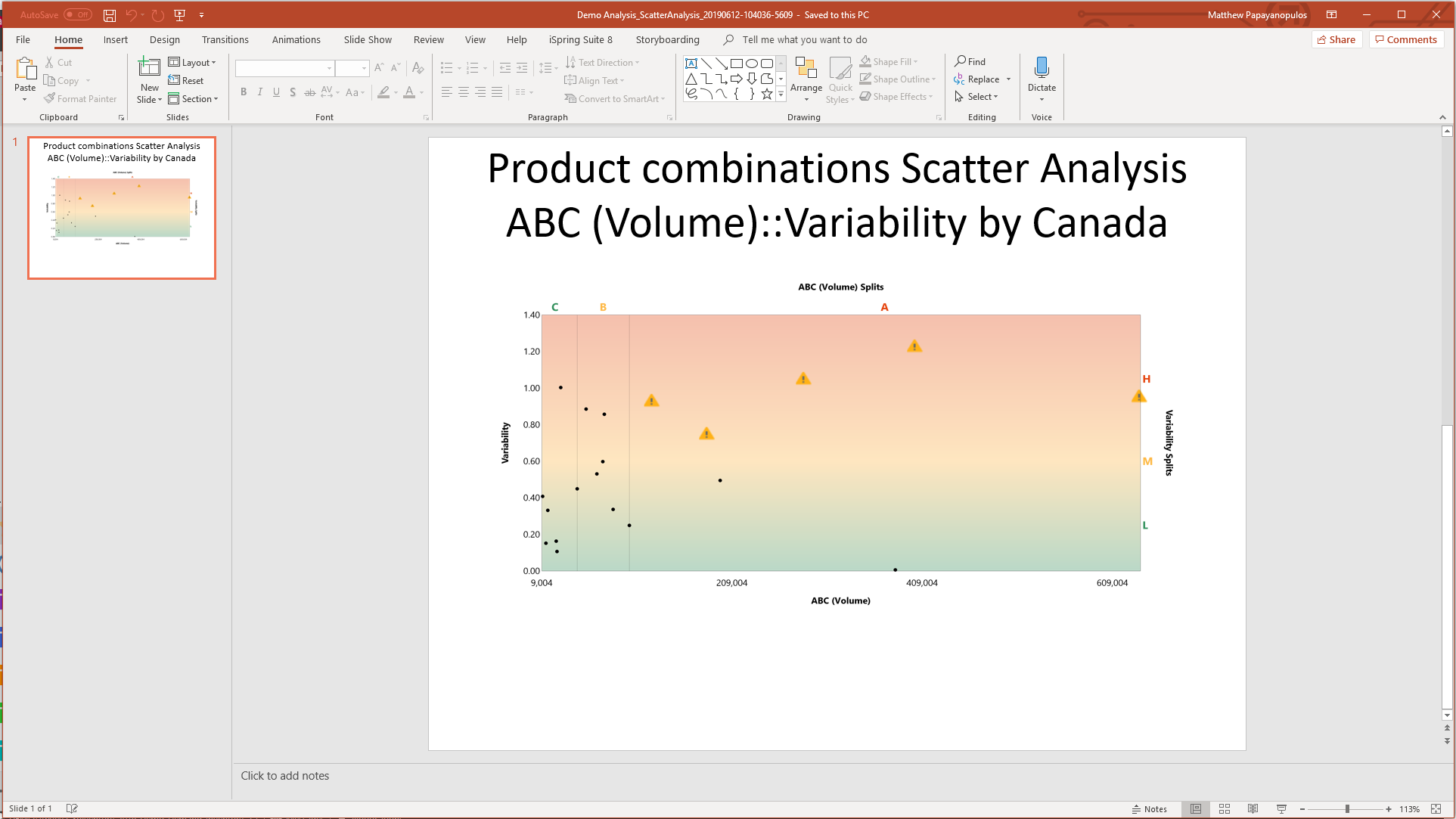
Export Scatter Analysis to PowerPoint\ Click the Export to PowerPoint button to export the scatter analysis as a PowerPoint slide.
Detail
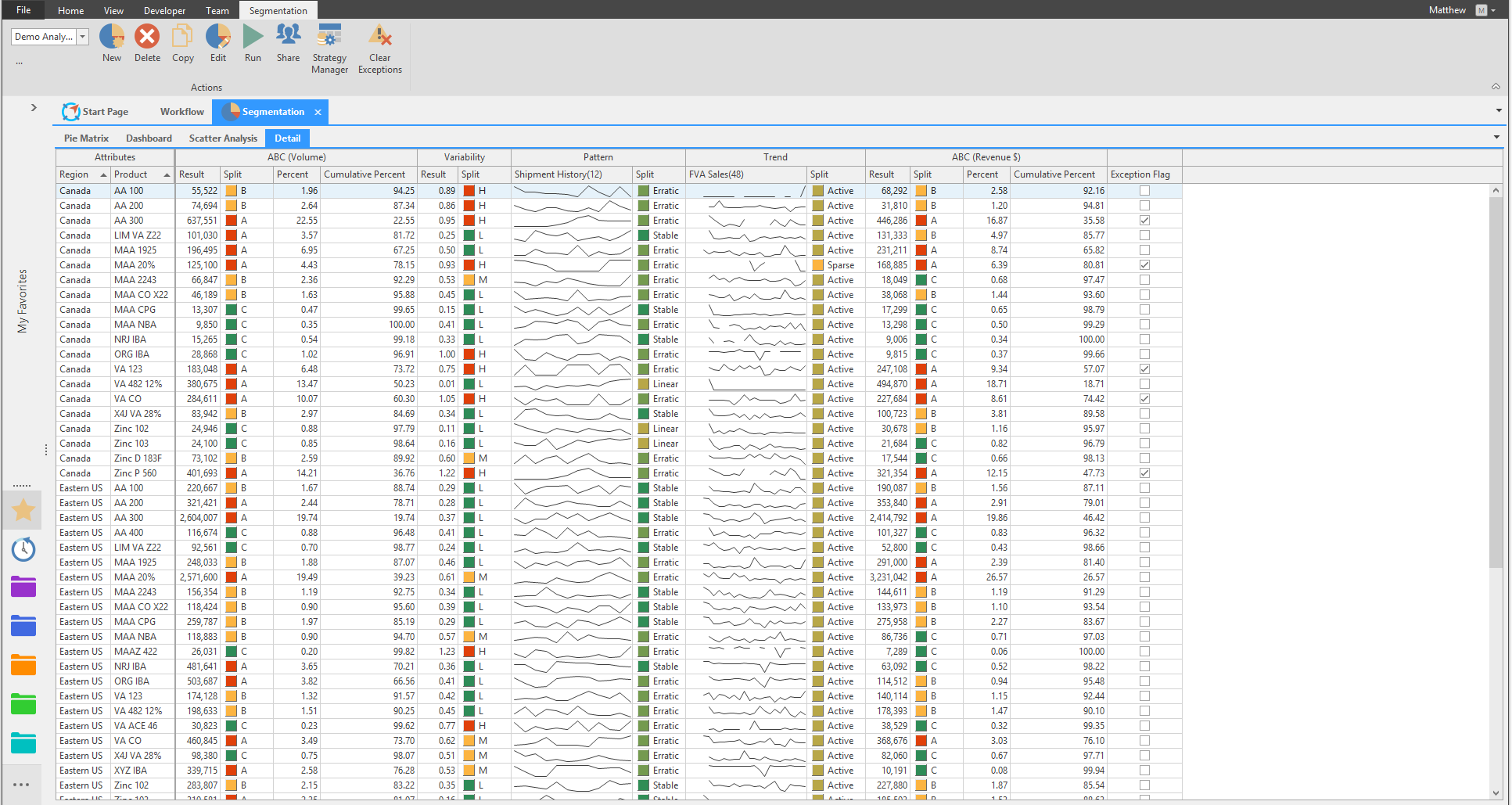
The Detail tab is the same as the detail pane available from all other Segmentation tabs. It shows the attributes, calculations, and exceptions for the Segmentation.
Export Details to Excel
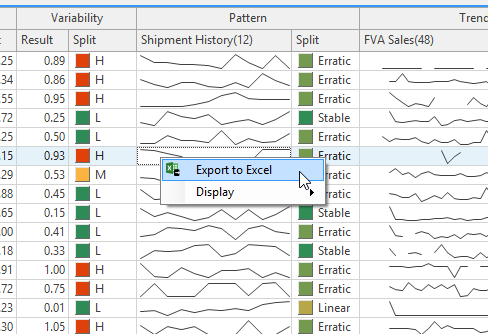
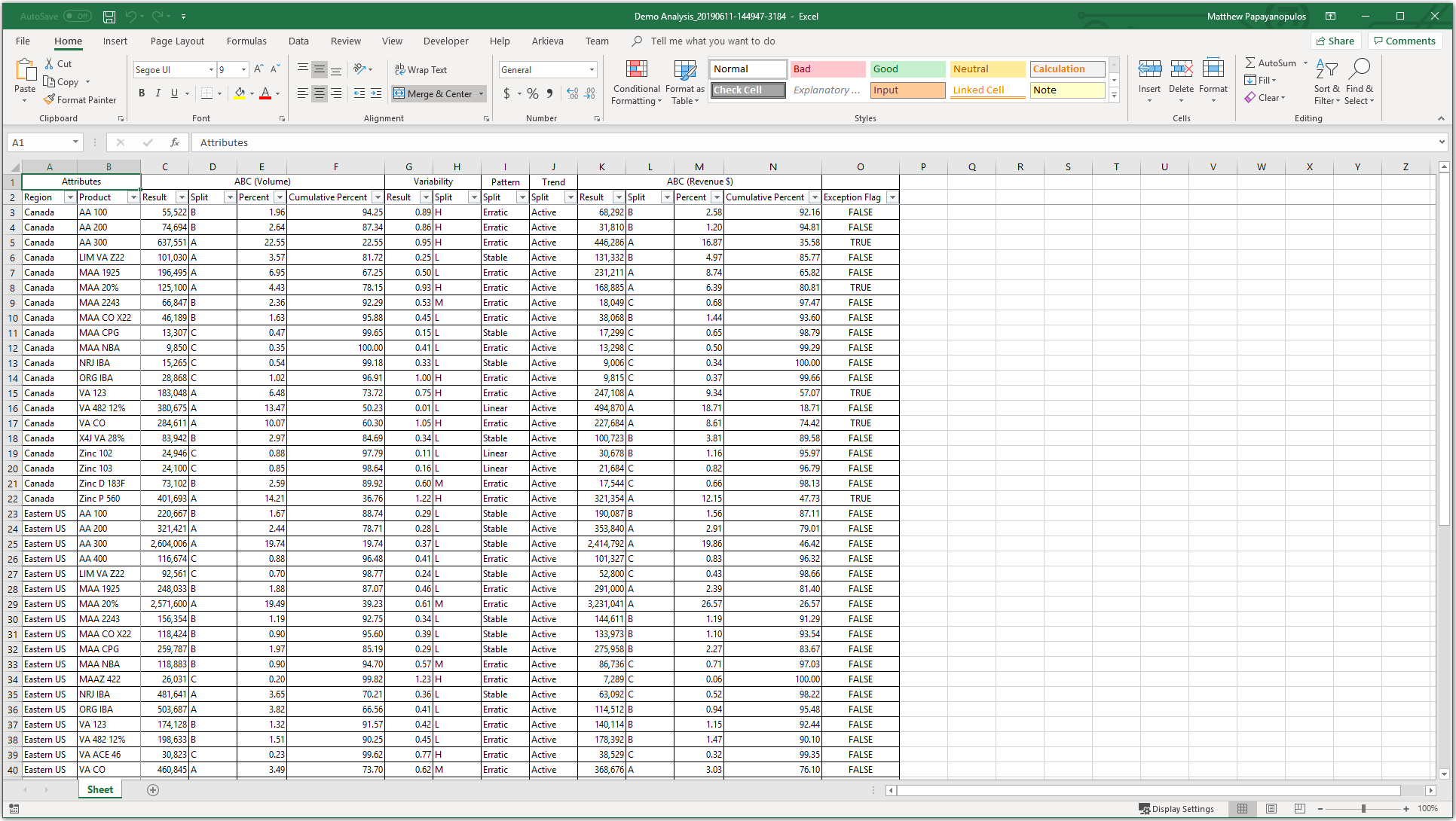
Right-click the Detail grid to and click Export to Excel to export the Detail tab to Excel.
Display
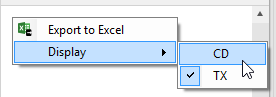
Right-click the Detail grid and click the Display button to switch the data display between CD (Code) or TX (Text).
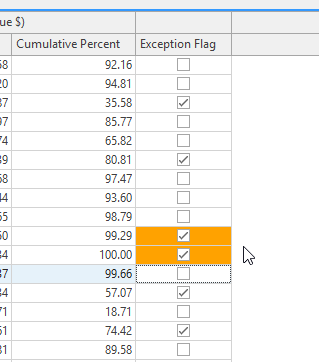
Exception Flag column
To set exceptions for the Scatter Analysis, check the boxes under the Exception Flag column to set those exceptions.
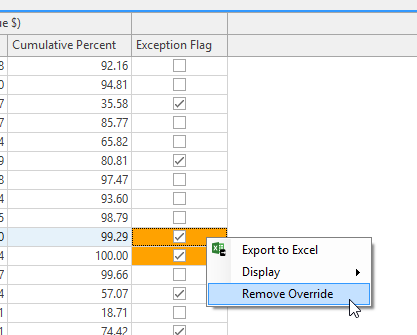
Right-click an Exception and click Remove Override to remove any overrides made.
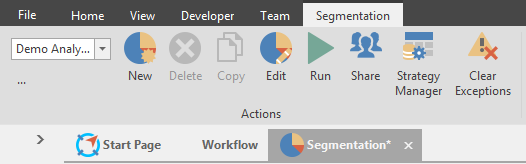
Segmentation View Actions
The Actions buttons stay constant no matter what tab you have selected (Pie Matrix Dashboard, Scatter Analysis, and Detail tabs). However, additional commands will become available.
View Dropdown and View Selection
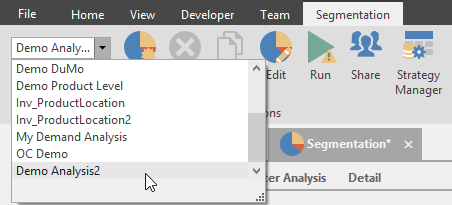
Select a Segmentation View\ Use the dropdown to select a previously saved Segmentation.
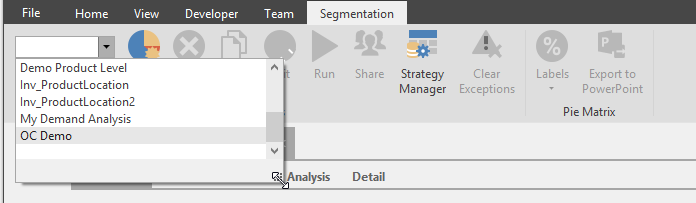
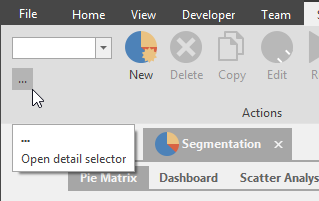
Launch Segmentation View Selection\ To launch the Segmentation View Selection window, click the ellipses button under the Segmentation view dropdown. From the Segmentation View Selection window select a previously created Segmentation or create a new Segmentation view.
- Search: Type keyword to drilldown list of previously created documents
- Name: Select from this list a document to launch
- New: Create a new document
- Ok: Launch a selected document
- Cancel: Exit View Selection
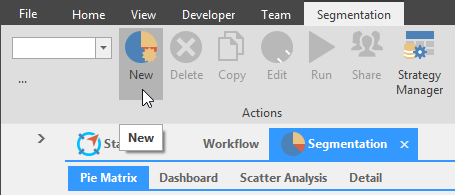
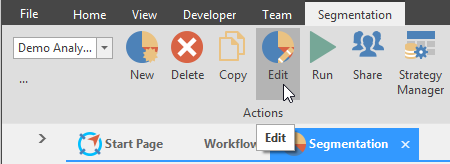
New and Edit
Click the New or Edit button to launch the Edit window. The Edit window is also available by clicking New in the Demand Analysis View Selection window, and clicking Edit in the Demand Analysis ribbon.
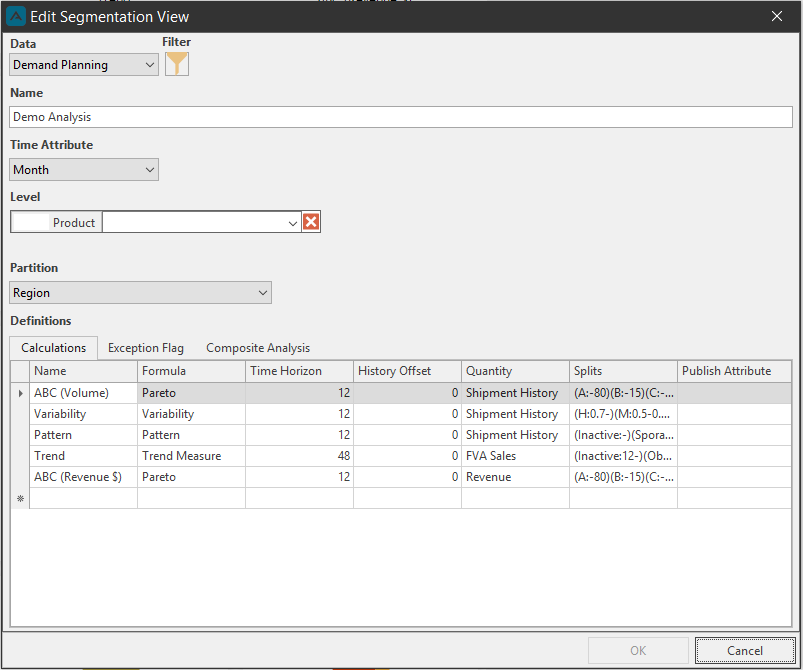
The Edit window contains the data, filter, name, time attribute and horizon, level, partition, and definitions configuration tools.
- Data: From the dropdown select business function to generate the analysis view.
- Filter: To analyze a subset of data, click the filter button to make appropriate selections.
- Name: Create a name for the Demand Analysis; this name is the name that will be in the Select Analysis view dropdown box.
- Time Attribute: Select a time attribute for analysis; Month, Quarter, and Year
- Level: Select levels to analyze (each user will have their own unique level types/names. Click the Red X button to delete a level.
- Partition: The partition attribute allows users to run analyses on each partition element independently; More than one level can be selected.
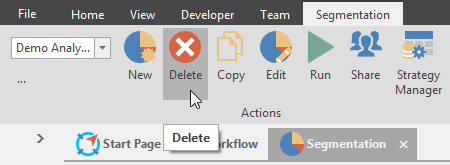
Delete
To delete a Segmentation, select a Segmentation from the dropdown and click the Delete button.
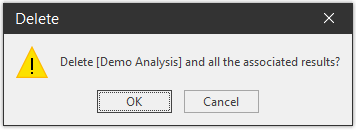
Click Yes to confirm deletion of the Segmentation view.
Copy
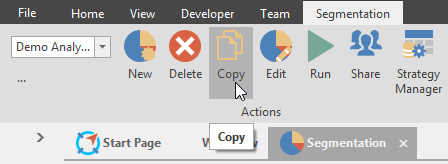
To copy a Segmentation, select a Segmentation from the dropdown and click the Copy button.
Run
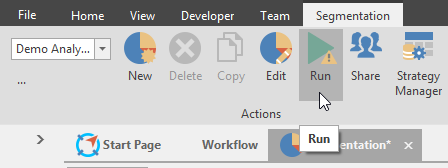
After creating a new Segmentation or making any changes to a Segmentation, click Run to process the Segmentation calculations. The Run button will have a Warning symbol to indicate the Segmentation has not been run yet after the changes made.
Share
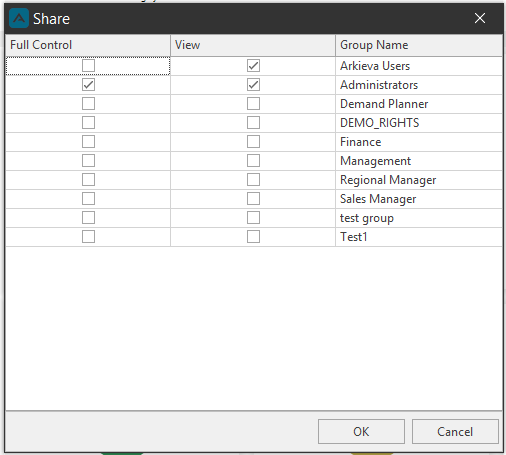
Set the Read and Edit security settings for the Segmentation view with the Share window.
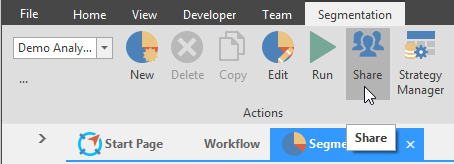
Check Full Control next to a Group Name to give edit control (View will automatically be checked). Check View next to Group Name to give read only access. Uncheck Full Control and View next to a Group to give that group No Access to the Segmentation view.
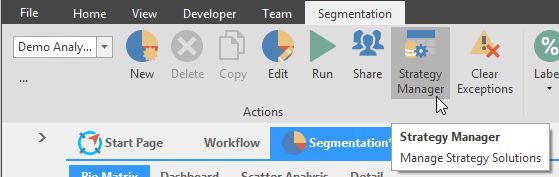
Strategy Manager
Create Solution Strategies to be used in Job steps from the Administration ribbon. Follow the link to learn more about Strategy Manager.
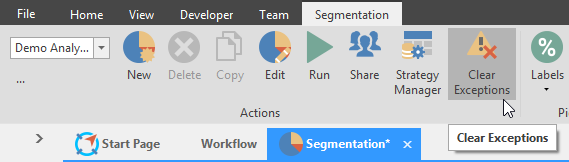
Clear Exceptions
If Exceptions have been selected, click Clear Exceptions to remove those selections. Exceptions are selected from the Exception Flag column under the Detail Split Data pane, the Detail tab, and the Exception Flag tab under Definitions.