Realignments
Realignments is the process of restating history and reprocessing overrides when there are changeovers in the business from an old product to a new product, customer mergers, or acquisitions. Realignments are activated in the order they are in the realignments window; along the right-hand side of the realignment the list is ordered beginning from 1 and so on. The Batch job that activates realignments will look at this order and run them accordingly.
Realignments help to generate new characteristic value combinations based on existing characteristic value combinations and copy data from the source combinations to new ones. For example, the opening or closing of a distribution center requires realignment of sales history data to create a forecast reflecting the new data structure. Realignments helps combine sales history from the current distribution center, that is being phased out, and use that data for forecasting purposes for the new distribution center.
Any saved overrides made within a workbench to an element that is designated as the From Element will be carried over to the designated To Element.
Realignments must be enabled in the Setup Manager’s Star Editor.
When Row Level Security is set up for a specific user, those settings will automatically be included in the filter when they are set up in a realignment; so a user can only apply a realignment on the data you have access to.
When a realignment is no longer up for processing, Arkieva still realigns the overrides of the original tuples.
There are two types of Realignments:
- Standard realignment: A standard realignment has a transition period defined as less than or equal to the current period.
- Transition realignment: A transition realignment has a transition period defined as greater than the current period.
New Product Introduction and Realignments
Using existing history to set up new products from successful planning.
{`
`}
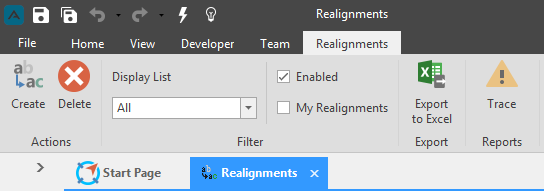
Realignments ribbon
The Realignments ribbon holds the Actions, Filter, Export and Reports options.
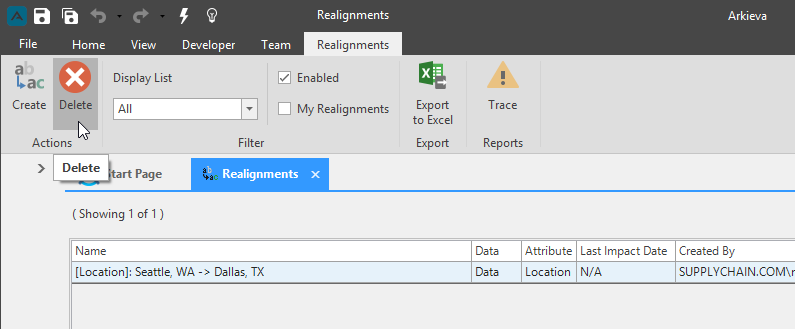
Delete
Select a realignment and click Delete to delete a realignment.
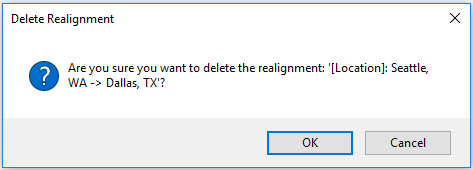
Click Ok to permanently delete the realignment, or Cancel to go back.
Filter
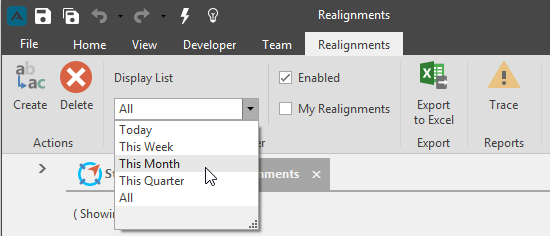
Filter what realignments will display in the summary information section of the realignments component.
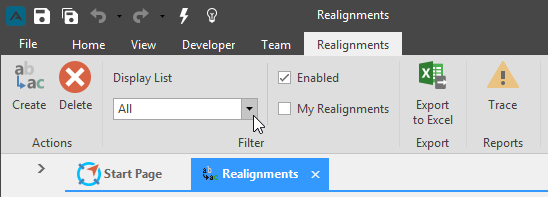
- Enabled: Check to show only enabled realignments.
- My Realignments: Check to only show realignments created by the current user.
- Dropdown: Click to show realignments from Today, This Week, This Month, This Quarter, or All.
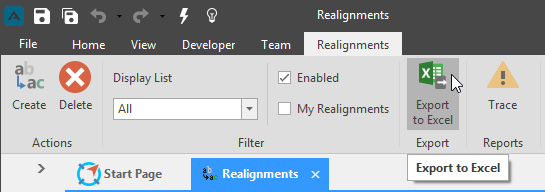
Export to Excel
Realignment information can be exported to Excel by selecting the realignment from the summary information section and clicking the Export to Excel button.

Standard realignment
A standard realignment has a transition period defined as less than or equal to the current period. All past and future data is realigned and the FROM combinations will cease to exist.
Realignment defined to transform Prod001 into Prod002 immediately
Standard Realignment
Before processed realignment
After processed realignment
Transition realignment
A transition realignment has a transition period defined as greater than the current period. All data greater than or equal to the transition date is realigned. Data transitioned away from is editable before the transition date, but is no longer available after the transition date. When the transition date becomes the current date, all data is then realigned as in a standard realignment.
Realignment defined to transform Prod001 into Prod002 starting Feb 2019
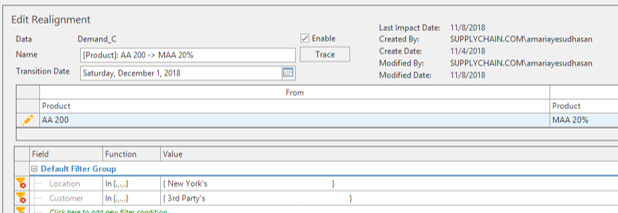
Before processed transition
After processed transition
Creating Realignments
Creating Realignments
To begin creating a Standard or Transition realignment, click the Create button located in the Actions sections of the Realignments ribbon. This will launch the Create Realignment Window.
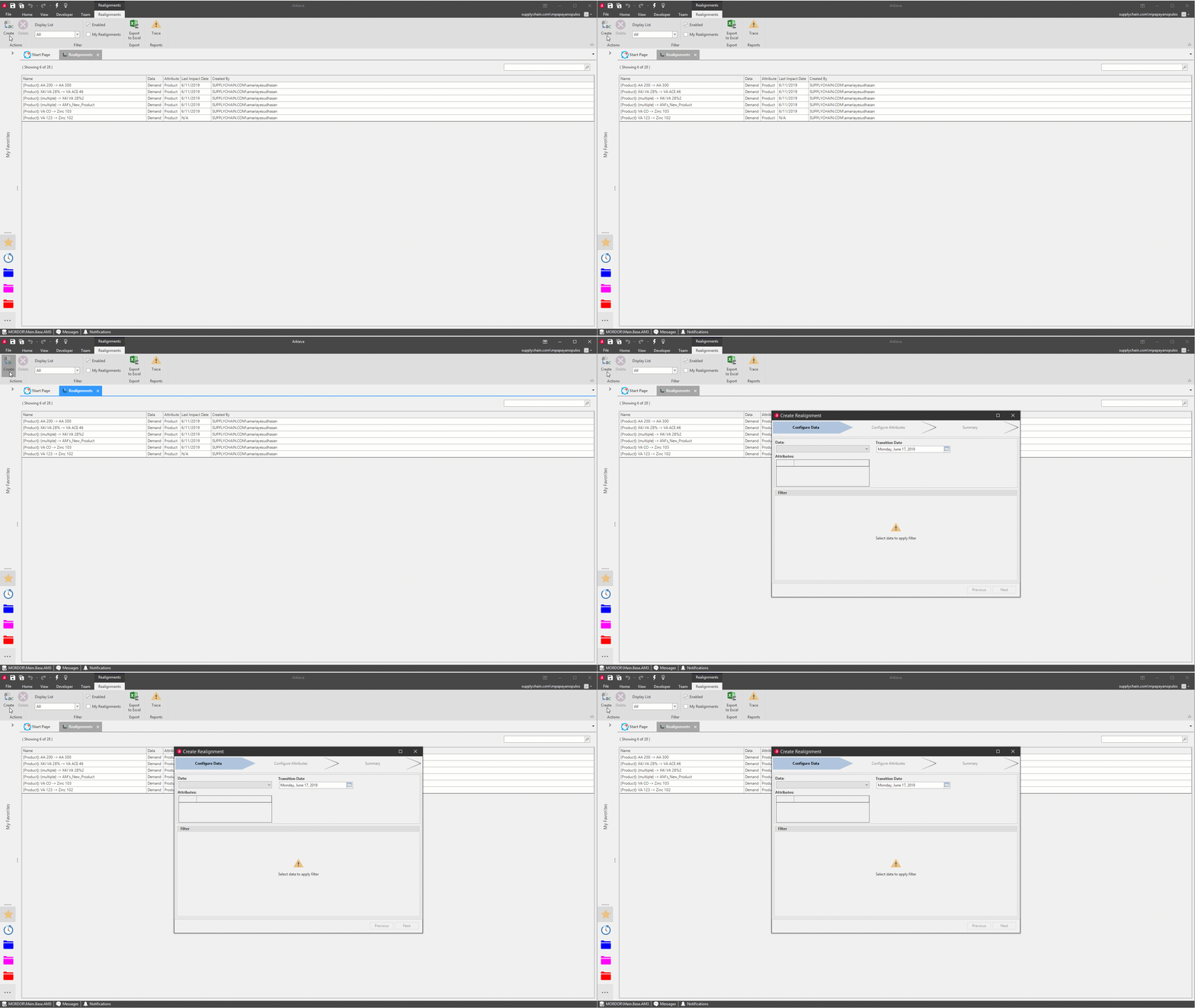
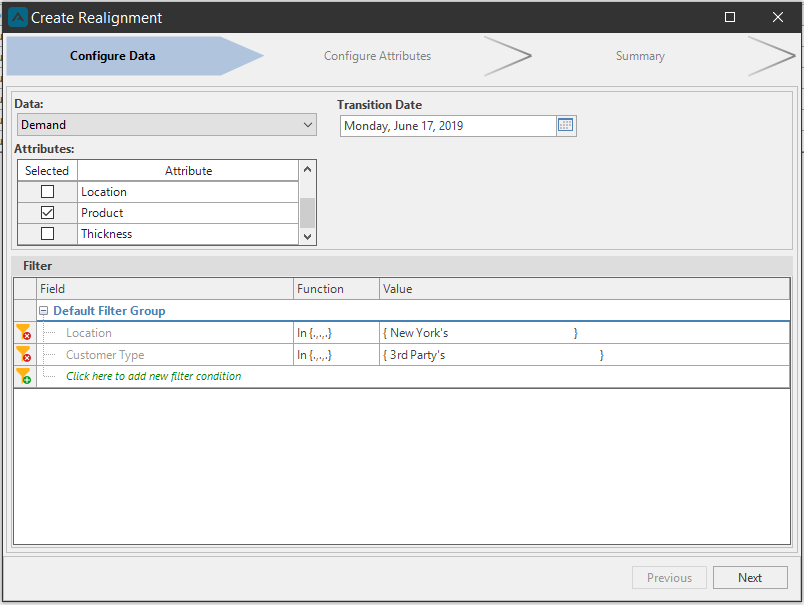
Configure Data\ In the Configure Data section of the Create Realignment window select a data source from the Data dropdown. Next select an attribute or attributes, and select a Date for the realignment. Selecting a date during the current period will create a Standard realignment and selecting a date past the current period will create a Transition realignment.
You can also select filters for the realignment. By default the first filter group in RLS will be passed to the realignment. Click Next.
Configure Attributes\ Under the Configure Attributes section, click the Click here to add new elements text to launch the Attribute Selection window.
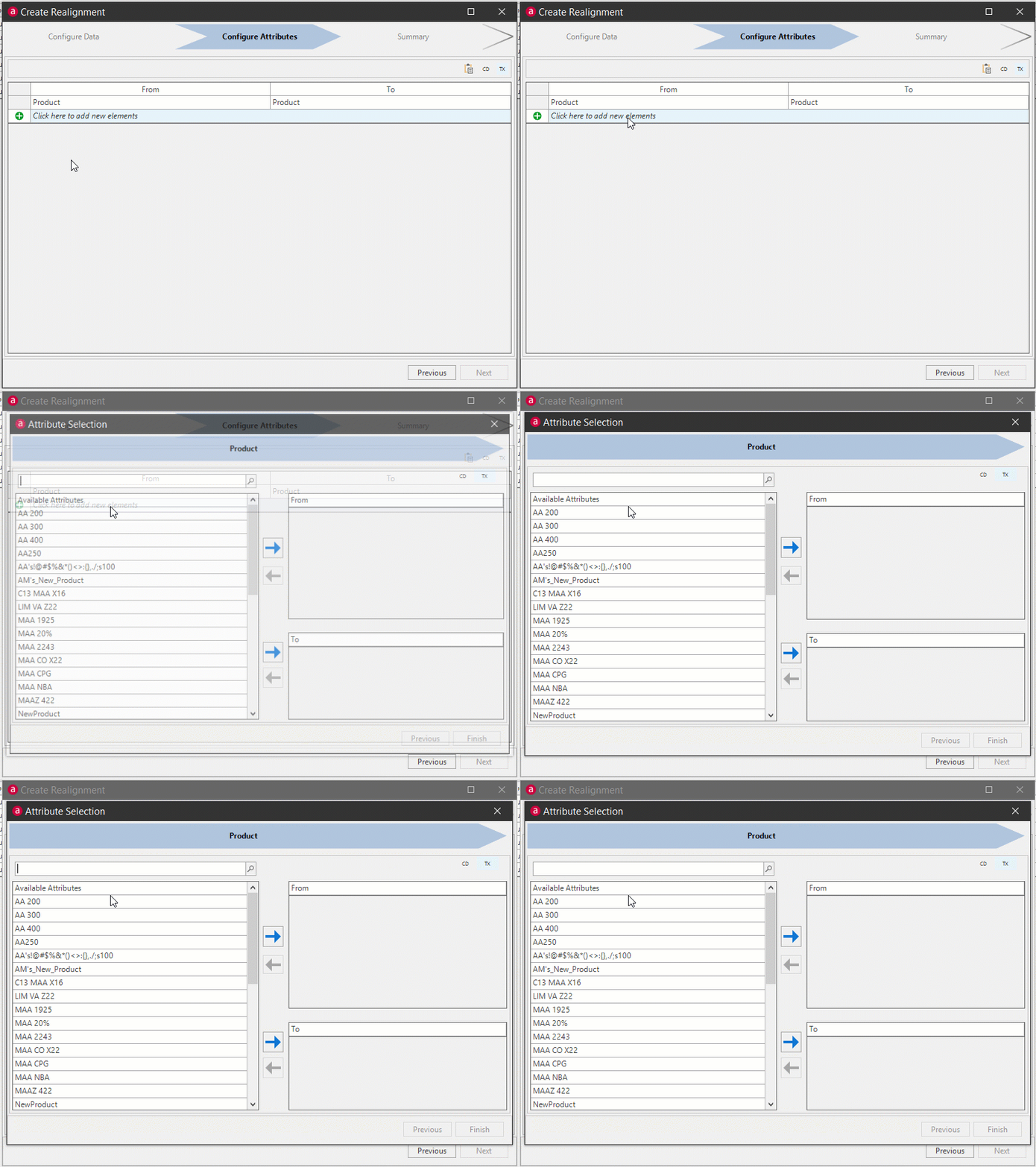
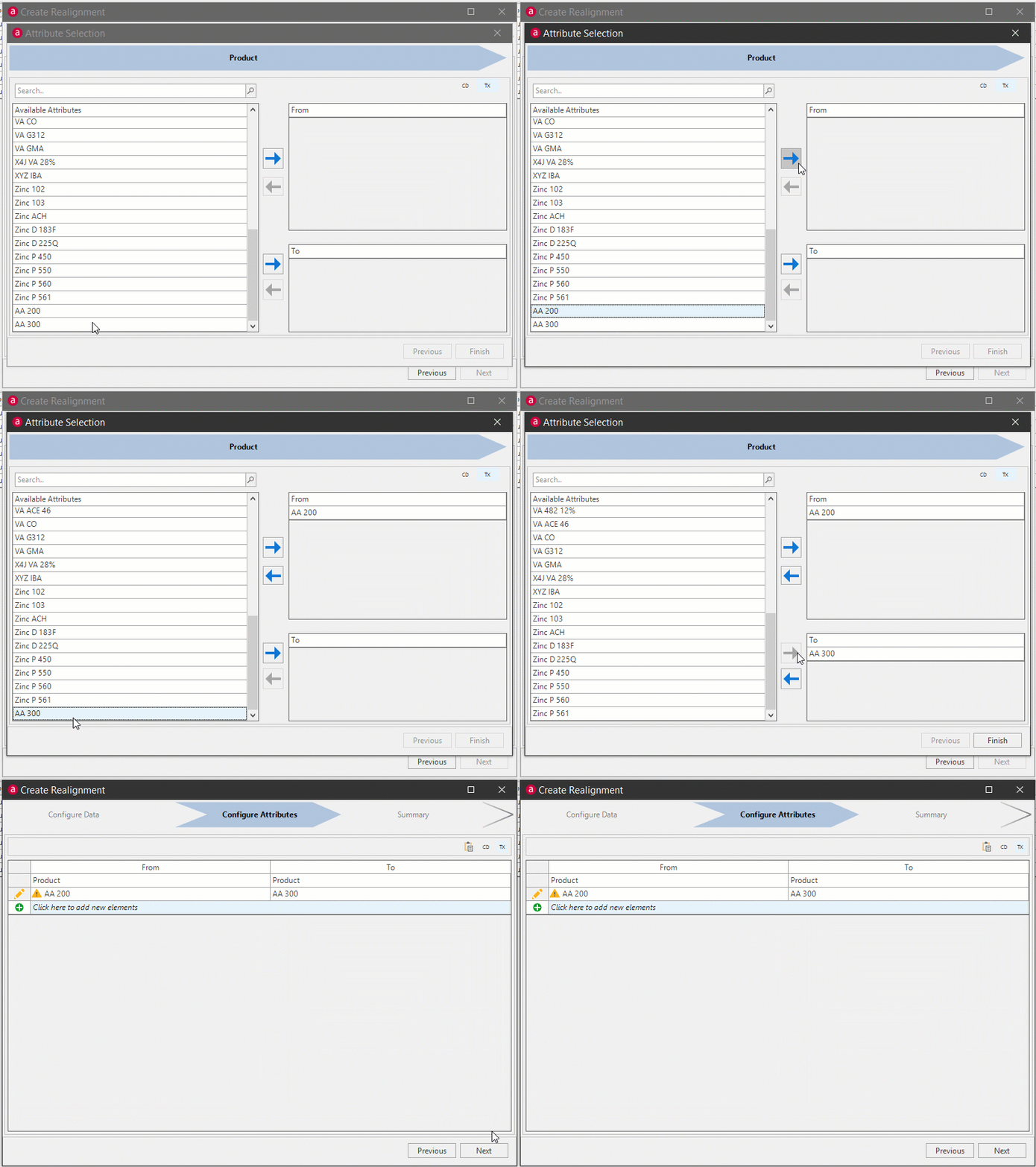
Select an attribute from the left and use the top right arrow to select that attribute for the From Attribute. Select another attribute and click the bottom right arrow to select that attribute for the To Attribute. Click Finish.
📘 Note
Multiple From Attributes can be selected but only one To Attribute can be selected.
Optionally you can add more attributes to configure for a realignment. Click Next to go to the Summary window.
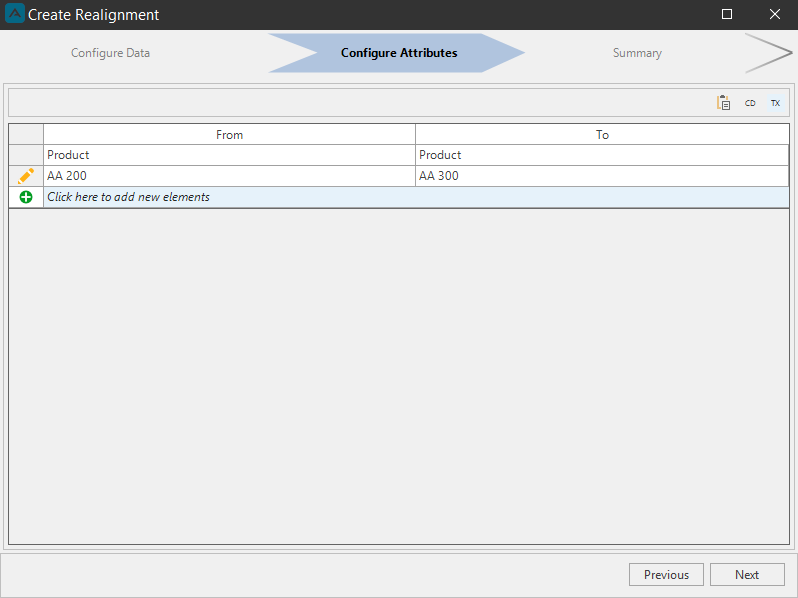
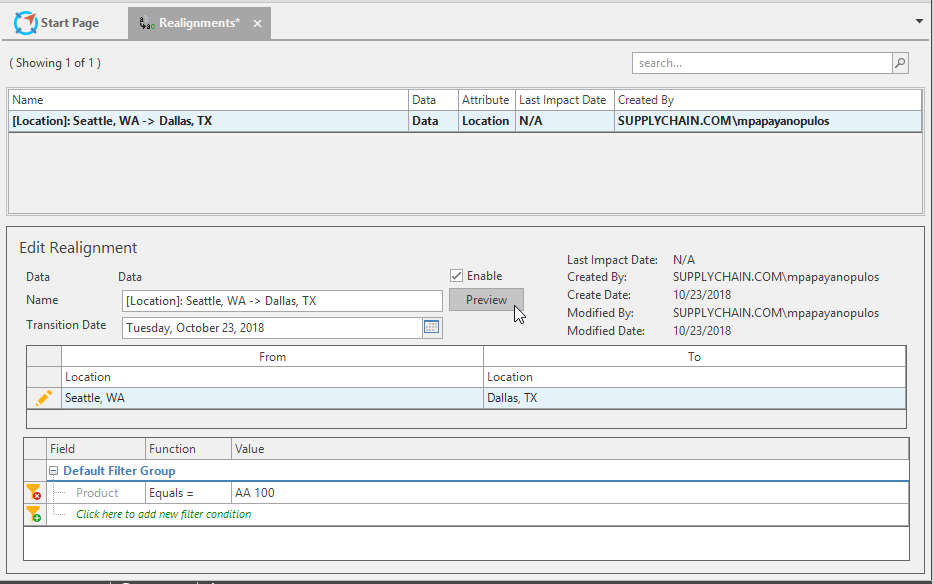
Summary\ In the Summary section of the Create Realignment window you can review your selections.
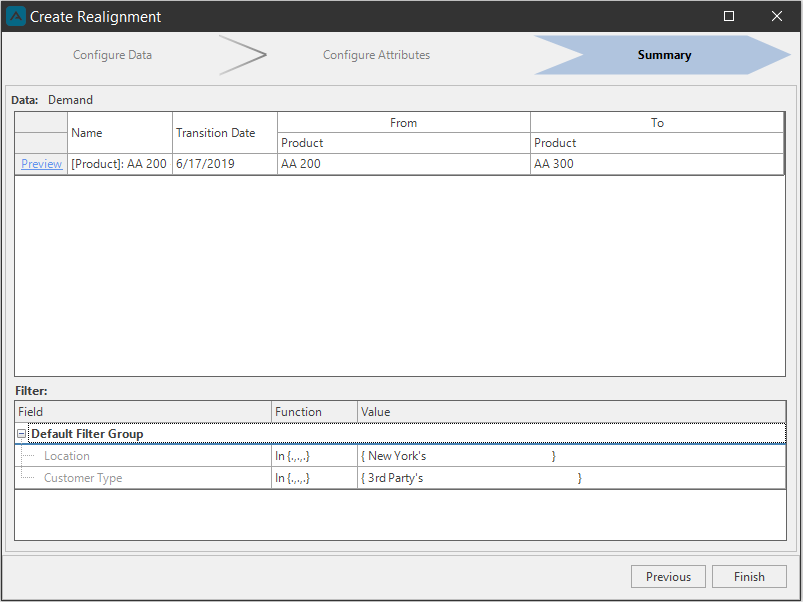
Click the Preview text to launch the Preview and Trace window.
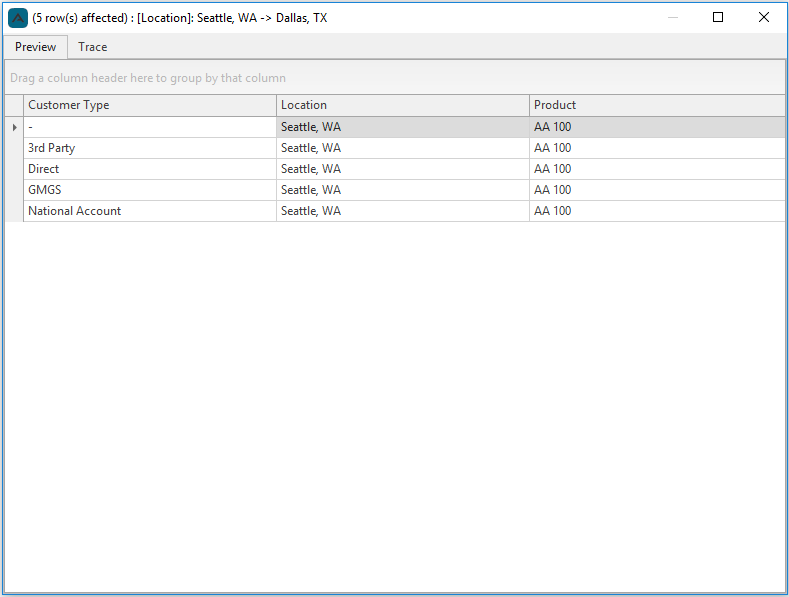
From the Preview tab you can see the data that will be impacted by the realignment. This list is pulled from the tuple table. And in the Trace tab you will be notified if the realignment you have selected will create a cyclic realignment.
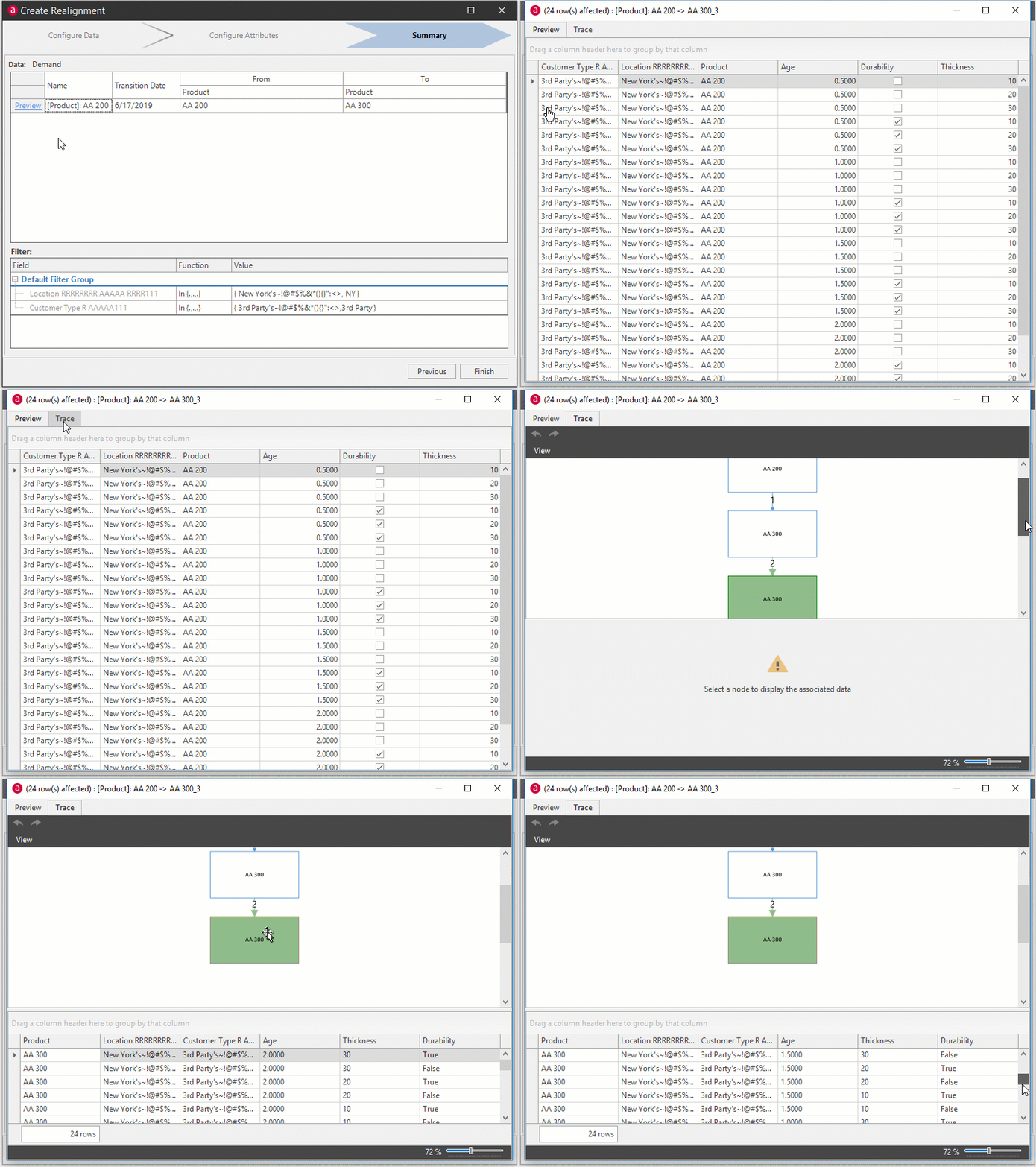
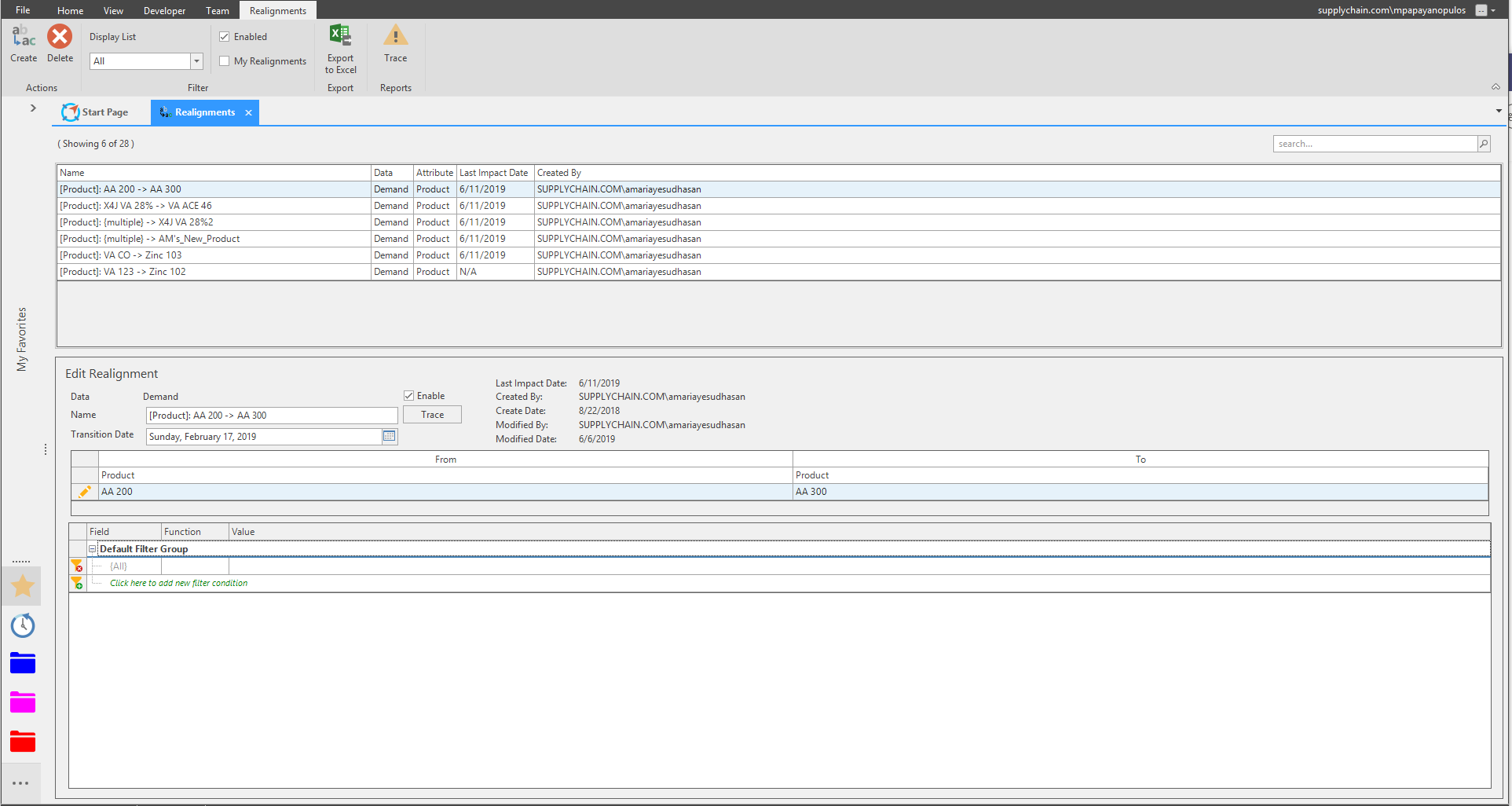
After viewing the details in the preview, you can confirm whether you want to go ahead and process this realignment. Click the Save button in the Arkieva toolbar to save the realignment.
Standard Realignment example
Workbench before the standard realignment has been processed.
Workbench after the standard realignment has been processed.
Transition Realignment example
Workbench before the transition realignment has been processed.
Workbench after the transition realignment has been processed.
Preview Impacted Records
When creating new realignments, and for realignments that have not processed yet, a Preview hyperlink is available for users to click to see what records will be impacted by the realignment. Click the Preview hyperlink in the Summary section of the Create Realignment window or on the Edit Realignment page’s Last Impact Date section to view the Impacted Records window.
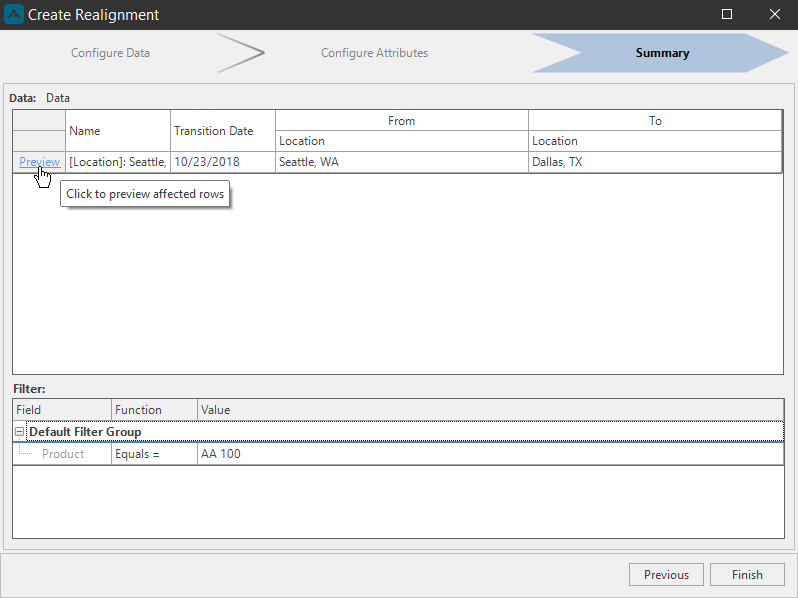
Trace
Individual and Cycle Realignment Trace, and Trace in Override Report\ The Visual Trace feature analyzes all your realignments at a very detailed level and outputs a problem diagnosis diagram that highlights problem areas for easy recognition and diagnosing. Additionally, when creating new realignments, users can now Preview records that will be impacted by the realignment, before committing to any changes.
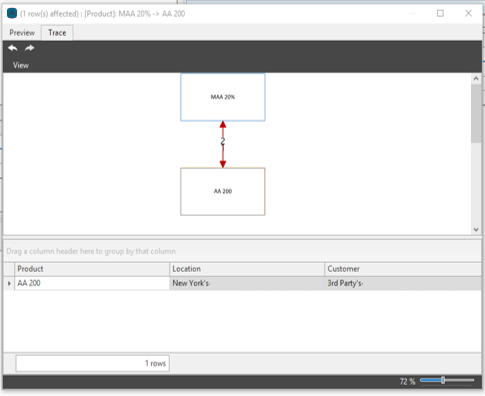
Visual Trace highlights problem areas and cyclical loops. When creating realignments oftentimes planners end up creating cyclical loops. The new Visual Trace feature analyzes all your realignments at a very detailed level and outputs a diagram that highlights these problem areas for planners to easily recognize and diagnose.
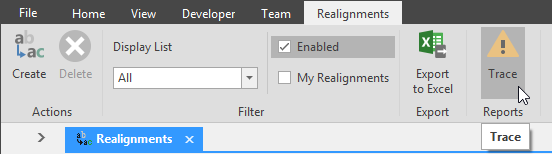
Click the Trace button in the Realignments ribbon. The Trace window will launch.
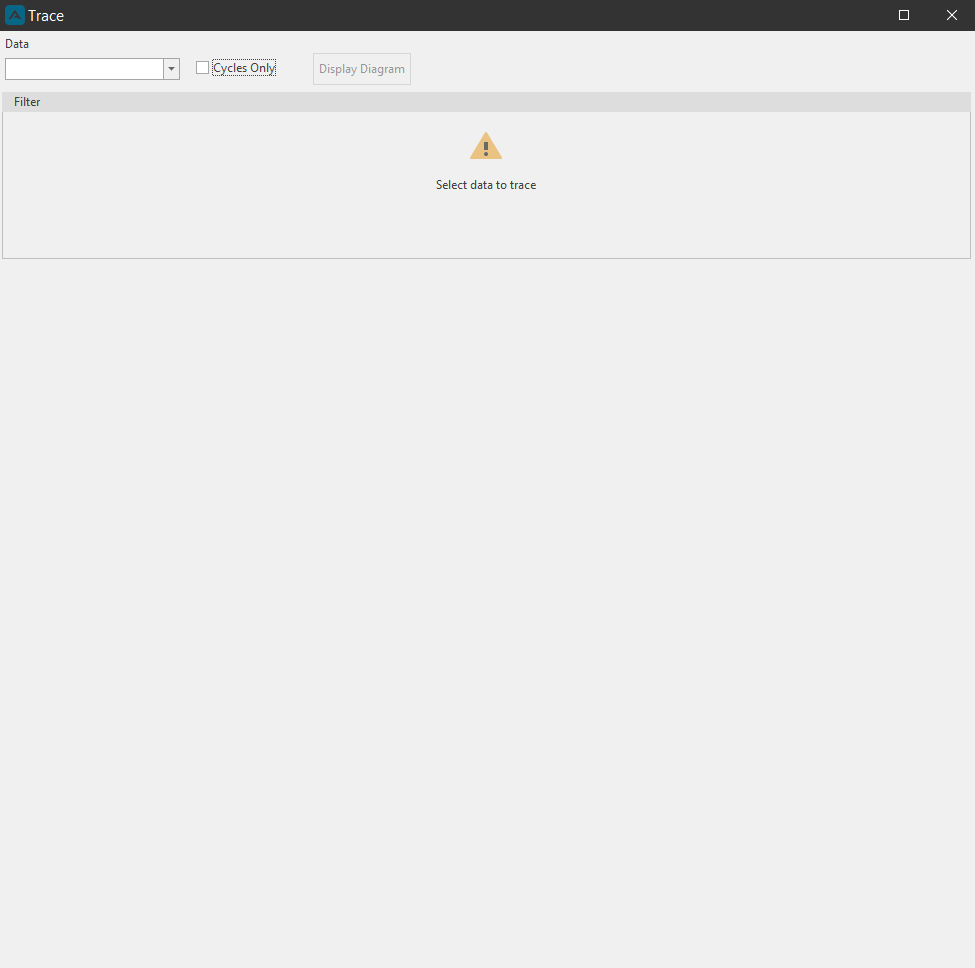
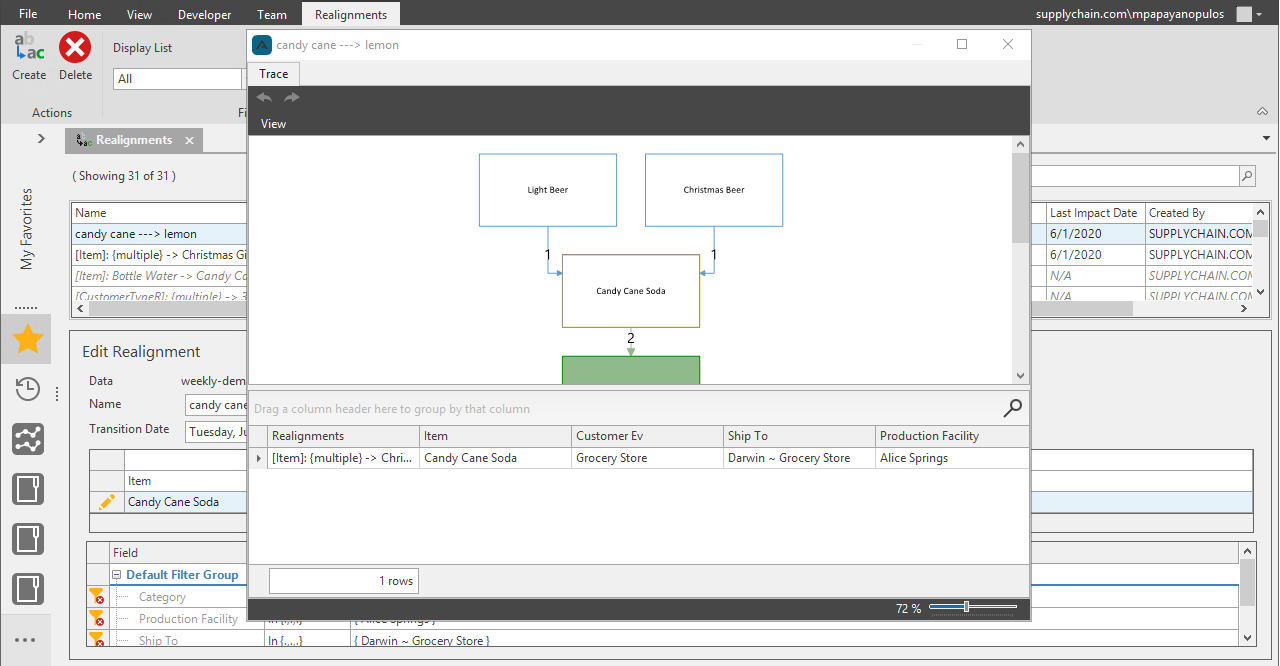
Select Data from the dropdown, then Filter the data. Click Display Diagram to display the trace. Click an Item to display what realignments will be affected.
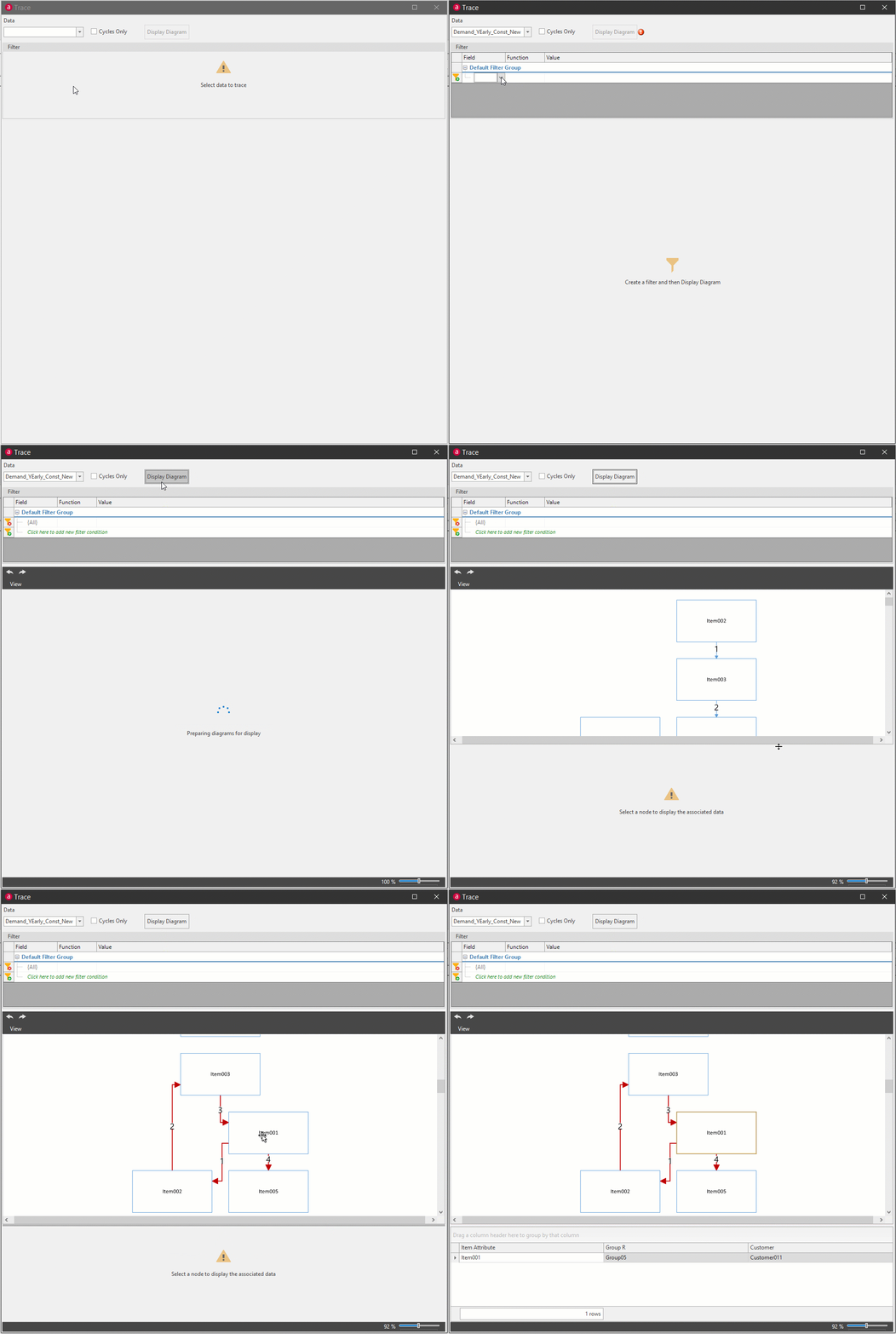
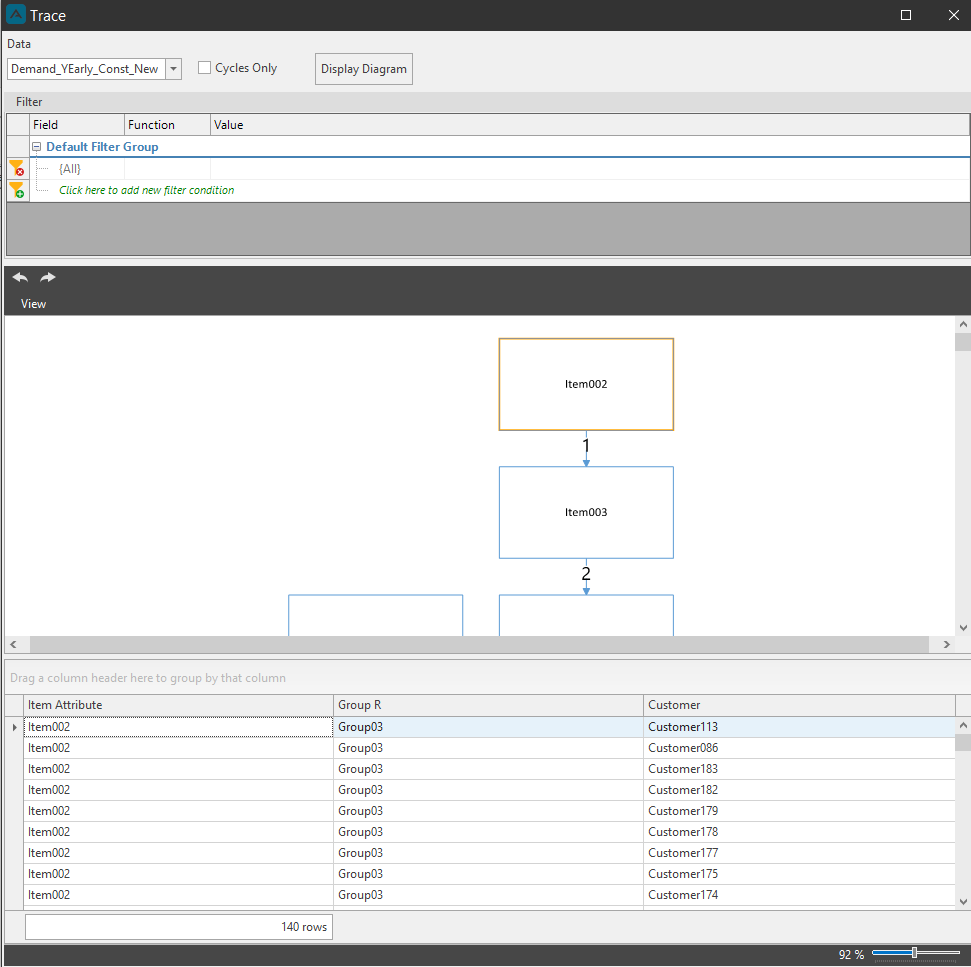
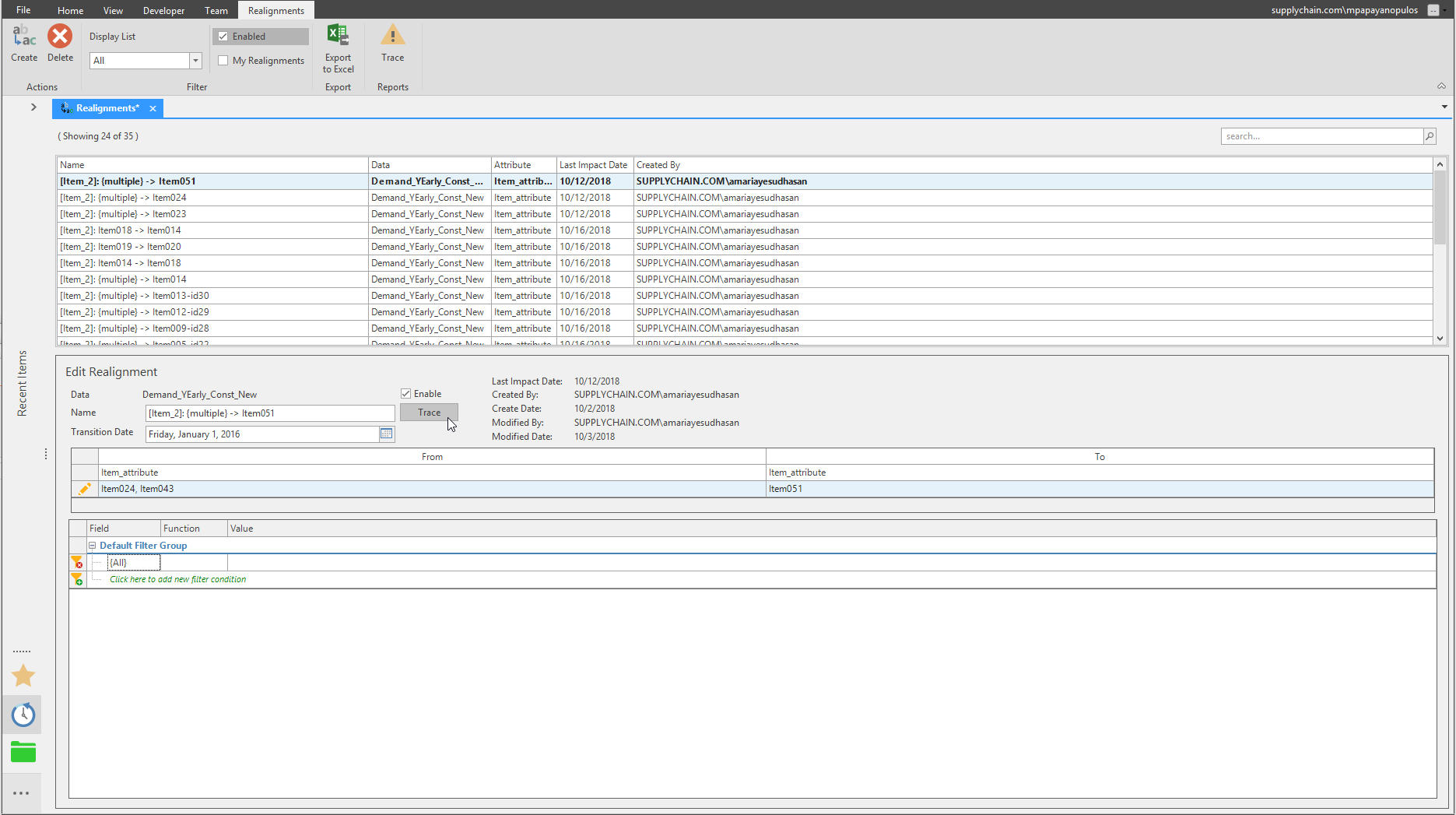
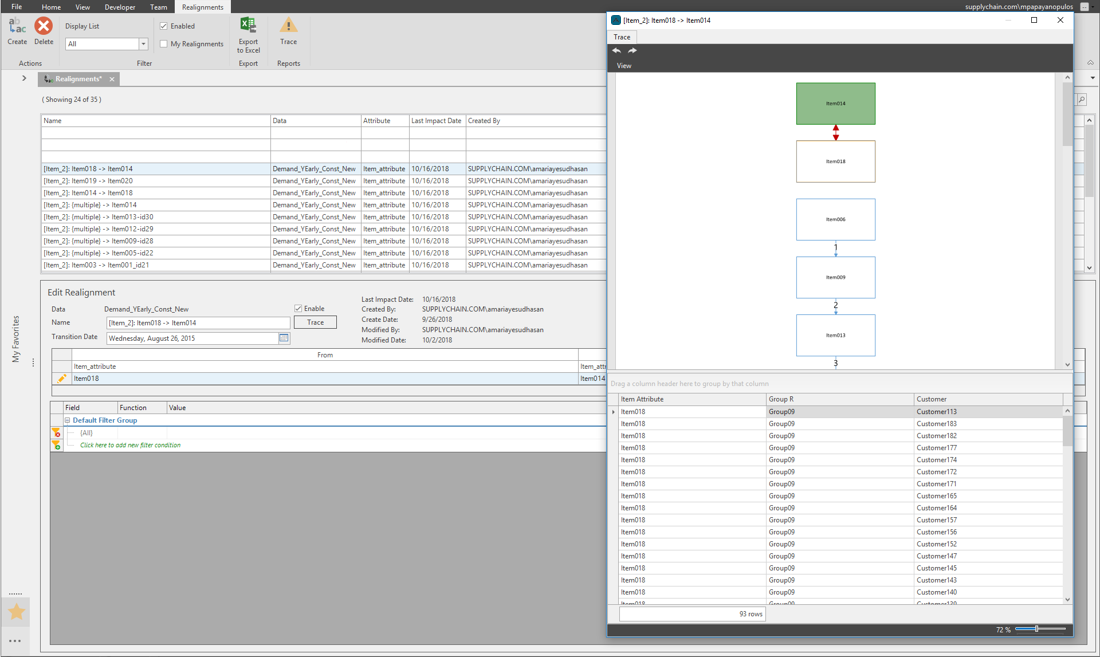
Individual realignment trace\ For each individual realignment the trace can be viewed.
Cycle Realignment Trace\ Below is an example of a trace showing a cyclical realignment.
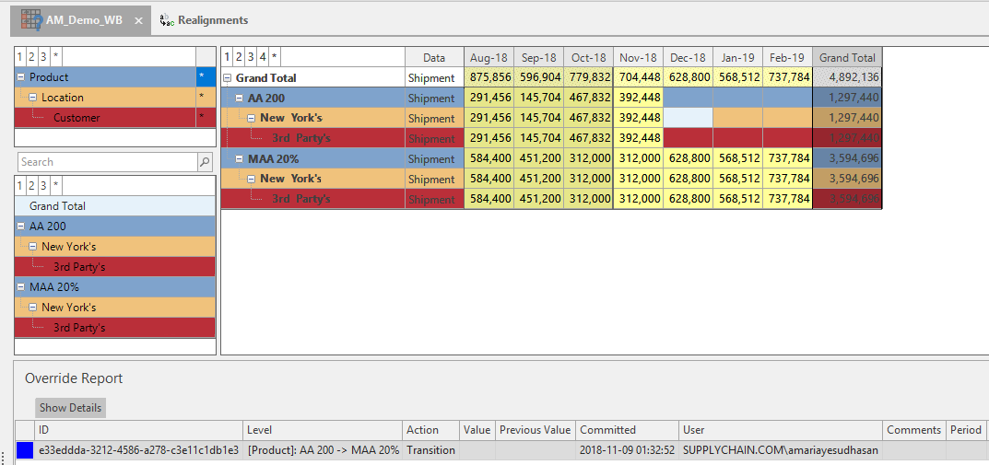
Trace in Override report\ To view a Trace in the Workbench Override Report, click on a cell in the Workbench, then click the Override Report button to open the Override Report pane. If that combination is affected by any of one of the realignments, the realignment details will be listed in the Override Report.
Warnings
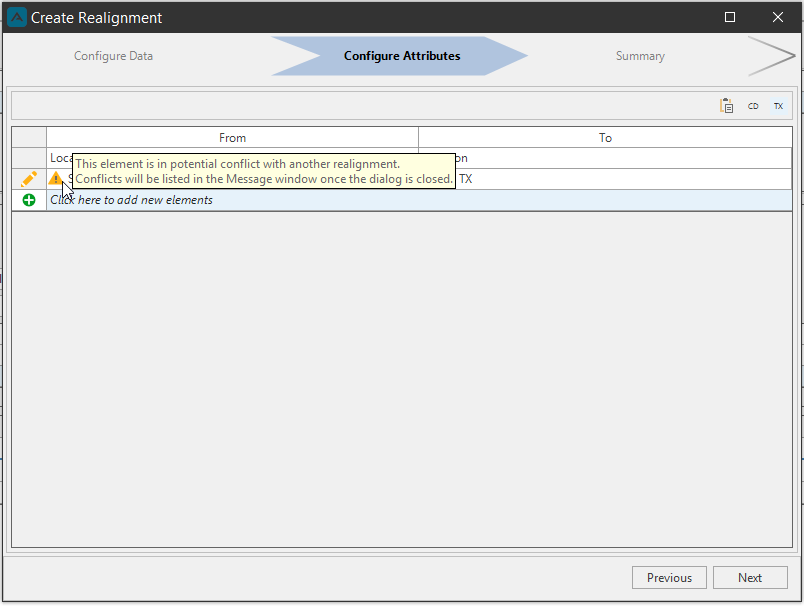
If an element has already been selected for realignment, a warning will show this information to the user in the Configure Attributes section of the Create Realignment window.
Related Articles
Demand Planning Introduction
The Demand Planner creates a collaborative demand planning process for a cross-functional demand planning process for working towards one common goal. Benefits of the Arkieva Demand Planner Solution: 15% less inventory 17% higher perfect order ...Arkieva Customer Training Program
The Arkieva Customer Training Program is a customer-centric program aimed at empowering Arkieva customers with the knowledge and skills needed to harness the power of their Arkieva solution to solving complex business problems. ? Go to the bottom of ...Overrides
Introduction More often in a decision-making process, the end user wants to override a planning figure calculated by Arkieva. Workbench supports this feature by allowing users to edit values. Users with override security rights can edit a value. ...General Navigation of Arkieva
Overview of the various navigational commands in Arkieva. {` `} Launching Arkieva Splash Screen Arkieva is installed to a web server and launched from the client intranet (Internet Explorer is highly recommended). The Arkieva version number, build ...Workbench
Introduction A Workbench is an editable table that can help you predict future data. To create a new Workbench, go to the Home tab and click the New Items dropdown menu and select Workbench. How to design a Workbench In this session, we will touch on ...