Overrides
Introduction
More often in a decision-making process, the end user wants to override a planning figure calculated by Arkieva. Workbench supports this feature by allowing users to edit values. Users with override security rights can edit a value. Overrides can be done on different levels of data representation.
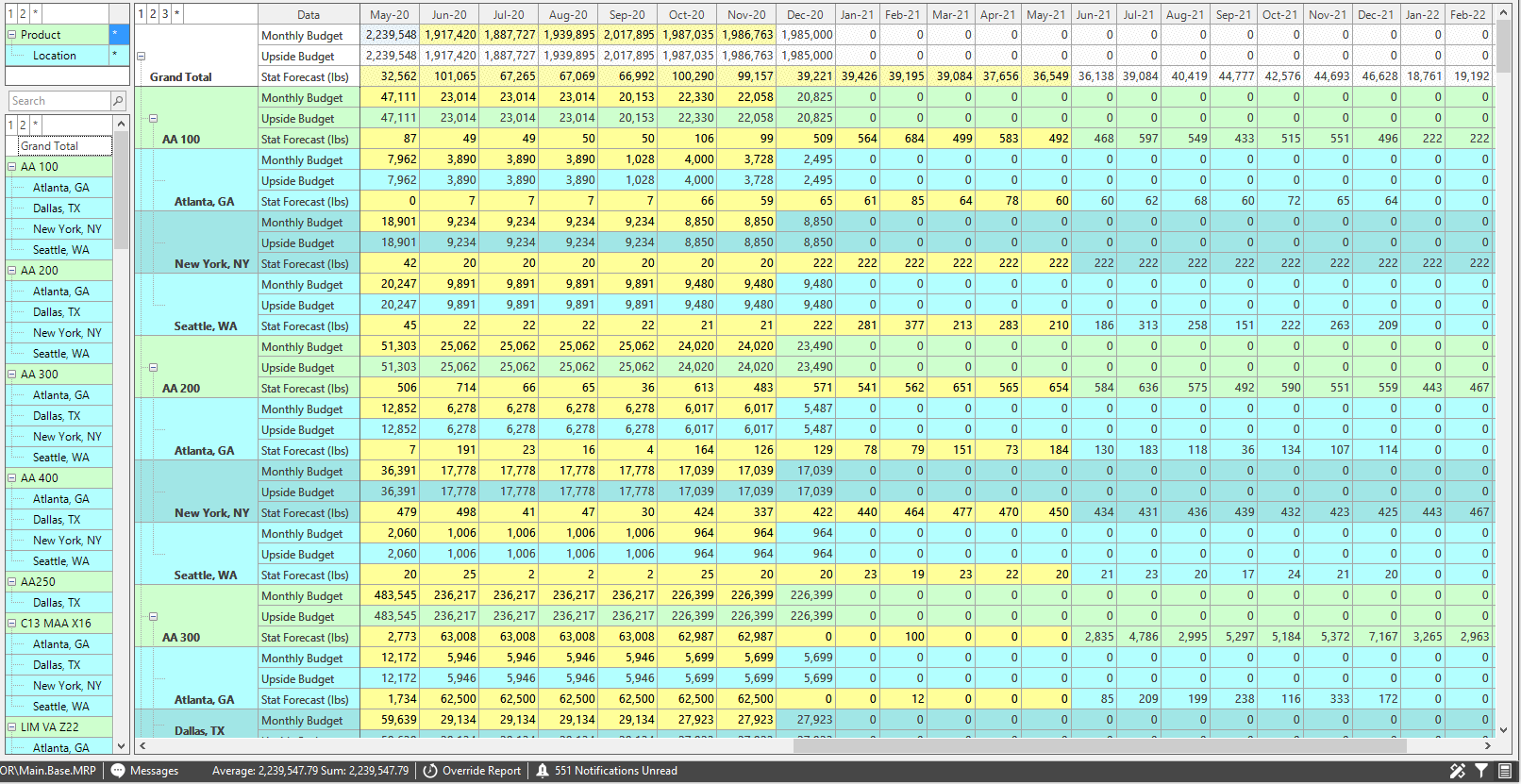
The yellow highlighted cells are cells a user can override.
Create an Override
To create an override on a value in the Workbench, double-click inside the cell of the value you wish to edit, then type a new value into the cell. Press ENTER or click outside of that cell when finished. The cell will turn color from yellow to orange, indicating the cell has a new value but the override has not been committed. Save the workbench to commit the override; the cell color will turn from orange back to yellow.
{`
`}
Grand Total Override
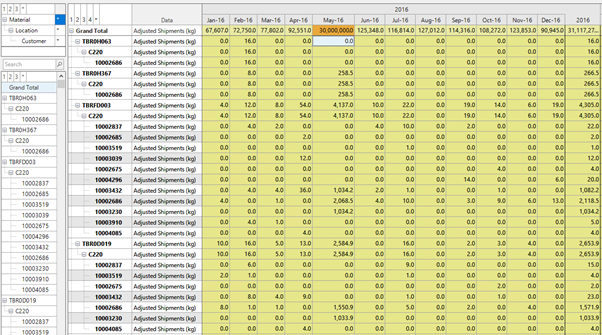
Overrides made on the Grand Total row.
Intermediate level Overrides
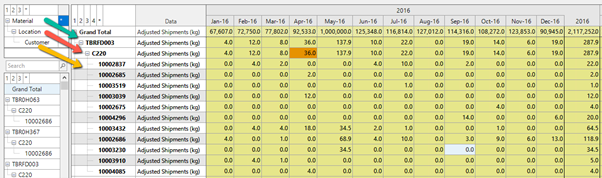
Values can be overridden at any intermediate level. This example shows overrides can be created on a Material level or Material-Location.
Lowest Level Overrides
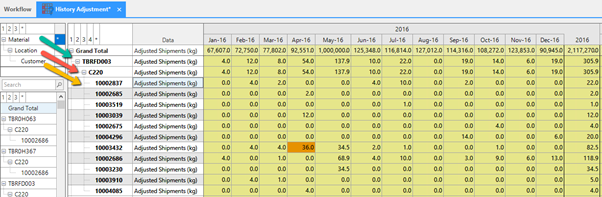
Overrides made on the lowest level of data.
Subtotal Overrides
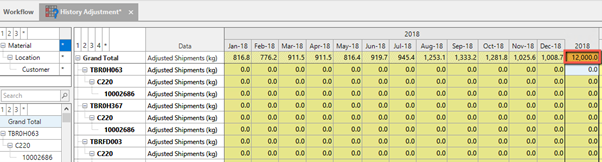
Overrides made on subtotal level. Normally this is done on Time period Level. Overrides are done on a yearly level in the below example.
Subtotal Override on Grand Total Level
Subtotal Override on Intermediate Level
Subtotal Override on Lowest Level
Adjust totals
The adjusting totals tool allows a mathematical operation to be applied to a cell or across multiple cells; the same disaggregation rules apply to the levels that will be affected.
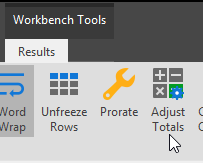
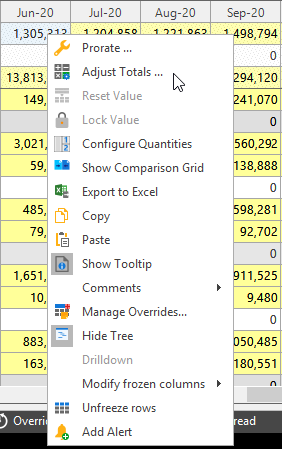
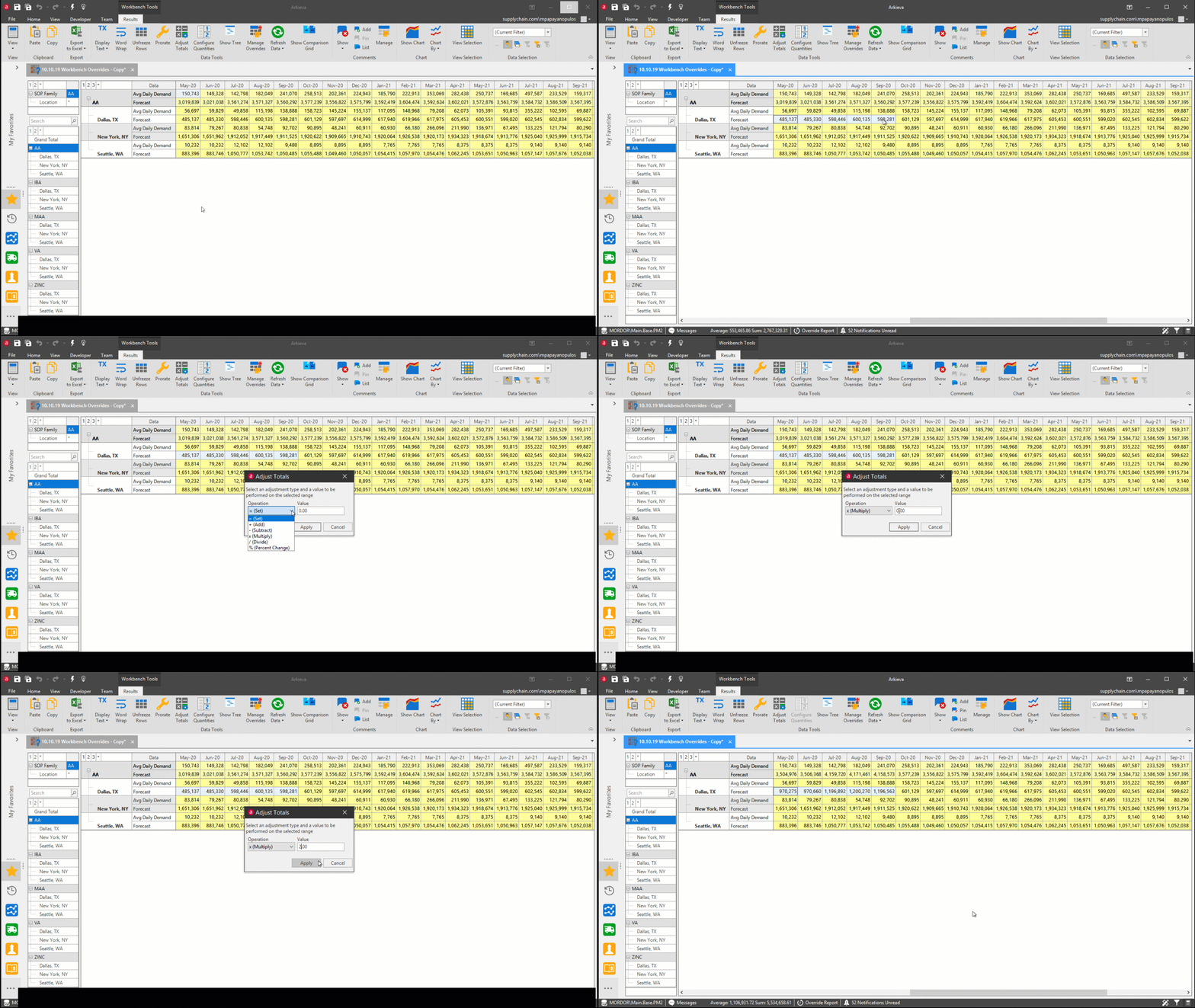
Select a cell or cells in the workbench table and click the Adjust Totals button located in the results view ribbon or right-click and select Adjust Totals from the right-click menu to launch the Adjust Totals window. Selecting a cell will activate the Adjust Totals button.
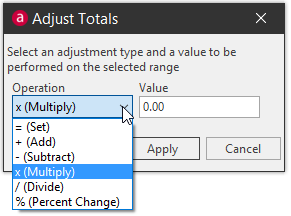
Select an operation from the dropdown first, then type a value into the Value field. Click OK to adjust the total.
- = (Set): Default setting; a number typed into the Value field will edit the highlighted cell to that value.
- + (Add): Addition option; a number typed into the value field will add that number to the cell value.
- – (Subtract): Subtraction option; a number typed into the value field will subtract that number from the cell value.
- / (Divide): Division option; a number typed into the value field will divide from the cell value.
- X (Multiply): Multiplication option; a number typed into the value field will multiply that number against the cell value.
- % (Percent Change): Change the total by a percentage.
Prorate
Use the prorate tool to edit a new total for multiple cells. The total for the highlighted cells automatically shows in the Prorate window. The Prorate option is available in the Data Tools section of the Results ribbon and from the right-click menu.
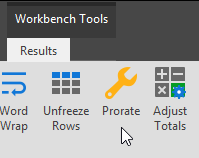
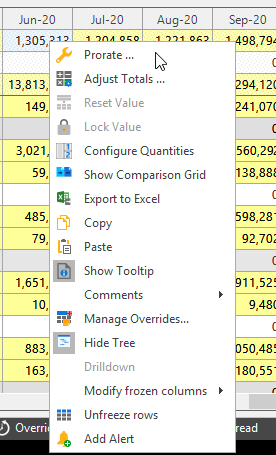
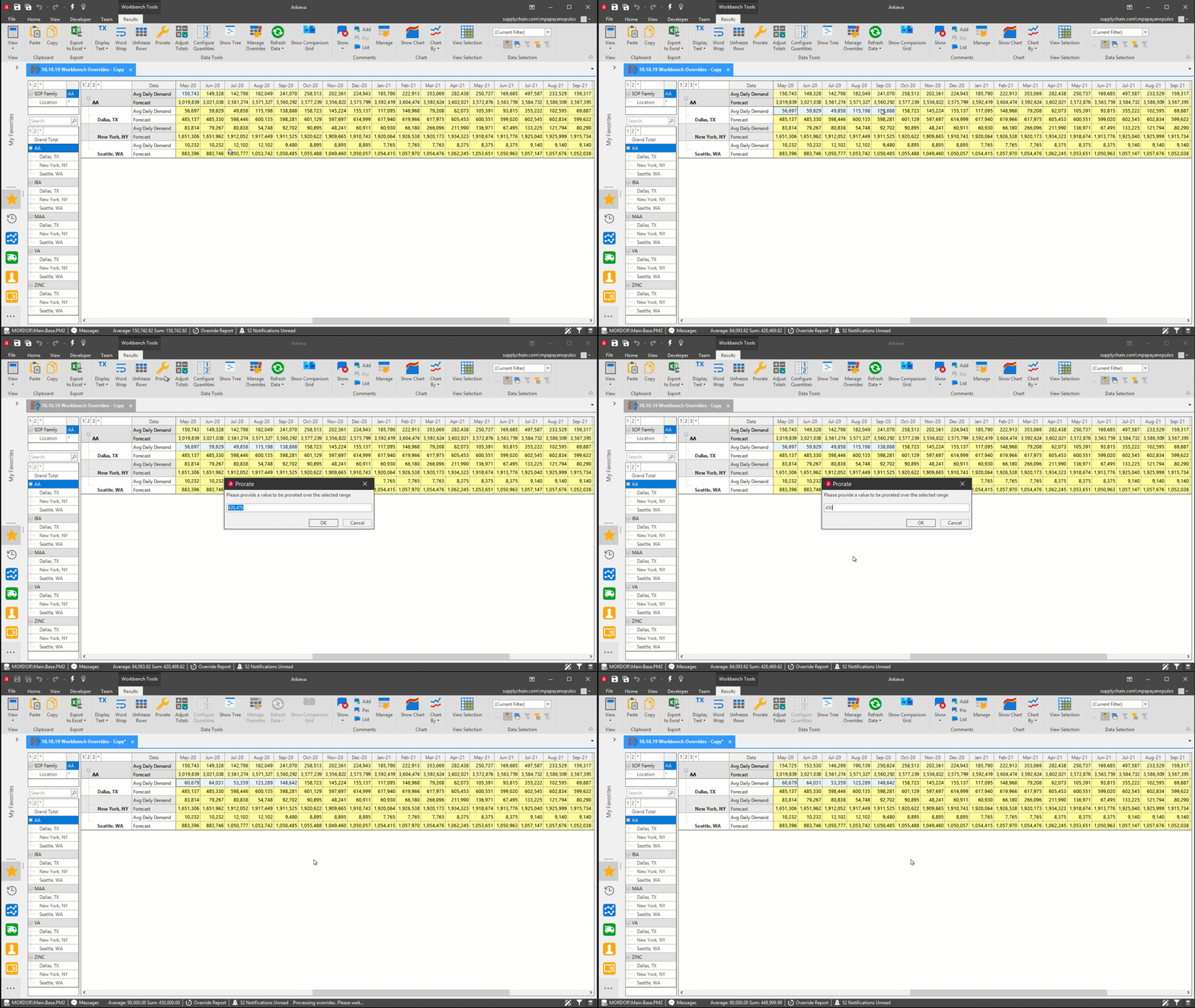
Left-click and drag across multiple cells to highlight the cells, then click the Prorate button from the ribbon. Selecting multiple cells in the Workbench will activate the Prorate button. Type a new total into the field and click OK, the cells will proportionally allocate to reflect the new total.
Lock Value
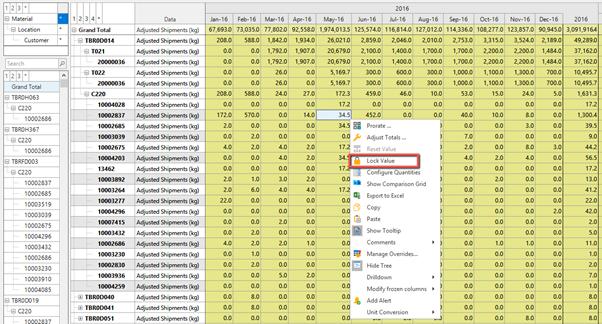
To lock a value from getting overridden, right click in the cell that needs to be locked and select Lock Value. Any overrides at a higher level will not subsequently override the locked cell.
While disaggregating a higher level override the proportion will be maintained by considering the locked value. It should be noted that a cell can be locked from an override only at the lowest level. Also a cell remains locked only for a workbench session.
Disaggregation
Disaggregation is the ability of Arkieva to mathematically disaggregate an override value to the lower levels of the Workbench.
Disaggregation Logic
Making an override on a higher level will in turn proportionately override values on the corresponding lower levels. In the example below there are 4 Materials that constitute a total of 228 kg.

| Grand Total | 228 | Proportion |
|---|---|---|
| TBROH063 | 12 | 0.05 |
| TBROH367 | 97 | 0.43 |
| TBRFD003 | 21 | 0.09 |
| TBROD019 | 98 | 0.43 |
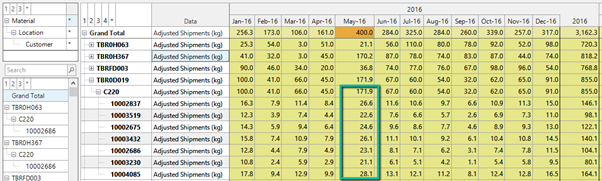
If we create an override to change 228 kg to 400 kg on the Grand Total level, this override will be disaggregated proportionally to all 4 materials.

| Grand Total | 228 | Proportion | 400 | |
|---|---|---|---|---|
| TBROH063 | 12.0 | 0.05 | 21.1 | 21.1 = 0.05 \* 400 |
| TBROH367 | 97.0 | 0.43 | 170.2 | 170.2 = 0.43 \* 400 |
| TBRFD003 | 21.0 | 0.09 | 36.8 | 36.8 = 0.09 \* 400 |
| TBROD019 | 98.0 | 0.43 | 171.9 | 171.9 = 0.43 \* 400 |
An override made on the Material level is further disaggregated proportionally to Material-Location and Material-Location-Customer level.
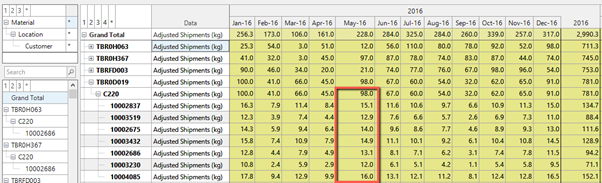
| Location | C220 | 98 | Proportion | 171.9 |
|---|---|---|---|---|
| Customer | 10002837 | 15.1 | 0.15 | 26.6 |
| Customer | 10003519 | 12.9 | 0.13 | 22.6 |
| Customer | 10002675 | 14 | 0.14 | 24.6 |
| Customer | 10003432 | 14.9 | 0.15 | 26.1 |
| Customer | 10002686 | 13.1 | 0.13 | 23.1 |
| Customer | 10003230 | 12 | 0.12 | 21.1 |
| Customer | 10004085 | 16 | 0.16 | 28.1 |
Custom Proportion
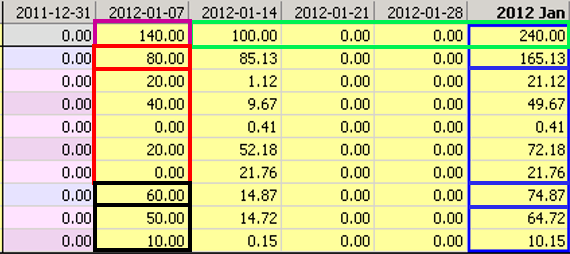
It is possible to fully control the proportions in which an override will be disaggregated. For example if the override value needs to be disaggregated equally, first override the values at the lower levels to equal an number and then enter an override at the higher level.


Another example of how to create a custom proportional override is shown below with the override values of 10, 20, 50, and 20.


Override Zero Value Cell
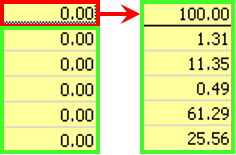
Making an override from 0 to 100 at the Field Type level, will disaggregate by the ratio based on the number of underlying detail records (the individual entities listed below) that make up the higher level. In Arkieva terminology the individual entities are referred to as ‘Tuples’.
Subtotal Mathematical Breakdown
Override Over Time Period
Yearly aggregated view and corresponding monthly disaggregated views are, as shown below.
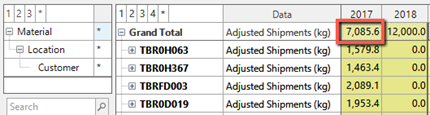

The monthly proportion and override on year level to 9000 is, as shown below.

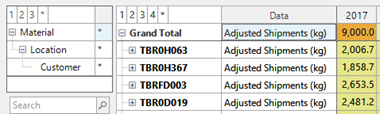
The Grand Total level override is further disaggregated to lower levels, as shown below.

Grand Total Level Overrides
Overrides made on the Grand Total Level are disaggregated based on proportions of existing values in the lower levels. For example, an override made on the Grand Total level is first disaggregated to Material Level, as shown below.
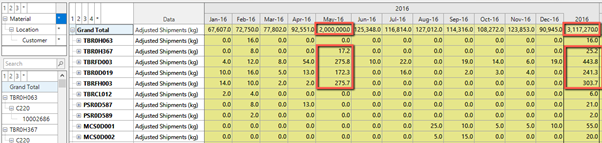
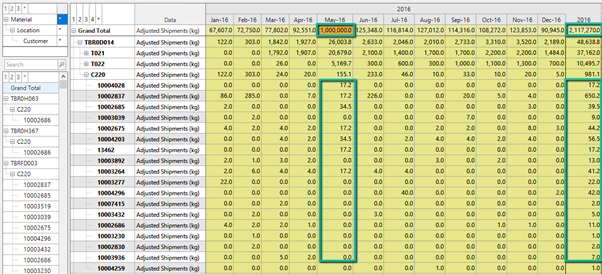
Note that when the Grand Total Row is overridden (halved in this case), the corresponding material level quantities are also halved. Overrides in the Grand Total are reflected proportionately in the lower level (Material level in this case). The subtotal values also reflect this change.

The change in material level value also overrides the values in the Location level.

Note that the override on the Grand Total level overrides the material level quantity by half. This in turn gets disaggregated proportionally on the Location level.

Similarly the override in the Location level gets disaggregated to the Customer Level lower level.
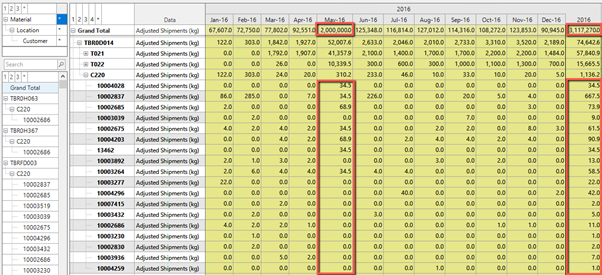
Note that the override at the Grand Total level has disaggregated to the Material level which again has disaggregated to the Location level. The Location level disaggregated value again has disaggregated to the Customer level proportionately, as shown below.
Intermediate Level Overrides
Values can be overridden at any intermediate level. This example shows overrides can be created on a Material level or Material-Location.
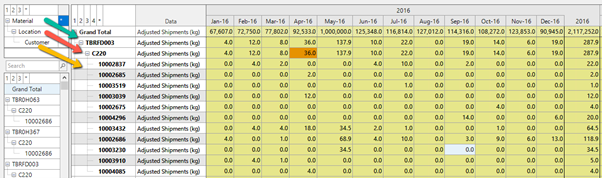
An override made on the Material level will impact the lower levels of that material. An override made on the Material-Location Level will impact all the lower levels (customer level in this example) of that Material-Location combination. The below example shows the disaggregation of an override done on the Material-Level being disaggregated to the Location level.


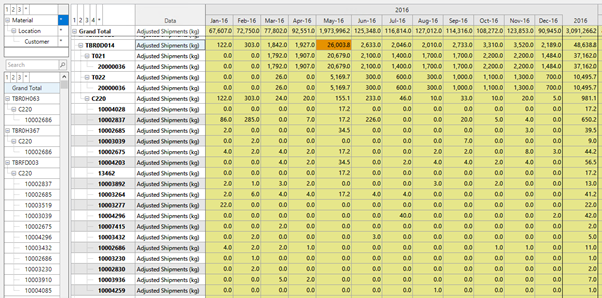
The disaggregated value on the Location level is again disaggregated to the lowest level.
Lowest Level Overrides
Lowest Level Overrides are overrides made on the lowest level of represented data. The Grand Total row and higher-level rows will be impacted. In the below example the override is made on Material-Location-Customer level.
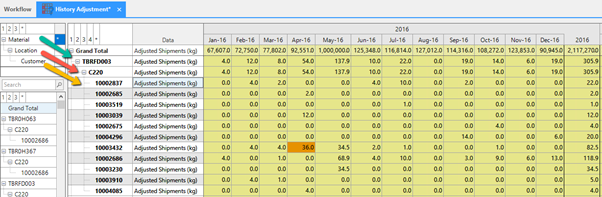
Subtotal Override on Grand Total Level
A subtotal override gets disaggregated horizontally as well as vertically. The overridden value on the Grand Total row is proportionally disaggregated to each Month's Grand Total. The Month level Grand Total overrides will further disaggregated to lower levels.
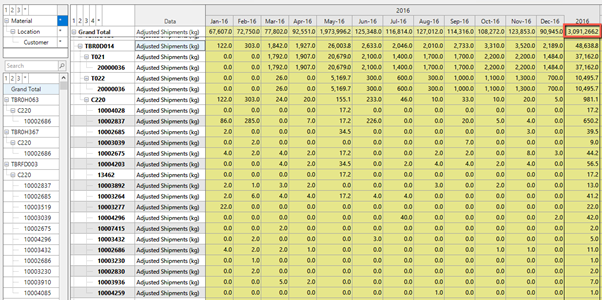
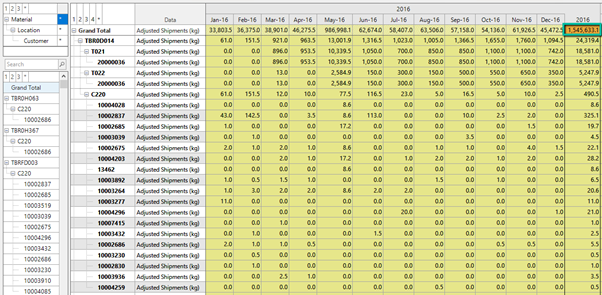
Subtotal Override on Intermediate Level
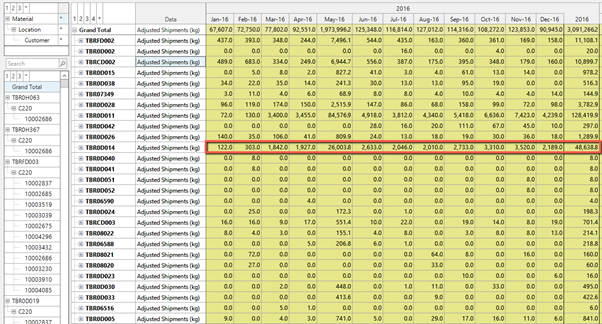
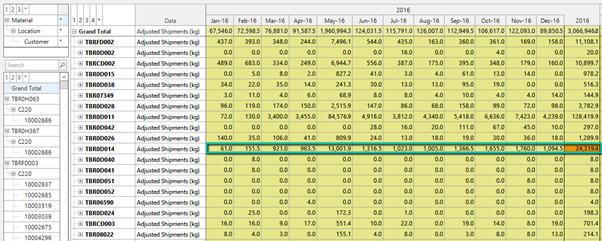
Subtotals can also be overridden on intermediate levels. In the below example an override has been made on the Material level. The override made on the Yearly subtotal is disaggregated proportionately to the Material level.
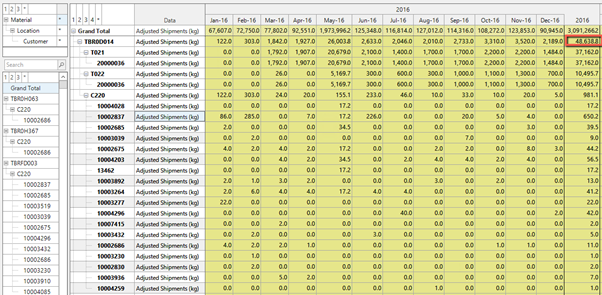
Also the overridden values on Material level are disaggregated to the lower levels.
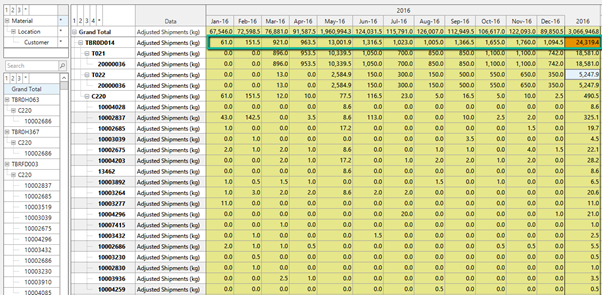
Note that the override made on Material will only impact that material combination. This is illustrated in the example below.
Subtotal Overrides on Lowest Level
Note that the yearly subtotal override in the lowest level gets disaggregated first to month level. These disaggregated values then gets aggregated to higher levels, Material-Location, Material and Grand Total level as shown below
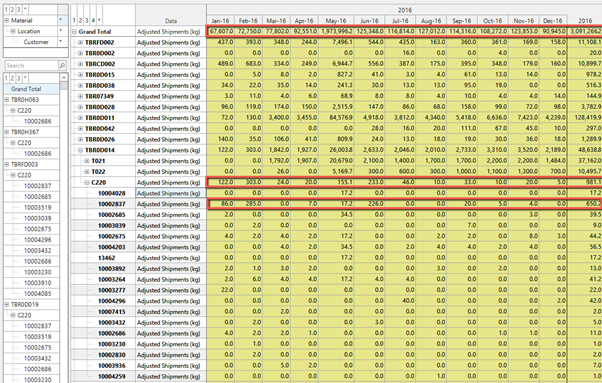
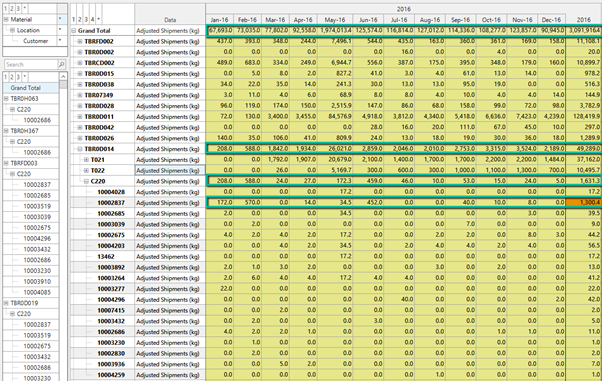
Chart Overrides
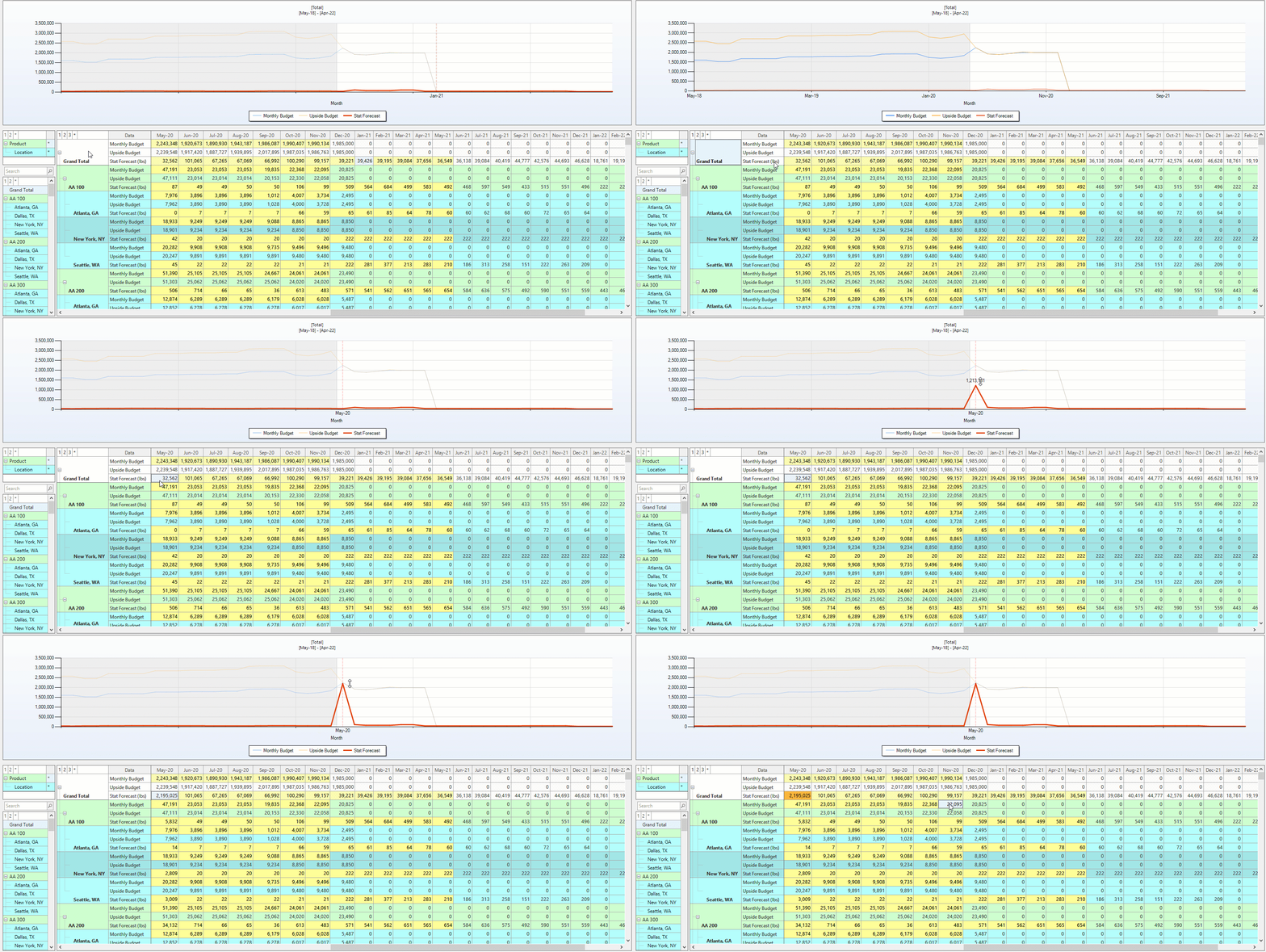
Perform overrides to the workbench data by clicking and dragging up or down line data in the graph.
Manage Overrides
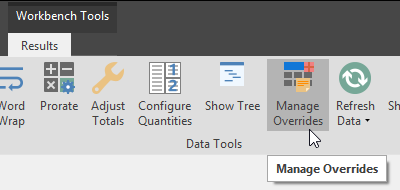
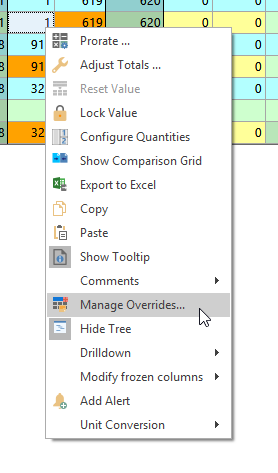
Open the Manage Overrides window to view and manage overrides made to the workbench.
Overrides tab
All unsubmitted overrides to the workbench will appear in the overrides tab in the Manage Overrides window.
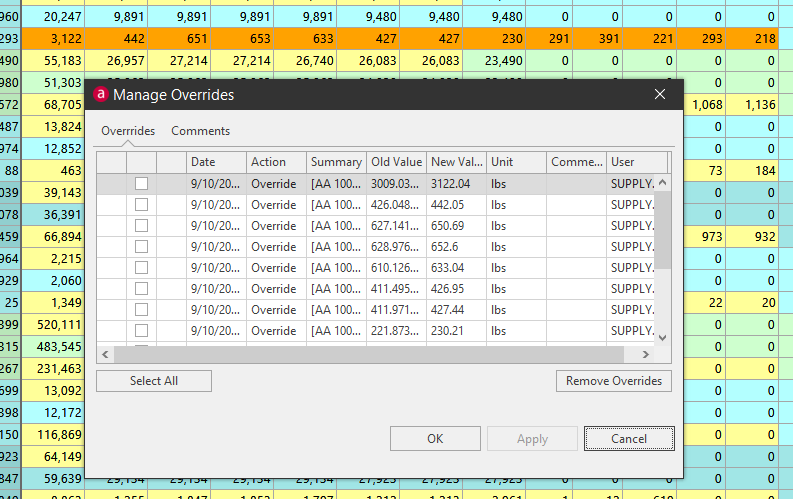
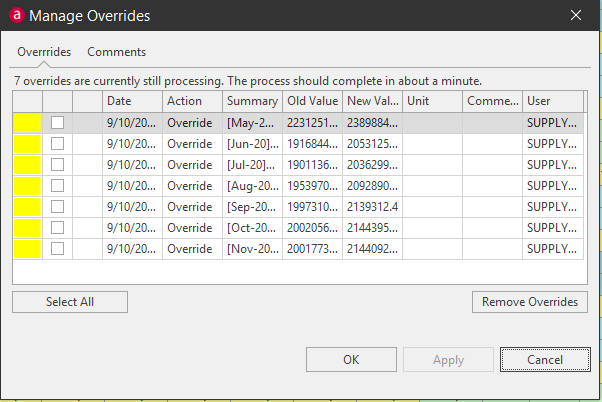
When the Workbench is Saved, the overrides will be submitted. Yellow shows the overrides are processing. A message will also appear in the window to inform you how many overrides are processing and how long the processing will approximately take.
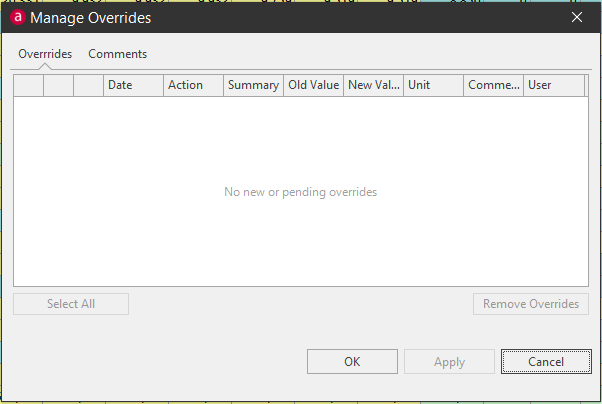
The message No new or pending overrides will appear in the Manage Overrides window if there are no new or pending overrides made to the workbench.
- Color: Depicts status of override; Red means the override was rejected, Yellow means the override is processing, and White means the proposed overrides have not been submitted.
- Remove: Remove an override made to the workbench.
- Pinned Comment: Displays a pin in this column if a comment was created for that override (will be empty otherwise).
- Date: Date and Time the override was performed.
- Action: Displays action.
- Summary: Shows the column and row the override was made to, and the From and To values – Ex. [Jan-2021]-[Monthly Budget] from 400.00 to 330000.00.
- Old Value: Shows the value before the override was performed.
- New Value: Shows the value after the override was performed.
- Unit: Shows the unit.
- Comment: Type a comment into the yellow field.
- User: Shows the user who performed the override.
- Select All/Deselect All: Click to check all checkboxes.
- Remove Overrides: Click to remove an override that has been checked.
Remove Overrides
If a user makes an override that they do not want to commit and save to the workbench, they can remove those overrides from the workbench by removing them in the Manage Overrides window. Check the checkbox next to the Override and click the Remove Overrides button. Click Apply, then click OK.
Simulate Overrides
Toggle the Simulate Overrides button ON to calculate overrides to the workbench in the system memory (fast). Toggle OFF to calculate overrides to the workbench from the database fact tables (slower).
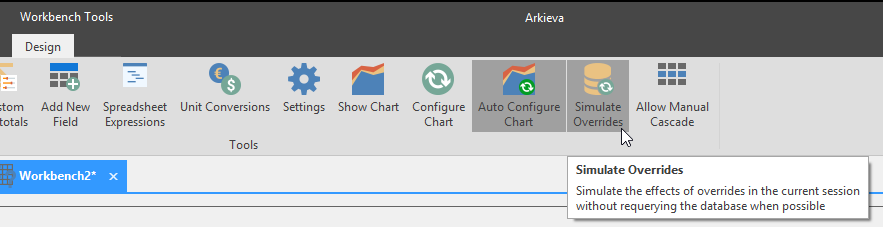
Refresh Data is available only when Simulate Overrides is toggled ON in the Design View.
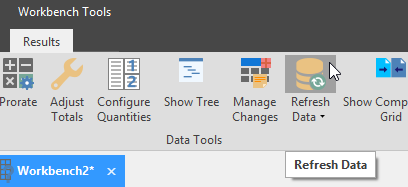
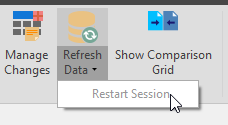
Restart Session located under the Refresh Data dropdown menu when using Edit Sessions.
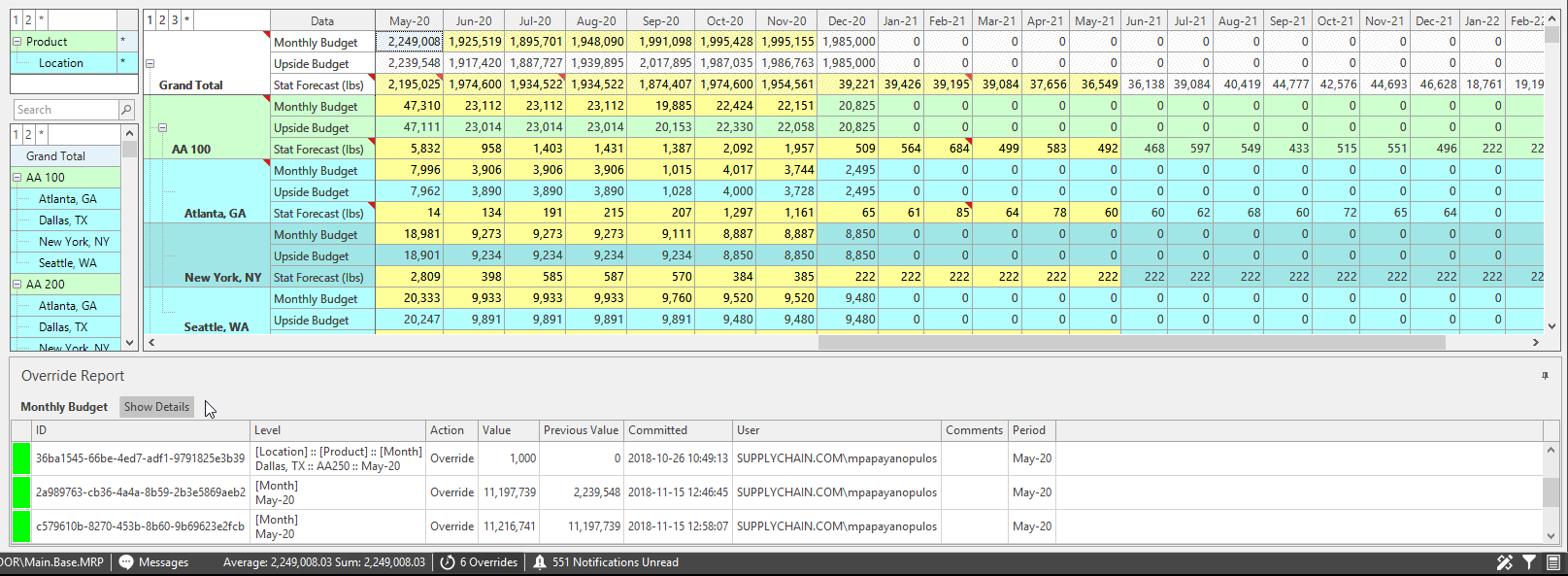
Override Report
After an override has been submitted to the Workbench, a user can select the overridden cell and click the Override Report button located in the Information Status Bar to view all overrides made to that cell.
The Override Report button in the information status bar will display the number of overrides made to the cell after the button has been clicked.
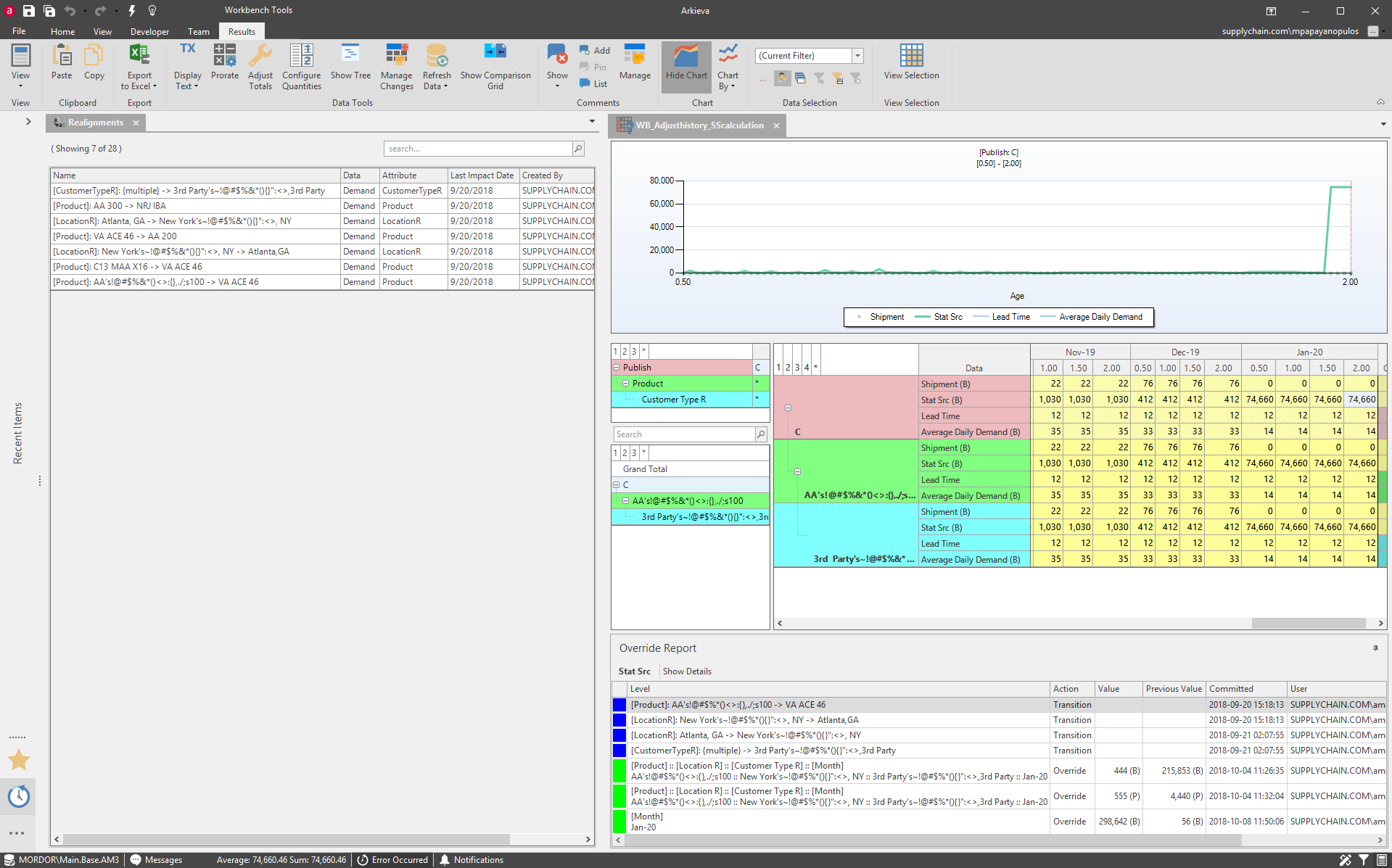
Items in Blue indicate realignments that may impact an override.
Opt-out of Override Email Report
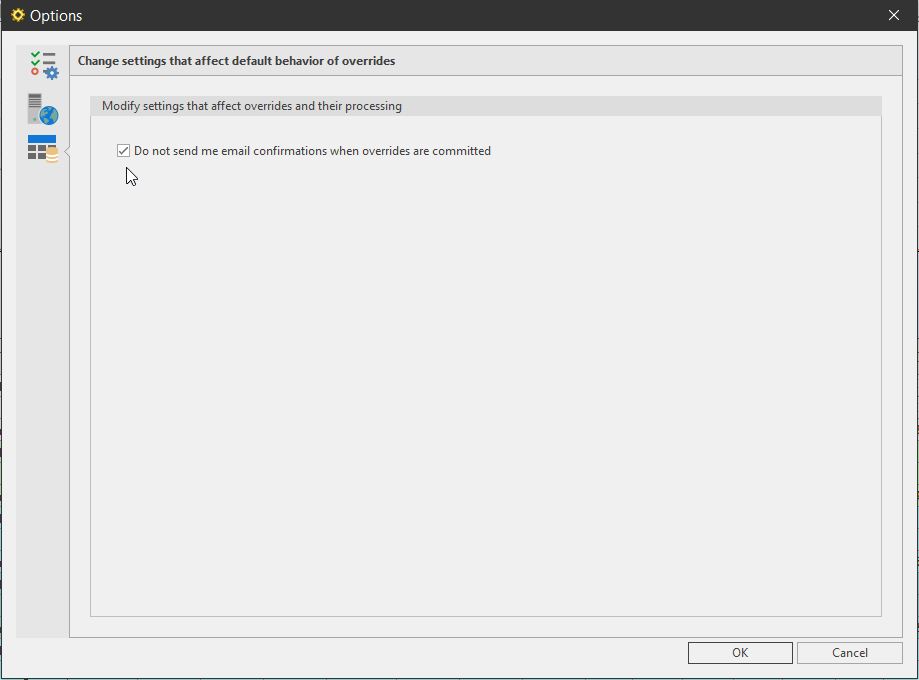
Normally, users will receive an email after an override packet is submitted. Check the ‘Do not send me email confirmations when overrides are committed’ in the File Tab Options window to not receive these emails.
Related Articles
Overrides Report
{` `} The Overrides Report helps users monitor overrides and prime resets made within Arkieva Workbench. The application also contains different filtering options to manipulate the information viewed in the report. Access the Override Report by ...Excel Collaboration
Introduction When on the go, sometimes you do not have direct access to data like you would when in the office. With Excel Collaboration, Sales Reps can download their forecasting Workbench and reports from Arkieva into Excel. The Excel Collaboration ...Demand Planning
Segmentation Override Option for Segmentation Views Administrators are allowed access to everything in Segmentation Views (Allow Overrides, Allow Exception Flags, Edit Screen, Run, Share, etc.; however Users are only given access to Allow Overrides ...Release Matrix
? Release Schedule Arkieva releases are quarterly: February, May, August, November. Demand Planning Feature 5.22 5.21 5.20 5.19 5.18 Anomaly Component Forecast Methods Machine Learning Link Promotion Planning Link Link Link Segmentation Link Link ...Forecast Performance Management
“What gets measured, gets managed.” There are a many alternatives on how to measure forecast accuracy. It does not matter too much how you define the KPI as long as: it is consistent, and it is understood by all stakeholders. Therefore, choose a set ...