Workbench
Introduction
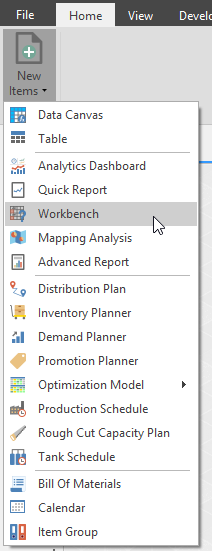
A Workbench is an editable table that can help you predict future data. To create a new Workbench, go to the Home tab and click the New Items dropdown menu and select Workbench.
How to design a Workbench
In this session, we will touch on the various ways that you can quickly and effectively edit your plans in Arkieva using Workbenches. With Workbenches, you are able to slice and dice data, make edits, and collaborate with your team on your supply chain plans.
{`
`}
Data layout Control (workbench design template)
When the Workbench launches, the Data Source dropdown will automatically open to force the user to select a Data Model, Business Function, and Data. Click and drag an attribute to the Rows container, and a quantity to the Data container.
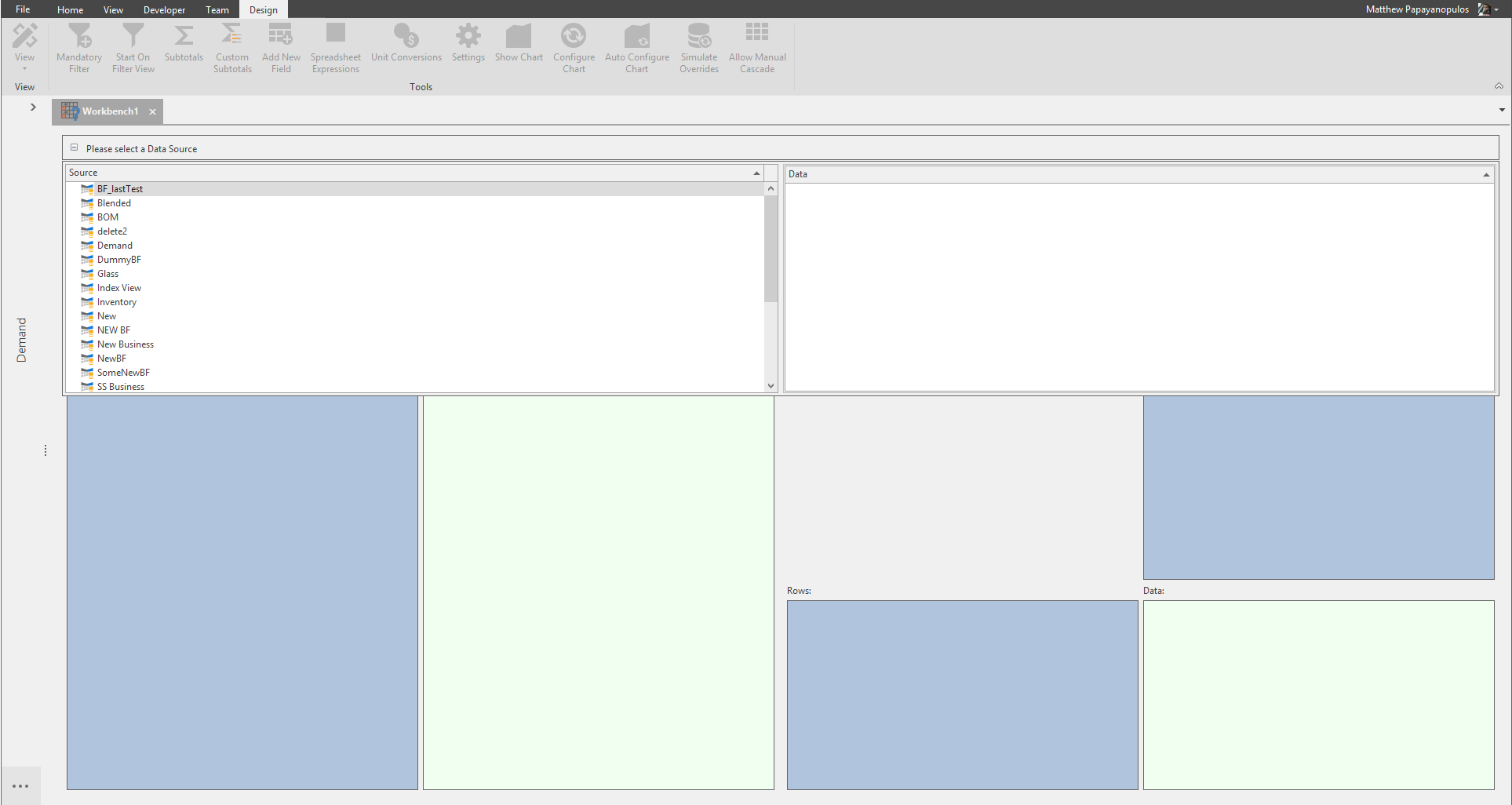
Click the following links to learn more about the data layout control options:
- Data Selection: Select a Data Model, Business Function, and Data Source.
- Sort: Sort the attributes and quantities by category, ascending, descending, or optional from the Sort dropdown menu.
- Search: Use the search fields to drilldown the list of attributes and quantities.
- Selecting Attributes and Quantities: Rows, Columns, and Data boxes.
- Checkboxes: Toggle the green check mark button to lock row attributes and data quantities.
- Text/Code Column attribute toggle: Click the Text/Code button to toggle showing the data in the results view as Text or Code.
Data Selection
The Data Source dropdown will automatically open when creating a new Workbench. Select a source and data.
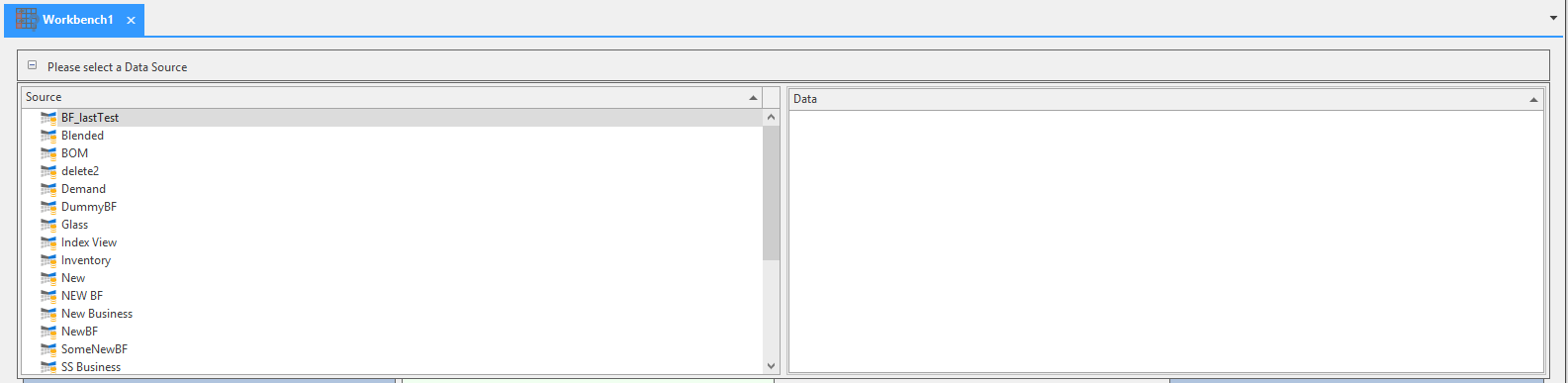
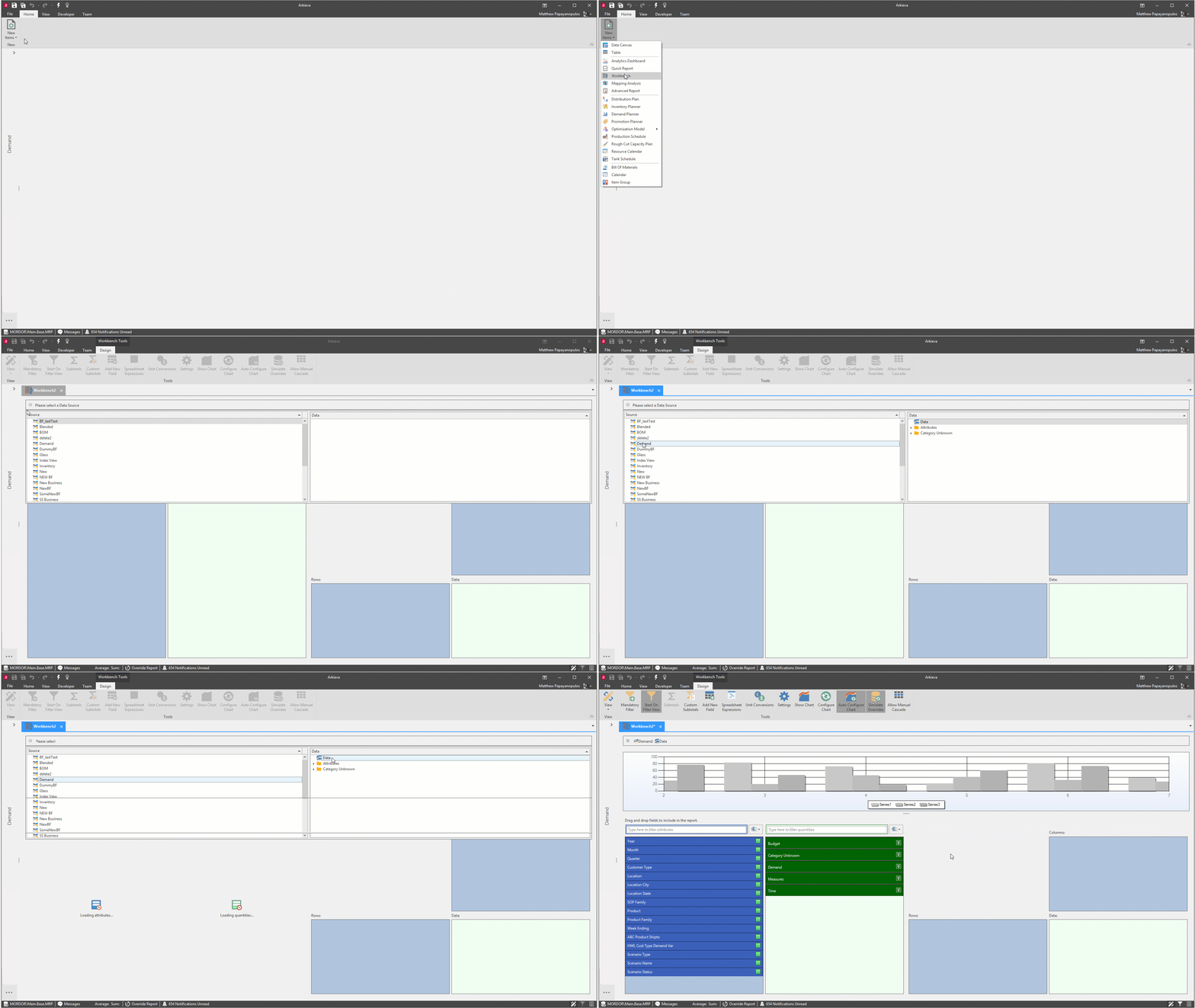
The Source and Data will appear in the Data Source dropdown.
Sort
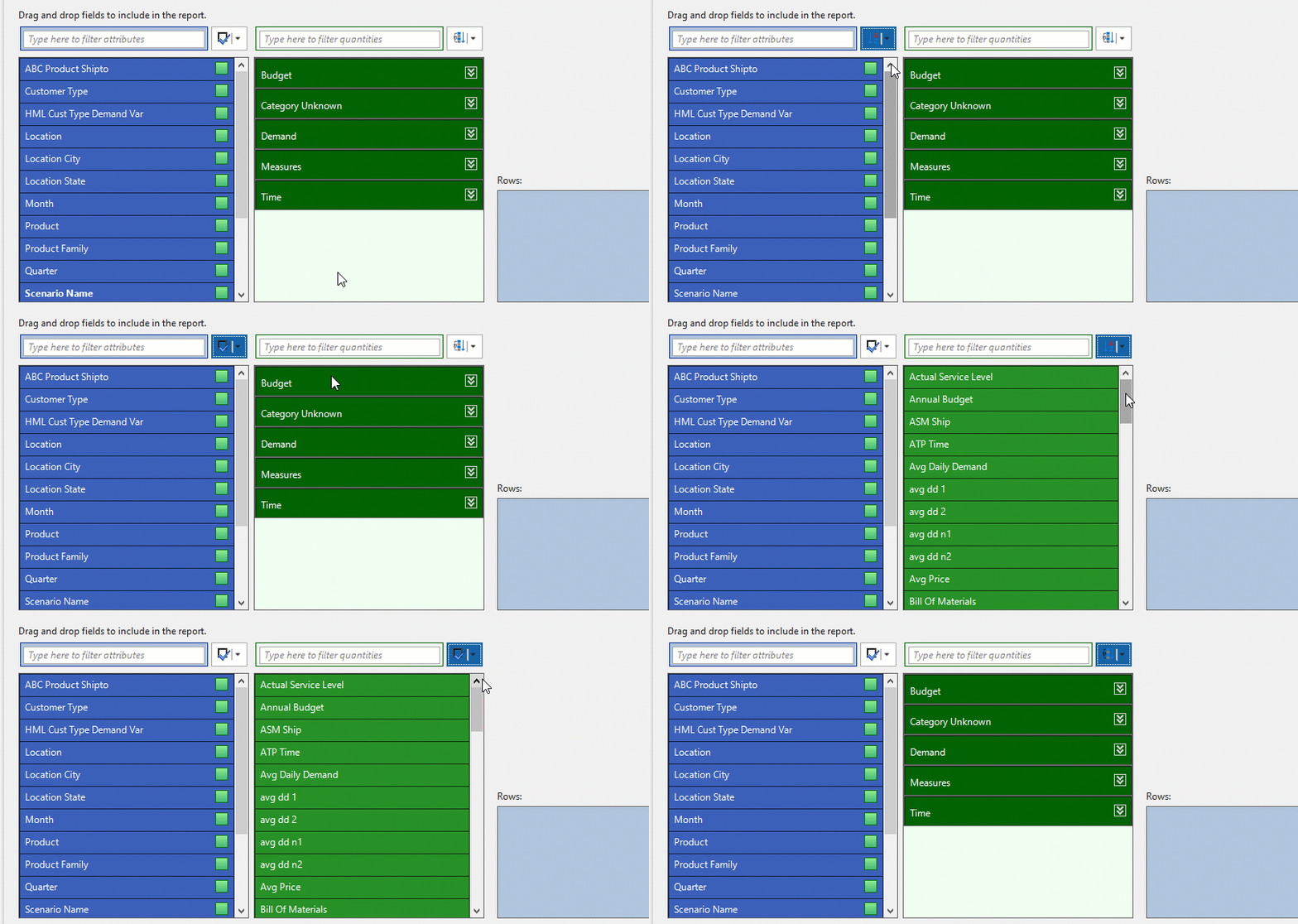
Sort the attributes and quantities by category, ascending, descending, or optional from the Sort dropdown menu.
Search
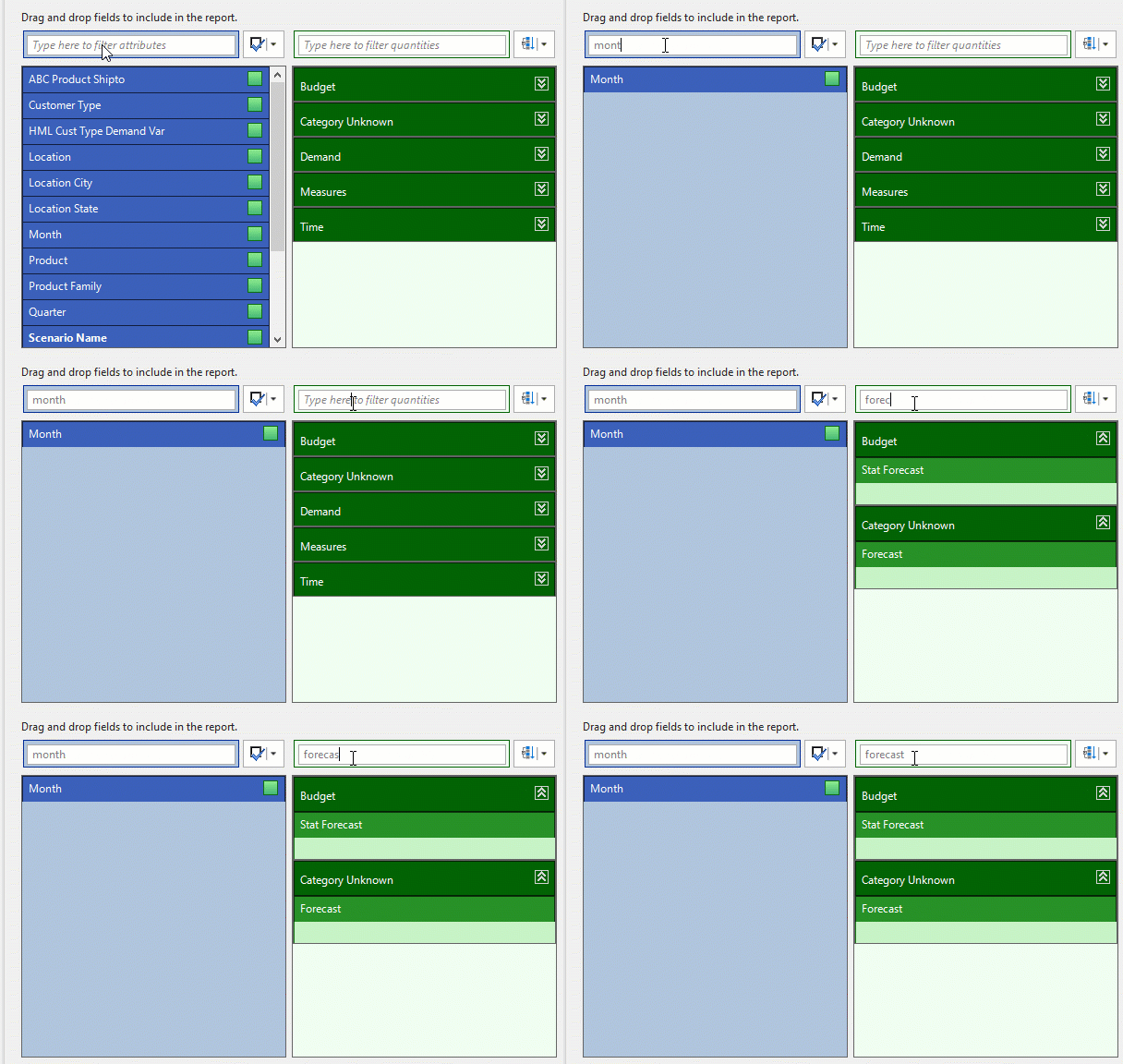
Use the search fields to drilldown the list of attributes and quantities.
Selecting Attributes and Quantities
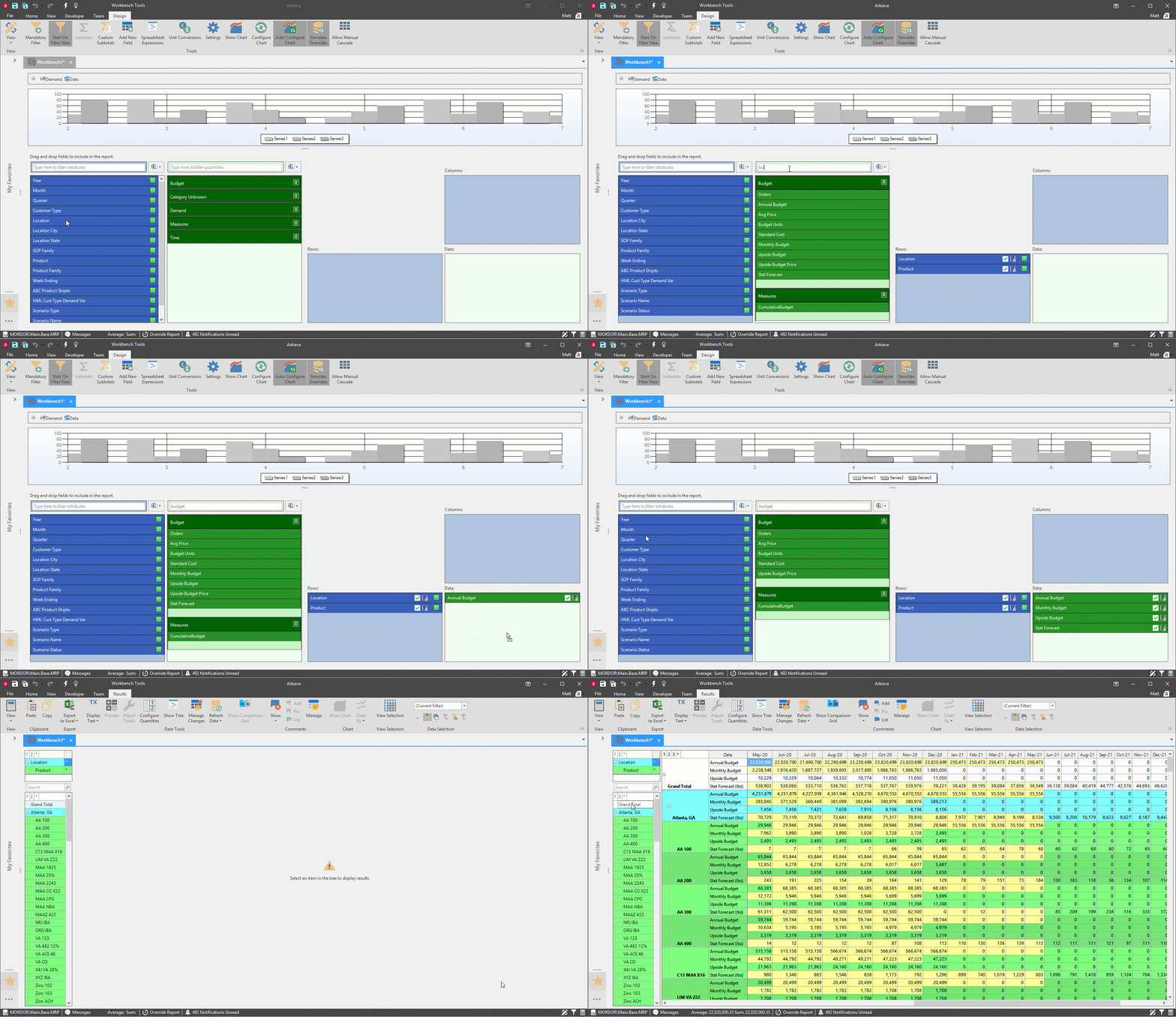
There are two ways to select Attributes and Quantities in the Workbench Design View.
Double-clicking an attribute or quantity will move the item to the appropriate Column, Row, or Data box automatically. For example, Attributes associated with a Time dimension will be automatically added to Columns when double-clicked. You can also click and hold an attribute or quantity and drag it to the Rows, Columns, or Data box that you choose.
Checkboxes
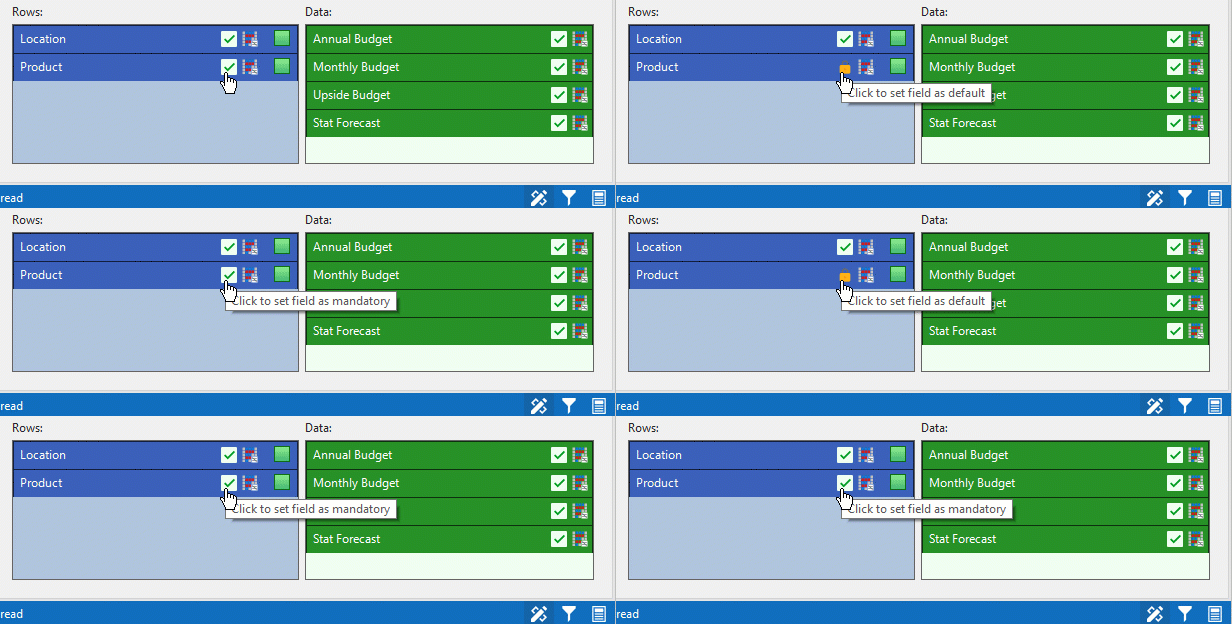
Toggle the green check mark button to lock row attributes and data quantities. Users with Read Only access to the Workbench will not be able to remove the quantity from Configure Quantities or the attributes from Configure Attributes.
Text/Code Column attribute toggle
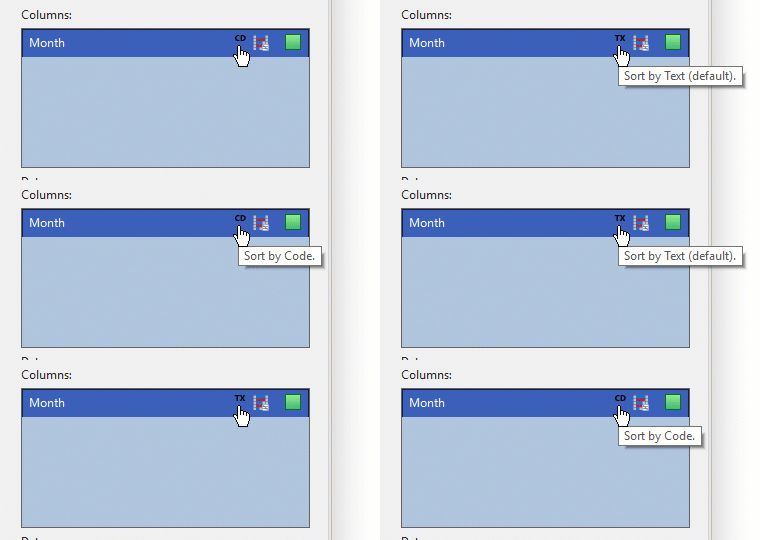
Click the Text/Code button to toggle showing the data in the results view as Text or Code.
Adding New Fields
The Add new field option creates a calculated quantity field that can be added to the workbench in the design view. Create a custom attribute or quantity with the Add New Field button. Click the formatting button on the new field to launch the new field window again. Follow this link to learn more about using Functions.

Create Calculated Fields and Apply Formatting
{`
`}
Definition tab
Use to create the attribute. Follow this link to see the list of Expressions.
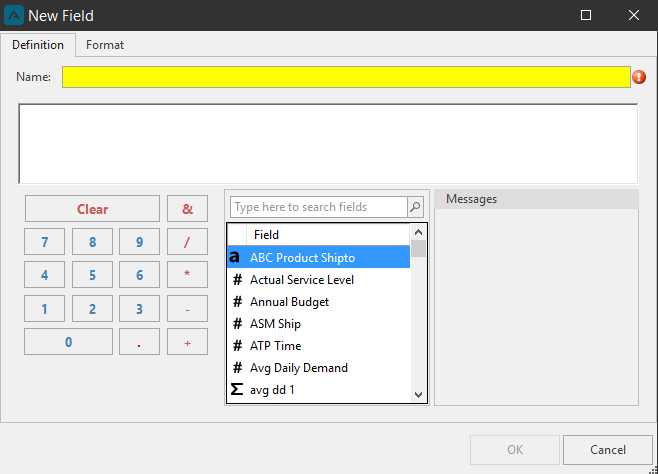
- Name: type a name for the new attribute.
- Calculator: Use the calculator in combination with the Field list to create a new attribute OR Use the blank field under Name and type the required information to create a new attribute.
- Messages: The messages box will display error warnings if the contextual commands typed or the calculator and Field inputs are incorrect.
🚧 Using the FIND function
If creating a new field that will use the FIND function (like in SQL to find the position of a character in a string), you need to use the % symbol.
Ex. RIGHT([\], (LENGTH([\]) - FIND([\], "%_%")) - 1)
Format tab
Use the Format tab to design the appearance of the new attribute.
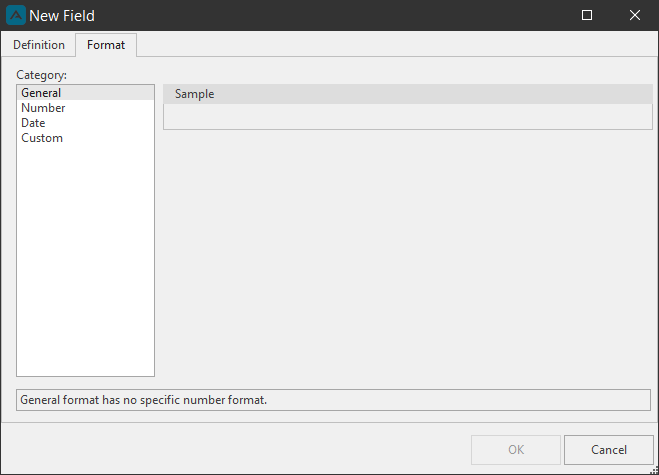
- General: no specific number format.
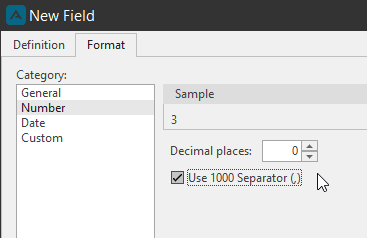
- Number: number is used for general display of numbers; set the number of decimal places visible in the report results view with the arrows or type a numerical value into the field.
- Date: Select how data/time attribute will be displayed in the report.
- Custom: use an existing code from the list to create a custom number format code.
Edit
Click the Edit button of the new quantity to reopen the New Field window to alter the Definition or the Format tab information.
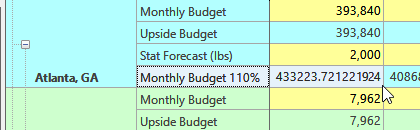
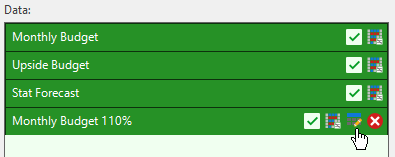
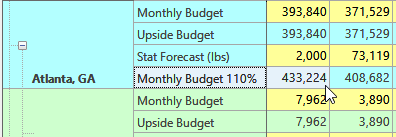
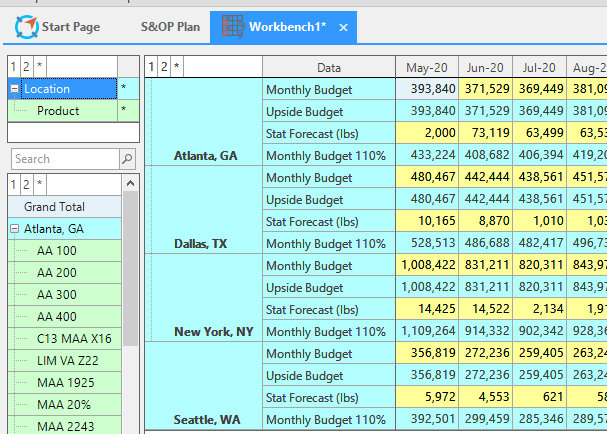
Example 1: Monthly Budget 110%
For this example, we’ll create a monthly budget plus 110% calculated field.
Click Add New Field to open the New Field window. Type a name (Monthly Budget 110%). Input the formula into the expression field. SUM([Monthly Budget]*1.10); click OK. Go to the Format Tab and select Number and change the decimal places to zero, click OK.
Locate the new field under the quantity list and add it to the data box, then go to the results view.
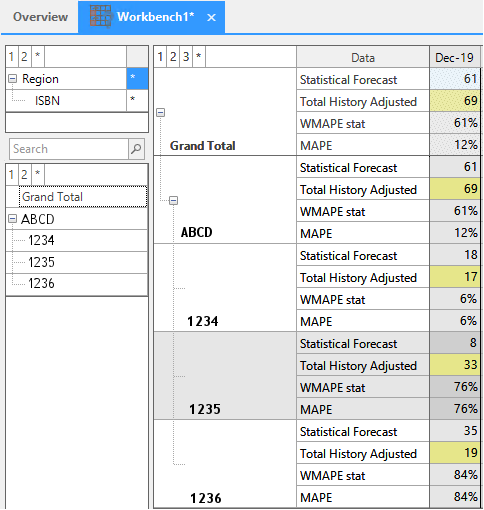
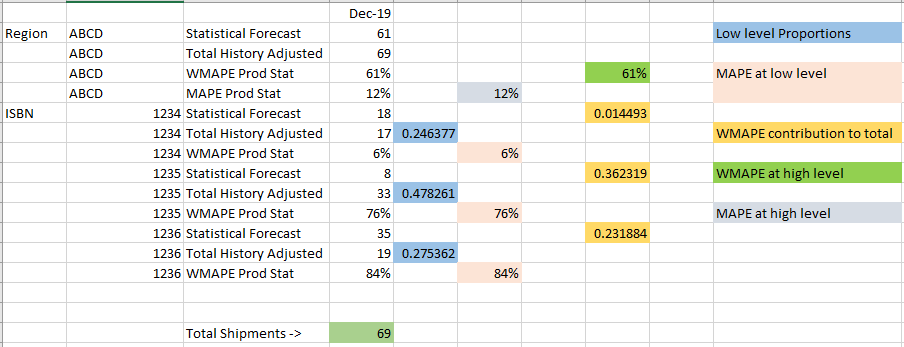
Example 2: MAPE vs WMAPE
MAPE (mean absolute percent error) can be used to aggregate percent levels as a mean of the error at the line level in a workbench. WMAPE (weighted mean absolute percent error) can be used to aggregate percent levels as a weighted mean of the error at the line level in a workbench.
Subtotals
Workbenches will automatically subtotal two-time periods in the design view. However there are two ways to design subtotals for the workbench: Setting Subtotals and Custom Subtotals.
Set Subtotals
The options within the fields of the Set Subtotals window are selected from what attributes and quantities have been placed within the rows, columns, and data containers, and what filters (if any) have been placed upon the data. Check the boxes of what attribute and quantity will have a subtotal in the report (the Grand Total row will create subtotal for all attributes).
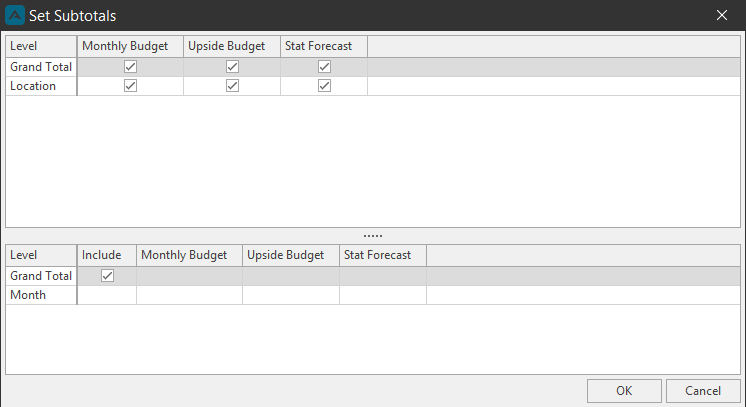
Below is an example of the default selection of subtotal rows and columns.
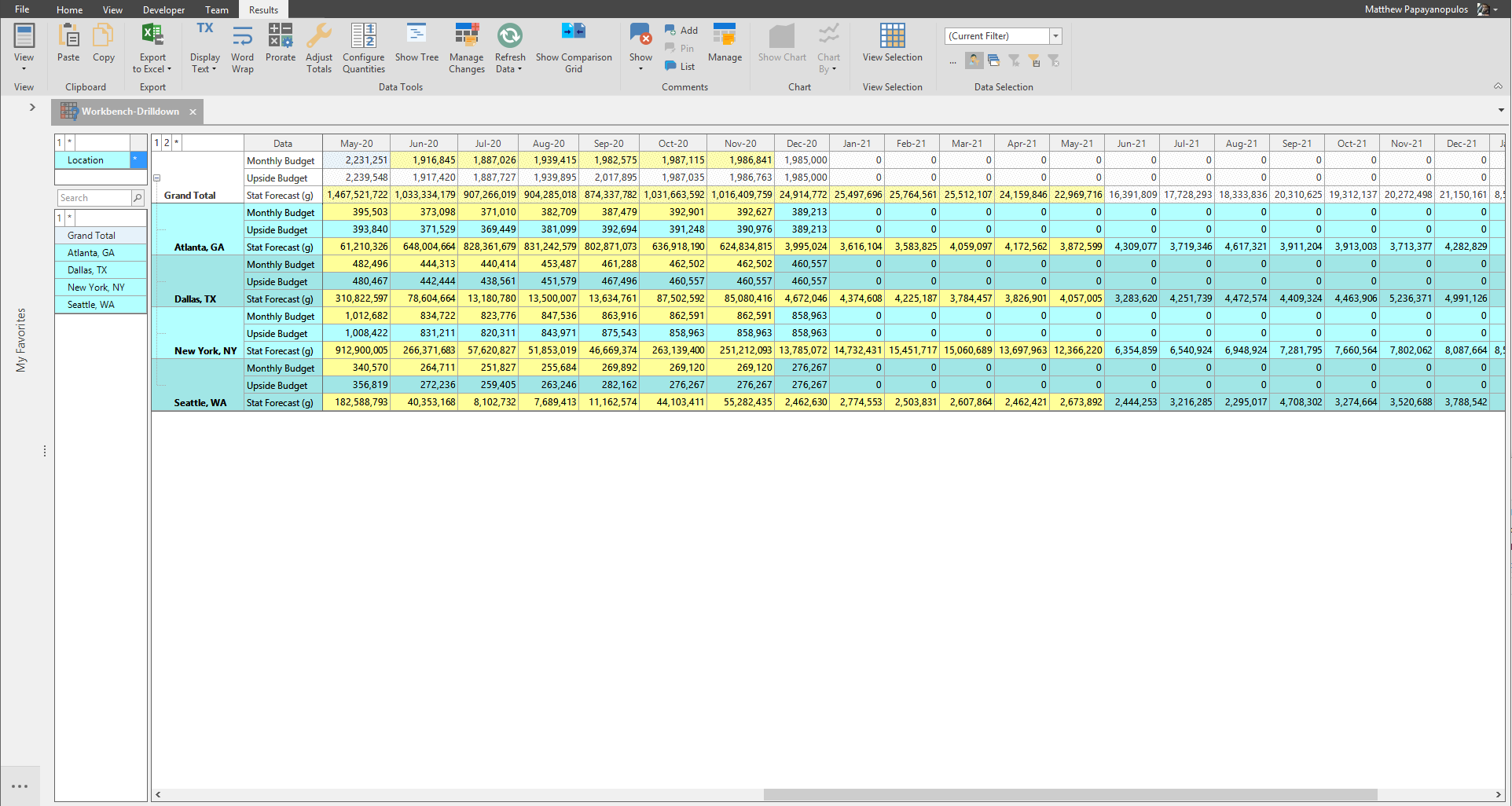
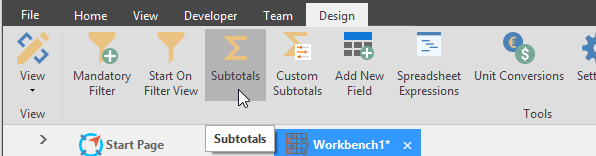
In the Design View, click Subtotals to launch the Set Subtotals window.
All Levels are checked by default in Workbenches. Uncheck the Data you wish to not have subtotals.
🚧 Warning
When checking a Quantity Data to have subtotals, all Products must be checked to also have subtotals, otherwise the Workbench cannot be viewed; the Results View will be disabled.
Also if you add another row to the Workbench after setting subtotals, you will need to set the subtotal again.
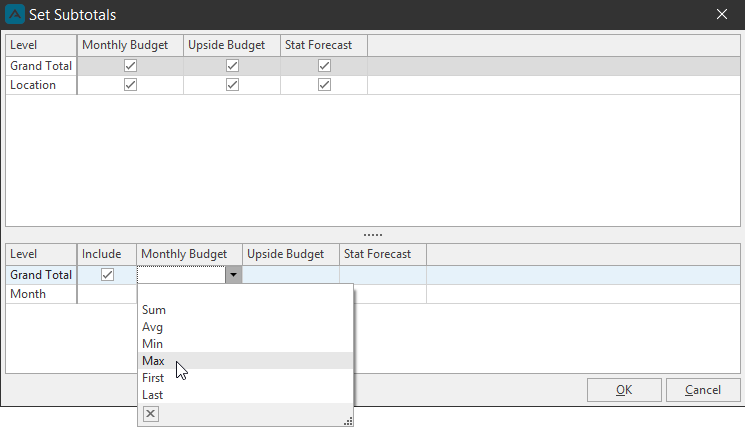
Optionally, Set the type of calculation from the dropdown under the quantity columns.
We will also uncheck Monthly Budget, Upside Budget, and Stat Forecast for the Product level.
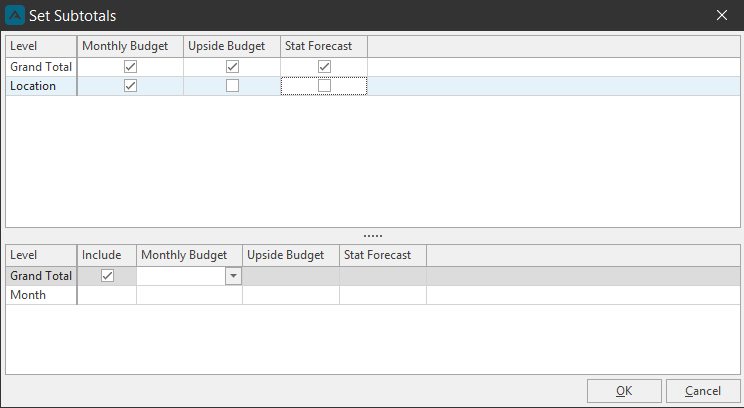
Click OK to set the subtotals. Go to the Results View to see the Workbench's new subtotals.
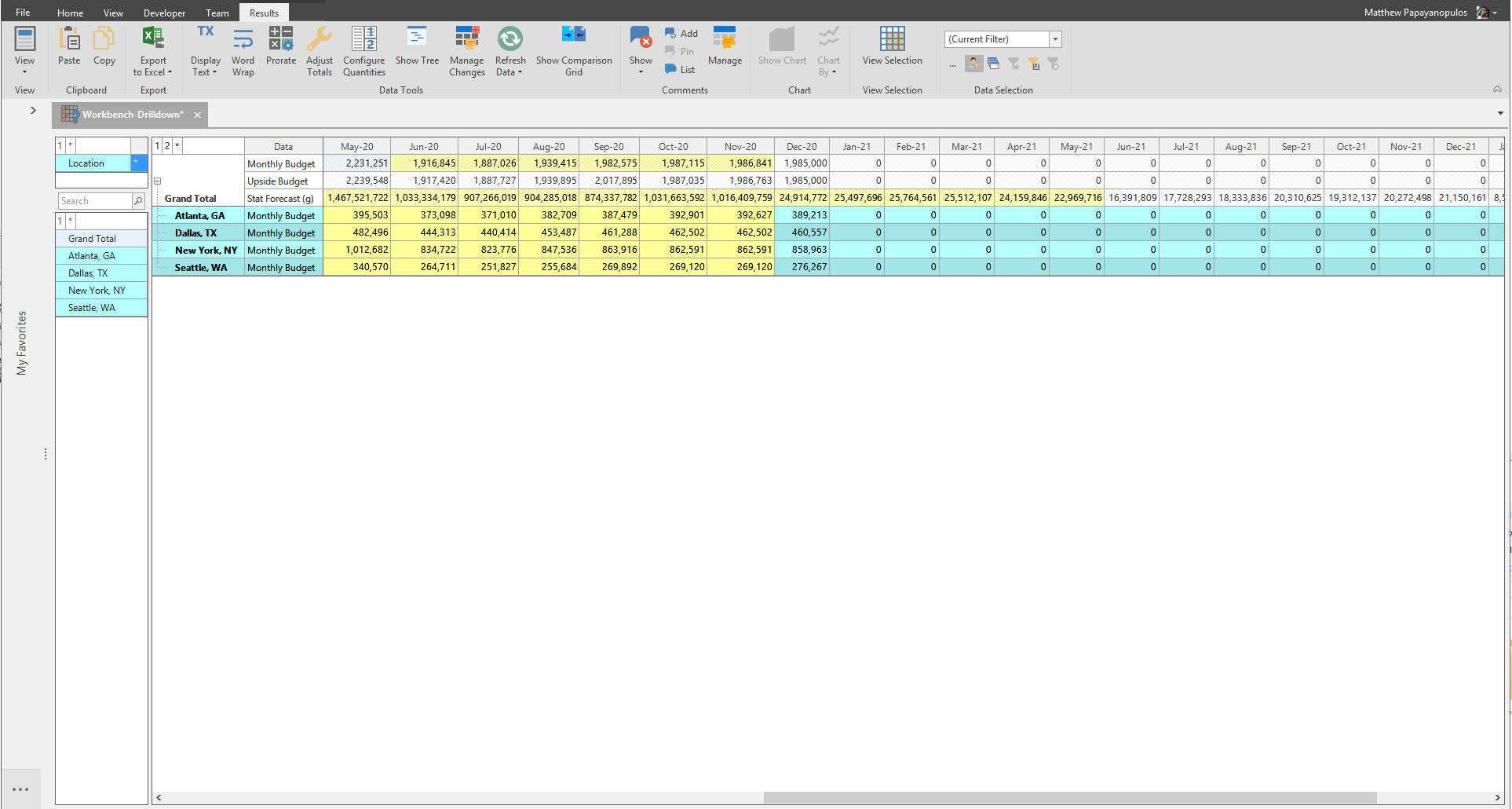
Custom Subtotals
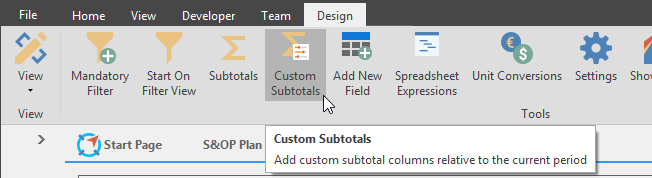
Create custom subtotal columns in the results view. Click the Custom Subtotals button in the design ribbon.
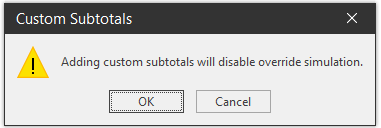
Click OK; If Override Simulation is toggled on, the custom subtotals will toggle that off if continuing to create custom subtotals. The Custom Subtotals window will launch.

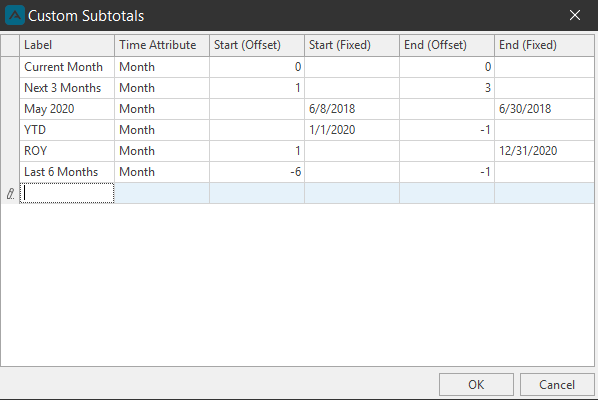
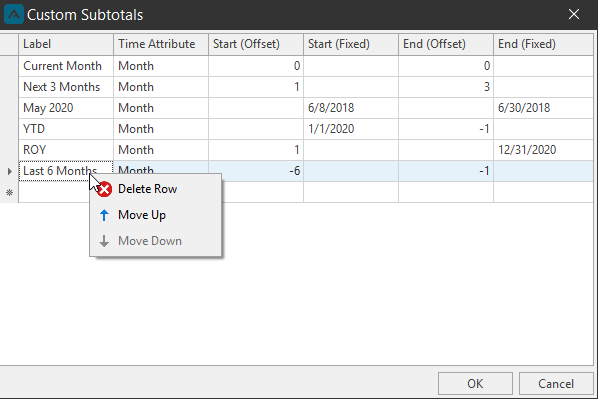
Under the Label column, type a name for the Custom Subtotal column. Depending on the type of subtotal, type a value or use the calendar selection to create the type of subtotal. Click OK when finished.
Go to the Results view to view the custom subtotal columns.

Right-click menu\ In the Custom Subtotals window, right-click a custom subtotal for the Delete Row, Move Up, Move Down options.
Spreadsheet Expressions Configurator
Consultants can setup Excel-like calculations to customize Workbench results by using the Spreadsheet Expressions functionality.

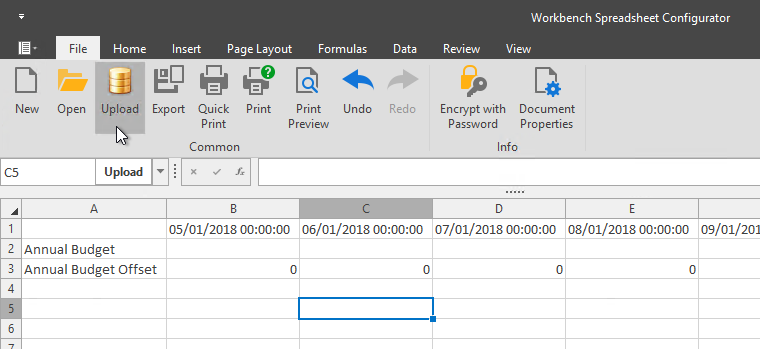
After creating calculations, you must click the Upload button and confirm the upload.
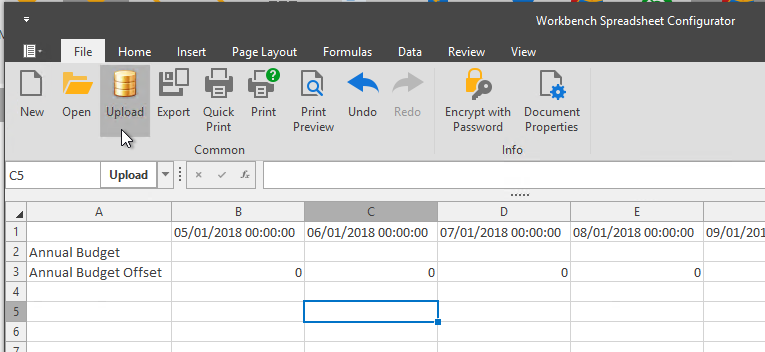
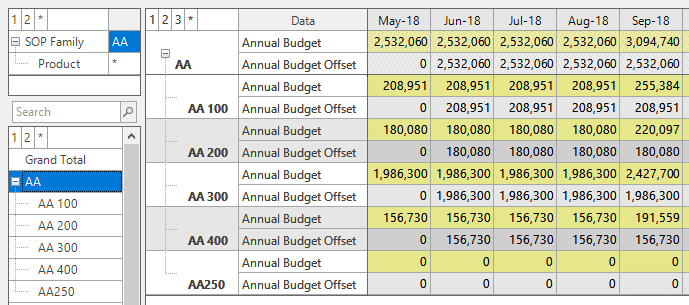
Example: Annual Budget Offset\ Using Spreadsheet Expressions, we can create Annual Budget offset data that will be offset in the results view.
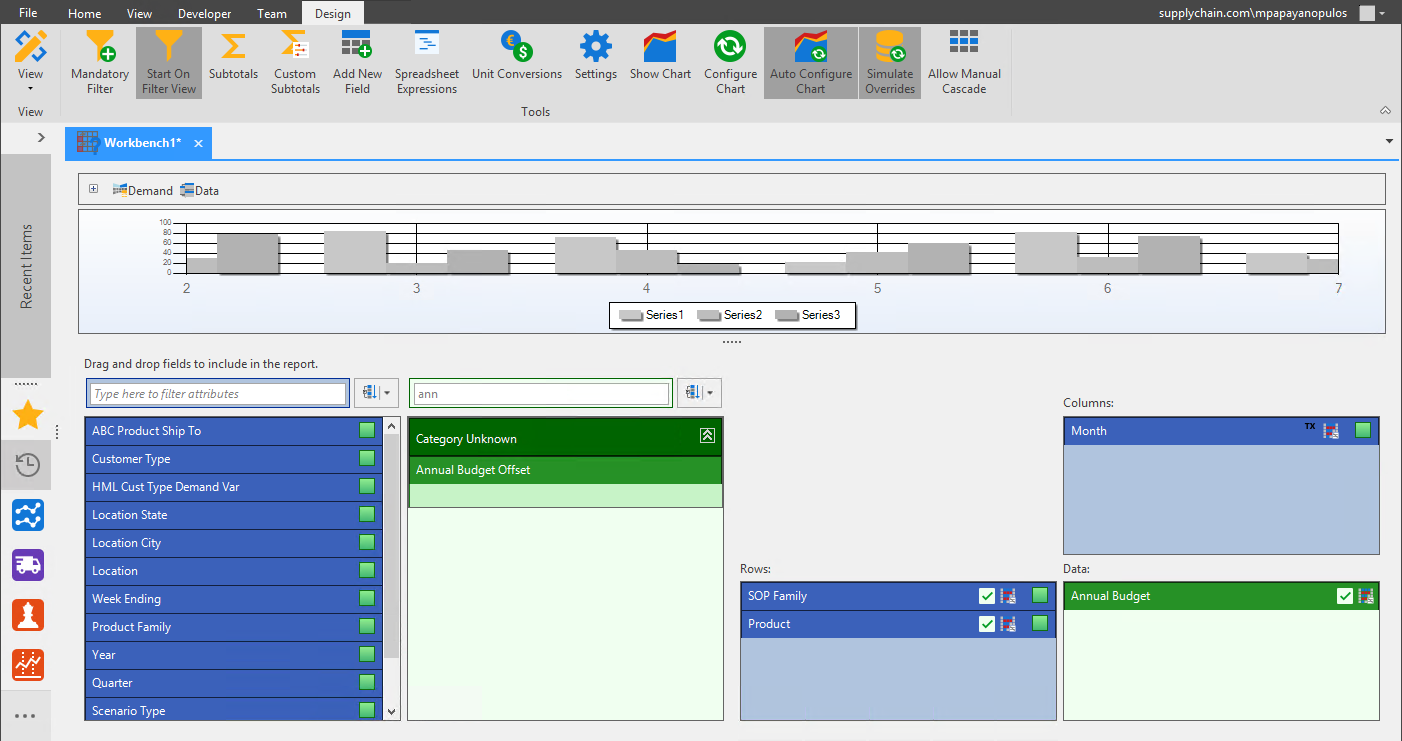
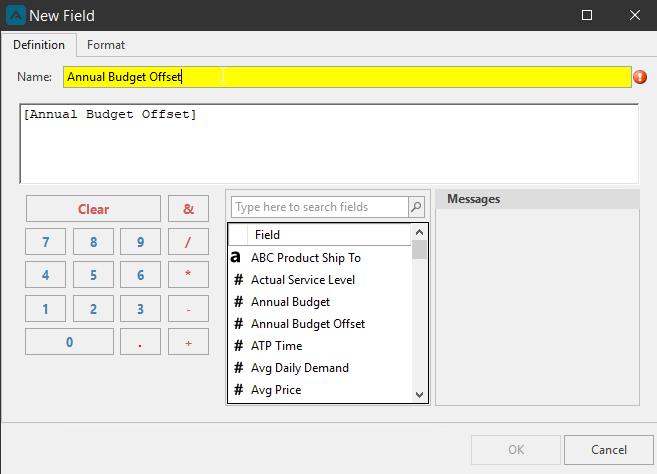
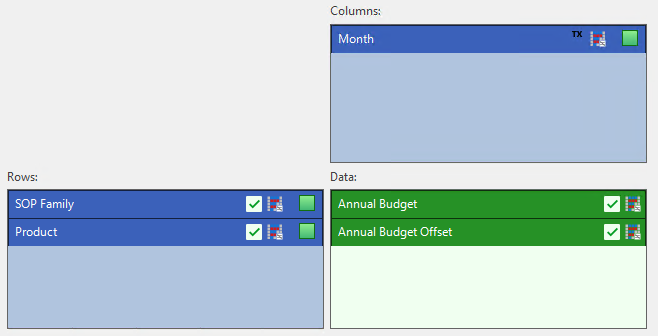
First we will create the new field quantity Annual Budget Offset and add it to our workbench.
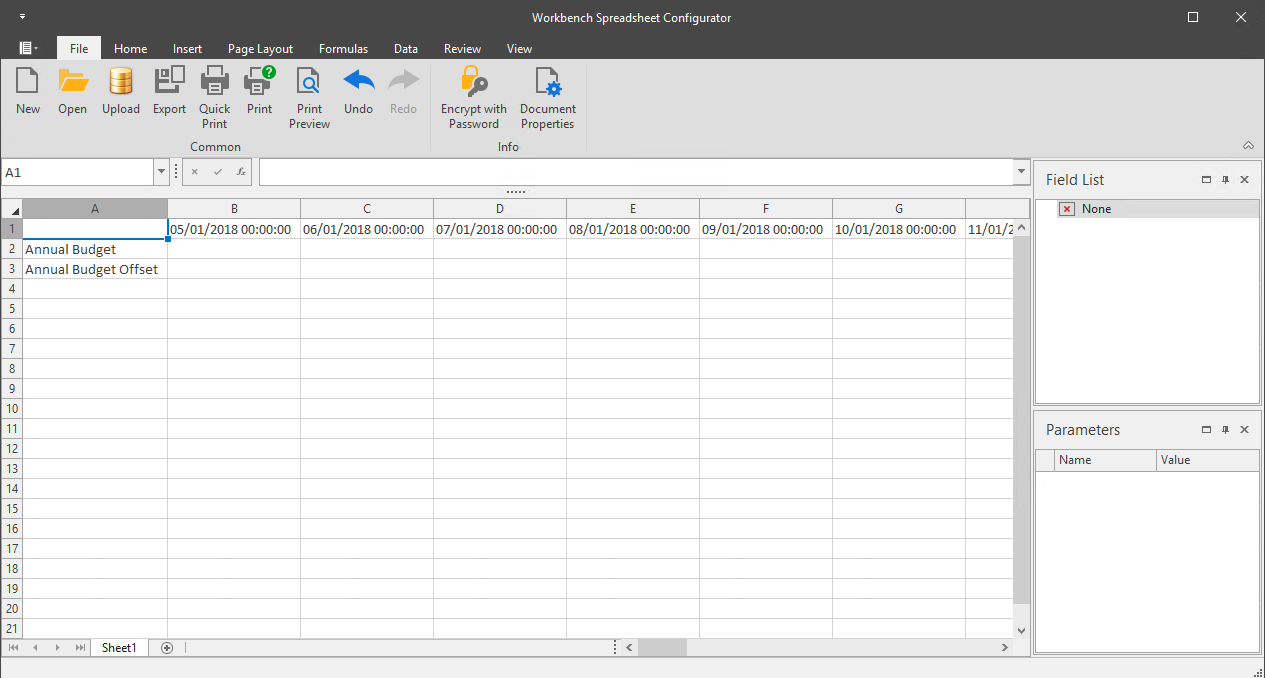
Next we will launch Spreadsheet Expressions.

Here you can see our two quantities listed in the spreadsheet; Annual Budget and Annual Budget Offset.
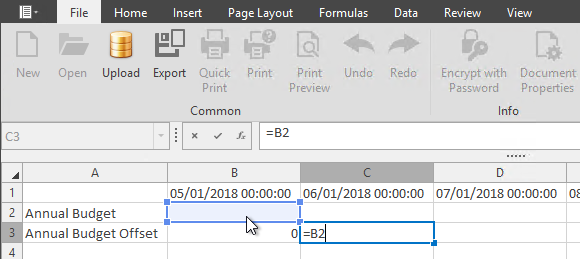
to create the offset, we need to create the formula, as shown below in the next two screenshots.

When finished, we need to upload the spreadsheet data to the database.
Click OK.
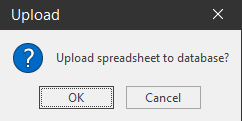
Then Click OK again once the Upload is complete.
We recommend closing and reopening the workbench before viewing the results screen. you can see that the Annual Budget Offset data is offset by one column.
Unit Conversions
There are two types of Unit Conversions: Custom and Built-in Unit Conversions.
Launch the Select default quantity unit window by clicking the Unit Conversions button located in the design ribbon.
To learn more about Units, please follow this link.

Use the dropdown menu next to the quantity to set the conversion unit and click OK.
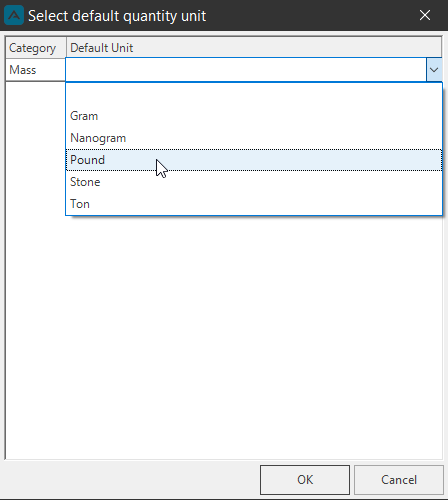
The Unit Conversion can also be changed in the results view by right-clicking the quantity.
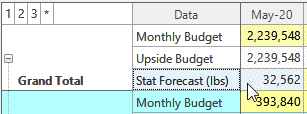
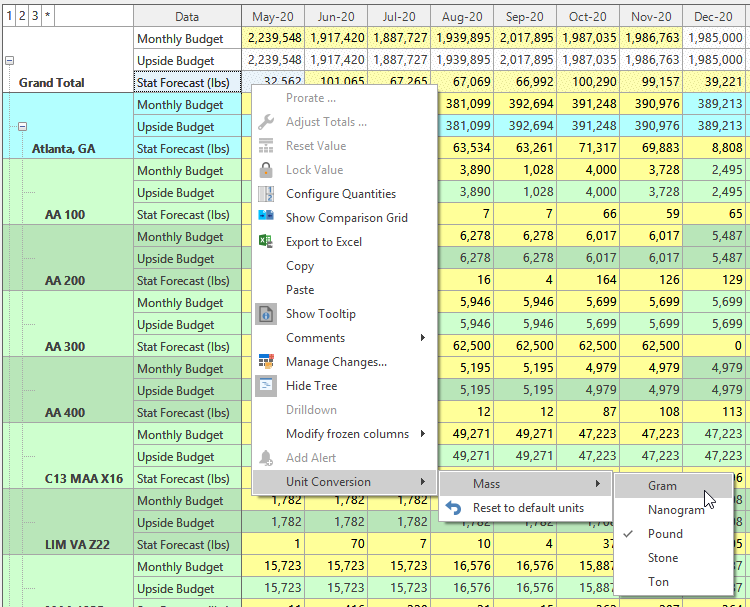
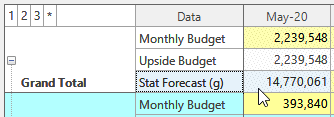
Chart Report
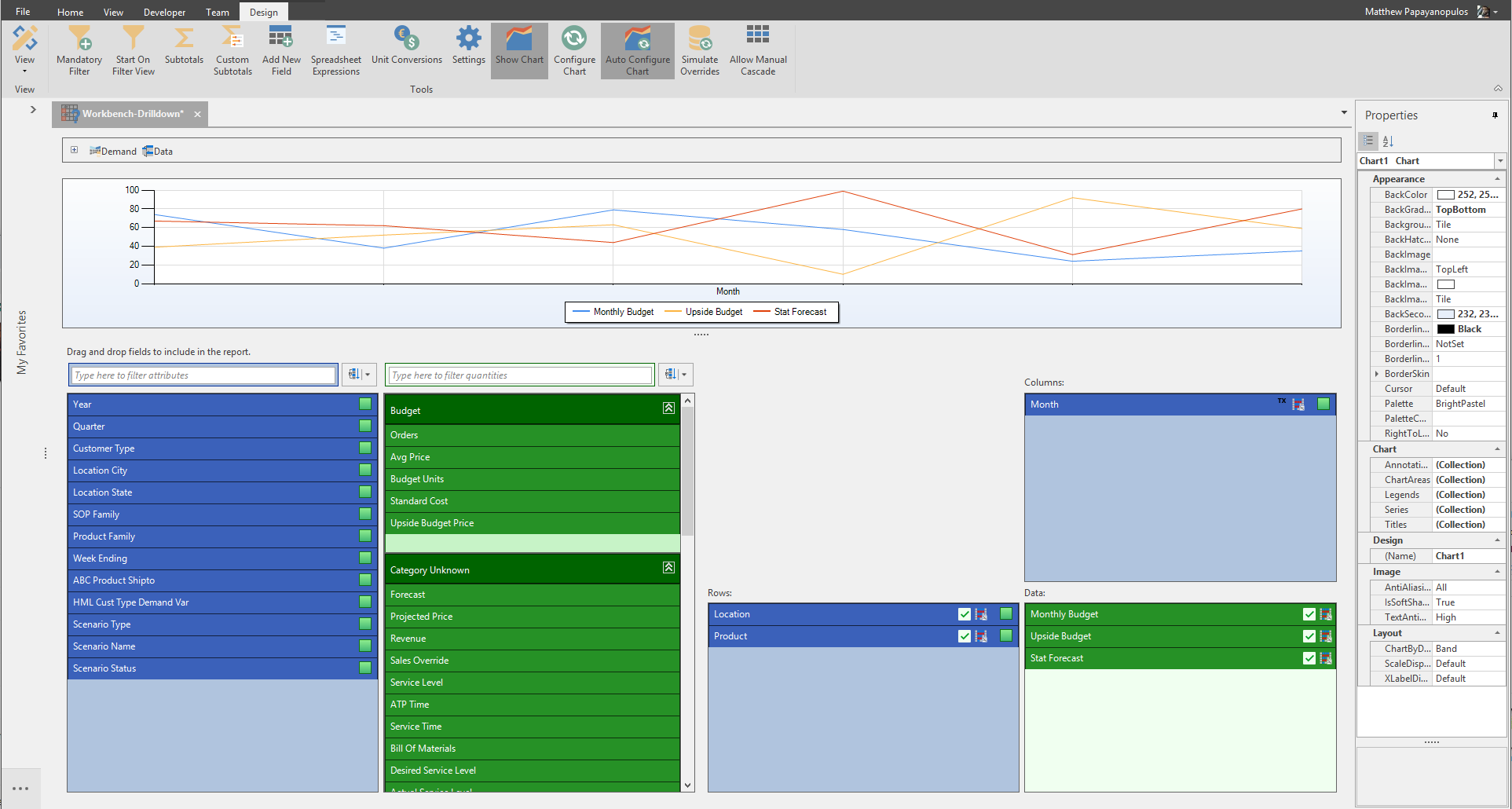
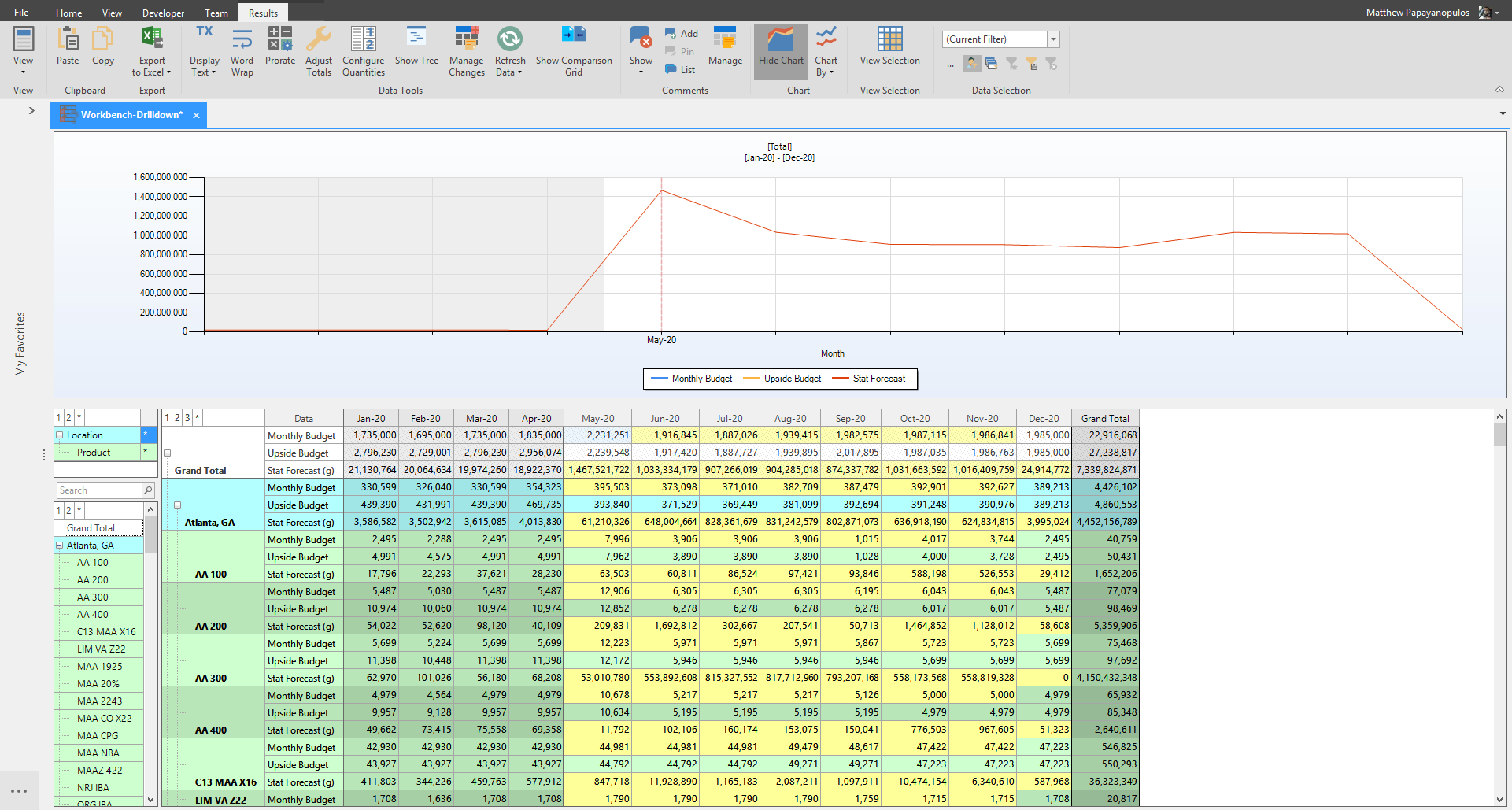
Click the Show chart button to turn on the chart report and the chart report properties.

Properties allow further design options to be explored. The Arkieva application offers many options to customize the graph and chart.
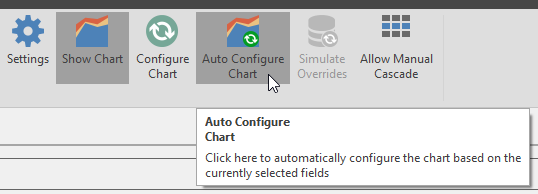
Auto Configure Chart
Auto Configure chart is helpful for automatically updating a chart when new fields are added or removed from the columns, rows, and data boxes. Auto Configure Chart is toggled ON by default.
Manually Configure Chart
To manually configure the chart, toggle Auto Configure Chart OFF, and click the Configure Chart button after making any changes to the layout of the chart.
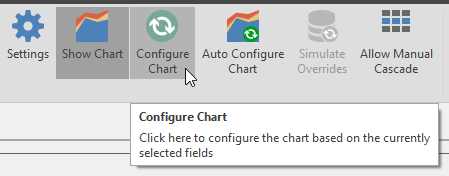
Chart right-click menu
Right-click anywhere inside the chart area of the workbench to access the right-click menu.
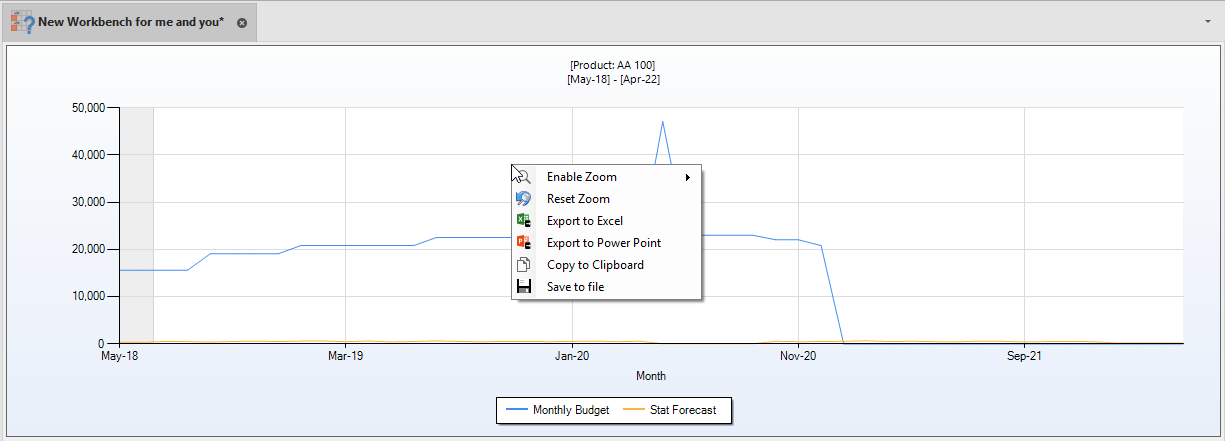
- Export to Excel: Export the chart to Excel
- Export to Power Point: Export chart as a power point slide
- Copy to Clipboard: Copy chart to paste elsewhere; copied chart with keep the same dimensions as it appears in Arkieva
- Save to file: Save the chart as a .jpeg
Right click the chart and select X-Axis or Y-Axis from the Enable Zoom menu item, then click and drag the red line across the desired area. Reset the Zoom by right-clicking and clicking Reset Zoom.
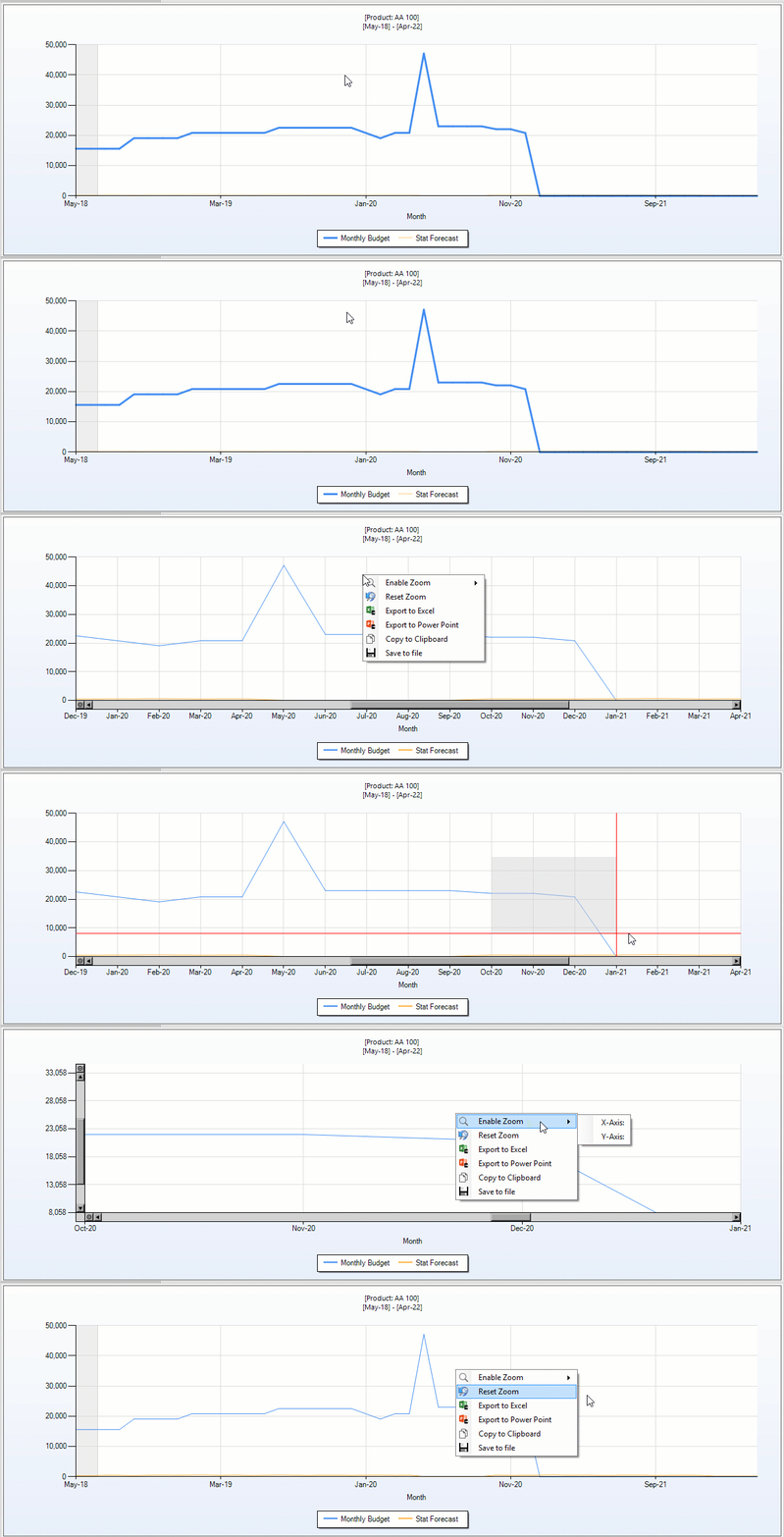
Chart by Band, Level, and All
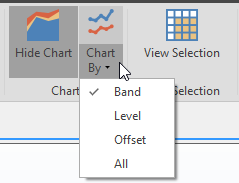
Show the data in the chart by Band, Level, or both Band and Level (All).
The default setup for the chart report is Chart by Band. Charting by band means when a quantity data is selected in the spreadsheet section, the chart report will reflect the attribute in the same line as the quantity selected.
Charting by Level Shows all attributes as they compare to the quantity data selected.
How to Fine Tune Graphs in Workbench
Learn how to enhance graphs and charts in your workbench.
{`
`}
Tree Navigation
From the left-side of the Workbench, you can utilize the following tools:
- Navigation Tree: select what row data to view in the workbench table.
- Show Tree: toggle on or off the workbench tree.
- Top and Bottom Navigation Tree box: Select row data to change the data available in the workbench table.
- Configure Attributes: Reorder and remove selected attributes from the navigation tree and the workbench results view.
- Search: Drilldown through a large list of attributes under the navigation tree.
Navigation Tree
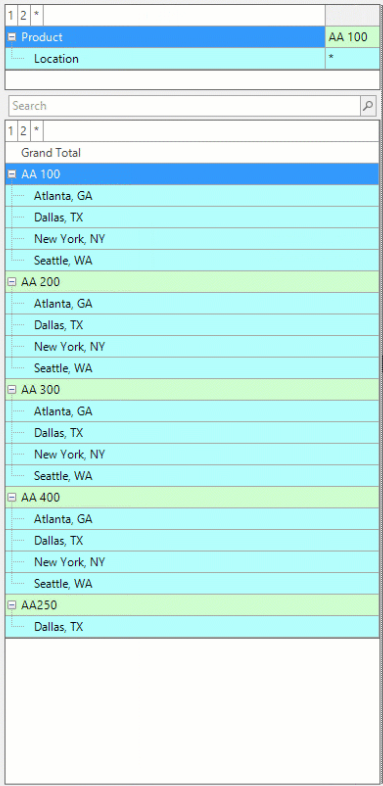
Use the workbench navigation tree to select what row data to view in the workbench table.
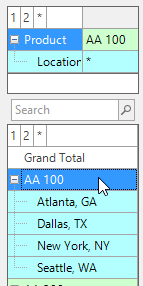
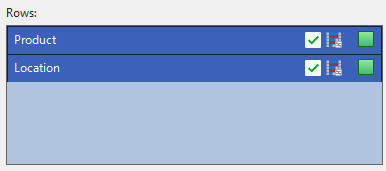
The navigation tree reflects the selected row attributes in the design view.
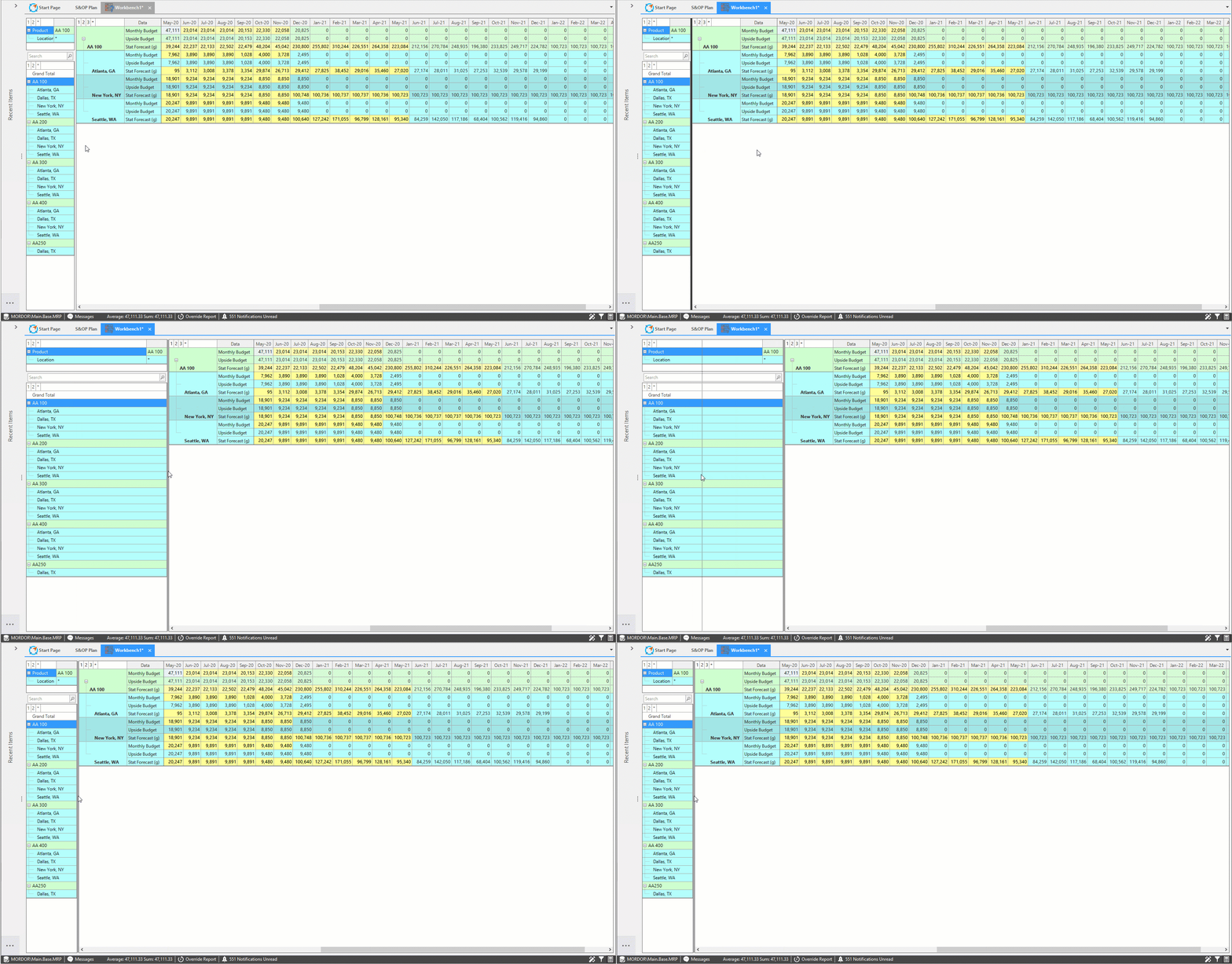
To expand or narrow the navigation tree, move the divider left and right by hovering the mouse over the line and clicking and holding while dragging left and right.
Show Tree
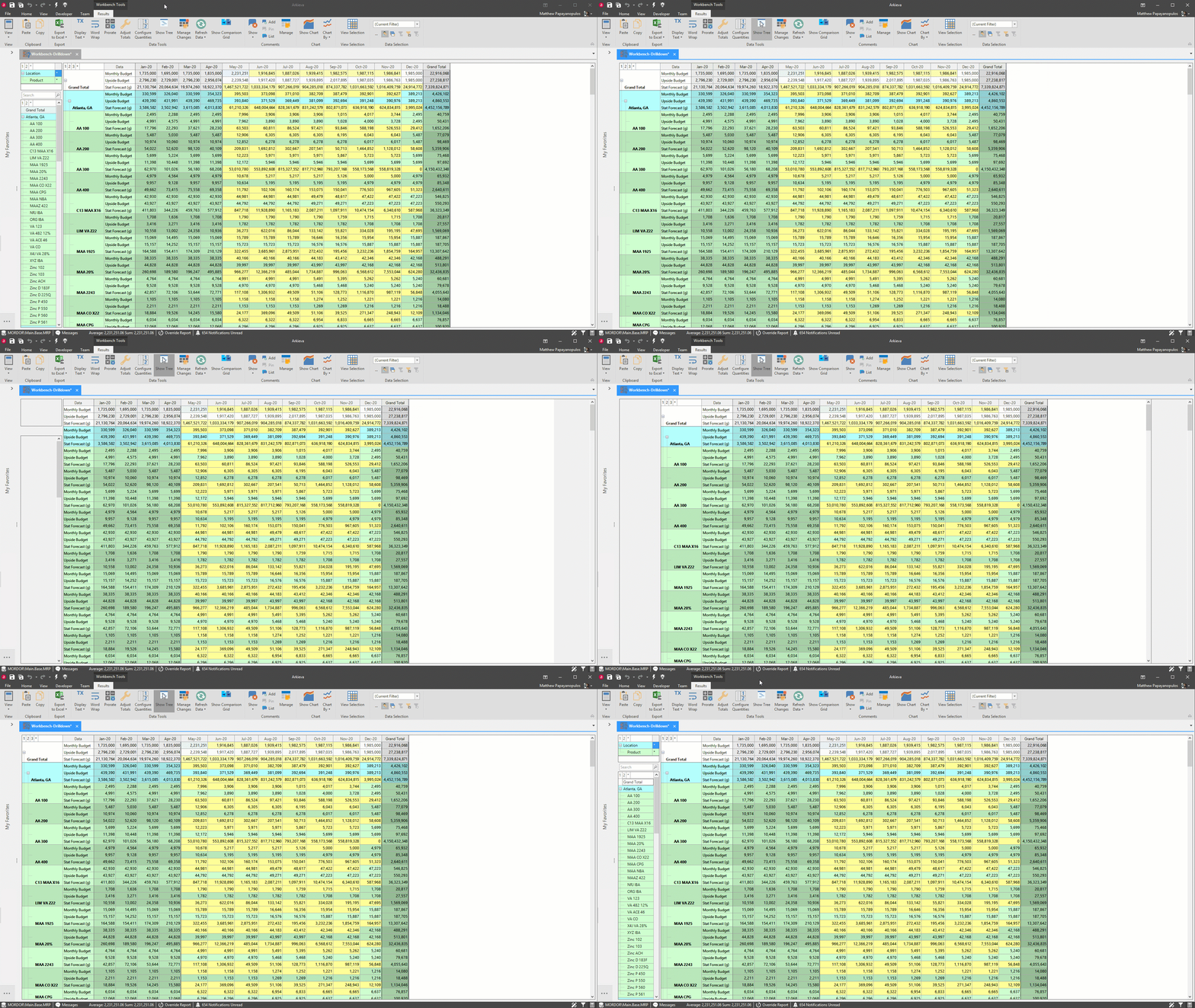
The navigation tree can be toggled on and off by clicking the Show Tree button in the results view ribbon.
Top and Bottom Navigation Tree box
The Top Navigation Tree box is split into a left column (the name of the row attribute) and the right column (the names of the row data item selected in the Bottom Tree Box). The bottom navigation box lists the actual data contained in the row attributes. Selecting row data in this navigation tree changes the information available in the top navigation tree and the workbench table.
The information visible in the top navigation tree will be the same as the information in the workbench table.
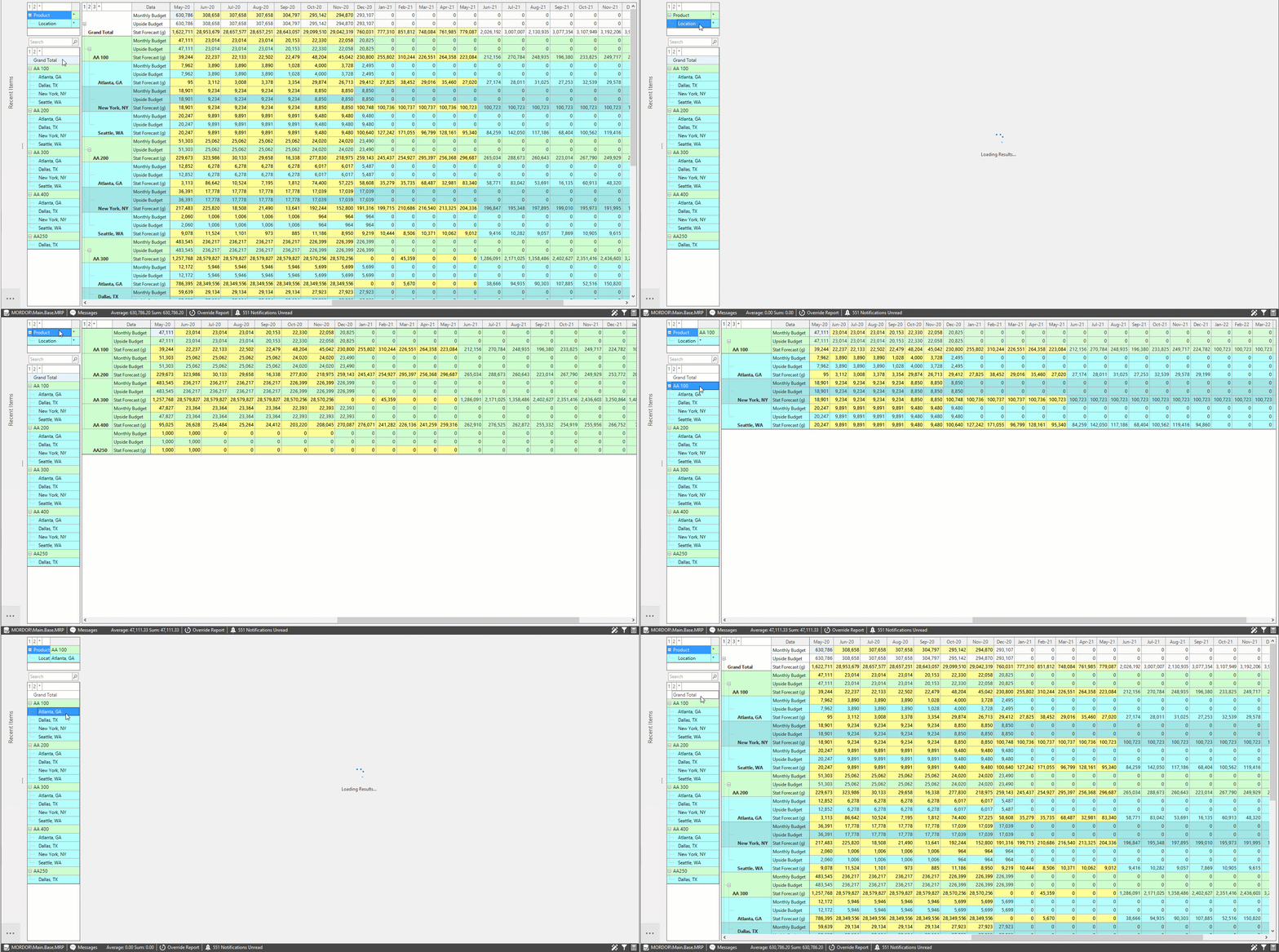
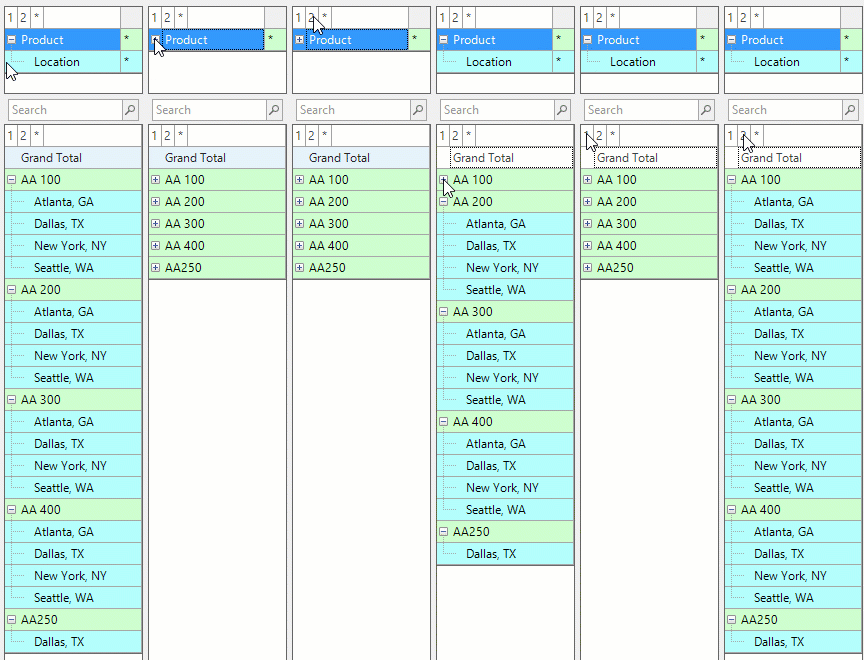
Number, +/-, and* buttons\ The items in the Top navigation tree can be drilldown and collapsed by clicking the number buttons (the numbers reflect the amount of row attributes selected), the asterisk (*), and the plus/minus buttons.
Configure Attributes
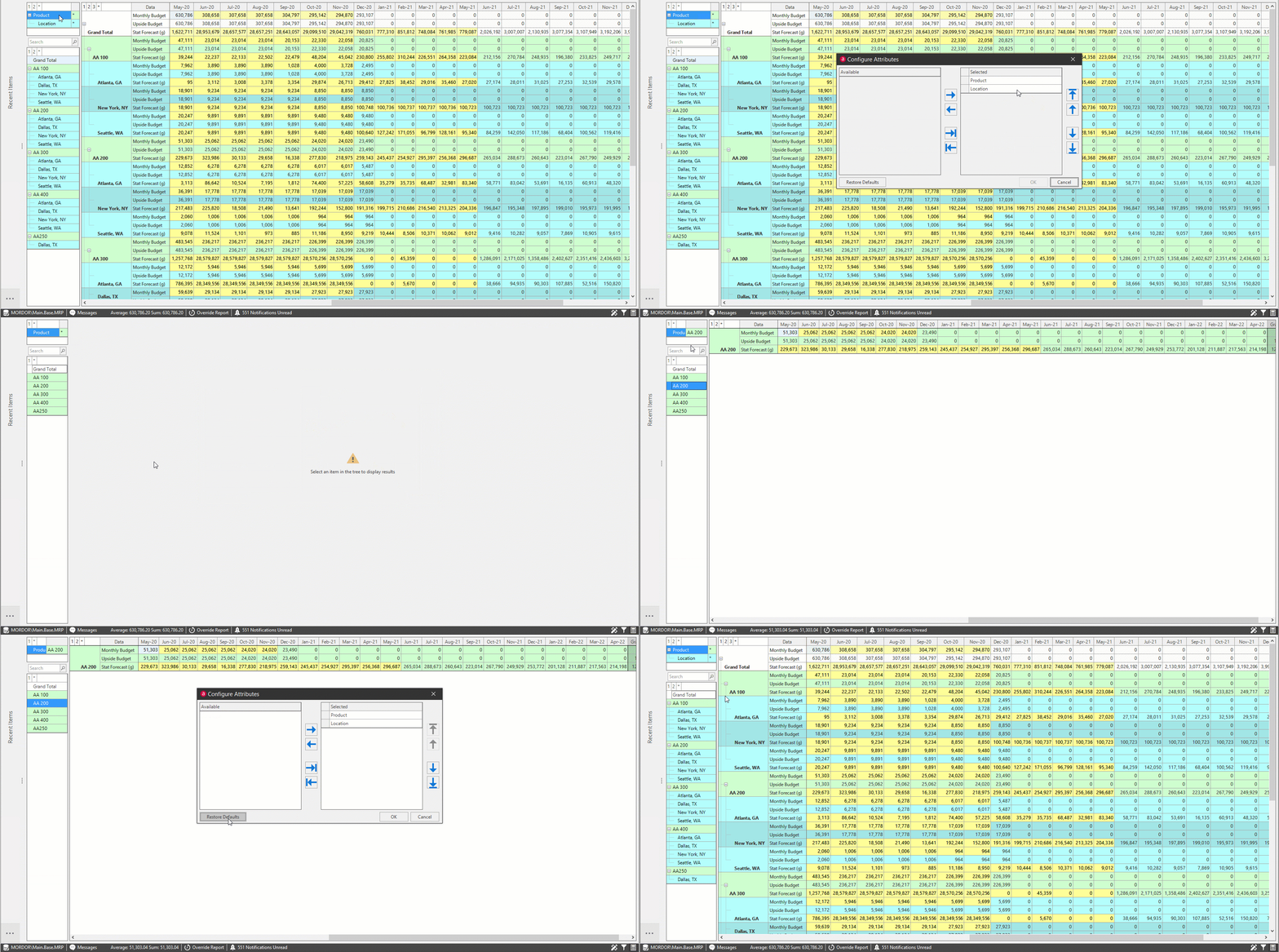
Reorder and remove selected attributes from the navigation tree and the workbench results view. Use the Configure Attributes window right and left arrows to move selected attributes to the Available section to remove them from the navigation tree and results view temporarily, and use the up and down arrows to reorder attributes under the Selected section. Click Restore Defaults to restore all attributes to the navigation tree and results view.
Search
Use the search bar to drilldown through a large list of attributes under the navigation tree.

Exporting Data
The following options will allow you to export the workbench data to an Excel spreadsheet.
- Export to Excel button: Export a selected level of the workbench data to Excel.
- Export Overrides to Excel button dropdown: Export overrides made to the workbench to Excel.
- Right-click Chart and Table: Right-click the chart for Export to Excel and Export to Power Point options.
- Copy and Paste: Copy Arkieva cell data and paste to Excel, copy Excel cell data and paste to Arkieva, or copy and paste data within Arkieva.
Export to Excel button
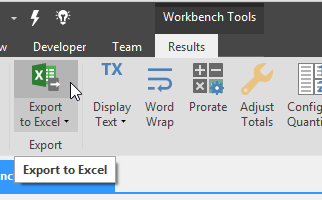
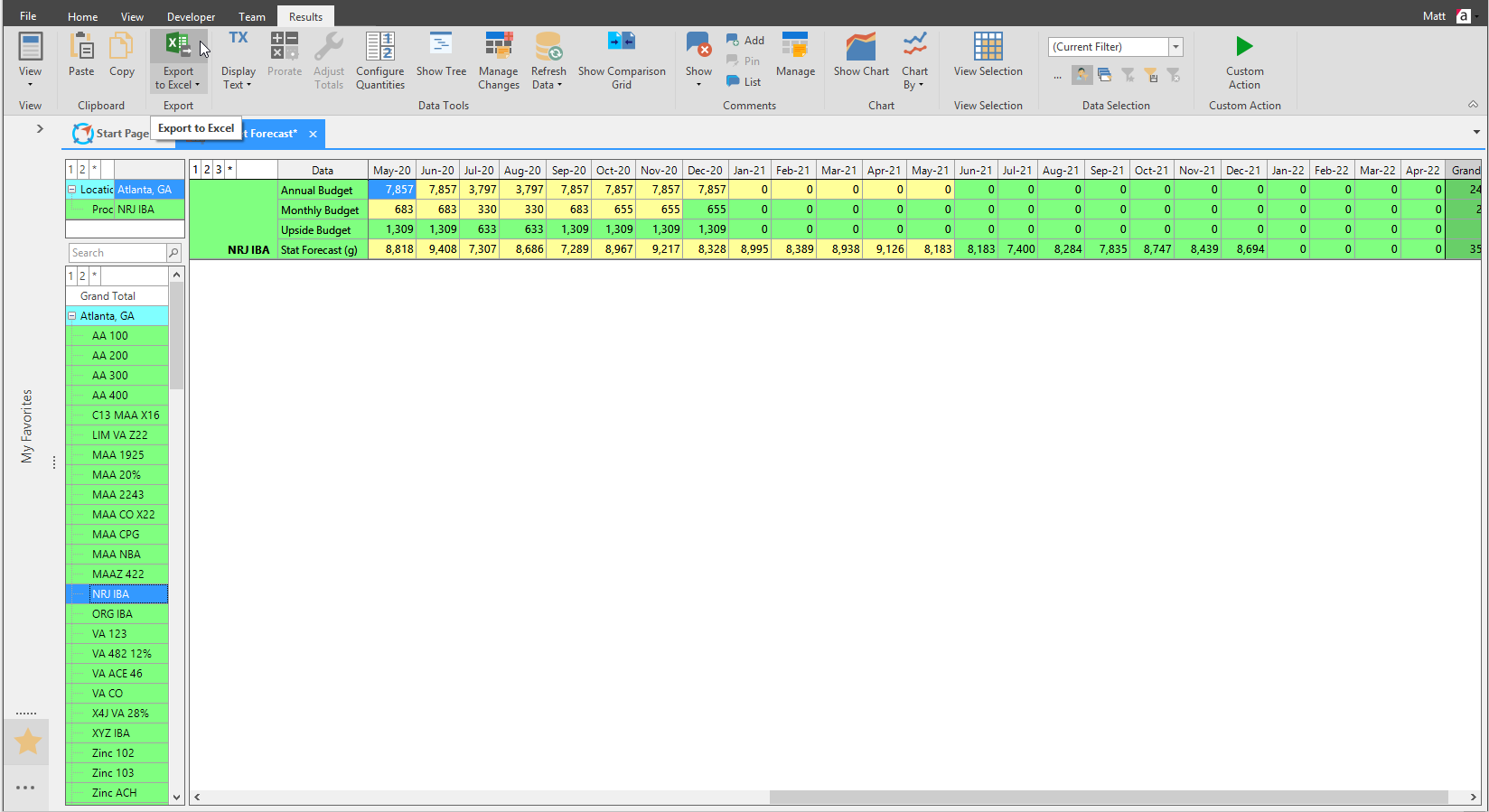
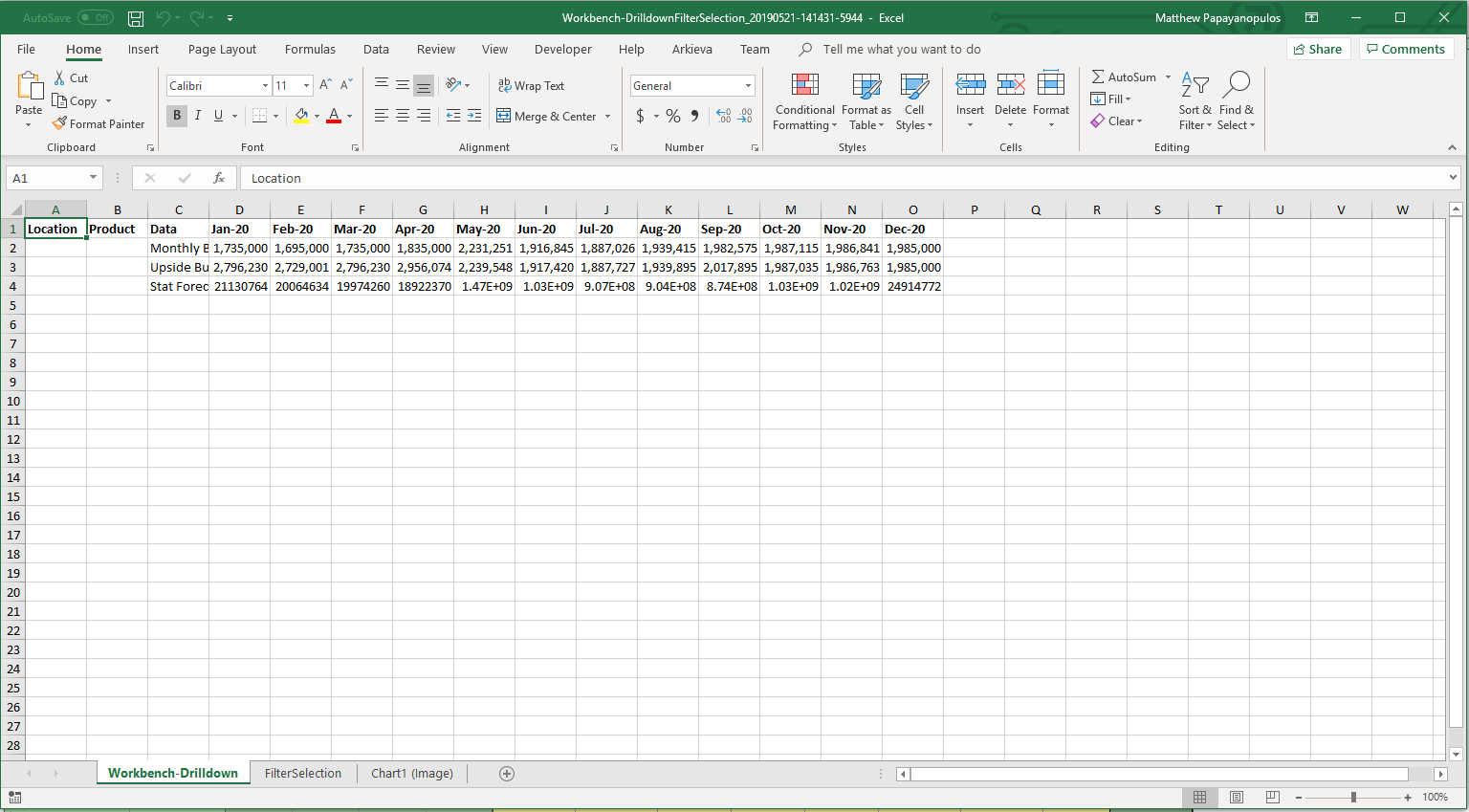
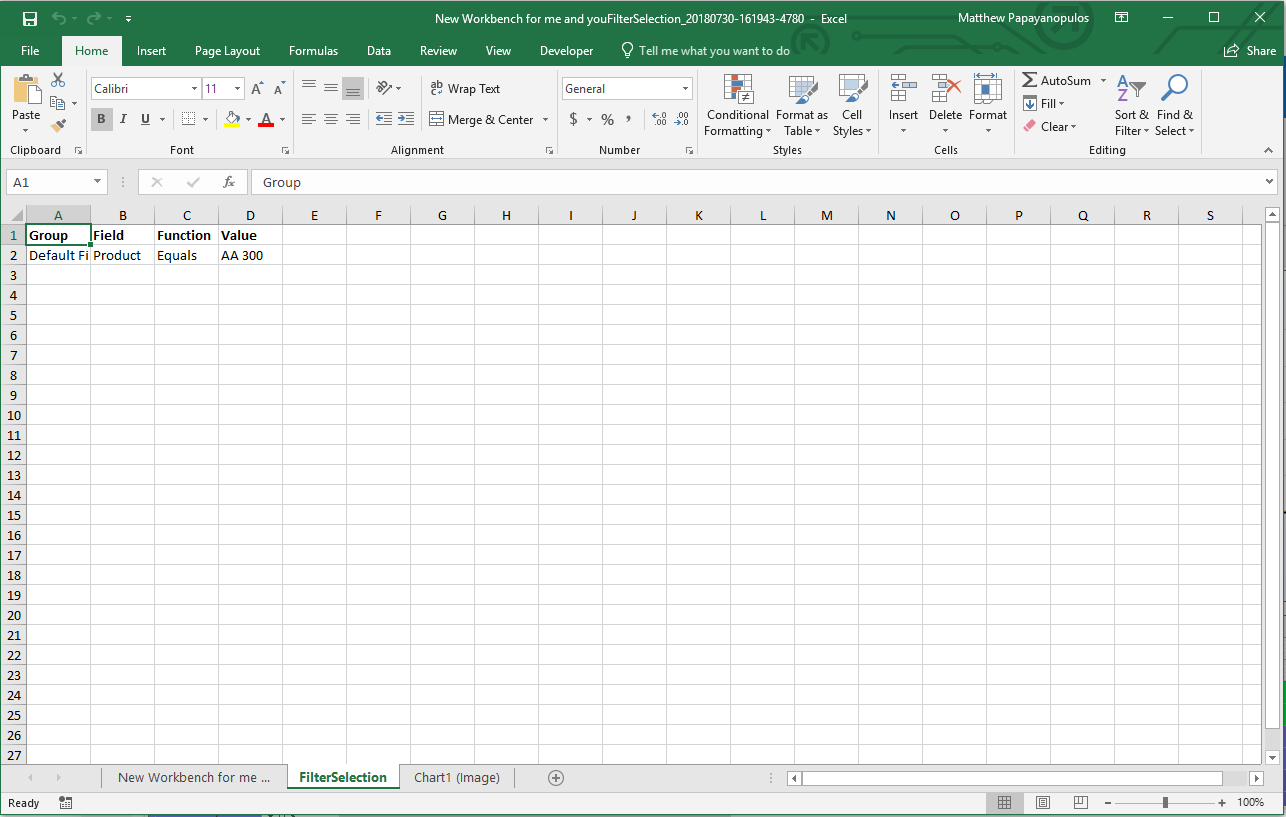
Click the Export to Excel button from the Results View ribbon to export a selected level of the workbench data to Excel. Any filters created for the Workbench will also be exported to Excel in a separate sheet.
Export Overrides to Excel button dropdown
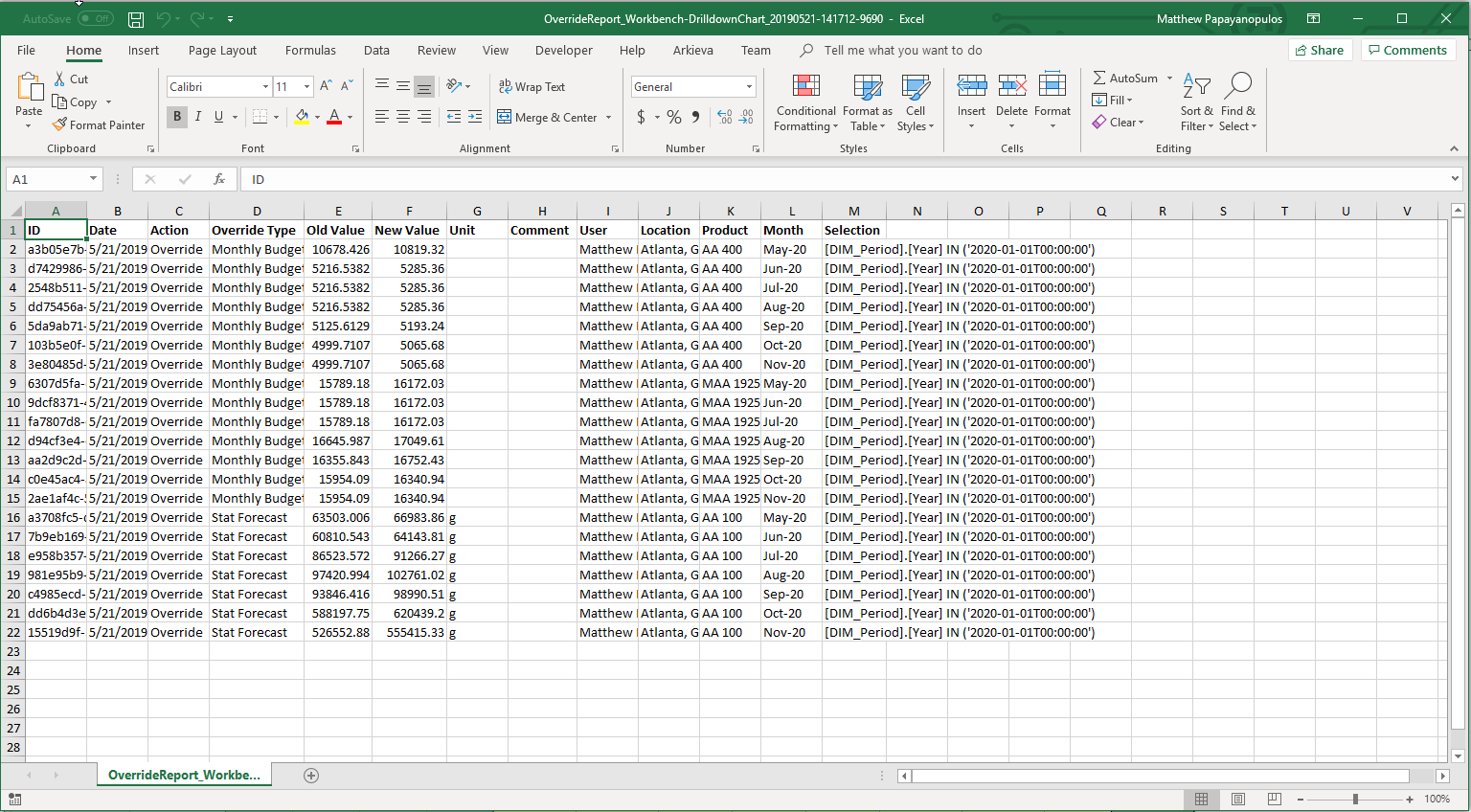
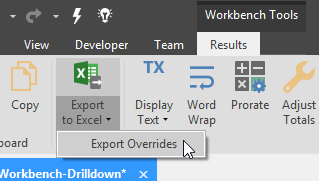
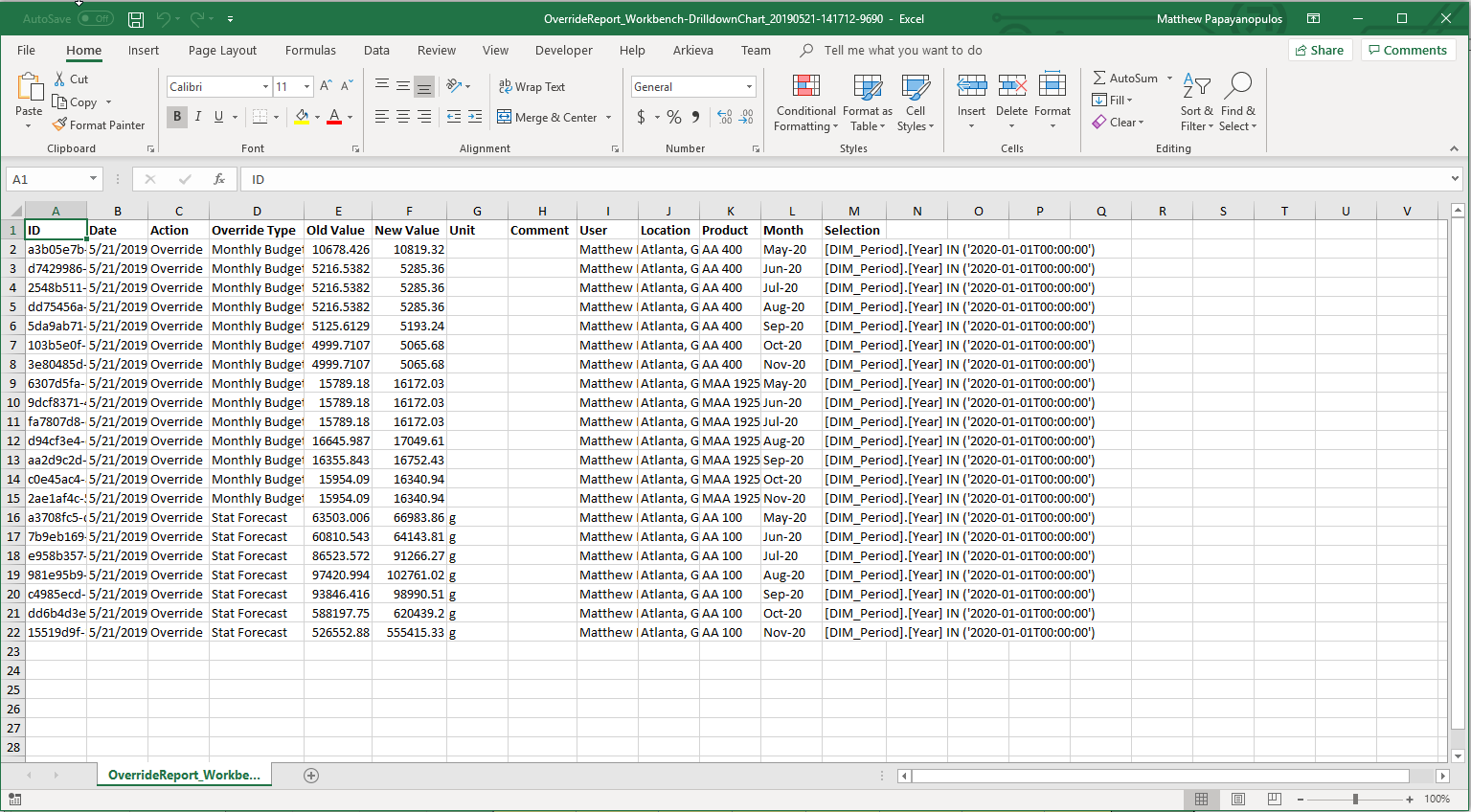
To export overrides made to the workbench to Excel, click the Export to Excel dropdown and click Export Overrides.
Right-click Chart and Table
Right-click the chart for Export to Excel and Export to Power Point options.
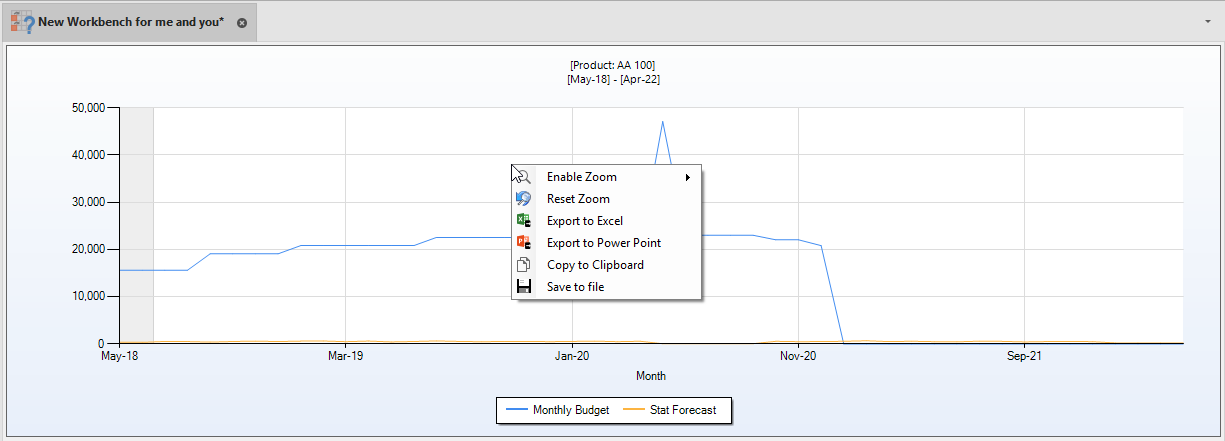
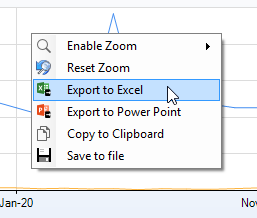
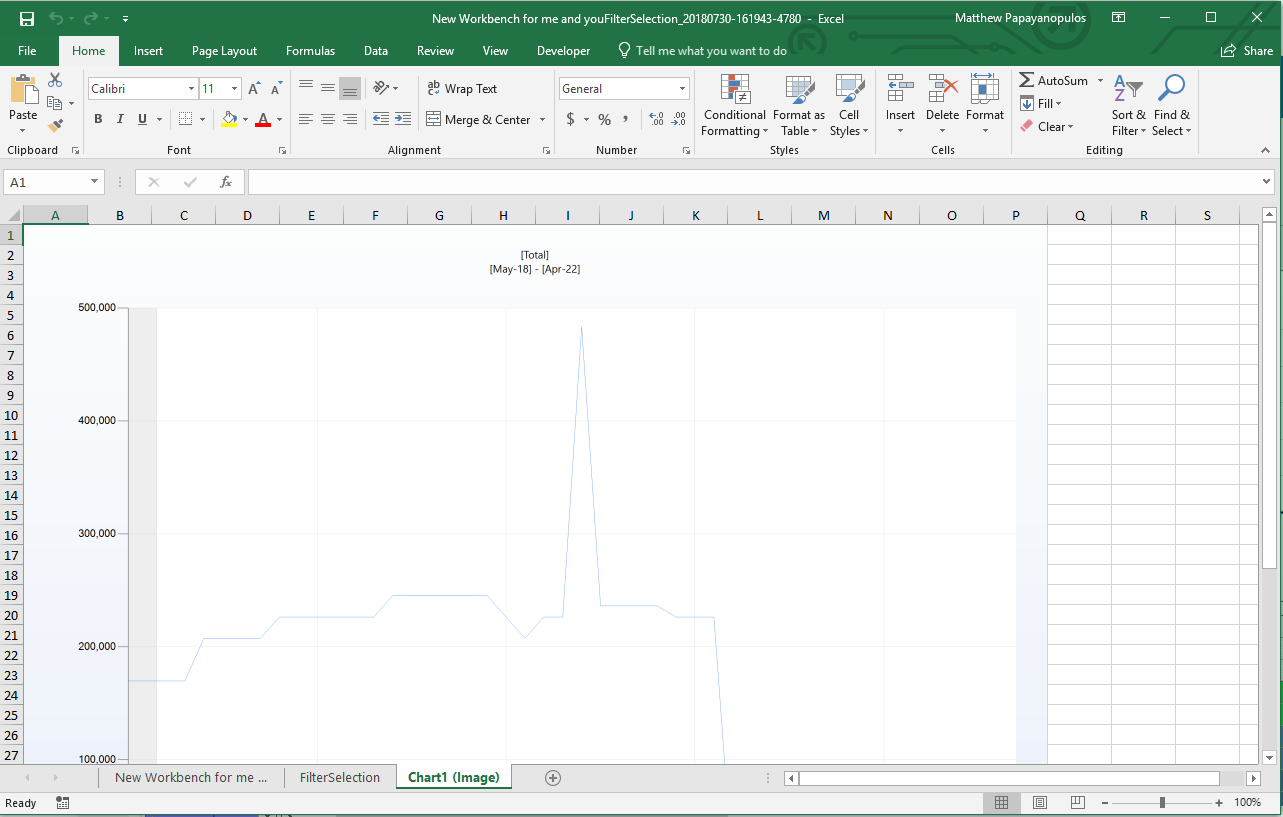
Export to Excel\ Right-click the chart and click Export to export all workbench data to Excel.
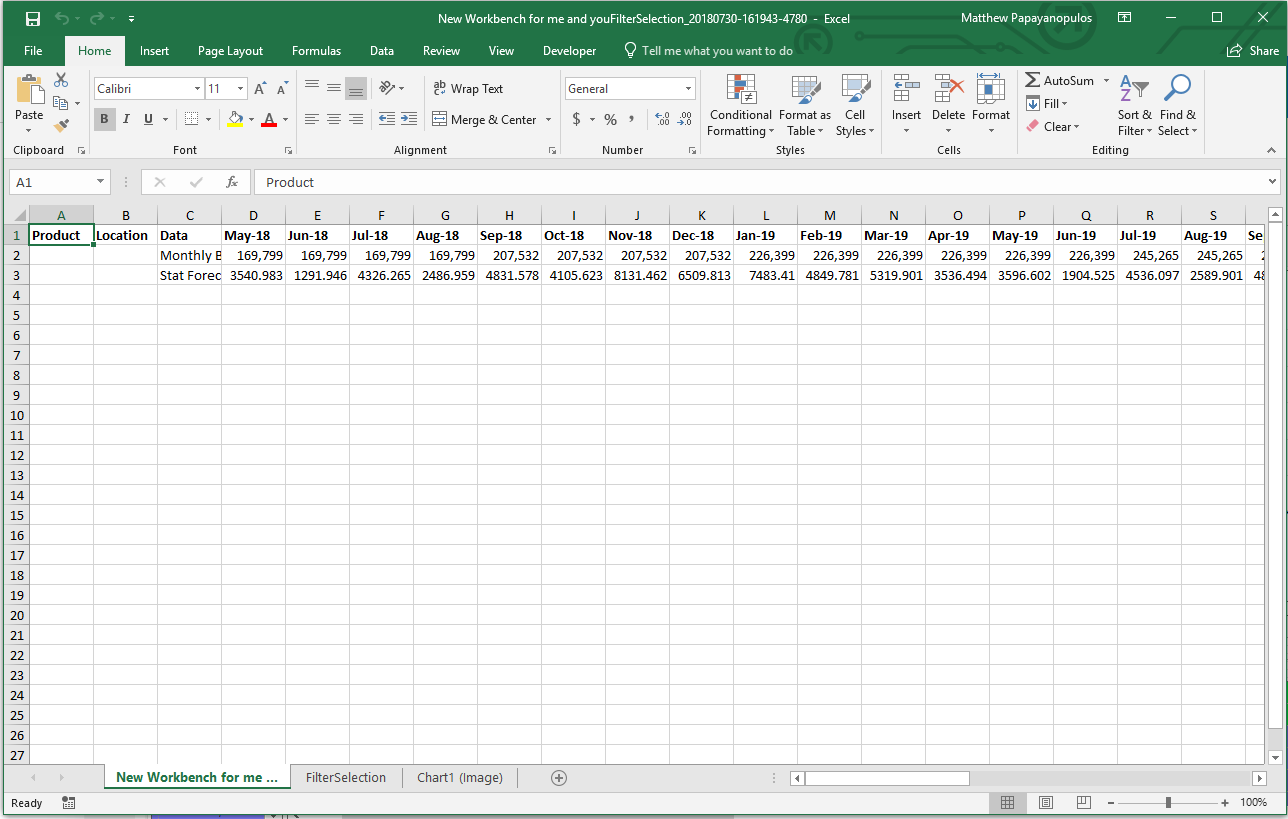
The title generated is the: Name (Workbench2), Date (2015.10.06), and Time (9:41:17). Arkieva exports the information into 3 tabs: Chart Image, Table, and Filter Selection.
Export to Power Point\ Export Chart to power point.
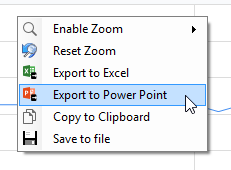
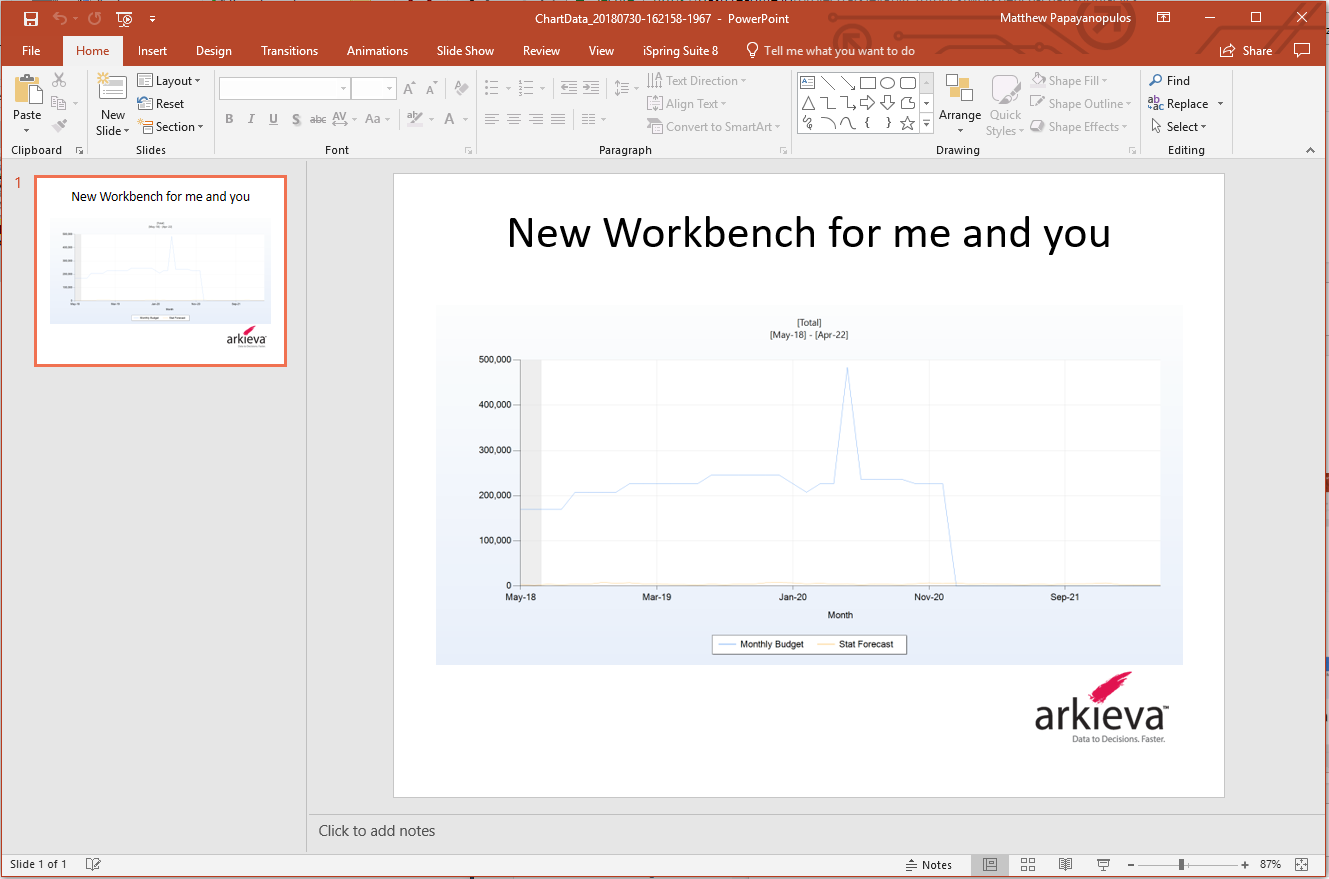
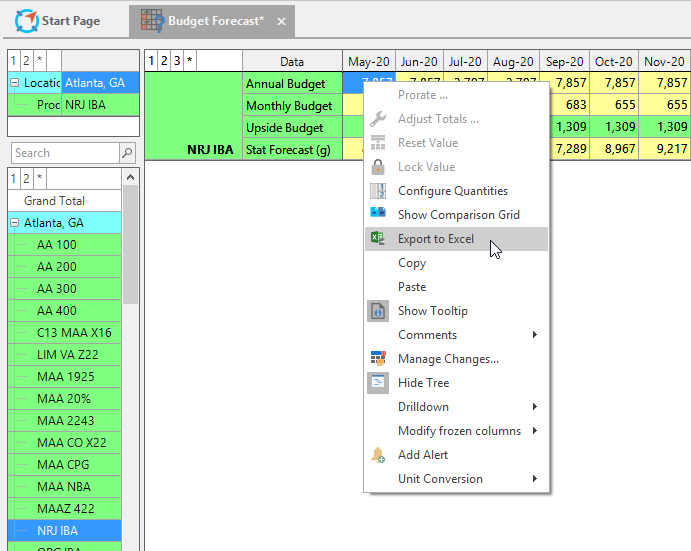
Table right-click menu\ Right-click the Workbench table for the Export to Excel option. Click this option to export workbench data to Excel. This will export the table, filter, and chart data.
Copy and Paste
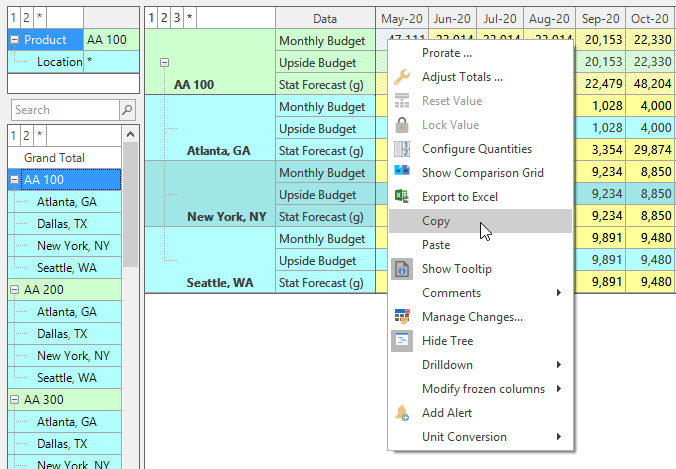
With the Clipboard Paste and Copy options, a user can copy Arkieva cell data and paste to Excel, copy Excel cell data and paste to Arkieva, or copy and paste data within Arkieva. This can be accomplished by using the Clipboard Paste and Copy buttons, the right-click menu Copy and Paste buttons, and the standard CTRL + C (Copy) and CTRL + V (Paste) shortcut keyboard commands.
Manual Cascade
🚧 Manage Manual Cascade
The Manage Manual Cascade role must be checked for the user and user's group for the user to have the ability to perform manual cascades. Next time when creating a Forecast Workbench, toggle on the Allow Manual Cascade to make it available in the Results view ribbon. Without Manage Manual Cascade permission the button will not be visible.
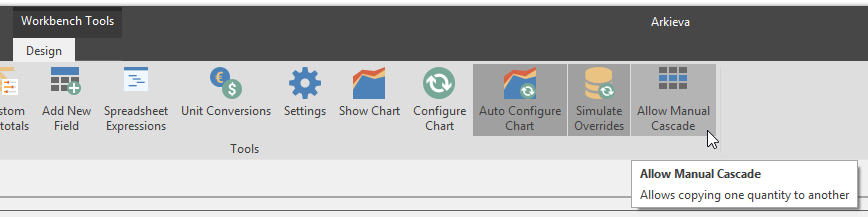
Allow Manual Cascade (Design View)
With the Allow Manual Cascade button, super users can perform cascading realignments without having to use SQL directly.
Manual Cascade (Results View)
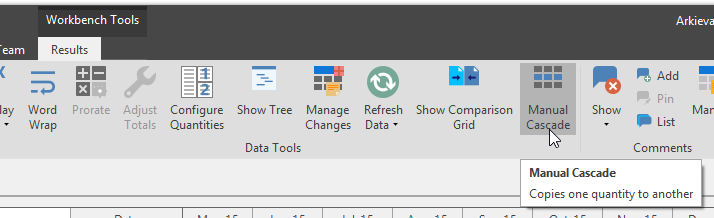
Create a Forecast Workbench. Toggle on the Allow Manual Cascade button in the design view to make it available in the results view ribbon. Go to the Results View tab and locate the Manual Cascade button in the Data Tools section of the ribbon. Click the Manual Cascade button to launch the Manual Cascade selection window.
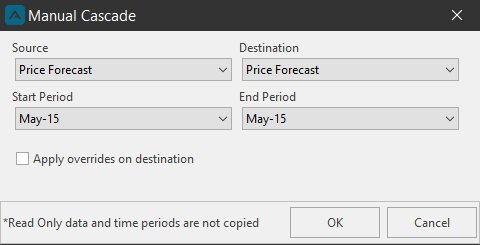
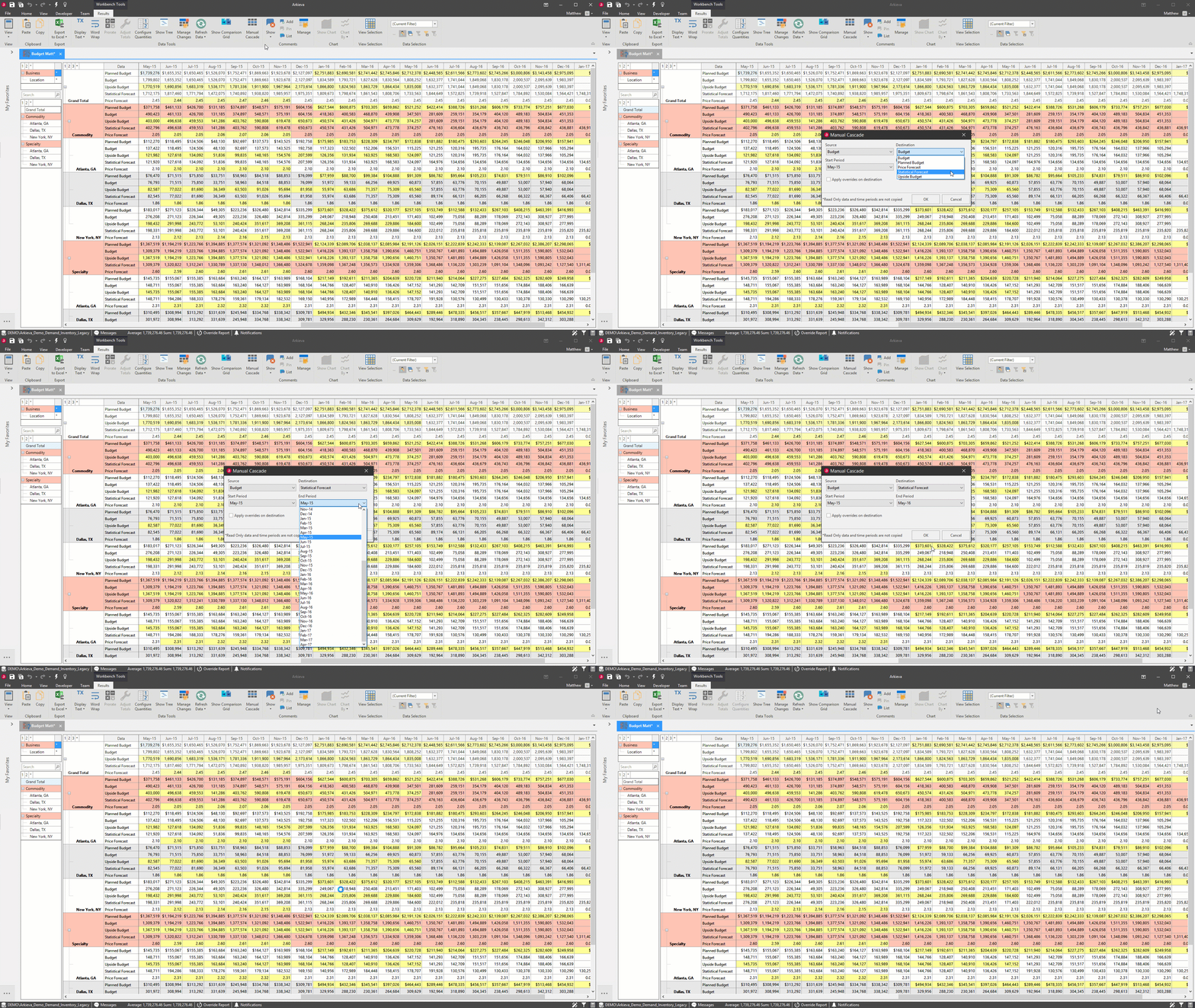
Select a source quantity from the Source dropdown. Select a destination quantity from the destination dropdown. Only the quantities selected in the design view are available for selection in the source and destination dropdowns.
Select a Start and End period from the dropdowns. By default, the current period will already be selected in the dropdowns.
After all selections, click OK to close the Manual Cascade window.
Copying a Source quantity to a destination quantity cannot be undone; to continue, click OK.
Apply overrides on destination
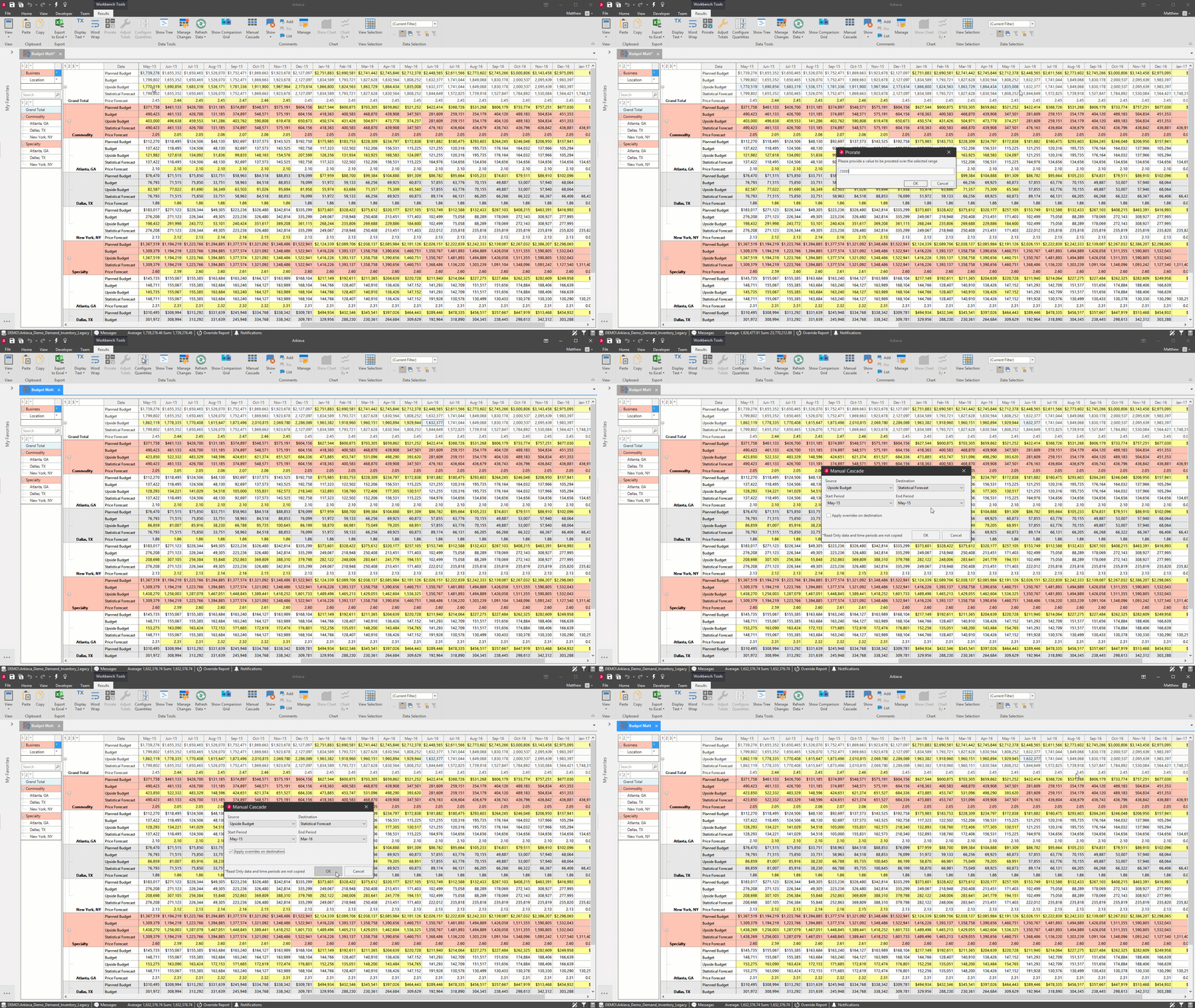
Overrides can also be cascaded through to the Destination quantity. First create an override, save, and launch the Manual Cascade selection window. Check the Apply overrides on destination checkbox. Click OK. Then click OK again.
Commenting
🚧 Exporting Comments
When exporting a Workbench with comments, only the first 5 recent comments will appear in the Excel Spreadsheet. Comments are only exported for documents set to Chart by Band and Level.
Add Comments
To add a new comment to the Workbench, click a cell in the Workbench grid, and click the Add Comment button from the ribbon or from the right-click menu.
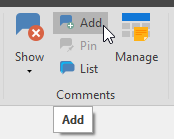
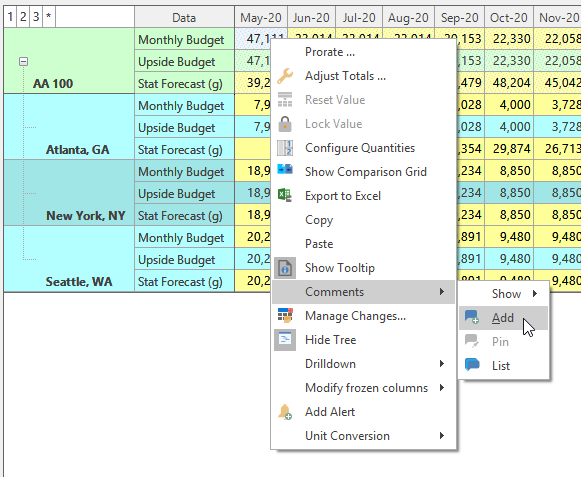
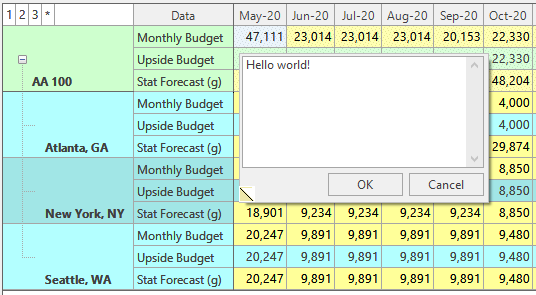
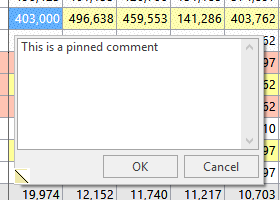
The comment box will launch, allowing the user to type a comment. Type a comment and click OK.
Comments will not show on the workbench by default, the user must use the Show Comments dropdown to select what comments to view.
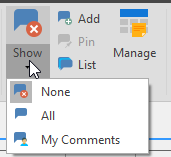
Show Comments dropdown
Click the Show Comments dropdown or right-click the grid to select whether to show No comments (None), All Comments, or only comments made by the logged-in user (My Comments).
Comments are set to All by Default.
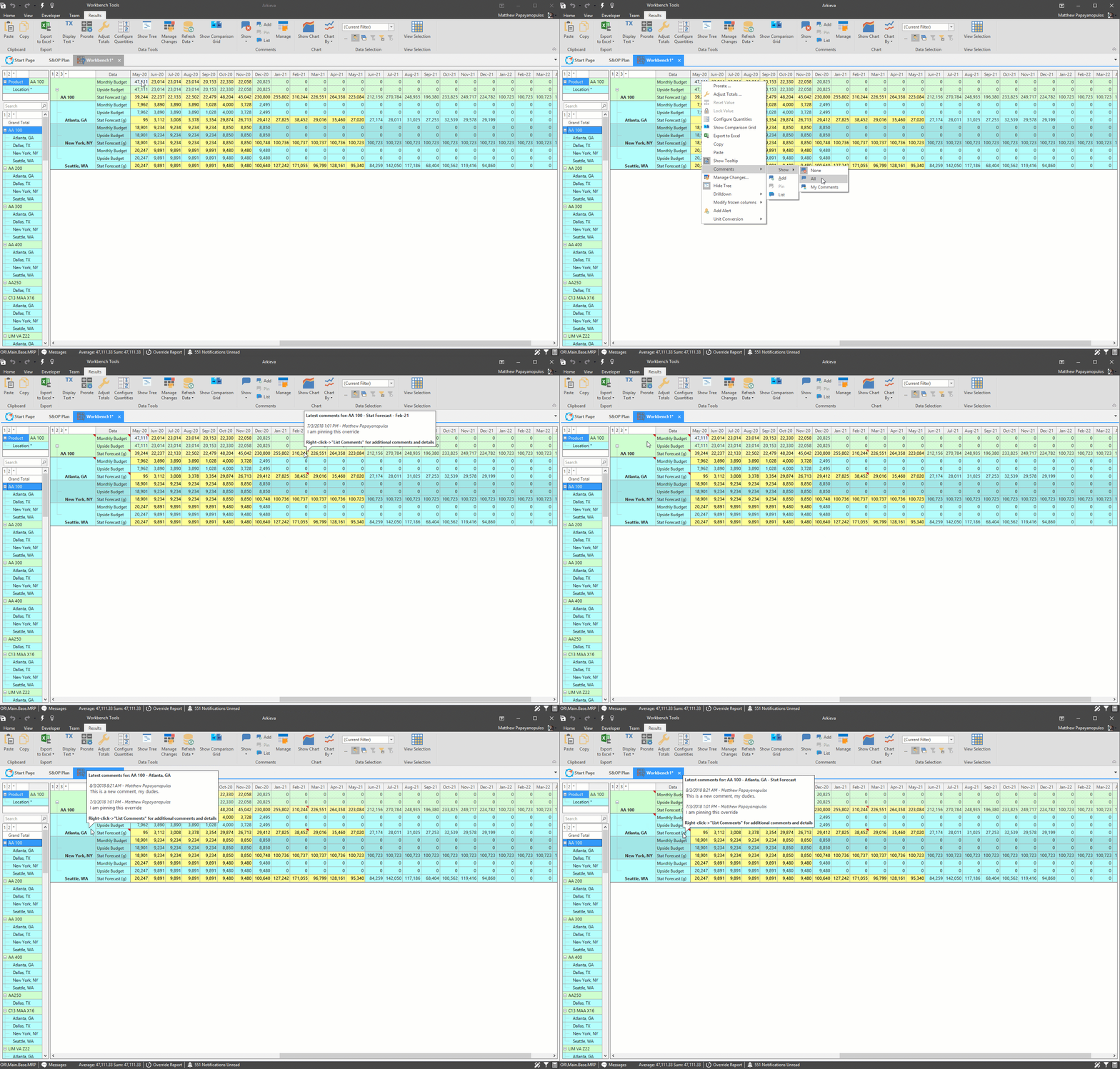
A table cell with a comment will have a red triangle; hover the mouse over the cell for a tooltip showing the comment or comments.
Depending on what level of the Workbench the comment was made will be what comments are shown in the tool tip.
List Comments
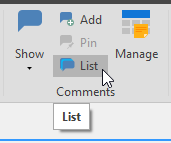
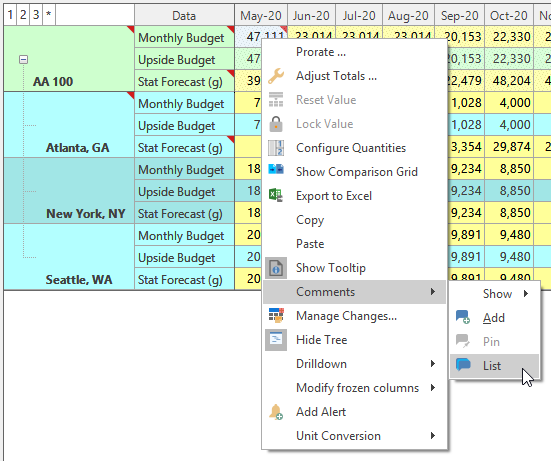
To see a list of the comments made on a specific level of the workbench, click a cell containing comments and click List Comments from the ribbon or from the right-click menu.
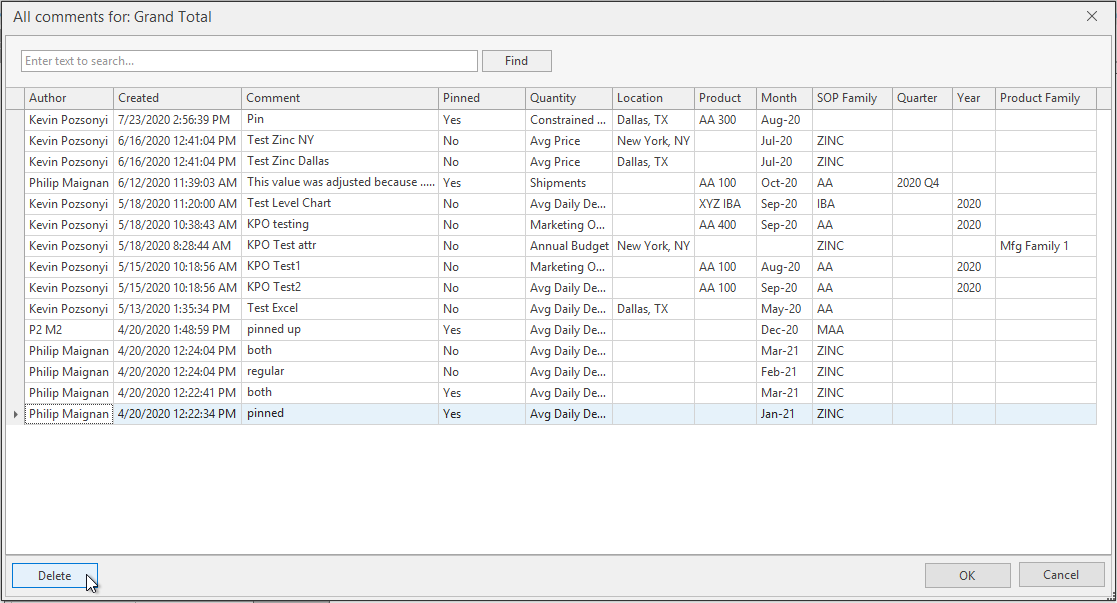
The All Comments window will launch for that level. This window has Column Filter functionality. You can also delete comments using the list view.
- Author: creator of comment.
- Created: date the comment was written.
- Comment: text of the comment.
- Pinned: shows if the comment was pinned (yes) or not (no).
- Quantity: the quantity the comment was written on.
- Location: the location the comment was written on.
- Product: the product the comment was written on.
- Month: The month the comment was written on.
- SOP Family: the SOP family the comment was written on.
- Quarter: the Quarter the comment was written on.
- Year: the Year the comment was written on.
- Product Family: the product family the comment was written on.
Pin Comment to Override
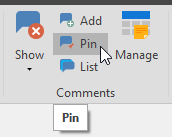
Pin a comment to an uncommitted override by selecting that overridden cell, and clicking Pin Comment from the ribbon or right-clicking and selecting Pin comment to override from the right-click menu.
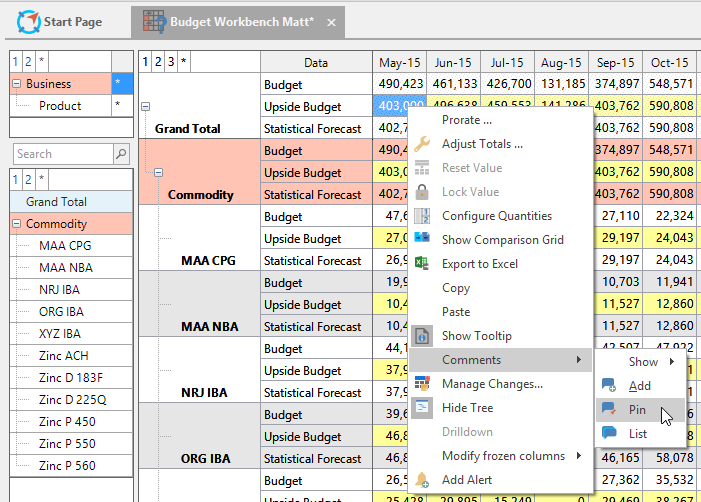
Then type a comment for that override. After saving the Workbench and committing the override, the comment will appear in the Override Report.
Manage Comments
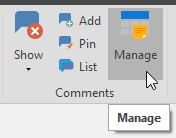
Use the Manage Comments window to manage all user generated comments on all saved documents. Click the Manage Comments button to launch the Manage Comments window.
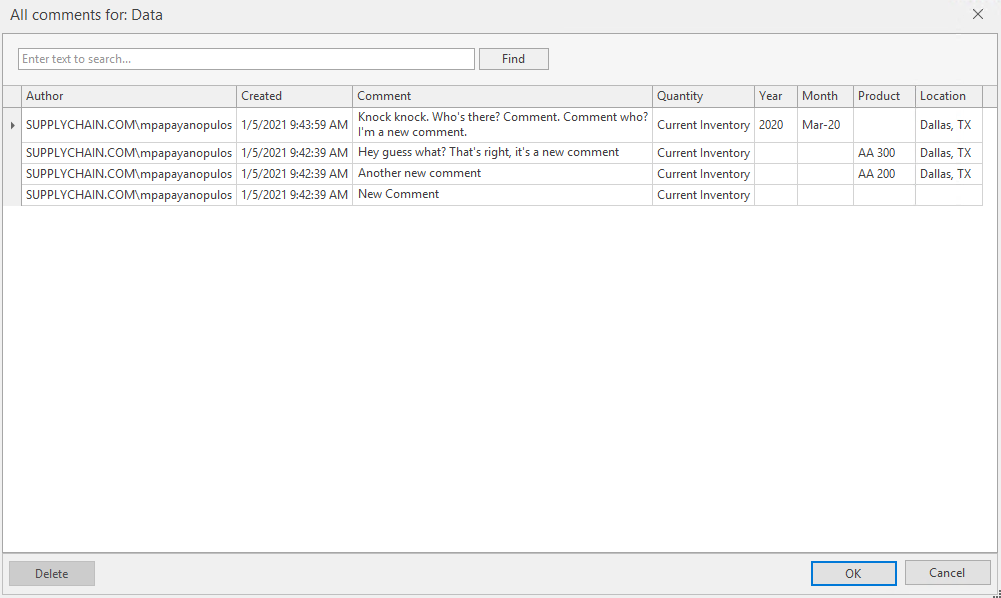
The constant columns will always be the Author, Created, and Comment columns. The remaining columns will follow this order: Quantity, Time Attribute, Key Attributes, Dependent Attributes, and Composite Attributes.
- Author: User name of the person who created the comment.
- Created: Date and time the comment was made.
- Comment: Text of the comment. to edit the text, double-click inside the cell containing the comment under the Comment Text column, type a new comment and click OK.
- Delete button: Select a comment from the list and click Delete to remove it from the document.
Configure Quantities
Normally users do not have access to the Design View of Workbench documents. However, Arkieva gives users the ability to customize the results view grid and chart with the Configure Quantities window. Users can toggle quantity visibility on and off by attribute level in the grid, in the chart, and show quantity values on a secondary axis. The quantity is not removed from the workbench, but is simply not visible.
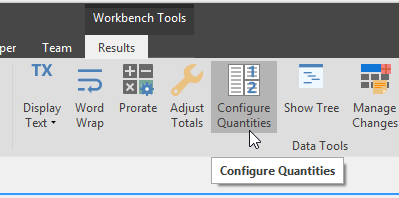
Click the Configure Quantities button from the Data Tools section of the Results ribbon to launch the Configure Quantities window.
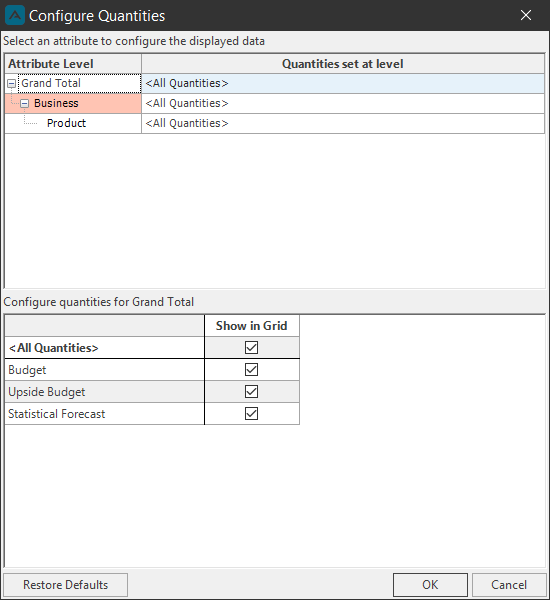
If the workbench has a graph, Show In Graph and Secondary Axis will be available. Checking Secondary Axis will place the quantity data on the second axis of the graph.
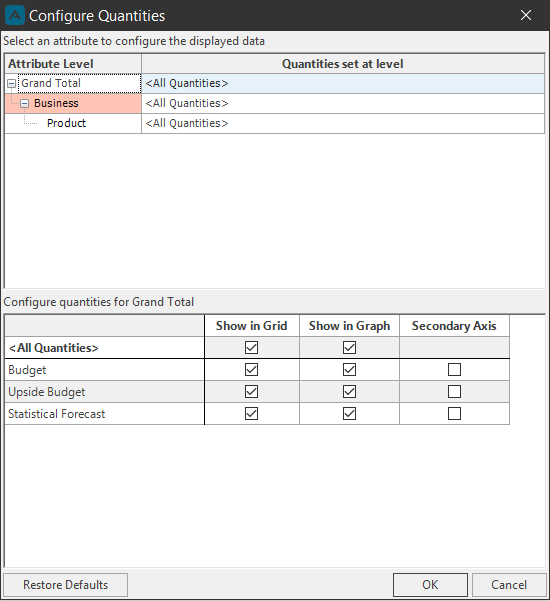
The Attributes Levels listed in the Configure Quantity window are the attributes that have been selected for the Workbench. In this example the Attribute Levels are Grand Total, Location, and Product.
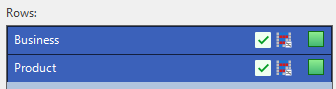
Click an Attribute Level to select that level for quantity configuration. That Attribute Level will be highlighted in gray and the attribute name will appear below in the Quantity section.
Uncheck Quantity checkboxes under the Show Grid column to toggle their visibility off, and uncheck Quantity checkboxes under the Show in Graph column to toggle off that quantities visibility in the chart. Click OK.
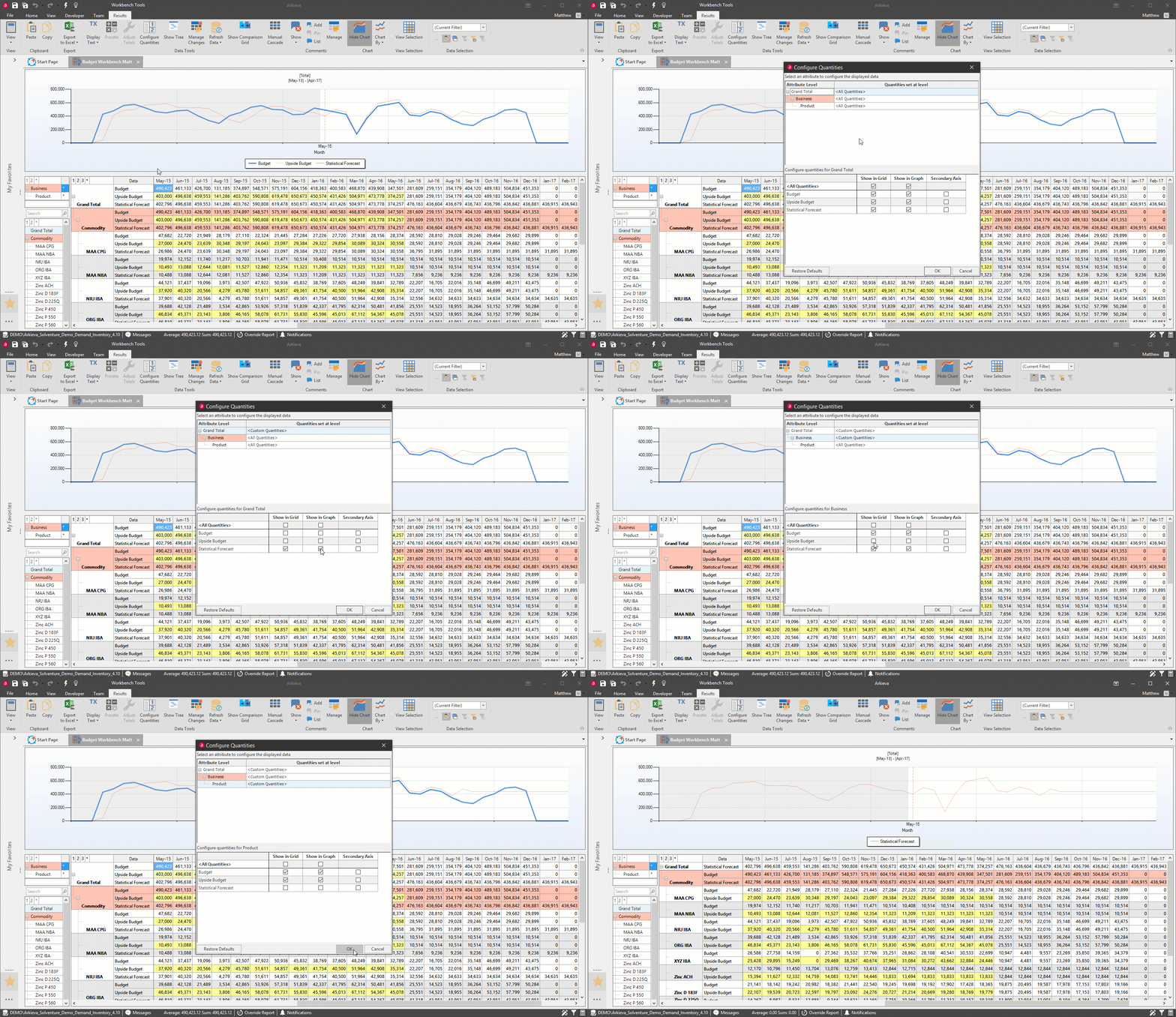
Table Grid Navigation
Lock workbench view
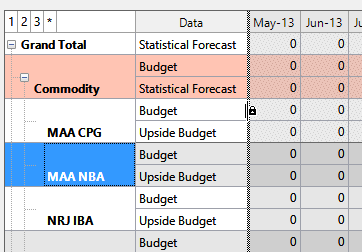
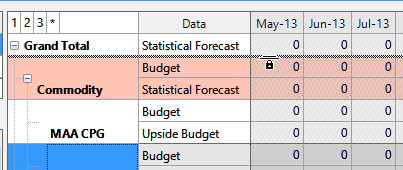
When a lot of information is available to scroll through to view, sometimes it makes sense to freeze a column or row in place to compare it to other data. To do this, place the mouse arrow over the separation line between the columns or rows.
Click and hold the line; the mouse arrow will change to a padlock and the separation line will be highlighted with a dashed line. Drag the line down or across the rows or columns to fix those rows or columns in place.
Average and Sum
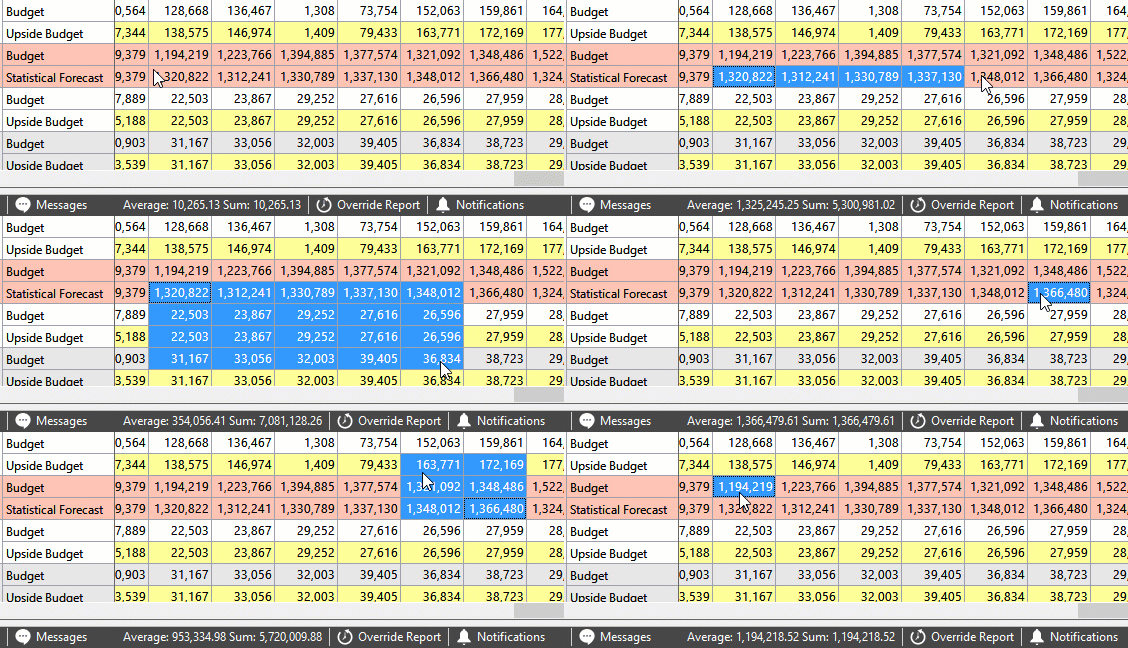
Click and drag across multiple cells in the workbench spreadsheet to show the average and sum in the bottom Arkieva tool bar.
Right-click menu
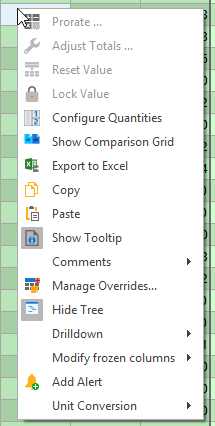
Right-click the workbench grid for more menu options.
- Prorate: edit a new total for multiple cells.
- Adjust totals: allows a mathematical operation to be applied to a cell or across multiple cells.
- Reset Value: Reset the value to before the override.
- Lock Value: Lock the value from being overridden.
- Configure Quantities: Click the Configure Quantities button to open the Configure Quantities window.
- Show Comparison Grid: Create a split view Workbench in the Results View to compare offset data.
- Export to Excel: Export data to Excel.
- Copy: Copy cell data.
- Paste: Paste cell data.
- Show Tooltips: Show comment tooltip information.
- Comments: access the Show comments, add comments, pin comments, and list comments actions.
- Manage Overrides View and manage overrides made to the workbench.
- Hide/Show Tree: Show or hide the workbench navigation tree.
- Custom Formats: will be hidden if the option only includes 'General'.
- Drilldown: Houses the configure drilldown option and a list of drilled down reports.
- Modify frozen columns: Unfreeze columns or freeze columns.
- Add Alert: Create a data alert for the workbench.
- Unit Conversion: Convert units to another set of units.
Reset Values
Reset the value to before the override. This is dependent on the Source Fact set to any Quantity.
🚧 Manage Prime Values Role
Make an override to the workbench. In this case we will override the Orders value.
Right-click that cell and select Reset Value (for this example it is Reset to Shipments) to reset the value to the Shipment.
Refresh Workbench to commit the reset the override.
Context Sensitive Drilldown
Arkieva gives you the ability to drilldown to another report from a workbench. The drilldown documents are context sensitive, meaning that the level a document is placed within the workbench will be reflected in the drilldown document.
{`
`}
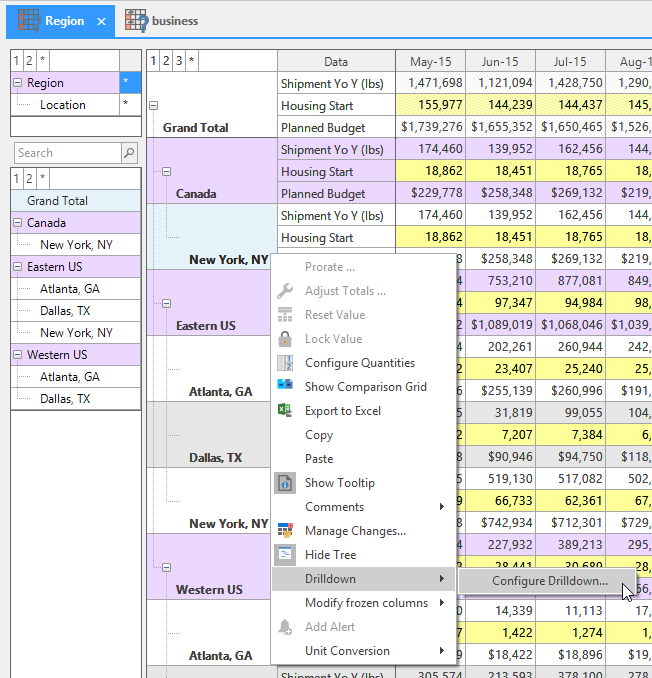
Right-click a cell to configure the drilldown on, then hover the mouse over Drilldown and click Configure Drilldown.
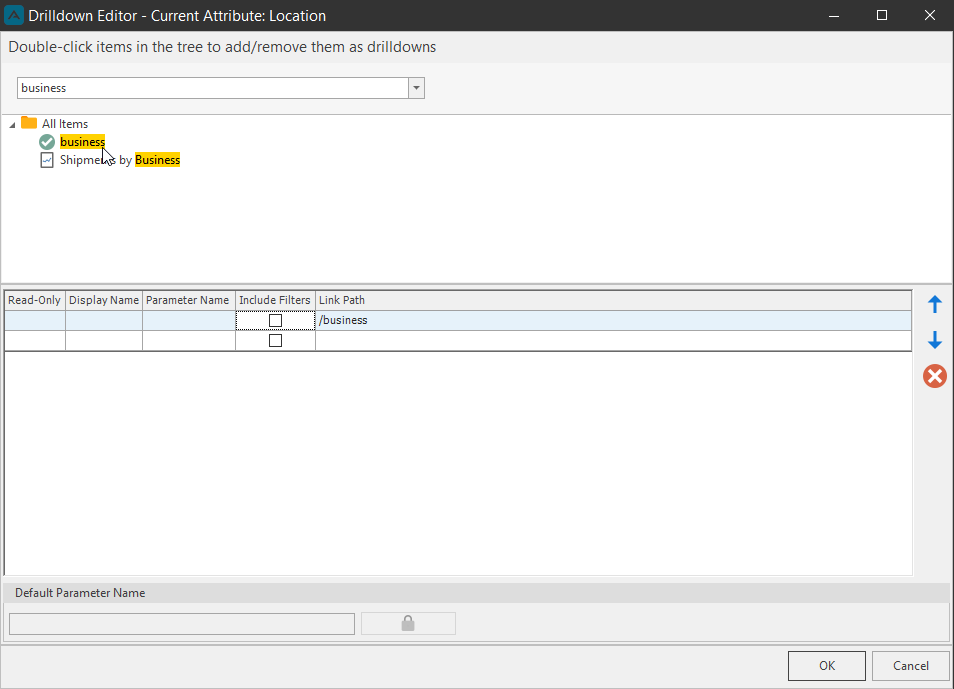
Locate the desired document to drilldown to, for this example we will drilldown to Stat Forecast Workbench.
Double-click the document to select; it will appear in the selected documents section, and the document will have a green checkmark next to it. Click OK.
Returning to the workbench grid, you will see values are now hyperlinks. This indicates the drilldown report is available at these values.
Right-click a cell with the hyperlink and hover the mouse over Drilldown in the right-click menu; the drilldown document will be available to view. You can also hold CTRL and click the cell to open the drilldown report.
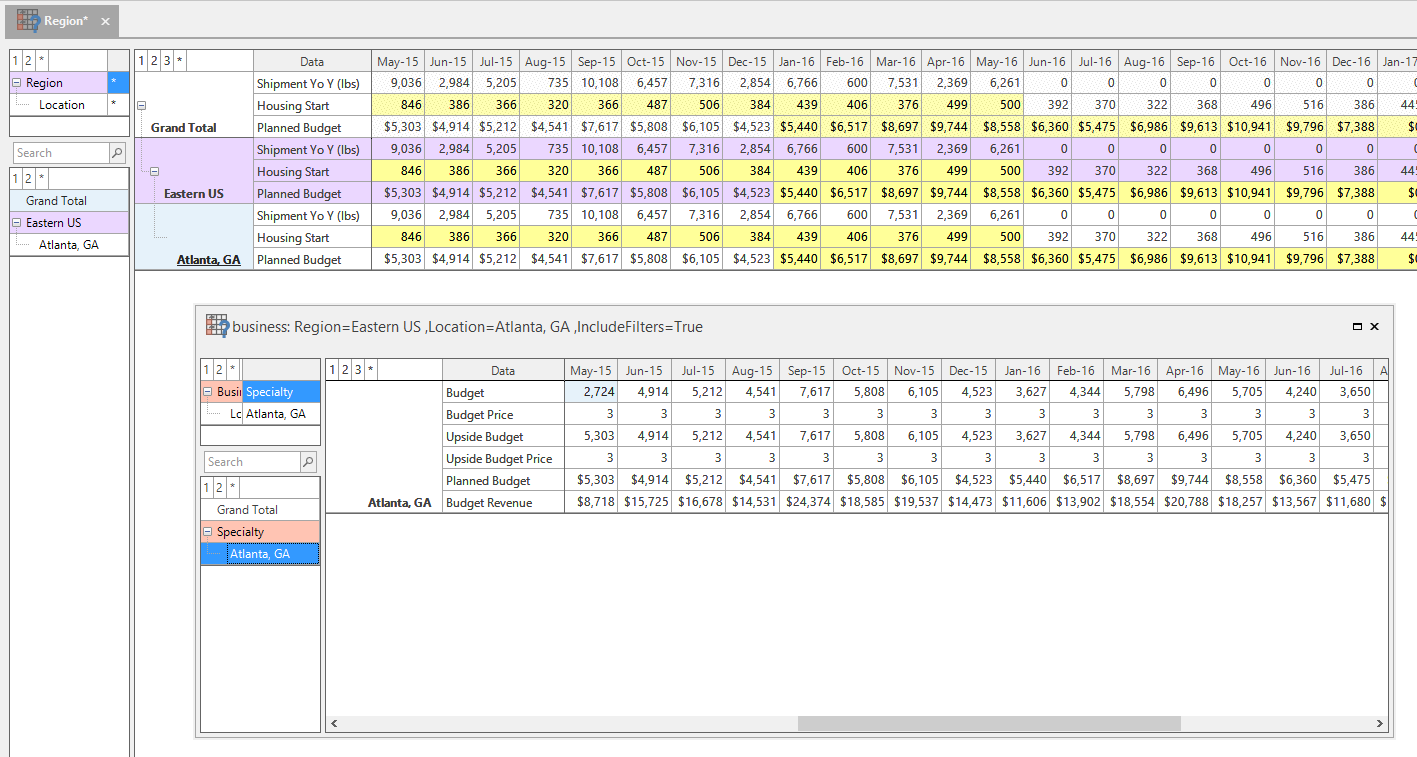
The drilldown is context sensitive, meaning wherever the drilldown is selected from the parent document grid, the same information will be shown in the drilldown document. This information is also listed in the top of the drilldown workbench window / tab.
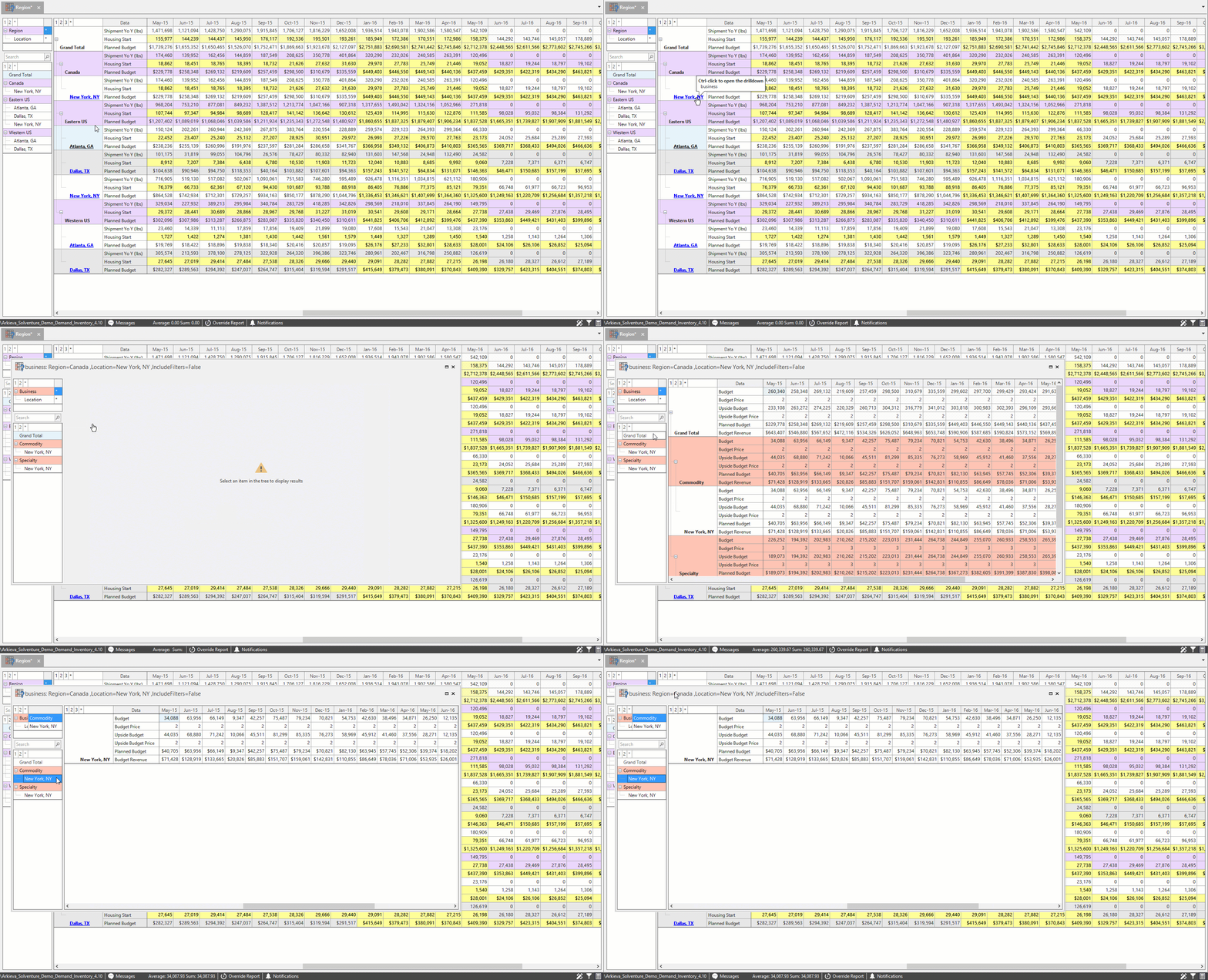
Filters can also be carried through the drilldown report by checking the Include Filters box in the Drilldown editor configure window.
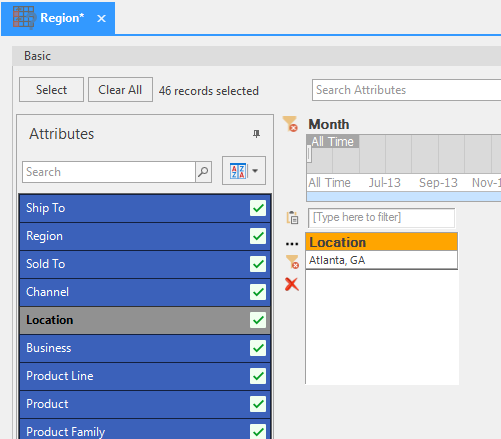
On the parent report, we will filter for one location.
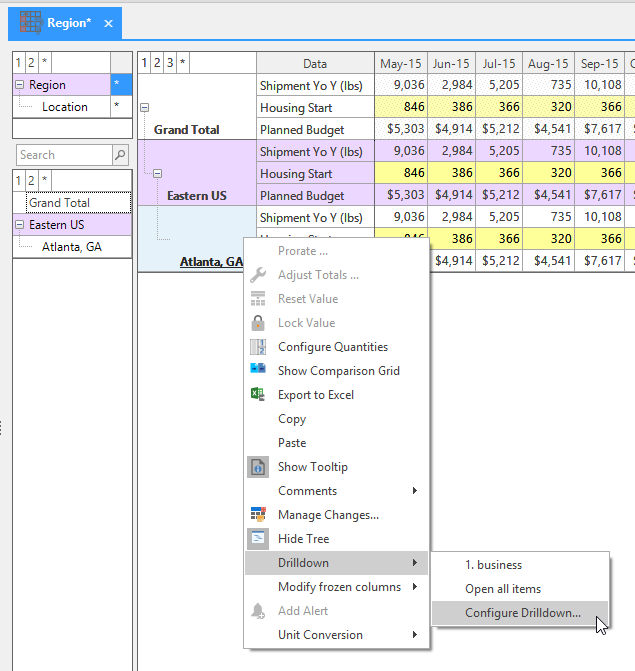
Going back to the Results view, we will right-click the report and select Configure Drilldown.
Under the Include Filter column, check the checkbox next to the Report you want to include the filter.
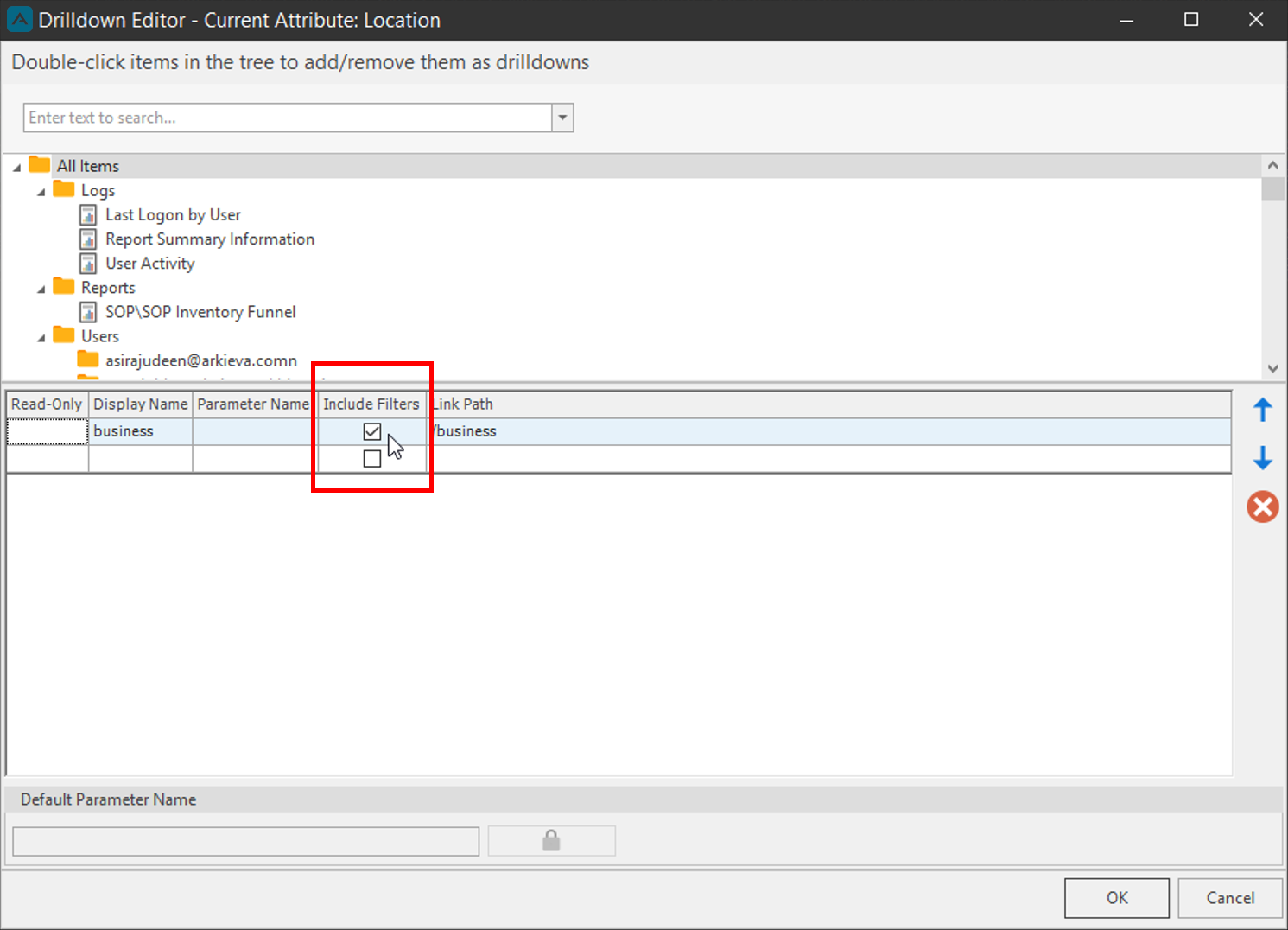
Click OK. Drilldown to that report, the filter will be carried through.
Comparison Grid
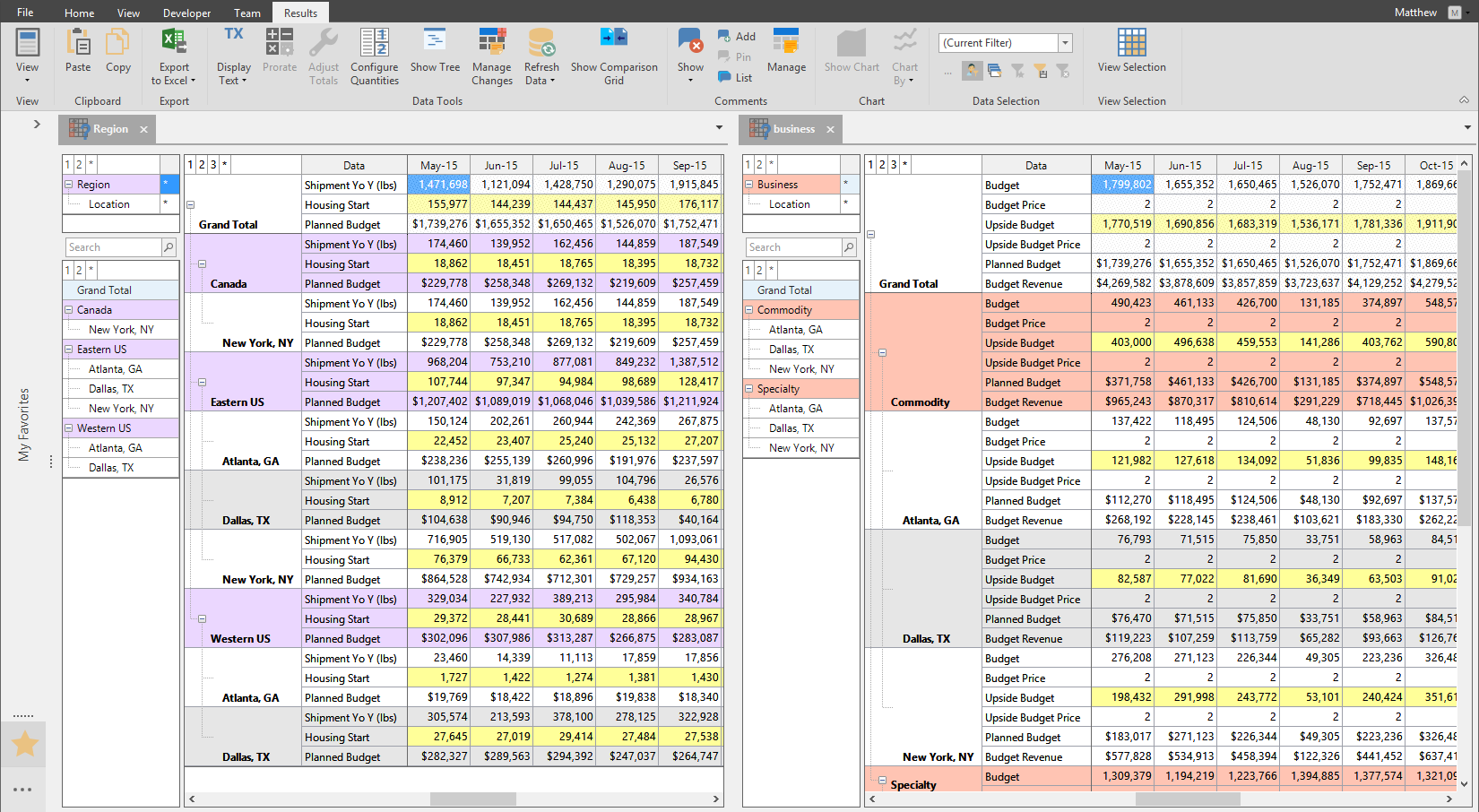
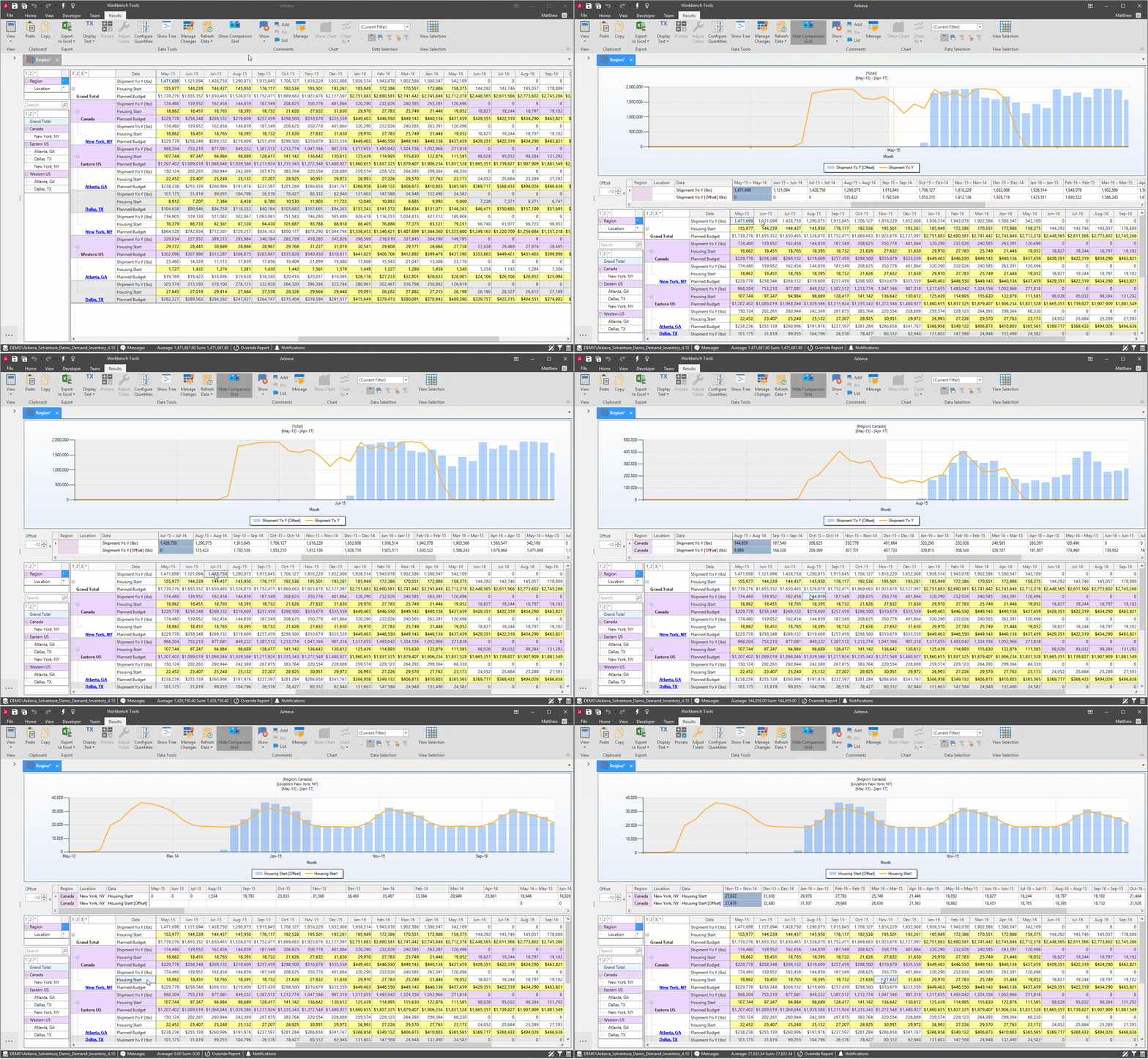
Create a split view Workbench in the Results View to compare offset data. Select the value for a specific quantity and a specific period in the grid then click the show comparison Grid button to enable a comparison.
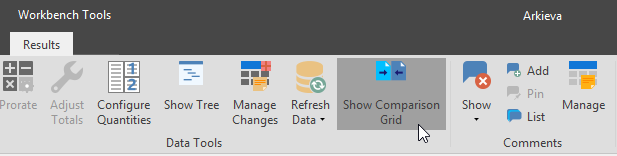
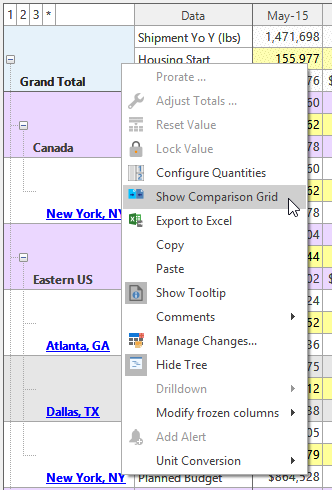
Show Comparison Grid is also available from the grid right-click menu. Click the button again to hide the Comparison Grid.
Word Wrap
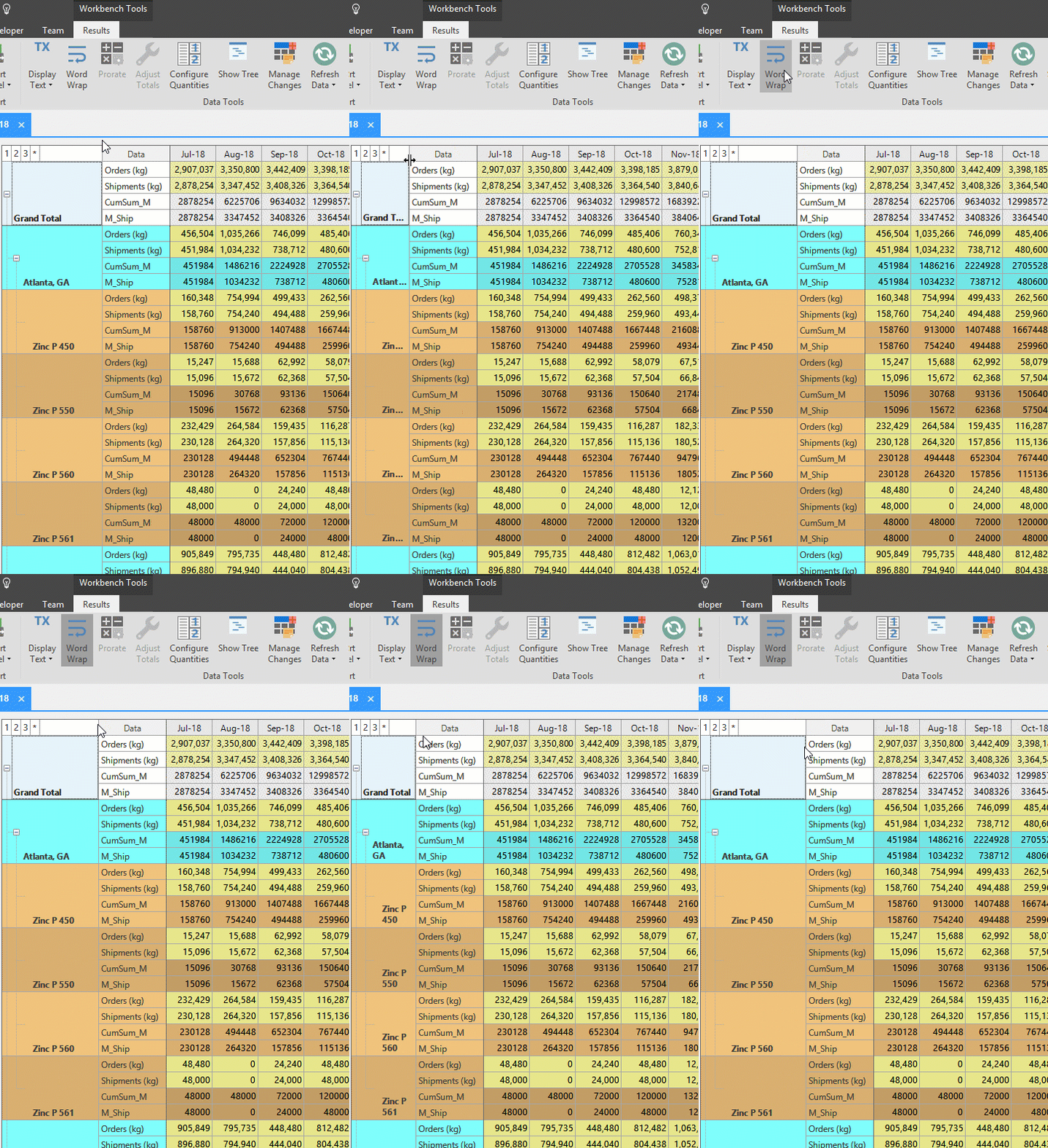
We've added a Text Wrap toggle button to the Results View ribbon to allow users to wrap attribute text in the workbench grid. This is useful for attributes with very long names; users no longer need to stretch the column cells to be able to view the entire name of the attribute.
When a user toggles one of those settings for a specific workbench, the next time that user opens that workbench, it will remember and apply those settings. The default state for a new workbench for a user is Word Wrap off and no comments.
Enhancing Forecast Accuracy Calculations through Arkieva
Discover how to increase your forecast accuracy metrics through Arkieva.
{`
`}