Alerts and Notifications
The Arkieva Alerts service is used to send email and popup notifications to Arkieva users. Alerts are triggered using the Calendar, Workbenches (Data Alerts), Custom Actions, Stored Procedures, and LP Model Gen and Solve (Process Alerts).\ There are three types of alerts:
- Calendar Event Alert
- Data Alert
- Incident Process Alert
The Edit Alert window is the same regardless of where it is accessible; i.e. Calendar, Workbench grid, Workbench settings, data model and table editor properties custom action, and LP Model.
- Access the Edit Alert window for Calendars by clicking the New Appointment button and then clicking Configure Alert.
- Access the Edit Alert window for Workbench by right-clicking the Workbench grid, and selecting Add Alert.
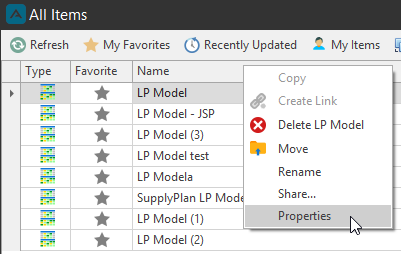
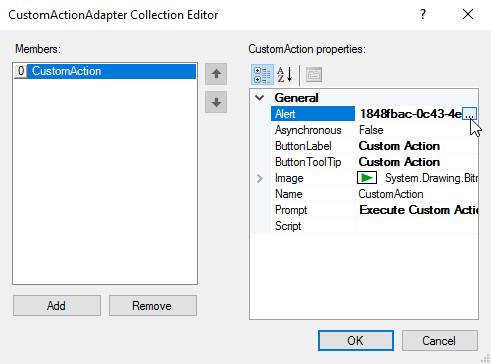
- A Custom Action alert can be created from the Data Model Properties, Document Properties, Table Editor Properties, and Workbench Advanced Settings. After clicking the Custom Action ellipses button, the Custom Action Collection Editor window will launch, and under the General section, click the ellipses button to configure an Alert.
- Click Manage Alerts to access Edit Alerts window of created alerts.
For any new alert, type a name and a description, this information will appear in the set notification, the calendar, and the manage alerts window. Optionally you can select a link to a document. This link will appear in the sent email. Other links that are included are a link back to the Arkieva application, and a web link.
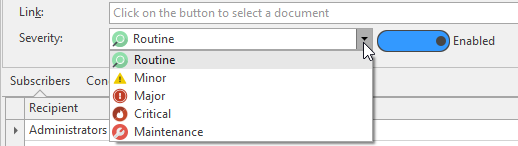
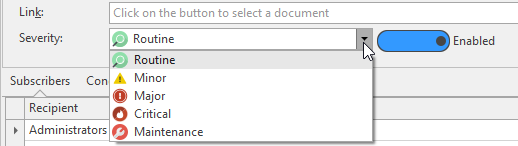
You can also optionally select the Severity of the alert from the Severity dropdown. The Alert is set to Enabled by default, but you can use the toggle slider to disable the alert.
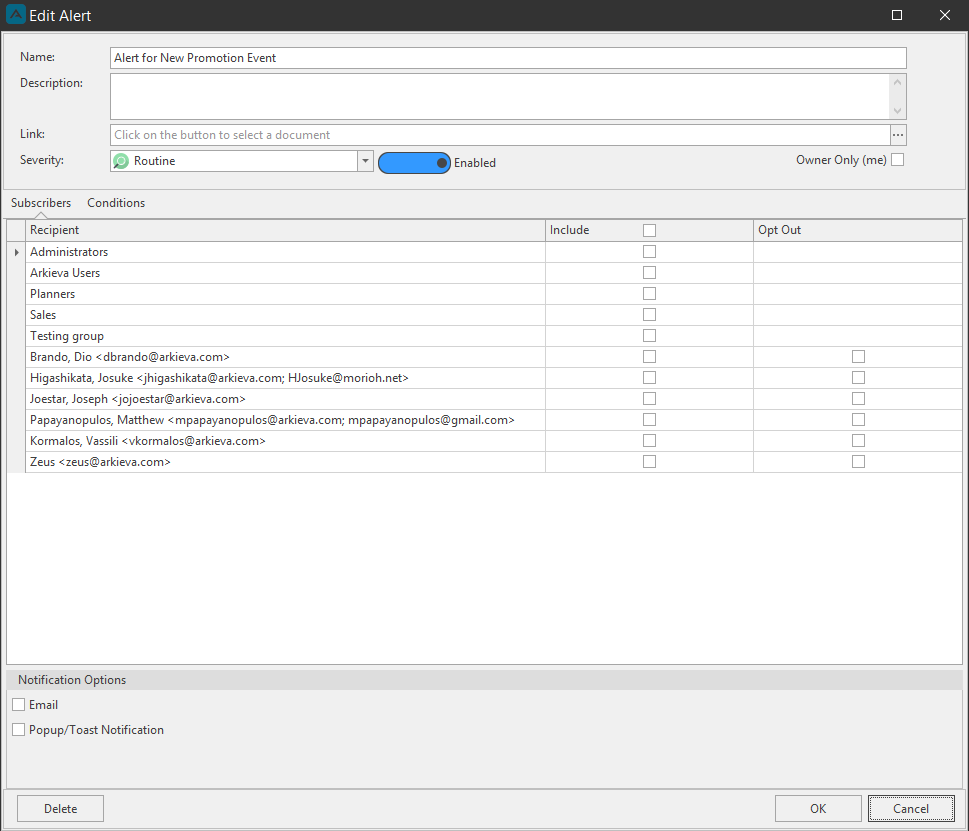
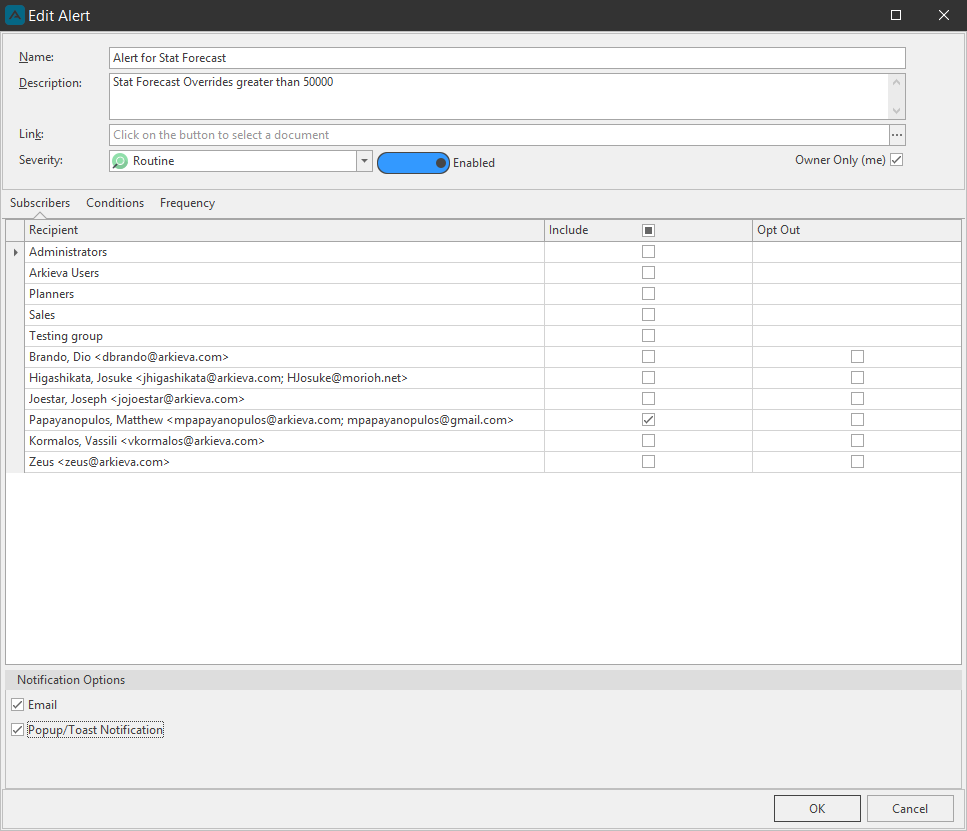
Check ‘Owner Only (me)’ to only send a notification to yourself when the alert is triggered. If you do not check ‘Owner Only (me)’ you must select Recipient(s) under the Subscribers tab. These checked recipients will receive the notification when the alert is triggered. You can also check the Opt Out checkboxes to opt yourself or a user out of receiving notifications when the alert is triggered. Select Notification Options to have the notification appear as an Email, a Popup ‘Toast’, or both. Popup option only works in Windows 10.
Beyond subscribing recipients to an email / popup alert, you can create a conditional alert with a stored procedure (process alert) or a data model query (data alert).
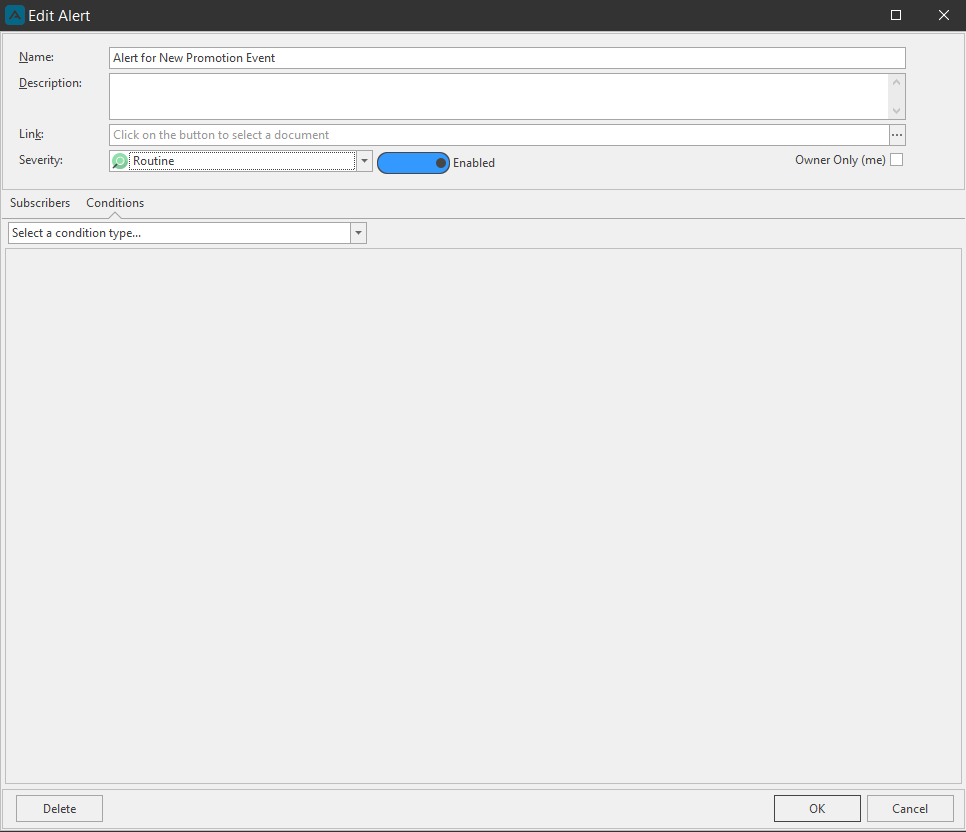
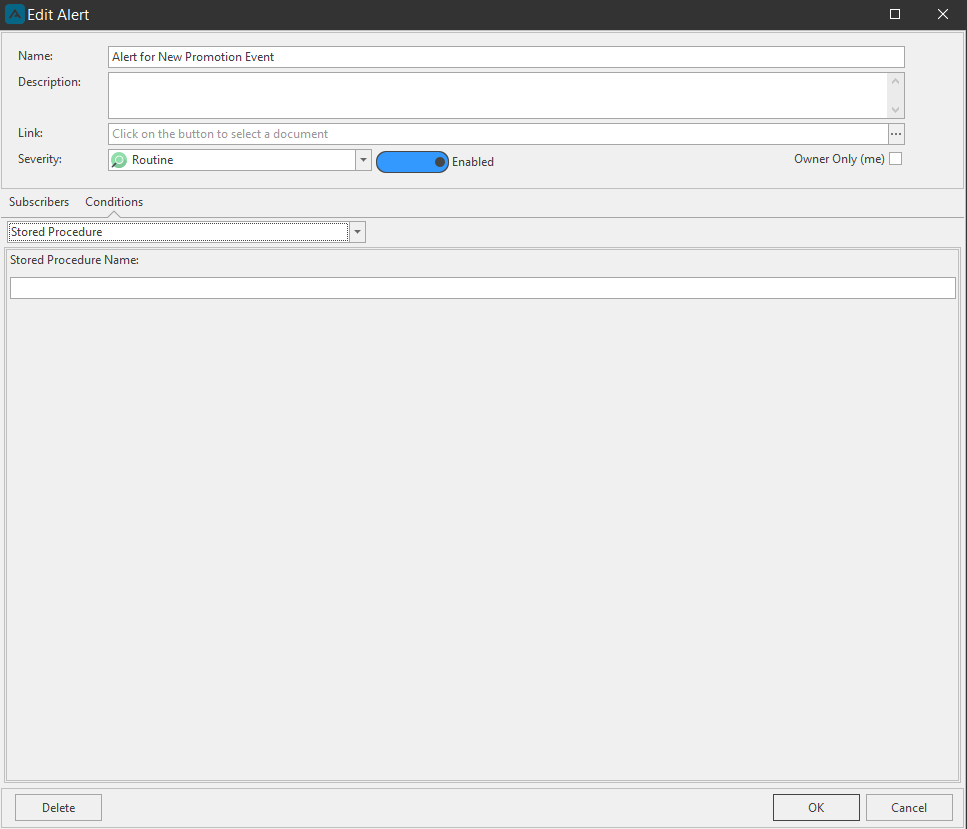
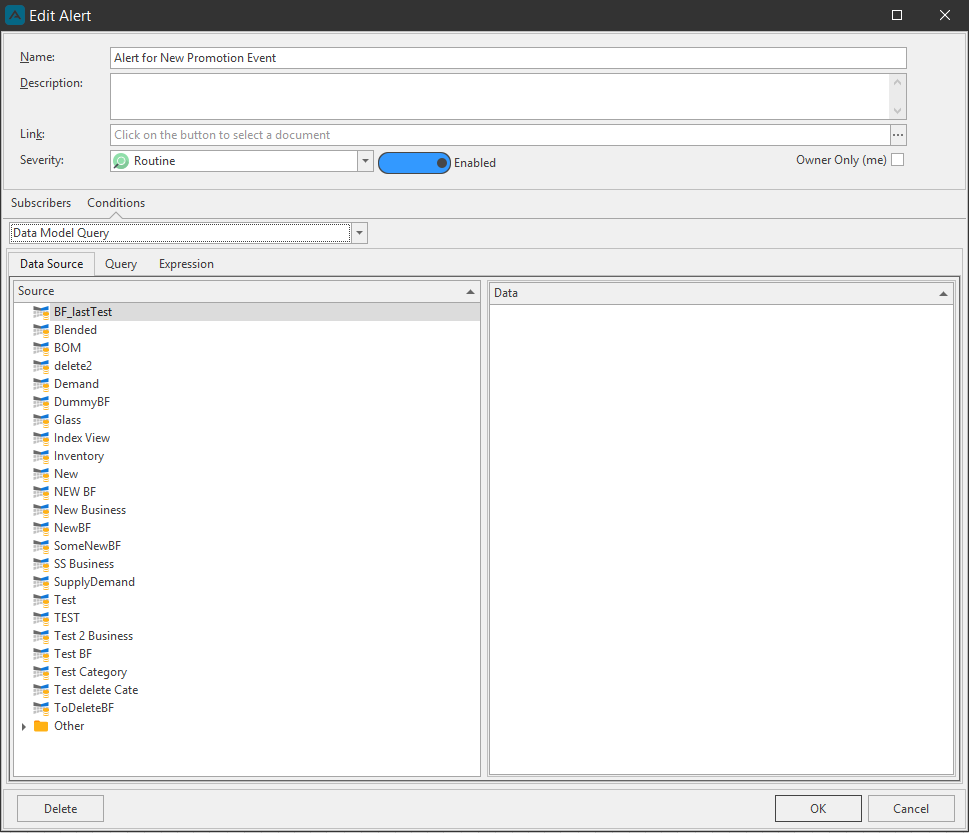
To create a Process Alert, select Stored Procedure from the Conditions tab dropdown and type the stored procedure name, or create a Data Alert by selecting Data Model Query from the dropdown.
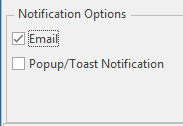
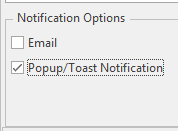
Below are examples of an Email notification from an Alert and a Popup notification from an Alert.
Email notification
Popup ‘Toast’ notification
Calendar Alert
Calendar Alerts can be setup in the Arkieva Calendar from the Events edit window. The Configure Alert command is located in the Event window.
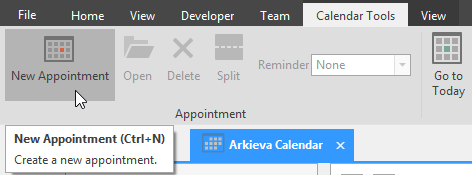
For this example, we will create a recurring calendar event alert to remind us to review the data for a promotional sales event. From the Collaboration Calendar window, click the New Appointment button to launch the Appointment window.
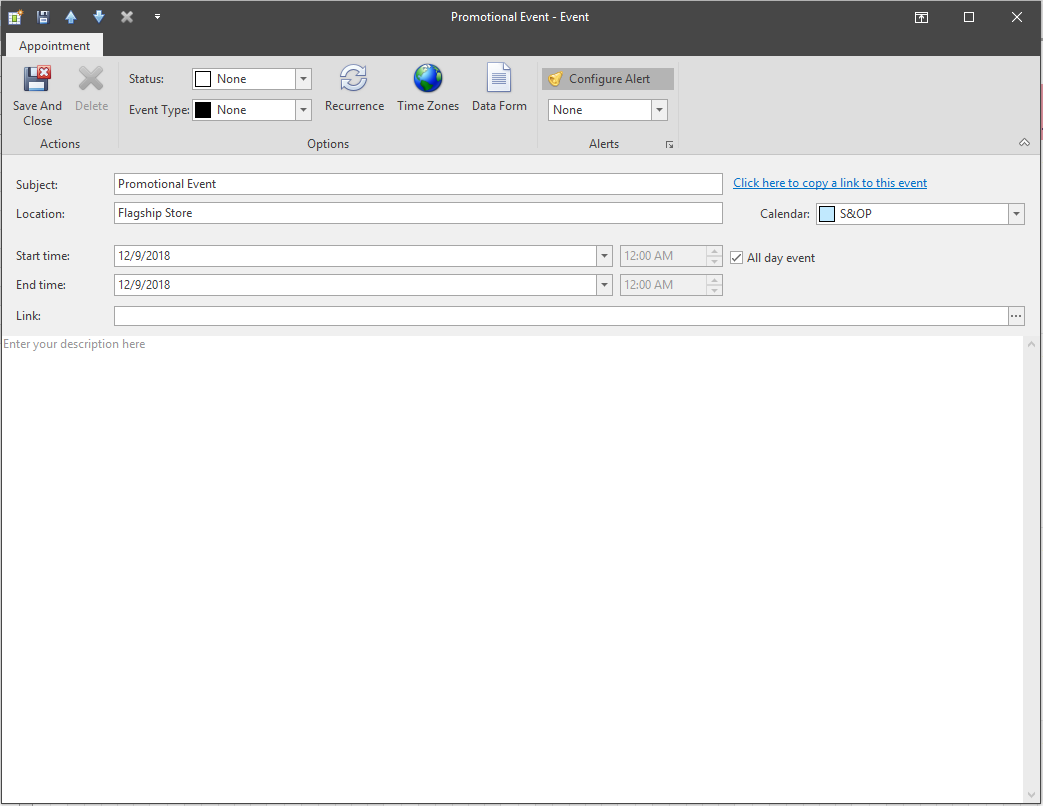
Type a title for the calendar event in the Subject line. The Location line is optional. If this was a one-time event, you would select a Start and End Time, or checking the ‘All Day Event’ checkbox, but since this will be a recurring event, these fields will be grayed out after the Recurrence selections have been made.
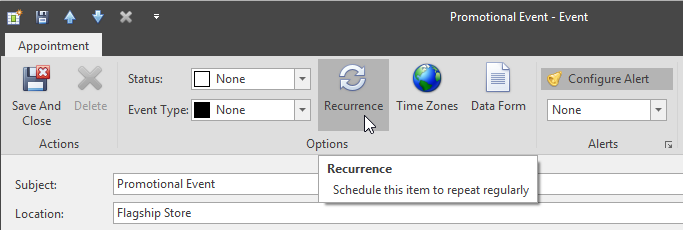
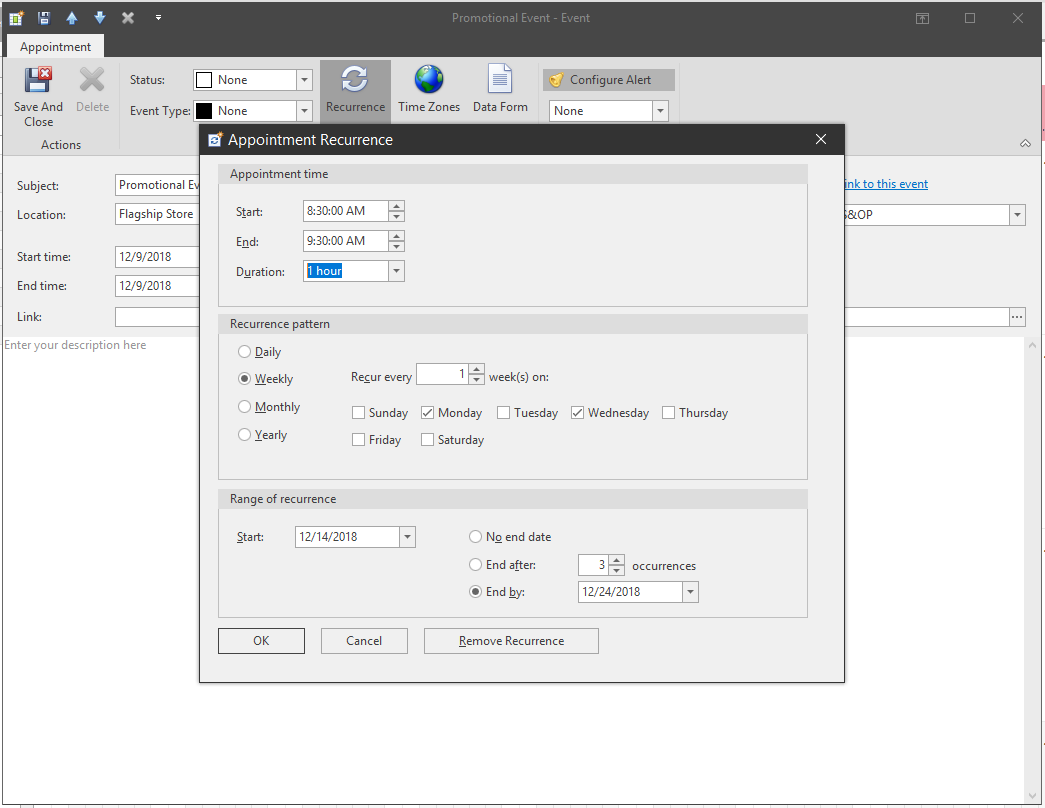
Next, click the Recurrence button under the Options section of the Appointment window to launch the Recurrence window.
After setting the recurrence, click OK to return to the Appointment window. The Recurrence button will be highlighted in orange to show a recurrence has been selected.
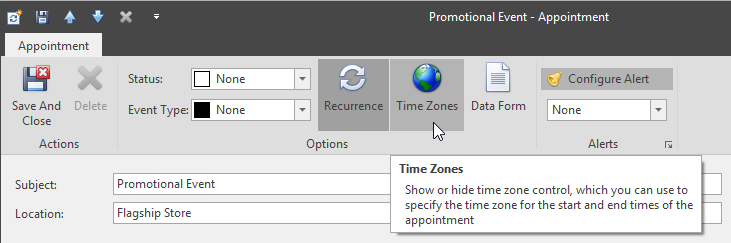
Next click the Time Zones button, this will retrieve the current database and server’s time zone.
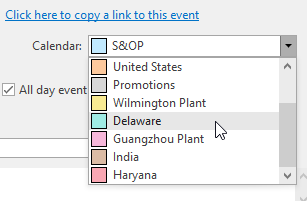
Also make sure the appointment will be saved to the correct calendar if you have multiple calendars created on this database. Use the calendar dropdown to select the calendar.
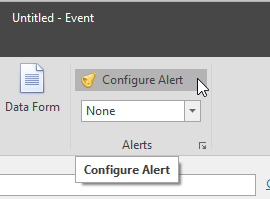
After filling out all pertinent information for the event, click the Configure Alert button located in the Alerts section of the Appointment ribbon. The Edit Alert window launch.
Type a Name for the Alert, and an optional Description. Click the ellipses button to include a dashboard, this dashboard will be available from the notification email if this option is selected from the Notification Options. There will be two links, one will launch the Dashboard online, and the other will launch the dashboard in Arkieva.
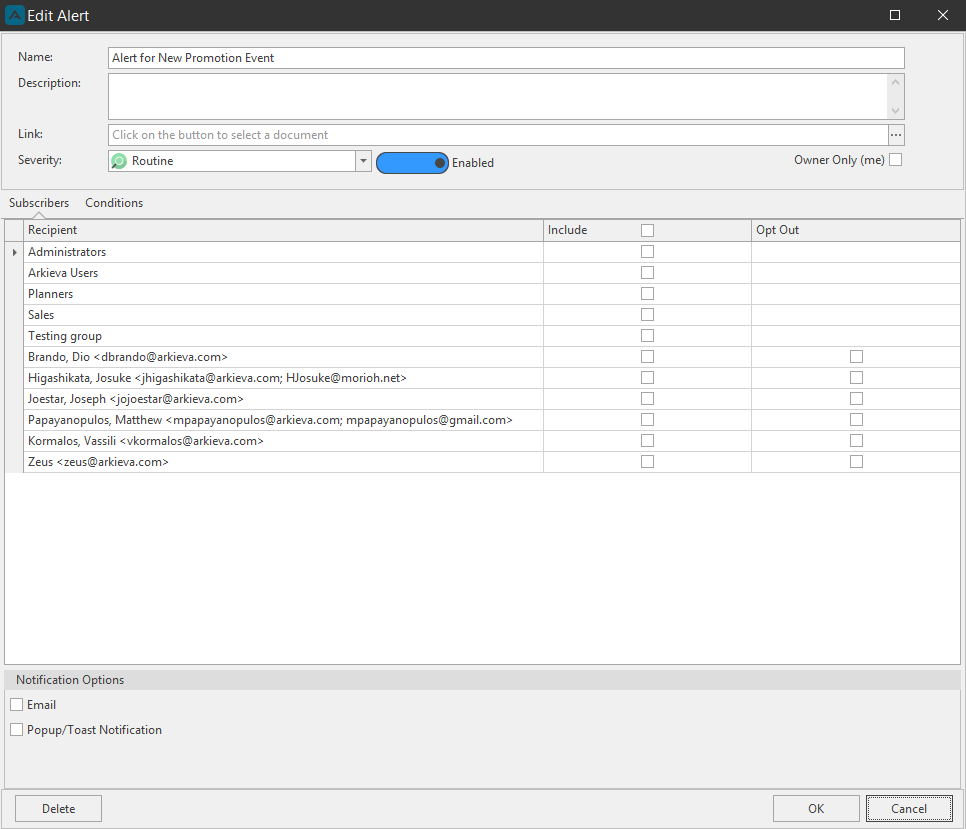
If the alert is only for the user creating the alert, you can check ‘Owner Only (me)’ checkbox; otherwise you can check users and groups who you want to also receive a notification for the alert. Under Subscribers, check the check boxes next to the users and groups who should receive a notification when the alert triggers.
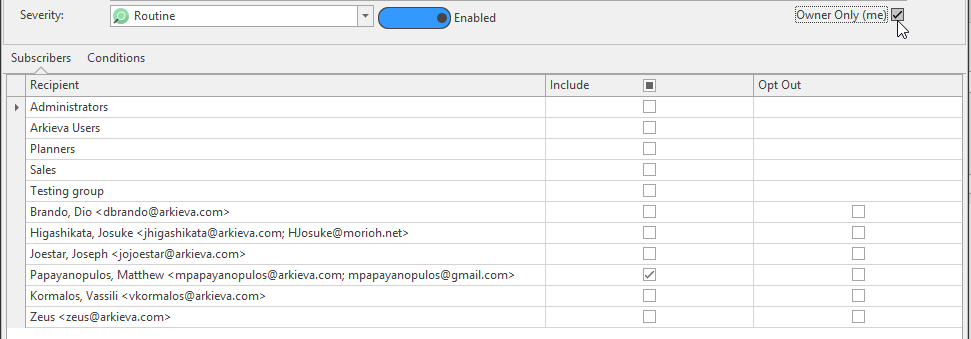
Under Notification Options, check whether the notification will come as an Email or Popup, or both. Note that if the users checked under the Subscriber section do not have an email set up in Administration Security, they will not receive an Email notification.

Click OK when finished. The Edit Alert window will close and return you to the Appointment window.
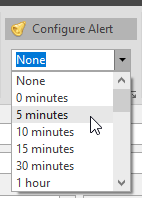
The Configure Alert button will now be highlighted in gray to indicate that an Alert has been created for this Appointment. From the dropdown, select a time for the notification to be sent out before the alert triggers. For this recurring event, we want to be reminded 5 minutes before the event.
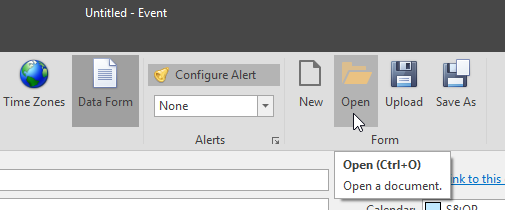
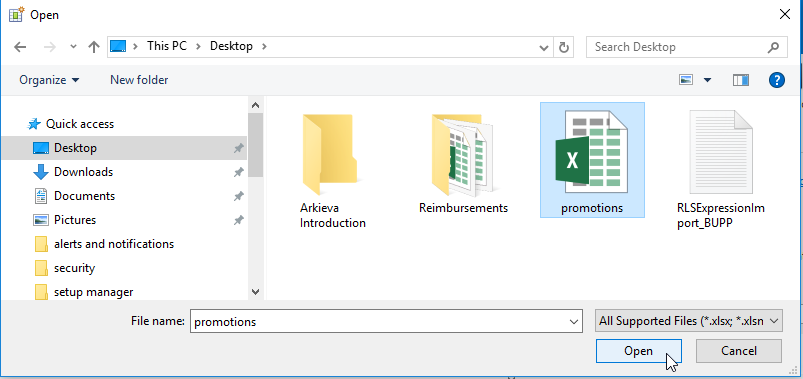
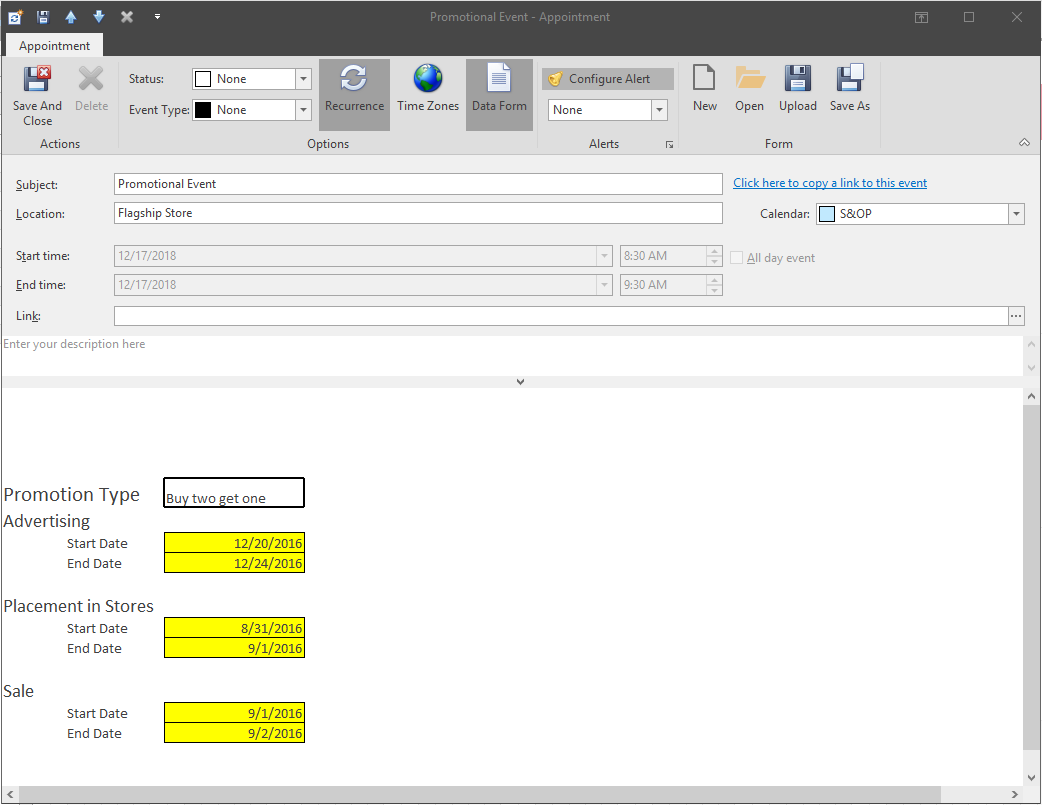
Next, since this is a promotional event, we have created an excel spreadsheet to accompany the appointment. Click the Open button in the Form section of the Appointment window to retrieve the excel spreadsheet and upload it to the spreadsheet section of the Appointment window.
Data Form toggled off
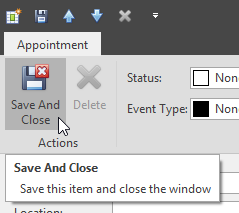
Lastly, click Save and Close to commit the Alert to the Appointment and to save the event to the calendar.
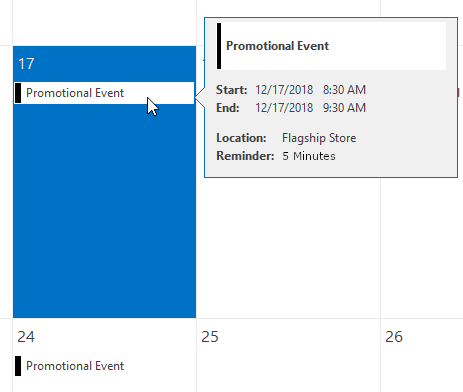
The event will appear on the calendar. Hover the mouse pointer over the Bell to view the Alert information.
Data Alert
A Data Alert is a Data Model Query that can be used to send an alert to a user or users when specific actions are met. This option is in the Conditions tab of the Edit Alert window from the dropdown.
📘 There are Three Rules for creating Data Alerts:
- An Alert cannot be created on an ad-hoc quantity
- An Alert cannot be created on a custom subtotal
- Any Alert created on a subtotal quantity must be a SUM; not a min, max, first, and last.
A convenient way to access this feature is from the Workbench results view by right-clicking a quantity value and selecting Add Alert from the right-click menu. A Data Alert can be set up from anywhere the edit alerts window can be accessed within Arkieva.
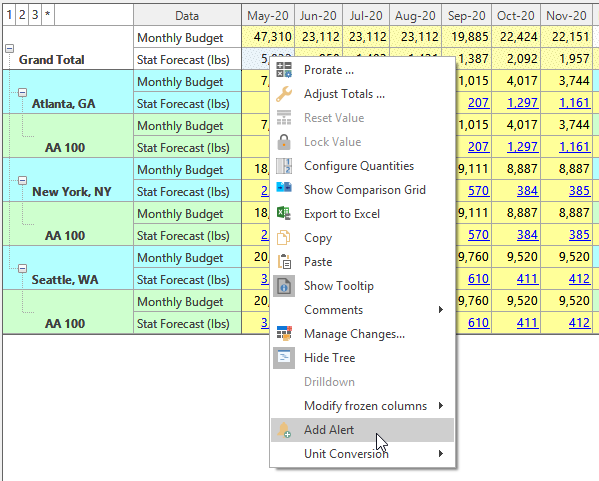
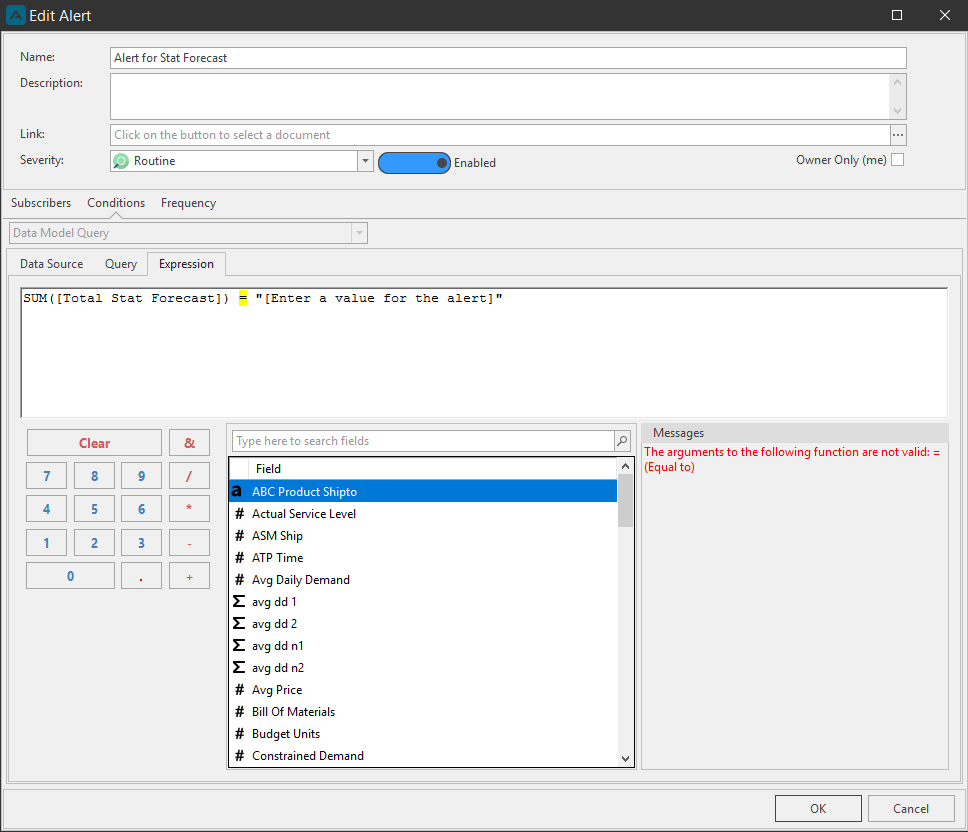
Some information will be filled out automatically when creating a Data Alert from the Workbench right-click menu; the Name, the Data Source and Query Filter and Data under the Conditions tab and an Expression placeholder.
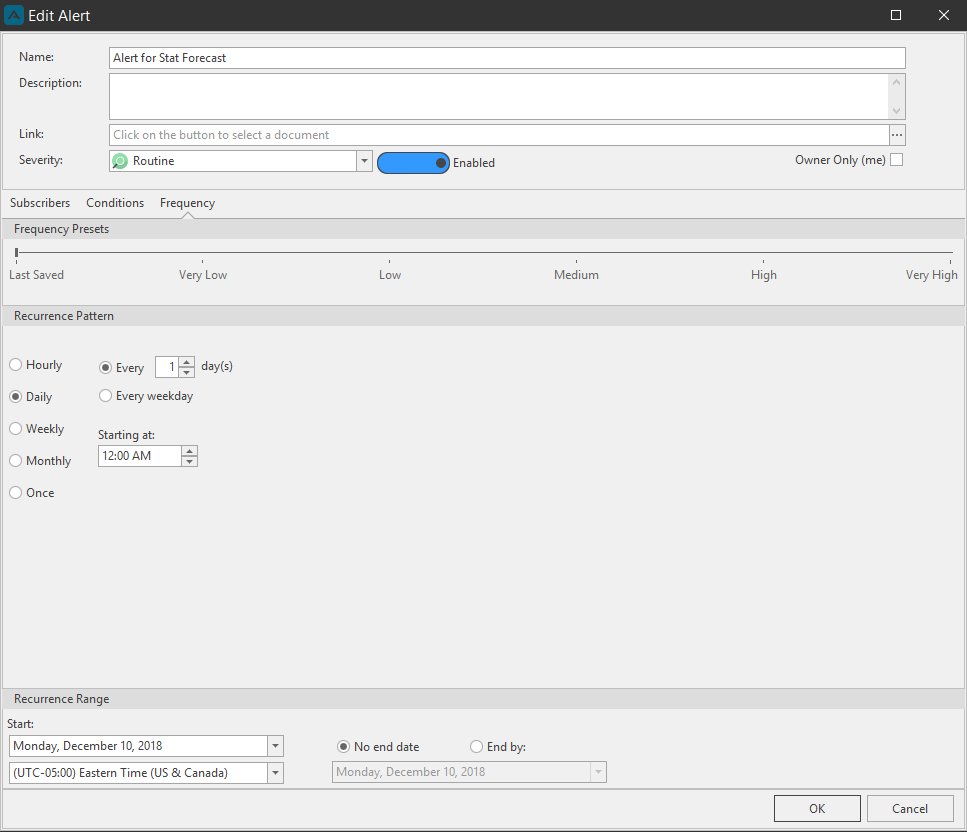
The Frequency tab allows a user to set Frequency presets along with the Recurrence Pattern and Range. This tab is only available when creating an alert directly from a Workbench or Quick Report using the right-click Add Alert option. Calendar Alerts are preset at 1 hour frequency instead of none.
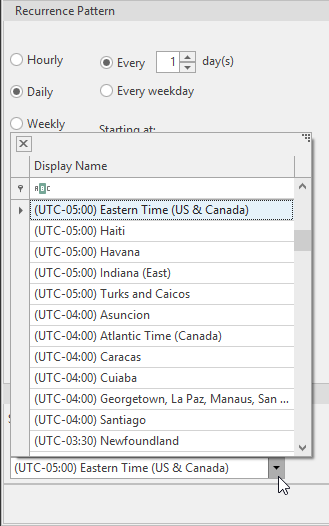
Also when creating a Data alert, you can select a different Time Zone from the dropdown located in the Frequency tab under the Recurrence Range section.
When creating a Data Alert from a Calendar Appointment you will need to select a Data Source, Query Data, and create an Expression to trigger the alert, e.g. [Total Annual Budget] > 30,000,000. In this example, when the Annual Budget is greater than 30,000,000, the alert will trigger, sending the selected notification (email and/or popup).
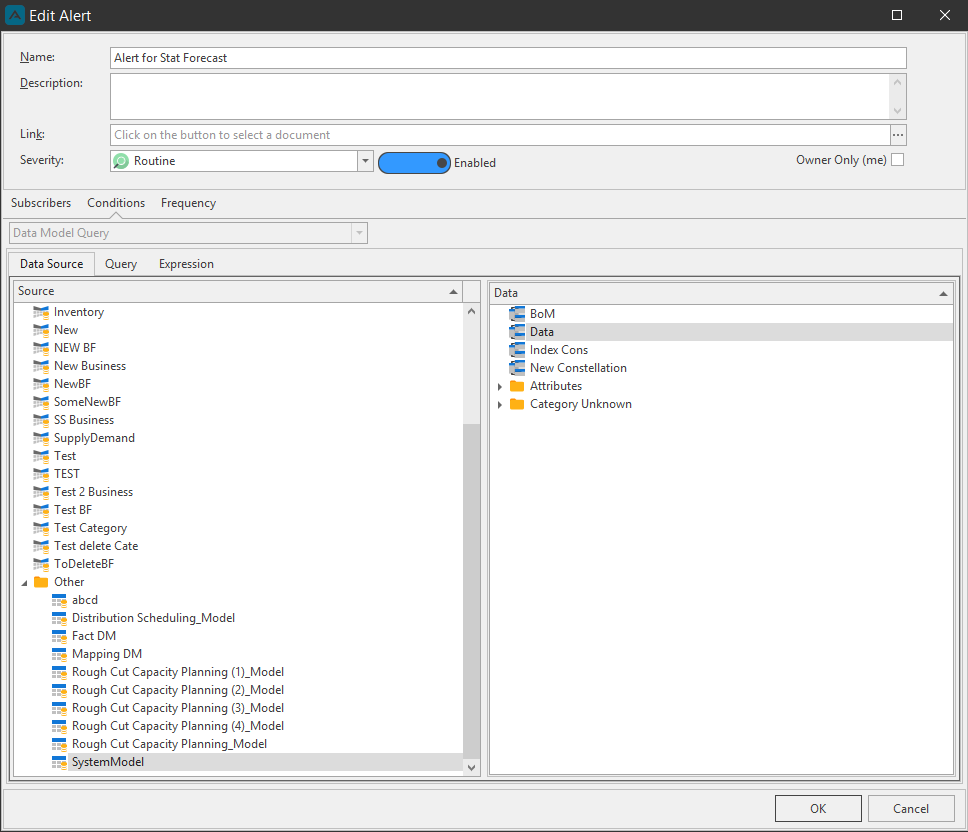
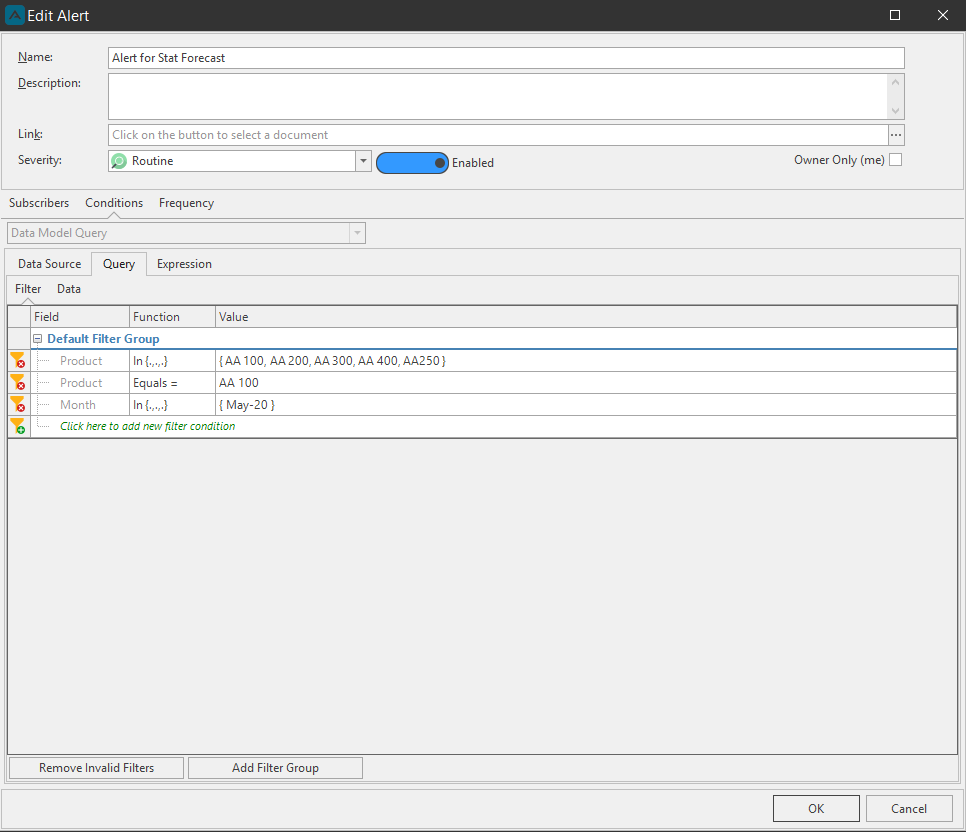
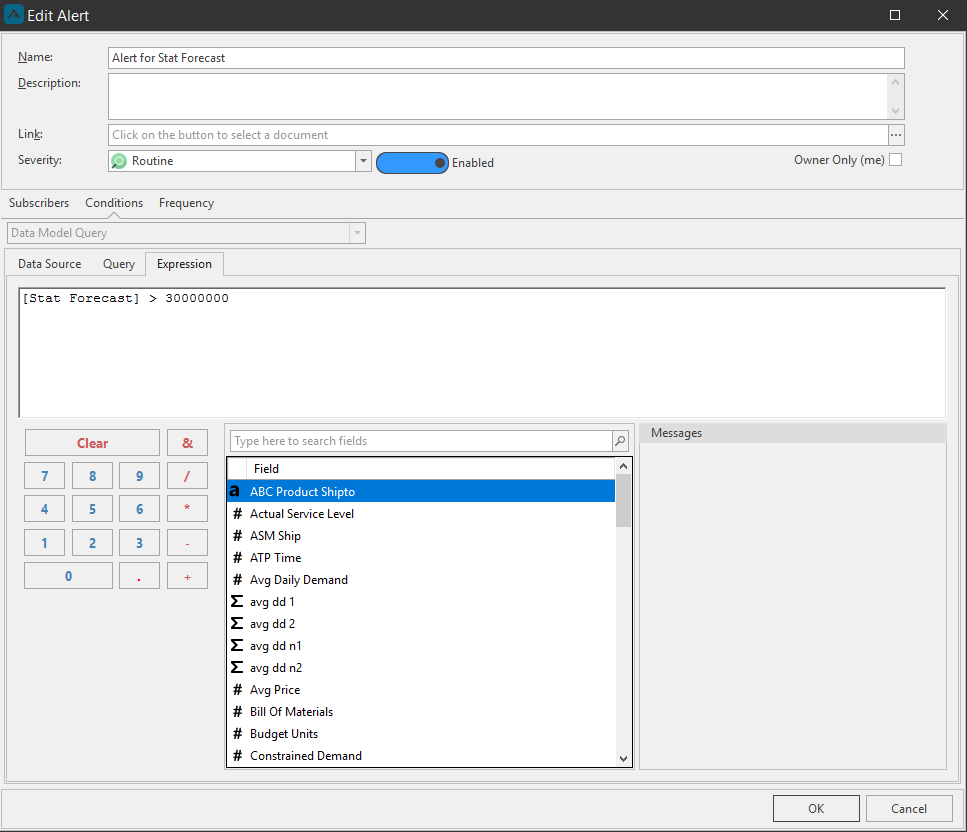
Use Quick Reports to evaluate the data alert expression
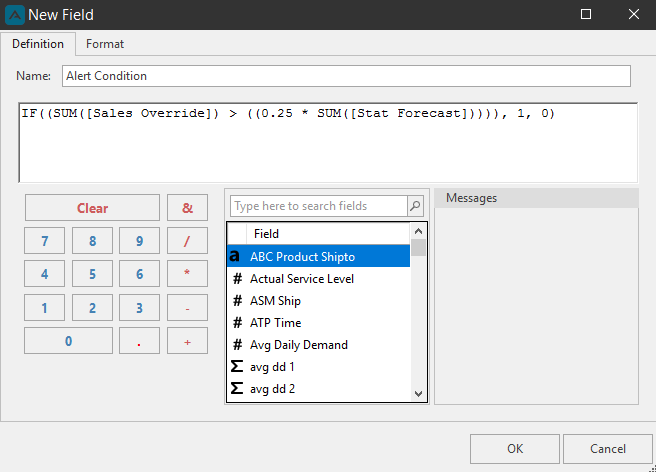
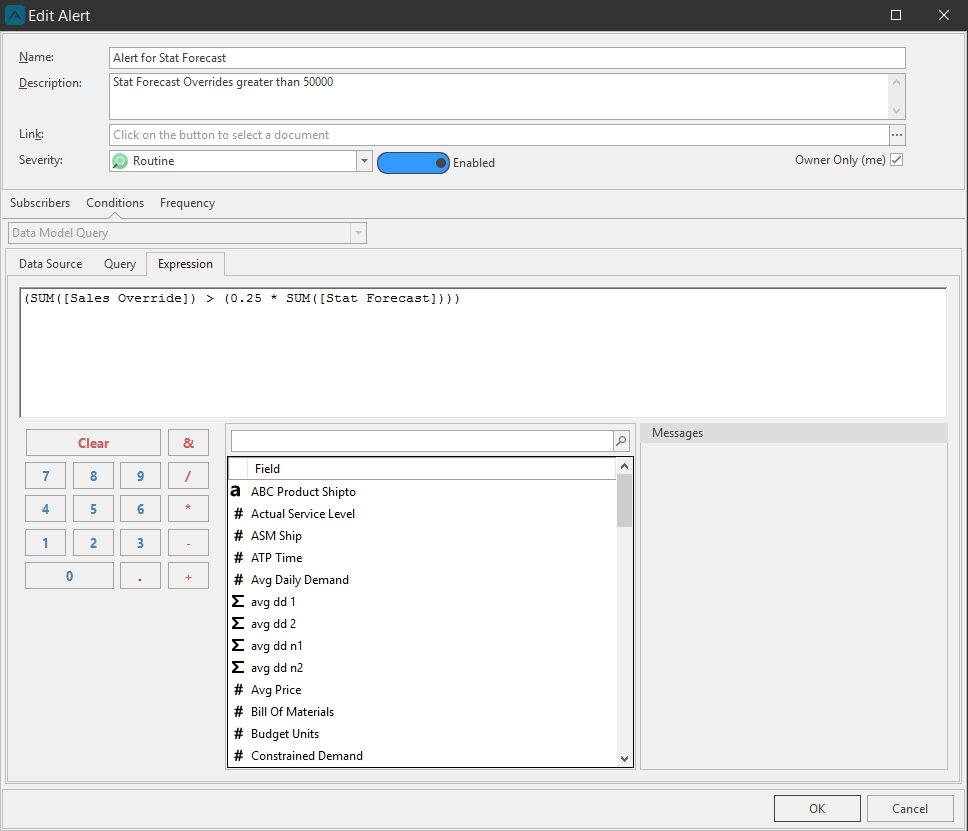
An easy way to see if the expression you have written for the data alert is valid, is by creating a Quick Report with that same expression as a new field with an IF SUM wrapper to check if the expression is True or False. Below is an example of an Alert Expression for a Data Alert. The Expression is: (SUM([Sales Override]) > (0.25 * SUM([Stat Forecast])))
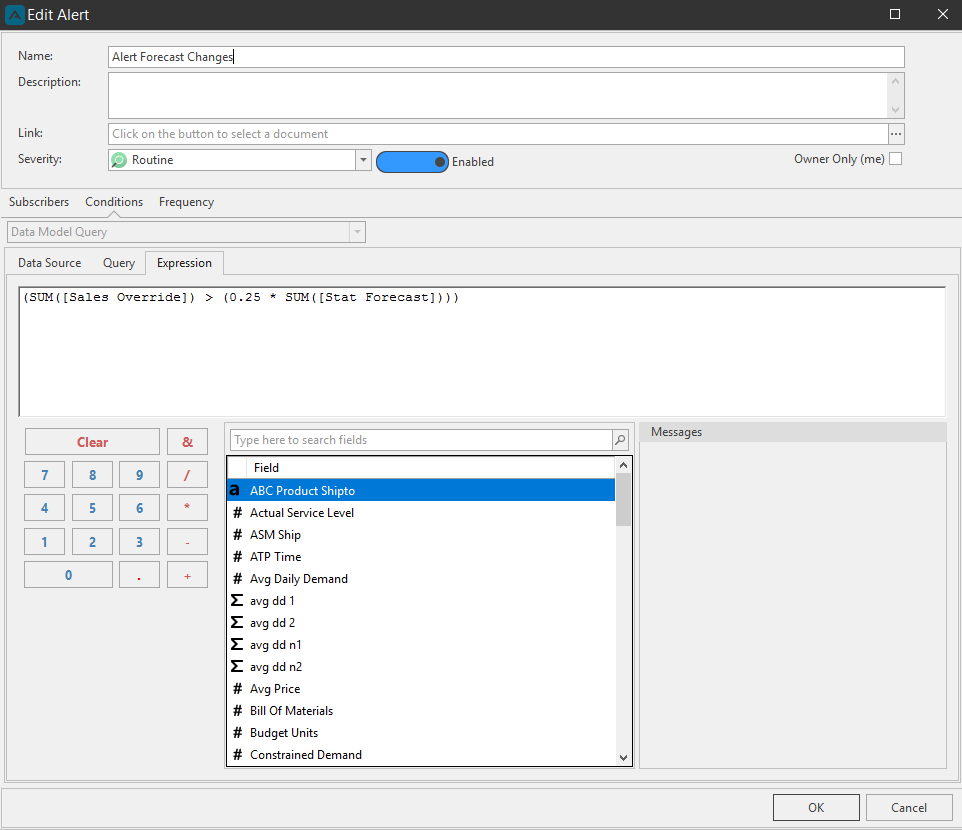
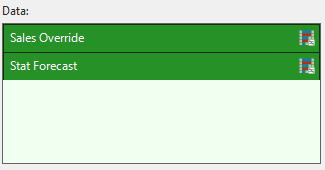
Launch Quick Reports and select the same Data Model, Business Function, and Data the original Data Alert was created for. Add the appropriate fields to the Data section that represents your expression. In this case it is Sales Override and Stat Forecast.
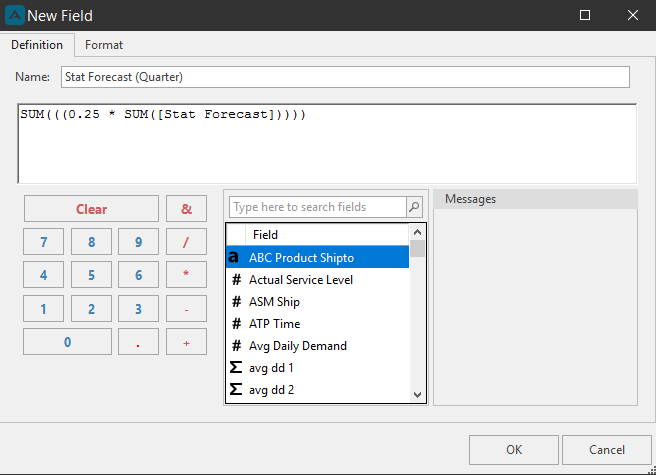
Click Add New Field and first create SUM expression for one quantity. For this example we will create the expression: SUM(((0.25 * SUM([Stat Forecast]))))
Next create another New Field with original data alert expression with the IF SUM 1, 0 wrapping: IF((SUM([Sales Override]) > ((0.25 * SUM([Stat Forecast])))), 1, 0)
Add these fields to the Data box and view the data in the Results view.
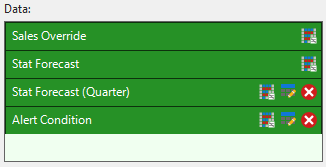
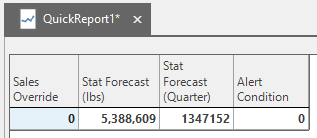
You can see that the alert is not firing because the data alert condition as per the expression are not being met. Sales Override is not greater than the Stat Forecast.
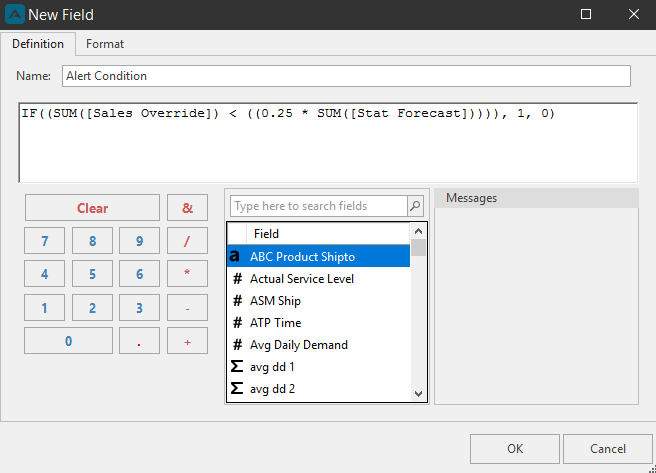
Correcting the expression from greater than to less than, we can see the data alert condition will now be met, and the alert will fire.
IF((SUM([Sales Override]) \< ((0.25 * SUM([Stat Forecast])))), 1, 0)
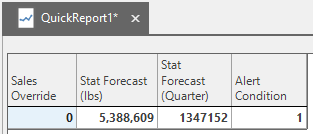
Data Alerts are usually filtered automatically when someone creates an alert in a Workbench, you can create a filtered Quick Report to evaluate these as well. The following is a Data Alert being created from a few highlighted cells, creating the following filter under the Alert Query Data tab.
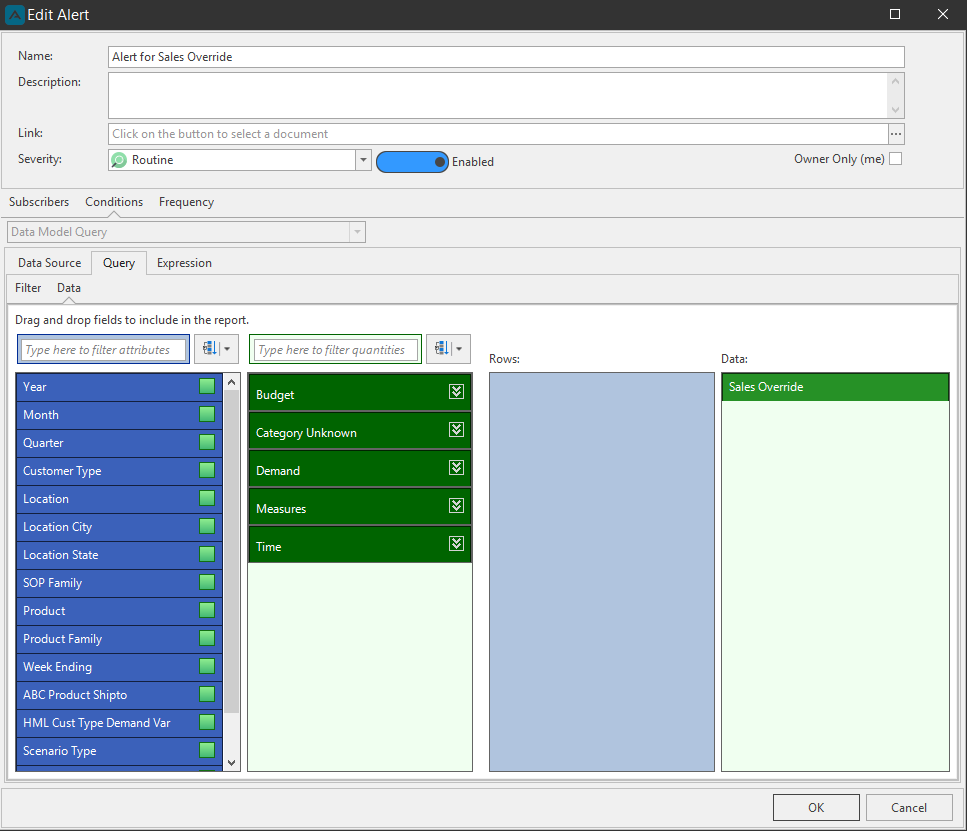
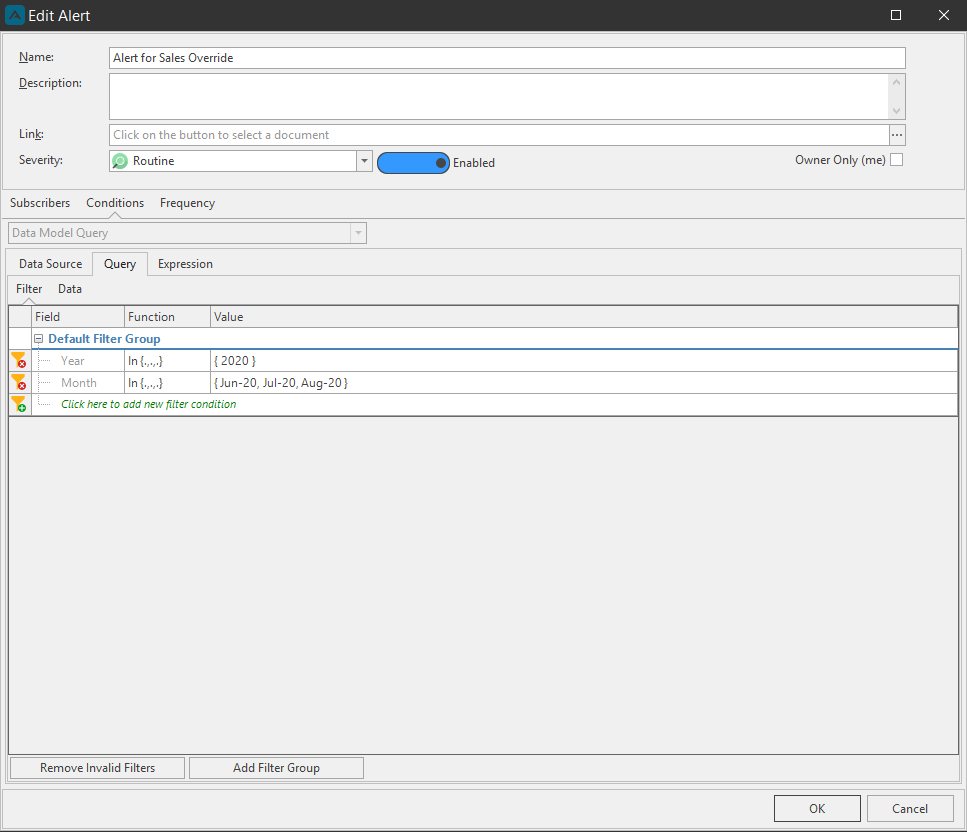
You could include attributes on the rows to create a condition that checks individual dates/months/years, but data alerts generally do not have attributes on rows.
We can then create a Quick Report with the same information (on rows) and filter this data to mimic the data alert.
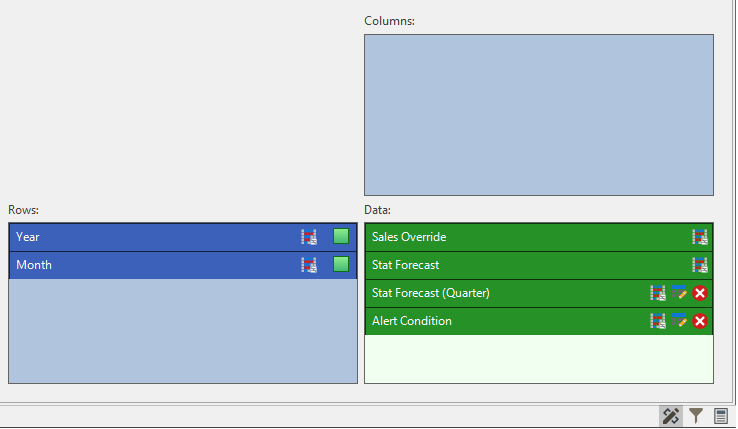
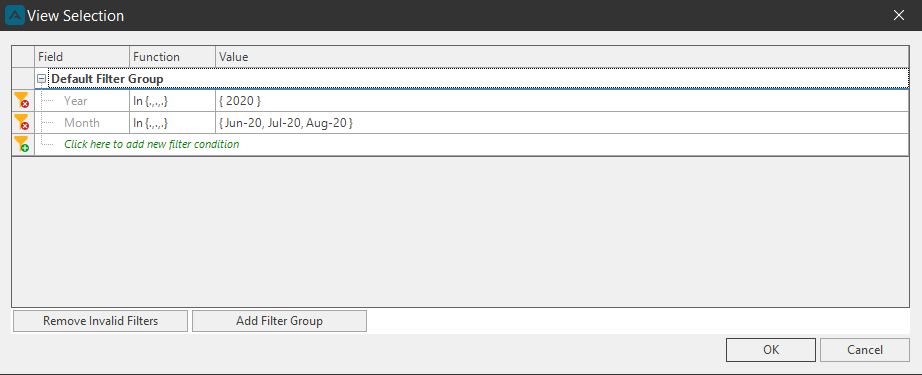
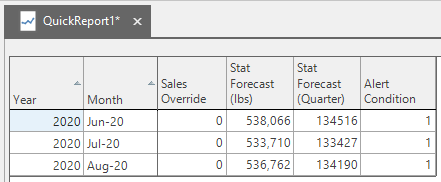
In the example below, all conditions have been met and the alert will trigger. However, if the example below had 0, 0, 1 under the alert condition column, the alert would still trigger. As long as one condition is met the alert will trigger, if all were 0, then the alert will not trigger.
Incident Process Alert
A Process Alert is evaluated or fired after certain actions take place within the software. There are two kinds of process alerts:
- Custom Action alert
- LP Model alert
Custom Action
A Custom Action alert can be created from the Data Model Properties, Document Properties, Table Editor Properties, and Workbench Advanced Settings.
After clicking the Custom Action ellipses button, the Custom Action Collection Editor window will launch, and under the General section, click the ellipses button to configure an Alert.
LP Gen and Solve
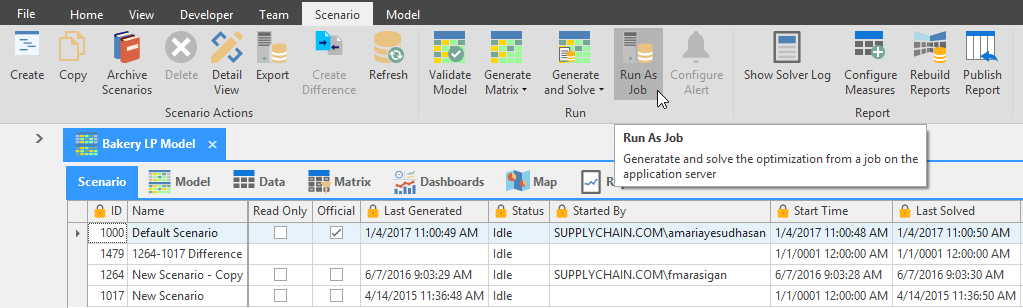
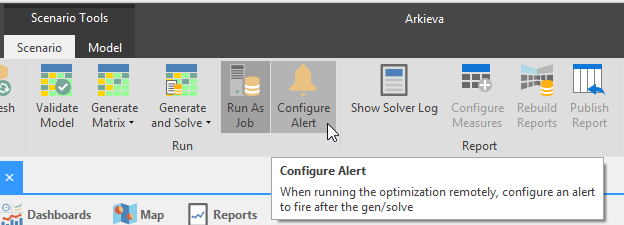
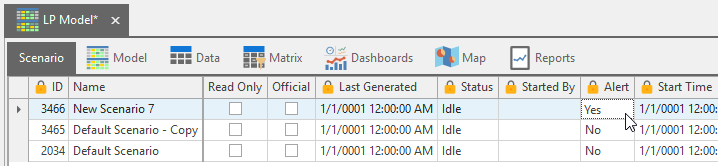
The LP Gen and Solve Alert is created within the LP Scenario Model ribbon by toggling on Run as Job to activate the Configure Alert button. Click the Configure Alert button to create an alert. When there is an alert associated with a scenario, the Alert column will read ‘Yes’.
Manage Alerts
📘 Note
The security role 'Alert Browser' allows users to modify alerts they create themselves.
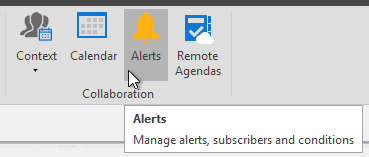
You can edit and delete created alerts from the Manage Alerts window. Manage Alerts is in the Home ribbon under the Collaboration tools. Double-click an alert to edit it, or click an alert and click Delete to remove it.
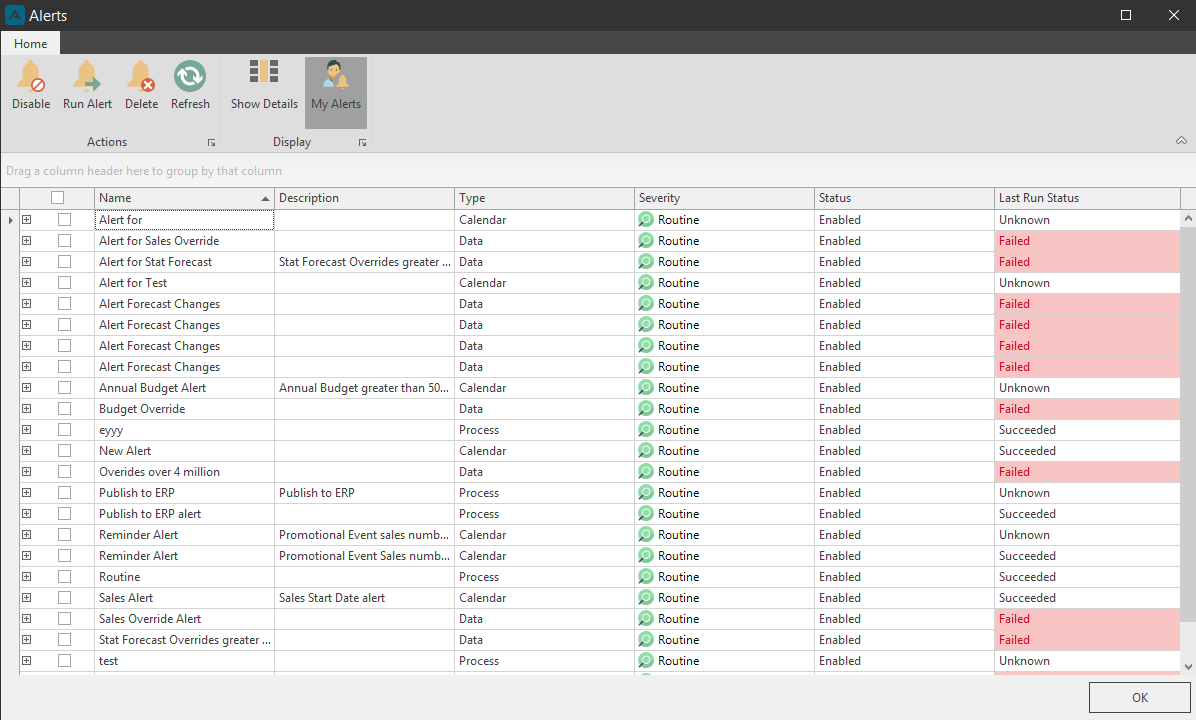
Under the name column you can click the plus button to view any conditional options created for the alert, i.e. Data or Procedural alerts.
Actions
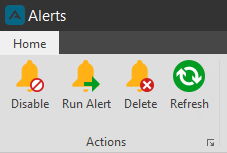
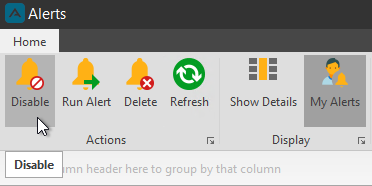
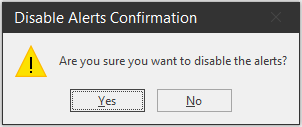
Disable\ Check an alert’s checkbox and click Disable to change the status of the alert from enabled to disabled


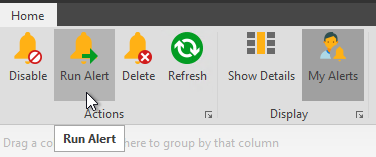
Run Alert\ Check an alert’s checkbox and click Run to trigger an alert for demo or testing purposes.

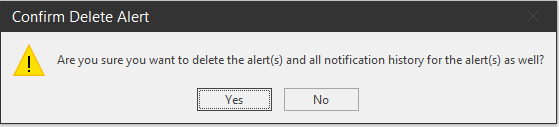
Delete\ Check an alert’s checkbox and click Delete to remove the alert.
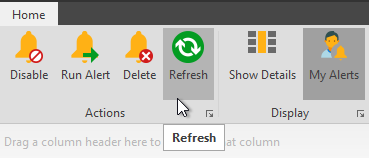
Refresh\ Click the Refresh button to refresh the Manage Alerts window.
Display
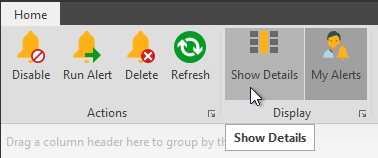
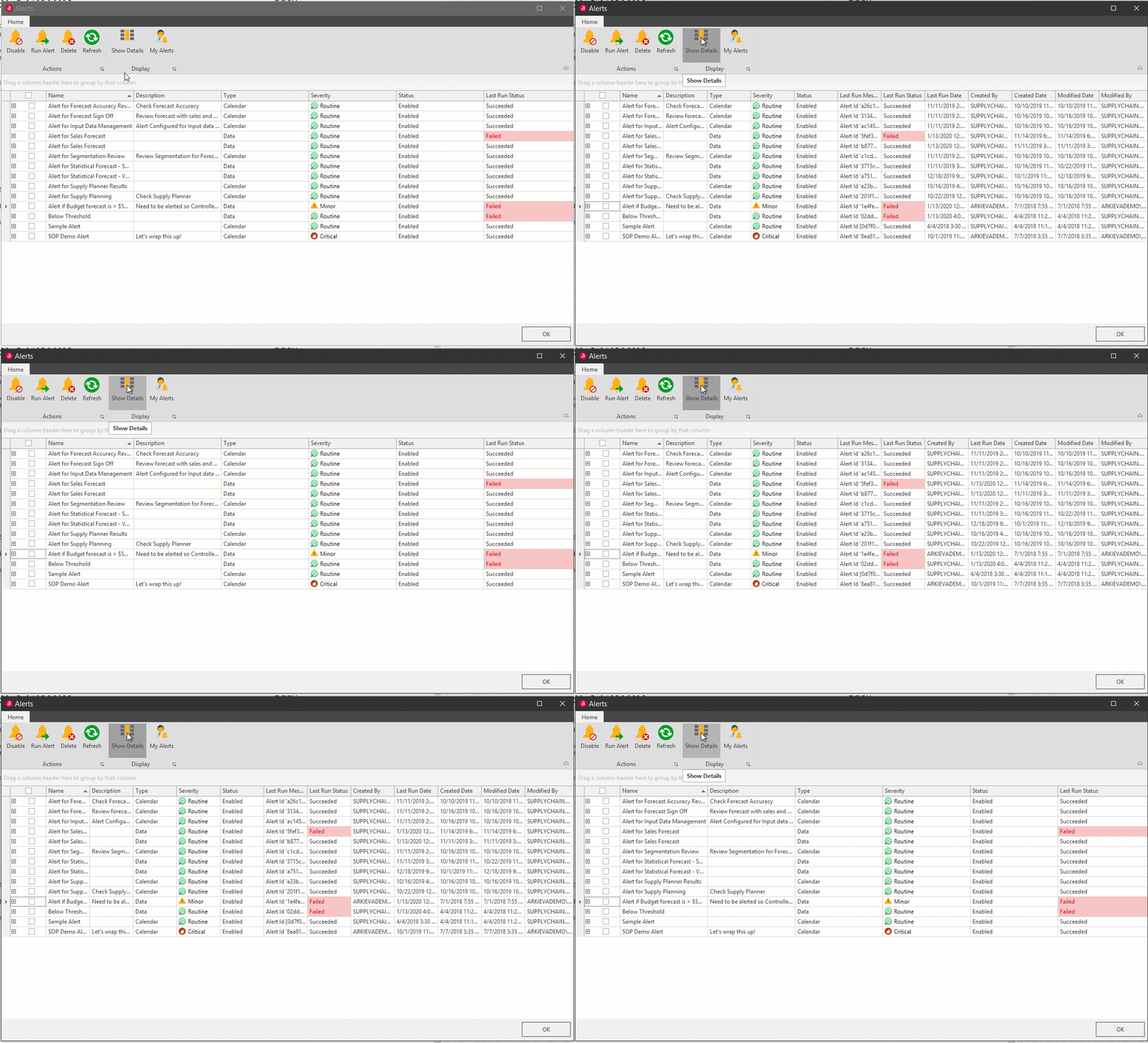
Show Details\ Toggle on Show Details to show additional columns in the Manage Alerts window.
- Last Run Message: Shows a message for alert evaluation purposes.

- Last Run Date: Shows the last date the alert was triggered.
- Created By: Shows the user who created the alert.
- Created Date: Shows the date the alert was created.
- Modified Date: Shows the date the alert was last edited.
- Modified By: Shows the name of user who last edited the alert.
My Alerts
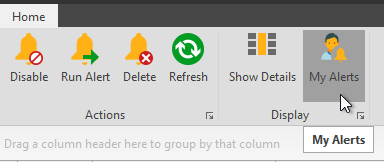
Toggle on My Alerts to show only the alerts you have created.
Columns
Conditions/Schedules Plus button / Checkbox\ If an alert was created with an expression, click the plus button to view that Condition. Data Alerts will show Schedule information under the Schedule tab. Check the checkbox to select that alert for the Actions buttons.
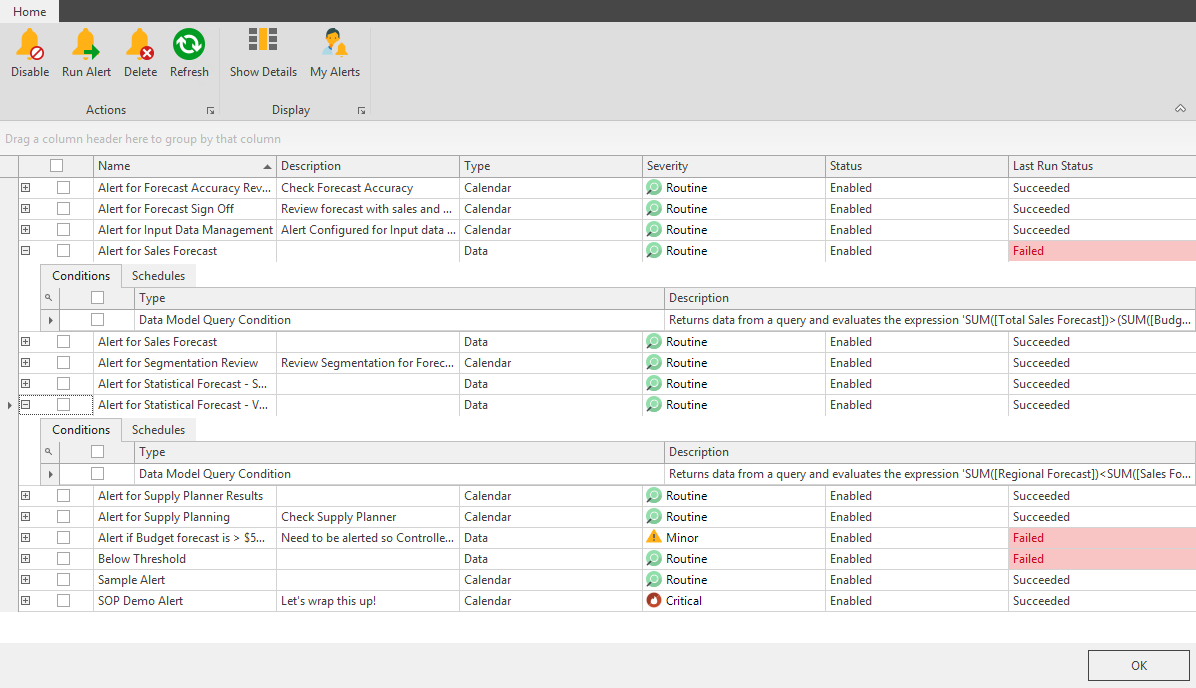
- Name: Shows the name of the alert.
- Description: Shows the description of the alert.
- Type: Shows whether the alert created is a Data Alert, Calendar Alert, or Process Alert.
- Severity: Shows whether the severity of the alert is Routine, Minor, Major, Critical, or Maintenance.
- Status: Shows whether the alert is enabled or disabled.
- Last Run Status: Shows whether the alert’s last run status was Unknown, Failed, or Succeeded.
Columns can also be grouped into a tree layout by dragging column headers to the 'Group by' section.
Workbench Alerts
You can create Workbench Alerts from the Workbench right-click menu in the Results view. Right-click the Workbench grid to access the Add Alert option to create a Data Alert.
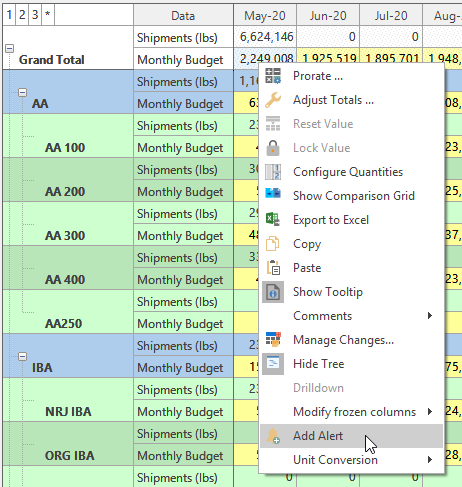
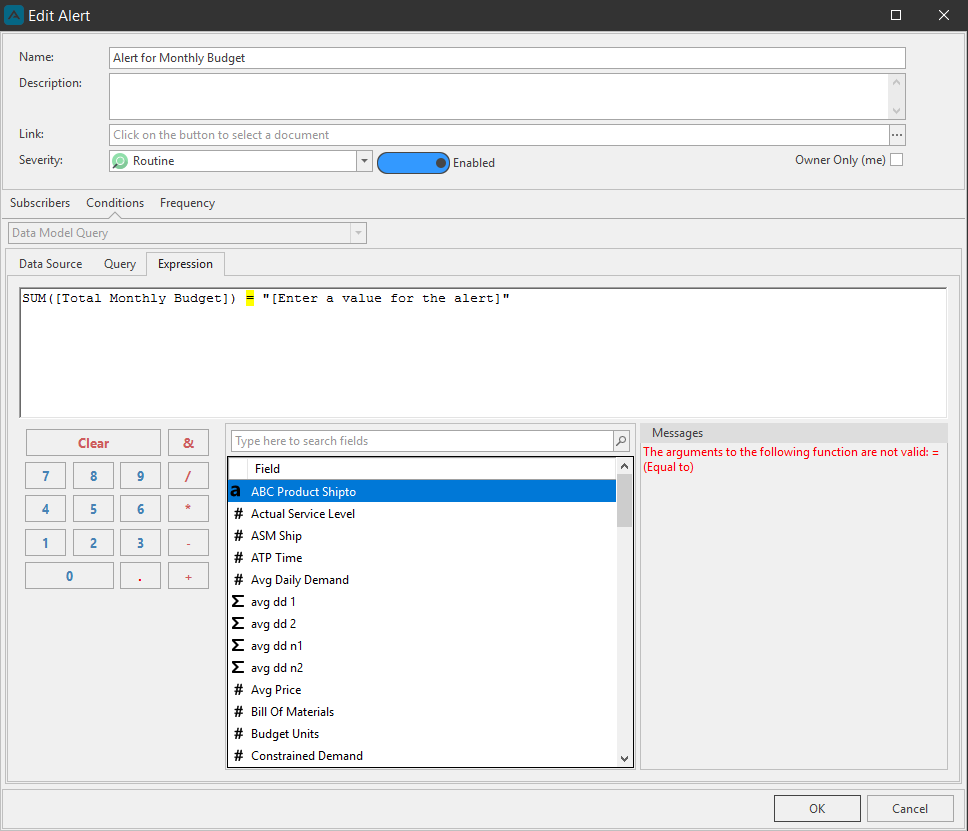
The default level at which an alert will be created on is the level you right-click on. You can change the level in the Filter section of the Query tab under Conditions.
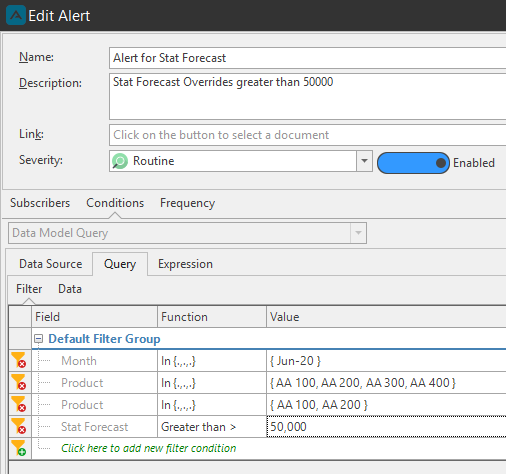
Alert Query Data
One example of a workbench alert would be setting up an alert and notification for when a user commits an override over a specified value.

Right-click the workbench and select Add Alert. Fill out the Name of the Alert, and select any subscribers and the Notification options. For this alert however, click the Conditions tab to view the Alert Data Source, Query Data, and Expression tabs. Click the Alert Query Data tab.
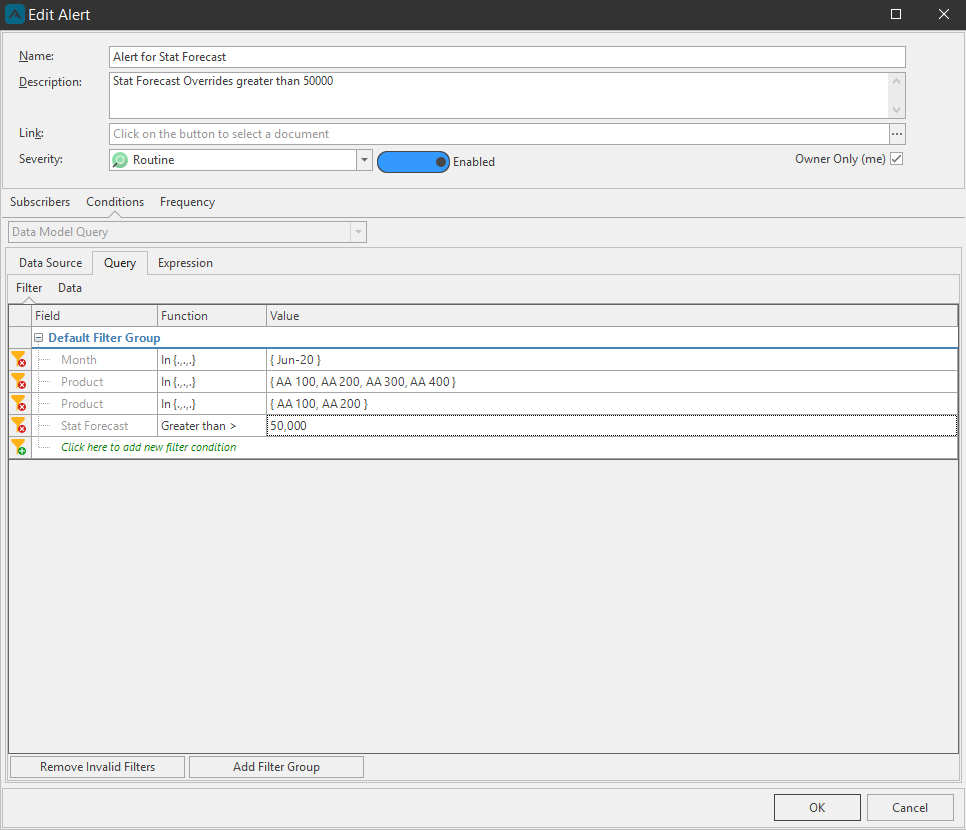
The Alert Query Data tab has the Workbench Design grid and Filter grid. In the filter section, select the attribute that you want to receive a notification for when an override is committed to it. Then select the function and value. In this example, we want to be notified when an override is made to Stat Forecast that is over 50,000. Click OK and save the workbench.
The next time a user makes a Stat Forecast override over 50,000, all subscribers of the alert will receive a notification.
Alert Expression
Expressions can also be created for alerts on workbenches. Right-click the workbench and select Add Alert. Fill out the information for the Alert; the name, subscribers, and notification options. Click the Conditions tab, but this time go to the Alert Expression tab. Type an expression that will trigger an alert on the workbench. For this example, whenever the Sales Override becomes greater than the Stat Forecast, an alert will push a notification to all subscribed users.
Security Permissions
We expect the user to go to the Manage Alerts section to confirm the Alert has been created successfully and then test it from there. If the person only has Browser permissions, they cannot access the Manage alerts section.
To help this workflow, we have made the following changes to the Alerts roles in security.
- Alert Browser role provides access to the "Manage Alerts" module.
- Alert Browser role allows users to modify their alerts.
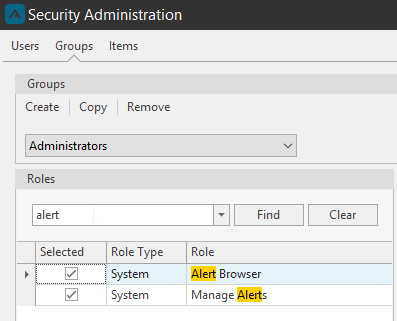
Additionally, users are now allowed to view and run alerts they did not create from the Manage Alerts window but they cannot delete or modify those alerts.
- When Data Alerts are created the a message will popup to confirm the alert was created.
- A warning message will popup when a user tries to delete an alert from the Manage Alerts window that they are subscribed to that they did not create.

Alert Notifications
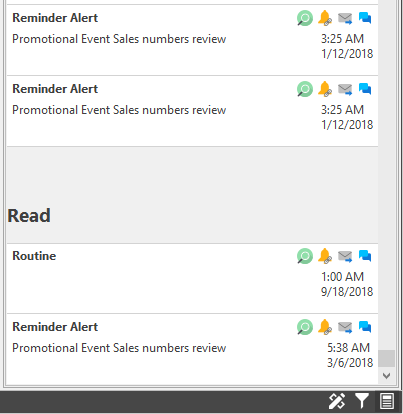
A user can view the list of alert notifications they’ve received while offline from Arkieva. Clicking the Notifications button from the Arkieva toolbar will launch the Alert Notifications list.

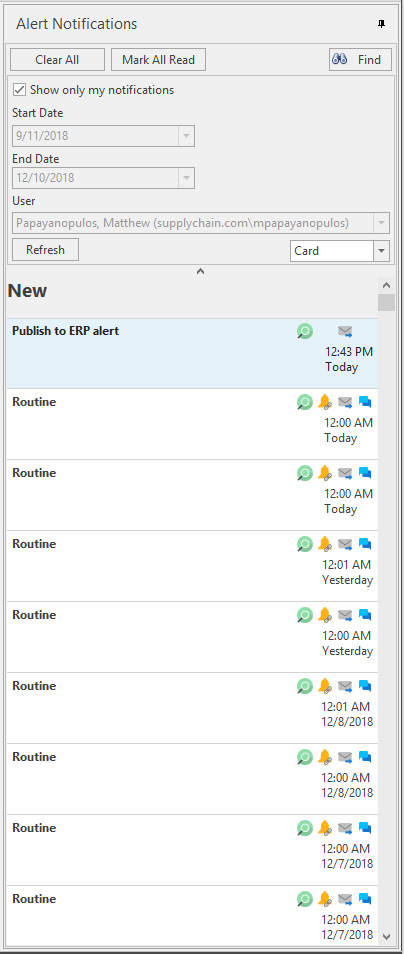
Icons
Each alert notification has icons to indicate what kind of alert was created.
Severity\ This icon will indicate whether the alert was created with the severity of Routine, Minor, Major, Critical, or Maintenance.
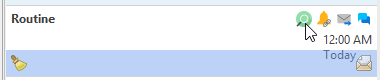
Linked Document\ This icon indicates a document was linked to the alert.
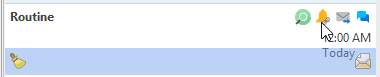
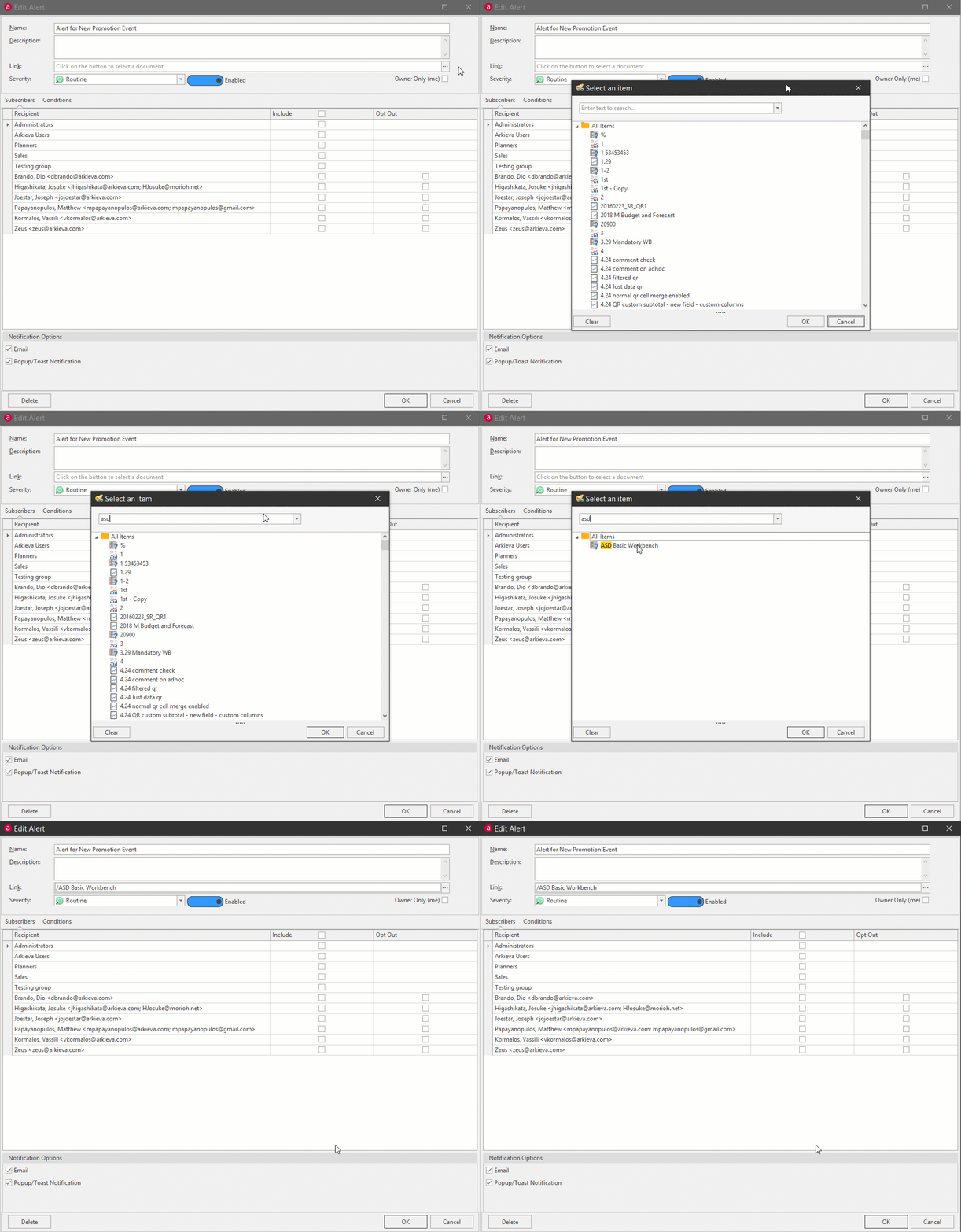
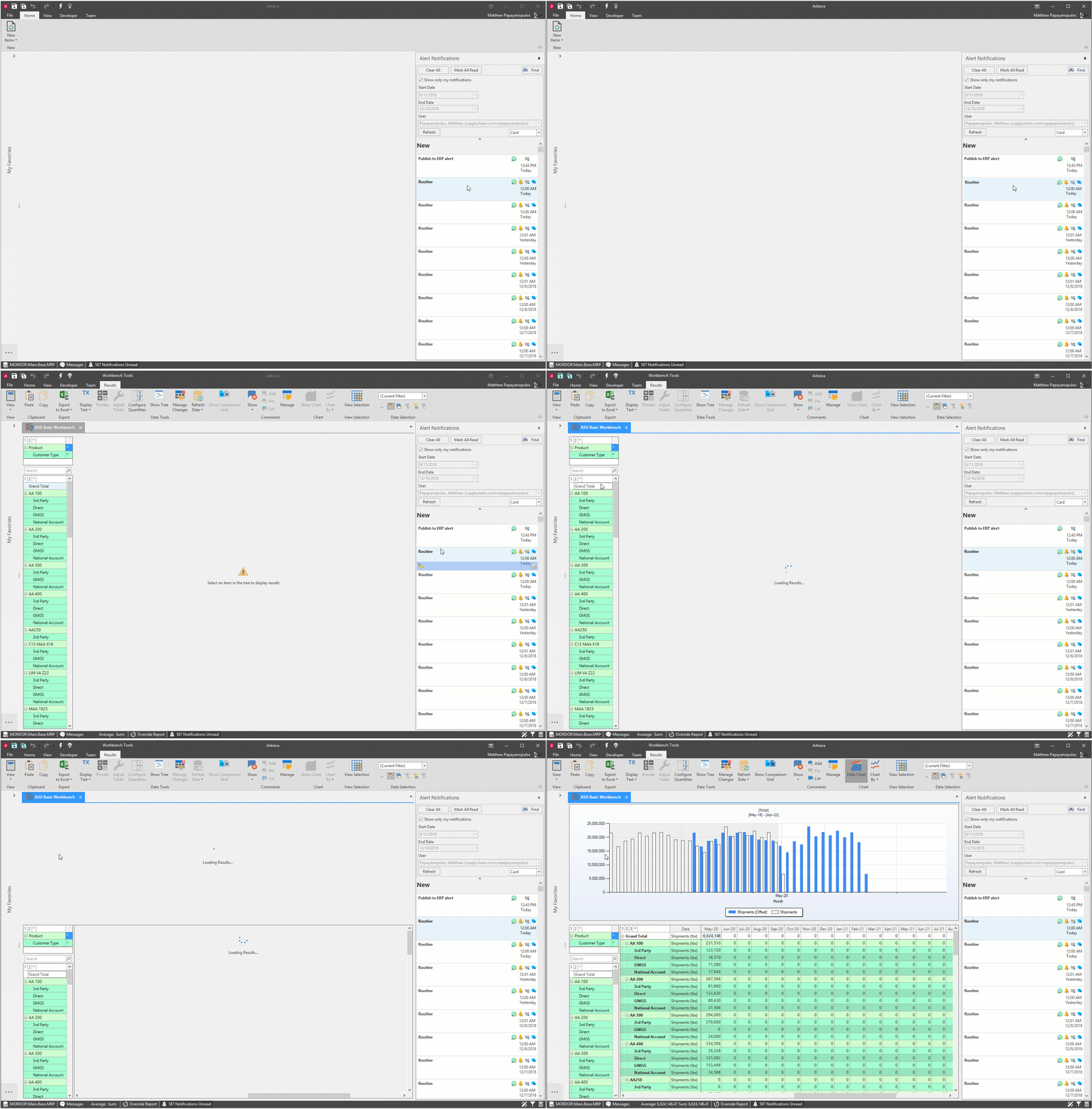
If the notification was created with a linked document, the user can launch the linked document by clicking the alert in the list.
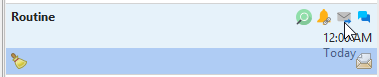
Email alert\ This icon indicates if this is an email notification alert.
Popup / Toast Notification\ This icon indicates if this is a popup / toast notification alert.
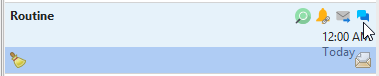
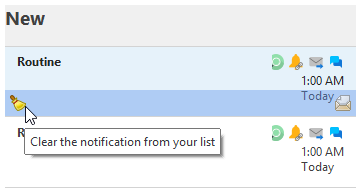
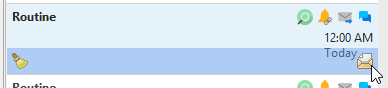
Broom icon\ Hover the mouse over the notification to reveal the broom icon; click the broom to remove the notification from the list.
Mark as Read\ Hover the mouse over the notification to reveal an envelope icon; click this icon to mark the notification as read. This will move the notification to the Read section of the list.
Controls
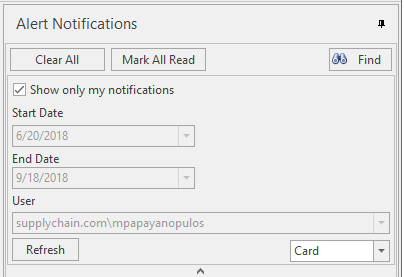
Use the following controls to further customize the alert notifications list.
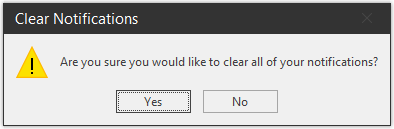
Clear All\ Click the Clear All button to clear all unread and read alert notifications from the list.
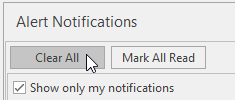
Click Yes to confirm.
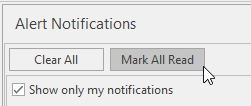
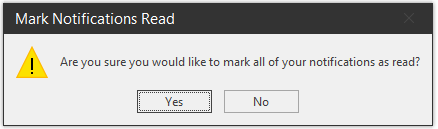
Mark All Read\ Marks all alert notifications as ‘read’, by moving them to the Read section of the alert notification list.
Find\ Click the Find button to toggle on the search bar and controls.
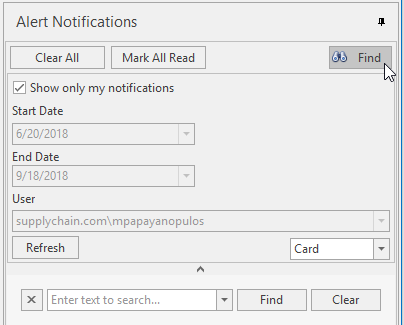
Type keywords into the search bar to drilldown the alert notifications list.
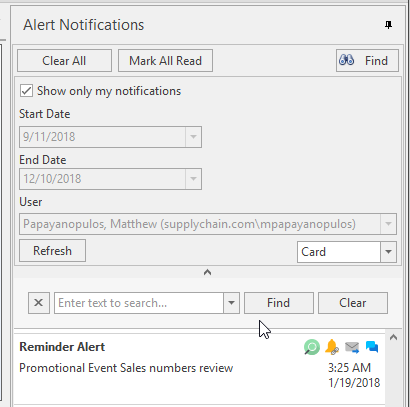
Show only my notifications\ Check the checkbox to only show the currently logged in user’s alerts and notifications. When checked, the Start and End Date dropdown menus and the User dropdown will be unavailable. Uncheck the checkbox to make these dropdowns available.
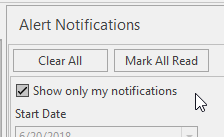
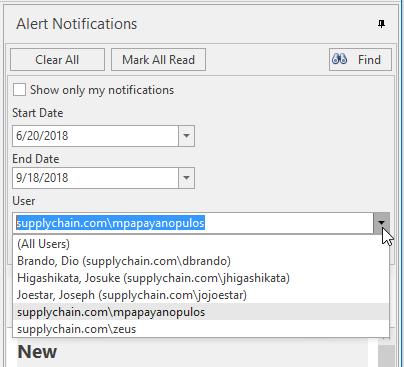
Start and End Date calendar dropdowns\ Select a Start and End date to select a date range of alert notifications.
User dropdown\ To view another user’s alert notifications, select that user from the User dropdown. Select All Users to view all users on created for this database alert notifications.
Refresh\ Click Refresh when making any changes to the Start and End Date dropdowns, and the User dropdown.
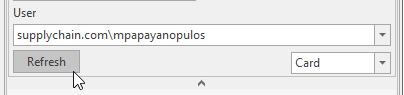
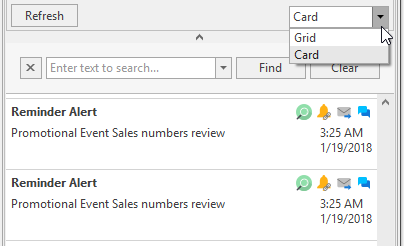
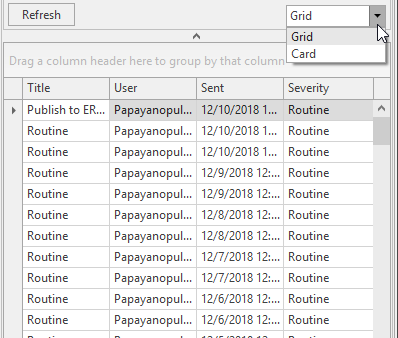
Card / Grid view dropdown\ Change the list view from Card to Grid with this dropdown.
Grid view turns on the Column controls for additional customization and filtering.
Snooze and Unsubscribe from Email Alerts
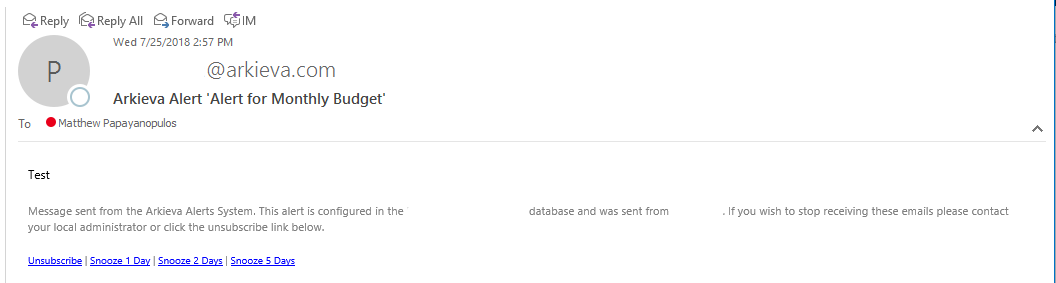
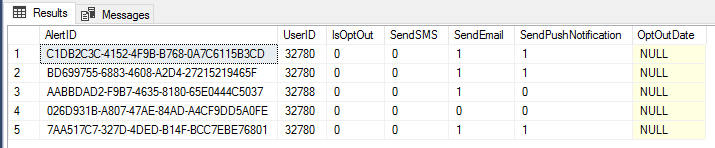
When an email alert is pushed to a user, they now have the option to snooze the email recurrence for 1, 2, or 5 days, or select Unsubscribe to stop receiving the email alert.

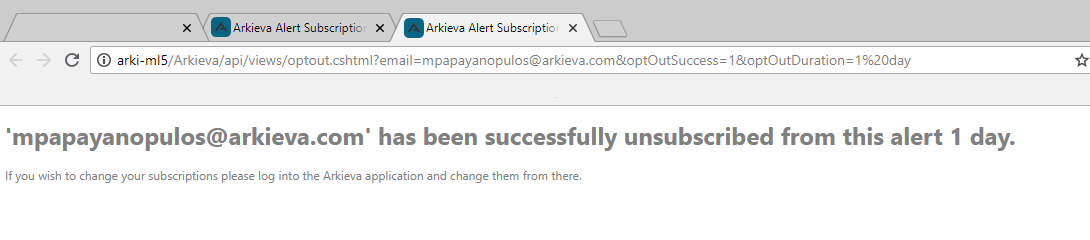
Unsubscribe information is stored in the dbo.AlertUserSubscriptions table.
How to Avoid Disruptions in Your Supply Chain with Alert and Notifications
Stay on top of your supply chain performance with alerts and notifications.
{`
`}
Related Articles
S&OP Introduction
Why Sales and Operations Planning (S\&OP)?\ Sales and Operations Planning (S\&OP) has been around for decades. S\&OP is much more than just a meeting – it takes into account all the various planning and monitoring processes that are necessary to run ...Arkieva Customer Training Program
The Arkieva Customer Training Program is a customer-centric program aimed at empowering Arkieva customers with the knowledge and skills needed to harness the power of their Arkieva solution to solving complex business problems. ? Go to the bottom of ...General Navigation of Arkieva
Overview of the various navigational commands in Arkieva. {` `} Launching Arkieva Splash Screen Arkieva is installed to a web server and launched from the client intranet (Internet Explorer is highly recommended). The Arkieva version number, build ...Financial Planner
Introduction Increasingly, our customers would like to tie-in financial metrics to their operational plans. To accomplish this, we have incorporated strategic benchmarking into the Arkieva platform so that we can design the operational supply chain ...Beacon
Why beacons? Workstream hierarchy is a concept stating that everything downstream is dependent on something further upstream. Meaning you will need to know what your demand plan is before you can plan for inventory, but you cannot get information for ...