Table Editor
Tables Introduction
Arkieva Consultants use System Model data to select entities and fields to create Tables that can be used in other Arkieva components, such as LP Models, Data Canvas, etc. The created Table documents can also be viewed and filtered by users.
Paste and Copy
Users can Copy and Paste data within the Table, as in the user can copy override cell data and paste it into another editable cell. The Paste and Copy options are available from the Table View ribbon and from the right-click menu. Shortcut for copy is Ctrl + C, shortcut for paste is Ctrl + V or Shift + Insert.
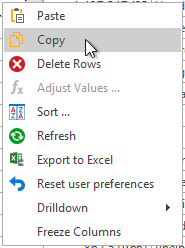
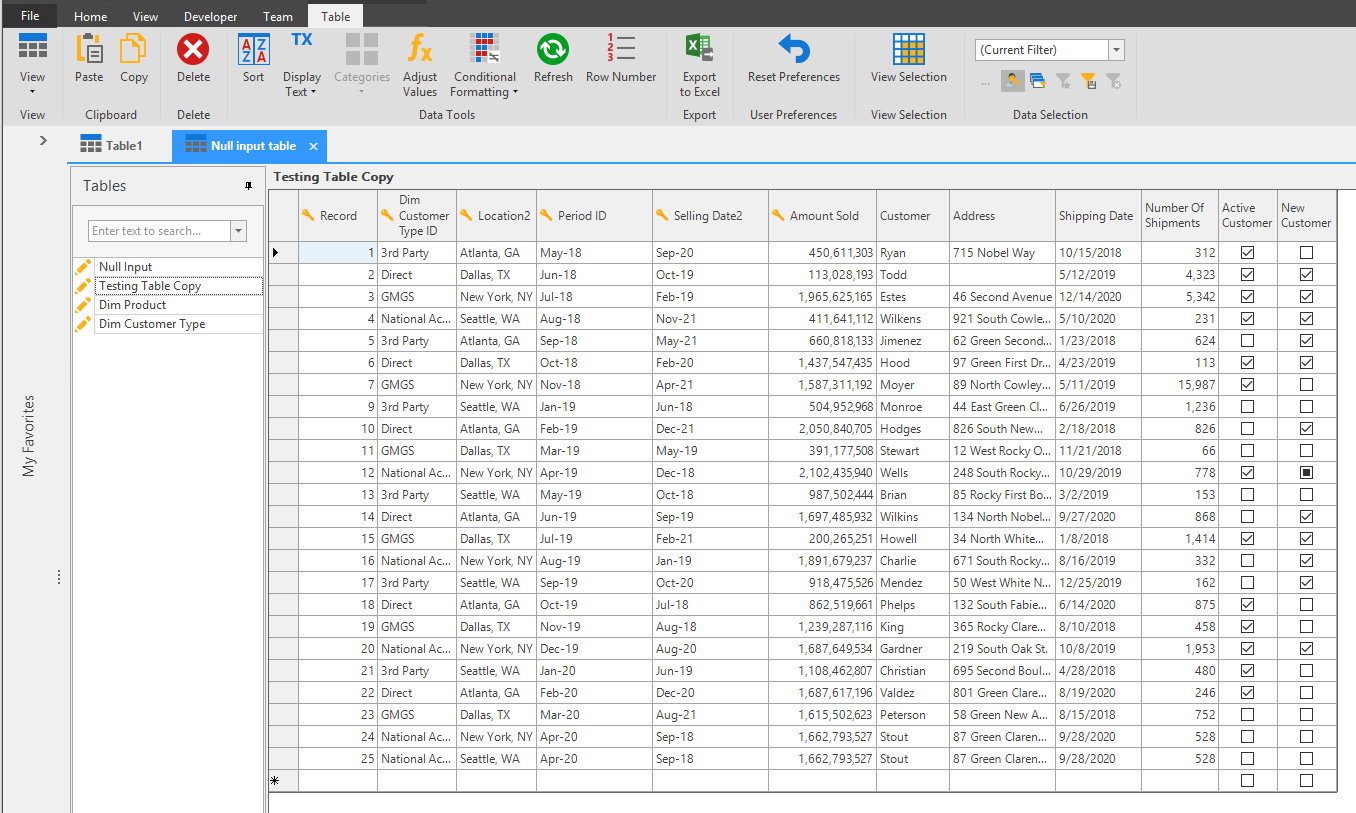
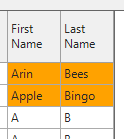
The orange cells are data that have been overridden. Click and drag the mouse across the overridden cells, then right-click and select Copy. Click and drag across three different cells, then right-click and select Paste. These cells will be overridden with the cell data that was copied.
Delete Selected Rows
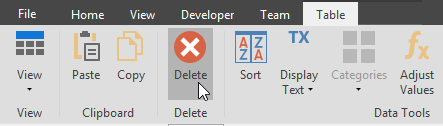
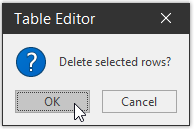
Click the small box to the left of the row to select it then click the Delete button. Click OK to permanently remove the row.
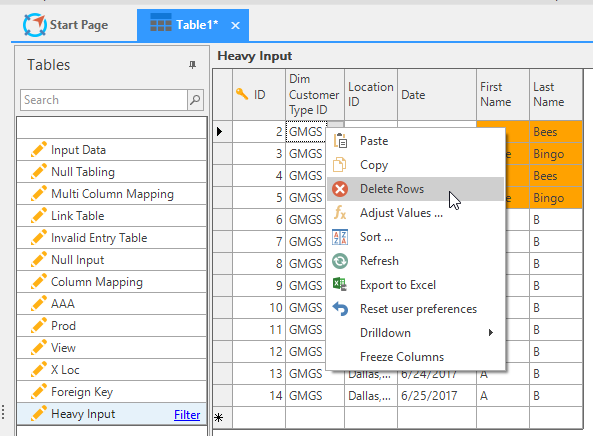
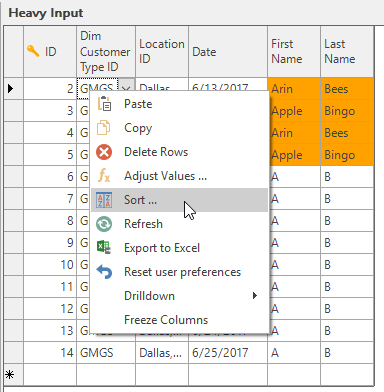
You can also right-click the row and click Delete Rows from the right-click menu.
Click OK to delete the row.
Sorting
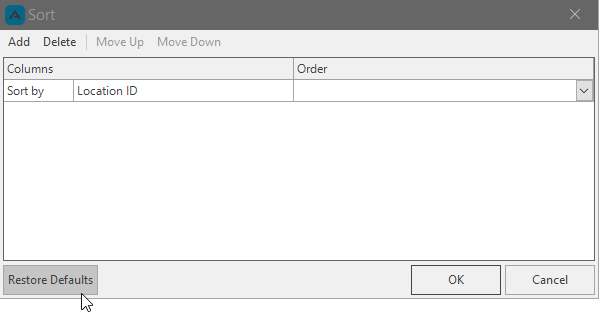
Sort table data by columns in ascending and descending order. Click the Sort button to launch the Sort window, then click Add and use the dropdowns to order the selected column data.
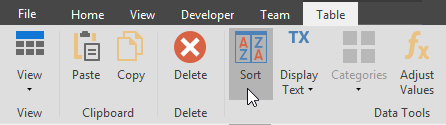
Sorting can also be accomplished from right-clicking the table.
Click Add to activate the Sort By dropdown menus. Select a column and select the order in which to sort the table. We will sort the C5 column data in Ascending order.
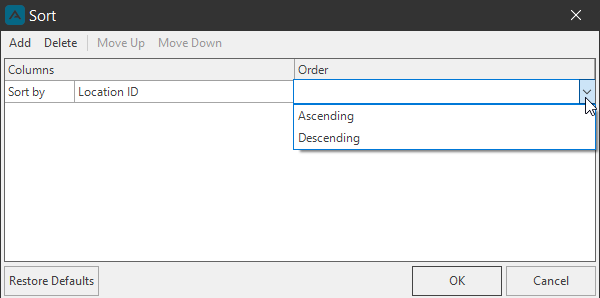
Click the Restore Defaults button in the Sort window to remove any sorting made to the columns.
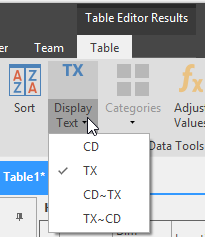
Display Text
Change the display text to CD, TX, CD and TX, or TX and CD.
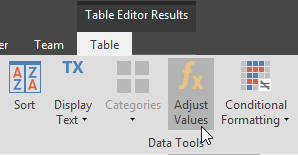
Adjust Values
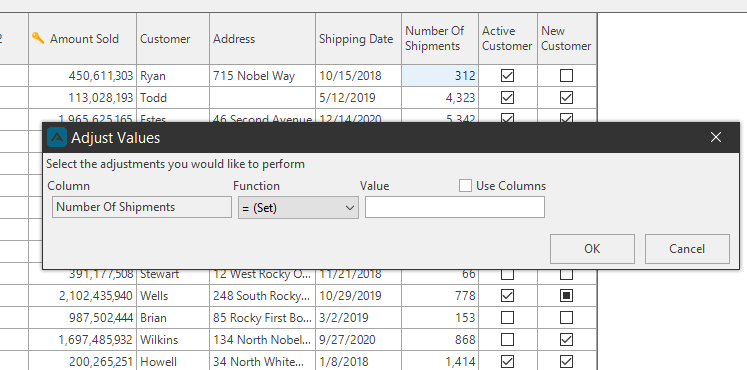
Select Adjust Values to use functions to adjust selected data in the table.
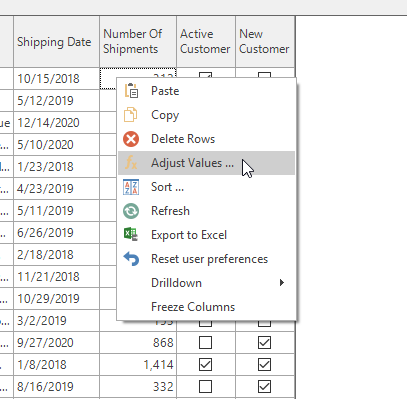
Access the Adjust Values window from the table right-click menu as well.
Use the Function dropdown to set the function of the value. Use Column checkbox changes the value field to a column dropdown.
Conditional Formatting
Conditional Formats set for Entities in the properties section of the Table Editor will be selectable from these dropdown menus.
Refresh
Refresh data to save or cancel any changes made to the table.
Row Number
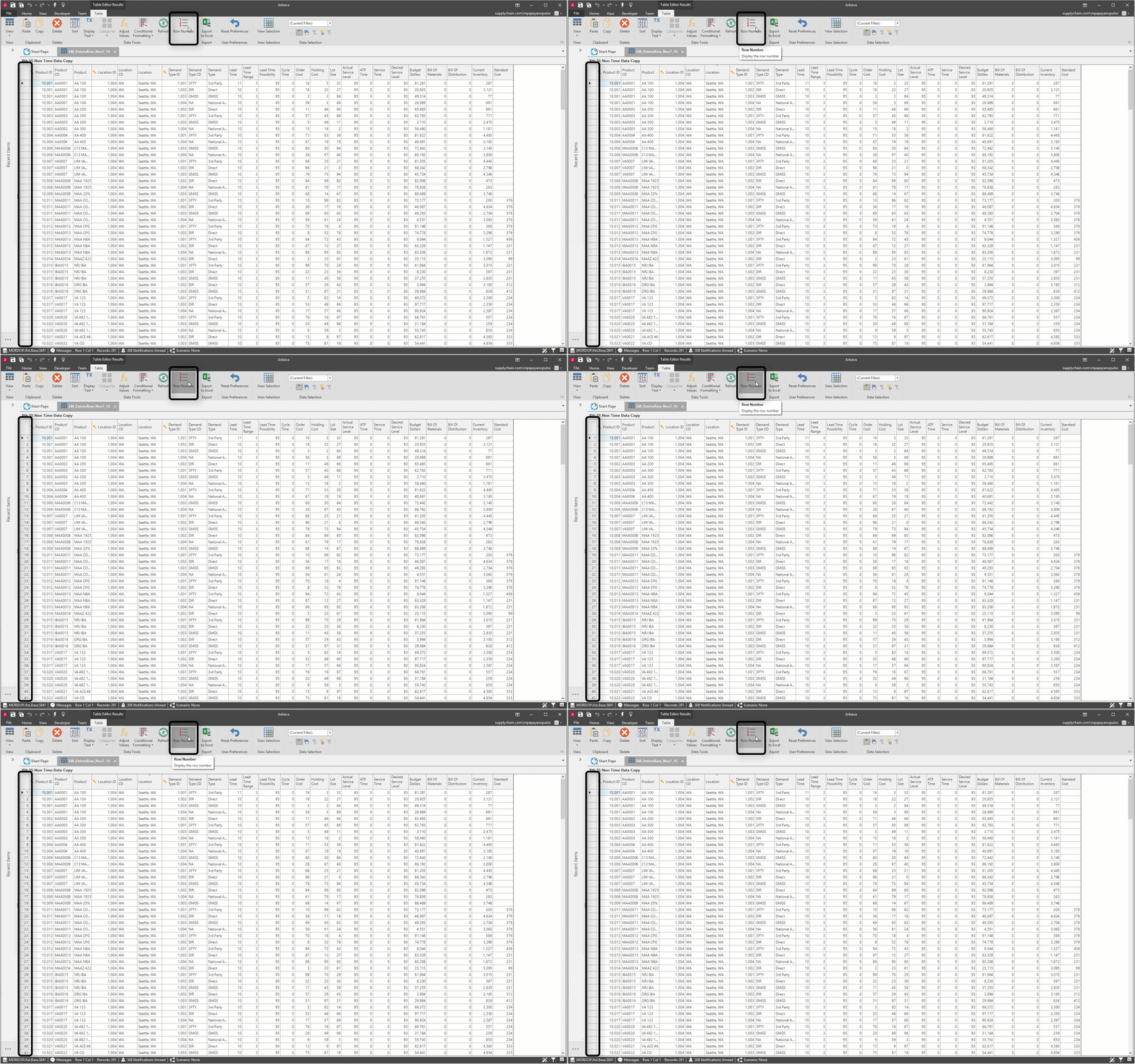
Use the Row Number toggle button to toggle on and off the row numbers. This is helpful for when users communicate with each other while analyzing large volumes of data.
Export to Excel
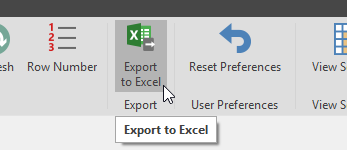
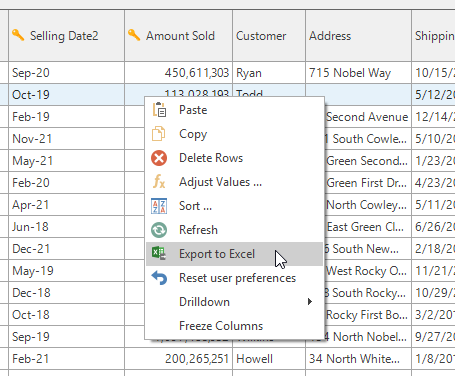
Arkieva table data can be Exported to Excel with the Export to Excel option in the ribbon and from the right-click menu.
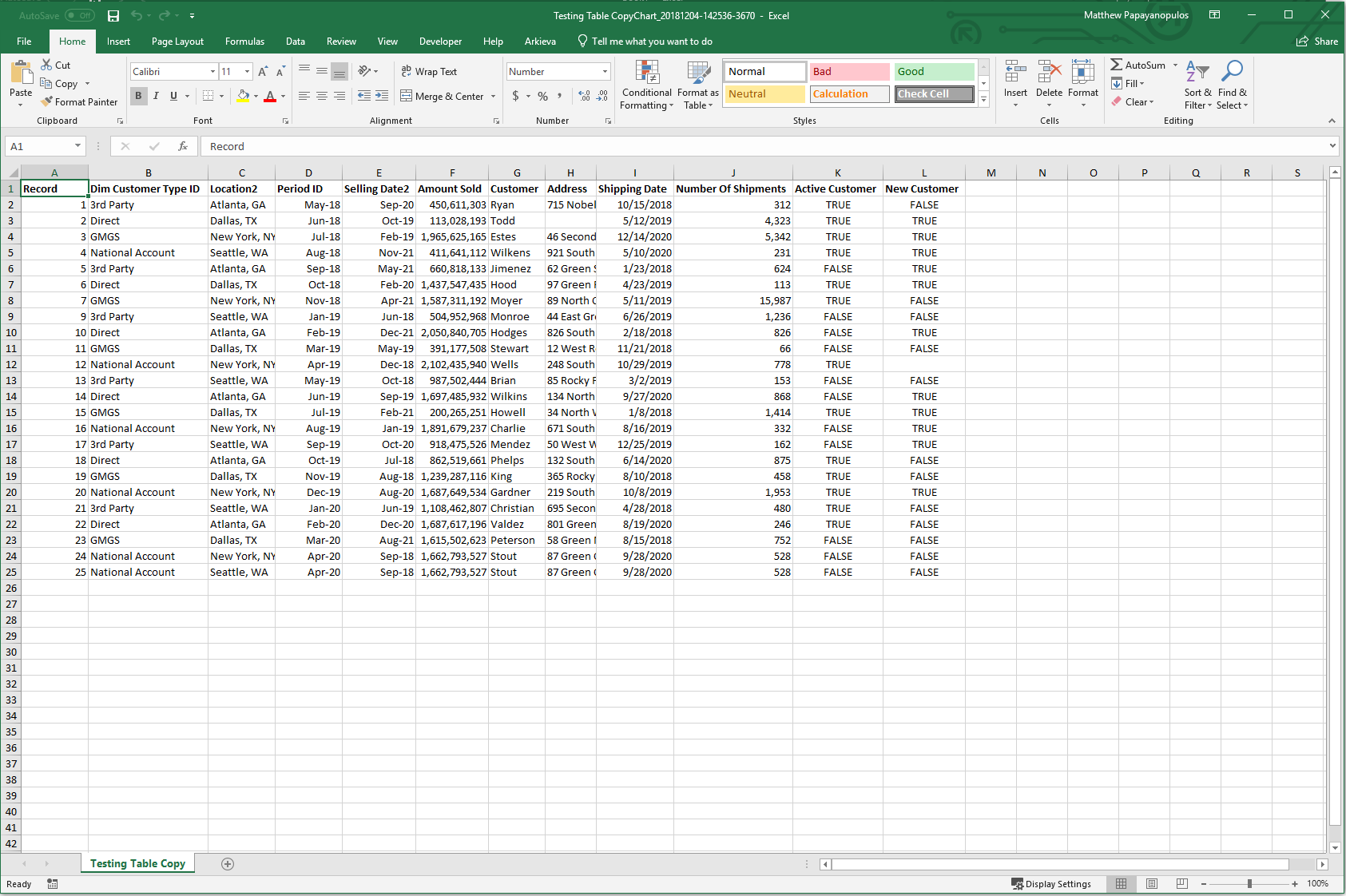
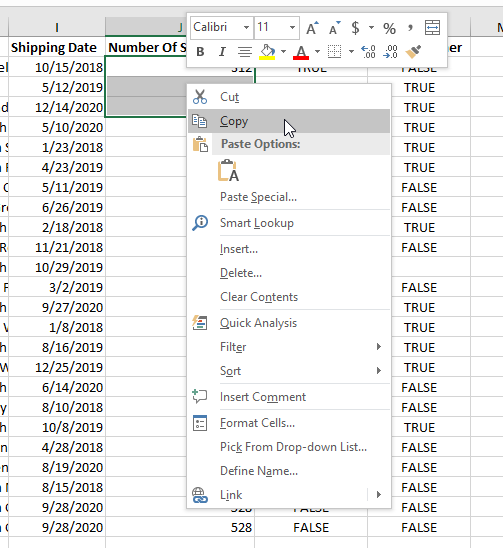
With the Paste and Copy tools, a user can copy data from Excel to the Arkieva table, and use Copy to copy selected Table data and paste it into Excel. This is useful for when a user likes making edits to the data by using Excel, or when they have made overrides to the Table data and want to paste it to Excel.
Copy the Table data and paste it into Excel.
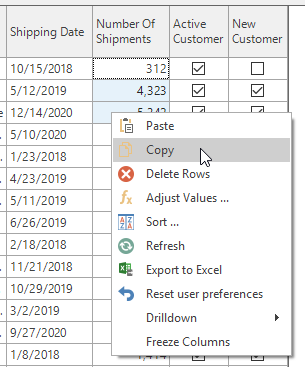
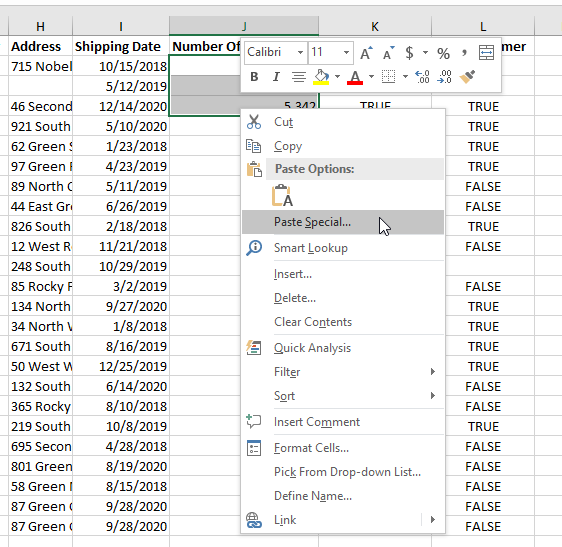
Make changes to the Excel data and copy and paste that to Arkieva to override the data there. CRTL + V to paste the Excel data into the table.
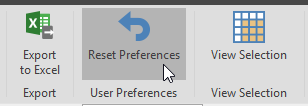
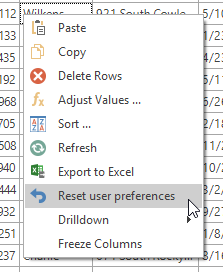
Reset Preferences
Reset to the default preferences of the table.
Context Sensitive Drilldown (Configure Drilldown)
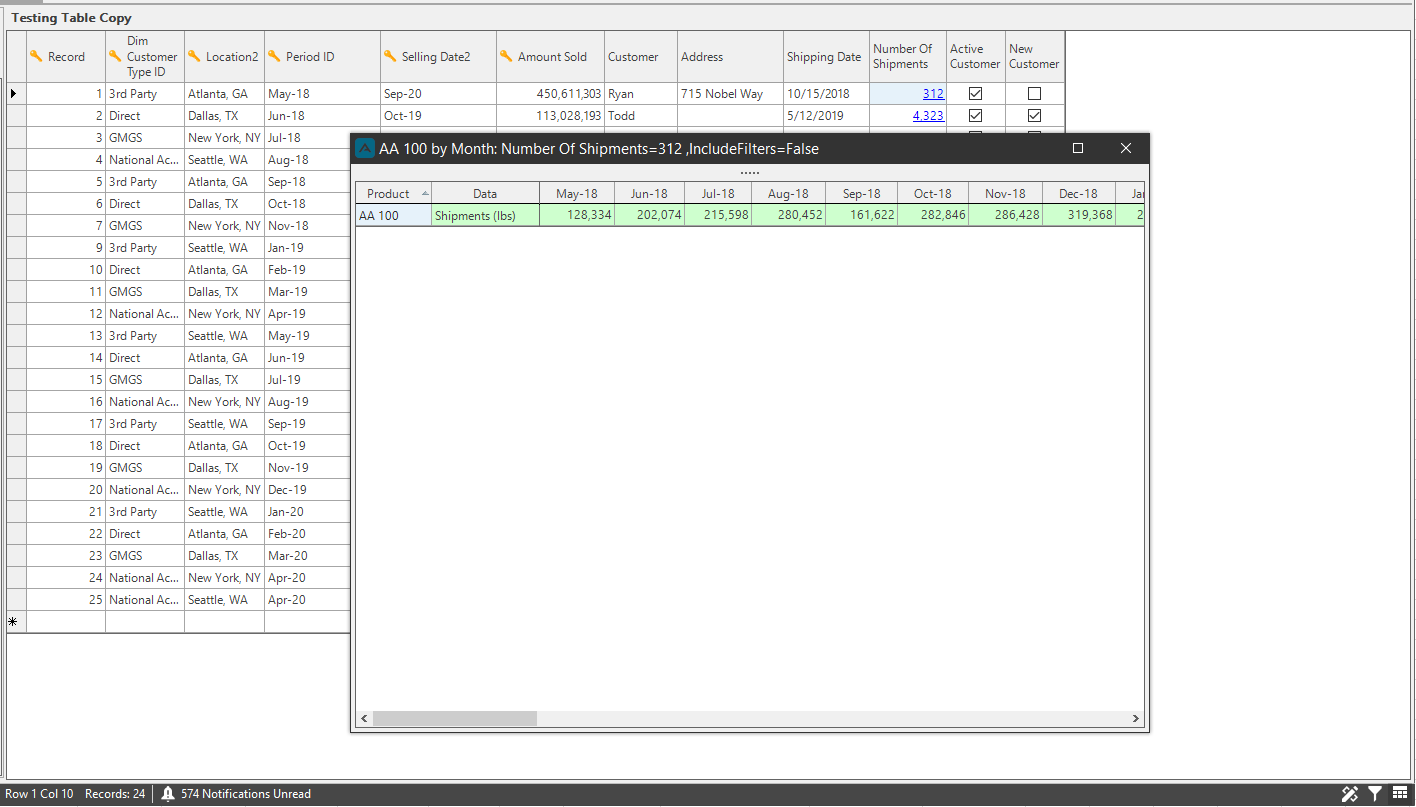
Arkieva gives you the ability to drilldown to another document from the table. The drilldown documents are context sensitive, meaning that the level a document is placed within the table will be reflected in the drilldown document if they are both Table documents. A user can also drilldown to another document type, such as a Workbench or a Quick Report.
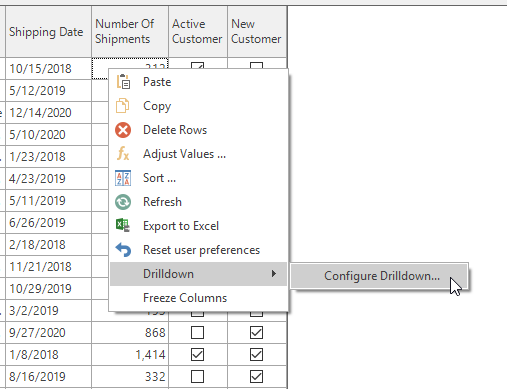
Right-click the table in the cell that will have the drilldown document; hover the mouse over Drilldown then click Configure Drilldown.
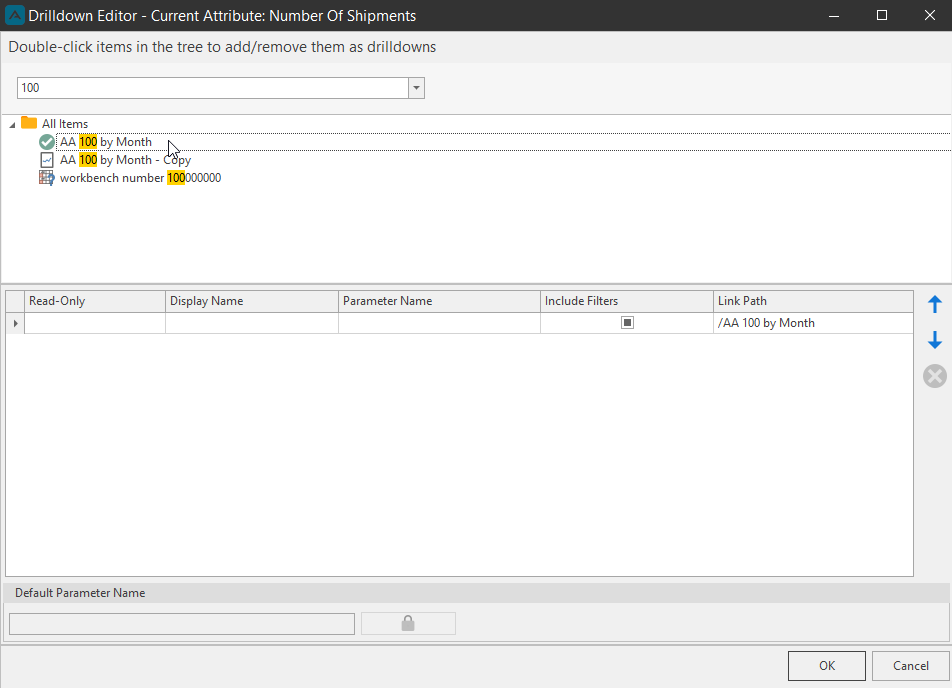
The Drilldown Editor will launch. Double click documents to include as the drilldown documents. A green checkmark will appear next to a document if it is selected. Click OK.
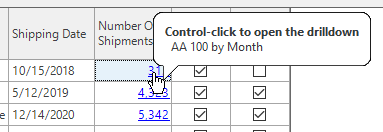
A hyperlink will appear on the cells with the drilldown report.
Column header options
Click a column header to instantly sort that column by Ascending or Descending. Hover the mouse pointer over a column header to access more filter options.
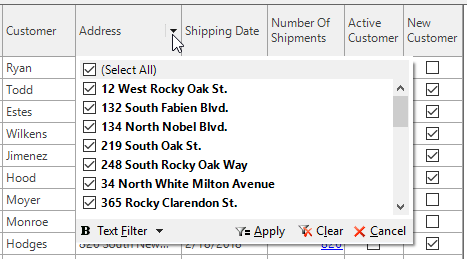
Right-click a column header for the right-click menu.
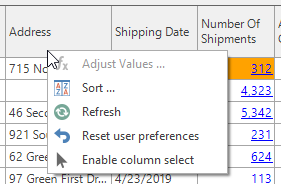
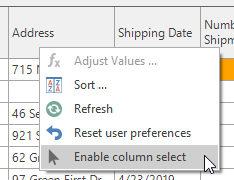
- Enable Column select: when toggled off, allows a user to click a column header, hold and drag columns to reorganize the table columns. When toggled on, a user cannot move table columns.
Dropdowns
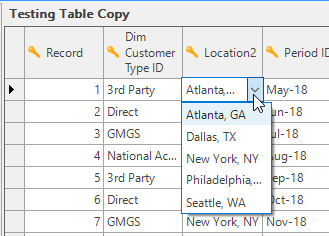
Calendar dropdowns and Item dropdowns can be created for use in the table. These dropdowns allow for more information to be available in the table without creating more rows.
Shortcut Keys Commands
Freeze Columns
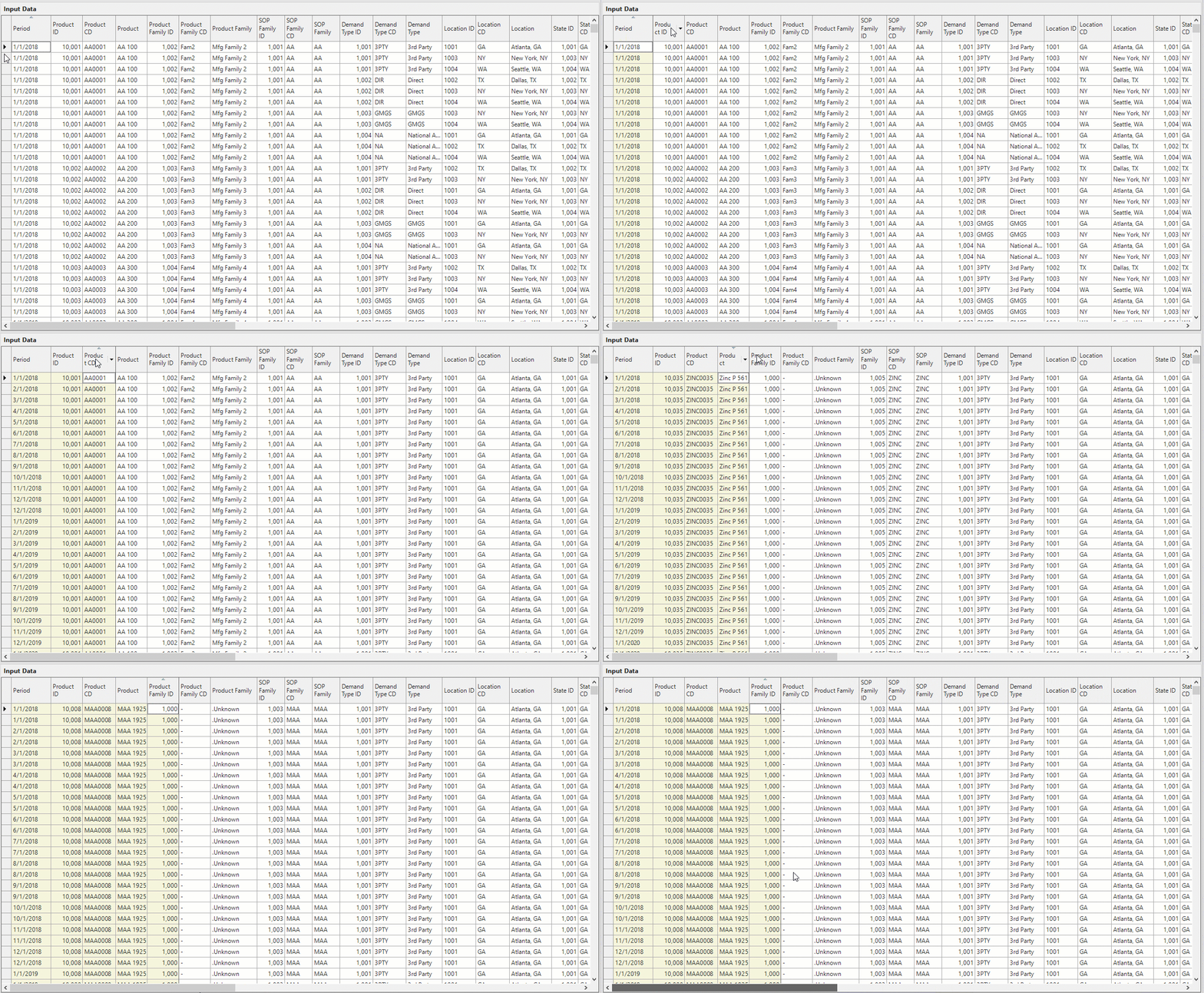
When a table has a lot of columns and requires scrolling, a user can freeze columns to keep important columns in view. Click a column and press and Ctrl + Shift + F to freeze that column and any columns to the left of the selected column. Select the same column and press Ctrl + Shift + F again to unfreeze the columns.
Clear values (Null value)
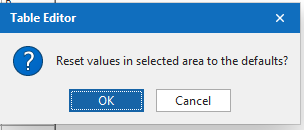
To completely clear all value from a cell or cells, use any of the following short-cut commands. This will render a value Null. First select desired cell(s) then press CTRL + 0 or CTRL + Delete to clear values. Click OK to render cell(s) Null.
Other Shortcut Keys Commands
- Select All: Ctrl + A
- Select Individual Cells: Shift + Arrow keys
- Select all cells in that direction: Ctrl + Shift + Arrow keys
Data Filtering
Hyperlink Filter
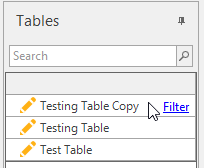
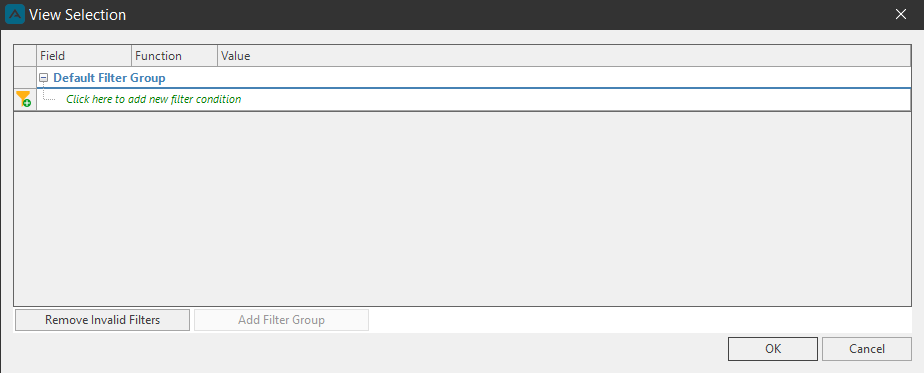
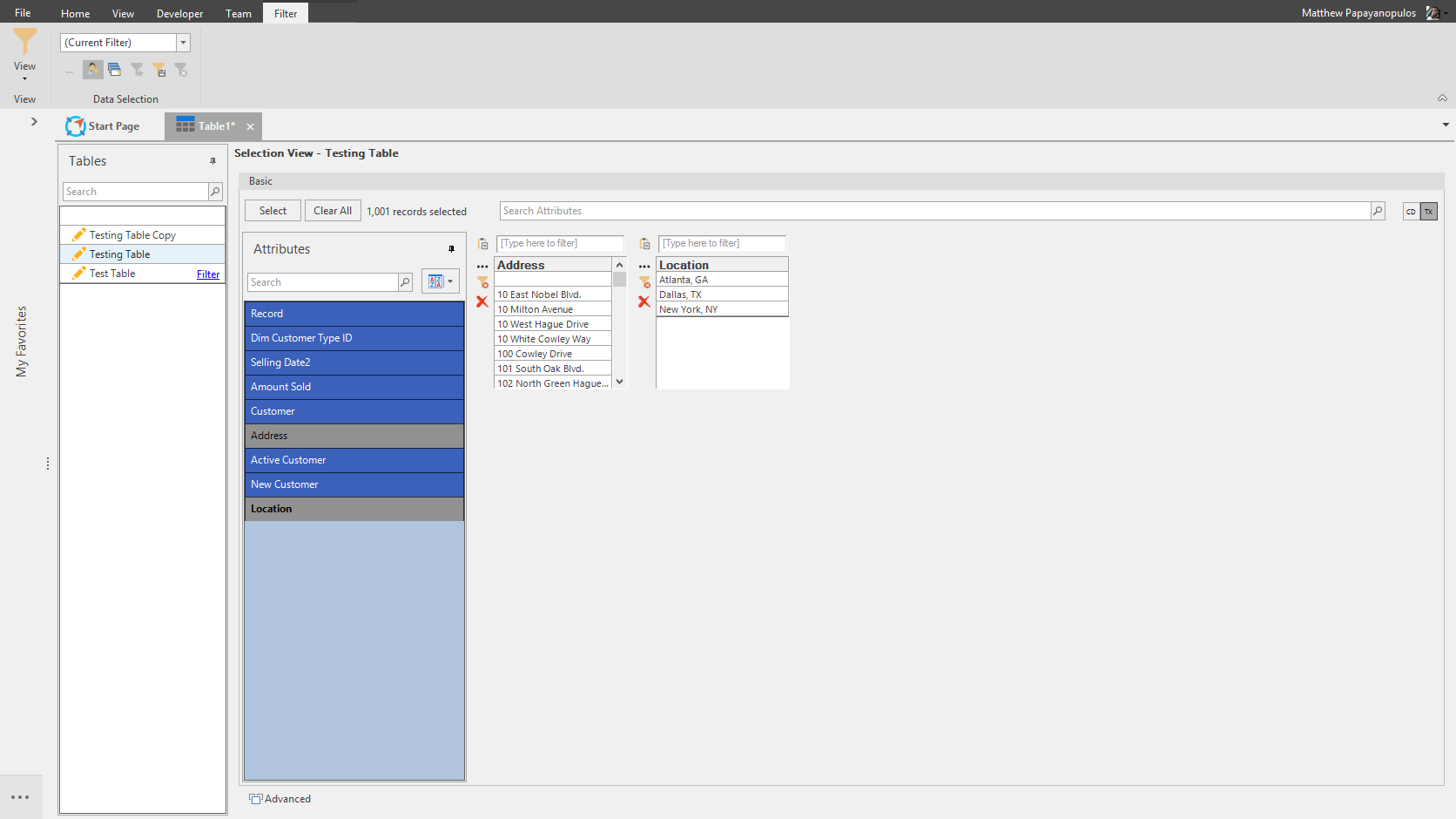
If multiple table entities are selected, an additional filtering option becomes available. Hovering the mouse pointer over the name of the table will make the Filter text appear, click Filter to launch the View Selection window.
Filtering is also available on each table item. Hover over an item and click Filter to launch View Selection window.
Filter View
If viewing multiple tables, select a table from the Tables list and click the Filter View button or select Filter View from the View dropdown to filter all attributes associated with that table.
Column Mapping
Automatic Mapping
Mapping occurs automatically if a user creates a table containing a column that has the same name and datatype as a dimension ID column. For example, if there is a dimension named Product, the ID column would be called Product_ID. If the user creates a table containing a Product_ID column it will be automatically mapped when loaded into the Arkieva table editor.
Column Mappings
Located in the Administration ribbon under Setup Manager; Column Mappings can be used to create custom column mappings. Follow the link to learn more about Column Mappings.
Row specific custom action
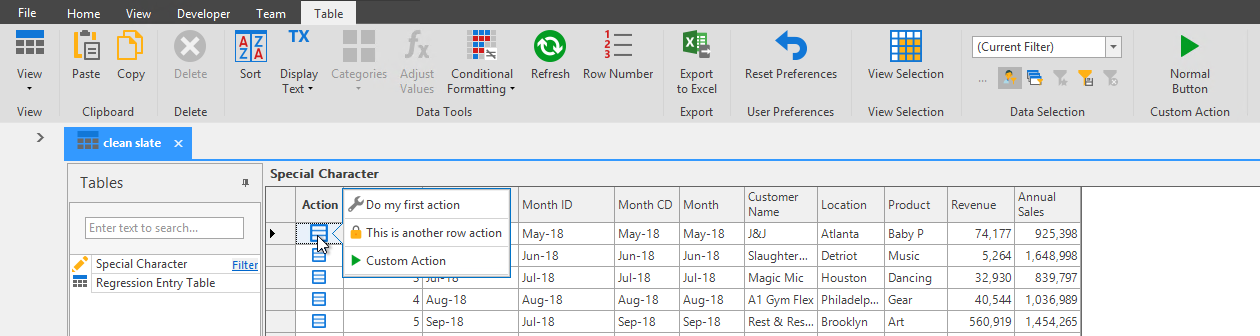
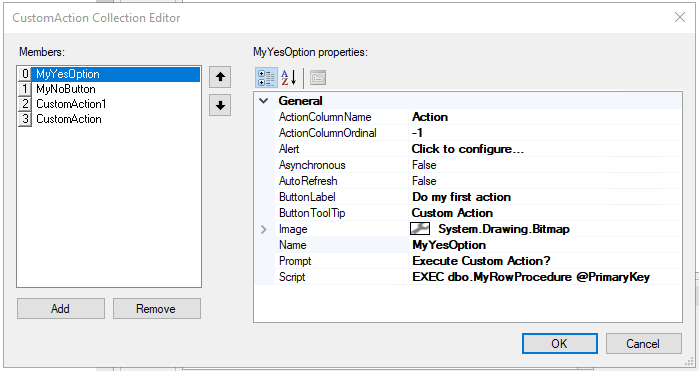
Previously, the only option for a Custom Action would be to create an action for the table, and not for specific rows. Now you can create row specific custom actions.
Another update to Custom Actions is when using @PrimaryKey or @PKColValues script options, you no longer need to specify parameters.