Statistical Forecast
Introduction
What is Statistical Forecasting?
Statistical Forecasting is one of the components of the overall Arkieva Demand Planning process. The purpose of the Demand Planning process is to create an Unconstrained Consensus Demand Plan from the following inputs:
- Sales Input
- Marketing Input
- Product Management Input (Product Life Cycle Management)
- Customer Input
- Statistical Forecasting
Objective
The objective of the Statistical Forecasting process is to generate a future demand forecast based on the past historical data which may include trend and seasonality.
📘 It is highly recommended to develop a Differentiated Forecasting Strategy (DFS) by conducting an analysis to identify which products are appropriate for Statistical Forecasting and which are the ones that are suitable for other types of input.
DFS analysis creates a demand segmentation report by categorizing various products into groups based on their historical demand pattern, variability, volume, relative importance, etc. Generally, products with low historical variability (or highly predictable) are candidates for statistical forecasting. Demand is segmented based on the value to the business and its statistical predictability.
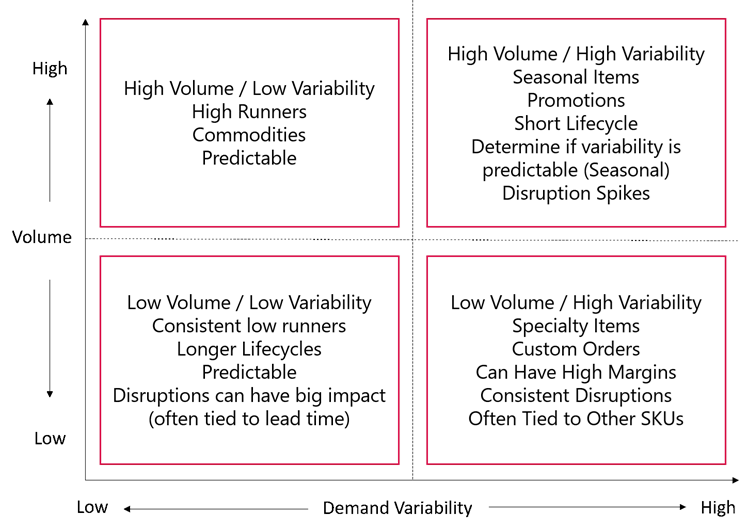
Data Analysis: Identification of Forecastability
Not all demands are seasonal or have specific trends. Many times the demands are erratic or lumped up in a few months and do not show any possible trend that otherwise can be forecasted by seasonal or regression forecasting methods.
In Arkieva, apart from typical Pareto and variability analysis, we have additional analysis options specifically designed for finding out these types of demands. Intermittence, Lumpiness, Erraticness are some of the examples of ways in which we can segment the data to forecast them differently. If we know a few products whose demand is very intermittent we may not want to forecast using typical seasonal or regression forecasting methods. We may want to use a different statistical method which is more suitable to predict intermittent demand. (An Arkieva inbuilt sporadic method for example.) This way we can identify which methods to use in statistical forecasting based on the historical demand type of the product, which eventually leads to improvement in creating a base line statistical forecast.
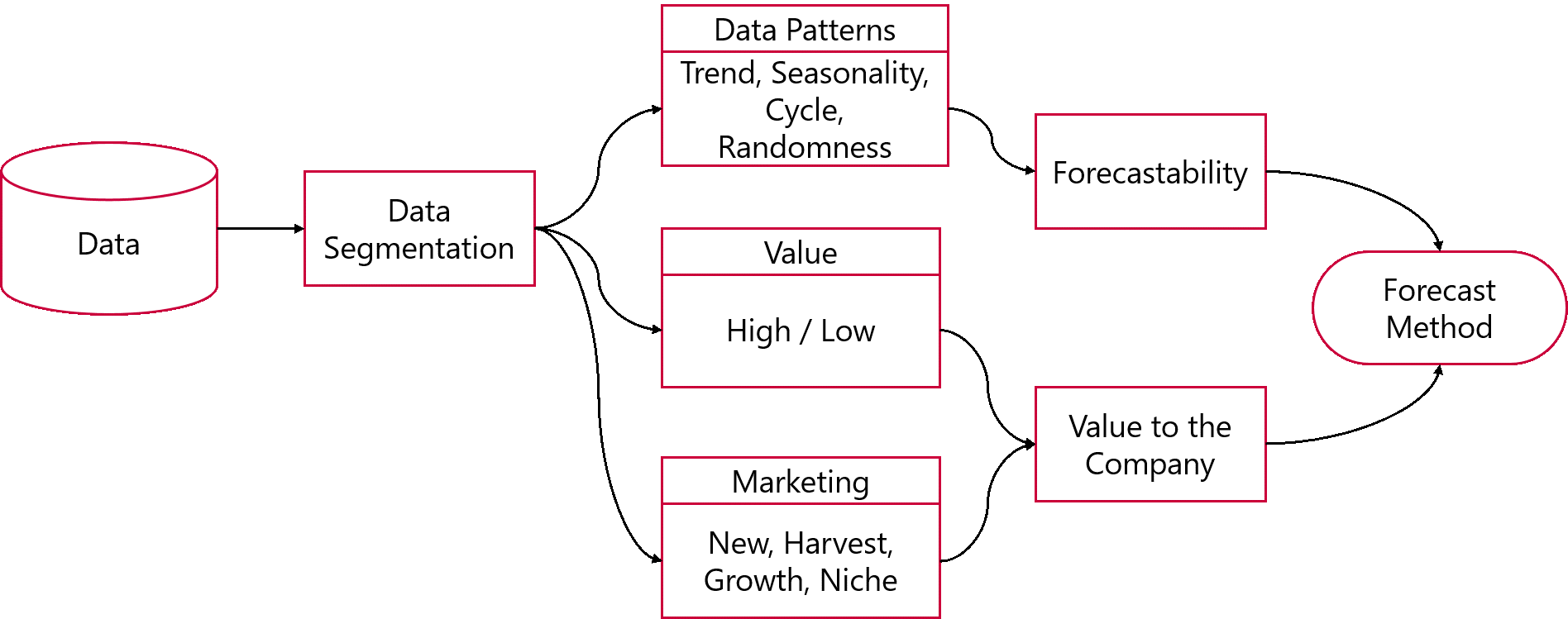
Statistical Methods Selection Based on Segmentation and Portfolio Management
Statistical Forecasting Implementation Process
- Define data attributes
- Determine best combination of attributes
- Categorize data into groups
- Match groups to Forecast methods
- Set method parameters
- Run statistical forecast
- Validate results: Update prior step to Improve statistical forecast

Iterative Forecast Steps
Factor Influencing Forecast Accuracy\ Human Error
- Basic human error
- Lack the skills
- Selecting the wrong method leads to poor forecast
- Where the right method is selected selecting the wrong parameters leads to poor forecast
*Efficient Time Usage**
- Creating aggregation levels
- Selecting methods to handle all time series
- Finding right parameters for all the time series
- Endless iteration process looking for better forecast
Minimize Human Interface\ Objective
- Simplify process
- Quick turn-around
- Improve accuracy
- Flag potential issues for review
Machine Learning
- Data profile
- Data categorization (unsupervised learning)
- Unsupervised Learning : Matching profiled data to a method
- Supervised Learning : Matching profiled data to best method
Optimization
- Optimize method parameters
Forecast Model aggregation
- Combining outputs from multiple forecast method
Artificial Intelligence
- Neural Network forecasting
- Matching Time Series to Best Methods
- Forecast over multiple levels
Creating a New Forecast View
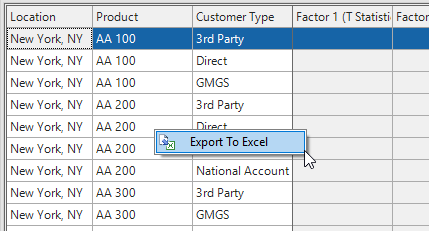
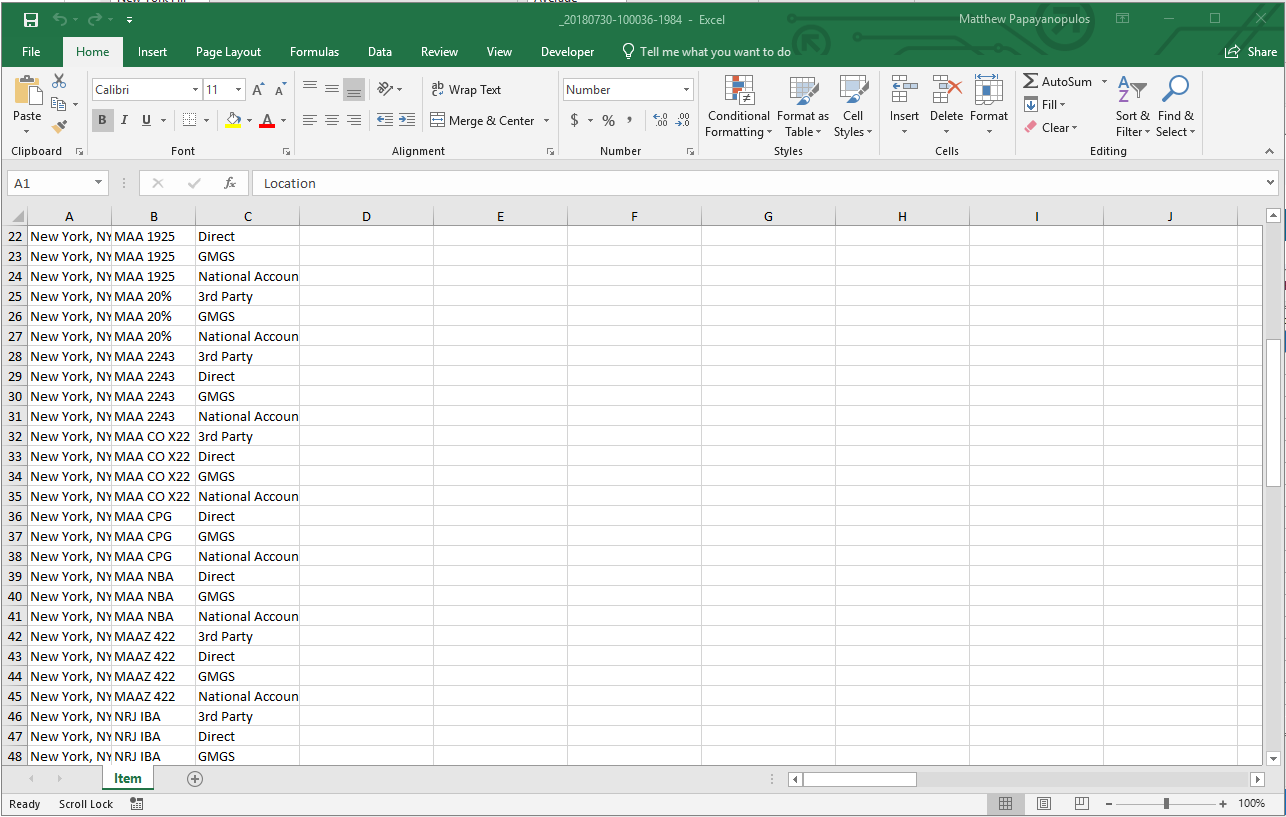
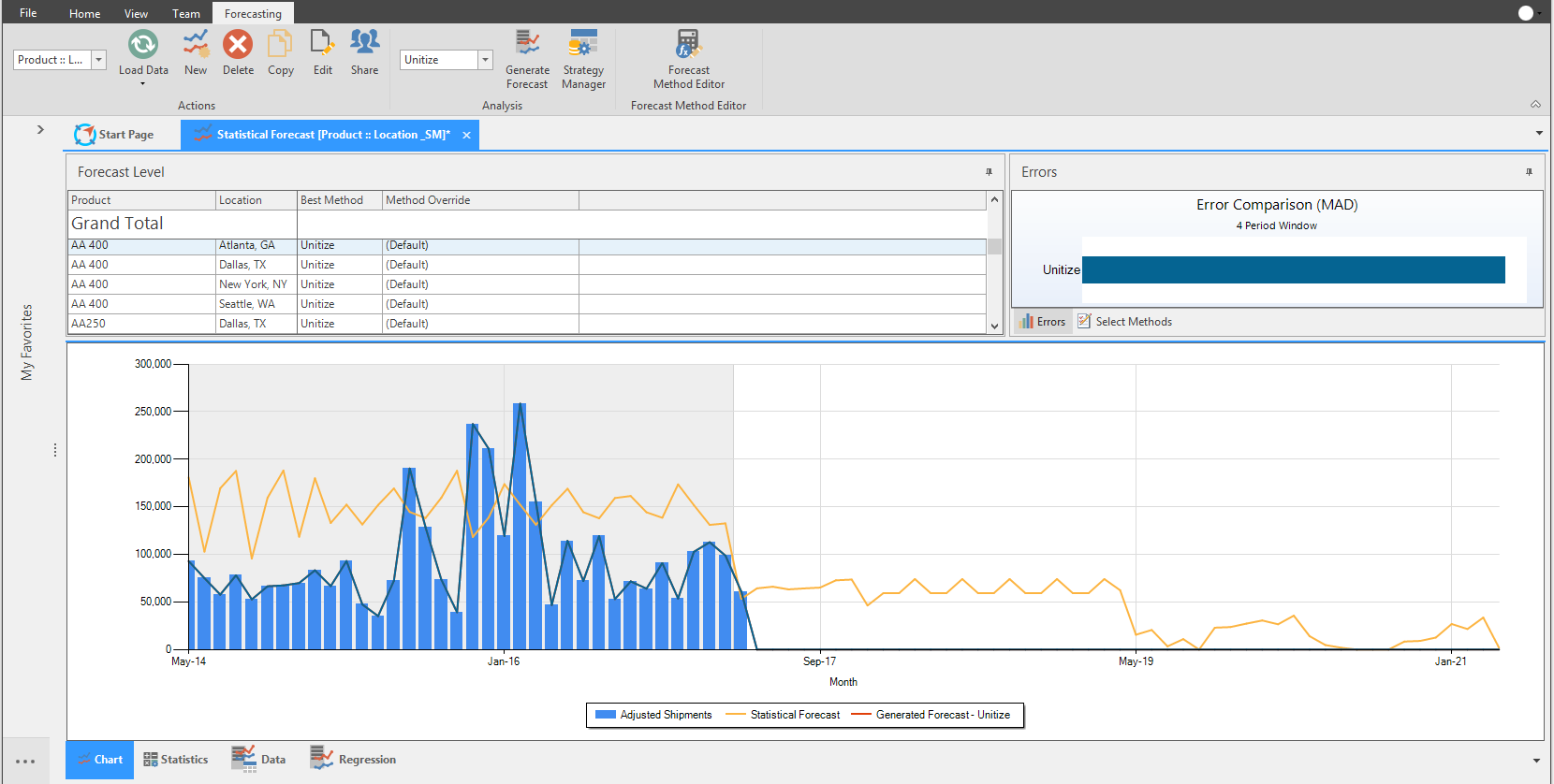
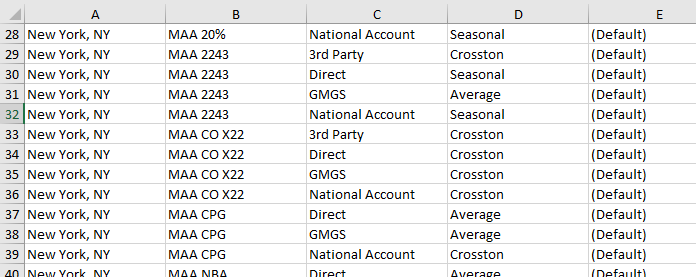
In Statistical Forecast, selectable components of the Forecast View are tied together; i.e. selecting an Error in the Error Comparison section will also highlight that data in the chart, or highlighting a quantity under the Grand Total will populate data in the Chart, and so on. Also, every section of the Forecast can be exported to Excel; right-click a section and select Export to Excel.
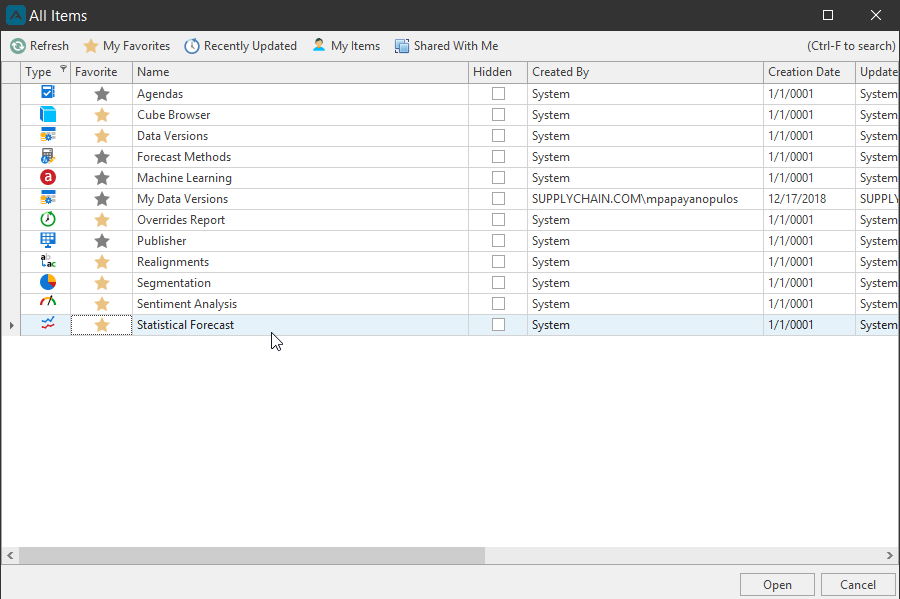
Access Statistical Forecast from Browse All Documents window.
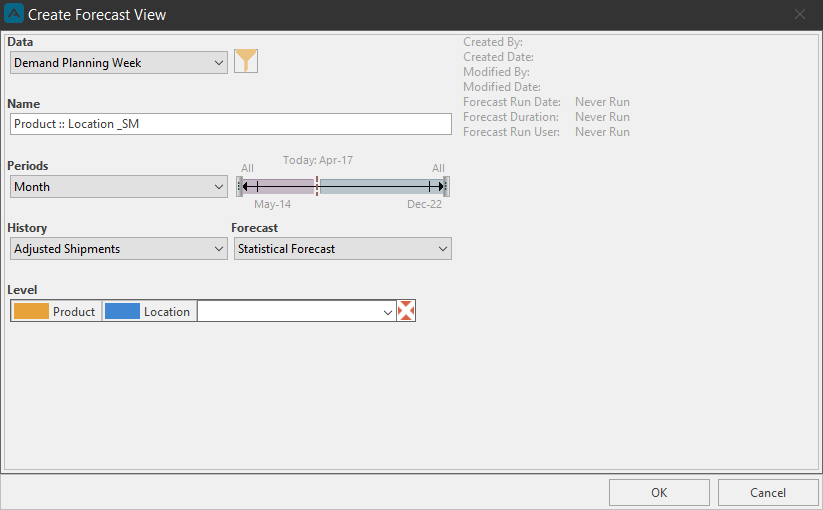
To create a new Forecast View, click New from the Forecasting ribbon. The Create Forecast View window will launch.

📘 Note
When you create a Forecast view, your Default Filter RLS will apply to the filter view. This will help when applying a smaller set of data to the Forecast, rather than running the entire data set, even when your RLS has access to a specific data set. Only the Default Filter RLS will apply.
From the Data dropdown, select a constellation data set.
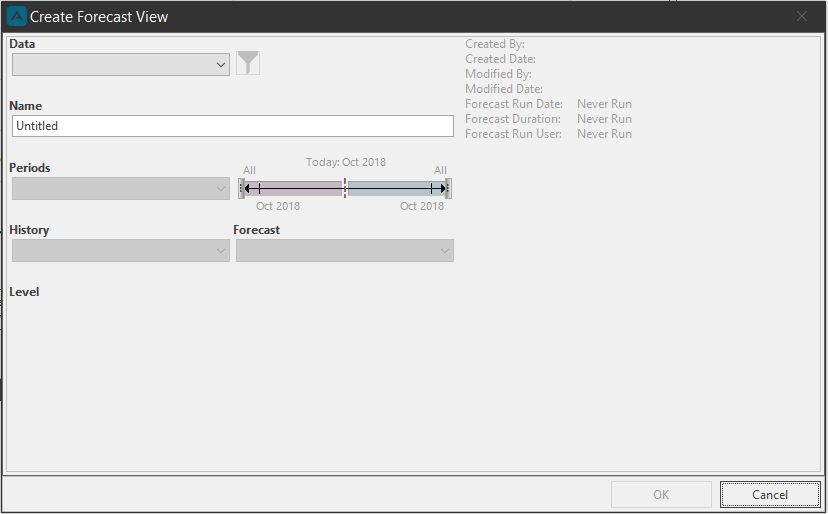
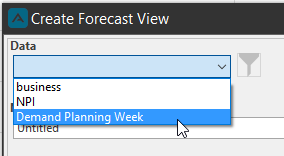
You can create a forecast view of the entire data set, or you can partition the data by using the filter feature to forecast a specific set of data.
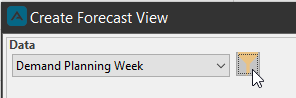
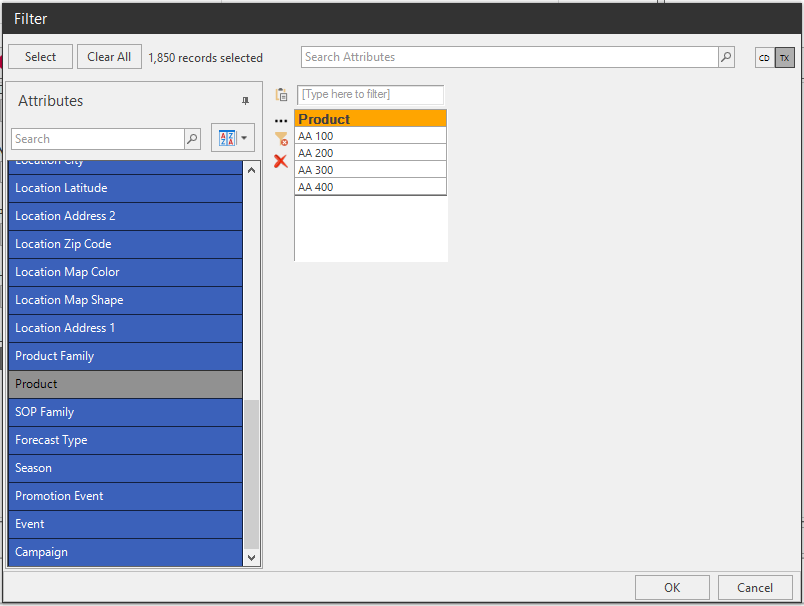
A green plus sign will appear on the Filter icon to show a filter has been selected. Hover the mouse over the button to show a tooltip showing the selected filter information.

Next, type a name for the Forecast View and select a time series to forecast from the Periods dropdown. Optionally, you can drilldown further into the period by using the time scale next to the Periods dropdown.
Select the History quantity that you want to base your forecast on from the History dropdown, and select a Forecast attribute to save the Forecast out to if you want to save the results (this option becomes available later after generating the forecast).
Lastly, select at what level you want to run the forecast analysis with the Level dropdown. Selections made here will be present in the Forecast Level section of the Statistical Forecast layout.
Review your selections, then click OK.
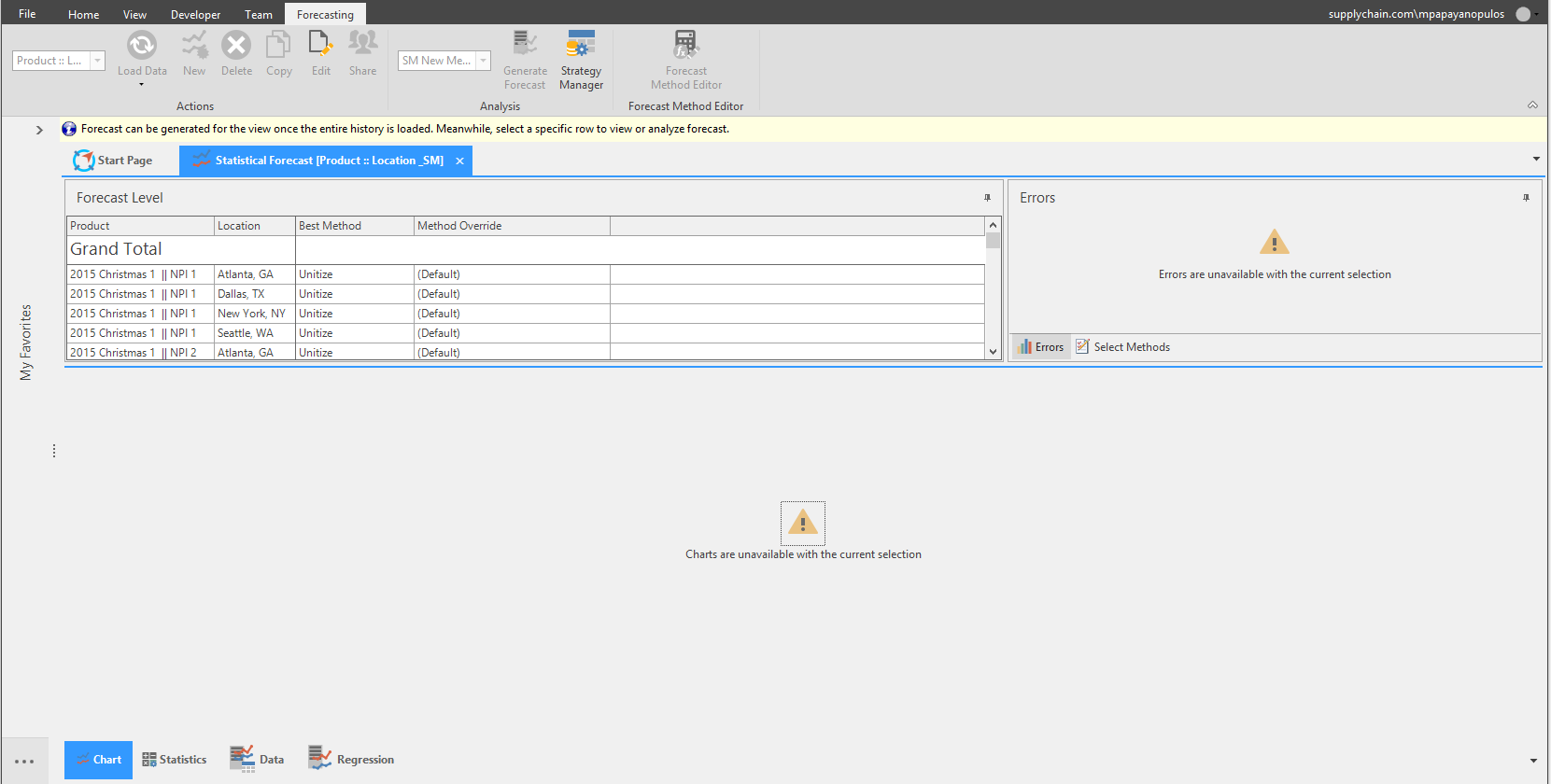
The new forecast will now be available for selection from the forecast dropdown. When the Forecast View launches, we can see our Level selections in the Forecast Level section. Select a Forecast Level to view the Periods, History, and Forecast sections in the Chart.
👍 Remember to save the forecast view.
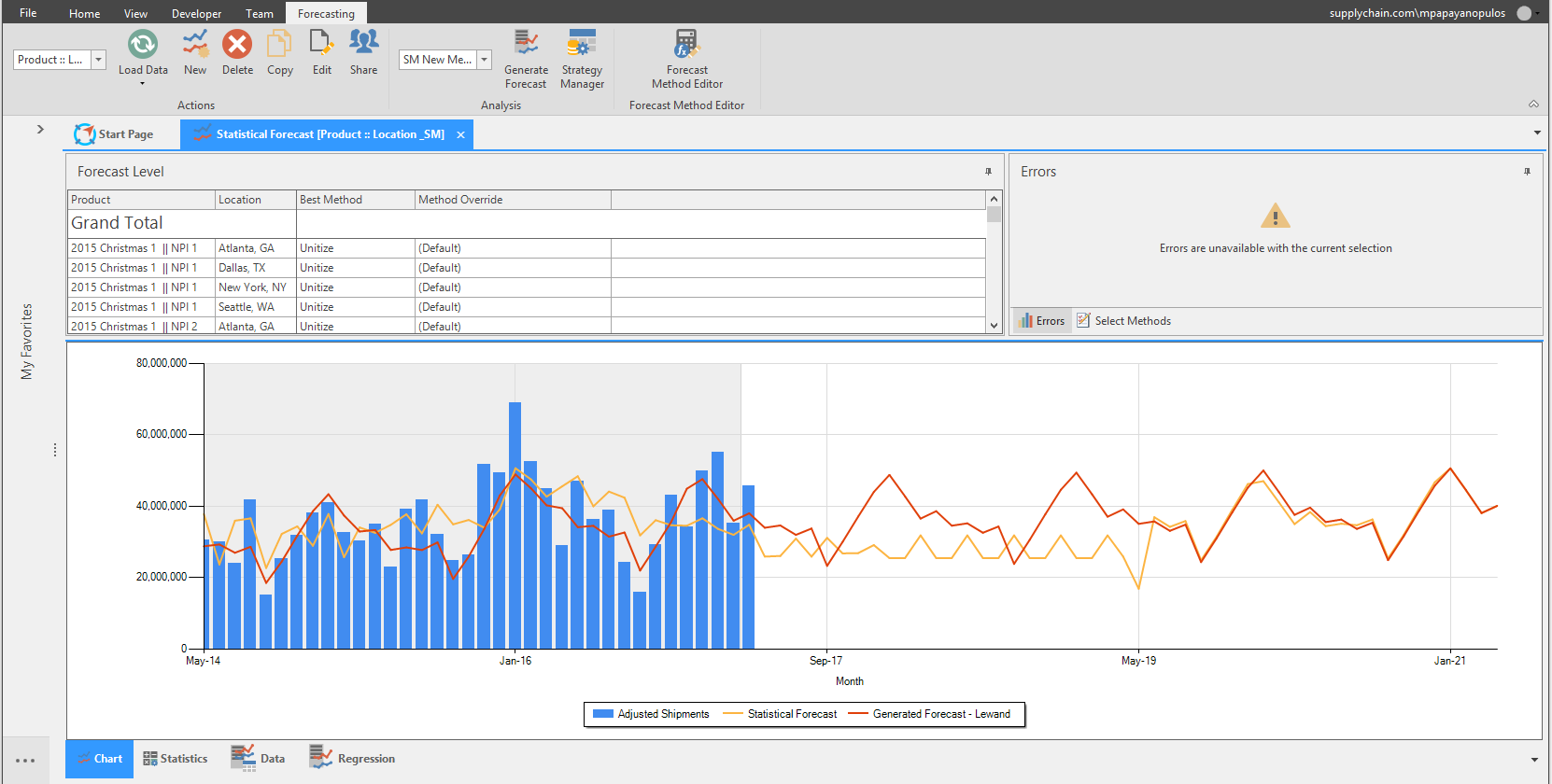
The selected forecast will launch, but the Errors and Chart sections will be empty. Clicking Grand Total will populate the Chart section of the layout, but if this is a new Forecast View, there will be no Forecast Methods selected in the Forecast Level Best Method column. You will need to generate the forecast with a Method selected from the method dropdown before any error comparisons can be made.
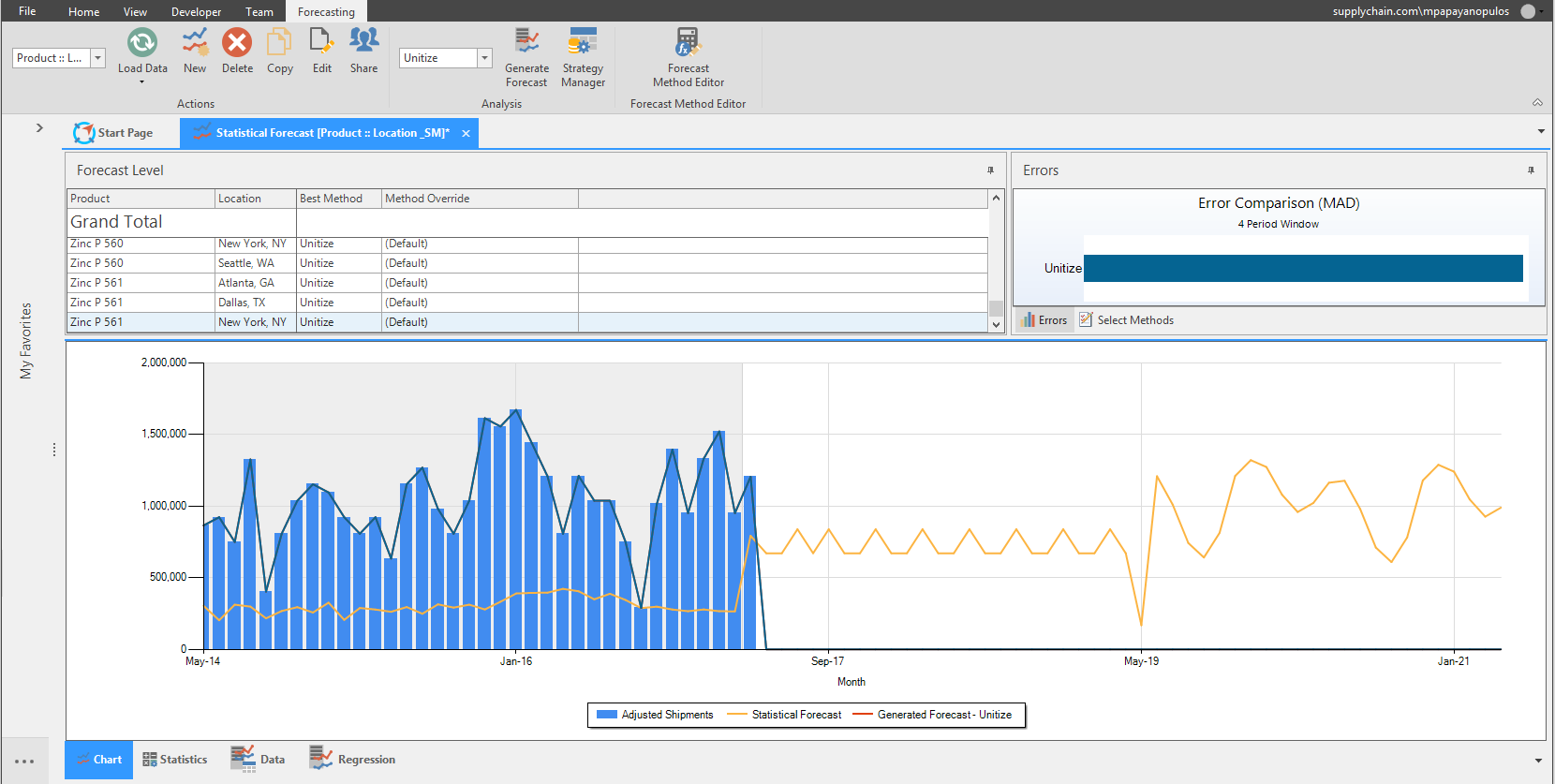
Generate Forecast Method
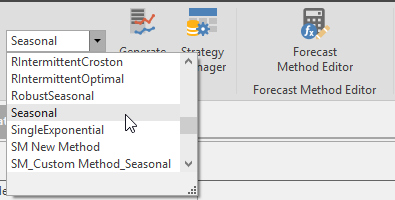
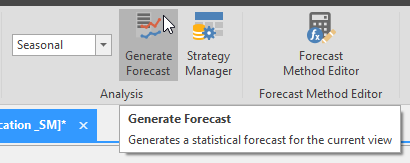
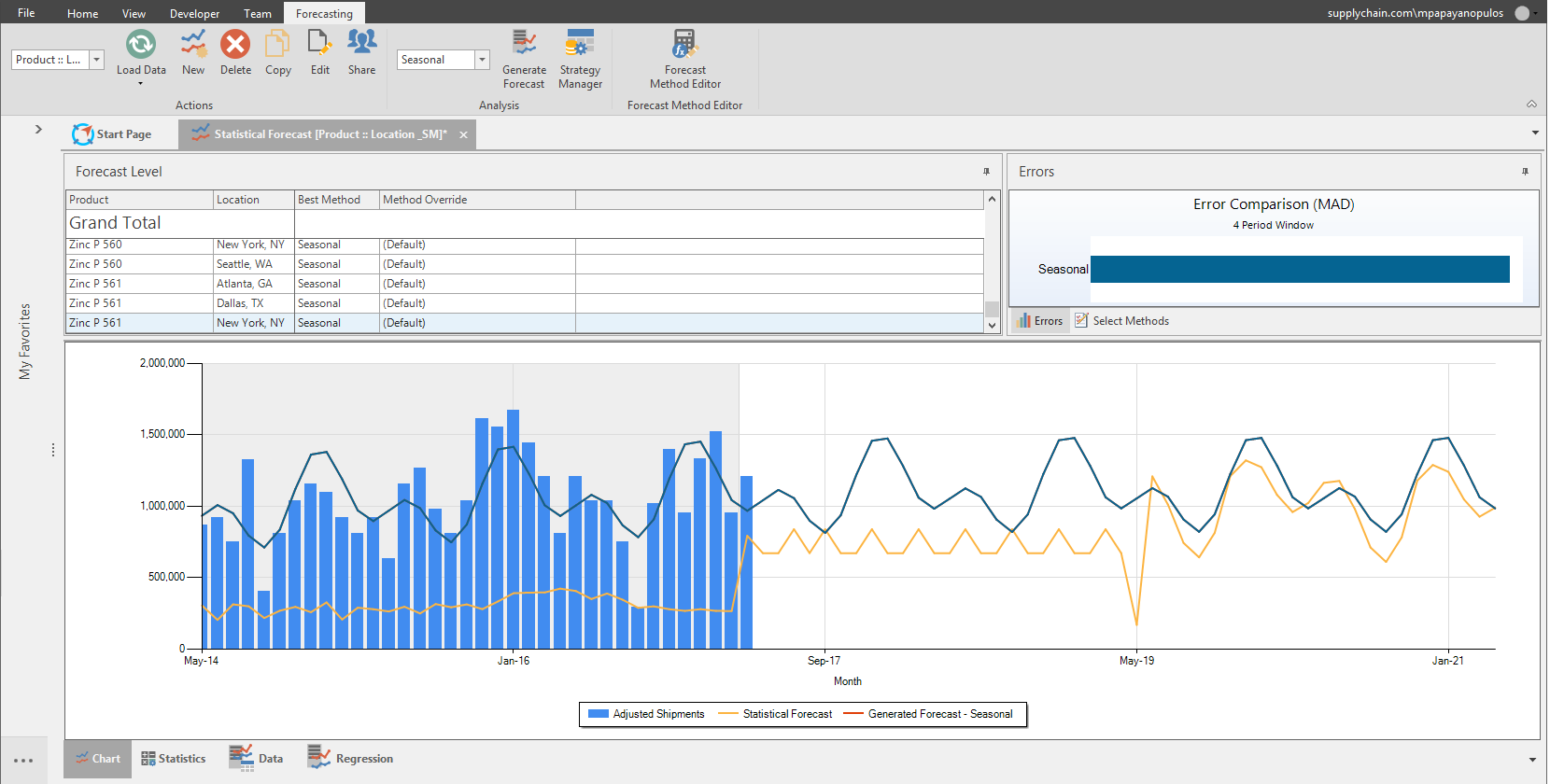
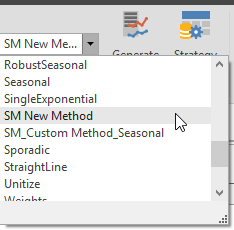
Select a method from the dropdown and click the Generate Forecast button. This method will be the Best Method selected for this Forecast View. The best method is the method that forecasts the least amount of errors.
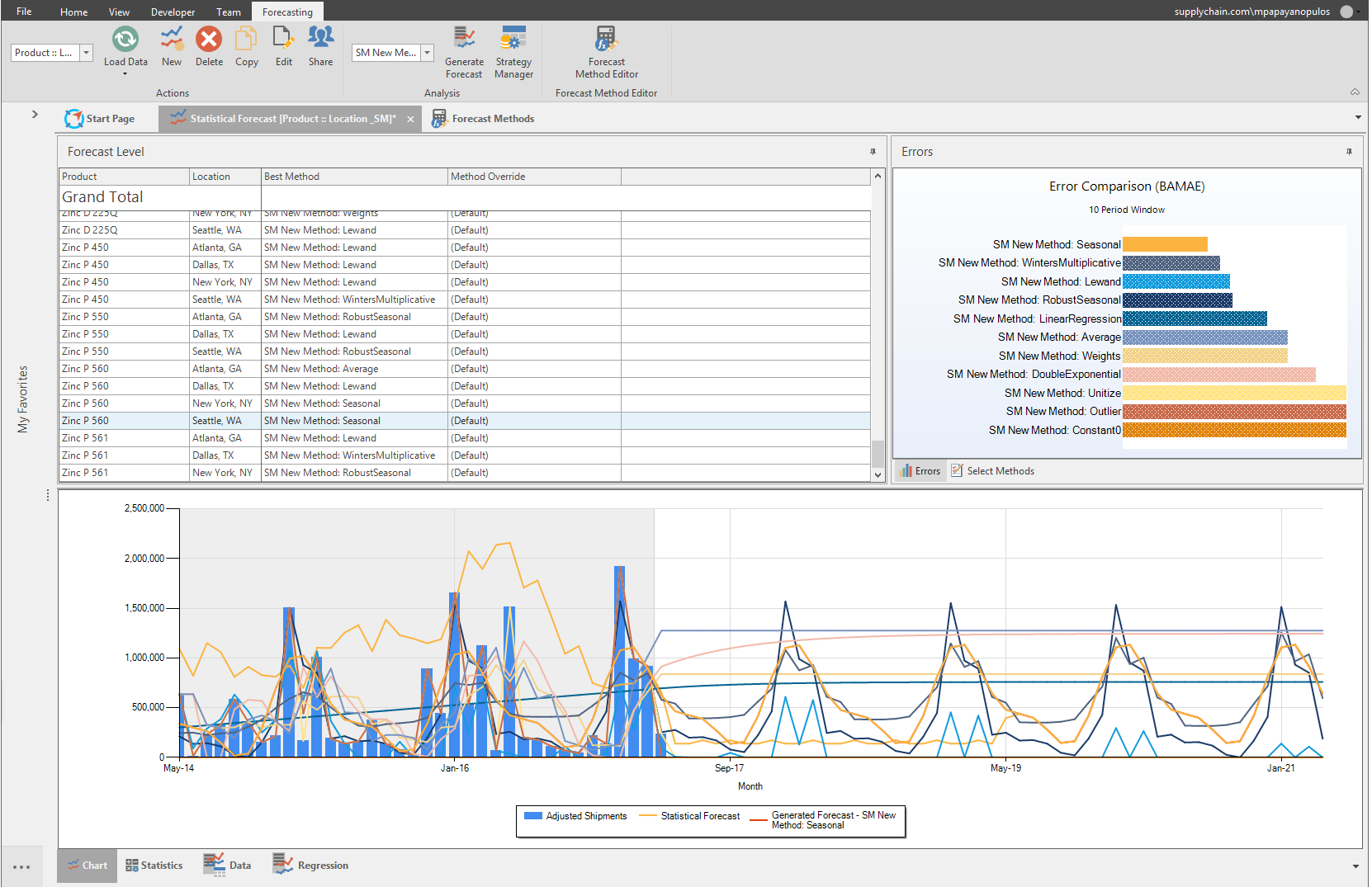
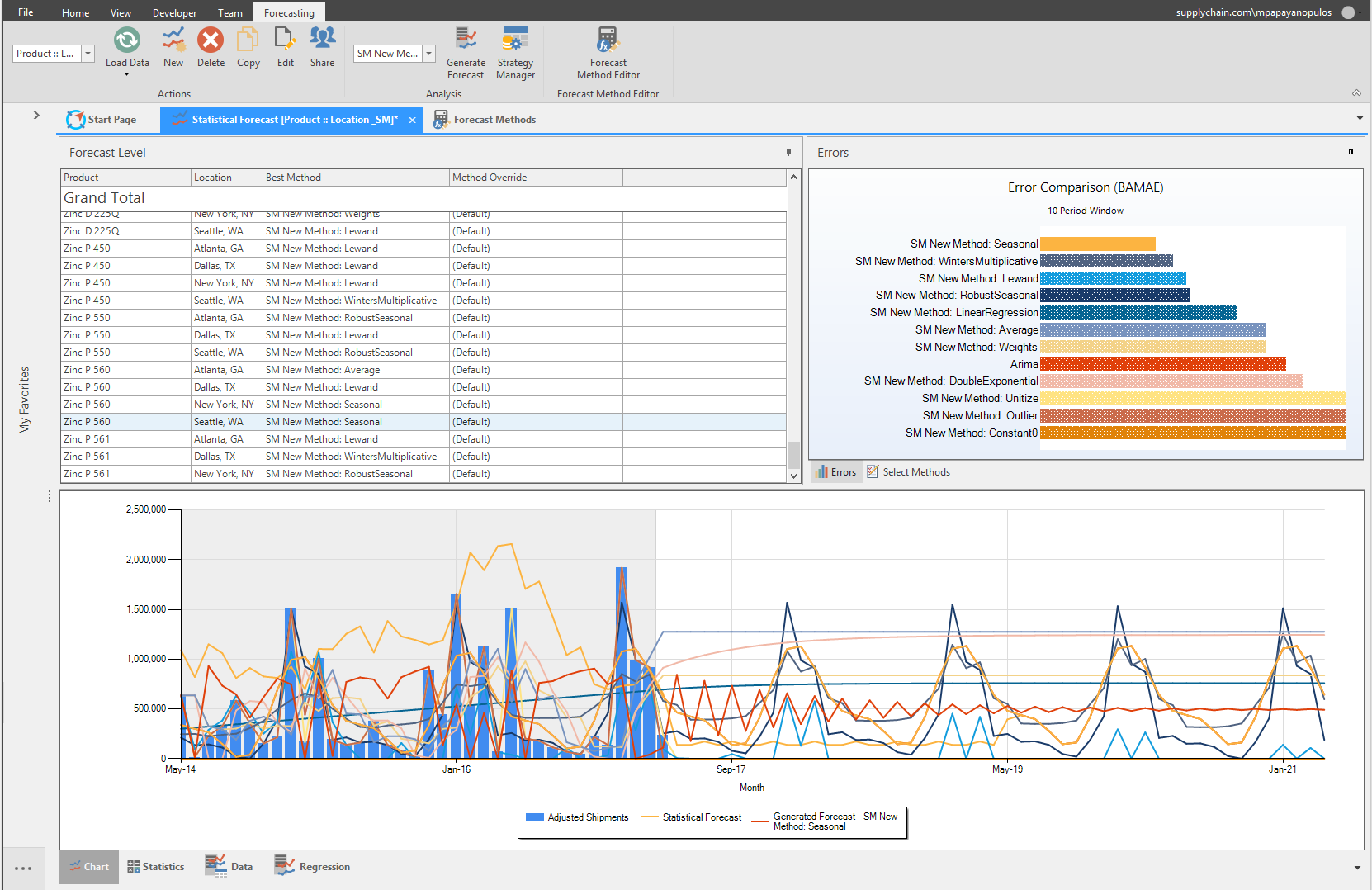
Notice in the Chart that the Average error method is represented as a Line, which is the same color as the rectangle under the Error Comparison section in the Errors tab.
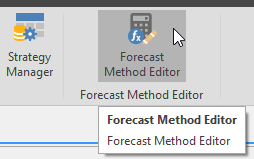
Forecast Method Editor
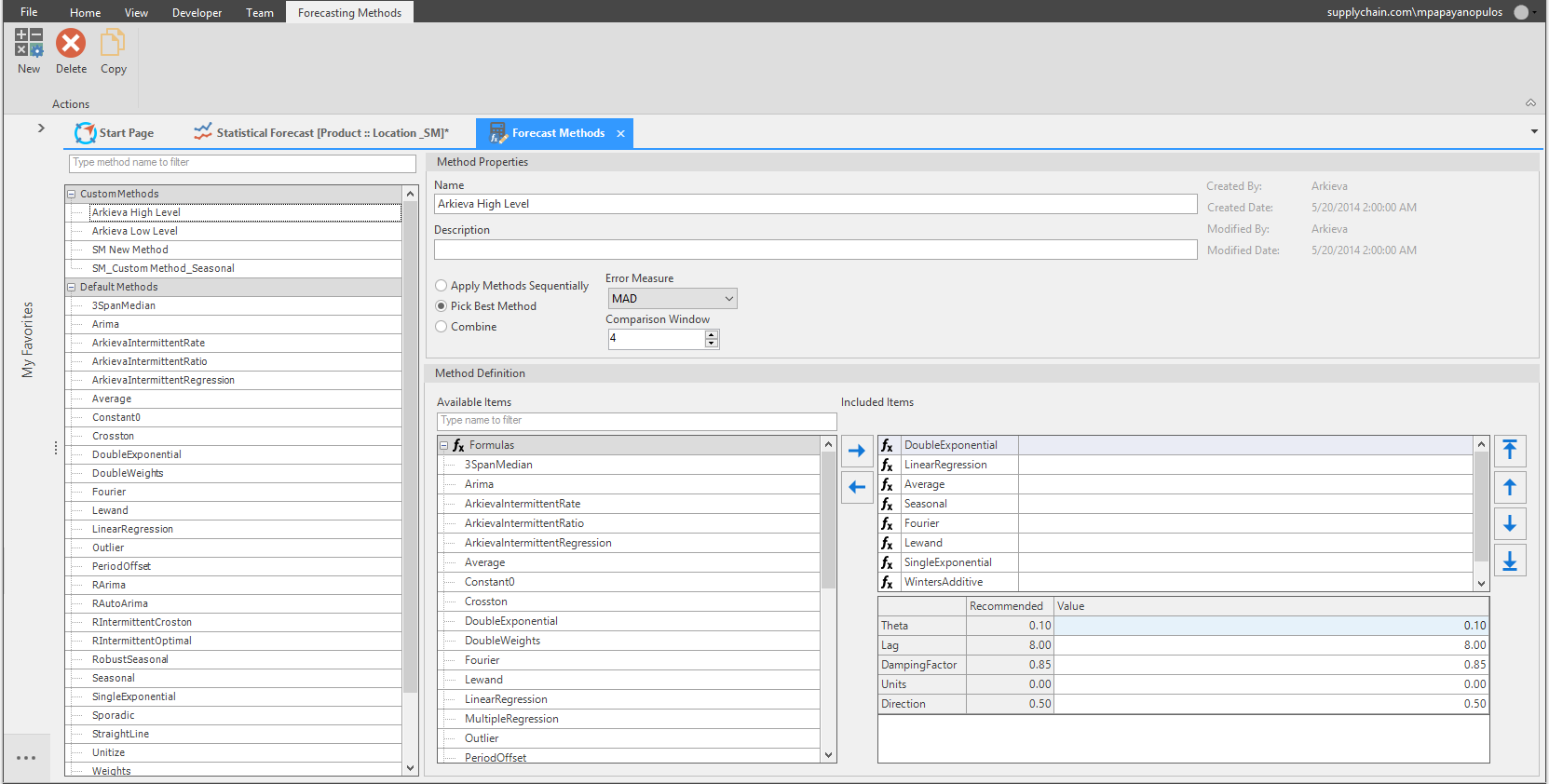
You can create a Custom Method by clicking the Forecast Methods Editor button, which will launch the Forecast Method Editor window in a separate tab.
Method Override
There are instances when you know there is a better method for an attribute that can be used other than the Best Method selected.
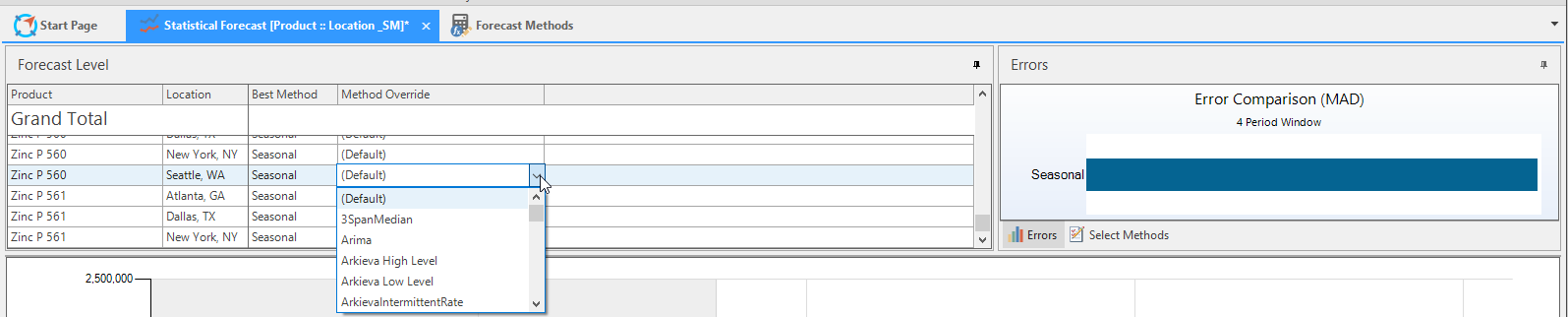
In the Forecast Level section under the Method Override column, a method can be selected to compare against the Best Method. Click the (Default) cell to open the dropdown, and select a method. That method will appear under the Error Comparison section of the Errors tab along with the Best Method.
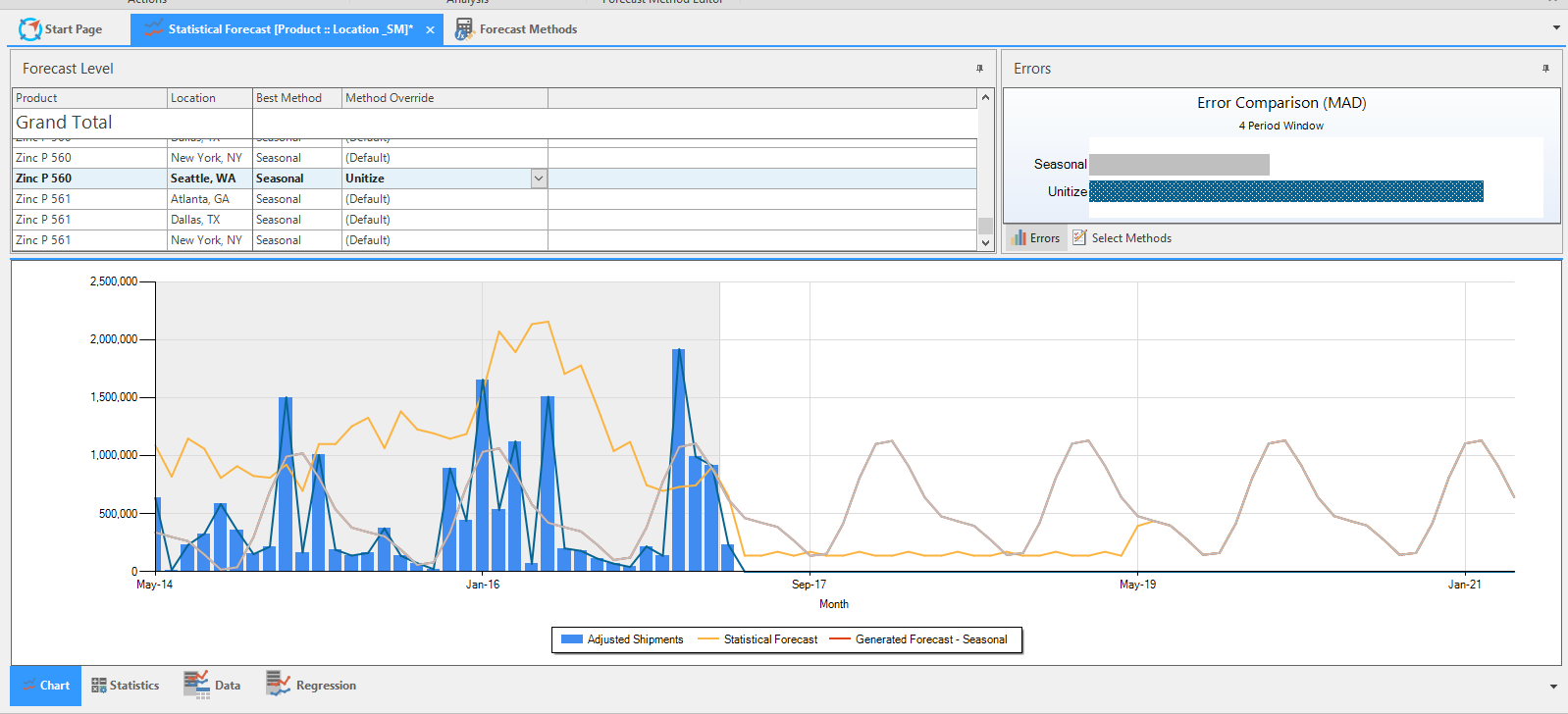
The next time the Forecast is Generated, the Method Override selected will become the new Best Method.
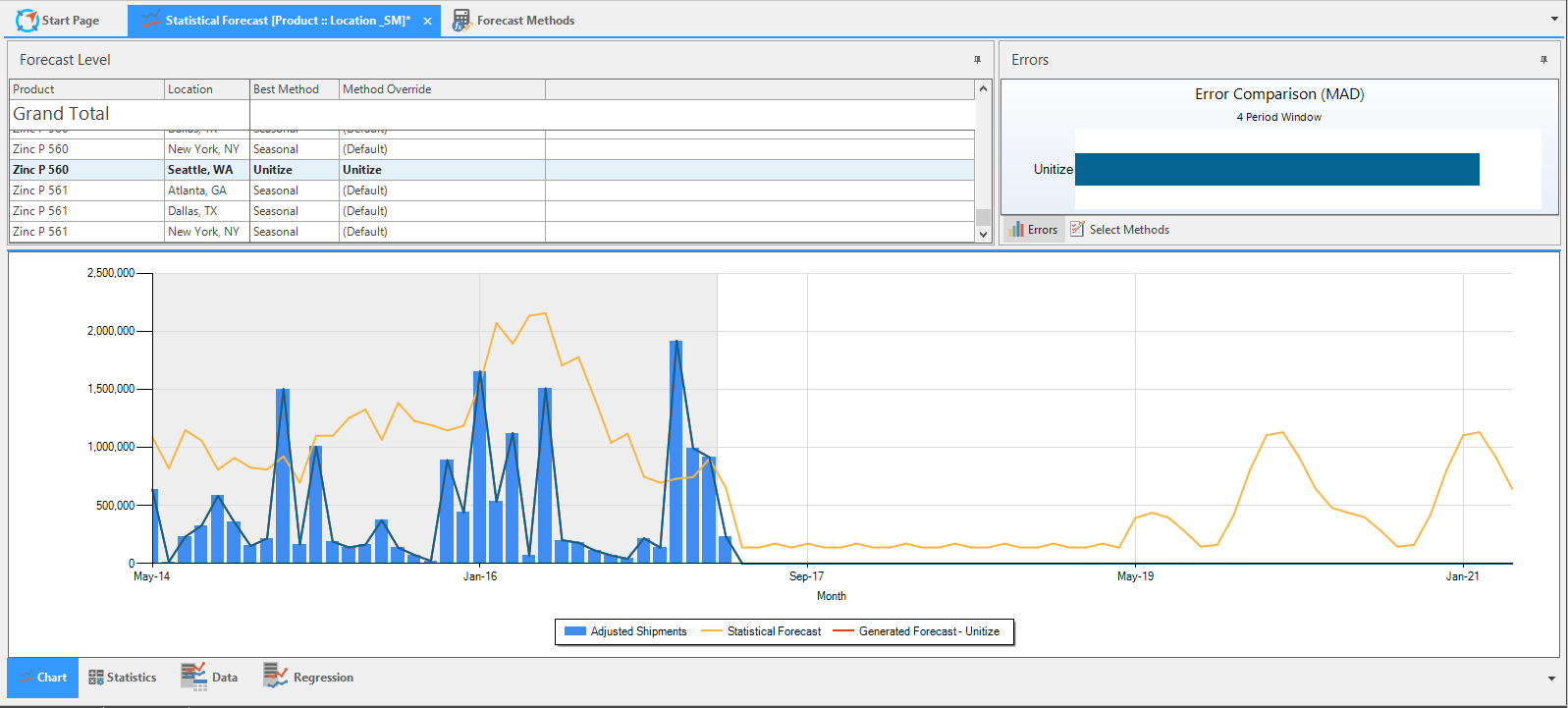
Reset by selecting (Default) from the dropdown.
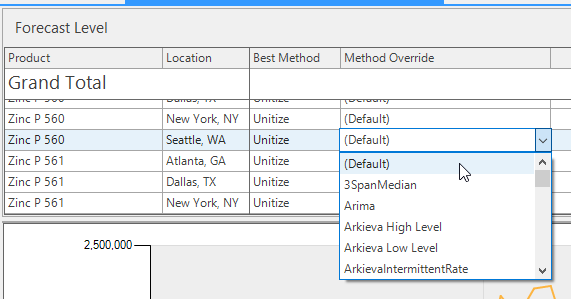
Error Comparison
There are multiple ways to perform error comparisons. One way is to create Custom Forecast Methods with more than one method selected. When the Forecast is generated, Arkieva selects the best methods automatically for each attribute across the entire forecast.
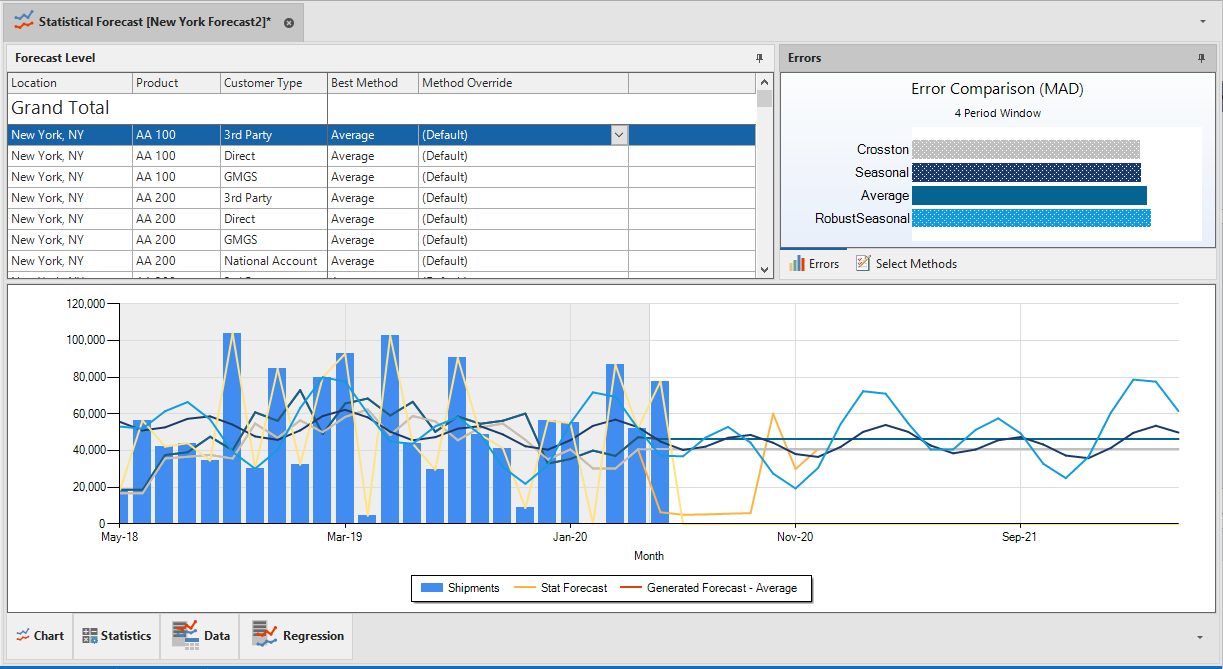
Notice that the Best Method will have a solid color fill in the Errors Error Comparison section. The other methods will have a cross hatch color fill.
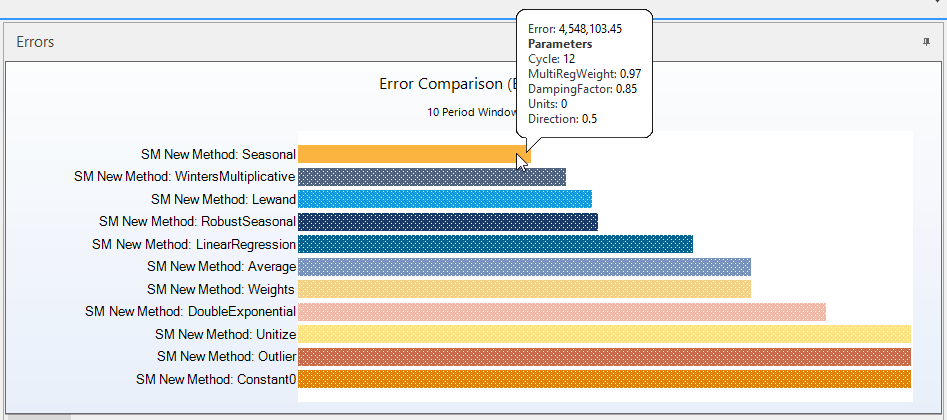
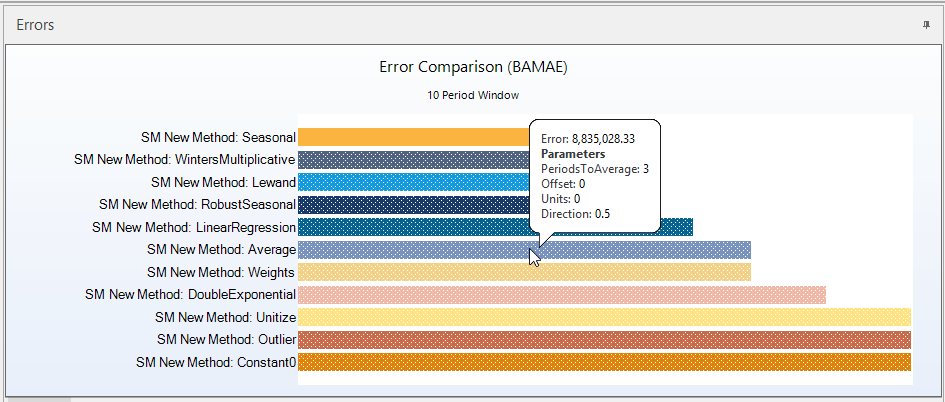
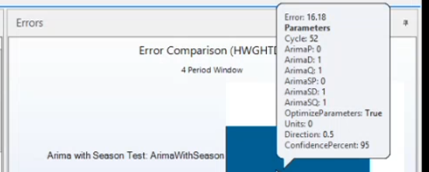
To view why a method has been selected as Best Method in an Error Comparison, hover your mouse pointer over the bar to see tooltip information listing the error amount and the method parameters.
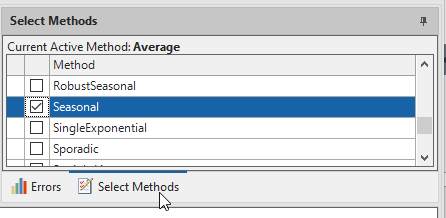
To create an error comparison on individual attributes, go to the Select Methods tab located in the Errors section. From here you can check the checkboxes of methods that were not selected in the method selected in the Forecasting ribbon dropdown.
Notice that the method(s) selected from the dropdown have a Lock icon; these methods cannot be unchecked.
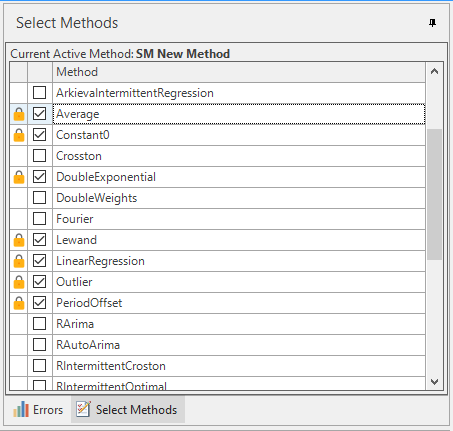
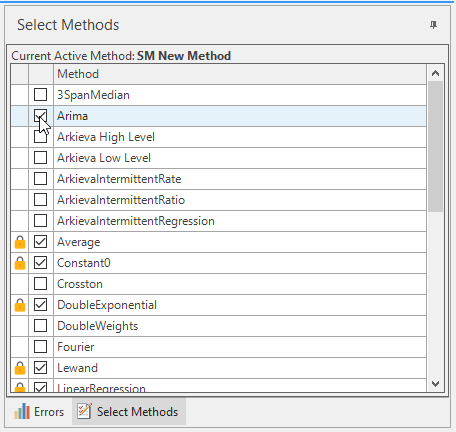
Also, any methods selected for an error comparison will be available to view in the Chart.
Save and Commit the Forecast View
Save Generated Forecast\ When you are happy with the forecast, save the Forecast View by clicking the Save button in the Arkieva menu bar.

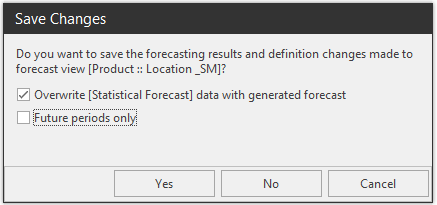
The Save Changes window will launch. Clicking Yes will save the Forecast View and all changes made to that view. Checking the ‘Overwrite data with generated forecast’ checkbox will save the forecast to the quantity selected from the Forecast dropdown in the Create/Edit Forecast View window (for this Forecast View the Forecast quantity selected was Stat Forecast).
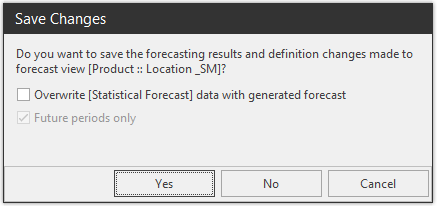
Checking that checkbox will make that information available for use for Workbenches and Quick Reports. Uncheck Future Periods before clicking Yes.
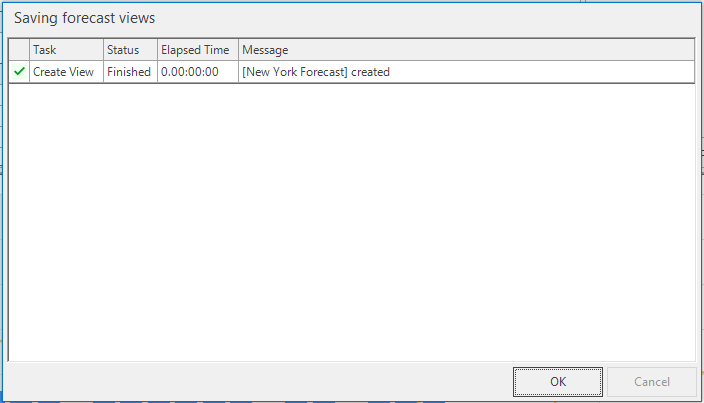
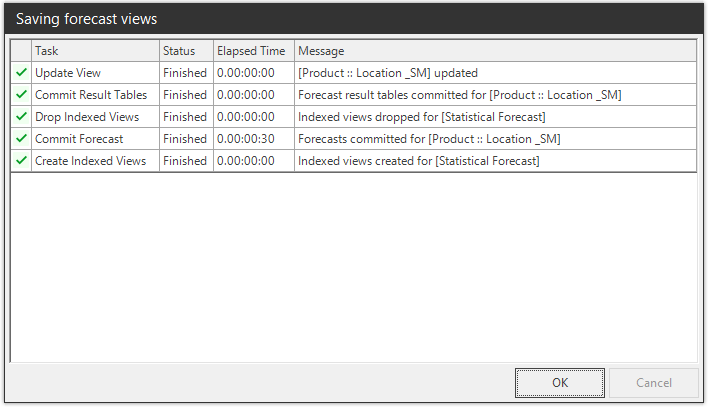
After clicking Yes, the Saving forecast views window will launch. Click OK when the saving process is complete.
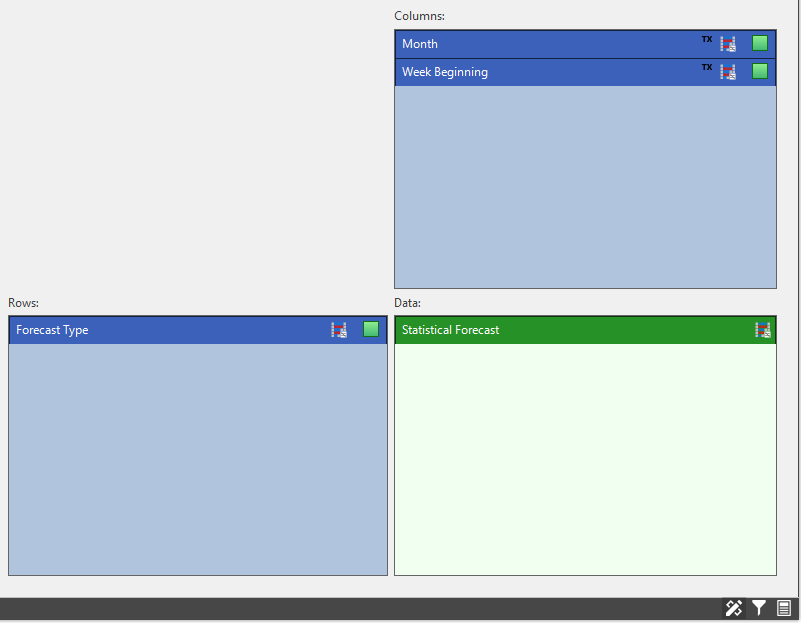
Below is an example of the Forecast quantity Stat Forecast in a Quick Reports.

Forecast Level
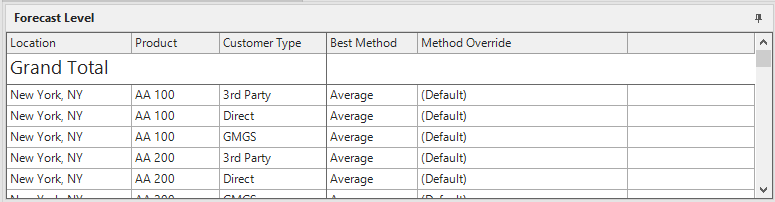
Selections made in the Create / Edit Forecast View are reflected in the Forecast View section. Changes made in the Forecast Level section will be reflected in the Errors and Chart sections.
- Level: Displays the Level(s) selected in the Create/Edit Forecast View window.
- Grand Total: Activates the Chart tab information.
- Best Method: Displays the selected Method from the dropdown located in the Analysis in the Forecasting ribbon.
- Method Override: Dropdown for the user to select a different method other than the Best Method. After selections, generate the forecast.
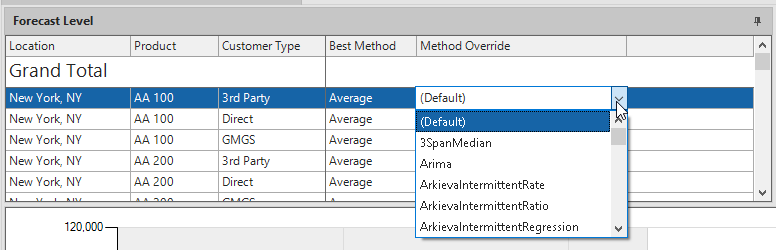
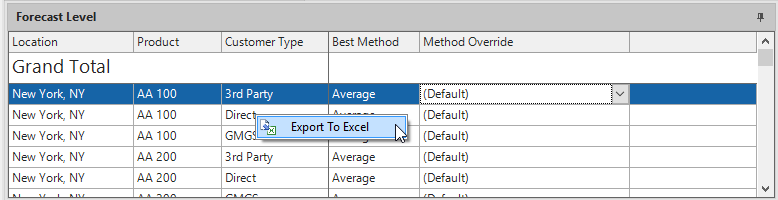
Export Forecast Level to Excel
Right-click anywhere inside the Forecast Level box and click Export to Excel.
Errors and Select Methods tabs
Errors tab
Displays the Error Comparisons of all selected methods. Methods are selected from the Method dropdown in the Forecasting ribbon, the Method Override column in the Forecast Level section, and the Select Methods tab.
The Methods Error Comparison is represented as a bar graph. The shorter the bar, the less errors that method produced.
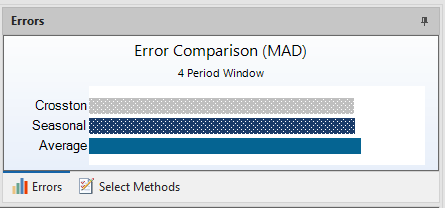
Error information can be viewed in the Tooltips available when hovering the mouse over the method bars.
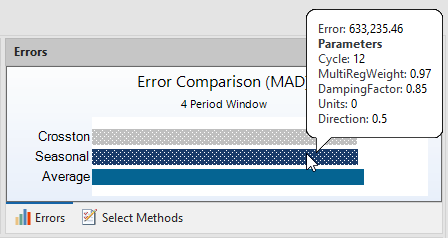
CTRL + Click an error in the Errors section to only show that error in the chart. More than one error can be toggled on in the chart by holding CTRL and clicking multiple errors. Only clicking the error in the Errors section will highlight that error in the chart, but the other errors will still be visible.
Click anywhere in the white-space of the Errors section to de-select that error.
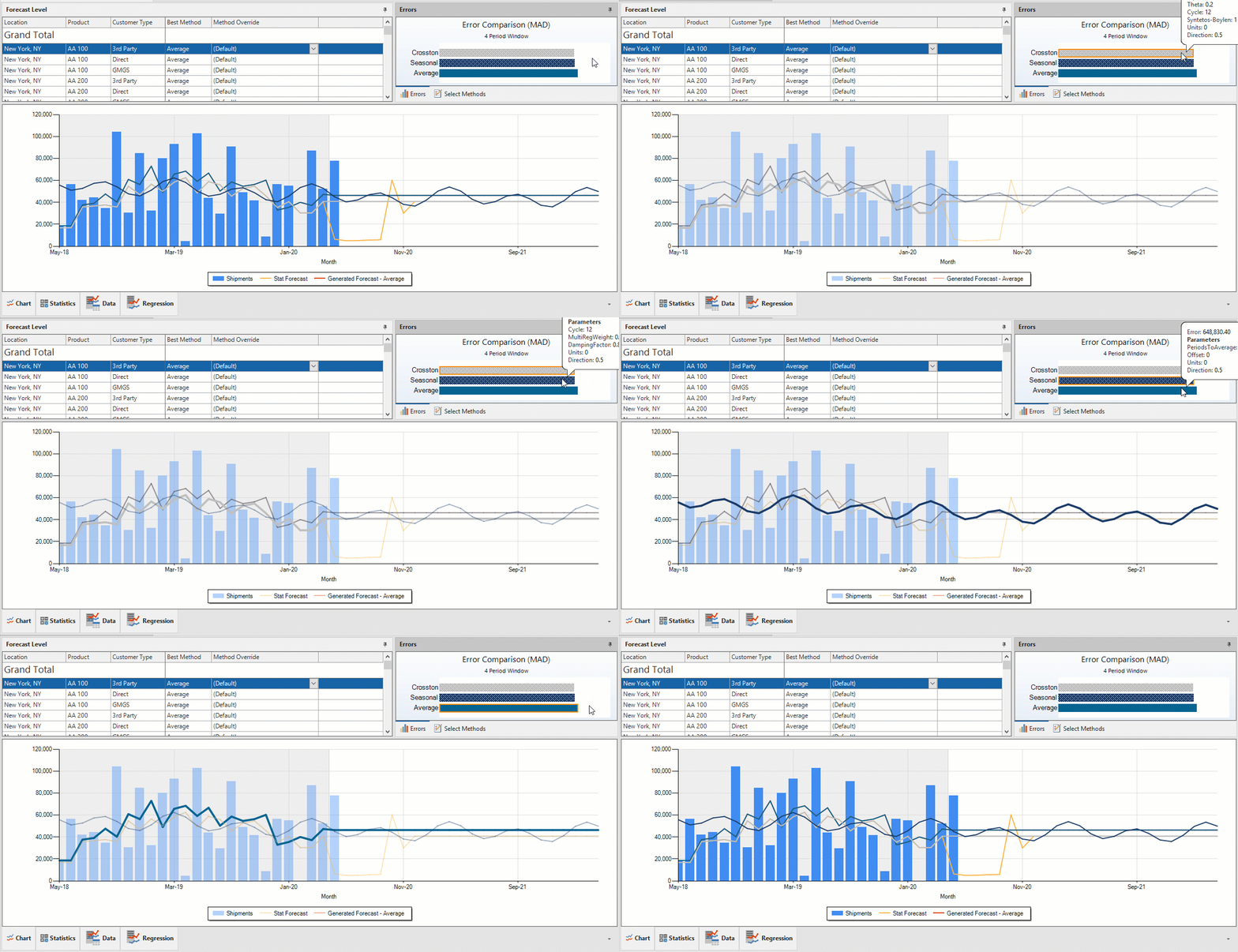
Also, if a user CTRL + Clicks a method in the Errors section, then goes to the Select Methods tab and checks a method to include in the Error Comparison, that newly selected method will be CTRL + Click selected as well.
When more than one error is selected for an Error Comparison forecast, the best method will have a solid fill color, while the others will have a hatched-fill color. In the image below, the Seasonal method is the best method.
Export Error comparison tab to Excel
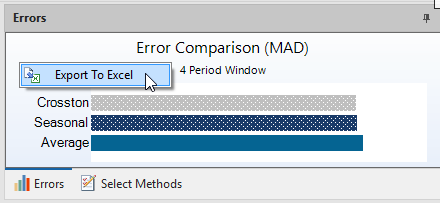
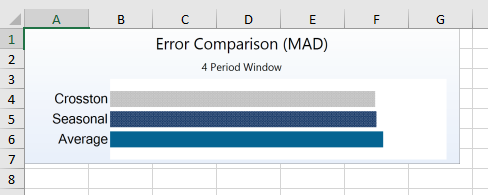
Export an image of the Error comparison to Excel by right-clicking anywhere inside the Error Comparison tab and clicking Export to Excel.
Select Methods tab
Select additional methods to compare errors to on a selected attribute by checking the checkboxes of those methods. Selected methods will show in the Errors tab and the Chart.
Export Methods tab
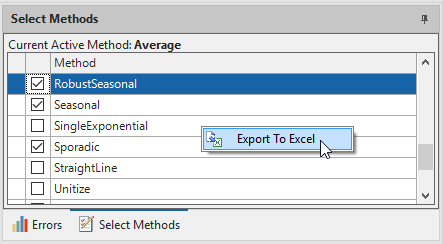
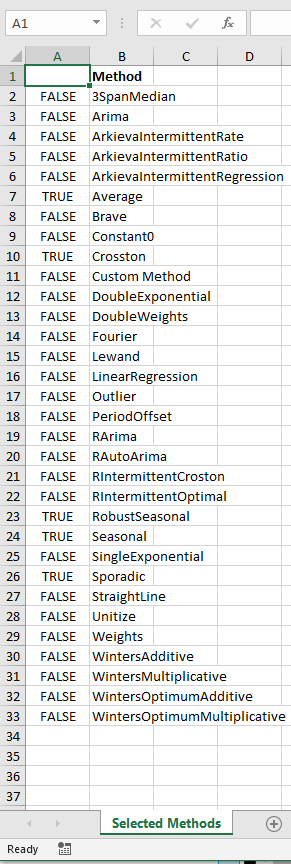
Export Methods to Excel as a list of all methods by right-clicking anywhere inside the Select Methods tab and clicking Export to Excel.
Selected Methods will be noted as TRUE and unselected methods will be noted as FALSE.
Navigation tabs
Additional tabs are available for you to view forecast data. Each tab can be docked independently using the docking hints.

Chart
The Chart displays graphical data of the selections made in the edit forecast view, and selections made within the forecast view. Select parts of the chart to highlight data as a tooltip.
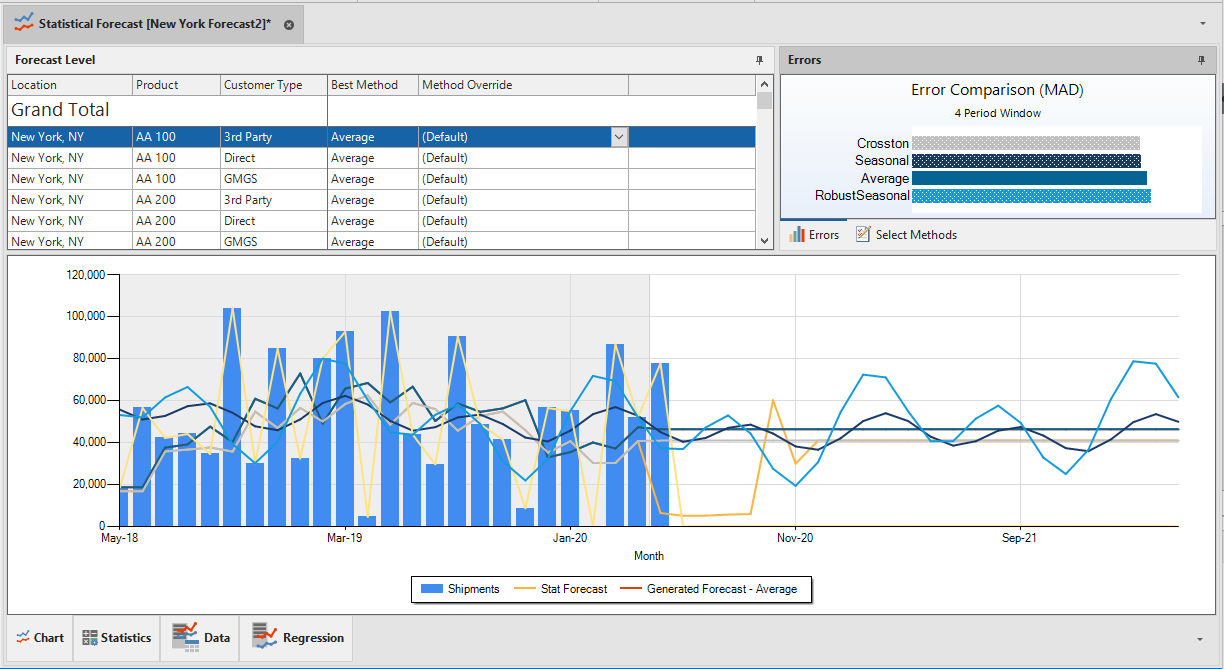
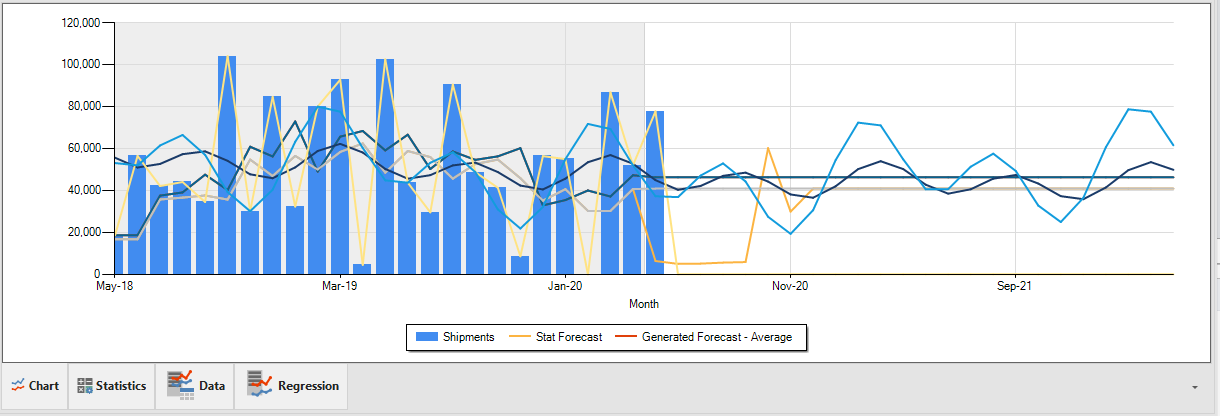
Chart Right-Click menu\ Right-click anywhere inside the chart for the chart right-click menu.
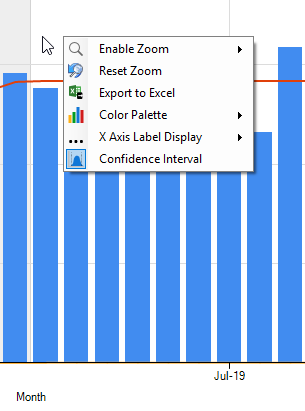
Enable X and Y Axis Zoom, Reset Zoom\ Enable zooming controls for the chart's X and Y axis by right-clicking the chart, hovering the mouse pointer over Enable Zoom and toggling on X-Axis, Y-Axis, or both.
Click and drag the mouse pointer over the chart to zoom in. Right-click and select Reset Zoom to return the chart to normal.
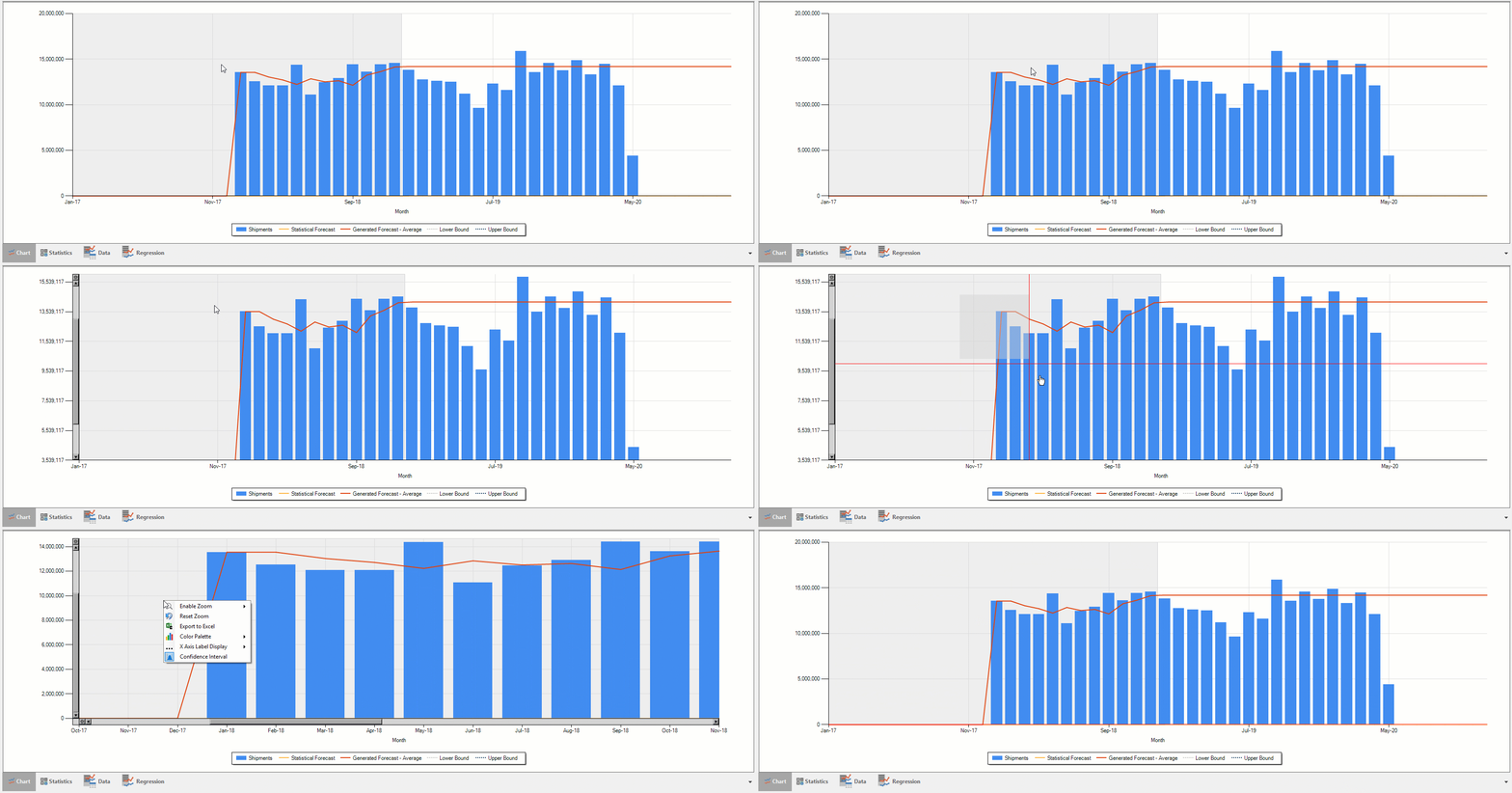
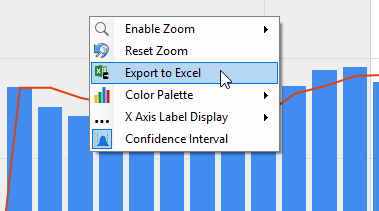
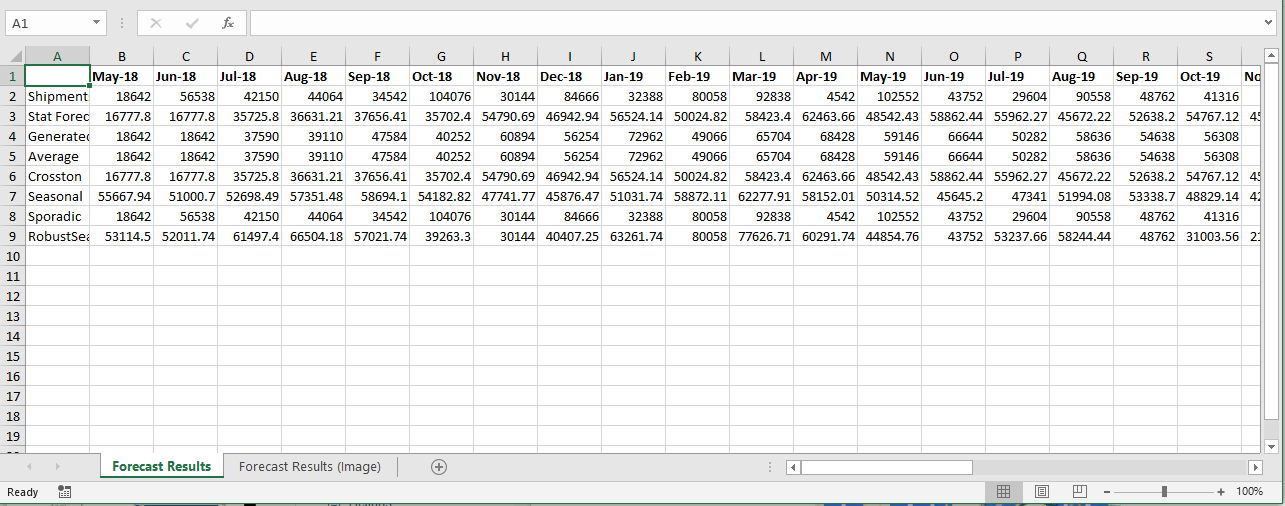
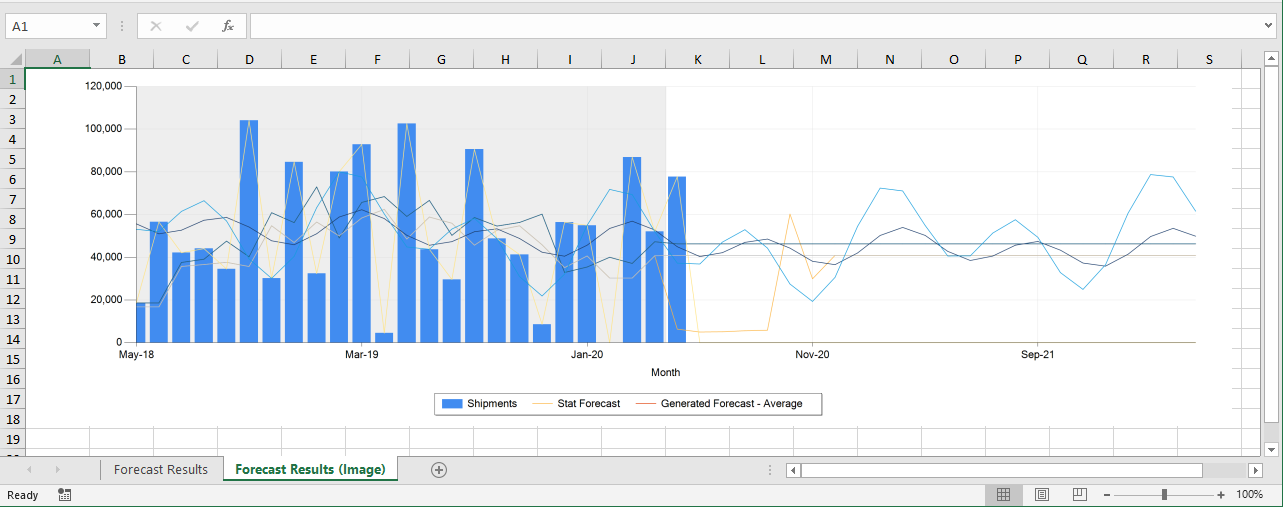
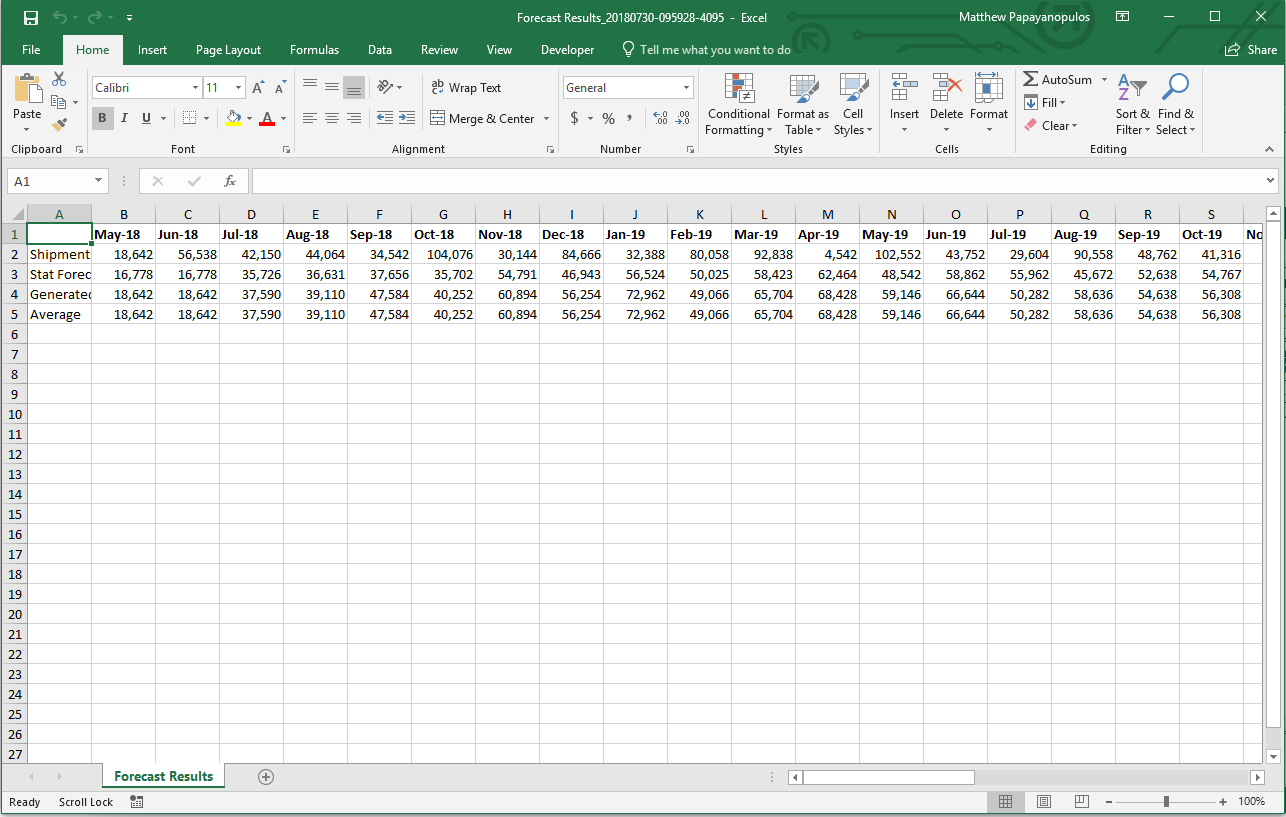
Export to Excel\ Right-click anywhere inside the Chart tab and click Export to Excel to export Forecast Results data and an image of the chart to Excel.
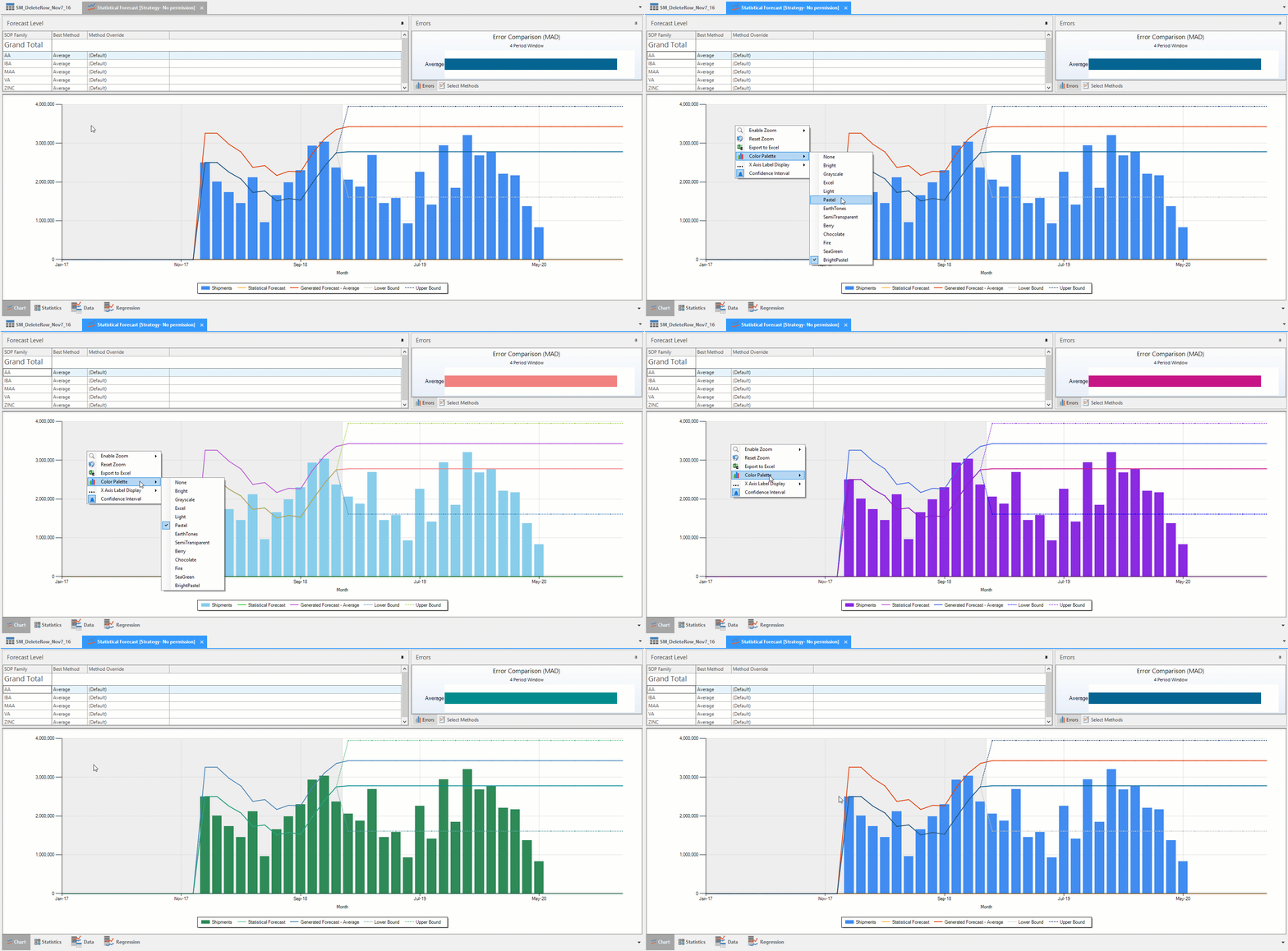
Color Palette dropdown\ Right-click the Chart and hover the mouse pointer over the Color Palette to launch more color options for the Chart. Click a color to select that color.
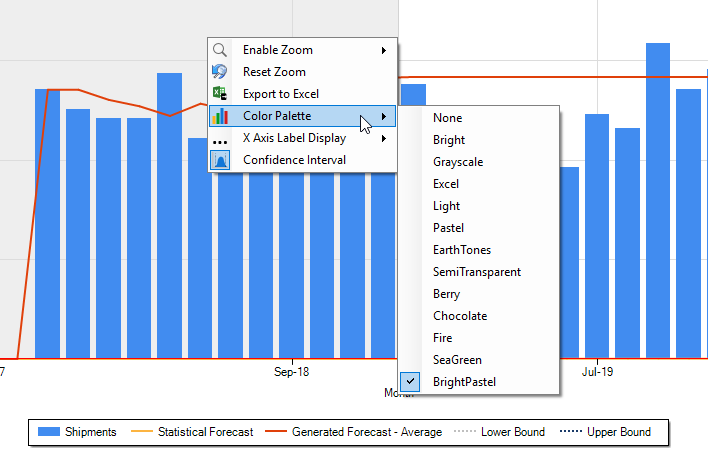
Color changes in the Chart will change the colors in the Errors section as well.
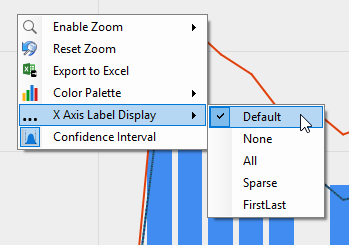
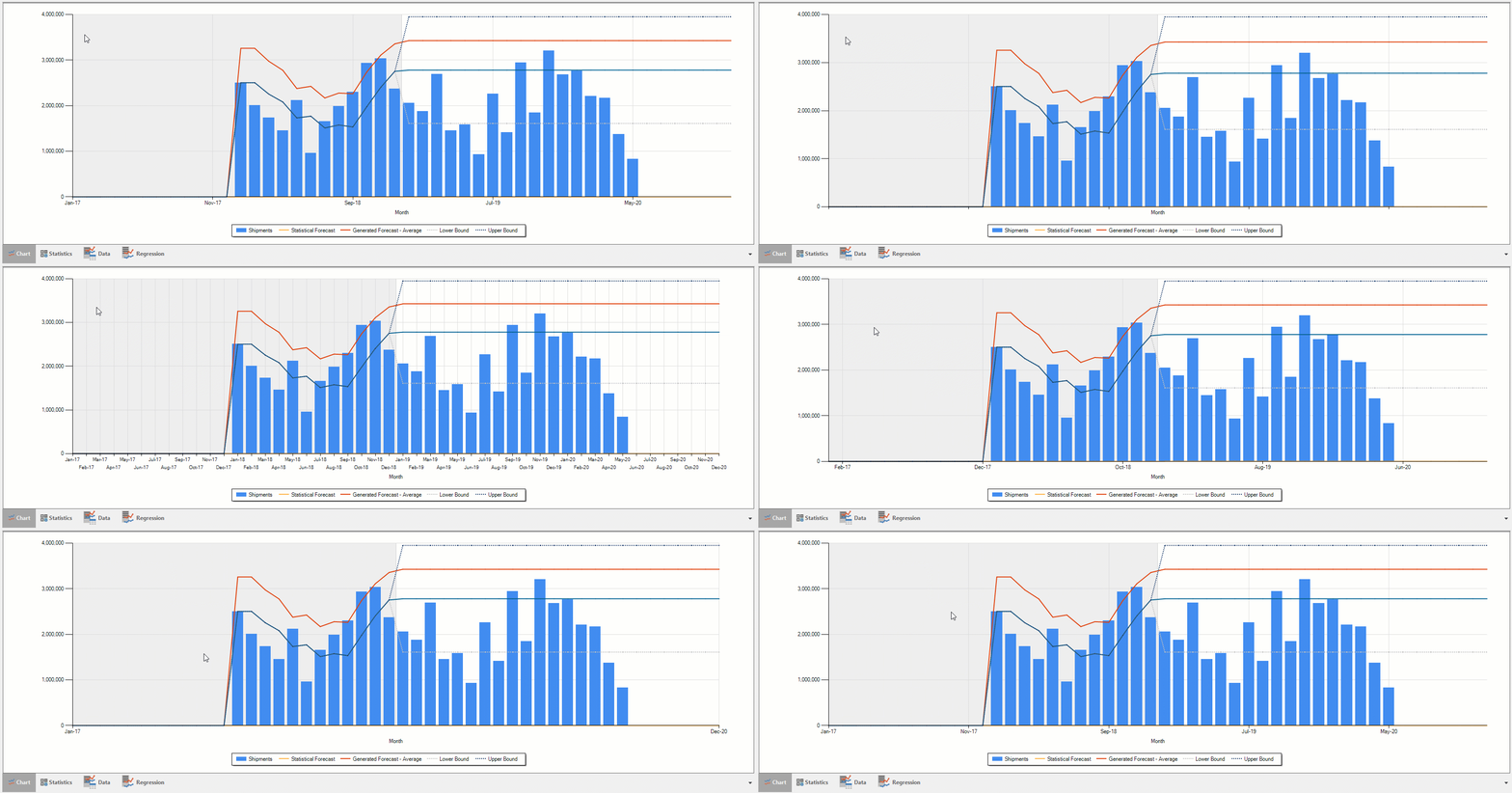
X Axis Label Display\ You can also customize the chart's X axis label to show as Display, None, All, Sparse, and FirstLast. Right-click the chart and hover the mouse pointer over the X Axis Label Display to gain access to these X axis label display options.
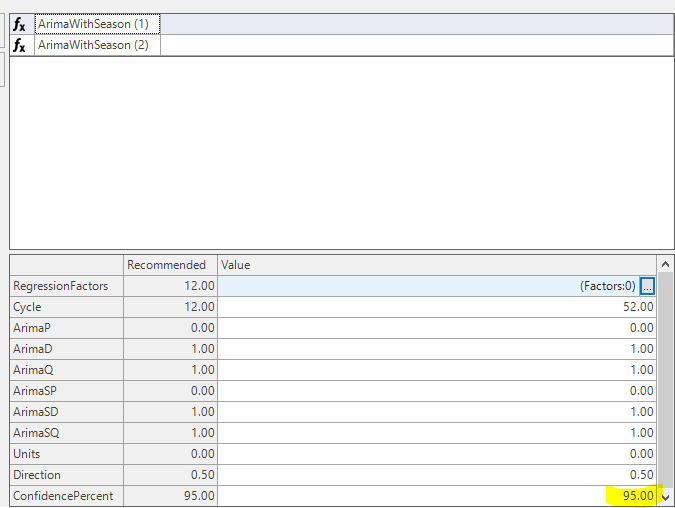
Confidence Interval\ The Confidence Interval is only displayed for the best method selected.
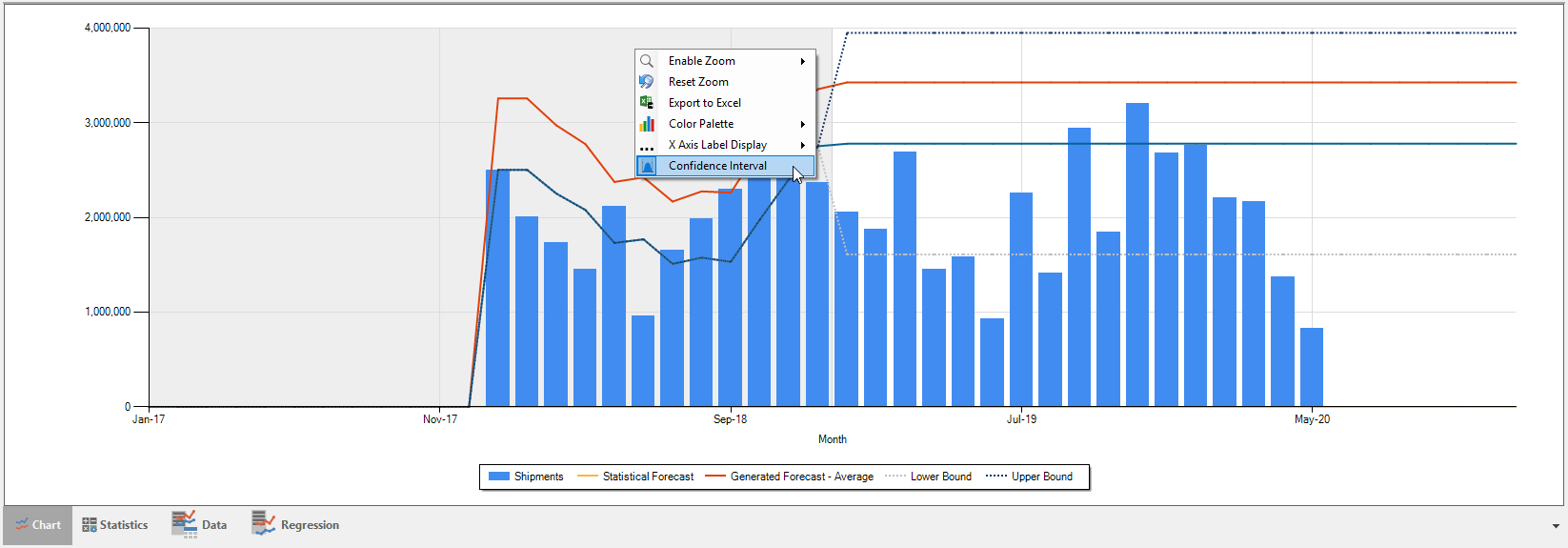
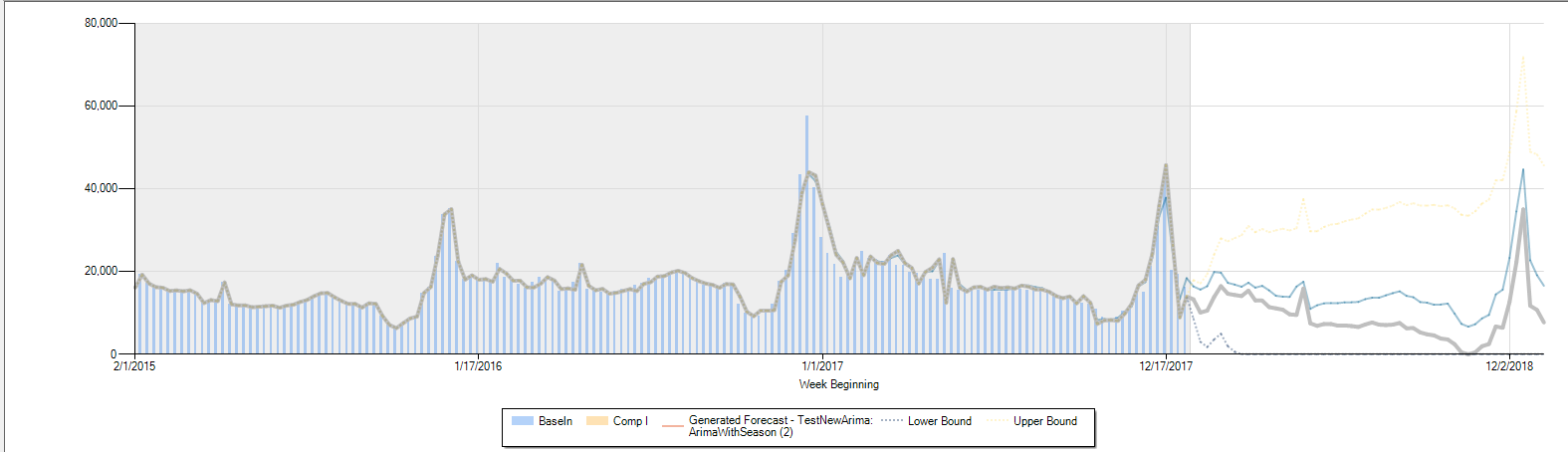
Users can select different levels for confidence, the default being 95%. The graphs would display both the lower and upper confidence intervals in dotted lines.
The upper confidence interval is in dotted yellow lines and the lower interval is dotted blue lines.
Statistics
When a forecast is generated, statistics are calculated for the time series in the Statistics tab.
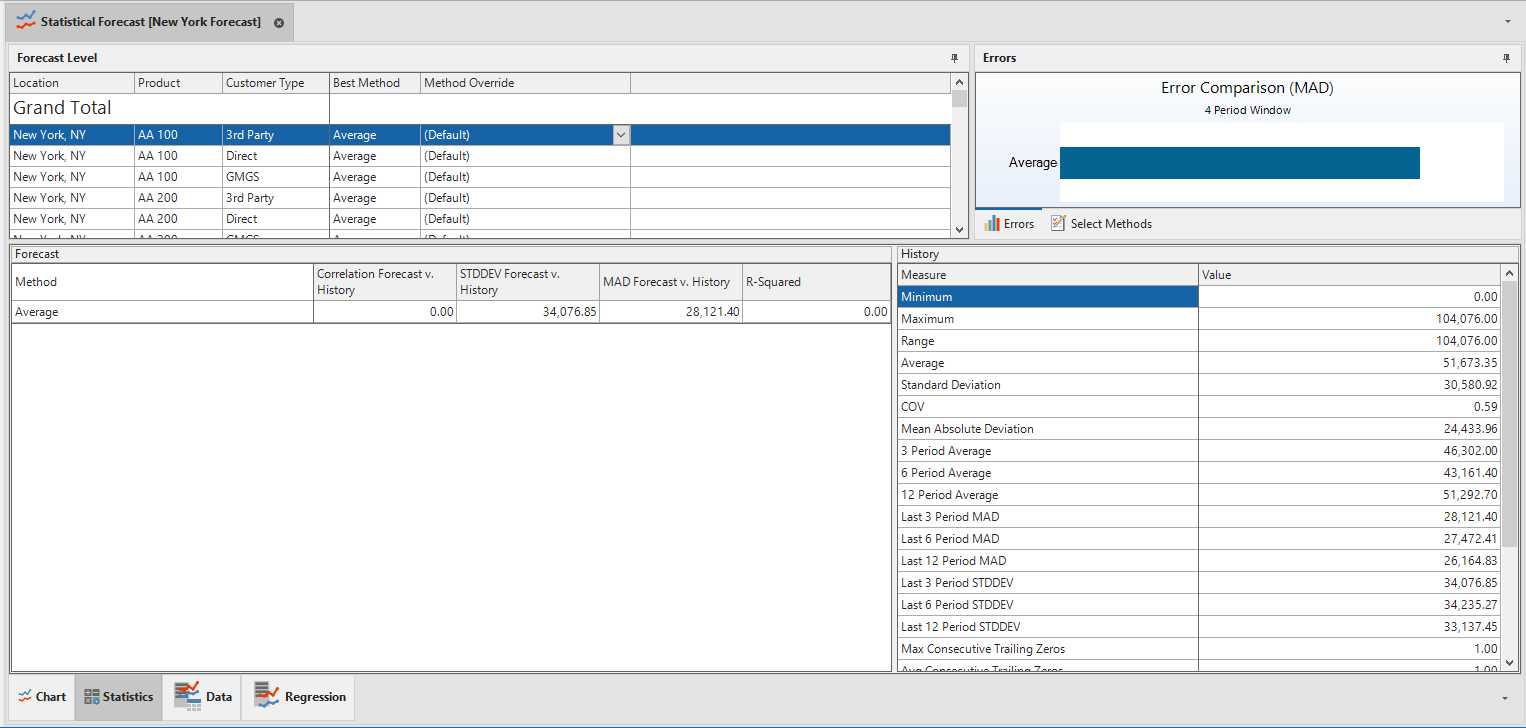
These statistics are calculated on the history portion of the time series. In other words when the system is calculating the error measures for the future periods, it is calculated statistics for the history periods. As many passes as the system makes to calculate the error measure, it will make to calculate the statistics. These statistics include Correlation Forecast vs. History, STDDEV (Standard Deviation) Forecast vs. History, MAD Forecast vs. History, and R-Squared. They are also called Training Measures. They are called training measures because the system uses these measures to teach the system how to pick the best methods by using these statistics. Directionally speaking, Correlation forecast and R-Squared are the opposites of STDDEV forecast and MAD forecast. Meaning, large values for Correlation and R-Squared are good, but large values for STDDEV and MAD are bad.
- Error measures R-Squared and CORR are calculated only by the statistics training measures.
- Error measures WGHTD, HWGHTD, RHWGHTD, and INTWGHTD are calculated by the comparison window percentage and the statistics training measures.
- Error Measures MAD, STD, MAPE, UAPE, WMAPE, GMRAE, BAMAE, and MaxAPE are calculated only by the comparison window percentage.
For this exercise we will use the same forecast we used to show how Arkieva decides the best method to use for a forecast. Time Series 5 has four periods out into the future. These four periods are history periods, but we advanced them forward into the future. When we generate the forecast, Arkieva will calculate the statistics of the remaining 30 history periods. Remember, Arkieva ignores any leading zeroes, so they will not affect the statistics calculations.

We will now push this data to Excel.

We will also push Time Series 6, 7, and 8’s statistics data to Excel.

You will notice that the numbers are changing, but not a large amount. This is because we are using a time series with 156 periods, but we are only advancing a small percentage of periods into the future.\ Arkieva picks the best method not purely based on one error, but sometimes in combination with these statistics. It depends on the error measure selected.
For this exercise we will select HWGHTD (historically weighted), to show how the training measures come into play. HWGHTD calculates the weights for Correlation Forecast vs. History, STDDEV Forecast vs. History, MAD Forecast vs. History, and R-Squared and the Window MAD. Selecting HWGHTD and generating the forecast gives us an Error of 16.18.
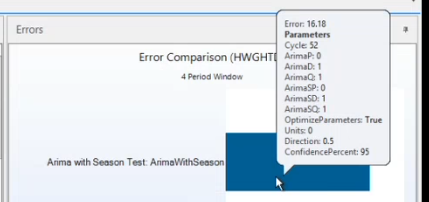
We will now replicate these calculations in Excel to show how Arkieva reached this number.
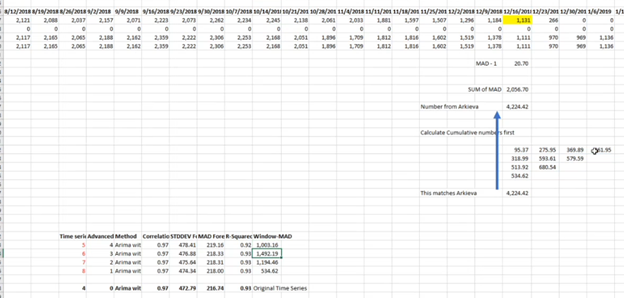
Remember in our previous MAD exorcise, the Window MAD values are the sum of each Time Series’ withheld period error measures that were used to create future period data. For example, Time Series 5 Window MAD is the sum of four window error measures: 95.37, 275.95, 369.89, and 261.95, which is 1003.16.
Next, we need to calculate the geometric mean of the four statistic values.
📘 Geometric Mean
The central number in a geometric progression (e.g. 9 in 3, 9, 27), also calculable as the nth root of a product of n numbers. In other words, we use the geometric mean when we need to know the average of values that are the equivalent of apples and oranges.
To get the geometric mean of these four values, we need the following formula:
(STDDEVMAD(1 - Correlation)*(1 - RSqaured))^(1/4)
We raise to the power of four because there are four statistic training measures.

Next, we will calculate the Weights, which is the sum of the periods we advanced the time series by, divided by the sum of all the advanced periods. For example, Time Series 5 has four periods that were advanced into the future. And there are 10 periods in total for Time Series 5, 6, 7, and 8. So it is 4 divided by 10; 0.40.

Next, we will calculate the Weighted Score, which is the Weights times the Geometric mean.

Then we add up the weighted scores to get the Weighted score of all the training statistics. 4.02573 is the historically weighted score.

Next if we add up the Window MAD values, we get the same value we did when we calculated the cumulative sum of all the MAD errors in our first exorcise, 4224.42.
Lastly we will get the final metric by using the Sum of the Window MAD values (4224.42) and the Historically weighted score of the statistical training measures (4.02573). The formula is:
MAD^0.2 * HWGHTD^0.8
We raise the power of the Window MAD by 0.2 because we want to put 20% of the weight on the future score, and we raise the power of the Historical Weights by 0.8 because we want to put 80% of the weight on the historical score.
Which is 16.18, the same best pick value we saw in the Error comparison graph.
Data
The Data tab displays the values for the history, forecast, and the methods selected in the Select Method tab.
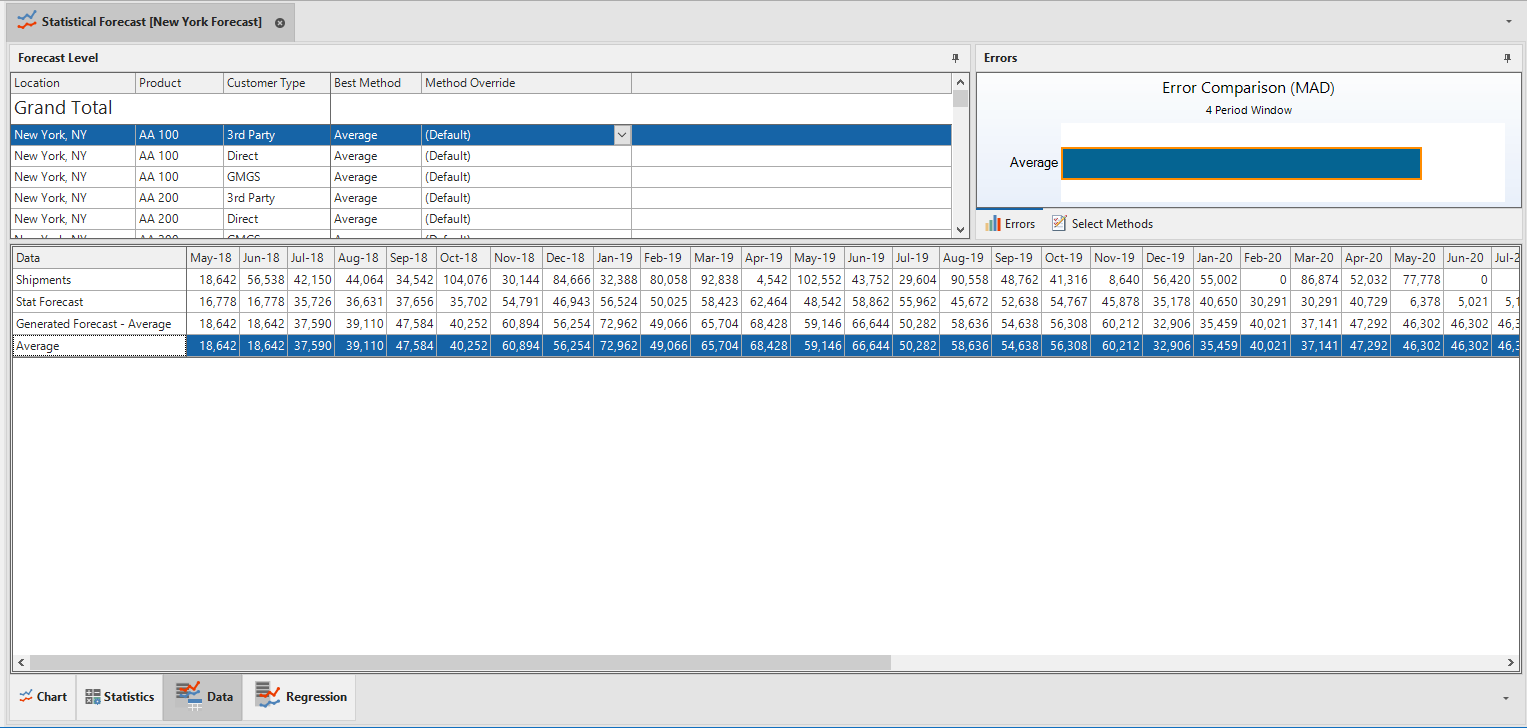
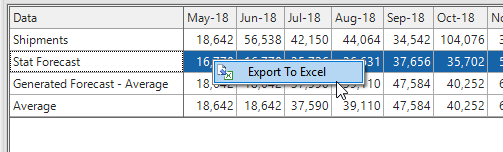
Export data to Excel as Forecast Results to Excel by right-clicking anywhere inside the Data tab and selecting Export To Excel.
Regression
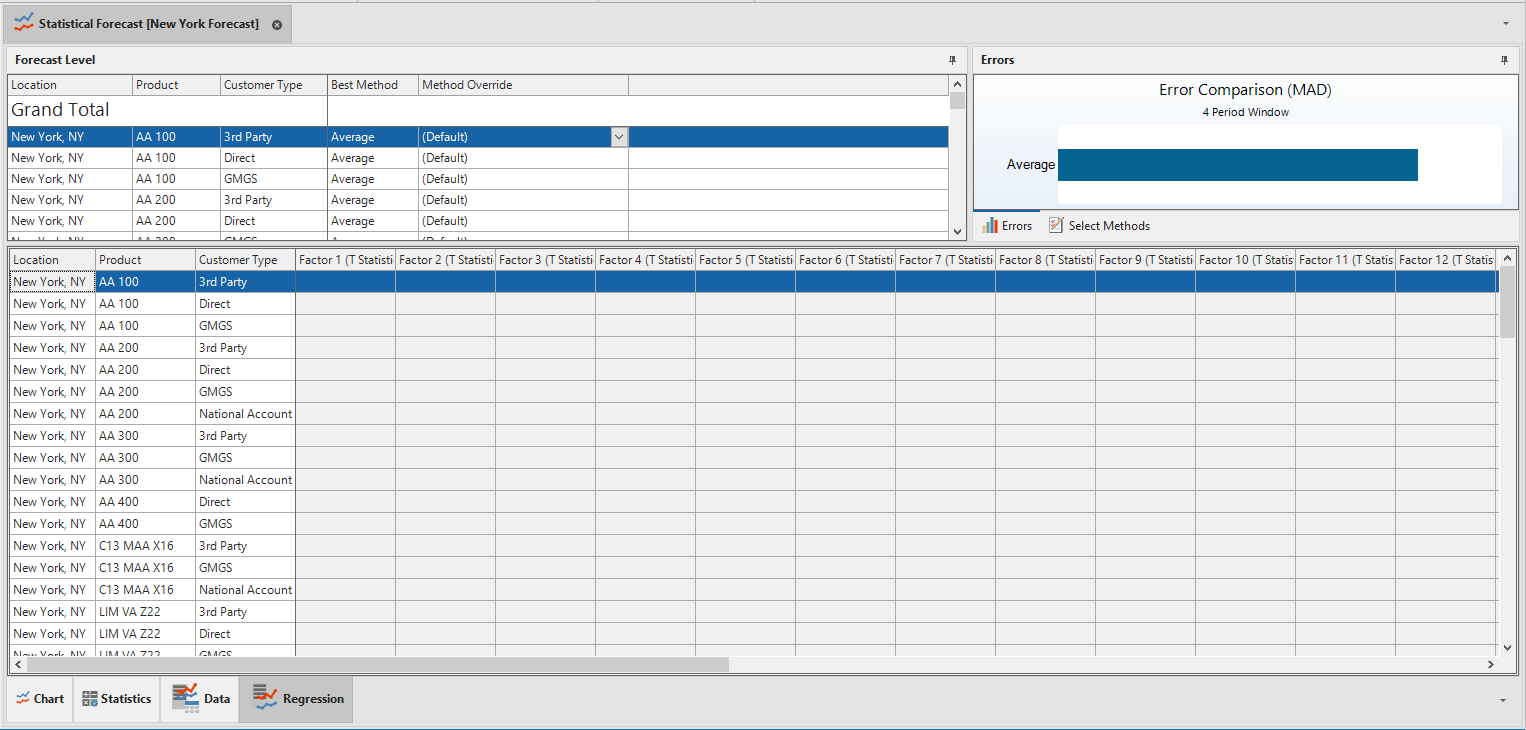
Export Regression information to Excel by right-clicking anywhere inside the Regression tab and clicking Export to Excel.