Web and Client Installation
Web Installation
🚧 Download .NET Framework 4.8 before running Web Installer
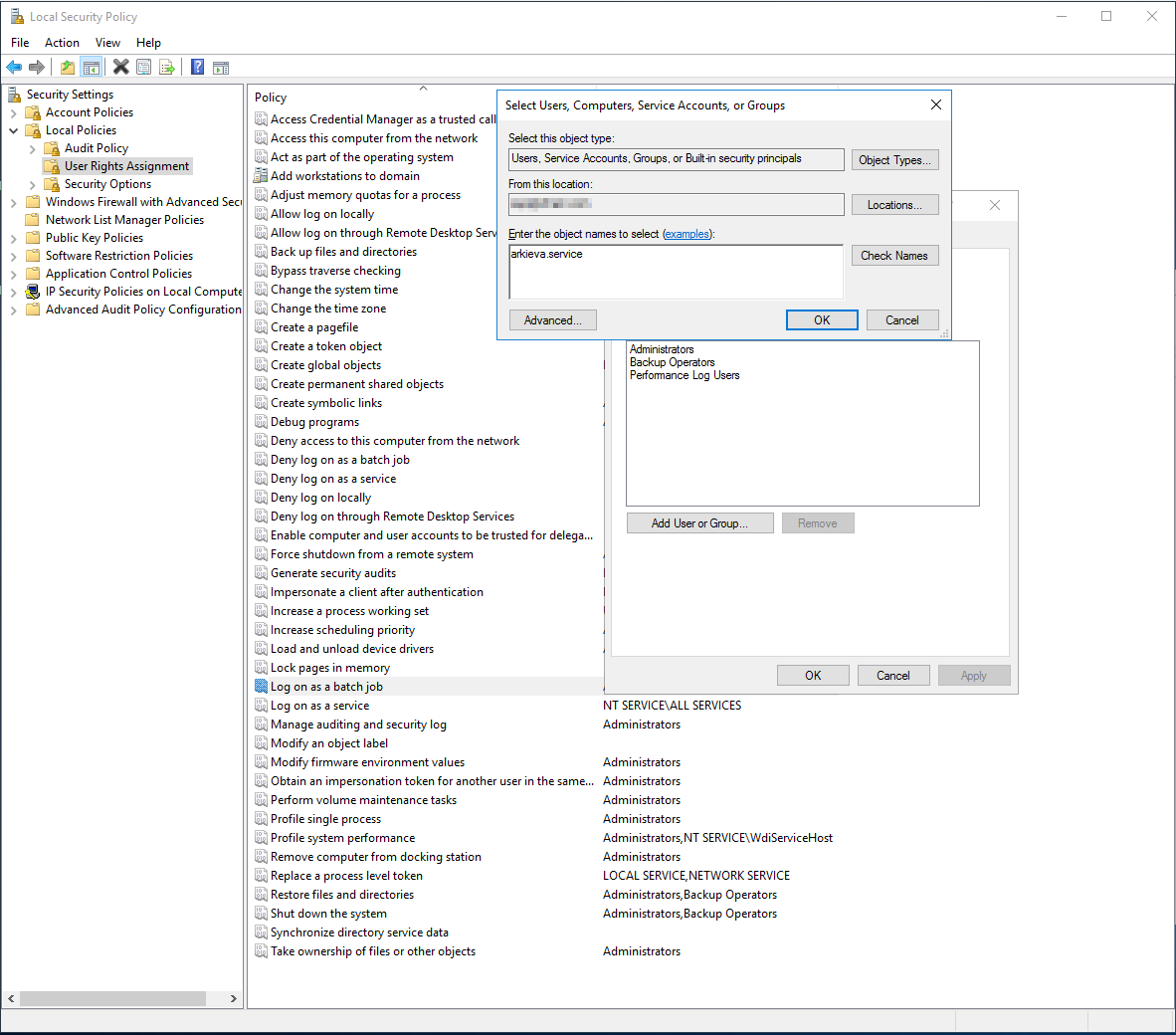
Local Security policy
Open local security policy on the web server and go to 'Local Policies' -> 'User Rights Assignment'. Add the service account to 'log on as batch job' and 'log on as a service' policy rights.
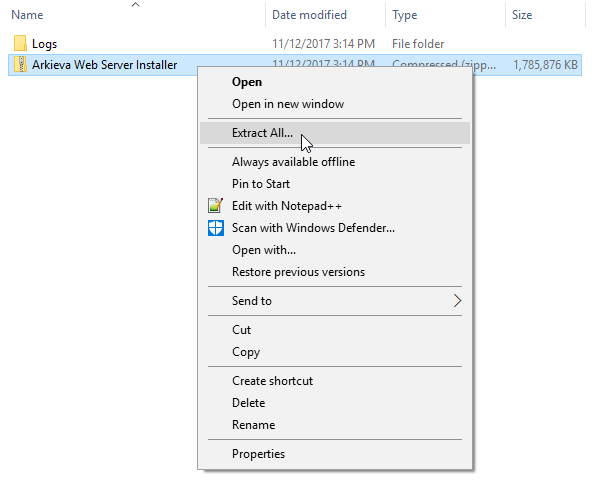
Arkieva Web Server Installer launch
First, locate the Arkieva Web Server Installer folder in Arki-Builds. Then copy and paste it to the destination server. Next, unzip the Arkieva Web Server Installer folder.
🚧 Installation Credentials
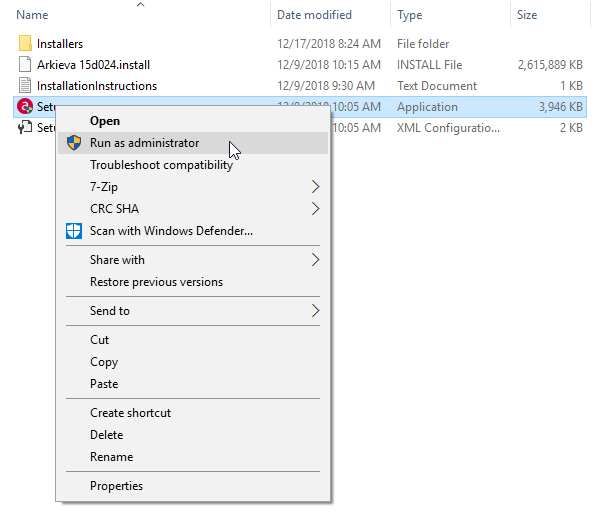
When running the installation, log in under the credentials of the service account. If you run the installation under other credentials, you may have to modify the security of the queues created for the Arkieva services.
Open the folder, then Right-click Setup-Web Server and Run as administrator. The Web Server Installer will automatically run.
❗️ Warning
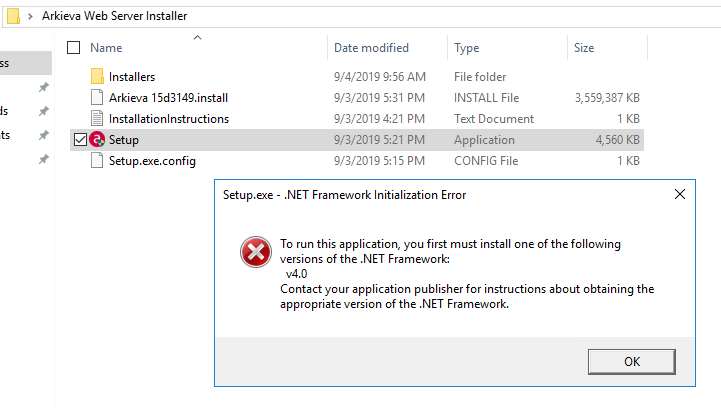
.NET Framework Installation Error\ If you receive the following Setup.exe warning, you will need to update the .NET Framework. Go to https://dotnet.microsoft.com/download/dotnet-framework/net472 to download the latest version of .NET Framework Runtime.
Step 1: System Requirements tab\ The Web Server Installer will run and automatically check the destination machine's system requirements. The Web Server Installer will attempt to rectify any found issues (ex. Missing IIS Components).
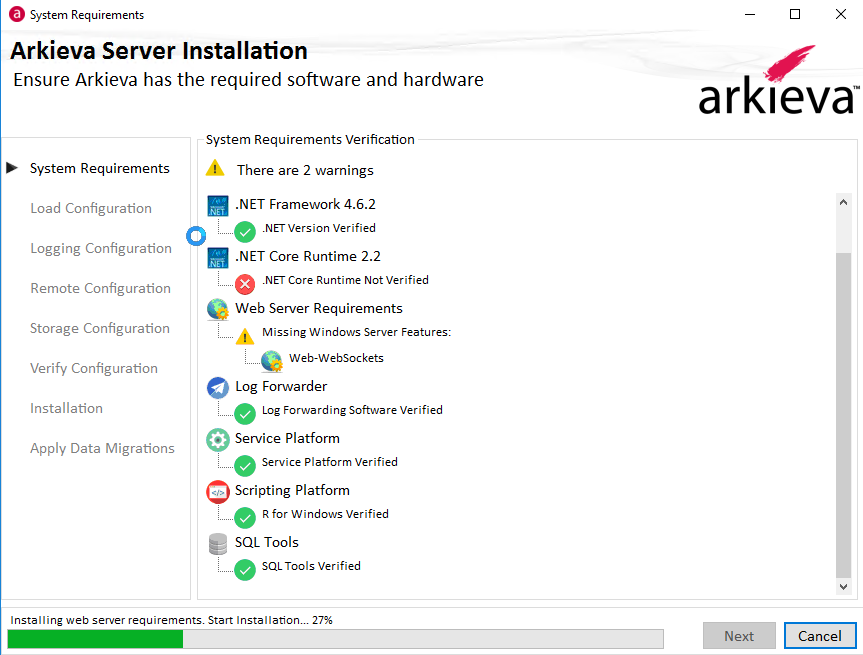
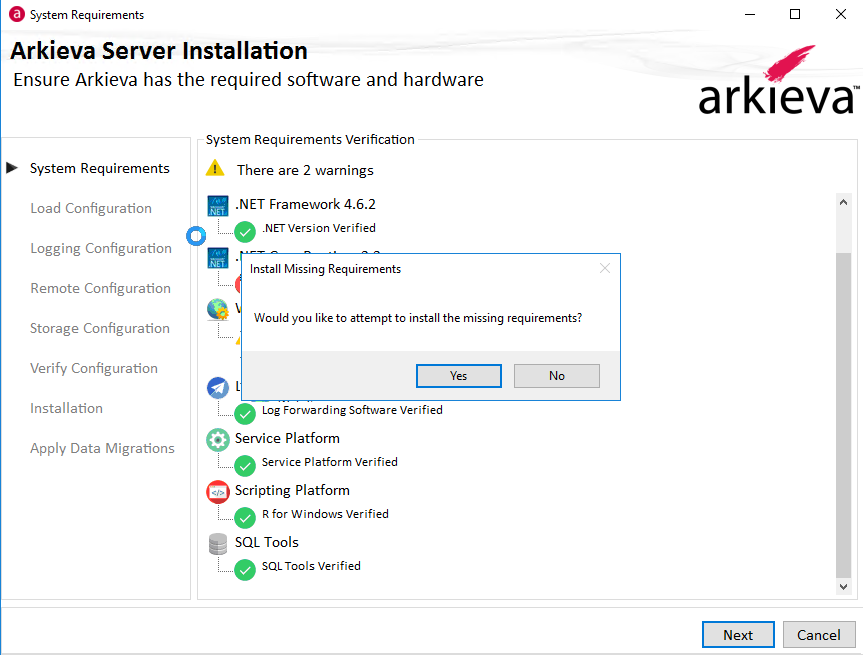
You will receive a prompt asking would you like to install the missing requirements. Click Yes to begin the process of installing the missing requirements.
The notification 'Requirements Met!' will popup when system requirements verification is complete.
🚧 Upgrading from Arkieva v4.x to v.5.x
If you are upgrading Arkieva from a 4.x version to any 5.x version, it is best practice to go to the Service Control Manager and manually update the license before proceeding to Step 2 of the installation.
Click Next to continue to Step 2.
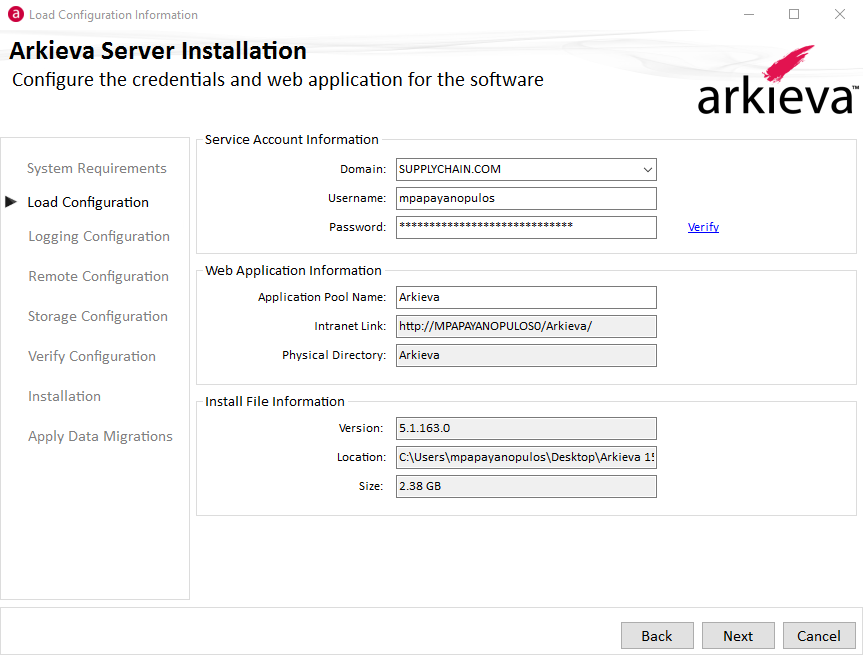
Step 2: Load Configuration\ Type and verify the user's windows credentials password. Type the password, then click Verify.
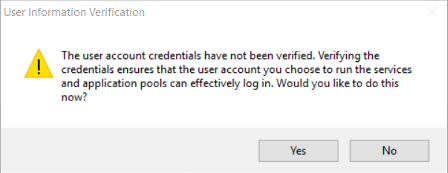
If you click Next without clicking Verify the following popup window will launch, asking you to click 'Yes' to verify the account information.
If the password is correct, the Valid User Information window will pop-up with the message 'User Credentials Verified'. Click Ok to return to the Load Configuration step.
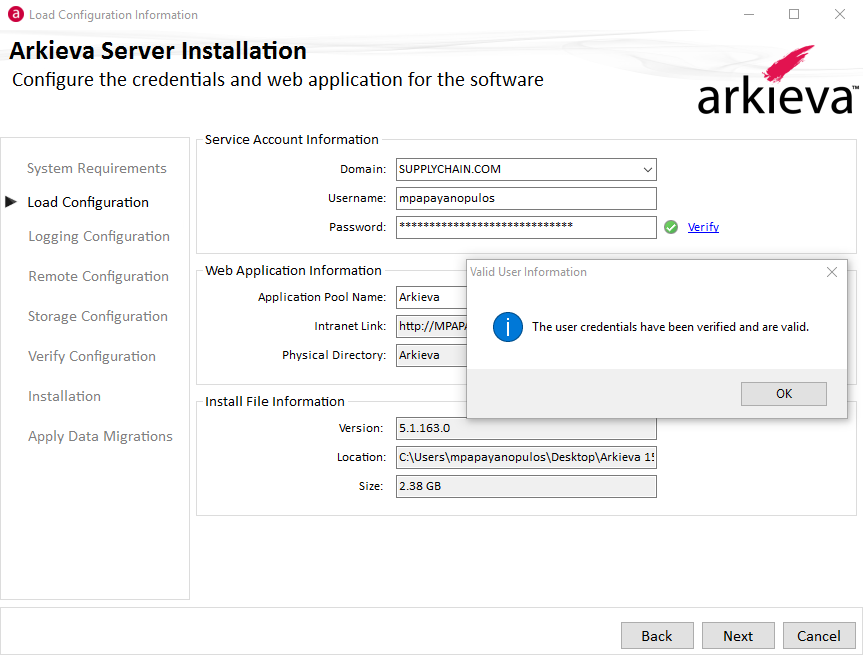
Click Next to continue the Web Installer instillation.
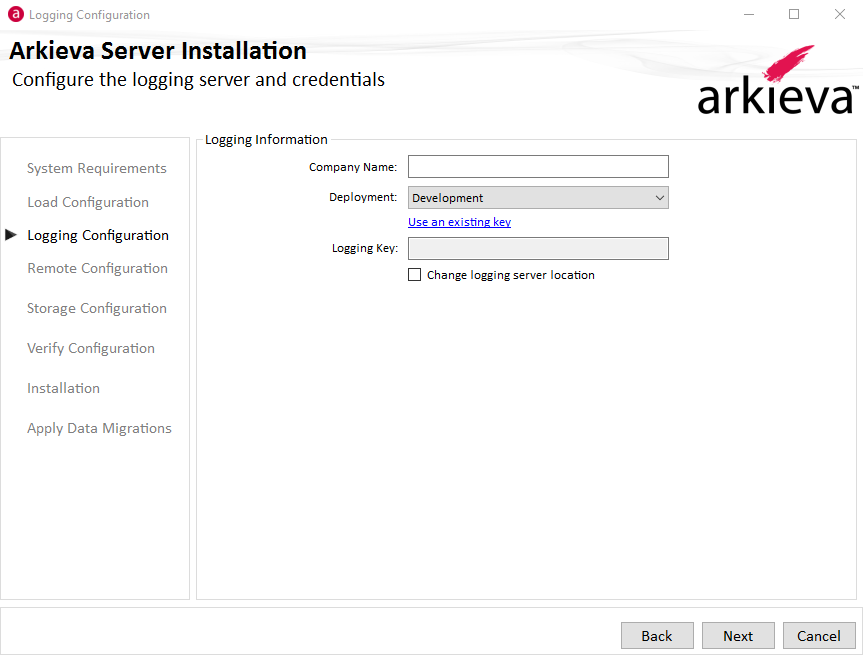
Step 3: Logging Configuration\ This step creates an API Key with the Company Name and Deployment information entered by the user.
🚧 No Outbound Internet Connection
Our logging system uses SeqForwarder to send log events to our datacenter. If you do not have an outbound internet connection from the web server, you cannot use the default logging configuration. You will have to manually install the SEQ logging server on the web server and set up the SeqForwarder on the web server.
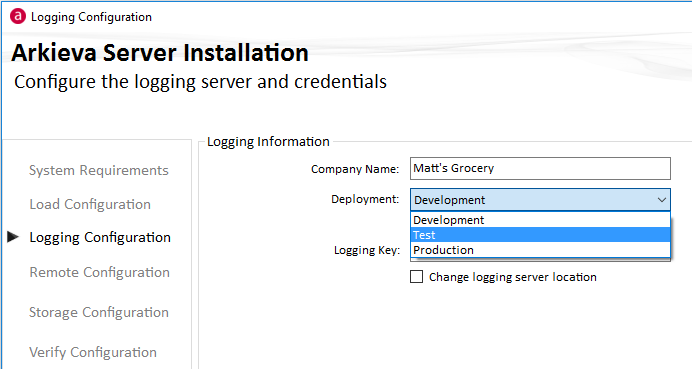
Type the company name in the Company Name field, and select whether this is a Development, Test, or Production environment from the Deployment dropdown.
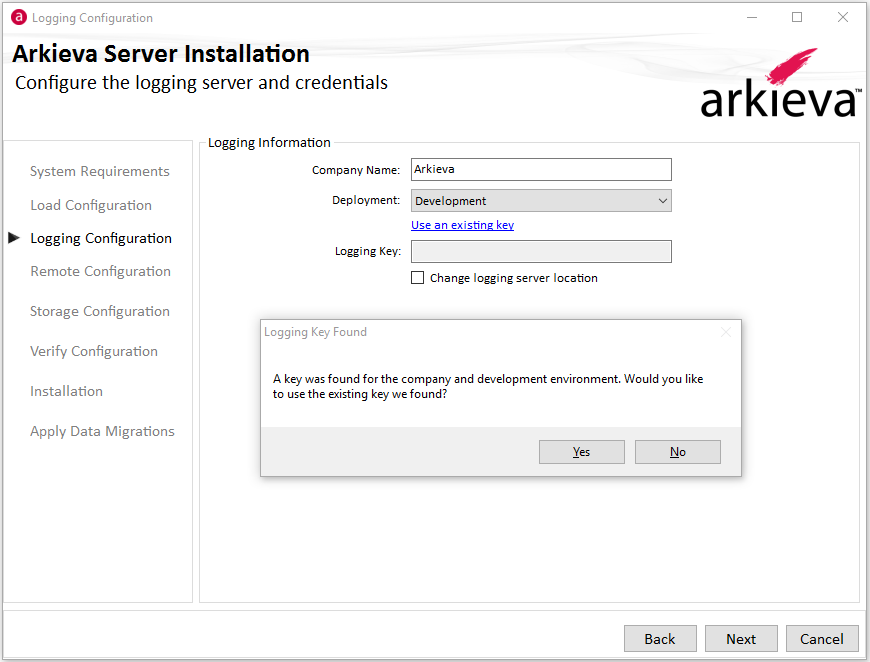
If the same Logging Information exists from a previous install, the installer will prompt the user with the below message. You can select Yes to use the same API Key and click Next to continue installation.
If it's a new installation, an API Key will be auto-generated.
If the server has no internet connection, or is otherwise unreachable, or the address was entered incorrectly, the following message will pop-up after clicking Next.
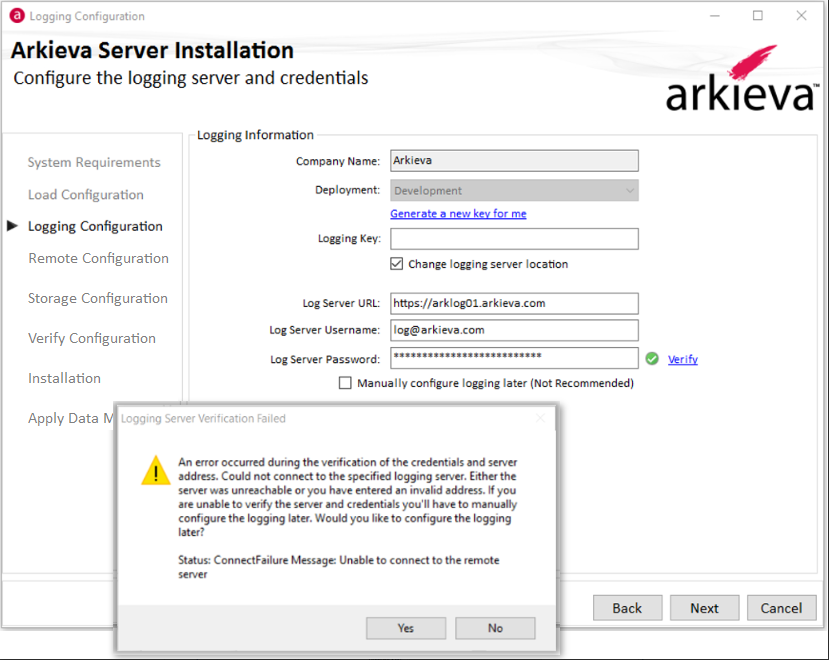
You will be asked if you 'would like to configure the logging information later'. Clicking 'Yes' will automatically check the 'Manually configure logging later' checkbox and will allow you to configure the logging information later.
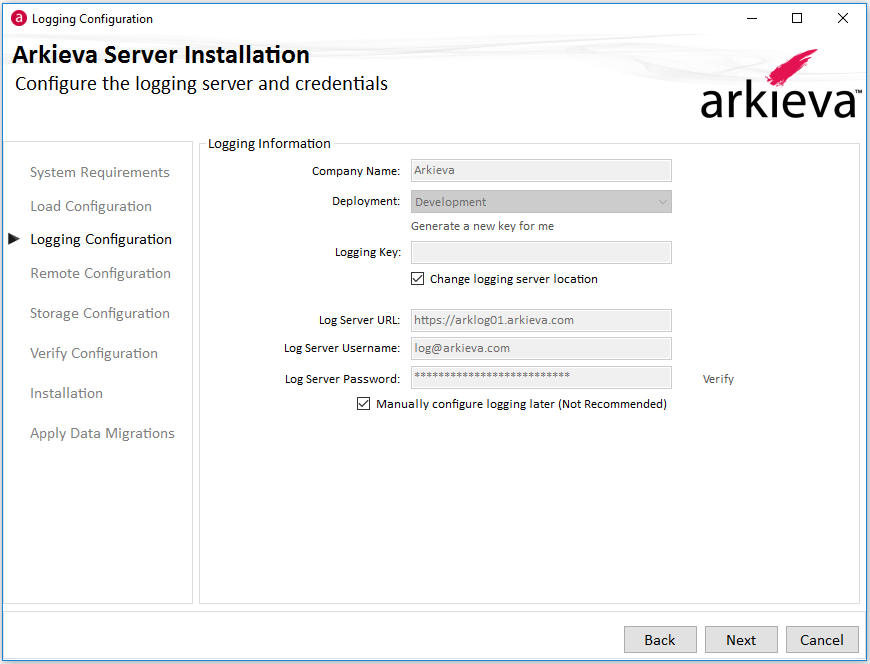
Clicking 'No' will return you to the Logging Information form. Please contact an Arkieva Consultant for further help in configuring the logging to be captured using the application server. If you have already installed the free single-license version of Seq then you can enter the location and credentials of that installation. If you do not know how to install the free version of Seq, please contact Support for help or read the documentation here.
❗️ You must keep track of generated keys
SEQ no longer stores the generated keys online. The API key that is generated from the installation process is saved to the installation log \arki-main01\c$\Users(username)\AppData\Local\Arkieva\Setups\WSI
You can also check for the API Key with seq-forwarder config. Hit enter. The key will only show the key if it was previously installed.
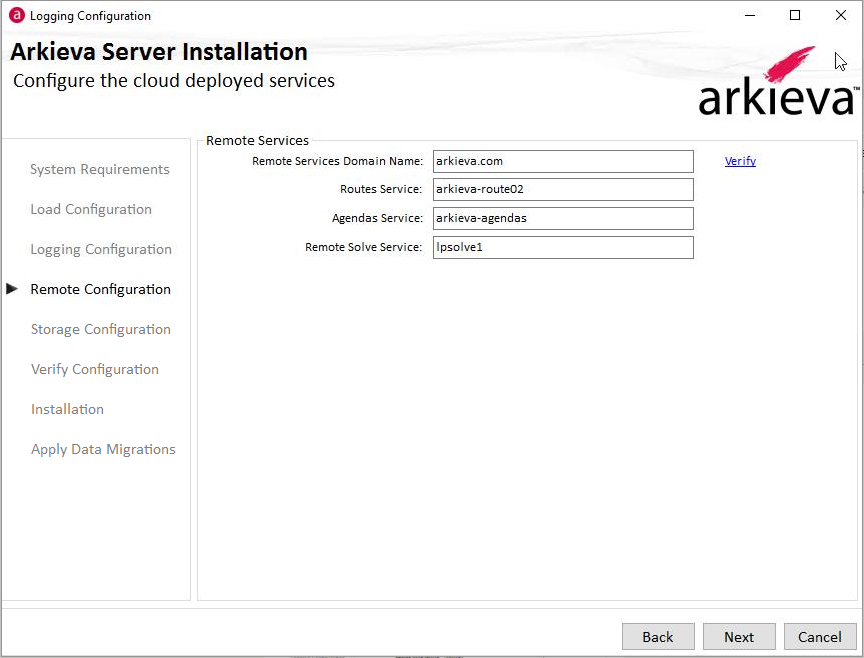
Step 4: Remote Configuration\ The Remote Services API locations are already set to default by the Arkieva Server Installer. It is not recommended to change any of these setting without help from an Arkieva consultant.
Step 5: Storage Configuration\ Persistence\ There are two persistence databases that Arkieva requires. The system database for Arkieva is used for service state, message queues, and configuration information about Arkieva and the solutions it manages. The temporary database can be used to write transient information that should not be housed in the system database to keep it clean from non-essential data.
By default, the installer automatically creates the databases for you during installation. Type in the name of the SQL Server that should house the persistence databases. Below the server text box you will see "Arkieva.[Server Name]" indicating the name of the system database that will be created. When you click the "Verify" link, the installer will ensure that the database does not exist, otherwise it cannot create it during installation.
If you uncheck the "Automatically create databases" and then click the "Verify" link, the installer will check to ensure that the database does exist since it is a requirement of the installation. You would do this if you wanted to re-use any existing persistence databases that have the same name. You also have the ability to change the persistence database name, however, this is not recommended as the convention helps to identify the installation the databases support.
Please note, by unchecking the "Automatically create databases" option you are then able to click the "View sql script" link that will allow you to copy a script that can be run manually on your SQL server to create the persistence databases. You may need this as the installer credentials might not be able to create new databases on the intended SQL server.
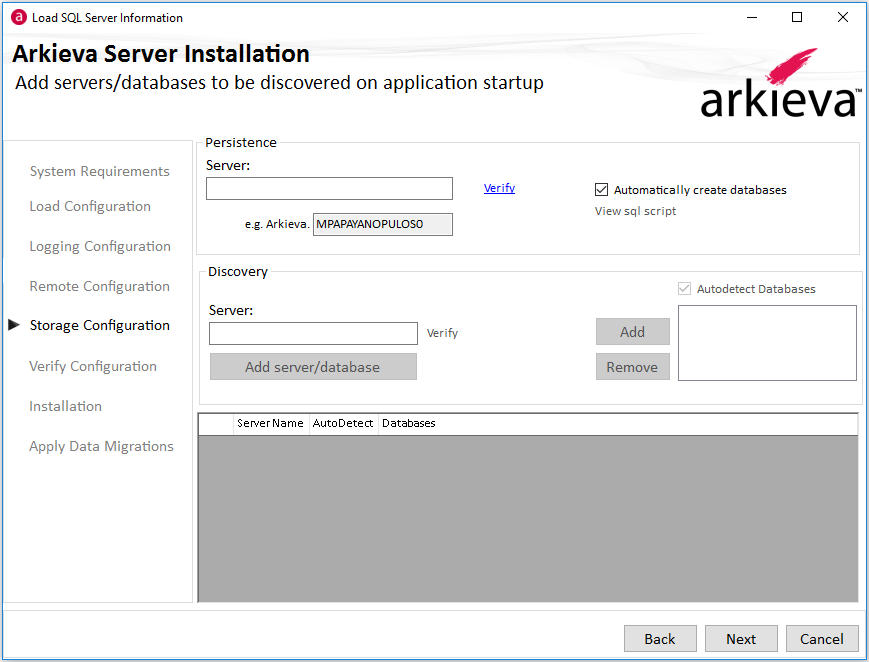
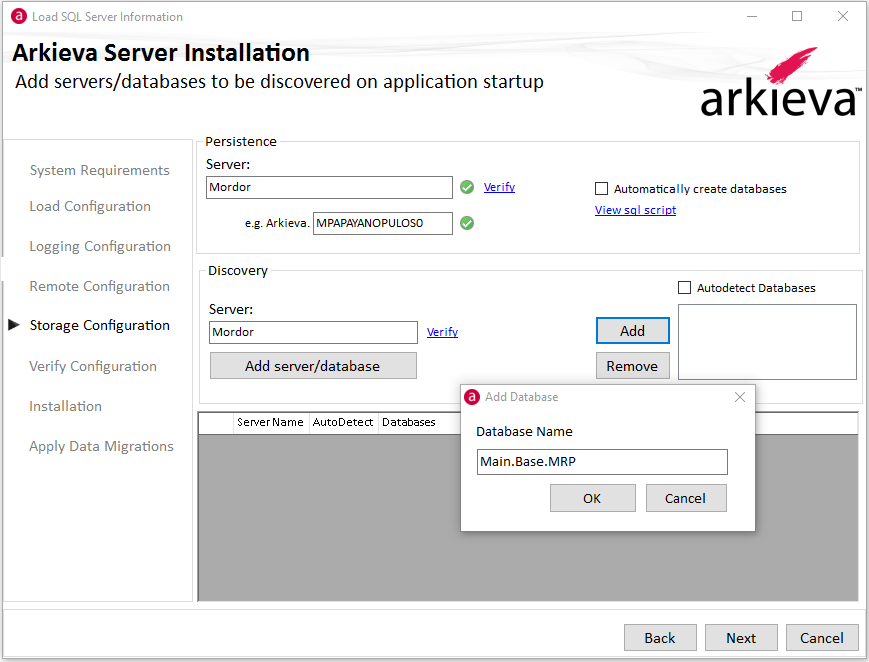
Discovery\ Type the name of the server and click Verify. After the Server is Verified the 'SQL Server Verification Succeeded' dialog box will pop-up. Click Yes to add the server. If you click No, the Add button will become available, allowing you to add a server manually.
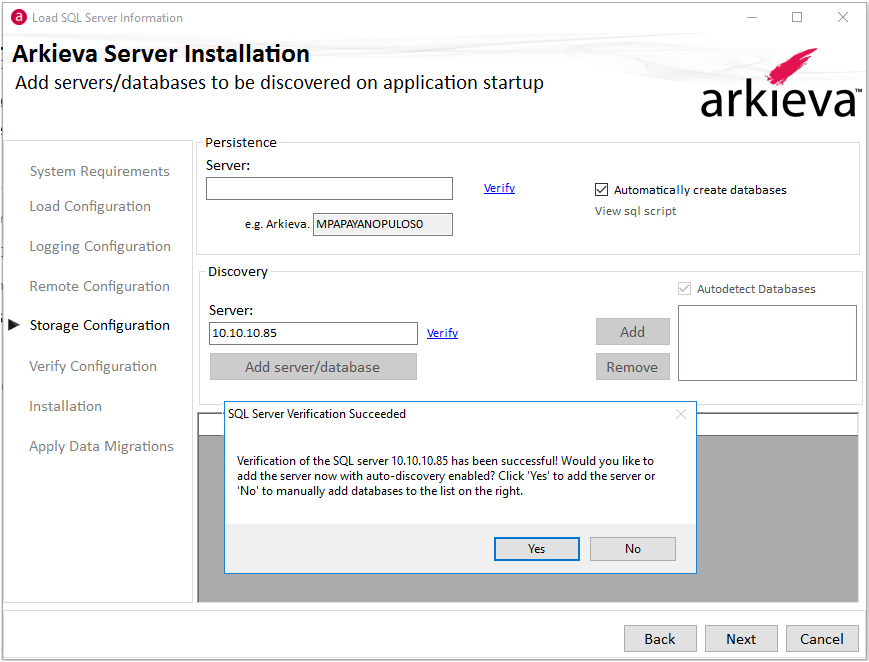
To manually type a database name, uncheck the Autodetect Databases checkbox and click 'Add'. Click Load to finish adding the current SQL server. Add additional SQL servers if desired. Click Next to continue to Step 5.
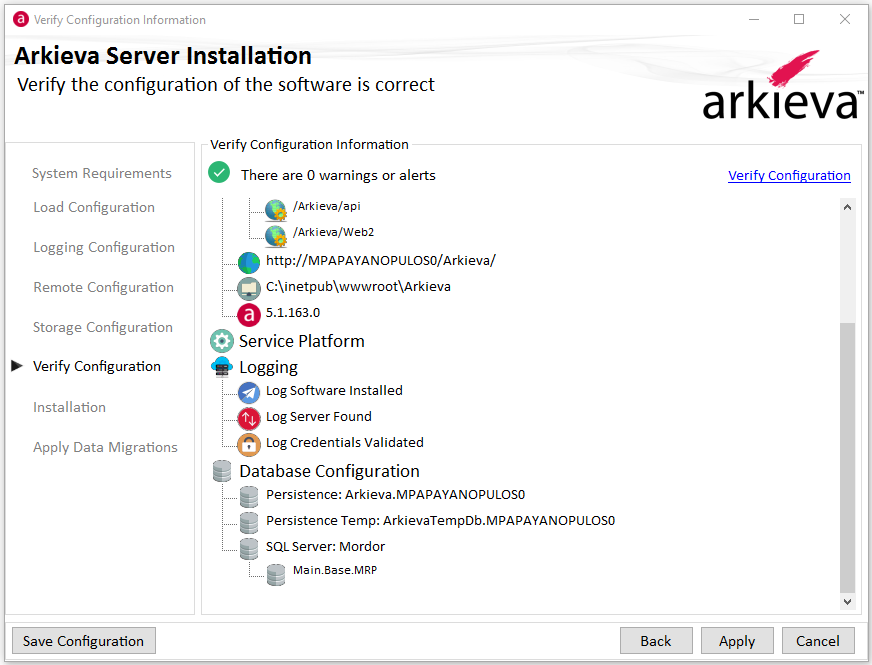
Step 6: Verify Configuration\ Review the Verify Configuration step window to see if the Configuration was successful. The Logging and Database Discovery sections can tell you if the server was or wasn't found, the log credentials were or weren't validated, and if the server was or was not detected.
Click Apply to continue the installation and go to Step 6.
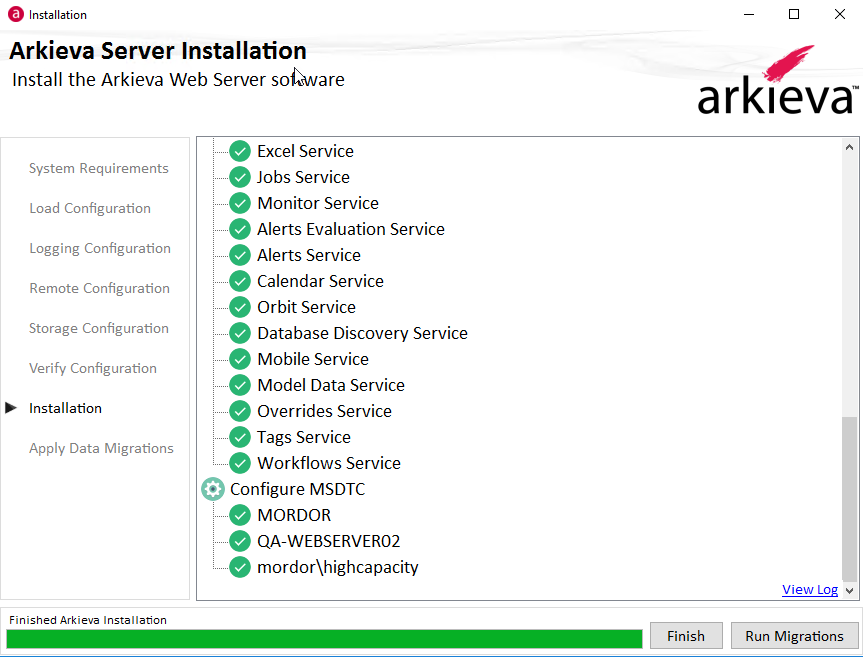
Step 7: Installation\ Click Finish to close the Installer.
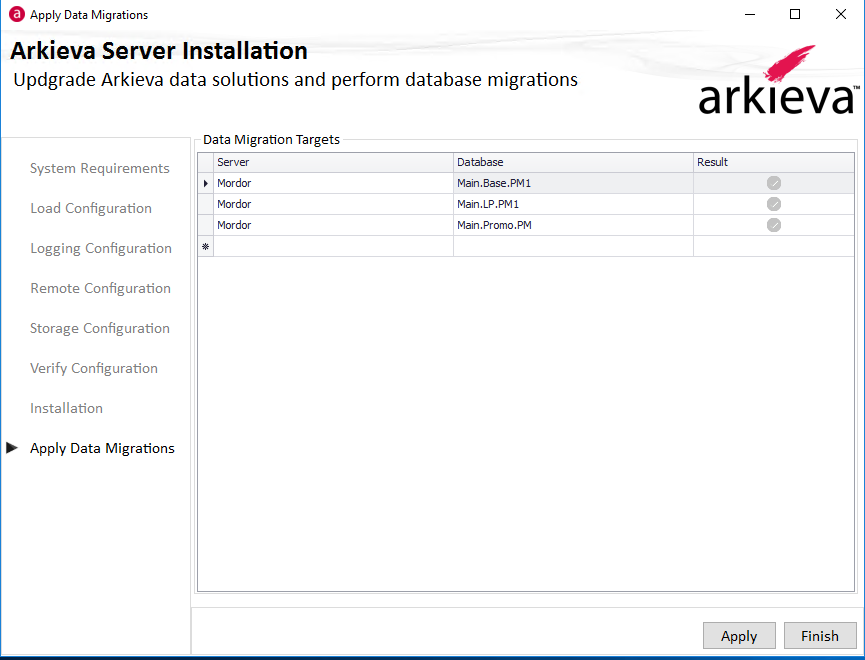
Step 7a: Database Migration\ Click Run Migrations to elect the databases to be included in the database discovery service, and confirm in the Apply Data Migrations step, creating an executable. Once the executable is run, a table will be created in SQL with the list of databases and the migration scripts that were run.
👍 Successful Installation
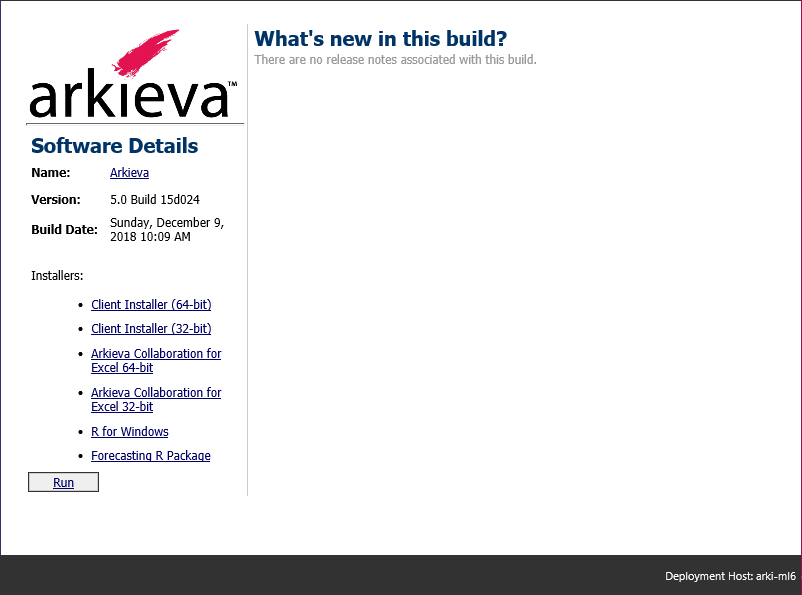
After successful installation, the Arkieva Splash Screen will automatically launch from Internet Explorer after clicking Finish. Make sure to add the splash page to your trusted sites. Click Run to start using Arkieva.
❗️ Failed Install
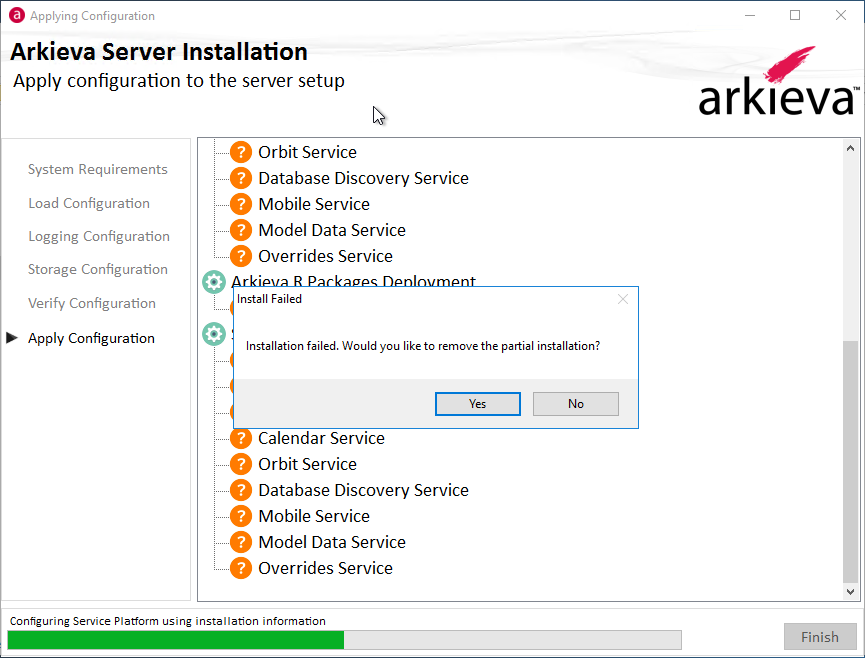
If the installation fails, the below message will launch asking you to remove the partial installation.
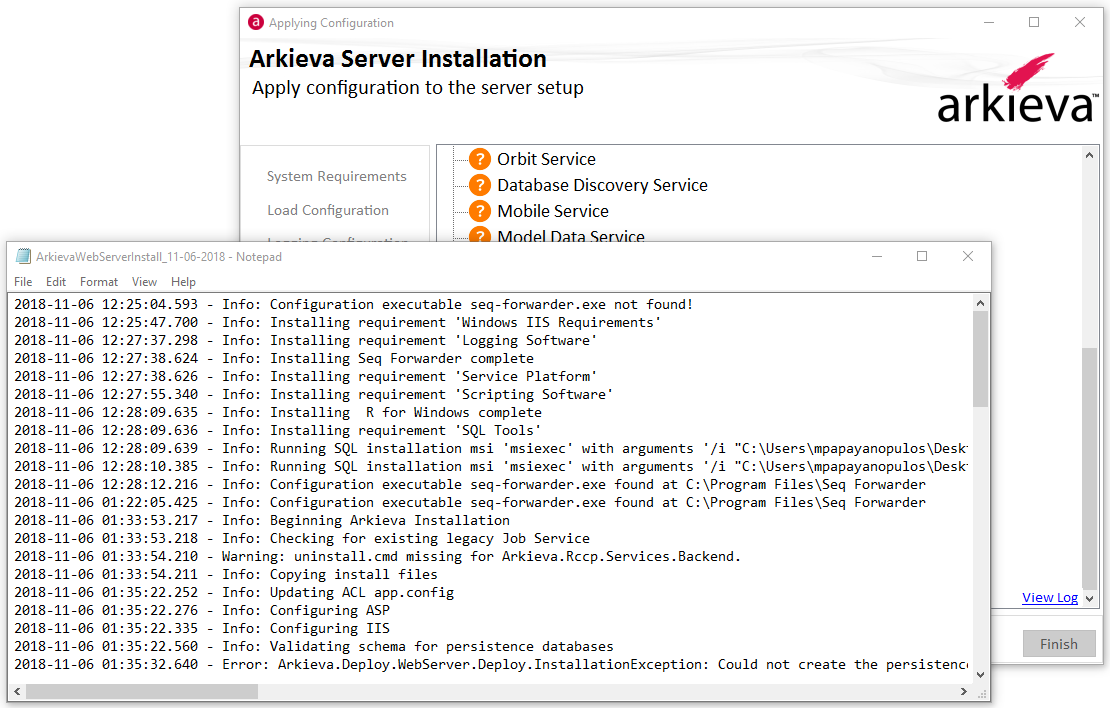
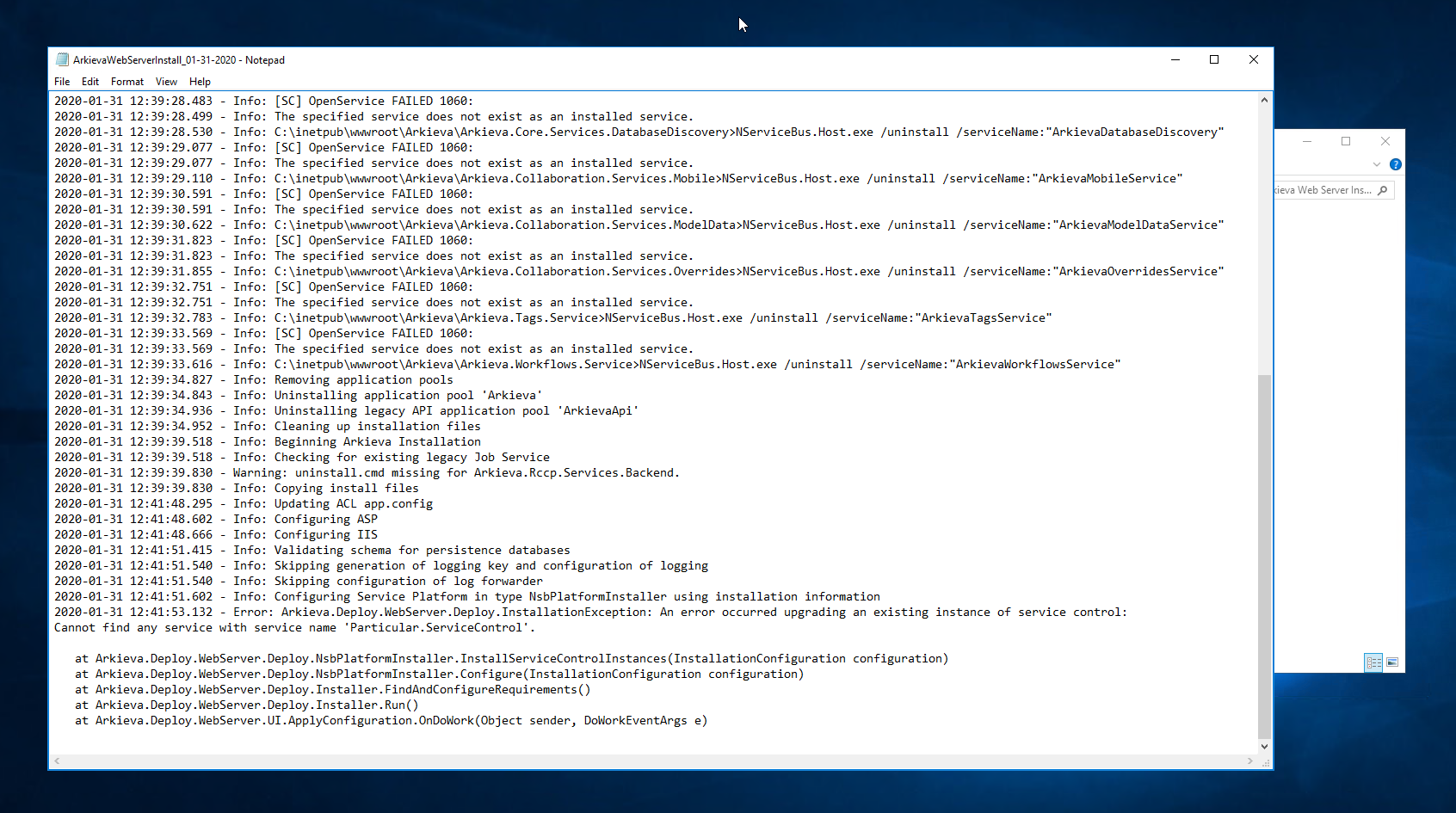
Click View Log if the installation fails to see more info.
Failed Install Troubleshooting
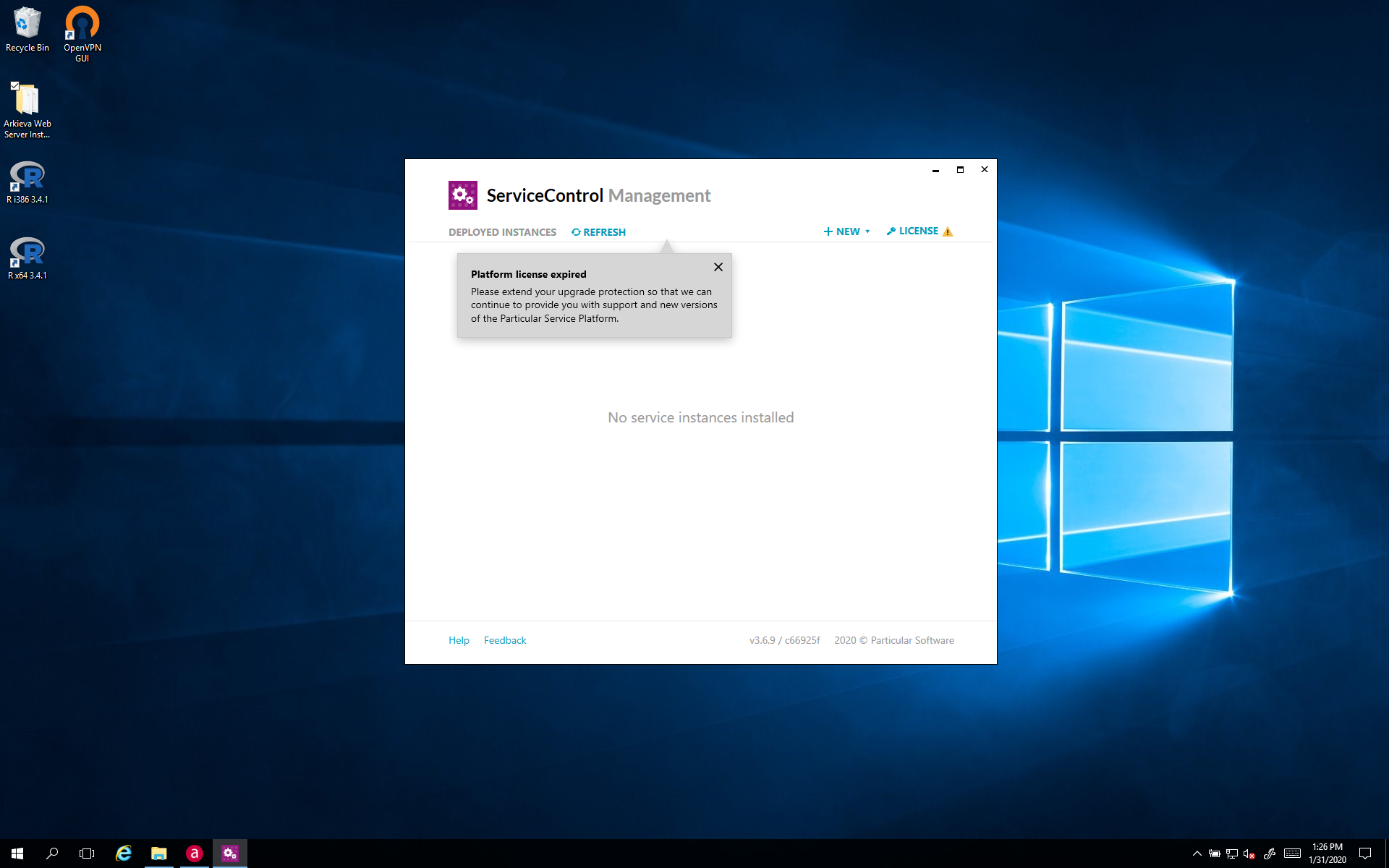
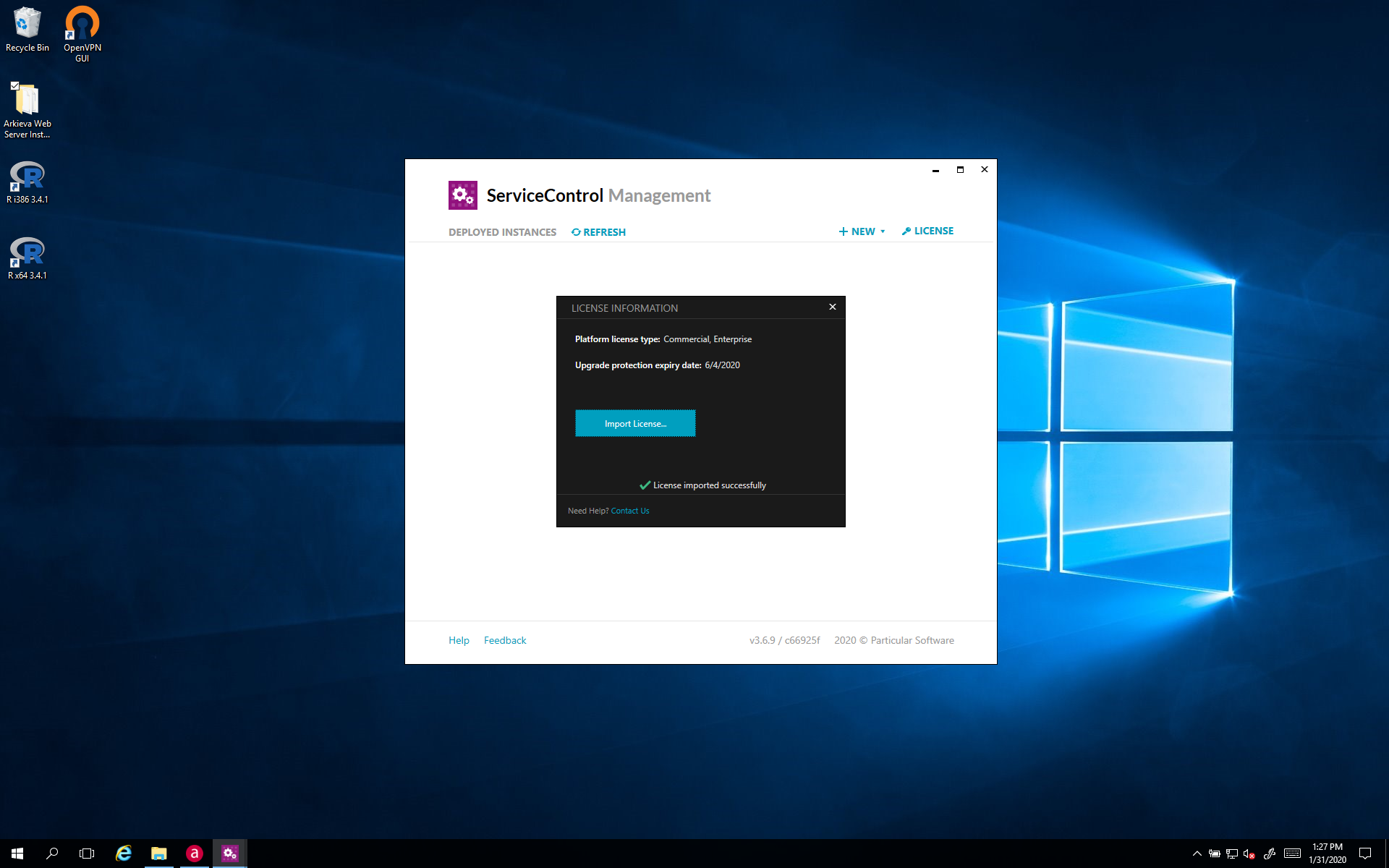
The error 'Cannot find any service with service name 'Particular.ServiceControl' occurs when the platform license has expired.
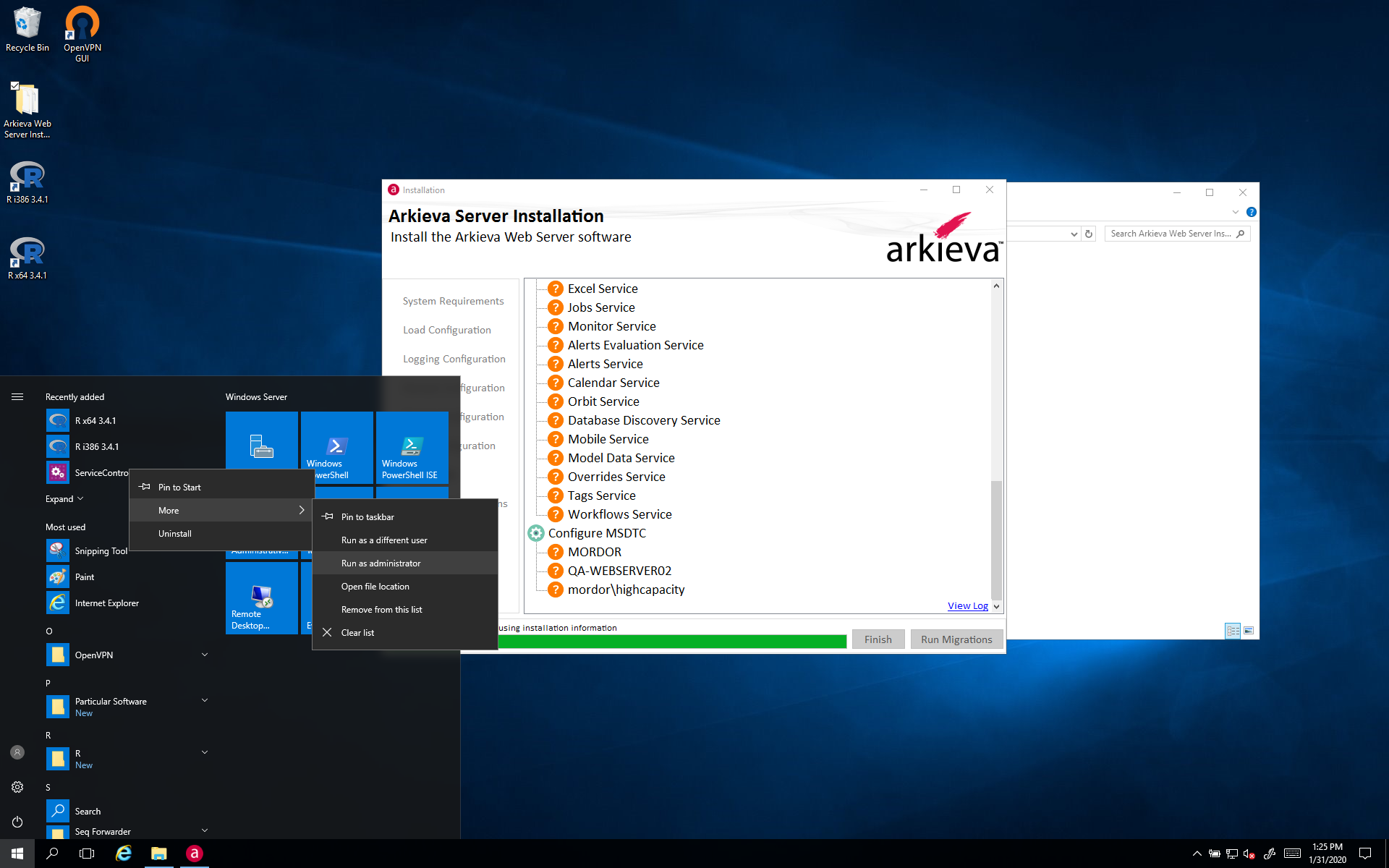
Run Service Control Management as Administrator to confirm that the license has expired.
Client Installation
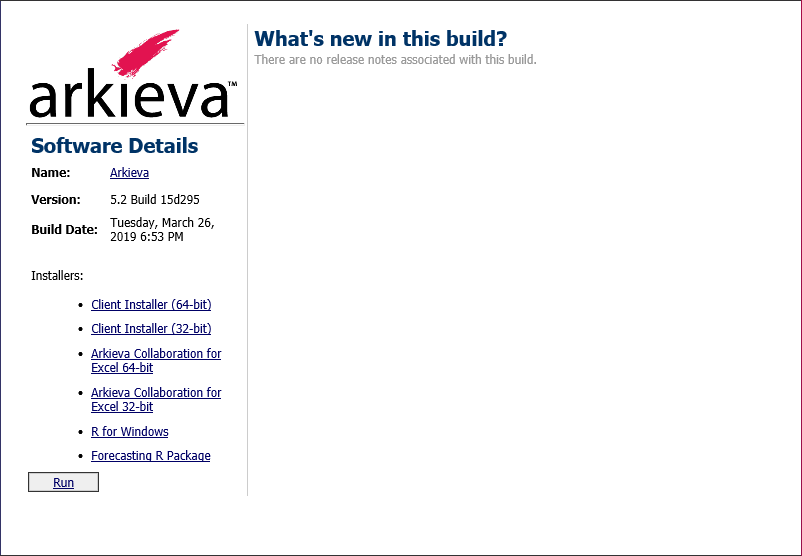
Step 1: Download the Client Installer\ Download the Client installation file from Arkieva web server. First, download the Client Installer (64-bit) or the Client Installer (32-bit) installation file to the target machine. Typically the target machine is an RDS Server.
Step 2: Configure Arkieva Installation\ Launch the installation utility. Specify the web server that the Arkieva application should communicate with. Use Localhost if the webserver is also the application server, otherwise substitute in the server name (or FQDN) for 'localhost'.
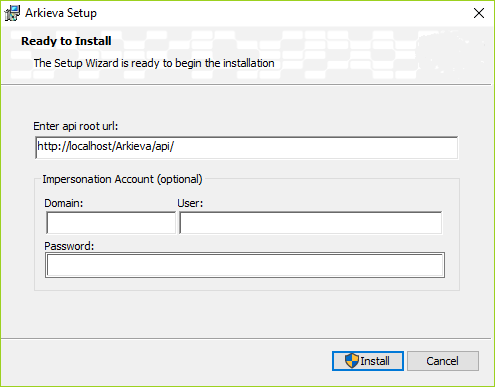
Step 2a: Configure Impersonation Account\ Enter the credentials of the impersonation account. Enter the account credentials to be used for the impersonation account. You will need this account to configure permissions on the SQL Server.
🚧 Caution
Be aware that all the logging will be done as that impersonation account, and there will be no visibility into who the actual user is that performed a specific action.
👍 Installation complete
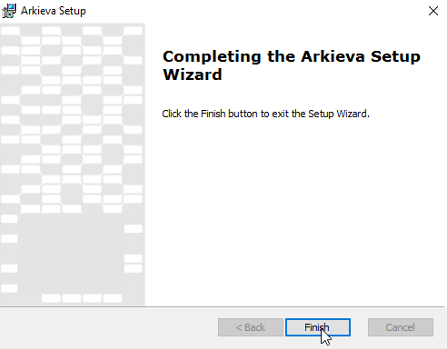
Click finish to close the installation utility. The software is now installed and can be run from the start menu.
Related Articles
Insights
The following serves as an introduction of how the Arkieva Insights software can be implemented as part of a multinational’s IT landscape. This is intended for IT project managers that are planning or considering the implementation of Arkieva ...Sales Predictor
The Arkieva Sales Predictor is a Sales and/or Customer Relationship Management tool. Its purpose is to flag the most probable and most profitable sales lead opportunities based on analysis of historical data patterns by Customer and Item. The results ...Configuration and Setup Guide
Database Schema The following tables must exist in the SQL server with the correct schema and default data for the Arkieva Sales Predictor to properly function. Ztb_SalesPredictor_DependentAttributes Ztb_SalesPredictor_DisplayPreferences ...Excel Collaboration
Introduction When on the go, sometimes you do not have direct access to data like you would when in the office. With Excel Collaboration, Sales Reps can download their forecasting Workbench and reports from Arkieva into Excel. The Excel Collaboration ...User Interface
Assist: Create custom documentation for use with Arkieva Assist. Cloud: Arkieva Cloud offering information. Data Models: Scheduling, DRP, and RCCP Data Model table and data information. Function Parameters: Data management tools information. Orbit: ...