How do I manually set the impersonation account to run Arkieva services?
When installing the Arkieva application as another user than the service account, the Service account will not have access to the Message Queues, which must be added afterwards. Please watch this video to learn how.
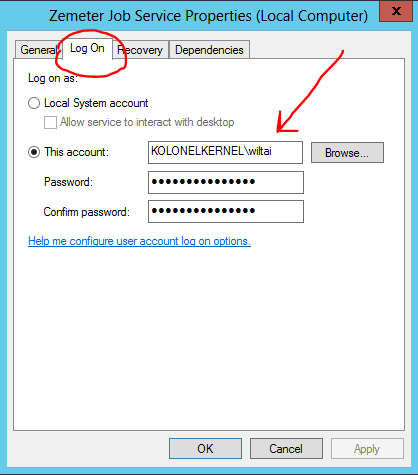
Also, change the Log On As account of the Zemeter Job Service. The Zemeter Job Service is required to calculate statistical forecasts:
- Start Services
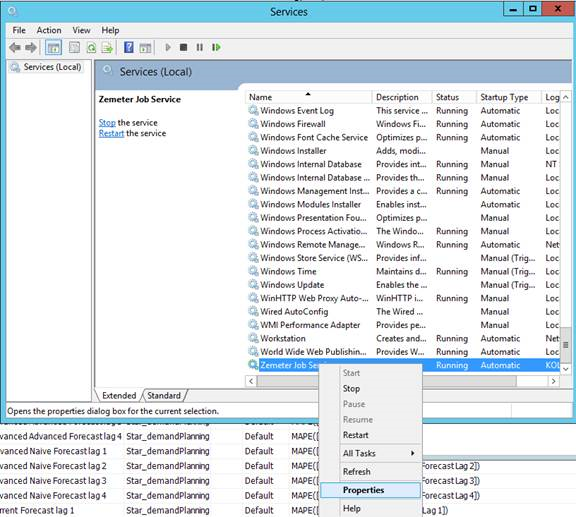
- Find ‘Zemeter Job service’ in the list. Right click and open ‘properties’. Under ‘Log On’ enter the new account info, click ‘ok’
- Right click ‘Zemeter Job Service’ and click ‘start’. (Right now it gives login failure with the existing login credentials)
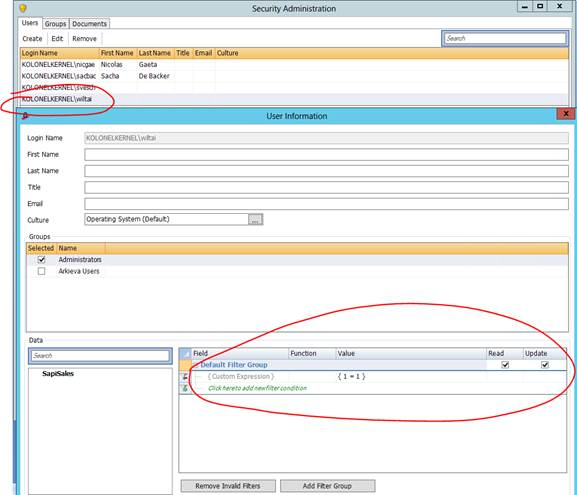
- This login should be added as a User in Arkieva with the appropriate access rights (Custom Expression 1=1 for all required data)
- Job Service is also used for LP Calculation.
- Any action running through the jobs will be processed using the Zemeter Job Service, so this needs to be activated
- Check in SQL if job is running.
- Enable the Zemeter Job Service in Arkieva Setup
When using Arkieva jobs to automate processes (e.g statistical forecast calculation), it is important that the user linked to the Zemeter Job Service has security to the Arkieva Setup! Otherwise, the Zemeter Job Service has no rights to override values in the Fact (and other) tables. To see which user is linked to the Zemeter Job Service create an impersonation account to run the jobs, this user can stay active with the same account password, so the account will always be.
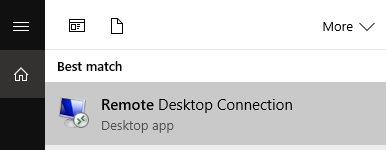
There is the possibility to add a check in the Nightly job to check if the job service is running, ( see Typical Nightly Batch Job). Open services on the Remote Desktop.
Find the Zemeter Job Service in the list (probably the last item in the list) and view properties.
Give this user full access in the security settings of Arkieva setup.
Related Articles
Arkieva.Collaboration.Services.Overrides not found?
If at the beginning of the installation “Uninstall.cmd” in “Arkieva.Collaboration.Services.Overrides” is not found, it is trying to uninstall something that it cannot find. This can be resolved by copy/pasting the inetpub\wwwroot\Arkieva folder from ...I cannot run or create jobs?
User is trying to regenerate the system model but the dialog is stuck at step 4: trying to create the job to recreate index views. Also issue produces an error message when trying to execute stored procedure such as RecreateIndexedViews with messages ..."TimeoutException occurred" error when reinstalling Arkieva Services?
An mdf file from the previous installation on the local db Arkieva Server can cause this error.Run LP Remotely job not working?
You need elevated privileges to execute the Create Job and Run Jobs. If these elevated privileges are not set, you will not be able to run jobs remotely in the LP.Best Method is not showing when run as a job?
The reason Best Method is not showing when run by a Job is because of the service account. Give the service account full access to all data in security, then try running the job again.