Power BI Dashboards
Leveraging PowerBI in Your Supply Chain Reporting
Discover the new exciting functionality of PowerBI in your solution.
{`
`}
Power BI Import Steps
To view Power BI Dashboards in Arkieva, there are 3 steps:
- Create a dashboard in the Power BI desktop application
- Publish the dashboard to the Power BI Service
- Embed the URL into Item Groups in Arkieva
Before you can create a Power BI Dashboard, you will need to have the Power BI Desktop version locally installed on your PC.
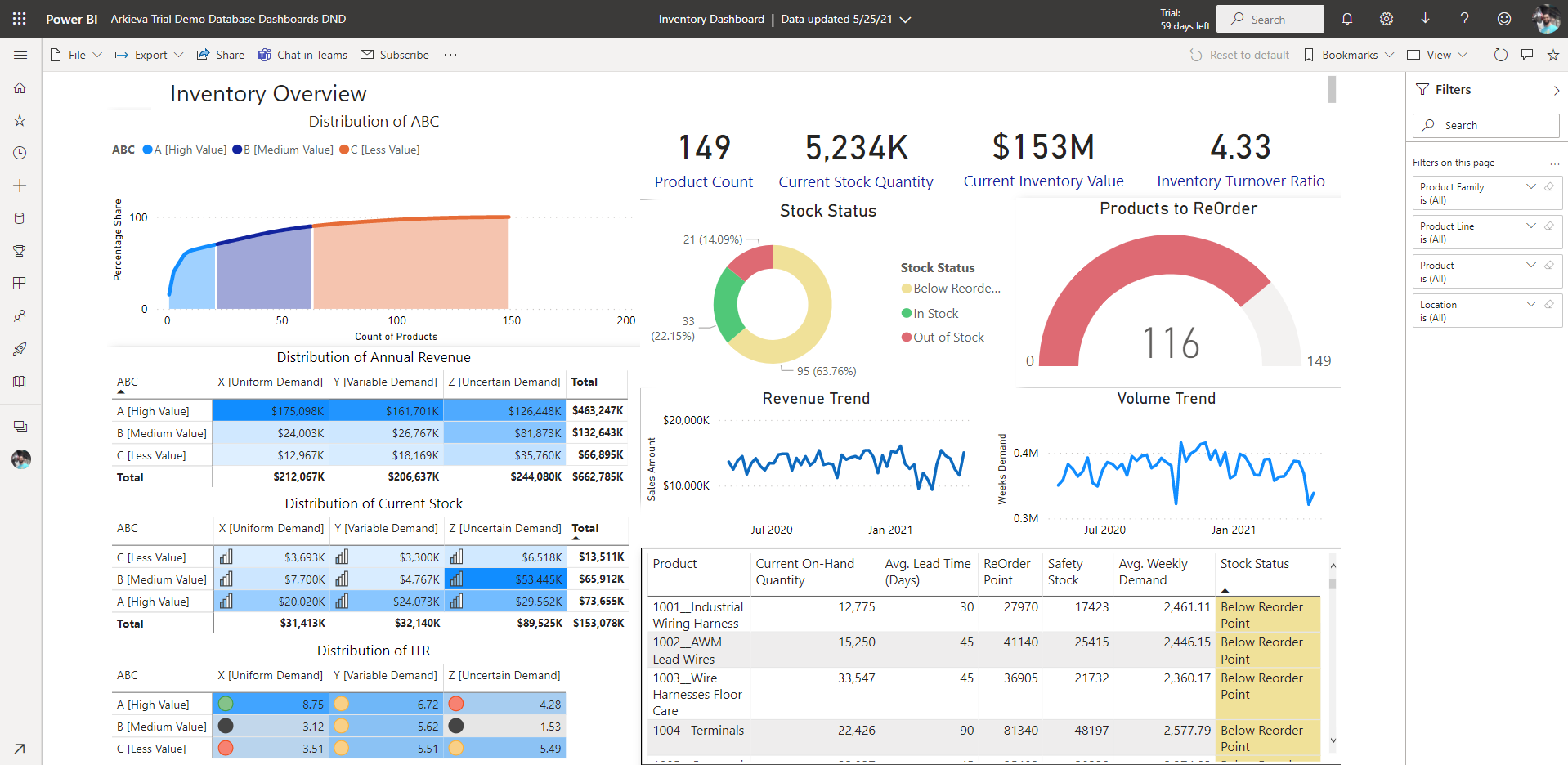
After creating a dashboard, you will need to Publish it to the Power BI service. Click Publish then select a Destination. Destinations are also called Workspaces. Workspaces can be thought of as folders on the Azure network.
📘 Note
When clicking Publish, the report and the data set associated with the report are published. The visualization file extension is ‘.pbix’. This file can be copied and pasted into an email and sent to another user who also has Power BI desktop installed. This makes collaboration easier as you can create a dashboard template and others can plug in their data if they have the same template. The visualization then pulls in this data from multiple people and connects it all in a workspace.
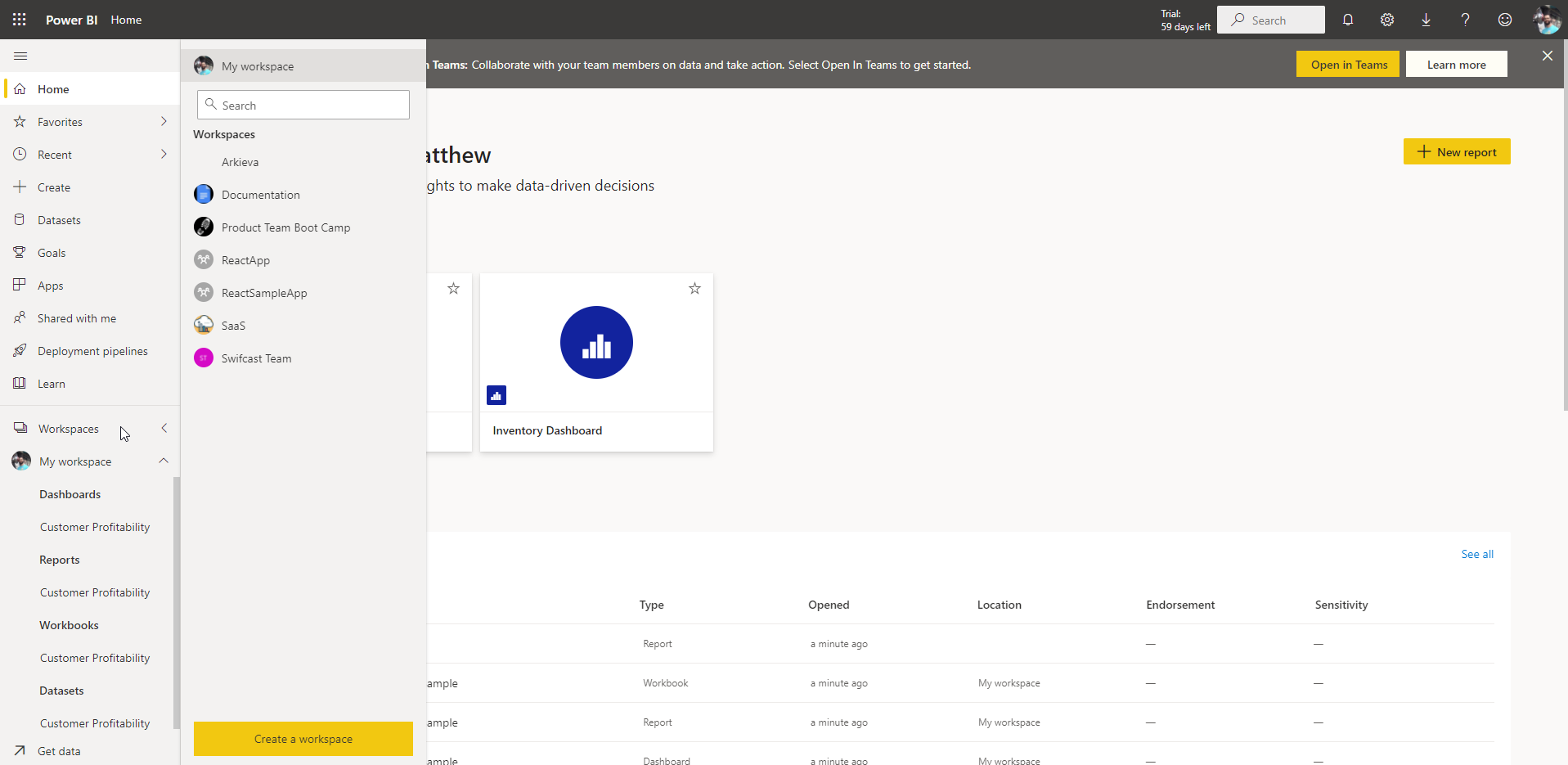
Below is an example of available workspaces.
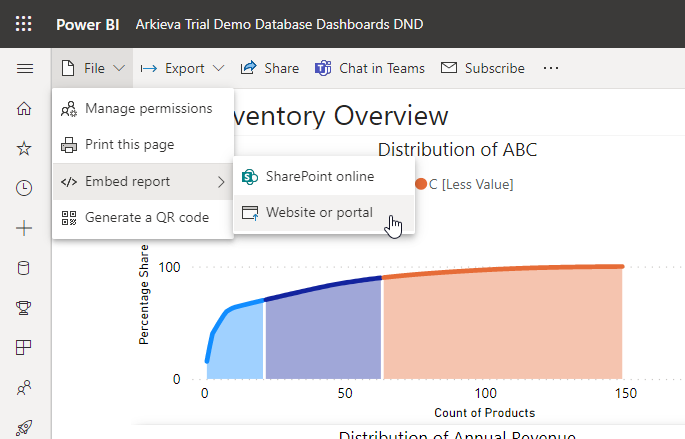
The next step is to embed the report. Go to File and hover over Embed report. Since we are interested in publishing the report to the Arkieva application, we will select Website or portal.
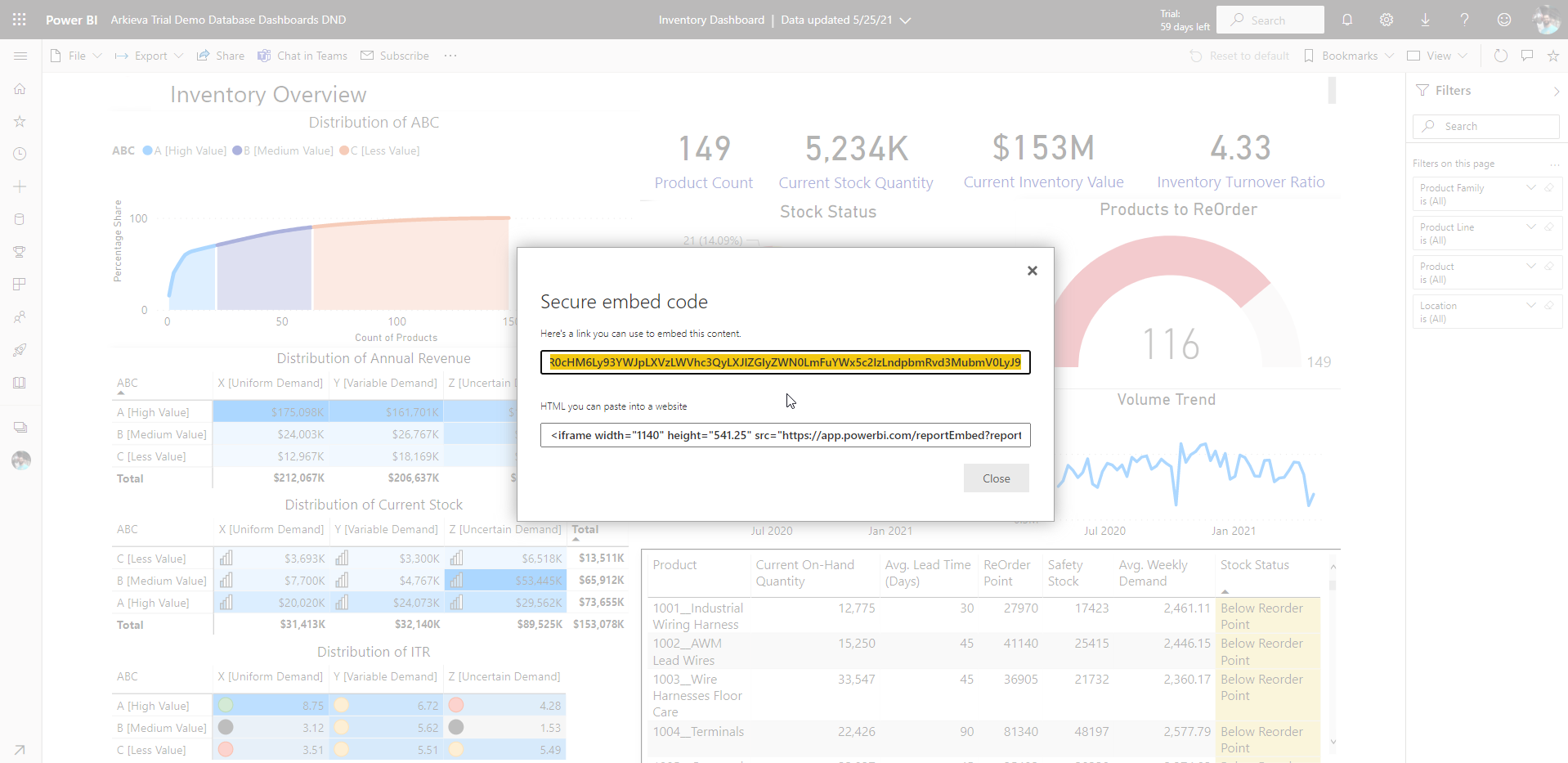
The Power BI app will automatically generate a URL. Copy the yellow highlighted URL. This is the URL we will paste into Item Groups in Arkieva.
Launch Arkieva and go to Item Groups under the New Items dropdown.
And I'll go to item groups. And if I click on right click on the items. So there are three options now. So add URL is what we're supposed to pick. Right, I would click on Add URL, and I would simply paste that URL. now. I'll click on OK.
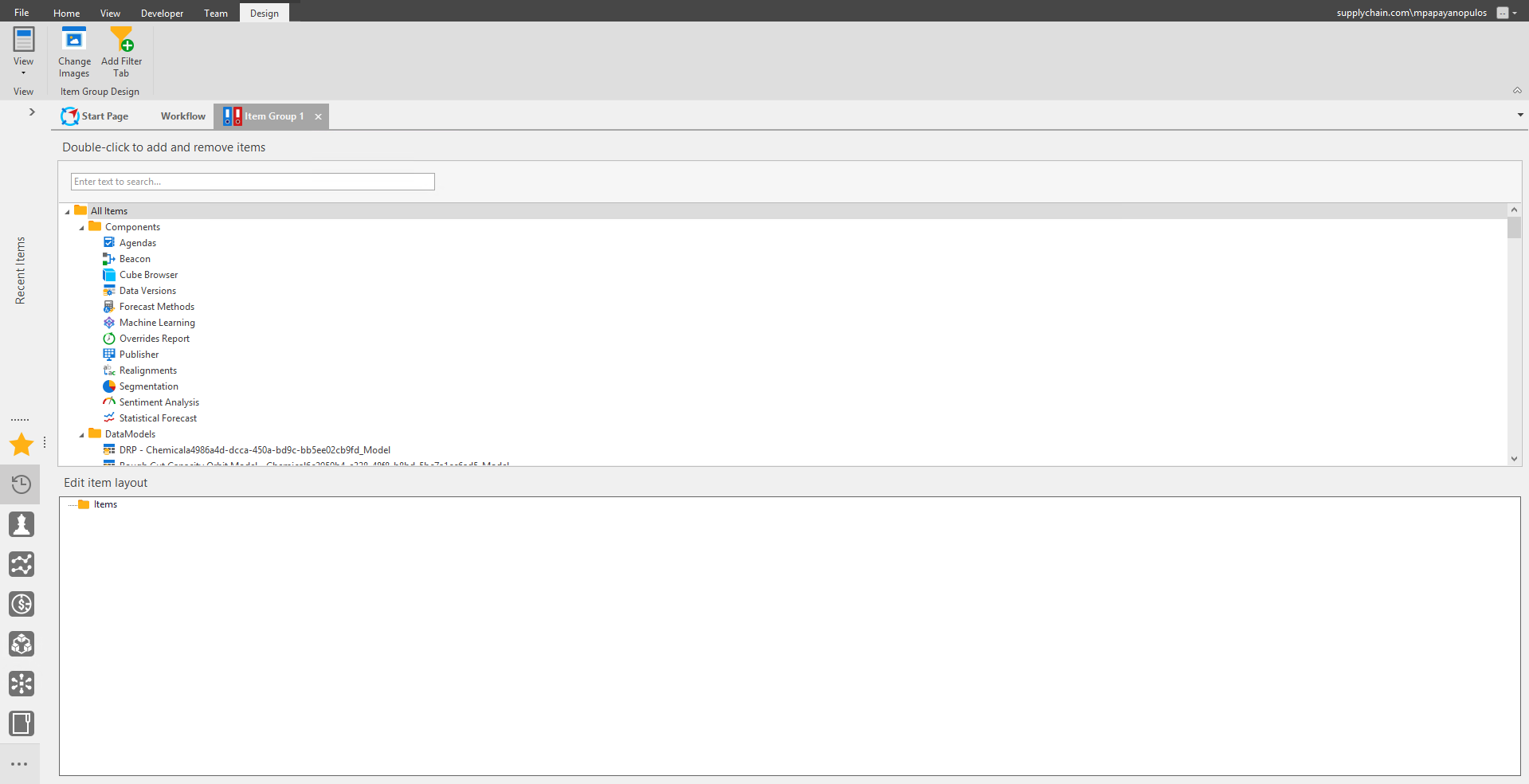
Launch Item Groups and right-click on Items under the Edit item layout section.
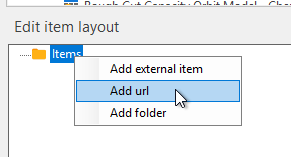
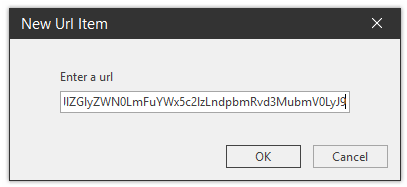
Paste the URL and Click OK.
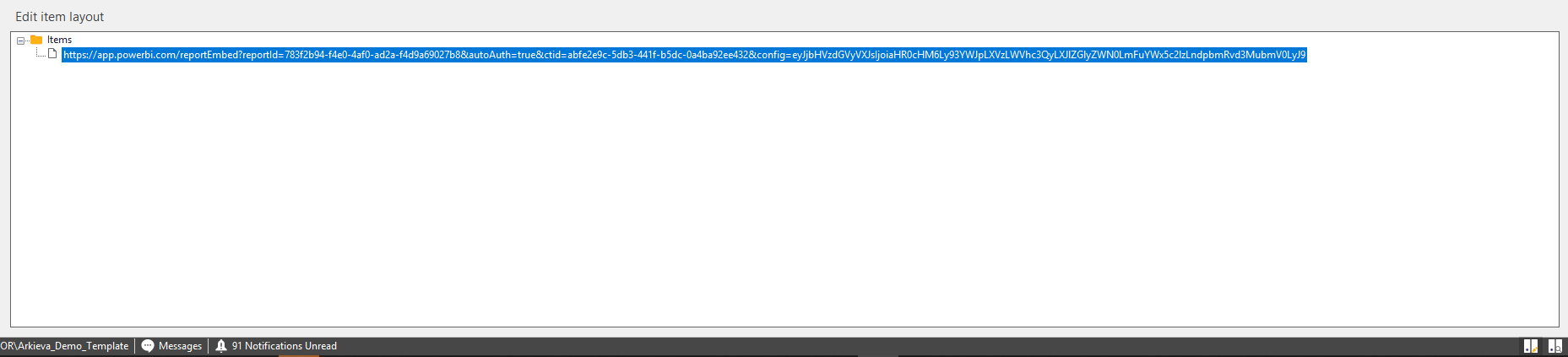
The URL will show under Items. Go to View Items group to view the Power BI Dashboard.
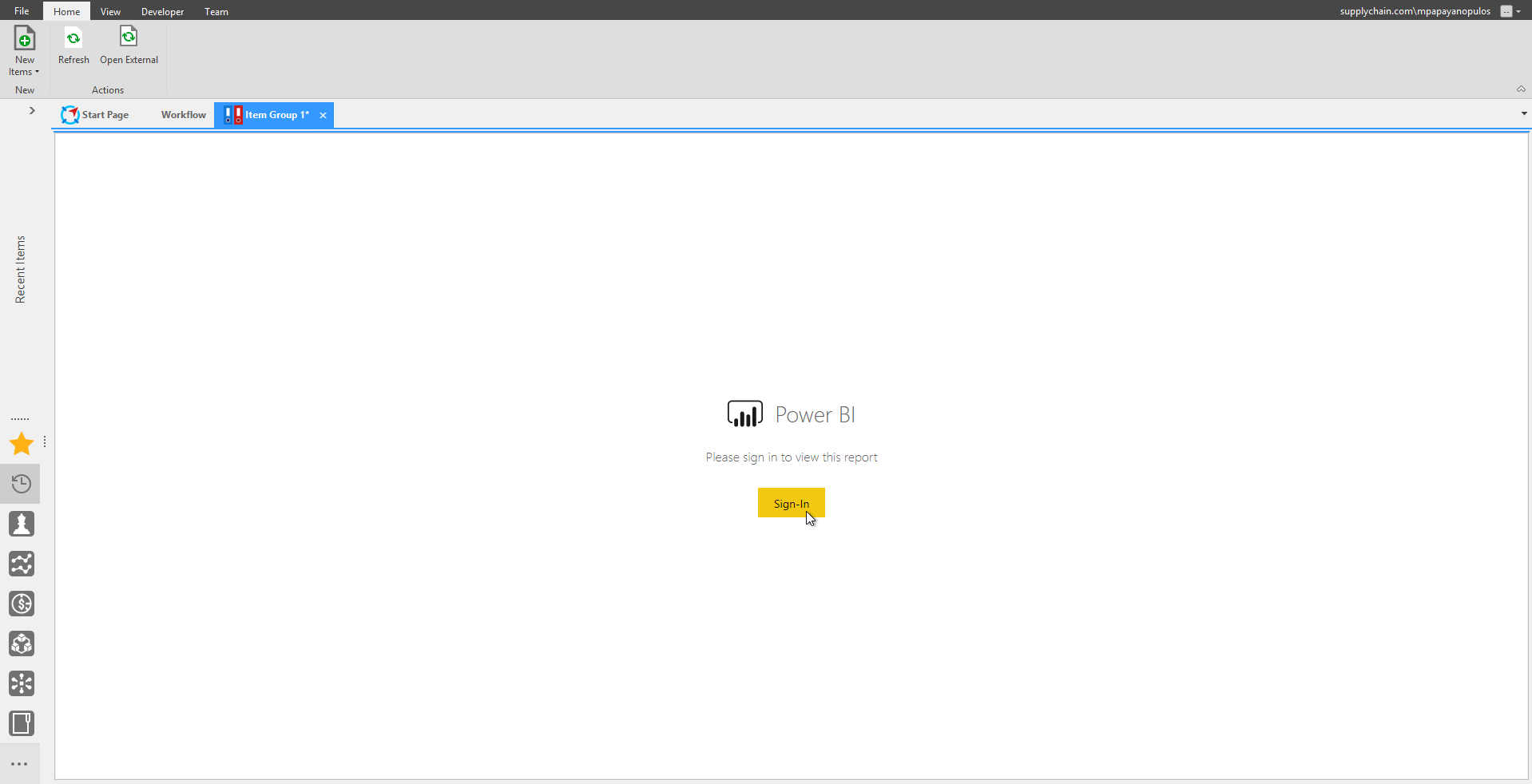
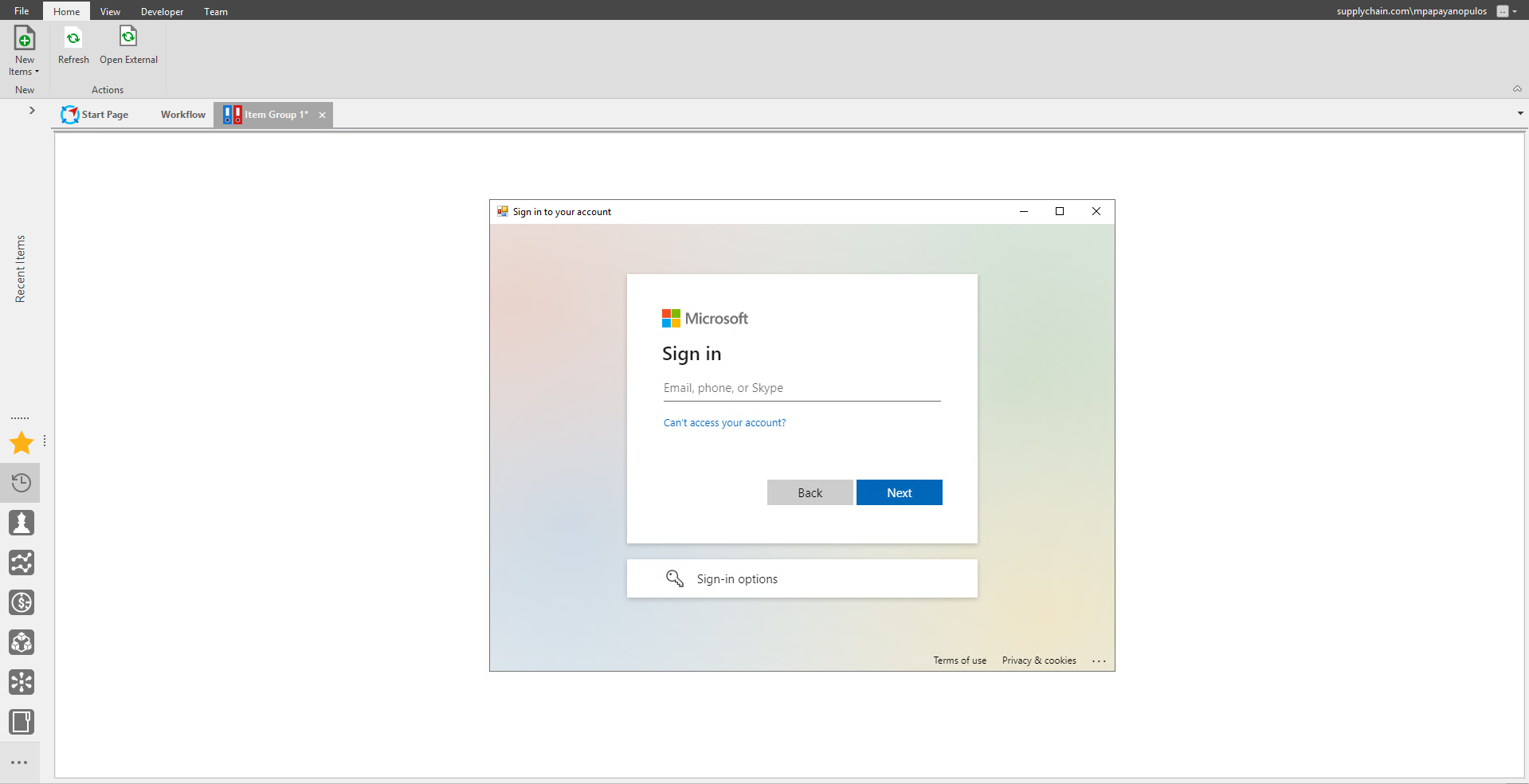
Power BI will ask for your login ID and password. Click Sign-In.
You can optionally select to only have to sign-in once.
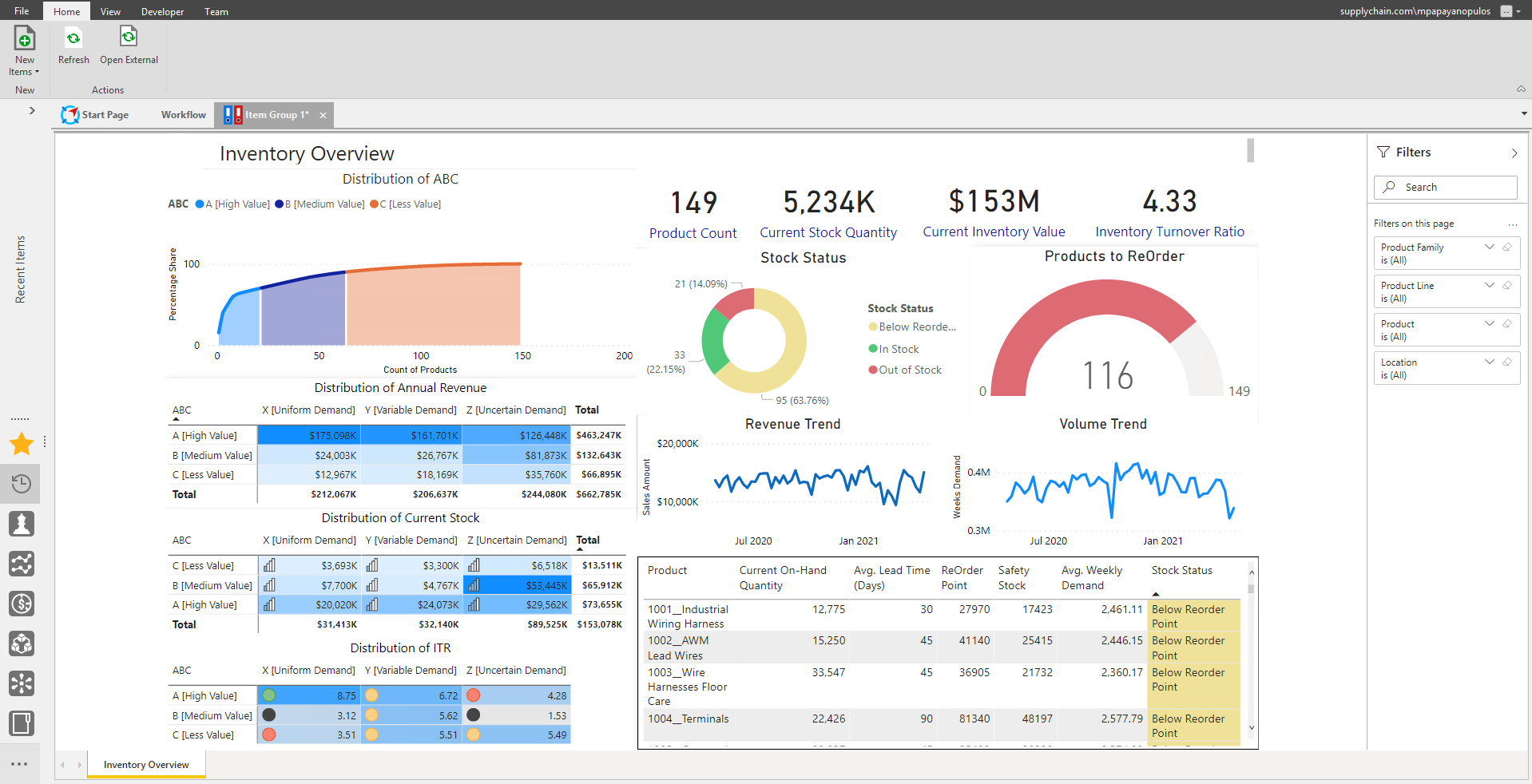
After log in, you can view the dashboard in Arkieva created with Power BI.
Related Articles
Insights
The following serves as an introduction of how the Arkieva Insights software can be implemented as part of a multinational’s IT landscape. This is intended for IT project managers that are planning or considering the implementation of Arkieva ...Item Group
The Item Group component allows you to create an Item Group. Item Groups can be created with components, documents, and urls, such as Power BI documents. Go to the File Tab and click New, then select Miscellaneous to access the Item Group launch ...Arkieva Customer Training Program
The Arkieva Customer Training Program is a customer-centric program aimed at empowering Arkieva customers with the knowledge and skills needed to harness the power of their Arkieva solution to solving complex business problems. ? Go to the bottom of ...Release Matrix
? Release Schedule Arkieva releases are quarterly: February, May, August, November. Demand Planning Feature 5.22 5.21 5.20 5.19 5.18 Anomaly Component Forecast Methods Machine Learning Link Promotion Planning Link Link Link Segmentation Link Link ...Analytics Dashboard
❗️ Warning: Exporting to Excel An error will occur preventing the exportation of the dashboard to Excel if any dashboard component is named with special characters followed by an apostrophe ('). Introduction The Arkieva Analytics Dashboard ...