Description of Features
Data Grid
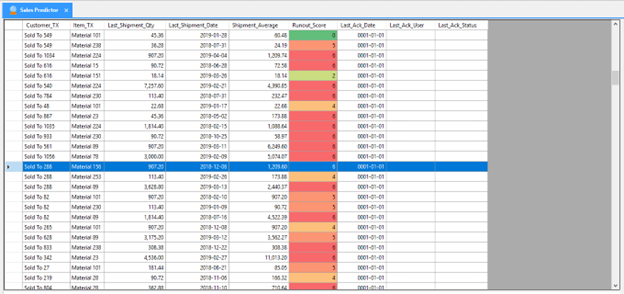
Shown below is a close-up screenshot of the “Data Grid” quadrant of the Sales Predictor component. This section will describe this quadrant in detail.
Display Customization
The header name of any/all columns in the Data Grid can be changed to a custom value. For example, “Customer_TX” can be displayed as “Customer Description”.
Tabular Data
There are two “modes” or “views” of the Data Grid. The condensed view shows a subset of the columns contained in the results table. Information is stored and presented by Customer/Item combination. The expanded view shows all columns contained in the results view. The view can be toggled back and forth by pressing the “Show Extra Columns” / “Hide Extra Columns” button in the Filter Pane.\ The results presented to the user are up-to-date as-of the “Last_Processed_Date”. Processing in the SQL job ensures that these records are processed at the frequency required for users.\ Descriptions column-by-column of the information provided in the grid using the default “Display As” names are provided below. Anything displayed in bold font is shown in the condensed view. Information in the Data Grid can be ordered by clicking a column header.
Customer_CD\ One of the two “Key” columns. The Customer code.
Customer_TX\ The Customer description or text value.
Item_CD\ One of the two “Key” columns. The Item code.
Item_TX\ The Item description or text value.
DepAttu1_TX\ The 1st dependent attribute value. Stored as text but can be anything, such as the result of a custom analysis.
DepAttu2_TX\ The 2nd dependent attribute value. Stored as text but can be anything, such as the result of a custom analysis.
DepAttu3_TX\ The 3rd dependent attribute value. Stored as text but can be anything, such as the result of a custom analysis.
Num_Data_Points\ The number of days with historical data for the timeseries. If source data was provided with multiple orders on the same day, the shipments are aggregated to present a single data point.
Last_Shipment_Qty\ The quantity value for the most recent data point of the timeseries. When runout is calculated using a usage rate, the system uses the calculated rate and determines the number of days at that rate it would take for this quantity to be depleted.
Last_Shipment_Date\ The date value for the most recent data point of the timeseries.
Shipment_Average\ The average quantity of all shipments in the timeseries.
Shipment_Sigma\ The standard deviation of all shipments in the timeseries.
Interval_Average\ The average number of days between consecutive shipments for the timeseries.
Interval_Sigma\ The standard deviation of the number of days between consecutive shipments for the timeseries.
Rate_Average\ The average usage rate between consecutive shipments for the timeseries. Usage rate is calculated as the shipment quantity divided by the amount of time before the next shipment.
Rate_Sigma\ The standard deviation of the usage rate between consecutive shipments for the timeseries.
Is_Statistically_Active\ The system looks at the time range of history available (last shipment date minus first shipment date) and the time since the last shipment (last processed date minus last shipment date). The time since the last shipment must be within X percent of the historical data range for the timeseries to be considered “Active”. The motivation behind this analysis is to try to flag timeseries that might be obsolete. The value of X is configurable using the “PctDataRange_Active” parameter with a default value of 100.
Is_Statistically_Valid\ The analysis behind the runout calculation utilizes an assumption of a normal distribution of shipment data. The validity of this assumption depends on the amount of historical data present. If the number of data points for a timeseries is less than X, the timeseries is considered to not be valid. The value of X is configurable using the “NumDataPoints_Valid” parameter with a default value of 2, the minimum required to calculate a standard deviation.
Runout_Interval_Minus_Sigma\ The date by which the Customer would run out of the Item if they consume the last shipment slightly more frequently than usual (Average - 1 x Standard Deviation).\ They should order by this date approximately 15.8% of the time.
Runout_Interval_Average\ The date by which the Customer would run out of the Item if they consume the last shipment as frequently as they usually do (Average).\ They should order by this date approximately 50% of the time.
Runout_Interval_Plus_Sigma\ The date by which the Customer would run out of the Item if they consume the last shipment slightly less frequently as they usually do (Average + 1 x Standard Deviation). They should order by this date approximately 84% of the time.
Runout_Interval_Plus_2_Sigma\ The date by which the Customer would run out of the Item if they consume the last shipment significantly less frequently than they usually do (Average + 2 x Standard Deviation). They should order by this date approximately 97.6% of the time.
Runout_Rate_Minus_Sigma\ The date by which the Customer would run out of the Item if they would consume it at a slightly faster rate than usual (Average - 1 x Standard Deviation).\ They should order by this date approximately 15.8% of the time.
Runout_Rate_Average\ The date by which the Customer would run out of the Item if they would consume it at the same rate they usually do (Average).\ They should order by this date approximately 50% of the time.
Runout_Rate_Plus_Sigma\ The date by which the Customer would run out of the Item if they would consume it at a slightly slower rate than usual (Average + 1 x Standard Deviation).\ They should order by this date approximately 84% of the time.
Runout_Rate_Plus_2_Sigma\ The date by which the Customer would run out of the Item if they would consume it at a significantly slower rate than usual (Average + 2 x Standard Deviation).\ They should order by this date approximately 97.6% of the time.
Runout_Score
- A simplified score based on the number of runout dates that have past.
- If the Last_Processed_Date is greater than the value of Runout_Interval_Average, Runout_Score is incremented by 1
- If the Last_Processed_Date is greater than the value of Runout_Interval_Plus_Sigma, Runout_Score is incremented by 1
- If the Last_Processed_Date is greater than the value of Runout_Interval_Plus_2 Sigma, Runout_Score is incremented by 1
- If the Last_Processed_Date is greater than the value of Runout_Rate_Average, Runout_Score is incremented by 1
- If the Last_Processed_Date is greater than the value of Runout_Rate_Plus_Sigma, Runout_Score is incremented by 1
- If the Last_Processed_Date is greater than the value of Runout_Rate_Plus_2_Sigma, Runout_Score is incremented by 1
- This is easily visualized as the number of lines to the left of the arrow in the “Runout Chart”.
The Runout_Score cell is colored according to the following scale.
- Runout_Score = 0, Dark Green
- Runout_Score = 1, Light Green
- Runout_Score = 2, Yellow Green
- Runout_Score = 3, Yellow
- Runout_Score = 4, Orange
- Runout_Score = 5, Orange Red
- Runout_Score = 6, Red
Runout_Probability\ The cumulative distribution function of the normal distribution is used to compute the probability that the Customer has not ordered the Item based on the number of days since the last shipment date. Probabilities are calculated based on the interval and rate distributions. These results are averaged to provide a single number between 0 and 1.
Margin\ The amount of profit utilized by selling a single unit of the Item to the Customer. Stored as a dependent attribute.
Estimated_Value\ The estimated amount of profit that could be realized by following up on a lead.\ Calculated as Shipment_Average x Margin x Runout_Probability. Note, this calculation is not performed automatically by the system, and must be performed after the sink records have been processed. This allows the implementation of a custom calculation for Estimated_Value.
Last_Ack_Date\ The most recent date that a user has updated the status of the timeseries.
Last_Ack_User\ The last user to update the status of the timeseries.
Last_Ack_Status\ The last status entered against the timeseries. Can be free-form or selected from a configurable dropdown.
Last_Processed_Date\ The last time the timeseries was processed by the background service. All calculations are up-to-date as-of this date. Records should be processed daily or whenever the source data table is updated with new information.
RLS Filter to Data Grid
The Sales Predictor component can be configured to integrate with Arkieva RLS. Integration with Arkieva RLS will pre-filter the Data Grid to Customers and/or Items that the logged-in user is allowed to interact with. This feature requires additional configuration in the Setup Manager and an additional daily step to ensure that RLS is synced with the data in the result table. This feature can be enabled/disabled using the “UseRLS” setting.
Filter Pane
Shown below is a close-up screenshot of the “Filter Pane” quadrant of the Sales Predictor component. This section will describe this quadrant in detail.
Display Customization
The label text displayed in the application can be customized by the consultant. This includes the name of the pane “Filter Pane”, the text displayed to the left of each dropdown or entry box, and the text displayed on each button.
Filter Options
There are two types of filters available: dropdown list and numerical entry.\ The dropdown list filters are populated with the distinct set of values for the filtered column available in the unfiltered data set to the user, including any RLS restrictions. The dropdown list filters also allow text based filtering. Rather than selecting a single dropdown value by clicking the arrow at the right of the control, the user can click into the control and type. User-entered text is used as a “contains” filter. For example, if the user enters “72” into the Dependent Attribute 1 dropdown list, it will show all records in the Data Grid with a value of DepAttu1_TX containing the string “72”. The options available in the dropdown boxes are refreshed whenever the component is initially opened. Any RLS changes will not be reflected until the component is closed and re-opened by the user. Dropdown list filters can be reset by setting their value back to “All”.\ The numerical entry filters are based on the number of days between a date column value and the current date. Any record with that many days or greater between the column value and the current date is included in the Data Grid. Multiple filters can be applied at the same time.\ A description filter-by-filter of the options available to the user is shown below.
Customer\ Dropdown list populated with the distinct values of Customer_TX
Item\ Dropdown list populated with the distinct values of Item_TX
Dependent Attribute 1\ Dropdown list populated with the distinct values of DepAttu1_TX
Dependent Attribute 2\ Dropdown list populated with the distinct values of DepAttu2_TX
Dependent Attribute 3\ Dropdown list populated with the distinct values of DepAttu3_TX
Runout Score\ Dropdown list populated with the distinct values of Runout_Score
Is Statistically Active?\ Dropdown list populated with the distinct values of Is_Statistically_Active
Is Statistically Valid?\ Dropdown list populated with the distinct values of Is_Statistically_Valid
Days Since Last Ack\ Numerical entry filter with difference calculated between current date and Last_Ack_Date
Days Since Last Shipment\ Numerical entry filter with difference calculated between current date and Last_Shipment_Date
Button Actions
Filters are applied to the results in the Data Grid by clicking “Apply Filters”. The full or condensed view of the Data Grid is toggled by clicking “Show Extra Columns” or “Hide Extra Columns” (same button but the label will change depending on the current view of the grid). The Data Grid can be refreshed by clicking “Refresh Data”, this is useful if a user is about to call a Customer but is not sure if another user has called since the last time they’ve applied filters or refreshed data.
Information Pane
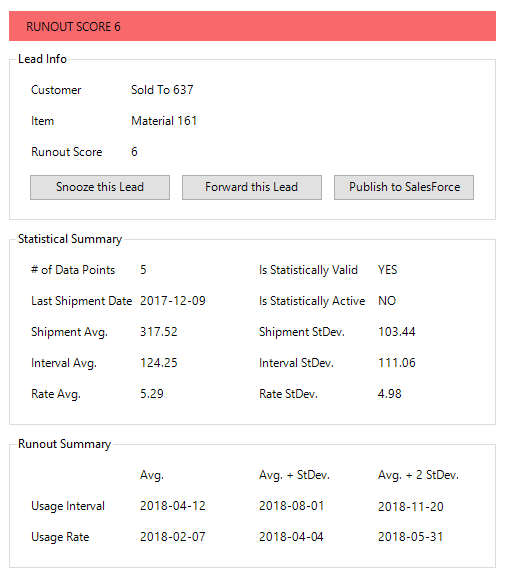
Shown below is a close-up screenshot of the “Information Pane” quadrant of the Sales Predictor component. This section will describe this quadrant in detail.
Display Customization
The label text displayed in the application can be customized. This includes the name of the panes (“Lead Info”, “Statistical Summary”, and “Runout Summary”), the text displayed to the left or above each variable, and the text displayed on each button.\ The text displayed in the “Runout Message” (colored tile) can be customized as well for the value of each score. For example, a Runout_Score of 4, 5, and 6 can display a message of “Call Now!” while a Runout_Score of 0, 1, 2, and 3 can display a message of “Don’t Call”. The message can be custom for each value of Runout_Score as well. The color of the tile matches the color in the Data Grid.
Section Information
The “Information Pane” is split up into the following sections: Lead Info, Statistical Summary, Runout Summary
Lead Info\ The “Lead Info” section contains basic information about the Sales Lead, i.e. the Customer and Item along with the runout score. It also contains the “Snooze this Lead”, “Forward this Lead”, and “Publish to SalesForce” buttons.
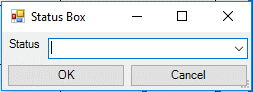
Button Actions\ The “Snooze This Lead” button opens a “Status Box” popup window (shown below). The user can type in a custom status for the lead or select a pre-configured value from the dropdown list. Pressing “OK” will update the value of Last_Ack_Status with the value in the Status box, update the value of Last_Ack_Date with the current date, update the value of Last_Ack_User with the logged in user, and refresh the Data Grid.
The “Forward this Lead” button will open a pre-populated email template using a mailto:// link (shown below). The email will populate the subject line, and body of the email. The email body will contain the Customer_TX and Item_TX values for the lead.

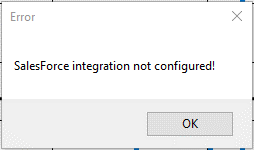
The “Publish to SalesForce” button will open an Error popup unless integration with the Arkieva Data Connector and SalesForce is configured (shown below). Integration with SalesForce is not discussed in this guide.
Statistical Summary\ The “Statistical Summary” section presents information contained in the Data Grid in a more readable format.
-
of Data Points: Displays the value of the Num_Data_Points column
- Last Shipment Date: Displays the value of the Last_Shipment_Date column
- Shipment Avg.: Displays the value of the Shipment_Average column
- Interval Avg.: Displays the value of the Interval_Average column
- Rate Avg.: Displays the value of the Rate_Average column
- Is Statistically Valid: Displays the value of the Is_Statistically_Valid column
- Is Statistically Active: Displays the value of the Is_Statistically_Active column
- Shipment StDev.: Displays the value of the Shipment_Sigma column
- Interval StDev.: Displays the value of the Interval_Sigma column
- Rate StDev.: Displays the value of the Rate_Sigma column
Runout Summary\ The “Runout Summary” section presents information contained in the Data Grid in a more readable format.
- The intersection of the “Avg.” and “Usage Interval”: Displays the value of the Runout_Interval_Average column
- The intersection of the “Avg. + StDev.” and “Usage Interval”: Displays the value of the Runout_Interval_Plus_Sigma column
- The intersection of the “Avg. + 2 StDev.” and “Usage Interval”: Displays the value of the Runout_Interval_Plus_2_Sigma column
- The intersection of the “Avg.” and “Usage Rate”: Displays the value of the Runout_Rate_Average column
- The intersection of the “Avg. + StDev.” and “Usage Rate”: Displays the value of the Runout_Rate_Plus_Sigma column
- The intersection of the “Avg. + 2 StDev.” and “Usage Rate”: Displays the value of the Runout_Rate_Plus_2_Sigma column
Chart Pane
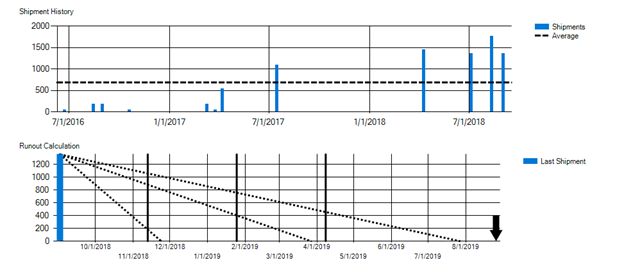
Shown below is a close-up screenshot of the “Chart Pane” quadrant of the Sales Predictor component. This section will describe this quadrant in detail.
Display Customization
The chart text displayed in the application can be customized by the consultant. This includes the names of the charts (“Shipment History” and “Runout Calculation”) and the names of the series plotted in the charts.
Section Information
The “Charts Pane” is split up into two sections, each with a chart: Shipment History, Runout Calculation.
Shipment History\ The “Shipment History” chart displays the historical orders by day in the Source Data table for the selected Customer and Item. The value of Shipment_Average is also plotted as a dashed line.
\ Runout Calculation\ The “Runout Calculation” chart displays the last shipment, and the runout dates used to determine the Runout_Score and Runout_Probablity. An annotated version of the “Runout Calculation” chart with matching descriptions is shown below.
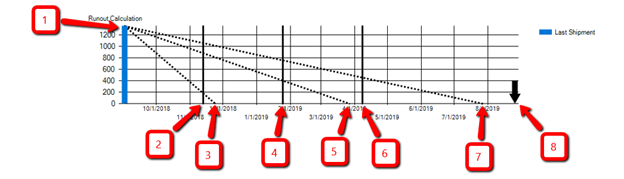
- Blue Bar on Left Axis: The Last_Shipment_Qty plotted at the Last_Shipment_Date.
- Left-Most Solid Line: A vertical line drawn at the Runout_Interval_Average runout date.
- Left-Most Dashed Line: A diagonal line drawn from Last_Shipment_Qty to the Runout_Rate_Average runout date.
- Middle Solid Line: A vertical line drawn at the Runout_Interval_Plus_Sigma runout date.
- Middle Dashed Line: A diagonal line drawn from Last_Shipment_Qty to the Runout_Rate_Plus_Sigma runout date.
- Right-Most Solid Line: A vertical line drawn at the Runout_Interval_Plus_2_Sigma runout date.
- Right-Most Dashed Line: A diagonal line drawn from Last_Shipment_Qty to the Runout_Rate_Plus_2_Sigma runout date.
- Arrow: An arrow plotted at the Last_Processed_Date. If records are reprocessed nightly, this will be the same as the current date. The chart is scaled such that the X-axis maximum is 110% of the date difference between the maximum runout date and Last_Shipment_Date. If the Last_Processed_Date is greater than the maximum runout date, the arrow is red.
📘 Note
Note that the Runout_Score for the above timeseries would be 6 as the Arrow is to the right of all 6 runout dates. If the Arrow was between annotations 4 and 5, for example, its Runout_Score would be 3. Also note that the solid lines will not always be to the left of the dashed lines. Large variability in shipment intervals, for example, can cause wider spacing of runout dates calculated from the interval than from the rate. Despite the larger variability in shipment intervals, correspondingly higher or lower shipment quantities for higher or lower intervals could result in a calculated rate with low variability.
Sample Calculation
This section provides a walk-through sample calculation for Customer/Item combination from anonymized data performed on 2019-08-27.
Sample Dataset
The sample calculation will use the following sample dataset.
| 486933 | 28 | 2017-11-13 | 45.36 |
| 486933 | 28 | 2018-01-26 | 45.36 |
| 486933 | 28 | 2018-10-22 | 90.72 |
Statistical Summary
This section shows a calculation item-by-item of information displayed in the “Statistical Summary”.
-
of Data Points: There are three data points in the sample dataset, so this value is 3
- Last Shipment Date: The latest value for Date in the sample dataset is 2018-10-22
- Shipment Average: The average of the Qty values is 60.48
- Interval Average: The interval between 2017-11-13 and 2018-01-26 is 74 days. The interval between 2018-01-26 and 2018-10-22 is 269 days. The average of these values is 171.50.
- Rate Average: The interval between 2017-11-13 and 2018-01-26 is 74 days, the Qty for the first date 2017-11-13 is 45.36 units. The rate is 0.61 units/day. The interval between 2018-01-26 and 2018-10-22 is 269 days, the Qty for the first date 2018-01-26 is 45.36 units. The rate is 0.17 units/day. The average of these values is 0.39 units/day.
- Is Statistically Valid: The value of the NumDataPoints_Valid parameter is 2. Since Num_Data_Points is greater than 2, so this combination is statistically valid.
- Is Statistically Active: The difference between Last_Processed_Date 2019-08-27 and Last_Shipment_Date 2018-10-22 is 309 days. The difference between the first value of Date 2017-11-13 and Last_Shipment_Date 2018-10-22 is 343 days. The value of the PctDataRange_Active parameter is 100. The value of 309/343 is less than 100/100, so this combination is statistically active.
- Shipment Standard Deviation: The standard deviation of the Qty values is 21.38 units
- Interval Standard Deviation: The standard deviation of the interval values is 97.50 days
- Rate Standard Deviation: The standard deviation of the rate values is 0.22 units/day
Runout Dates
- This section shows a calculation the runout dates displayed in the “Runout Summary” from the statistical information calculated above.
- Runout Interval Average: Take the Last_Shipment_Date and add the average number of days between intervals. Add 171.50 days to 2018-10-22, the result is 2019-04-11.
- Runout Interval +1 Standard Deviation: Take the Last_Shipment_Date and add the average number of days between intervals. Then add the value of one standard deviation of number of days between intervals. Add 269.00 days to 2018-10-22, the result is 2019-07-18.
- Runout Interval +2 Standard Deviations: Take the Last_Shipment_Date and add the average number of days between intervals. Then add the value of two standard deviations of number of days between intervals. Add 366.50 days to 2018-10-22, the result is 2019-10-23.
- Runout Rate Average: Take the Last_Shipment_Qty and divide by the average usage rate. Then add this value, the number of runout days, to the Last_Shipment_Date. Add 232.14 days to 2018-10-22, the result is 2019-06-11.
- Runout Rate +1 Standard Deviation: Take the Last_Shipment_Qty and divide by the average usage rate. Then add this value, the number of runout days, to the Last_Shipment_Date. Then propagate the deviation in usage rate to runout days using the following formula below. Then add this value, one standard deviation of usage rate propagated to runout days. Add 364.97 days to 2018-10-22, the result is 2019-10-21.
σ_d=(σ_r×Last_Shipment_Qty)/(Rate_Average)^2
- Runout Rate+2 Standard Deviations: Take the Last_Shipment_Qty and divide by the average usage rate. Then add this value, the number of runout days, to the Last_Shipment_Date. Then propagate the deviation in usage rate to runout days using the following formula below. Then add this value, two standard deviations of usage rate propagated to runout days. Add 496.10 days to 2018-10-22, the result is 2020-03-01.
(2σ)_d=2×(σ_r×Last_Shipment_Qty)/(Rate_Average)^2
Scoring the Results
This section shows how the runout dates are qualified/quantified into their corresponding score or probability.
Runout_Score
- The value of Runout_Score starts at 0.
- Is Last_Processed_Date 2019-08-27 after Runout_Interval_Average 2019-04-11? Yes, add 1 to Runout_Score. Runout_Score is now 1.
- Is Last_Processed_Date 2019-08-27 after Runout_Interval_Plus_Sigma 2019-07-18. Yes, add 1 to Runout_Score. Runout_Score is now 2.
- Is Last_Processed_Date 2019-08-27 after Runout_Interval_Plus_2_Sigma 2019-10-23. No, add 0 to Runout_Score. Runout_Score is now 2.
- Is Last_Processed_Date 2019-08-27 after Runout_Rate_Average 2019-06-11. Yes, add 1 to Runout_Score. Runout_Score is now 3.
- Is Last_Processed_Date 2019-08-27 after Runout_Rate_Plus_Sigma 2019-10-21. No, add 0 to Runout_Score. Runout_Score is now 3.
- Is Last_Processed_Date 2019-08-27 after Runout_Rate_Plus_2_Sigma 2020-03-01. No, add 0 to Runout_Score. Runout_Score is now 3.
- The value of Runout_Score is 3.
Runout_Probability\ Center a normal distribution on Runout_Interval_Average such that x is the days after the calculated value for Runout_Interval_Average. Calculate the value of x using Last_Processed_Date 2019-08-27, the value is 138. Calculate the value of the cumulative distribution function using the following formula (1) below. This is the probability that a shipment has not been made by the Last_Processed_Date based on the distribution of observed usage intervals. The value is 0.92. Center a normal distribution on Runout_Rate_Average such that x is the days after the calculated value for Runout_Rate_Average. Calculate the value of x using Last_Processed_Date 2019-08-27, the value is 77. Calculate the value of the cumulative distribution function using the following formula (2) below. This is the probability that a shipment has not been made by the Last_Processed_Date based on the distribution of observed usage rates. The value is 0.72. Calculate the average of these probabilities. The value of Runout_Probability is 0.82.
Formula 1: CDF=1/2 [1+erf(x/(σ_i √2))]
Formula 2: CDF=1/2 [1+erf(x/(σ_d √2))]
Estimating the Value
The standard estimation for the value of a sales lead is a function of the probability of converting into an actual sale, the expected quantity of the sale, and the margin of each unit of the sale.
Estimated_Value
- Multiply the Runout_Probability of 0.92, the Shipment_Average of 60.48, and the Margin of 1.
- The value of Estimated_Value is $45.89.
Tips & Tricks
This section shows a few tips and tricks for customizing an Arkieva Sales Predictor implementation.
Uses for result data
- Direct CRM/Sales associates to their most probable and most profitable calls
- Send a daily call list to CRM/Sales associates
- Get rid of excess/expiring inventory for a target item
- Determine a baseline forecast based on when the timeseries “will be” 6, and publish to a forecasting quantity
- Allowing users to interact, and reporting on the different statuses
Get creative with the use of “Dependent Attributes”
- DepAttu1_TX, DepAttu2_TX, and DepAttu3_TX are entirely free-form text values
- One way to maximize the use of the tool would be to use a dependent attribute to store the ATP inventory position or the amount of open orders. This will ensure that before a call is placed the shipment can be feasibly promised and the call has not already been made but not reflected in the user interface
Custom documentation page
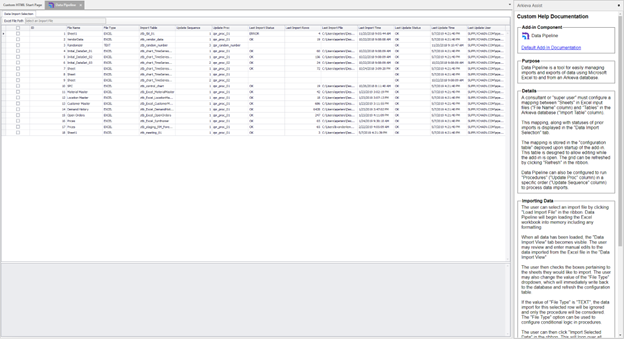
- The “Arkieva Assist” feature can be used as a place to store helpful documentation about a specific implementation of the Arkieva Sales Predictor
- An example of custom help documentation using Arkieva Assist is shown below
Related Articles
Sentiment Analysis
Introduction The Arkieva Customer Sentiment Analysis is a solution for monitoring market signals and customer sentiment from social media channels. The Customer Sentiment Analysis provides real-time social monitoring to help you react in real-time to ...General Navigation of Arkieva
Overview of the various navigational commands in Arkieva. {` `} Launching Arkieva Splash Screen Arkieva is installed to a web server and launched from the client intranet (Internet Explorer is highly recommended). The Arkieva version number, build ...Inventory Planner
The Arkieva Inventory Planner (IP) supports sustained inventory reductions by providing a comprehensive view of how stocks are serving customer demand. The Inventory Planner is closely linked with the Demand Planner and the Supply Planner. Reports ...DRP
Introduction Positioning DRP in the supply chain planning landscape\ Supply chains are often composed of a complex distribution network. There is a need to move products across the different nodes of the network in order to satisfy the customer ...Sales Predictor
The Arkieva Sales Predictor is a Sales and/or Customer Relationship Management tool. Its purpose is to flag the most probable and most profitable sales lead opportunities based on analysis of historical data patterns by Customer and Item. The results ...